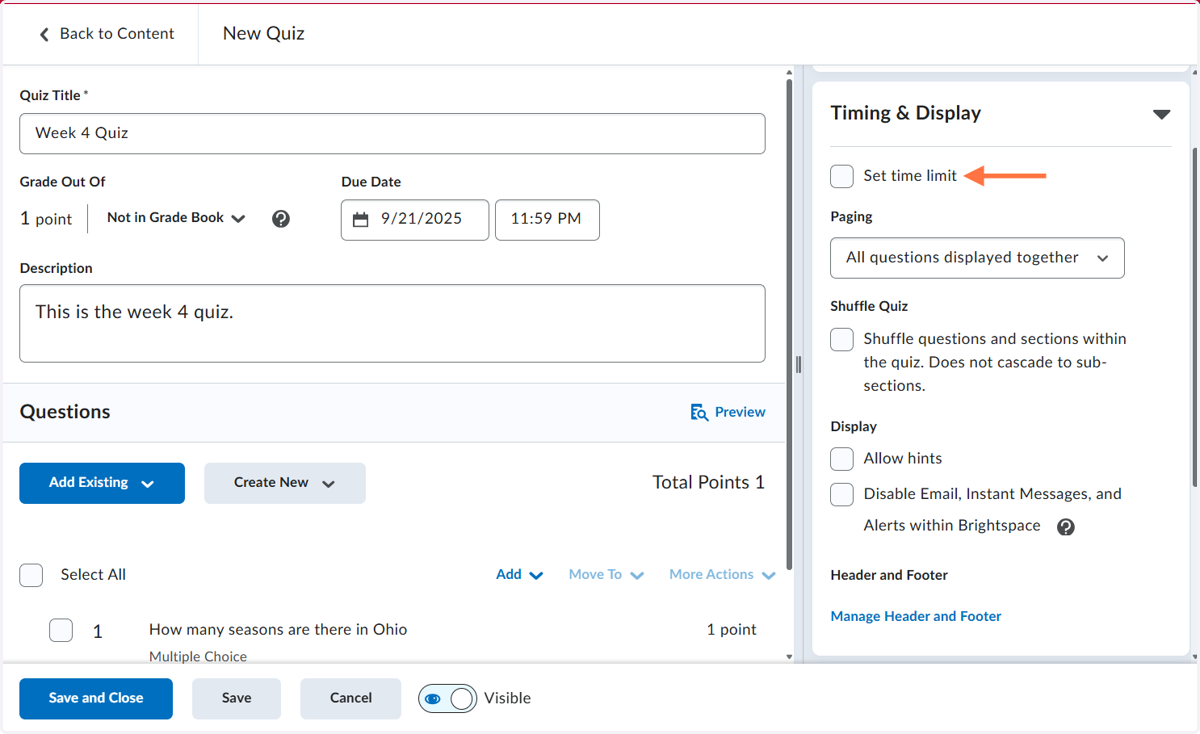
5. Click on Not in Grade Book so you can add it to the gradebook.
6. Click on Add to Grade Book
7. Click on Due Date and add a date and time
8. Click on Create New to add a new question. NOTE: You can also click on Add Existing if you have test banks
9. Click on New Question
10. Click on Multiple Choice
11. Click on Question Text and add the question prompt
12. Click on each answer to add the answer options and make sure to click the button next to the correct answer. The correct answer will have the check mark
13. Click on Save
14. Click on Availability Dates & Conditions
15. Click on Start Date to add a date and time
16. Click on End Date
17. You can add Release Conditions or Special Access as needed.
18. Click on Timing & Display
19. On the Timing & Display you can set time limits and how the questions are delivered
20. Click on Attempts & Completion
21. On the Attempts & Completion you can manage the number of attempts.
22. Click on Evaluation & Feedback
23. On the Evaluation & Feedback you can select what students see and when. NOTE: If you have any manually graded questions, do not Auto-publish attempts.