Create a Podcast in Soundtrap
Follow the steps below to set up a Soundtrap account to create a podcast episode.
Soundtrap
1. Go to www.soundtrap.com
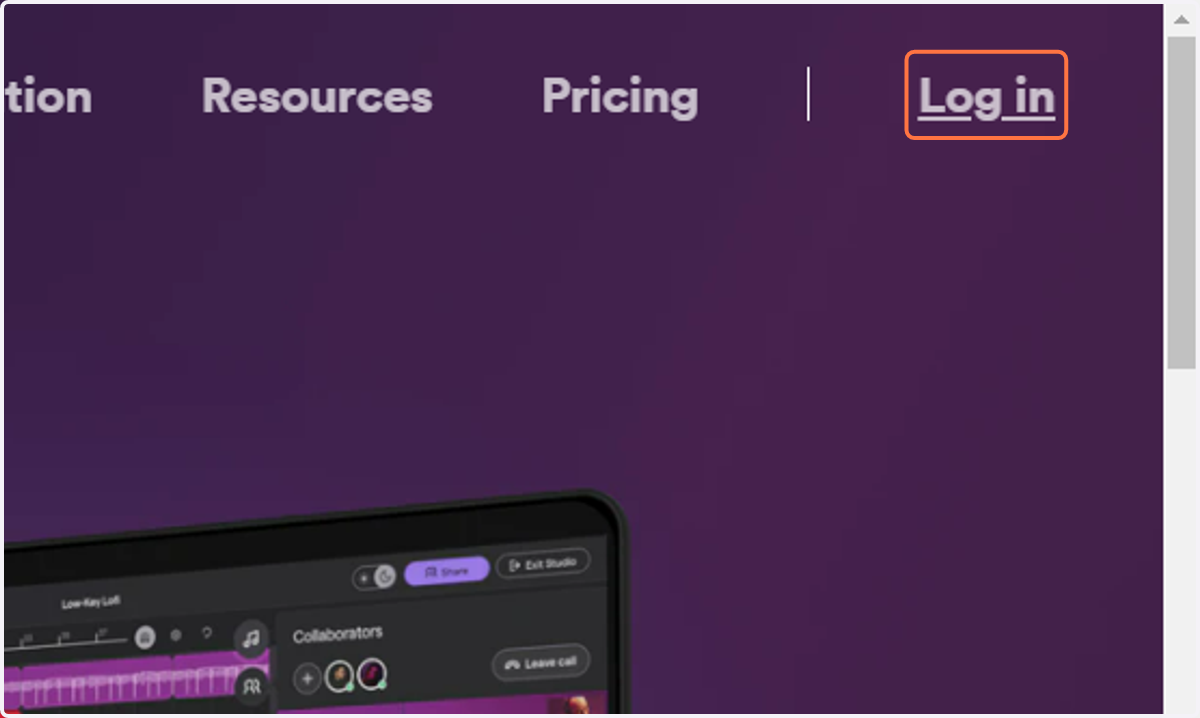
2. Click on Log in
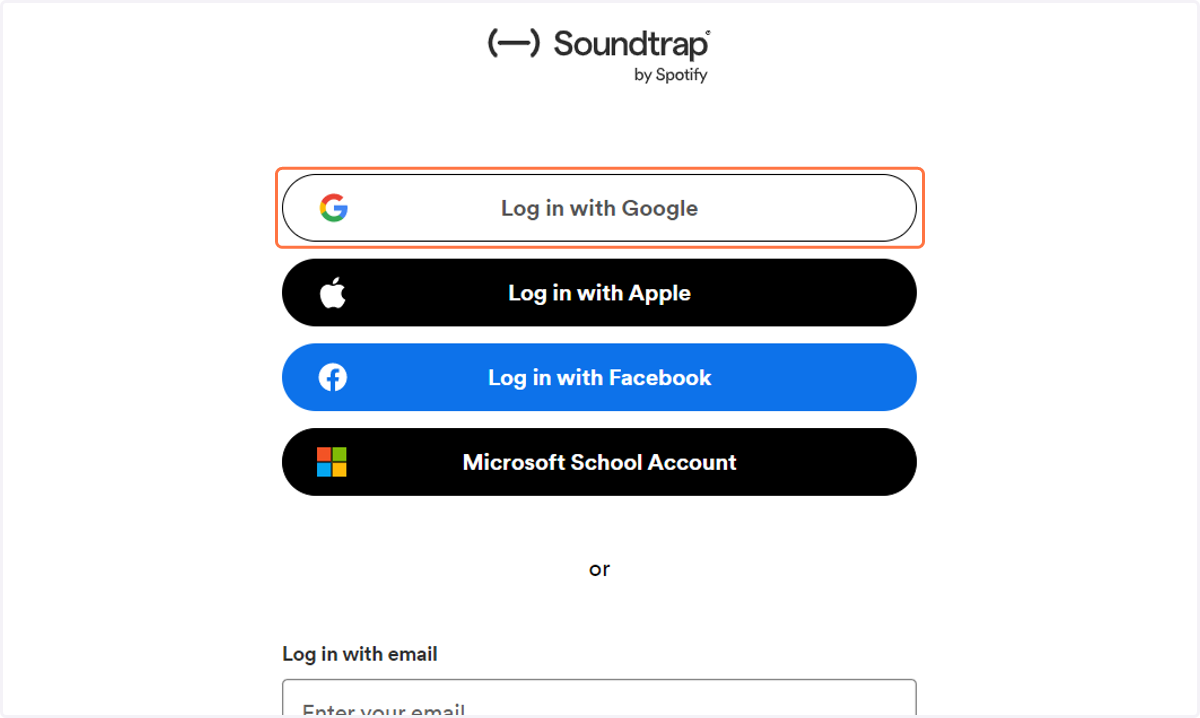
3. Click on Log in with Google
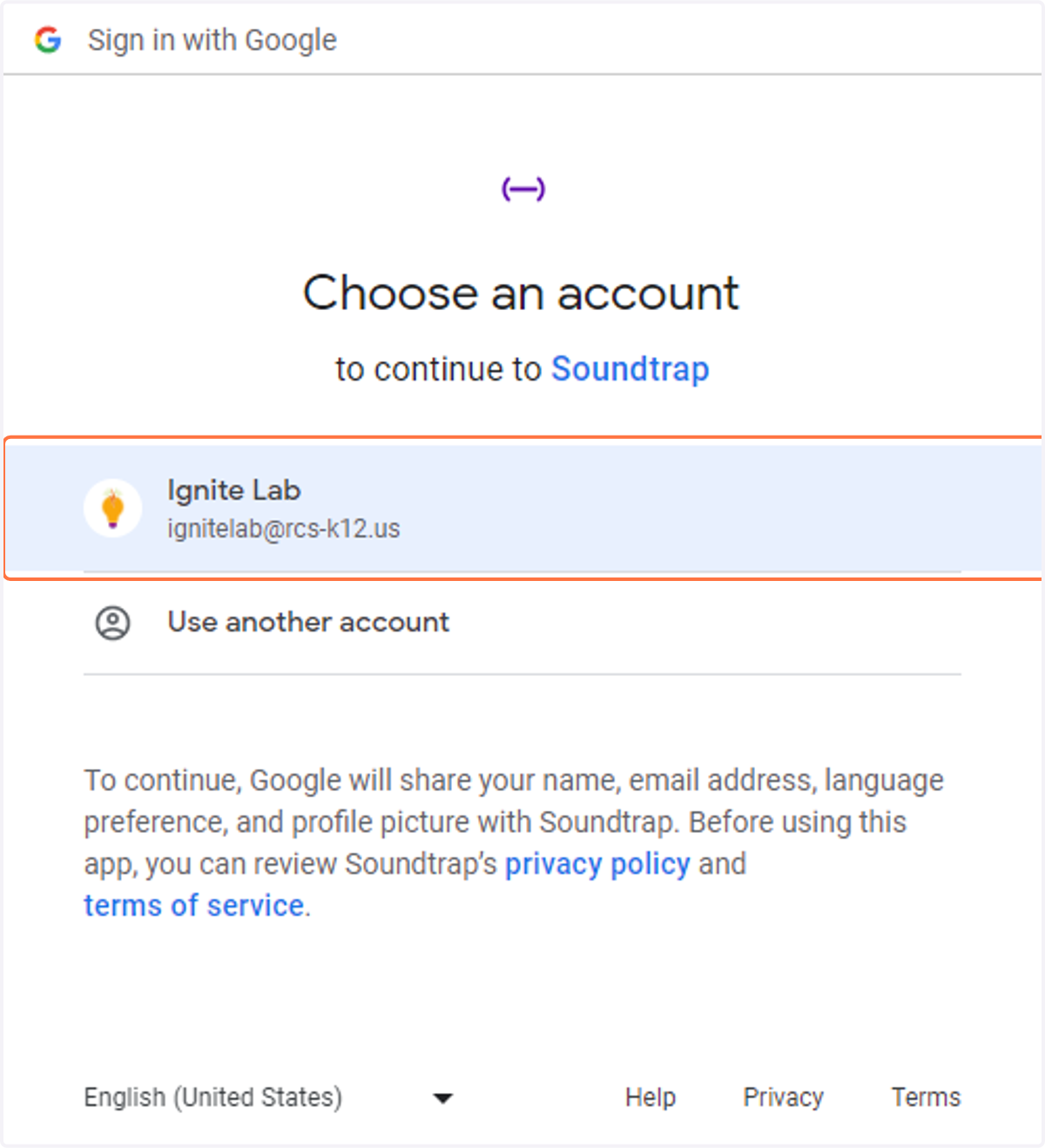
4. Sign in with your district Google Account
Soundtrap
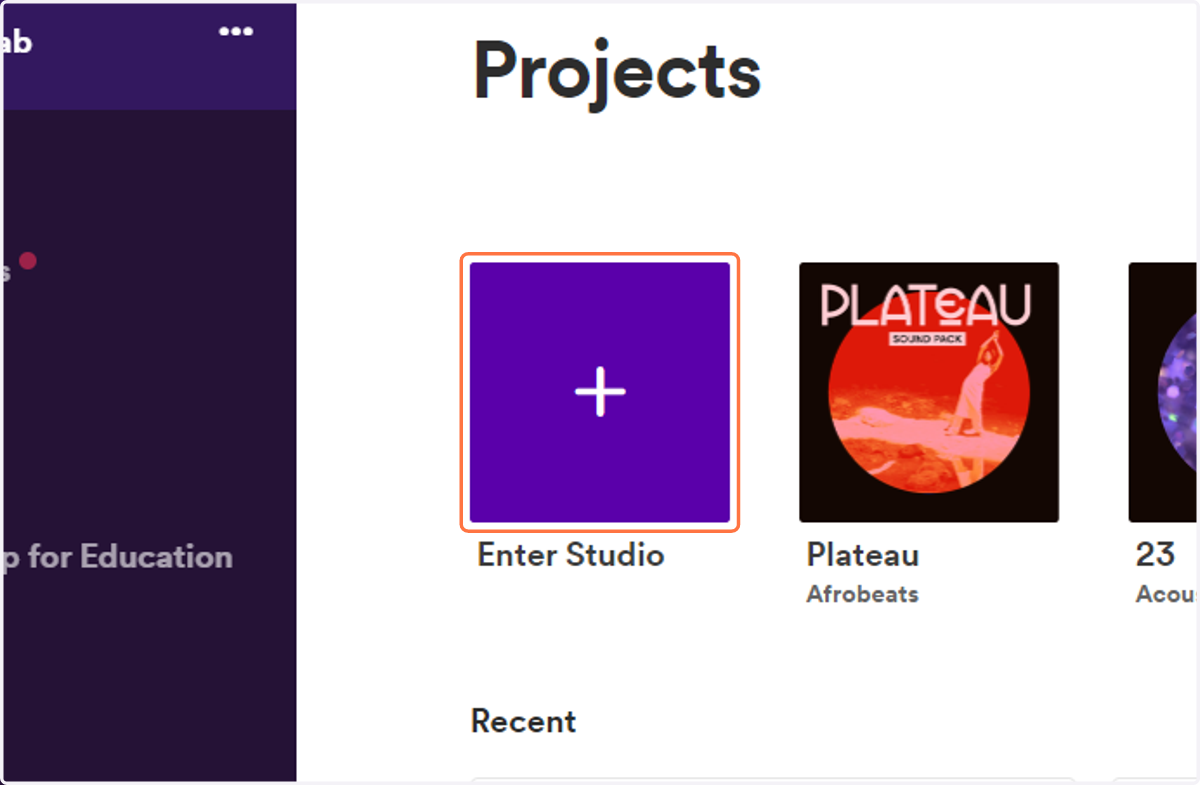
5. Click on Enter Studio
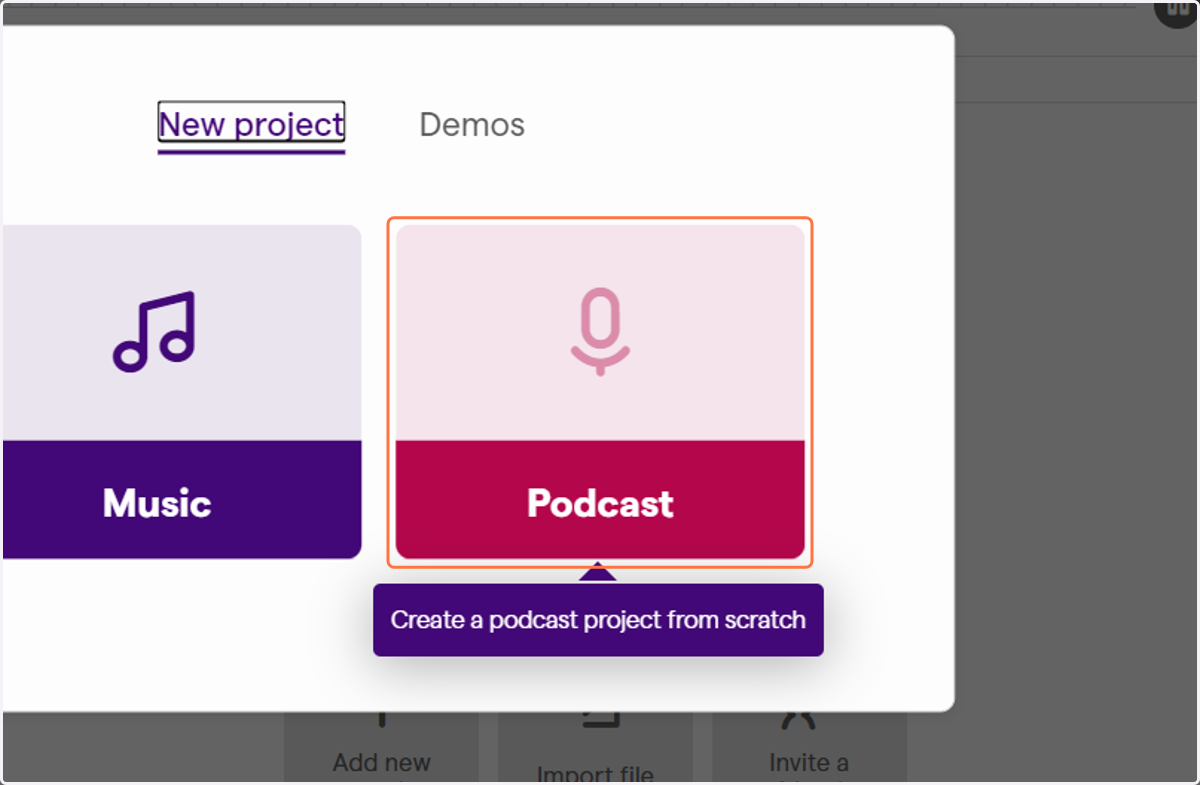
6. Click on Podcast
Create a podcast project from scratch
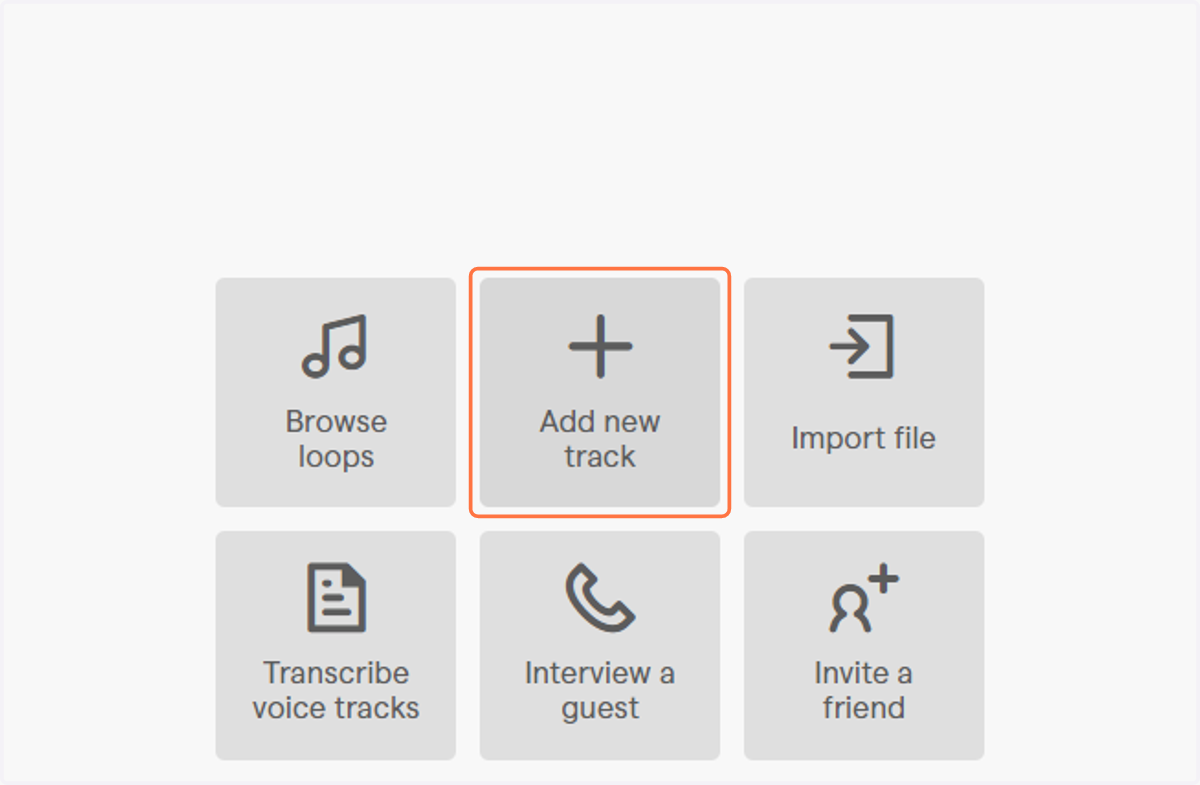
7. Click on Add new track
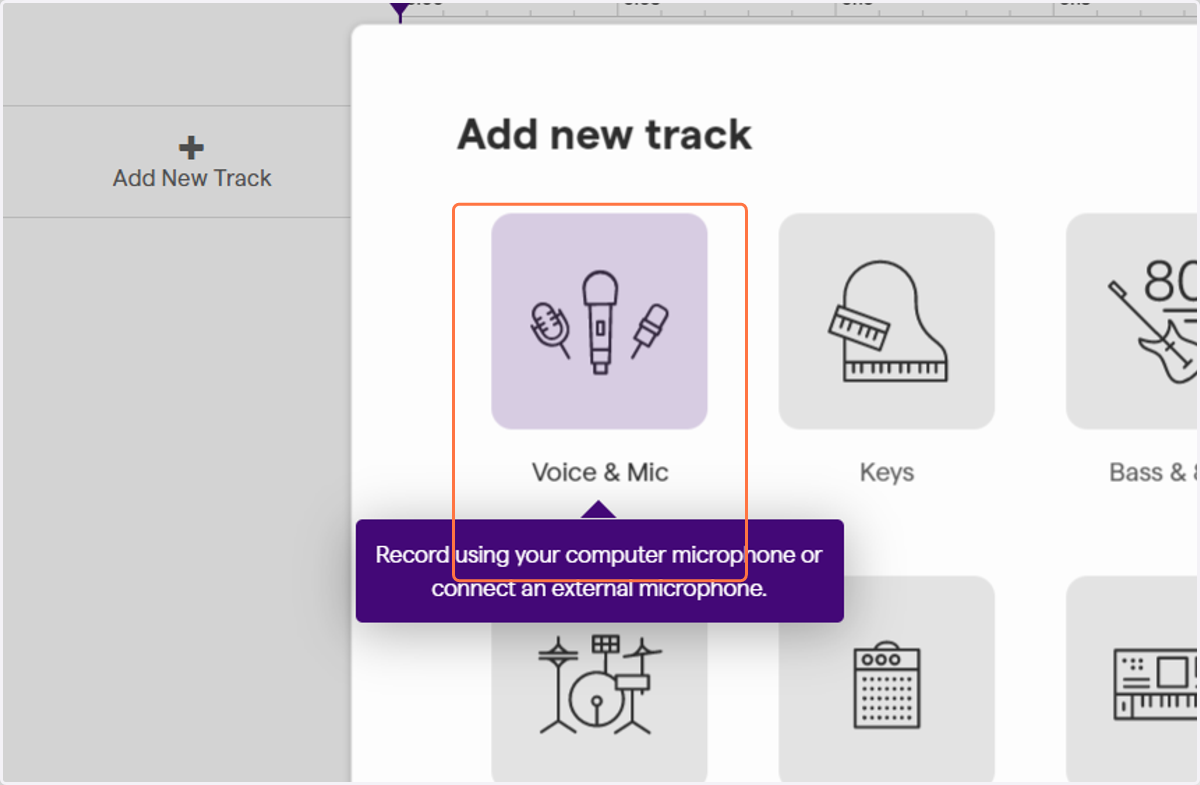
8. Click on Voice & Mic
You will record using your computer microphone or a connected external microphone.
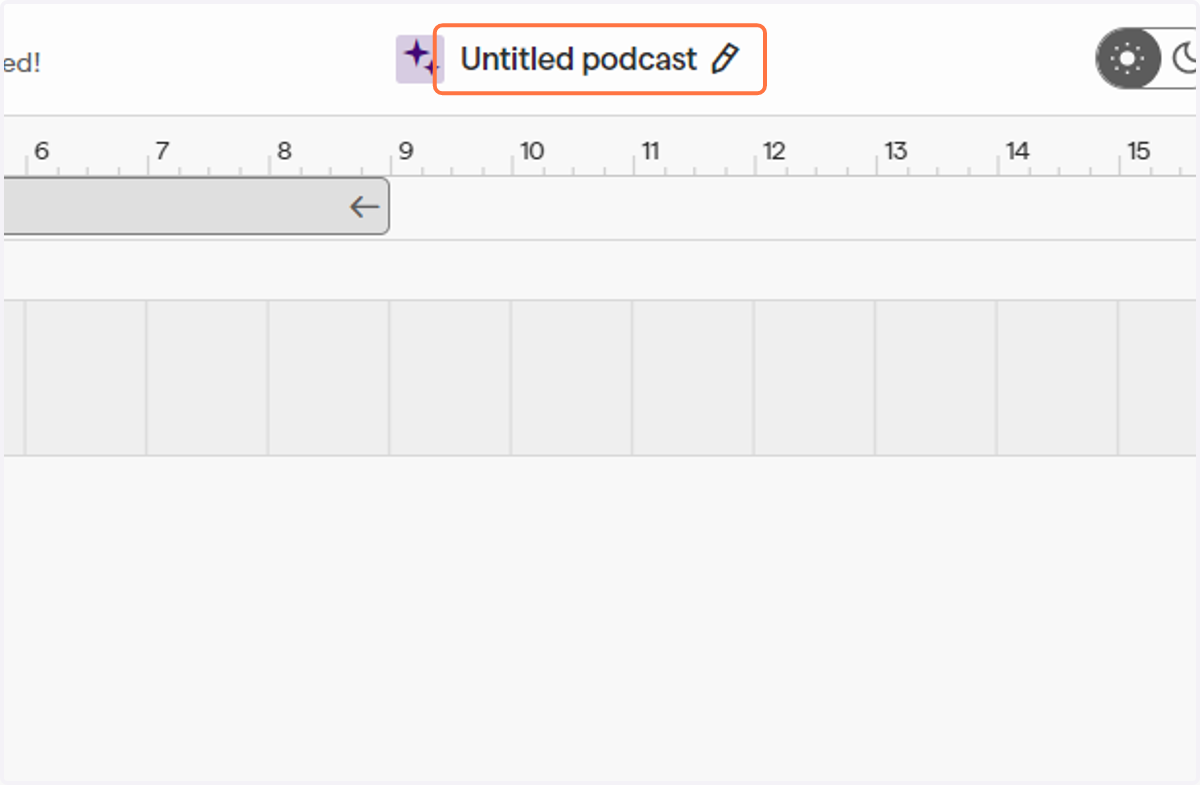
9. Click on Untitled podcast and give your podcast a title
10. Click on Input: to check to make sure the right microphone is selected
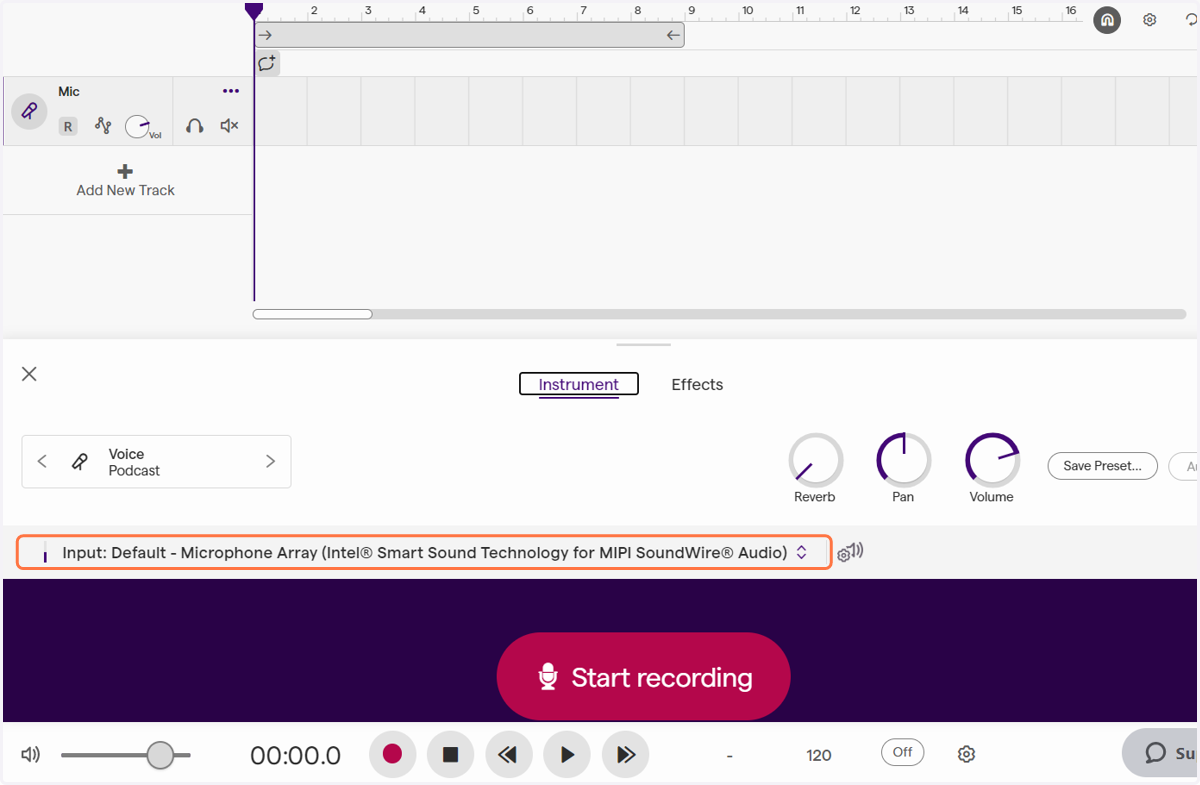
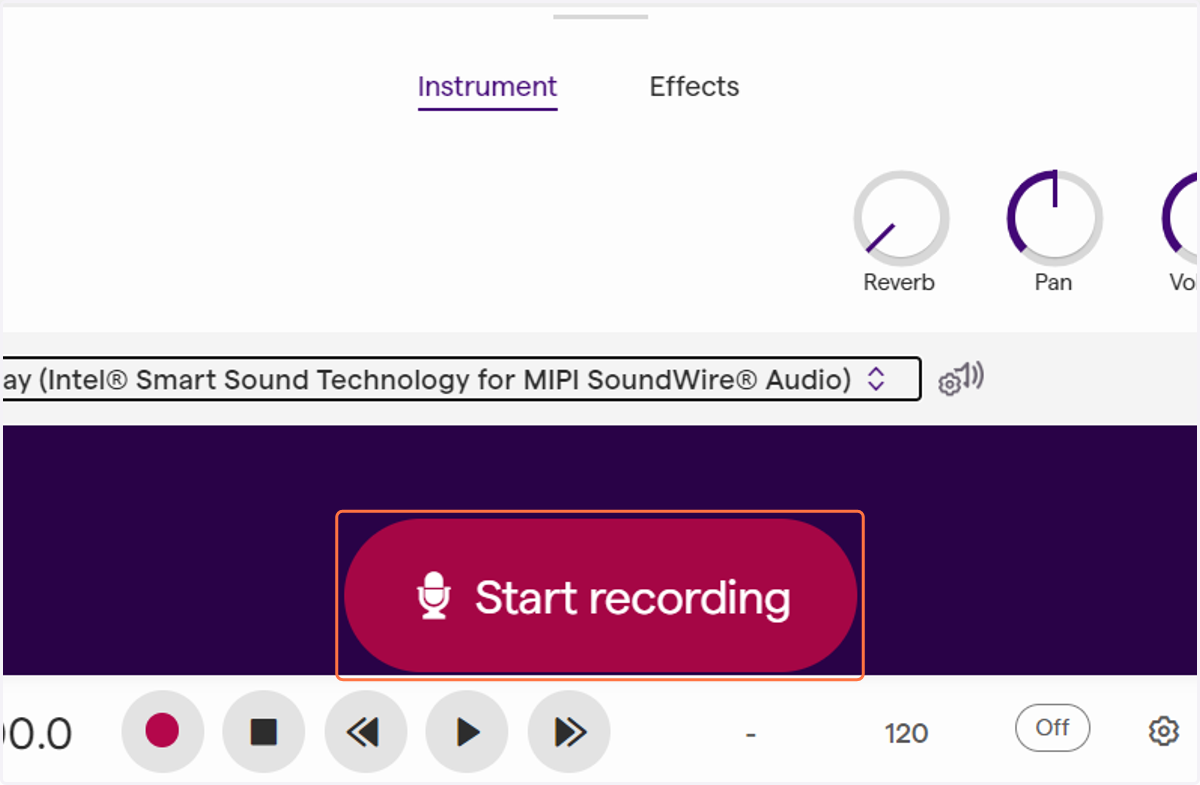
11. Click on Start recording
Speak clearly into your microphone to record your script
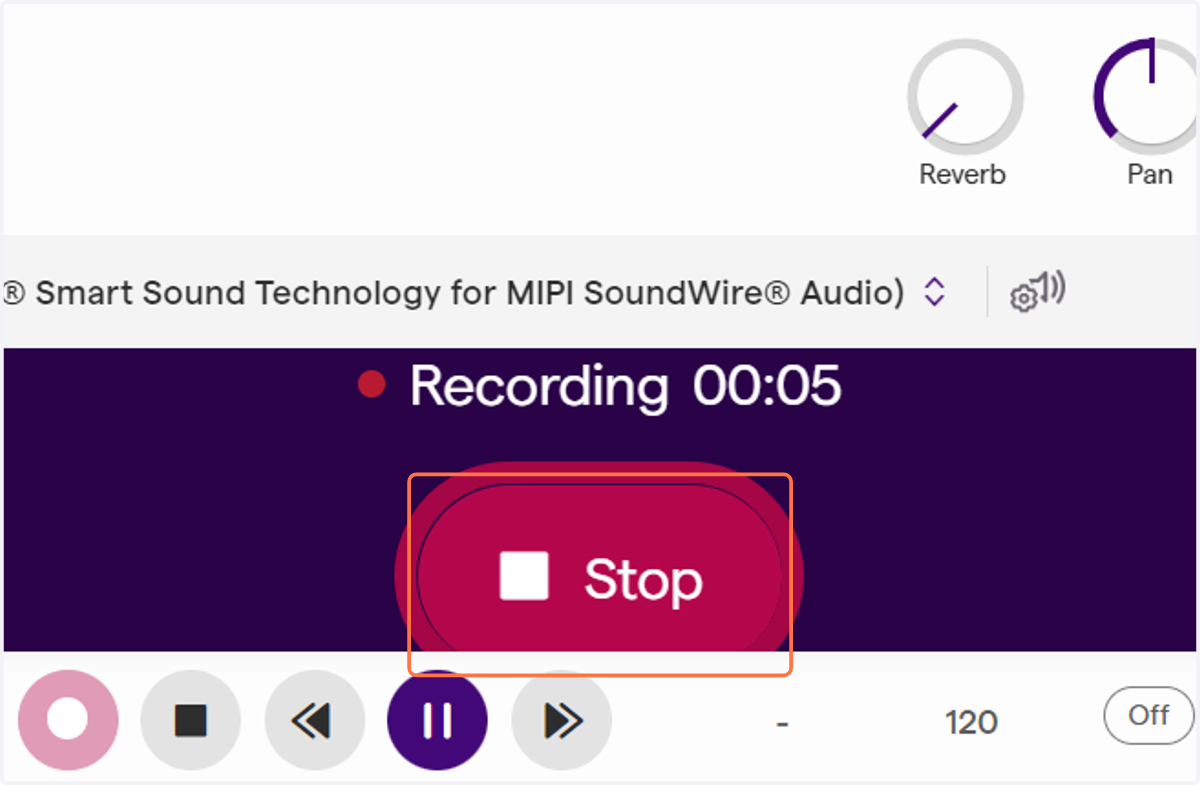
12. Click on Stop
When you are done, click stop
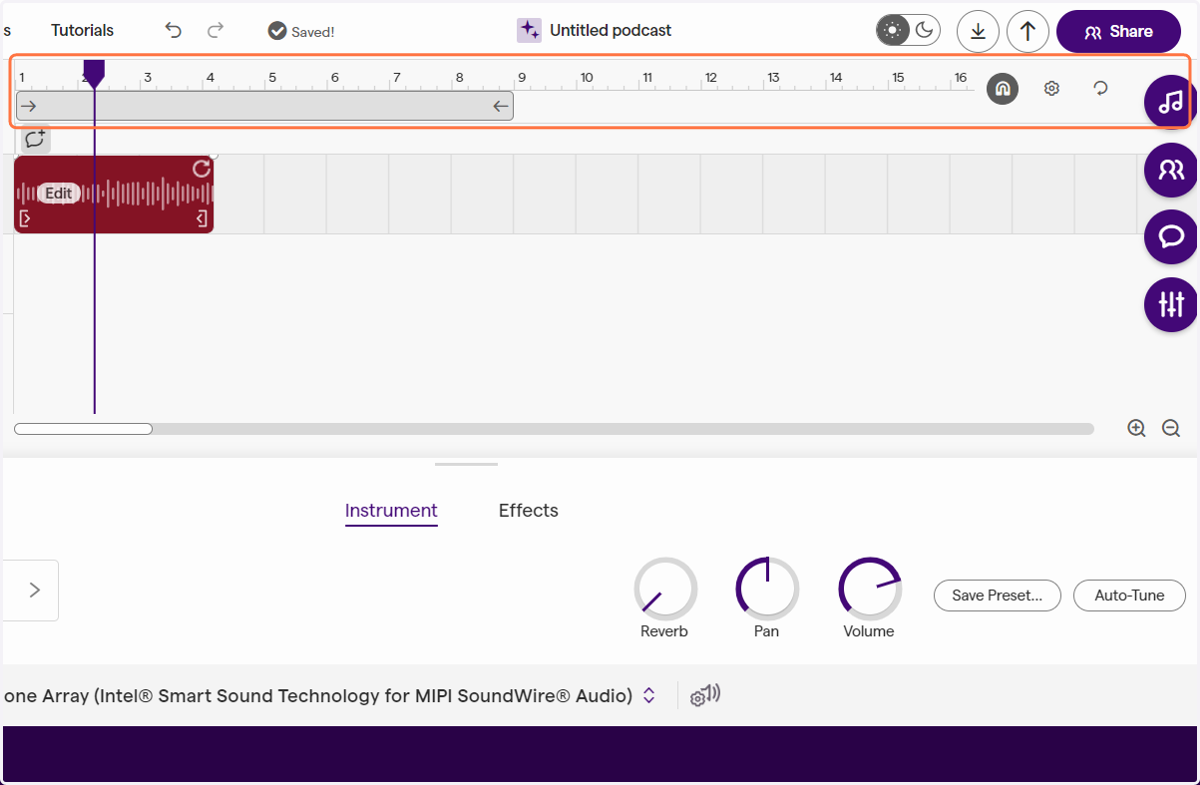
13. Look at the time line at the top of your track
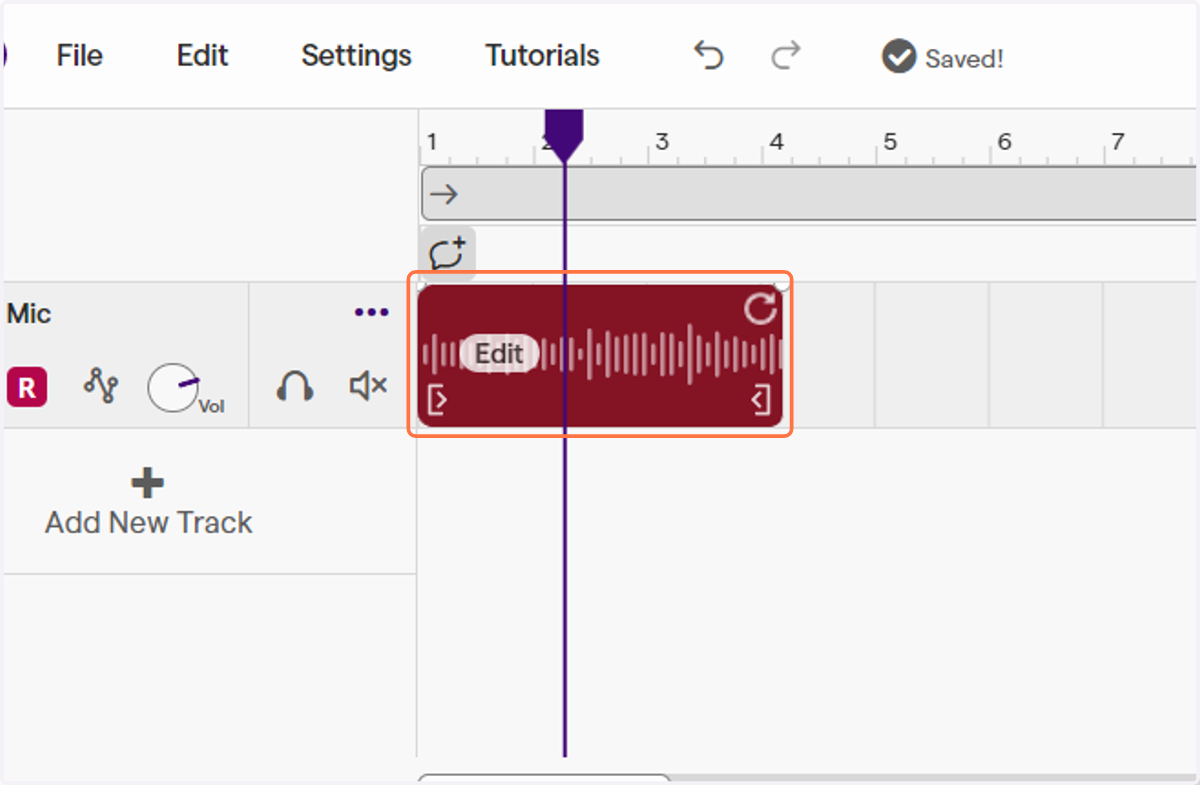
The purple play head can be moved to make edits to your track
14. To edit out a mistake, move the purple playhead to the beginning of the mistake
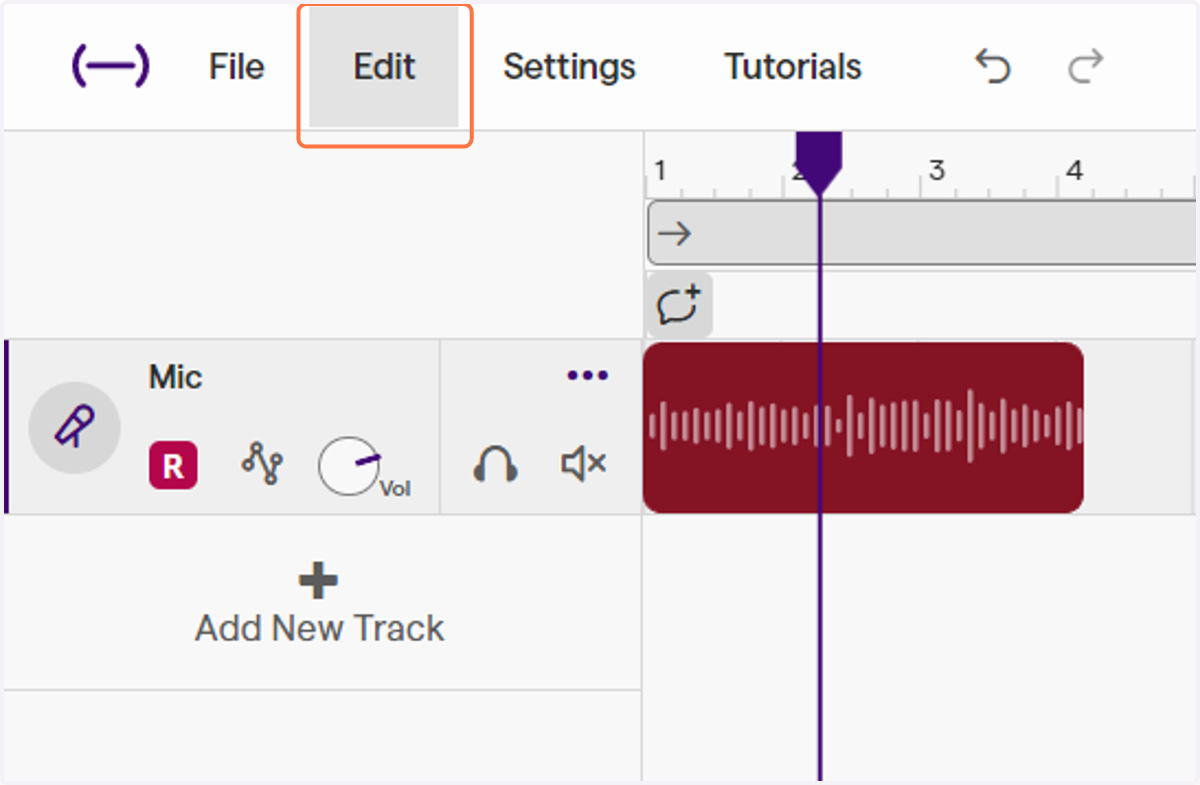
15. Click on Edit
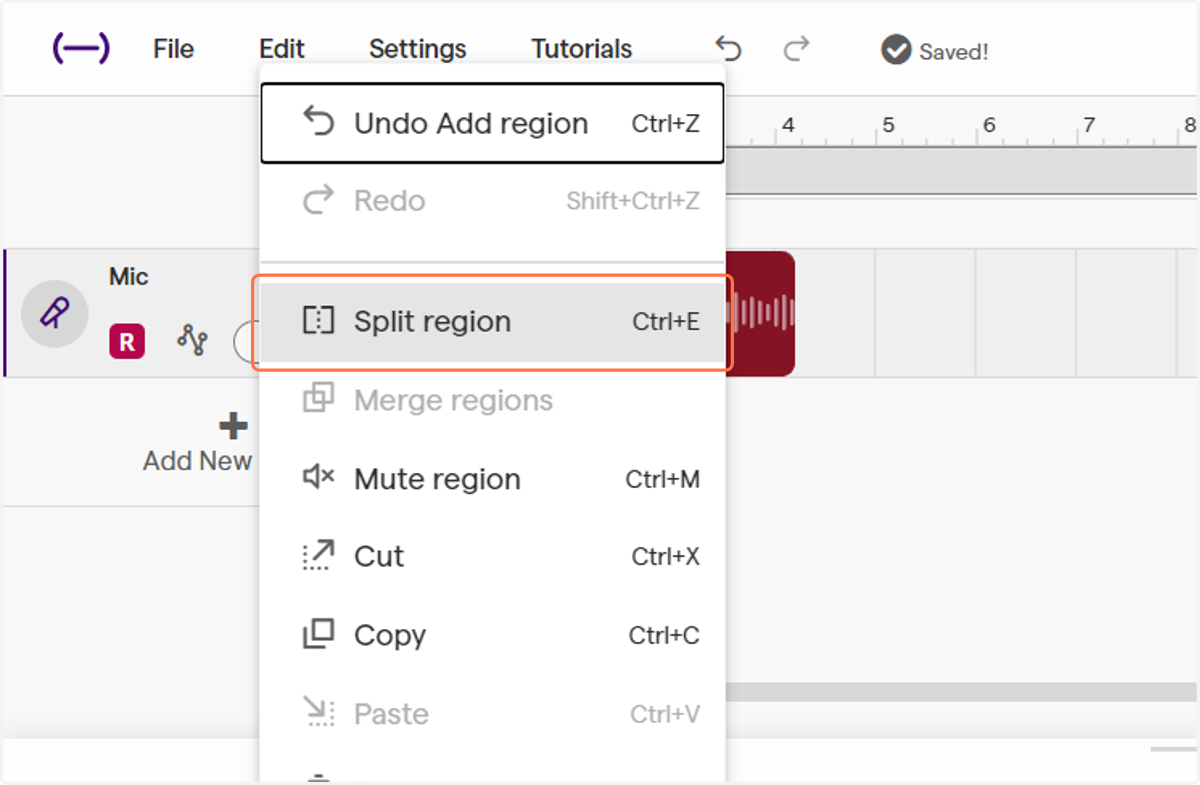
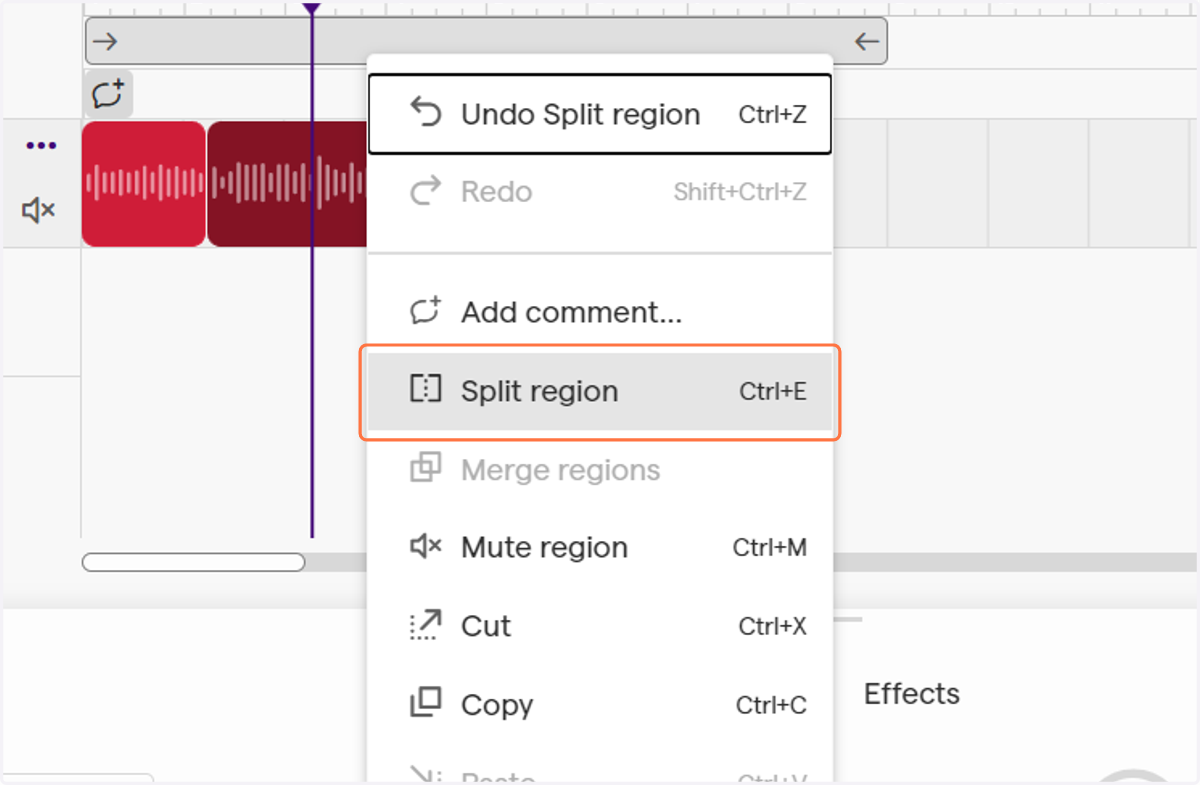
16. Click on Split region…
17. Drag the purple playhead to the end of the mistake
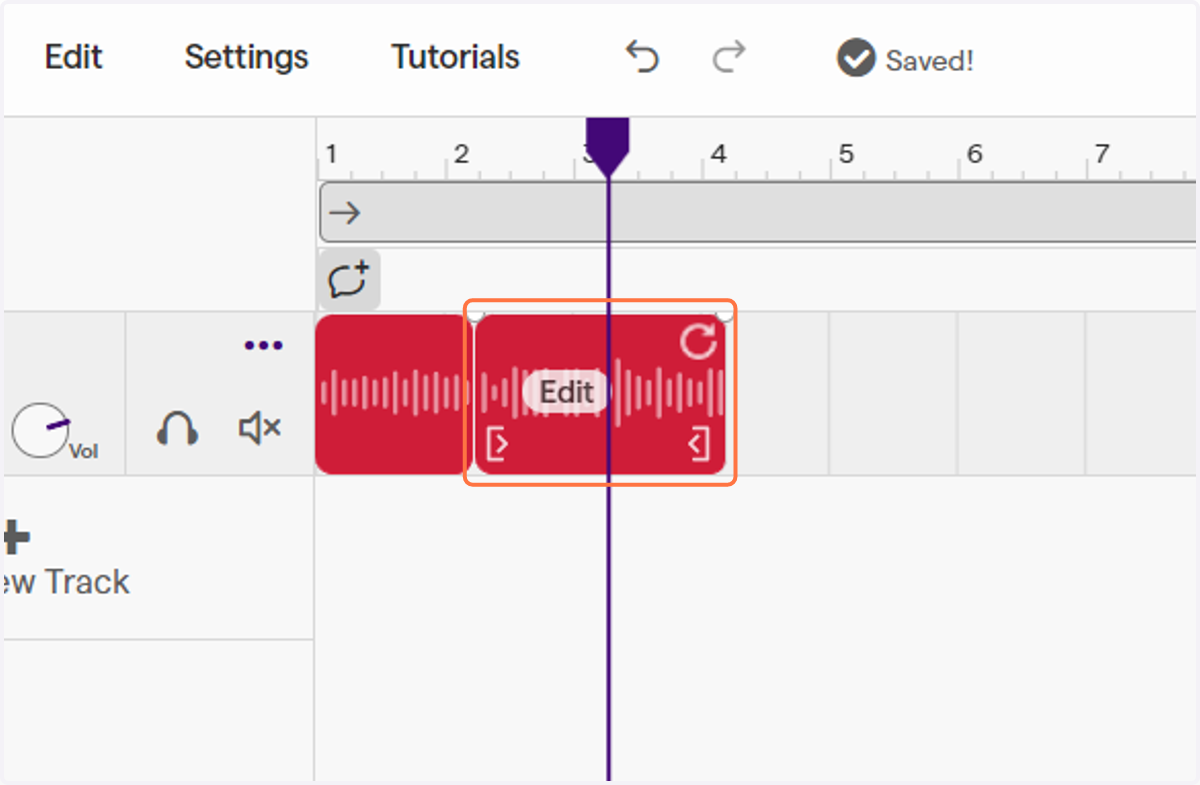
18. Click on Edit
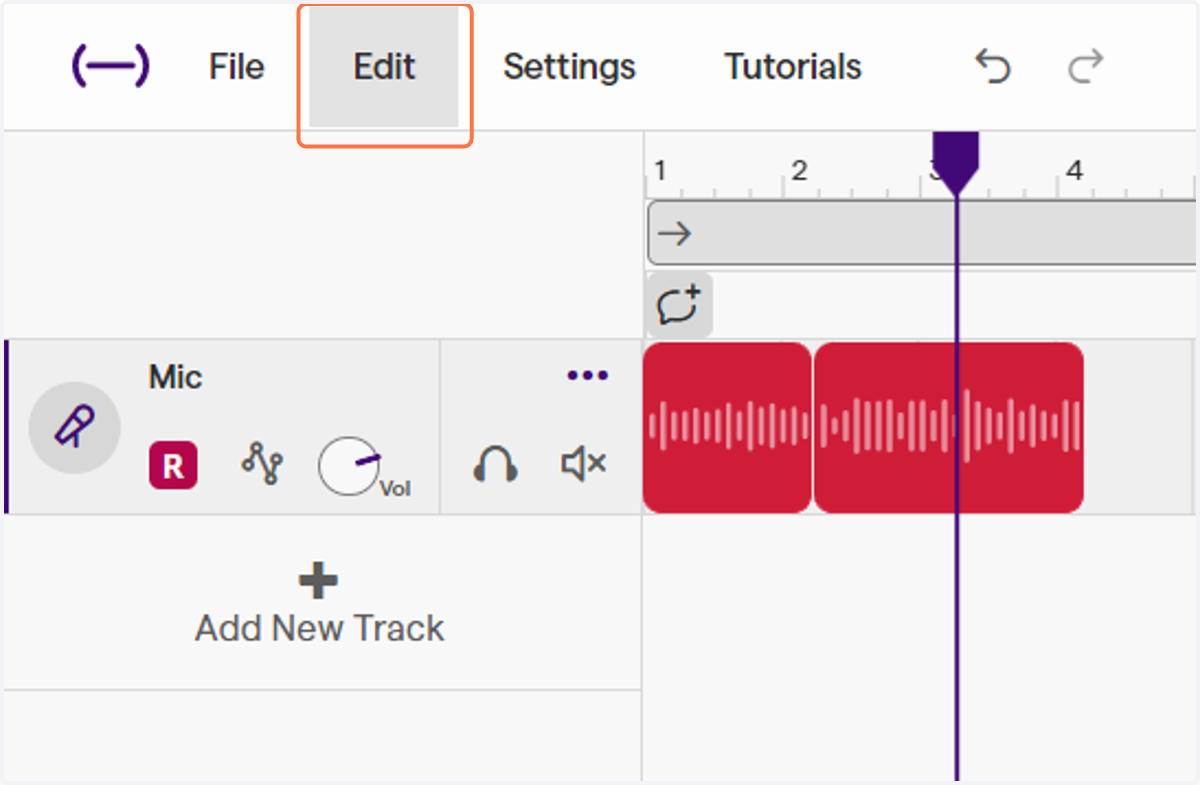
19. Click on Split region…
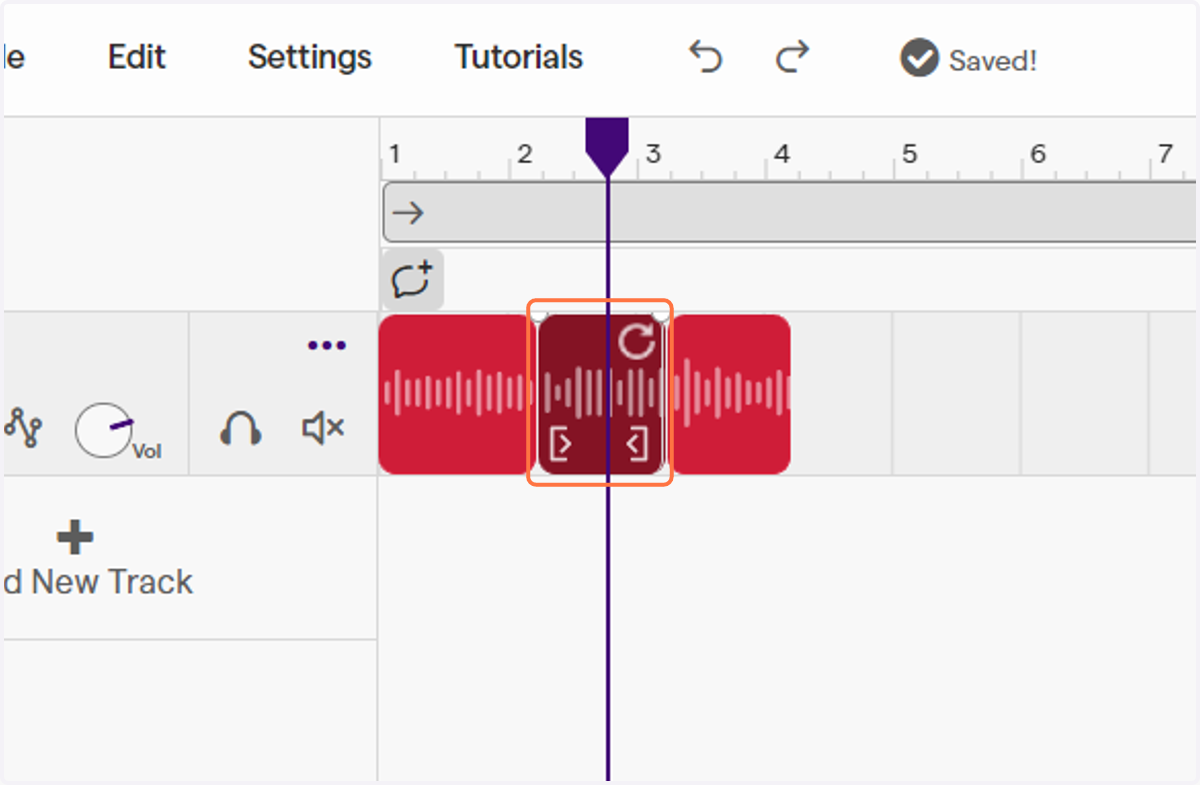
20. Click on the split region and hit backspace/delete
This will remove the mistake.
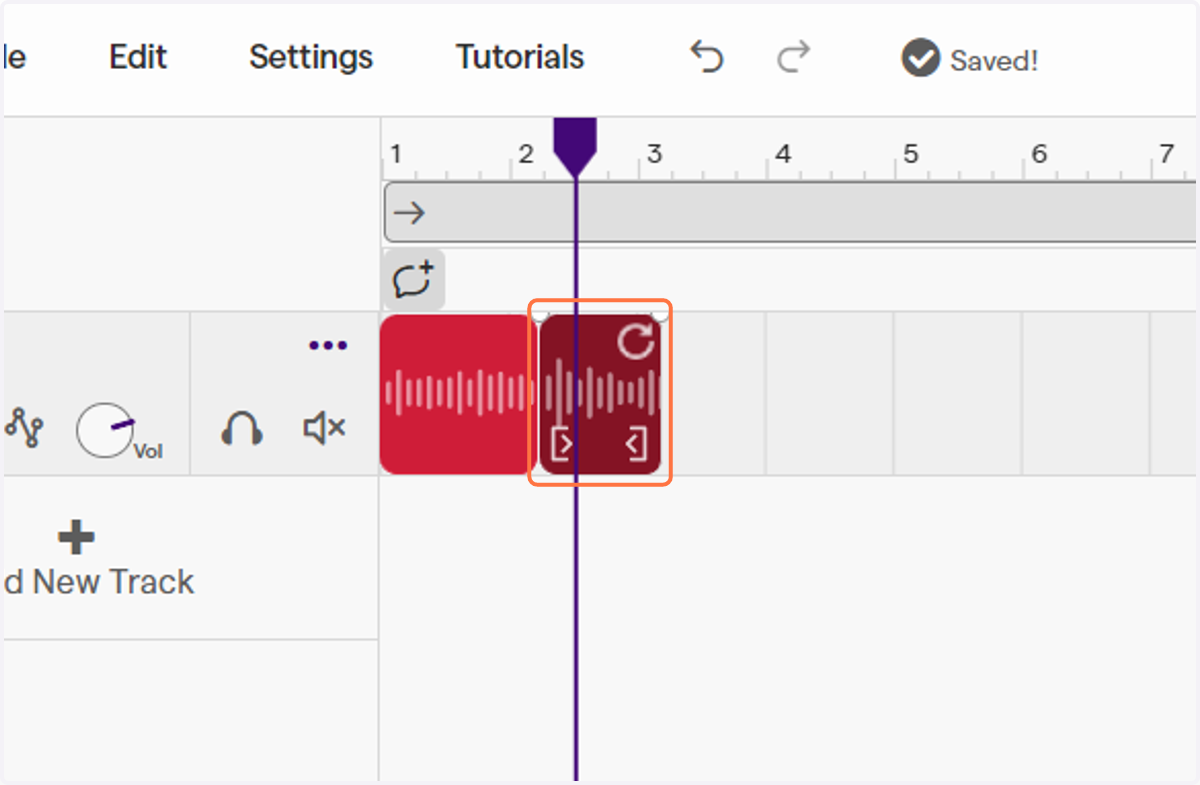
21. Click on the end of the recording clip and move it next to the other clip so they are next to one another.
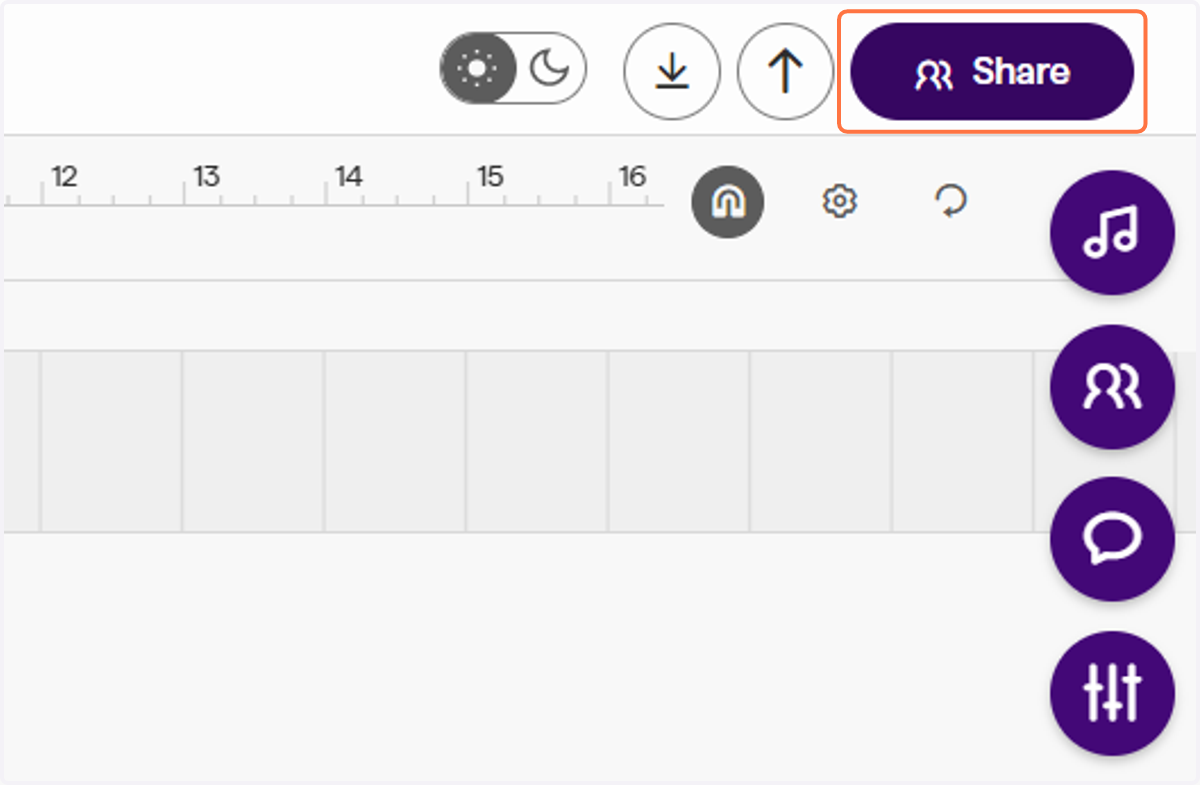
22. Click on Share
If you are working with a partner, you can share the project and work on it together.
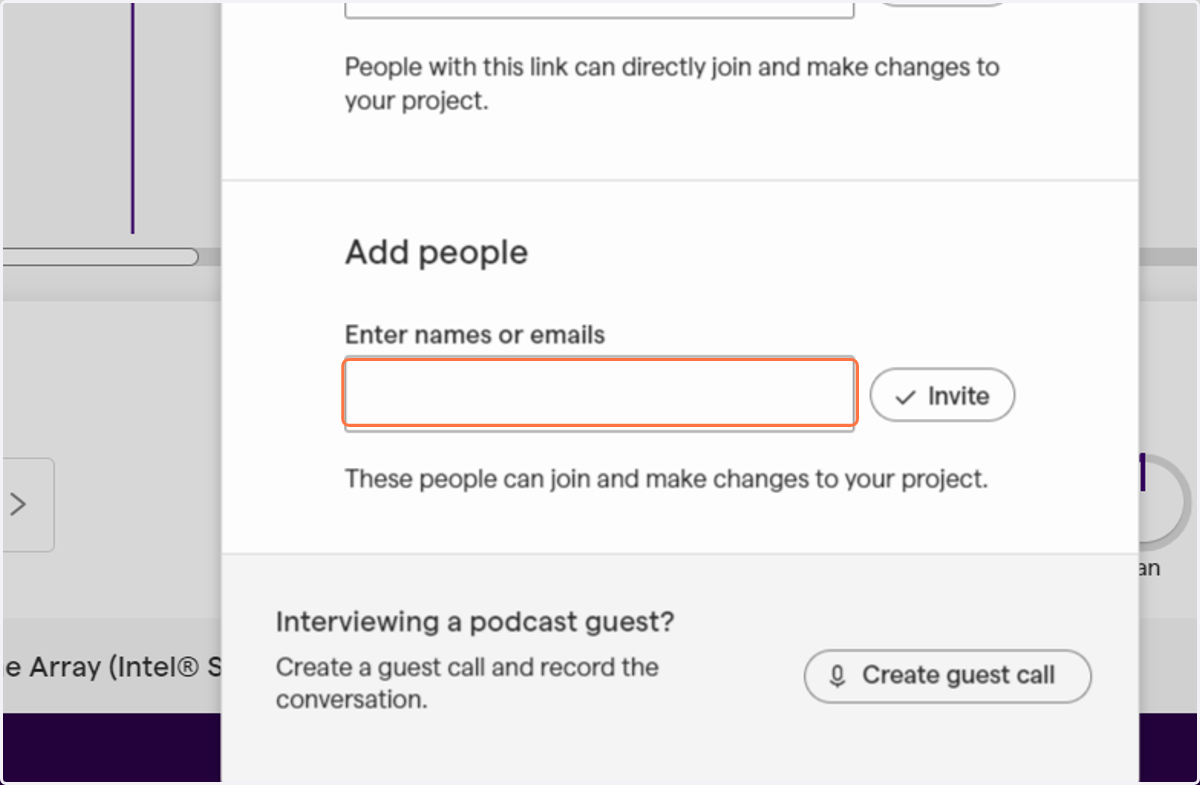
23. Type in their emails
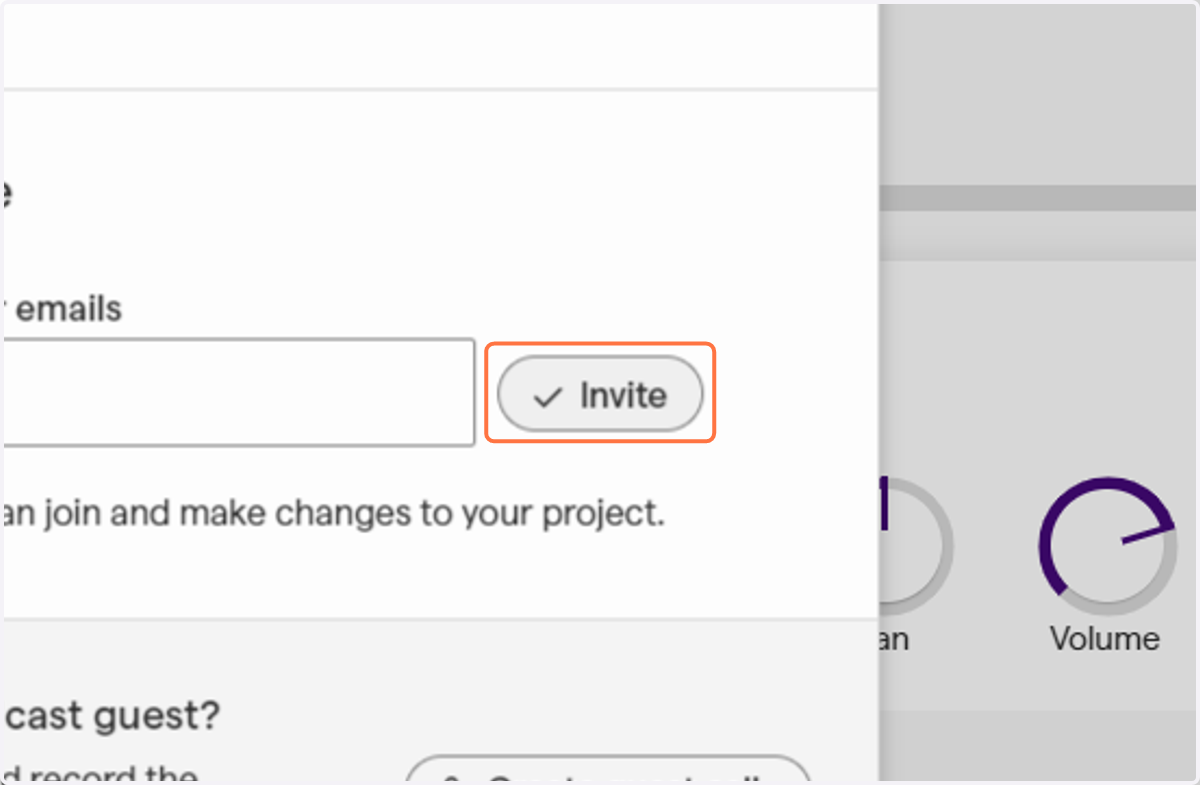
24. Click on Invite
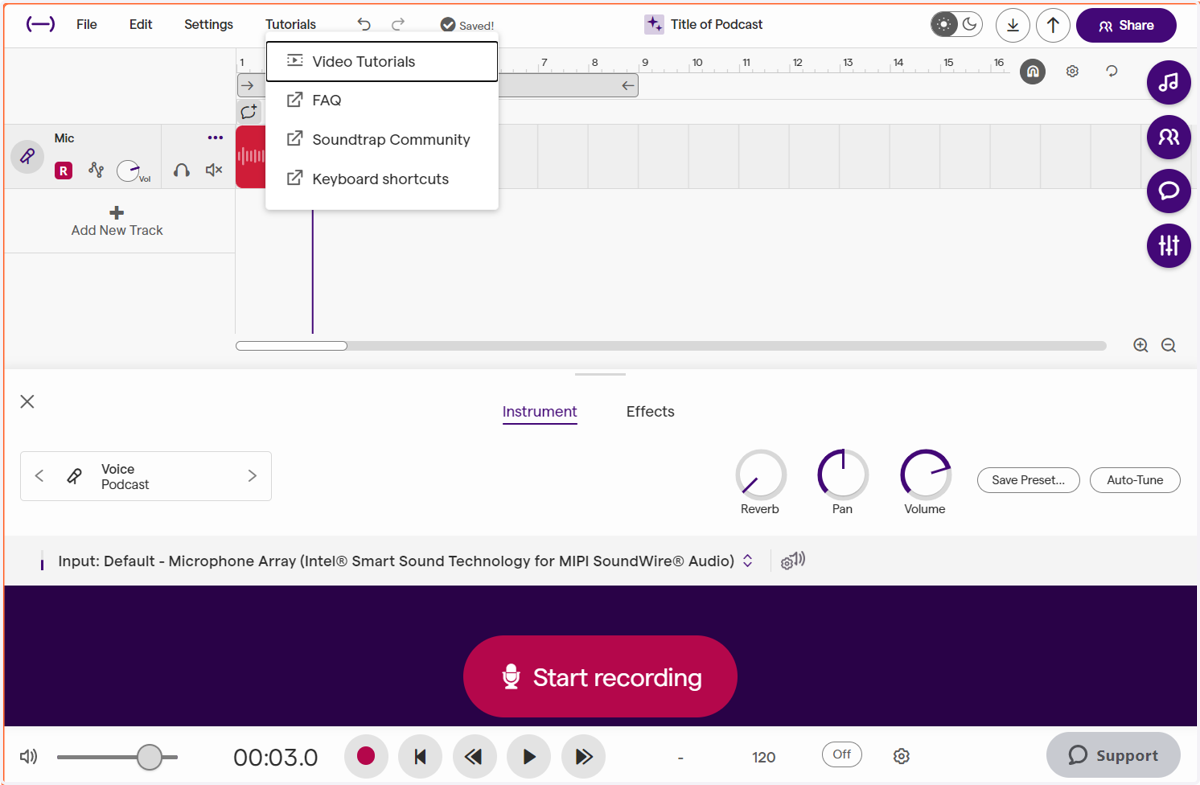
25. If you are stuck or need help, Click on Tutorials
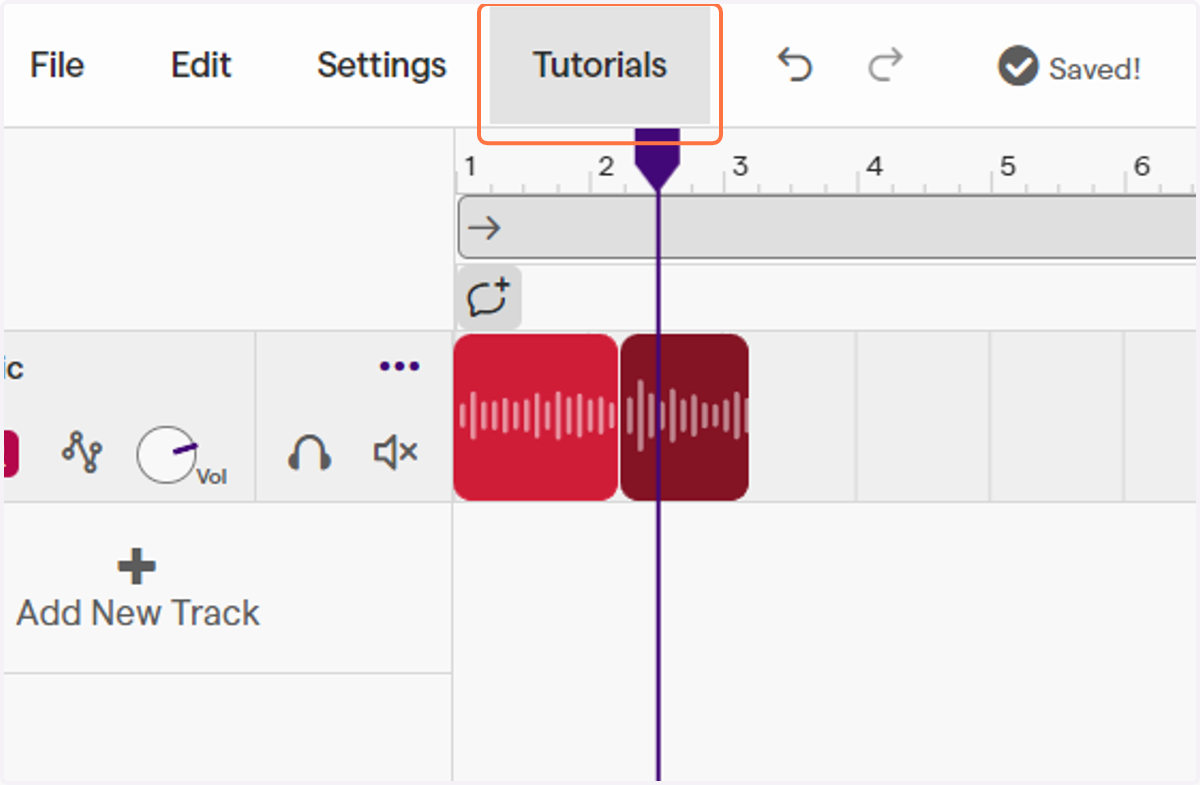
26. Click on Video Tutorials to learn more about how to use the program
Youtube
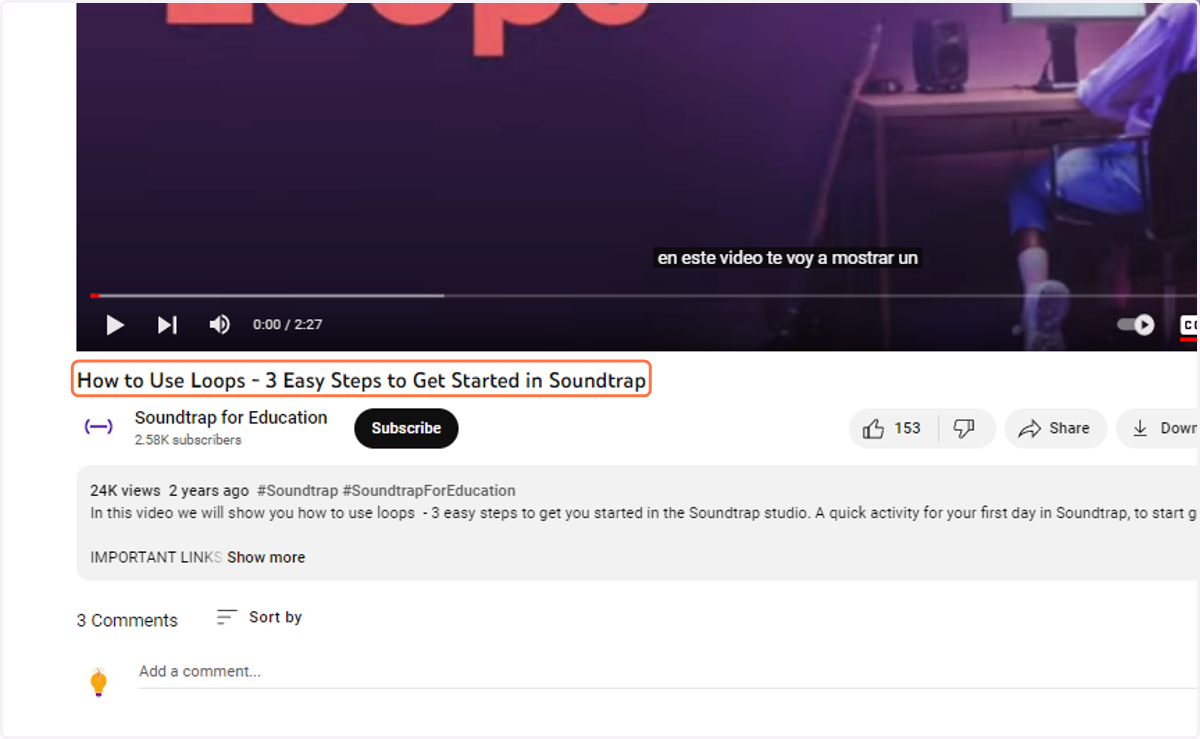
27. Want to add music to your podcast? Go to www.youtube.com and watch How to Use Loops
This video will teach you how to create your own music to add to your podcast
Soundtrap
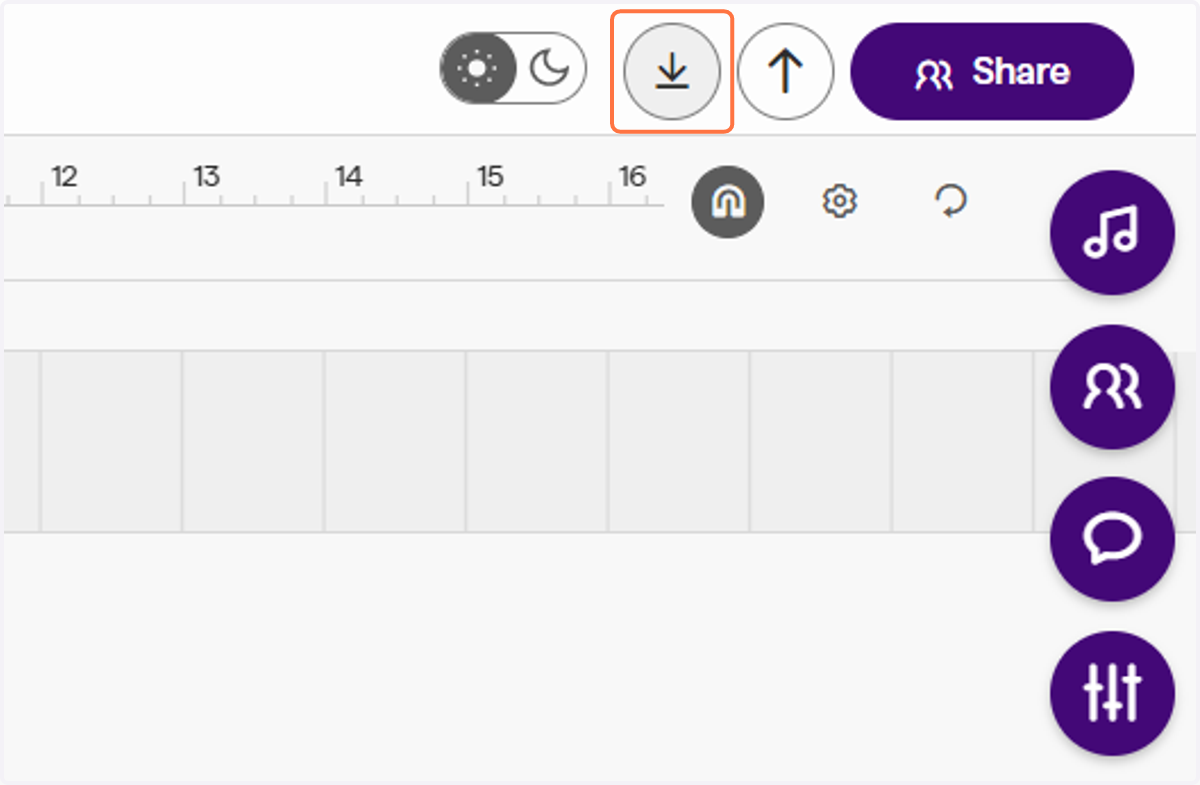
28. When done with your episode, Click on Export
29. Click on MP3 audio file
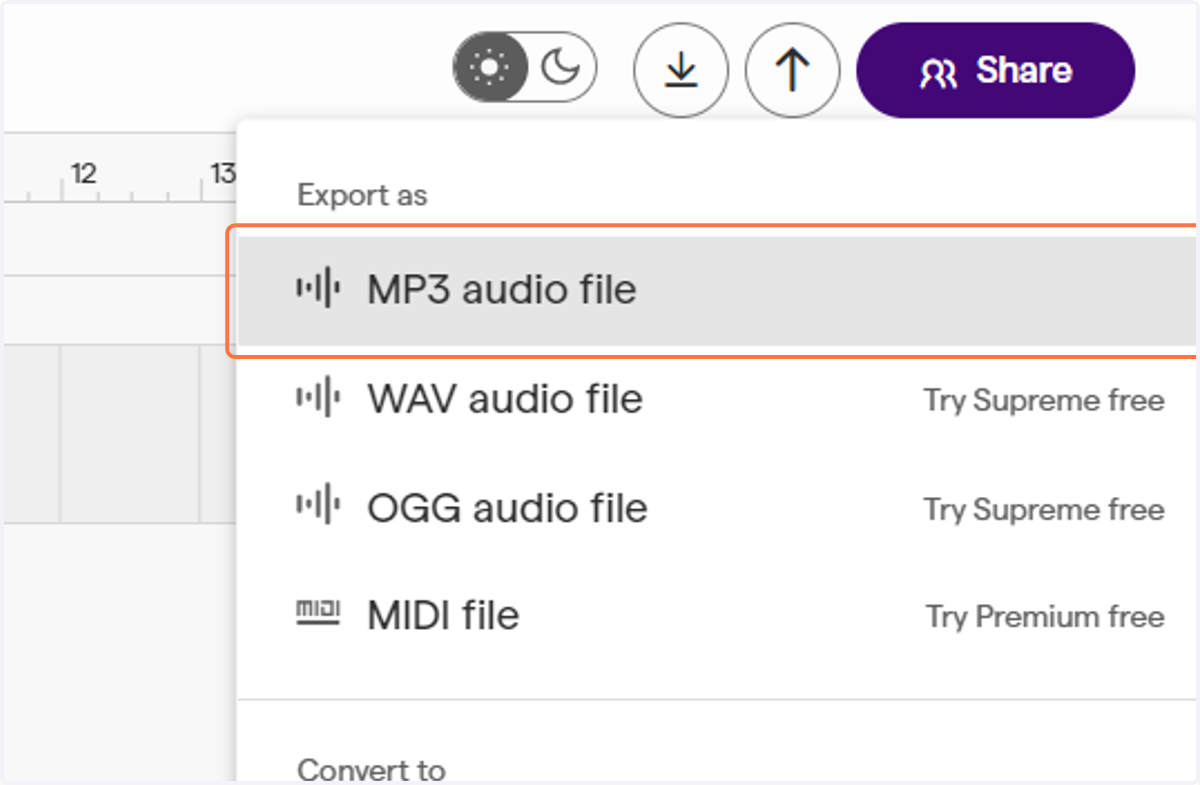
30. Your podcast will now be in your downloads. Follow your teacher's directions and submit the episode to them for review.