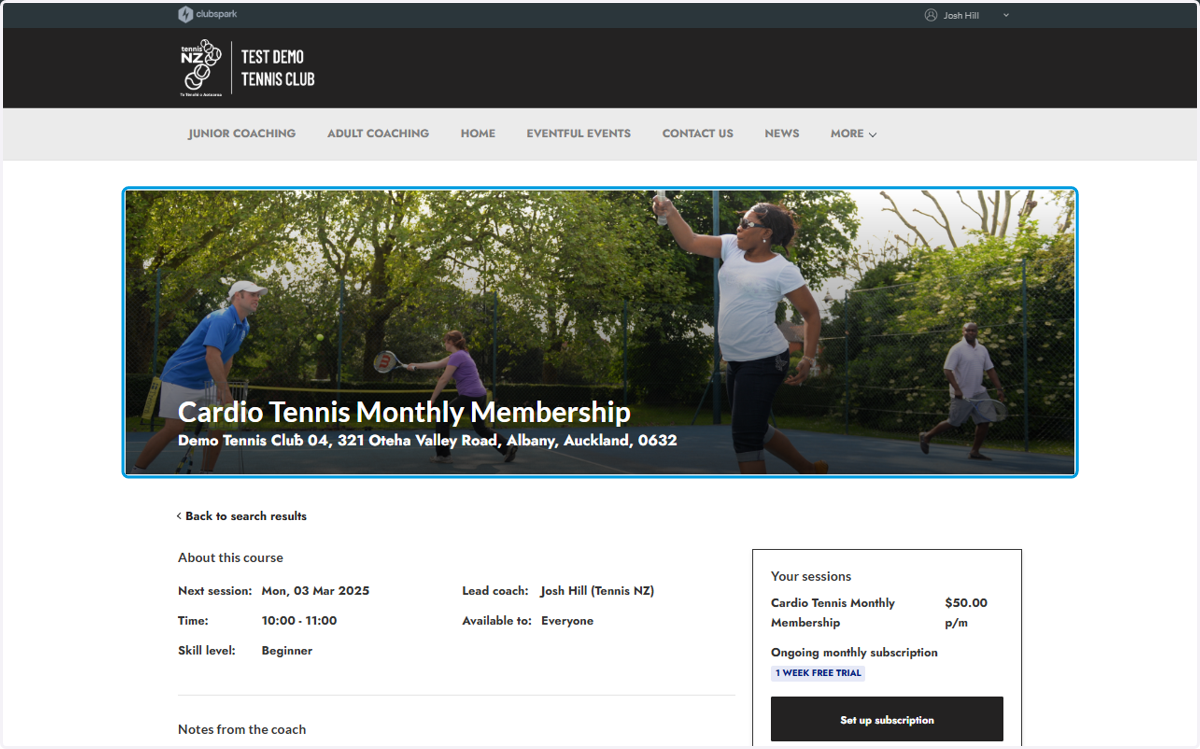
Create a Monthly Coaching Subscription
Clubspark allows you to create monthly subscriptions in the coaching module and allows you to customize how you set them up.
Head to your coaching module
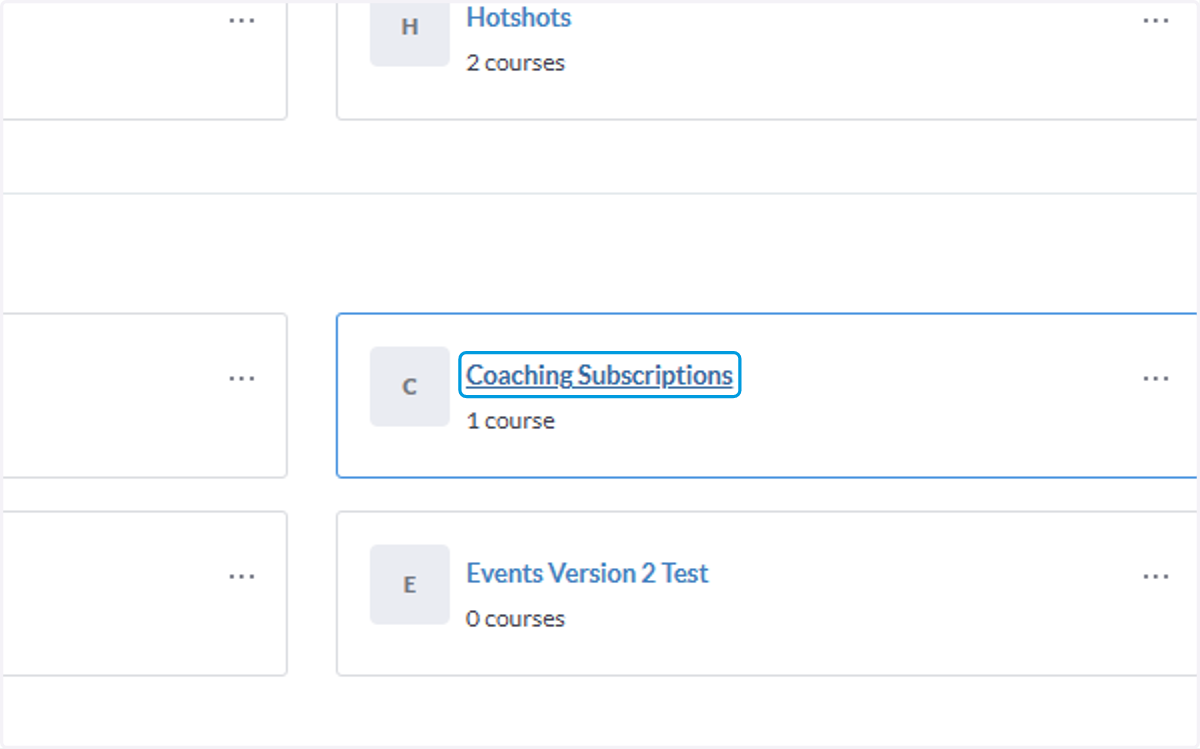
1. If you have an existing Category setup you can click into that category, otherwise you can create a new category specifically for subscriptions.
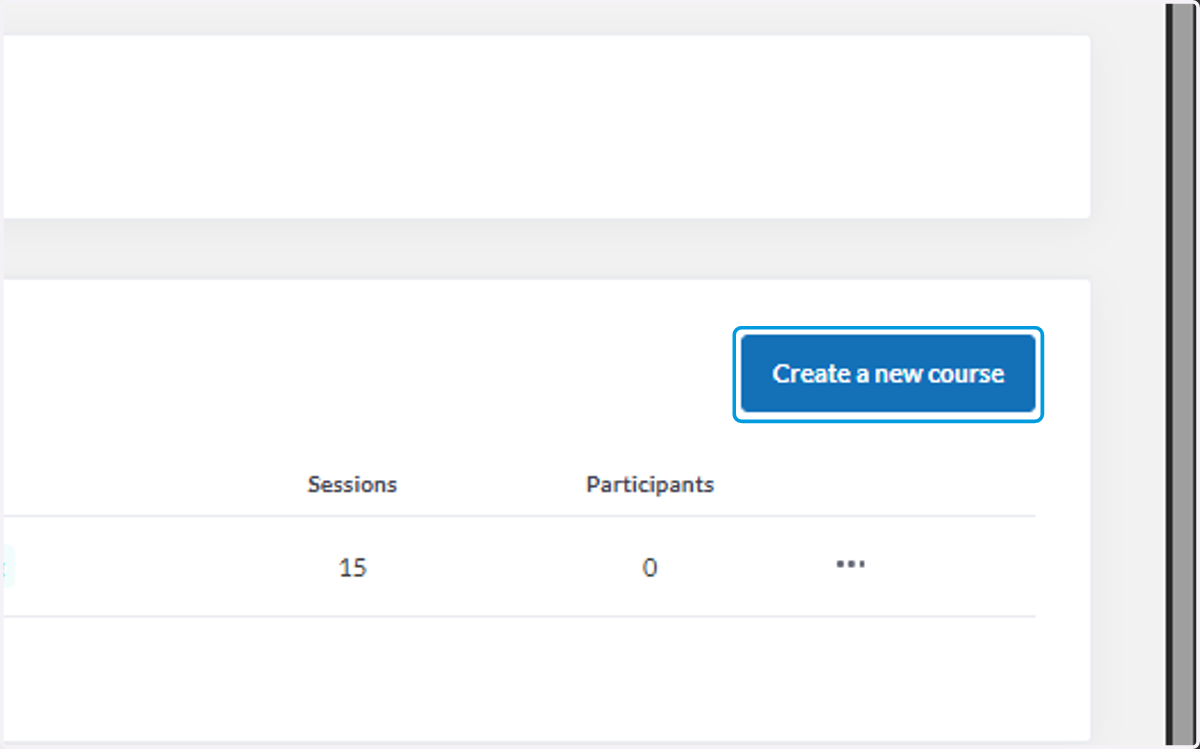
2. Click on Create a new course
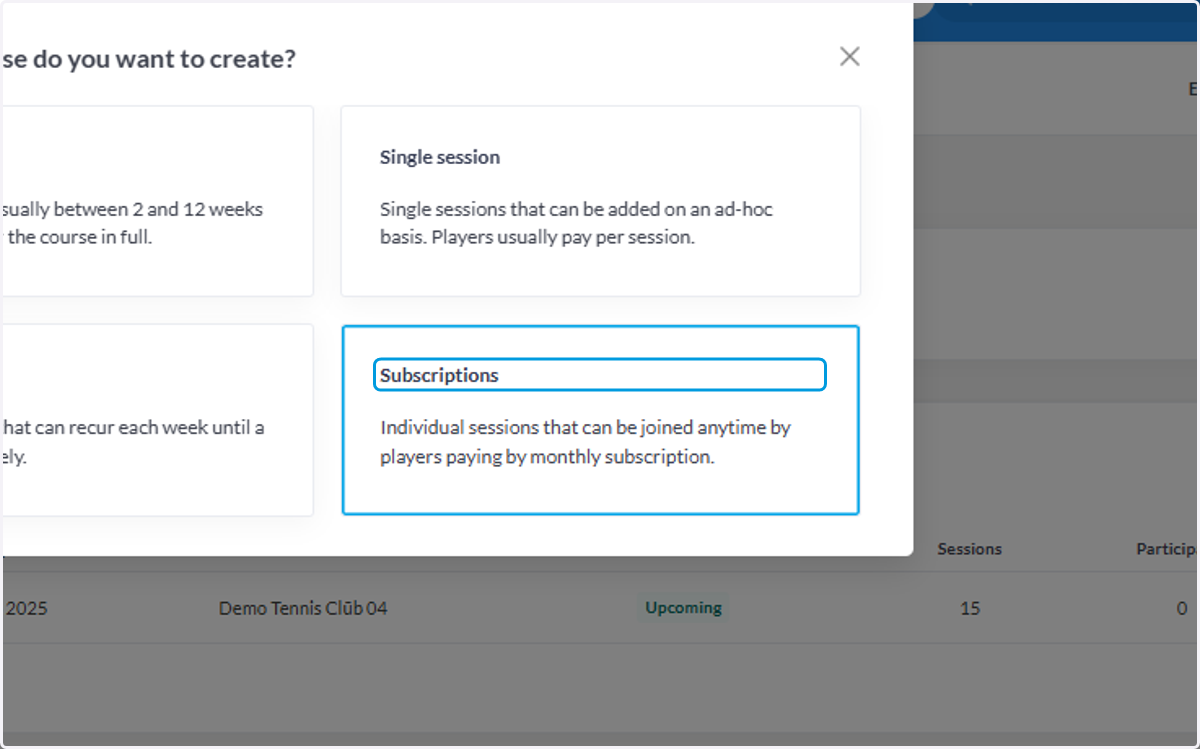
3. Click on Subscriptions
4. Set the Status of the visibility of the subscription.
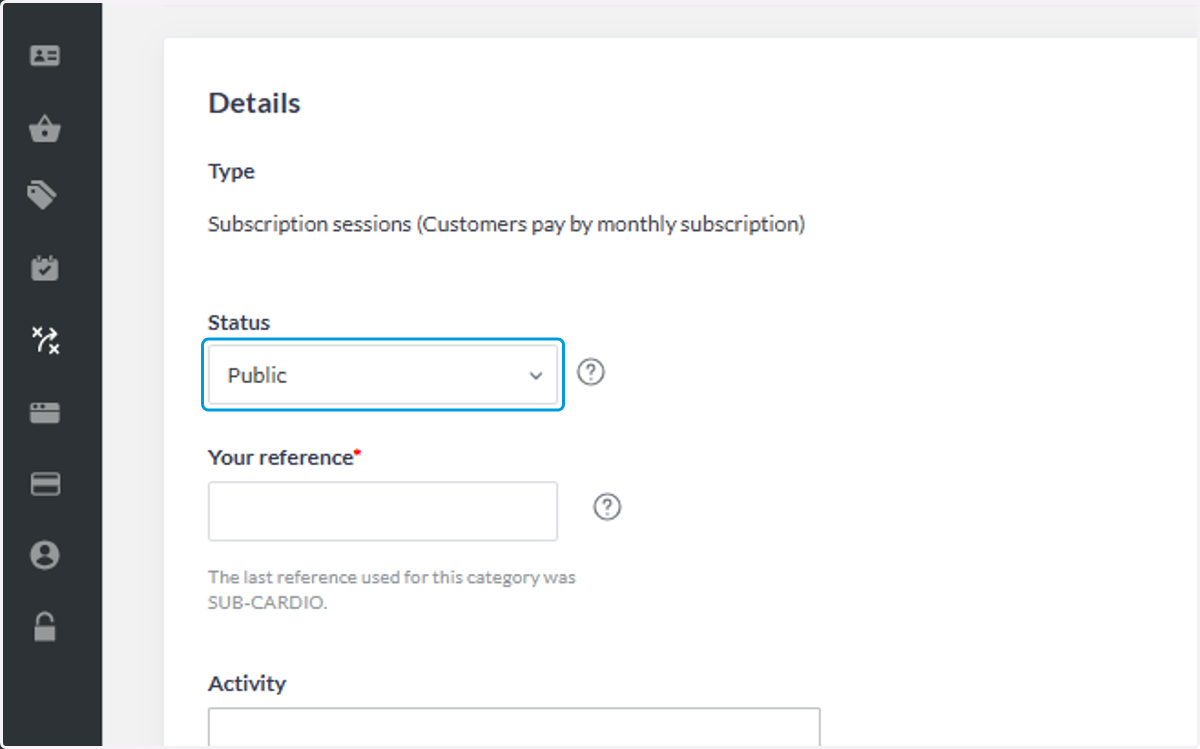
5. Enter a reference
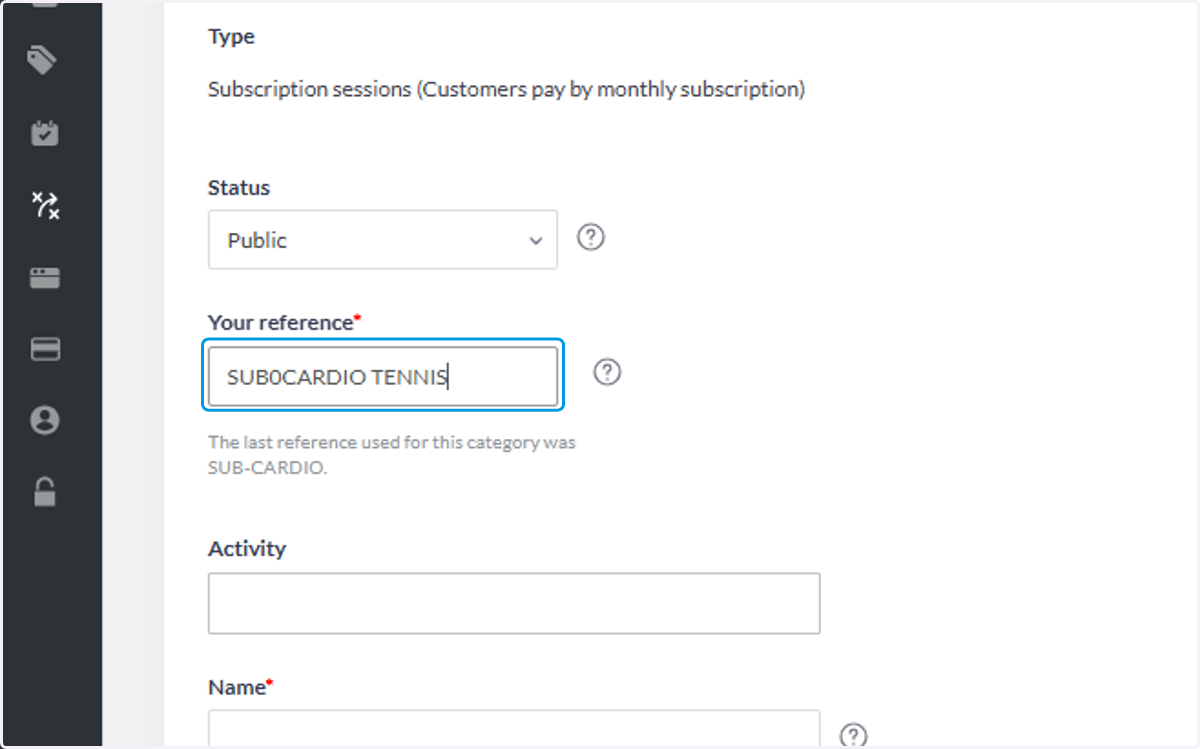
6. Select an activity from the drop down
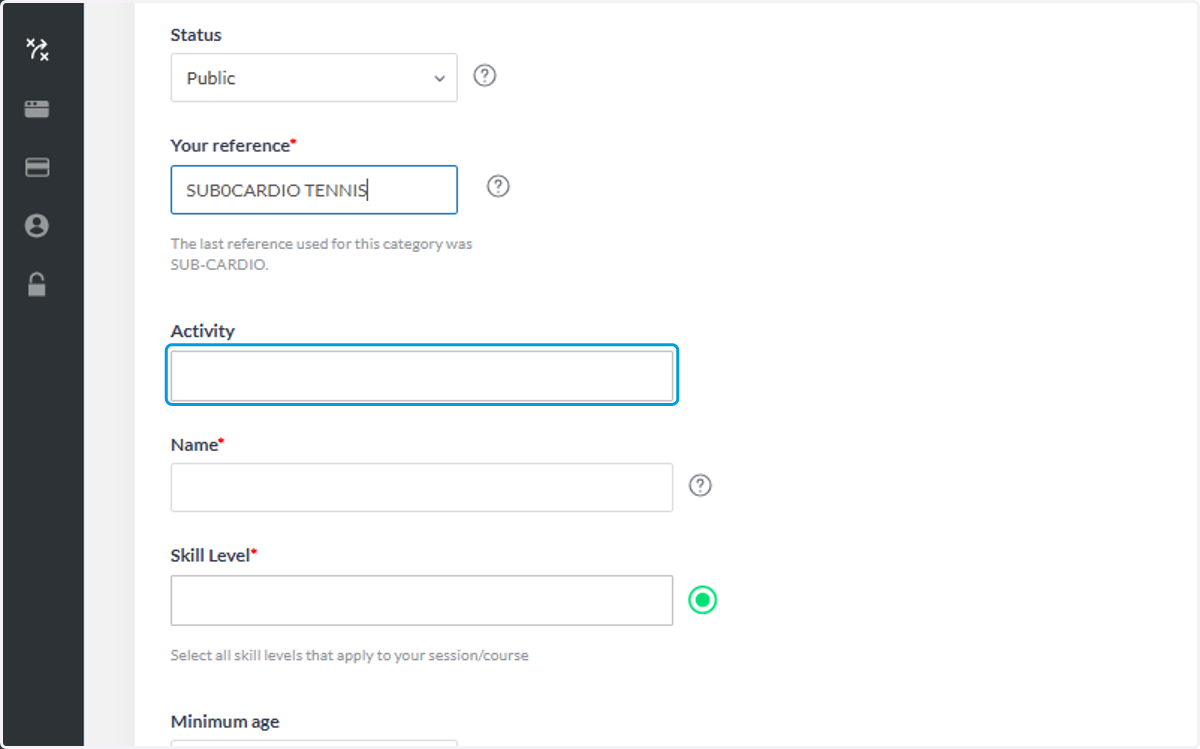
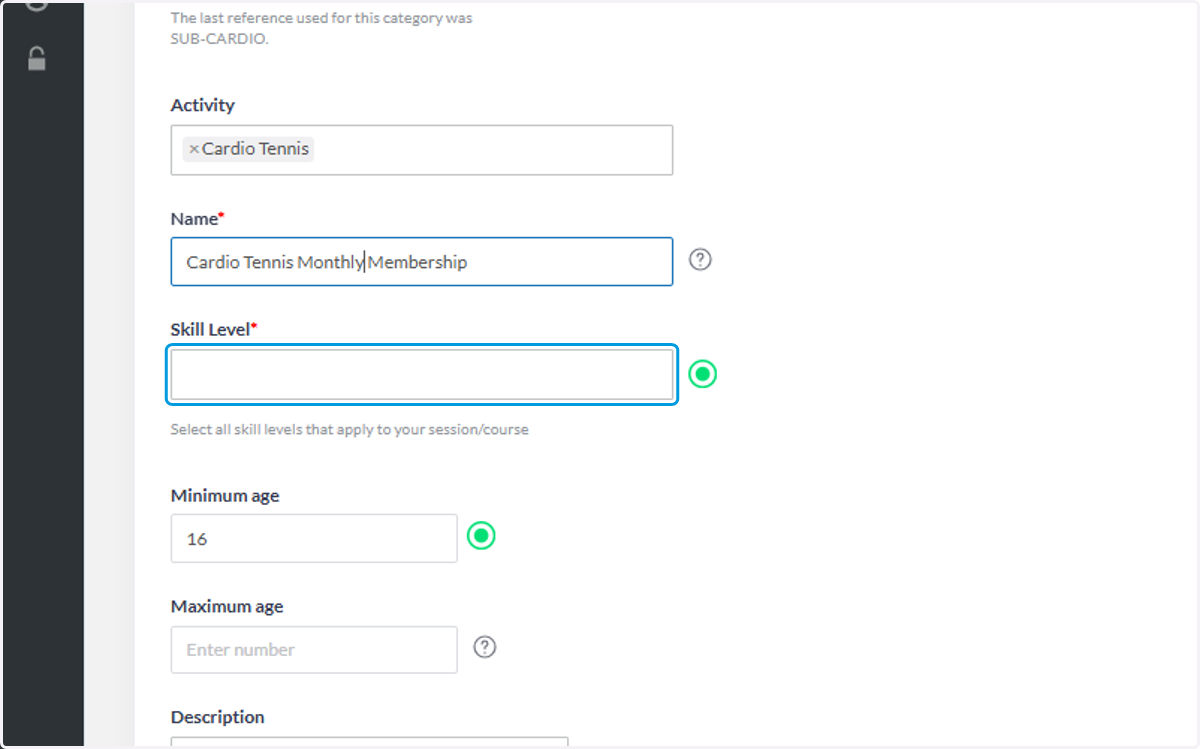
7. Enter the name for your subscription
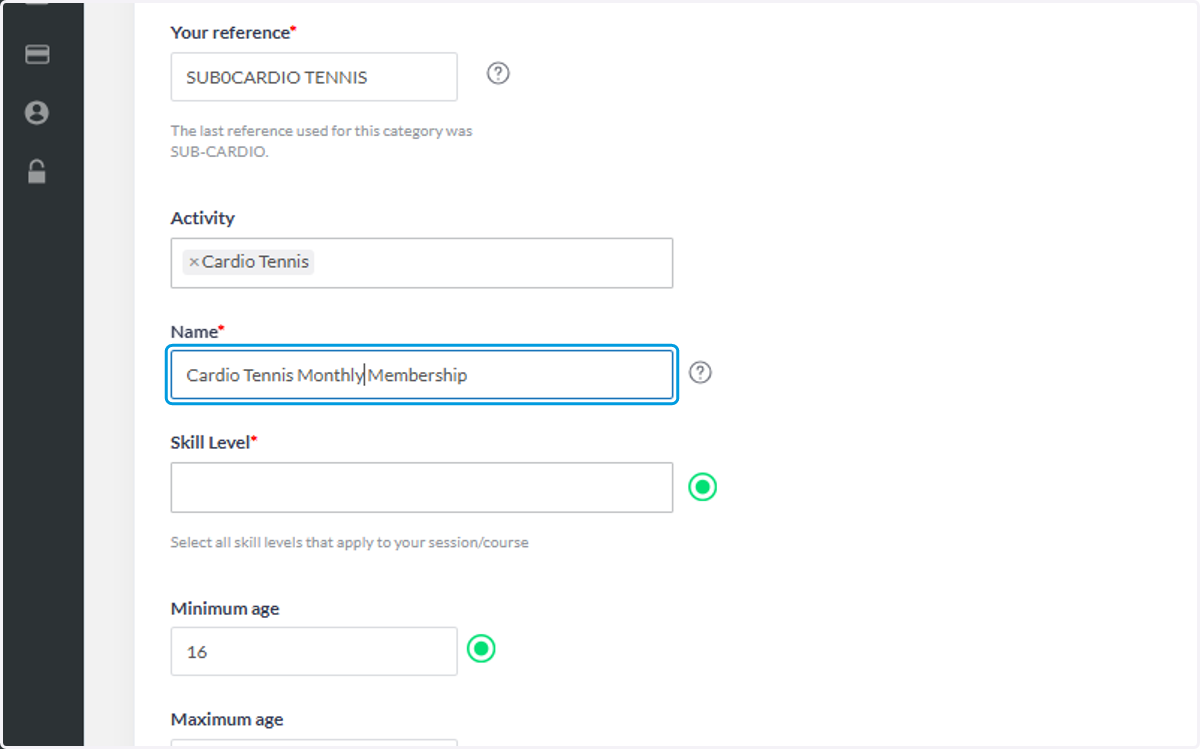
8. Click on dropdown trigger to select the Skill level
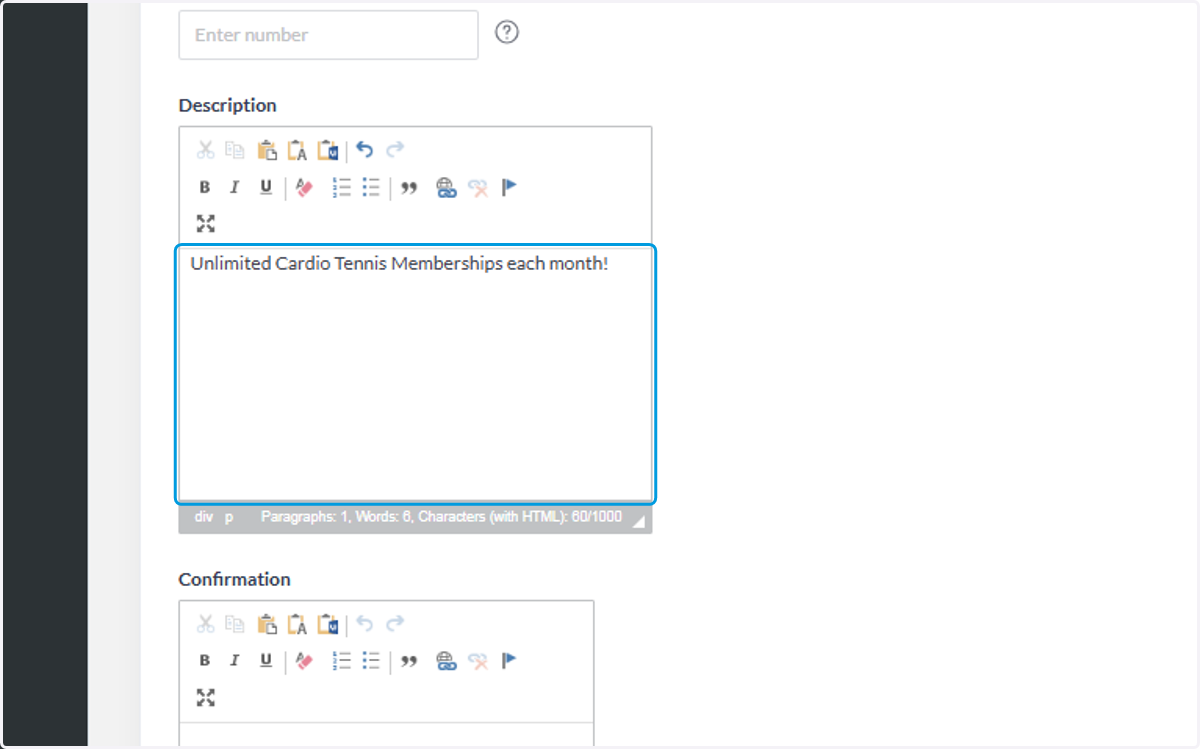
9. Enter a description for the public to see on the website.
10. Enter details that will be sent via the confimation email
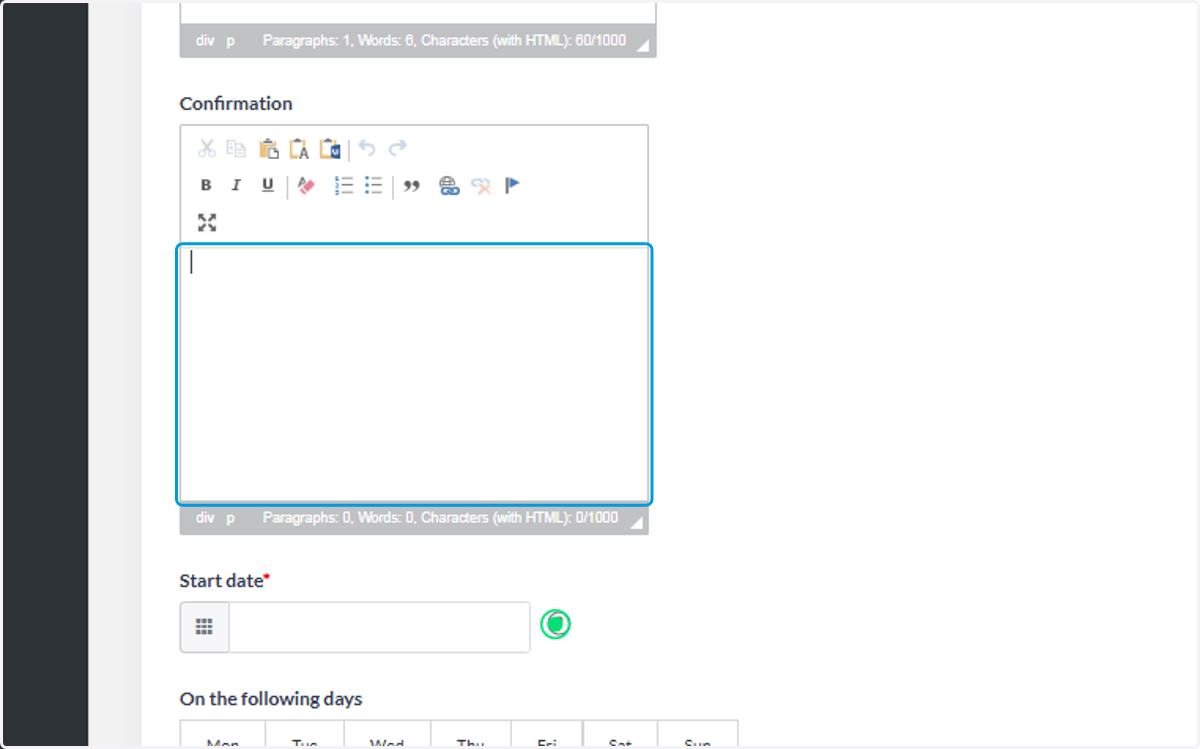
11. Specify a start date for your course to start

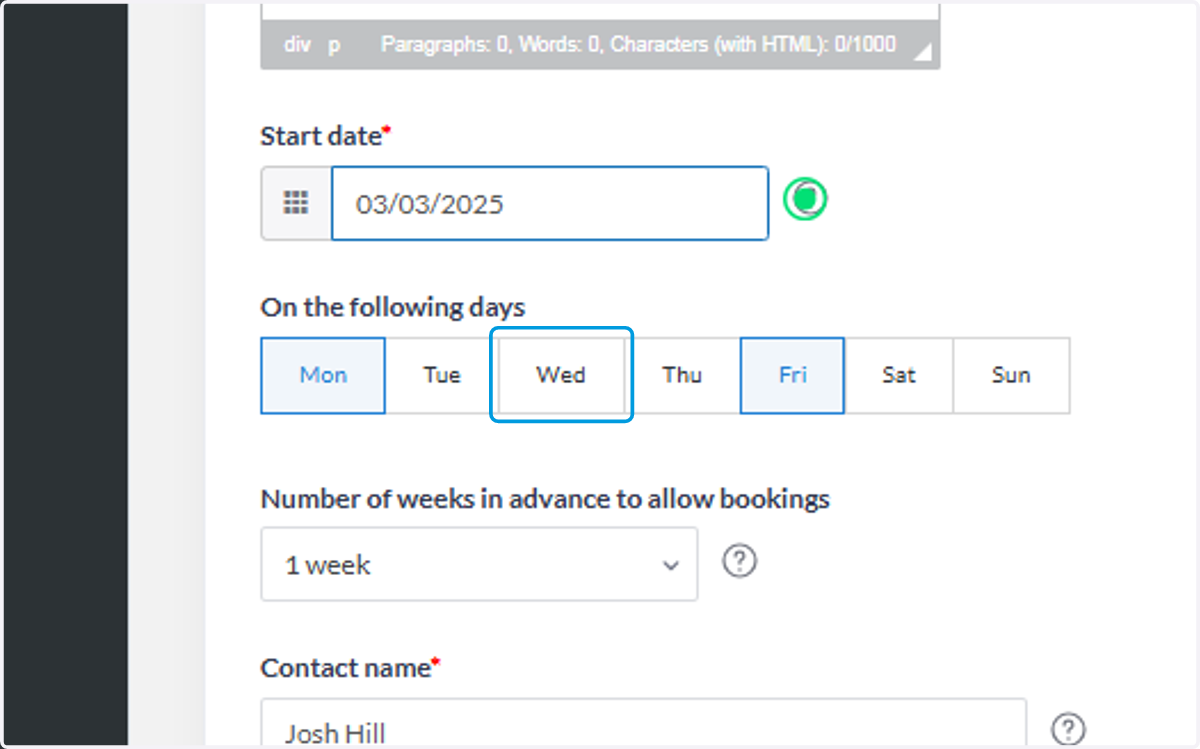
12. Specify the days you are running each week
13. Click on Public
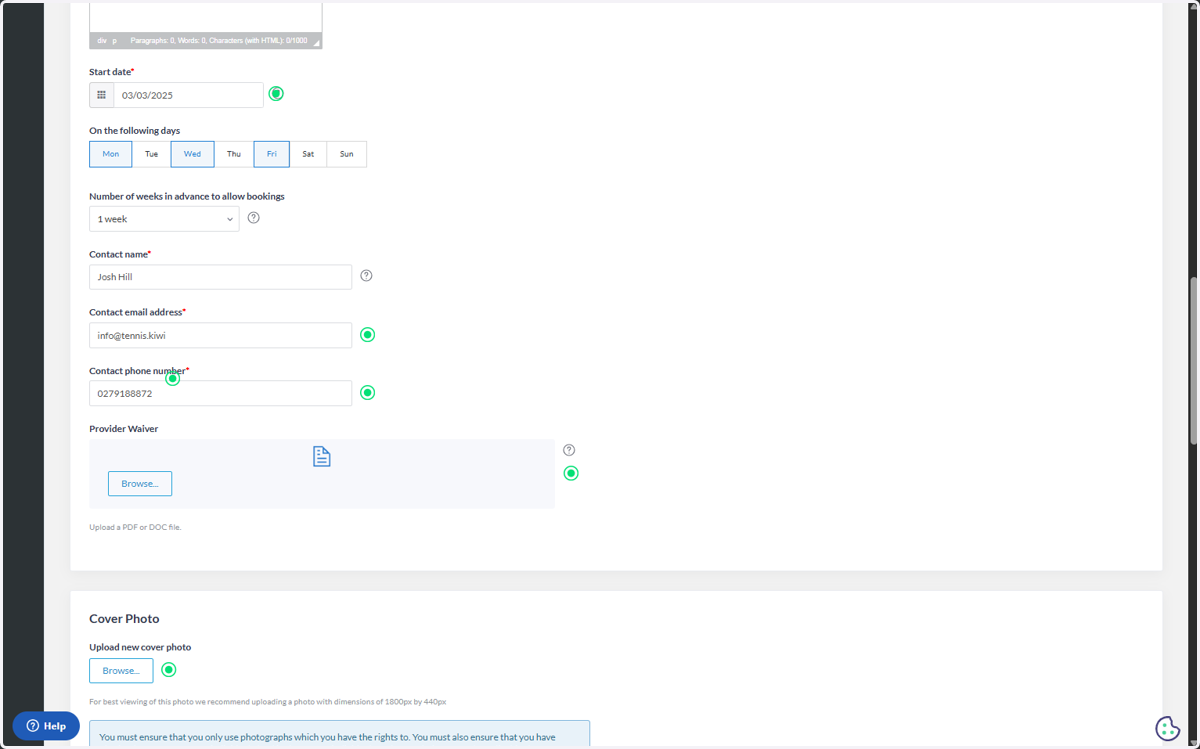
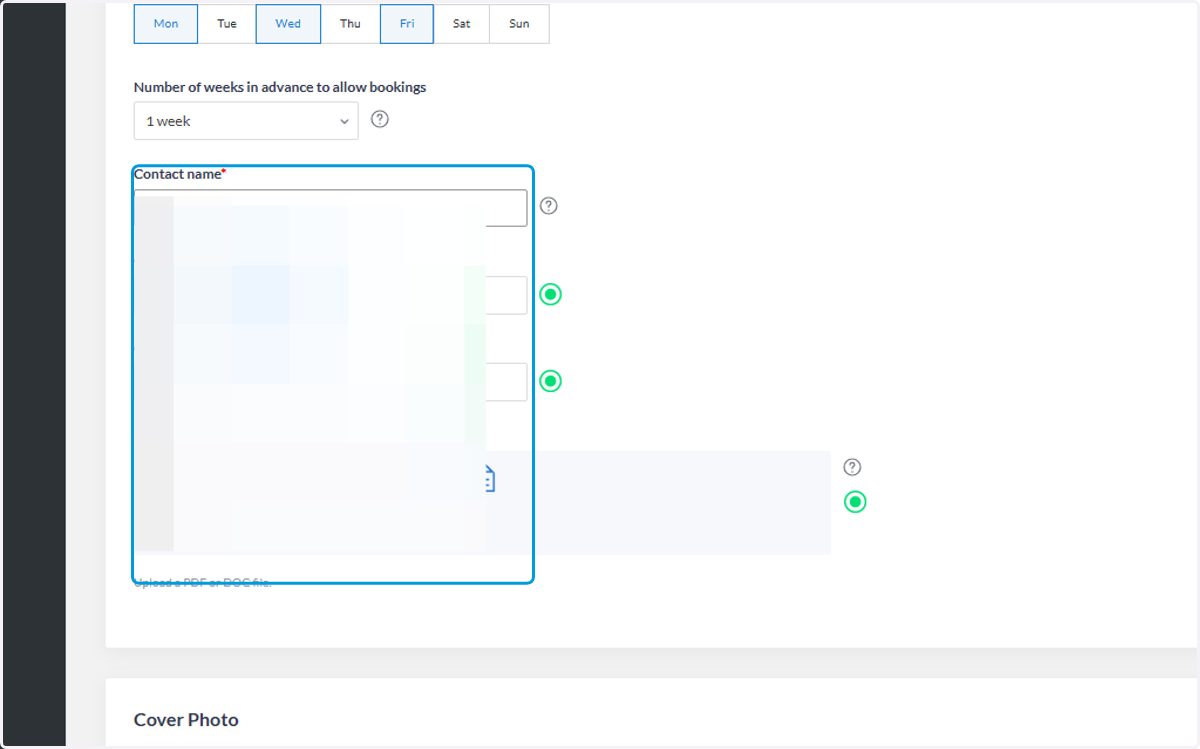
14. Enter Contact information
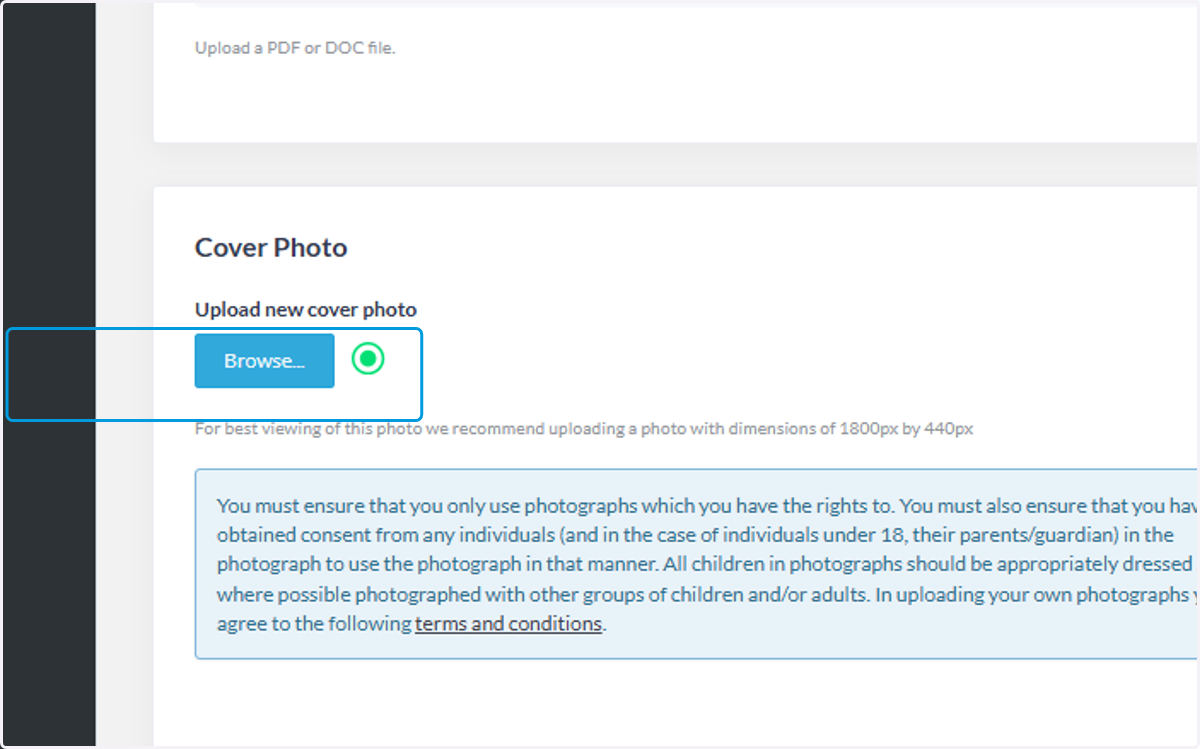
15. Upload a cover image if you have one.
16. Specify who can book
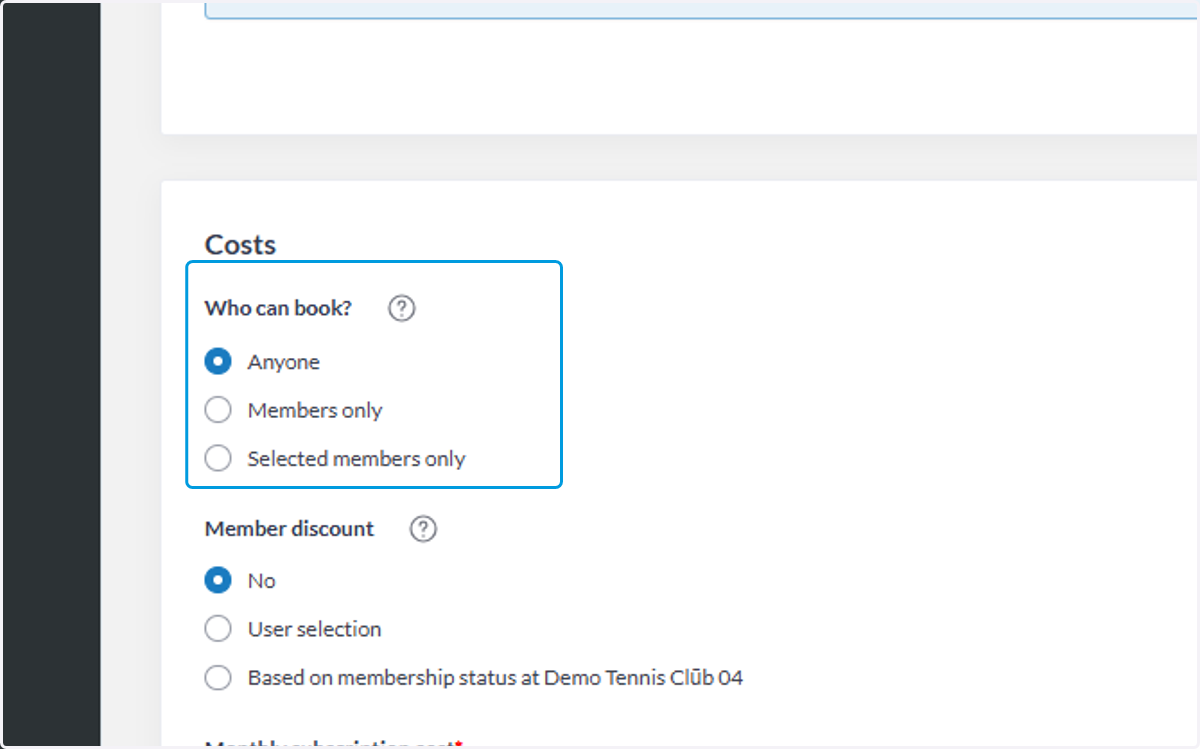
17. If you are offering a member discount then specify here
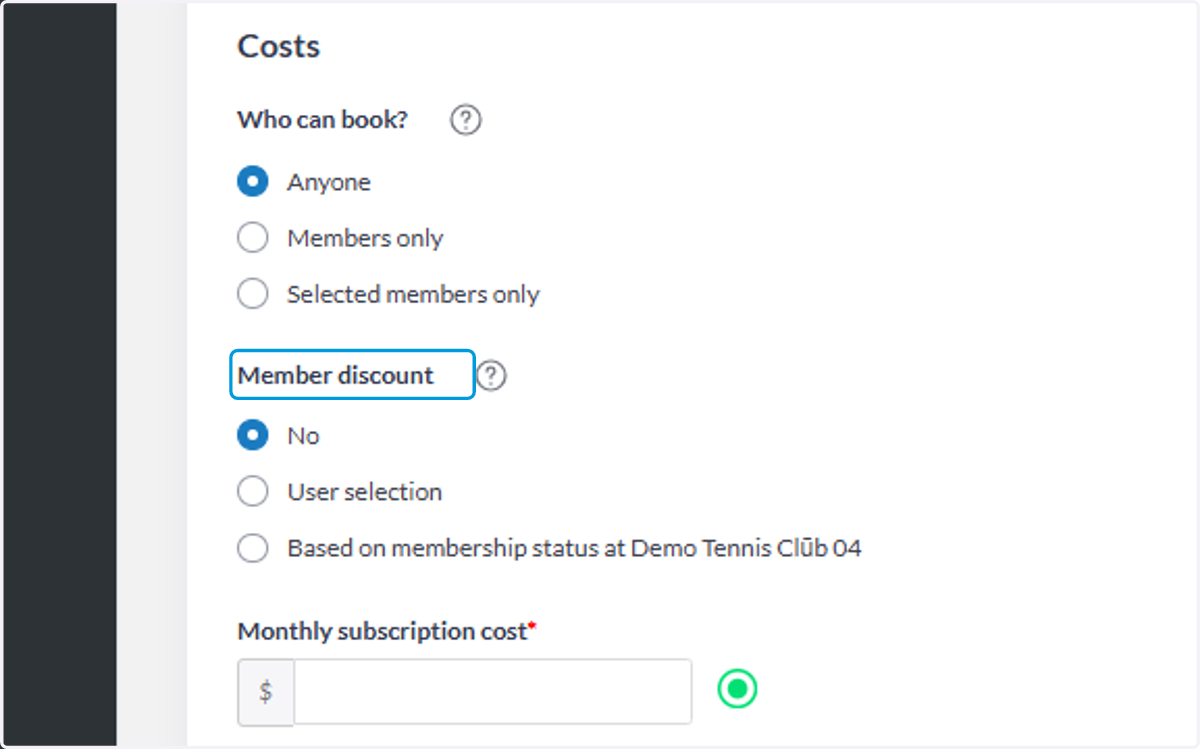
18. Enter subscription cost per month
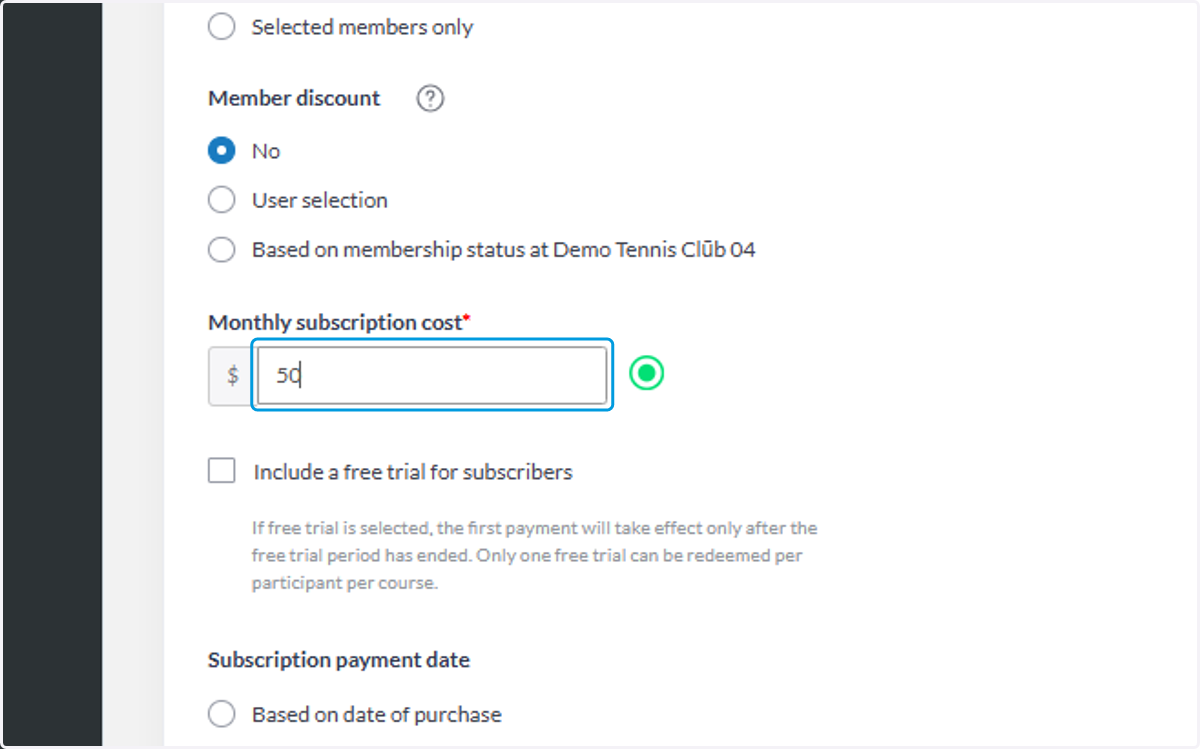
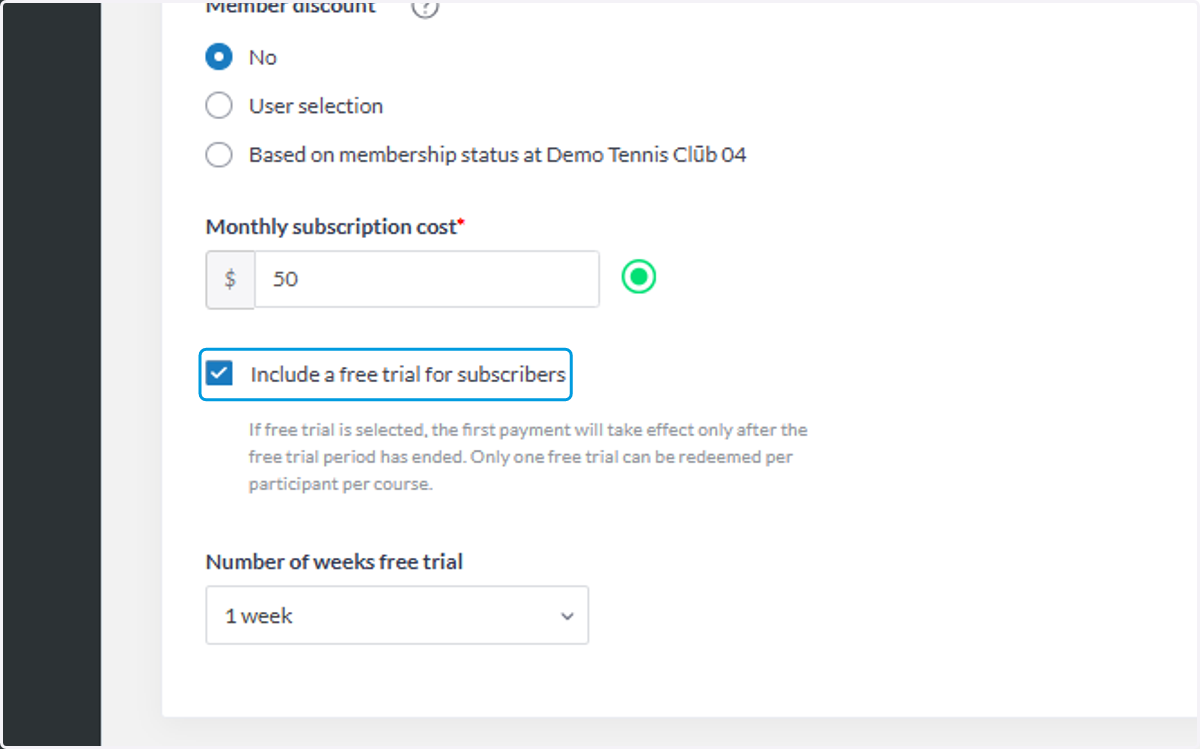
19. Specify if you are offering a free trial (week by week
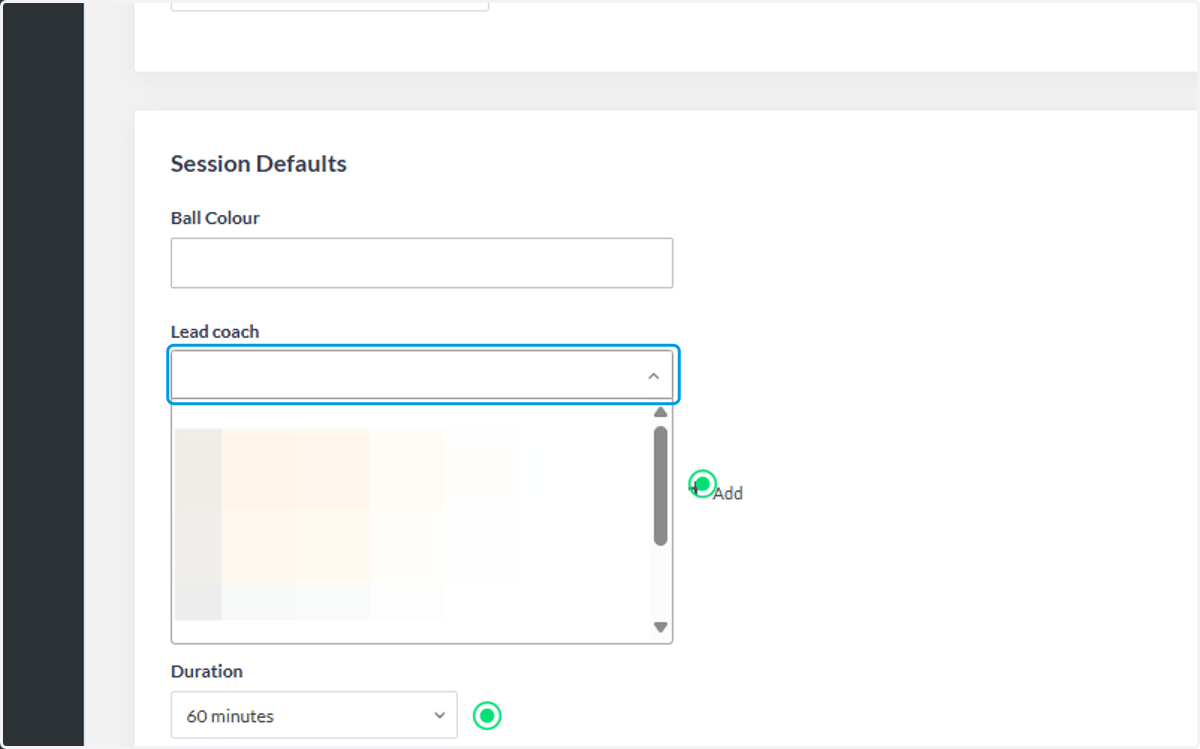
20. Specify / allocate coaching staff
21. Specify registration window (if any)
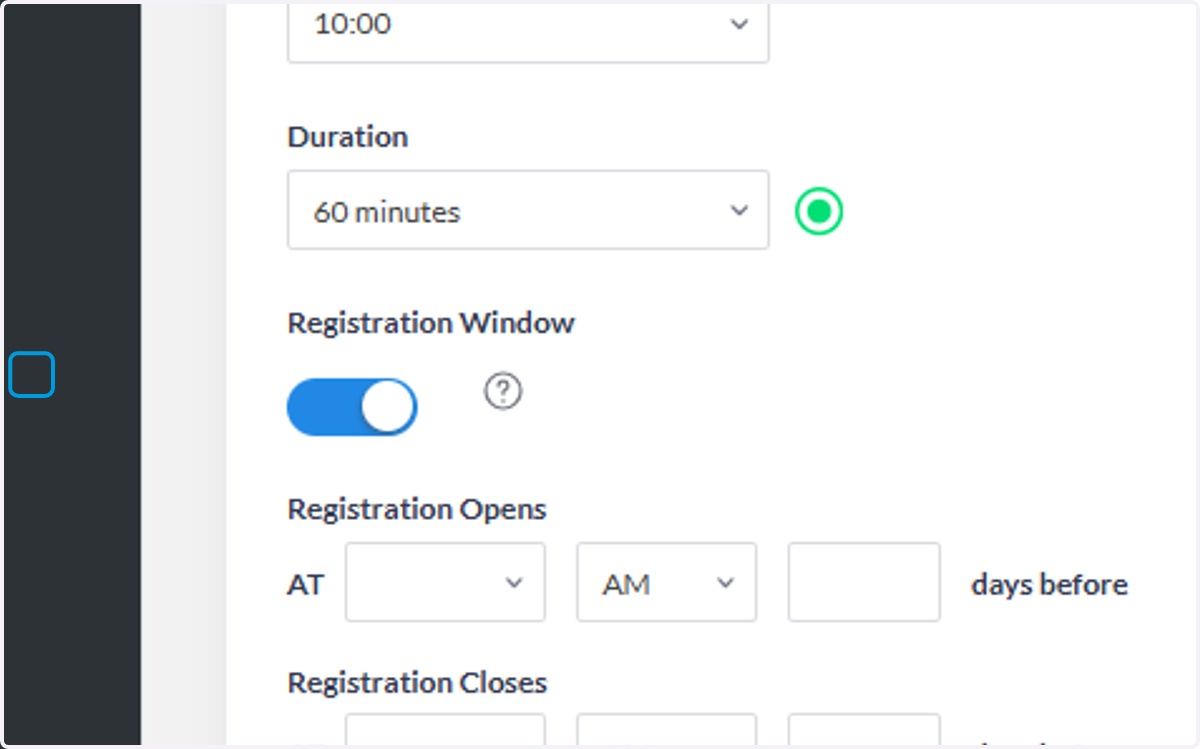
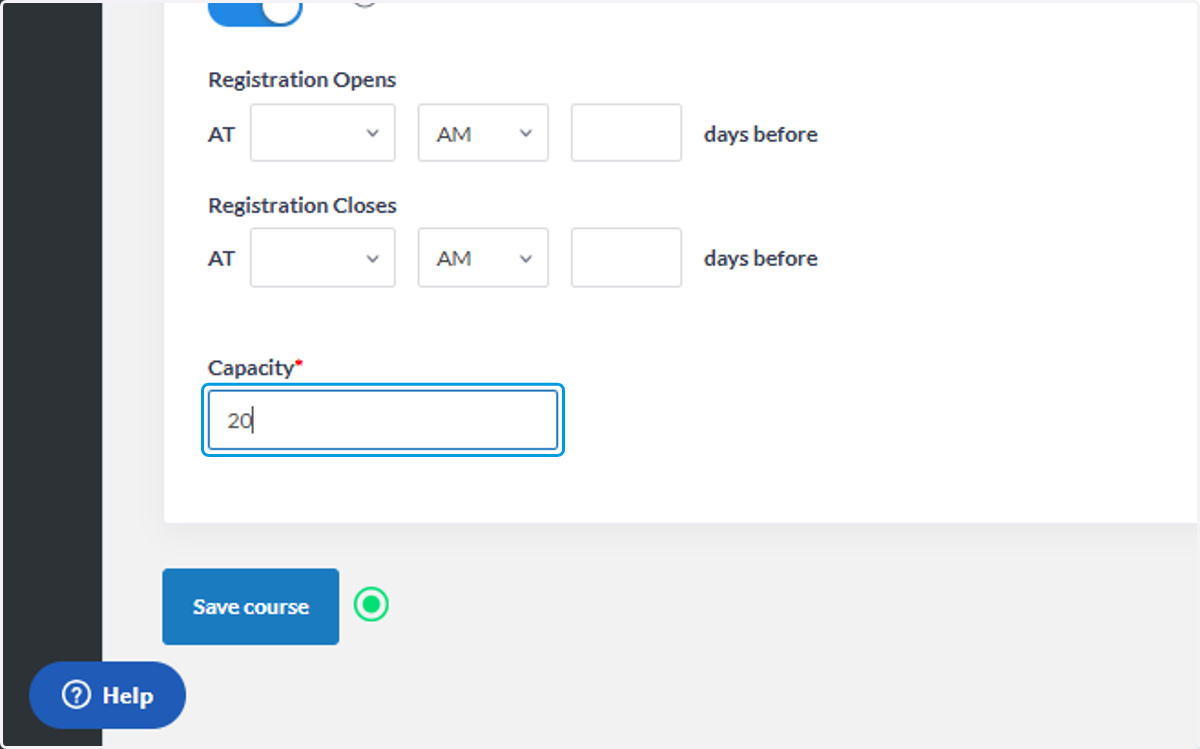
22. Specify capacity and Save Course
23. To view the public facing website click direct link
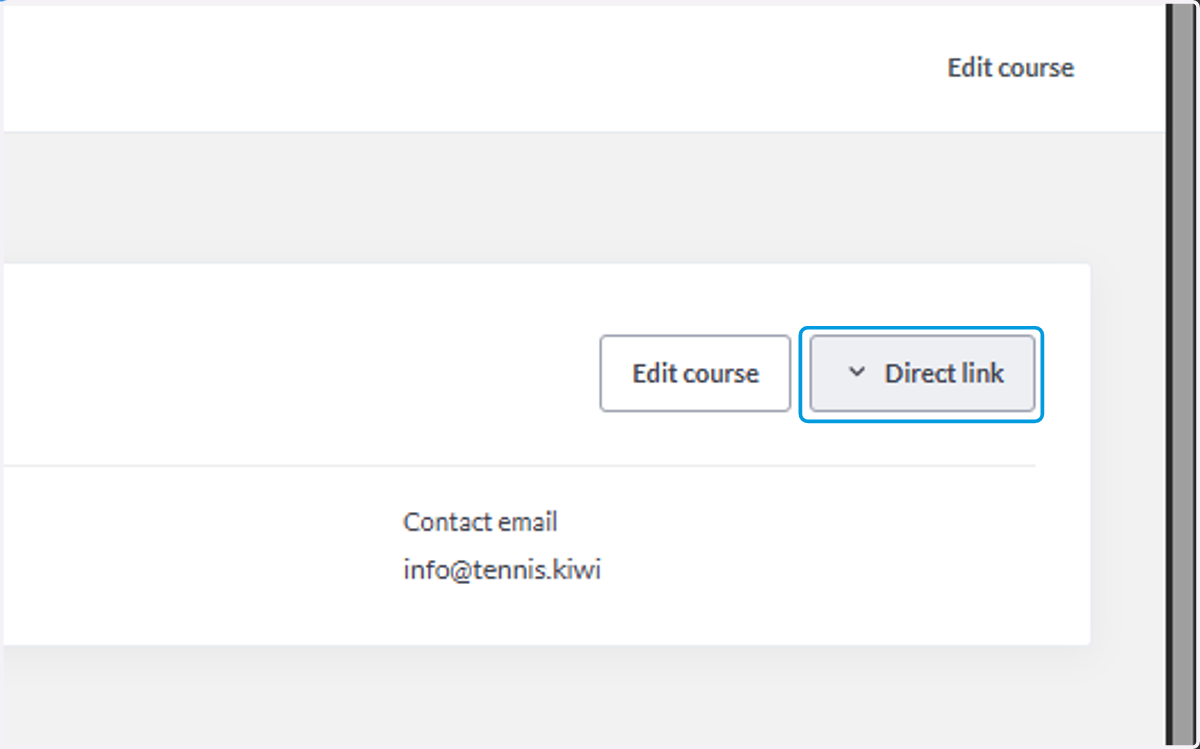
24. You will now be able to see the new subscription course on your website.