Create Lesson Plans in JCampus
Navigate to https://beau.edgear.net/jcampus/
Do not Google search for JCampus. Each district has a unique URL.
Required Components:
Lesson Name
Standards
Objectives (can be same as standards)
Lesson (from template)
Accommodations (only first day of week required)
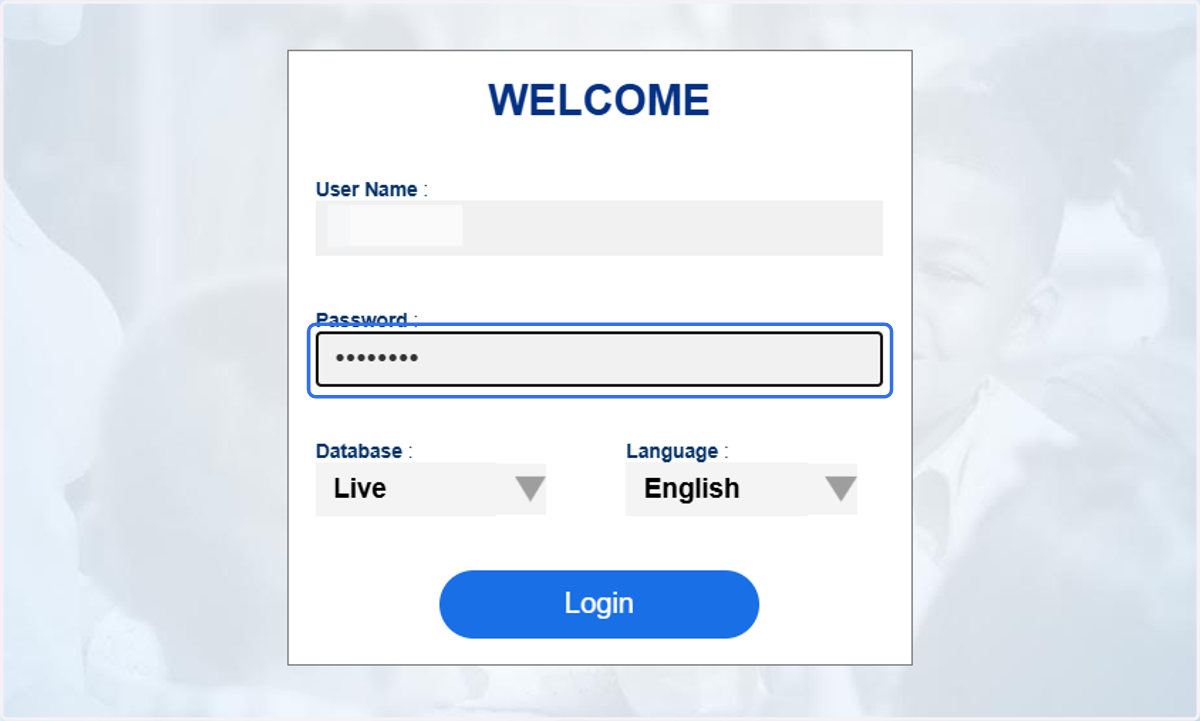
1. Input your username and password and select "Login
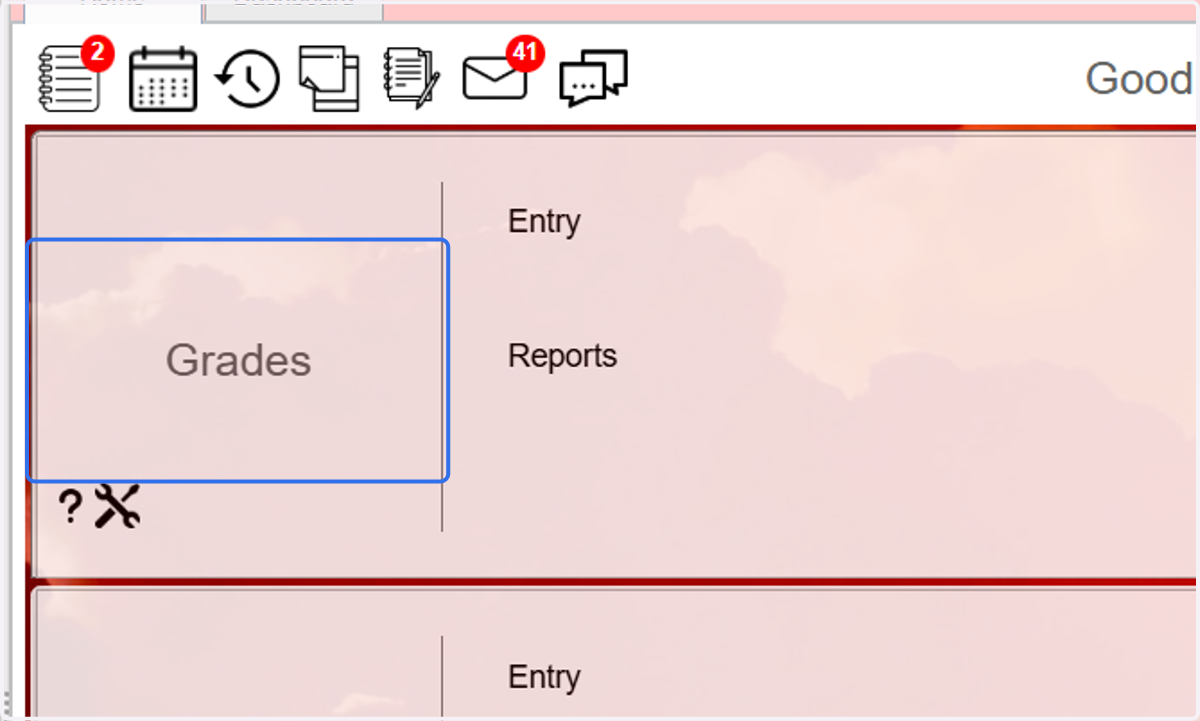
2. Click on Grades
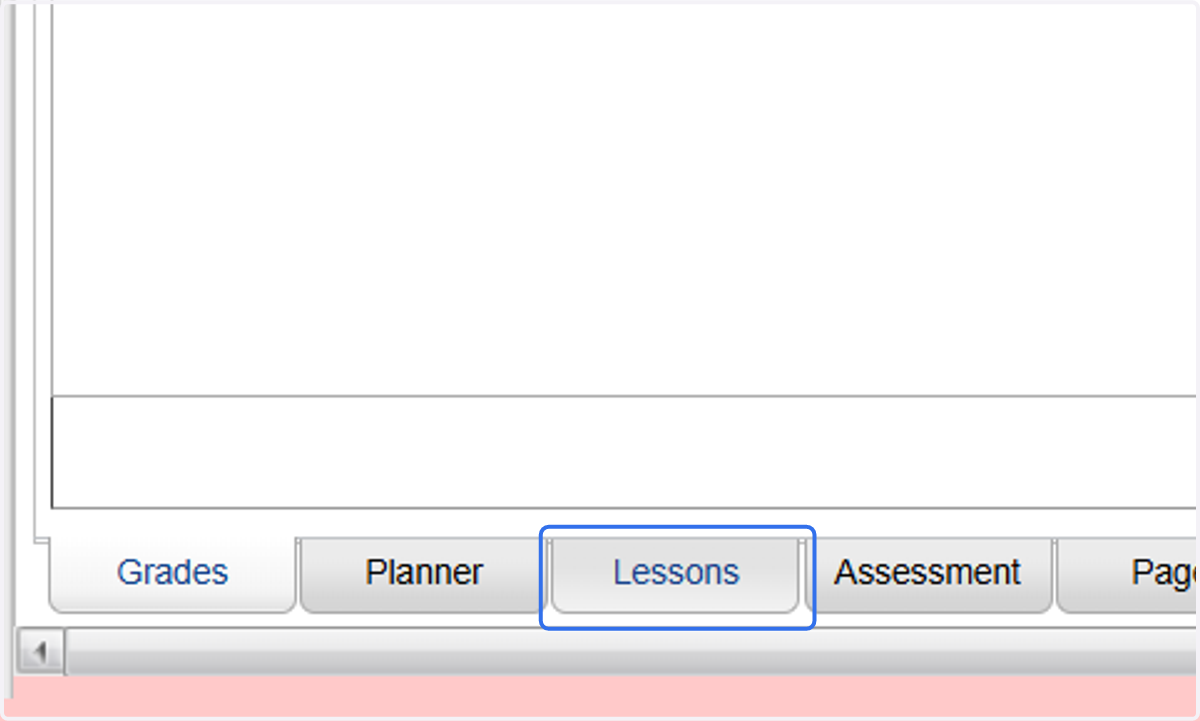
3. Click on the "Lessons" tab at the bottom of the screen.
4. Click in the box matching the first date of your lesson.
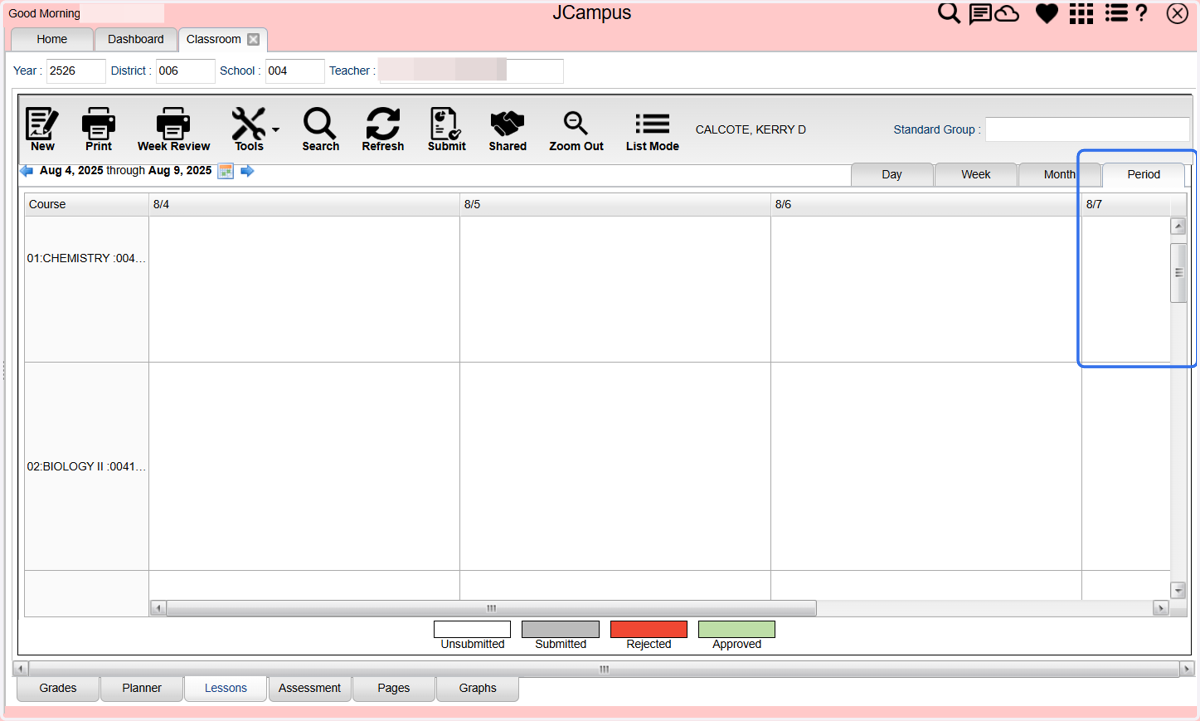
5. In the pop-up window, use the drop-down option to select the course.
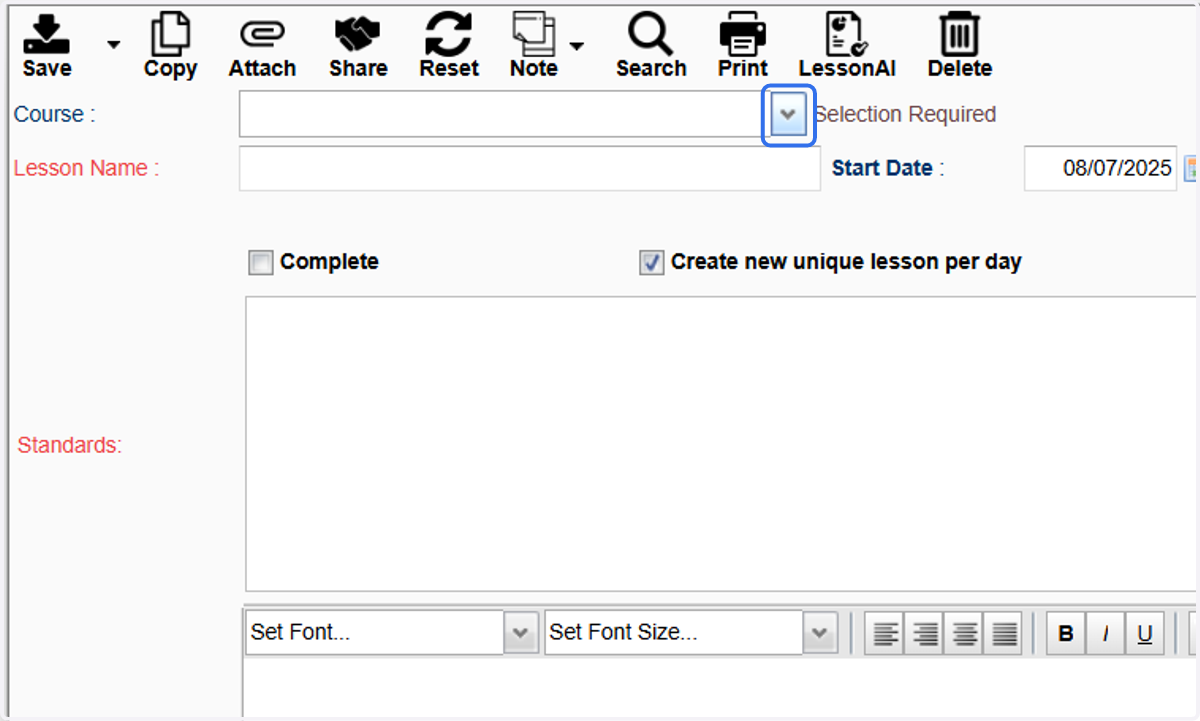
6. Select all relevant sections.
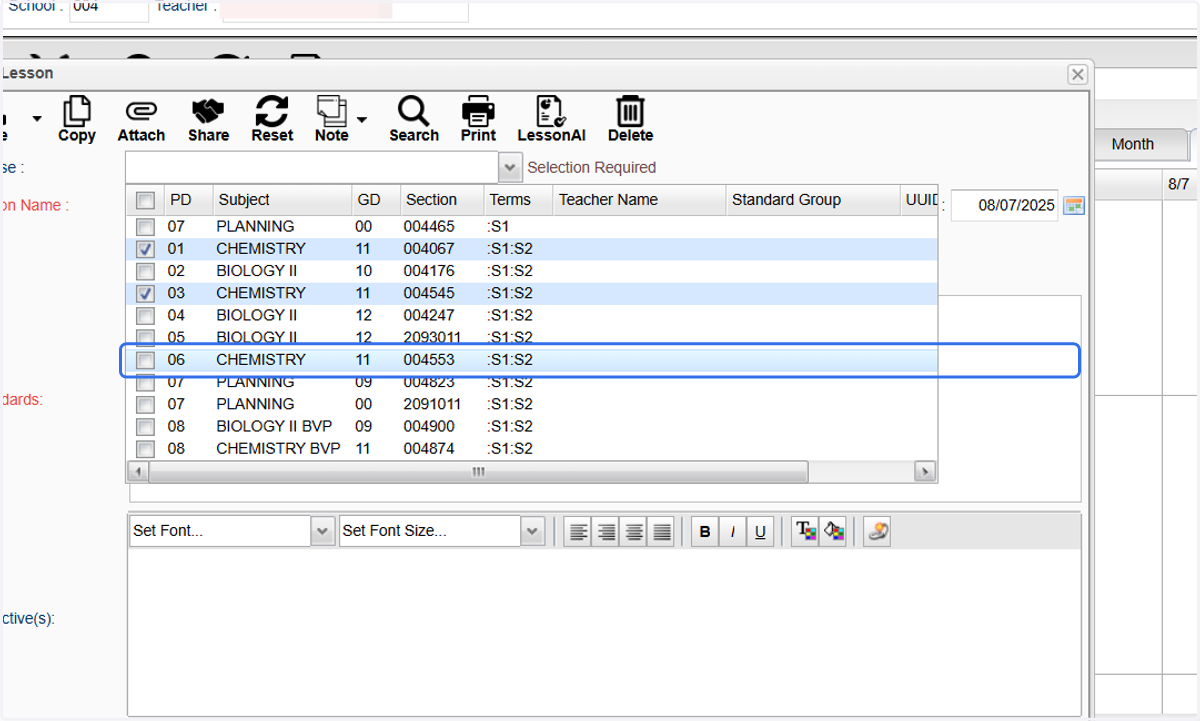
7. Provide a Lesson Name.
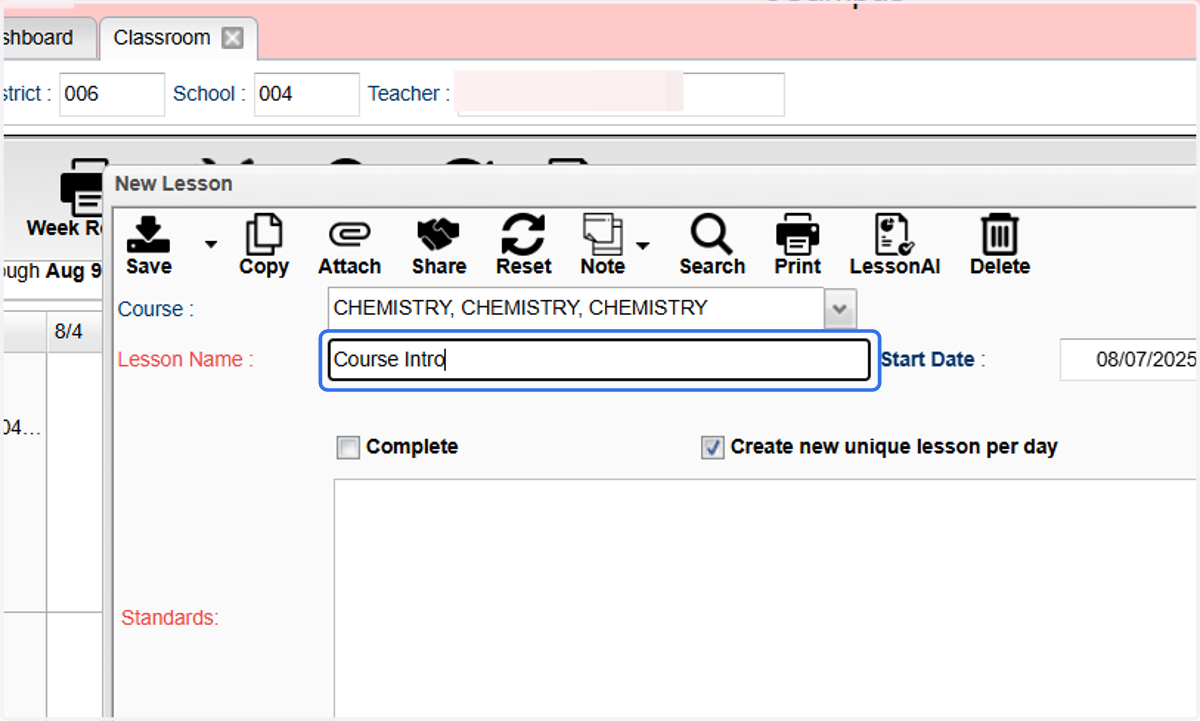
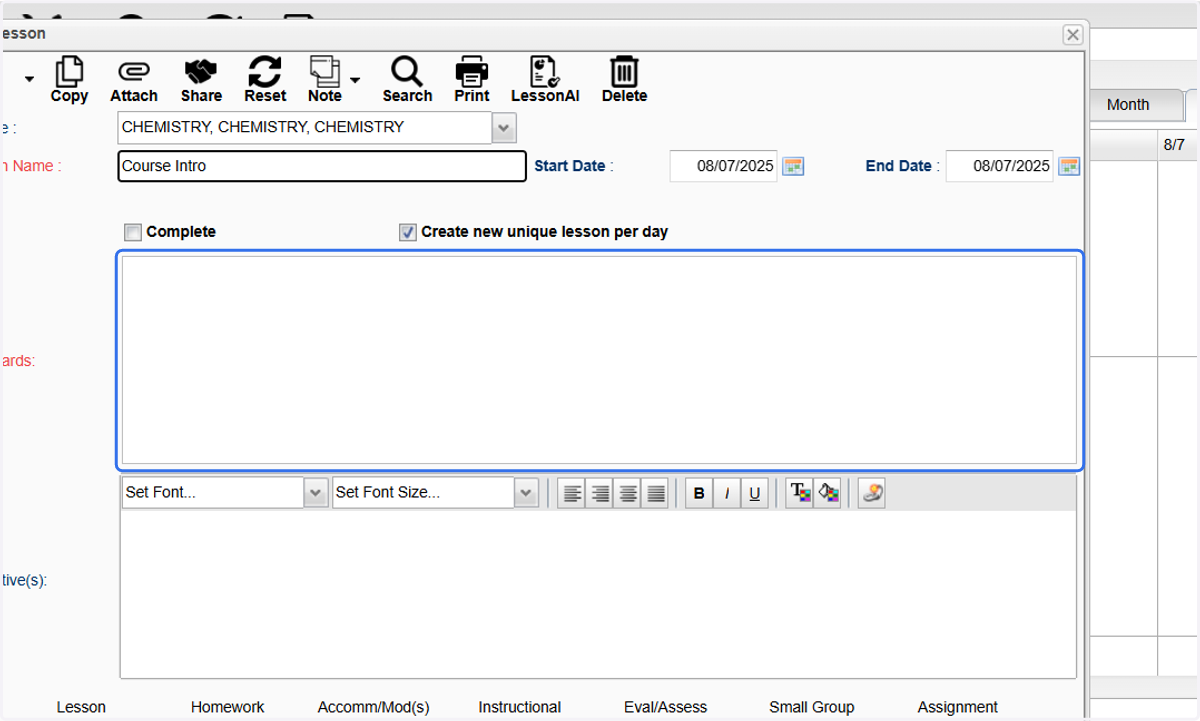
8. Click in the "Standards" box.
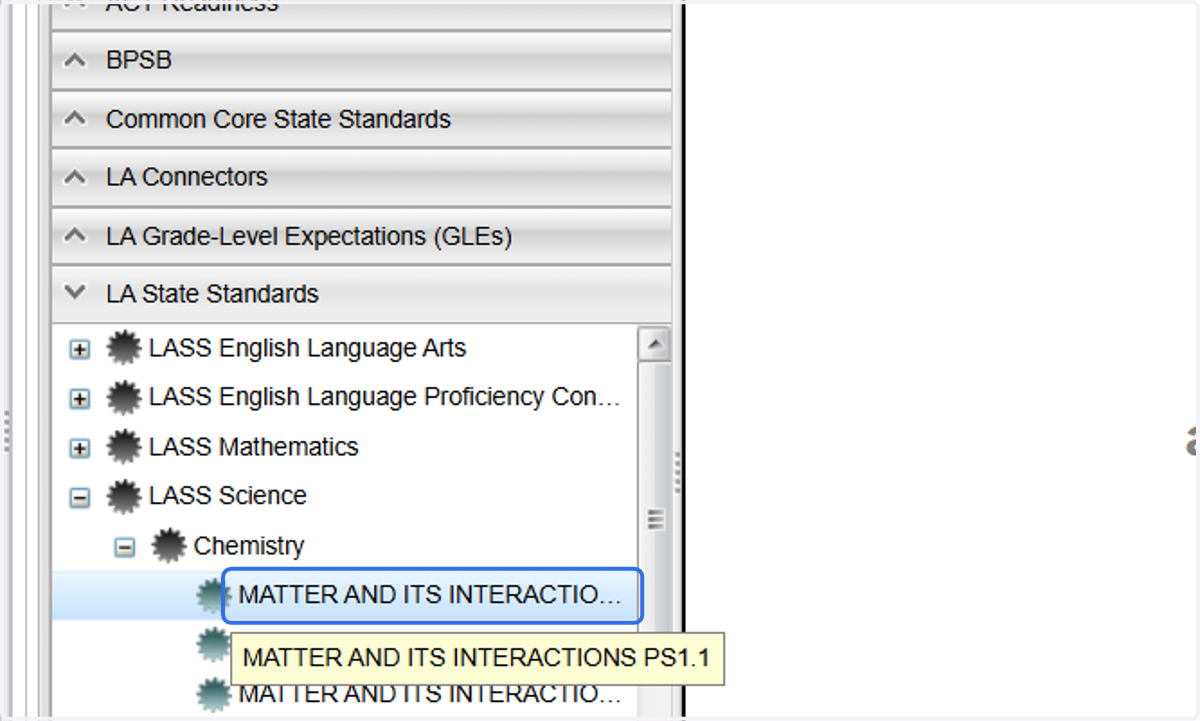
9. Navigate to the appropriate standard using the drop down menus.
If your course does not have state standards or your lesson does not correlate (ex. bonus), select BPSB/BPSB Standards/All Courses/All Schools and choose from these options.
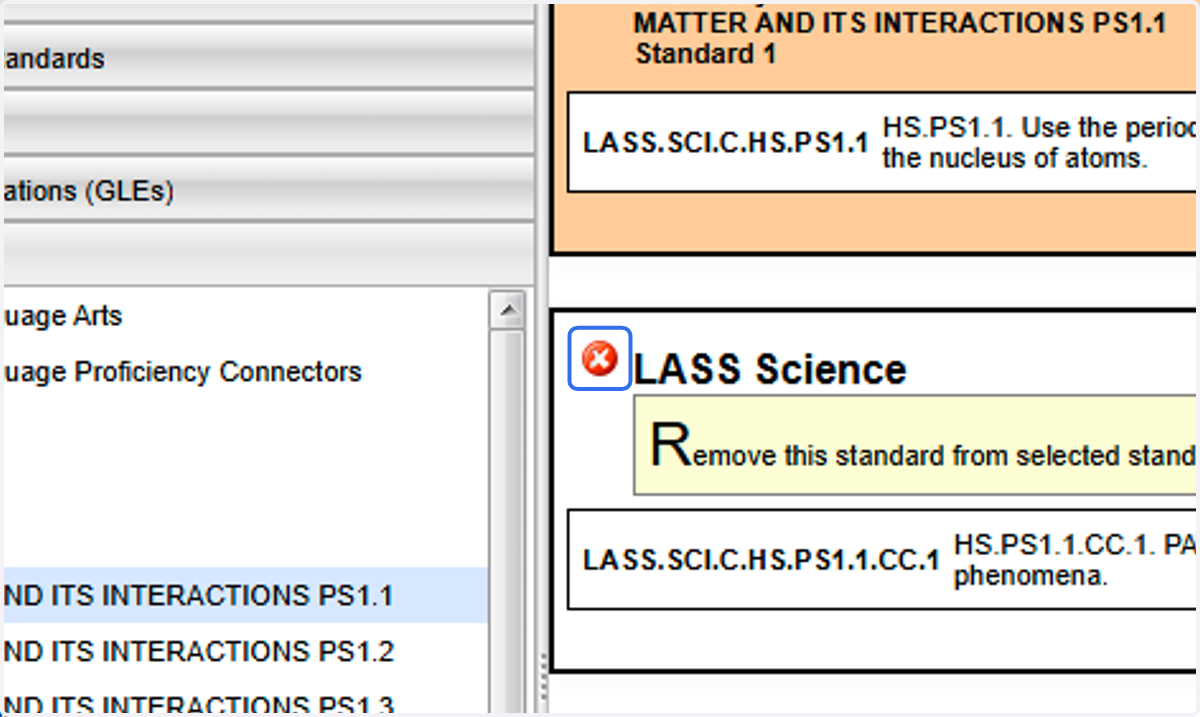
10. Click on "+" to add selected standards. You may add all standards that apply to the lesson.
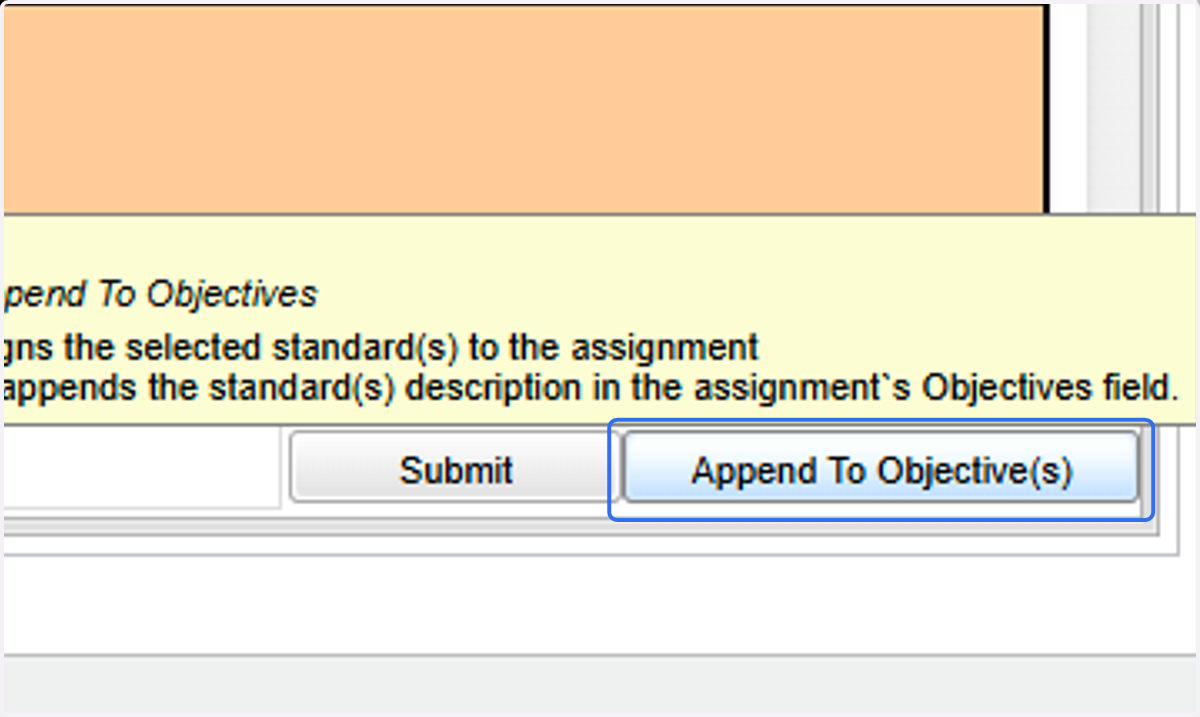
11. Click on Append To Objective(s) to add standards to the "Standards" and "Objectives" tab.
12. Click on Lesson
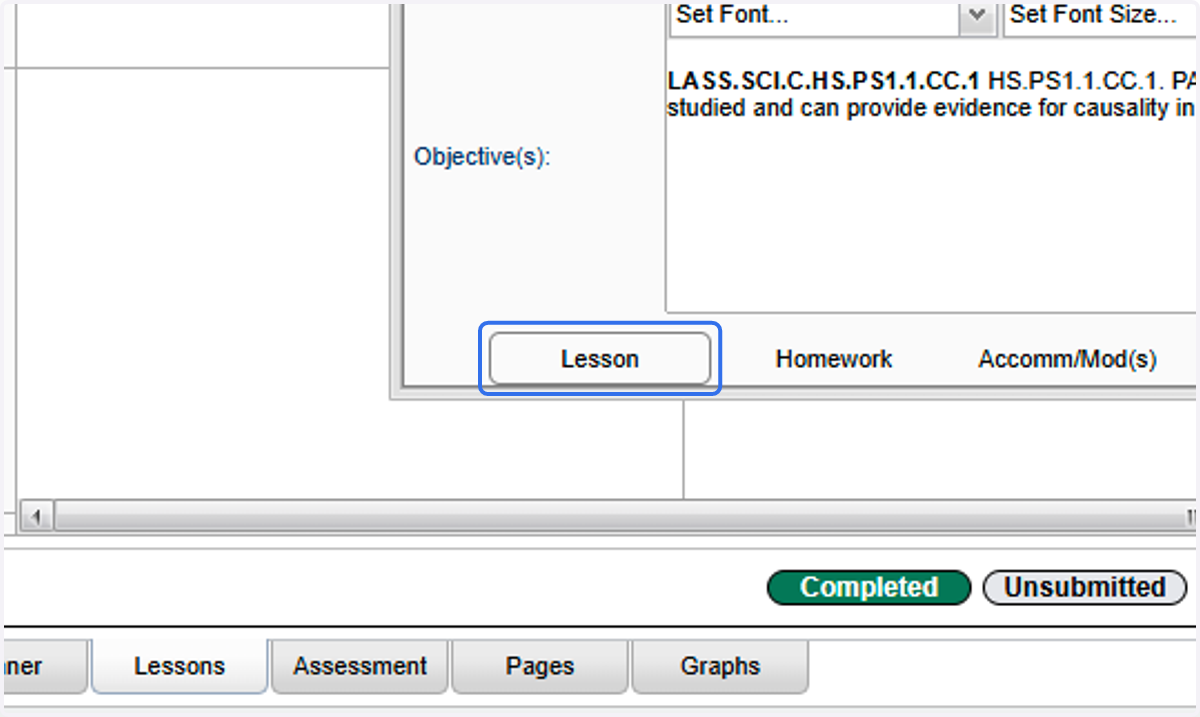
13. Select your school's template. Complete it according to your administrator's guidance.
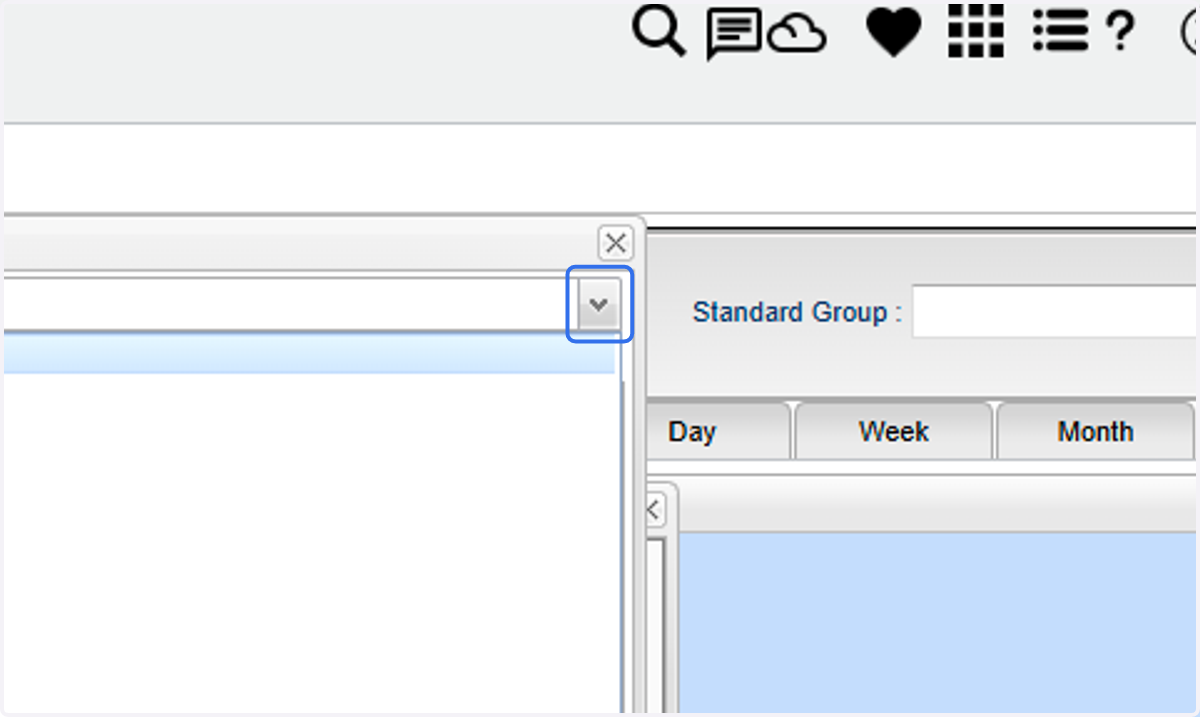
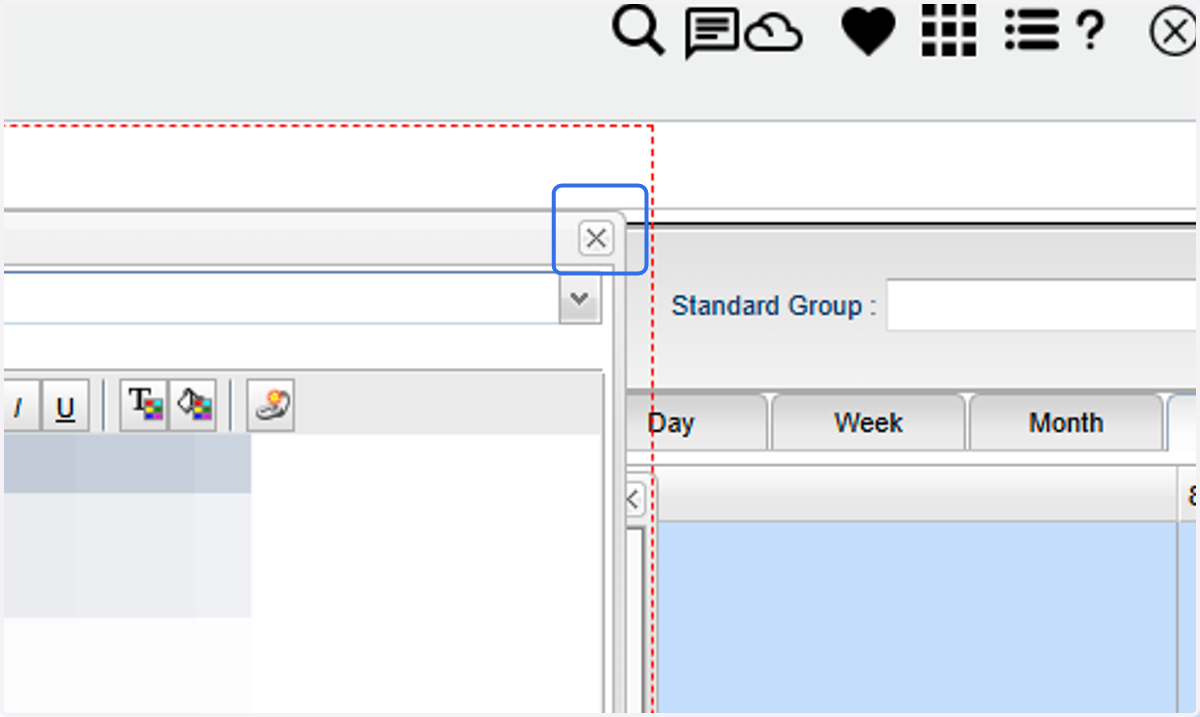
14. Click on the "x" to close the Lesson window.
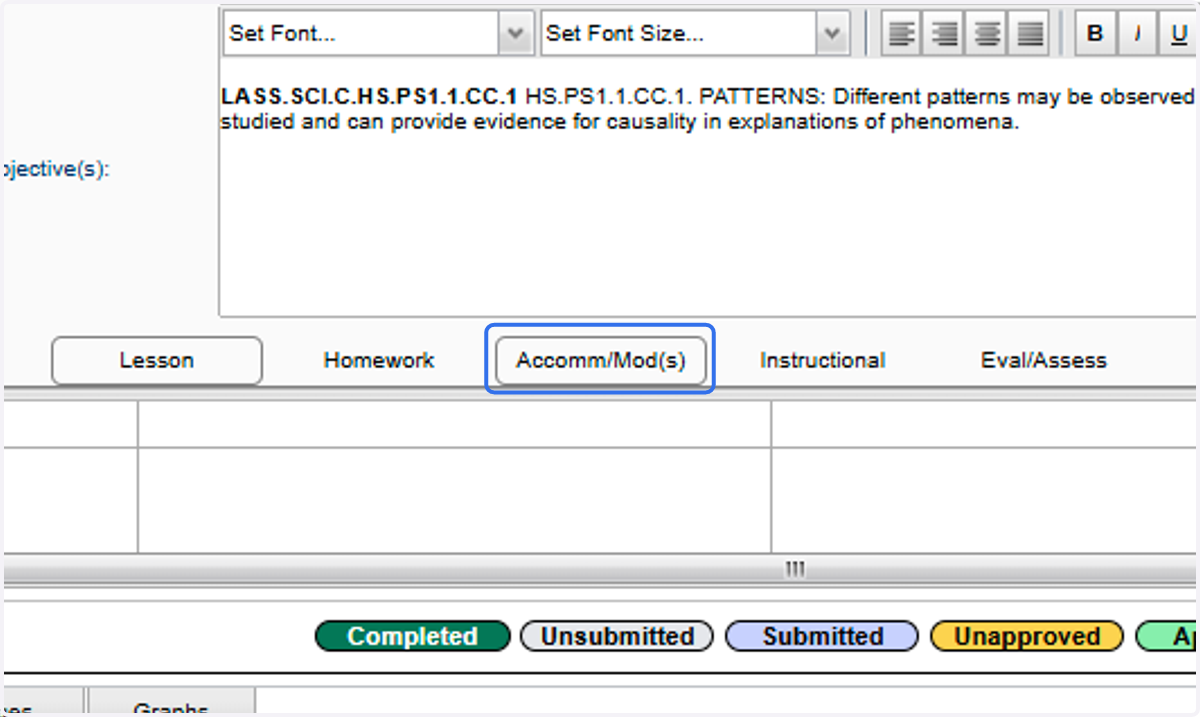
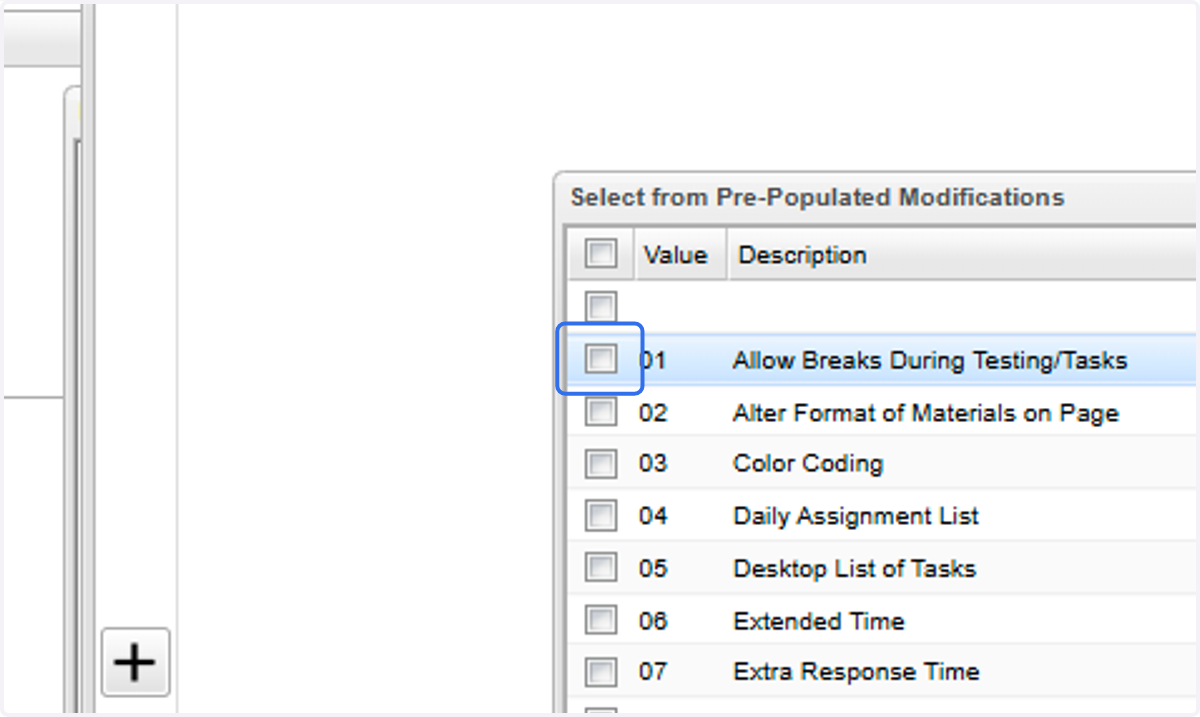
15. Click on Accomm/Mod(s) to enter your accommodations. **This is only required for the first day of each week. It will be assumed that the same accommodations apply for all the days of the week that follow.
16. Select the accommodations that apply to the lesson and select "OK". Close the accommodations window.
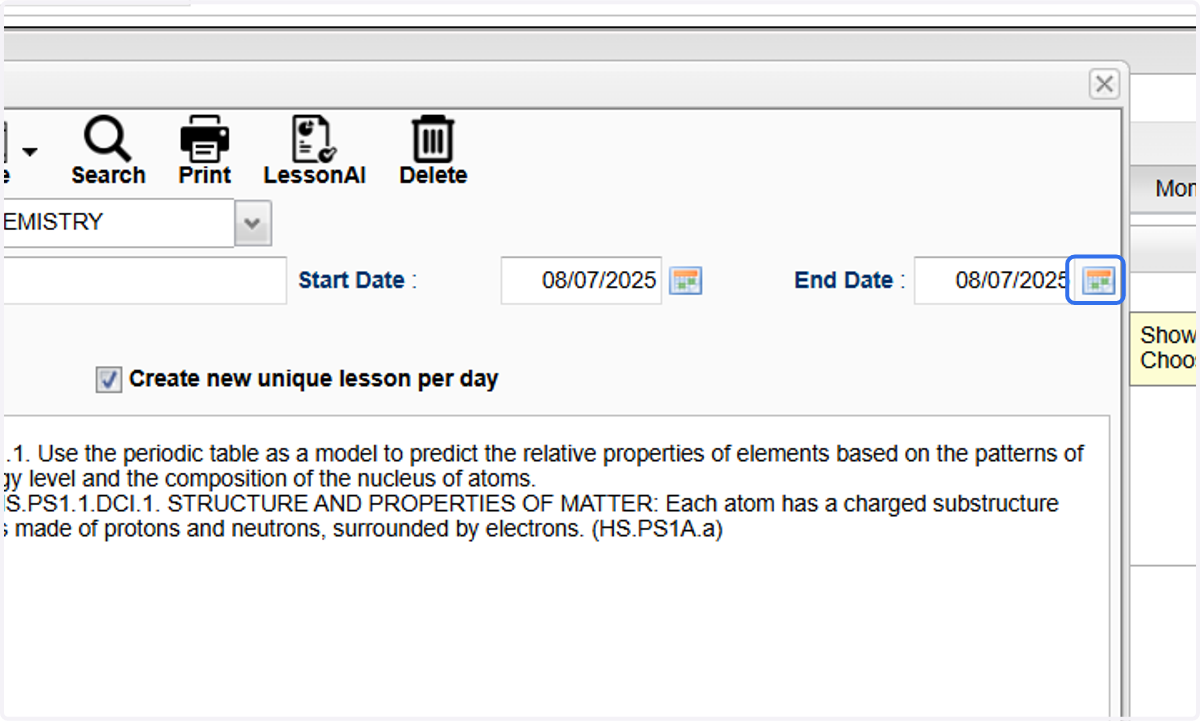
17. If the lesson will span multiple days, you can adjust the start and end dates.
This will paste the lesson in each date within the range.
Creating/Linking Assignments
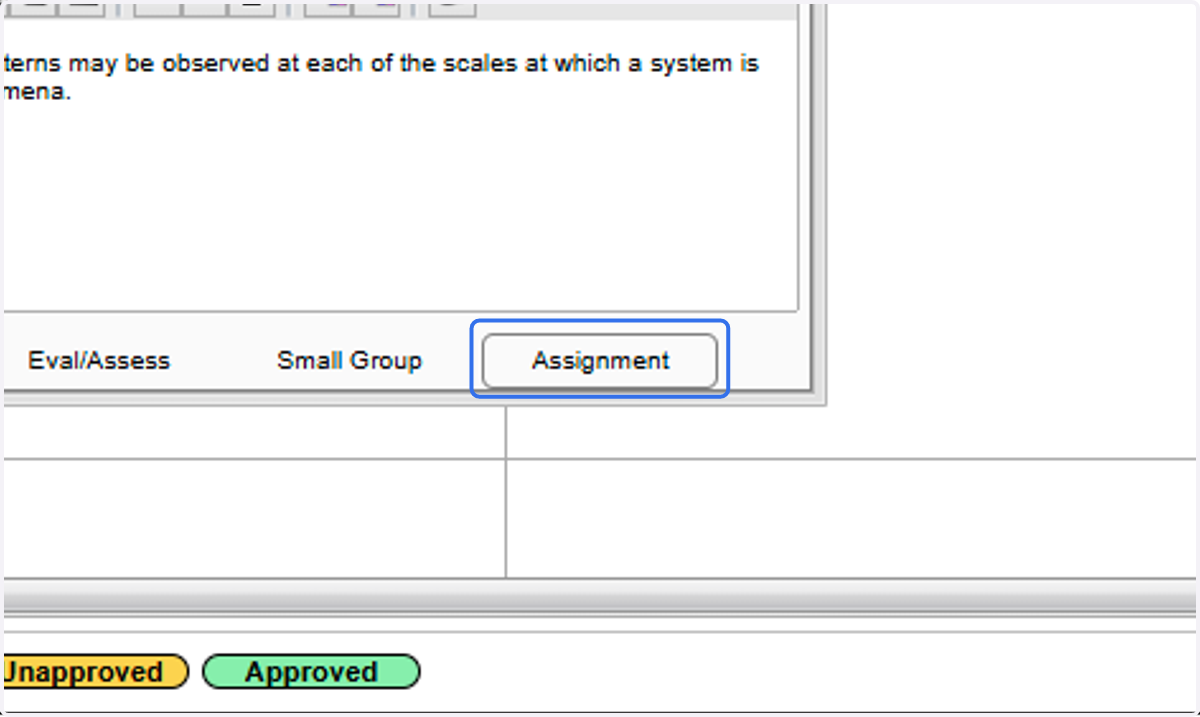
18. You can create and attach assignments to your lesson.
These will automatically be added to your gradebook and copied to all selected classes. Additionally, if the lesson is reused in future years, you will have the option to copy the assignment.
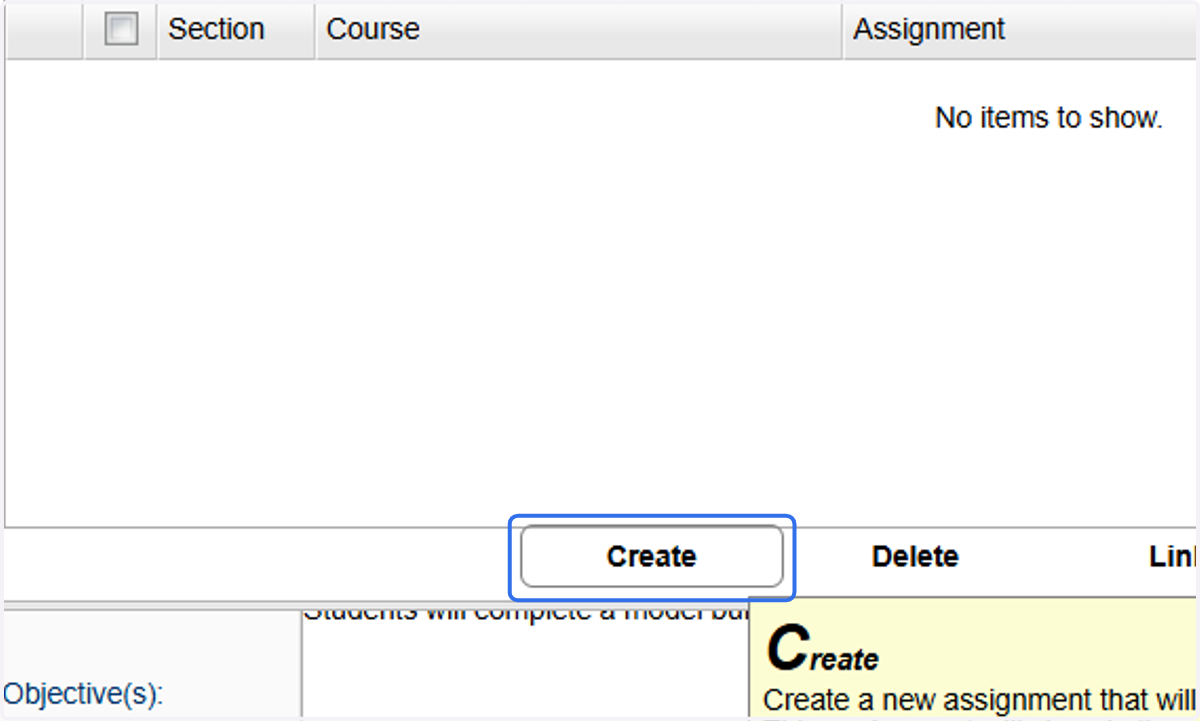
19. If you already have assignments in your gradebook, you can link them. If you would like to create a new assignment, click on Create.
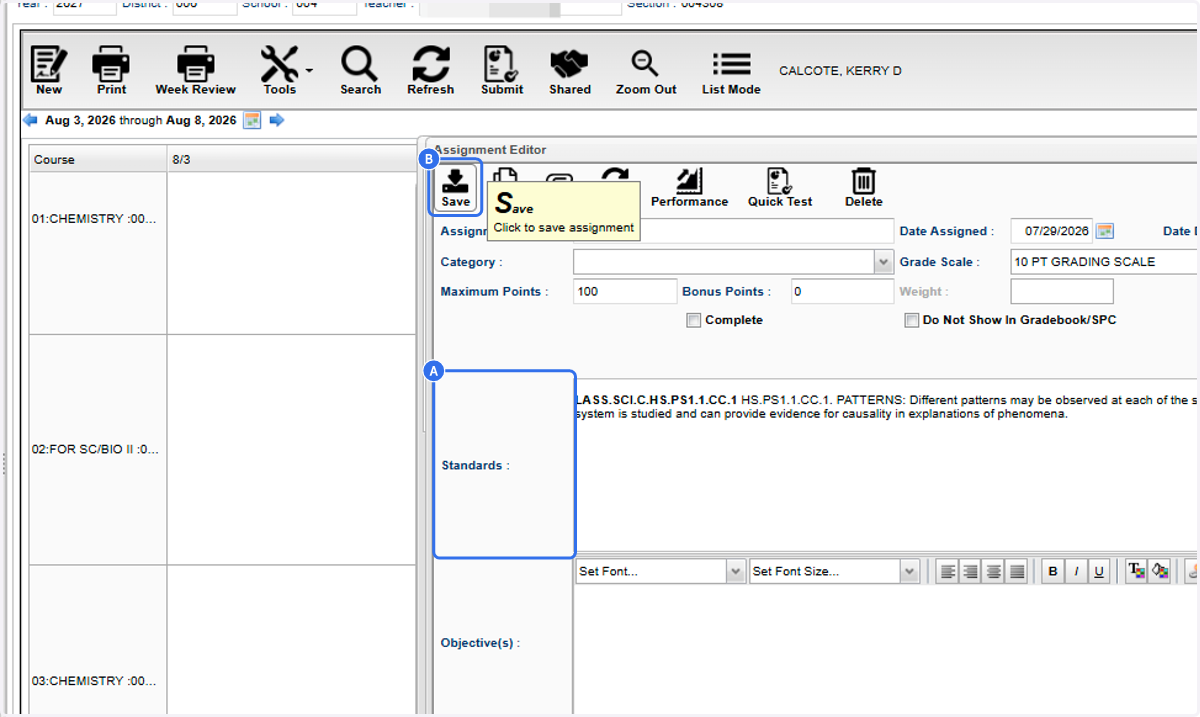
20. A. Standards will automatically be applied based on your lesson. Complete the information the same as you would in your regular gradebook.
20. B. Click on Save
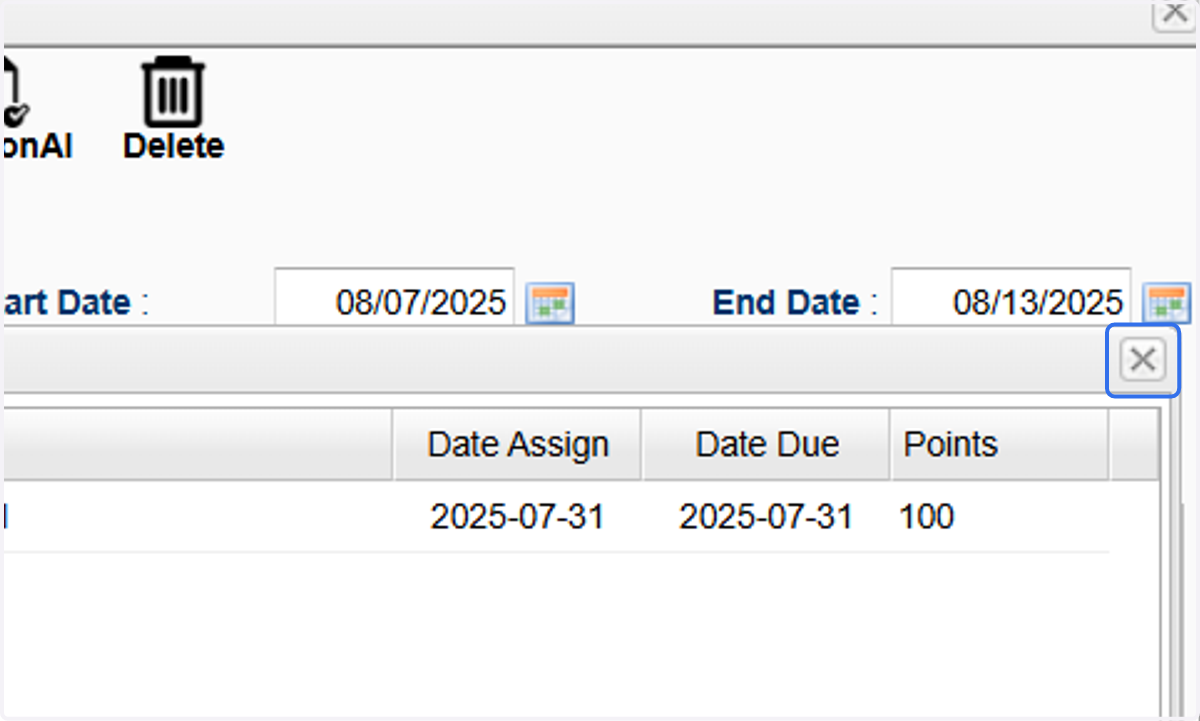
21. Close the "Assignment" window.
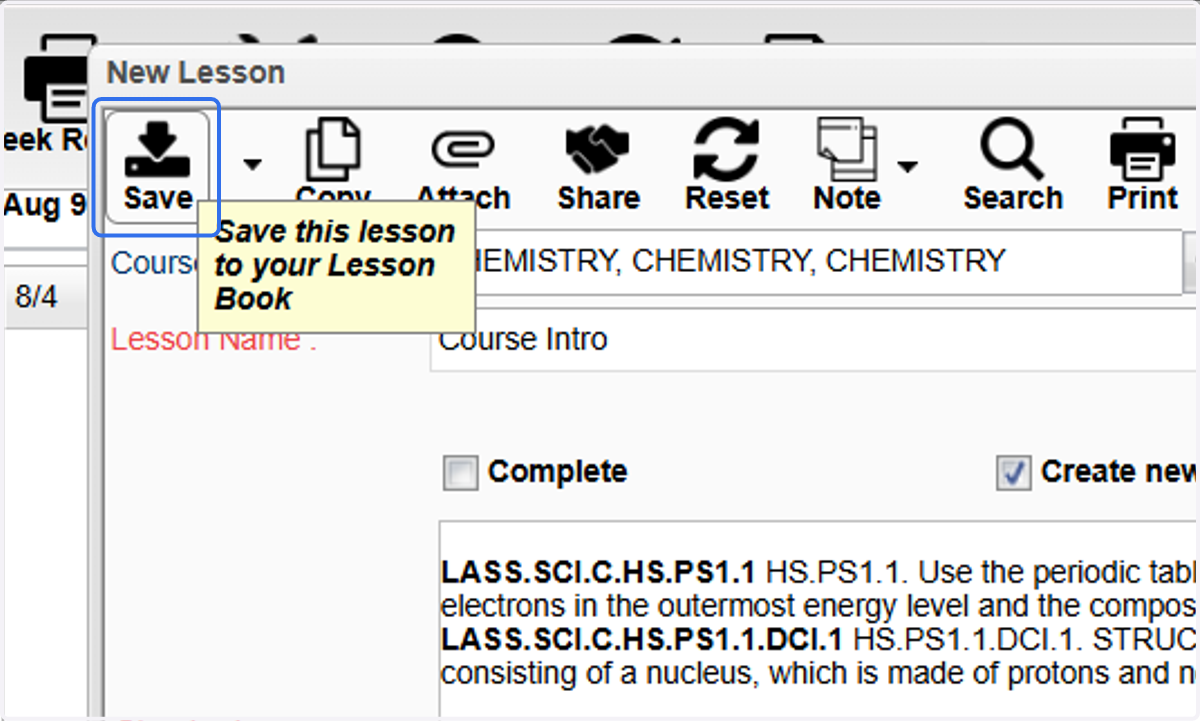
22. Click on "Save" to save and apply your lesson.
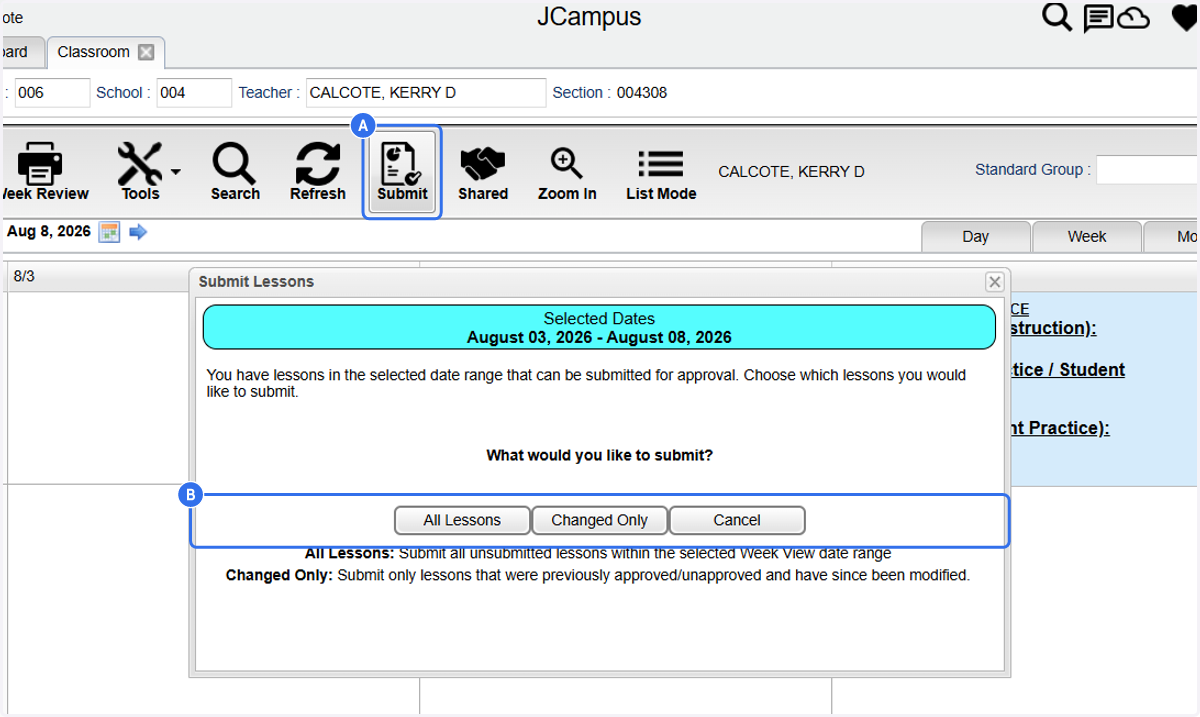
23. A. Click on Submit
23. B. Select the appropriate option to make plans available to your administrators.