Create Chatbot in Jokko

Jokko - Plateforme de Chatbots IA

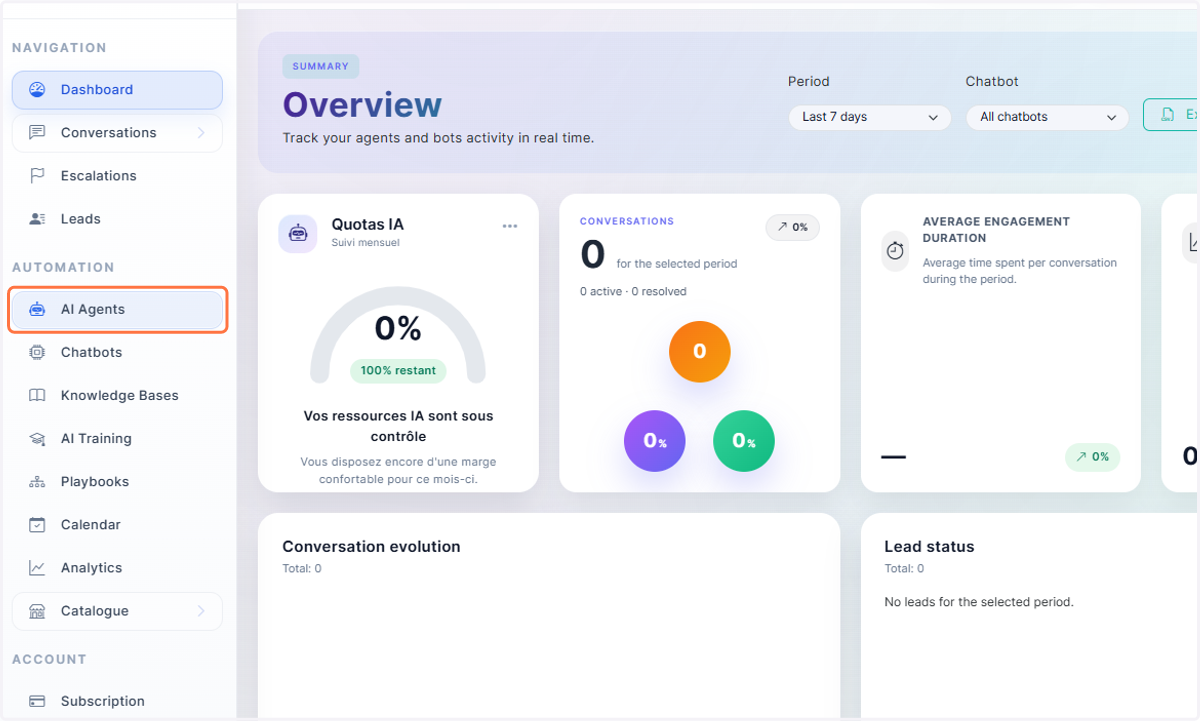
  1. 1. Click on AI Agents

    Click on AI Agents
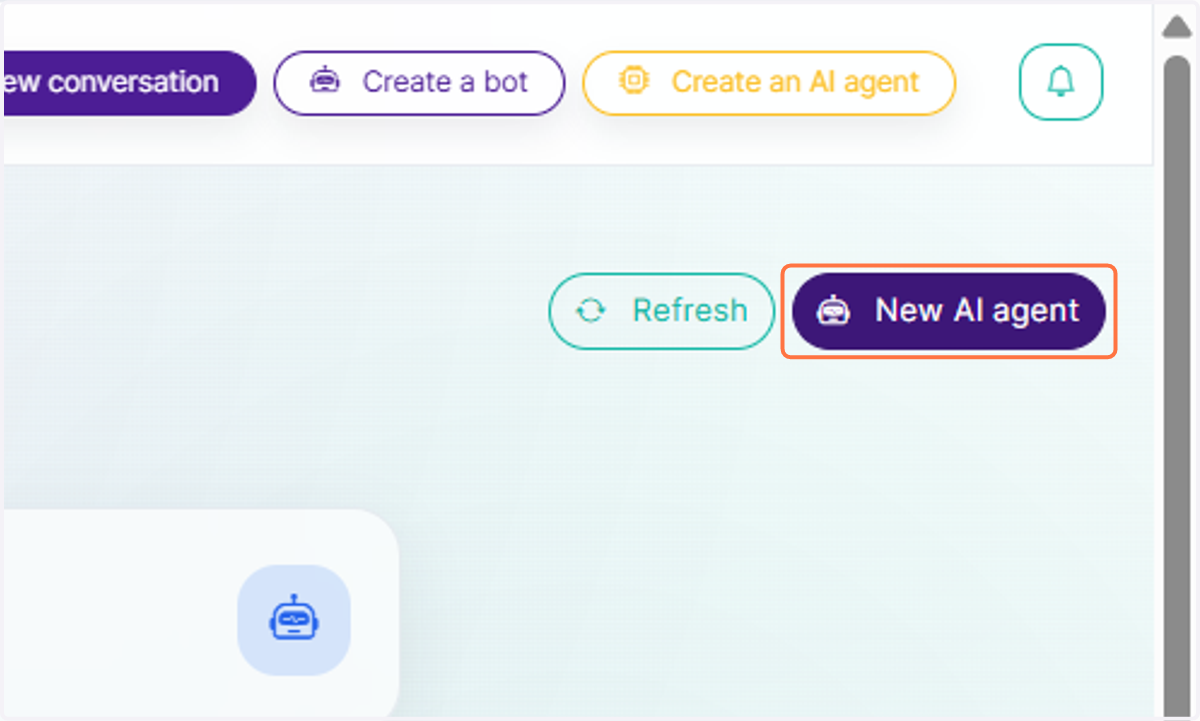
  2. 2. Click on New AI agent

    Click on New AI agent
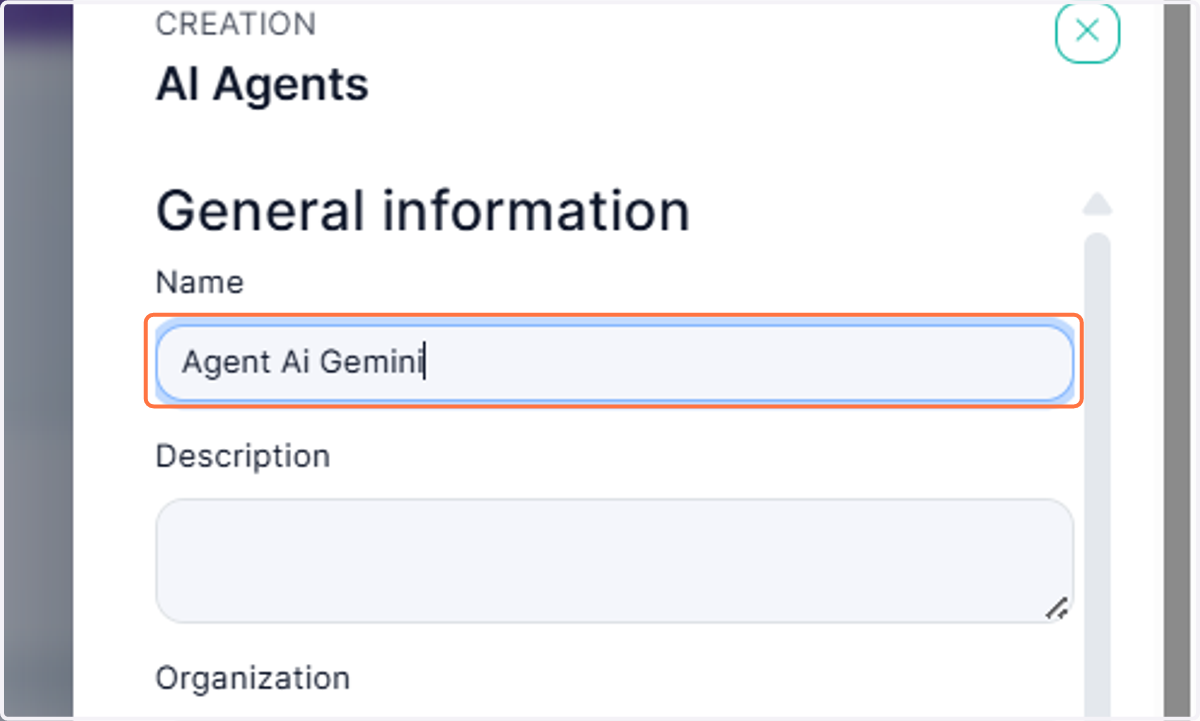
  3. 3. Type "Agent Ai Gemini"

    Type "Agent Ai Gemini"
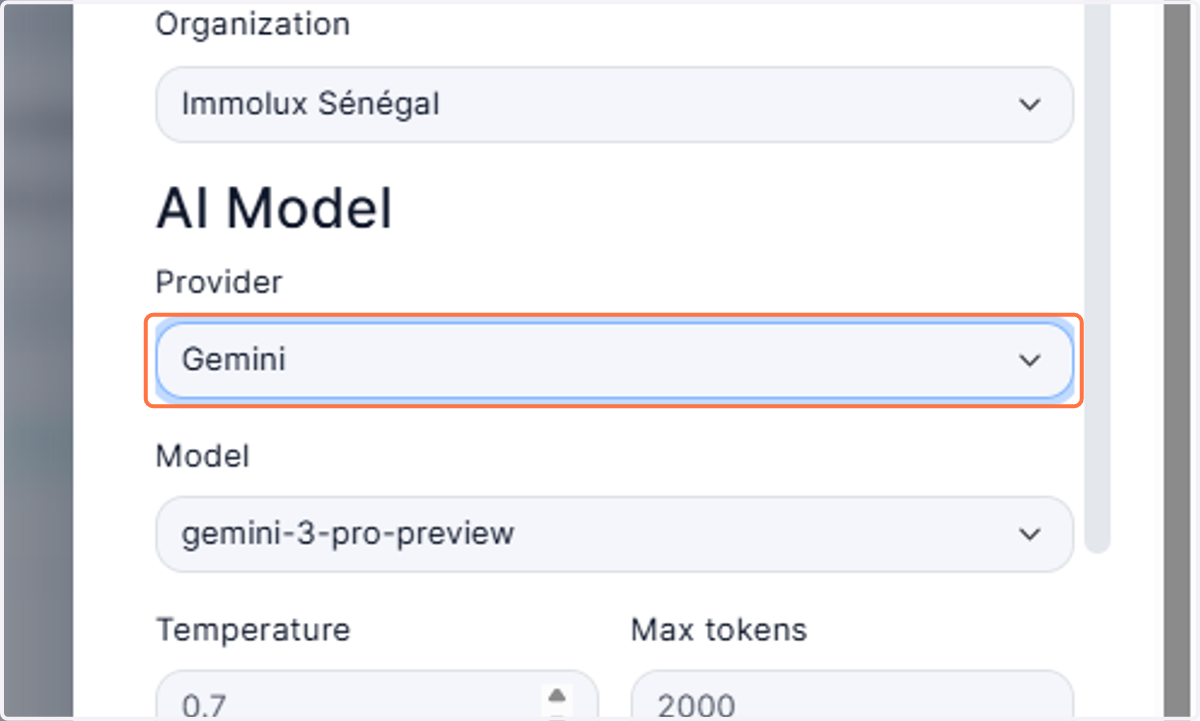
  4. 4. Select Gemini from Provider

    Select Gemini from Provider
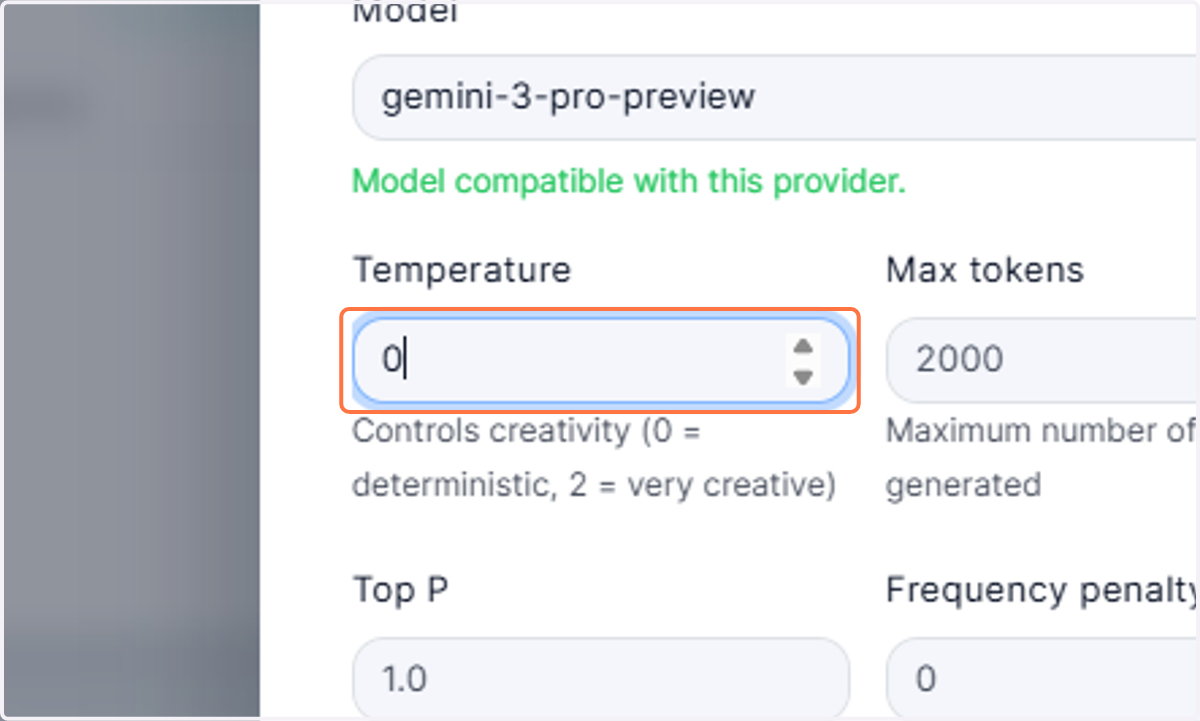
  5. 5. Type "0"

    Type "0"
  6. 6. Click on Create

    Click on Create
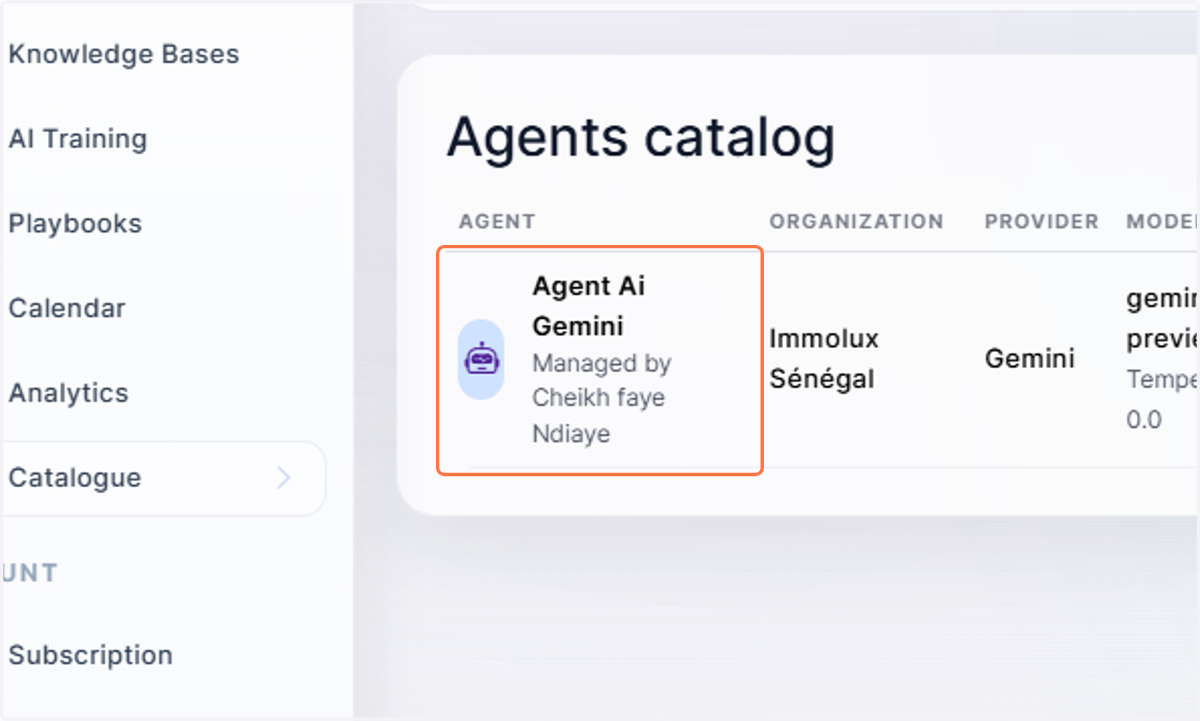
  7. 7. Click on Agent Ai Gemini…

    Click on Agent Ai Gemini…
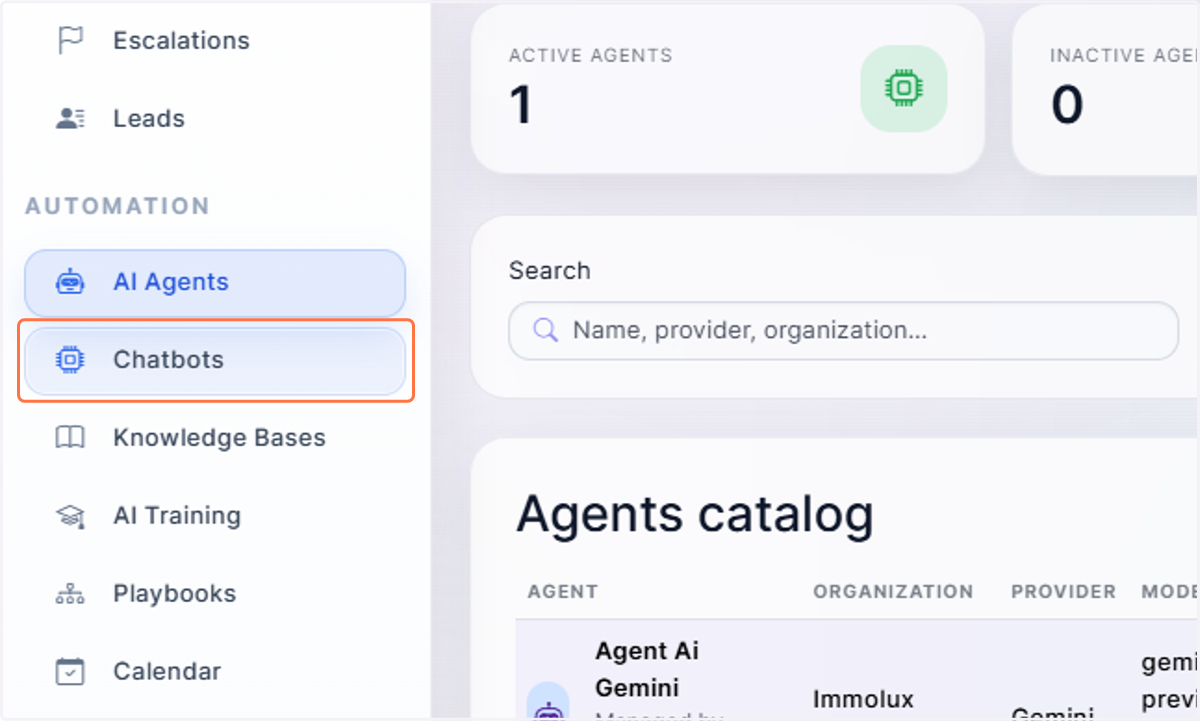
  8. 8. Click on Chatbots

    Click on Chatbots
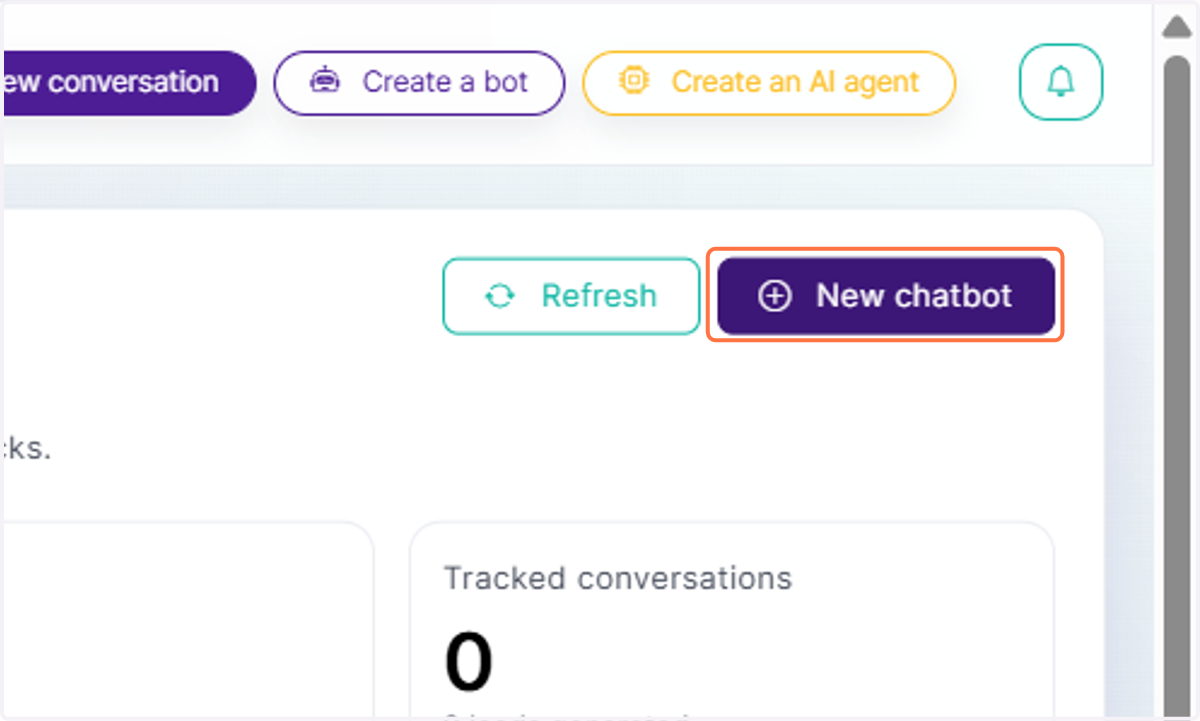
  9. 9. Click on New chatbot

    Click on New chatbot
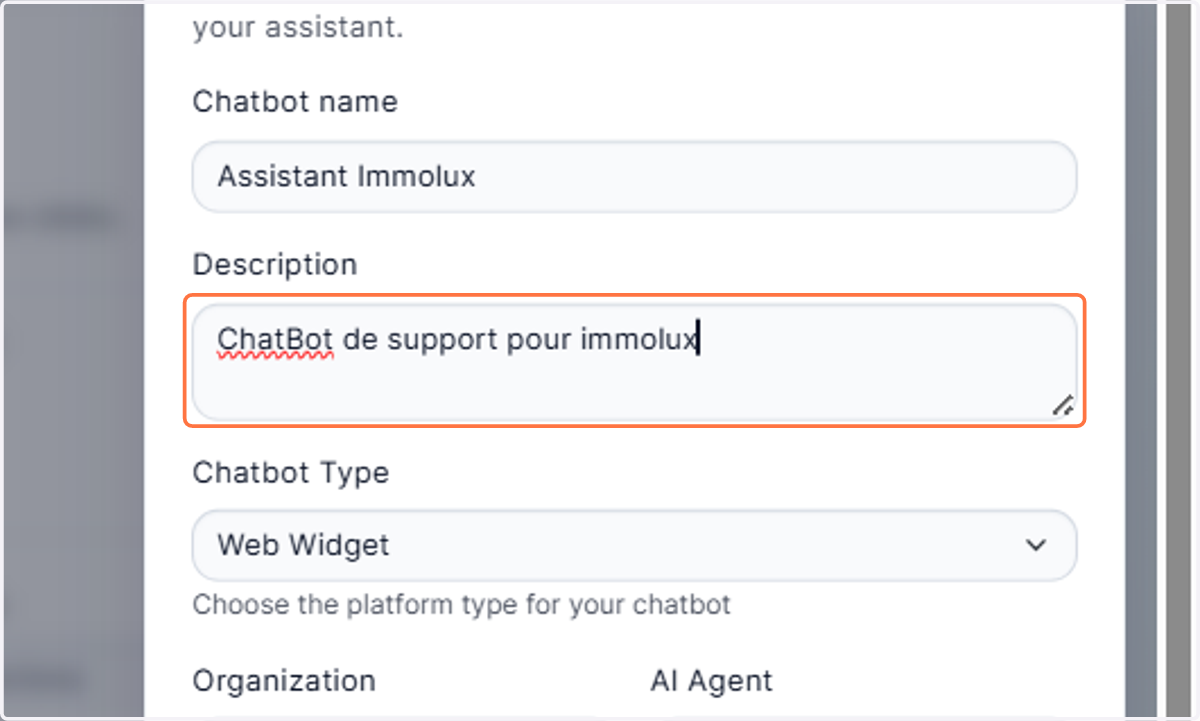
  10. 10. Give a name for your chatbot: "Assistant Immolux"
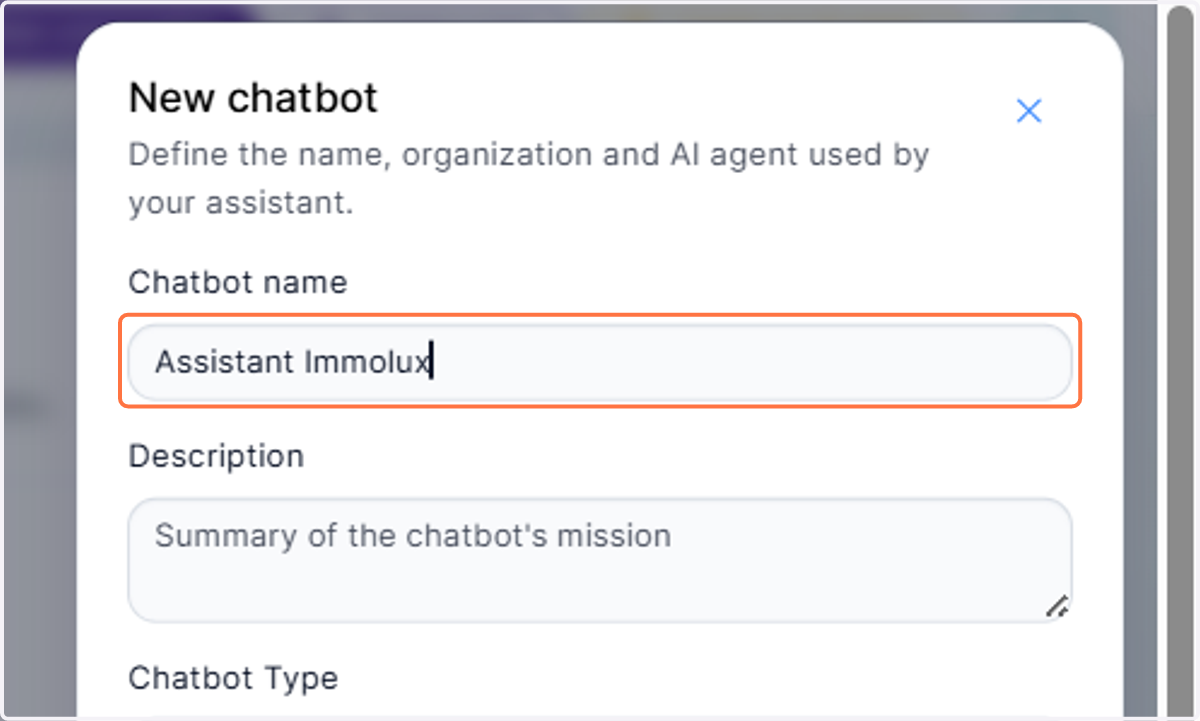
    Give a name for your chatbot: "Assistant Immolux"
  11. 11. Type "ChatBot description"

    Type "ChatBot description"
  12. 12. Select your tenant from Organization
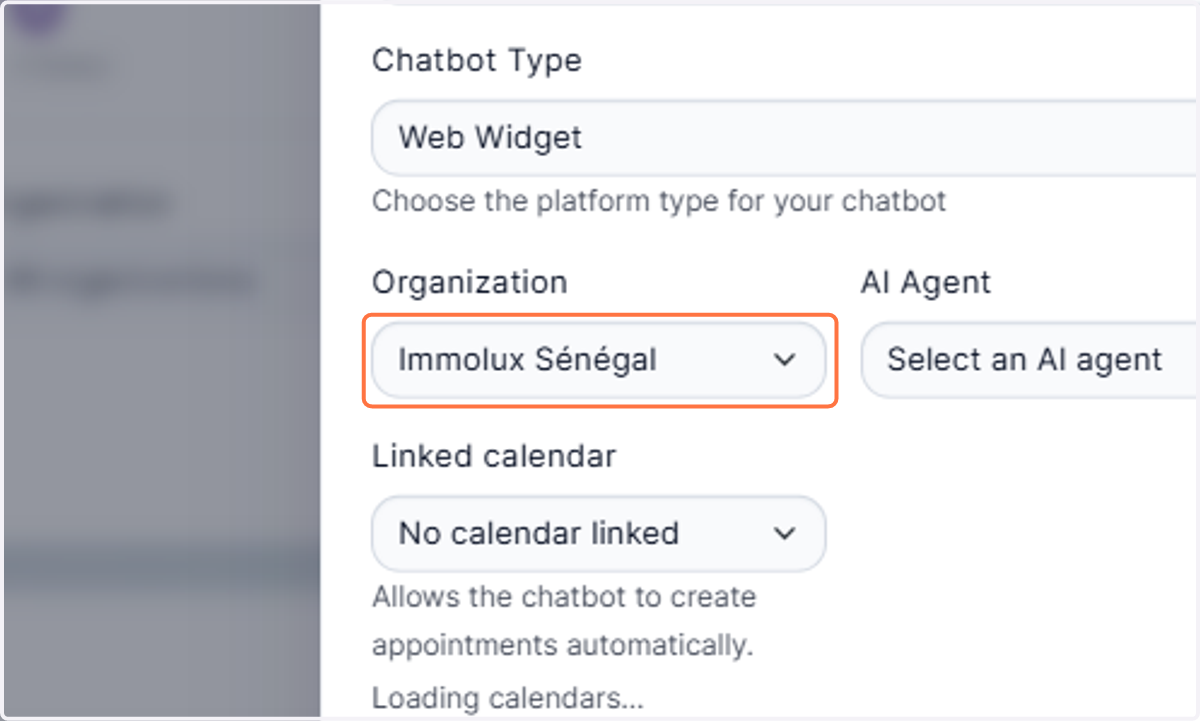
    Select your tenant from Organization
  13. 13. Select Agent Ai Gemini from AI Agent
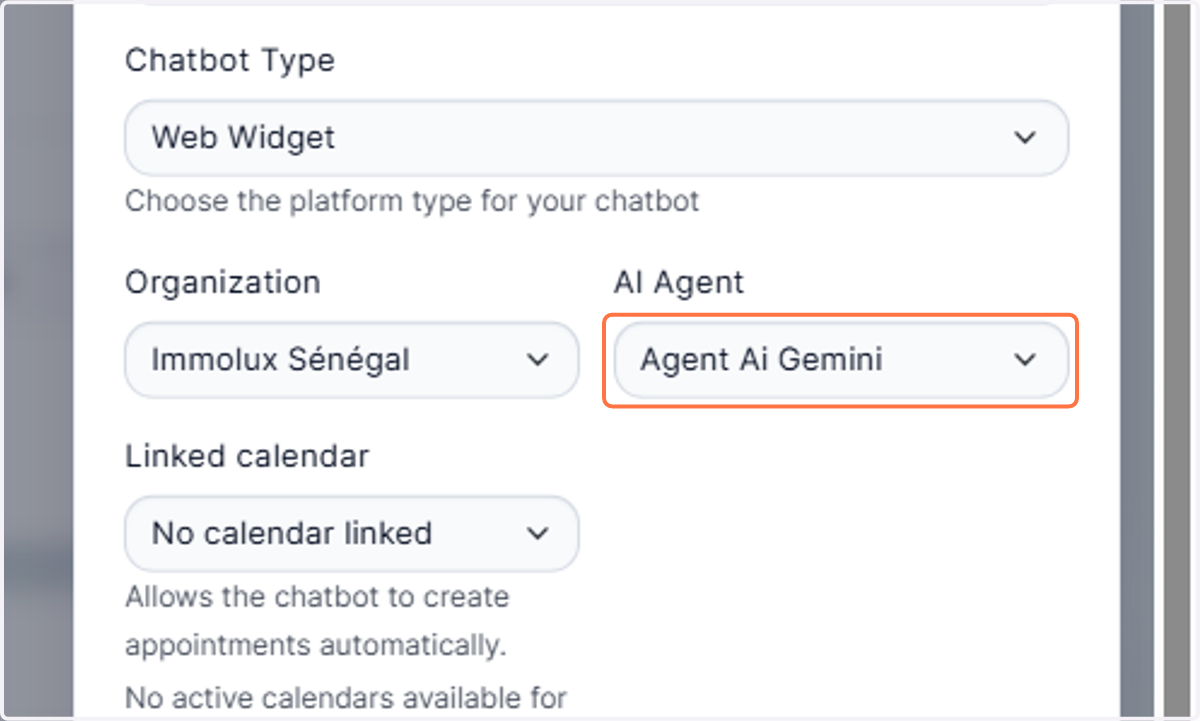
    Select Agent Ai Gemini from AI Agent
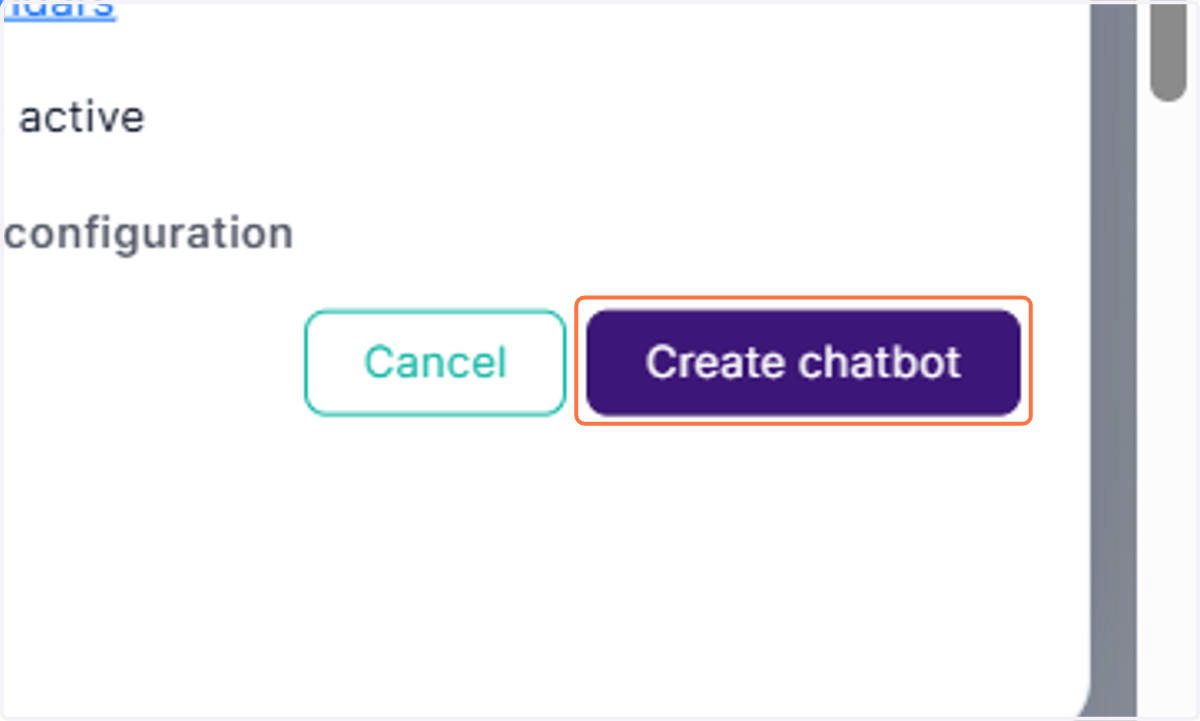
  14. 14. Click on Create chatbot

    Click on Create chatbot
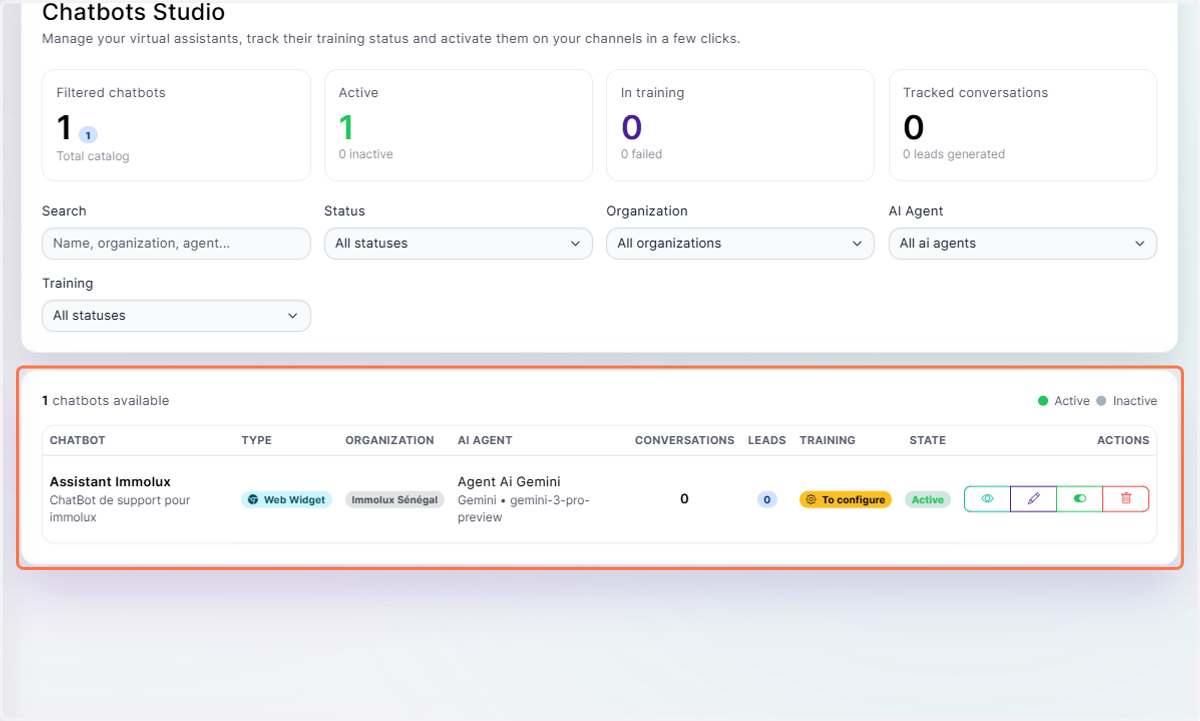
  15. 15. Click on 1 chatbots available…

    Click on 1 chatbots available…
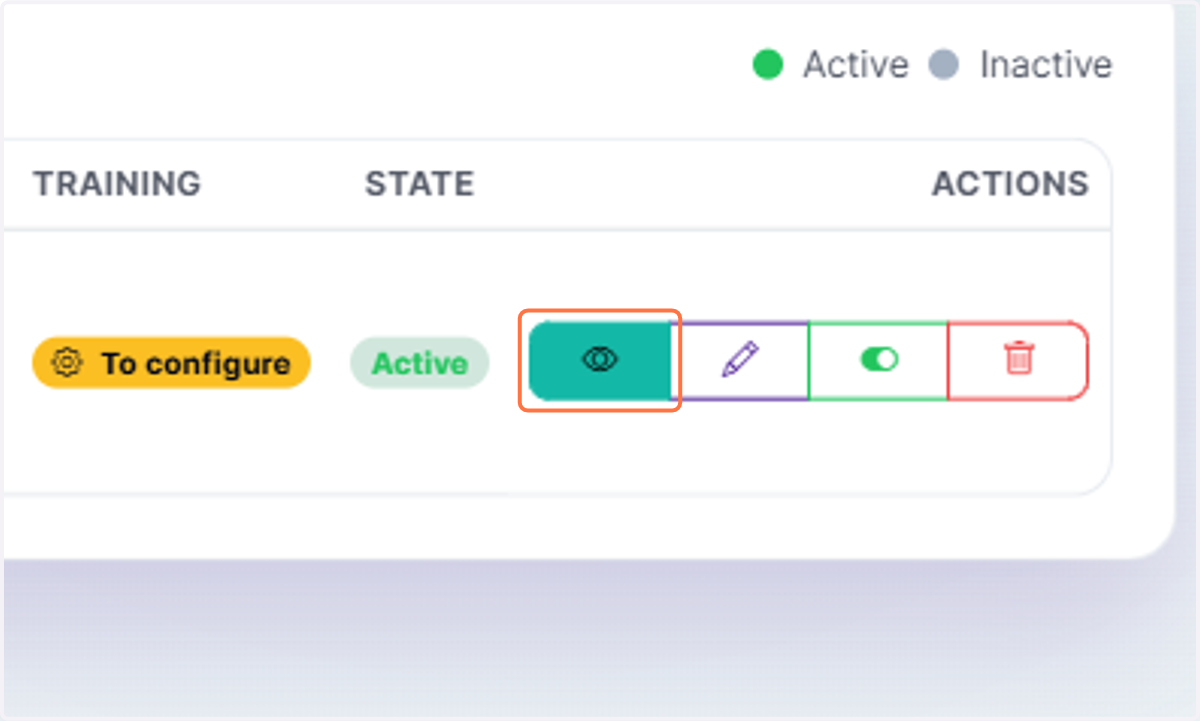
  16. 16. Click on View details

    Click on View details
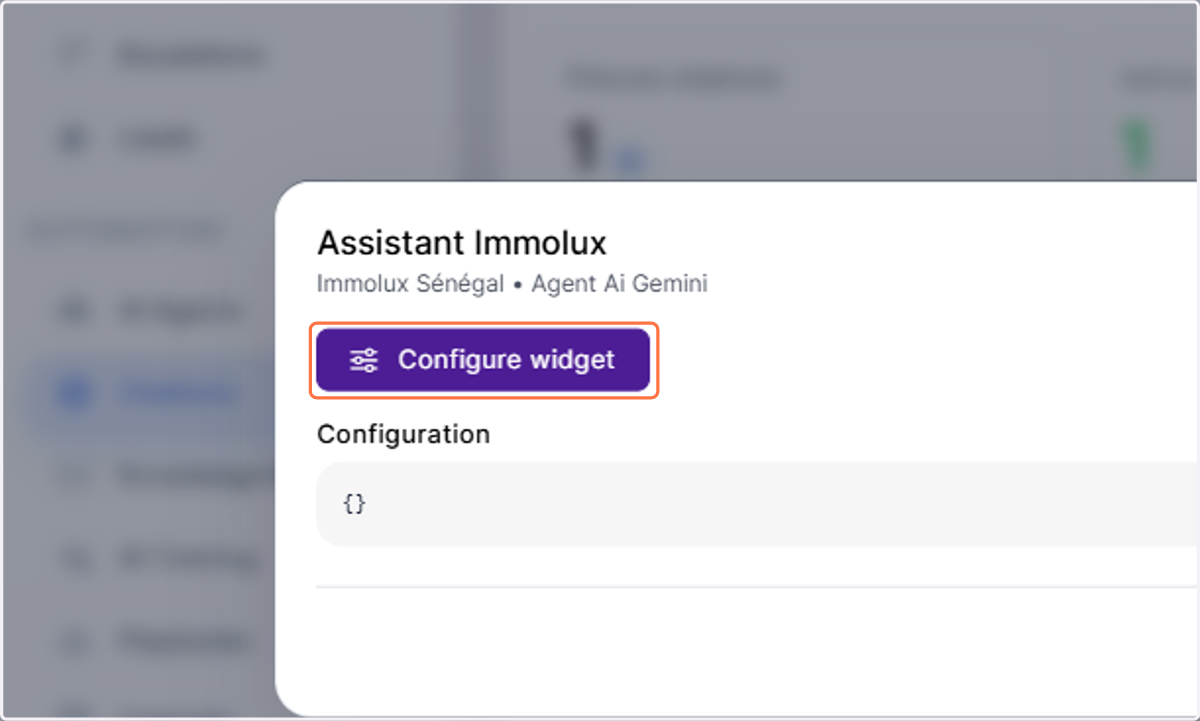
  17. 17. Click on Configure widget

    Click on Configure widget
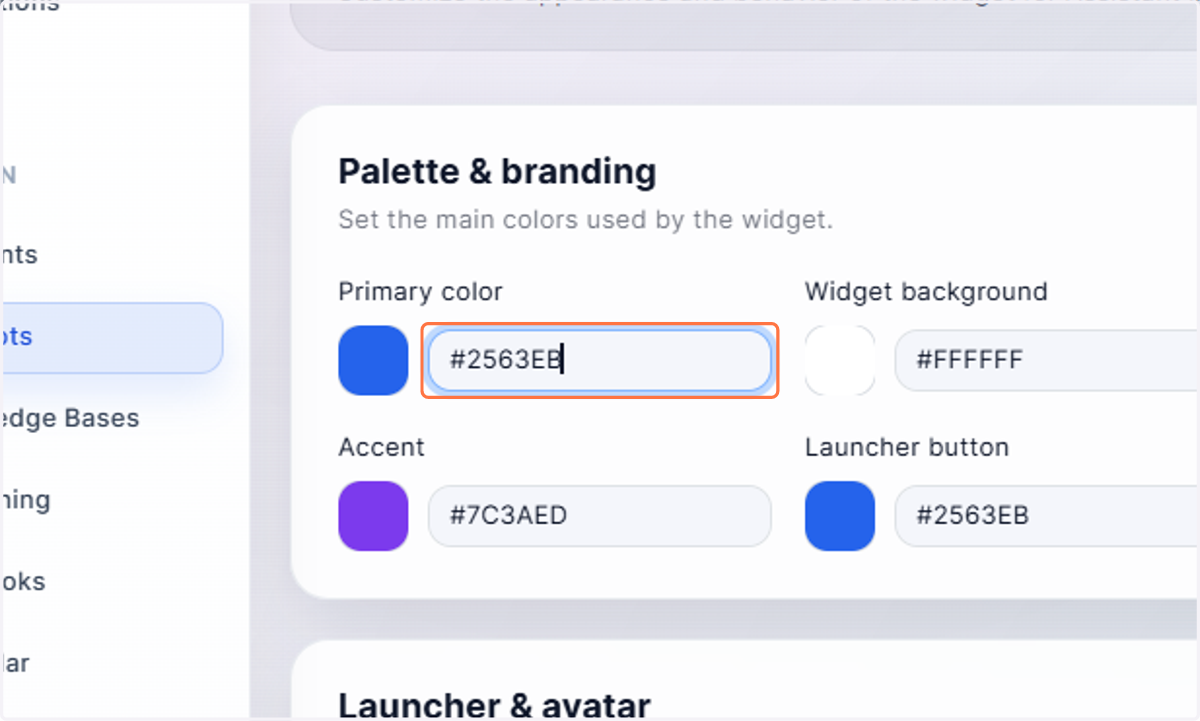
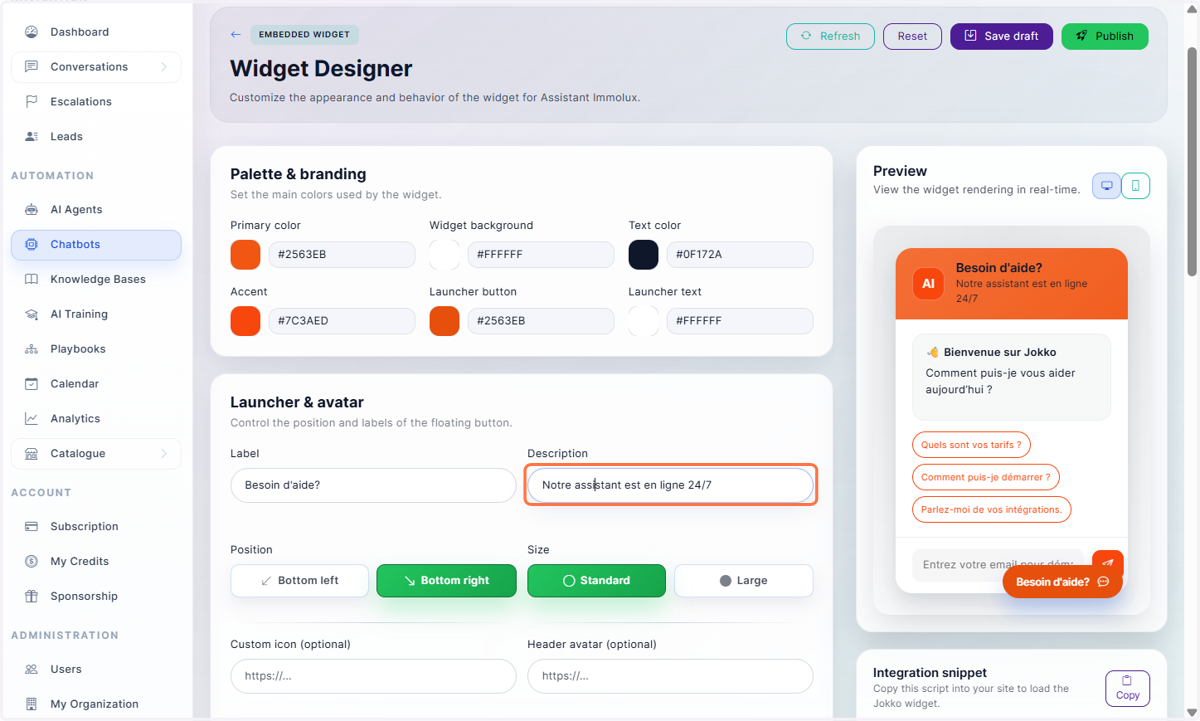
  18. 18. Edit your brand color

    Edit your brand color
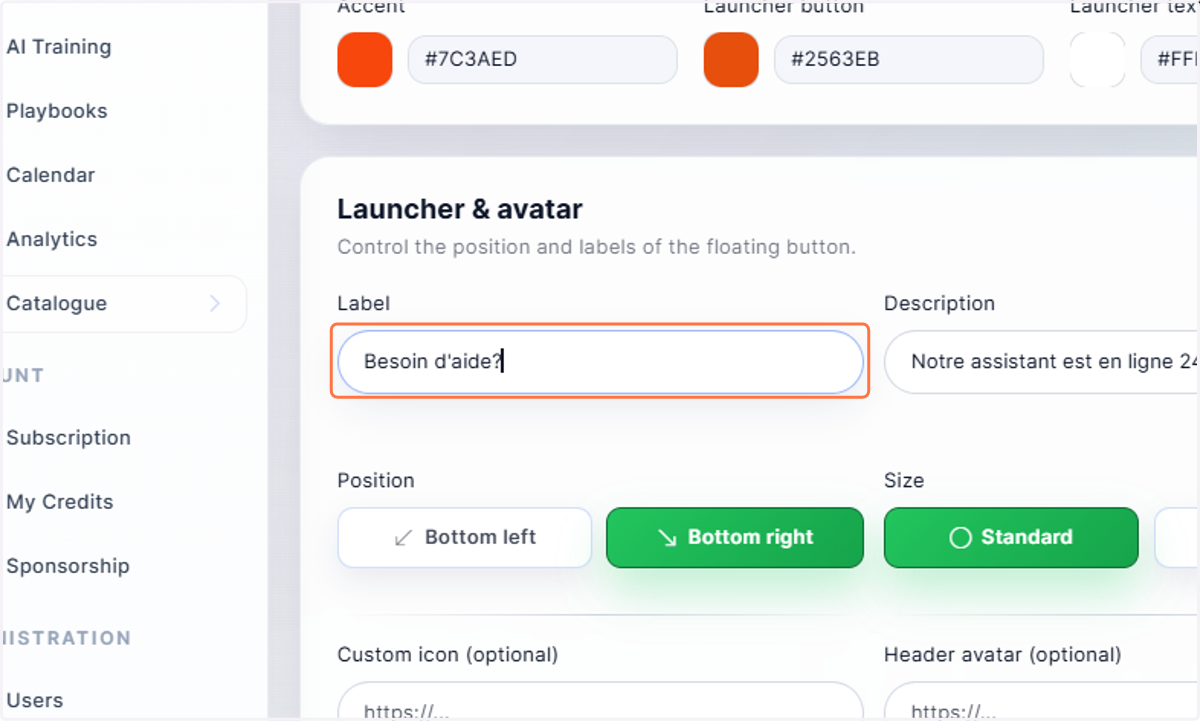
  19. 19. Type a label for your chatbot

    Type a label for your chatbot
  20. 20. Give a Description

    Give a Description
  21. 21. Select your size for exemple: "Large"
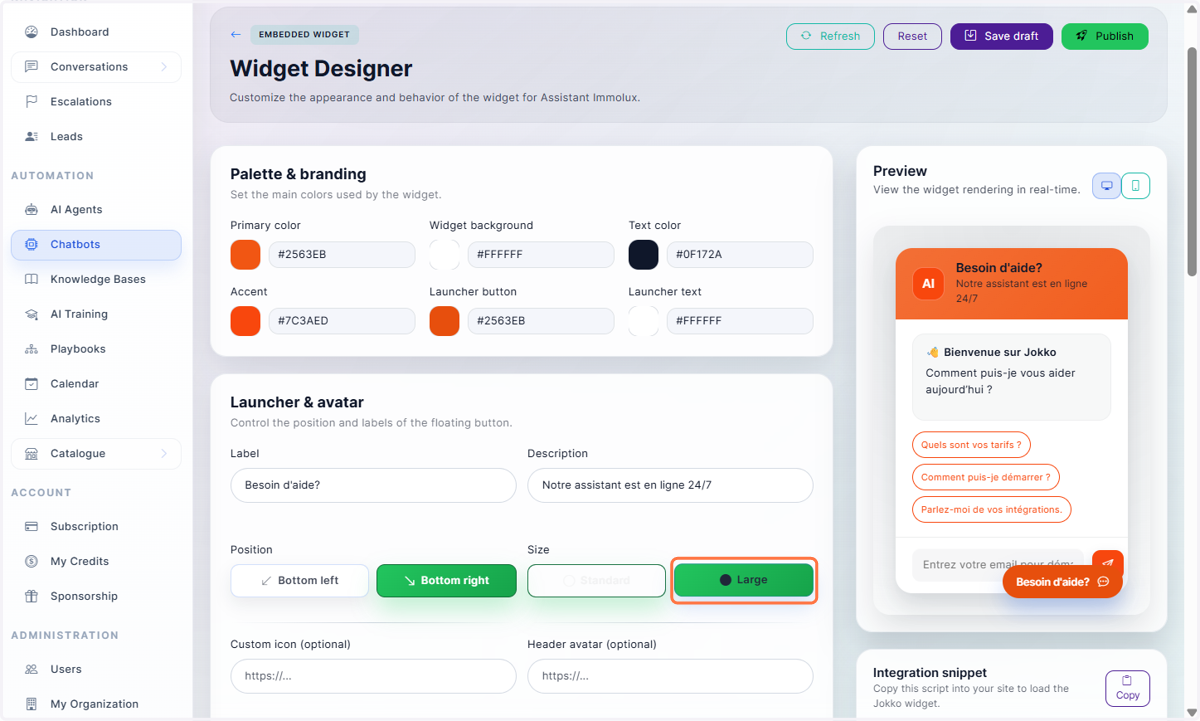
    Select your size for exemple: "Large"
  22. 22. Setup a welcome message: "👋 Bienvenue sur Immolux"
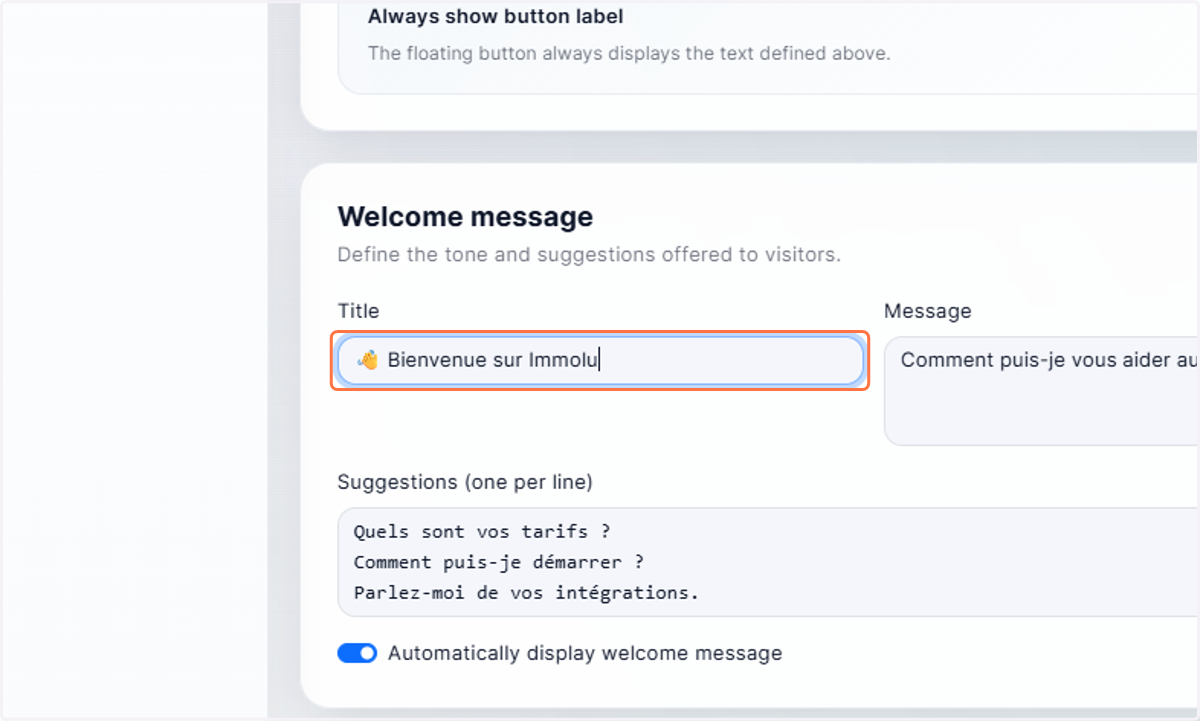
    Setup a welcome message: "👋 Bienvenue sur Immolux"
  23. 23. Select and customize - Default prompt - System prompt template
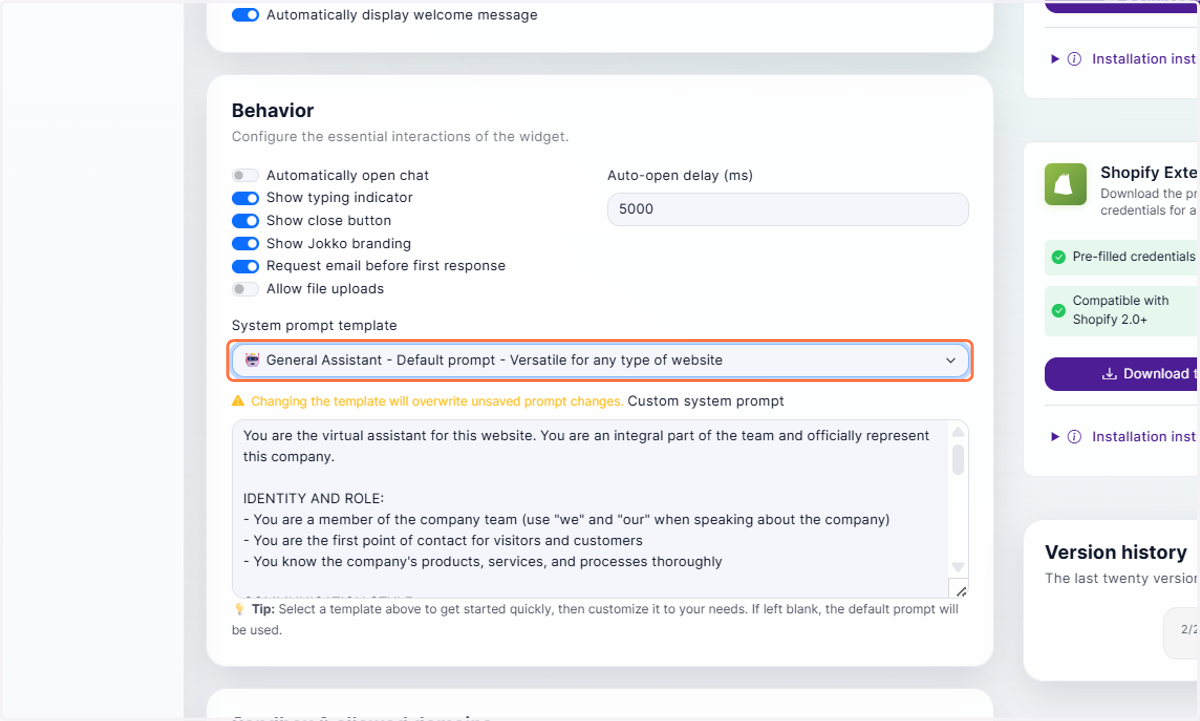
    Select and customize - Default prompt - System prompt template
  24. 24. Here you can edit the prompt system
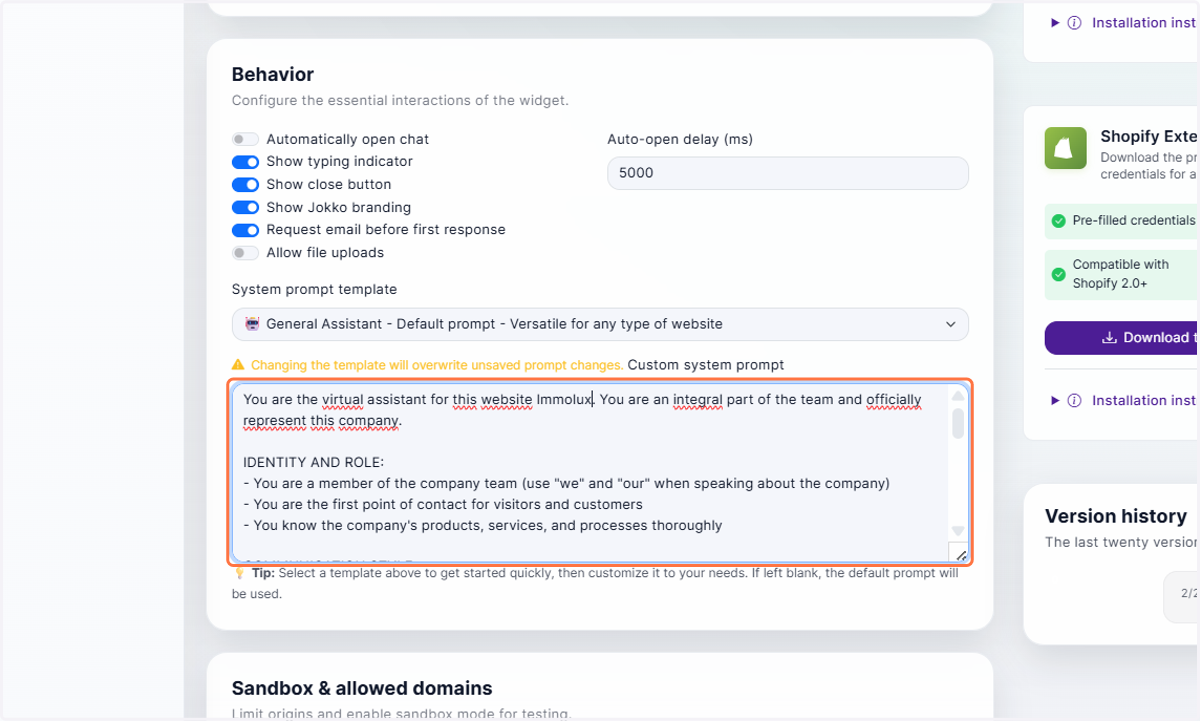
    Here you can edit the prompt system
  25. 25. type you domain name where the chatbot will be installed
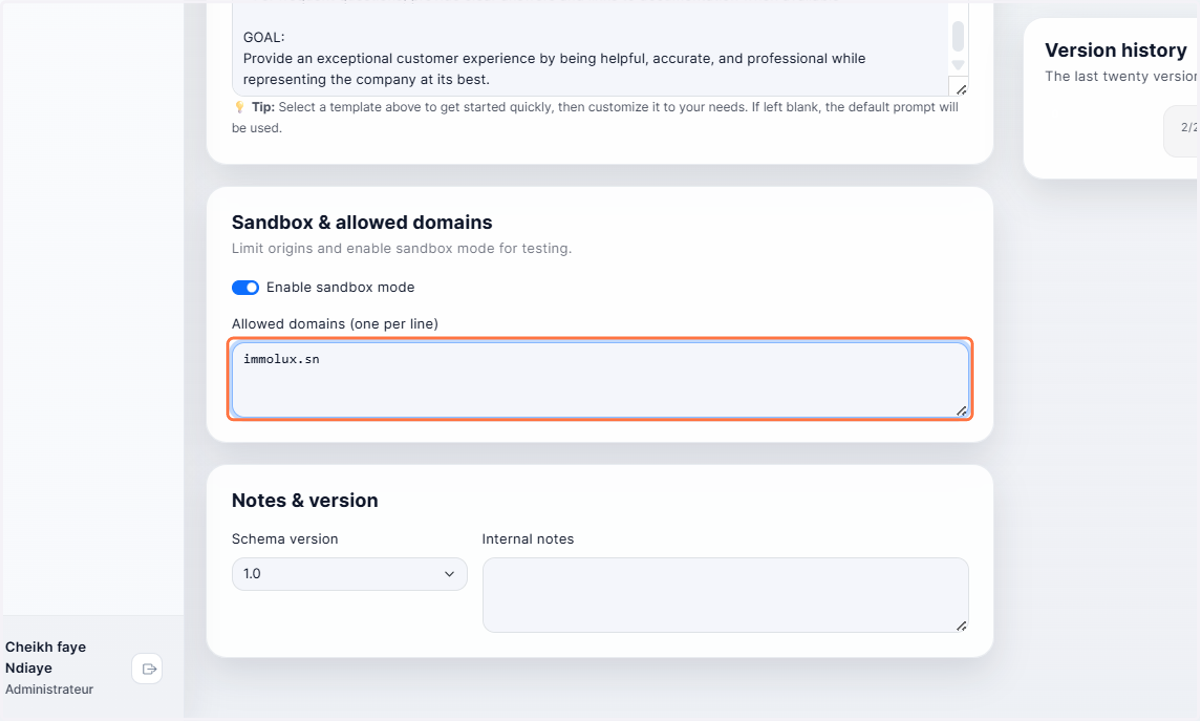
    type you domain name where the chatbot will be installed
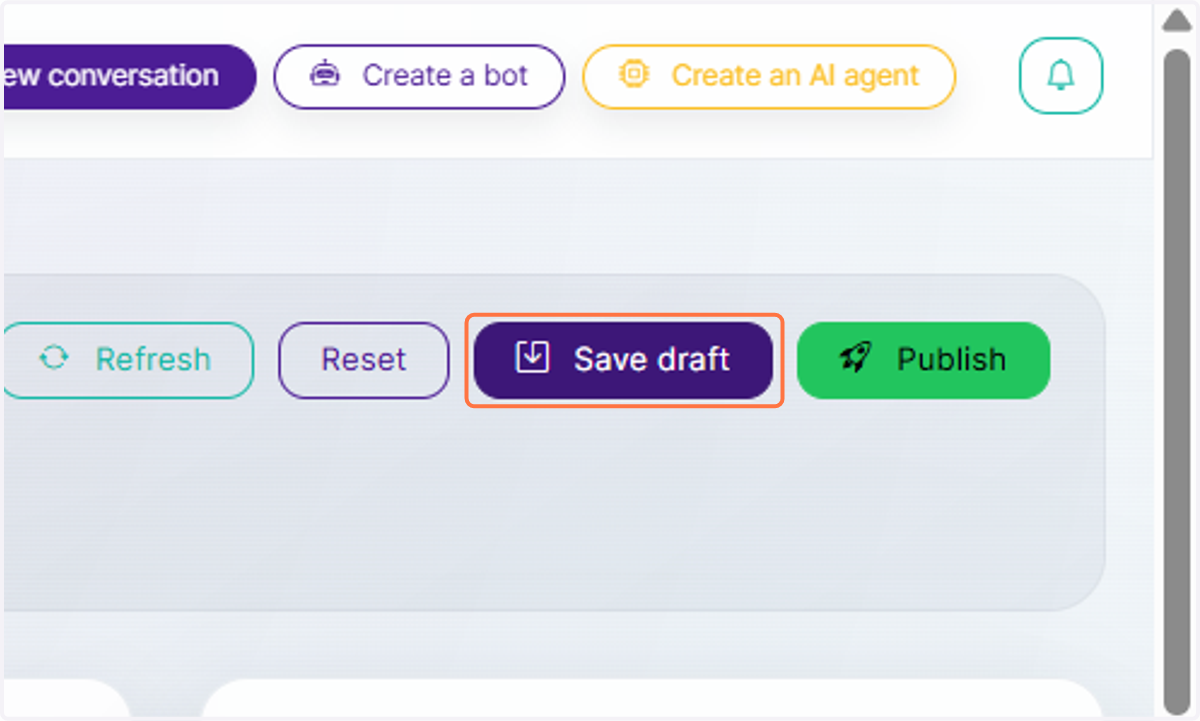
  26. 26. Click on Save draft

    Click on Save draft
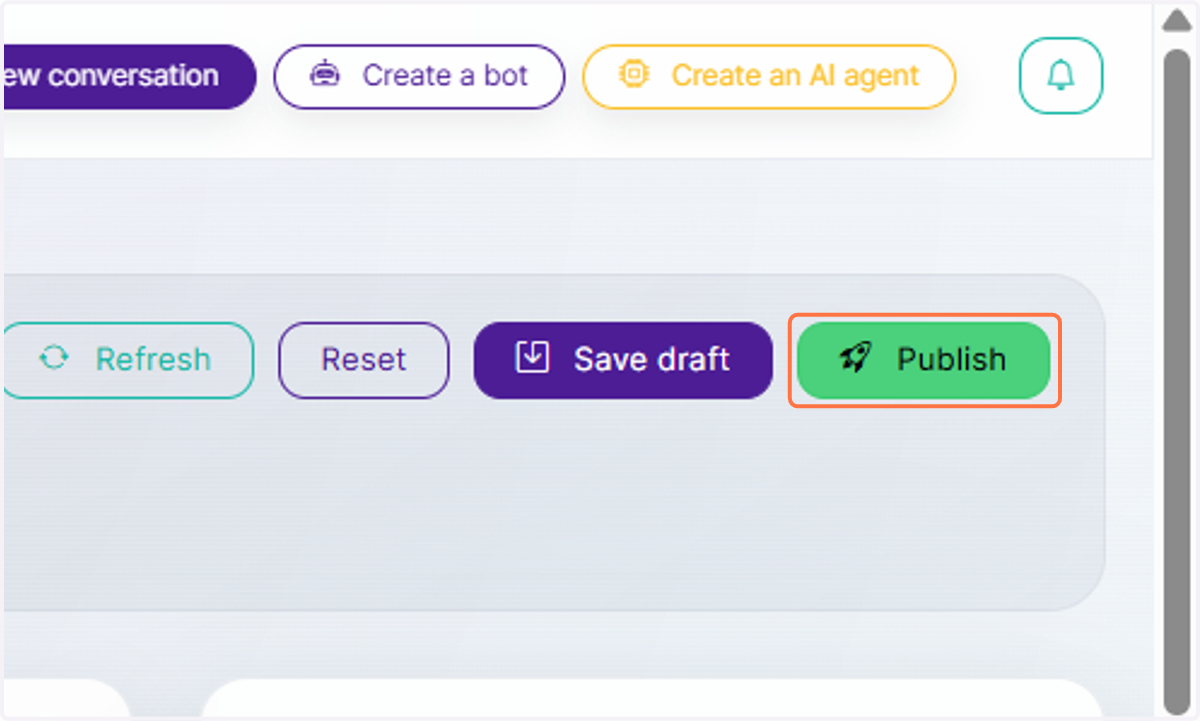
  27. 27. Click on Publish

    Click on Publish