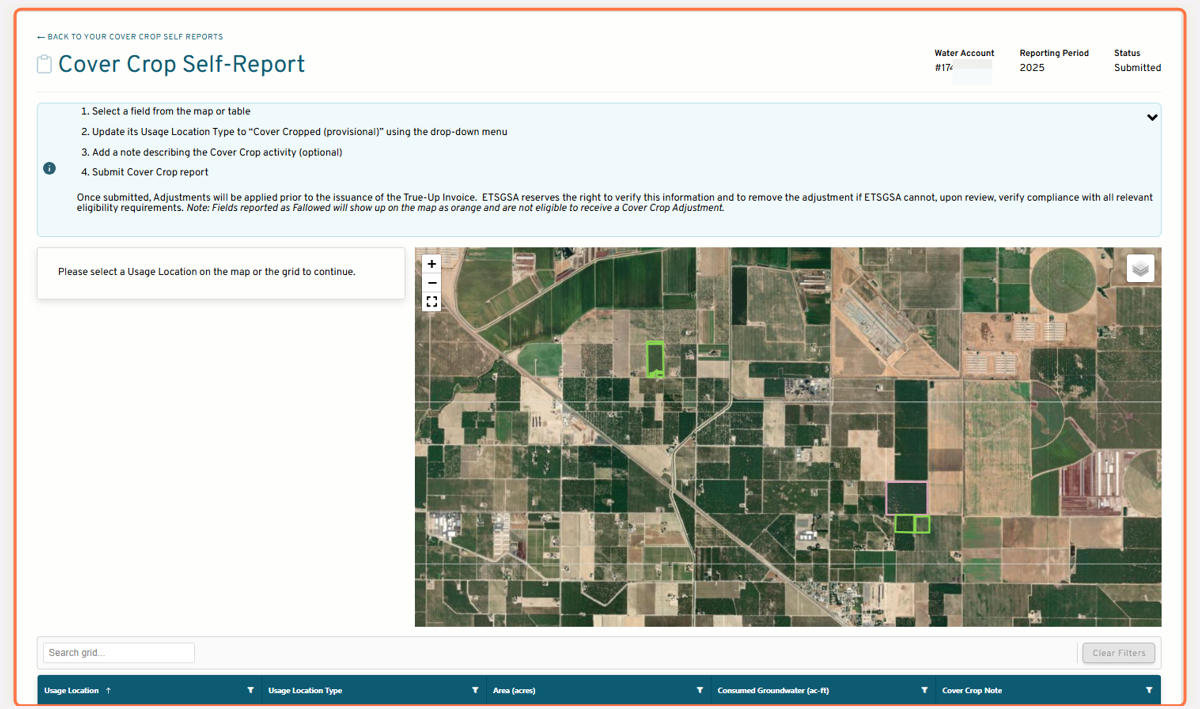
Cover Crop Self-Reporting in GAP
Groundwater Accounting Platform
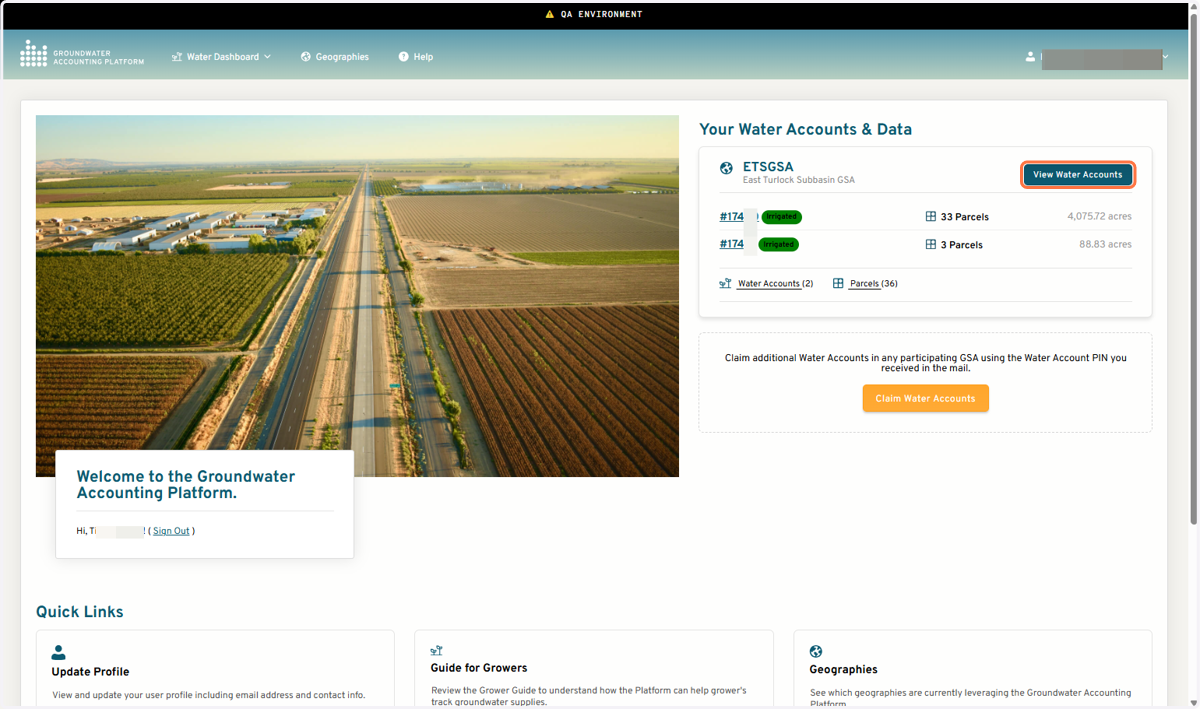
1. Click on View Water Accounts
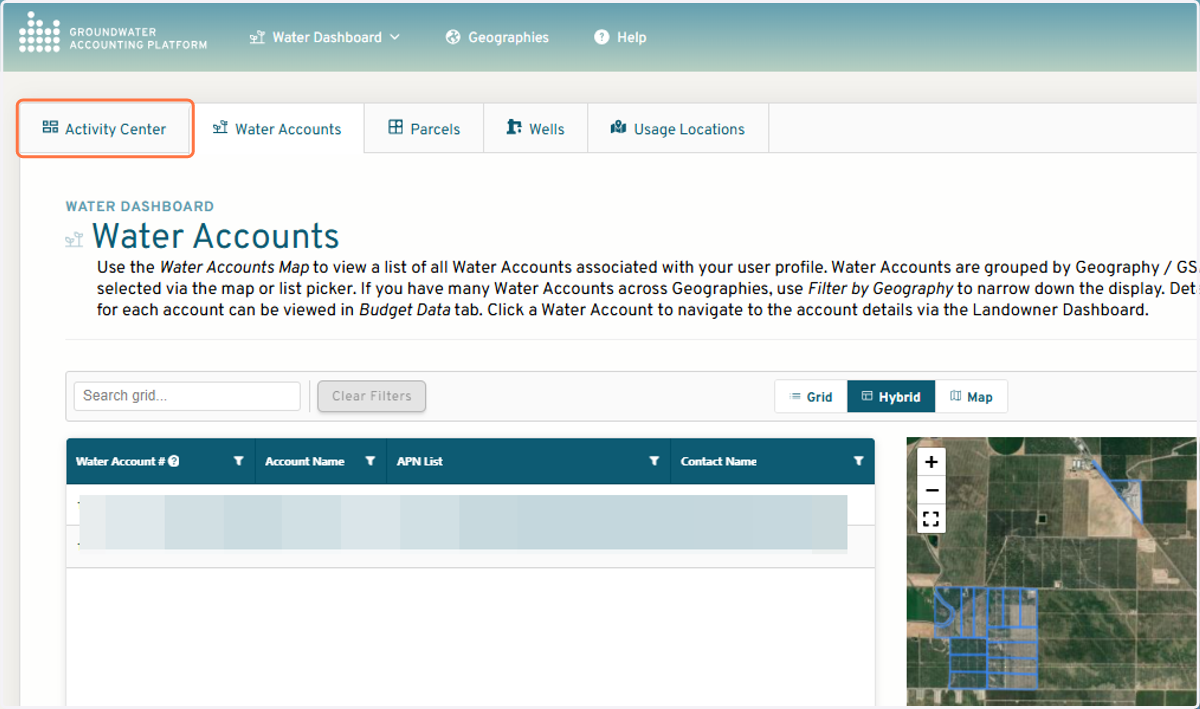
2. Click on Activity Center
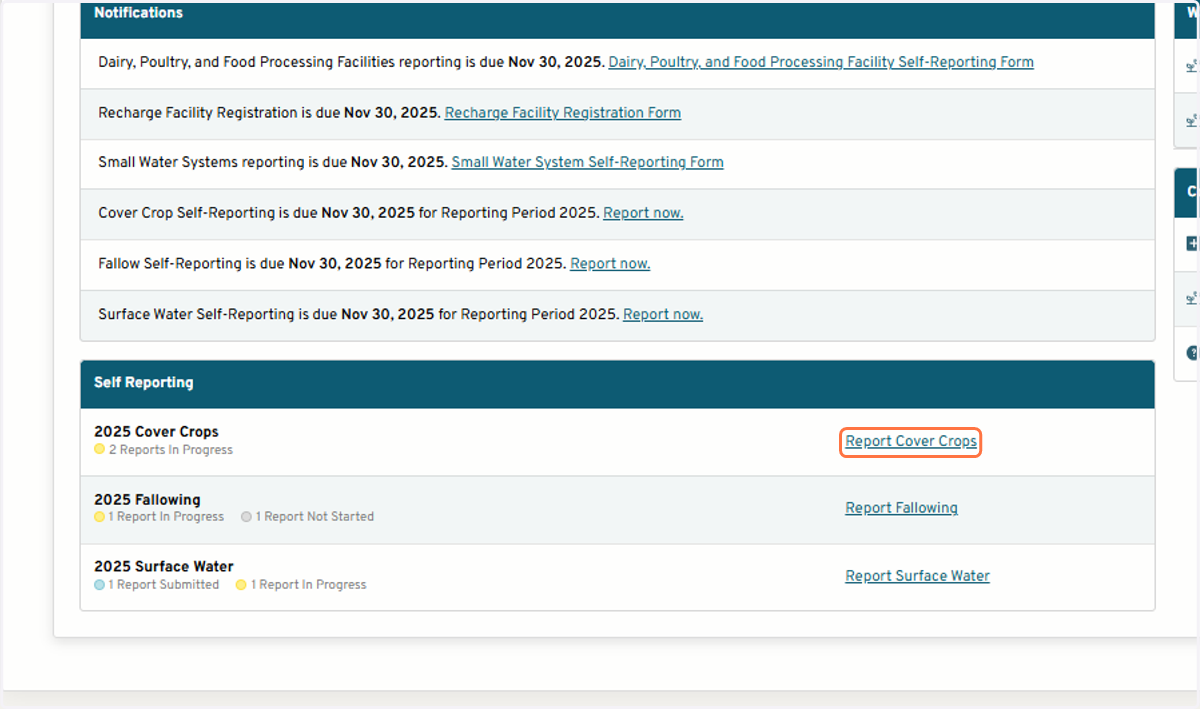
3. All self-reporting forms are linked in the Notifications section
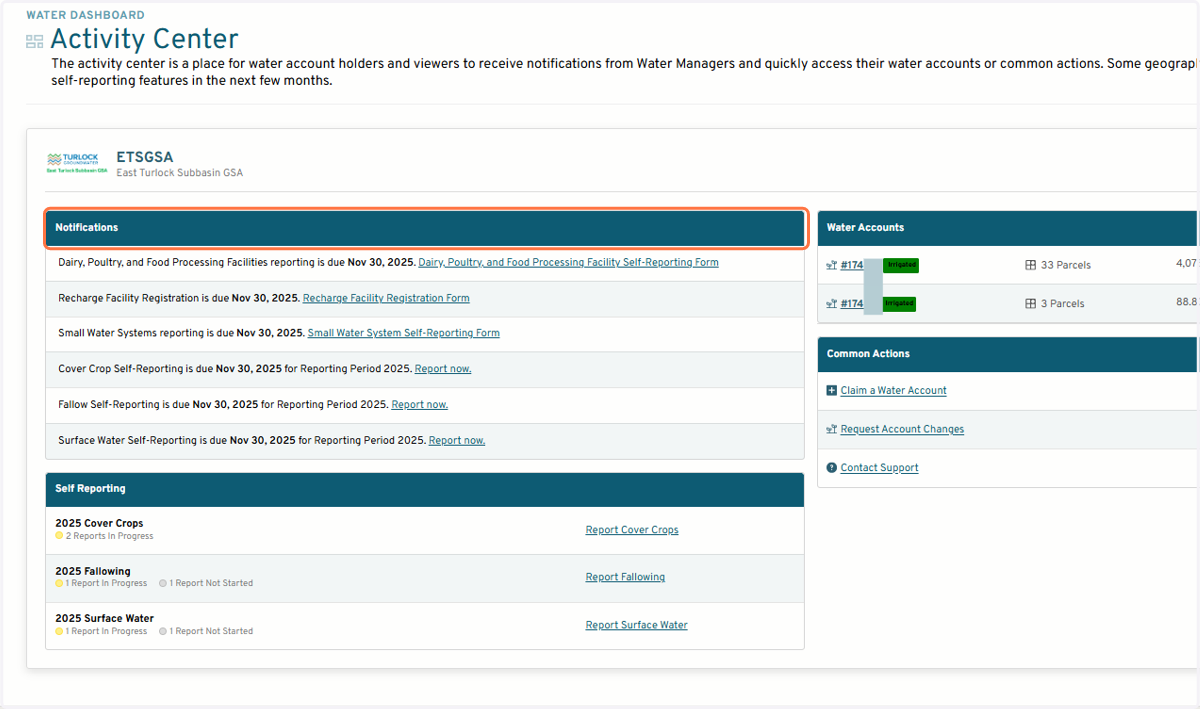
Start a new report
4. Click on Report Cover Crops
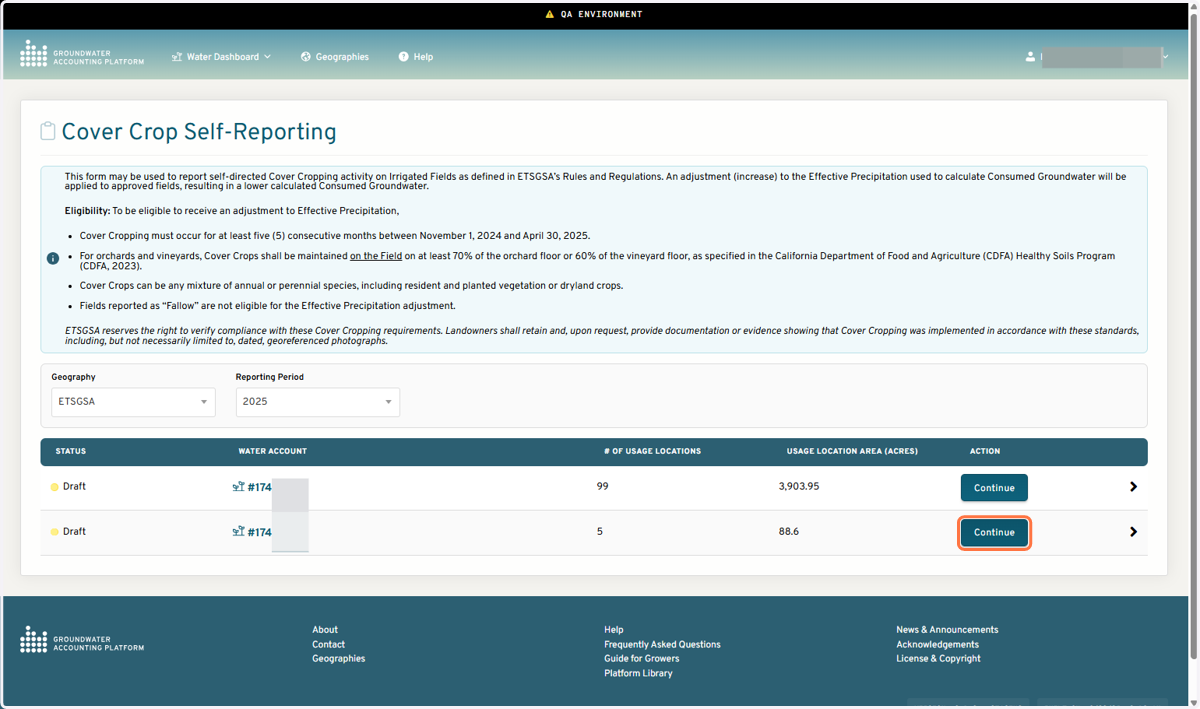
5. Click Start or Continue button
Reporting a single usage location
6. Select a Field from the map or Table
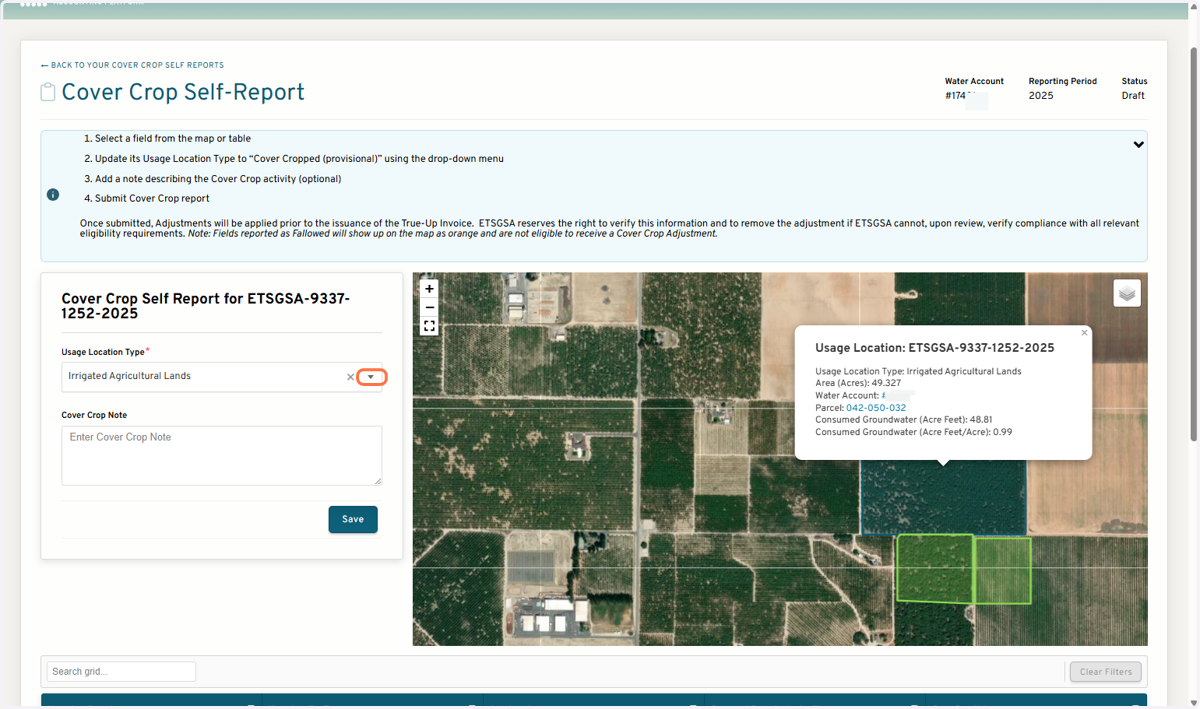
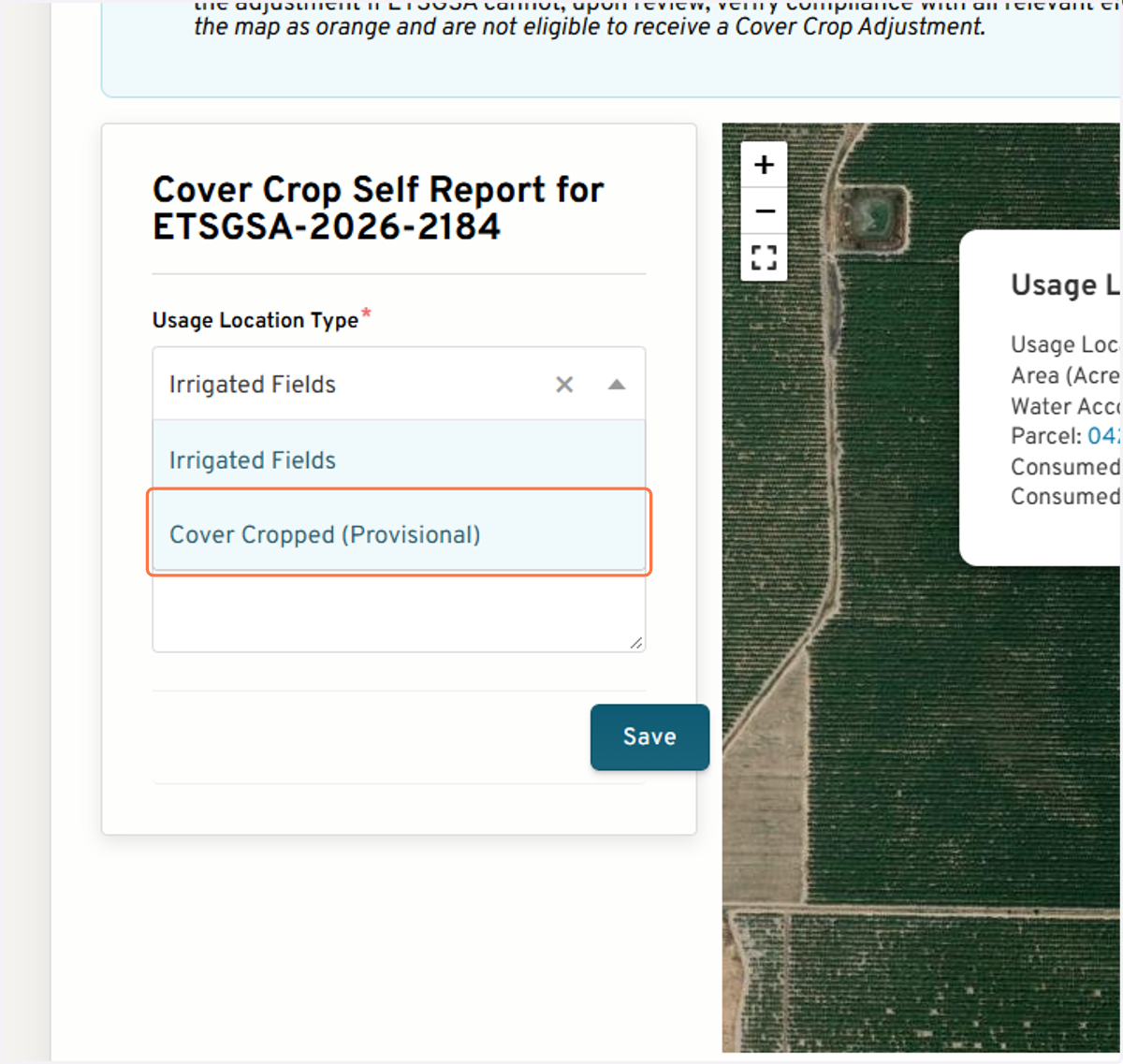
7. Select Cover Cropped (Provisional) from the Usage Location Type drop-down
8. Option to add a note
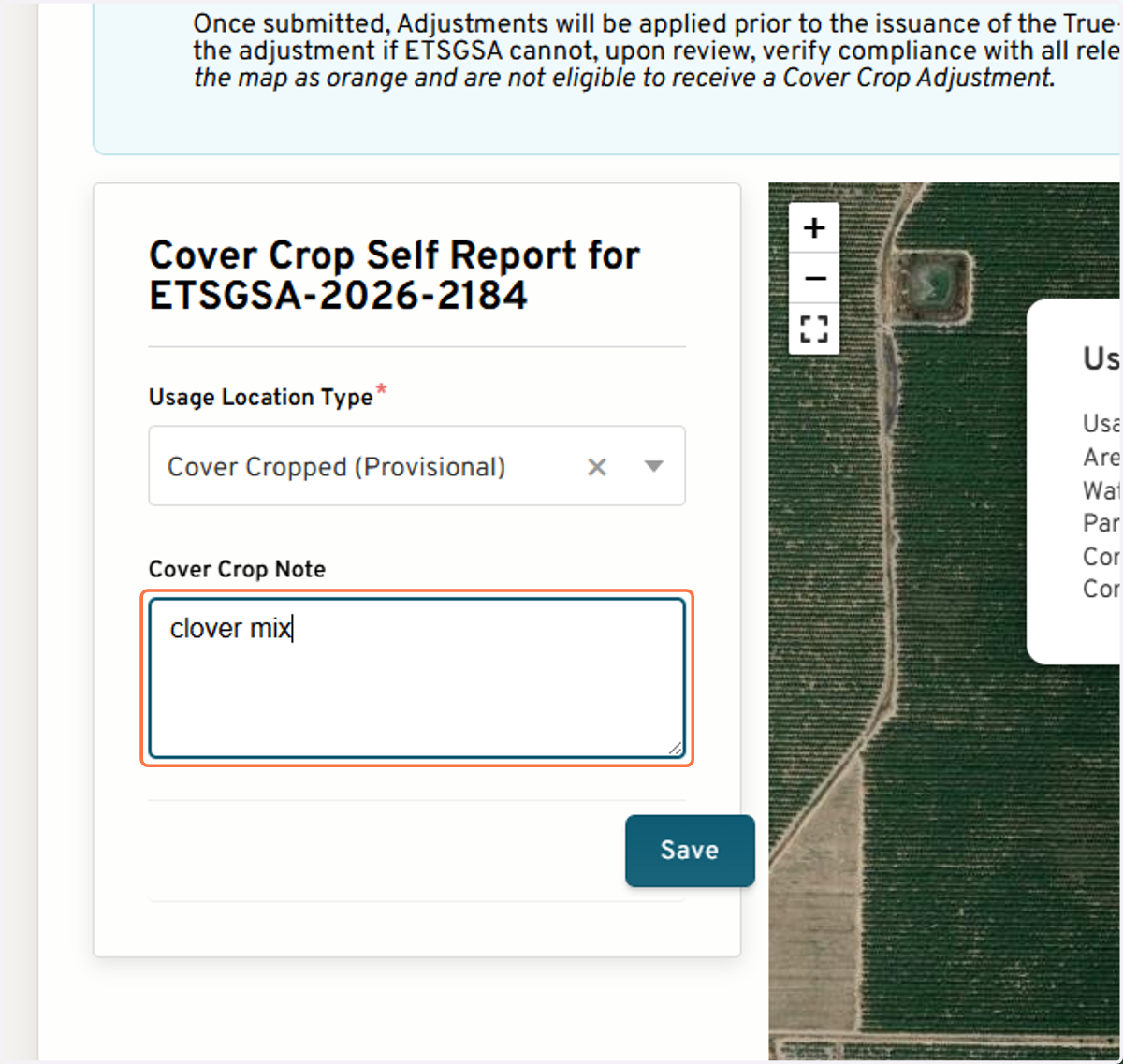
9. Click on Save
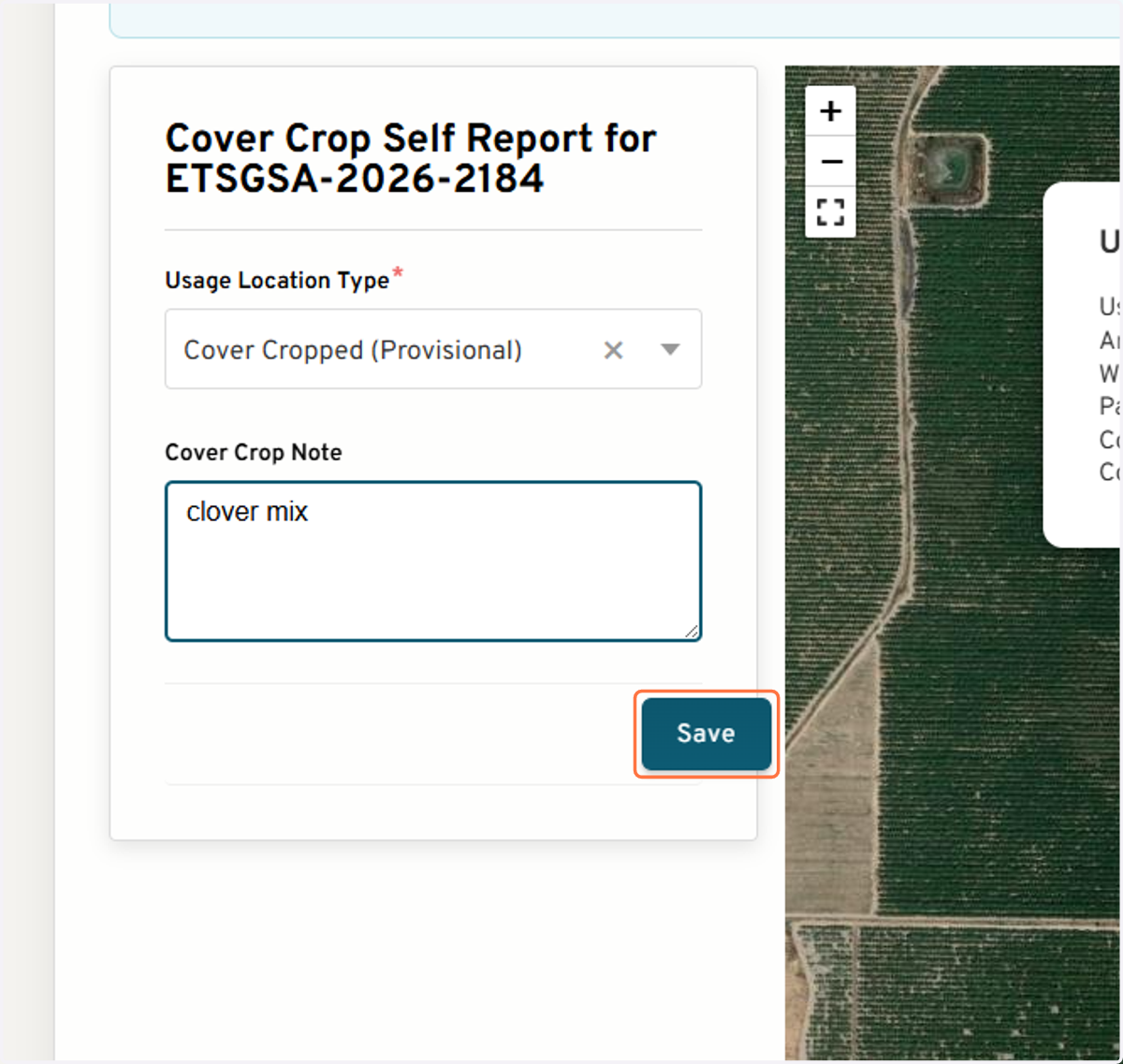
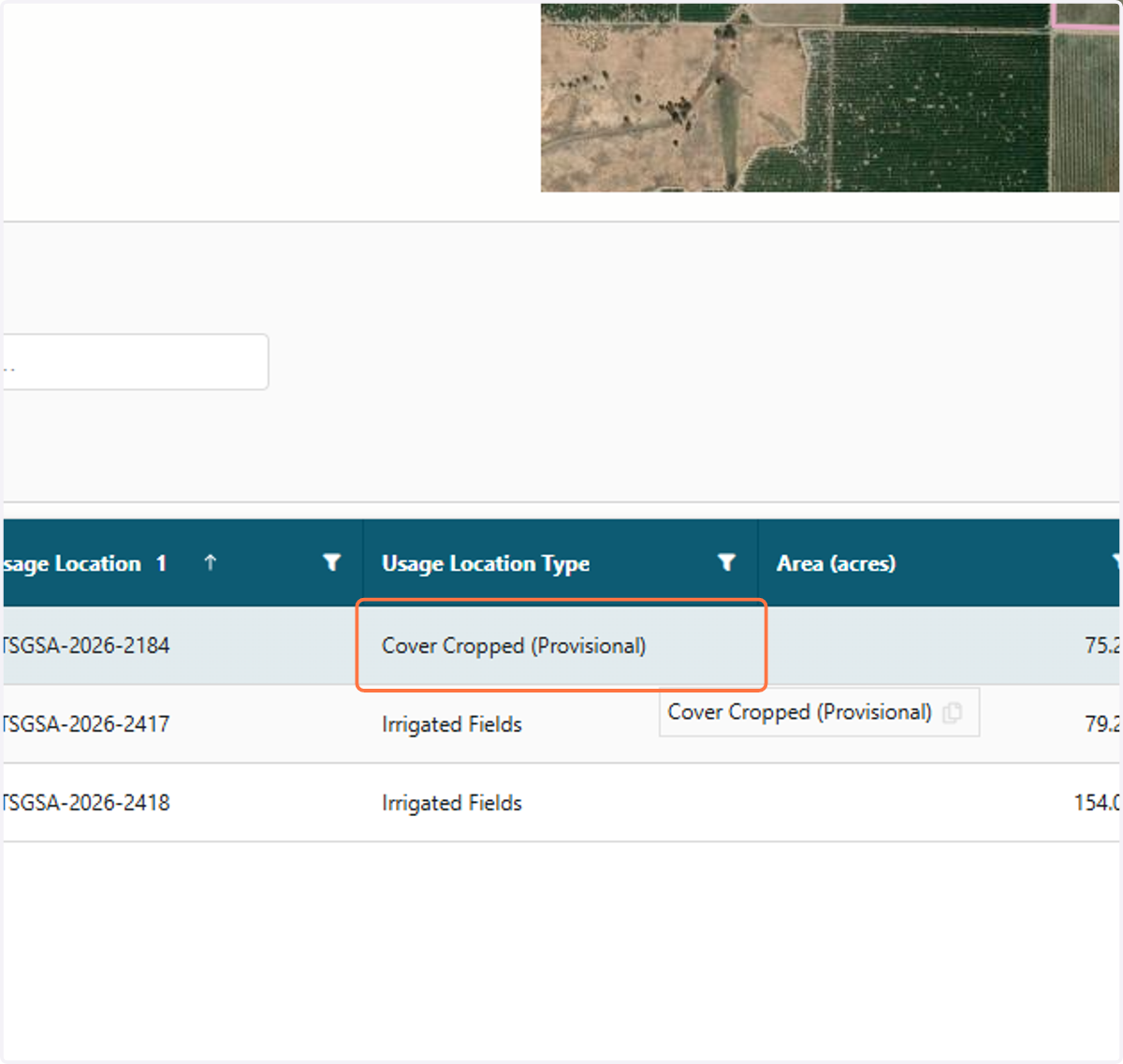
10. Verify the Usage Location Type has been updated to "Cover Cropped (Provisional)" in the table
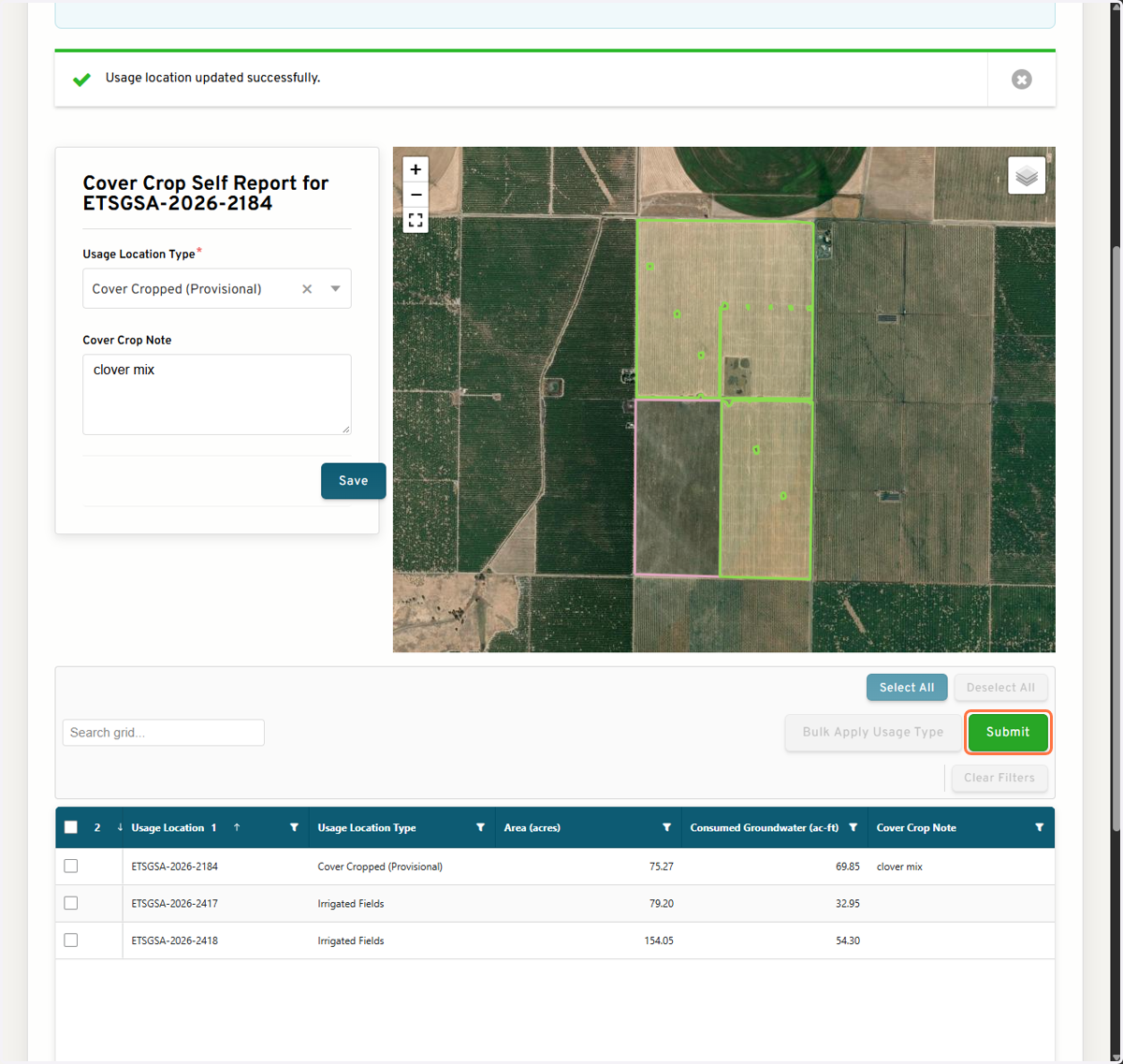
11. Click on Submit
Reporting multiple usage locations at once
12. In the table, select all Usage Locations you'd like to report
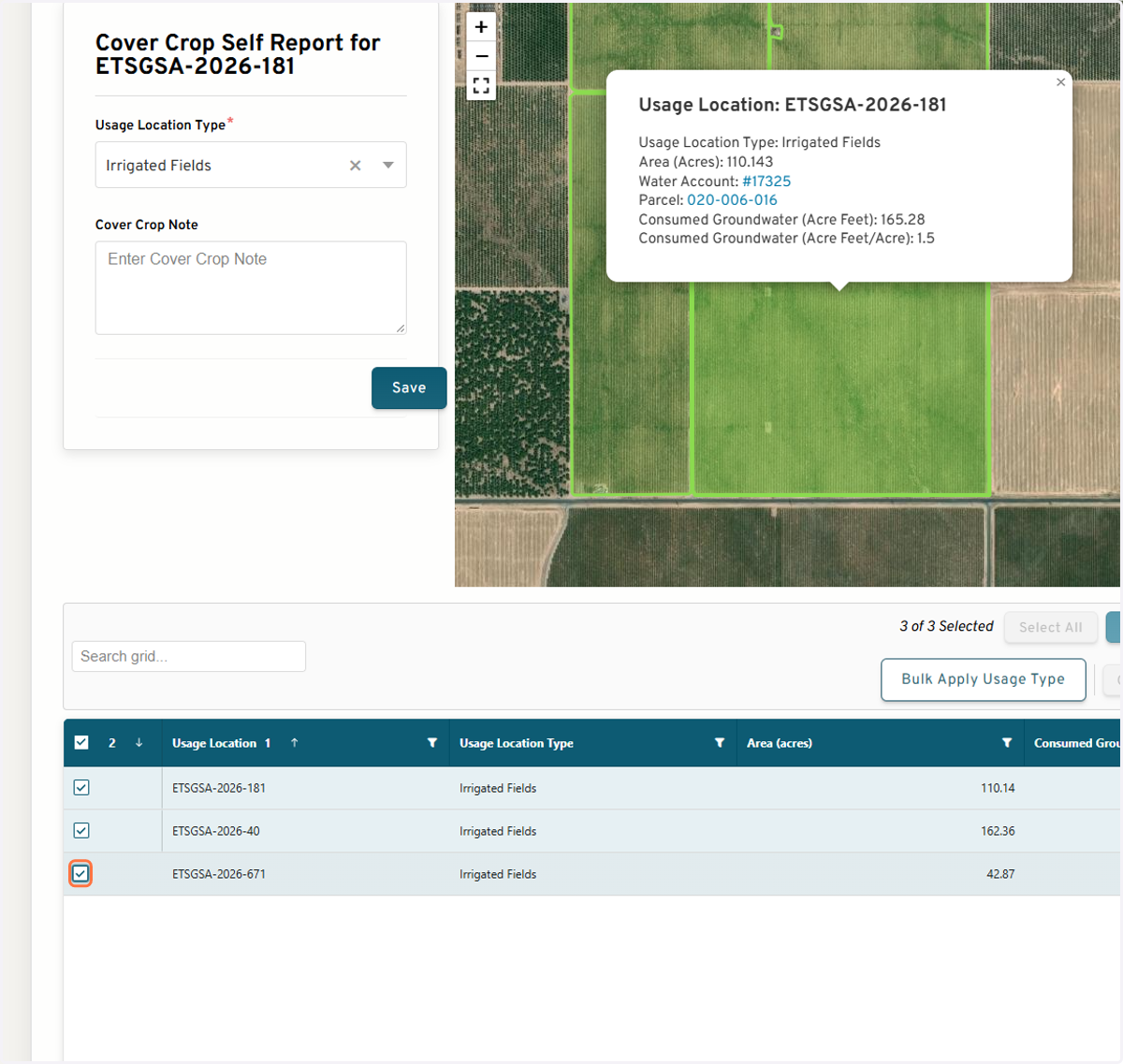
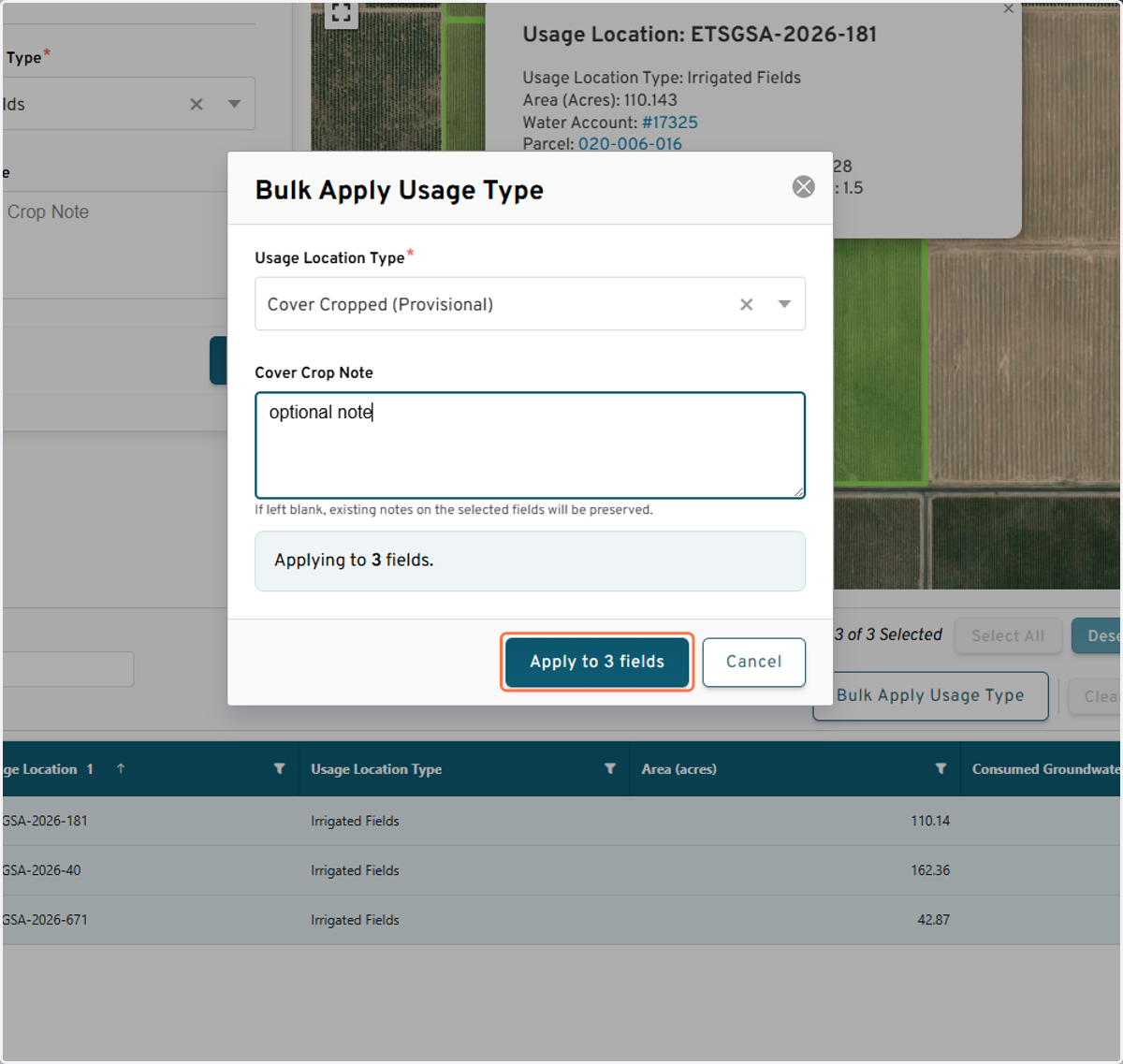
13. Click on Bulk Apply Usage Type
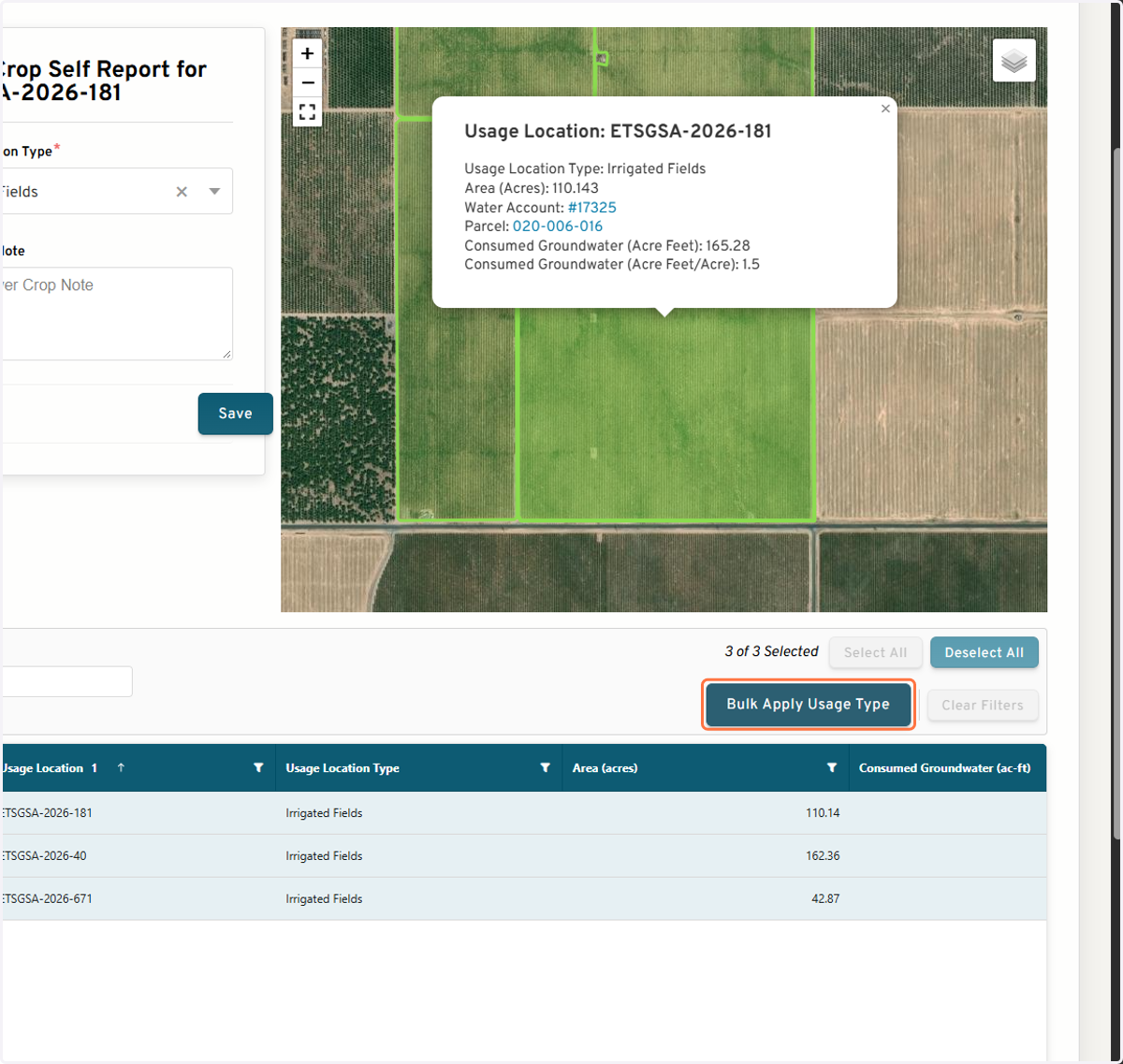
14. Select "Cover Cropped (Provisional)" from the Usage Location Type drop-down
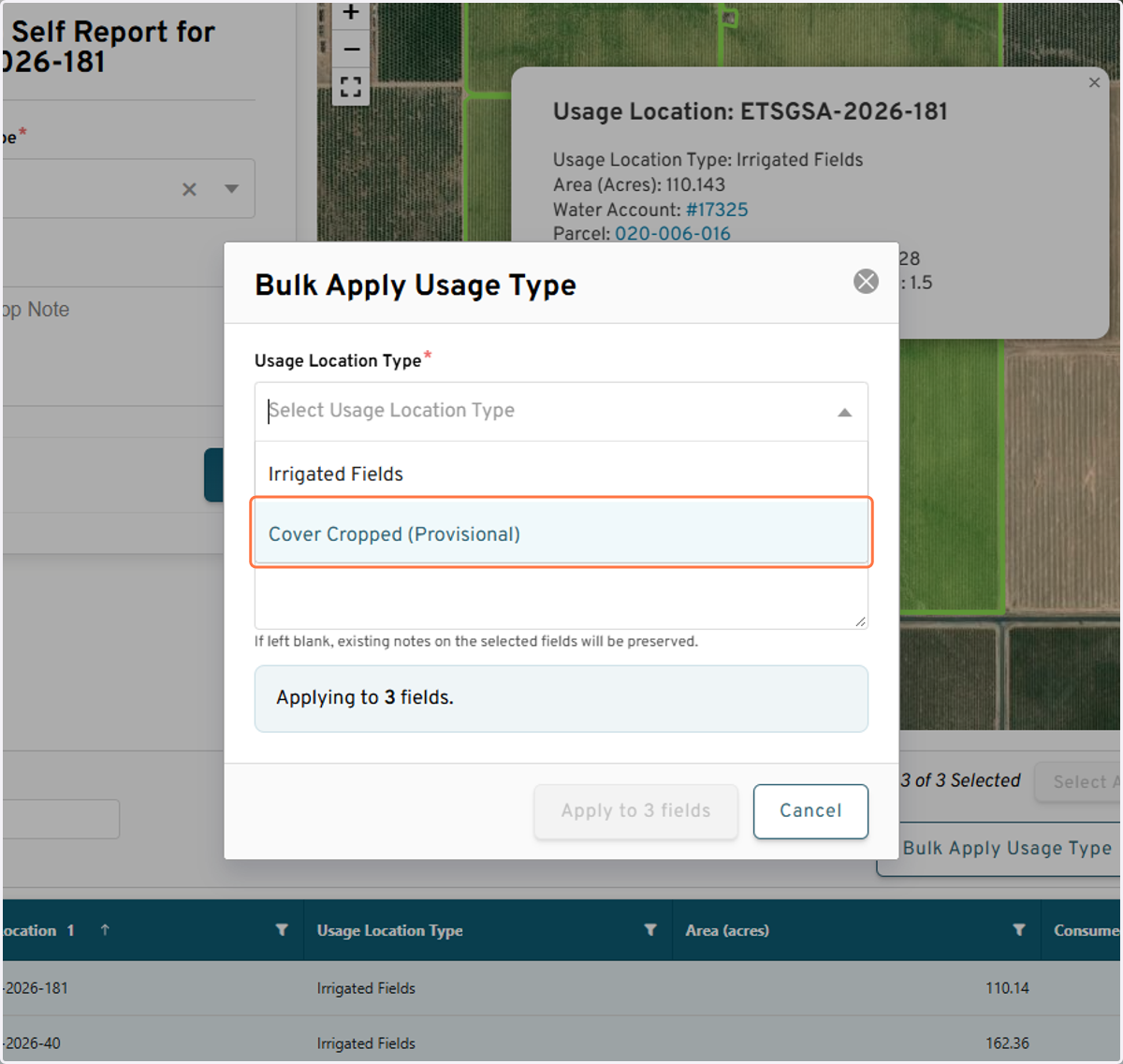
15. Insert an optional note
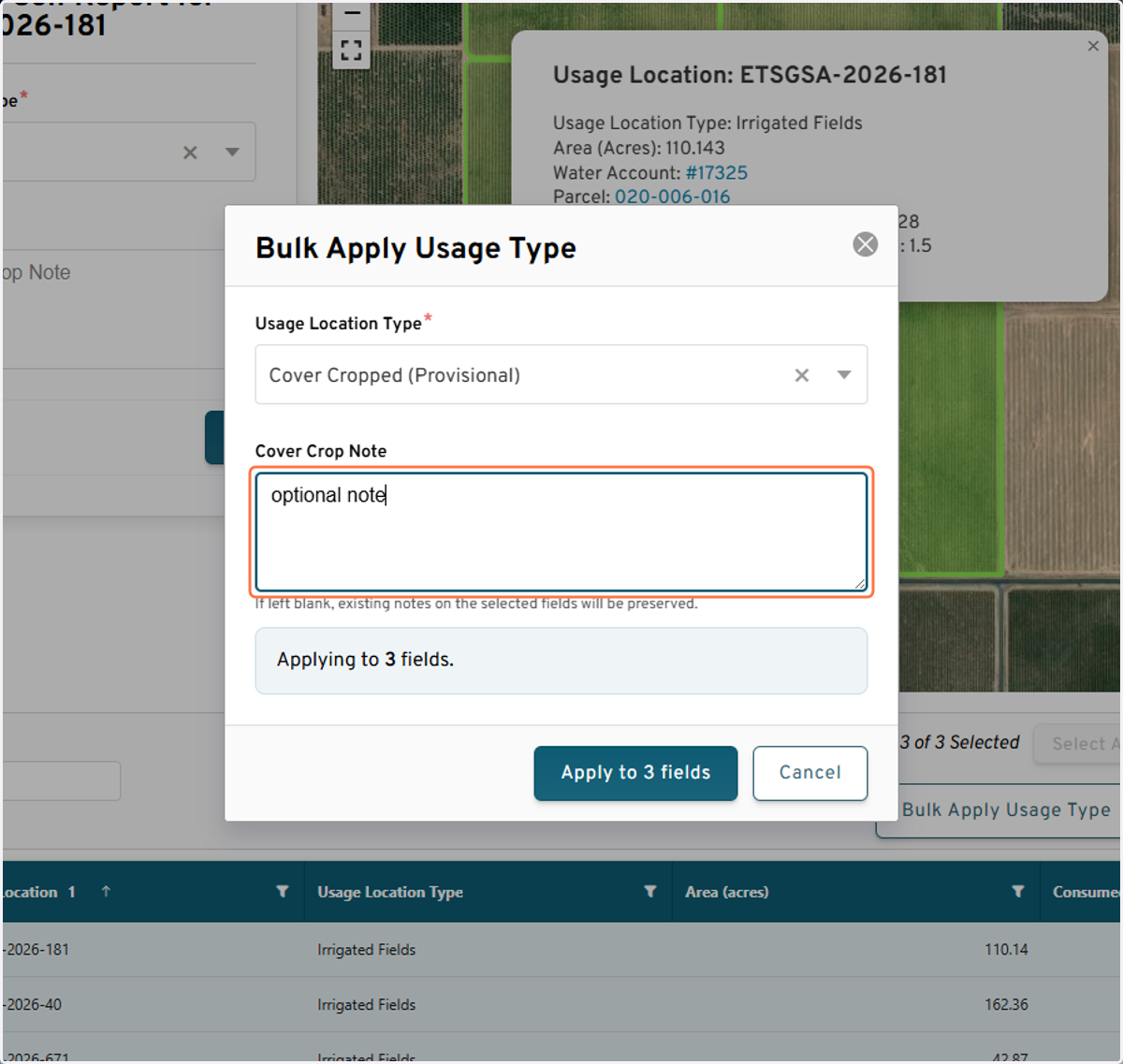
16. Click on Apply
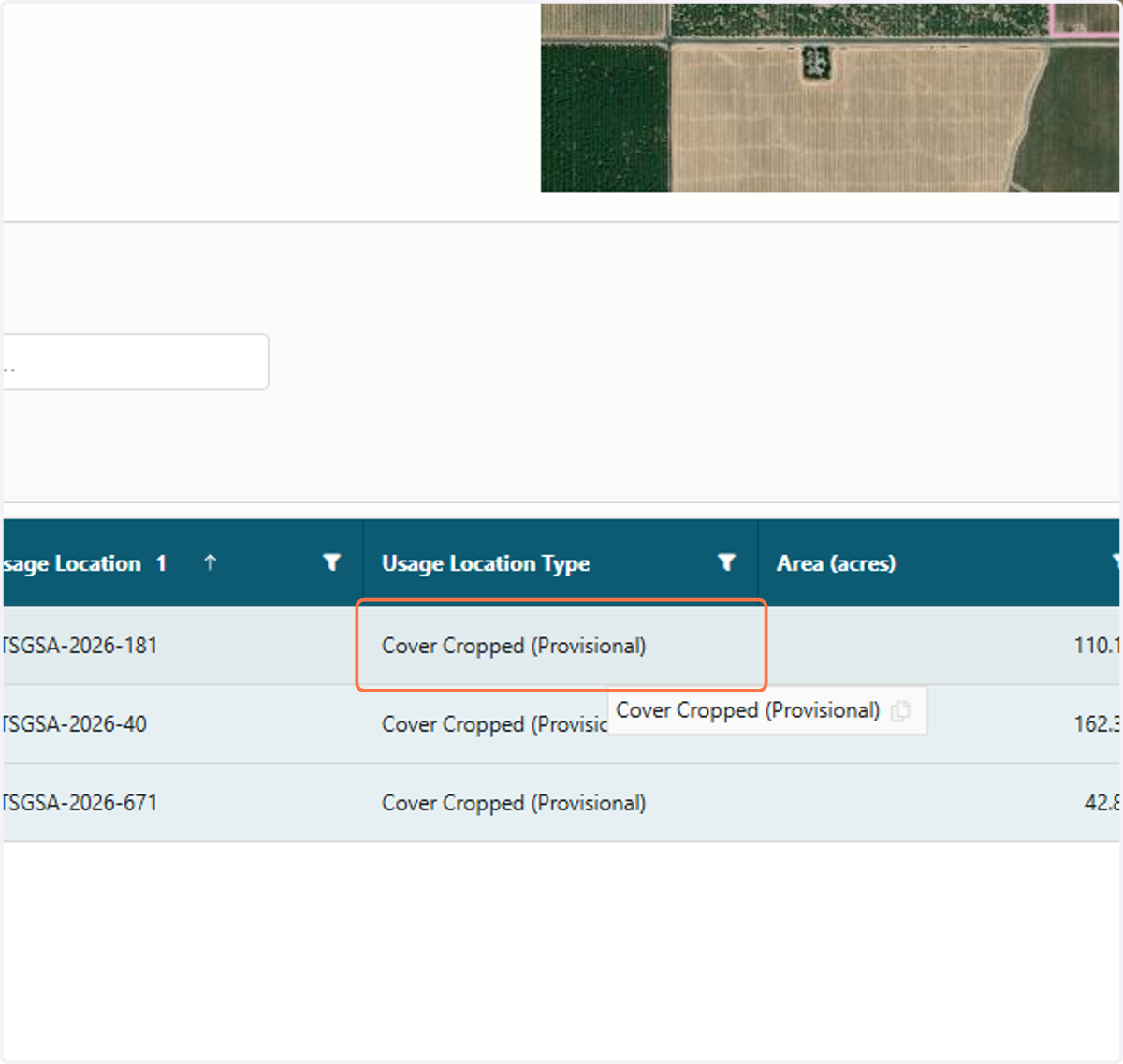
17. Confirm that the Usage Location Type for all included Usage Locations has been updated in the table to "Cover Cropped (Provisional)"
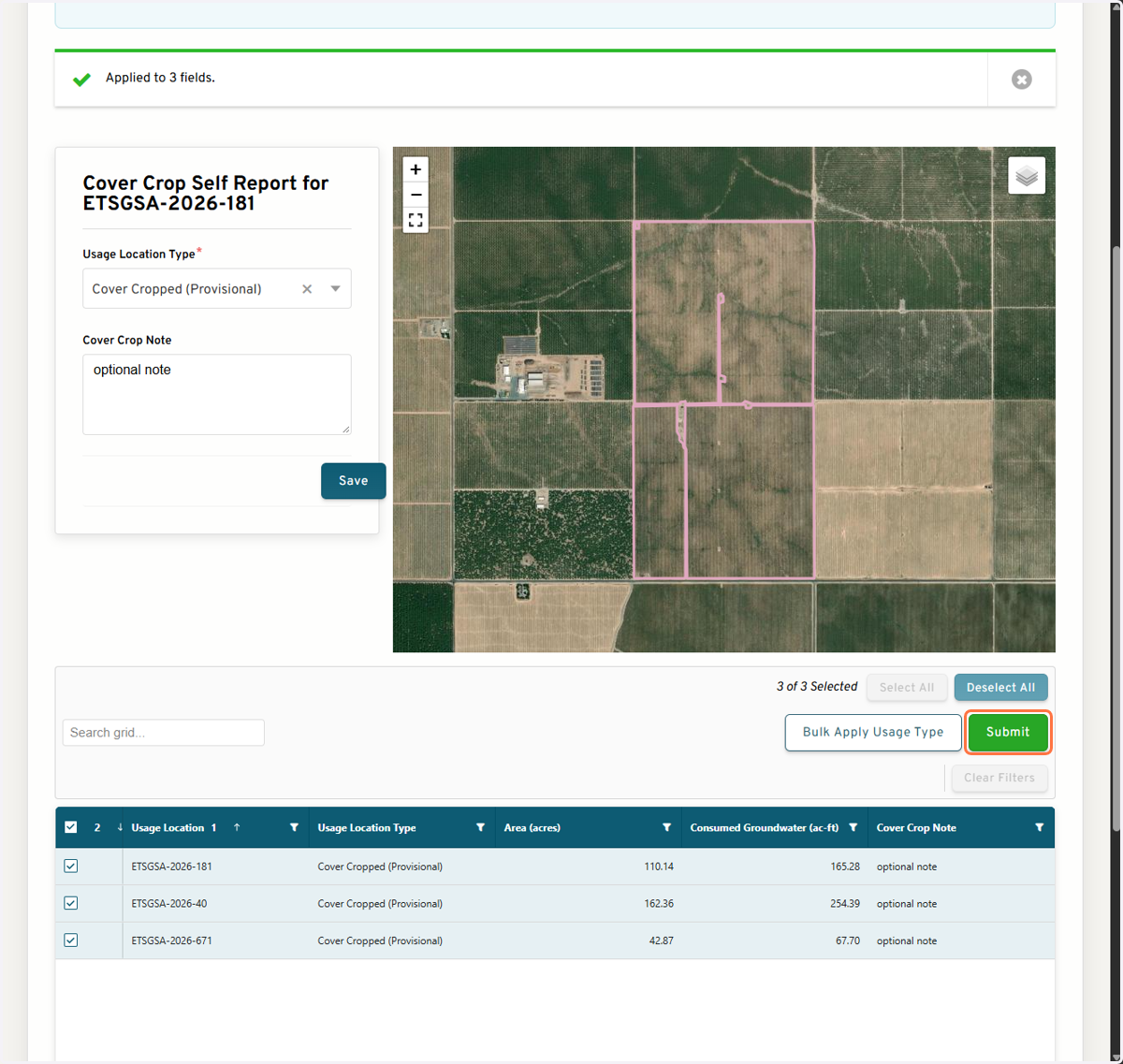
18. Submit Cover Crop report
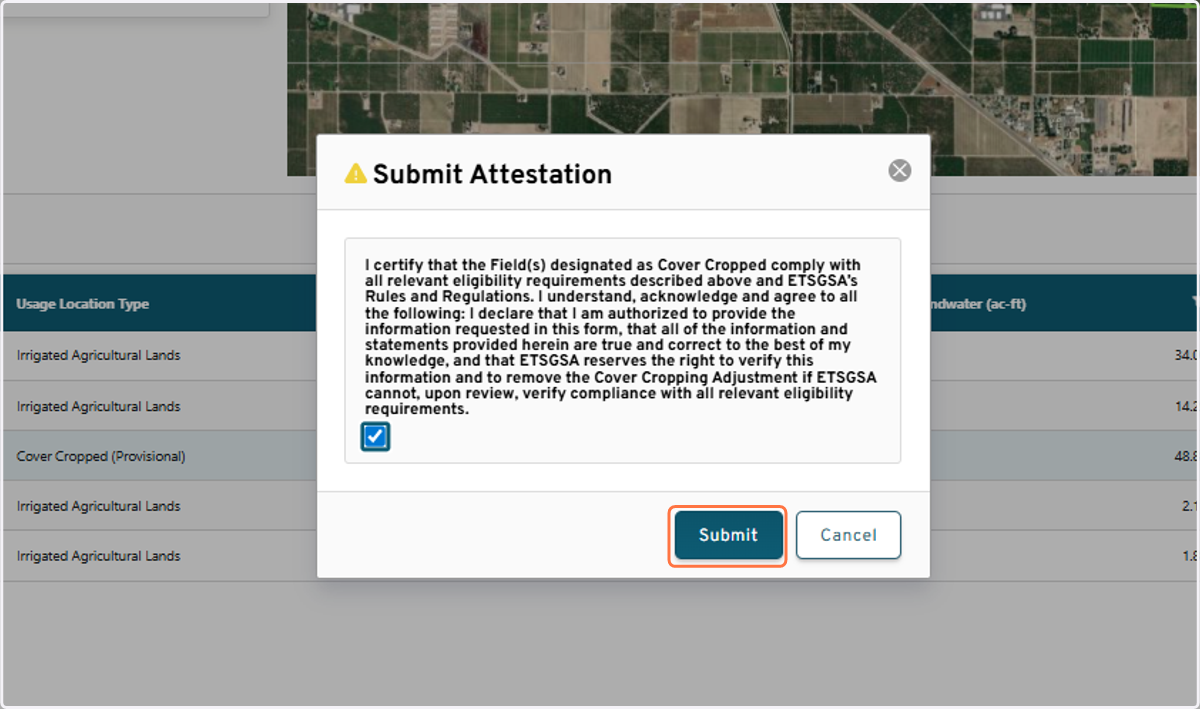
19. Complete self-attestation and Click on Submit
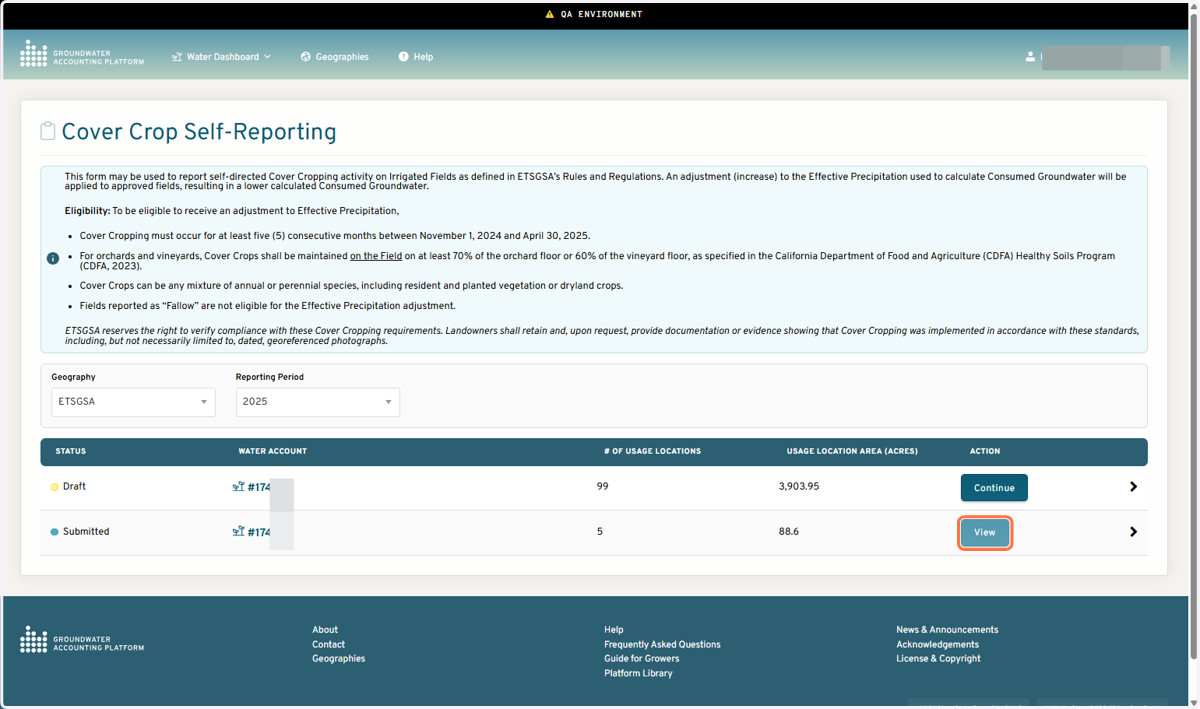
View submitted report
20. Click on View
21. Click on Back to your Cover Crop Self Reports…