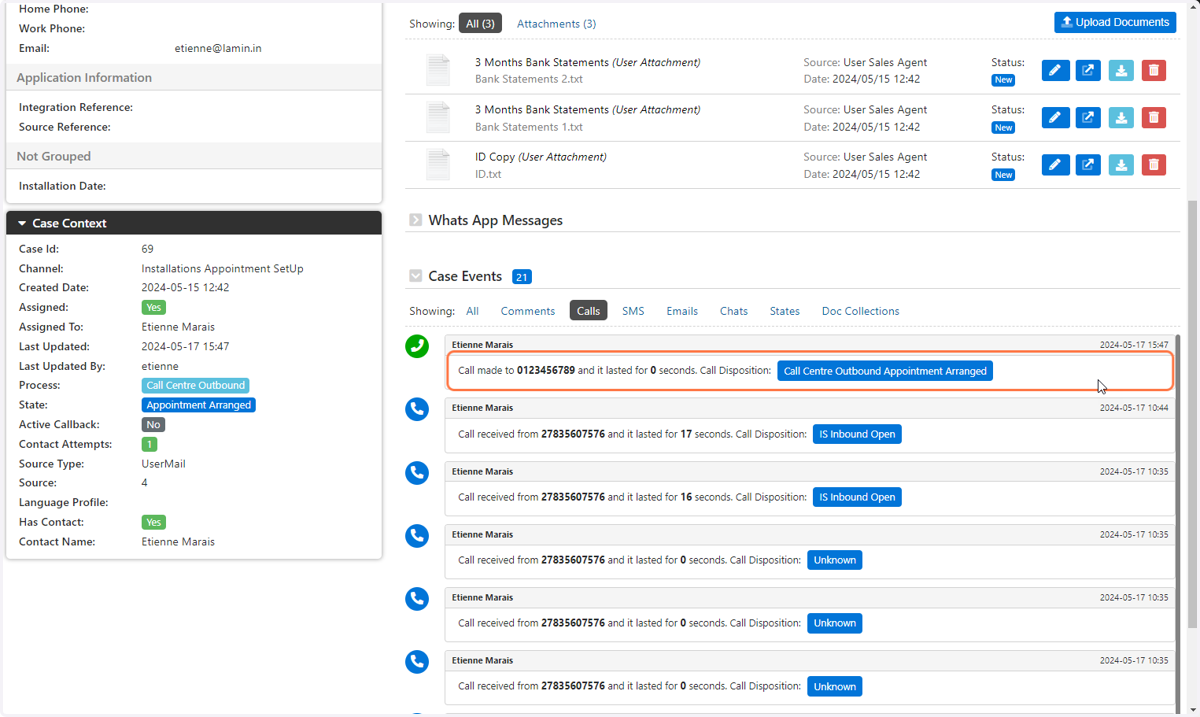
Contacts - Outbound Call to Supplier via a Customer Contact
How to make an outbound call to a supplier via a customer contact using the Contacts feature. This is useful if you want to phone a supplier with regards to a customer and ensure the call recording is part of the Customer's records.
In order to phone suppliers via a customer contact your Laminin profile will need to be correctly configured by the System Administrator to enable phoning suppliers.
Laminin Demo
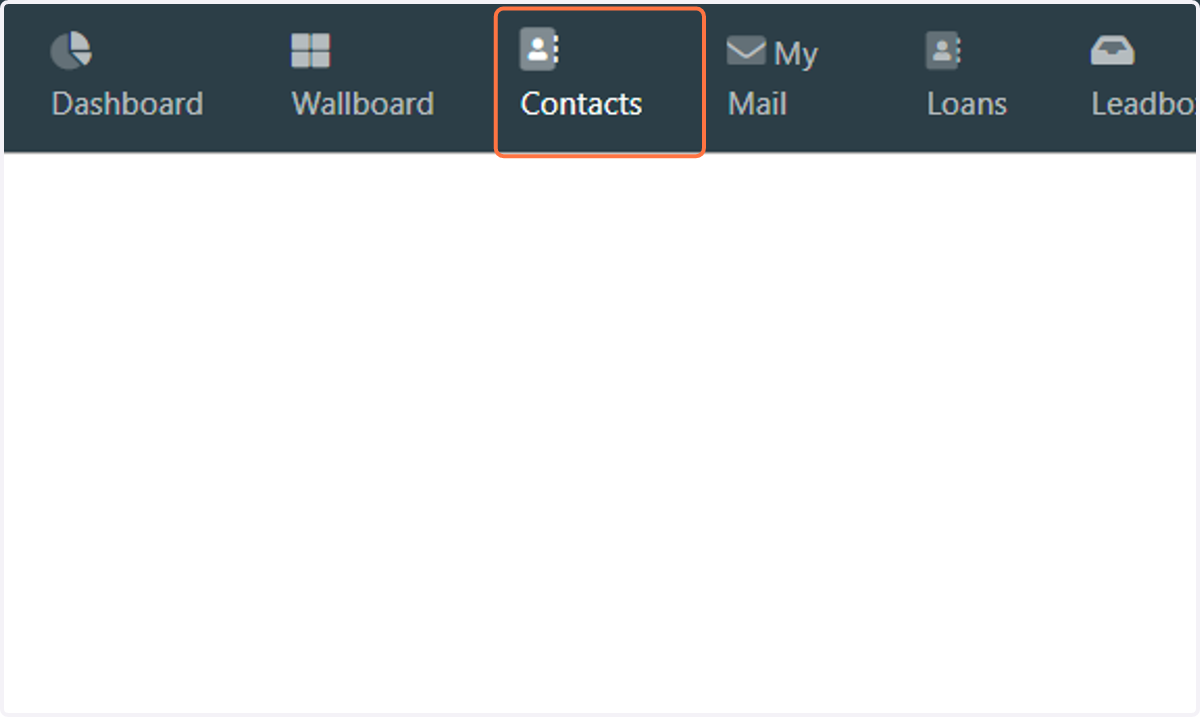
1. Click on Contacts
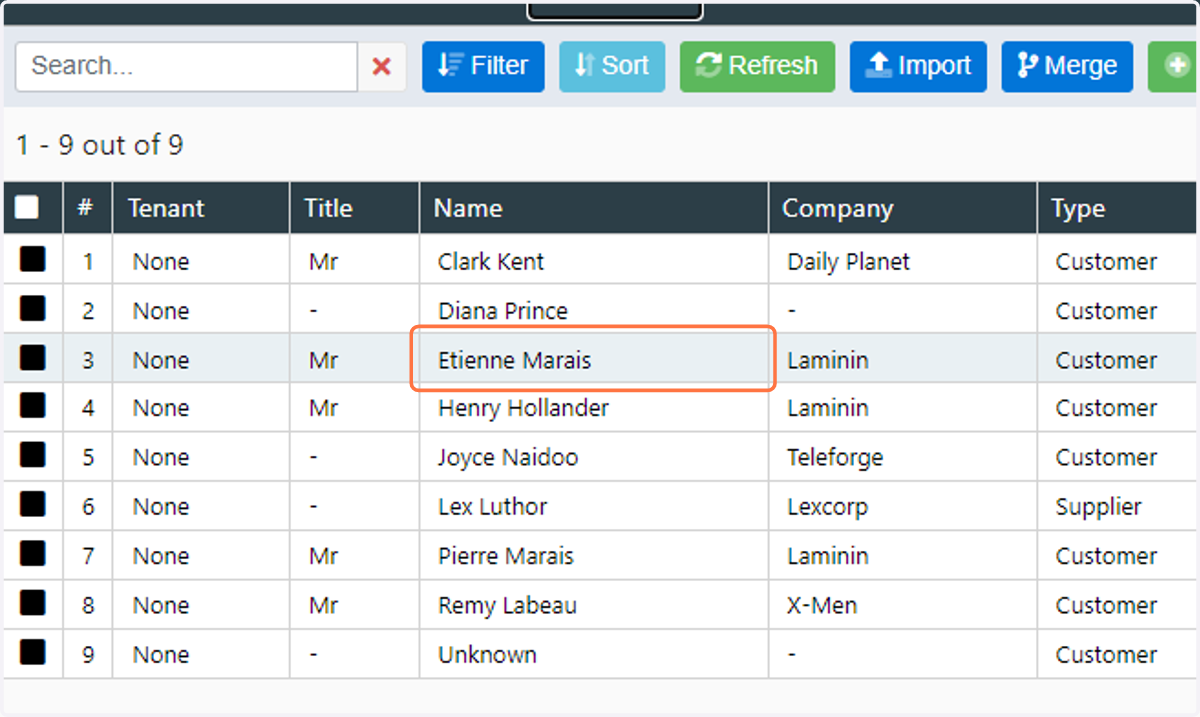
2. Choose the customer profile that you want to phone the supplier from
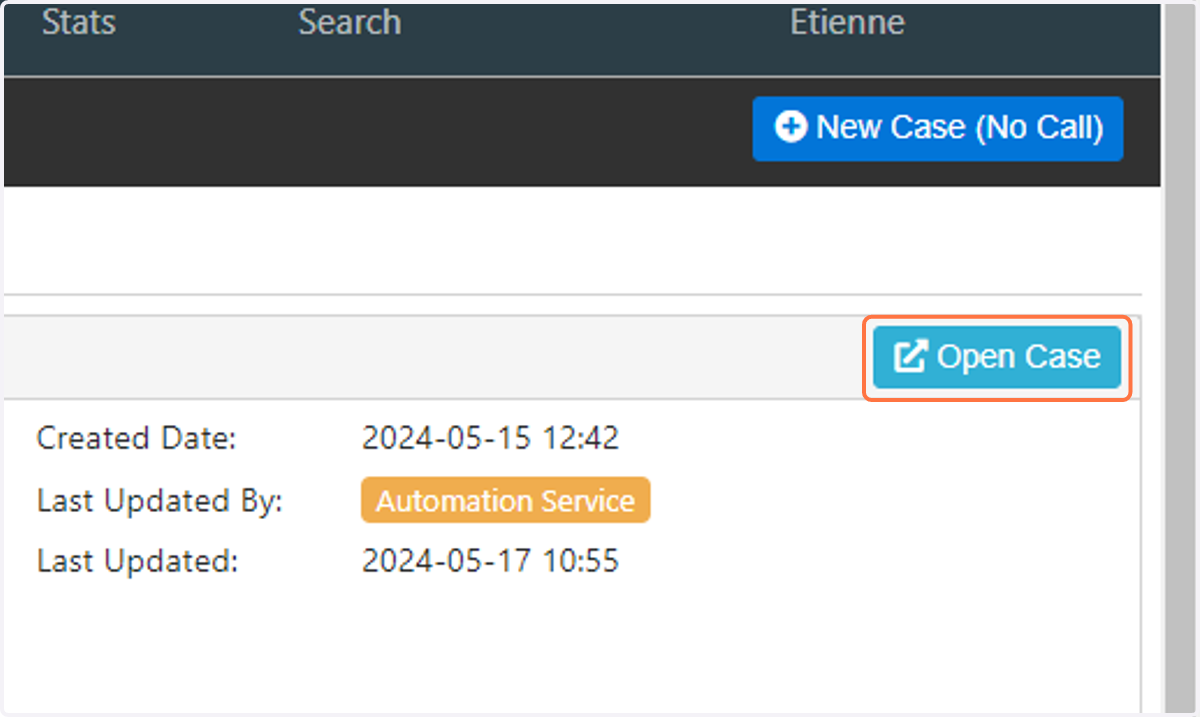
3. You can either click on Open Case to open an existing case or New Case (No Call) to create a new case
4. Click on Supplier
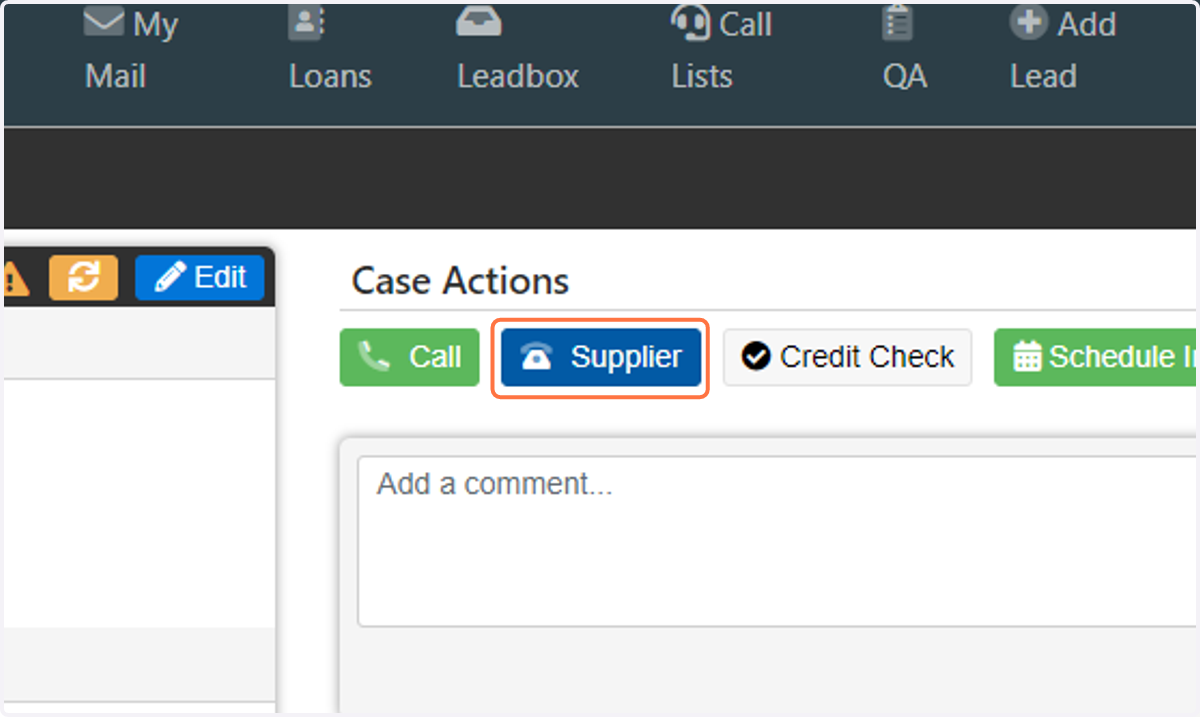
5. This will open a list of suppliers, choose the supplier you want to phone
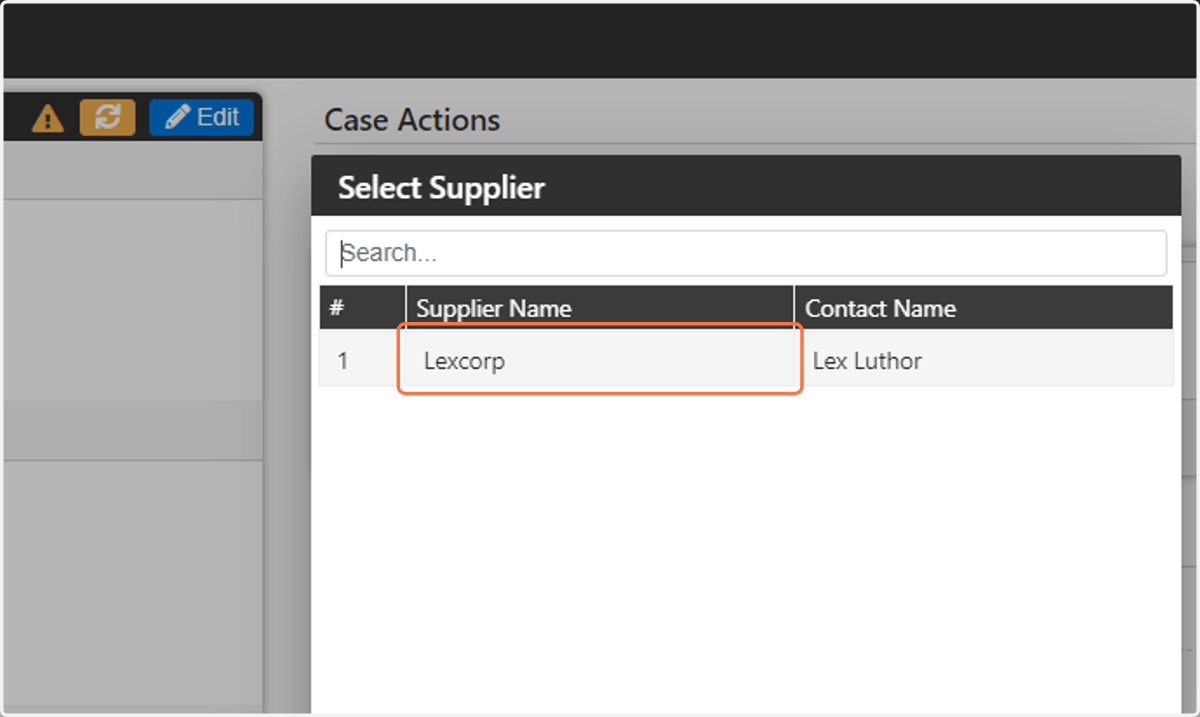
6. Select the number you would like to phone
This will start the call with the supplier
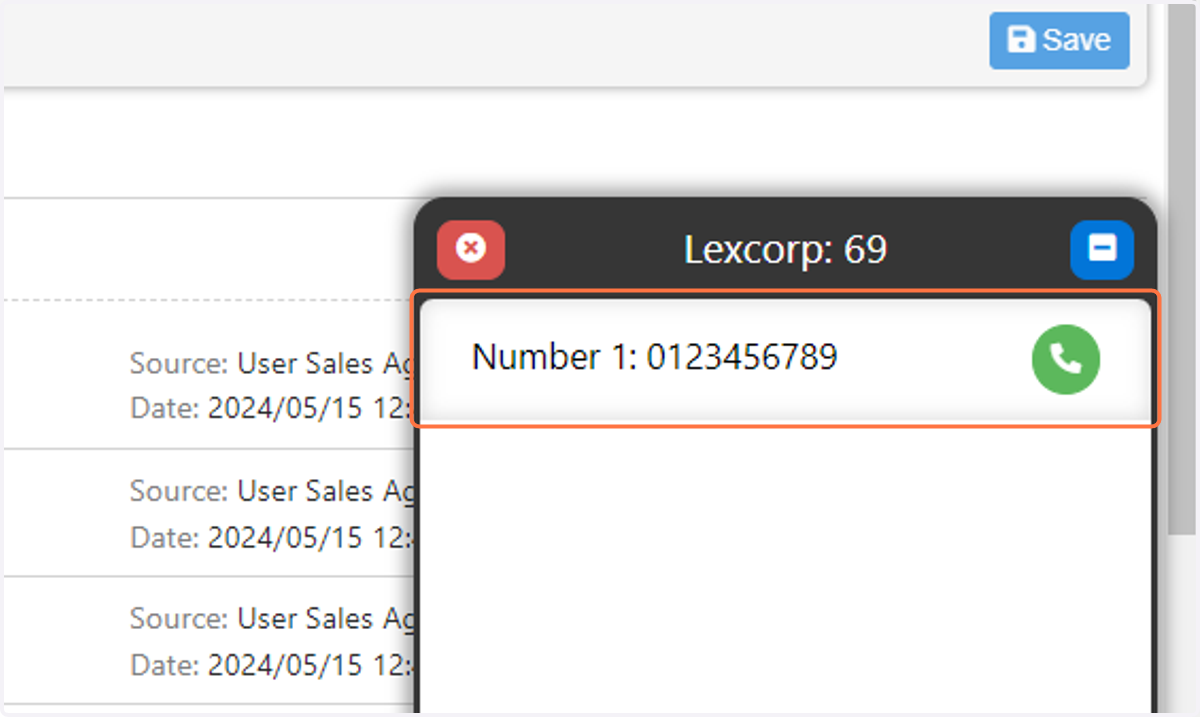
7. To end the call, click on the red call hang-up button
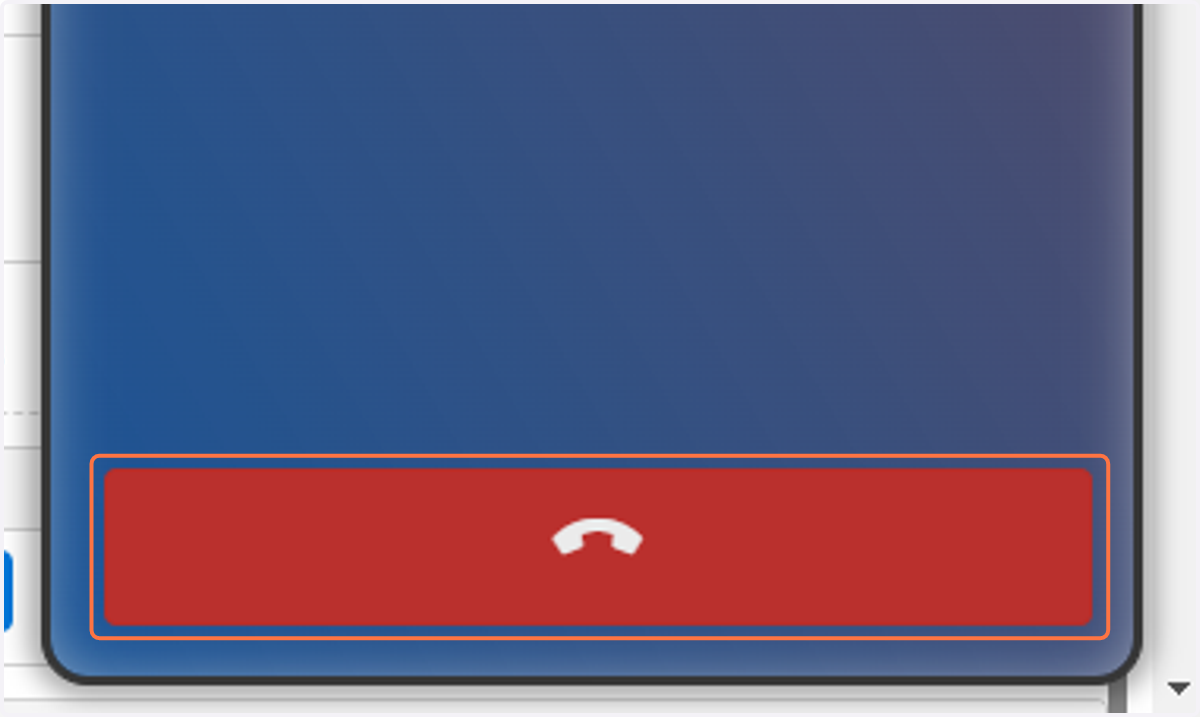
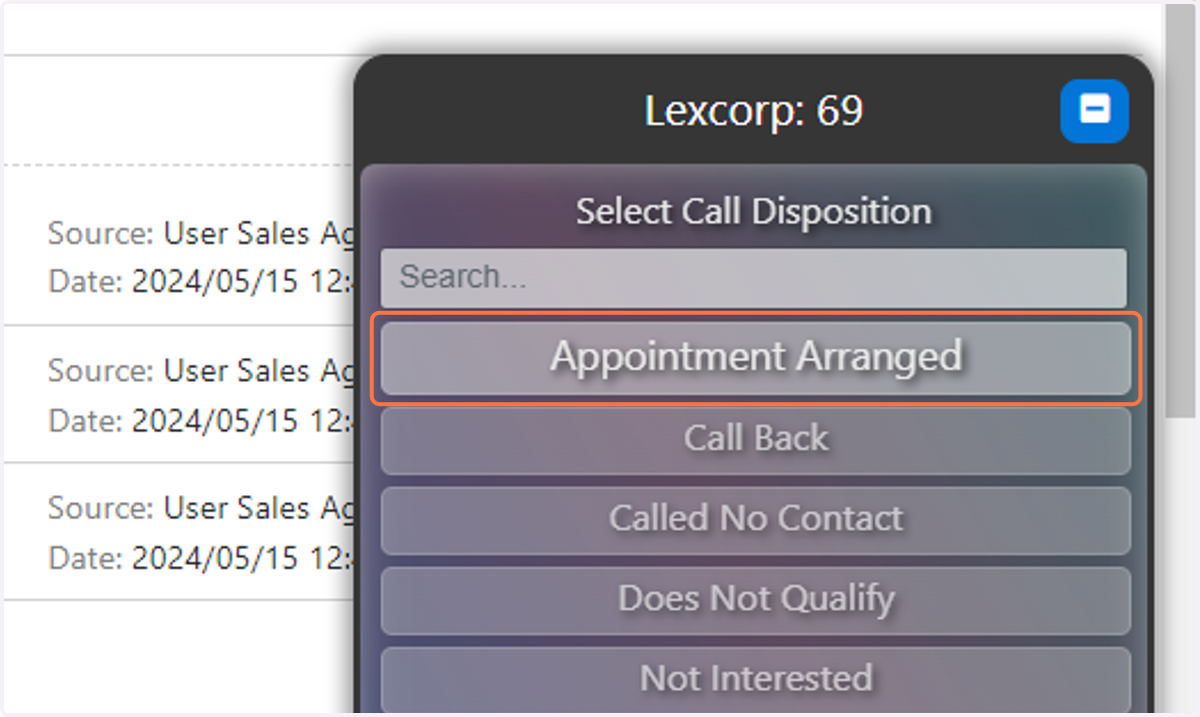
8. Select the appropriate call disposition depending on the outcome of the call
The available dispositions is dependent on the workflow configuration for this campaign
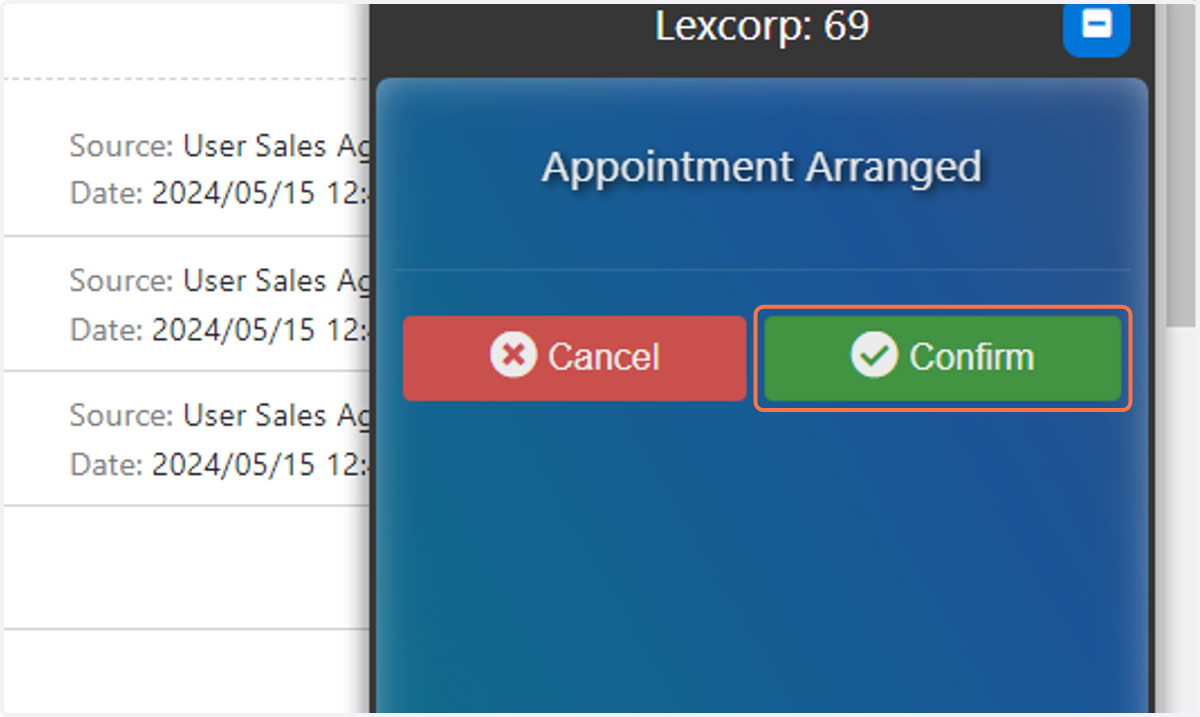
9. Click on Confirm
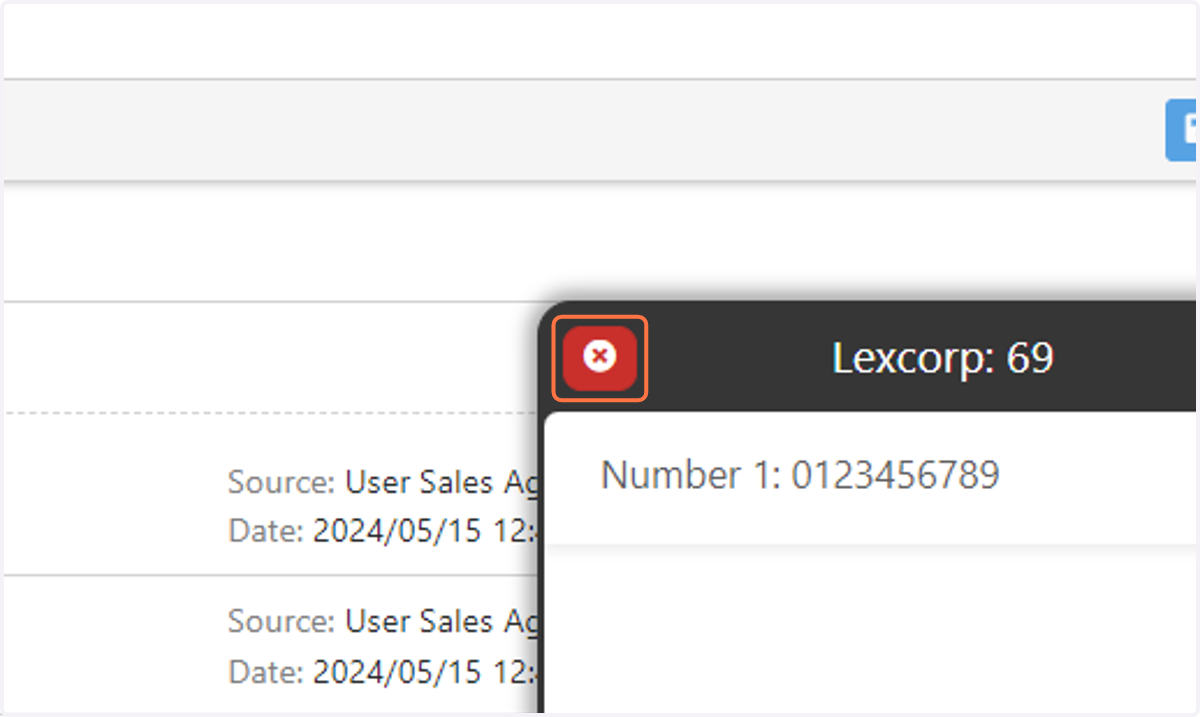
10. To close the phone, click on the red cross in the upper left corner of the phone
11. The call and call recording is now part of the customer case