Connecting to RoomPriceGenie via Cloudbeds Marketplace
1. Login to your Cloudbeds account
You will see the Dashboard
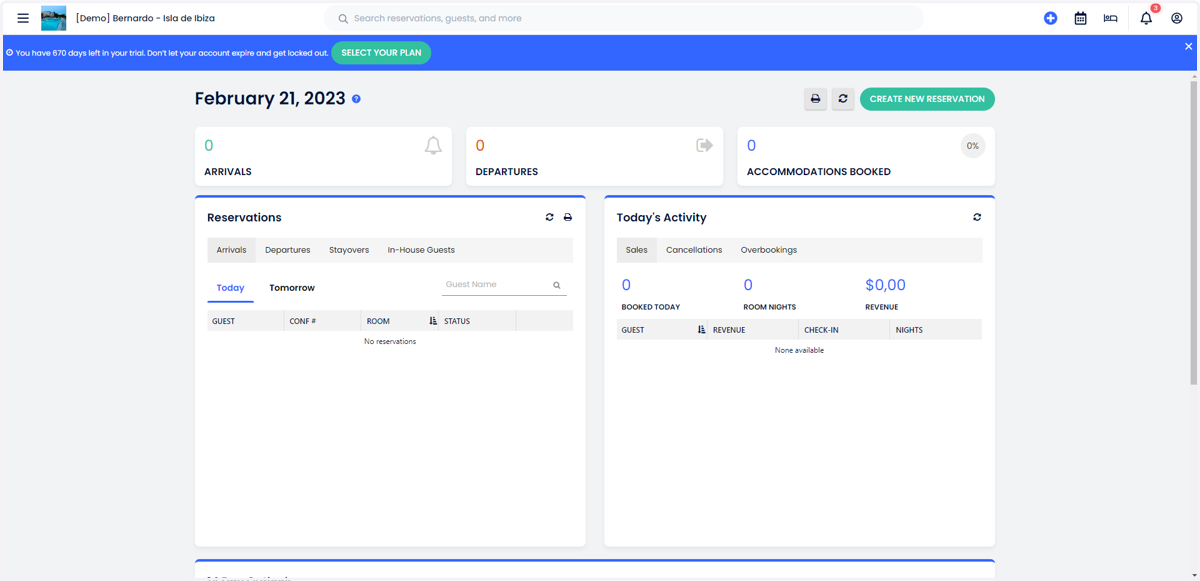
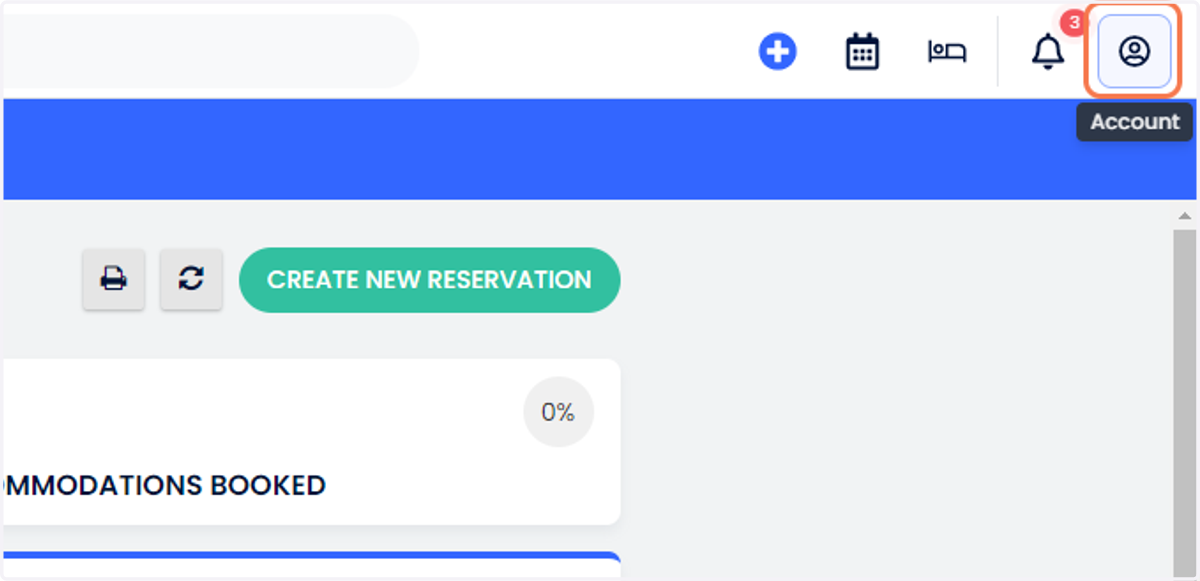
2. Click on Account (on the top right corner)
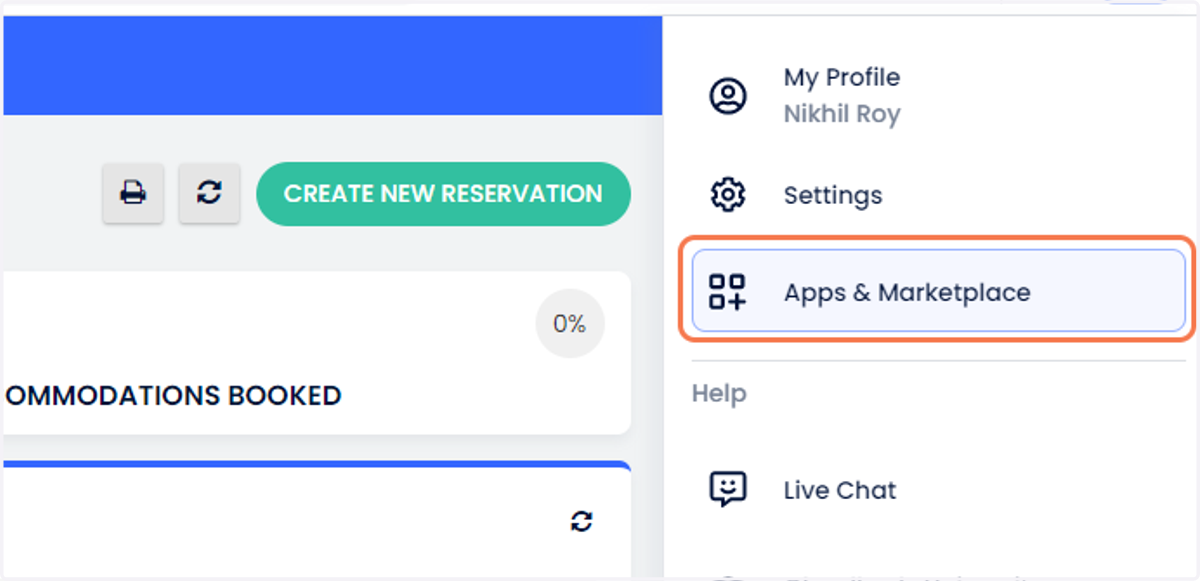
3. Click on Apps & Marketplace
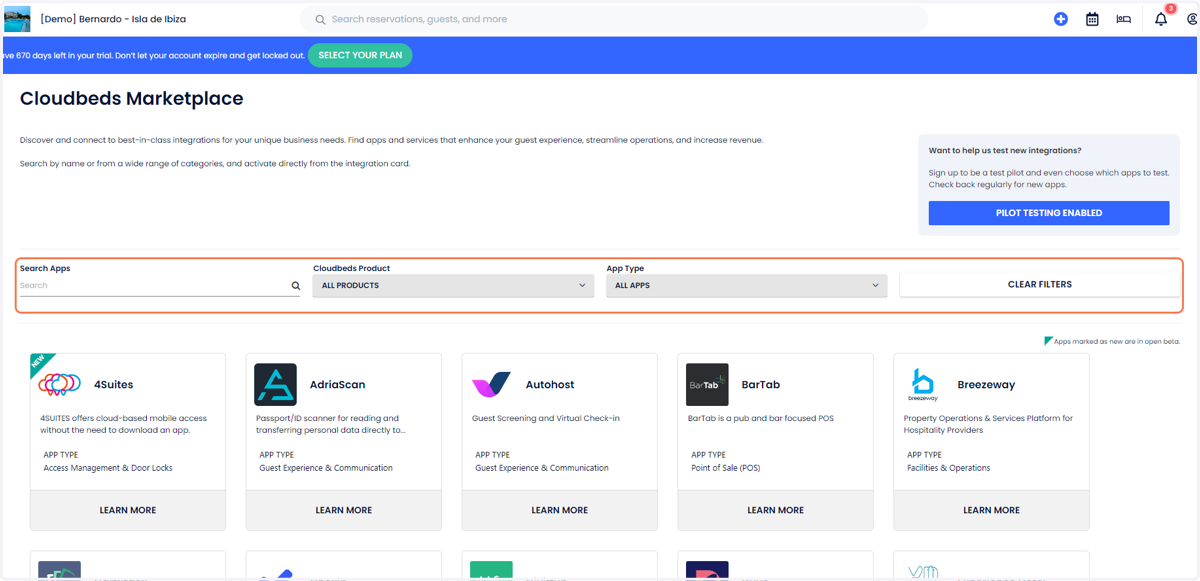
4. Search for RoomPriceGenie under Search Apps
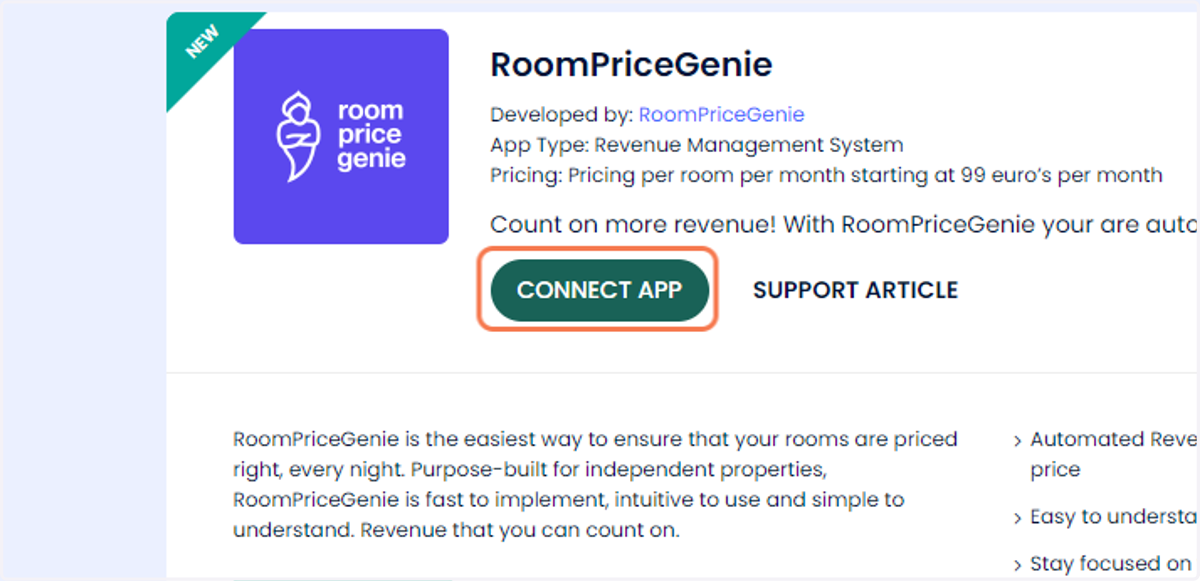
5. Click on CONNECT APP
6. You will be redirected to a new page
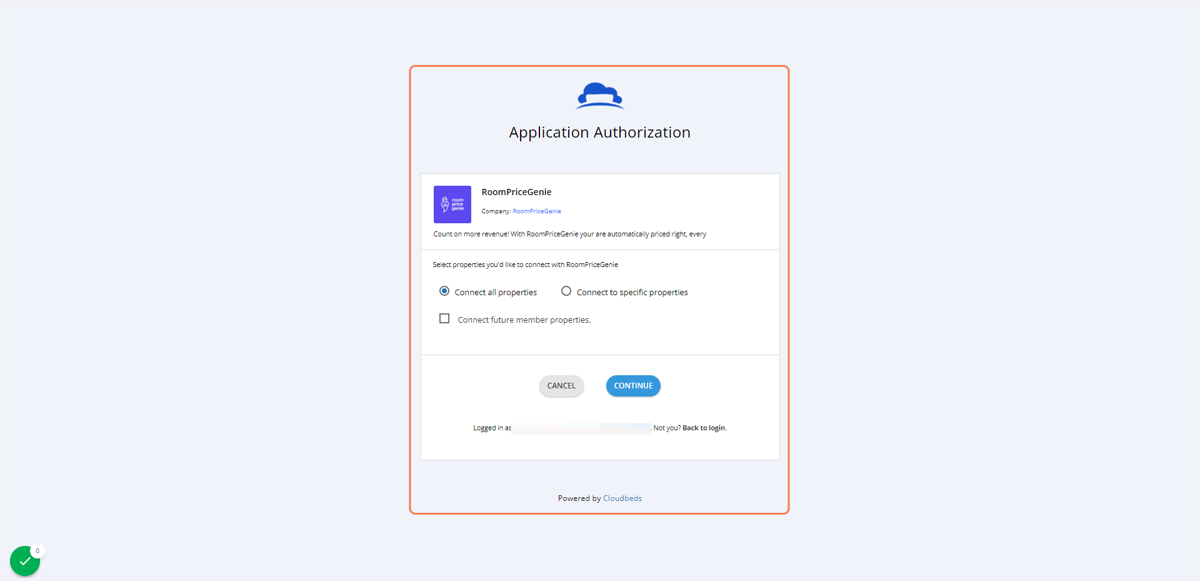
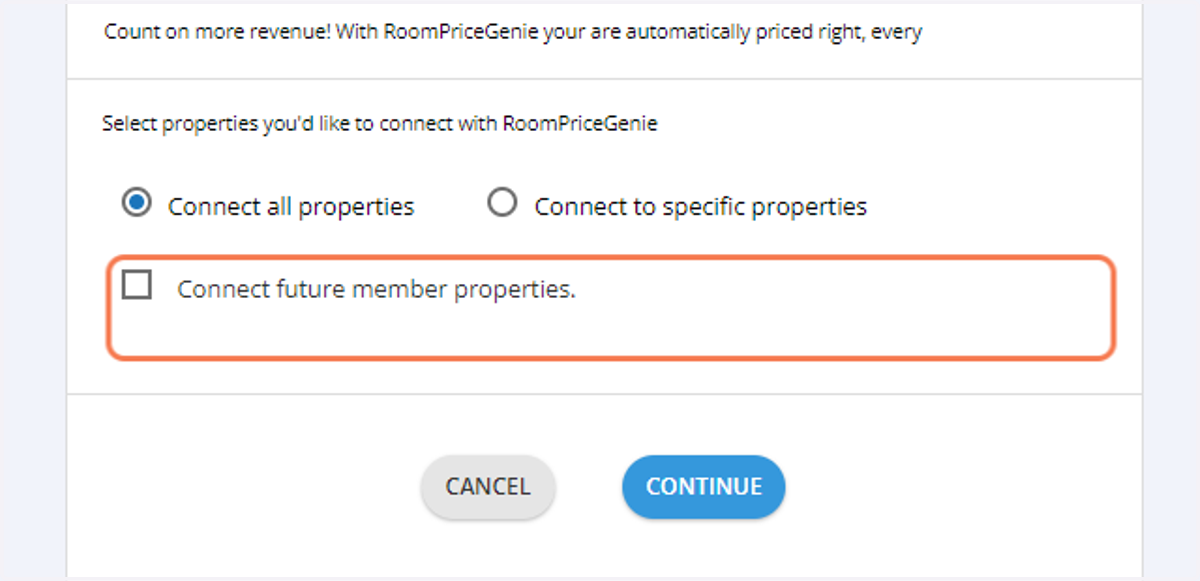
7. If you wish to connect multiple properties at a later stage
Association users can connect multiple properties to RoomPriceGenie, but each property must be setup one at a time
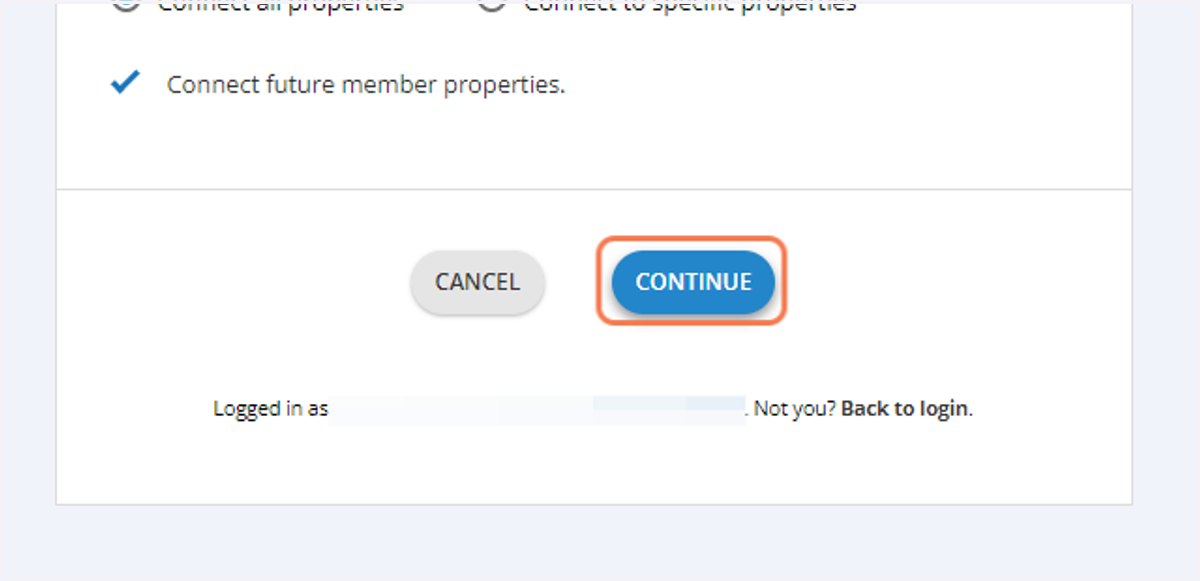
Click on Connect future member properties
8. Click on CONTINUE
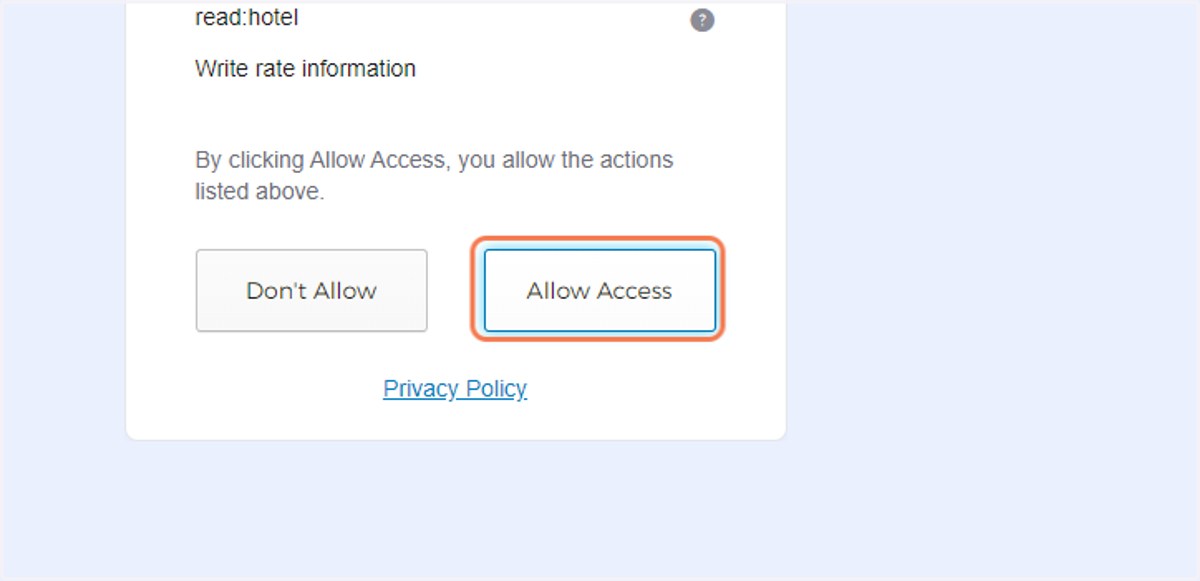
9. You will be redirected to a new page. Click on Allow Access
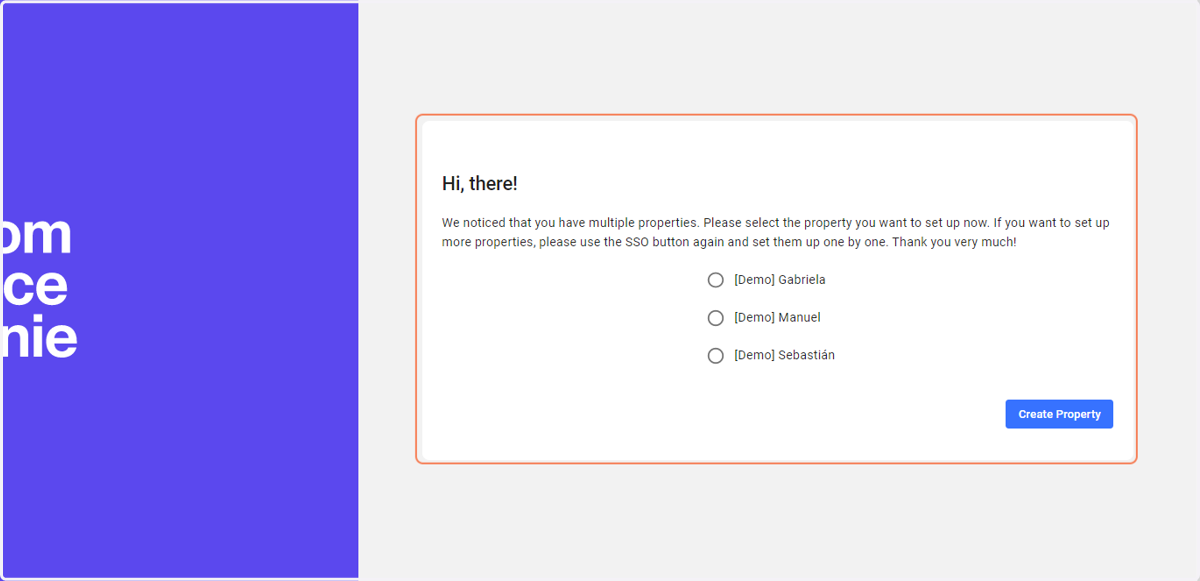
10. You will be redirected to a RoomPriceGenie page
Select the property you wish to connect
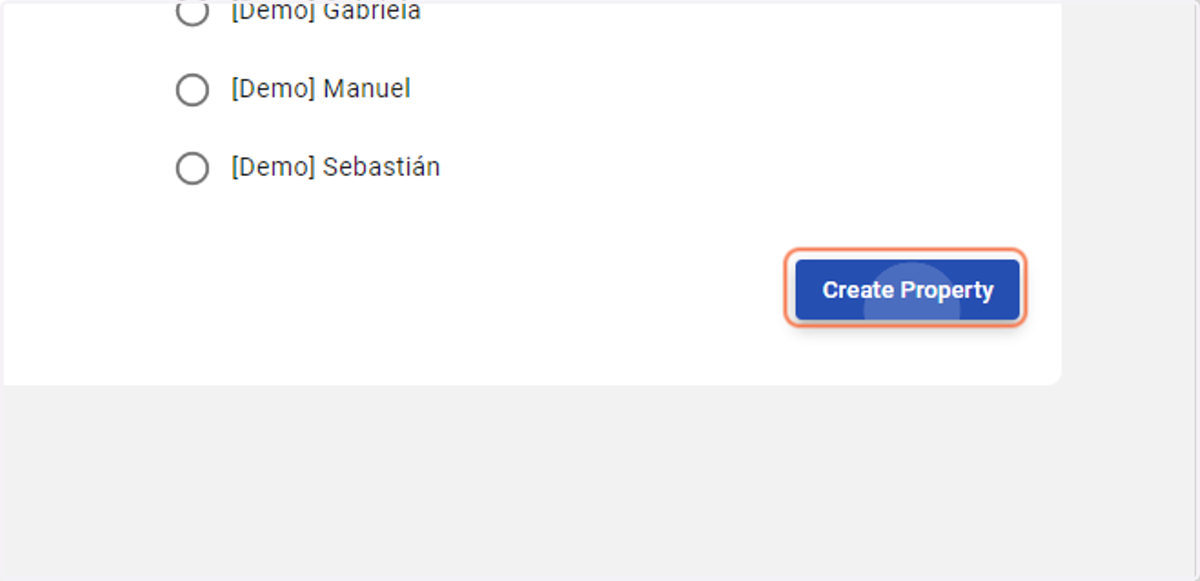
11. Click on Create Property
12. You will be redirected to a RoomPriceGenie page which looks similar to this one.
You have completed all steps of the setup process. A member of the RoomPriceGenie team will reach out to you soon.
You may now close the browser. Thank you!