Connecting Social Media Accounts to Sendible
Head over to our website.
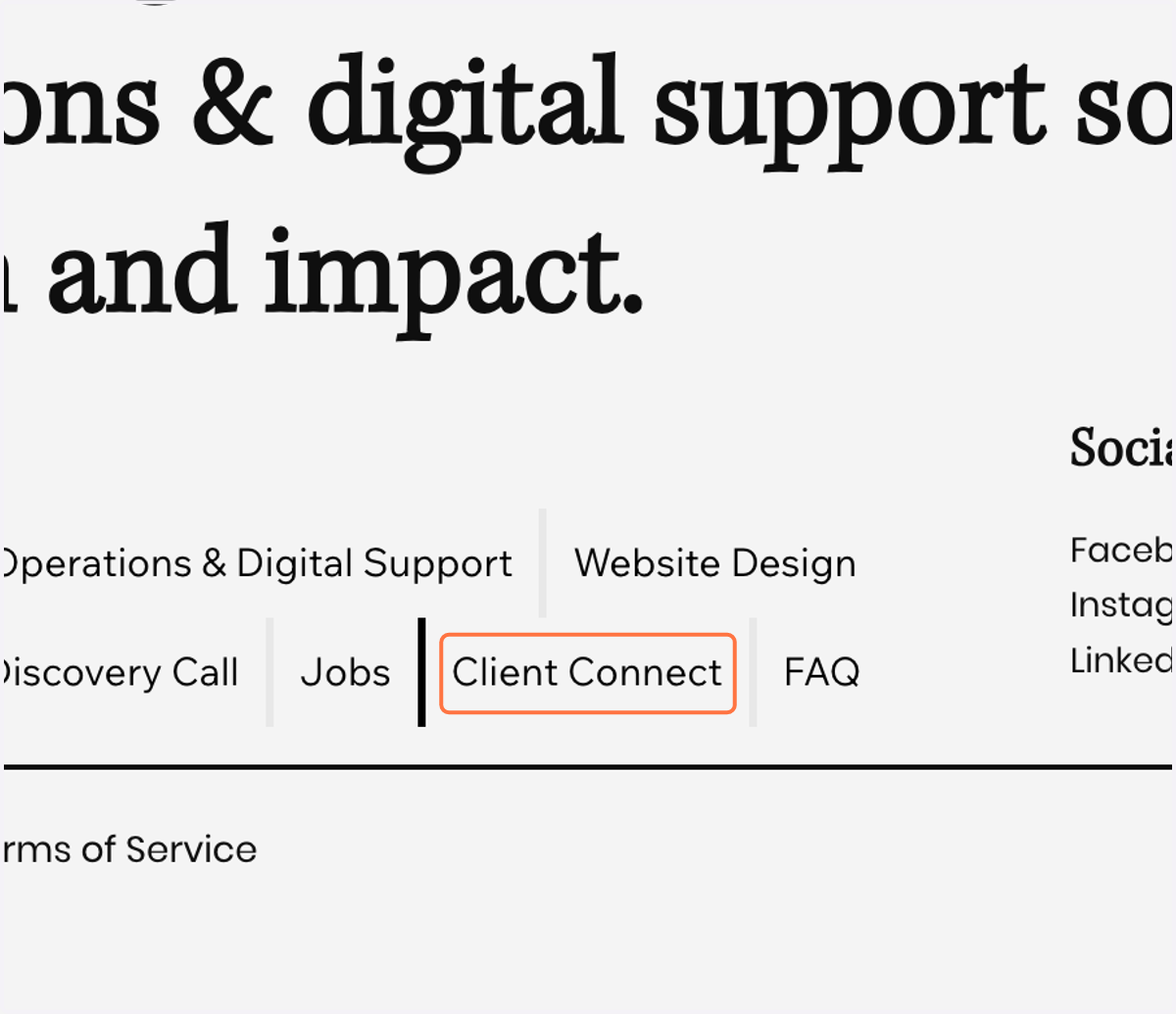
1. Scroll down to the footer and click on 'Client Connect'.
Connecting a Facebook Page
We are unable to connect personal Facebook profiles. We can only access Facebook Pages.
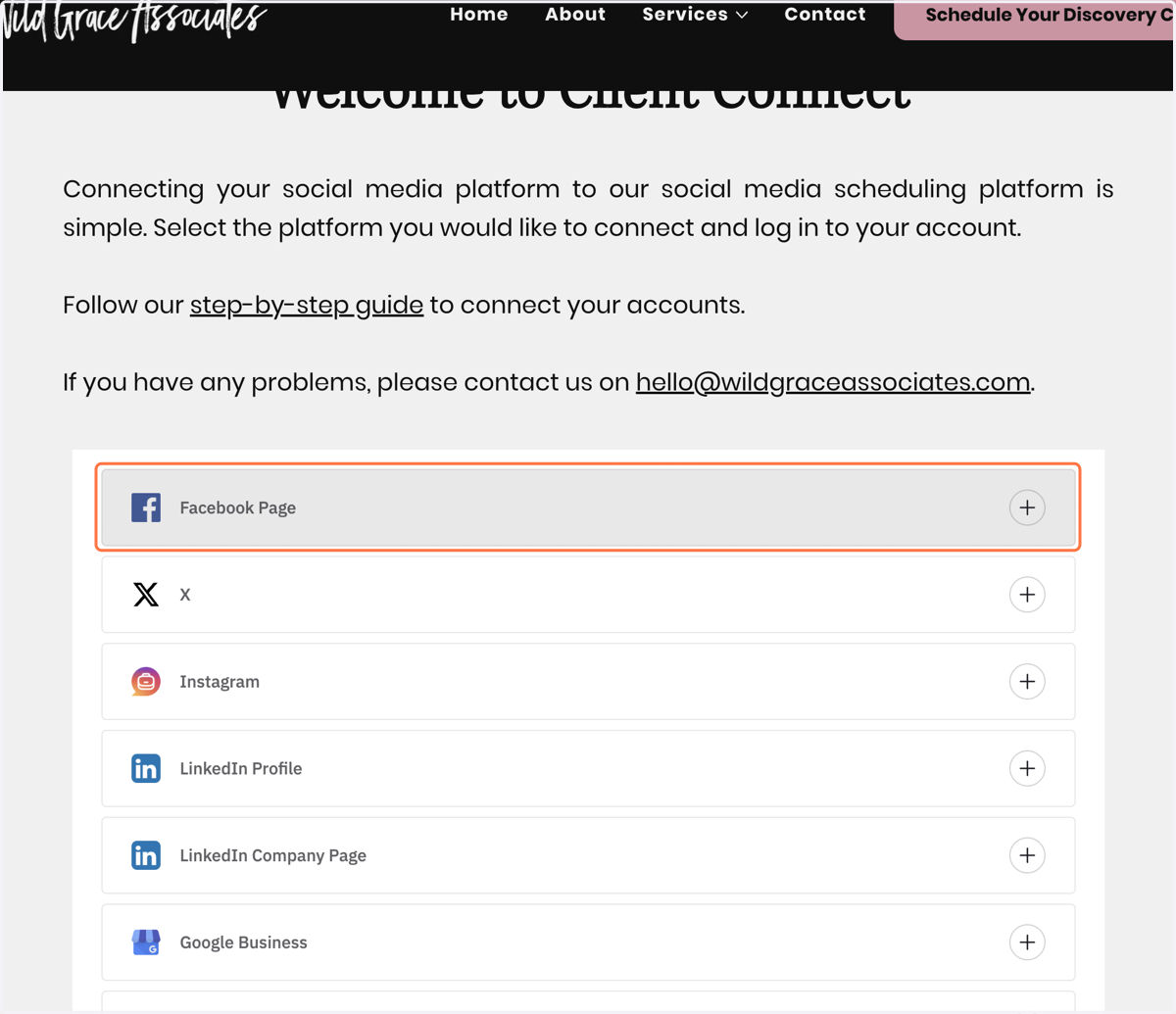
2. Click on 'Facebook Page'.
This will open up a pop up box asking you to log into your Facebook account, if you are not already logged in.
3. Once you have logged into your Facebook account, click on 'Continue as [Your name]'.

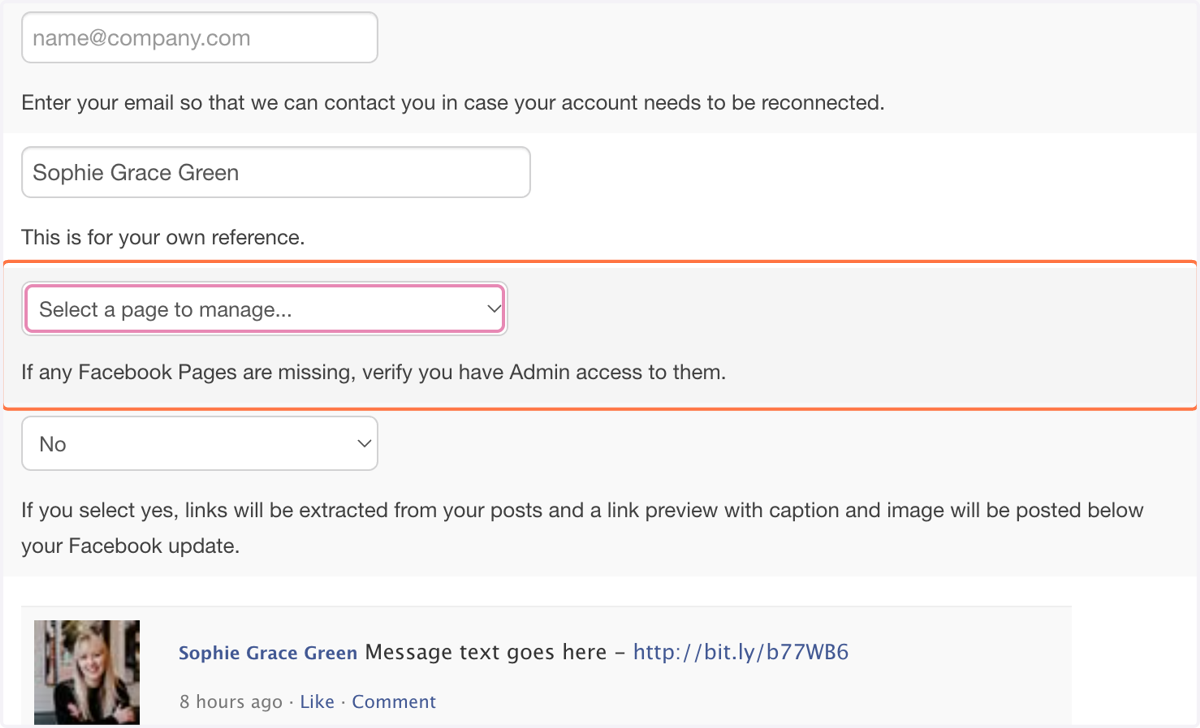
4. Enter your email so that we can contact you in case your account needs to be reconnected.
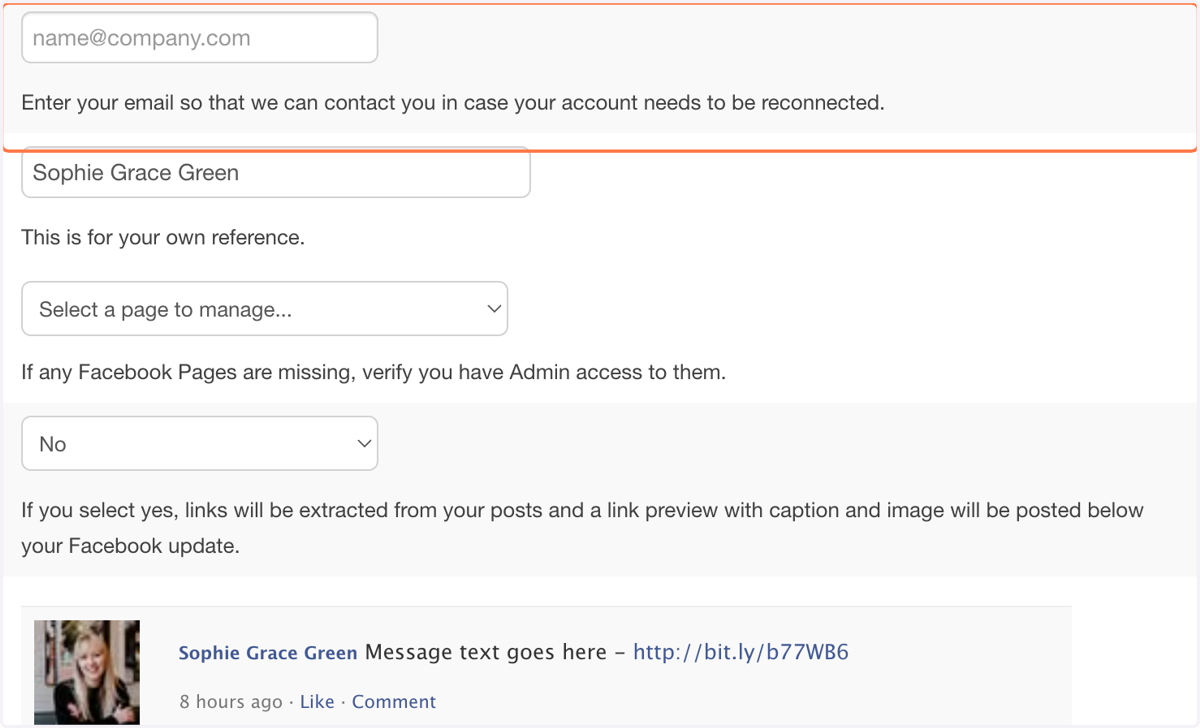
5. Click on 'Select a page to manage...' and select the Facebook Page you would like us to have access to.
If you can't see your page listed, you may need to connect the company page owner to add you as an admin.
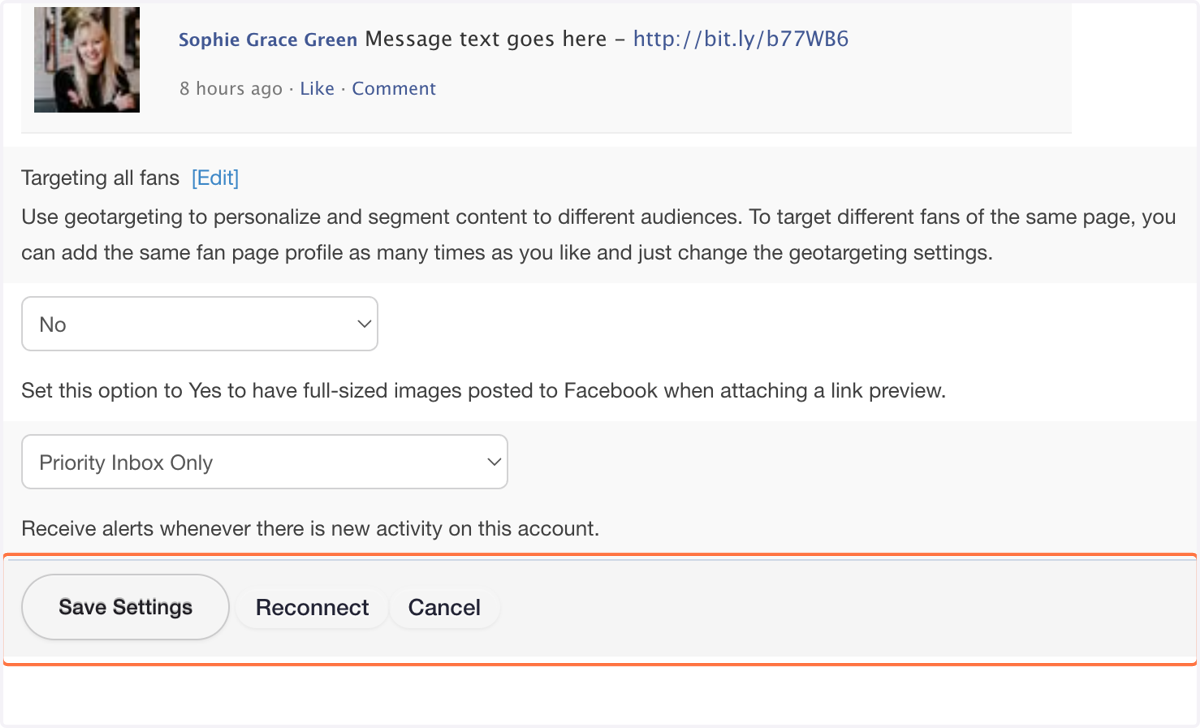
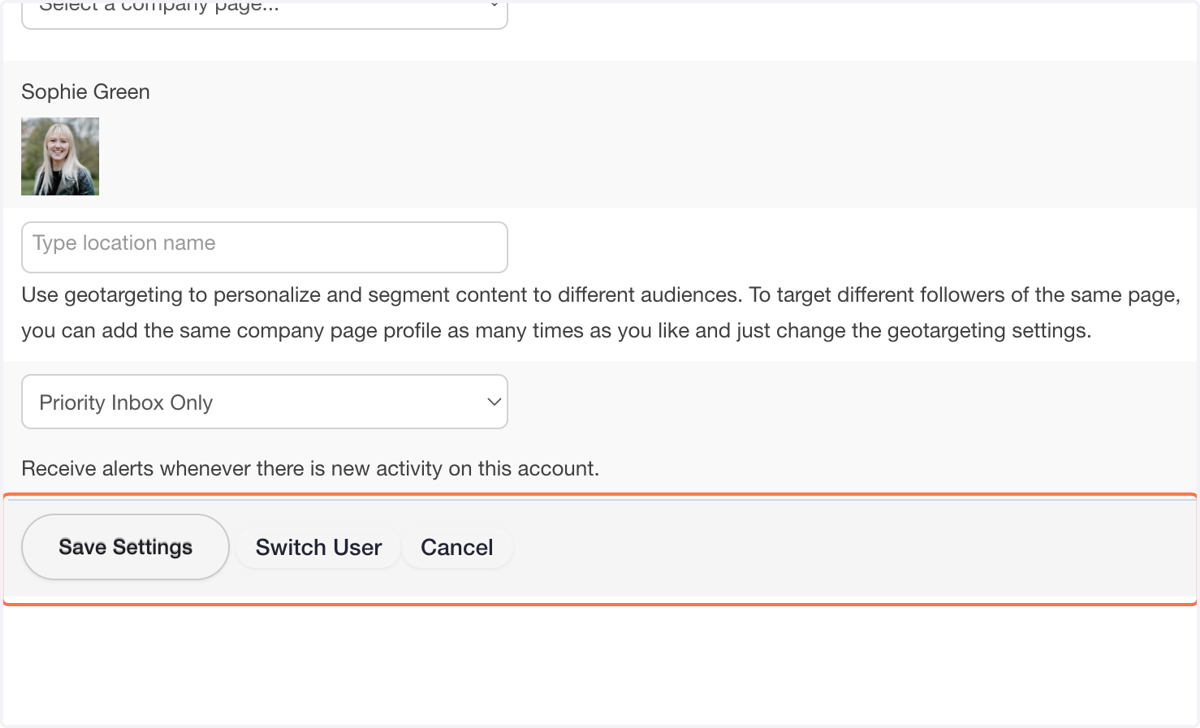
6. Click on 'Save Settings'.
We will then receive an email confirming you have connected your Facebook page.
Connecting a LinkedIn Profile
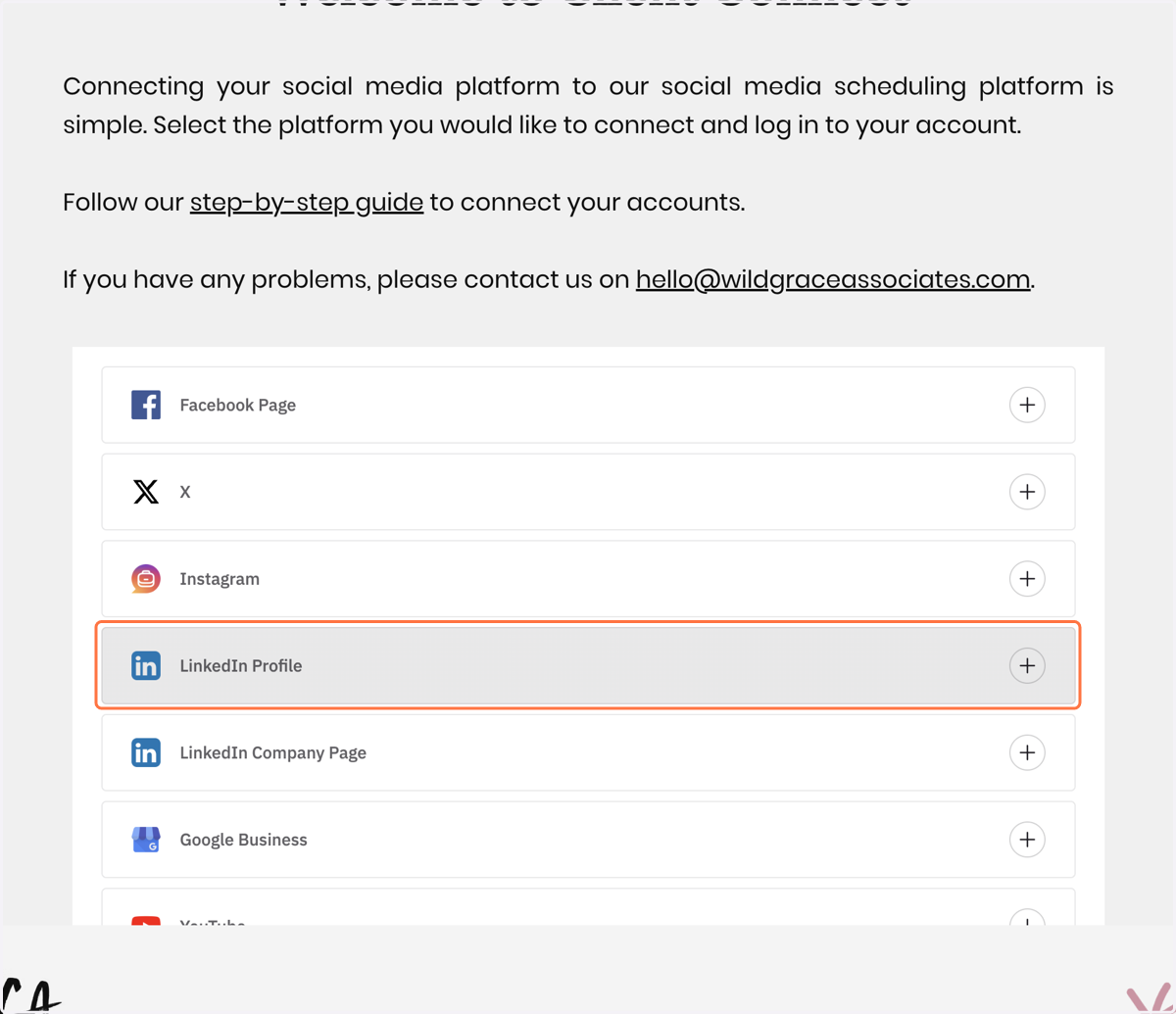
7. Click on 'LinkedIn Profile'.
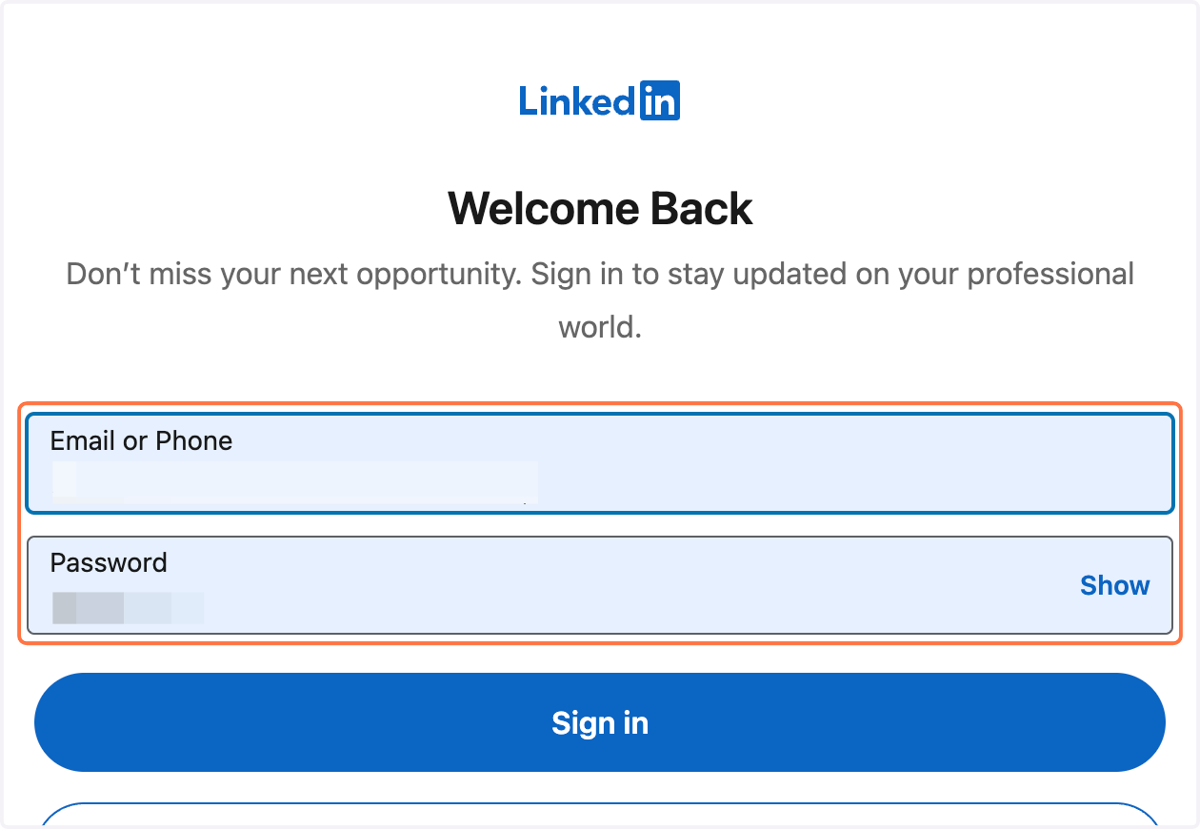
8. Login in to your LinkedIn account.
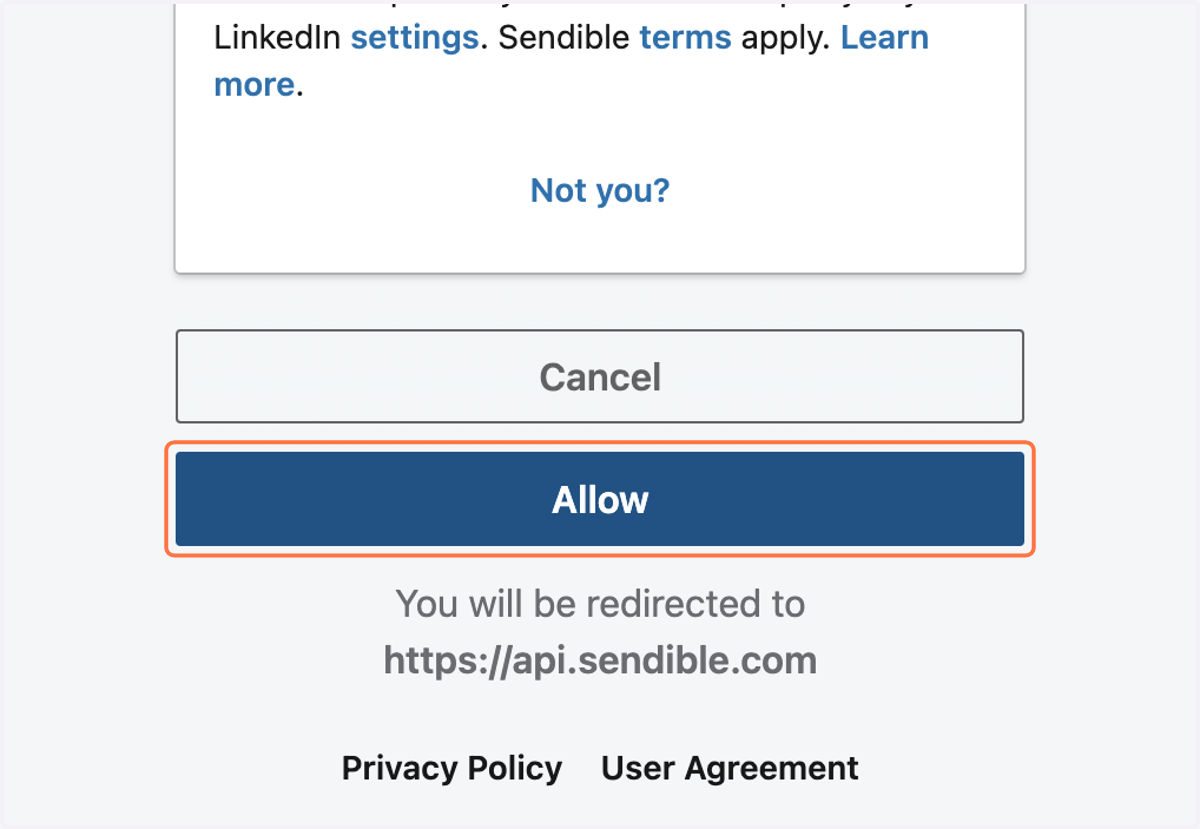
9. Scroll to the very bottom and click on 'Allow'. This is just agreeing that you allow Sendible (our social media scheduler) to connect to your LinkedIn profile.
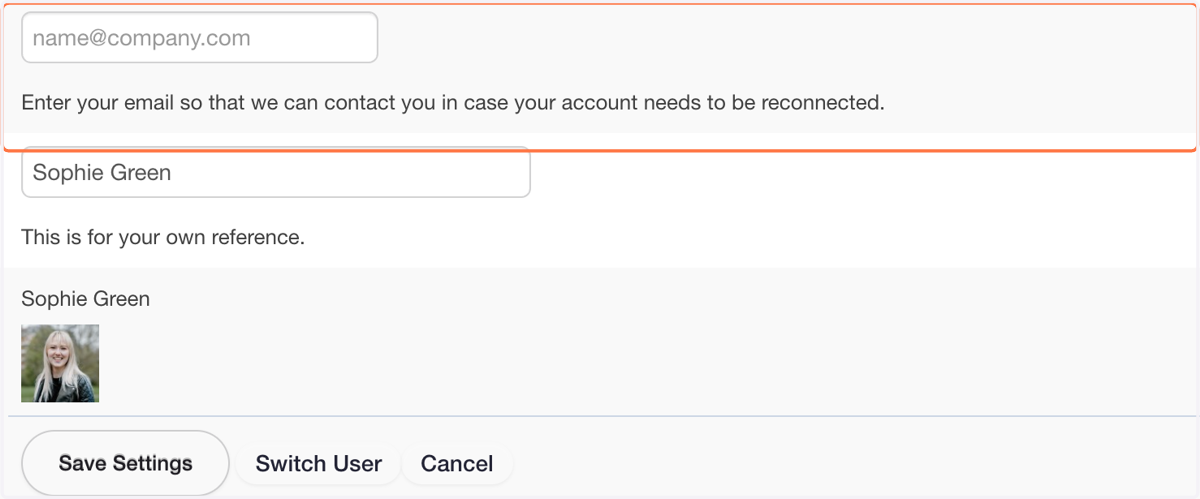
10. Enter your email so that we can contact you in case your account needs to be reconnected.
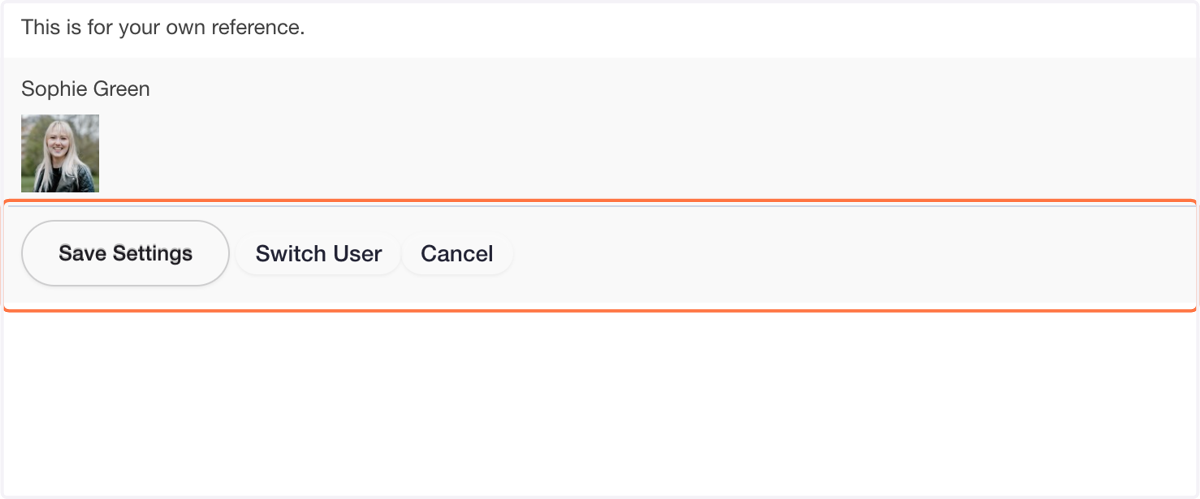
11. Click on 'Save Settings'.
We will then receive an email confirming you have connected your LinkedIn profile.
Connecting a LinkedIn Company Page
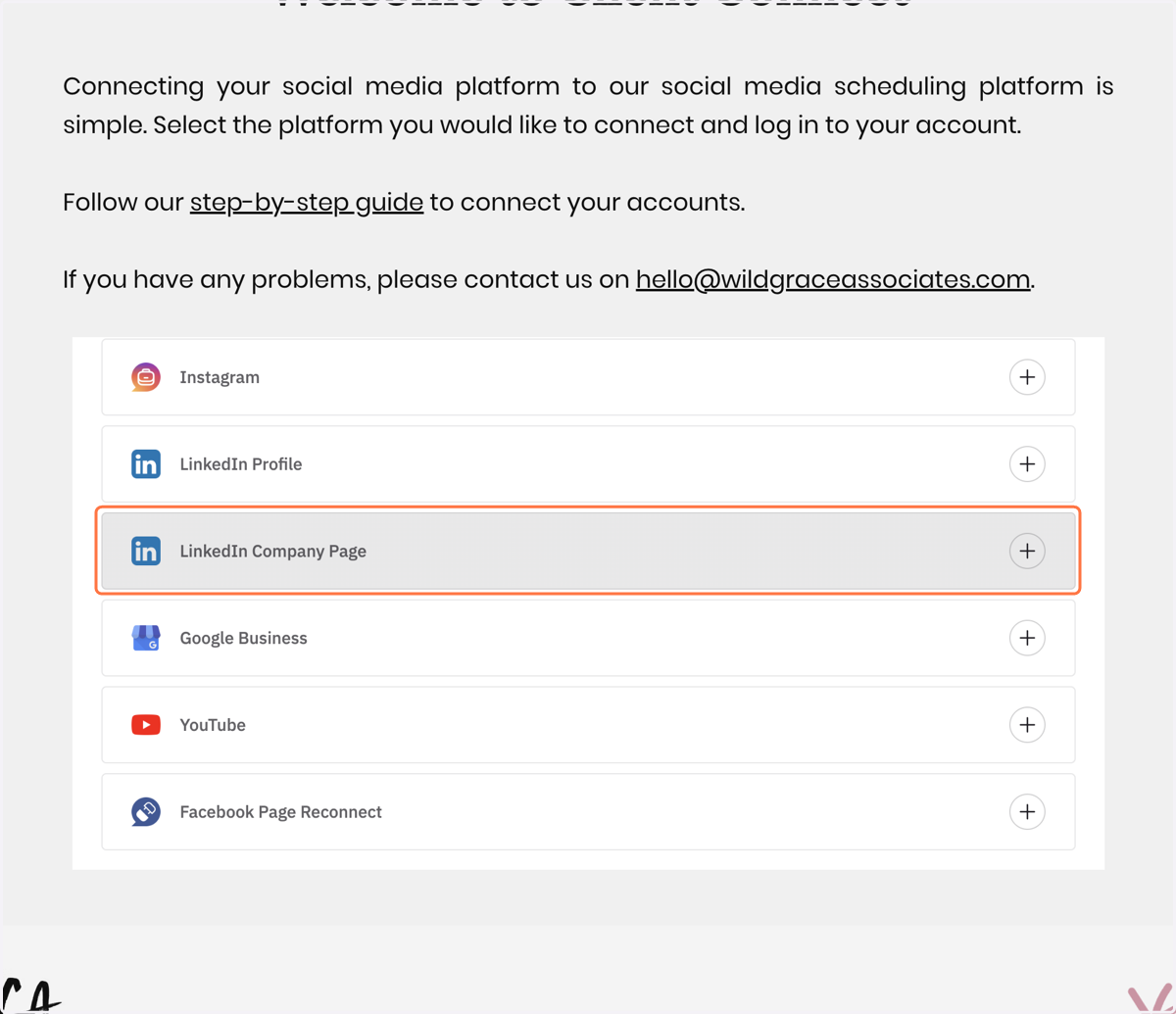
12. Click on 'LinkedIn Company Page'
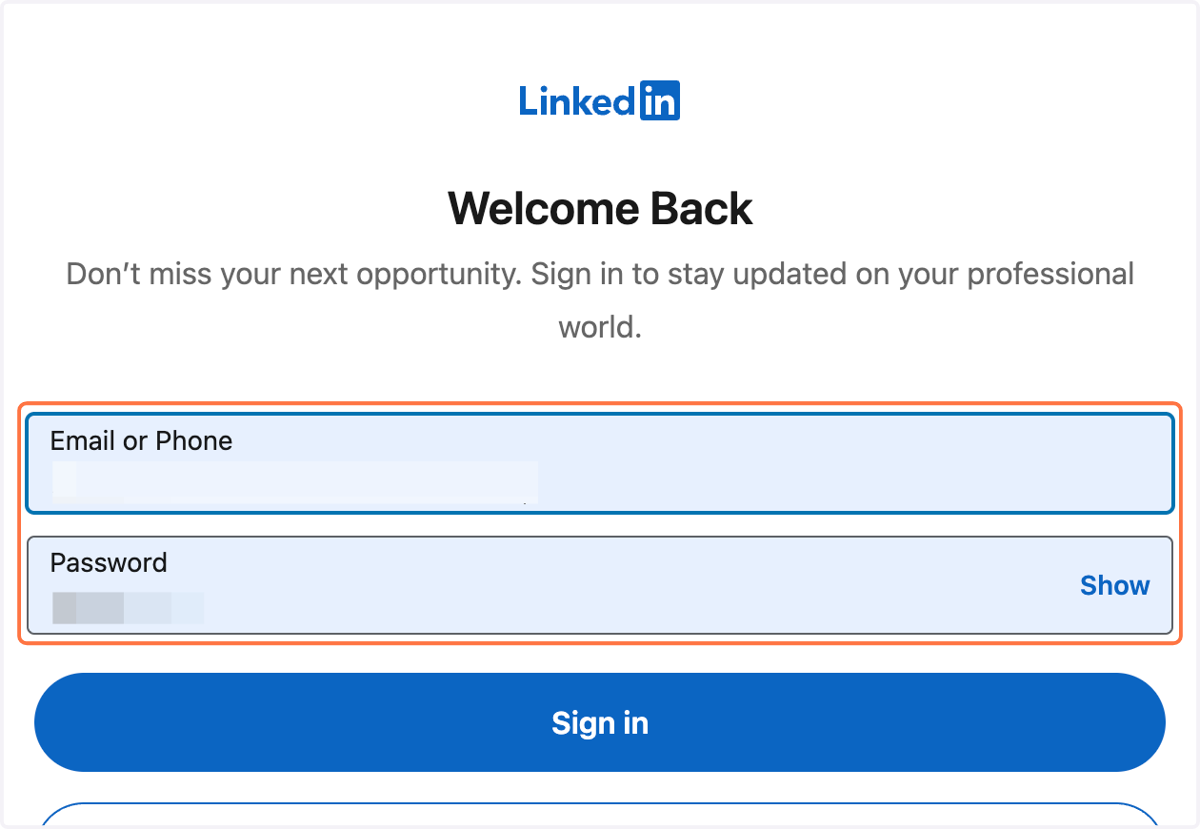
13. Login in to your LinkedIn account.
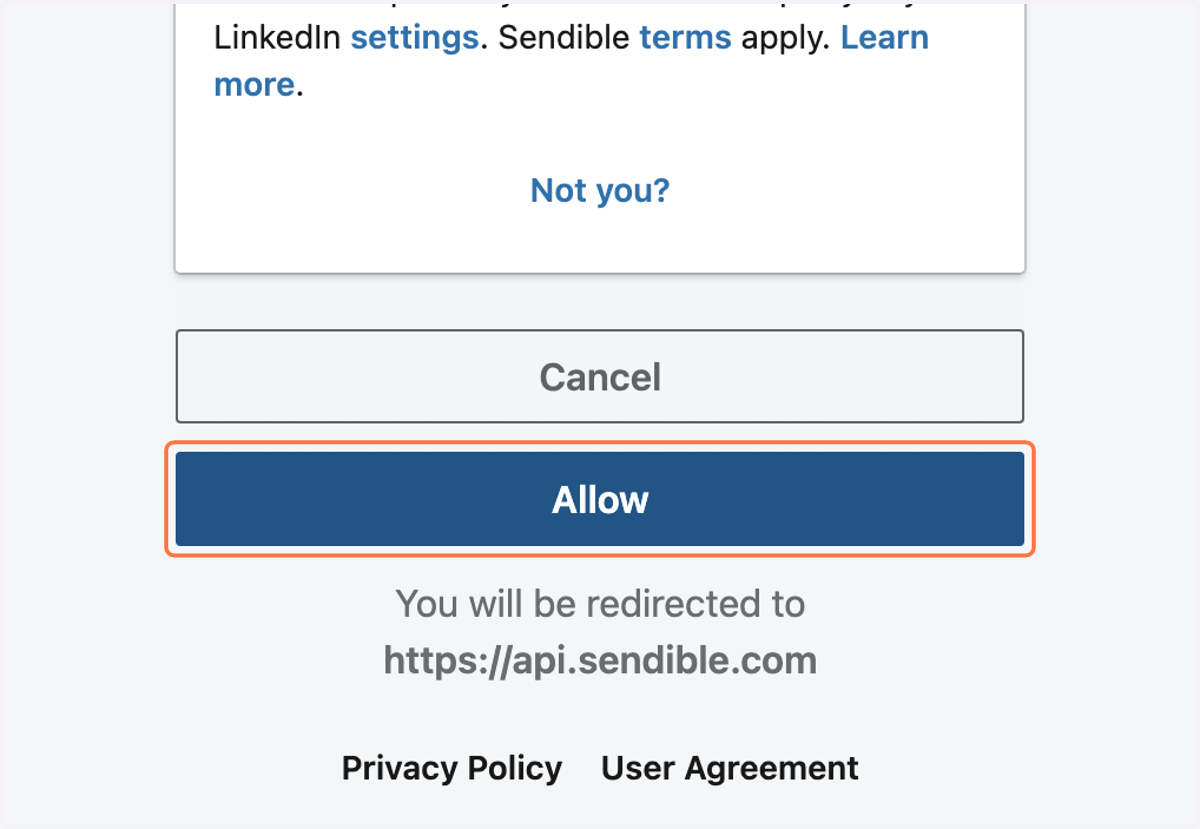
14. Scroll to the very bottom and click on 'Allow'. This is just agreeing that you allow Sendible (our social media scheduler) to connect to your LinkedIn profile.
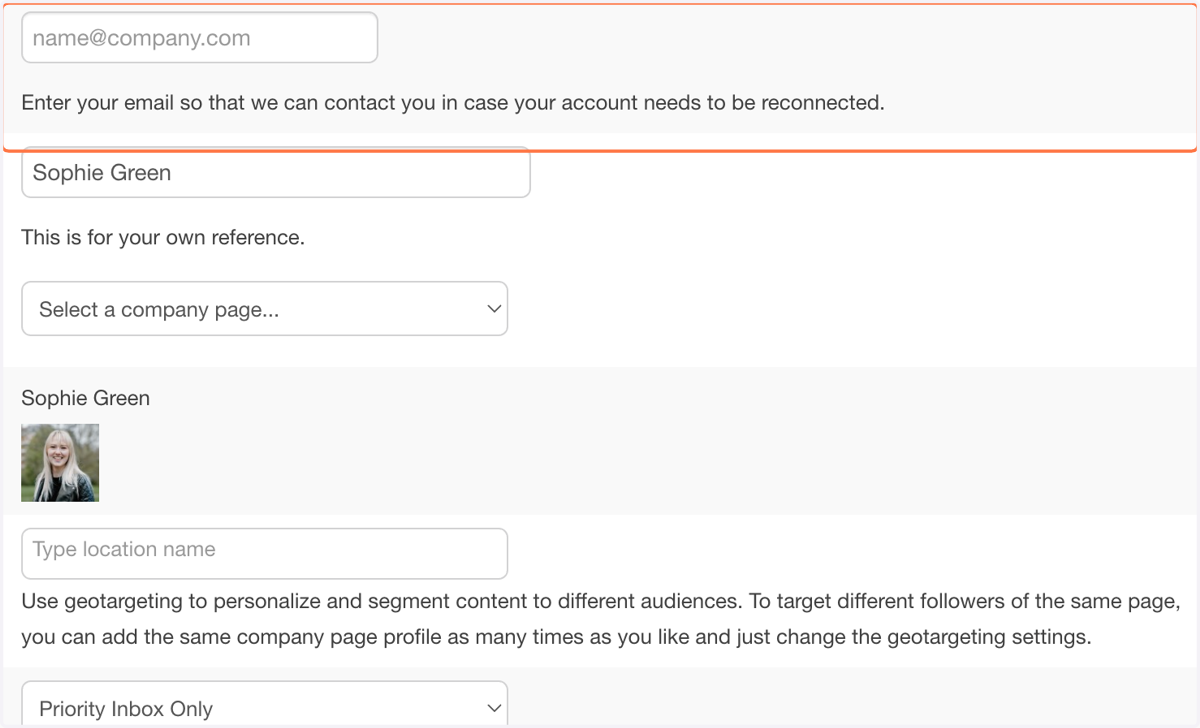
15. Enter your email so that we can contact you in case your account needs to be reconnected.
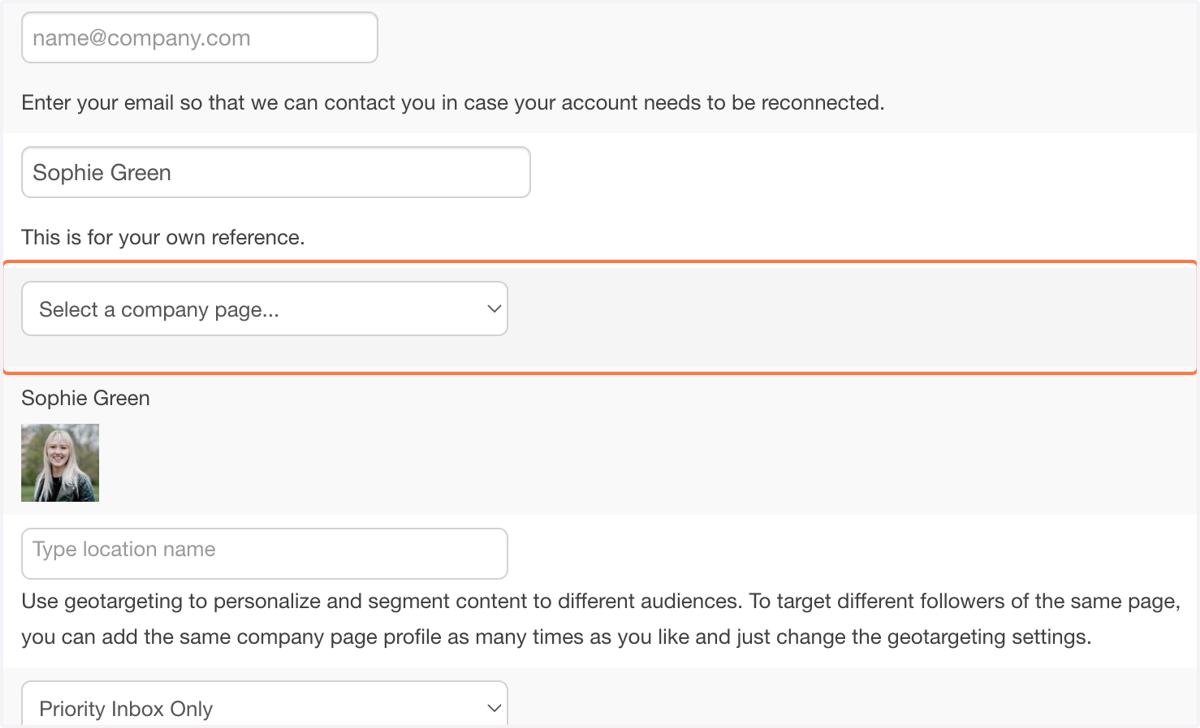
16. Click on 'Select a company page...' and select the page you would like to connect.
If you can't see your company listed, you may need to connect the company page owner to add you as an admin.
17. Click on 'Save Settings'.
We will then receive an email confirming you have connected your LinkedIn company page.
Connecting an Instagram Account
We can only connect 'Professional' or 'Business' accounts. We are unable to connect to personal accounts. You can switch your account to a 'Professional' or 'Business' account in your Instagram settings.
18. Click on 'Instagram'.
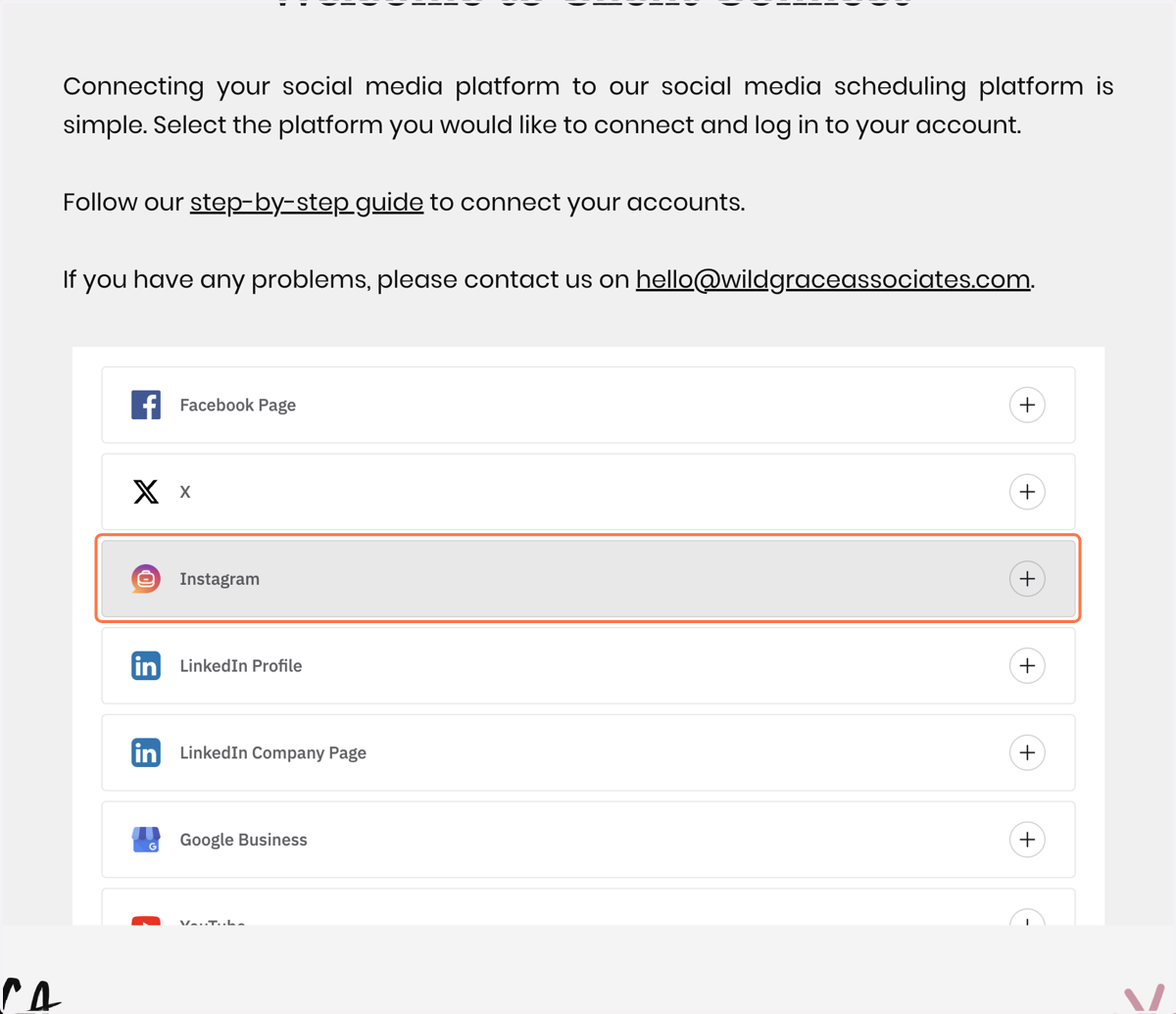
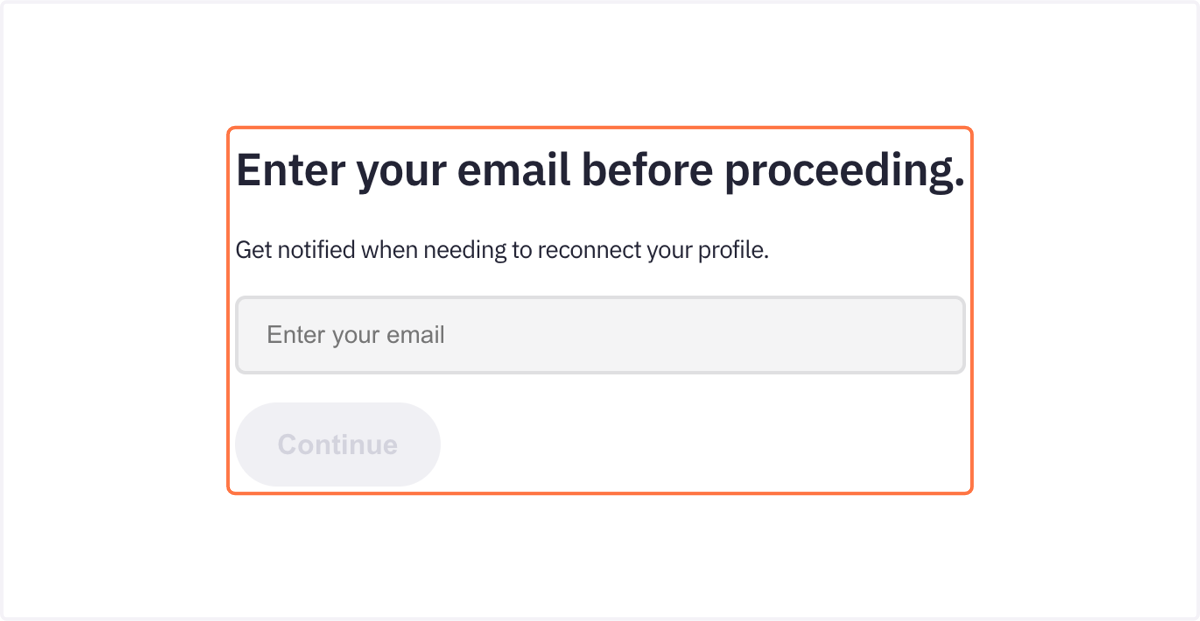
19. Enter your email so that we can contact you in case your account needs to be reconnected.
20. You will be directed to Facebook to login. Click on 'Continue as [Your name]'.
We recommend logging into to your Facebook account first, so that it recognises your login for this step. If you have already connected your Facebook Page, you should already be logged in.

21. Choose the Instagram Profiles you would like to connect by clicking on 'Connect'. It should turn green with a tick when it has been connected.
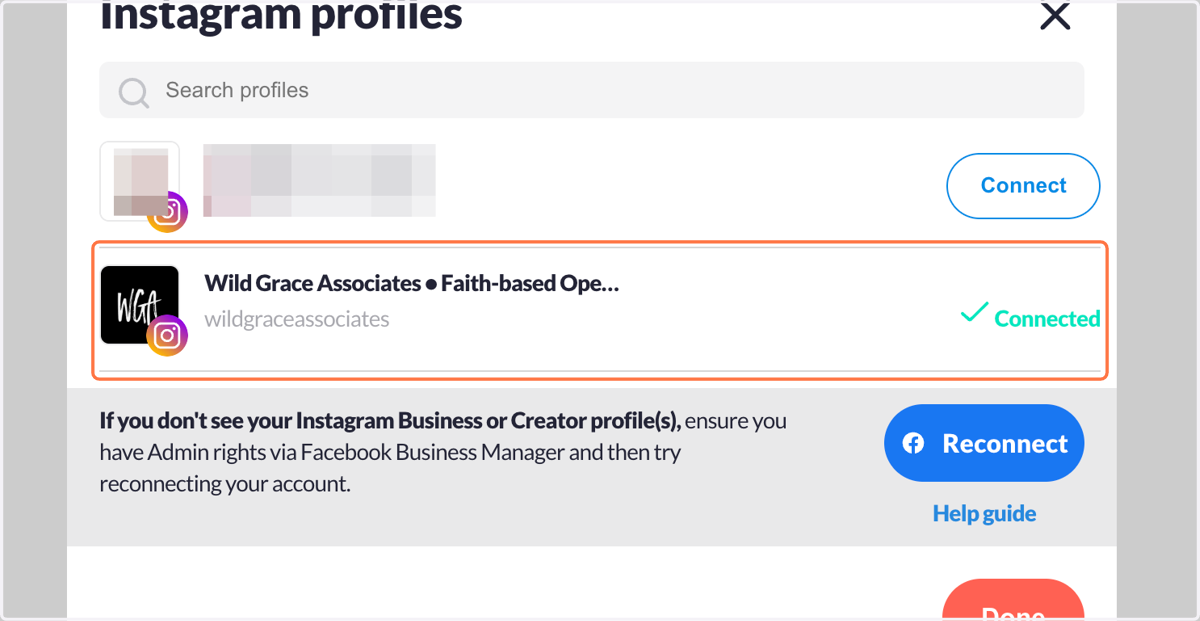
22. Click on 'Done'.