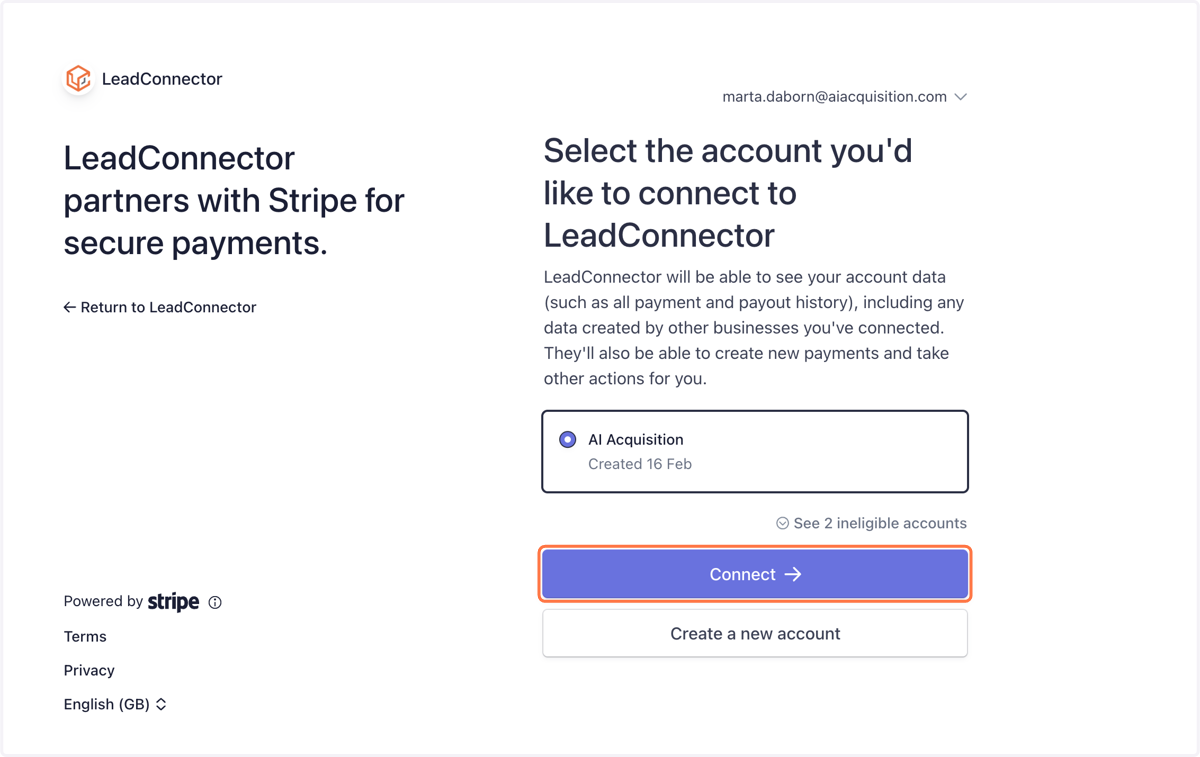
Connect GoHighLevel to Stripe
In your URL bar type in: app.gohighlevel.com
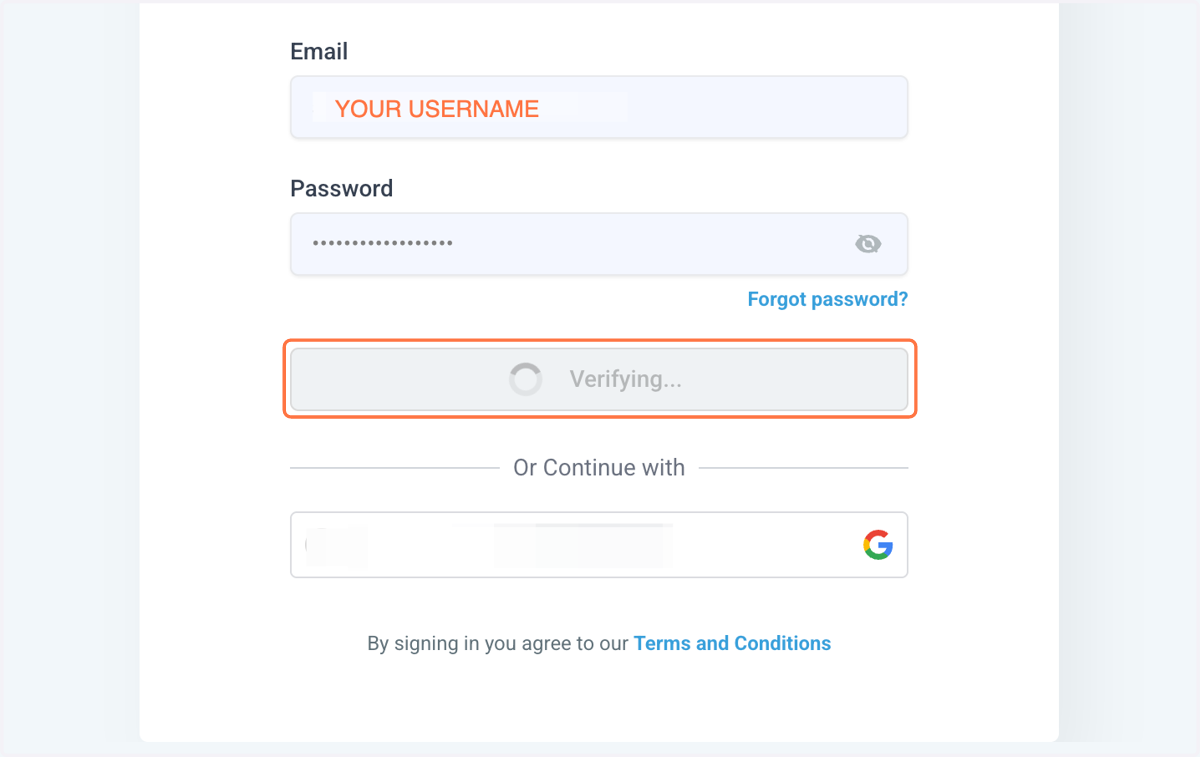
1. A. Type your username
1. B. Type password we provided
2. Click on Sign in
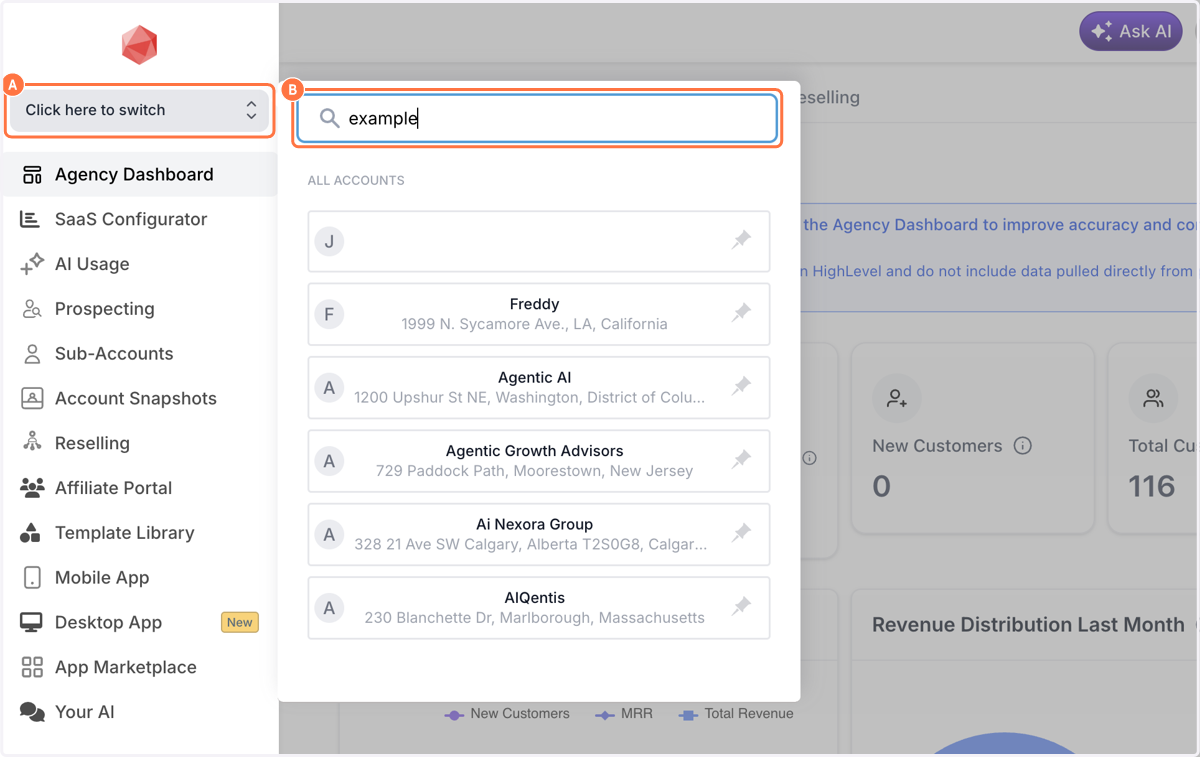
3. A. Click on Click here to switch
3. B. Type your business name
4. At the bottom left hand-side tab bar, Click on Settings
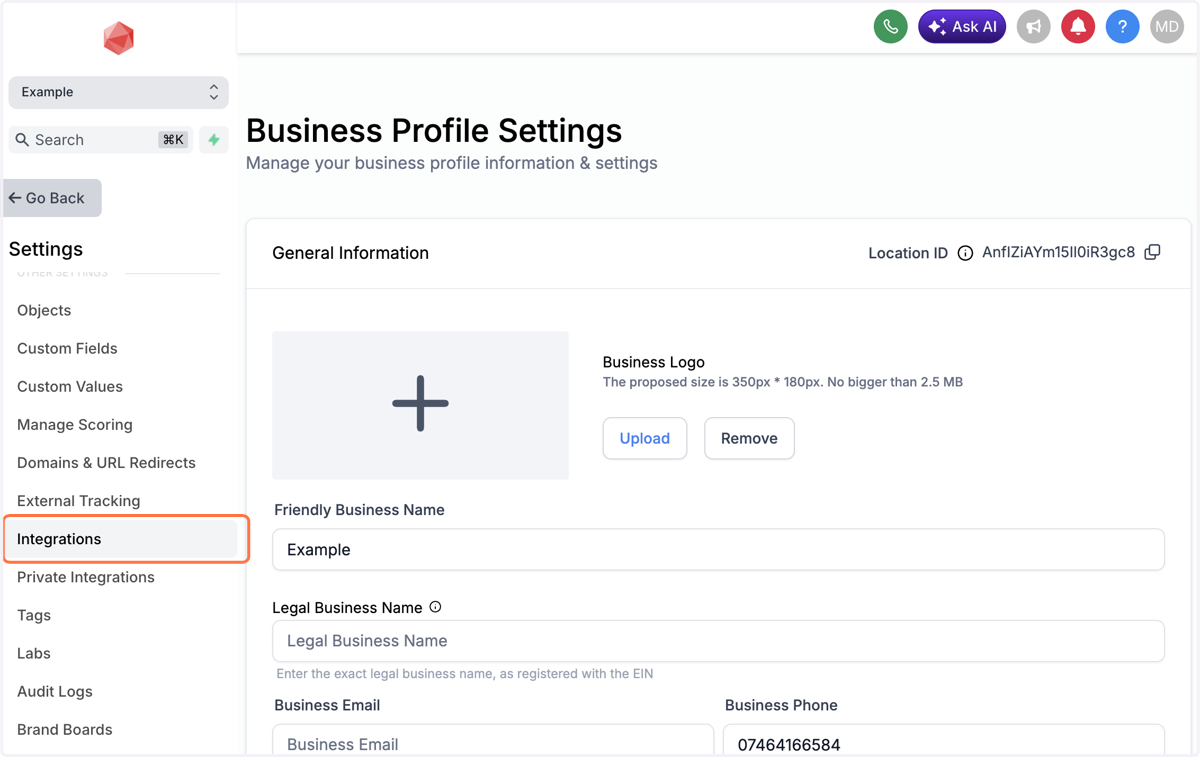
5. Click on Integrations
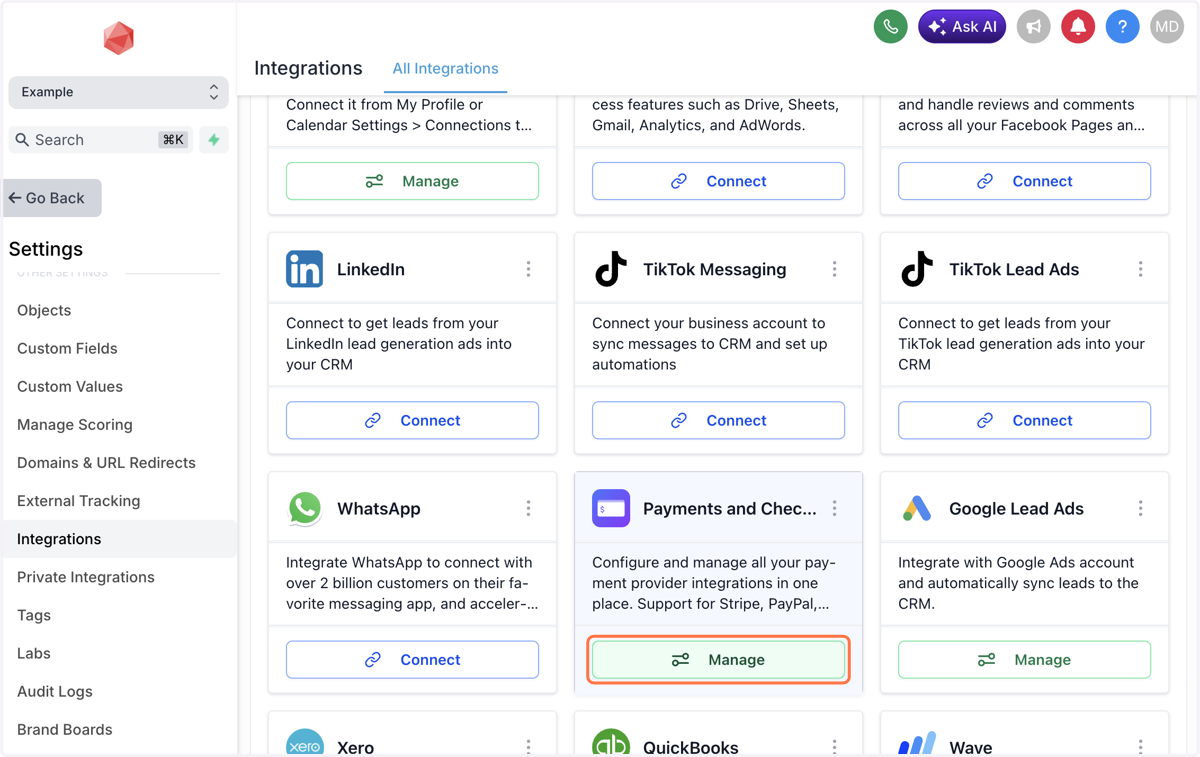
6. Find Payments and Checkout, then Click on Manage
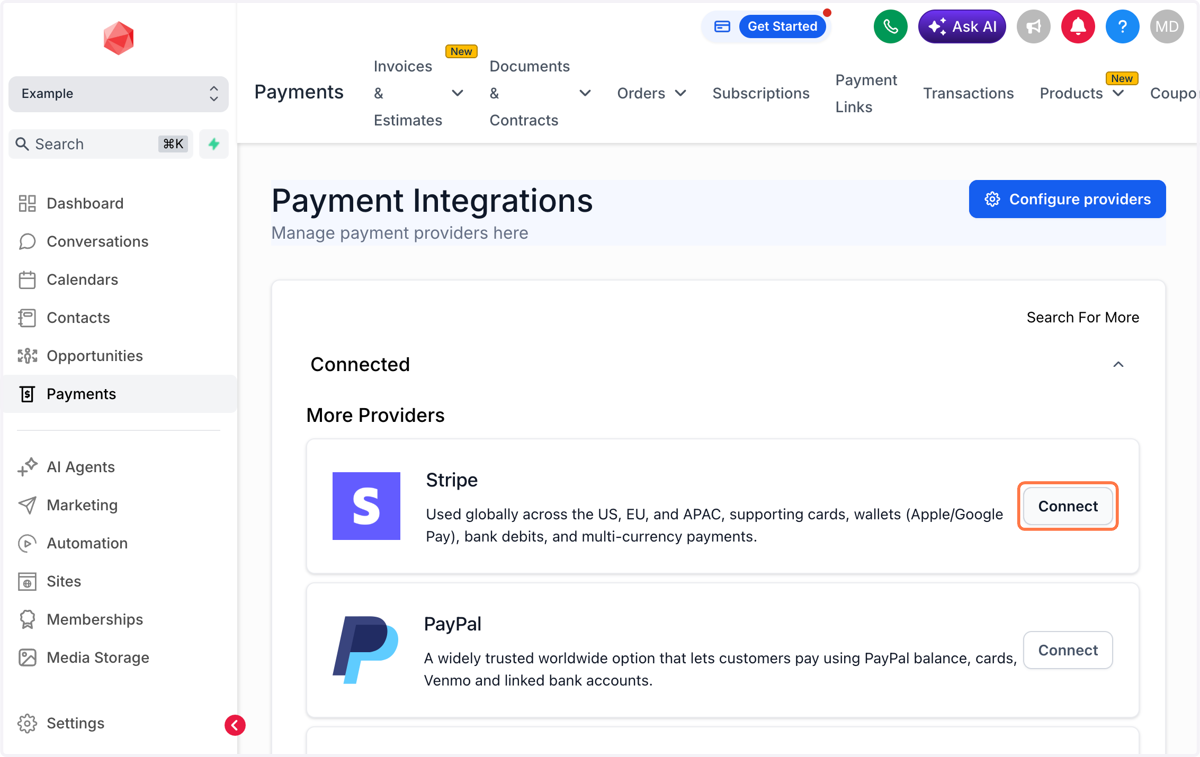
7. Navigate to Stripe, then Click on Connect
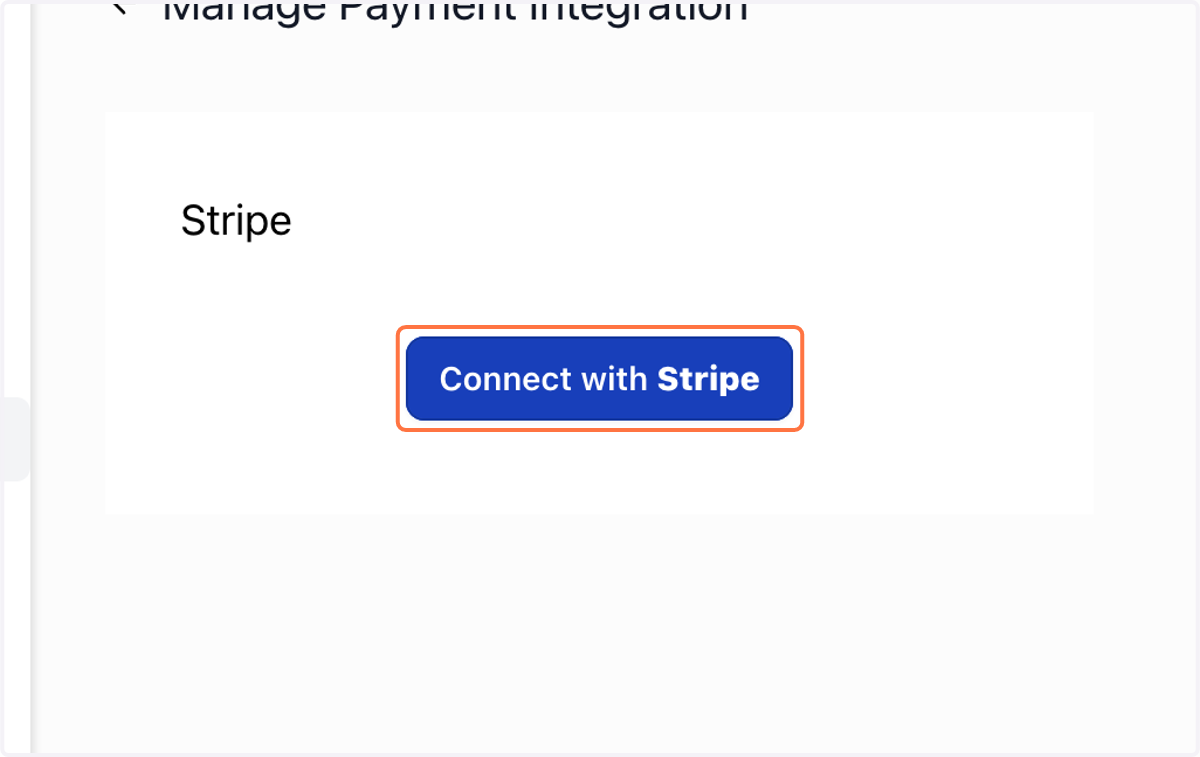
8. Click on Connect with Stripe
Stripe – Connect with LeadConnector
9. A new tab will open, type your email address
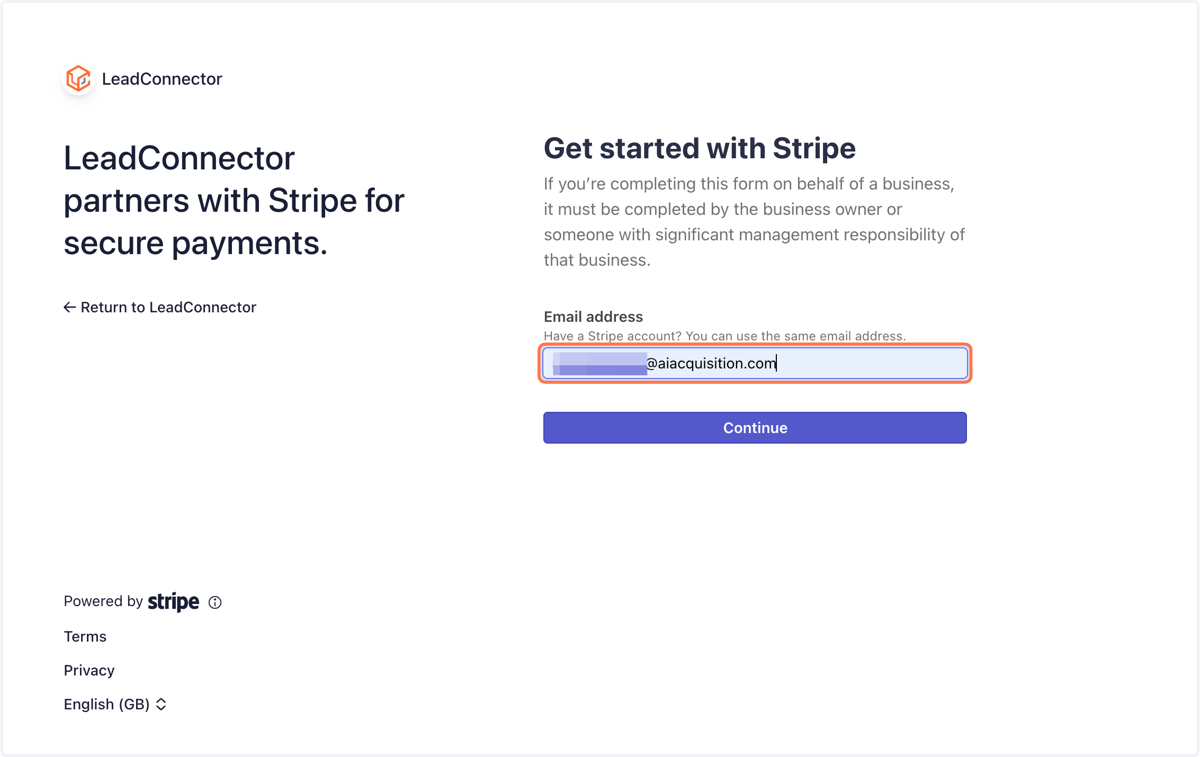
10. Click on Continue, then enter your password
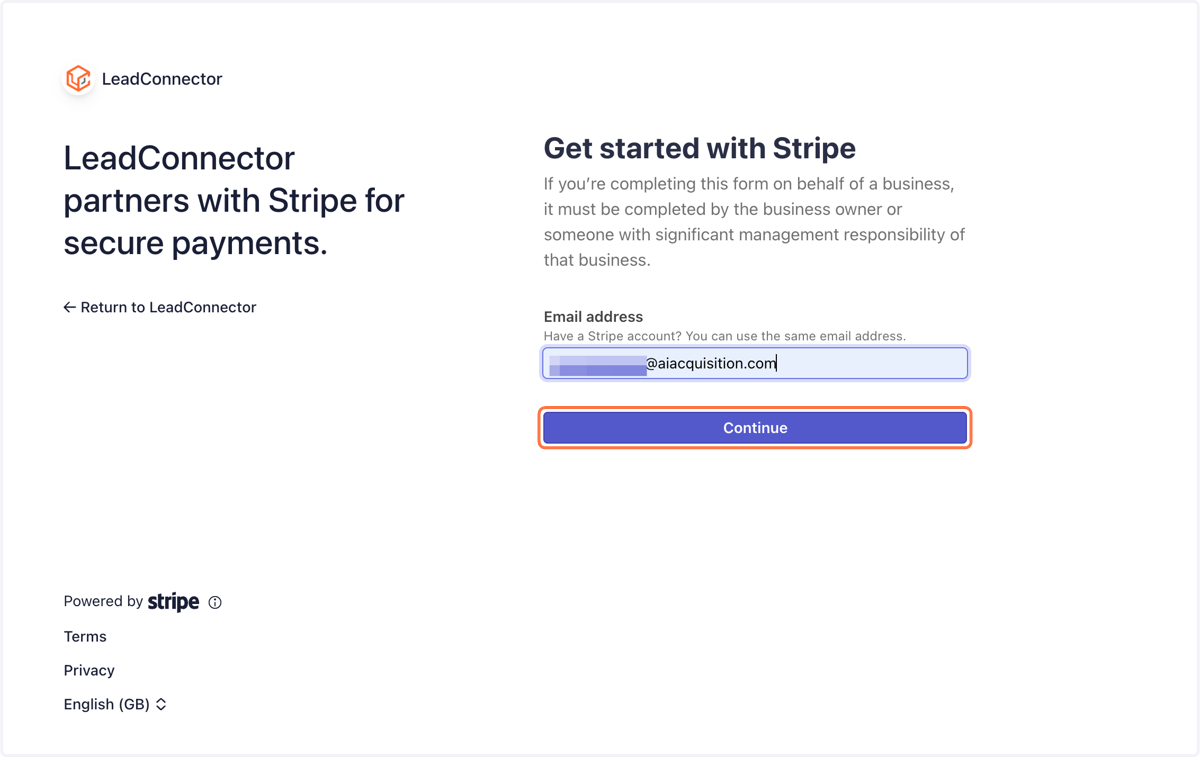
Stripe – Connect with LeadConnector
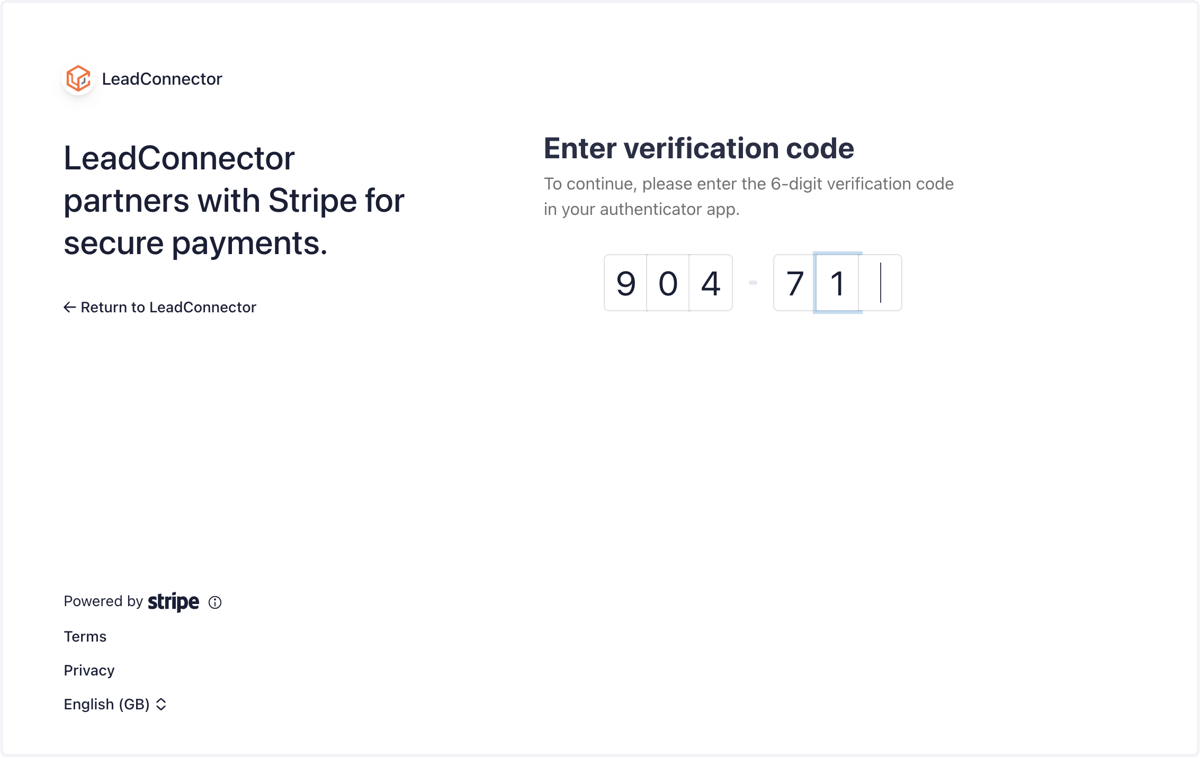
11. You will be asked to verify, do this using the verification method you chose when setting up your Stripe account in text field
12. Click on Connect