Configuring the Jobber Quote Sent Follow Up Automation
Automatically send follow up mail to prospects if a quote hasn't been approved.
DirectMail Portal
1. Click on Automation
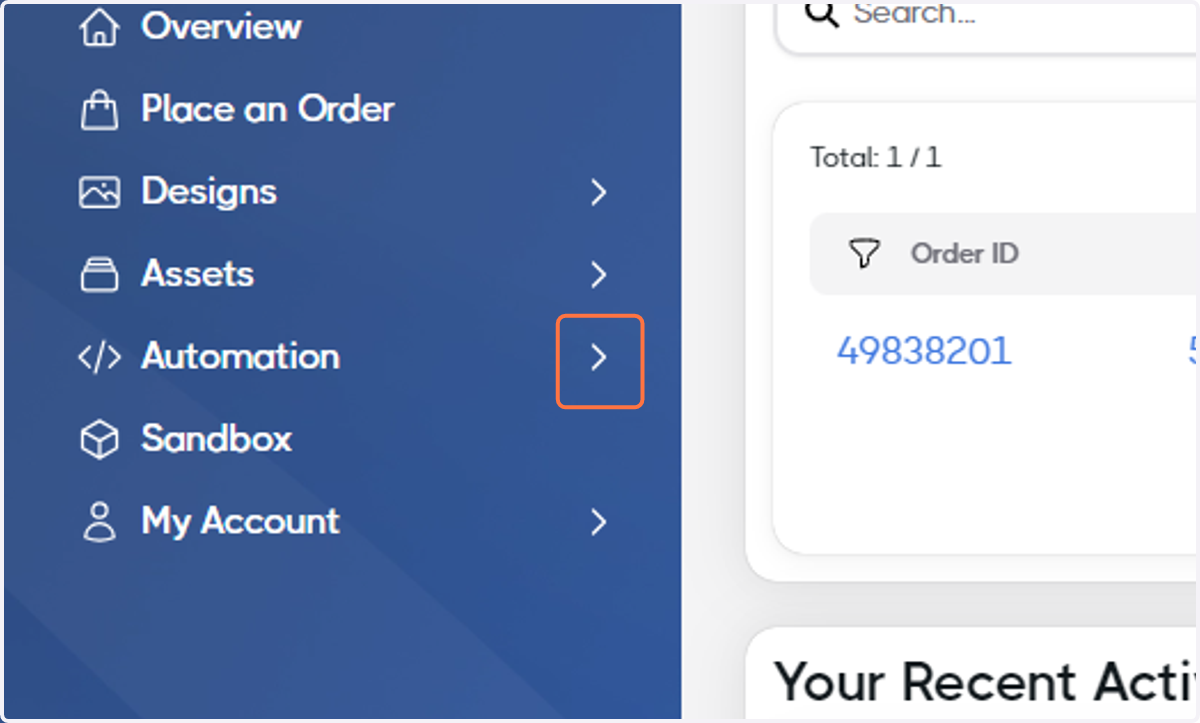
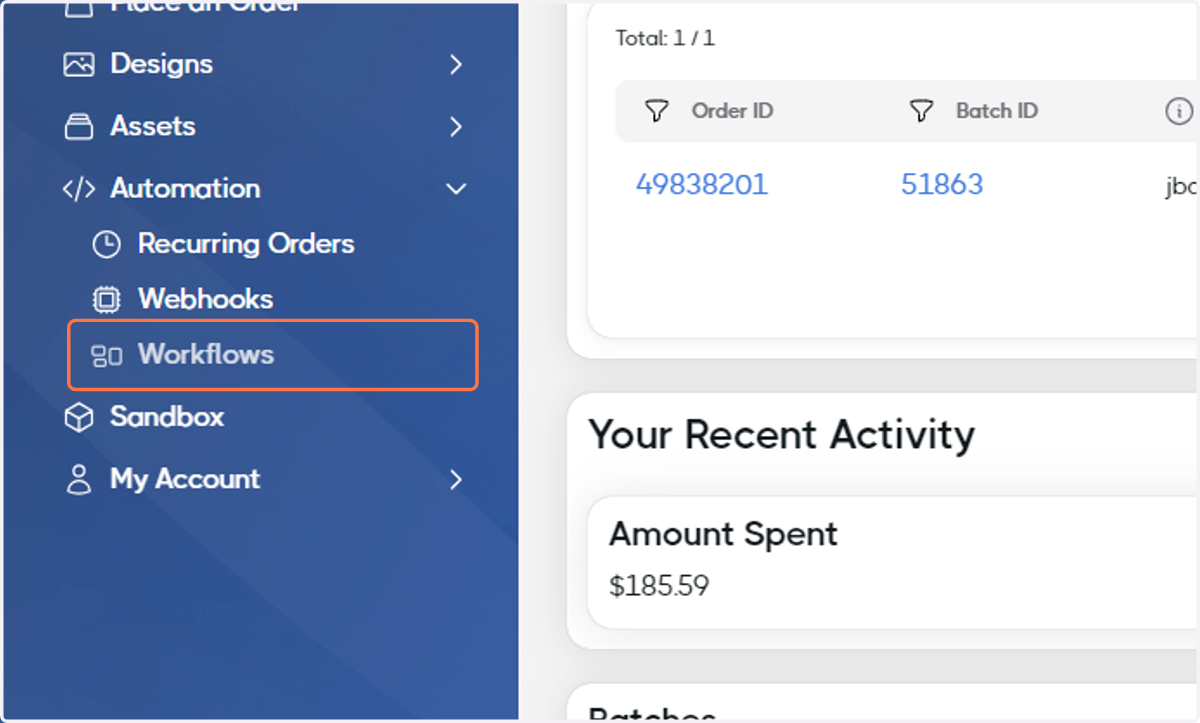
2. Click on Workflows
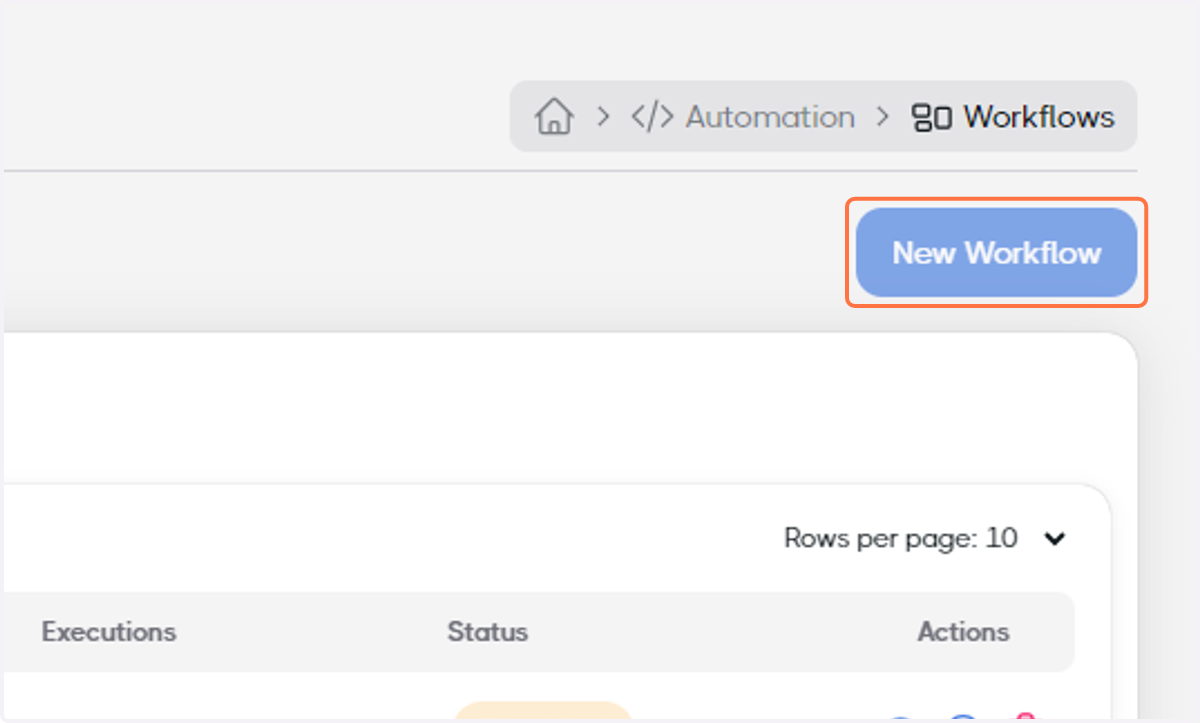
3. Click on New Workflow
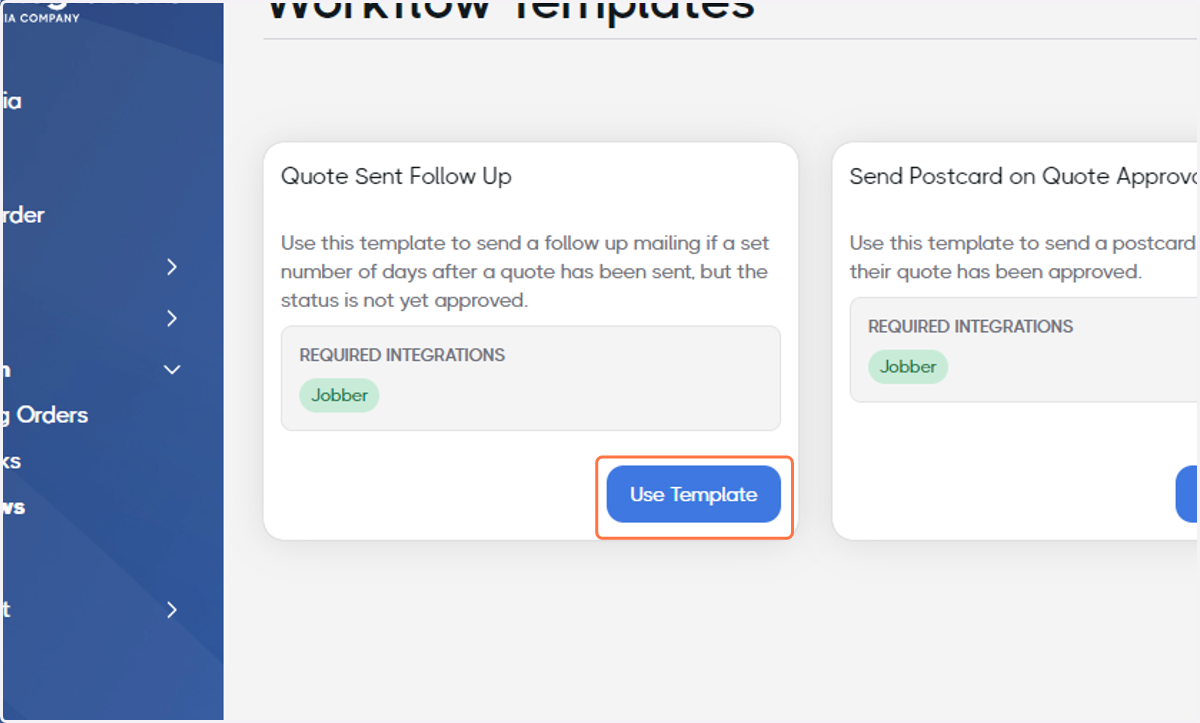
4. Find Quote Sent Follow Up and click on Use Template
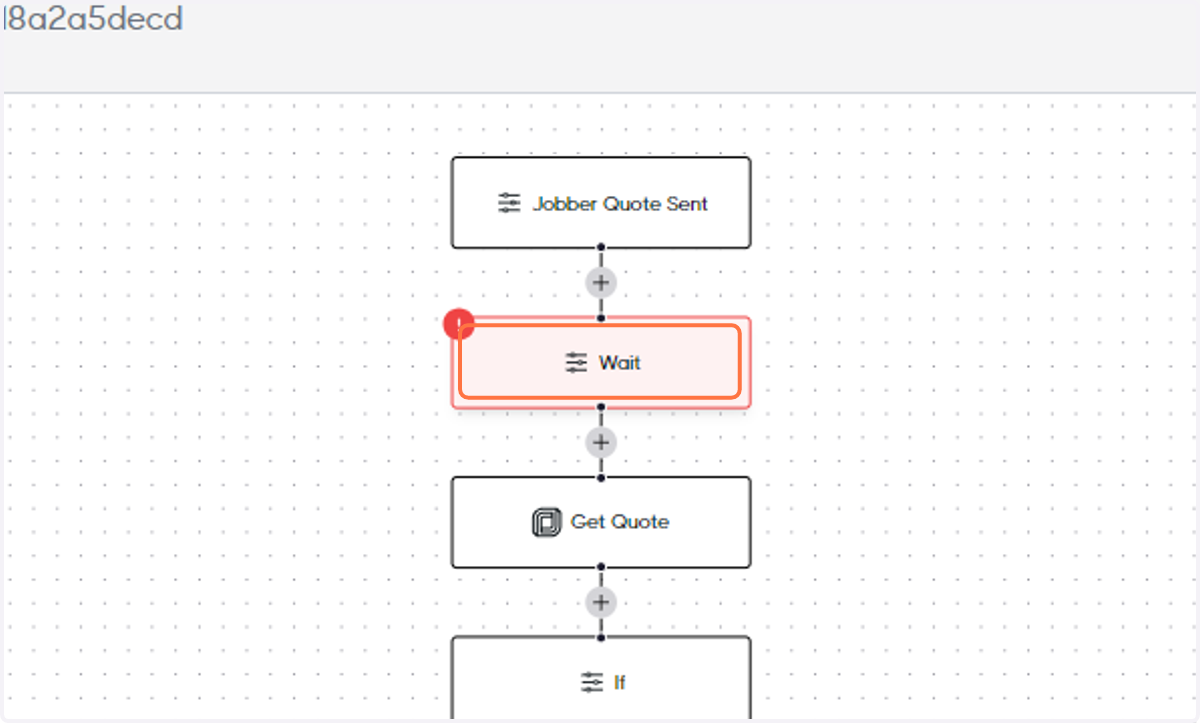
5. Click on the Wait node.
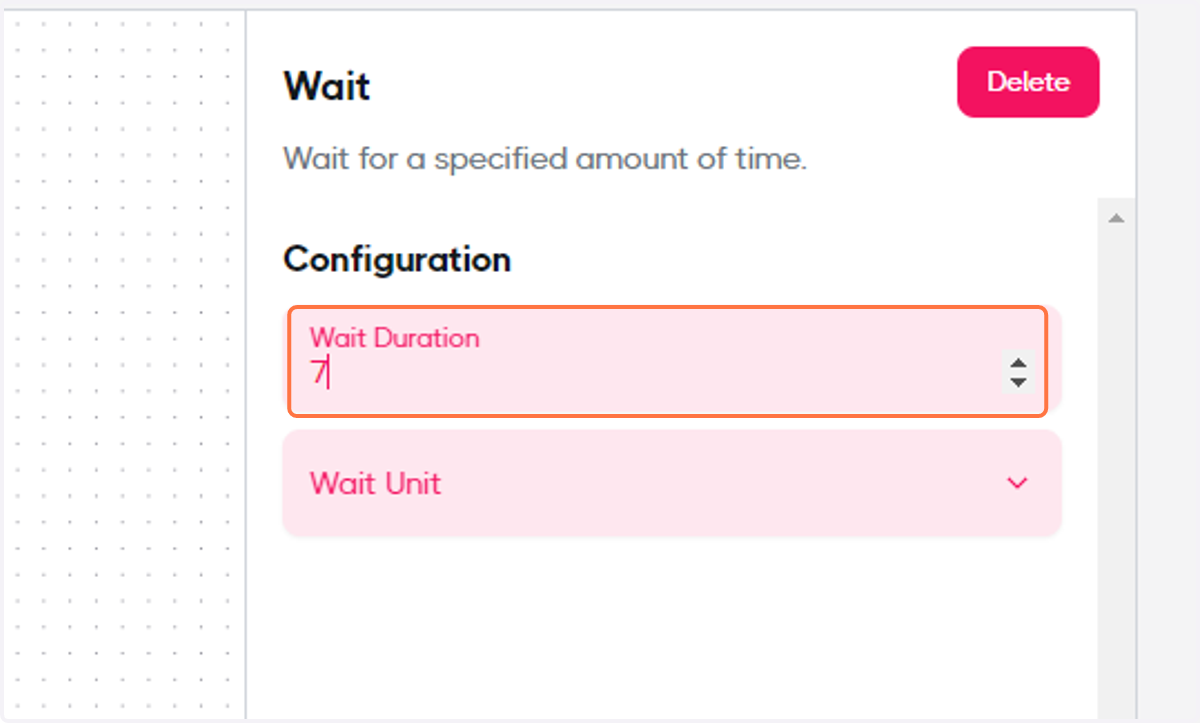
6. Set the Wait Duration
In this example, we'll set it to 7.
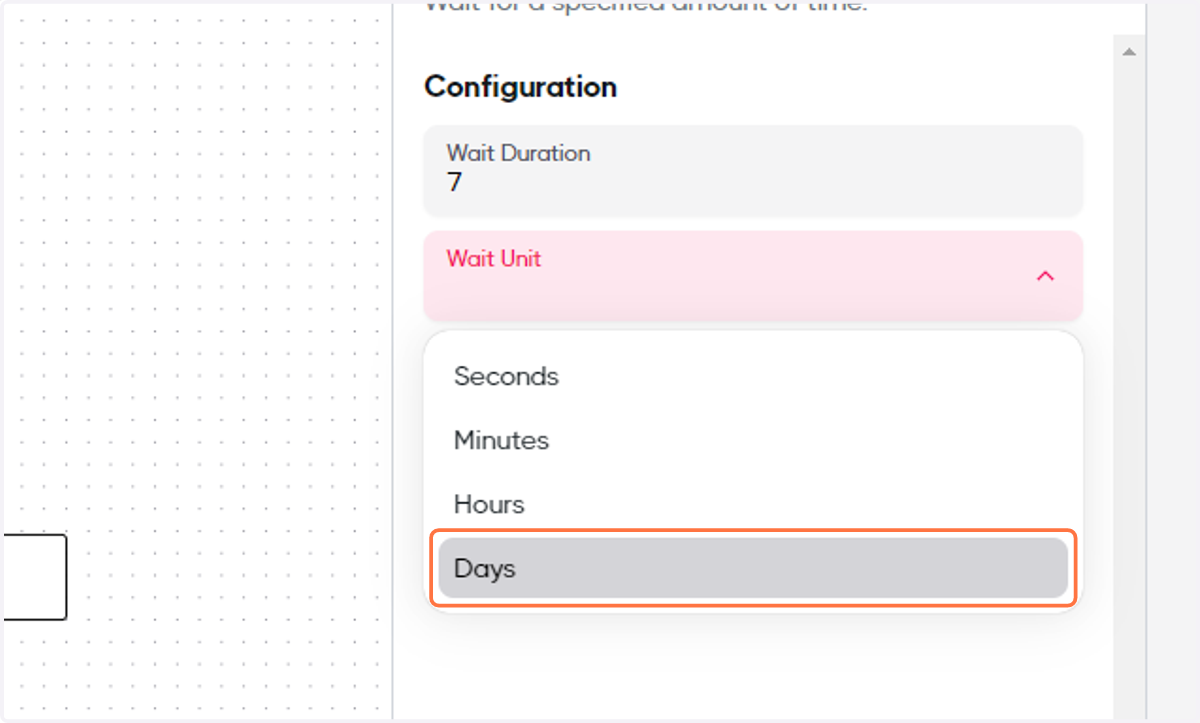
7. Select a Wait Unit
In this example, we'll set it to Days.
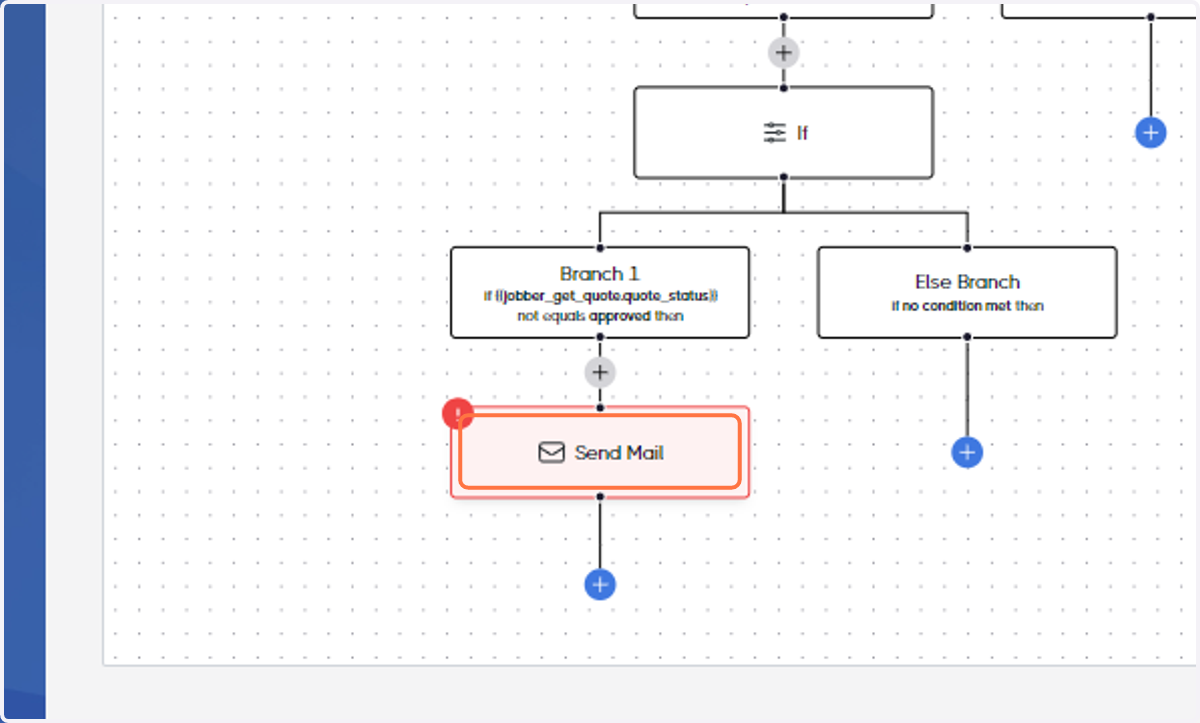
8. Click on the Send Mail node
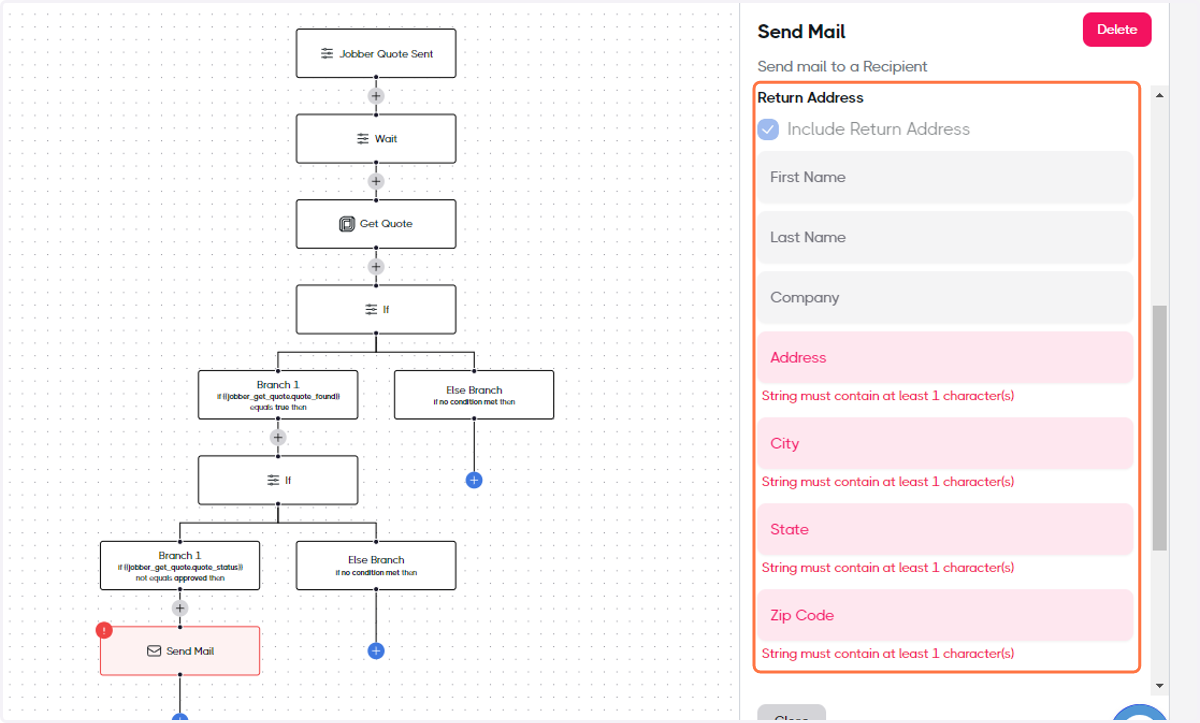
9. Add your Return Address
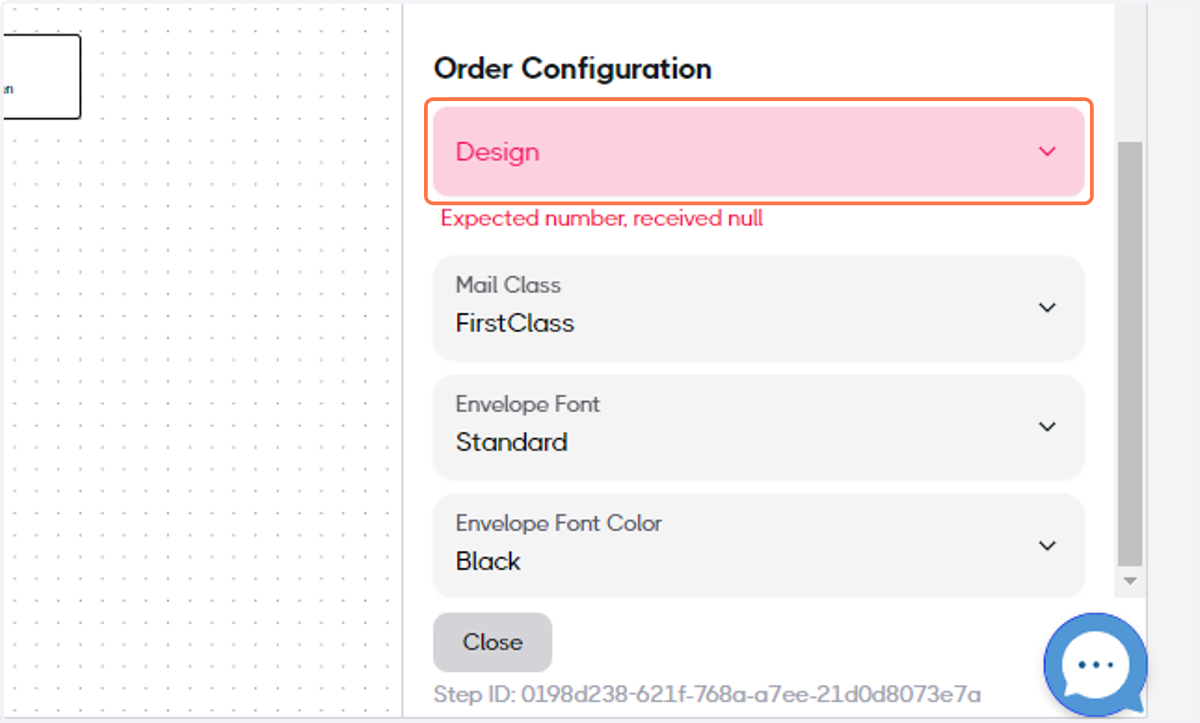
10. Select your Design
11. When the Workflow is ready, toggle the Enabled switch
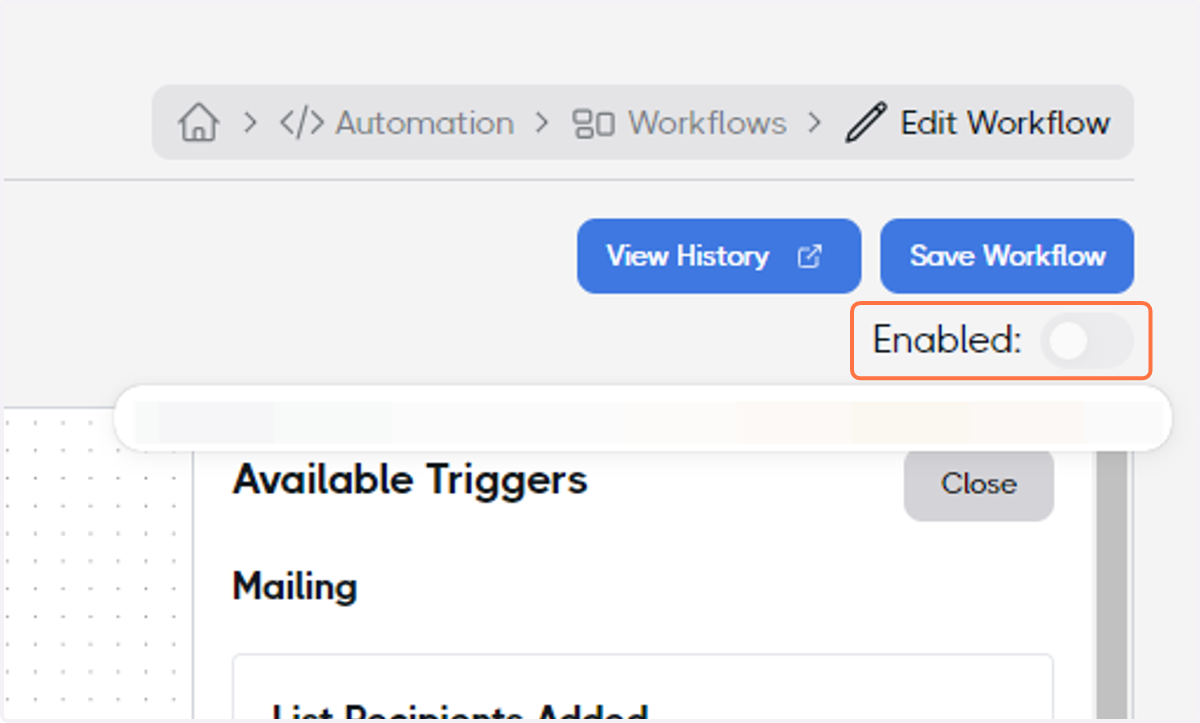
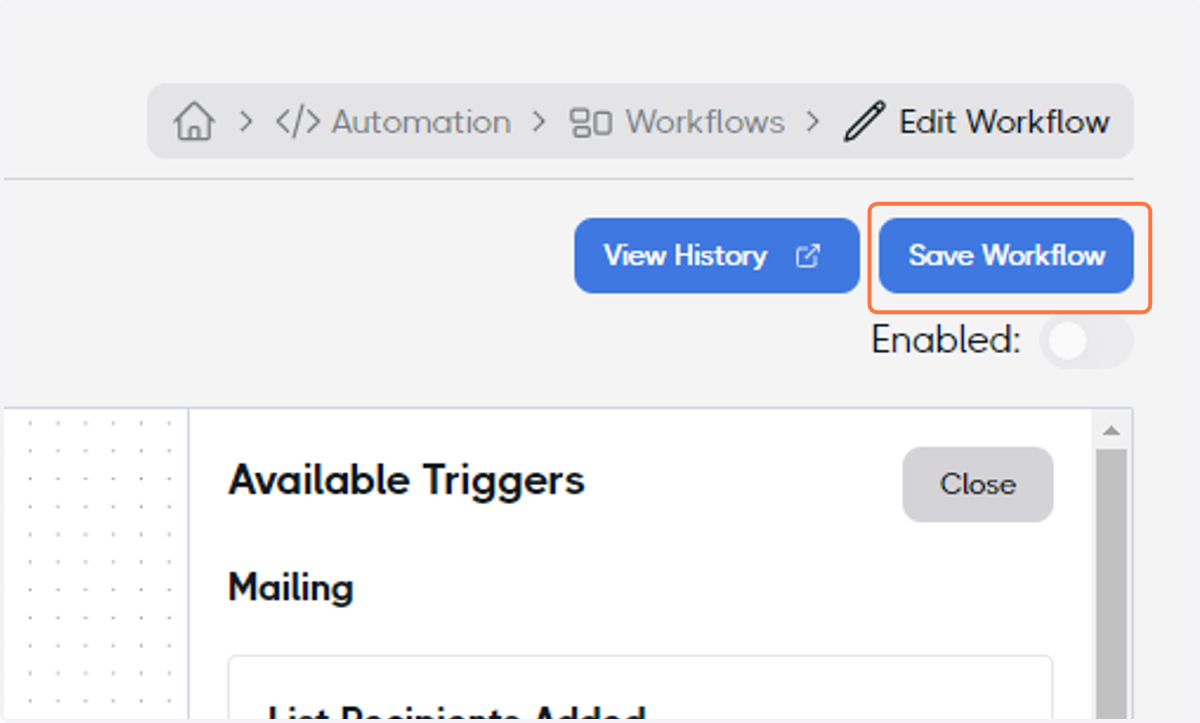
12. Click on Save Workflow and congratulations, your Workflow Automation finished!