Configuring Zoom Audio Settings for Best Sound Quality - Original Audio On
For the best audio quality, it's recommended to use a computer when joining a Juilliard Extension interview. Please refrain from using tablets or cell phones for these interviews.
To optimize sound transmission during your Zoom session, especially when speaking, playing an instrument, or singing, it's important to adjust your Zoom audio settings and enable "Original Audio" before your interview. Here's how to do it:
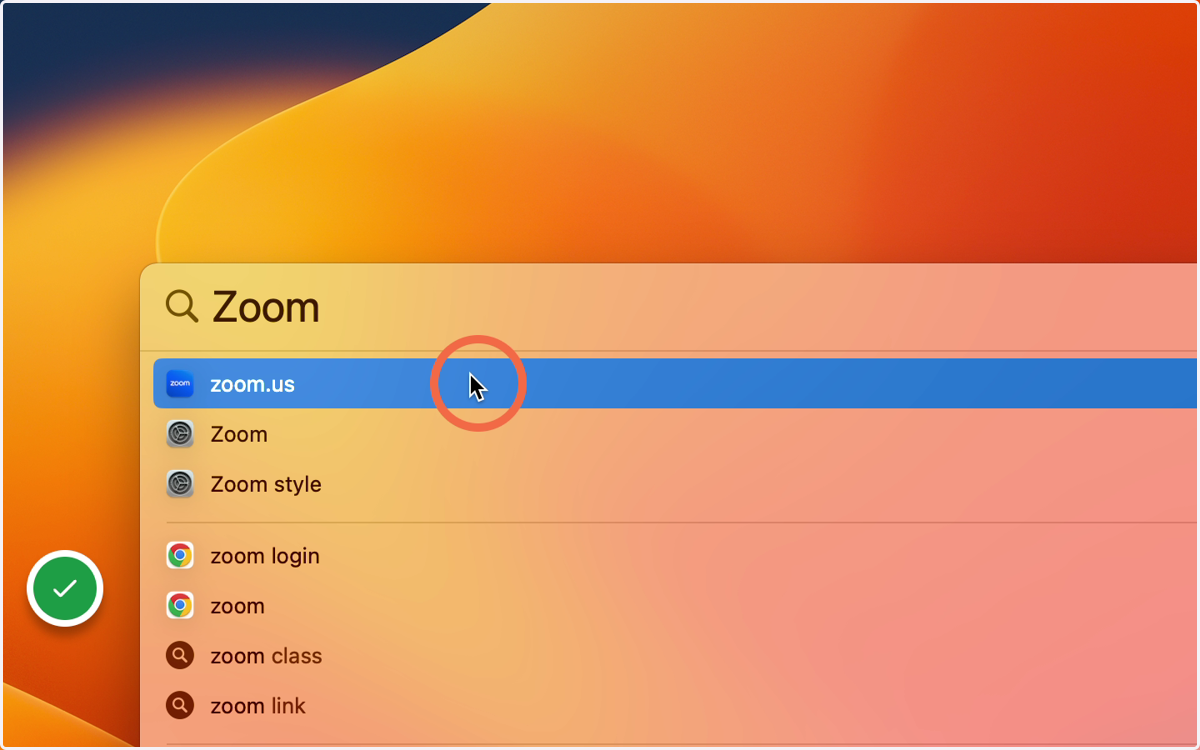
1. Open Zoom on your Computer
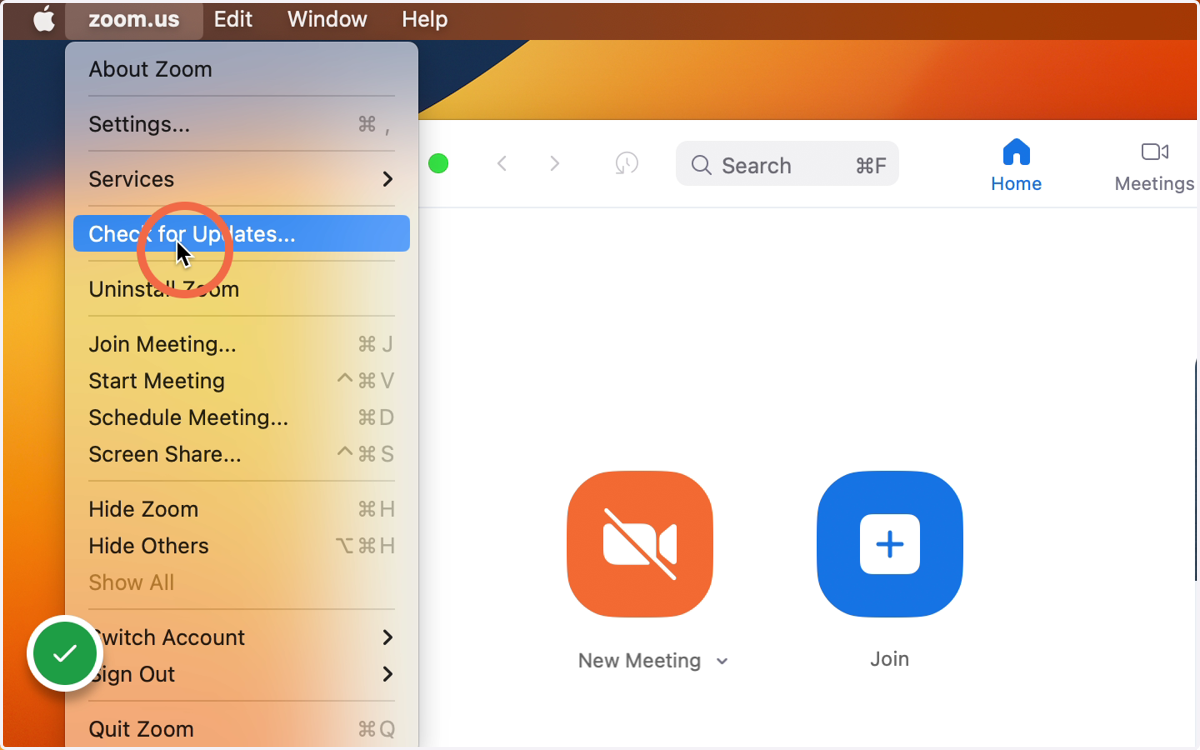
2. Check for Updates
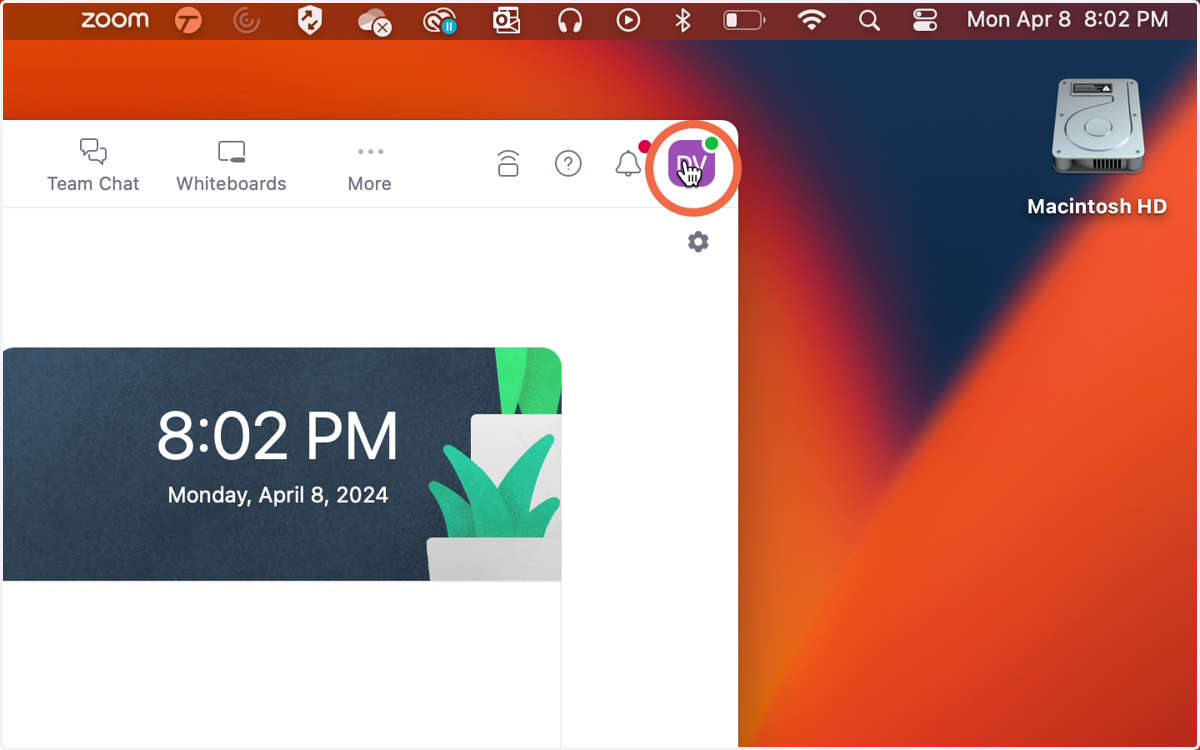
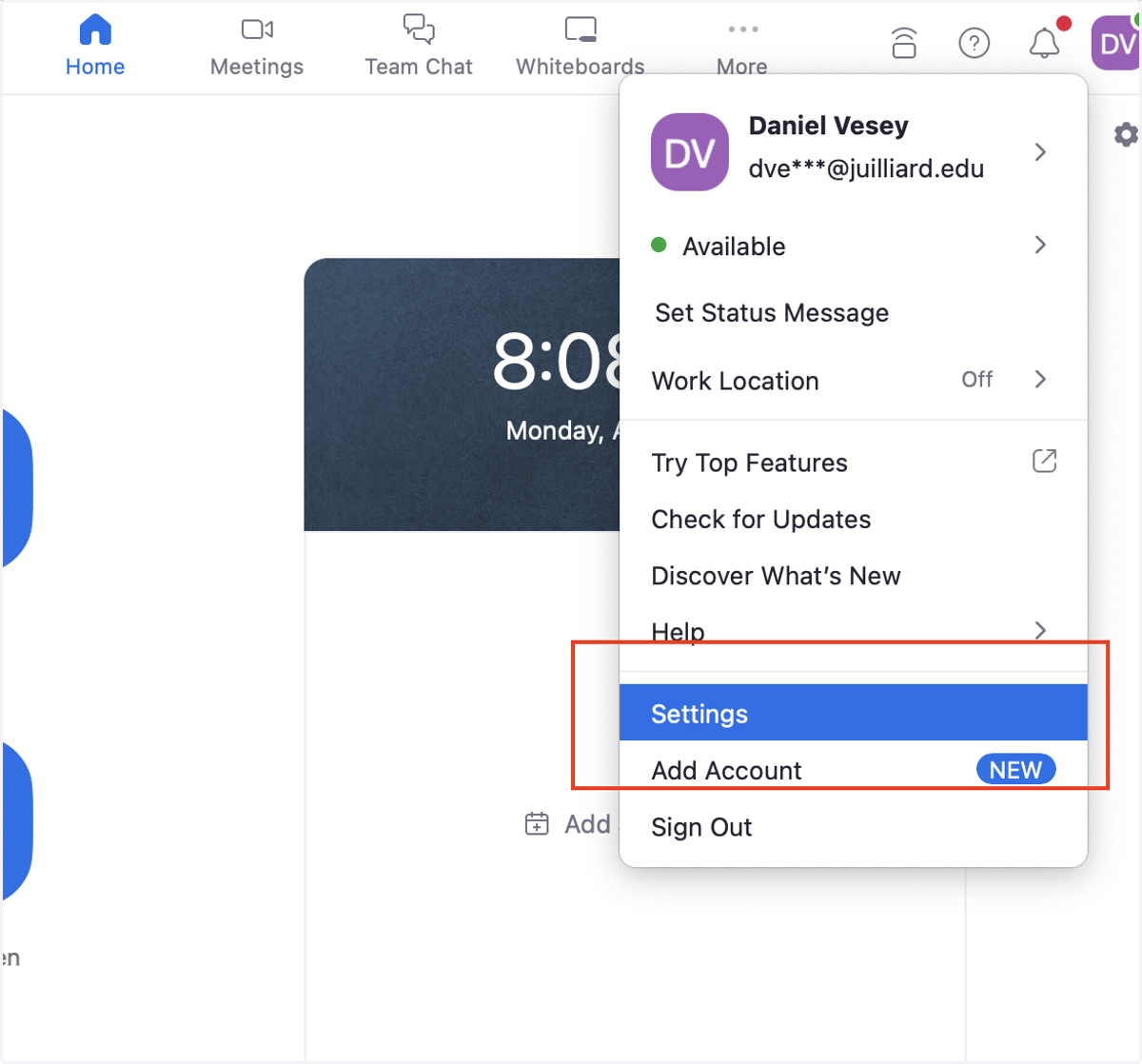
3. Click your Initials on the Top Right Corner
4. Select Settings
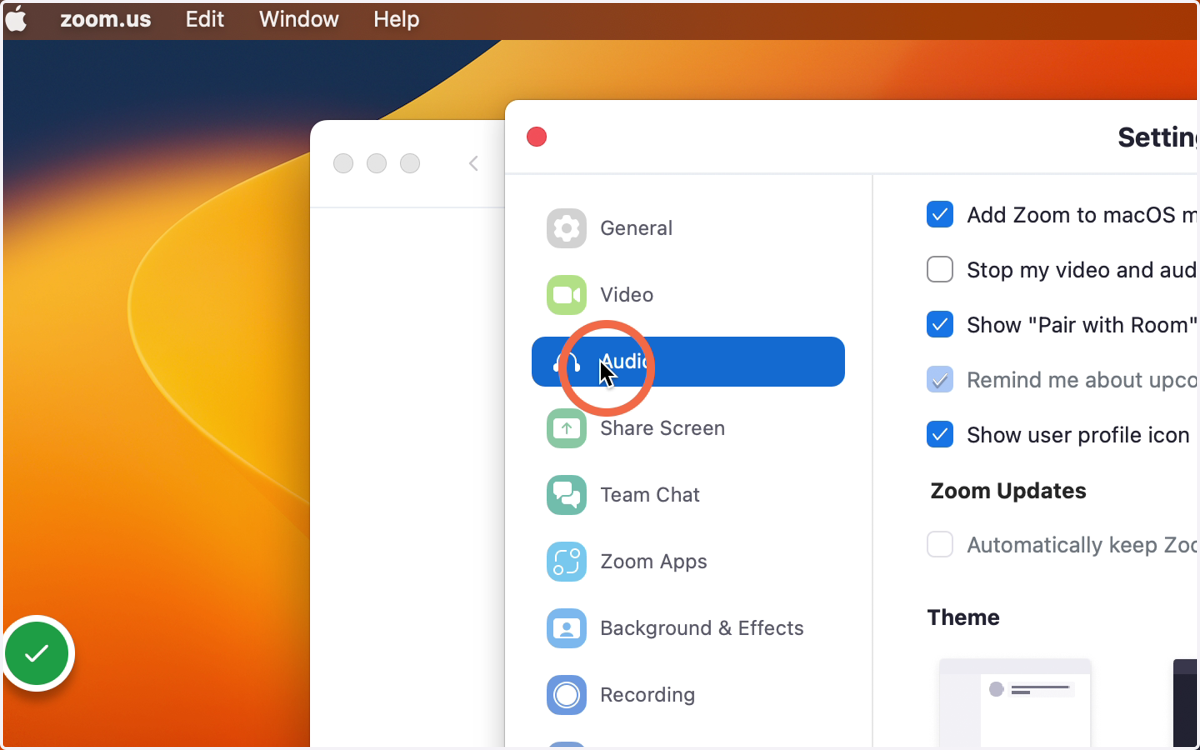
5. Select Audio
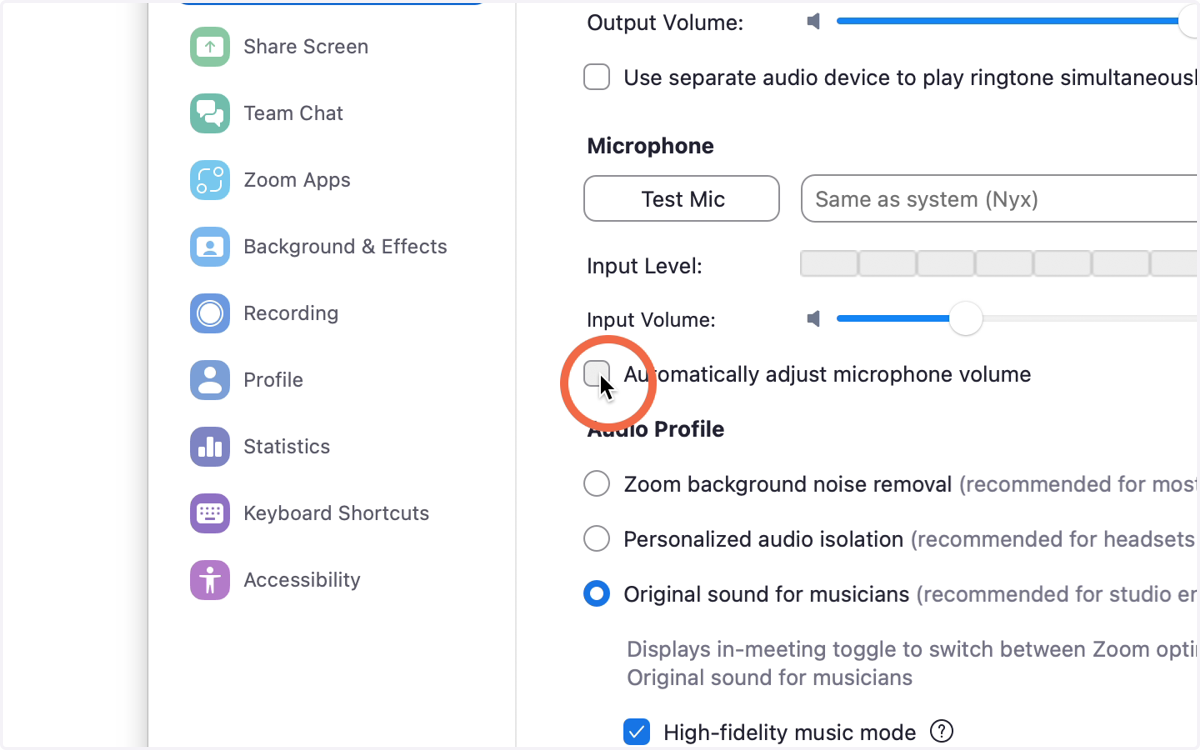
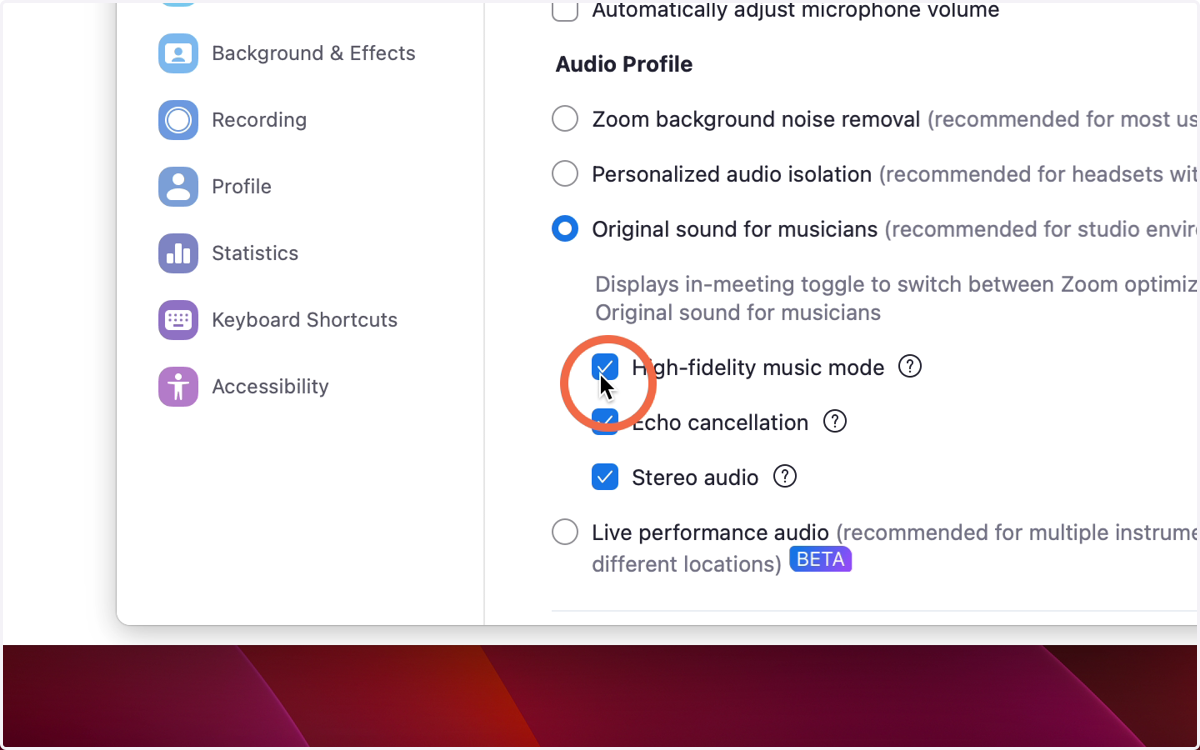
6. Ensure "Automatically adjust microphone..." is unchecked
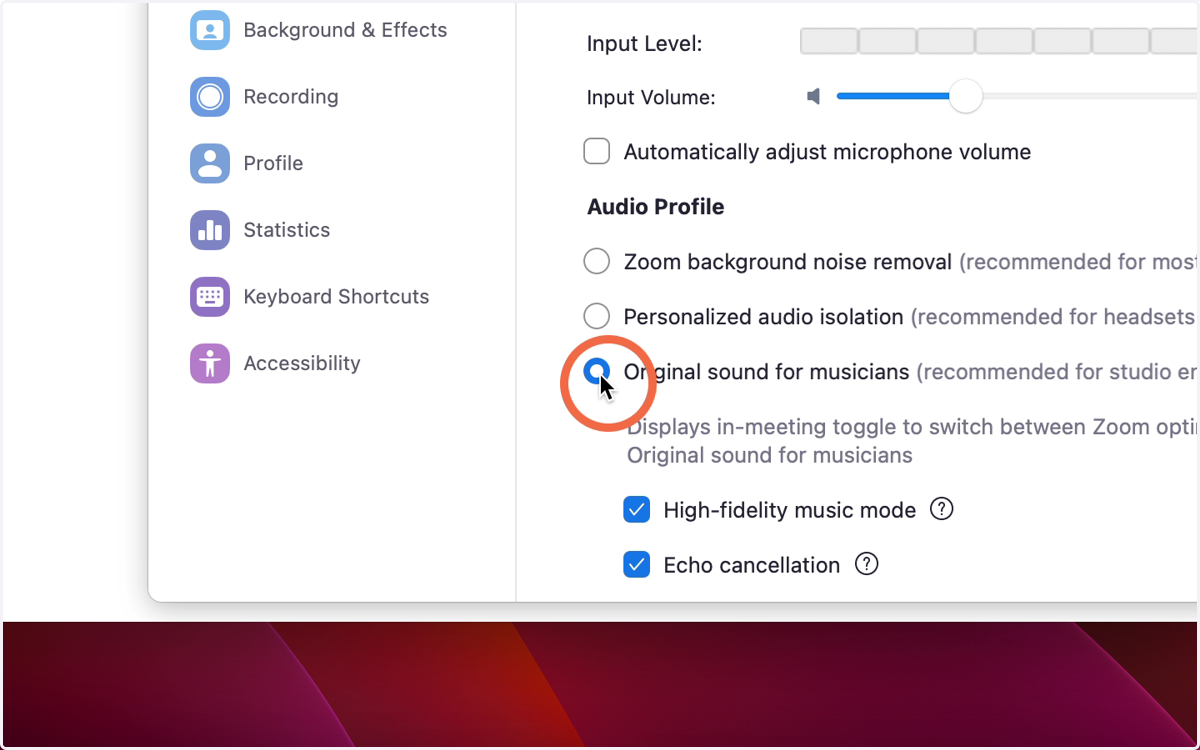
7. Ensure Original sound for musicians is clicked
To be safe, click the Original sound for musicians button again even if it is already selected.
8. High-fidelity, echo cancellation, and stereo audio should all be selected
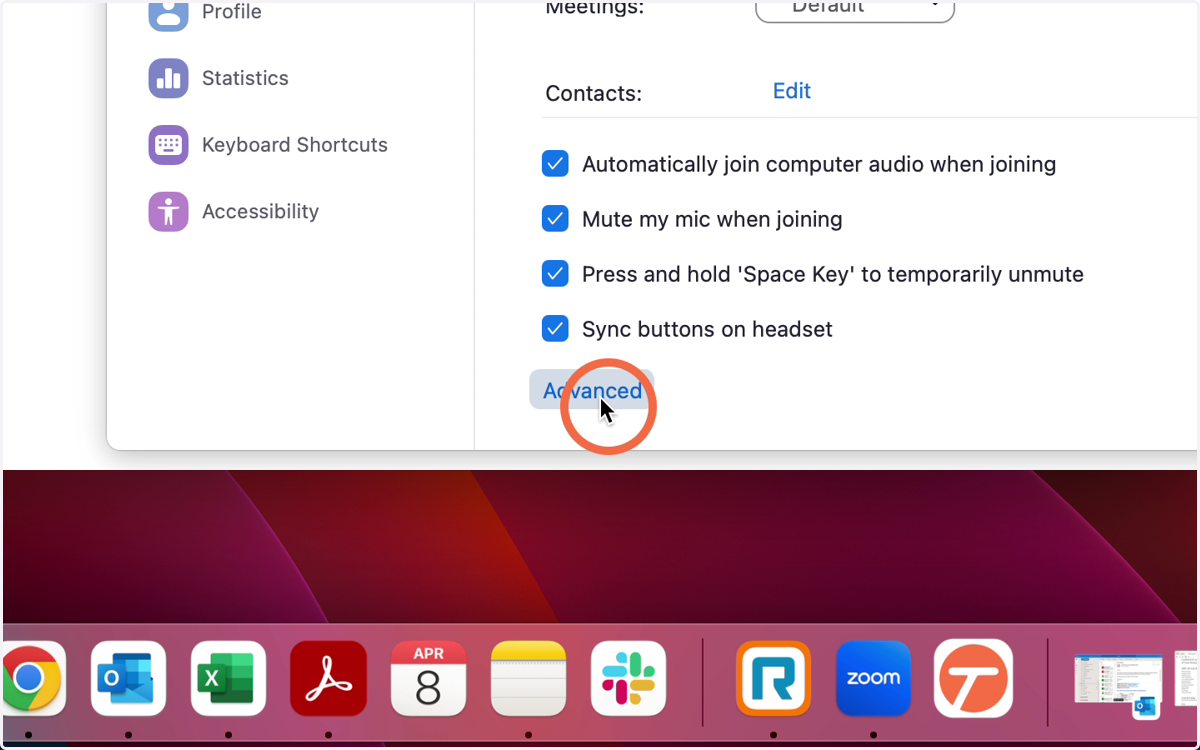
9. Click Advanced at the bottom of this page
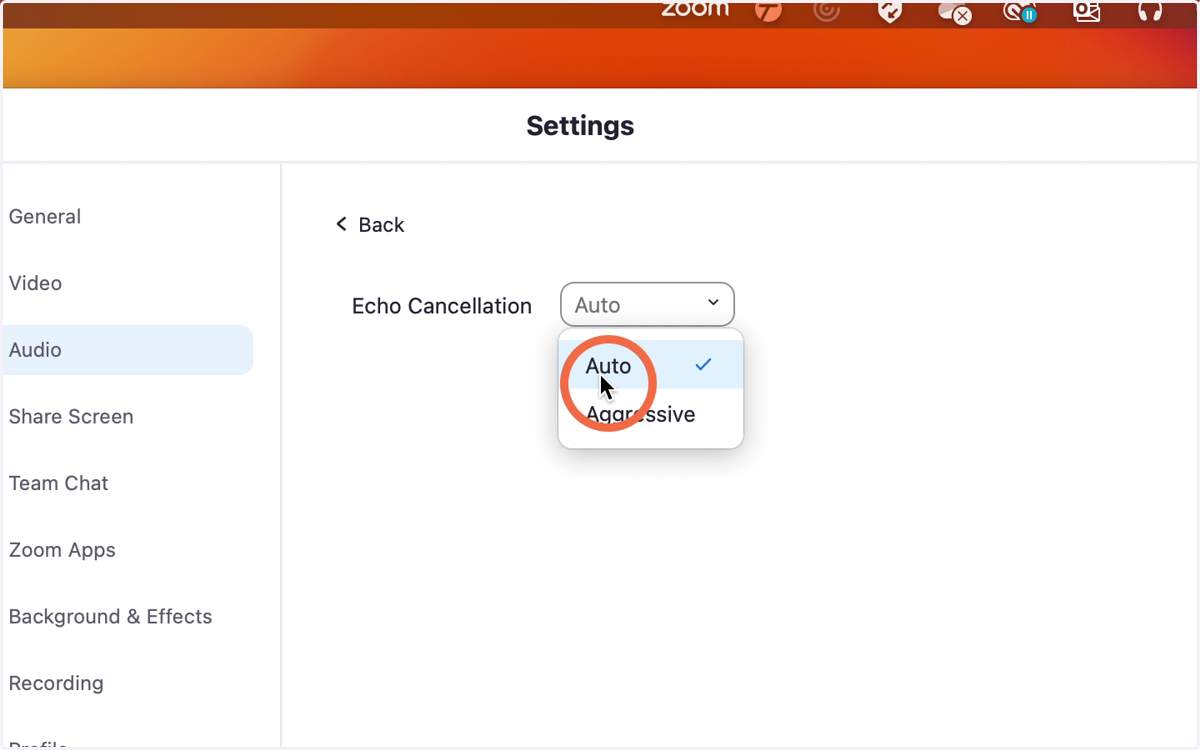
10. Echo Cancellation should be turned to "Auto"
11. Close out of settings to save
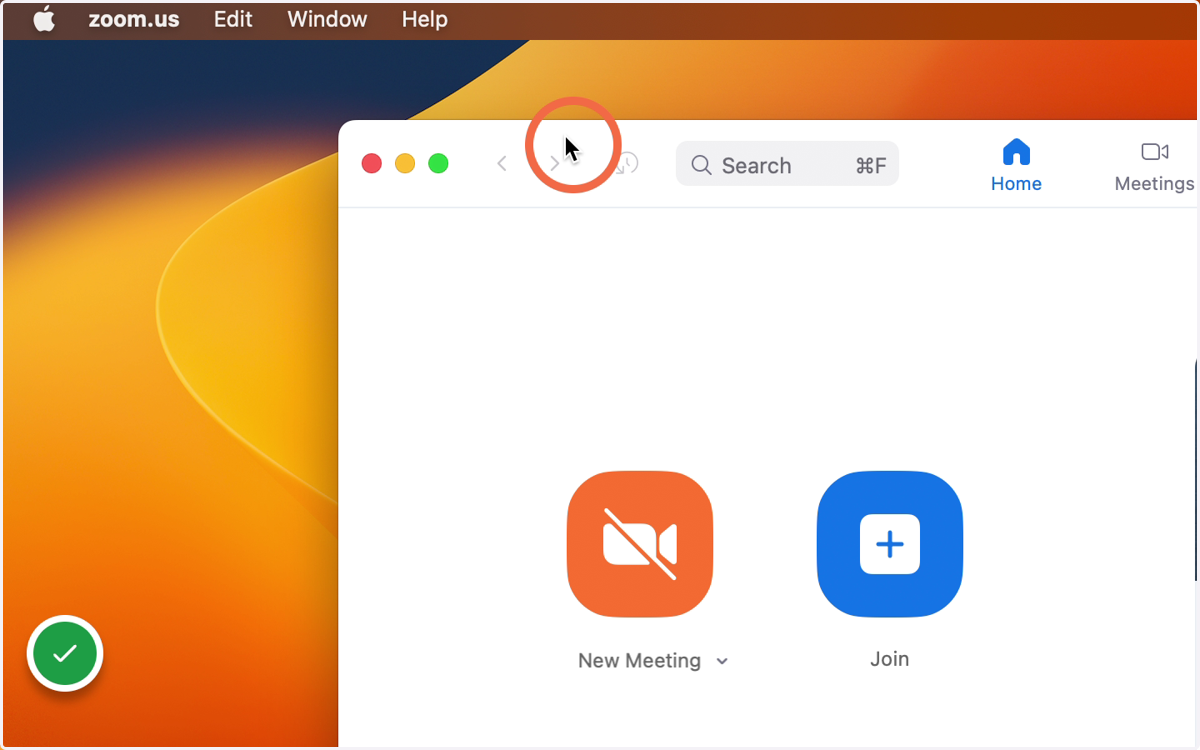
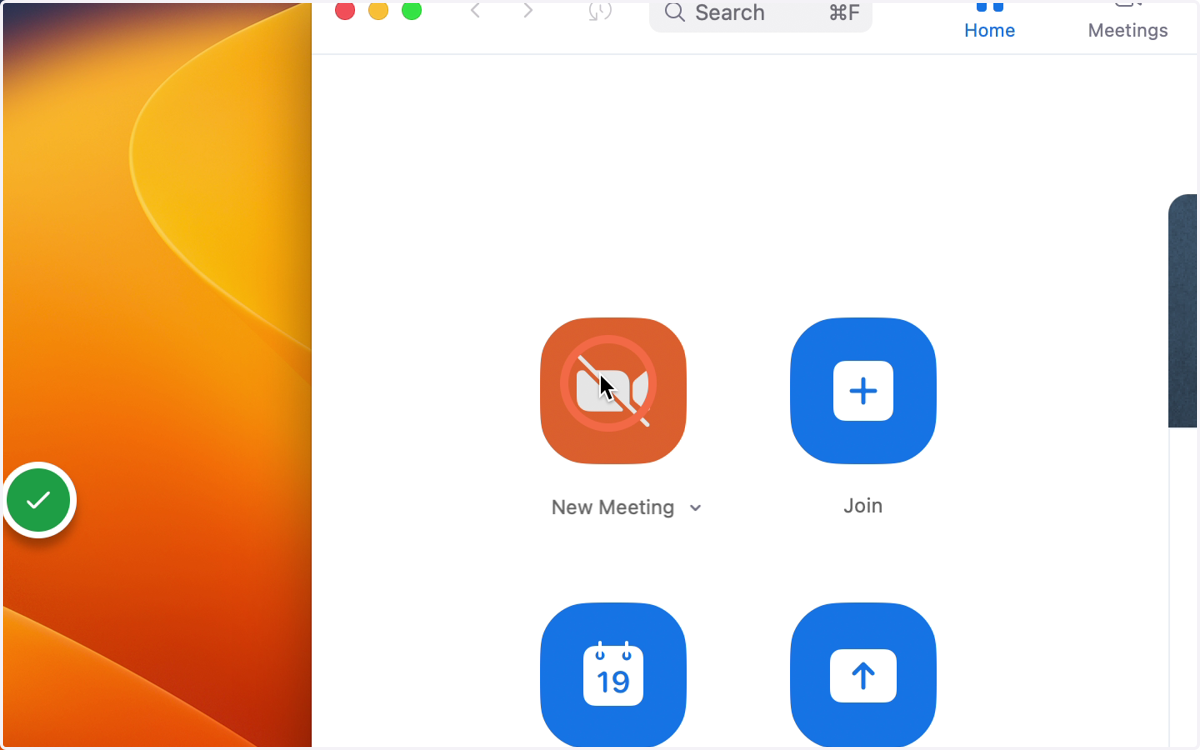
12. To test your audio select "New Meeting"
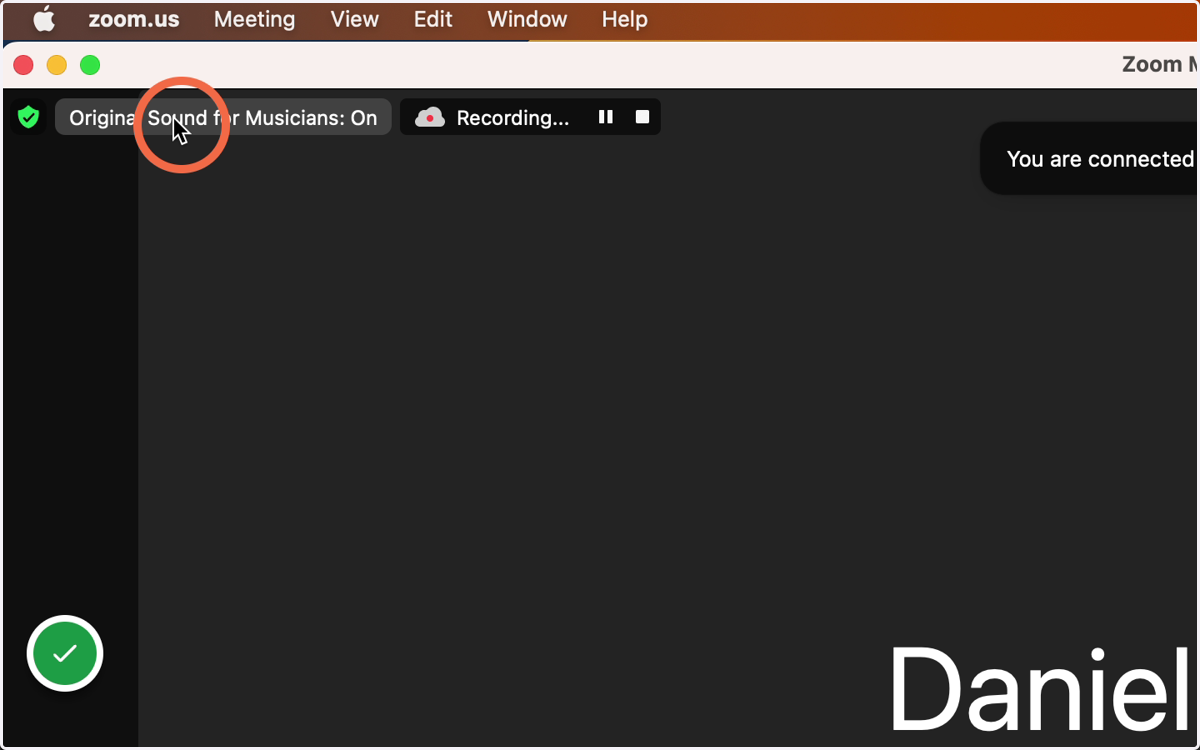
13. You should now see "Original Sound for Musicians: On" in the Top Left Corner
If you see Original Sound for Musicians: Off, click the icon and it should switch to on.
If you do not see Original Sound for Musicians, please contact extension@juilliard.edu ahead of your interview time to configure your Zoom settings. You may also call us at (212) 799-5000 ext. 273.