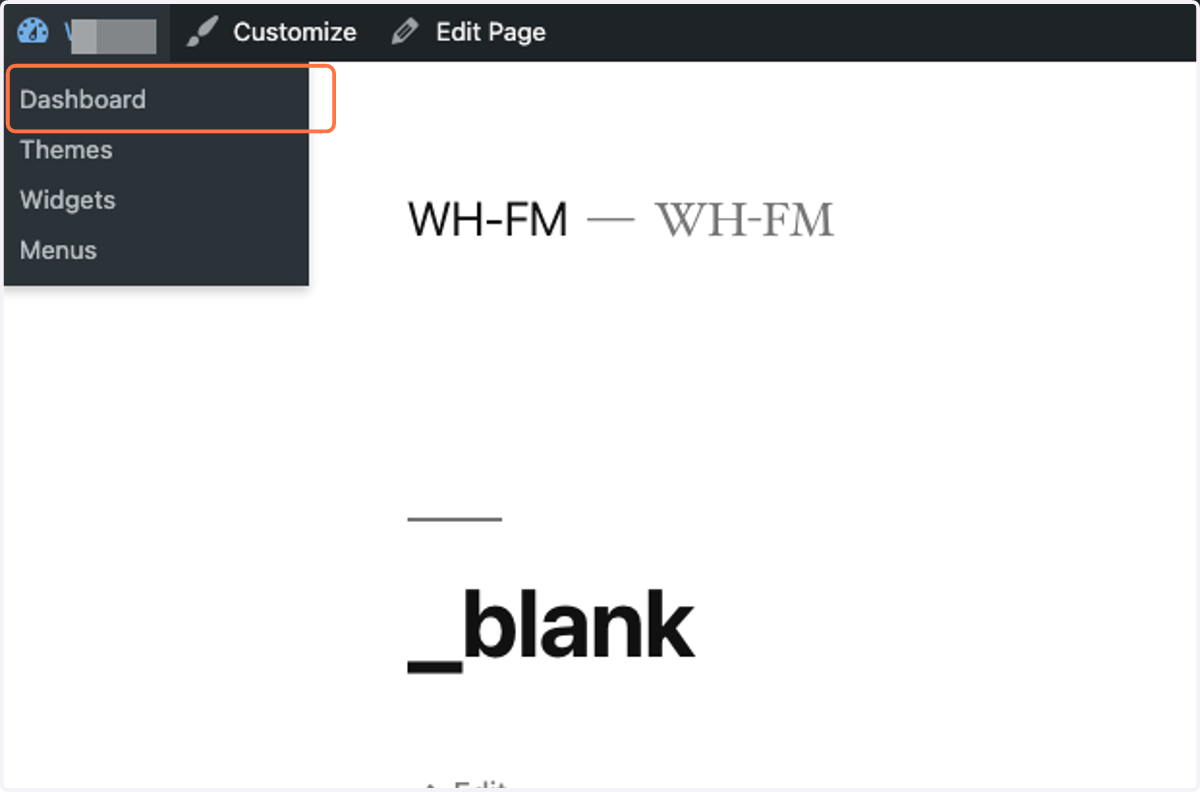
Configuring Auth0 User Migration and Database Settings
WordPress
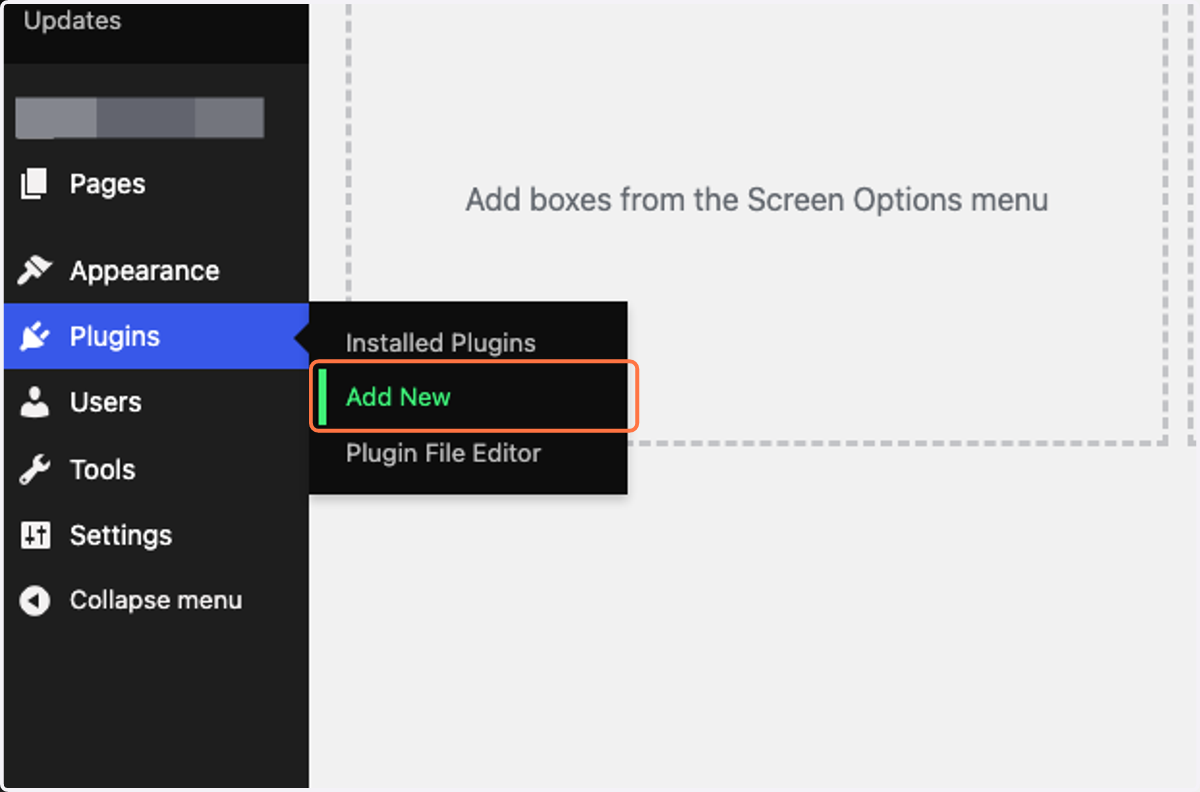
1. Plugins < Click on "Add New"
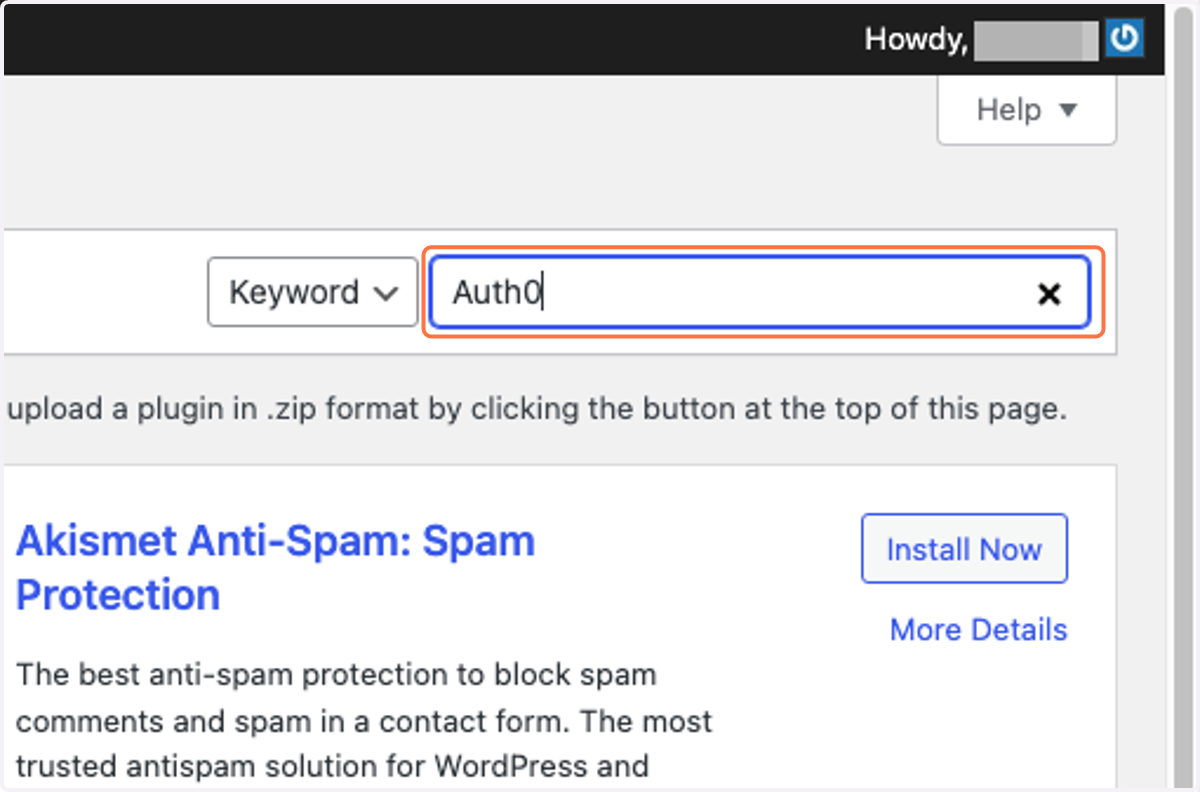
2. Type "Auth0"
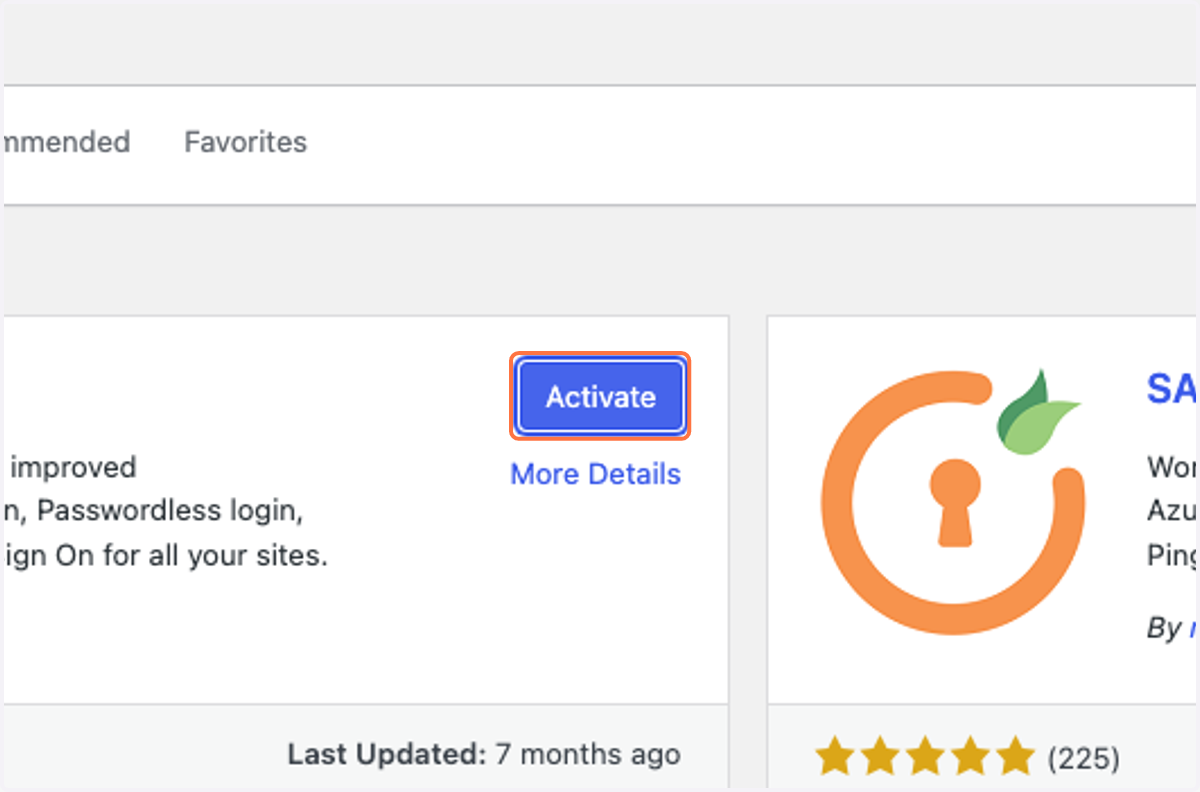
3. Click on Activate
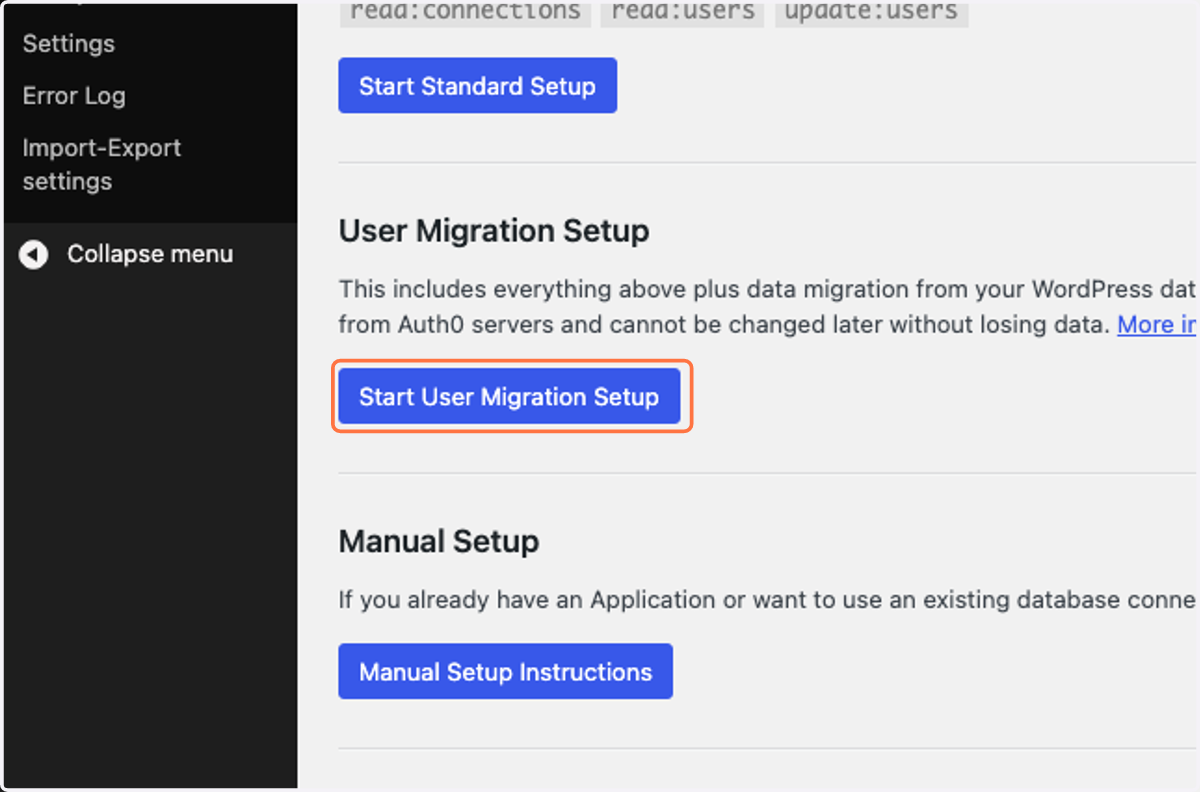
4. Click on Start User Migration Setup
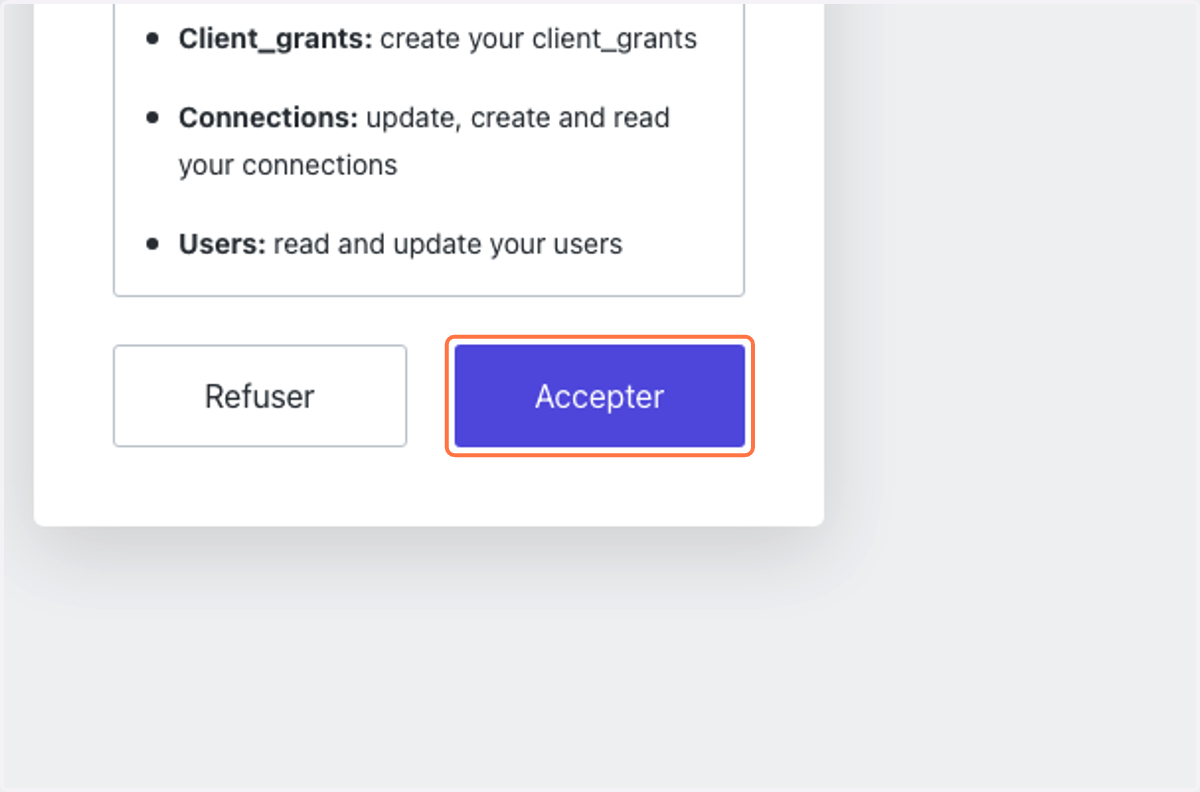
5. Click on Accepter
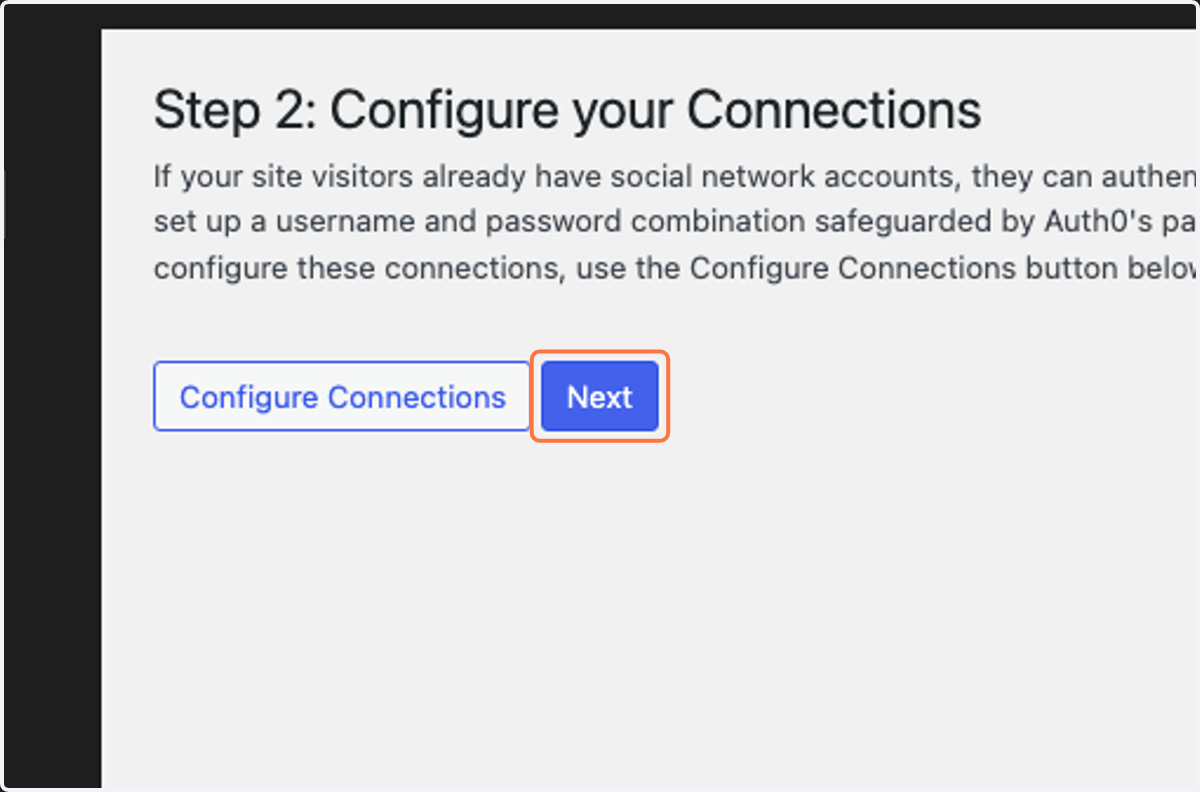
6. Click on Next
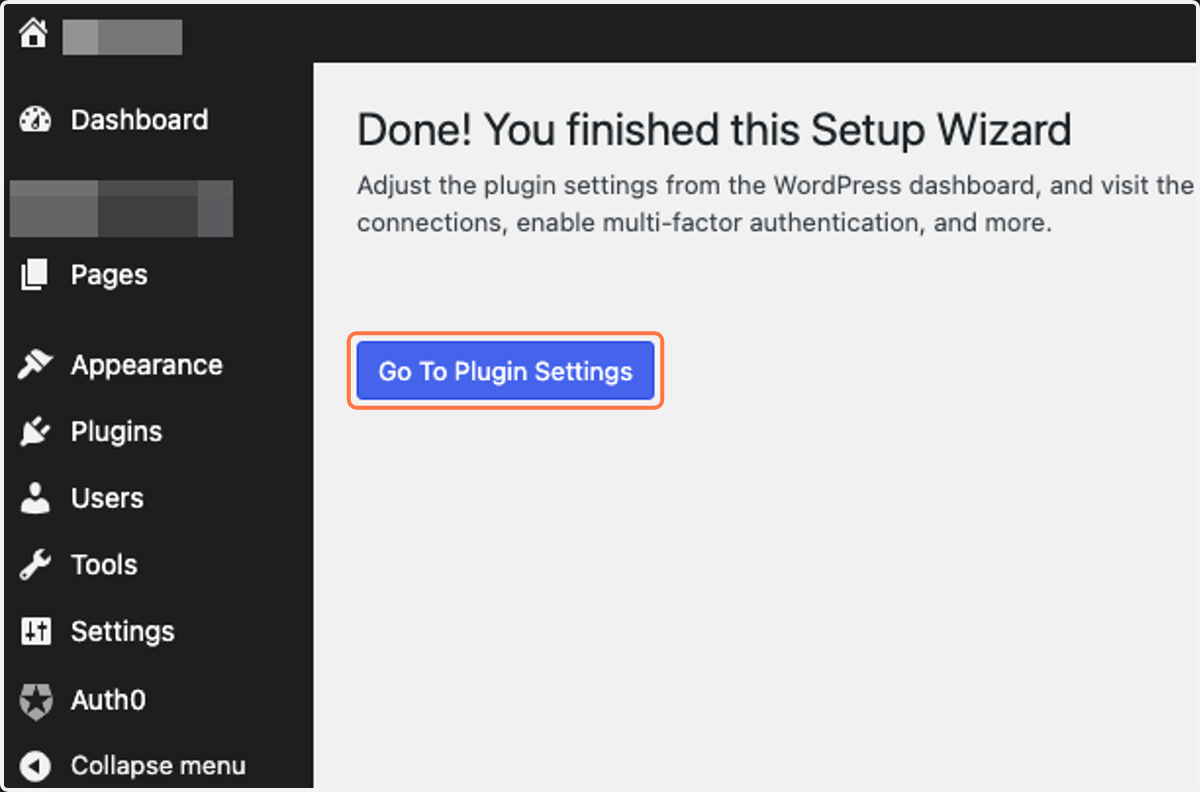
7. Click on Go To Plugin Settings
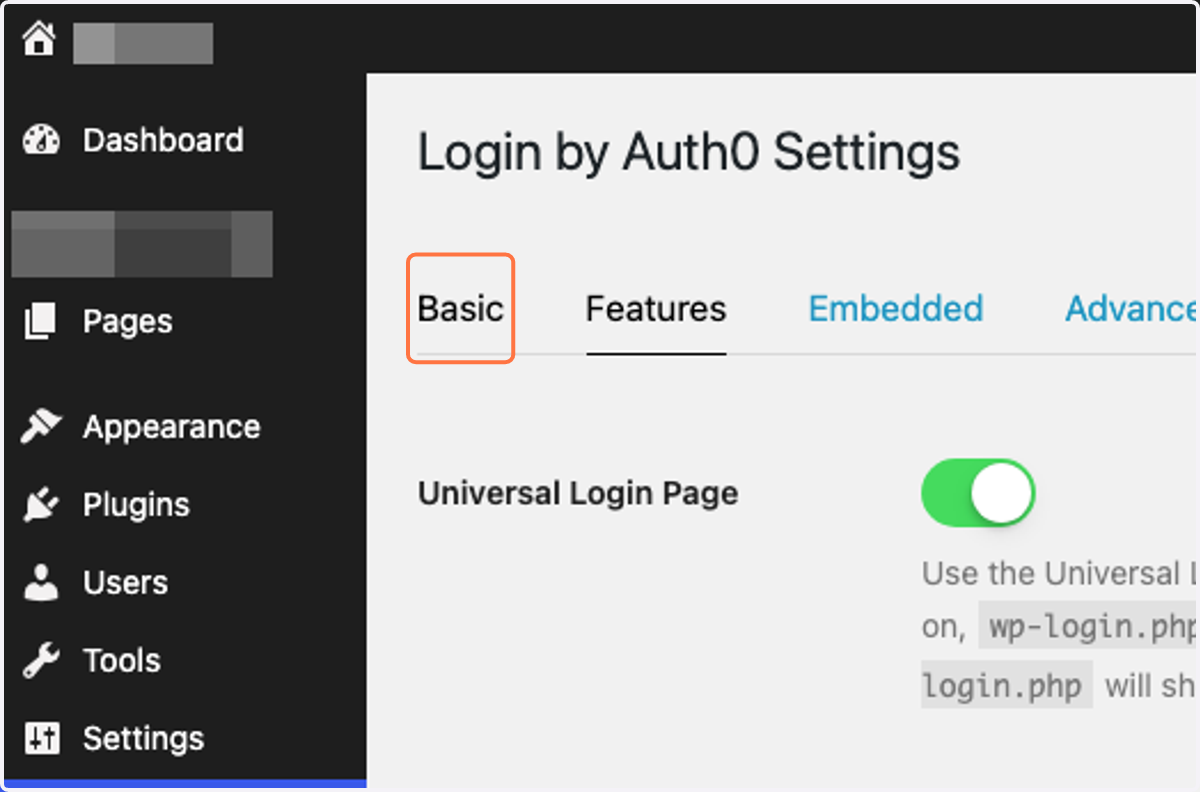
8. Click on Basic
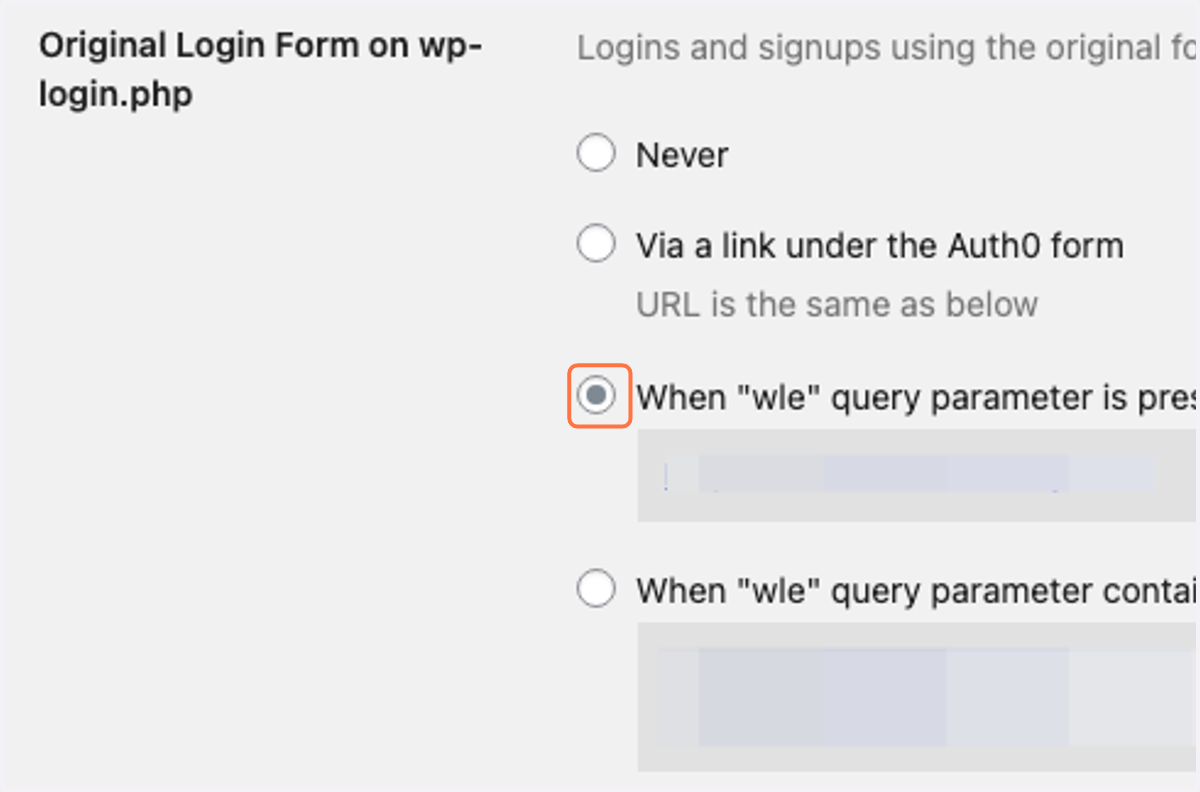
9. Select When "wle" query parameter is present
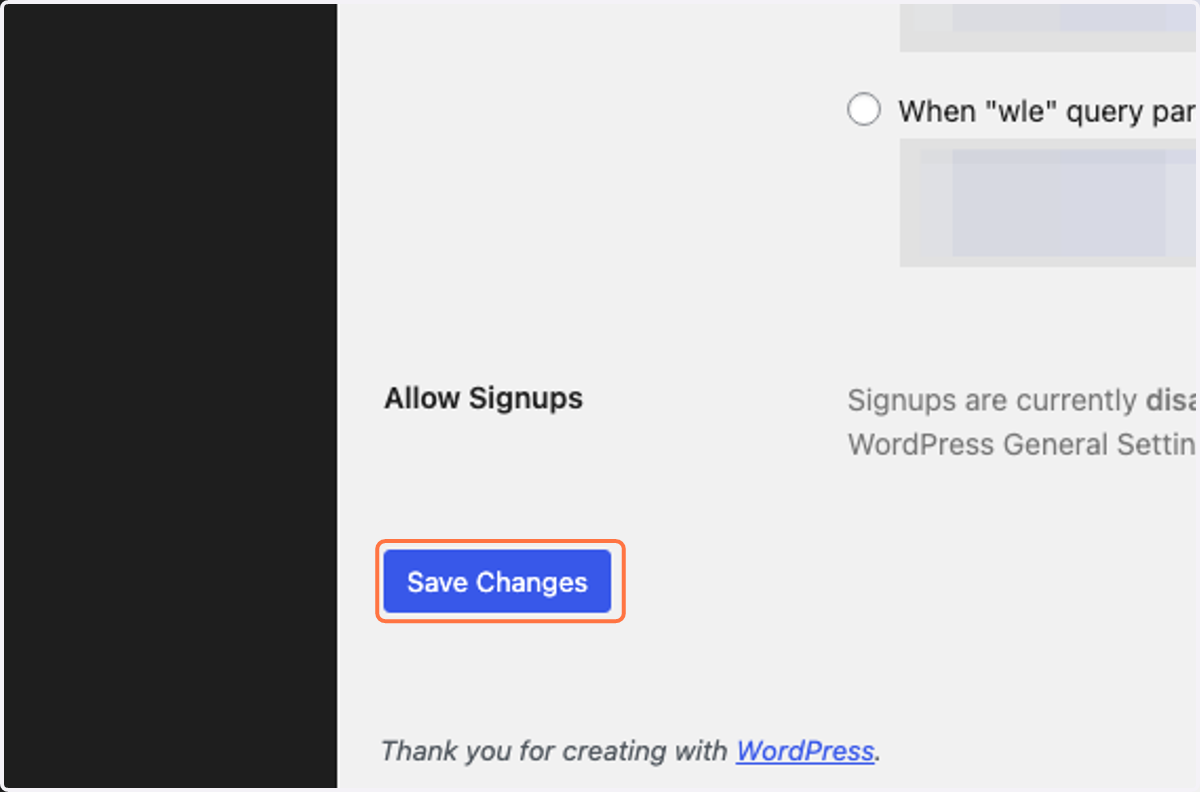
10. Click on submit
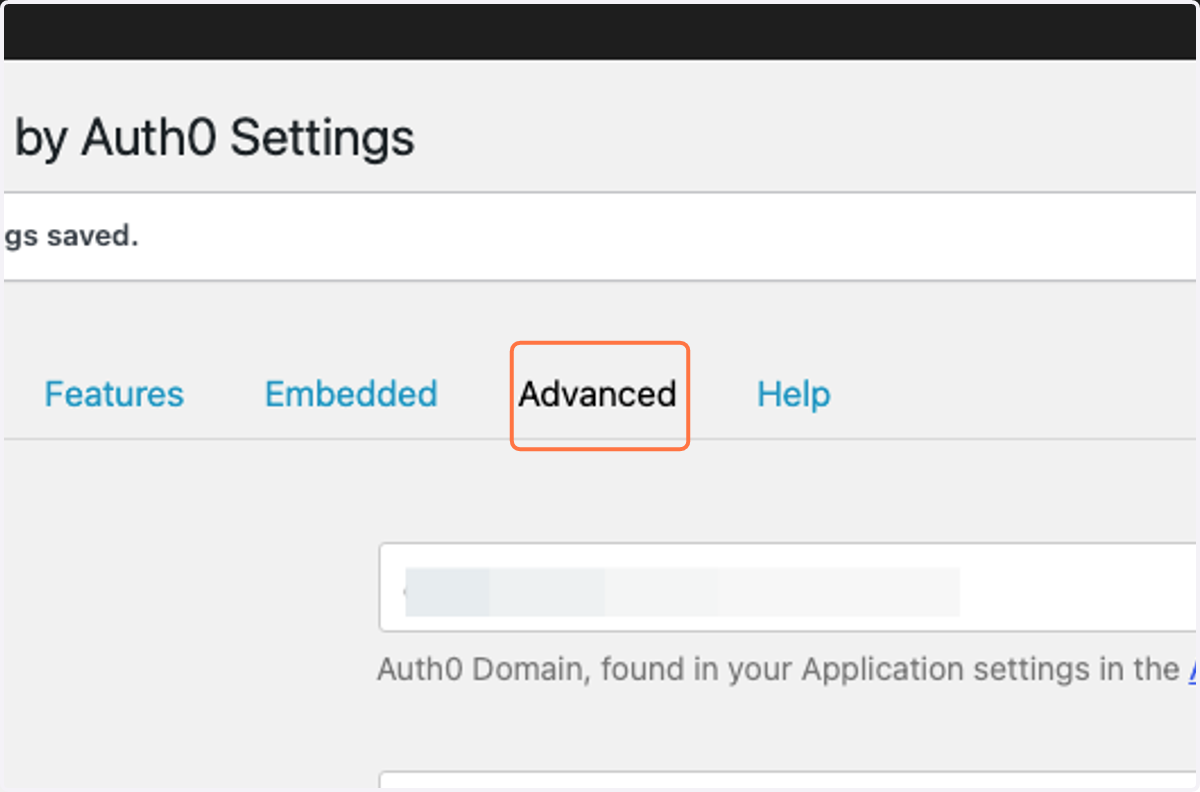
11. Click on Advanced
12. Uncheck Require Verified Email
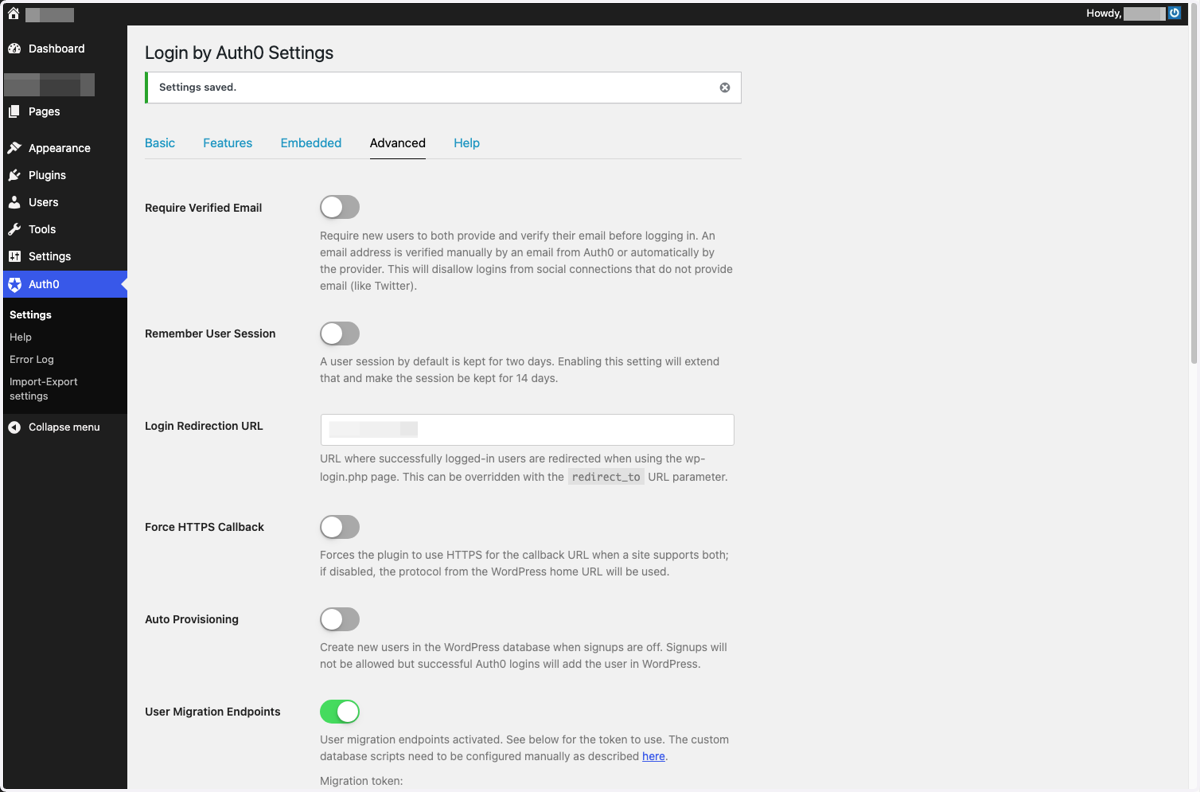
13. Check Auto Provisioning
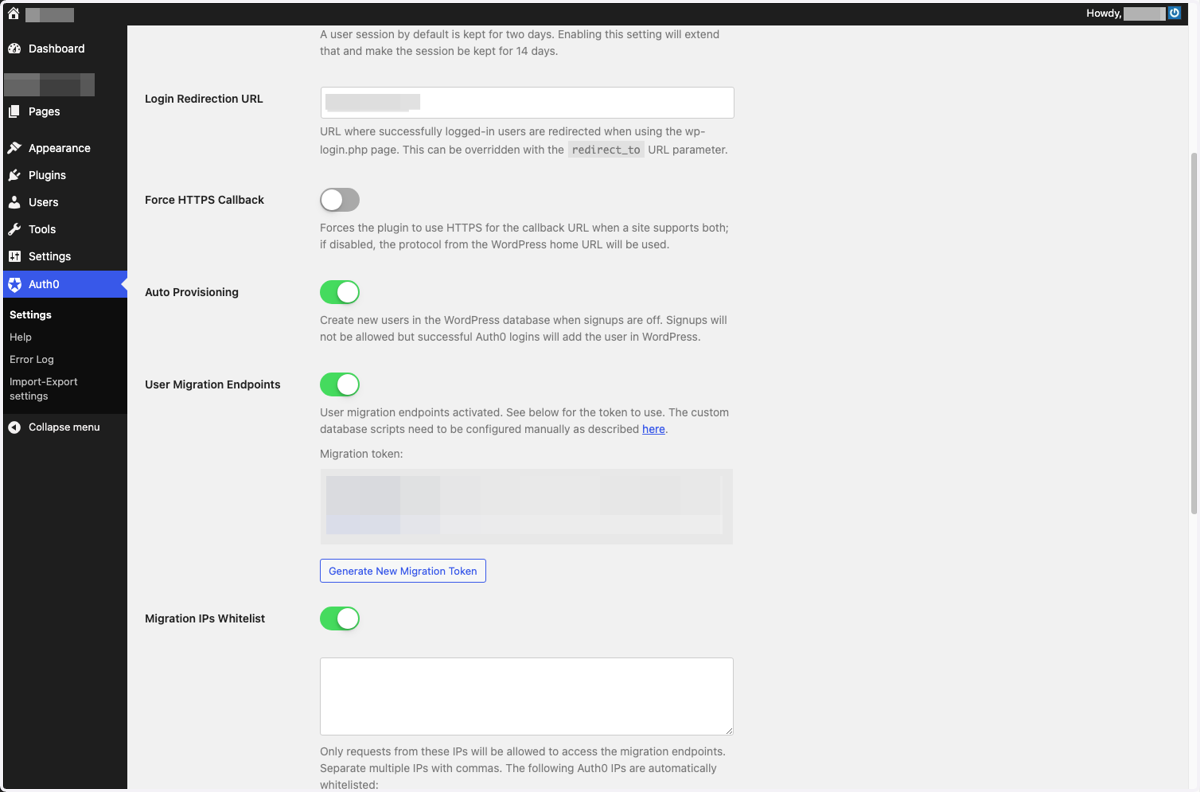
14. Uncheck Migration IPs Whitelist
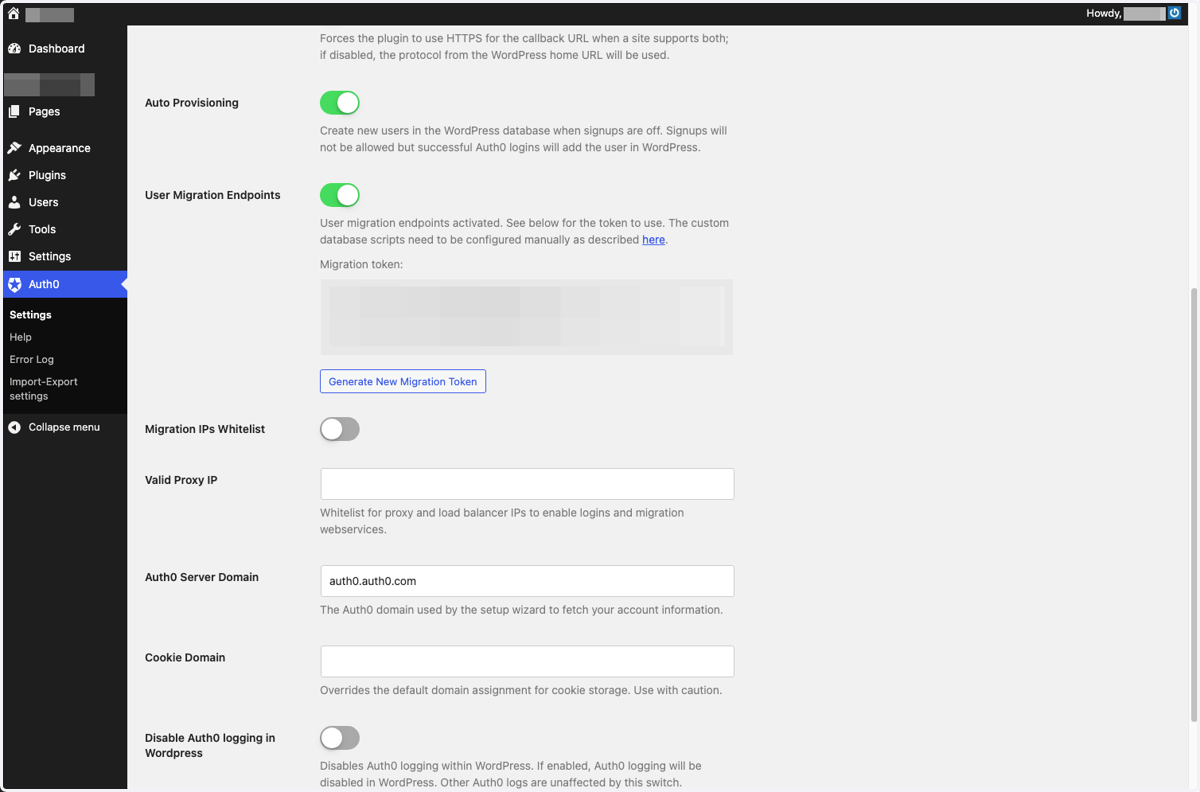
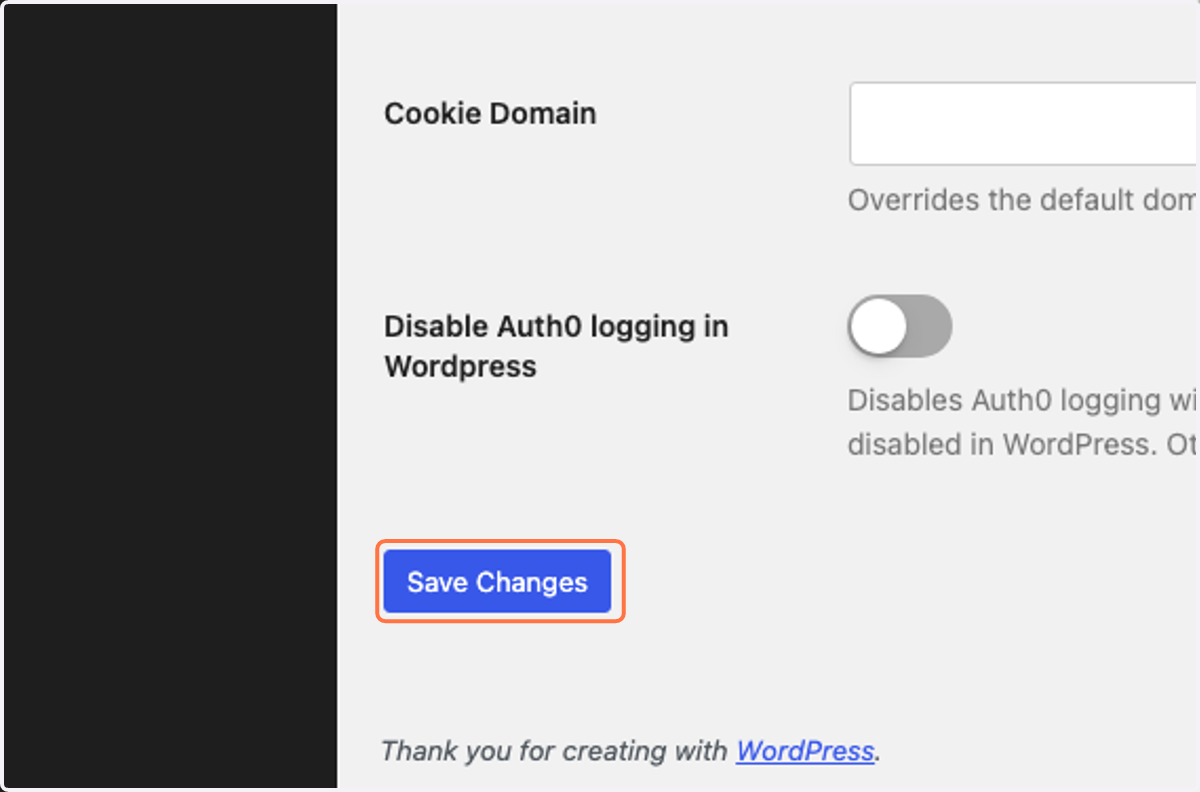
15. Click on submit
AUTH0
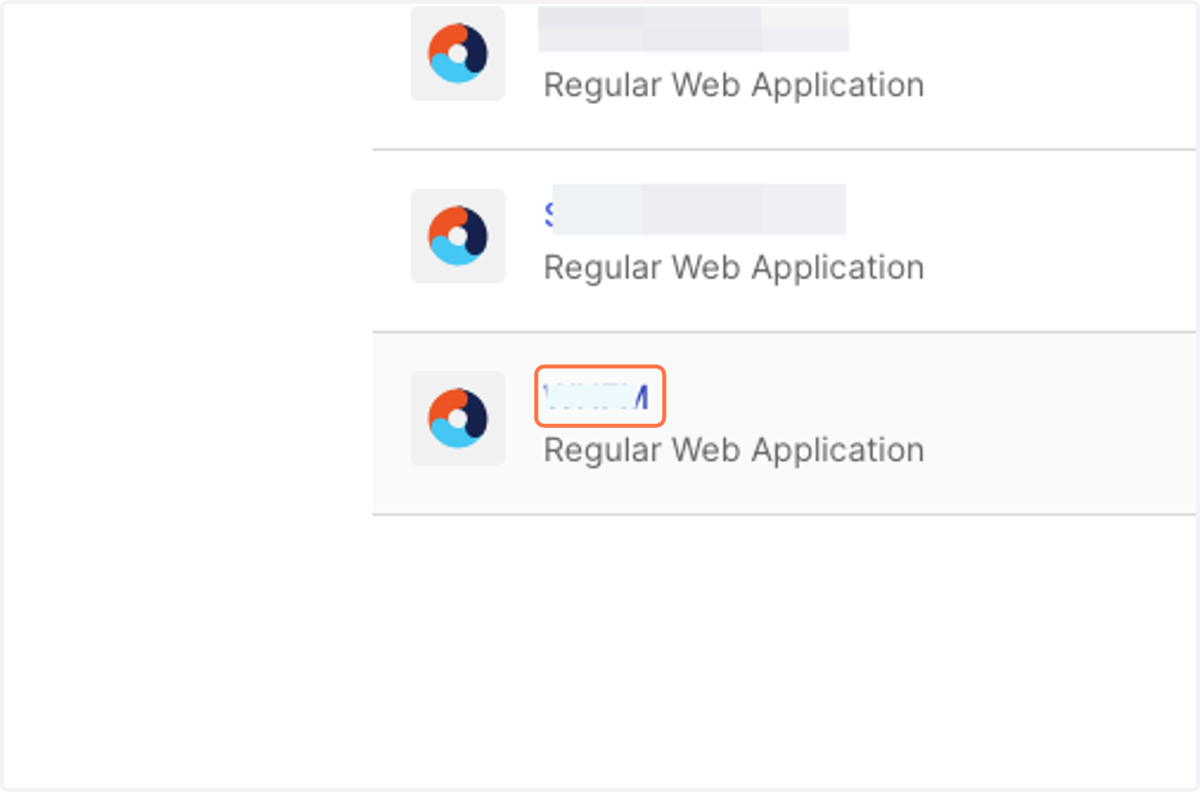
16. Auth0 < Click on WP Regular Web App created
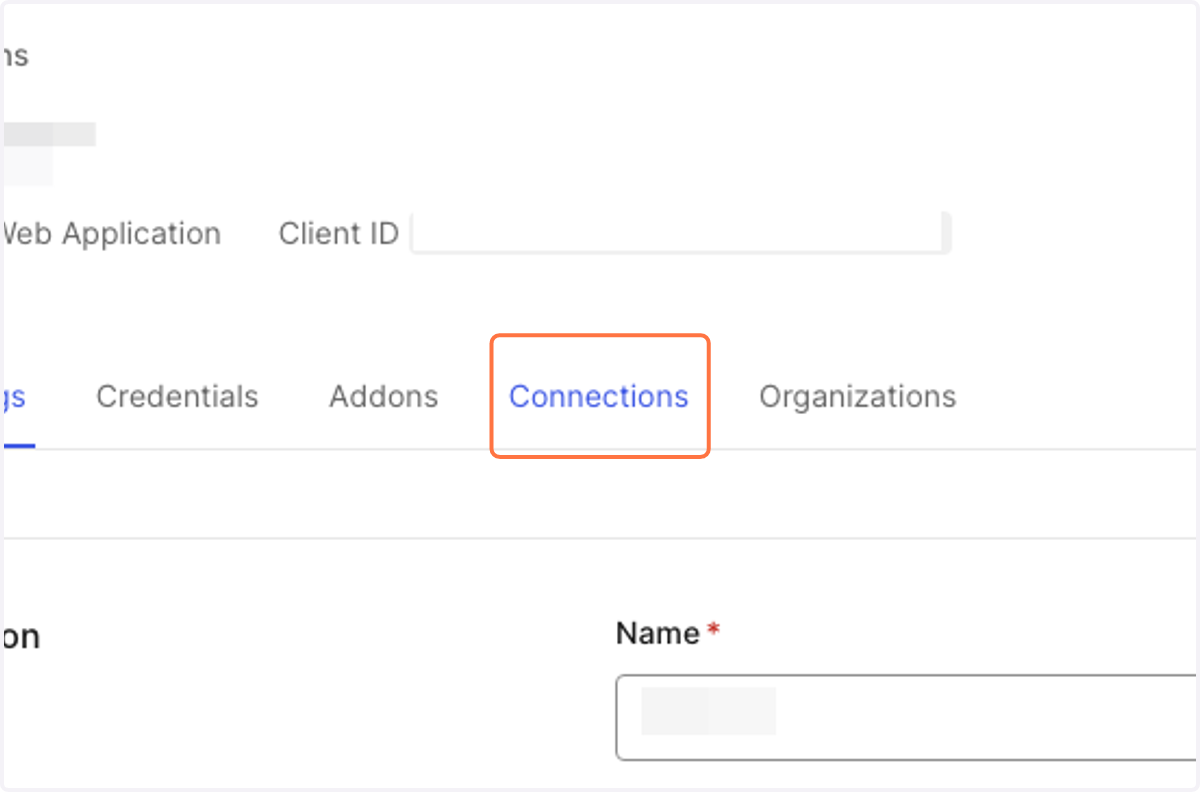
17. Click on Connections
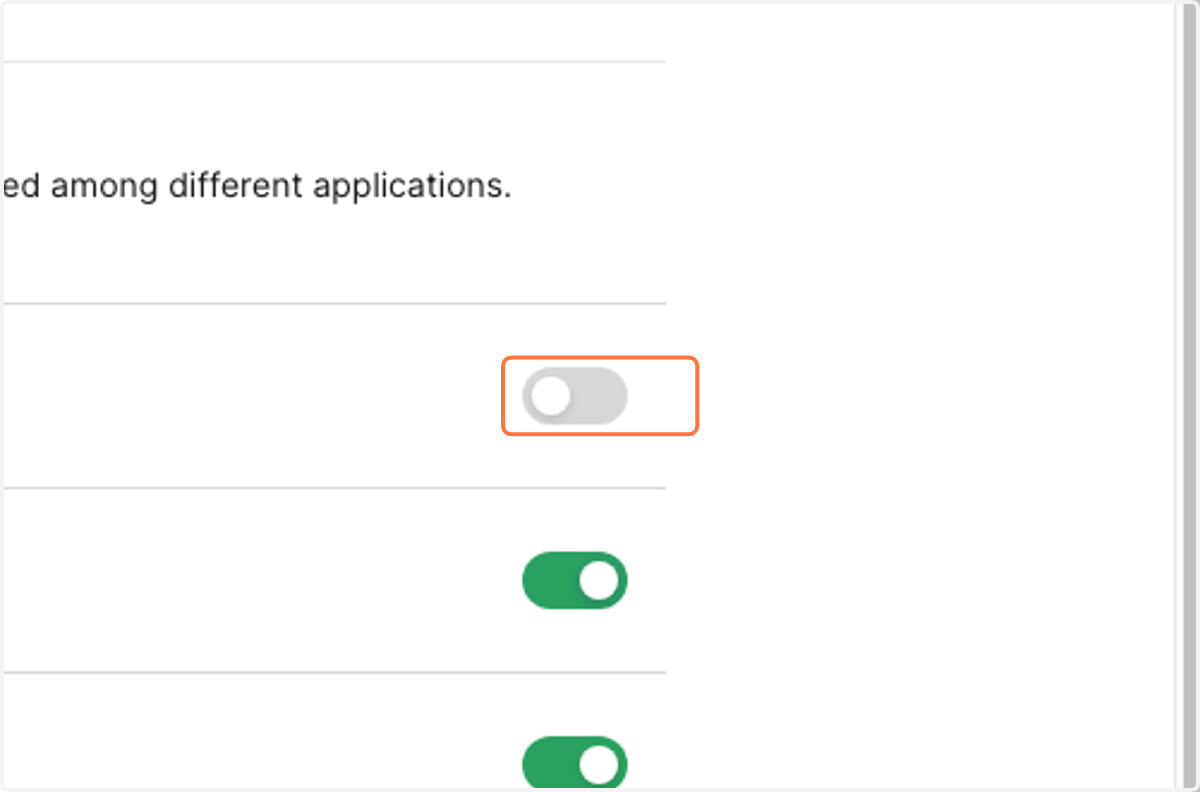
18. Uncheck all other databases
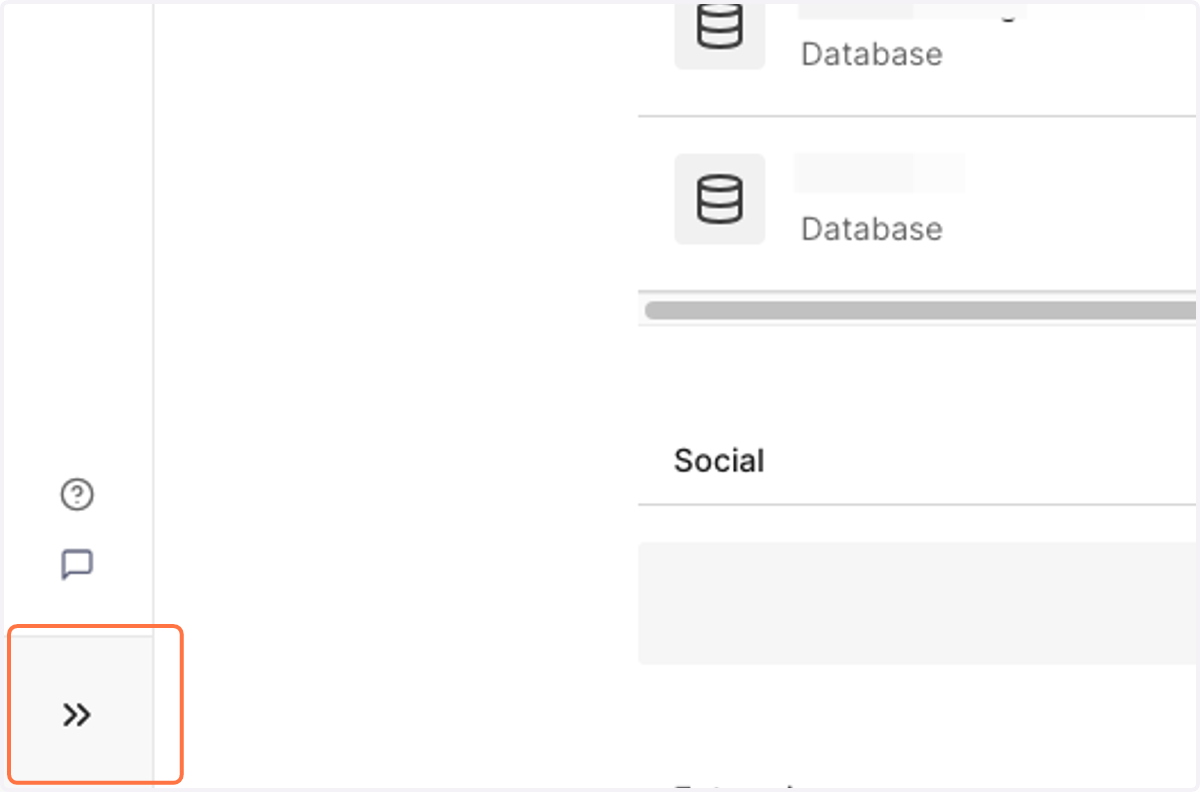
19. Click on Expand navigation
20. Click on Authentication
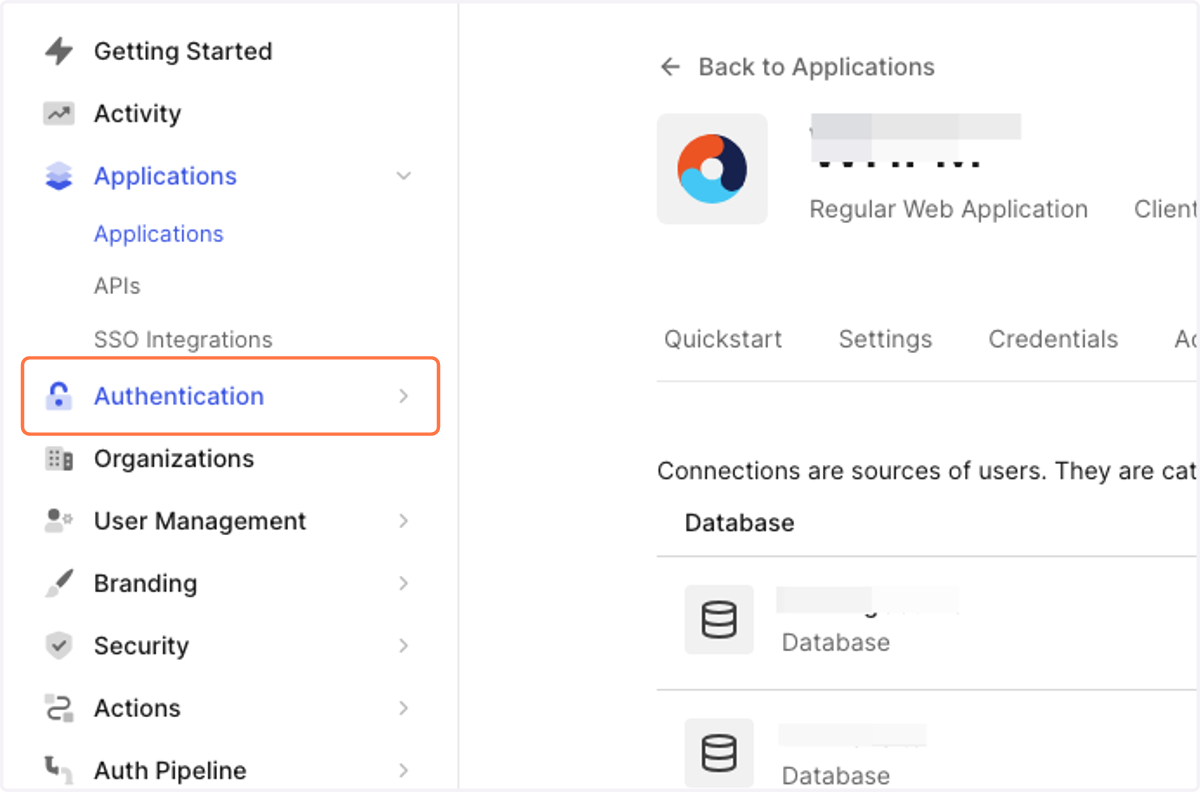
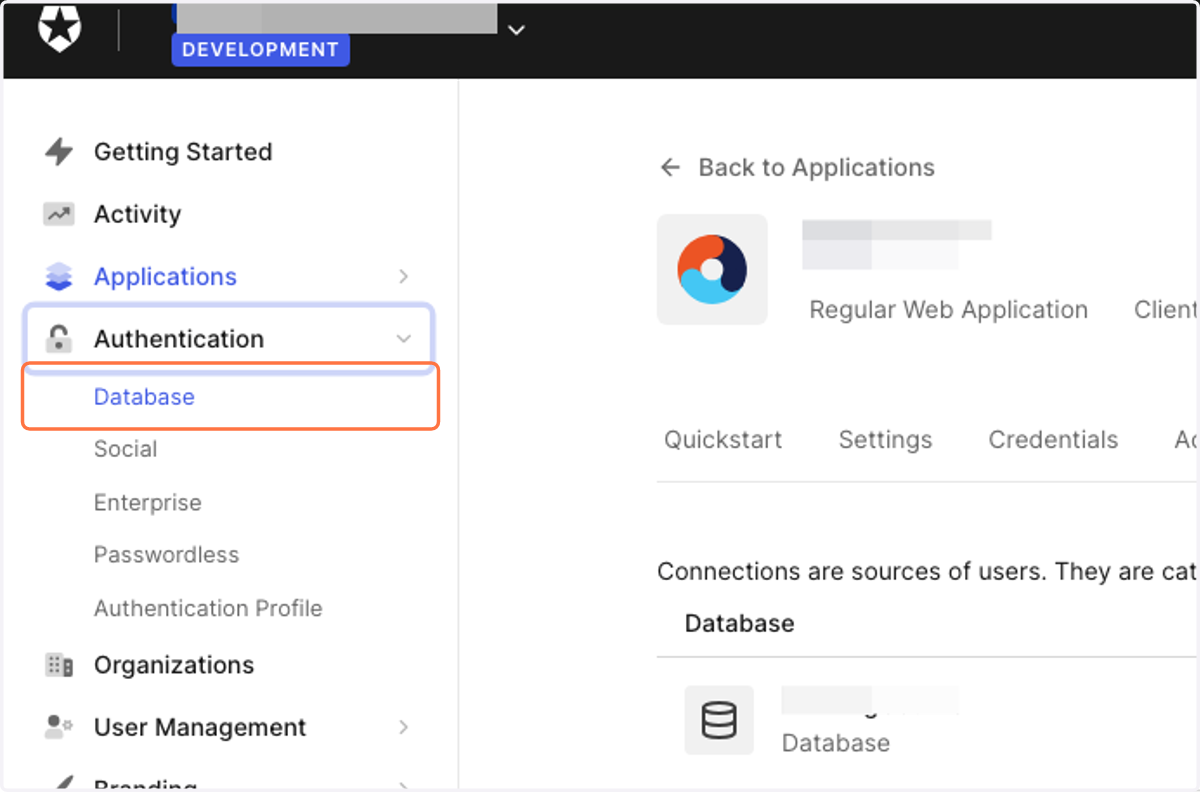
21. Click on Database
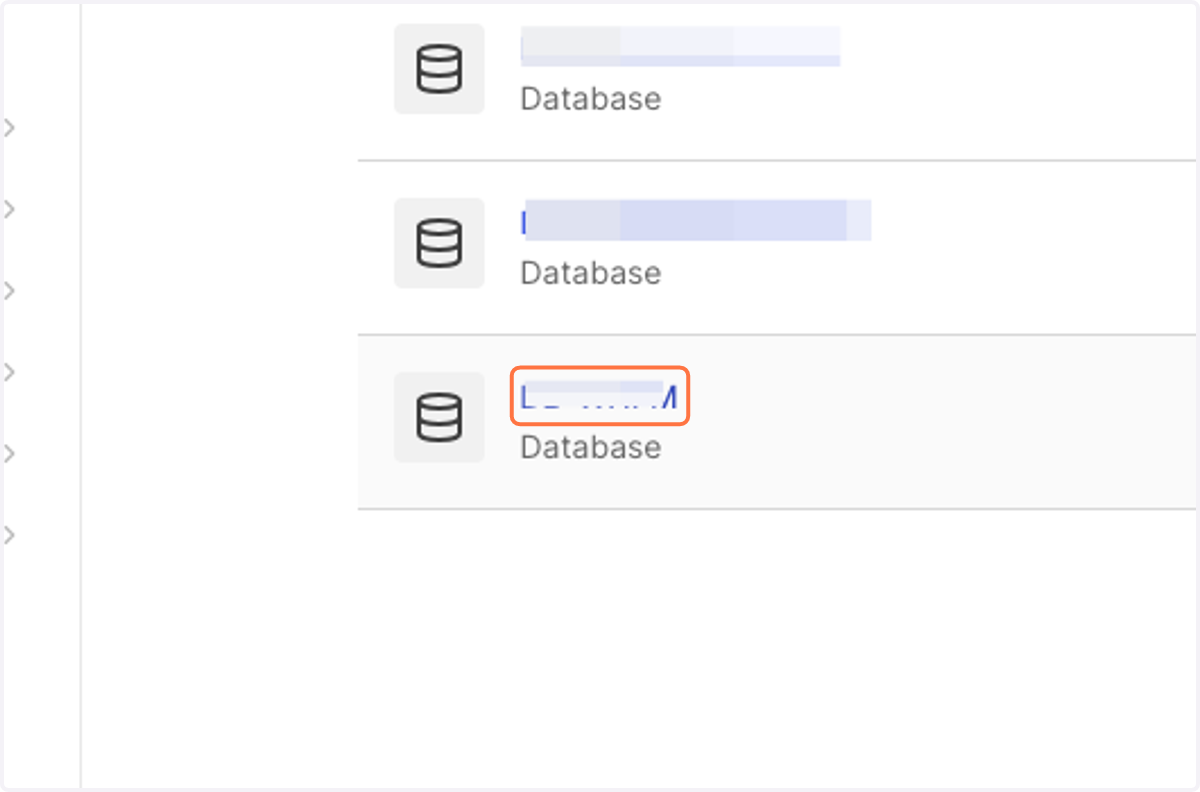
22. Click on the WP database
23. Type "5"
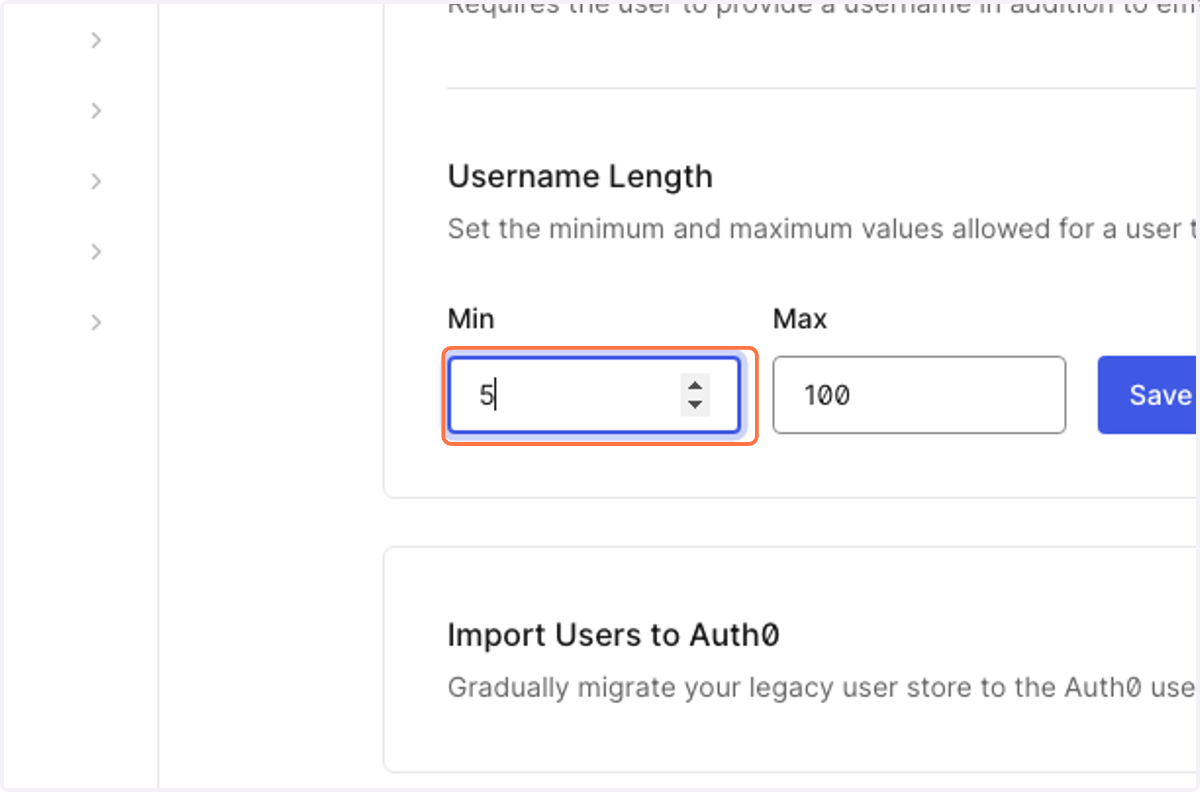
24. Type "50"
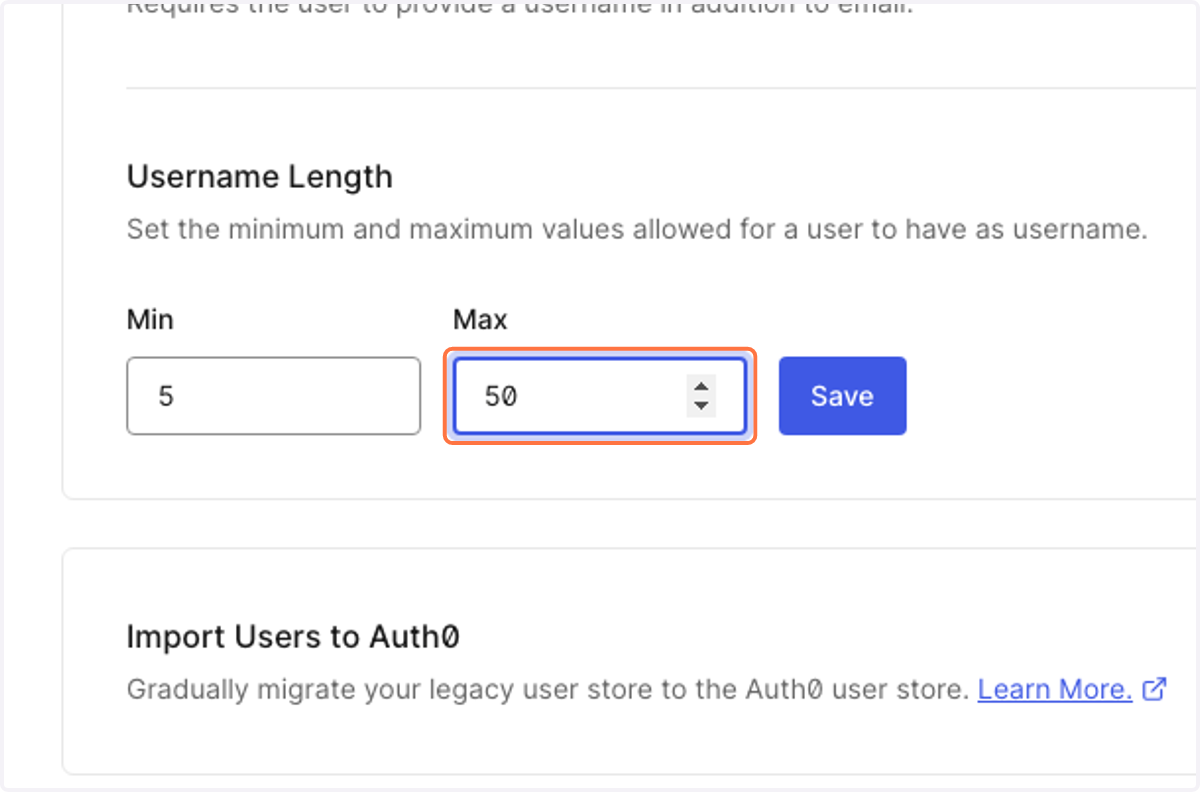
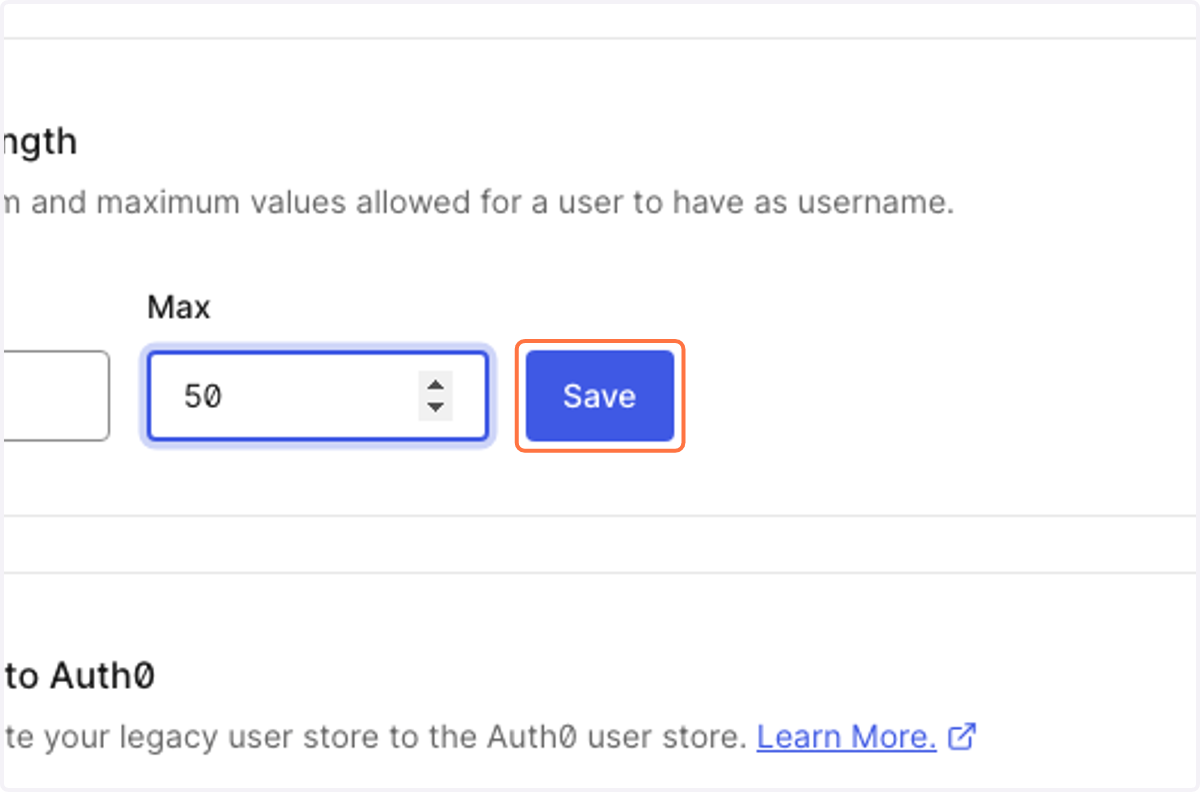
25. Click on Save
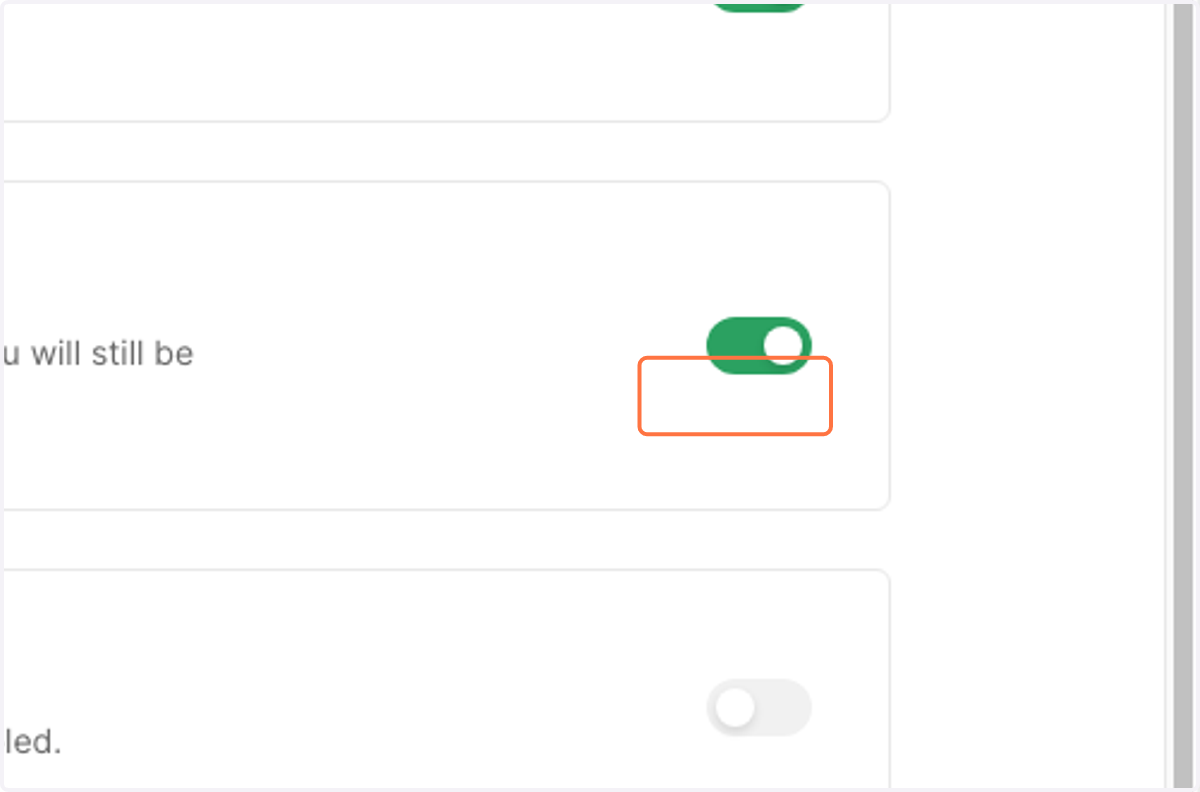
26. Check Disable Sign Ups
27. Click on Password Policy
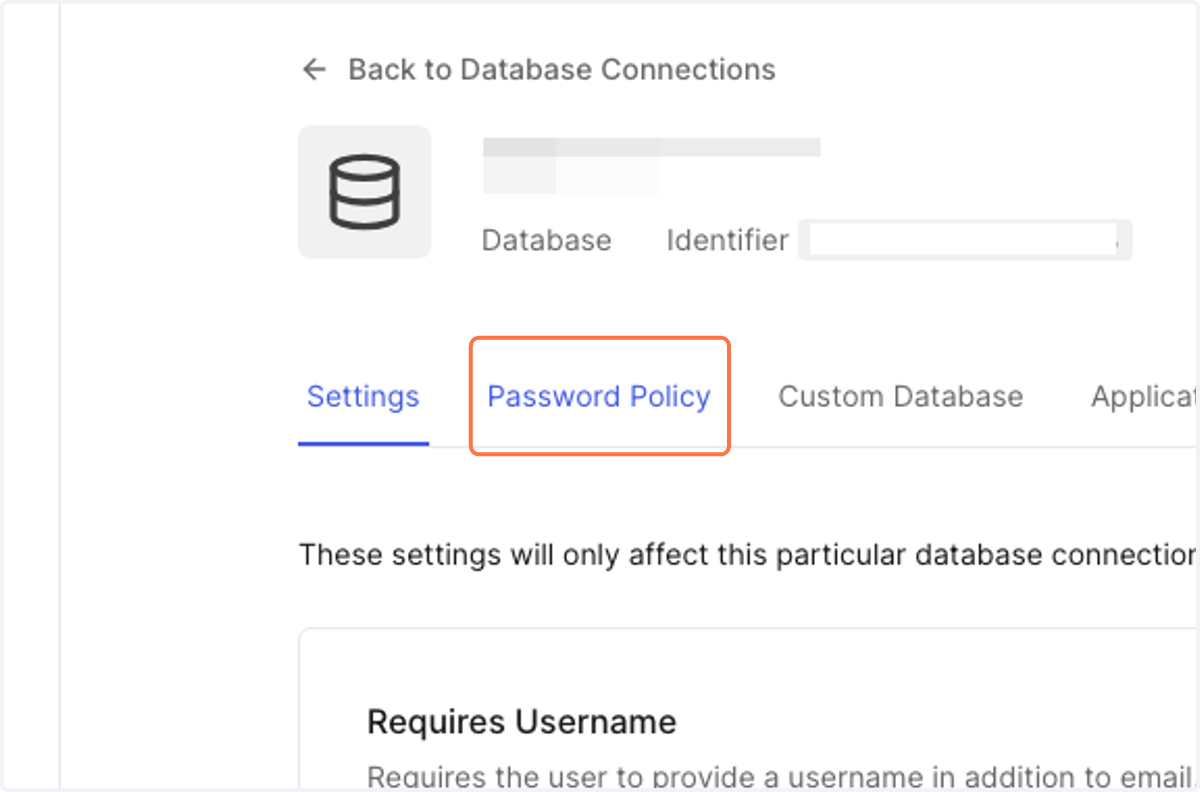
28. Click on Password Policy
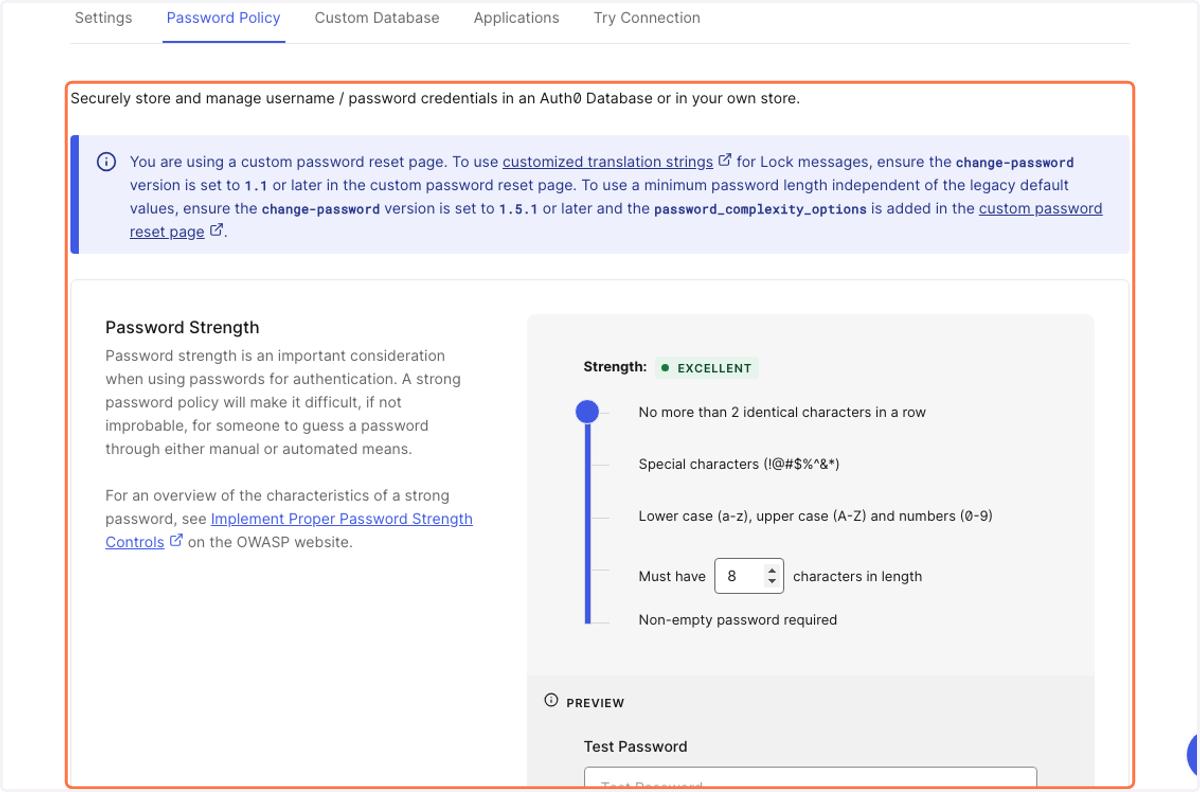
29. Type "20"
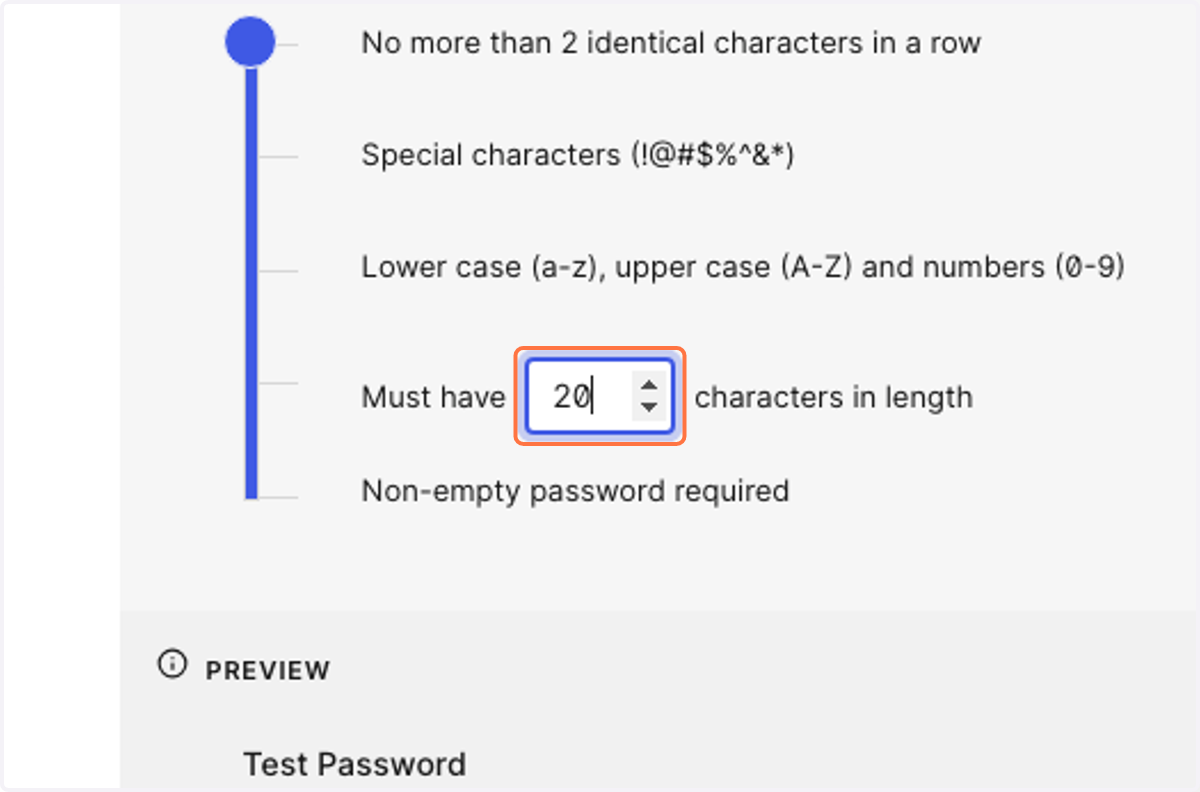
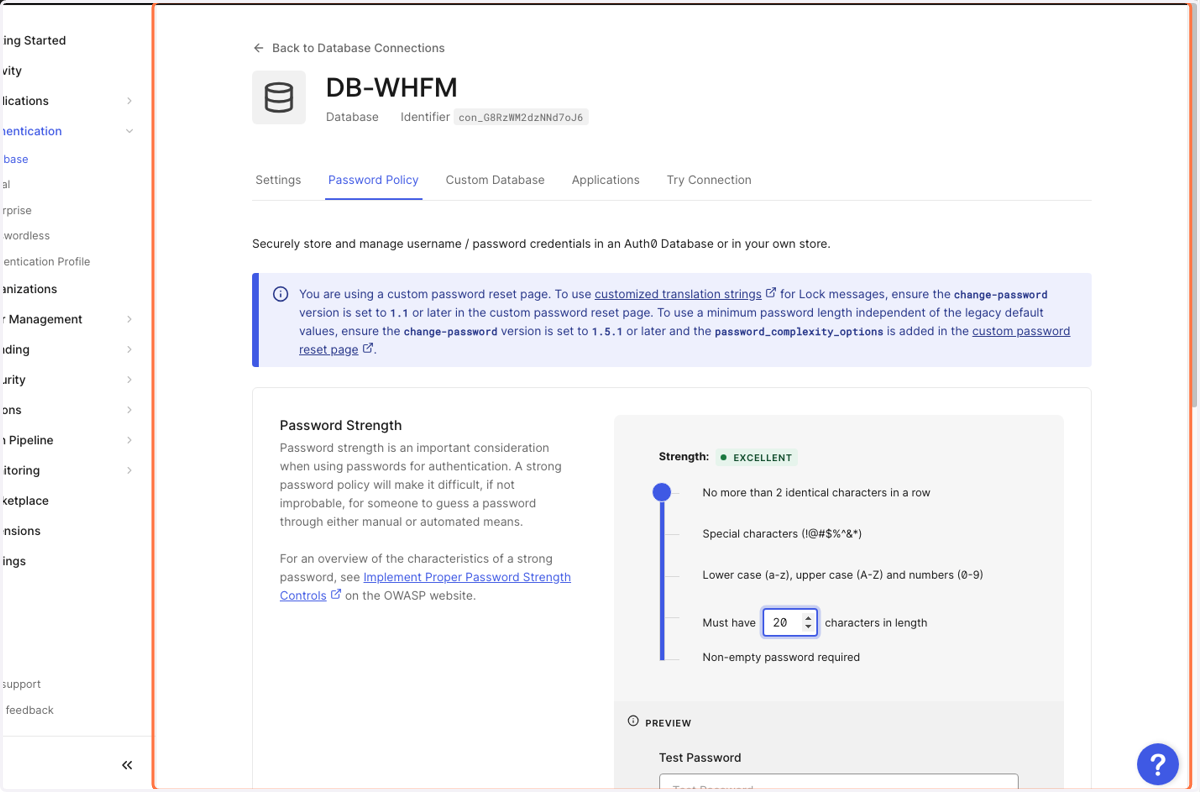
30. Click on Back to Database Connections…
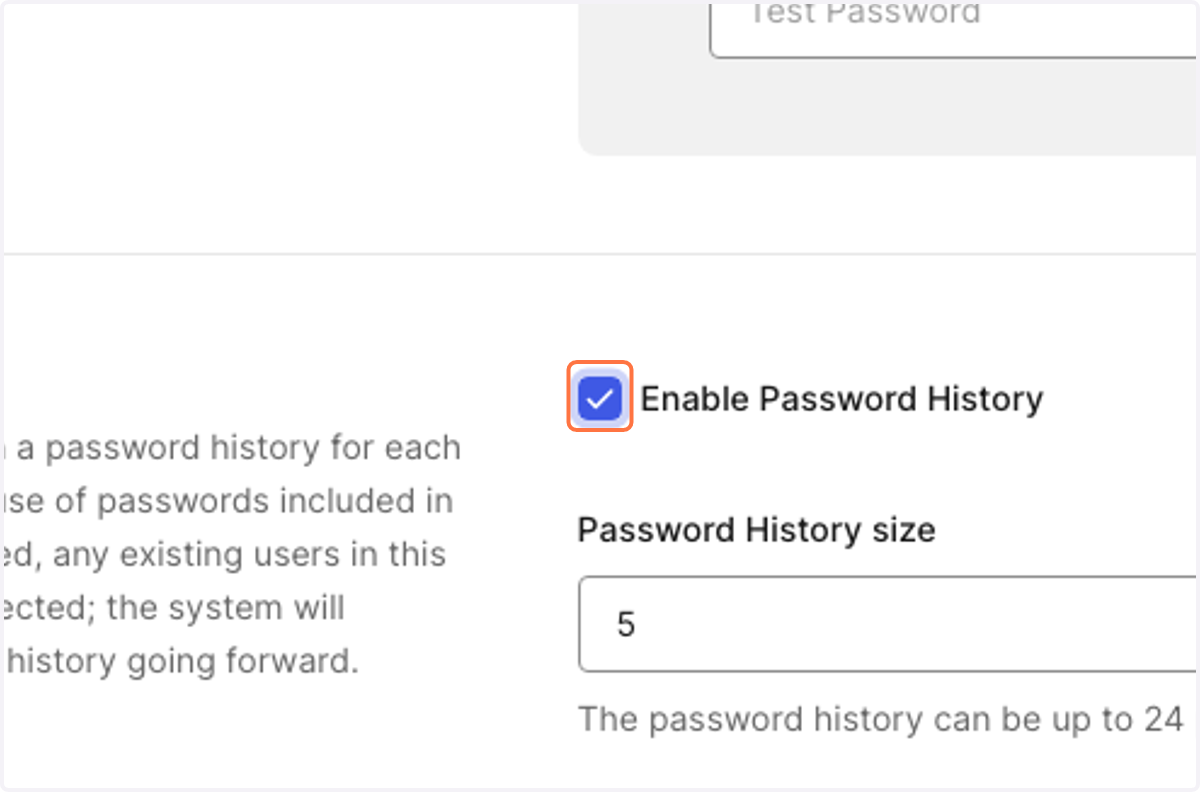
31. Check Enable Password History
32. Check Enable Password Dictionary
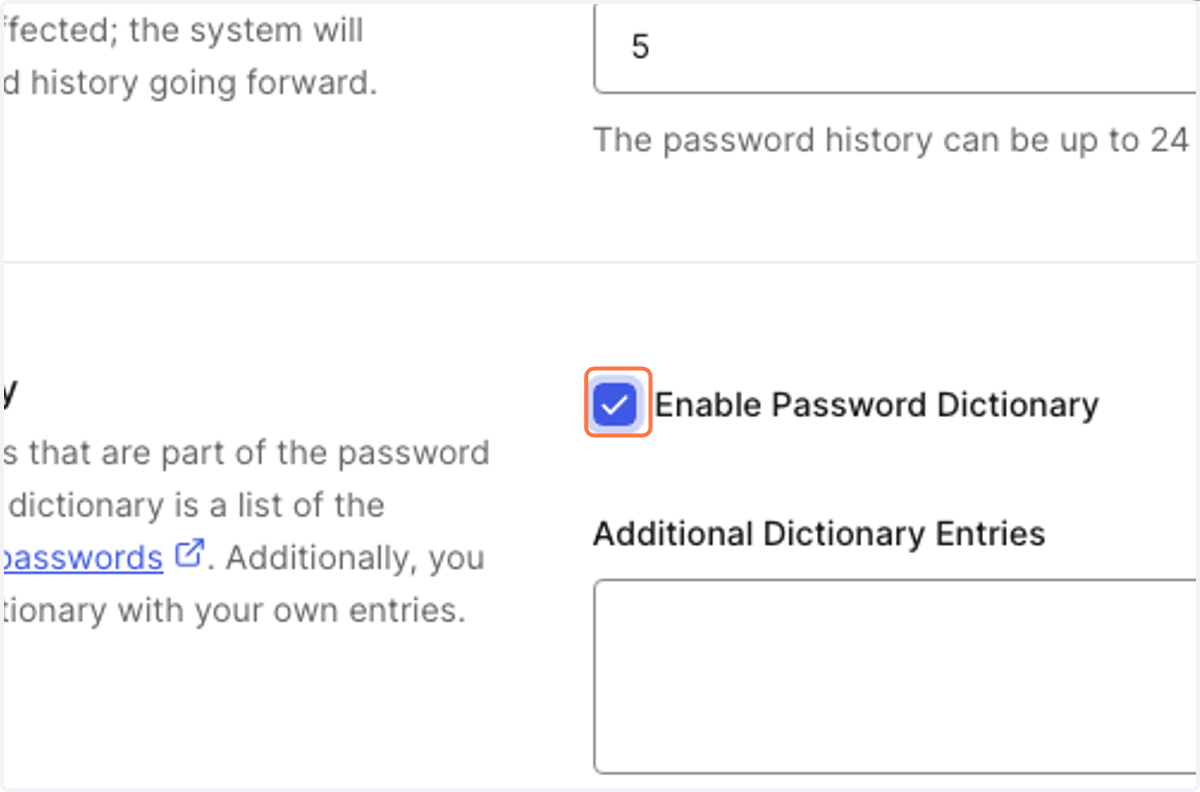
33. Check Disallow Personal Data
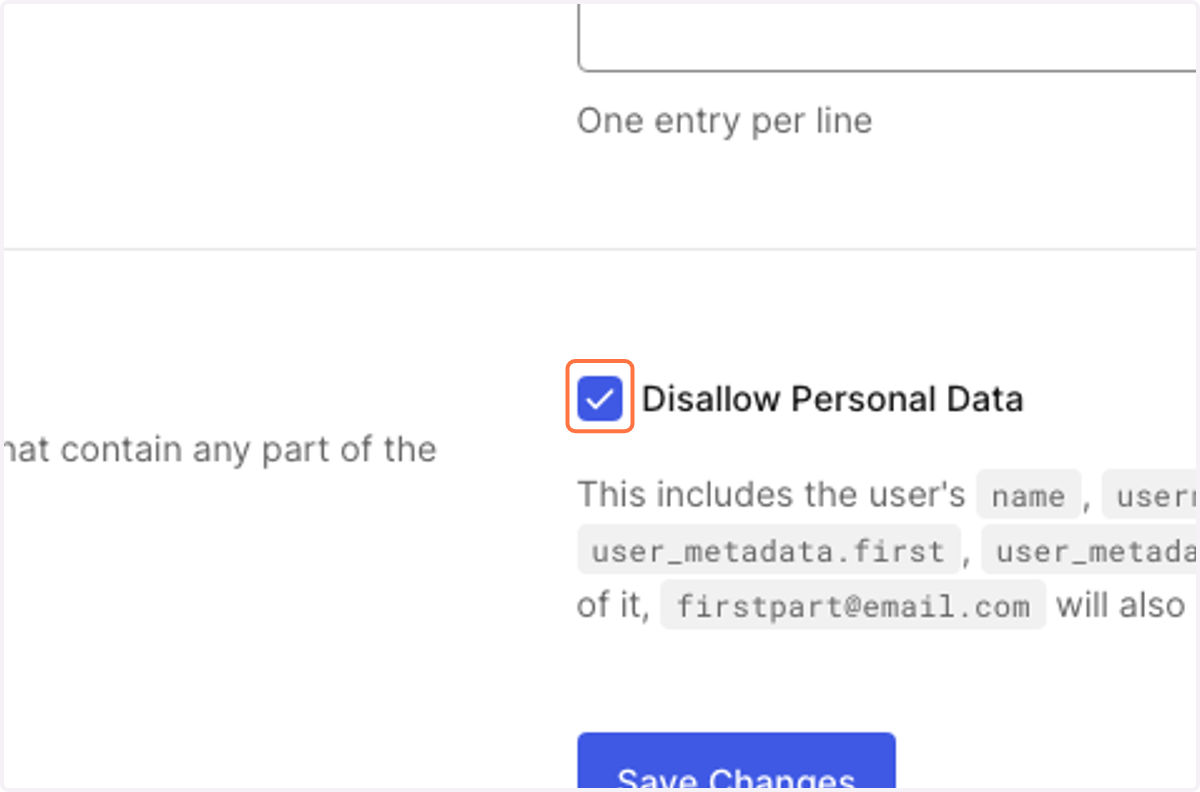
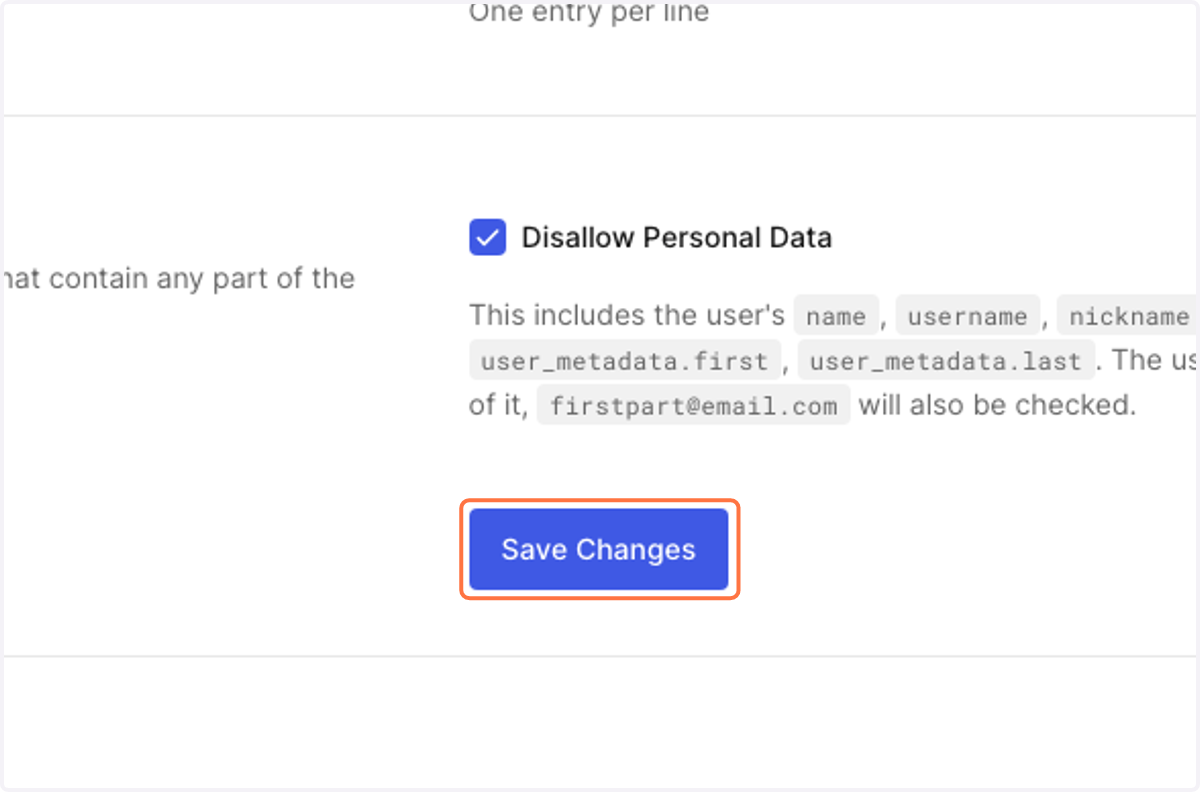
34. Click on Save Changes
WordPress
35. Click on Log Out
36. Clear webrowser cache then go to login page
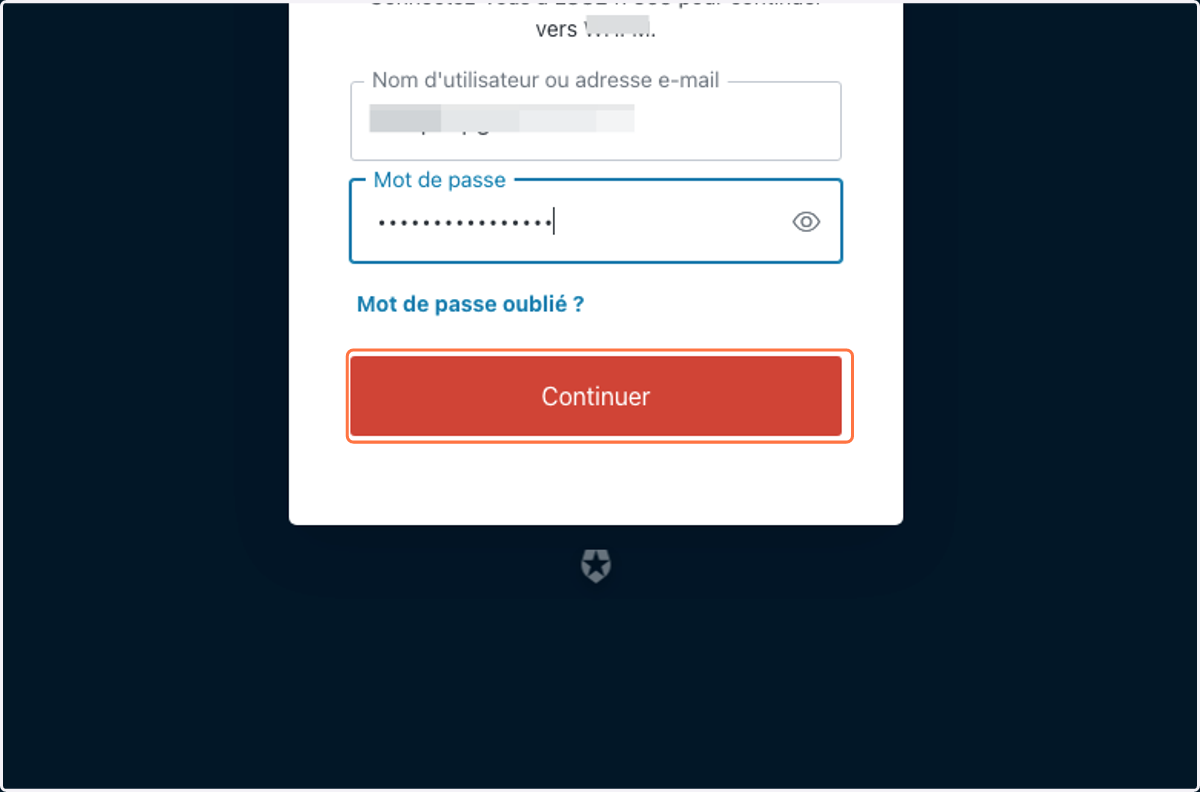
37. Fill in the usual WP username and password, then Click on "Continuer"
38. And voilà!