Configure Xero Tax Rates in Stripe
1. Click on Apps
2. Click on Discover more apps…
3. Type "xero"
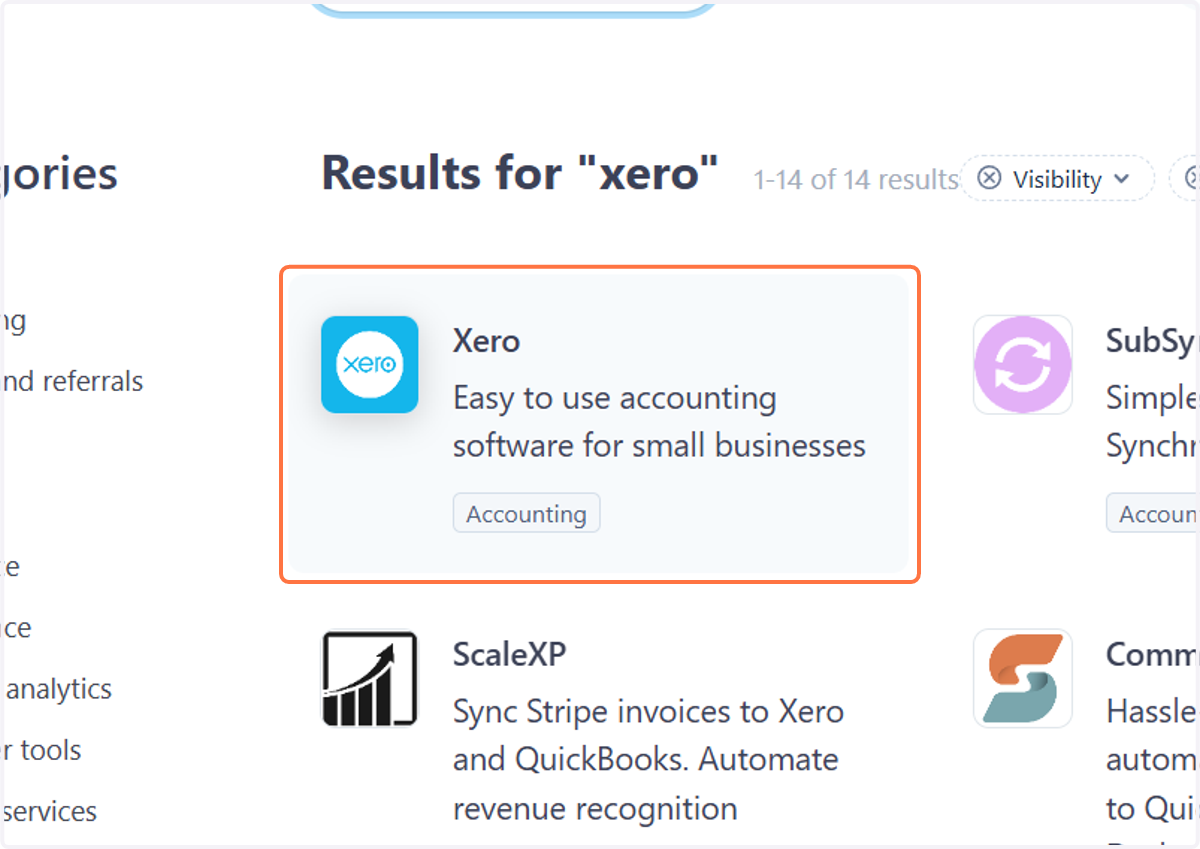
4. Click on Xero…
5. Click on Install app
6. Click on Install app in sandbox
7. Click on Continue
8. Click on Have an account? Sign in
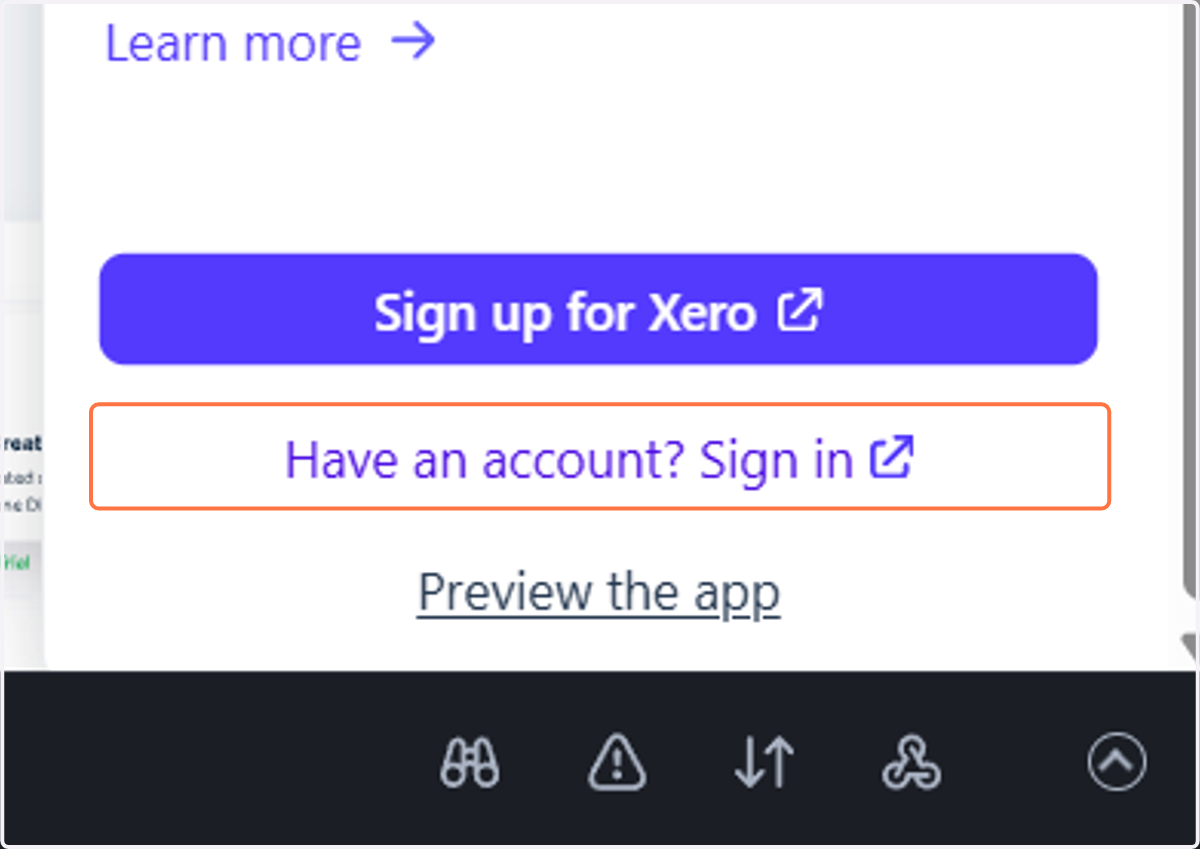
9. Click on Select another organisation
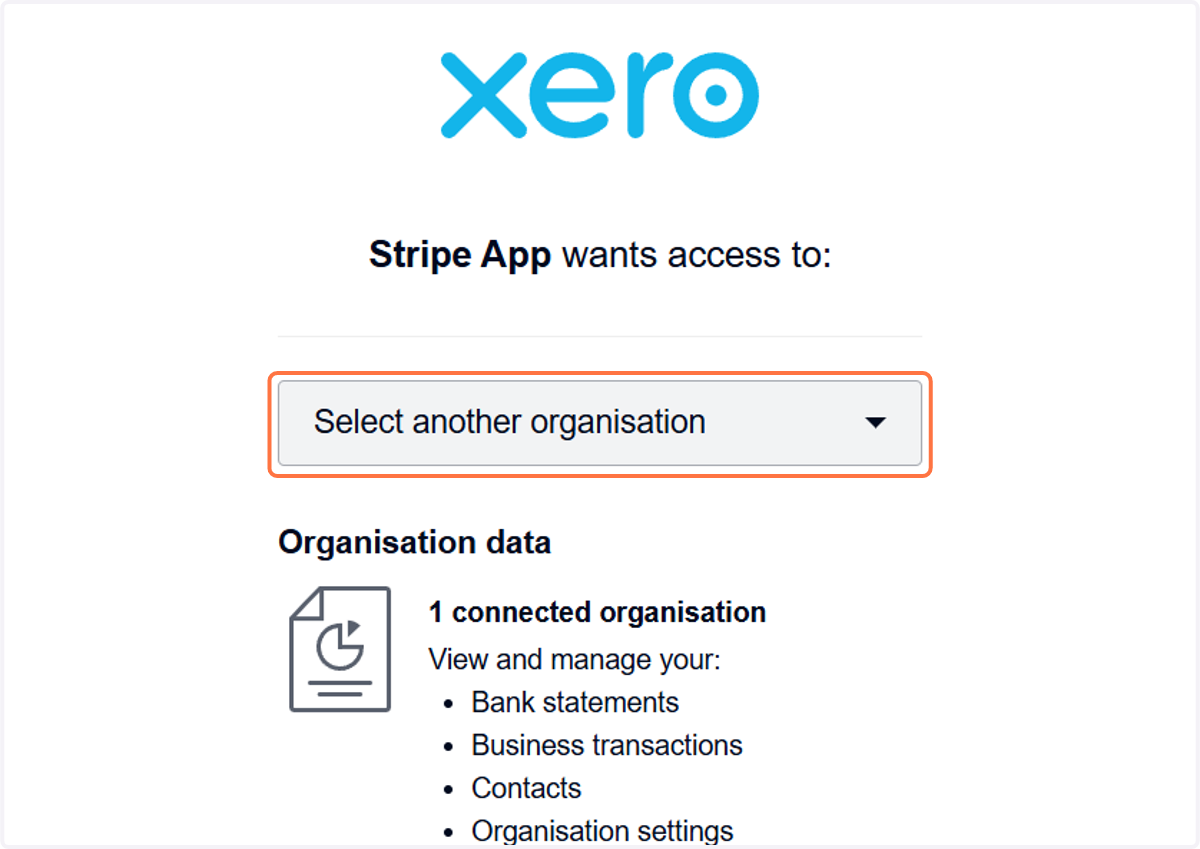
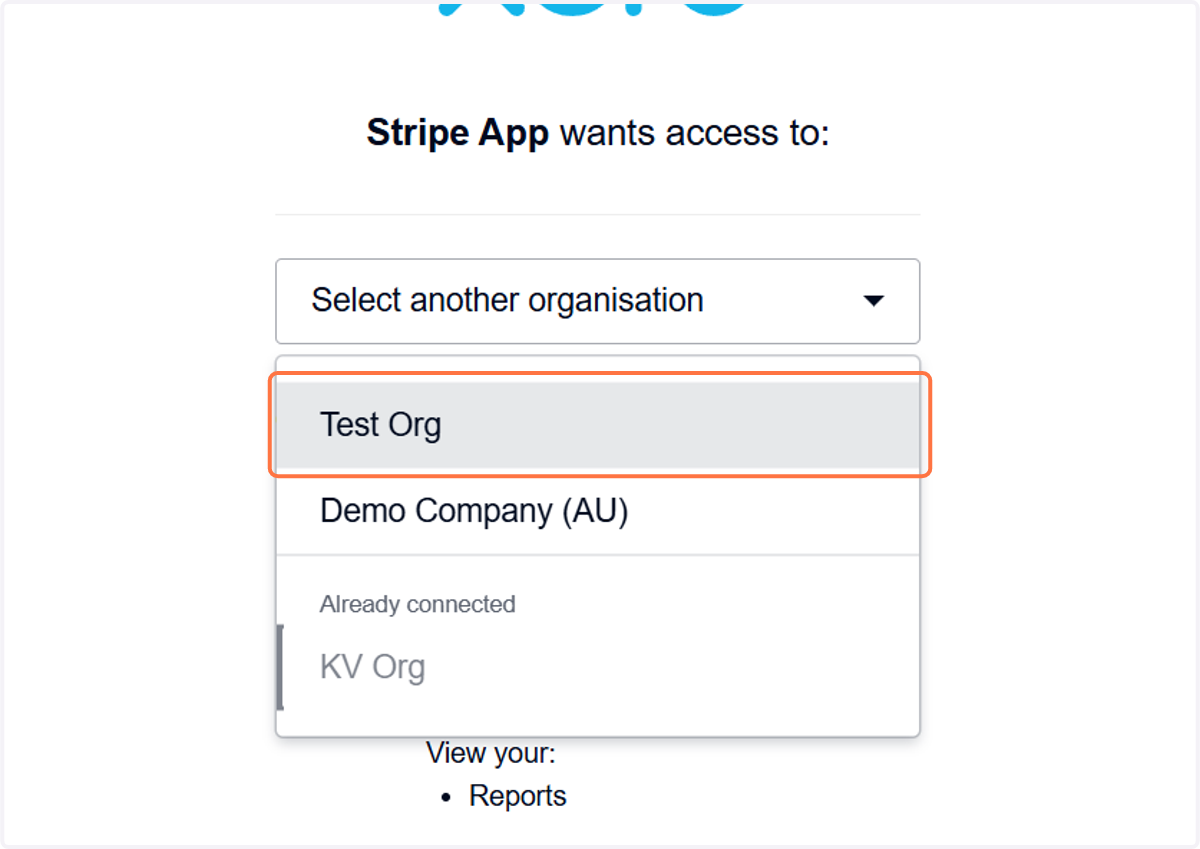
10. Click on Available tenant - Test Org
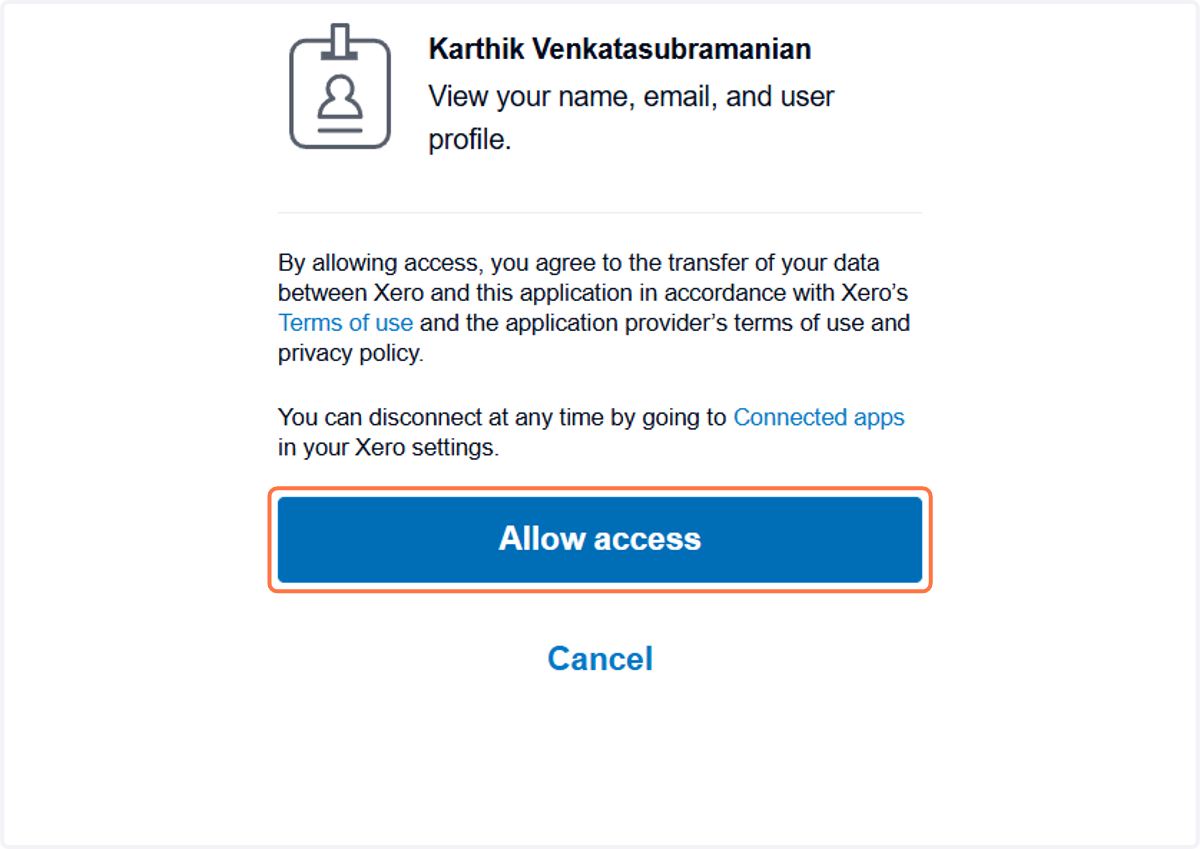
11. Click on Allow access
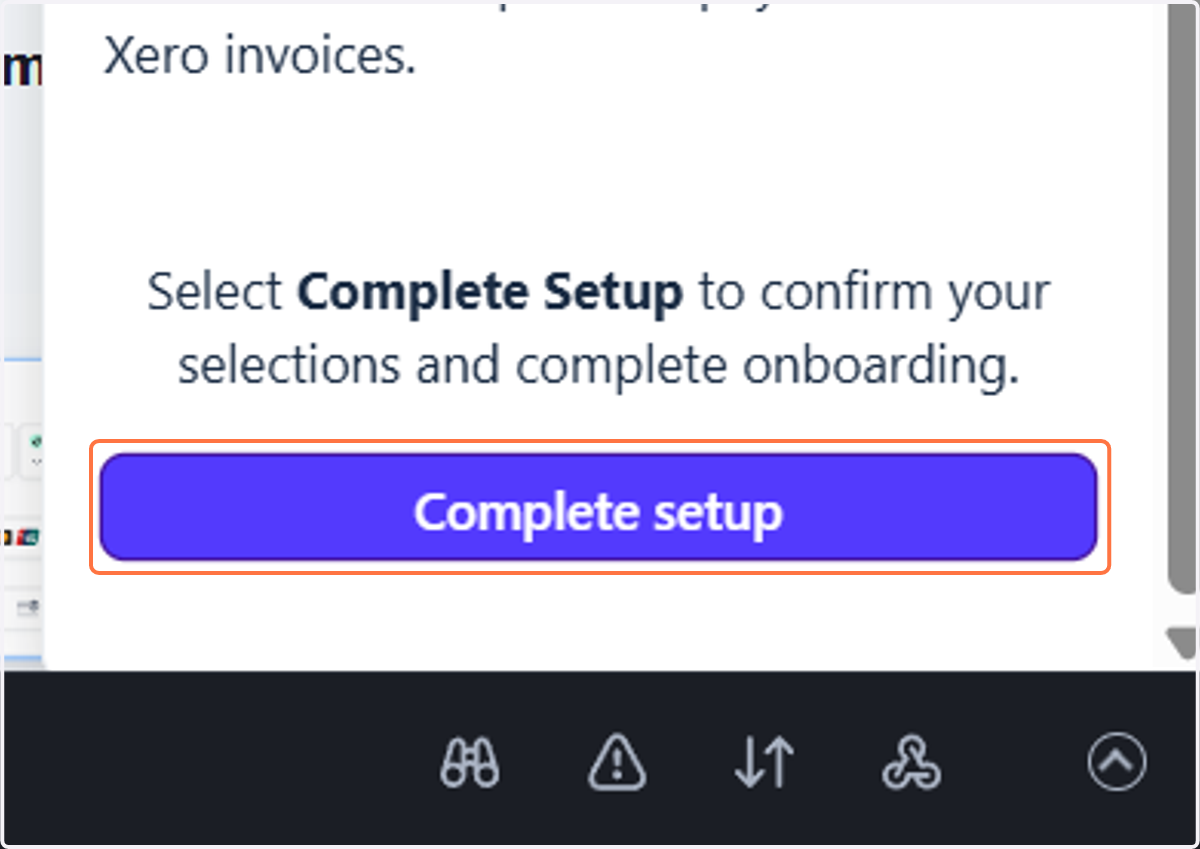
12. Click on Complete setup
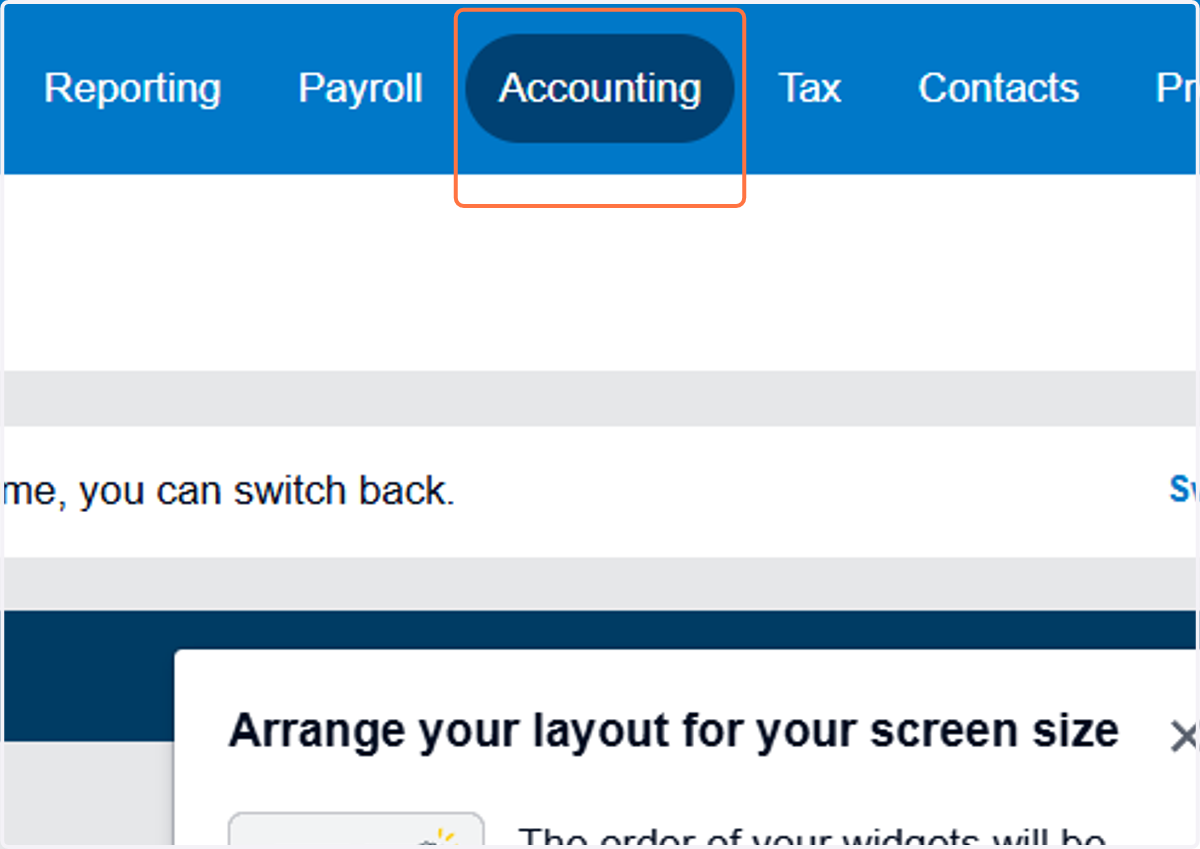
13. Click on Accounting
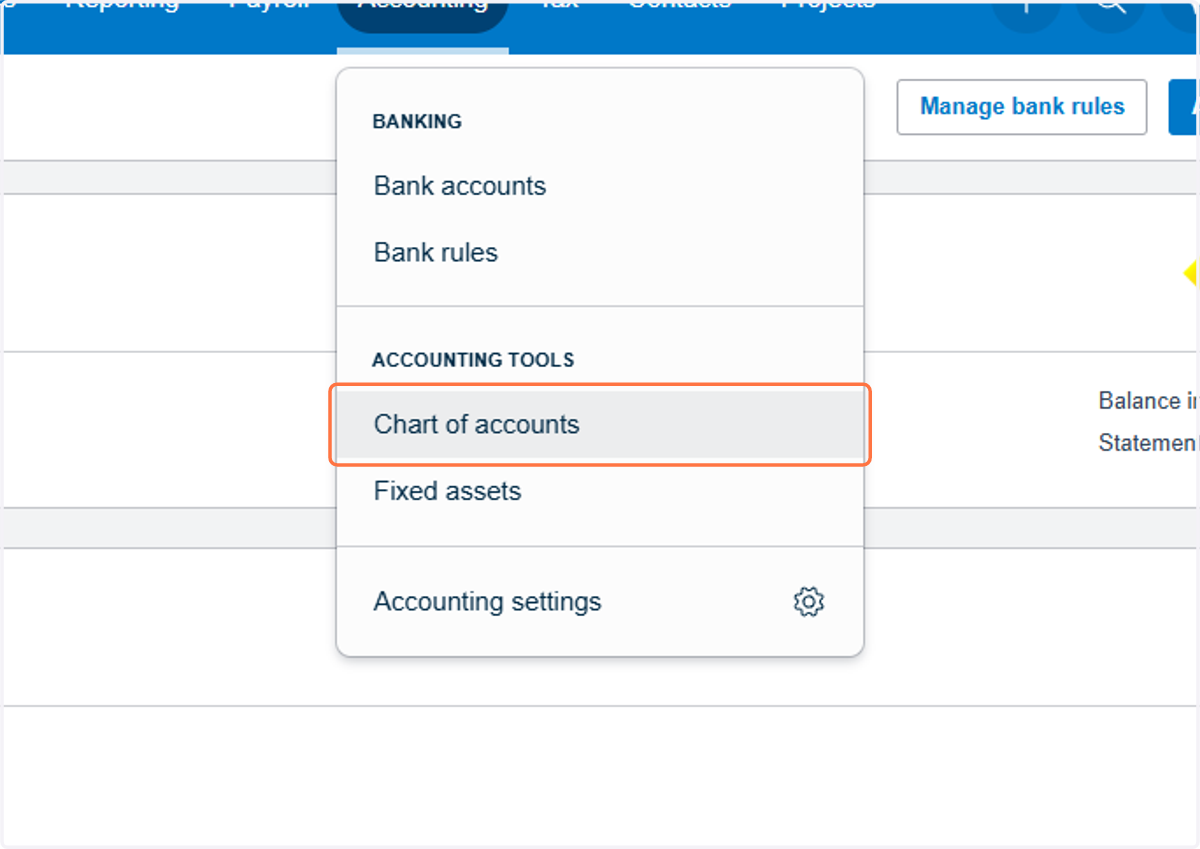
14. Click on Chart of accounts
15. Click on Edit the details of this account
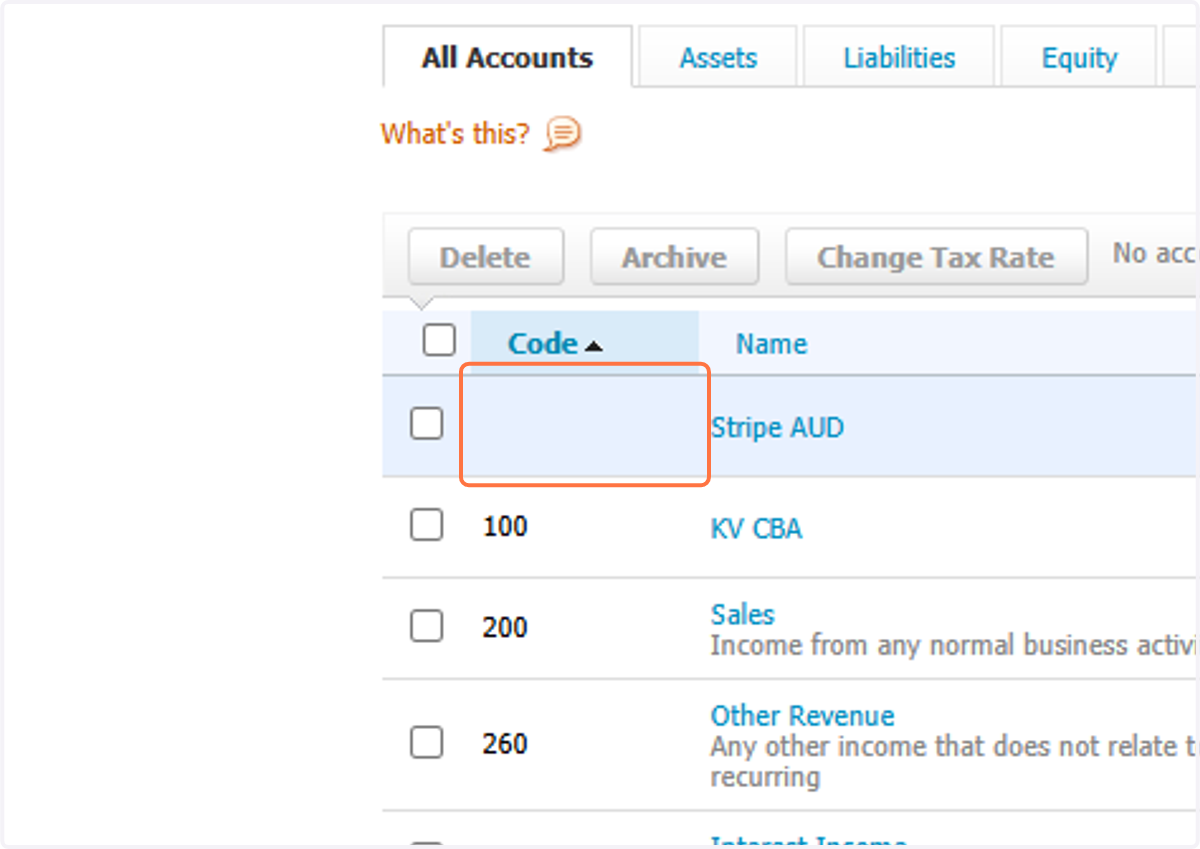
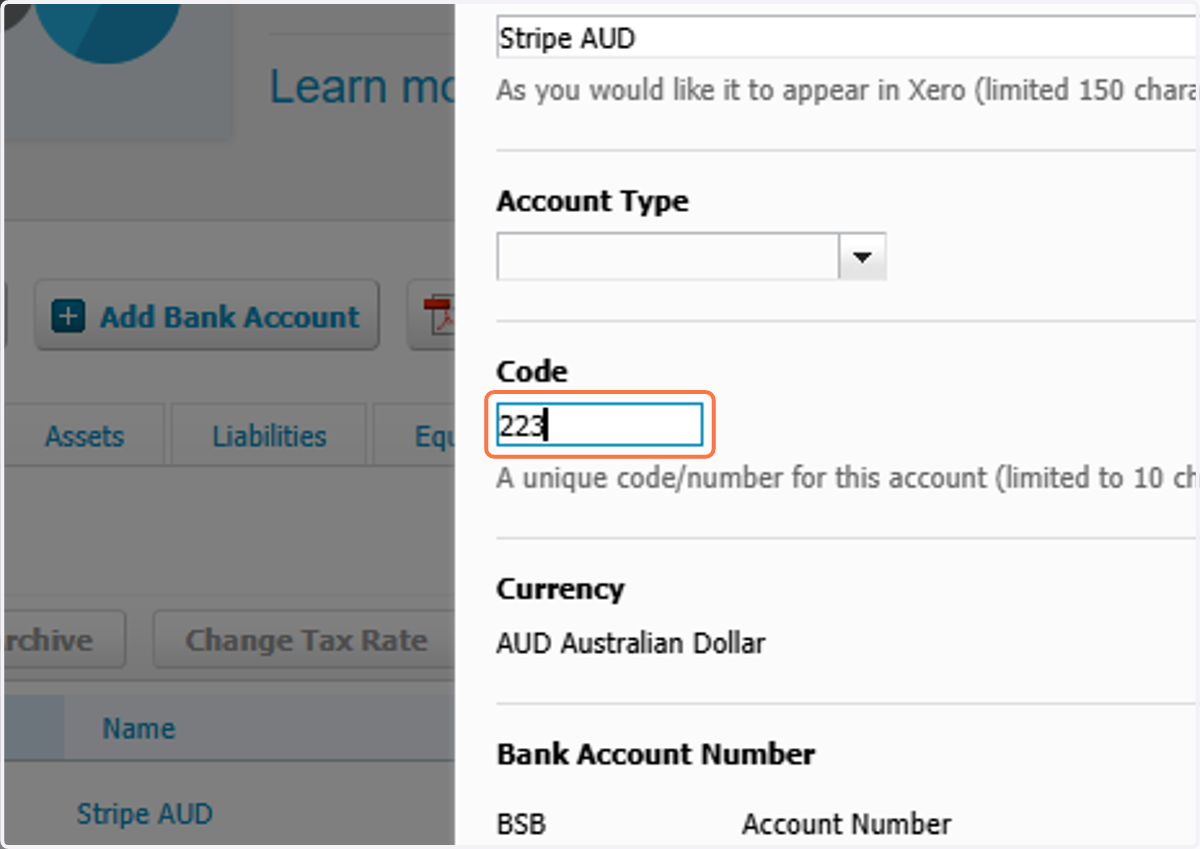
16. Type "223"
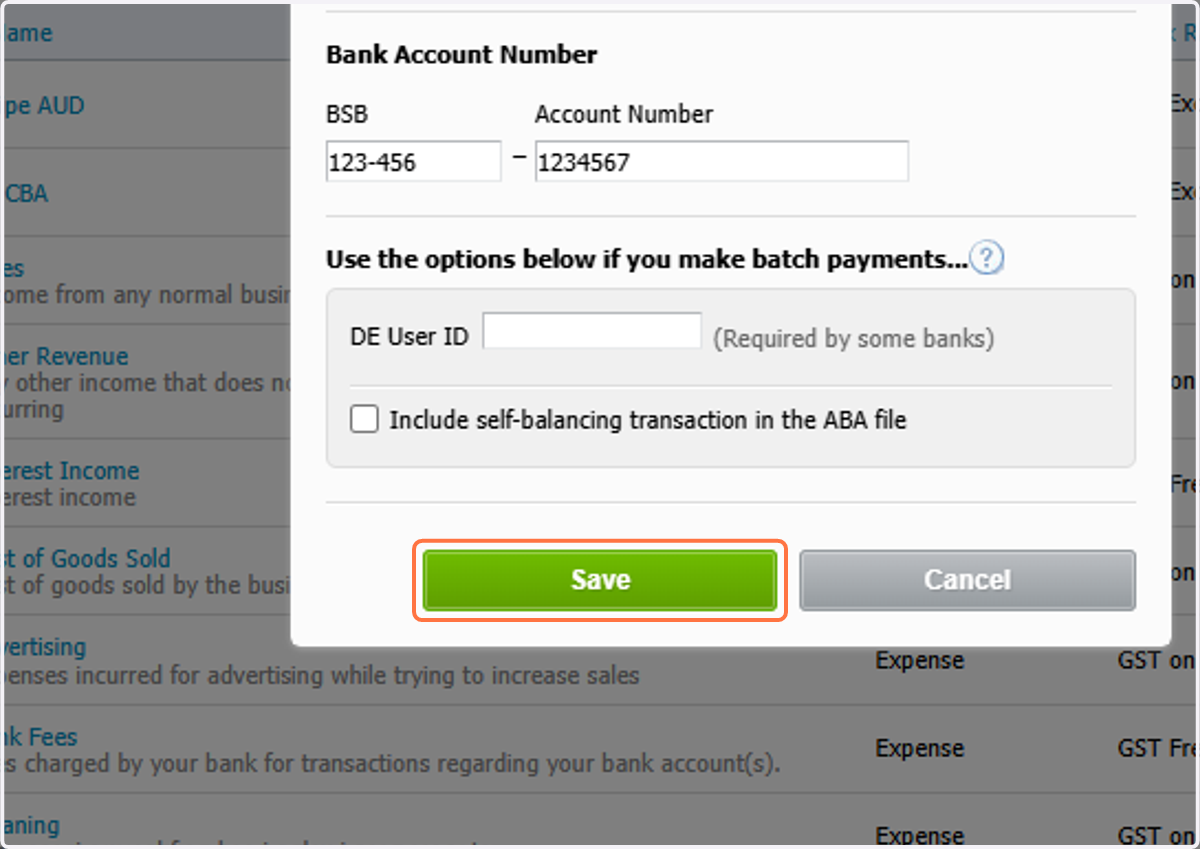
17. Click on Save
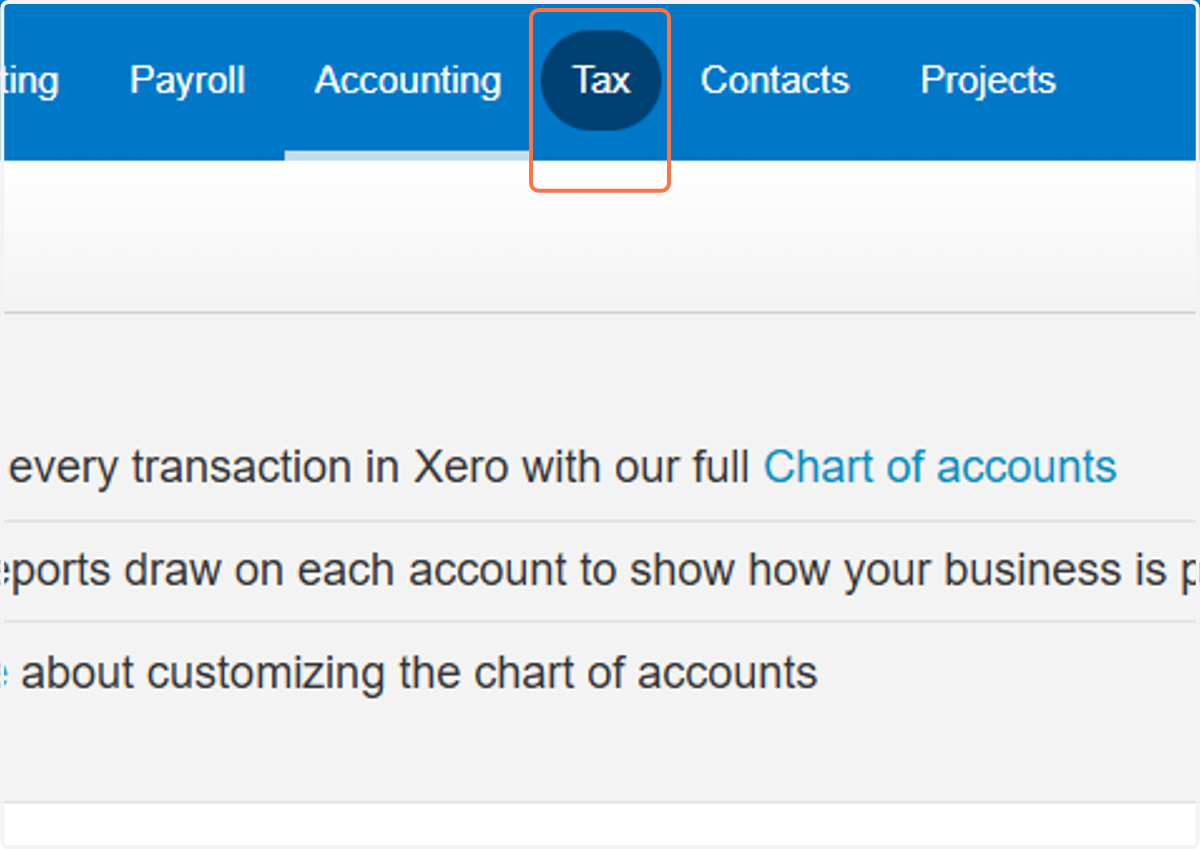
18. Click on Tax
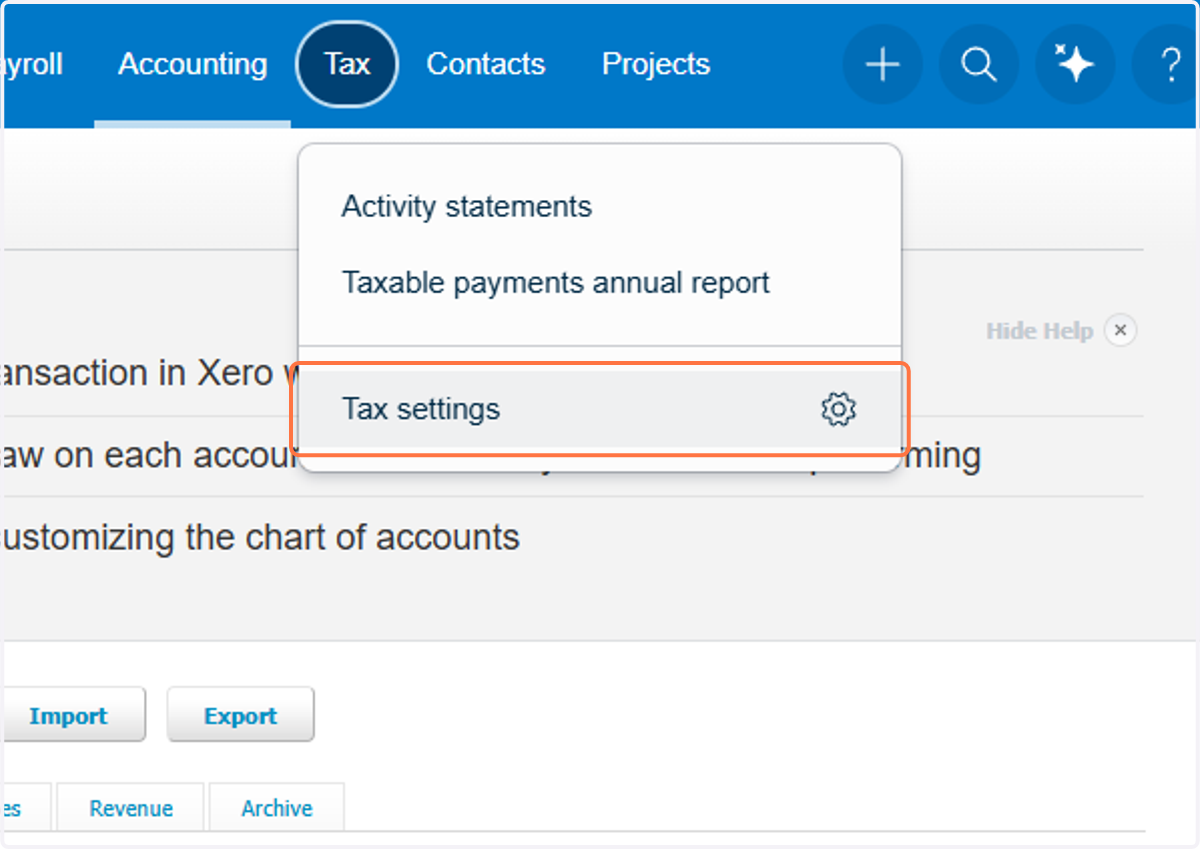
19. Click on Tax settings
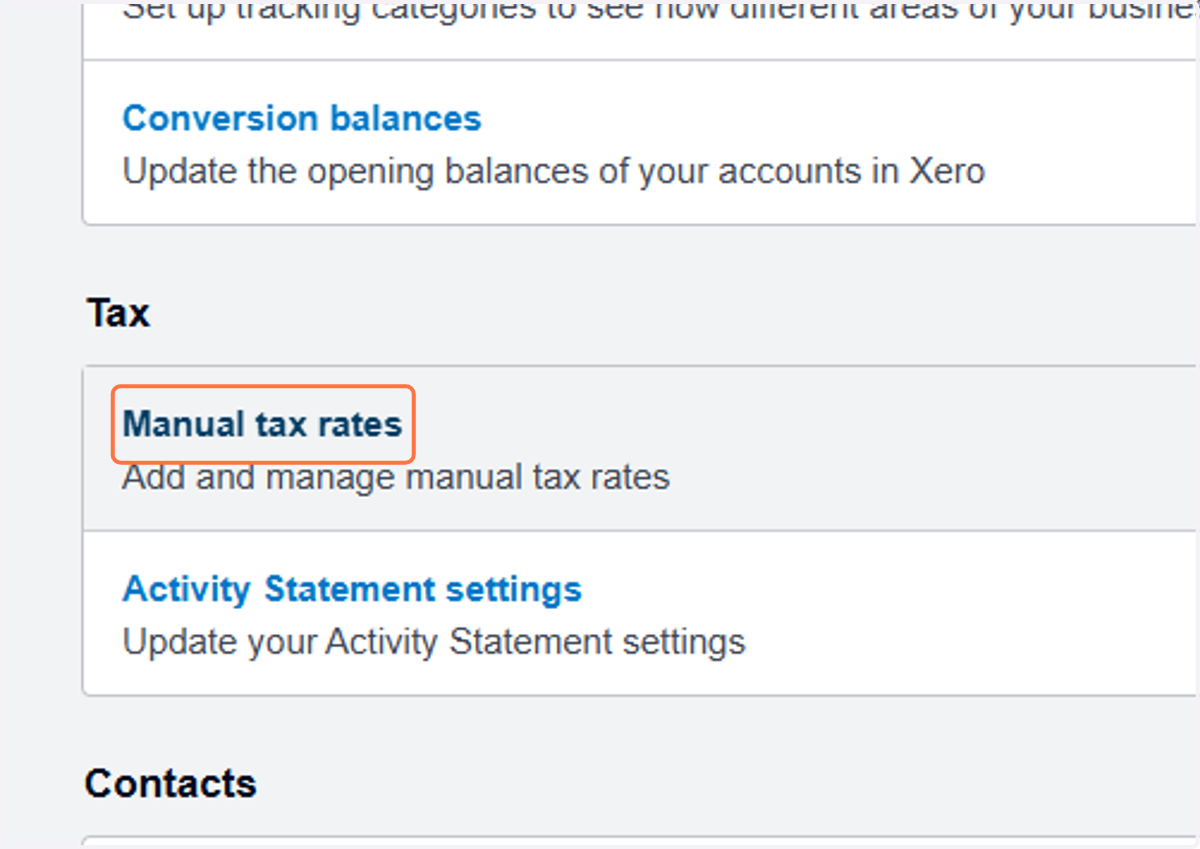
20. Click on Manual tax rates
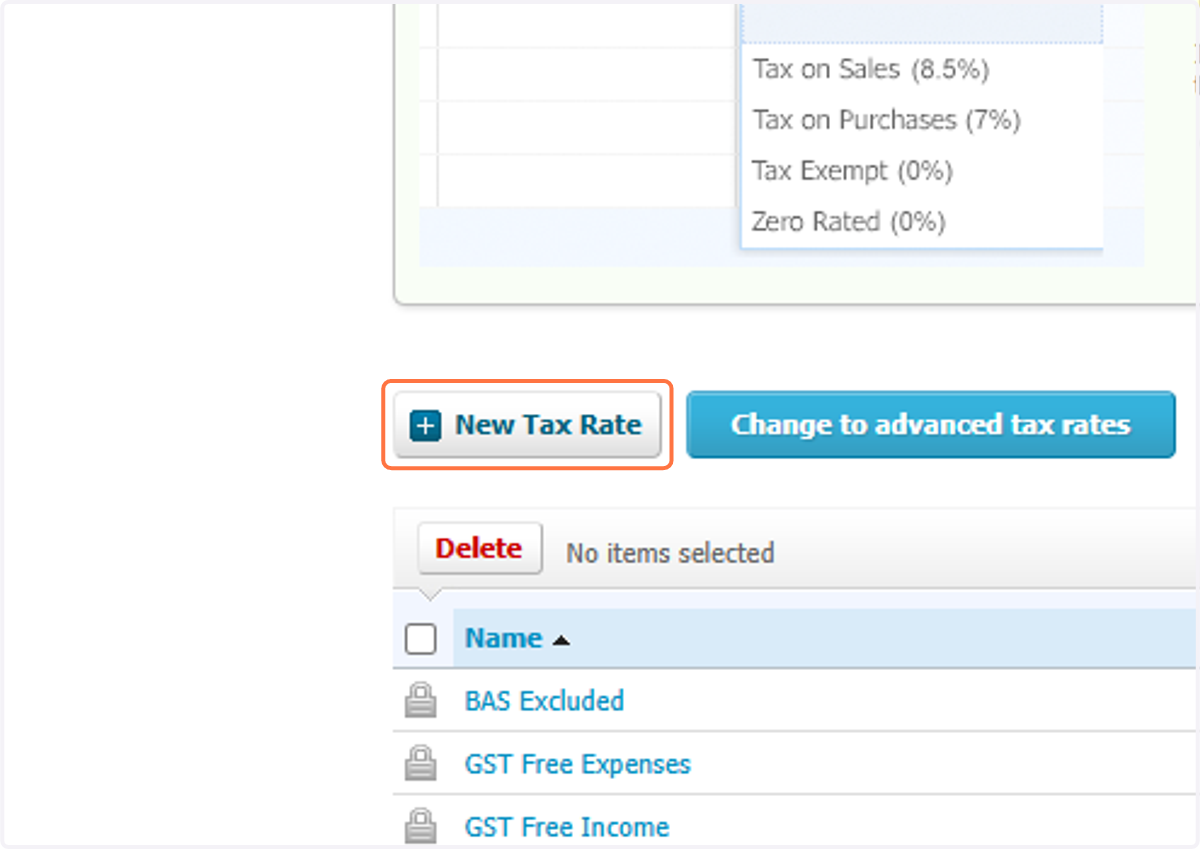
21. Click on New Tax Rate
22. Paste "GST on Income" into input
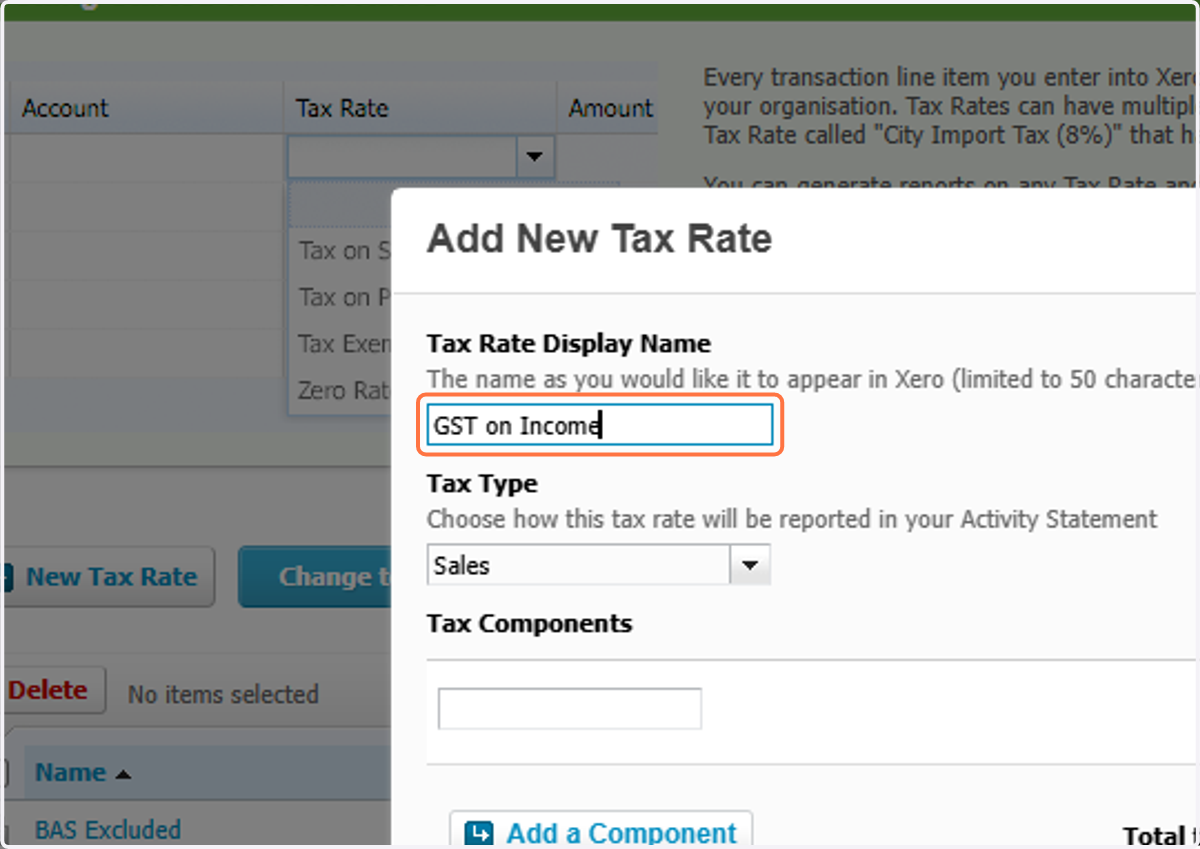
23. Click on Tax Rate Display Name…
24. Type "GST on Income"
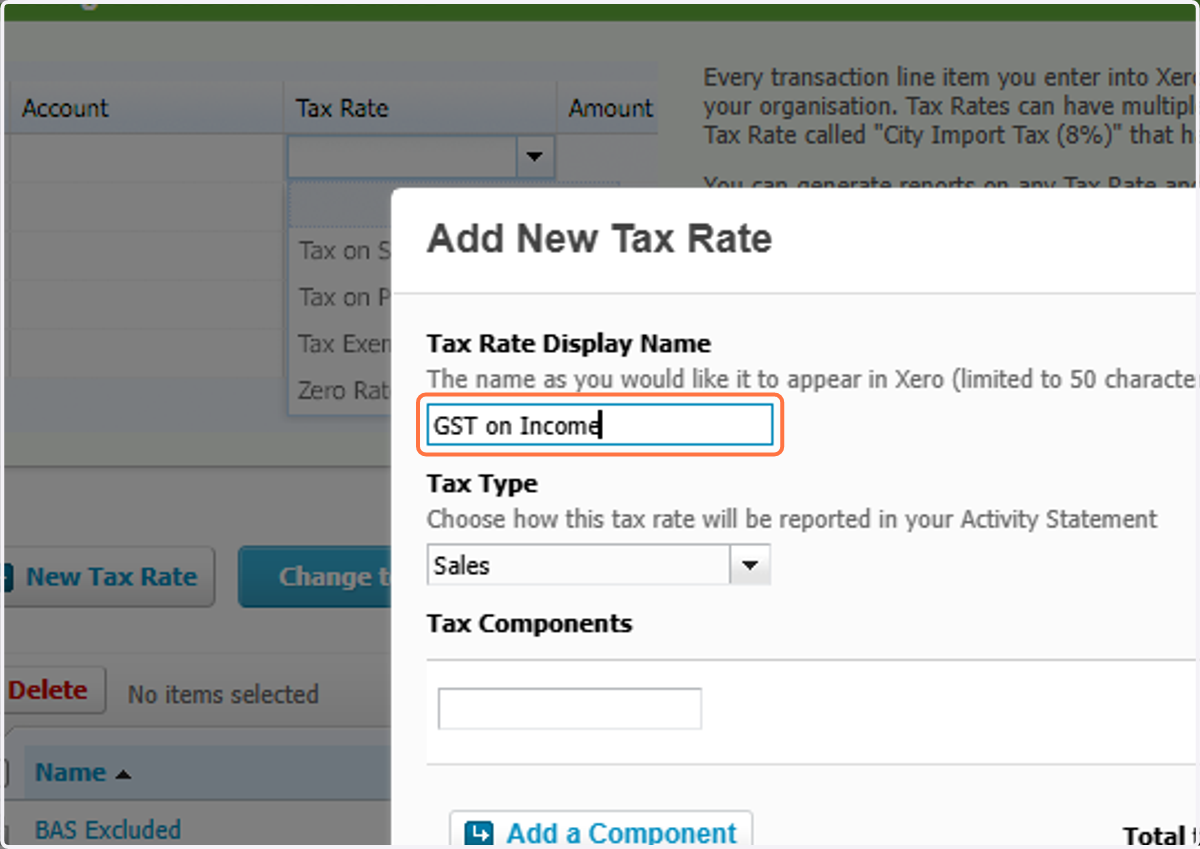
25. Type "10"
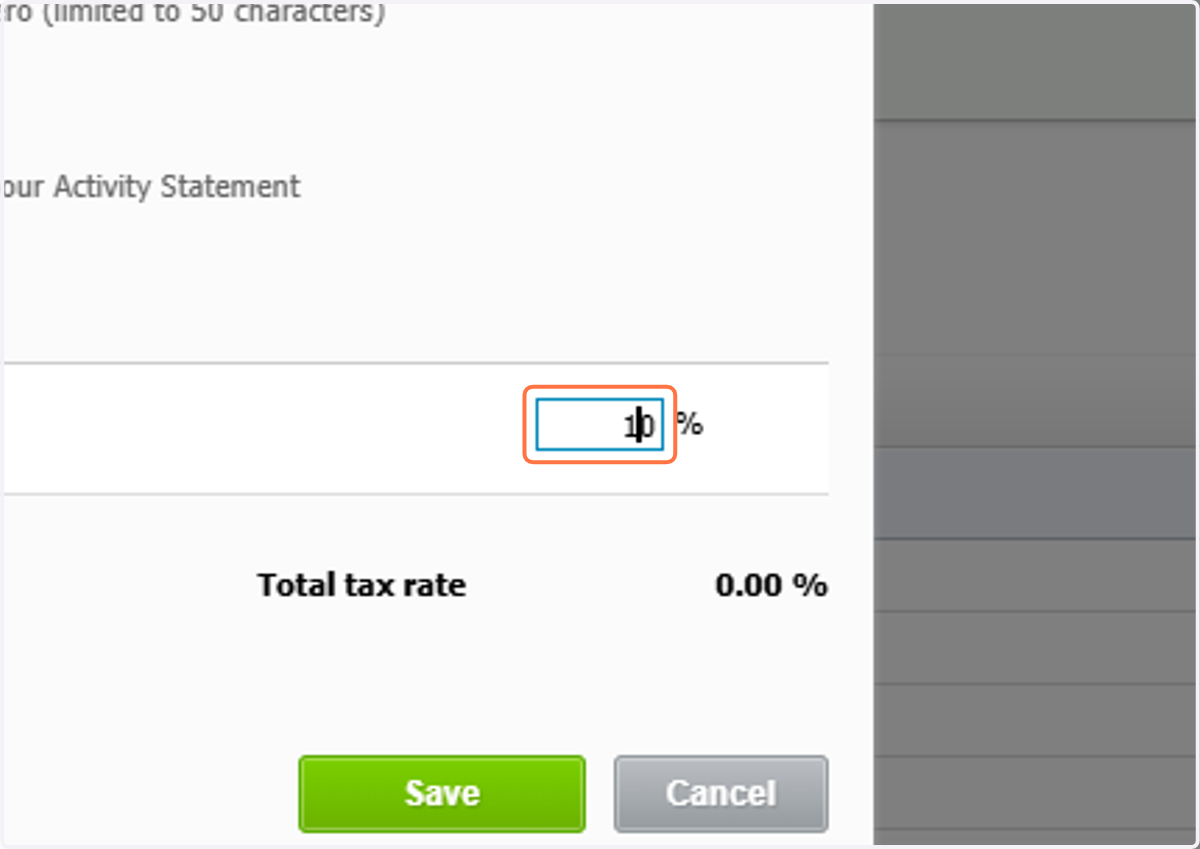
26. Click on Save
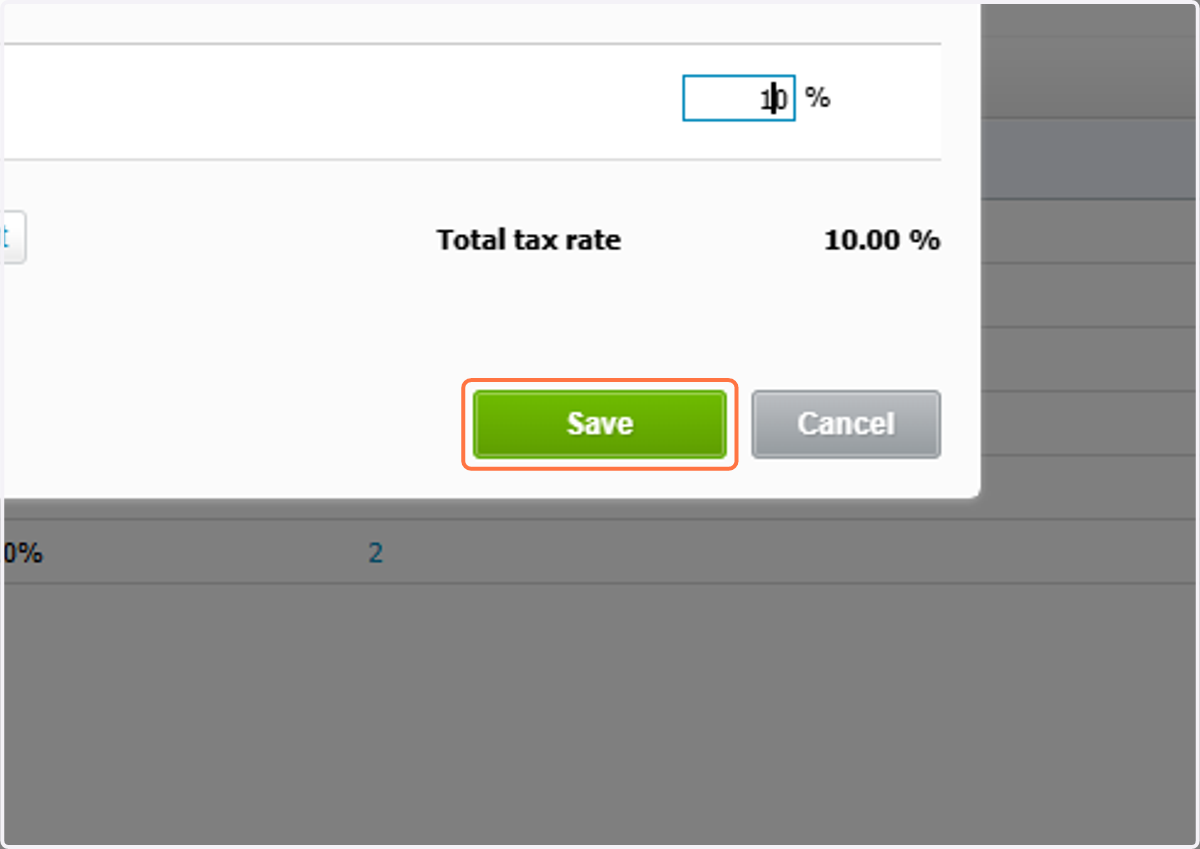
27. Click on Accounting settings
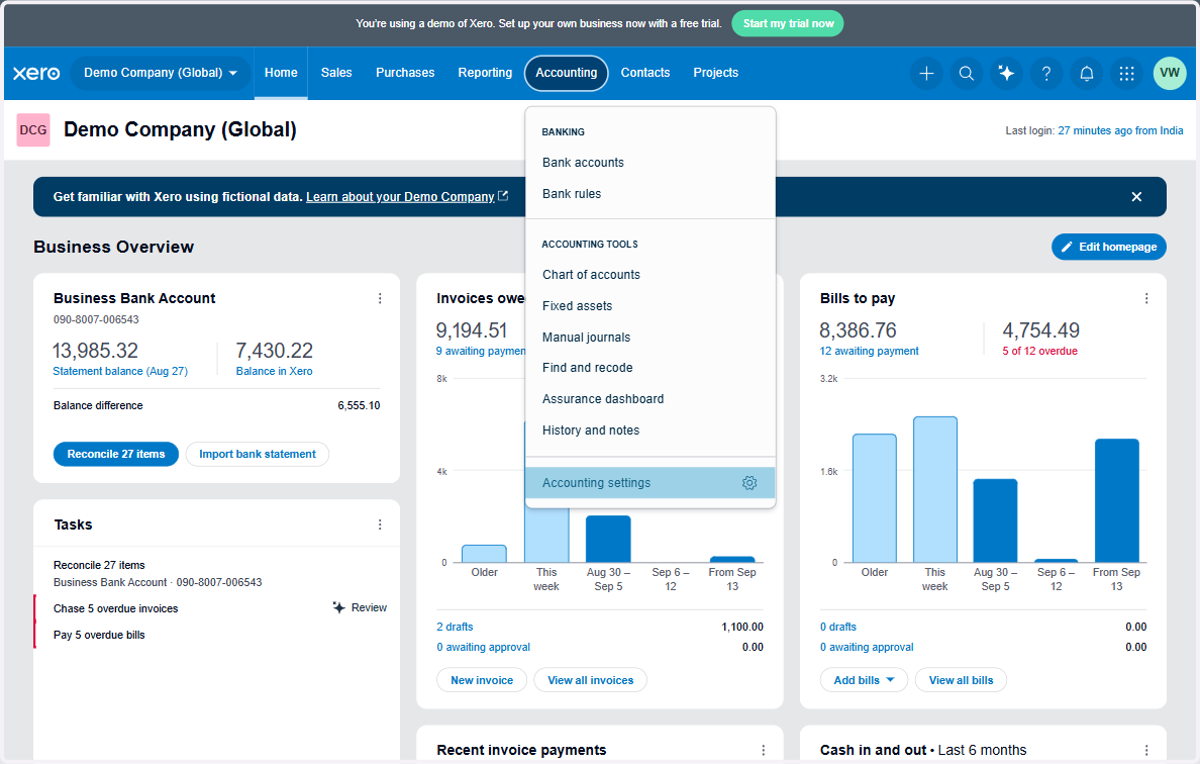
28. Click on Tracking categories
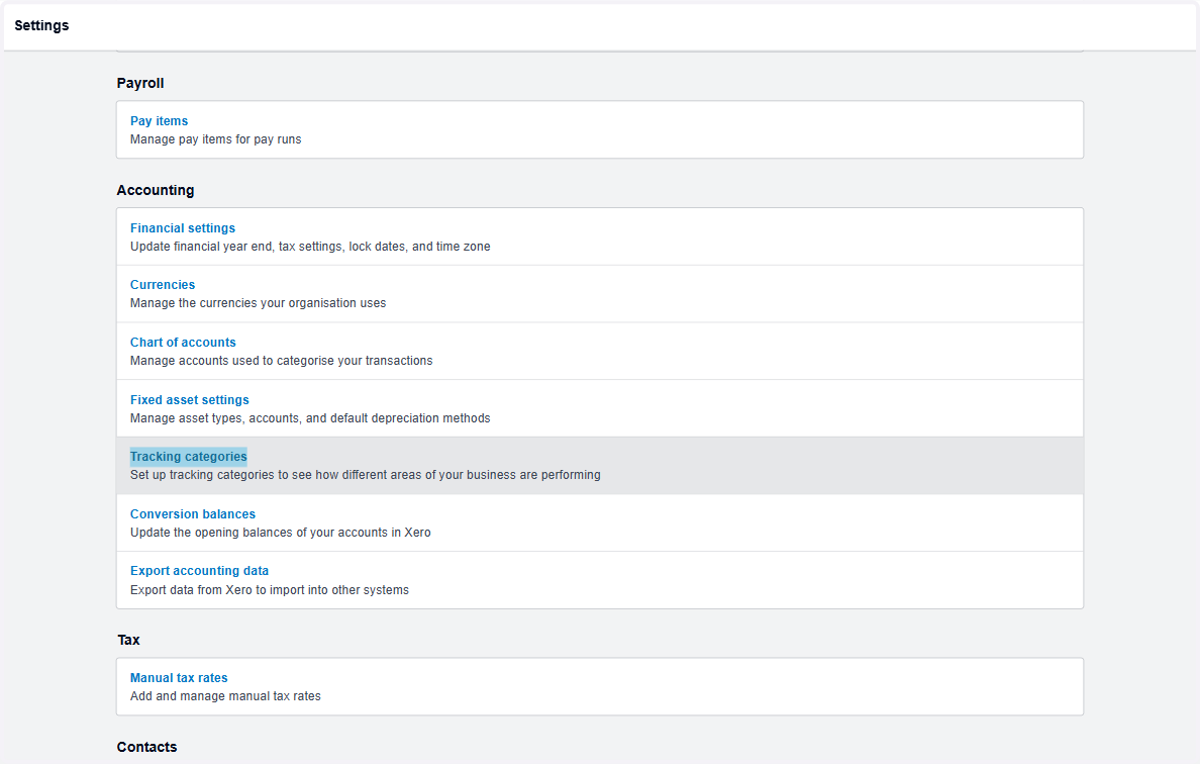
29. Click on Add Tracking Category
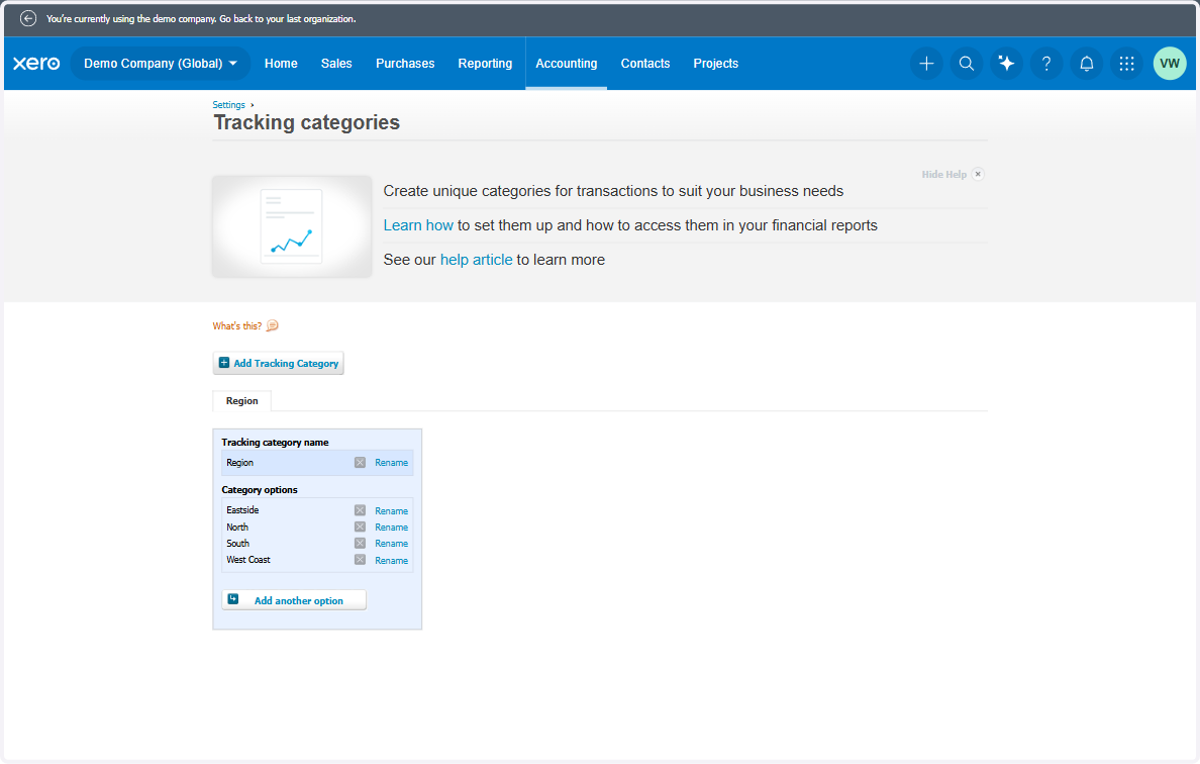
30. Type any tracking category name. Example: "Club Name"
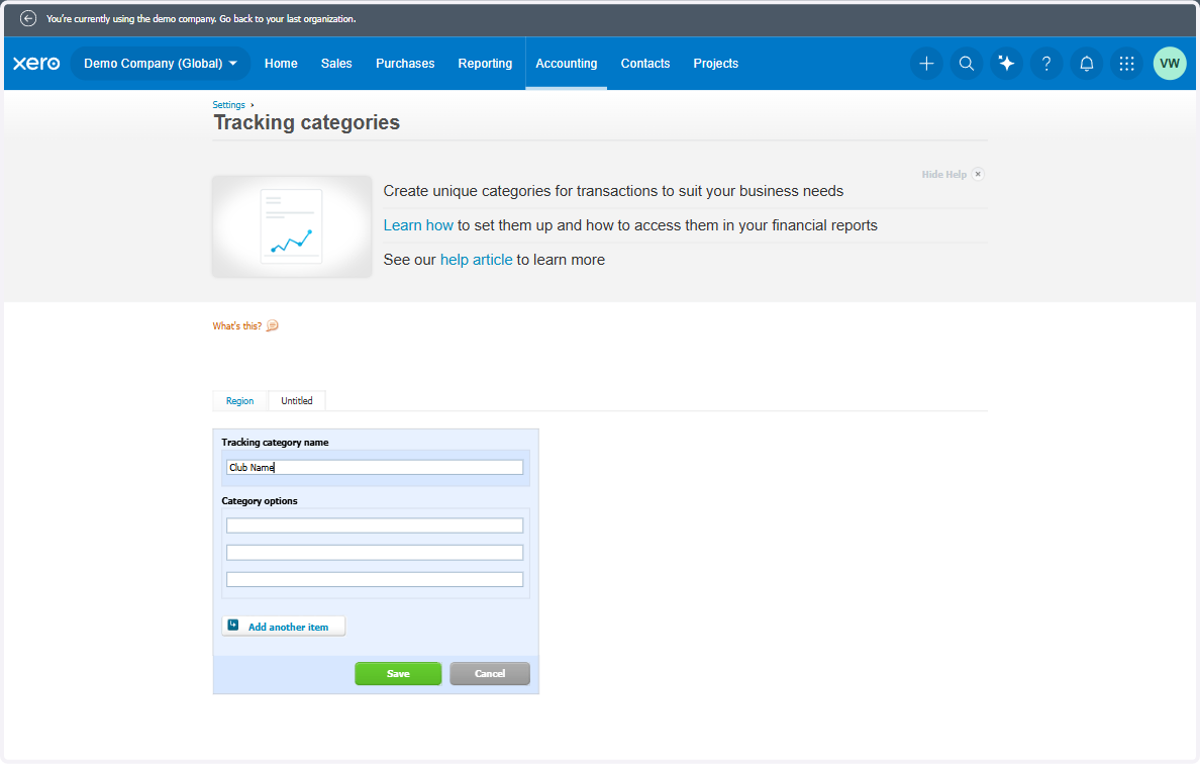
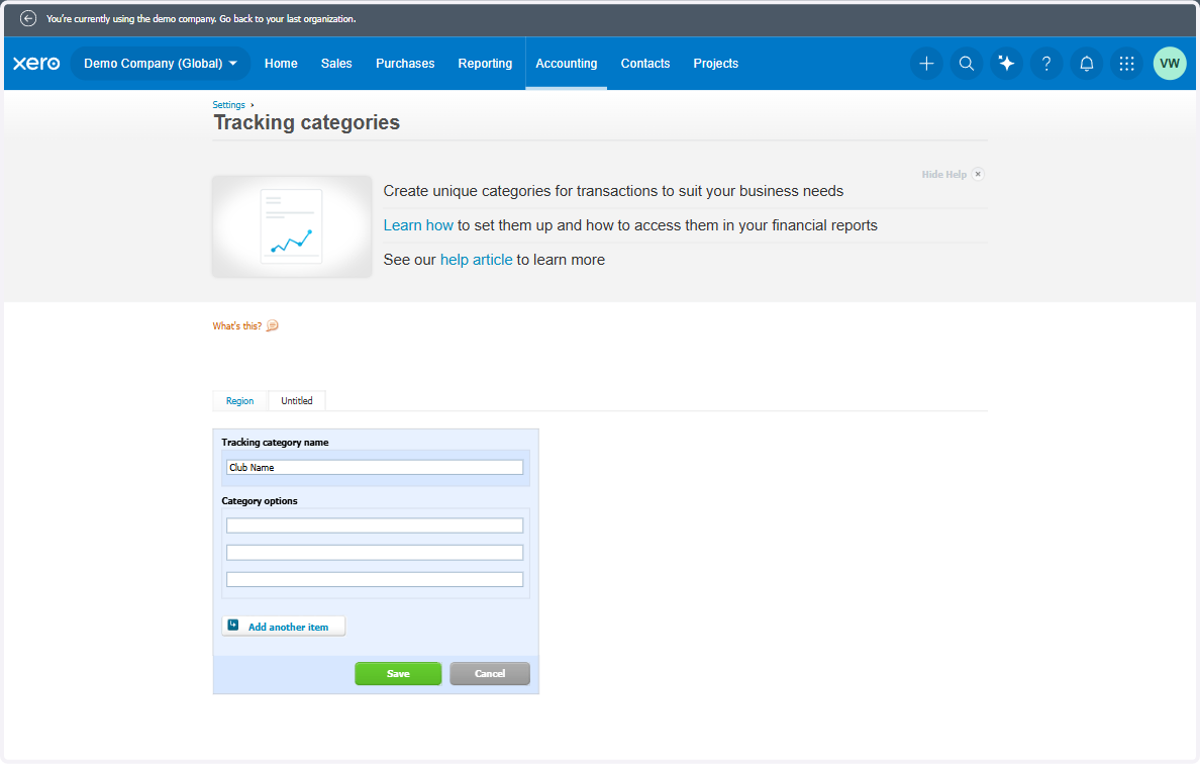
31. Click on Save
32. Type "tax"
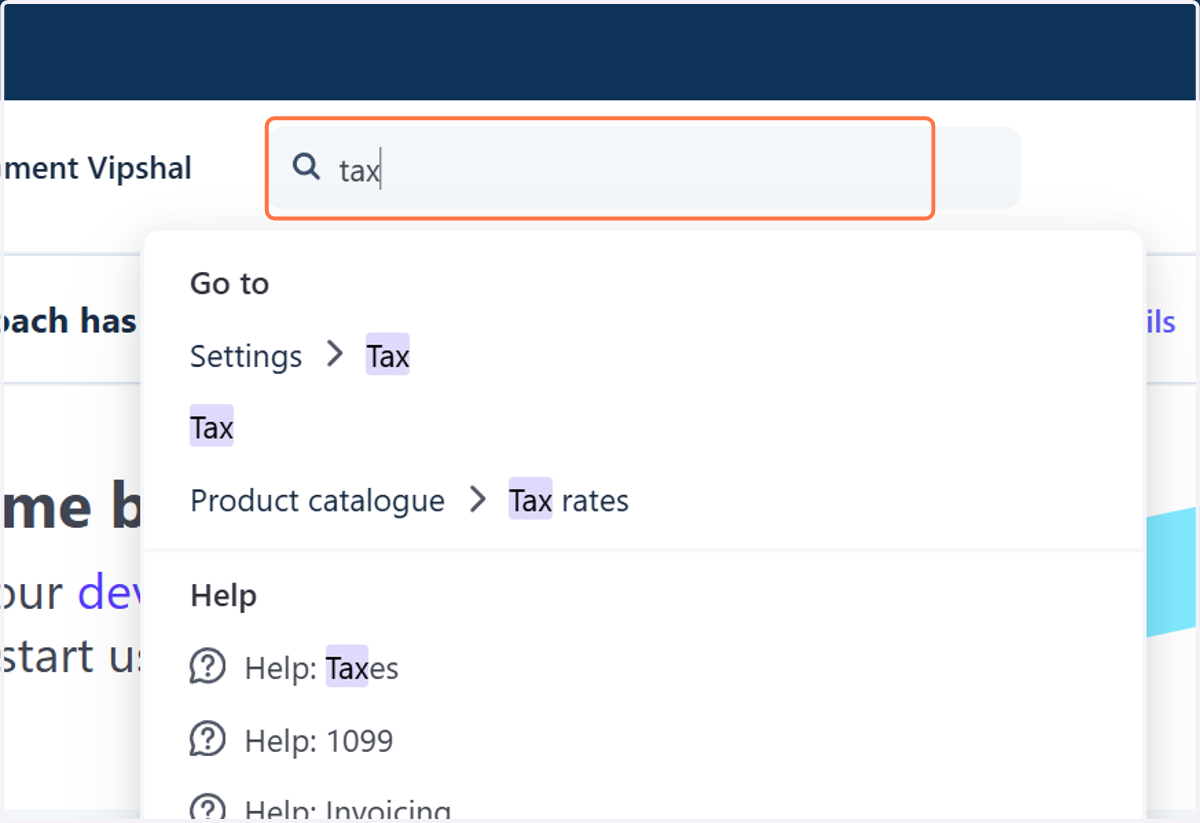
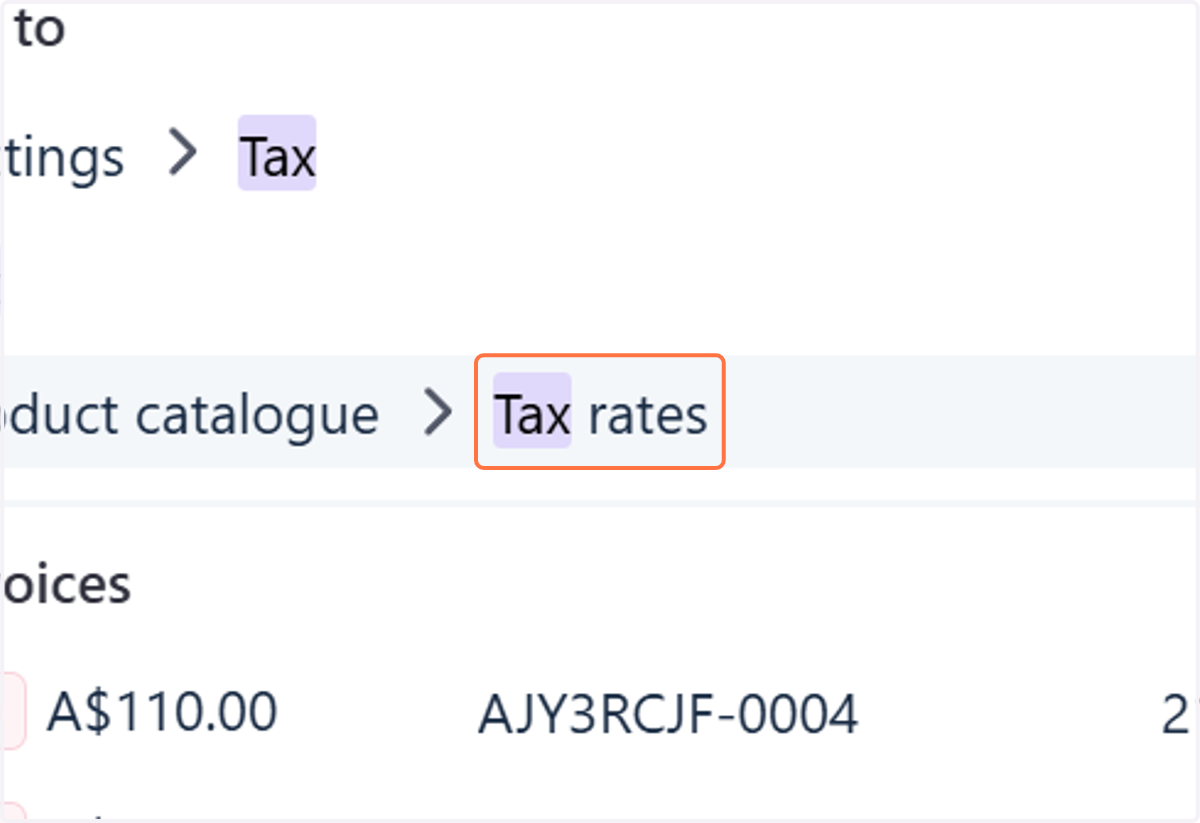
33. Click on Tax rates
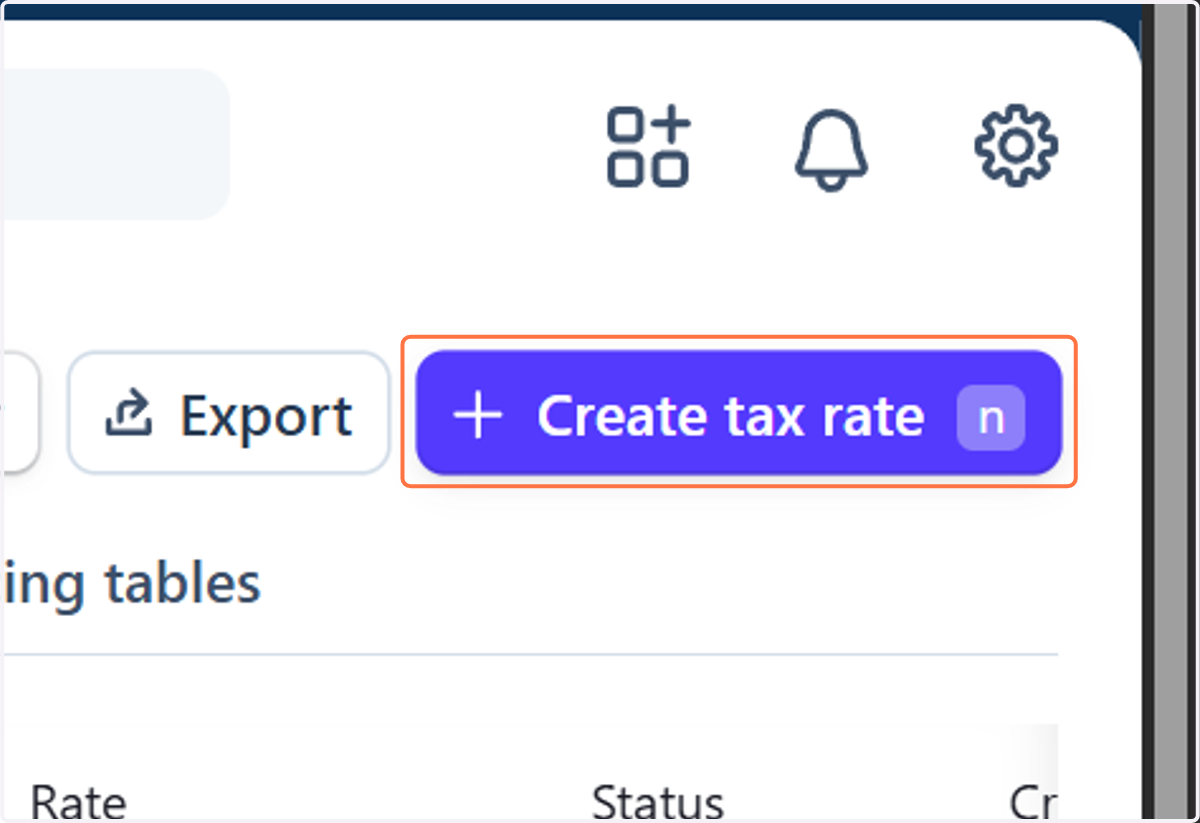
34. Click on Create tax rate
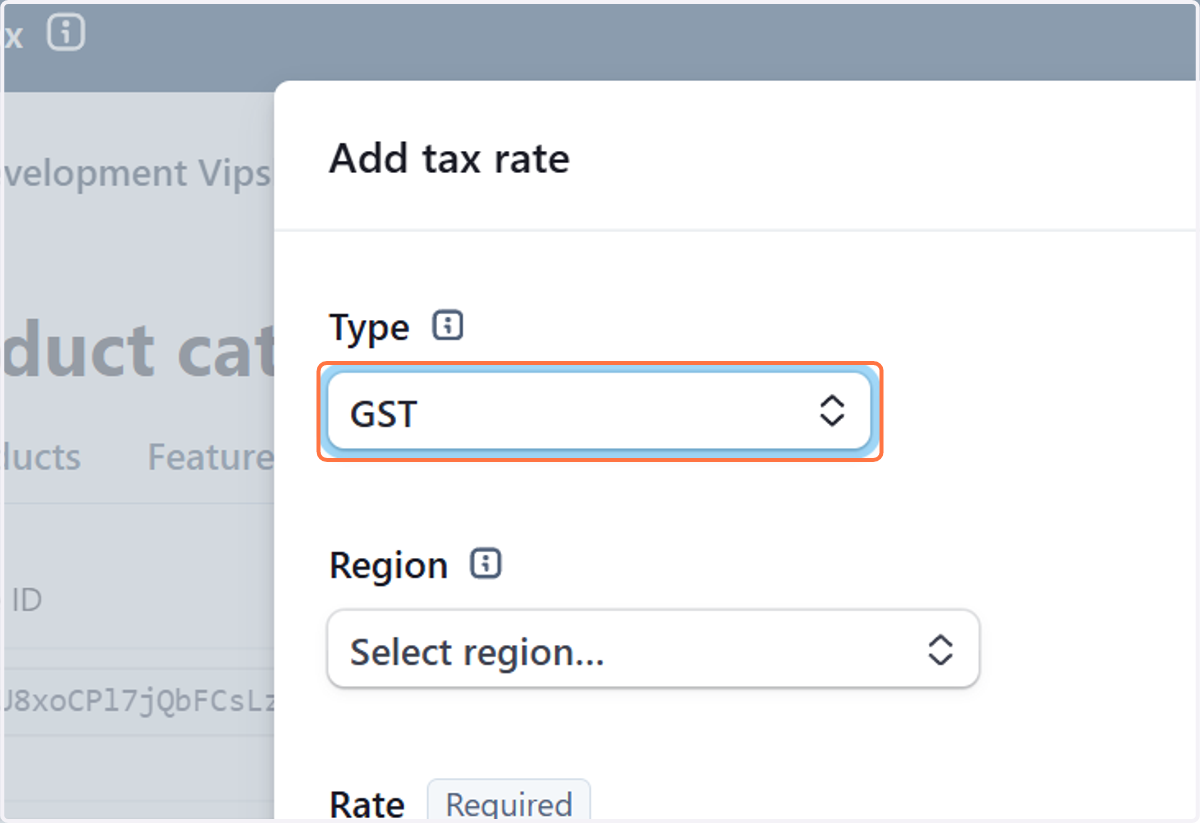
35. Select Your tax Type
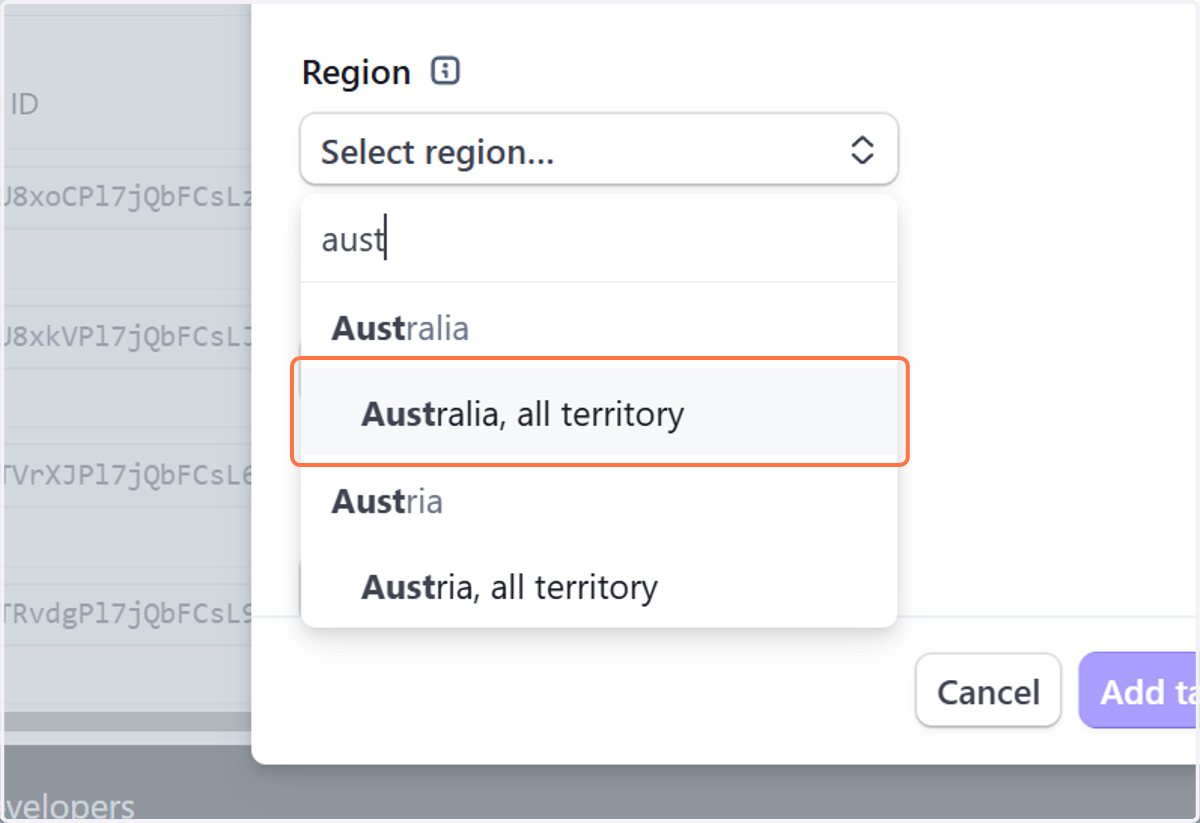
36. Click on Select region…
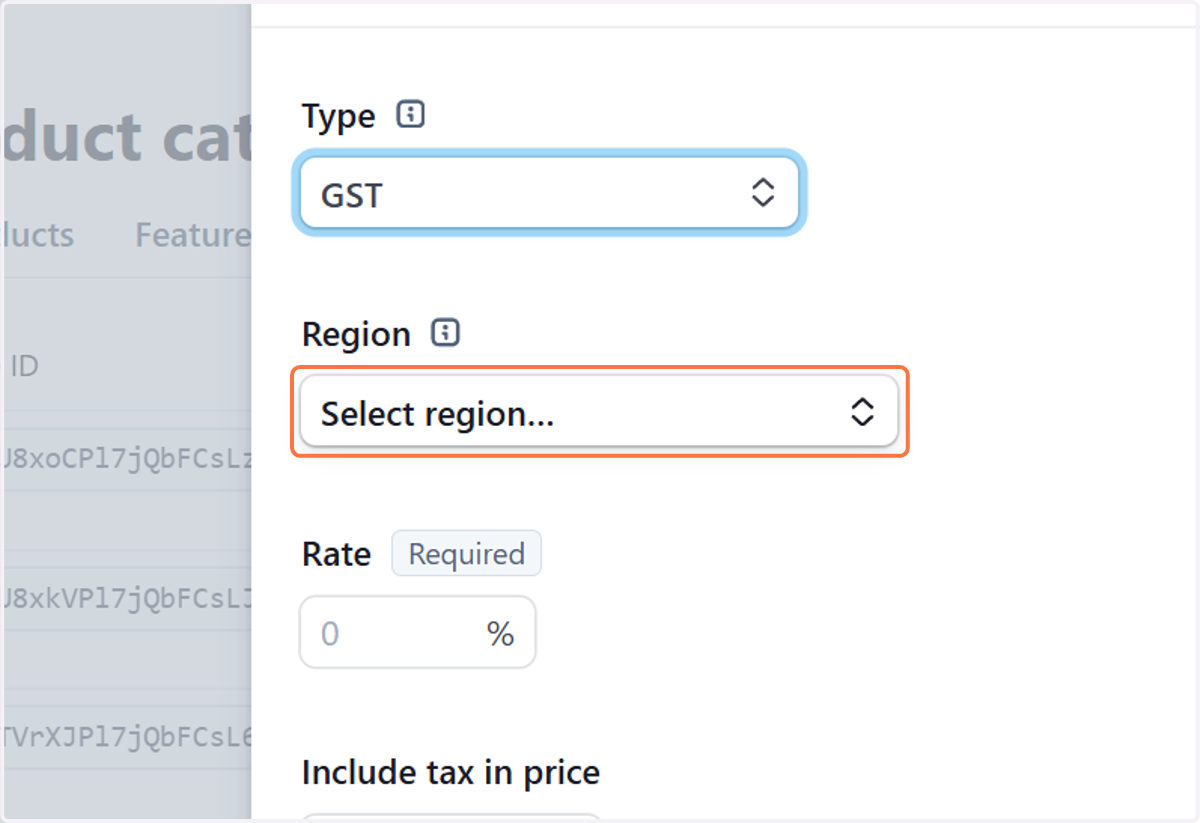
37. Click on Australia, all territory
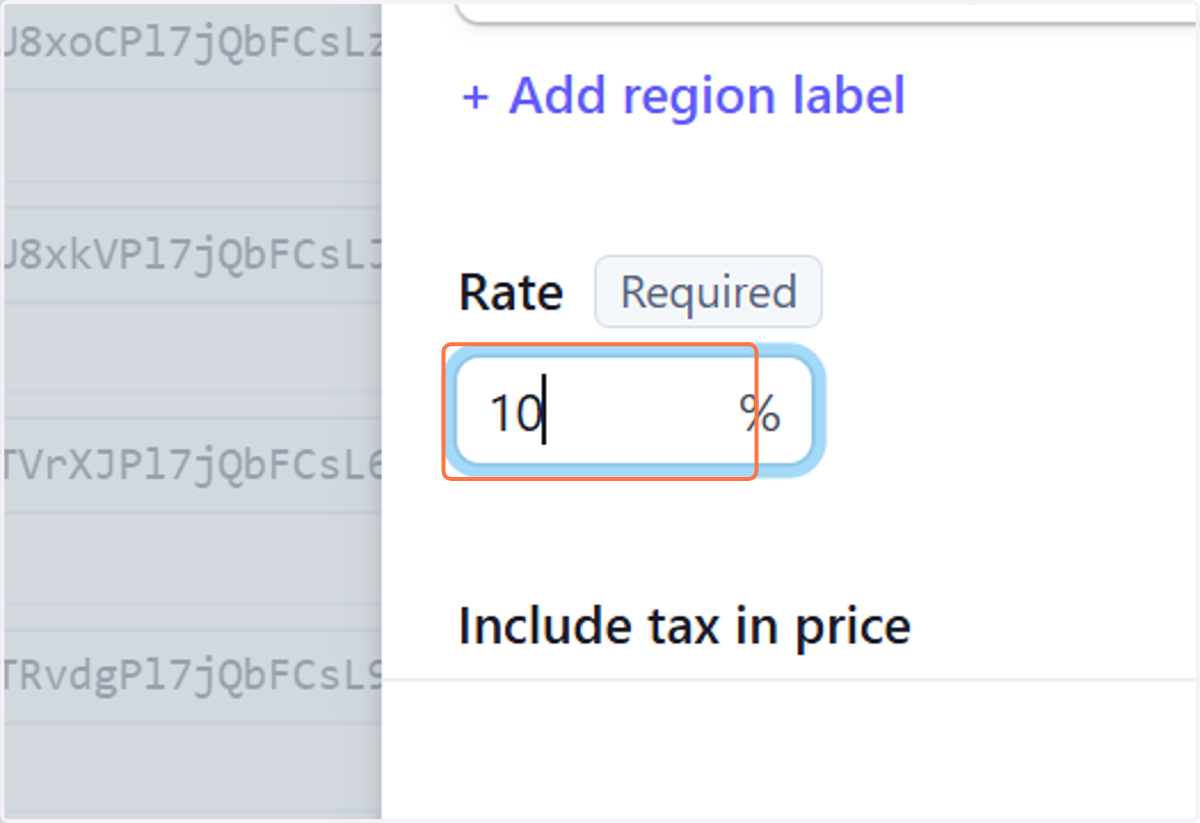
38. Apply your tax percentage. Example: 10 % GST
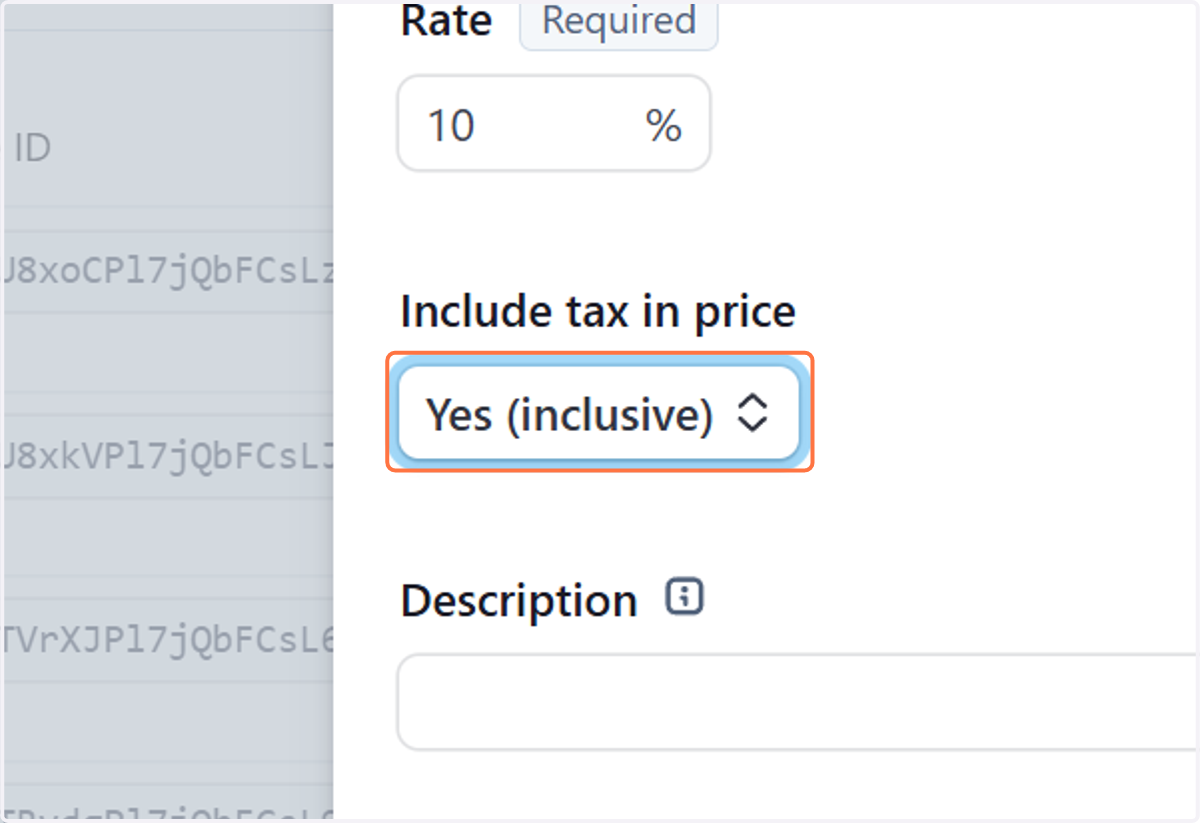
39. Select inclusive or exclusive
40. Click on Add tax rate