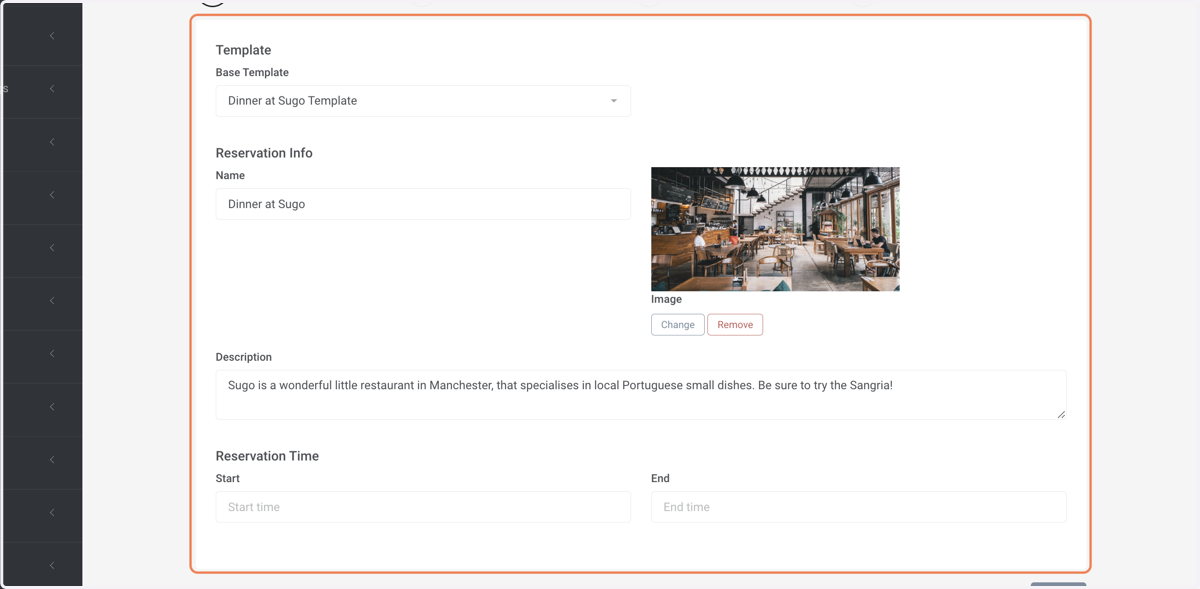
Concierge - Creating a Concierge Reservation Template
Concierge reservation templates streamline the process of booking common services, activities, or special requests for members. By creating templates, you can save time, ensure consistency, and provide a smooth, personalized experience.
Pacesettertechnology
1. Go to Pacesetter Technology
2. Click on Concierge
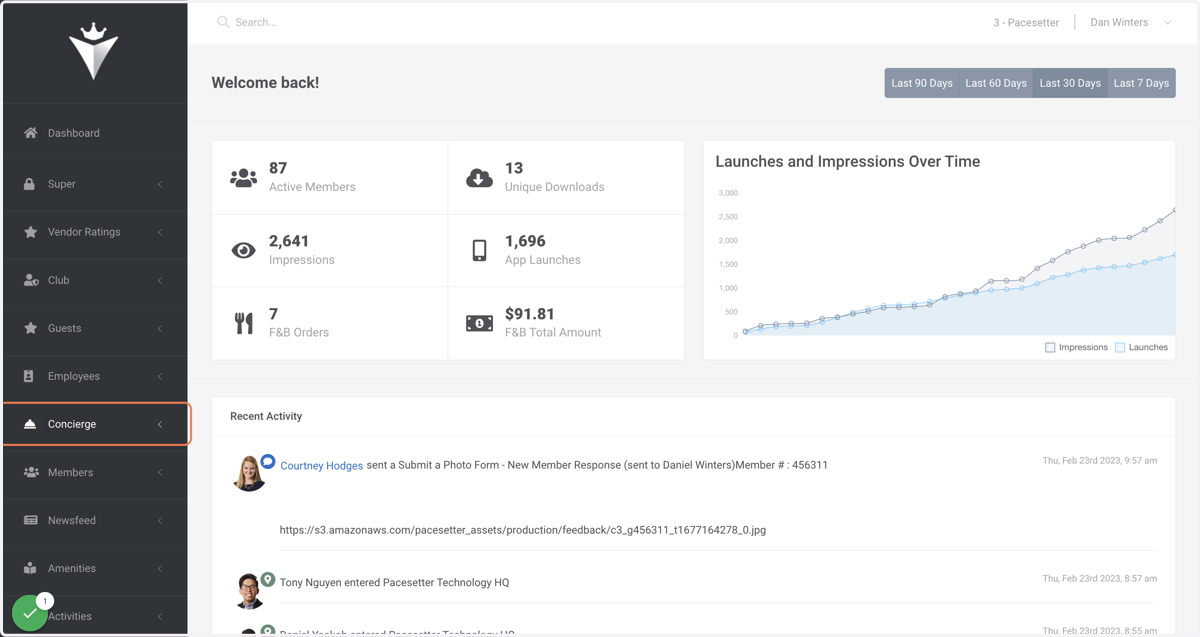
3. Click on Templates
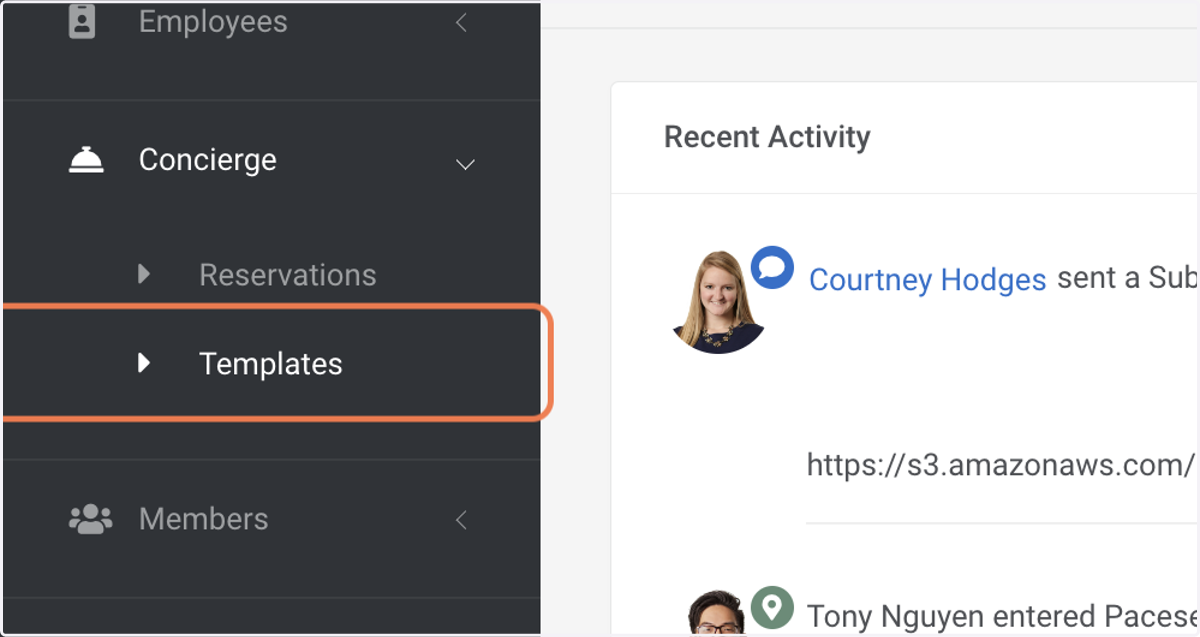
4. View Templates
Here you can see an overview of all your previous templates.
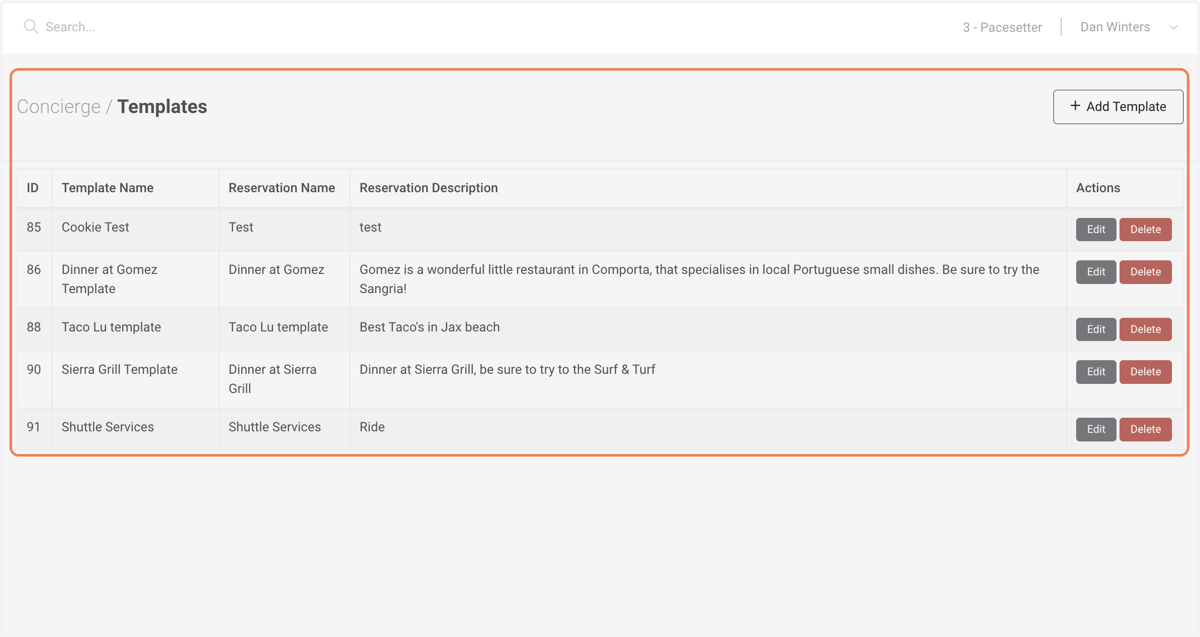
5. Click on "+ Add Template"
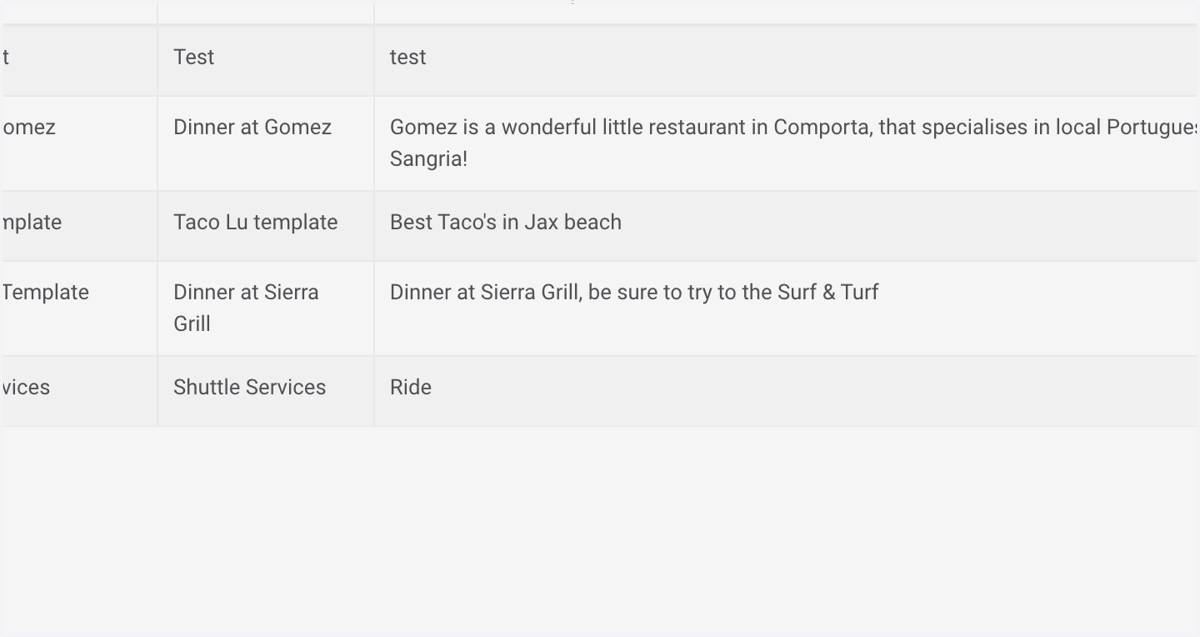
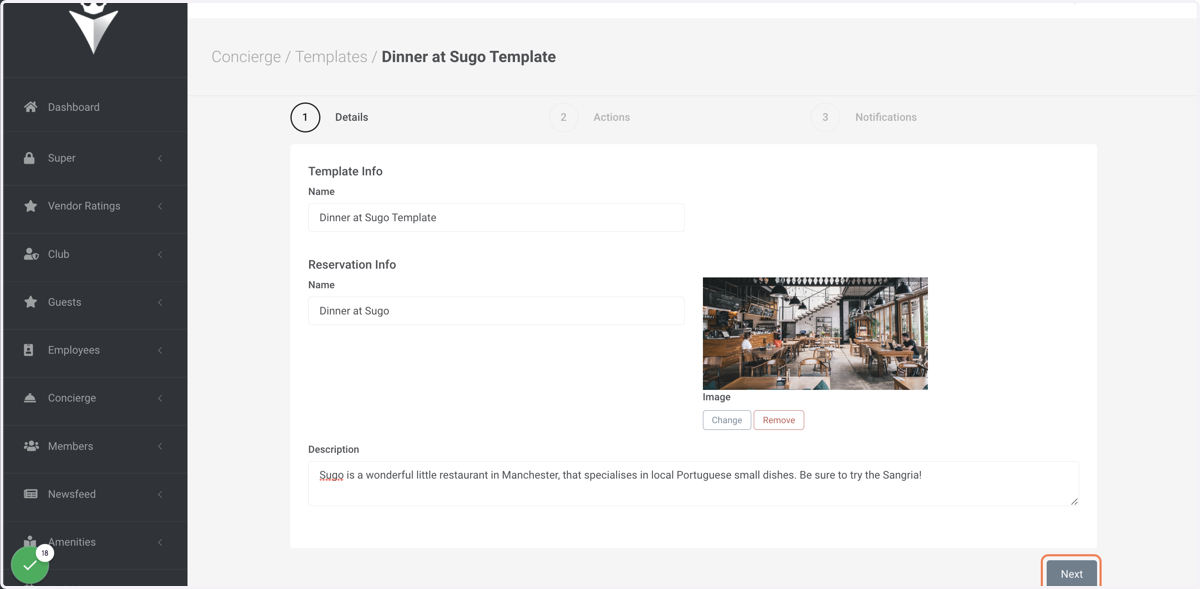
6. Enter the template name
This is only viewable for the club admins.
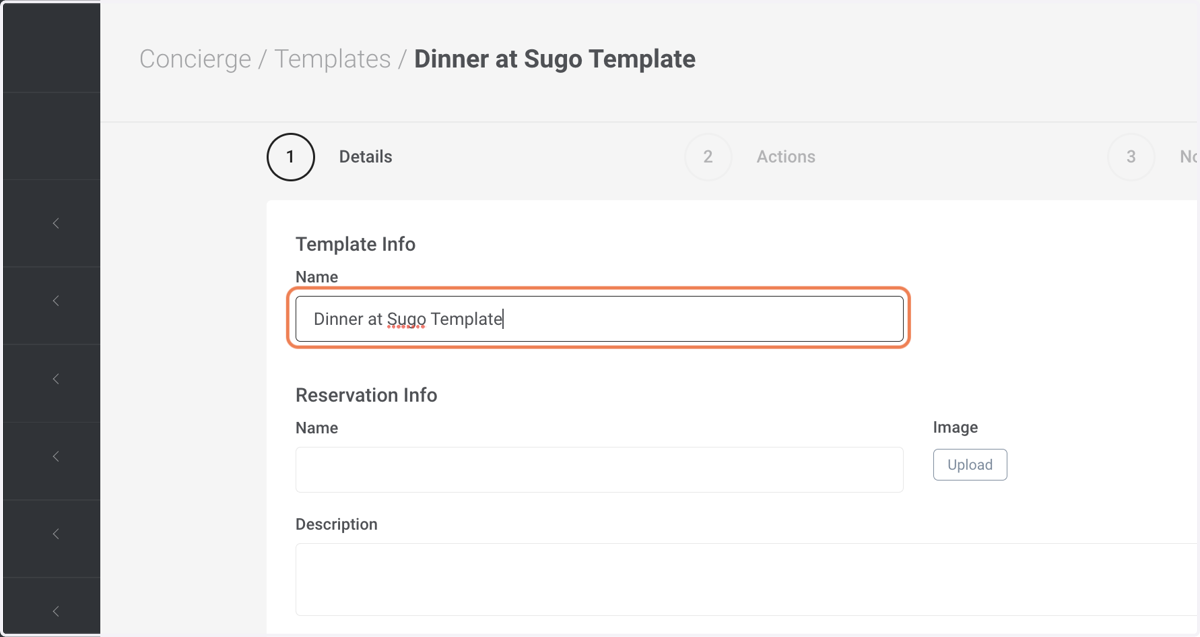
7. Enter the name of reservation
This information will be the name that members see. It can also be edited later!
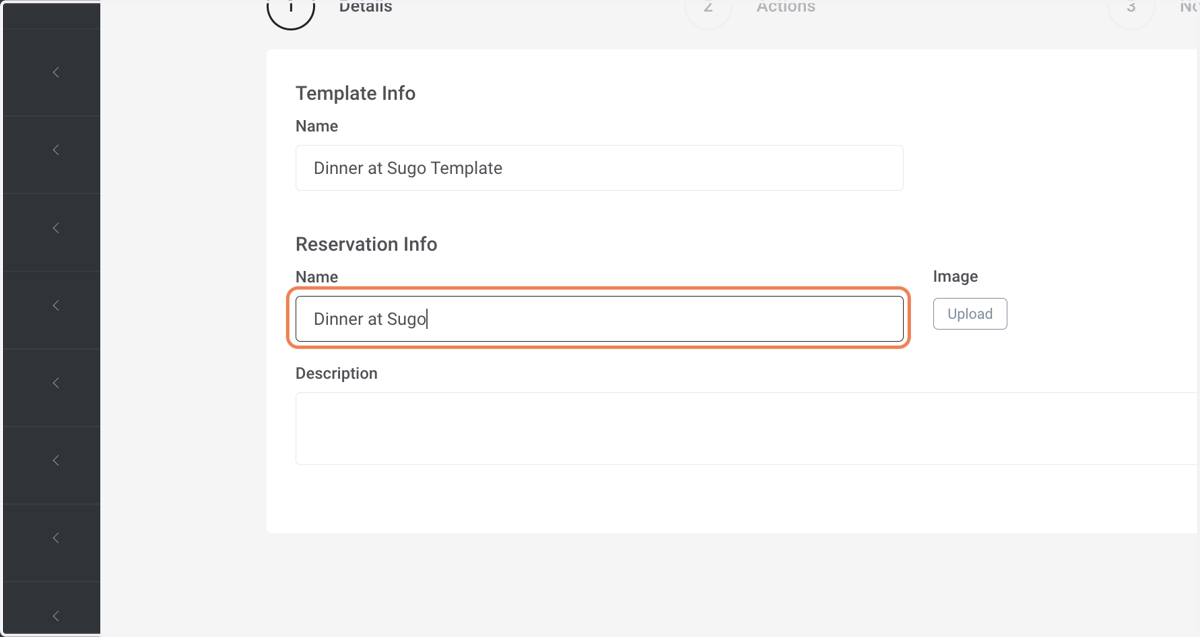
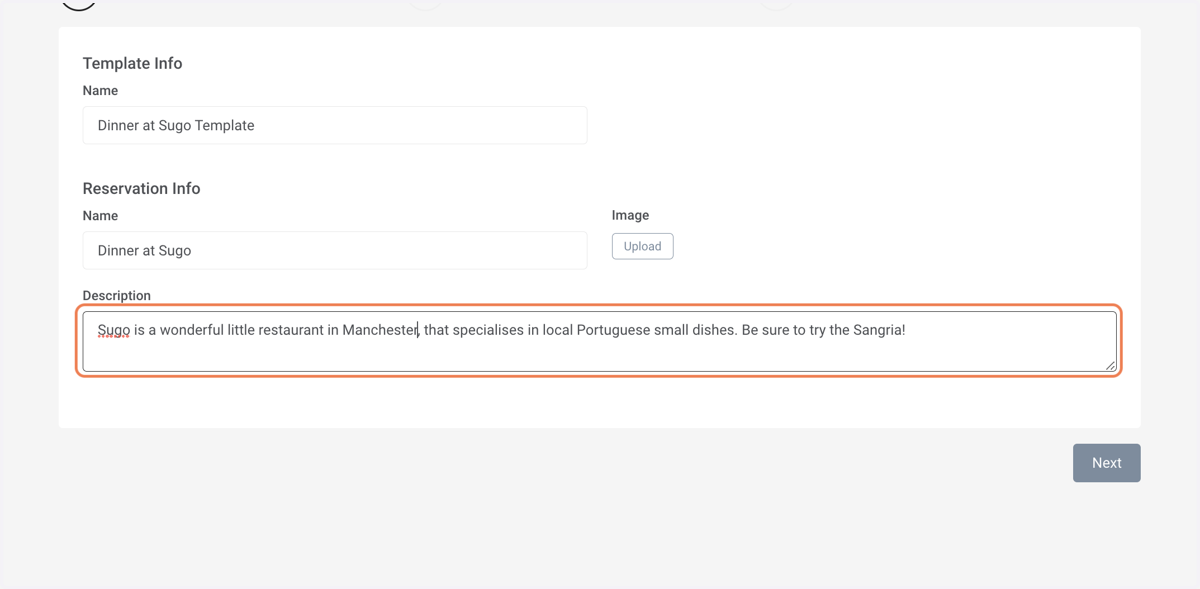
8. Type a reservation description
This will be viewable by the member when they view the reservation in their app, it can also be edited for each individual booking!
9. Upload an Image
Click Upload to add a banner image to the reservation.
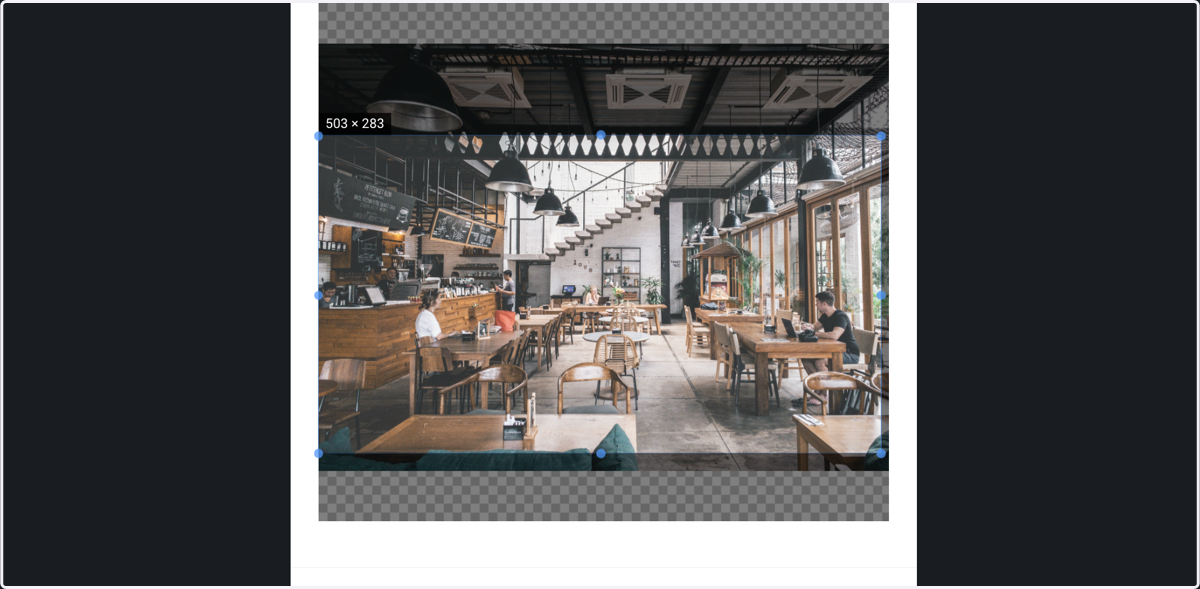
10. Crop Image
Once you have selected an image, crop it to fit.
11. Click on Save
12. Click on Next
13. Enabling Cancellations
If you do not want members to cancel you can skip this stage.
If you want members to be able to cancel reservations in the app, tick the box "Allow Member to cancel reservation?"
The cancel type should be In App.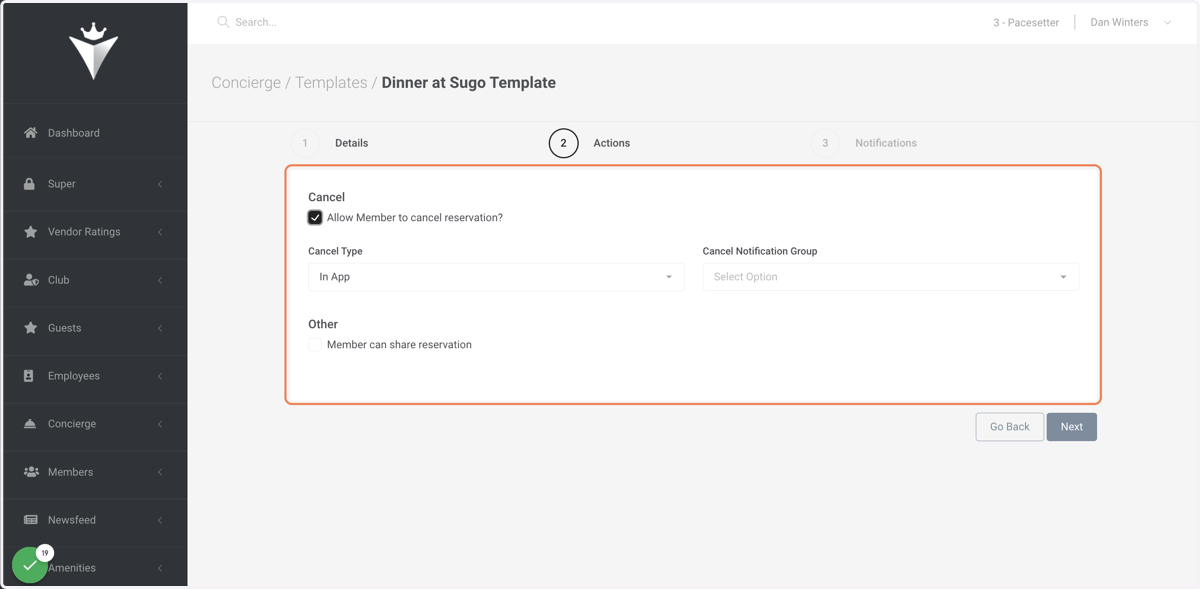
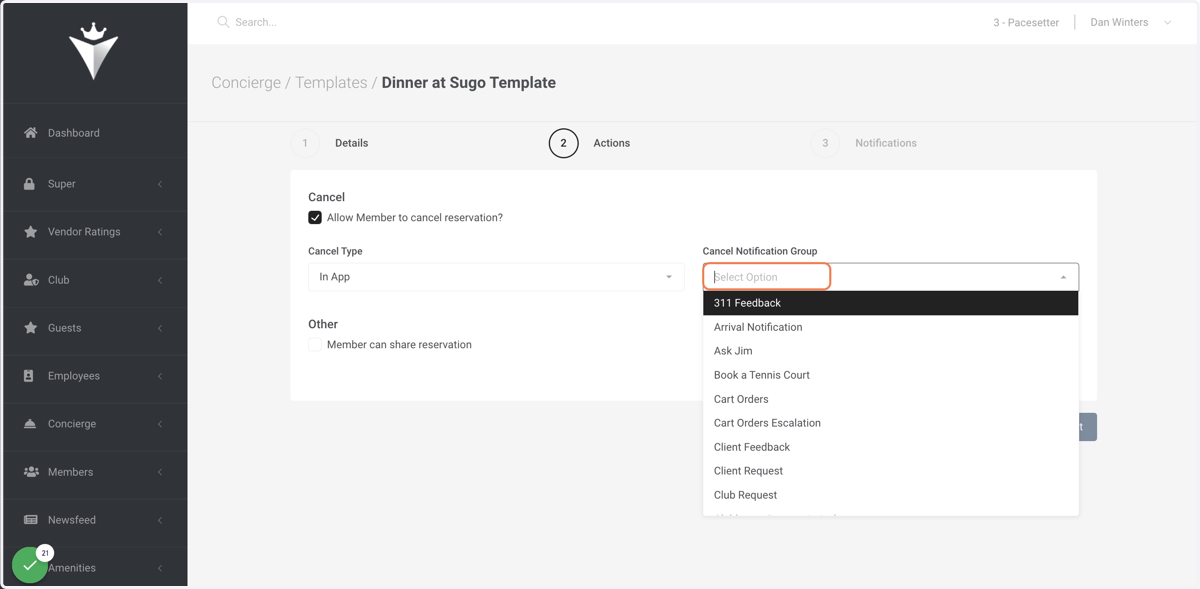
14. Staff cancellation notifications
You can use the "Cancel Notification Group" dropdown to select which admin receives a notification when a member cancels
15. Enabling reservation sharing
This stage is optional.
If you want members to be able to share the reservation with others tick the "Member can share reservation" box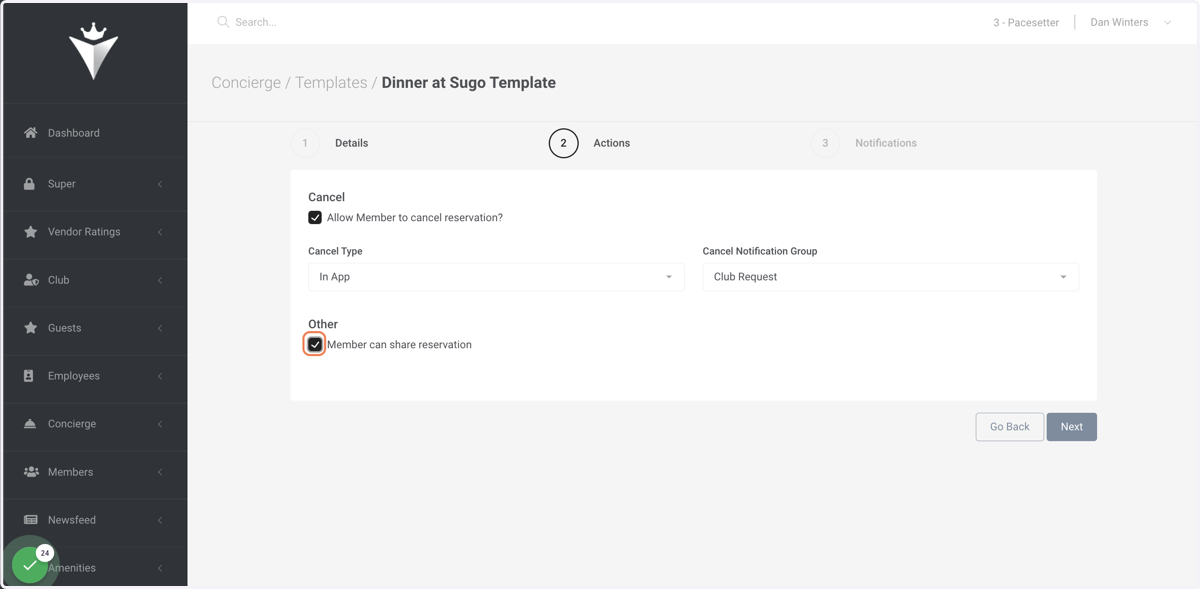
16. Click on Next
17. Member Notifications
This stage is optional.
This page allows you to decide what notifications members receive regarding their reservation.
Tick the boxes to match the notifications you would like members to receive regarding their reservation.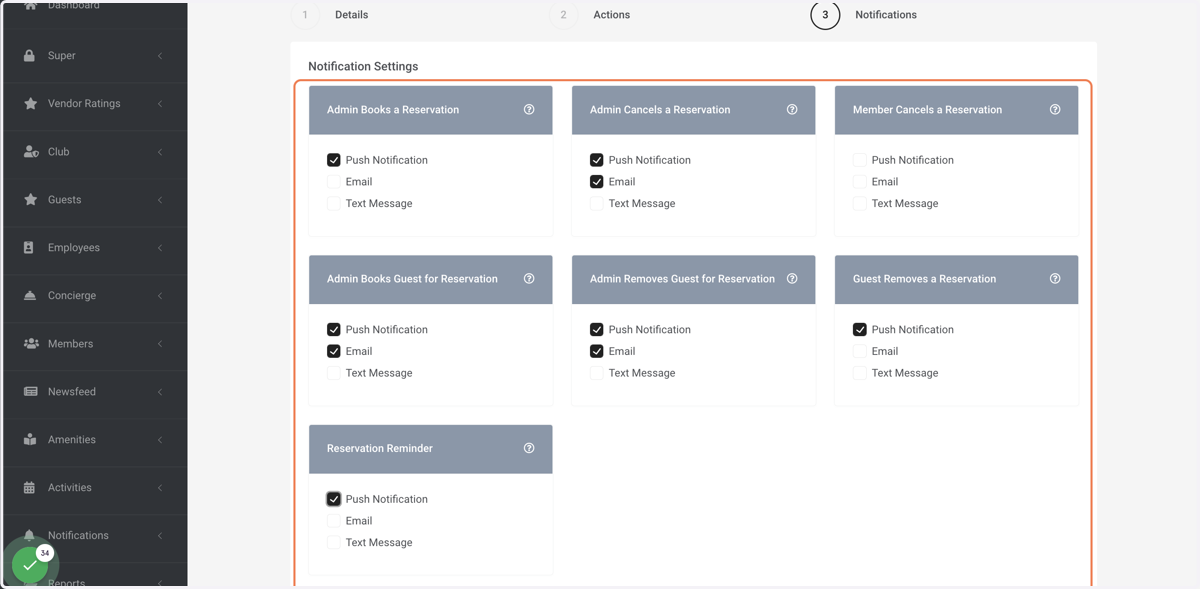
18. Reminder Notification
You can now decide when a member receives a reminder notification via the app.
In this case the member receives a push notification reminding them of their reservation 1 day before the event.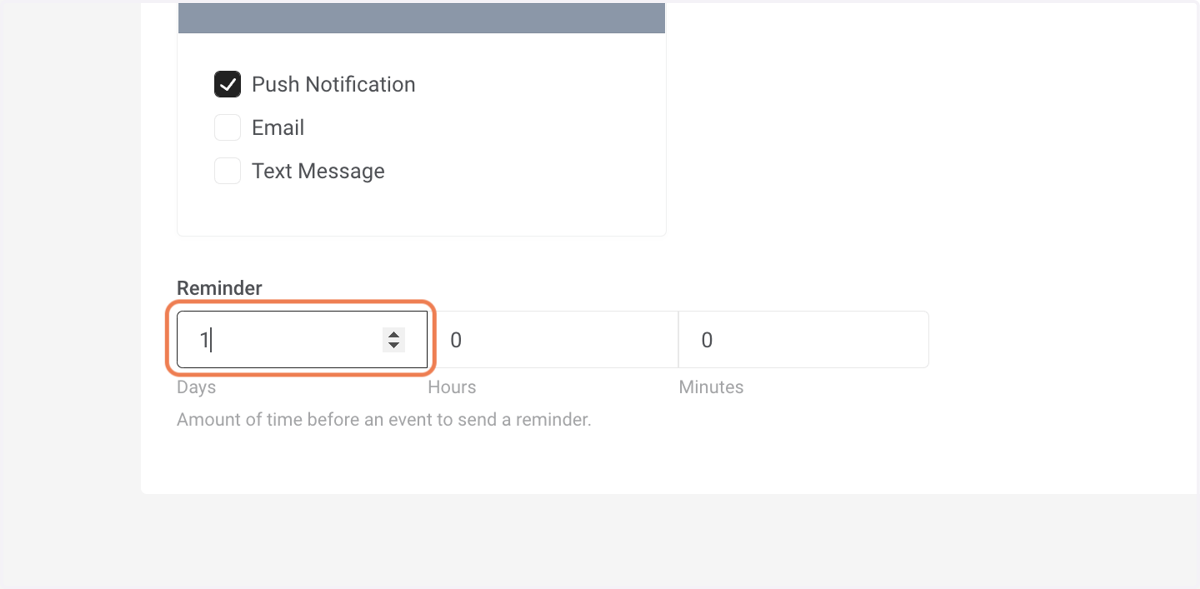
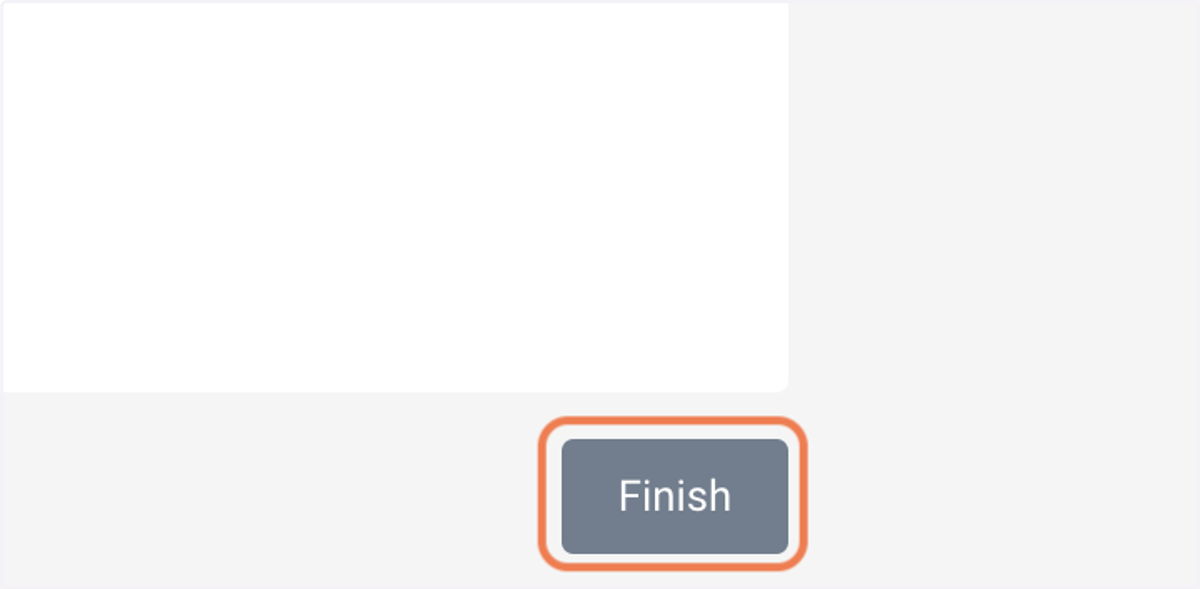
19. Click on Finish
20. How to use Template
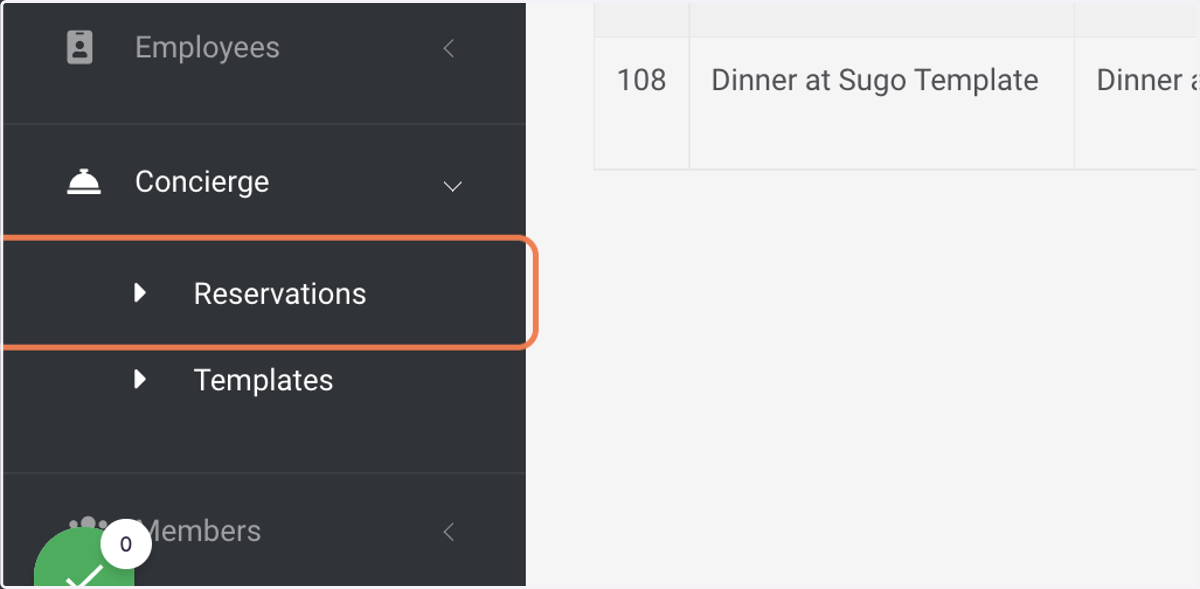
Click on Concierge, Reservations
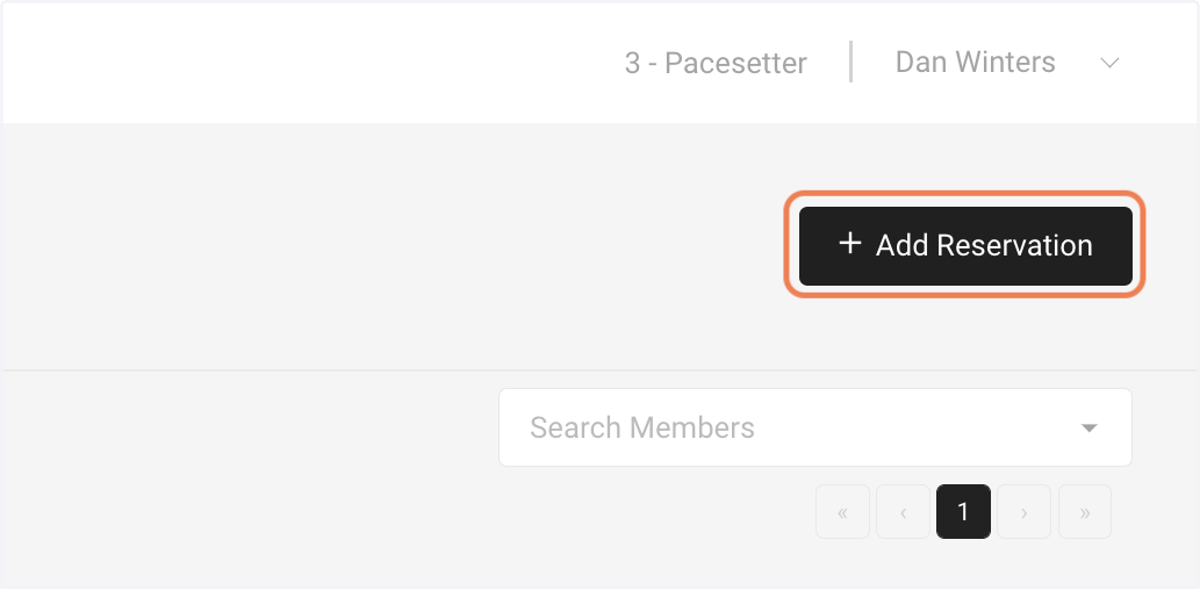
21. Click on "+ Add Reservation"
22. Select the Template
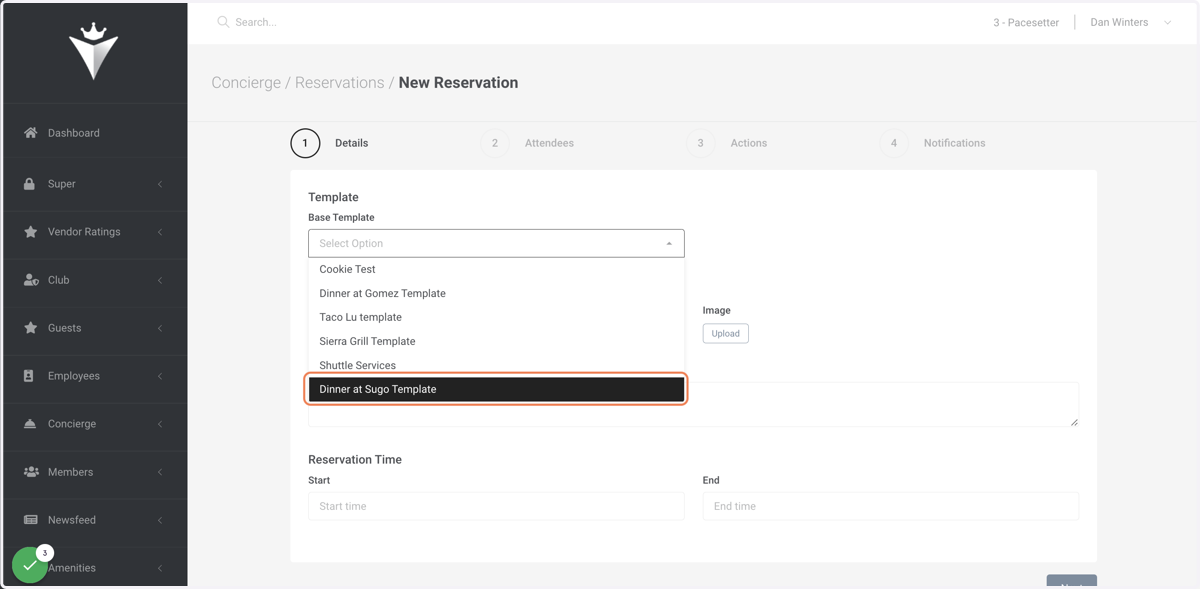
23. Done!
All the information you just filled out is now applied, you can edit all of the information to make it more specific for the member and this particular reservation if needed.