Completing a "Request to Stay" Form
Log on to your StarRez Student Portal.
Go to my.fairfield.edu and log in with your NetID and password
Enter "StarRez" in the search bar
Selecter StarRez Student Portal
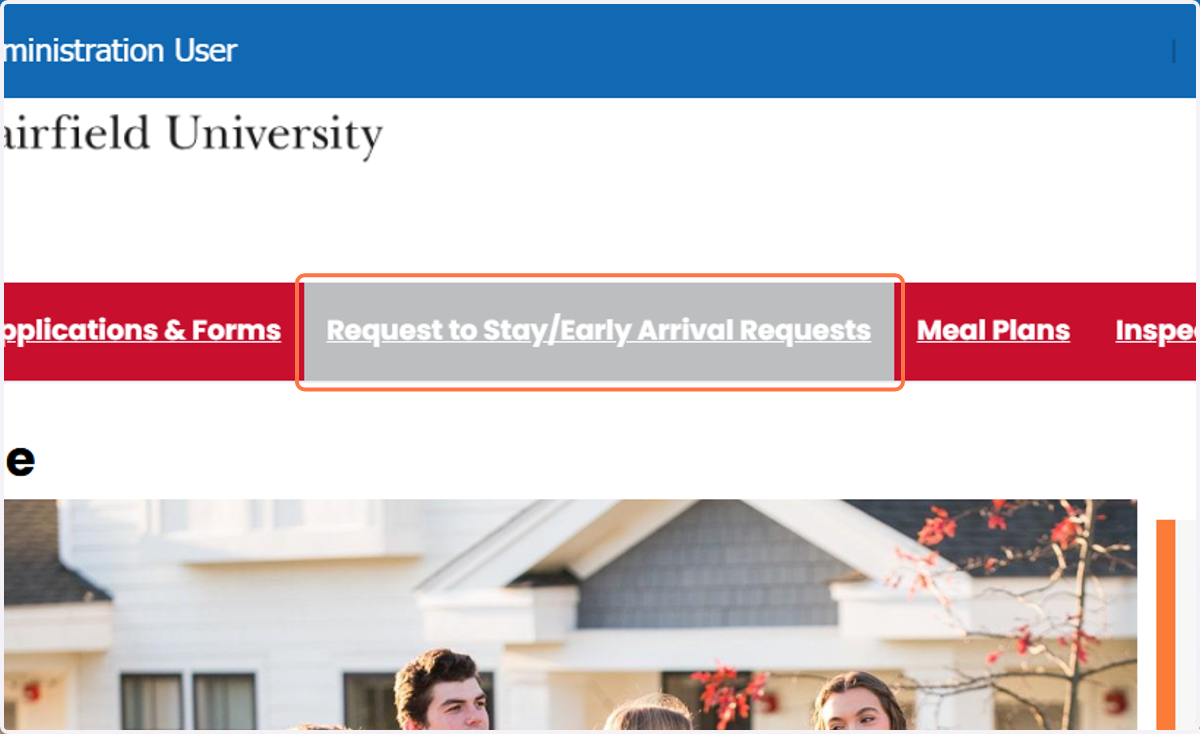
1. Once on the StarRez Student Portal homepage, click on "Request to Stay/Early Arrival Requests" at the top of the page.
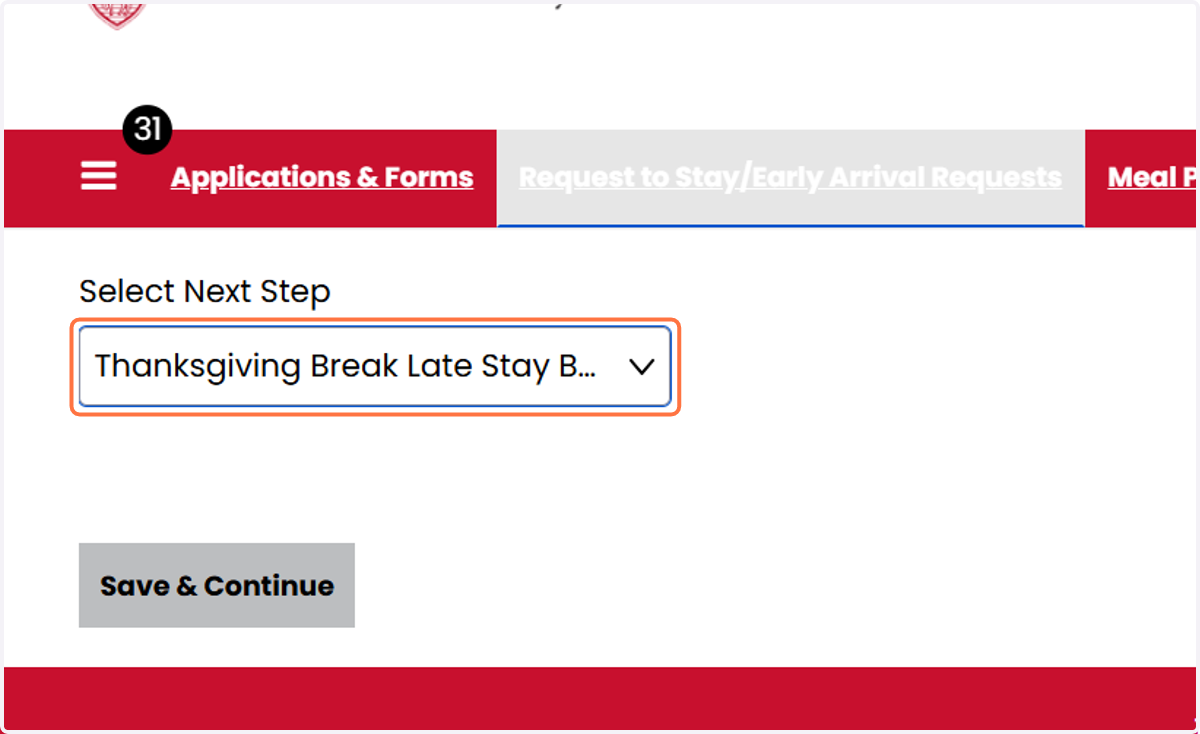
2. In the dropdown, select the request form you would like to complete.
Note, some request forms have been disabled and you may only be able to complete an active request form.
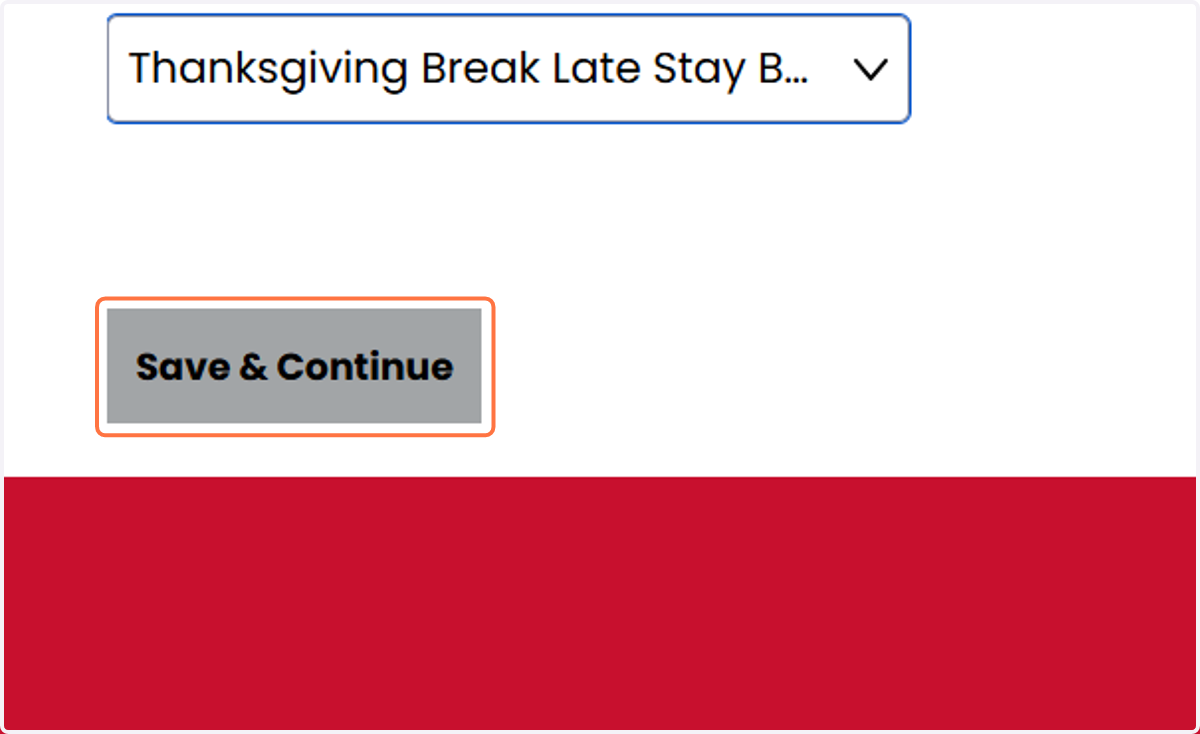
3. Click on Save & Continue
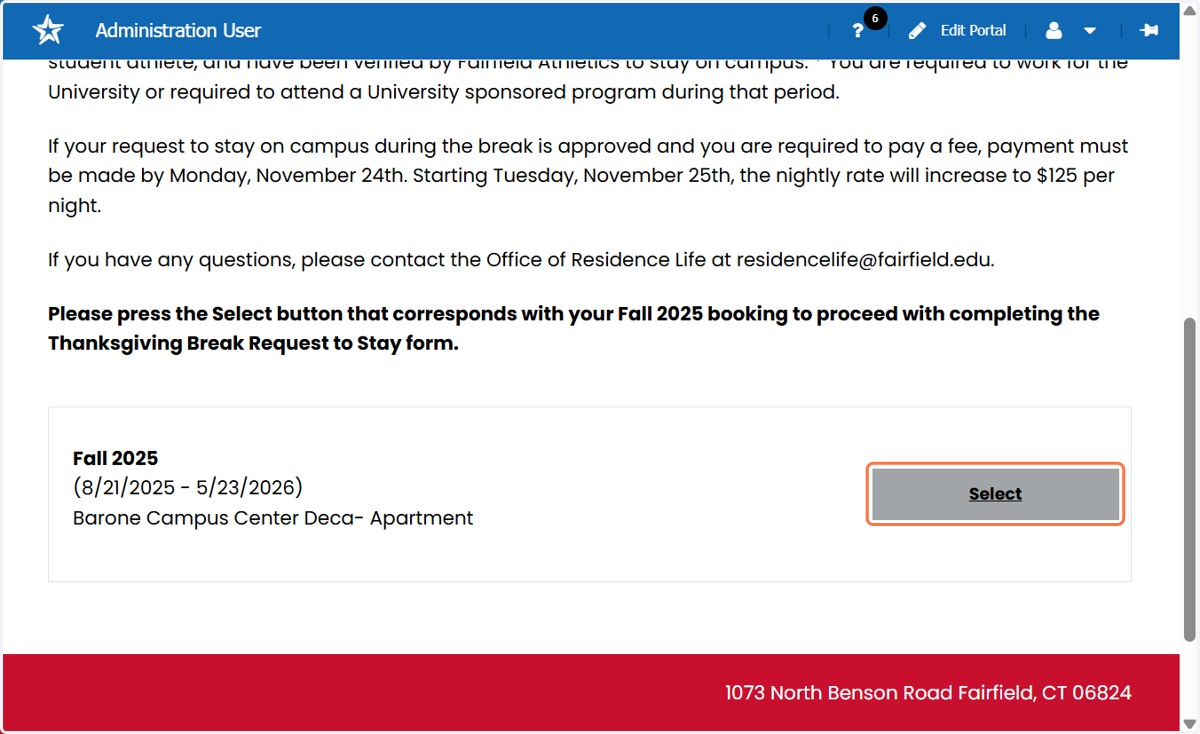
4. On the Booking Selector page, review the information provided, and if you do not have any questions press the "Select" button that corresponds with your Fall 2025 booking/assignment.
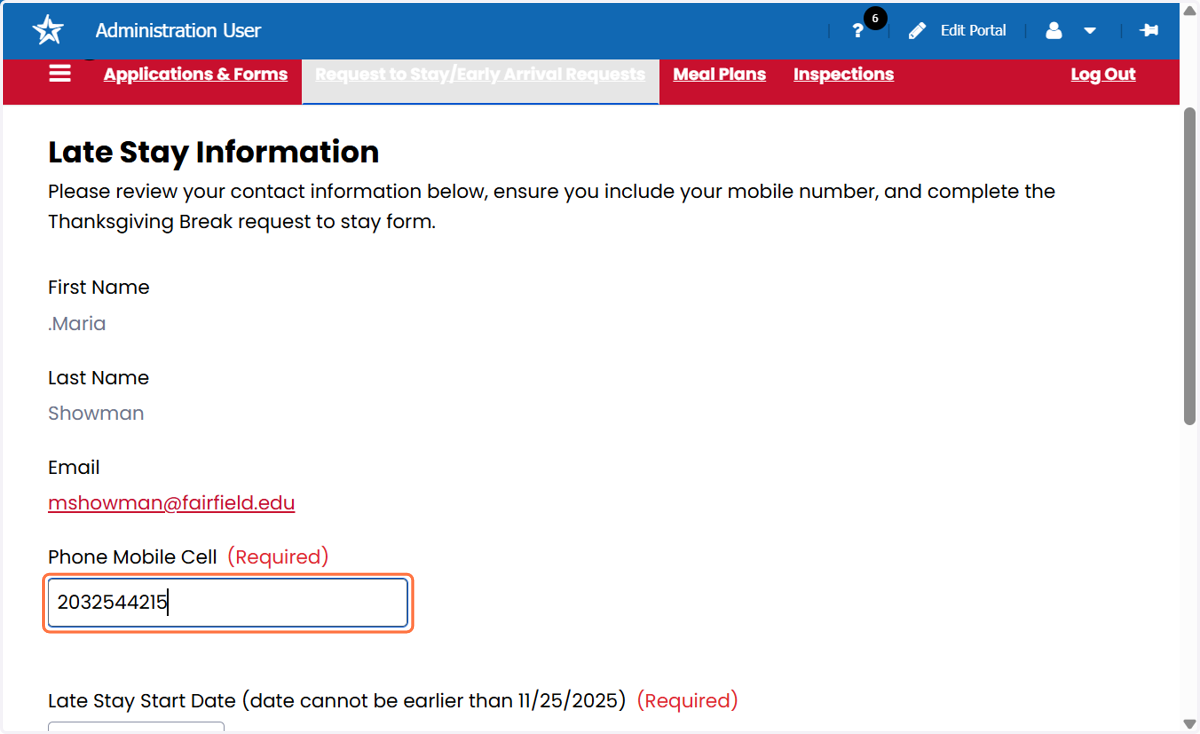
5. On the Late Stay Information page, review your personal information, and enter, confirm, or update your mobile phone number so it's accurate. A mobile phone number is required to complete the form.
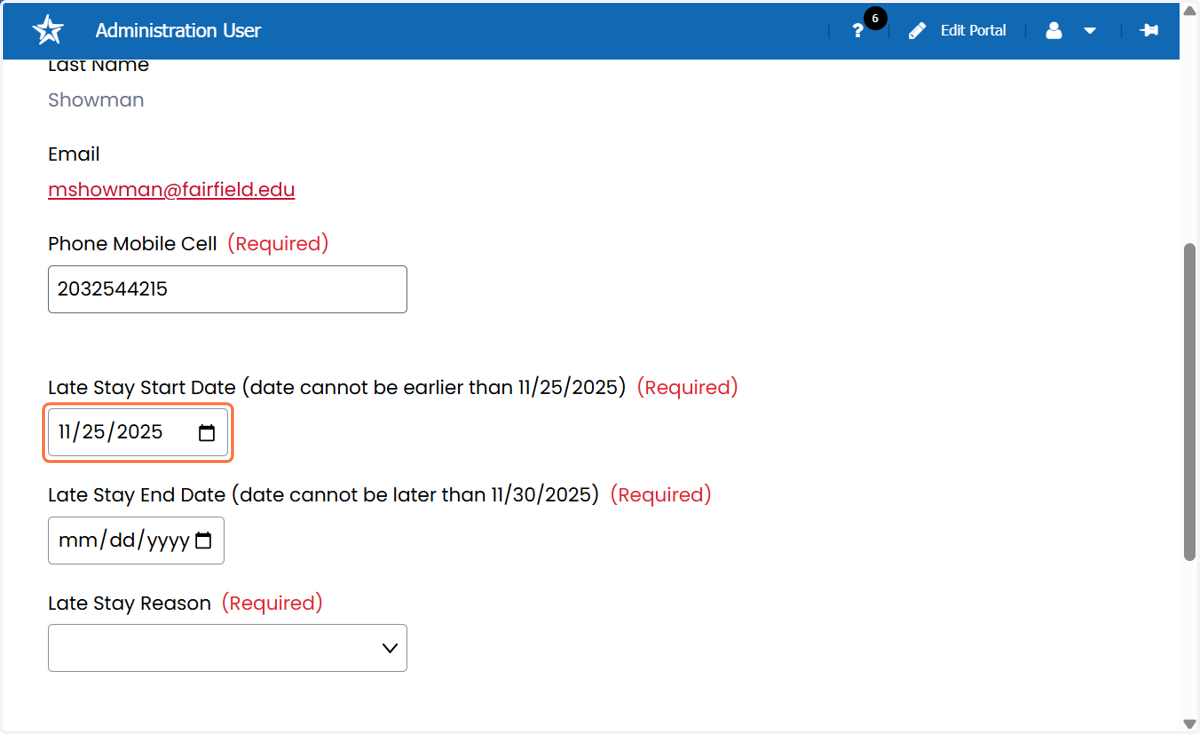
6. On the same page, complete the request form information. You must include a reason you are requesting to stay late as this will determine if you request can be approved and if you are required to pay a fee.
If you select "Other" as a reason, you will be directed to a page where you can provide more information.
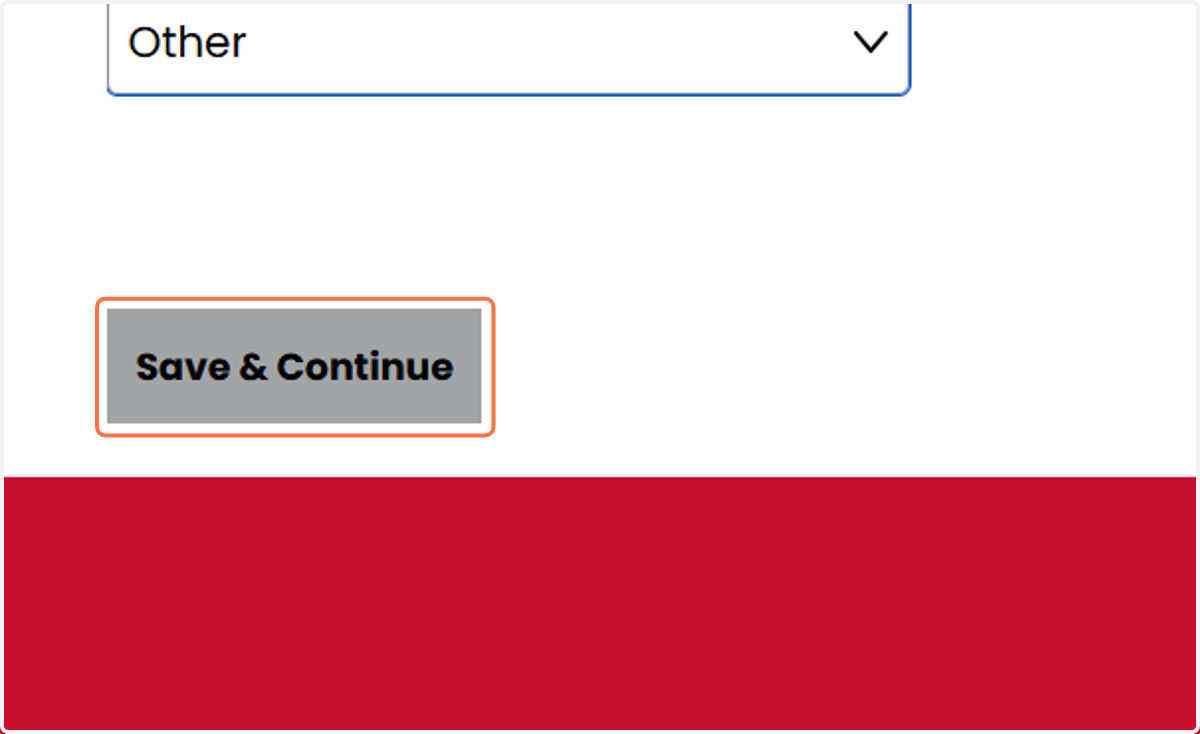
7. Once you have entered information for your request, click on Save & Continue
8. If you selected "Other" as the reason for your request, please add more details in the Other field if prompted. This information is required to complete your request.
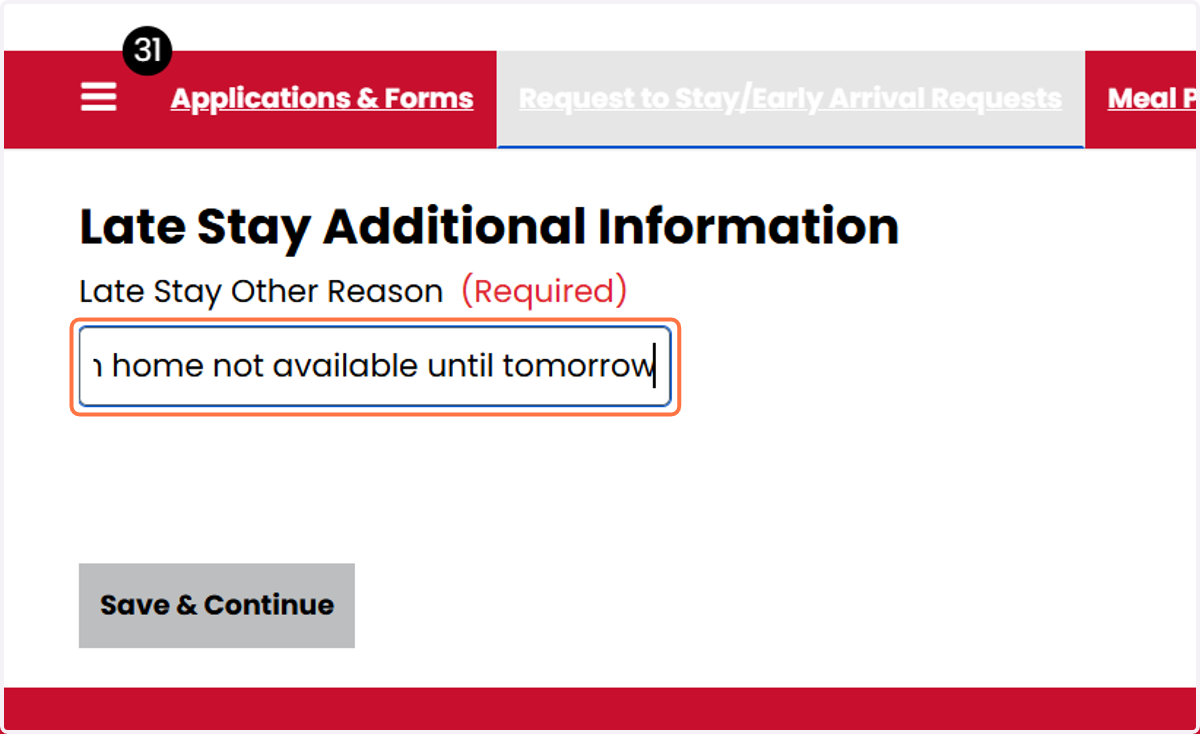
9. Click on Save & Continue
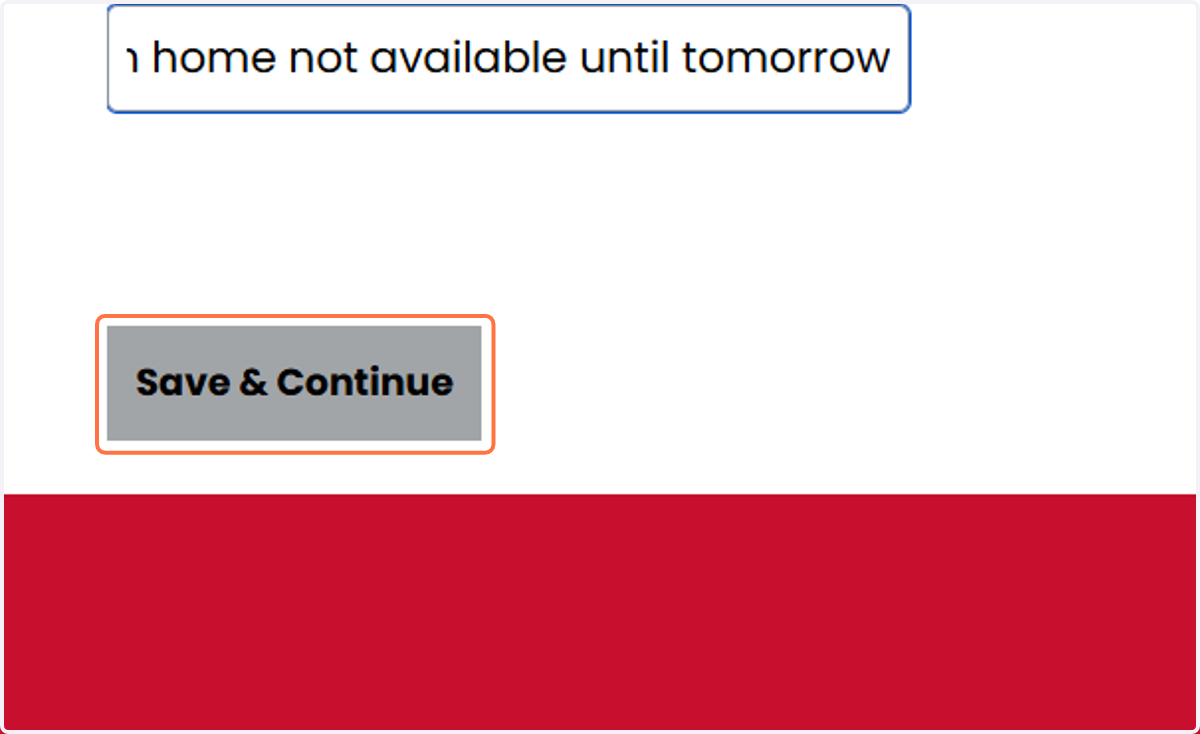
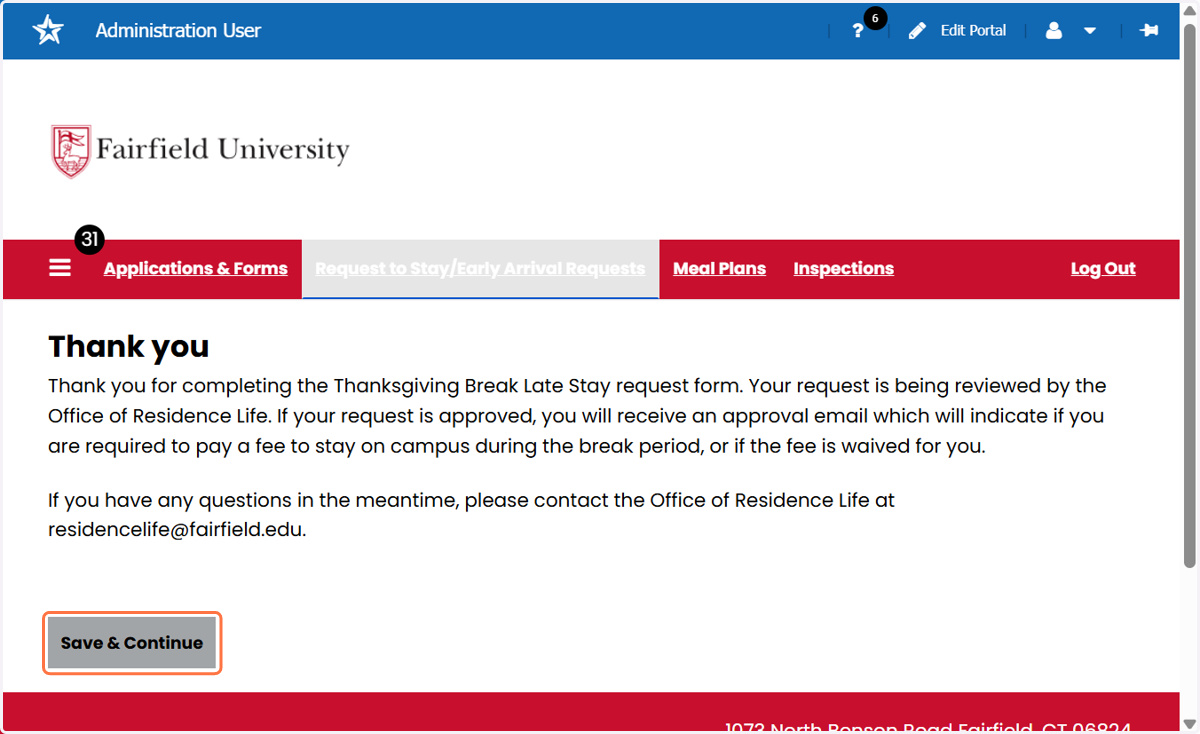
10. Your request form is now complete and pending review. The Thank You page will provide more information on what to expect, and you will also recieve a confirmation/thank you email.
You will receive an email if your request is approved, and the email will specify if you are required to pay a fee to stay in your residence during the break period, or if your fee is waived.