Completing the Risk Assessment on EHSA
EHSA
Homepage > Select "Safety Inspections" >
Select "Lab Safety Plan" >
Select "View Items" on current plan
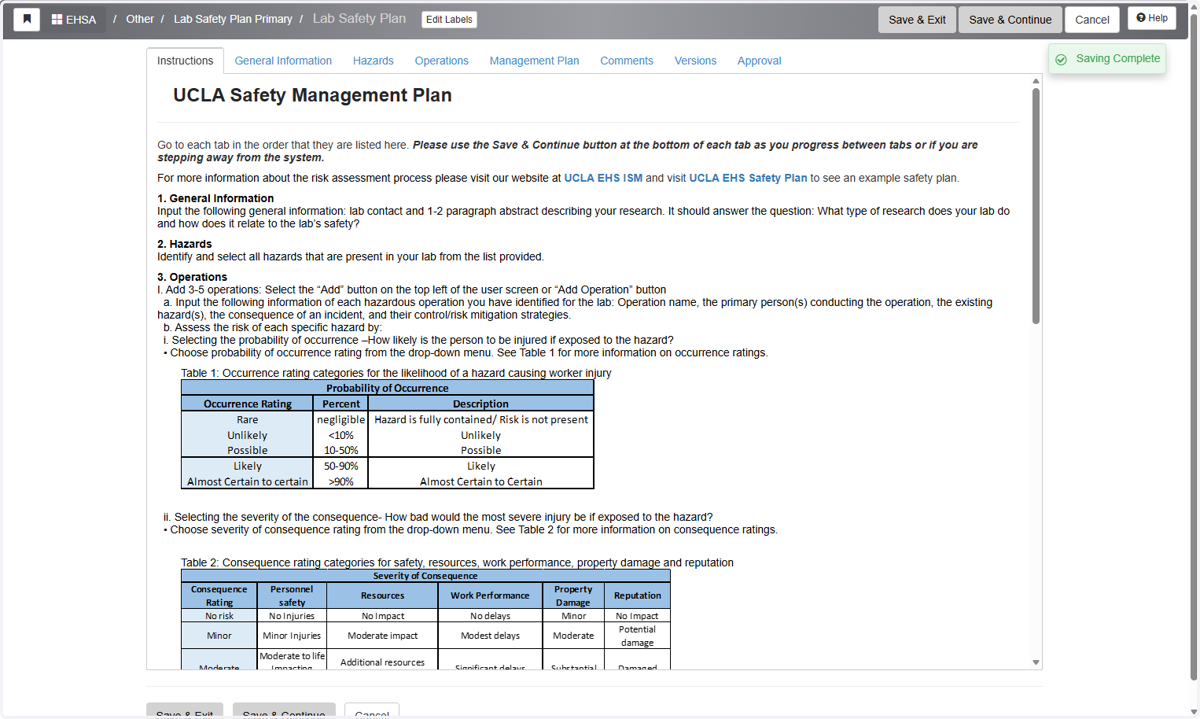
Instructions
Review instructions for context.
1. Begin on Instructions page
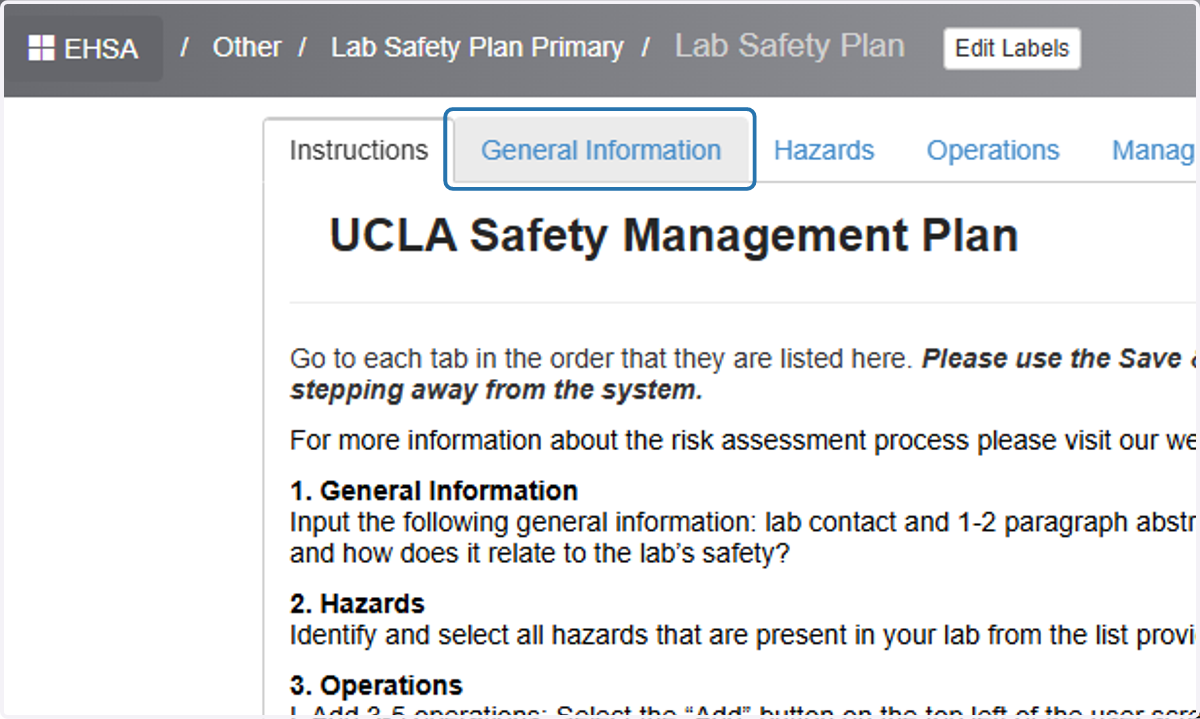
General Information
2. Click on General Information
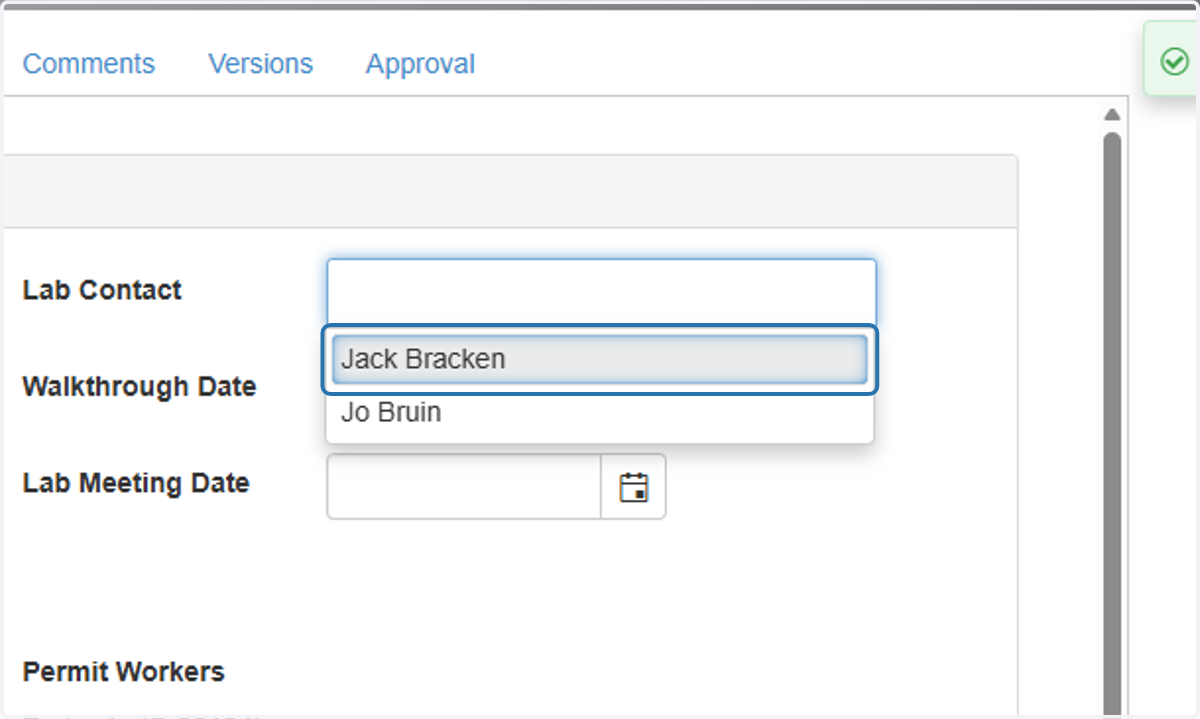
3. Update Lab Safety Contact using the drop down menu
A lab safety contact is a lab member (and or the principal investigator) who handles safety inspections for the lab.
If a specific lab member is not available, update lab member lists using the following training: Adding a Worker to an Account from the Homepage
4. Double check Permit Workers list and confirm all lab members are present.
If a specific lab member is not on the list, update lab member lists using the following TANGO: Adding a Worker to an Account from the Homepage
Next to the Permit Workers list is the current Risk Assessment Status. The status is updated by the chemical safety specialist.
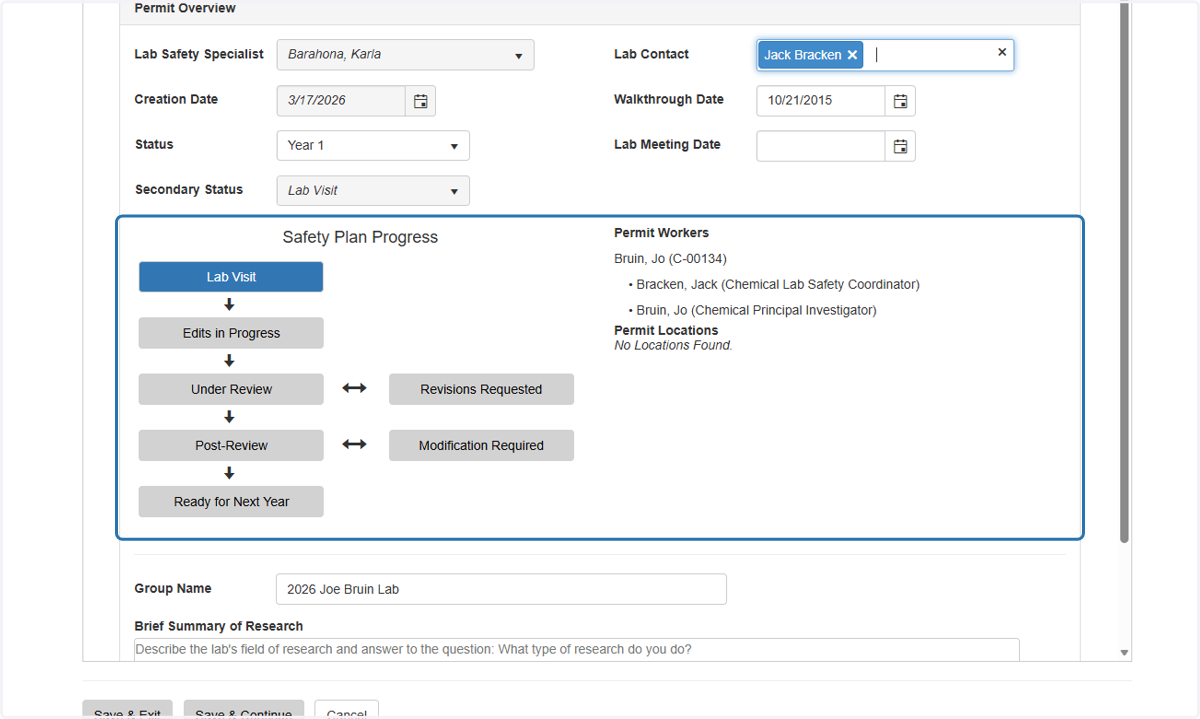
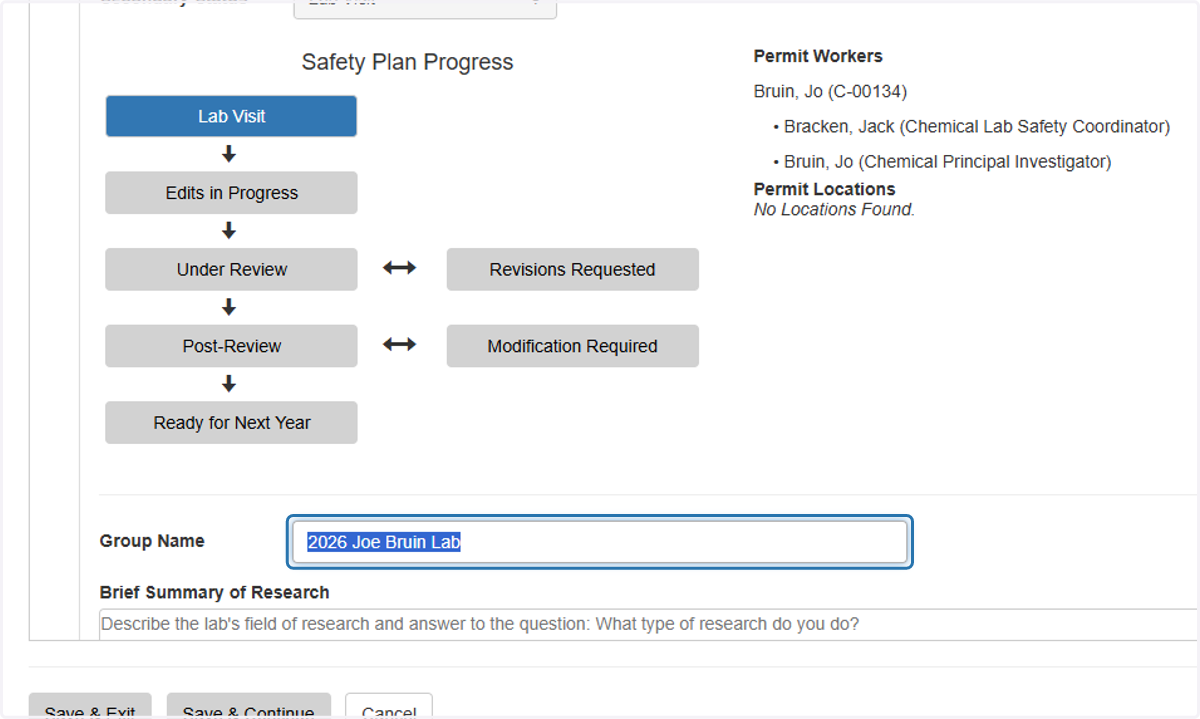
5. Update Group Name
Group name is subjective to the lab.
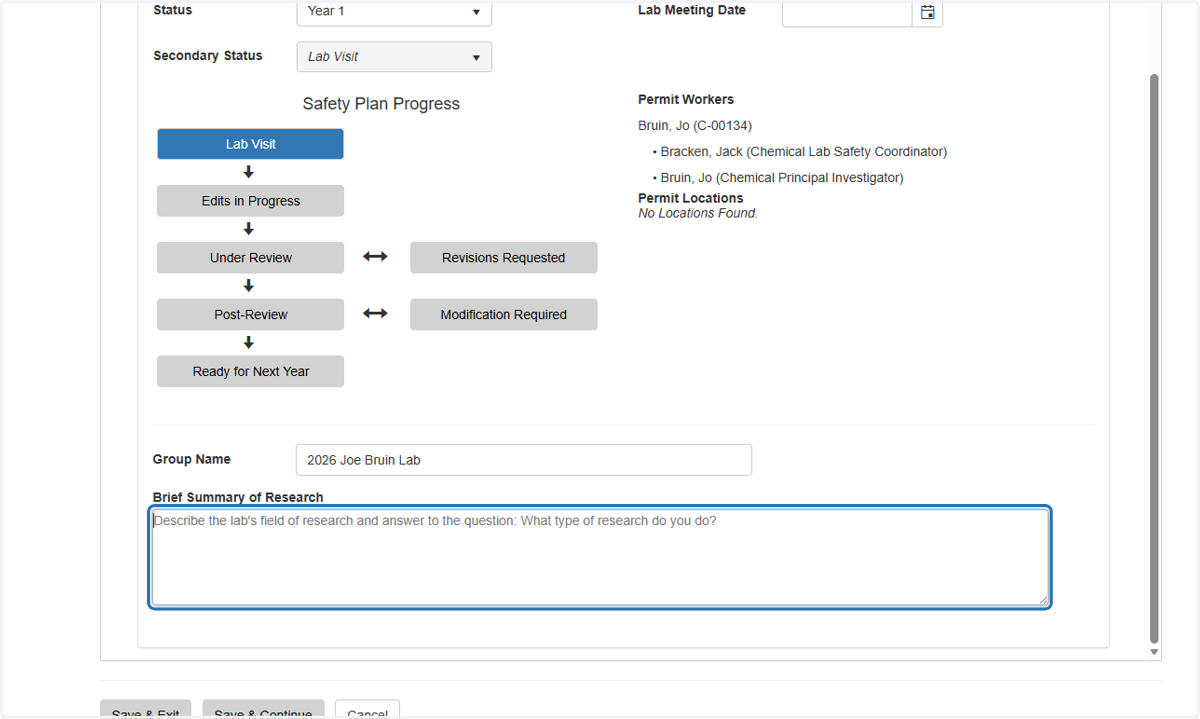
6. Update Summary of Research
1-2 paragraph abstract describing your research. It should answer the question: What Is the goal of your research? What methods do you use? What are the hazards involved?
Hazards
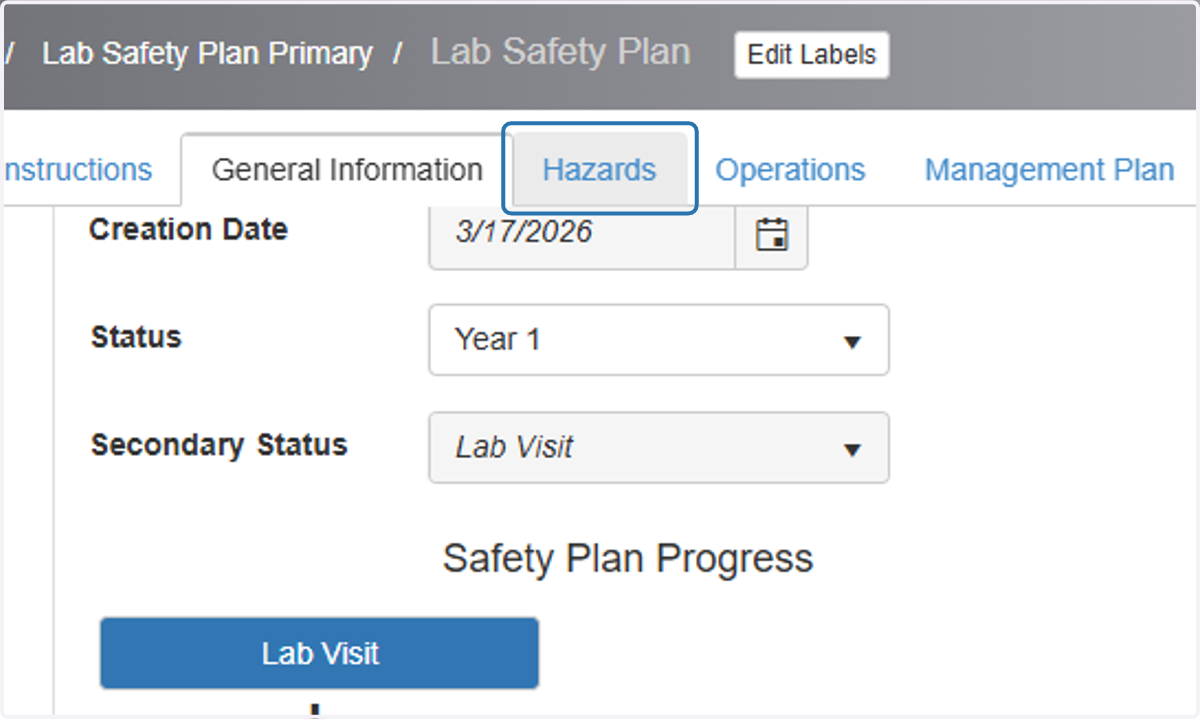
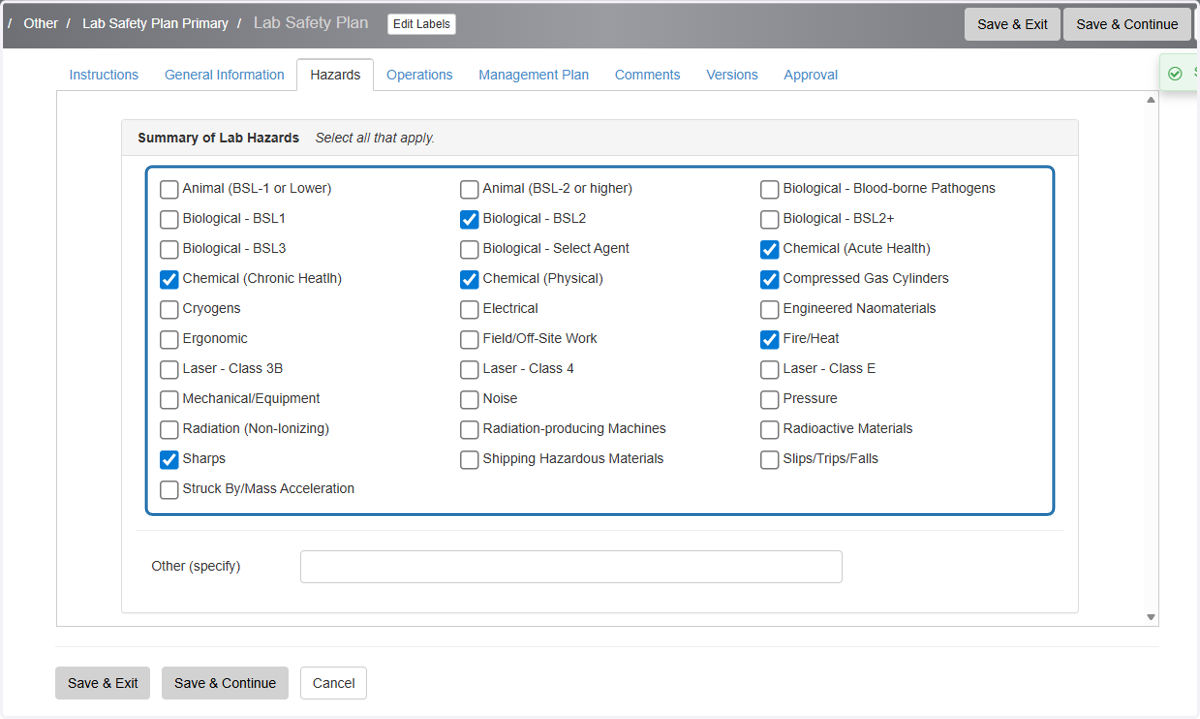
7. Click on Hazards Tab
8. Select all hazards applicable to the lab
If a specific hazard is not available please click Other (Specify) and describe.
Operations
9. Click on Operations Tab
Select operations that have a critical step. A critical step is a human action that, if performed incorrectly or preceded by an improper action, can cause immediate, irreversible, and intolerable harm to people, assets, or operations.
Previously Accepted Operations (not limited to):Centrifugation of Biological Samples: Human Blood
Processing Raw Wastewater Samples
Using the furnace for inorganic synthesis of crystalline solids
Etching quartz grains using concentrated 48% hydrofluoric acid
X-ray fluorescence imaging of mineral samples using a strontium-90 source
Cutting fixed tissue sections using cryostat
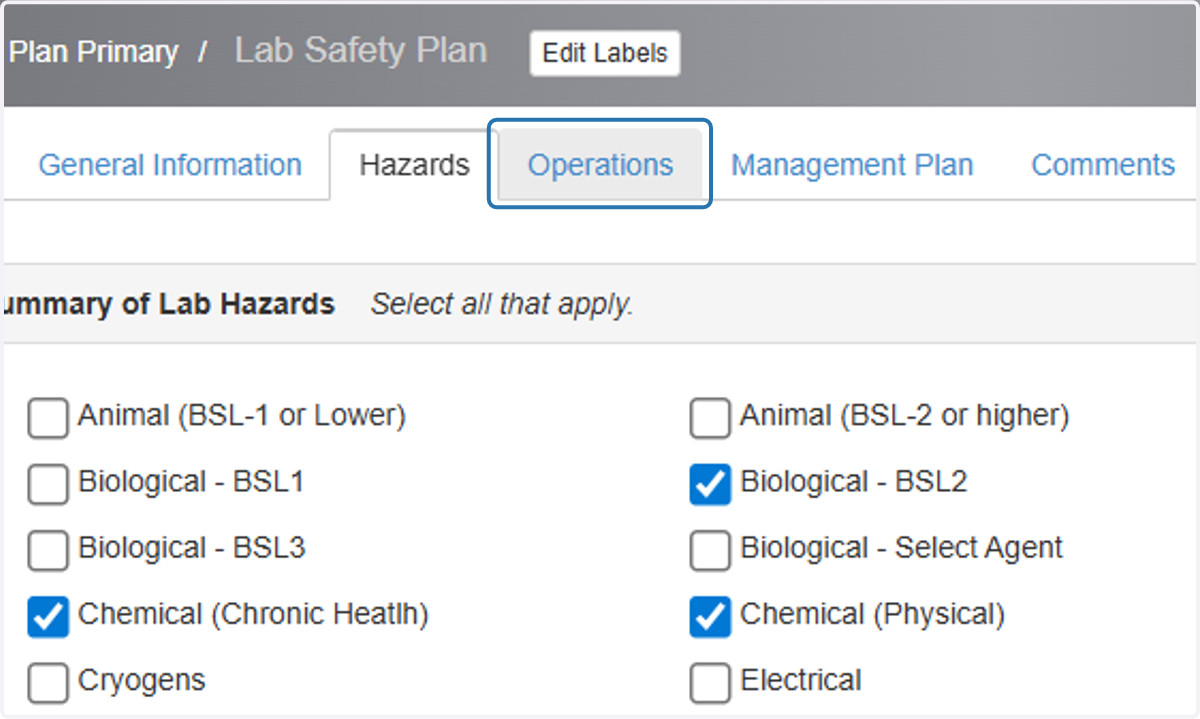
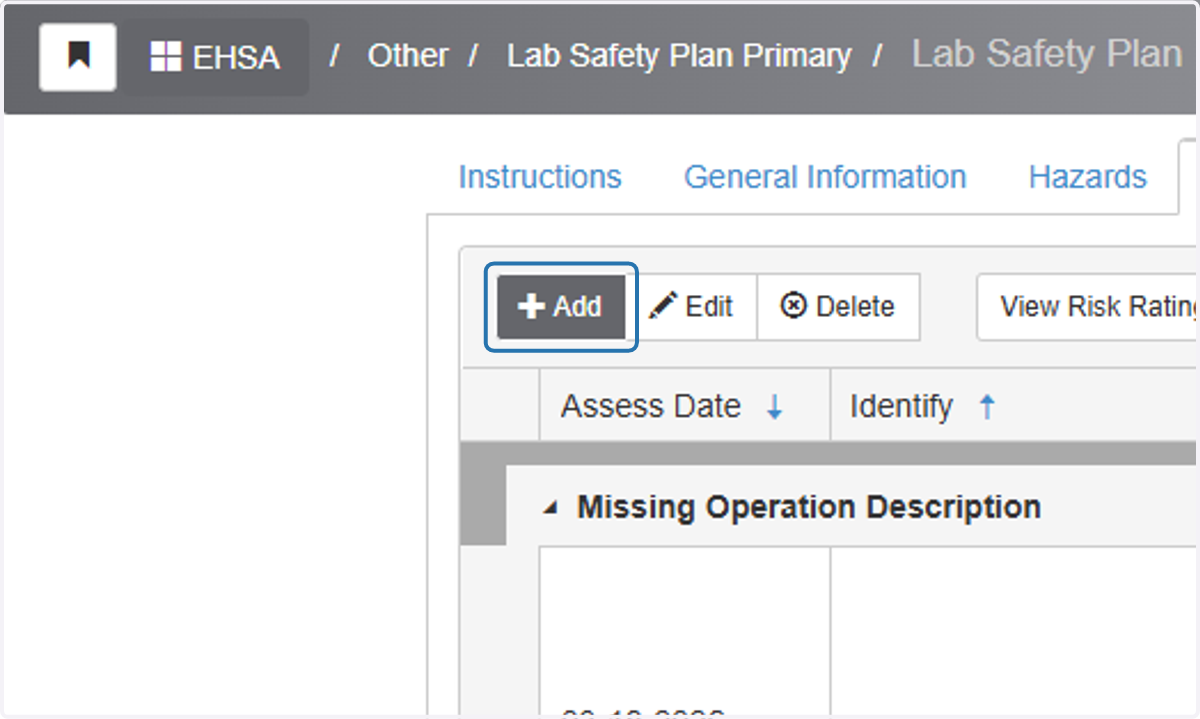
10. Click on Add
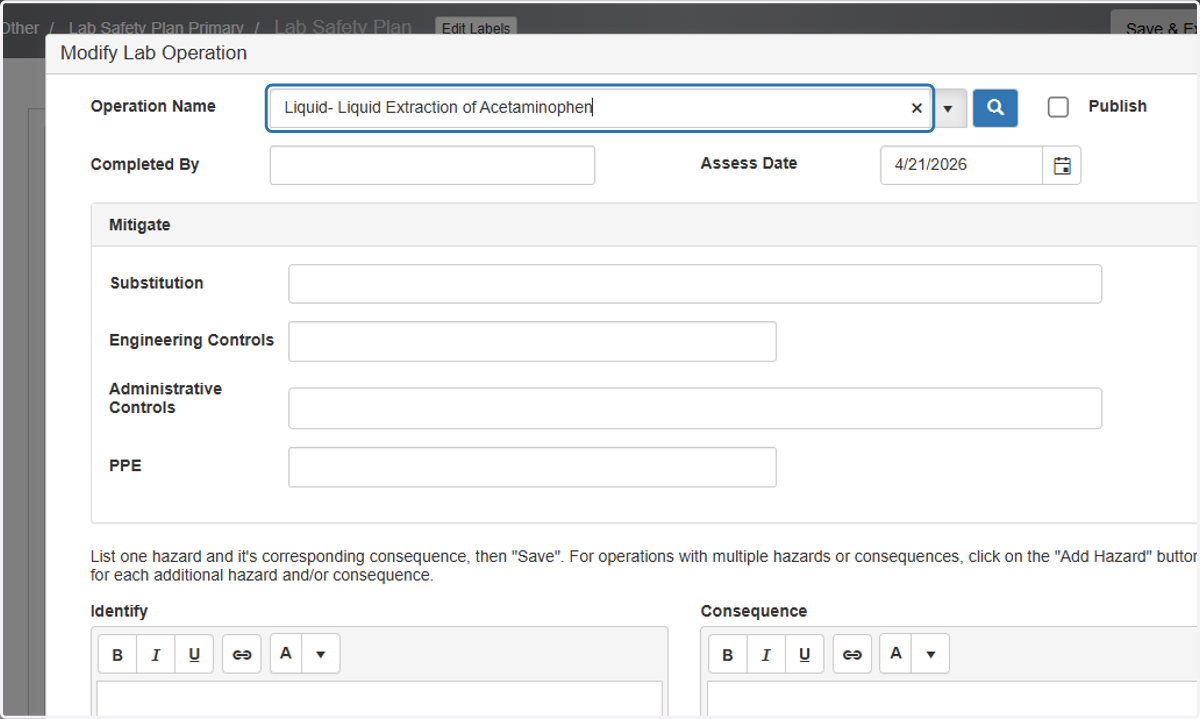
11. EnterOperation Name
What is the name of the task or process?
*If the operation includes equipment please include make and model (if possible)Please do not include general chemical use as an operation. The operation should entail the purpose of the chemical use, generally, including other hazards.
Incorrect Ex: Handling compressed gasses (argon)
Correct Ex: Synthesizing XYZ polymer under inert conditions (argon)
12. Select "Completed By" box and select lab members that conduct the operation
If a specific lab member is not available, update lab member lists using the following training: Adding a Worker to an Account from the Homepage
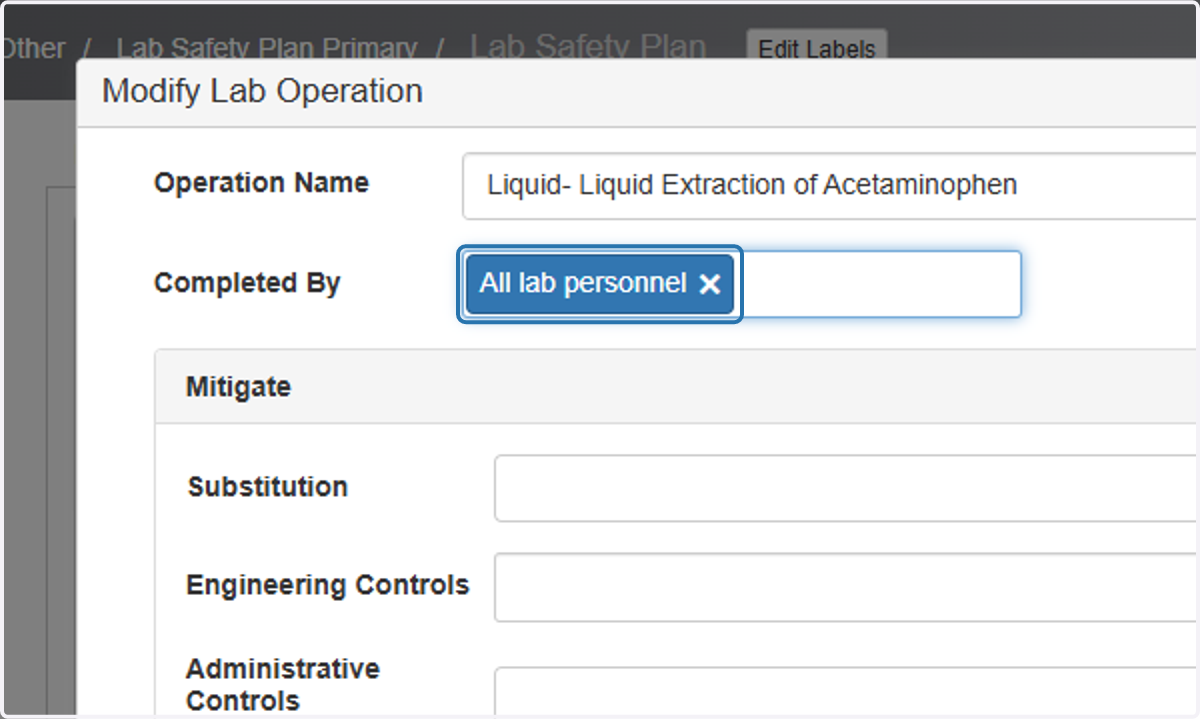
13. Update Substitution (if applicable)
The most effective method for mitigating a risk is to remove/substituting the hazard from the workplace entirely.
Examples of substitution
Replacing mercury thermometers with alcohol thermometers
Using disposable plastic serological pipettes instead of glass
Luer-Lock syringes instead of Luer-slip syringes
If there isn't a substitute that can be made or has been made in the operation, enter "N/A"
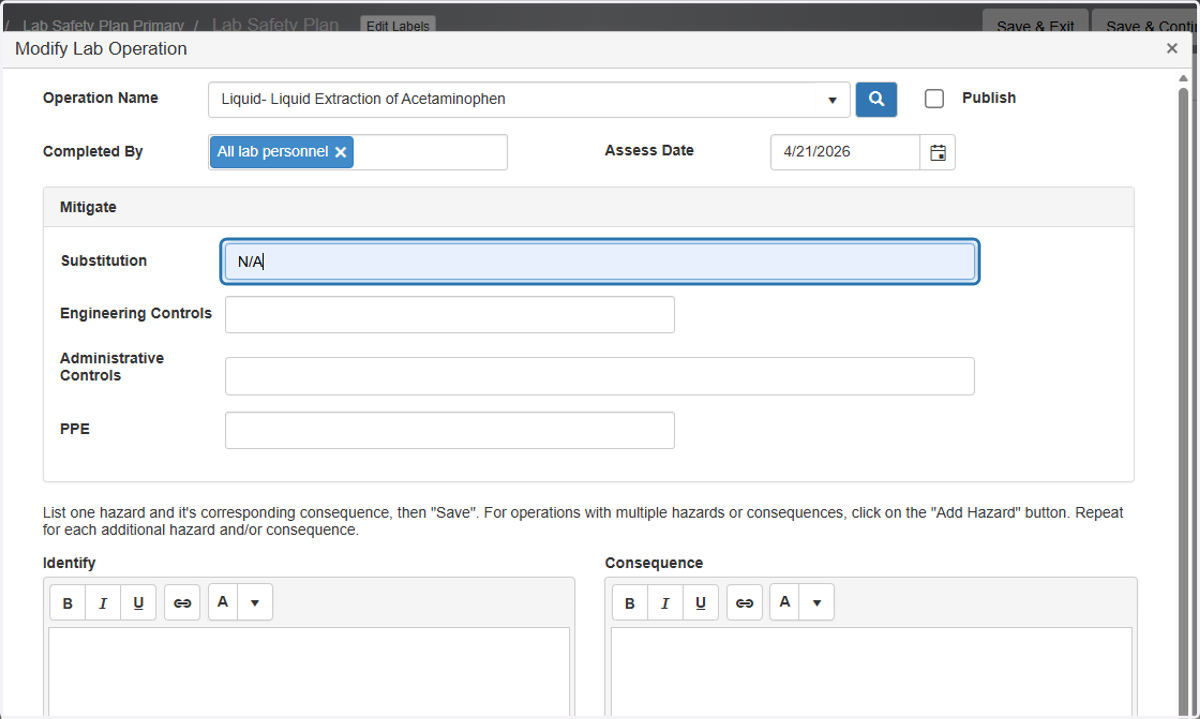
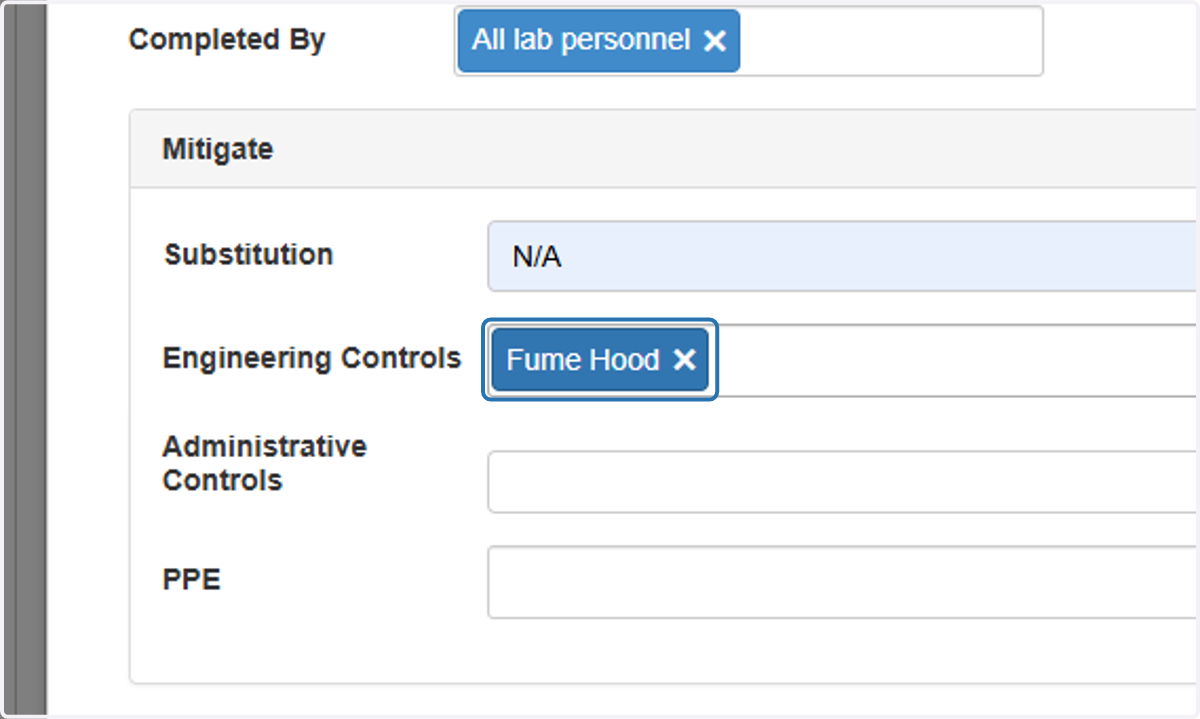
14. Update Engineering Controls by selecting from the dropdown
Engineering controls include all “built in” safety systems.
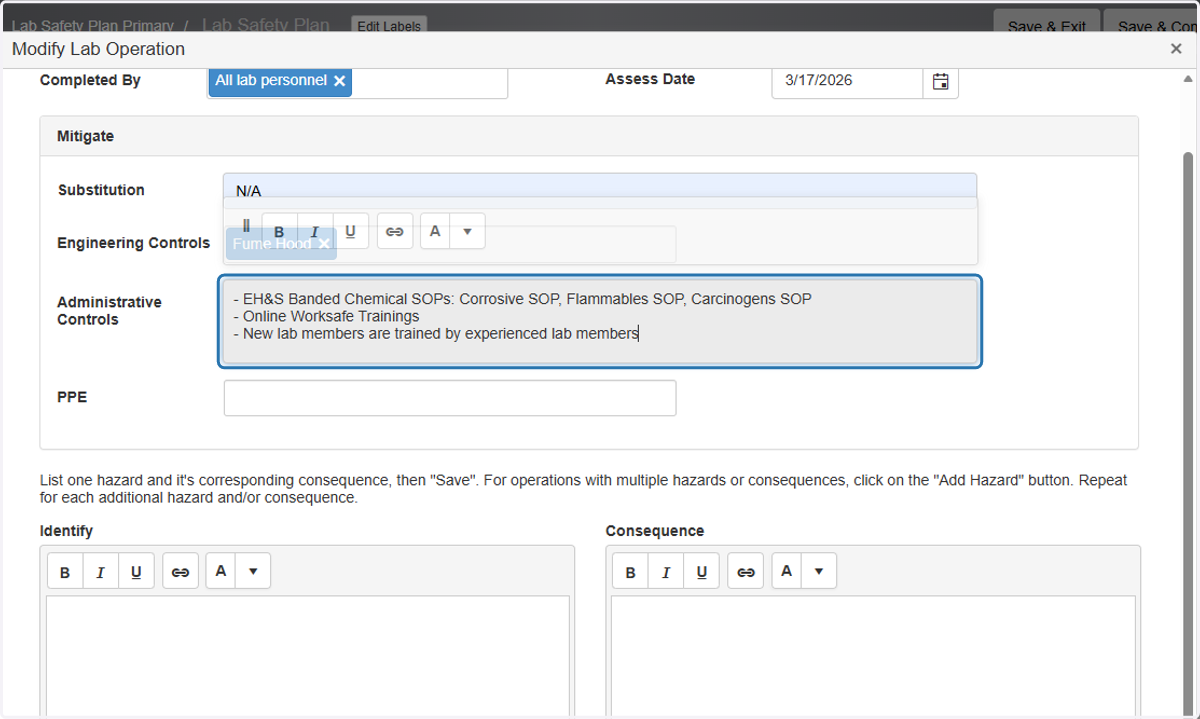
15. Update Administrative Controls
Administrative controls are controls consisting of policies and procedures
These safety procedures should be properly documented, specific to your laboratory and communicated via lab-directed training, Standard Operating Procedures, and/or Job
Safety Analyses.
Other forms of administrative controls includes: Work logs, signage, online trainings and in person training.
16. Update PPE by selecting from the dropdown
Personal protective equipment (PPE) serves as a researcher’s last line of defense against chemical exposures and is required by everyone entering a laboratory containing hazardous chemicals.
Specific minimum requirements for PPE use for chemical operations are contained in UCLA Policy 905 90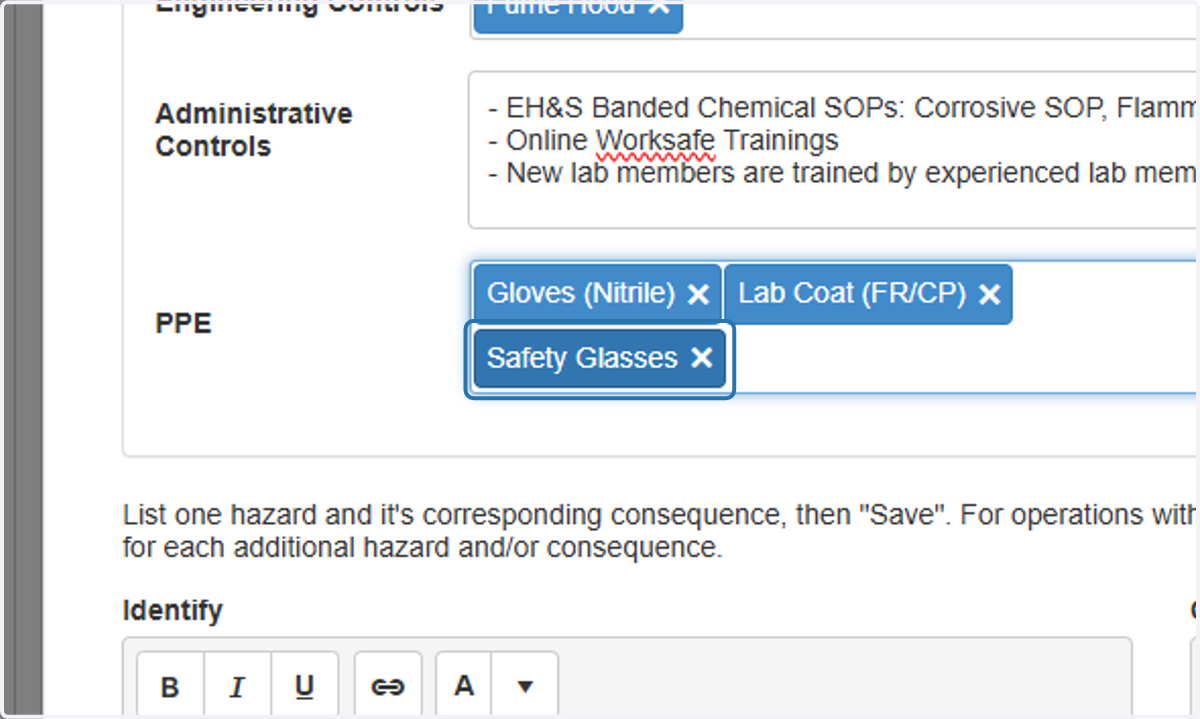
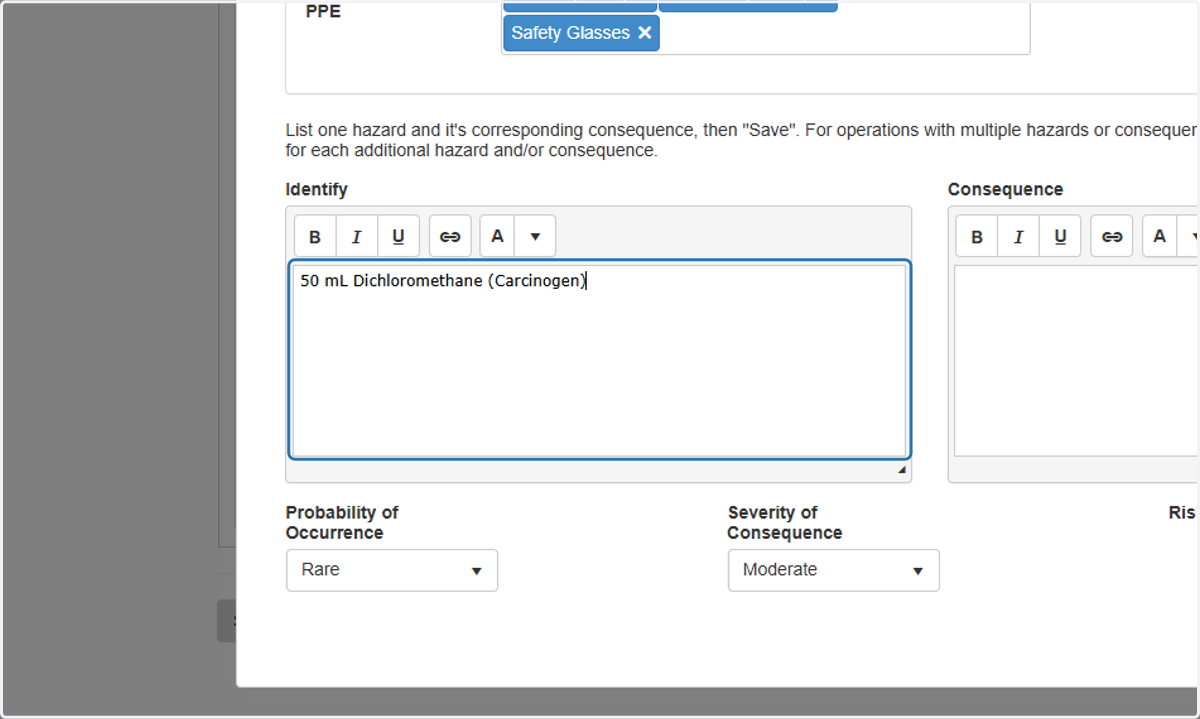
17. Identify Hazards to Operation
Add hazards one by one
More hazards can be added later
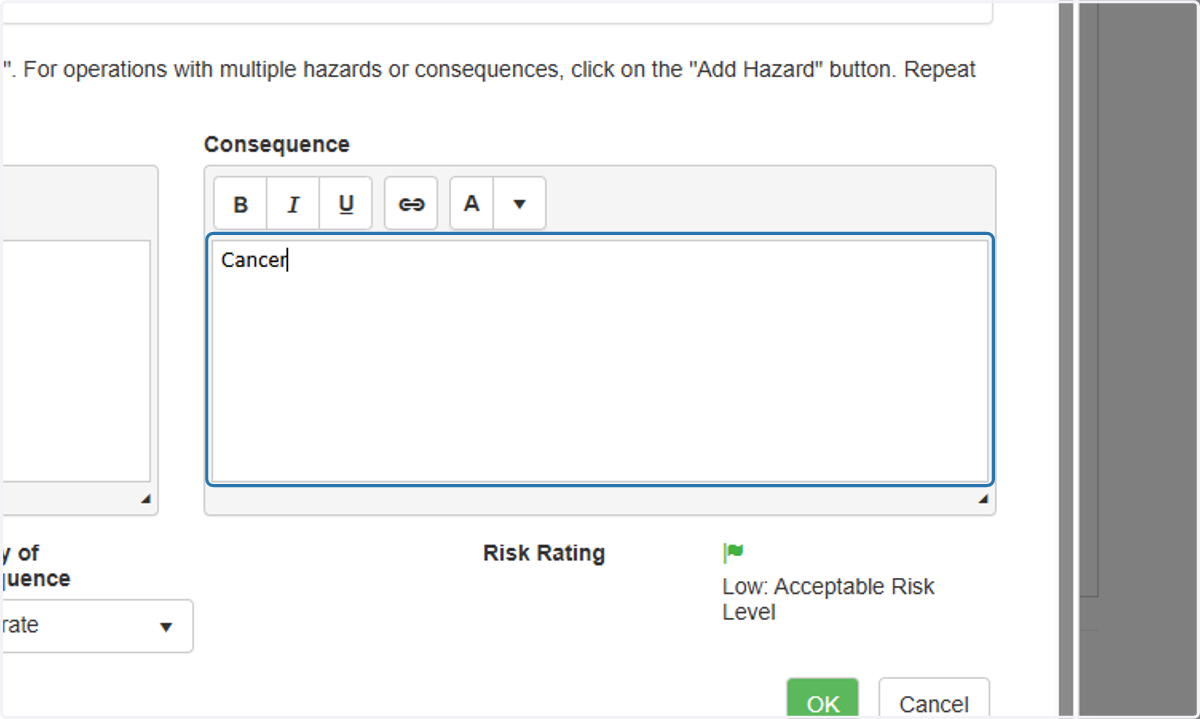
18. Identify consequence of the hazard
For more information on determining consequence visit: UCLA Chemical Hygiene Plan or Risk Assessment Process.
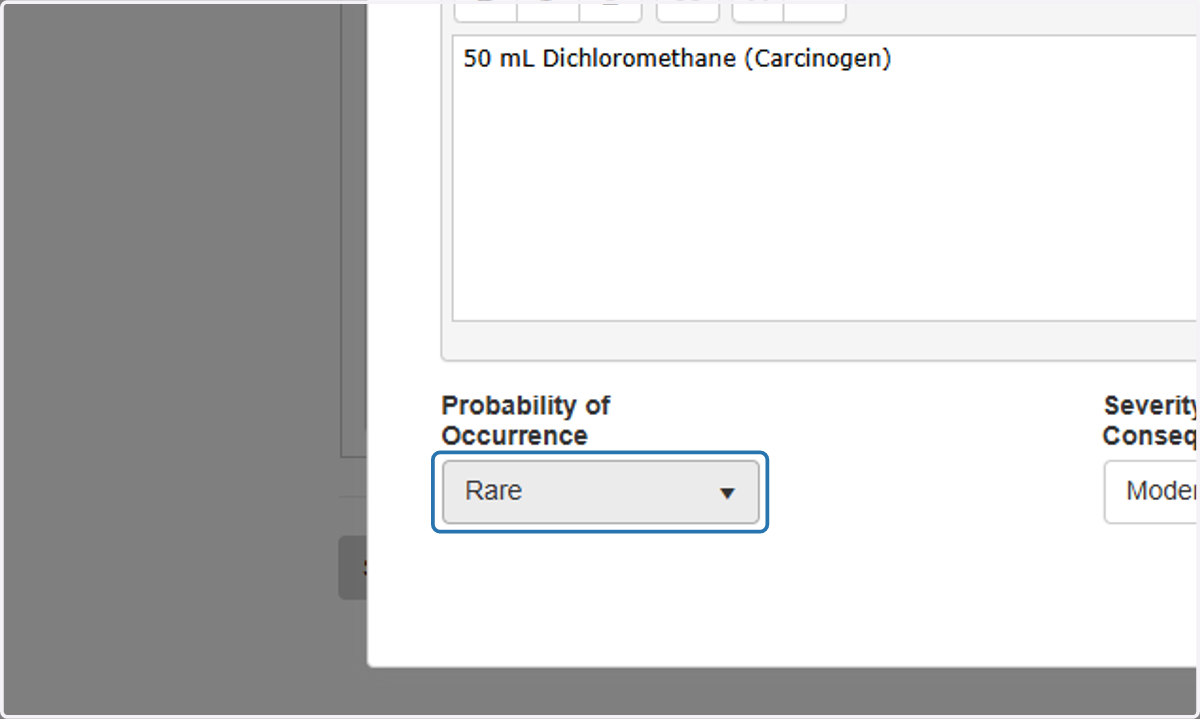
19. Select probability of occurrence from dropdown
For more information on determining probability of occurrence check on the occurrence ratings here: Risk Assessment Process.
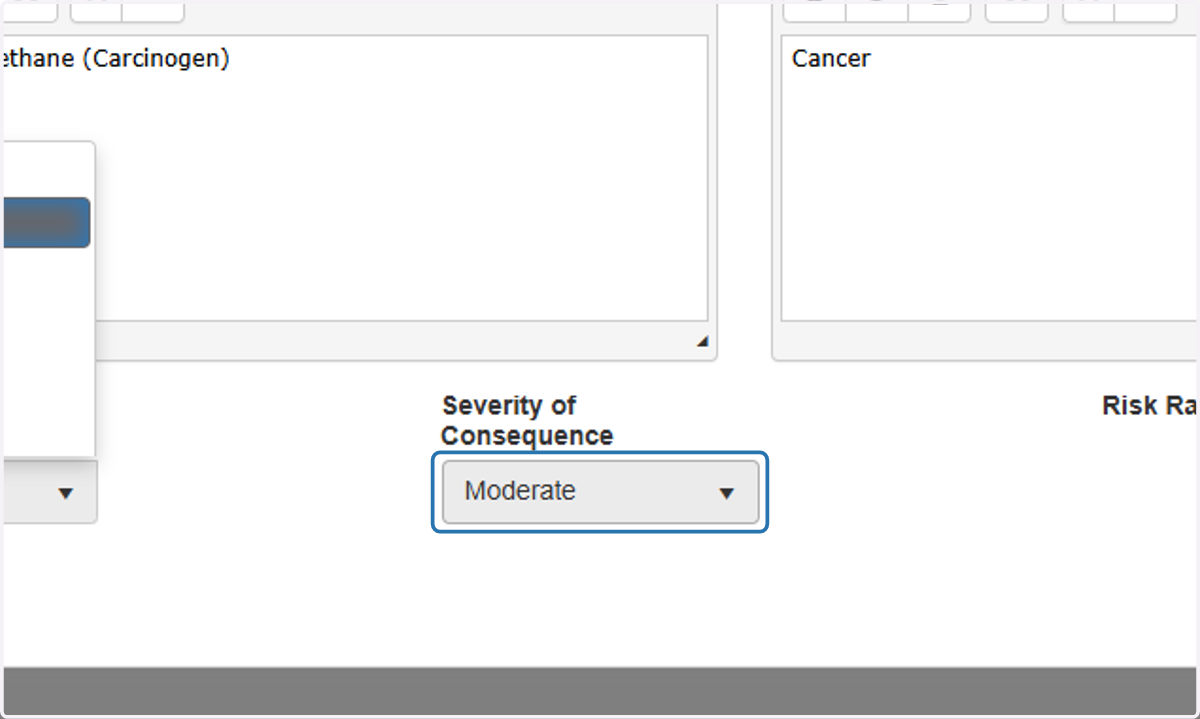
20. Select severity of consequence from drop down
For more information on determining severity of consequence check on the consequence Ratings here: Risk Assessment Process.
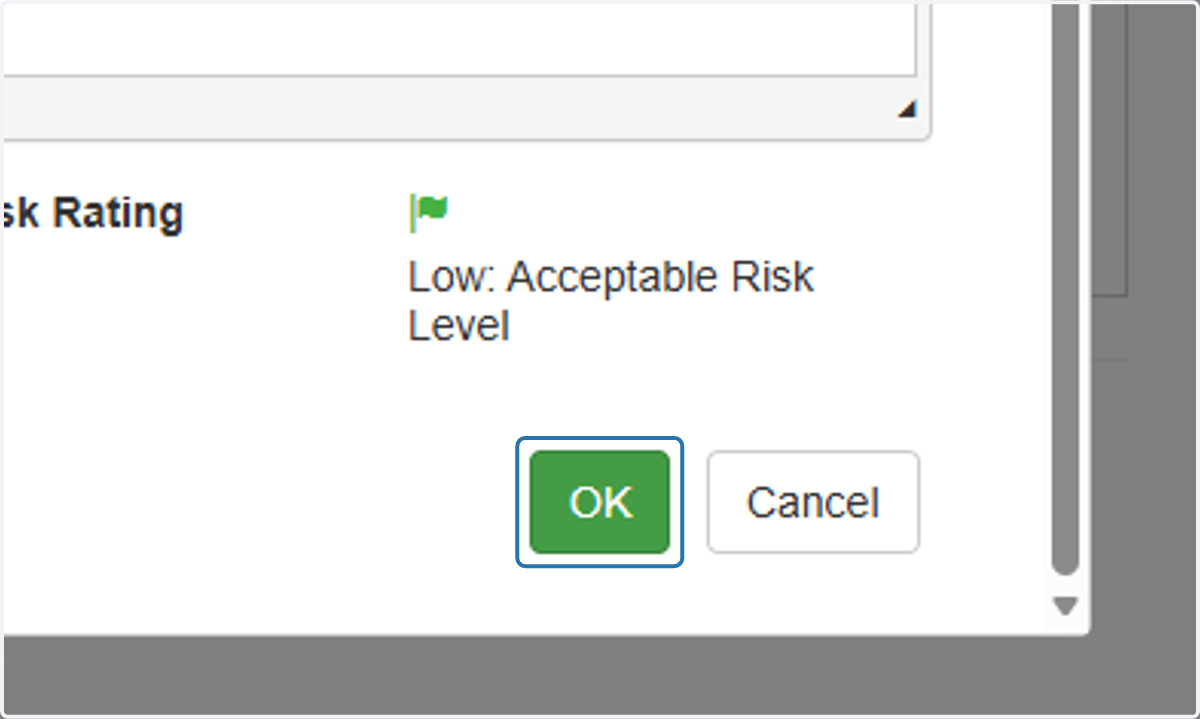
21. Click on OK
A Risk Rating will be assigned based on the selection of severity and probability of occurrence.
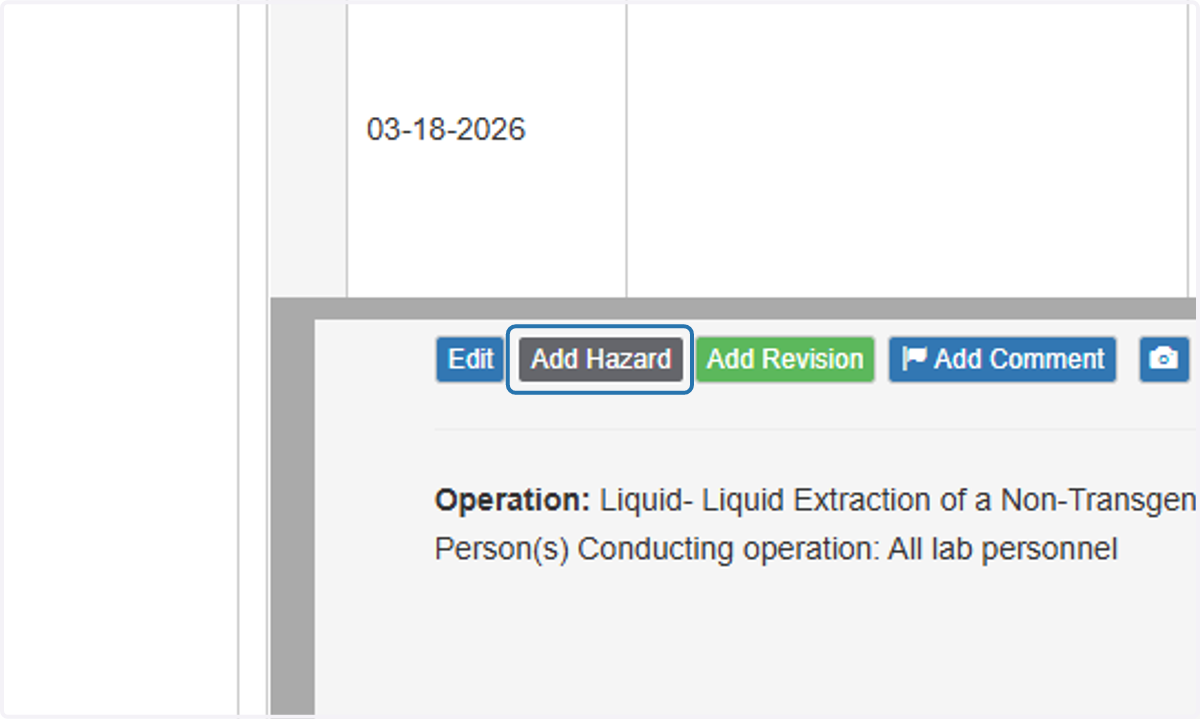
22. To add more hazards to an operation select "Add Hazard" on the operation.
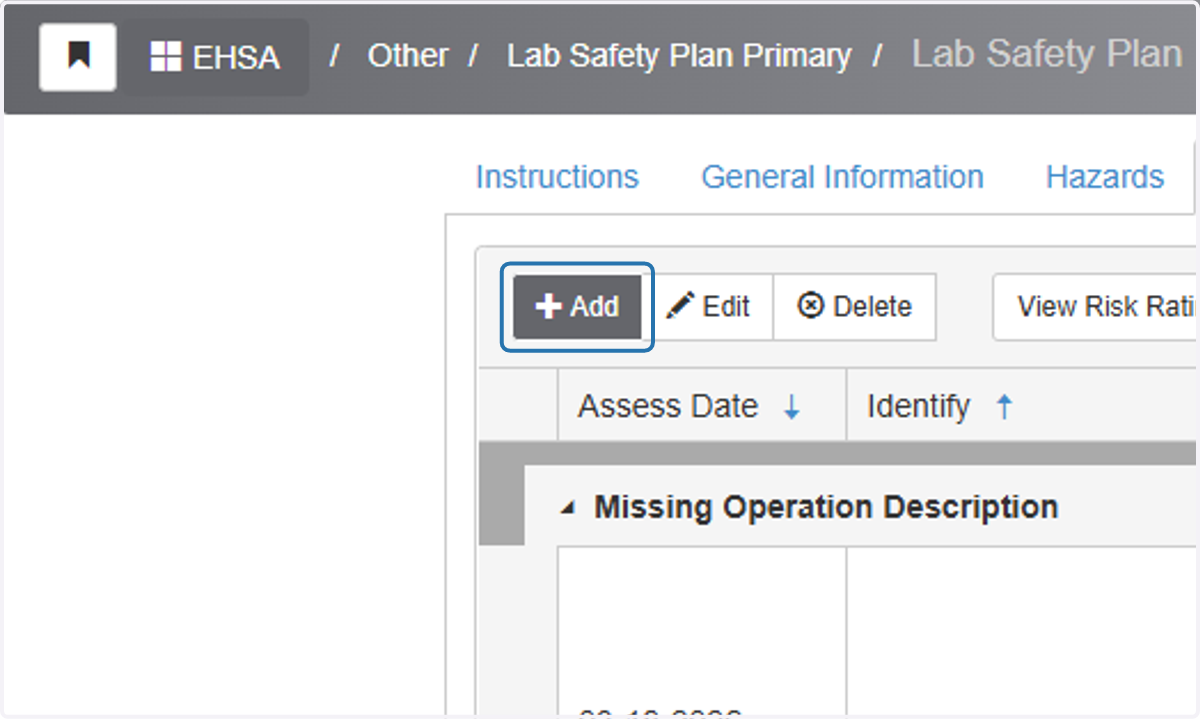
23. Select "Add" to add another operation.
Add 3-5 operations (if possible):
Select the “Add” button on the top left of the user screen
Repeat filling out the operations section.
Once Complete move on to next step.
Management Plan
The management plan is a summary of the required tasks the lab must complete to maintain lab safety.
The first column depicts the status of the lab safety requirement: "Managed Effectively" or "New Plan Needed"
Violations identified during the walkthrough are marked as "New Plan Needed"
The Description column depicts the lab safety requirements with details.
The Observation column depicts the inspector's notes from the walkthrough.
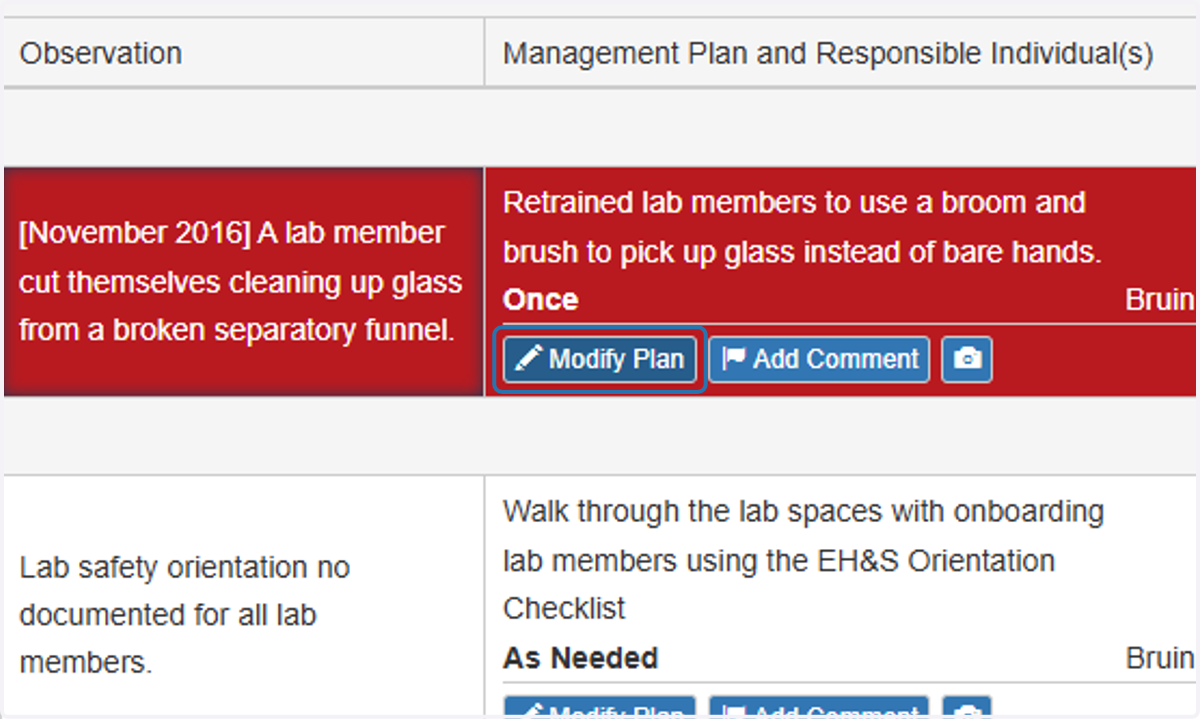
Management Plan and Responsible Individuals column depicts the lab task, the person(s) responsible for the task and the frequency the task should be performed in the corresponding row.
All "New Plan Needed" should have modified plans addressing the issue. (Step 25)
24. Click on Management Plan
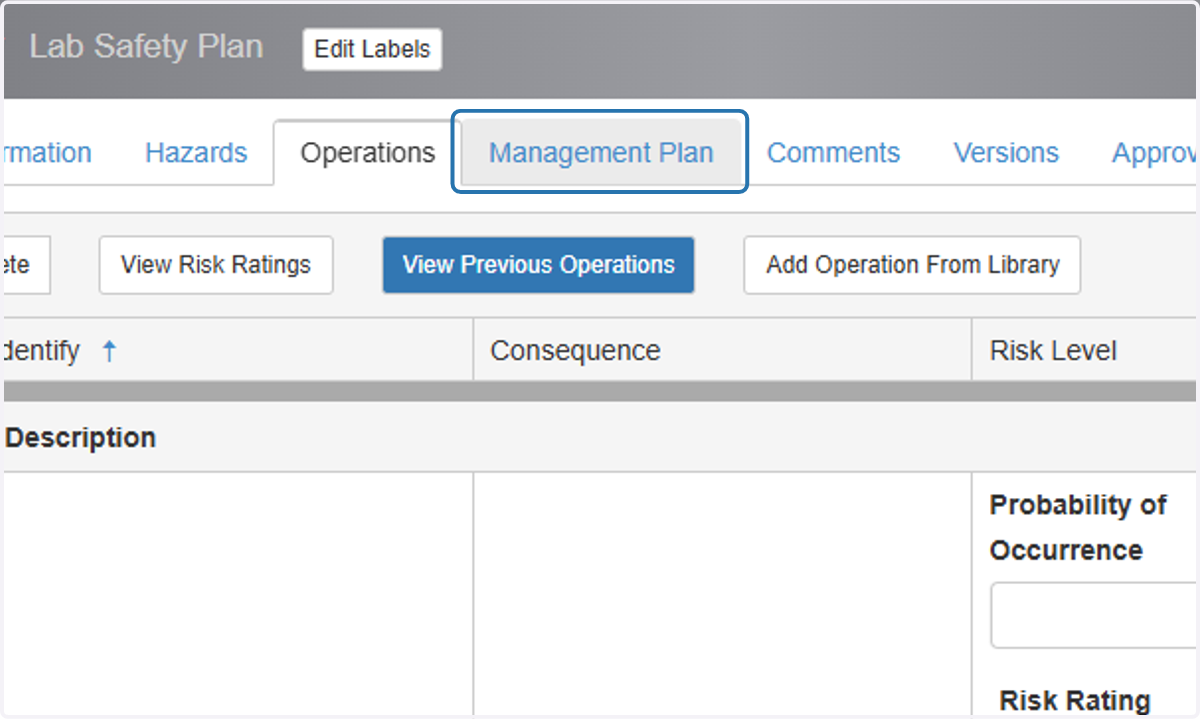
25. Review Management Plan for observations, management plan tasks and assigned responsible individuals.
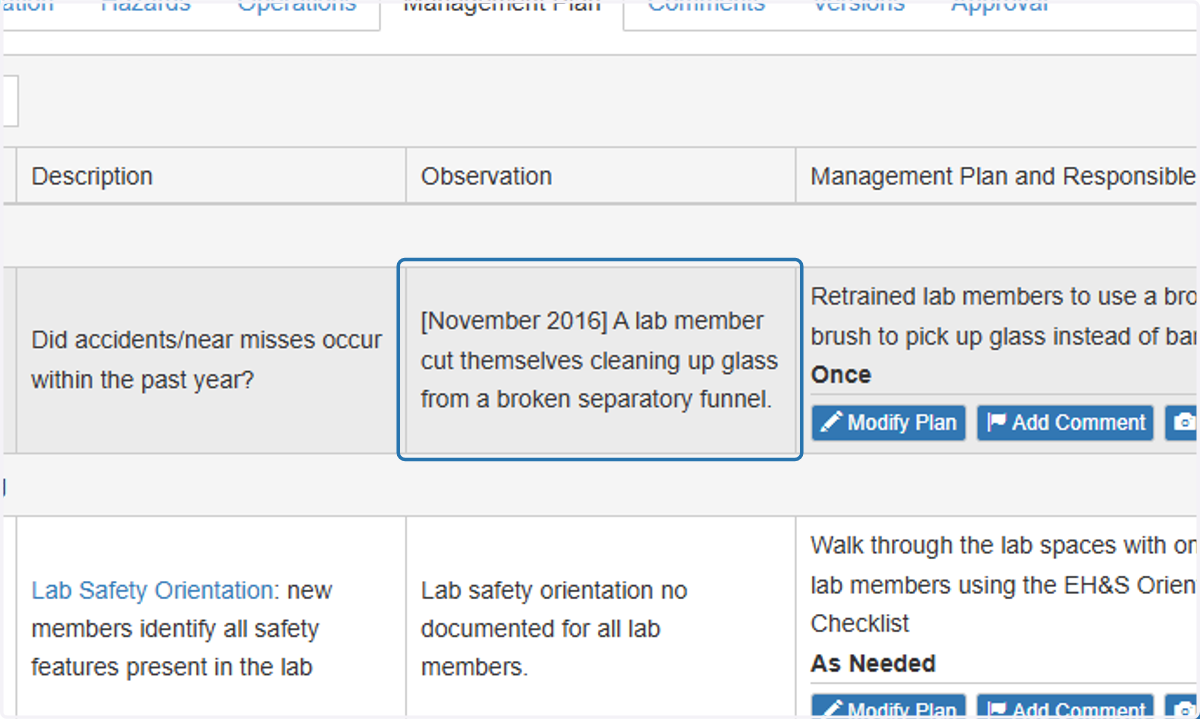
26. For all management plan rows, review and Modify Plan to update as needed.
27. Update Responsible Individual for management plan task and Frequency as needed.
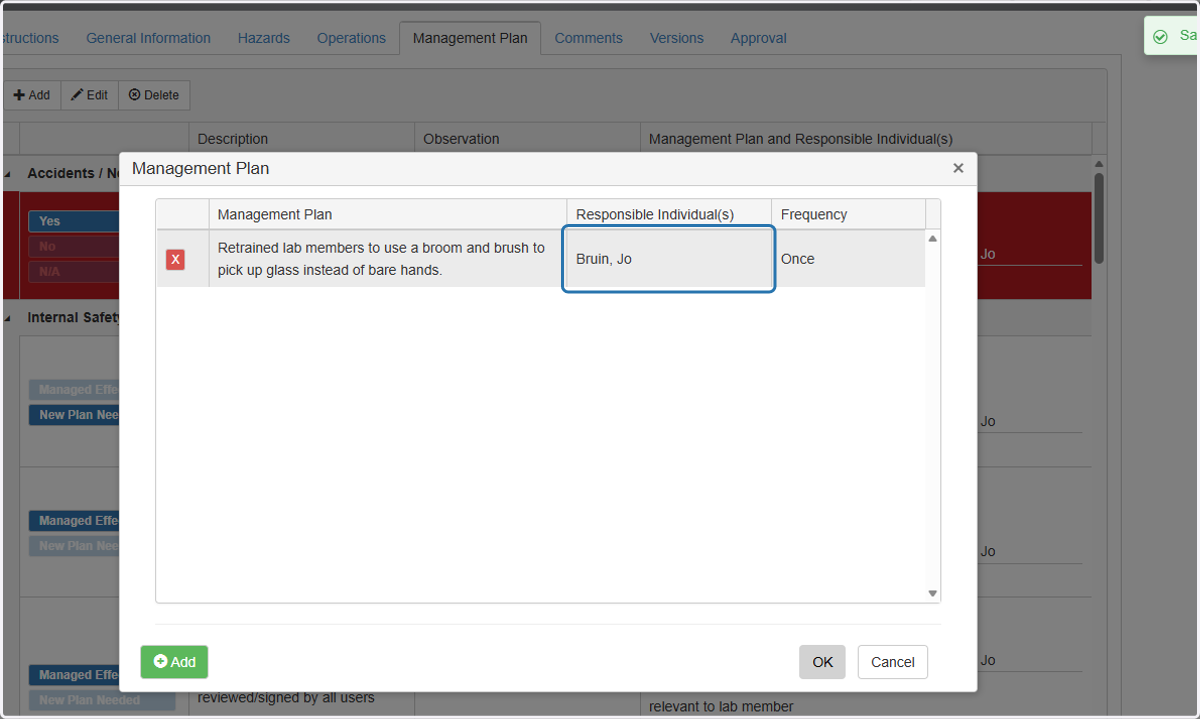
28. Click on OK
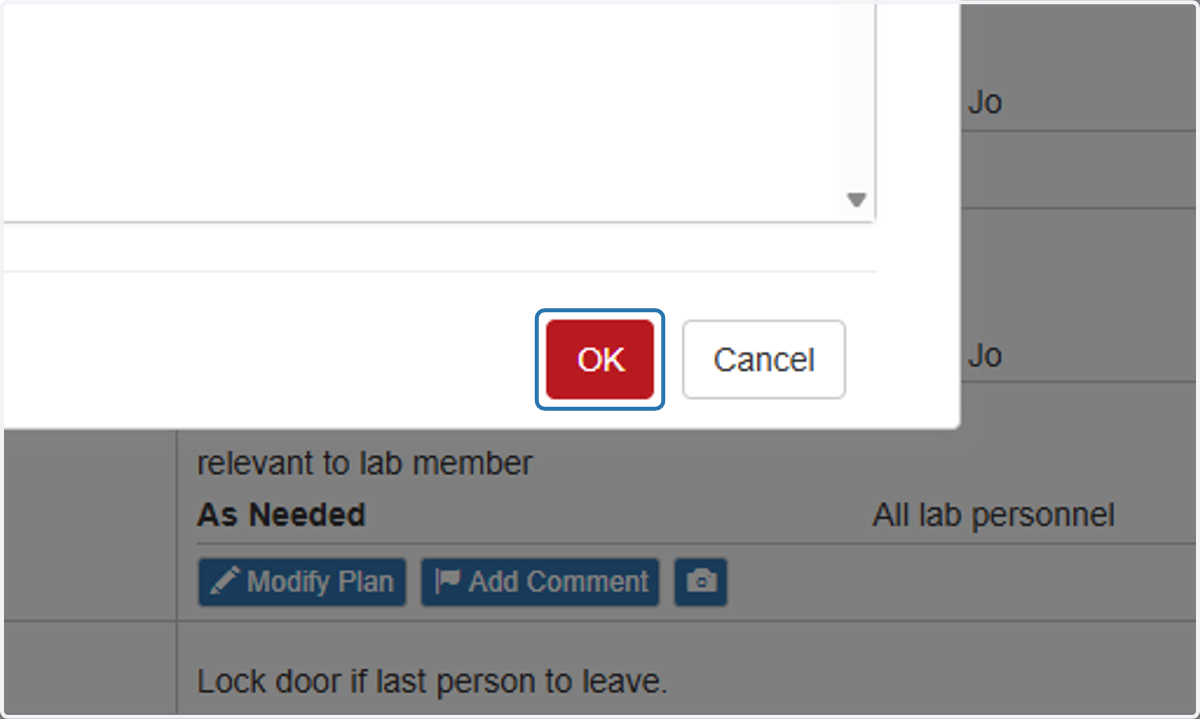
29. If a Management plan description is not available, select Modify Plan
All findings marked as "New Plan Needed" must have updated management plans to address the finding depicted in the observation section.
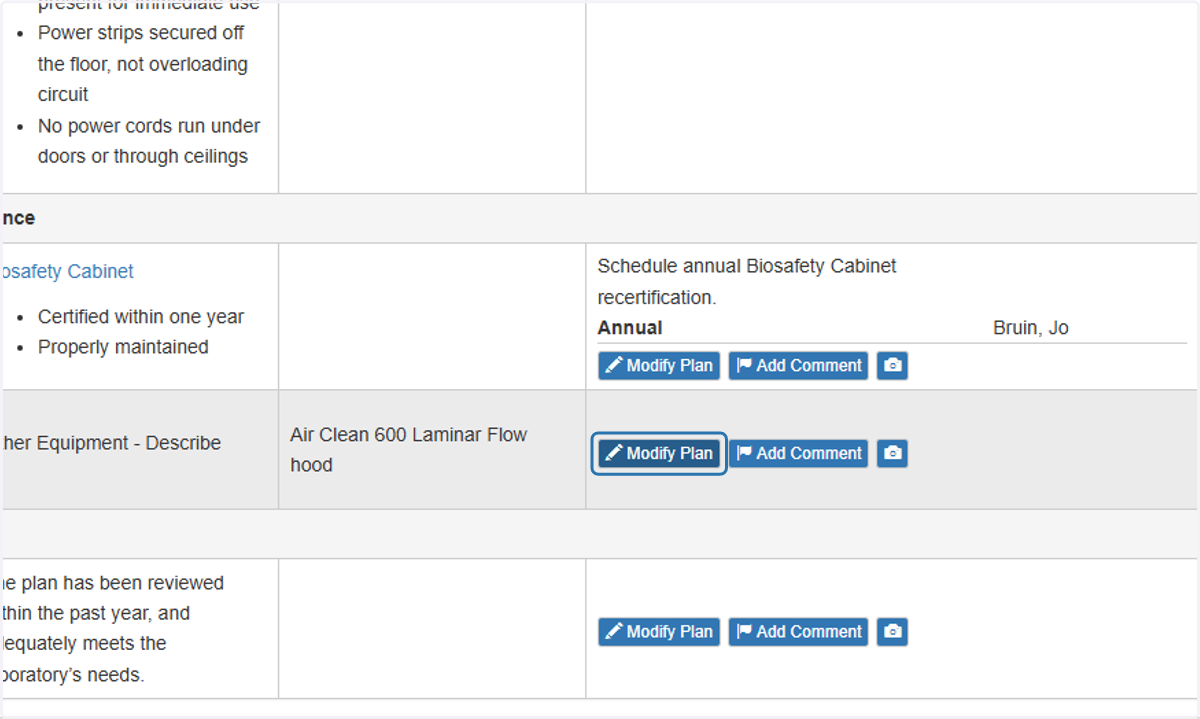
30. Update plan as needed.
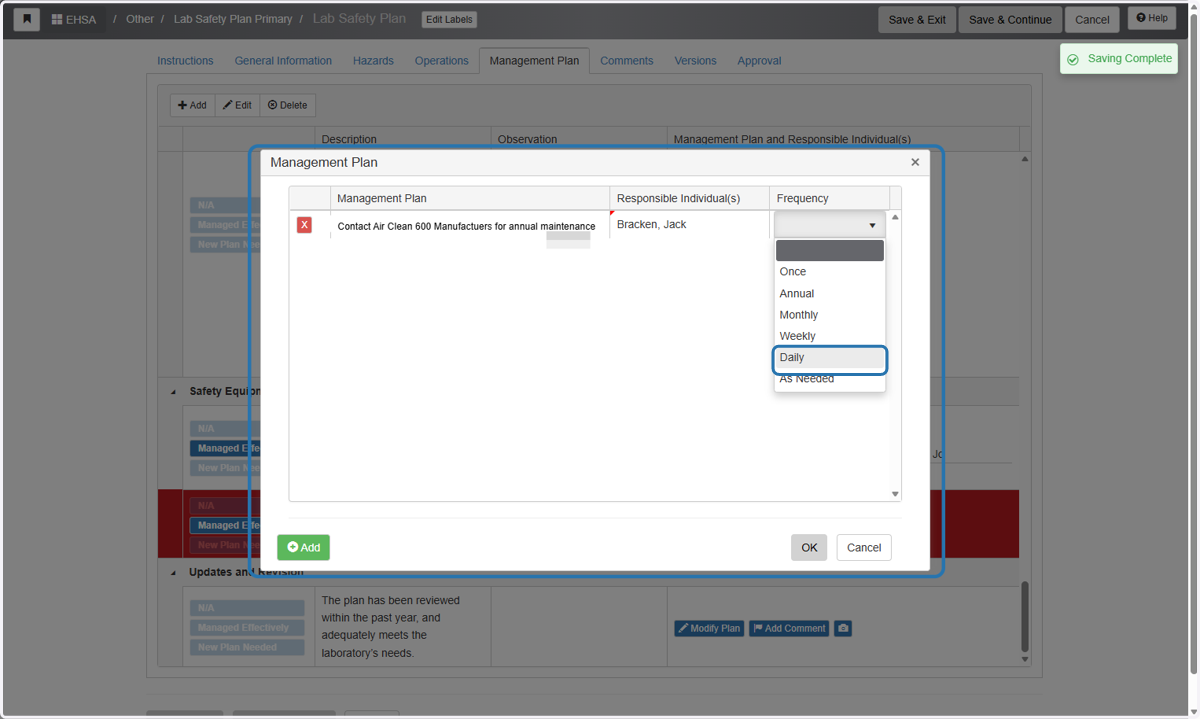
31. Click on OK
Repeat until management plan tab is completed.
All responsible individuals assigned
All "New Plan Needed" updated using Modify plan to address the issue in the Observations
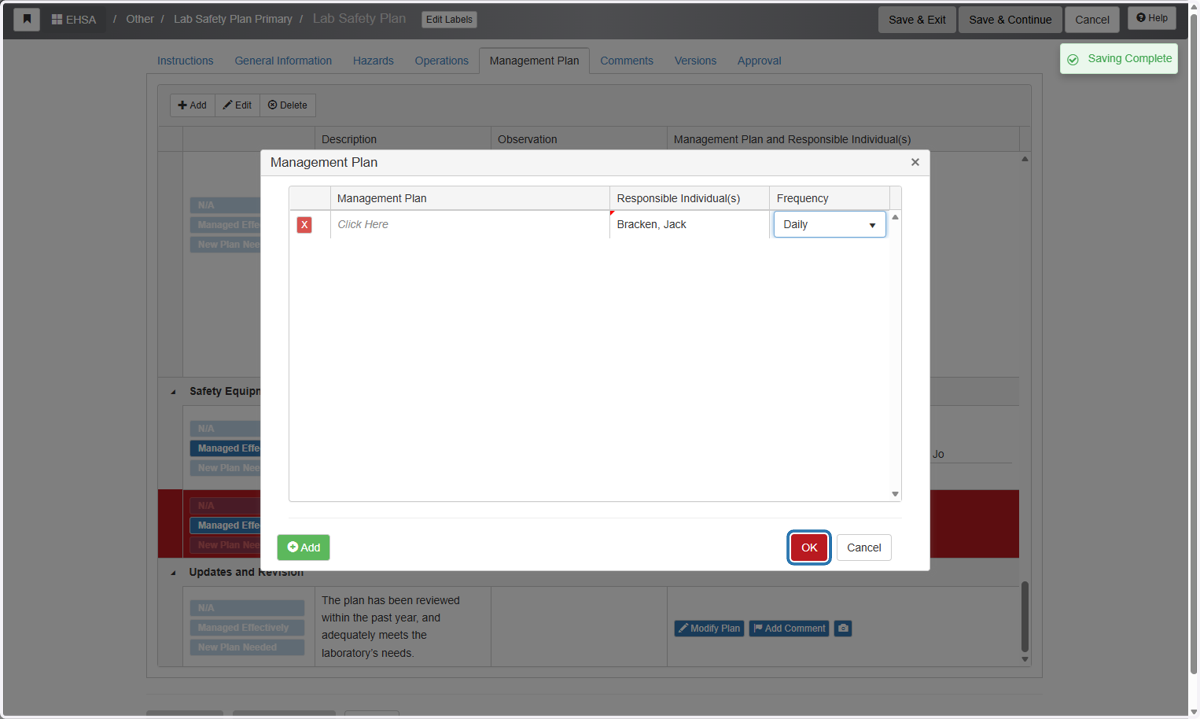
Comments
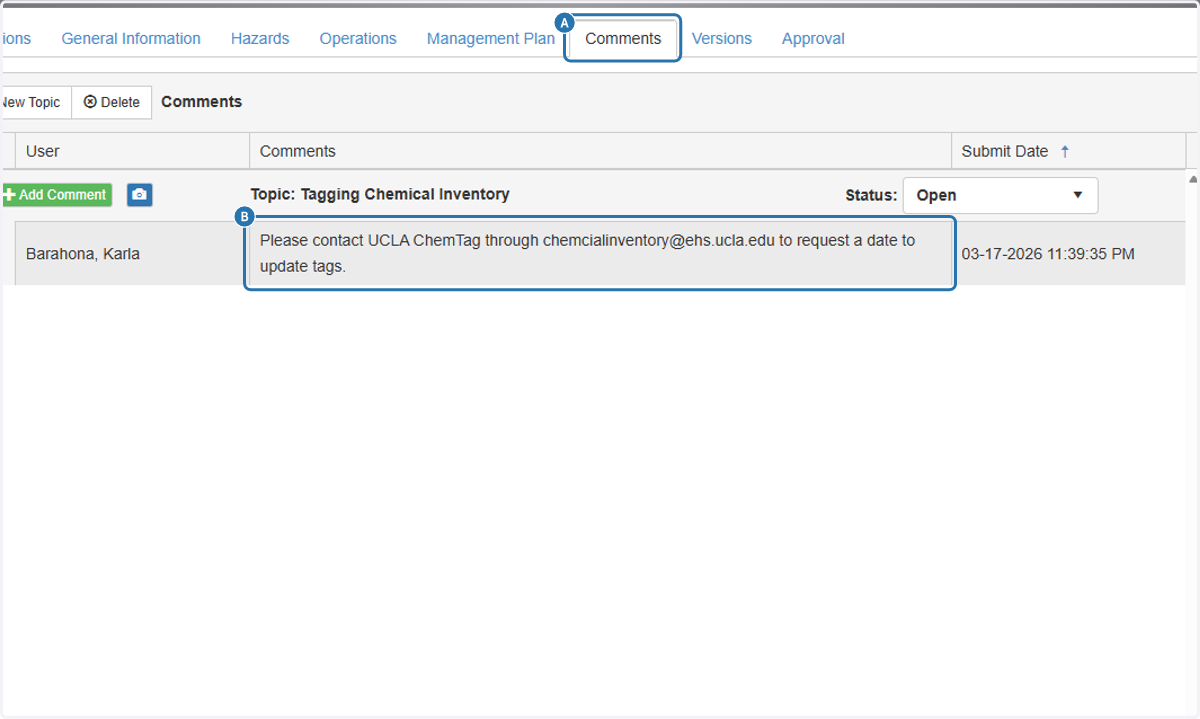
The comment section includes feedback/ questions from the chemical safety specialist and the Safety Review Committee after the review. Please answer all questions.
32. A. Click on Comments
32. B. Review any comments
Versions
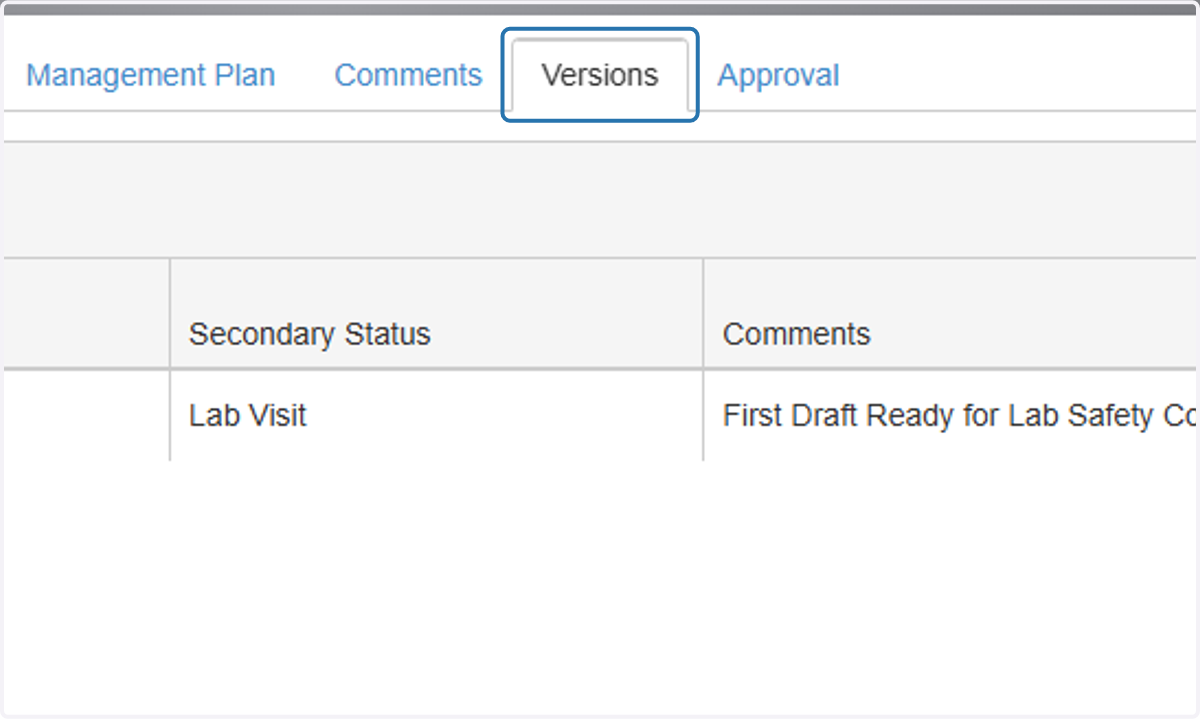
To review past safety management plans (if needed)
33. Click on Versions (Optional)
Approval [Principal Investigator Action Required]
34. Click on Approval
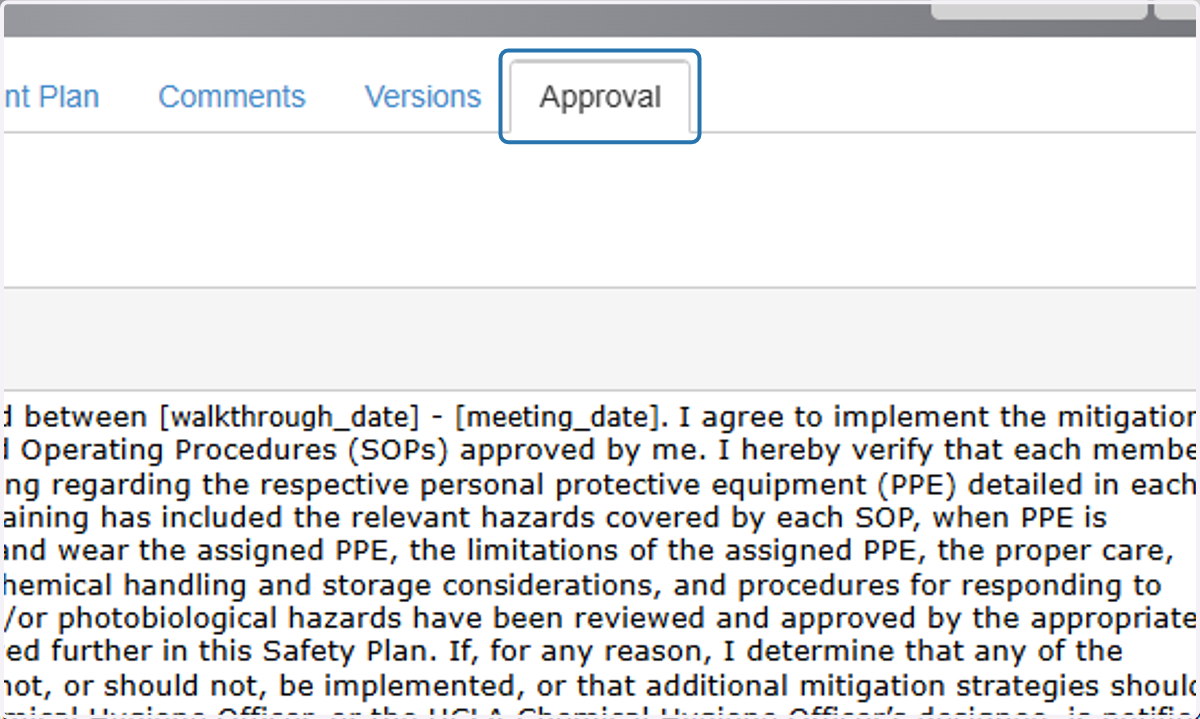
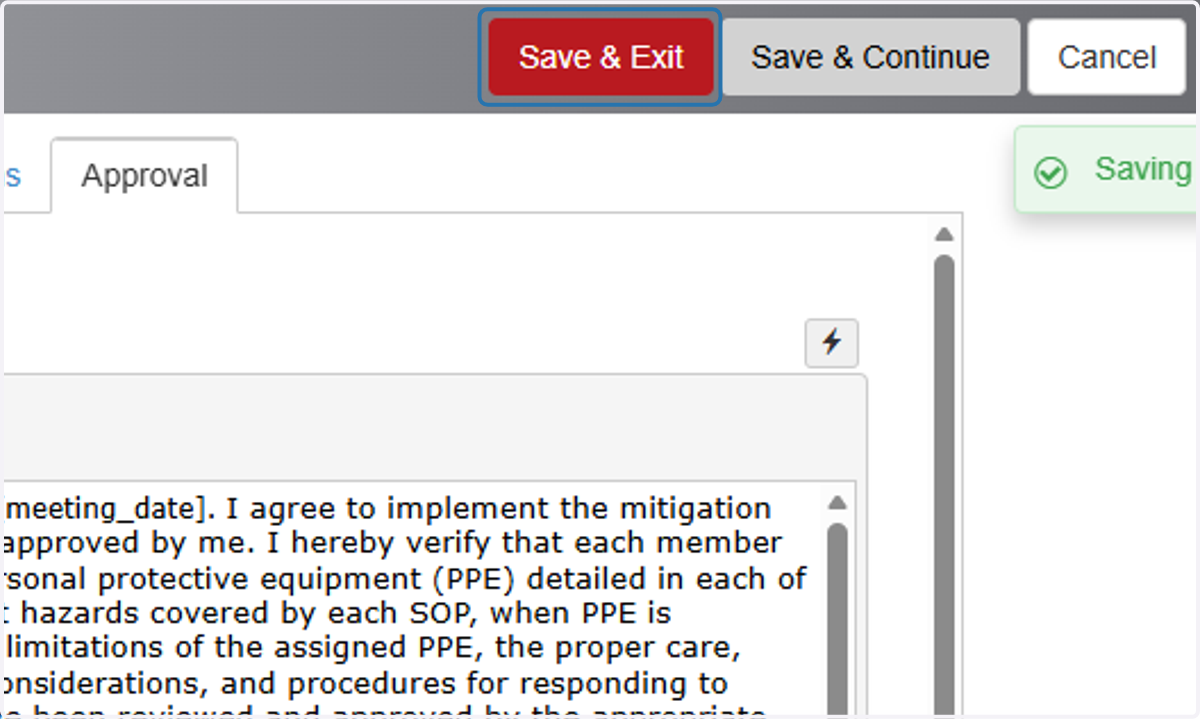
35. [Principal Investigator Action Needed] Once Risk Assessment is complete, Select Approval Page

36. Click on Save & Exit