Command > Docusign > Zipform
Command | Dashboard
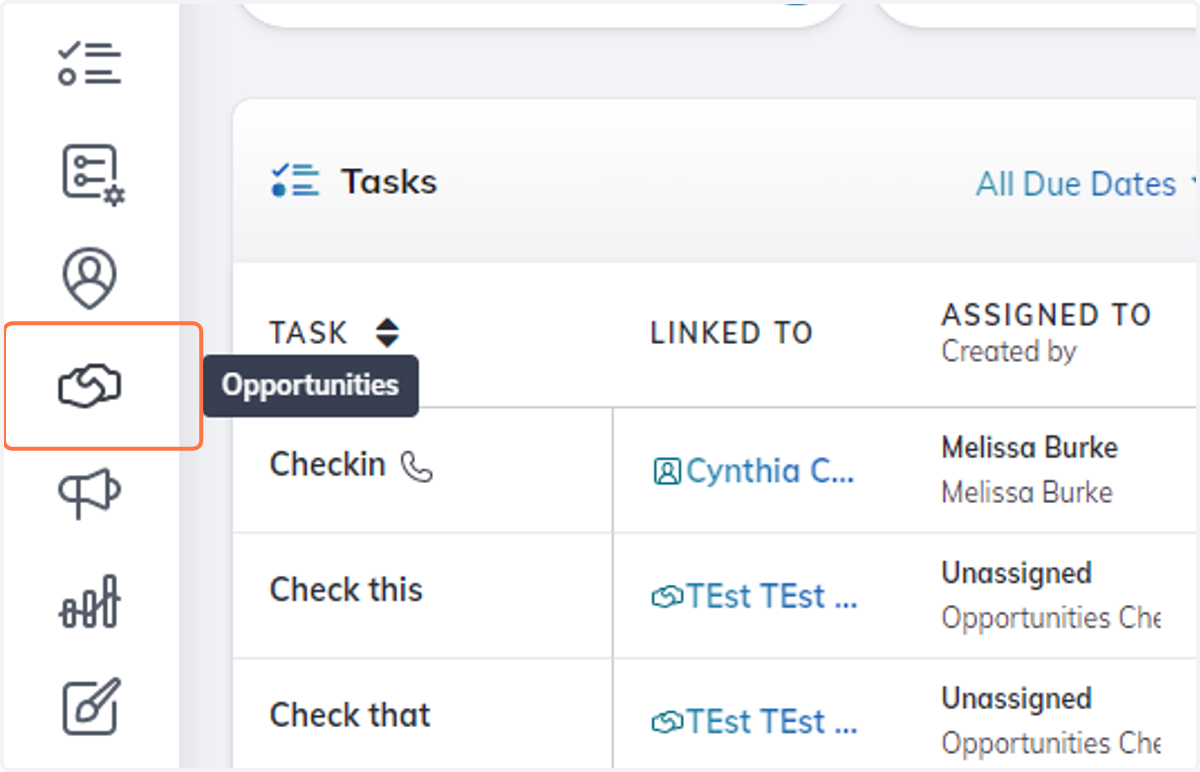
1. Click on highlight
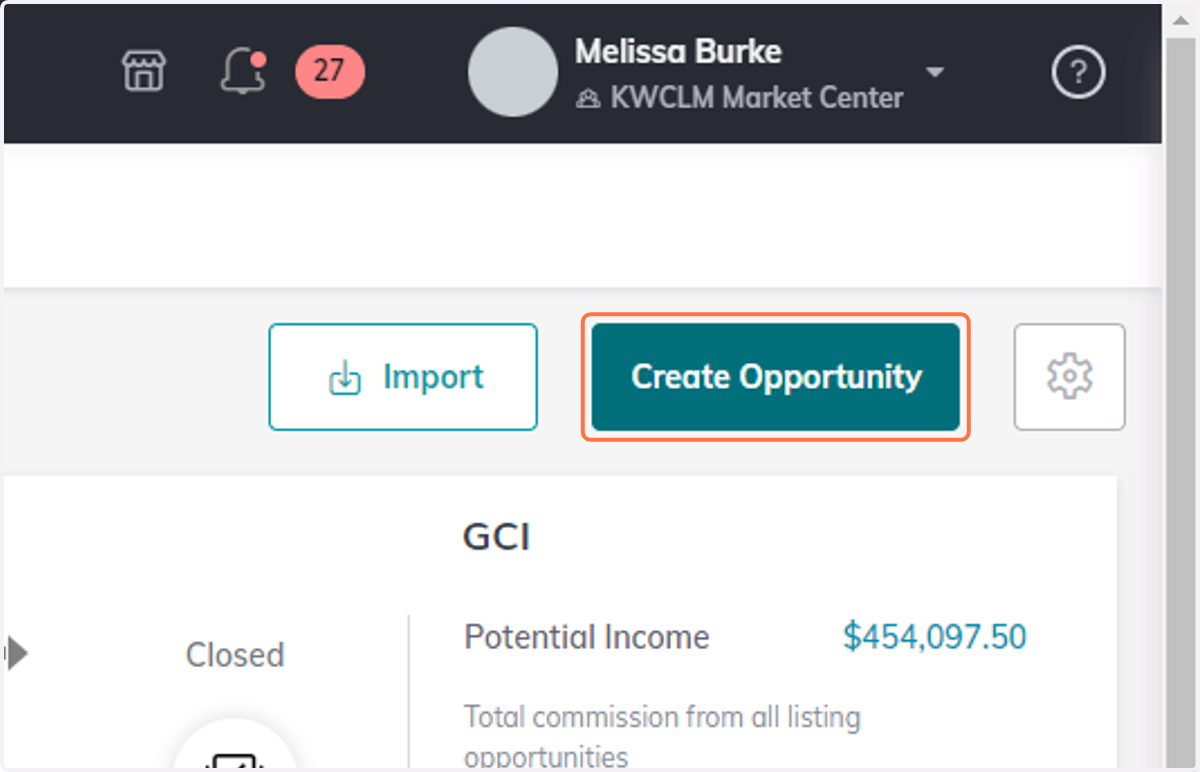
2. Click on Create Opportunity
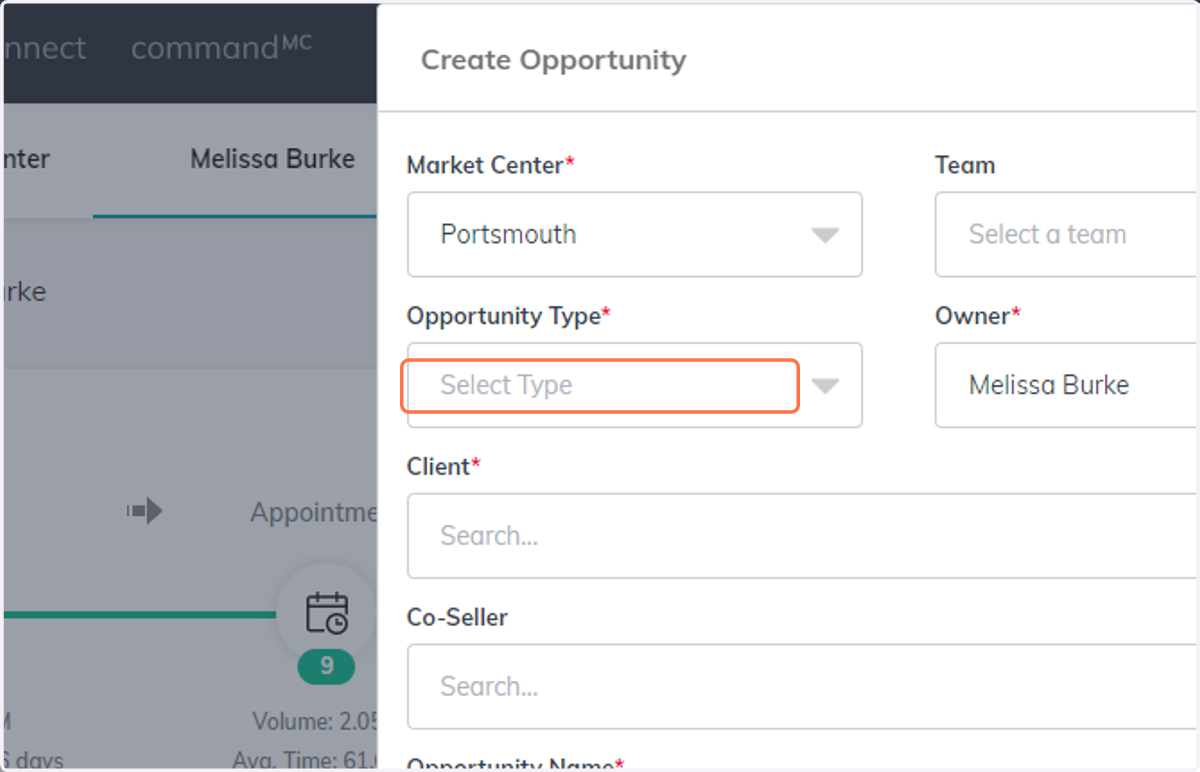
3. Click on Select Opportunity Type
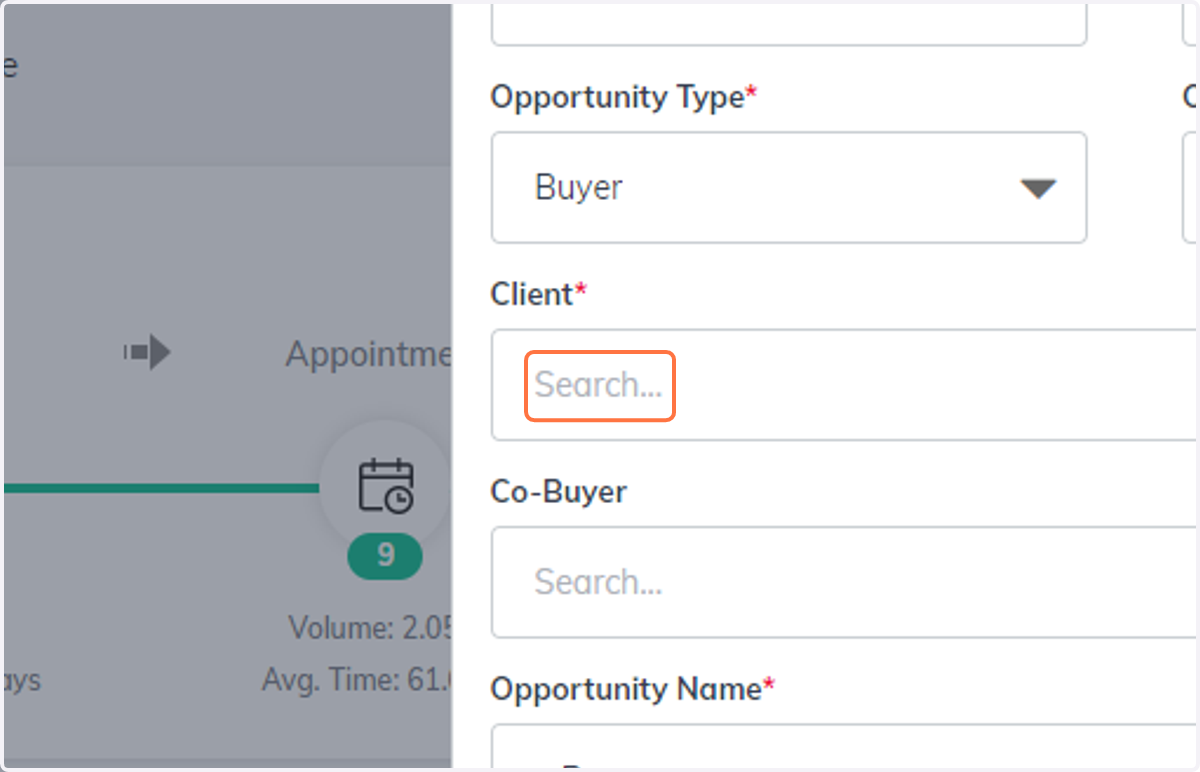
4. Search for the client OR enter the client
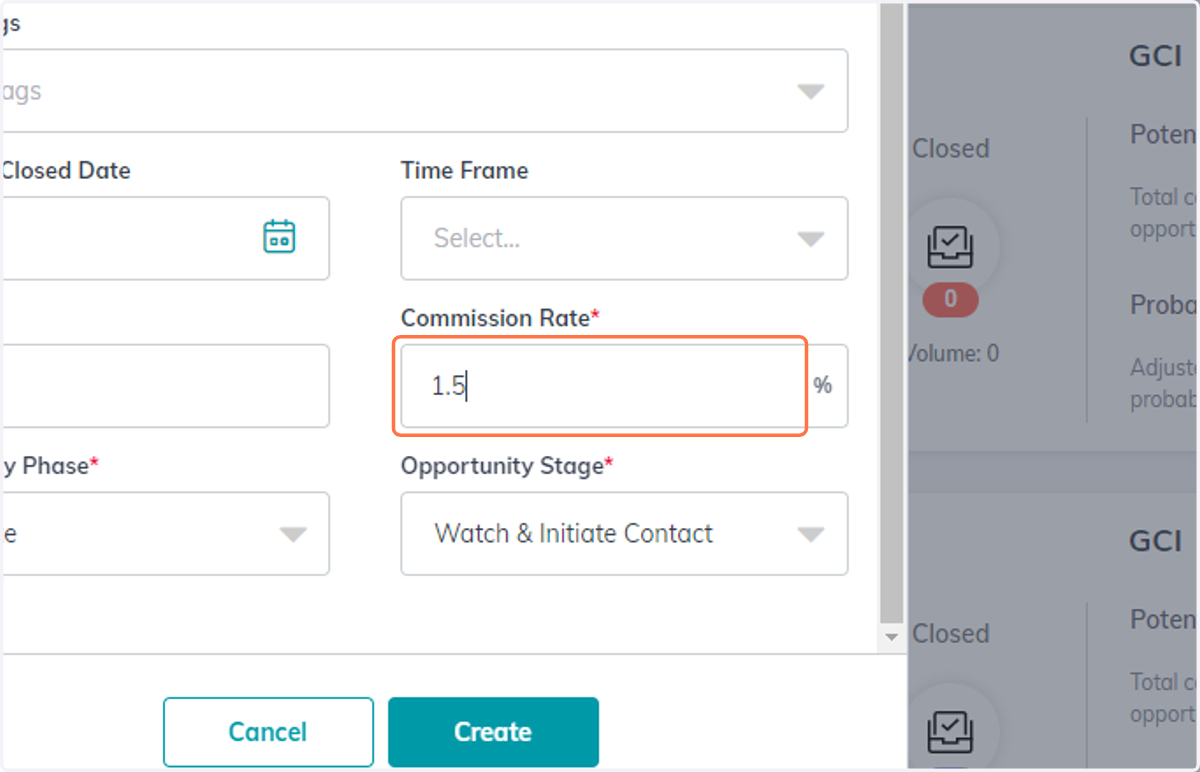
5. Enter Commission Rate for your side of transaction (required)
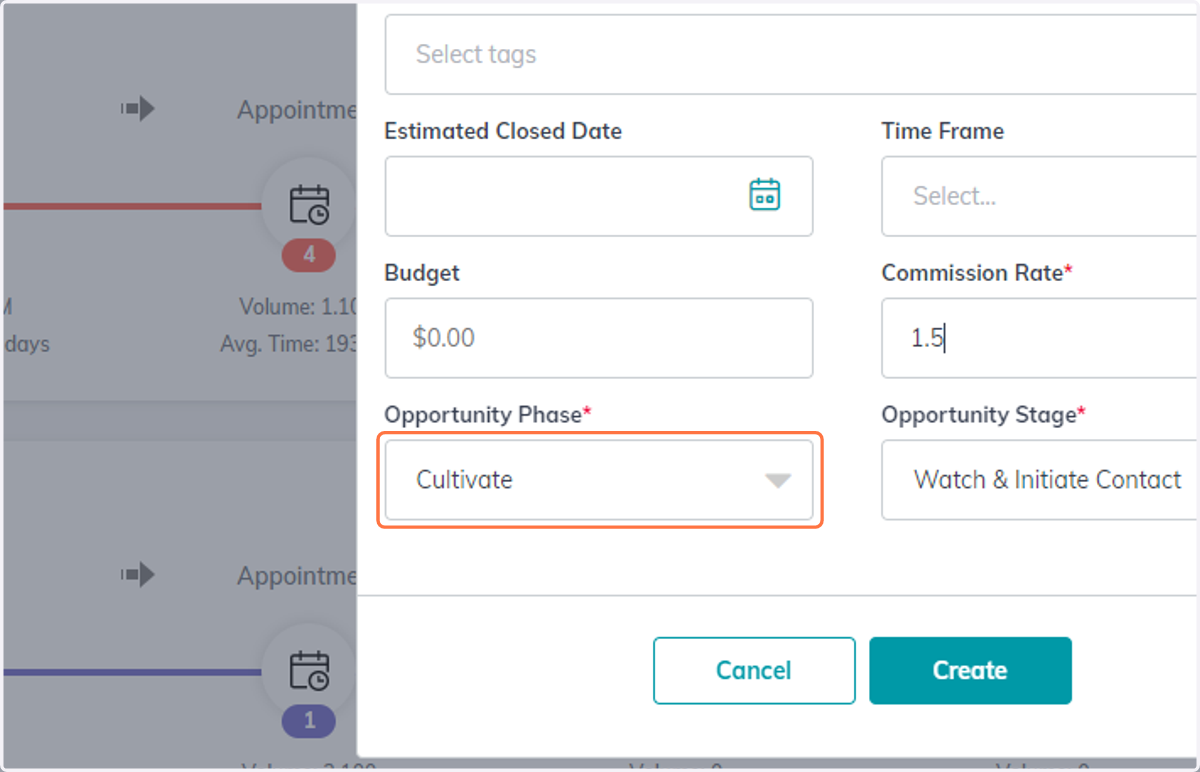
6. Update your Opportunity Phase
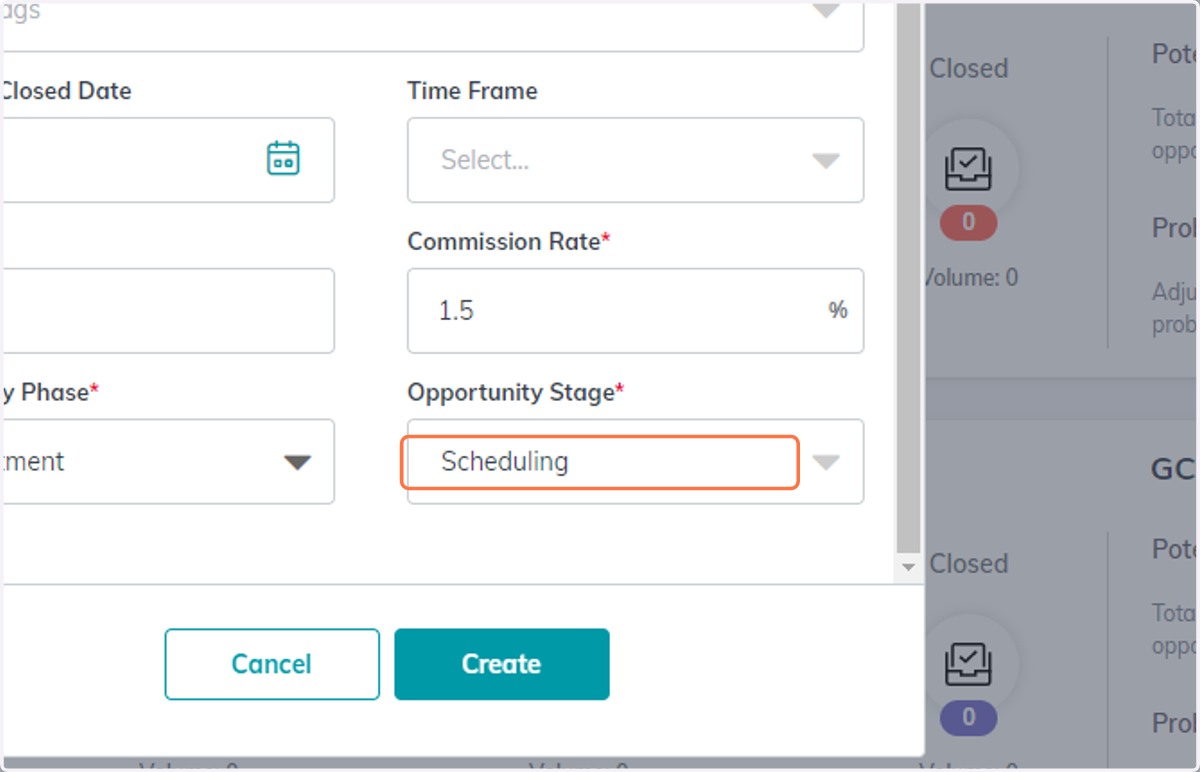
7. Update your Opportunity Stage
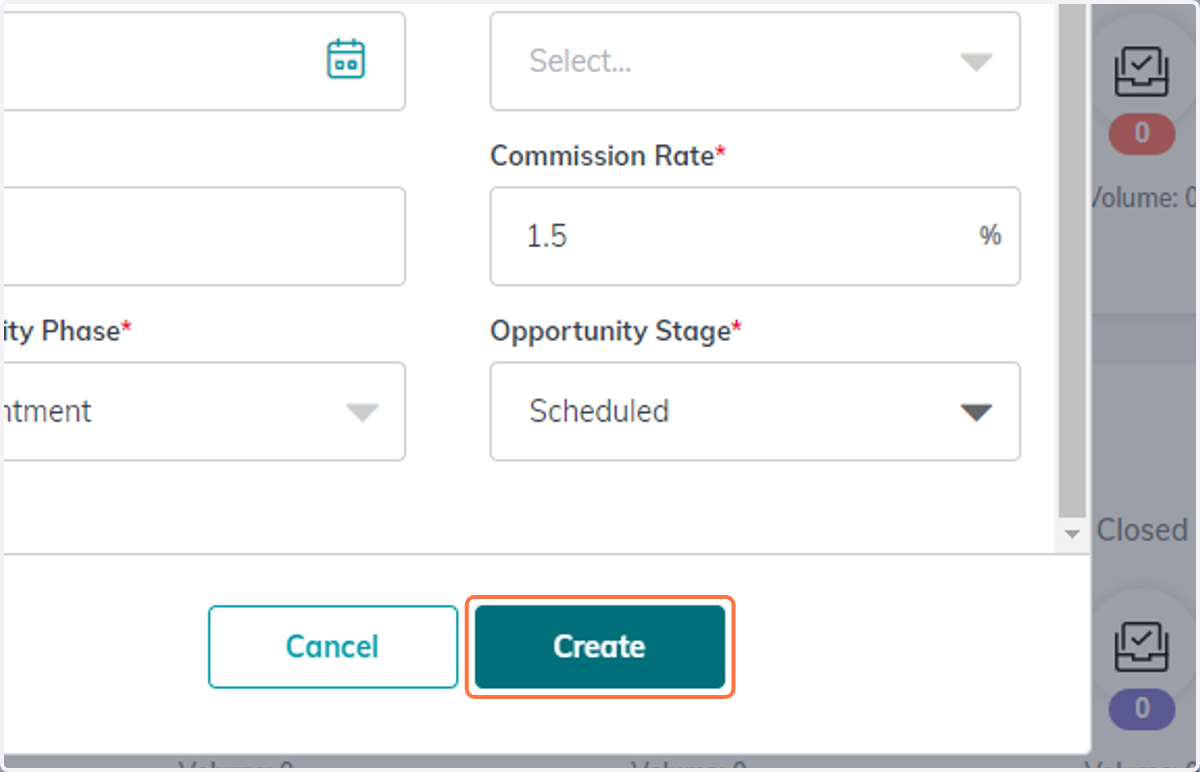
8. Click on Create
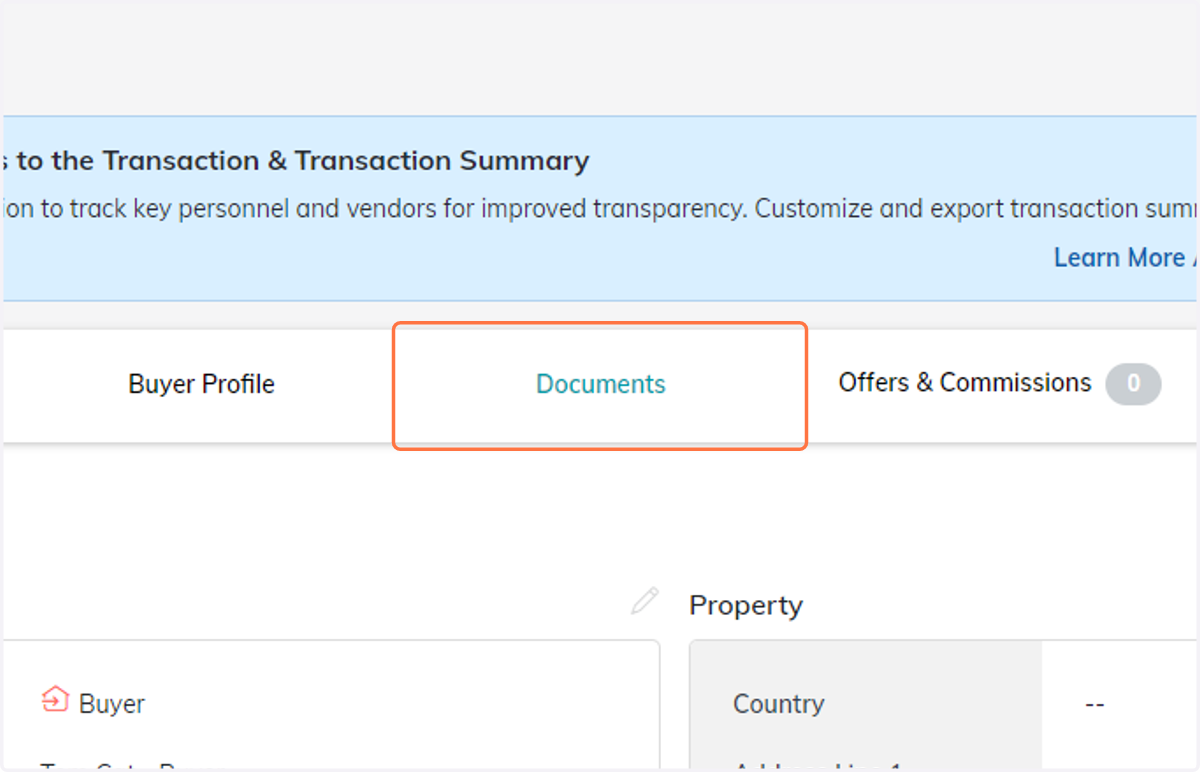
9. Go to Opportunities >> Documents
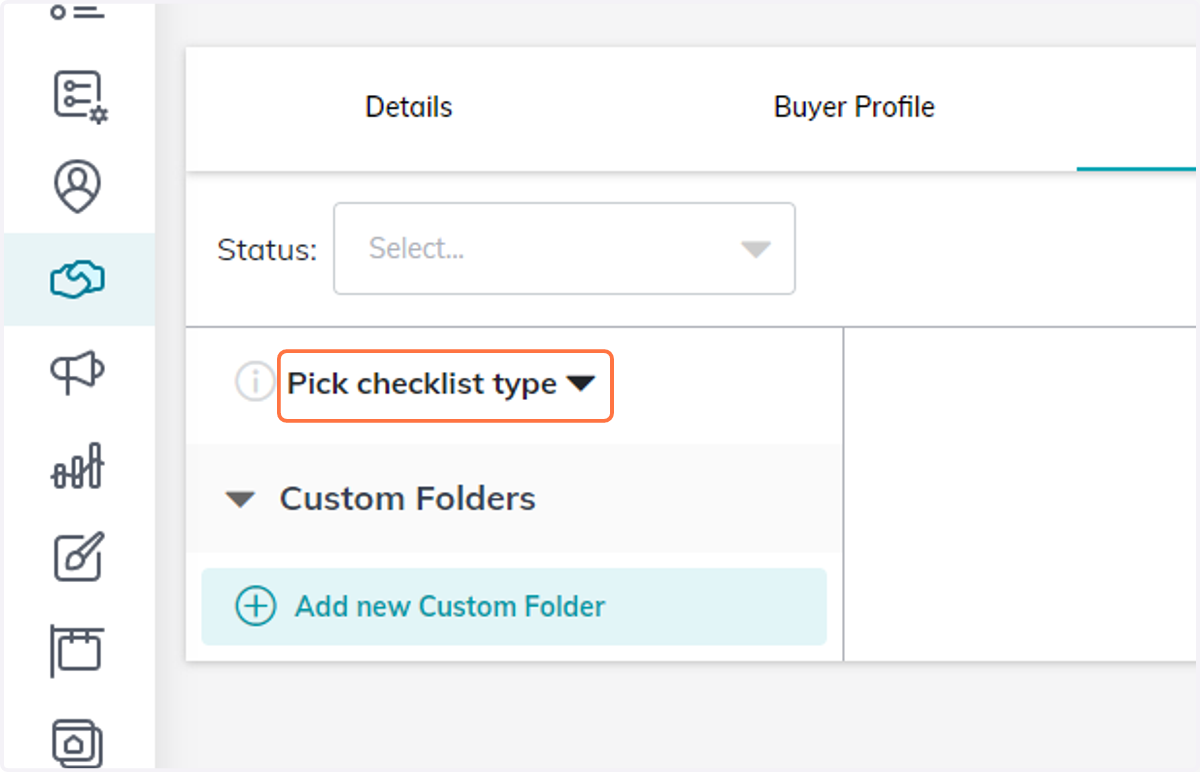
10. For now, skip the Checklist Type
After you have connected DocuSign with "Start a Transaction" you can select the checklist type. We hold off so your DocuSign room is not filled with DocuSign documents you will not be using.
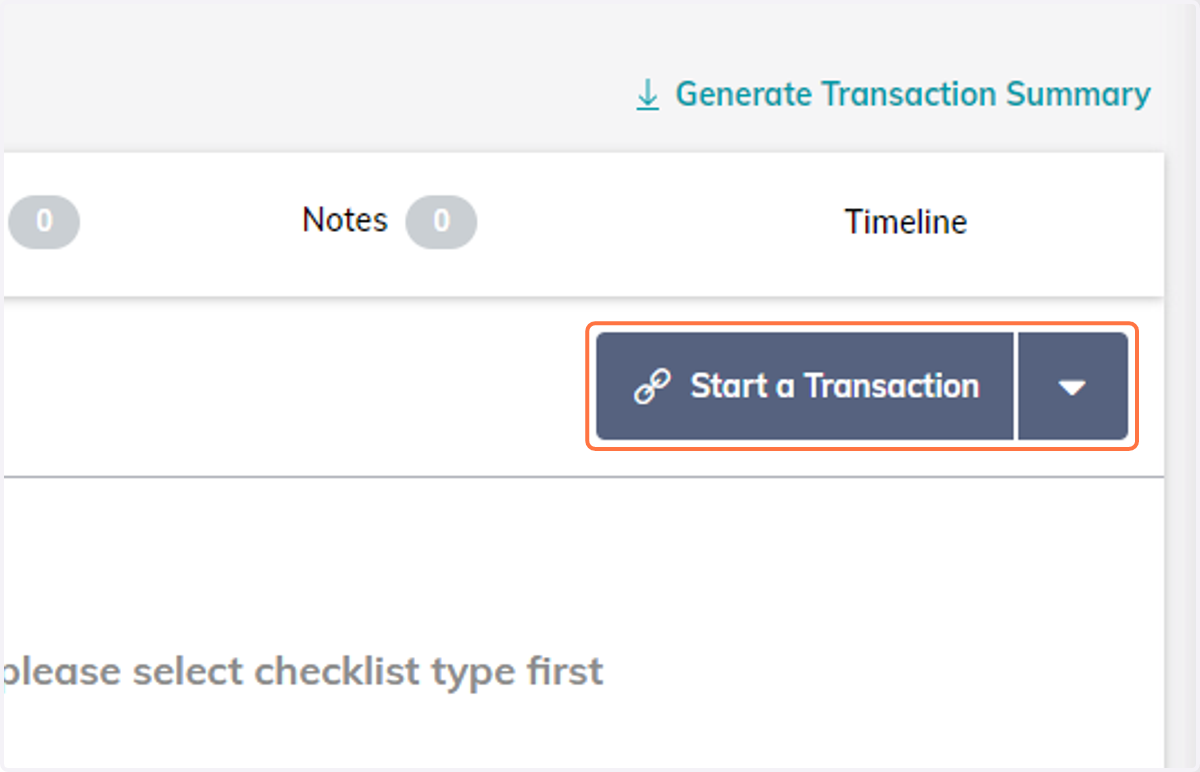
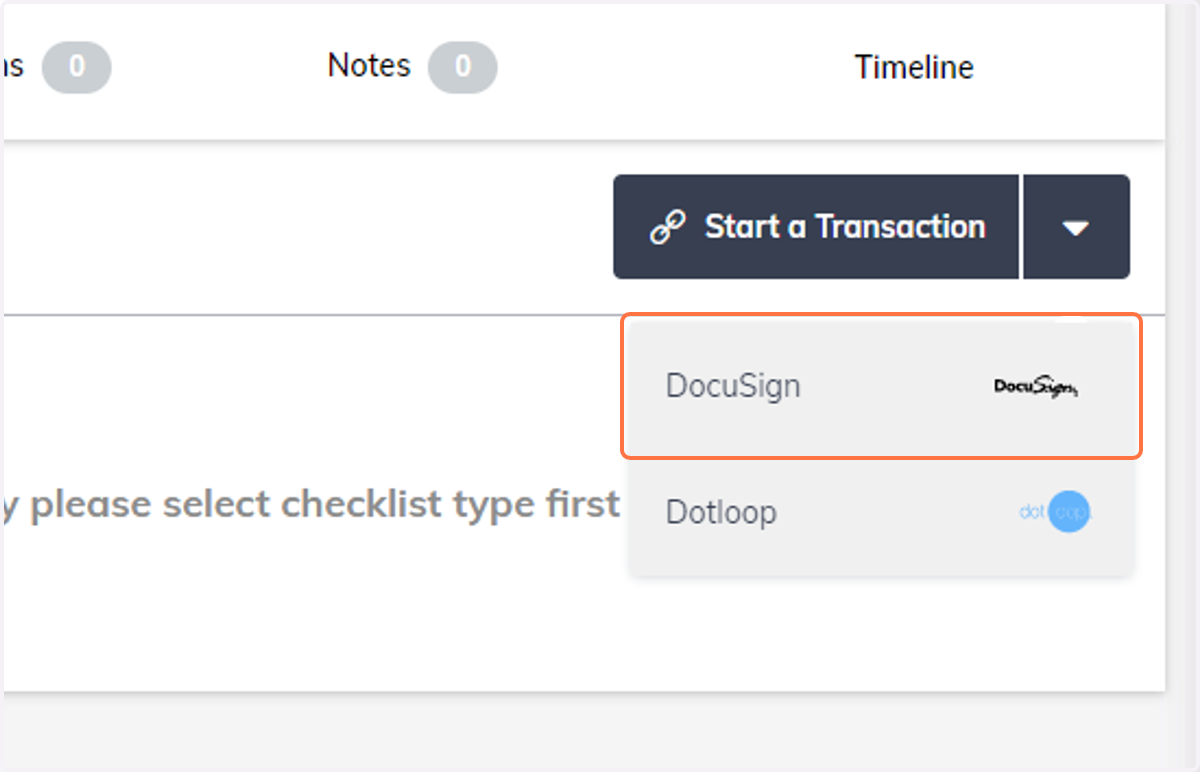
11. Click on Start a Transaction
12. If you have more than one signing platform connected to Command, you may need to select DocuSign.
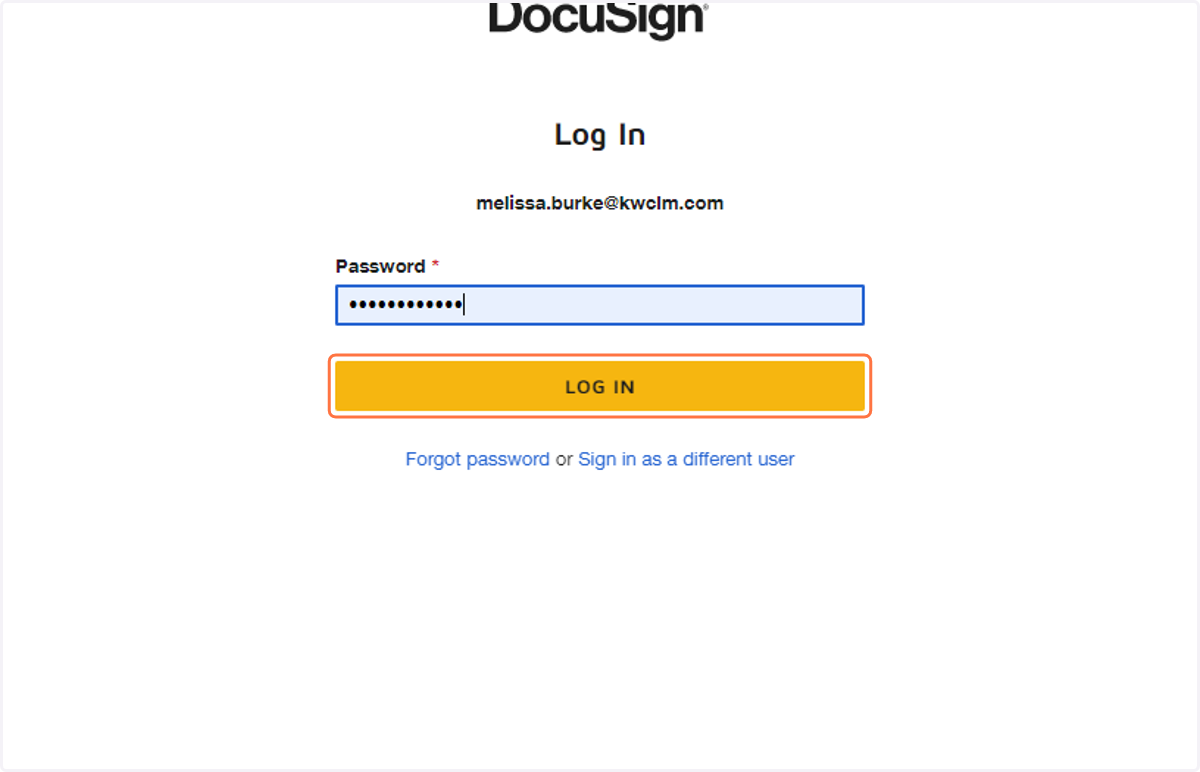
13. Log into DocuSign
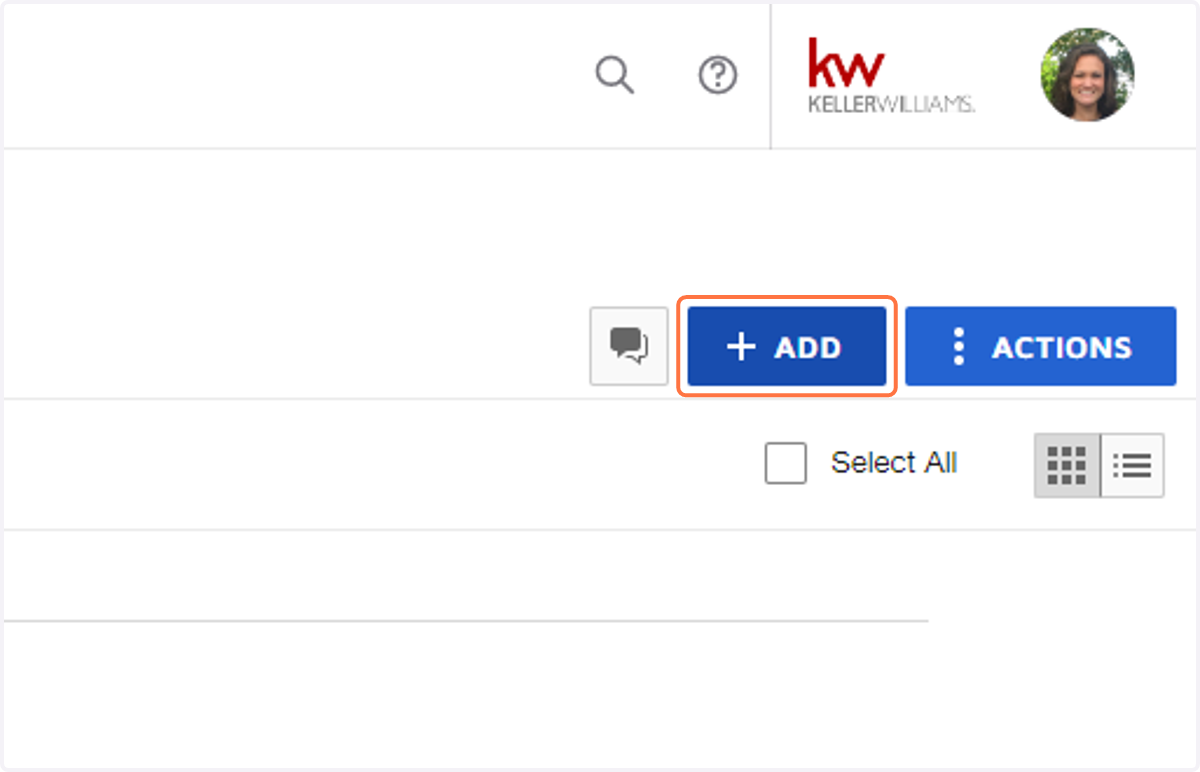
14. Go to your DocuSign Documents Screen and Click on ADD…
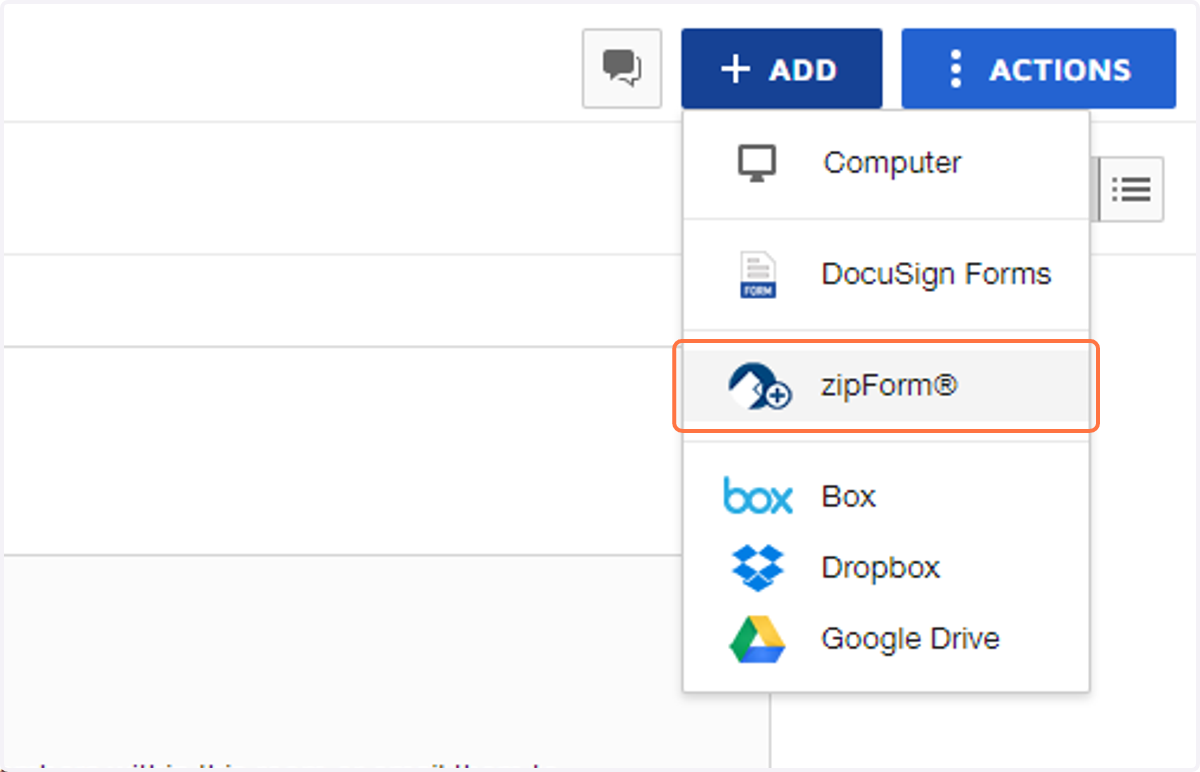
15. Instead of Clicking "DocuSign Forms" Click on zipForm®
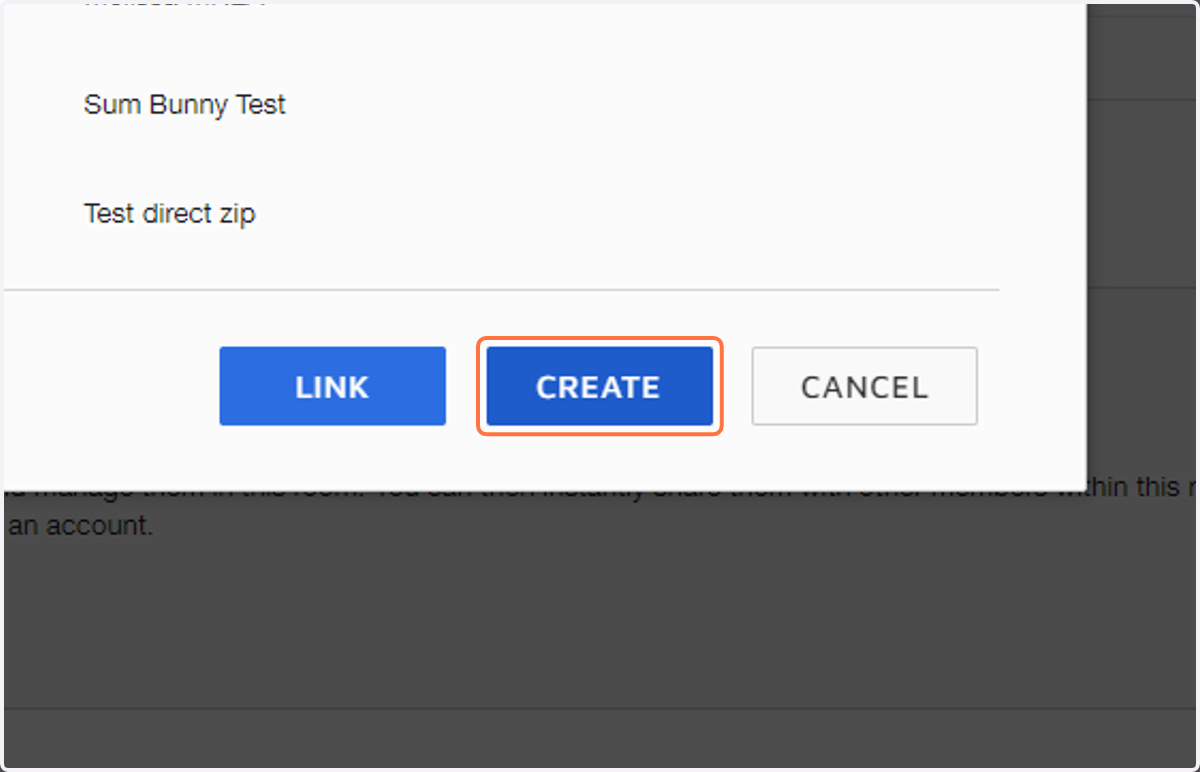
16. Click on CREATE on the Pop-up Box
*If your zipForm account is not connect to your DocuSign account, you'll need to complete this step first.
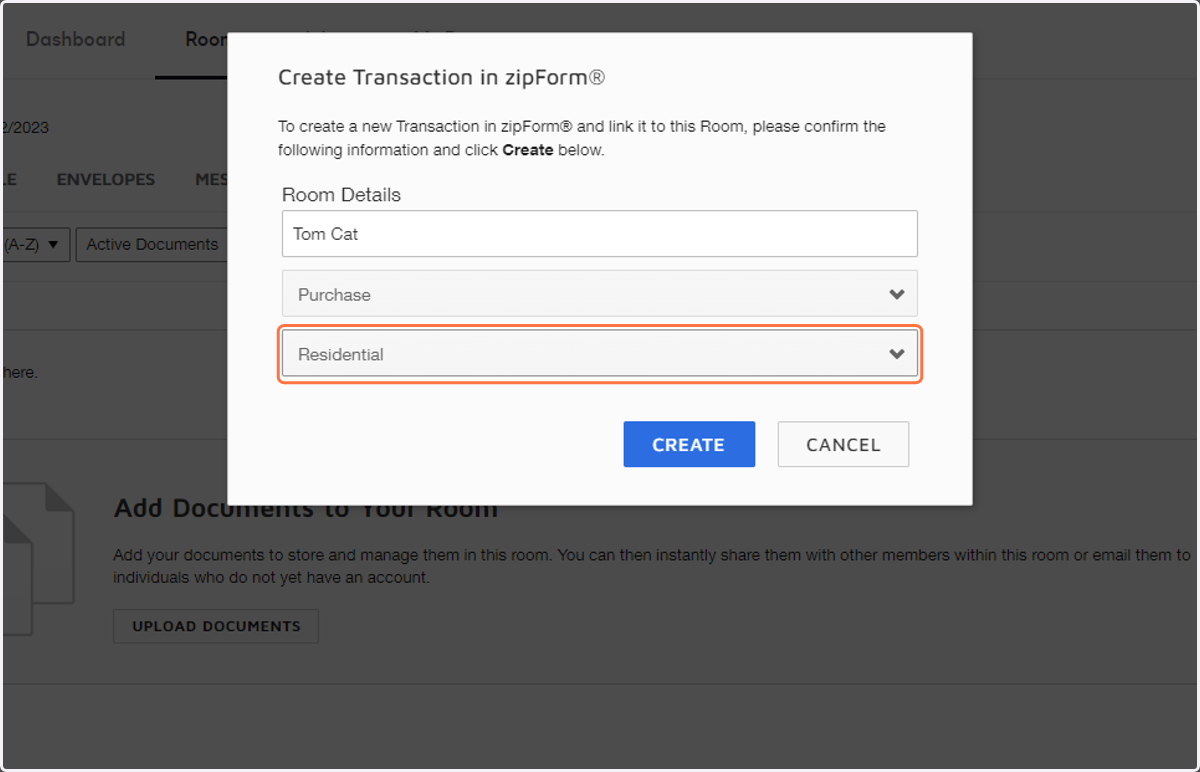
17. Enter the Room Details and the type of transaction.
This will create a "Transaction" in zipForm.
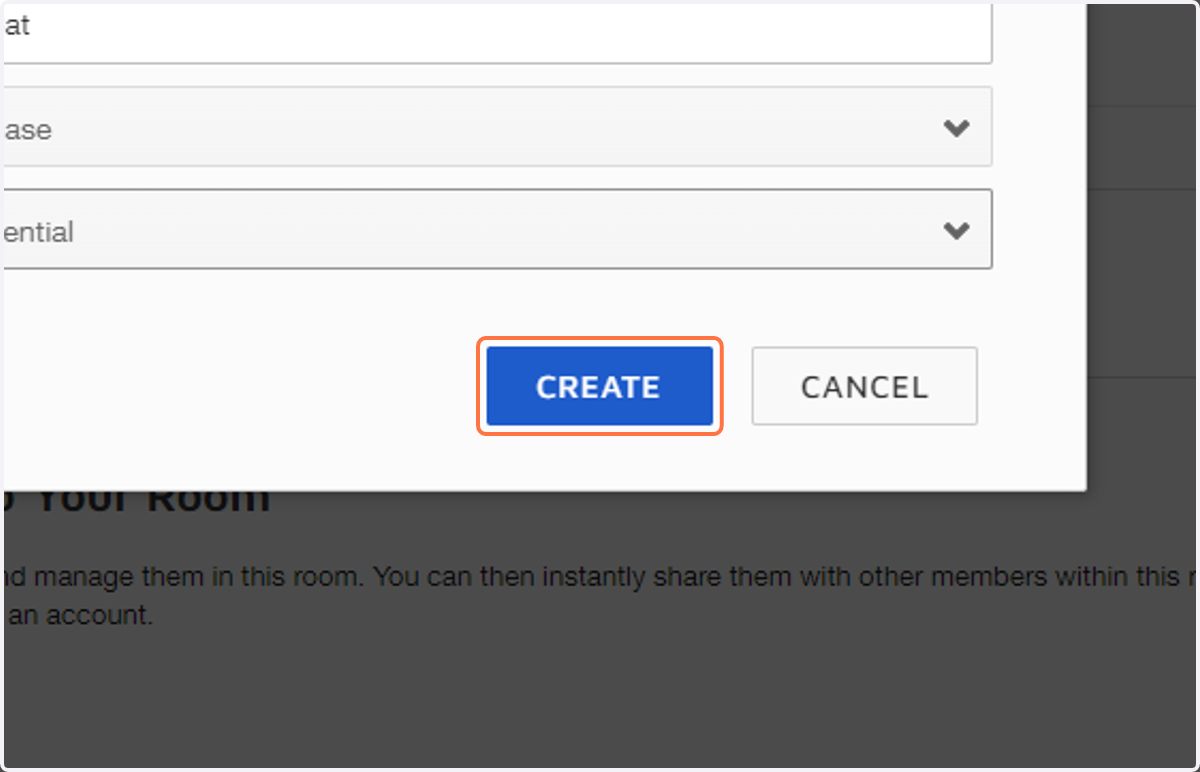
18. Click on CREATE
19. IF you have setup your zipForm Templates to "Automatically apply this template to transaction". You don't even need to log into zipForm! Click Linked Transaction.
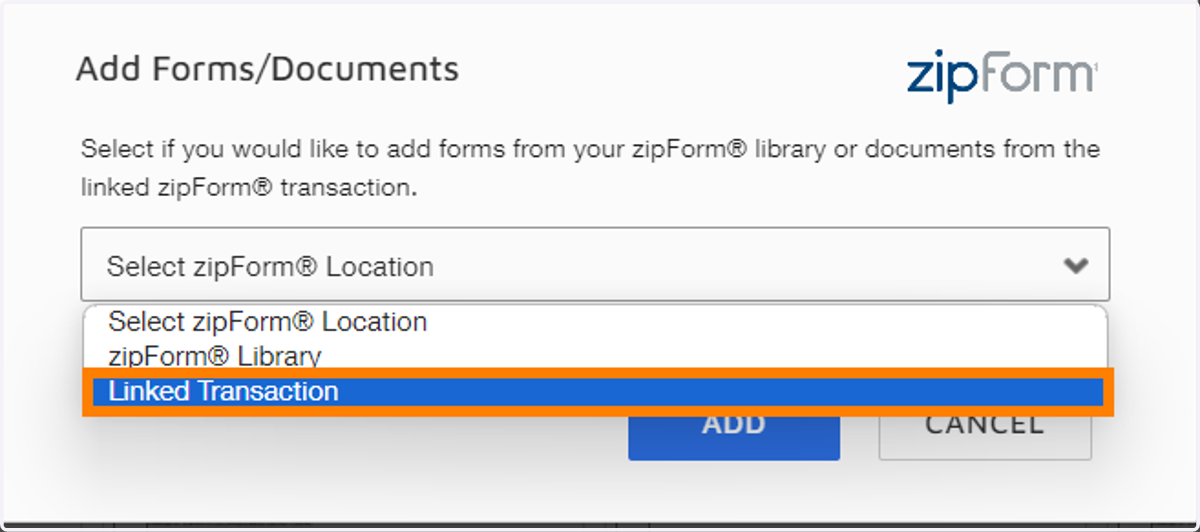
20. The template is applied to the transaction immediately and the forms within the template are available to select without leaving DocuSign.
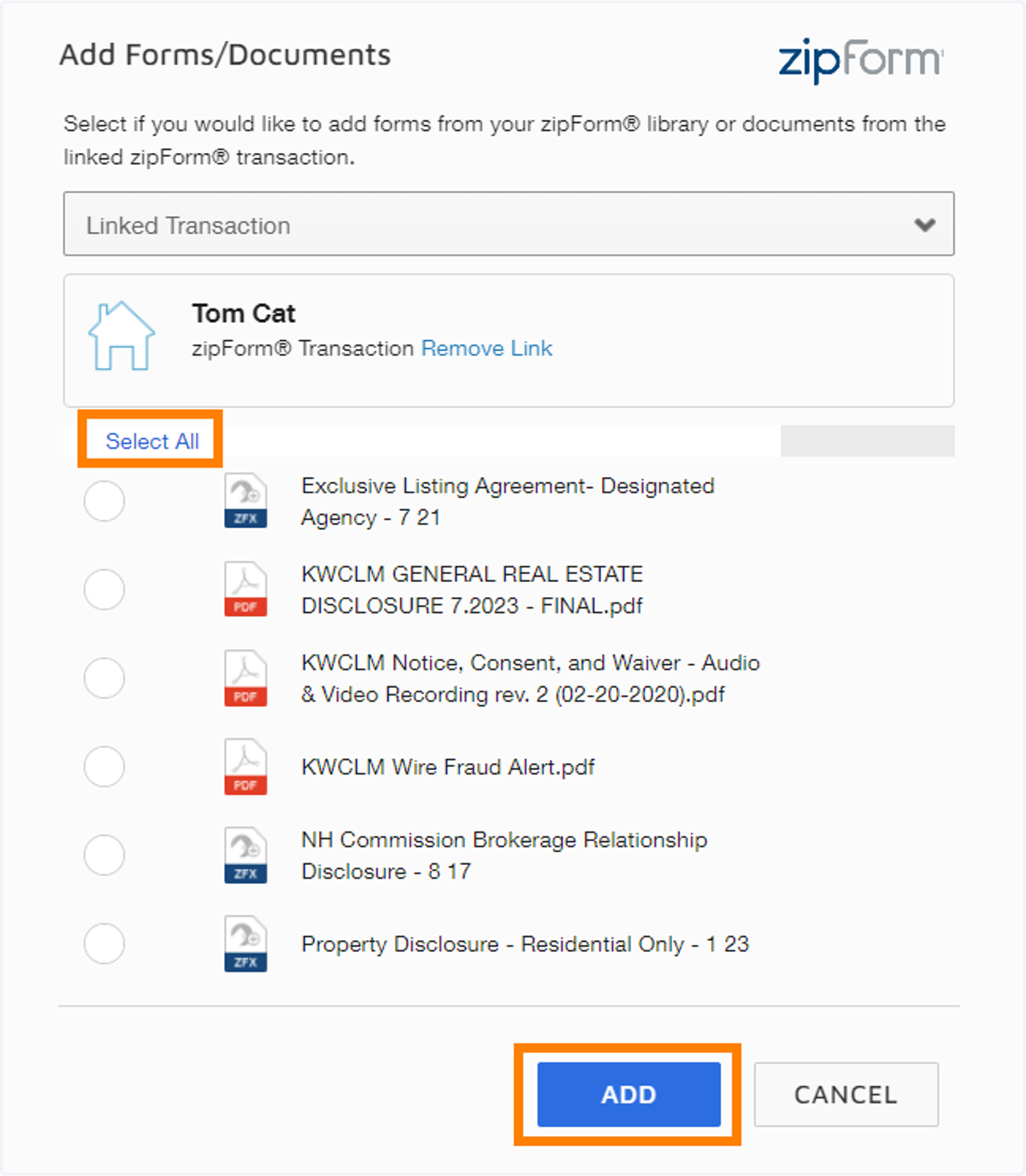
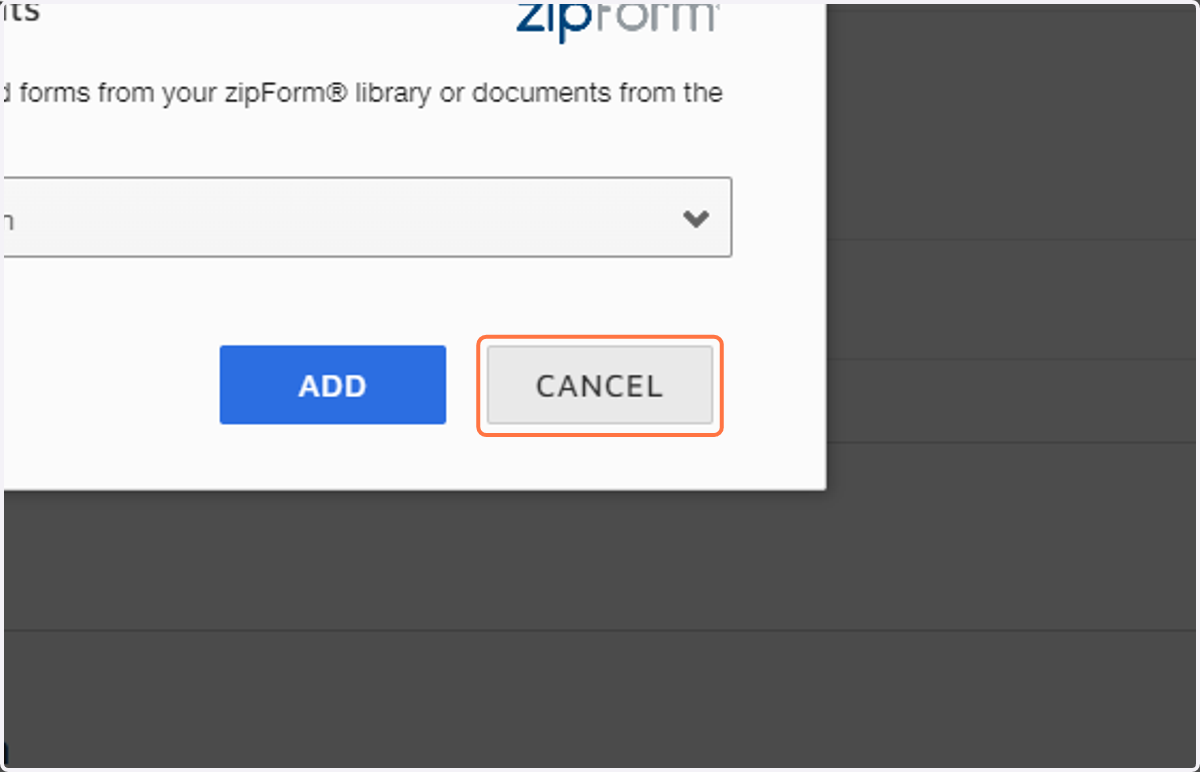
21. IF you HAVE NOT included the setting "Automatically apply this template to transaction" When the next pop-up appears, select "cancel" for now.
We're doing this so we can apply your zipForm template to your transaction. This allows you to bring in zipForm versions of the forms for your transaction.
Transactions (zipForm Edition) 23.06
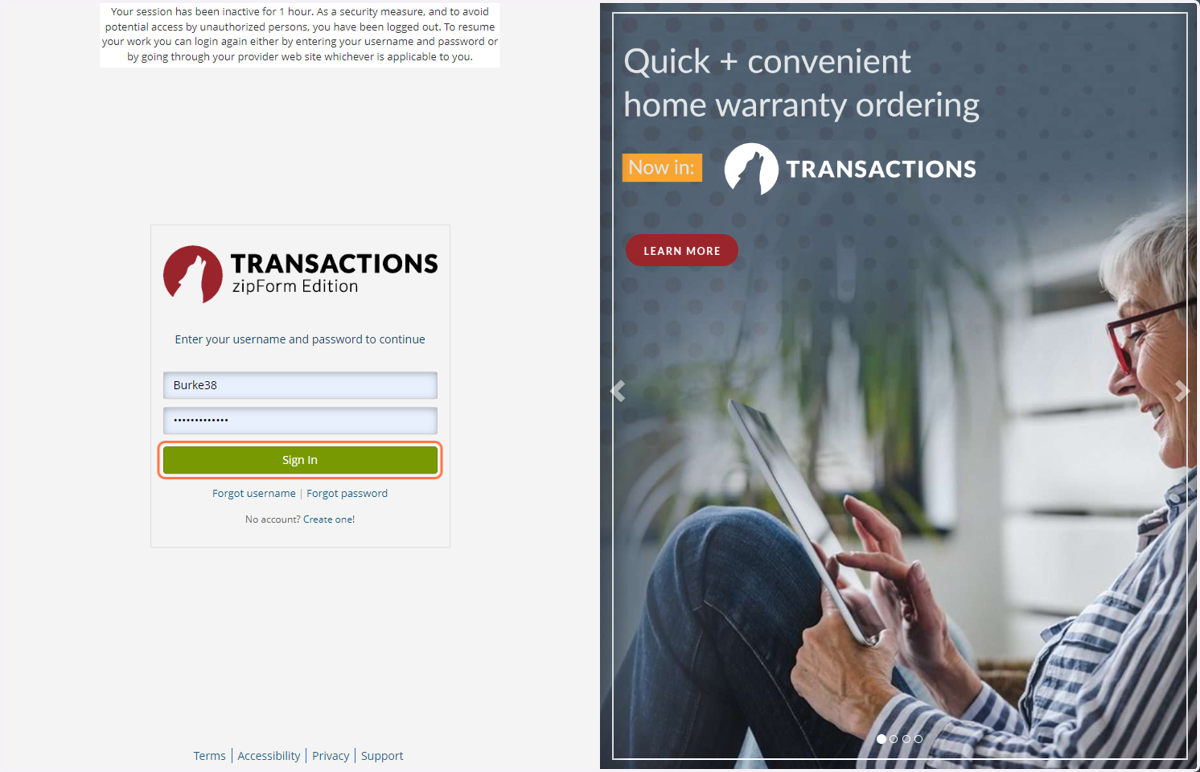
22. Open a new tab and log into Zipform
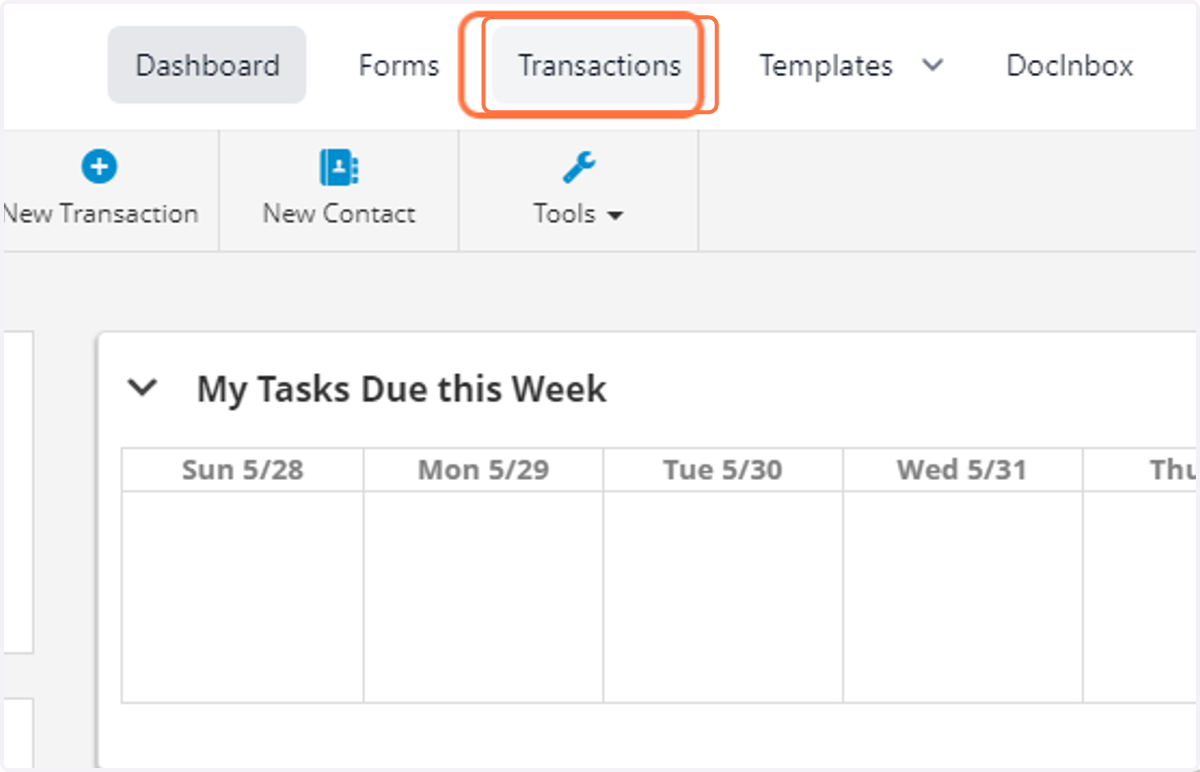
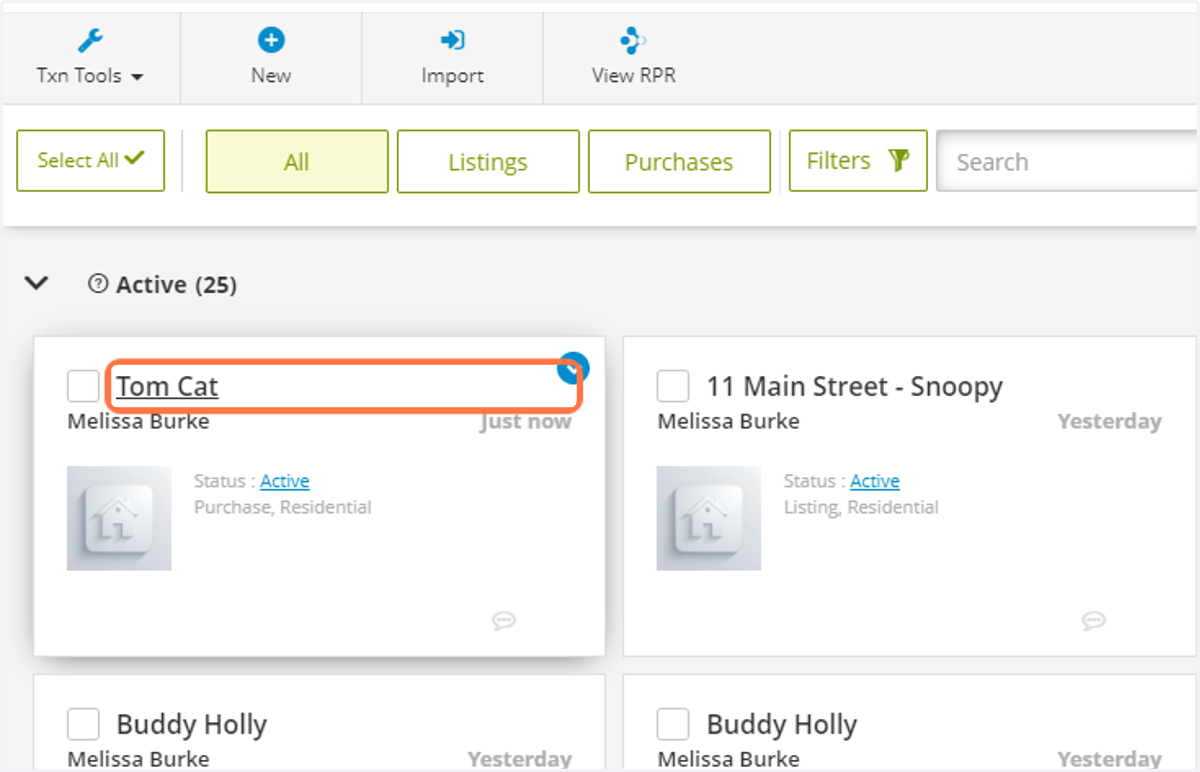
23. Click on Transactions
24. Find Your newly connected Transaction
25. Click on Apply template
You will need to have templates created prior to applying.
Learn more here: https://youtu.be/rFw0SGyvQJ0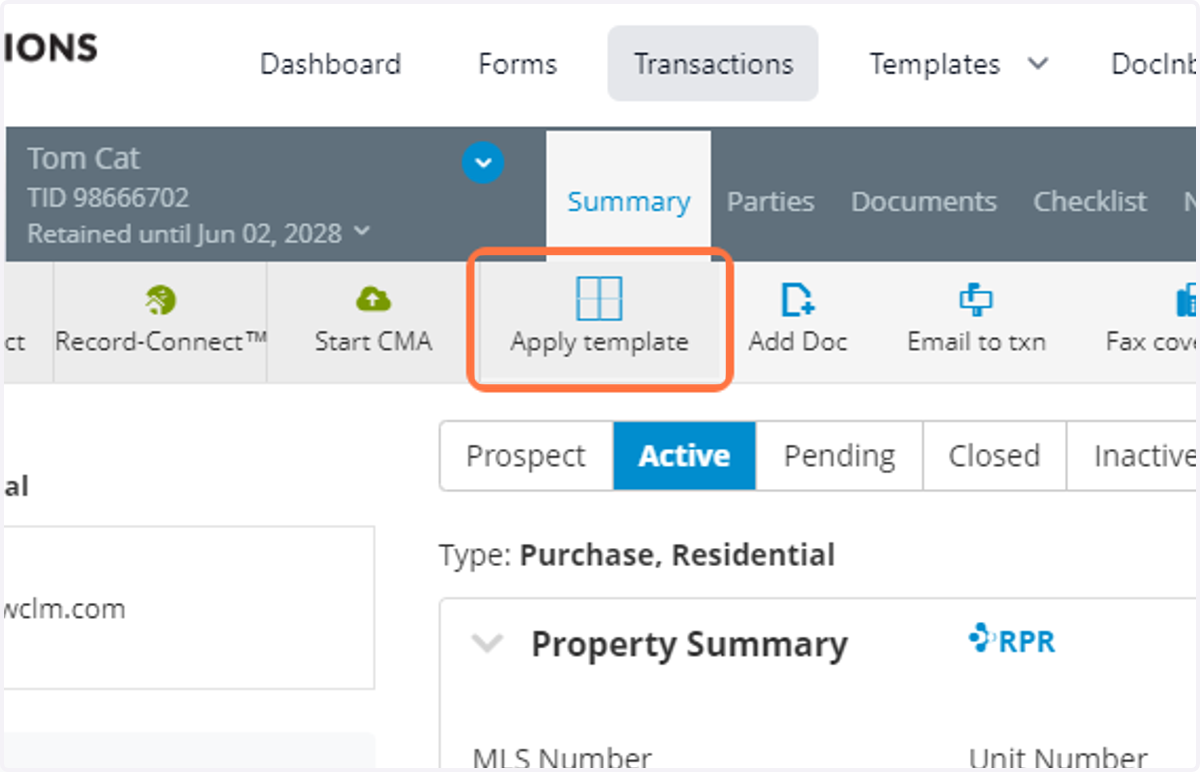
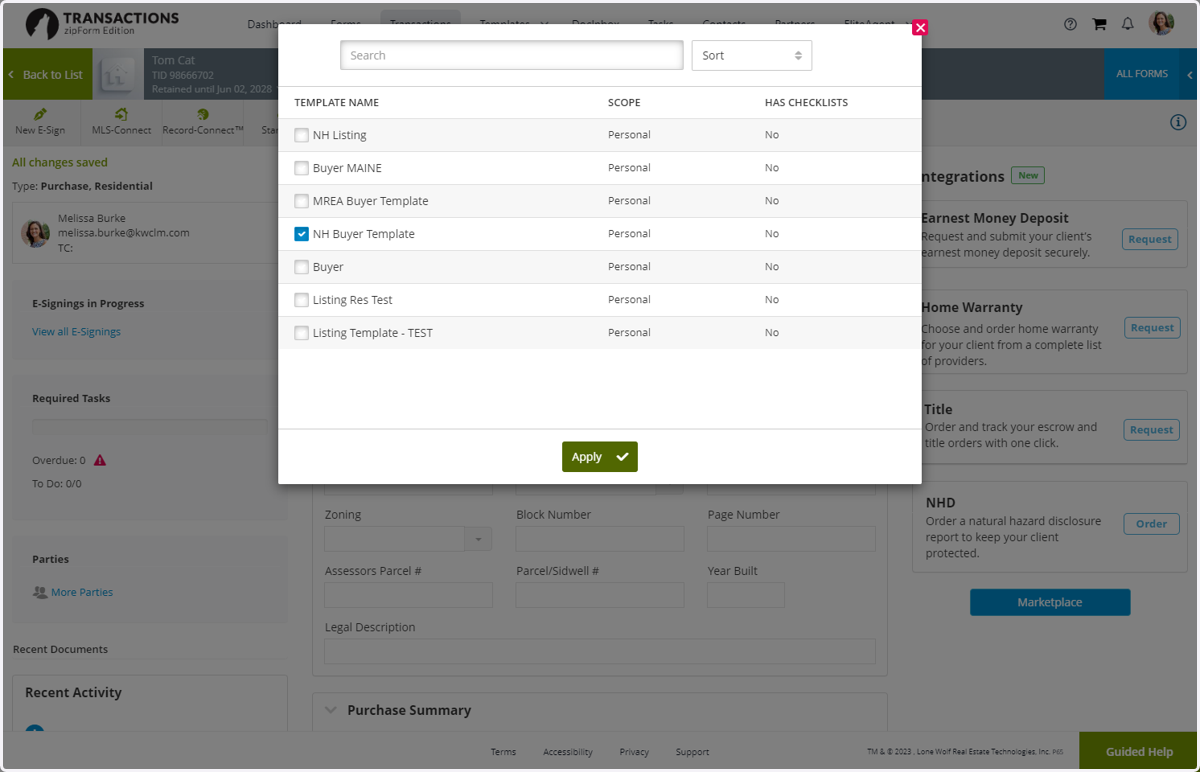
26. Select Template
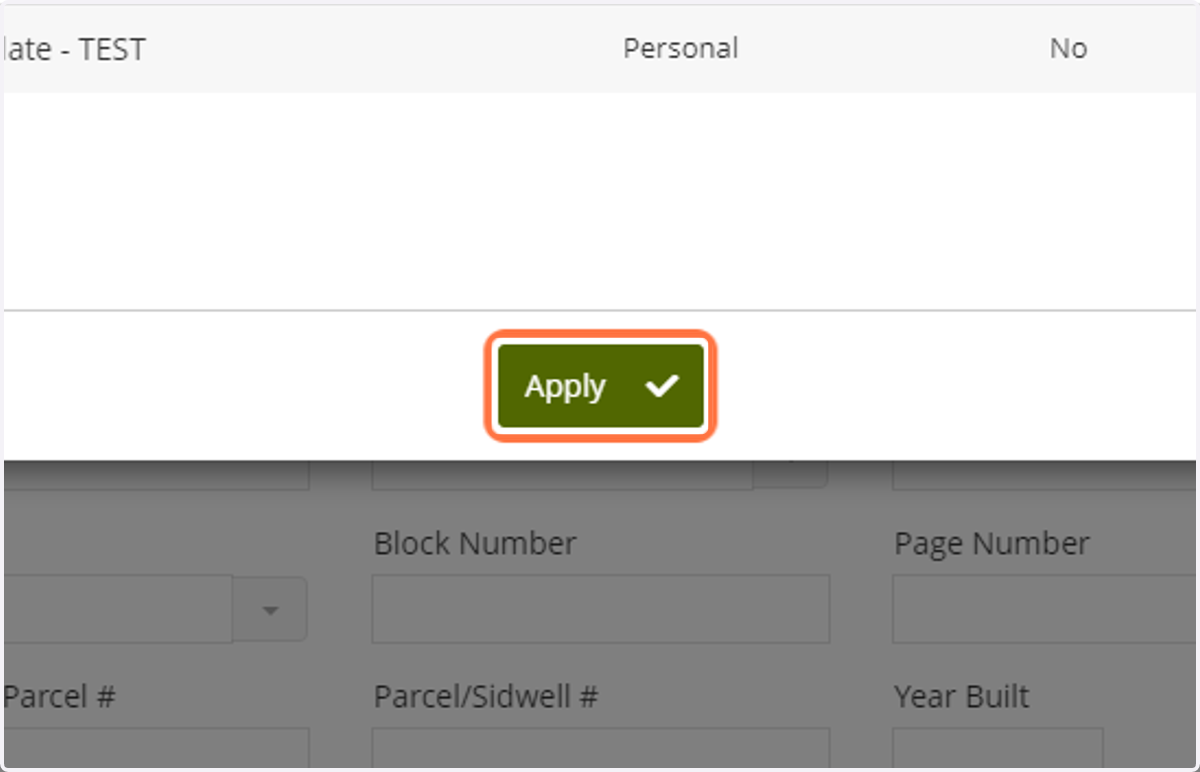
27. Click on Apply
28. Click on Documents to make sure the forms were applied :)
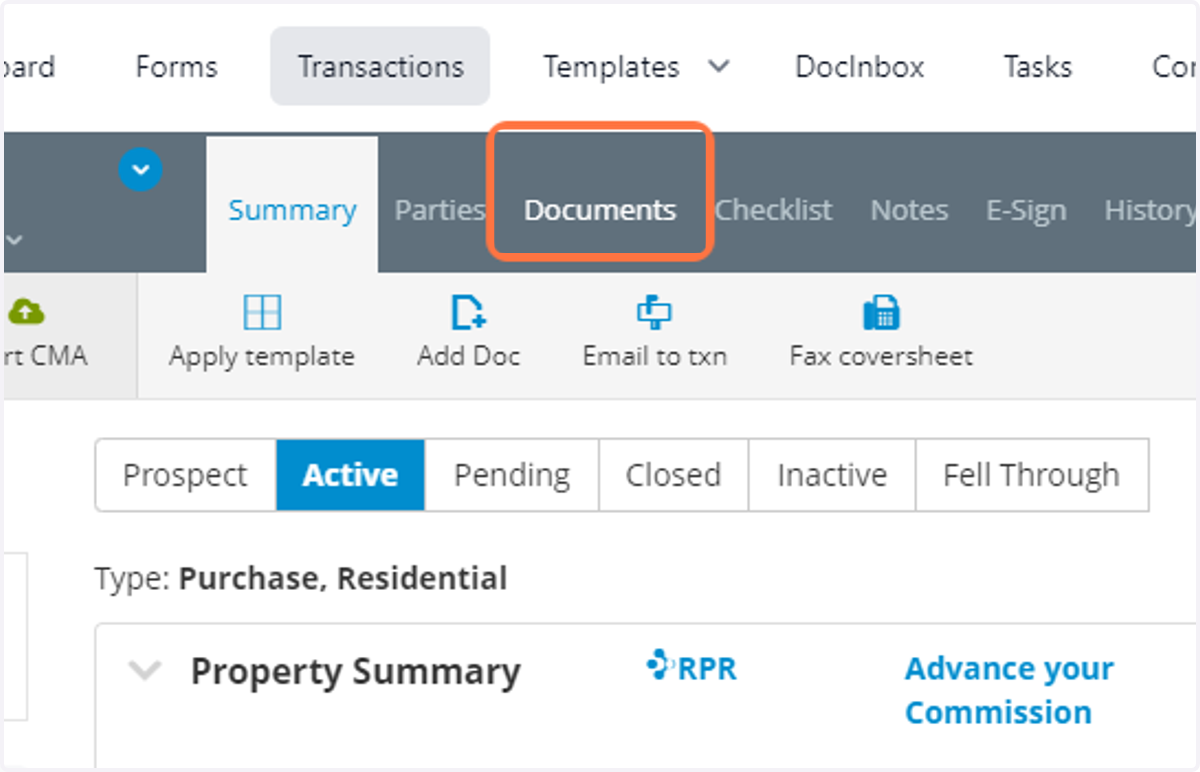
Documents > DocuSign Rooms
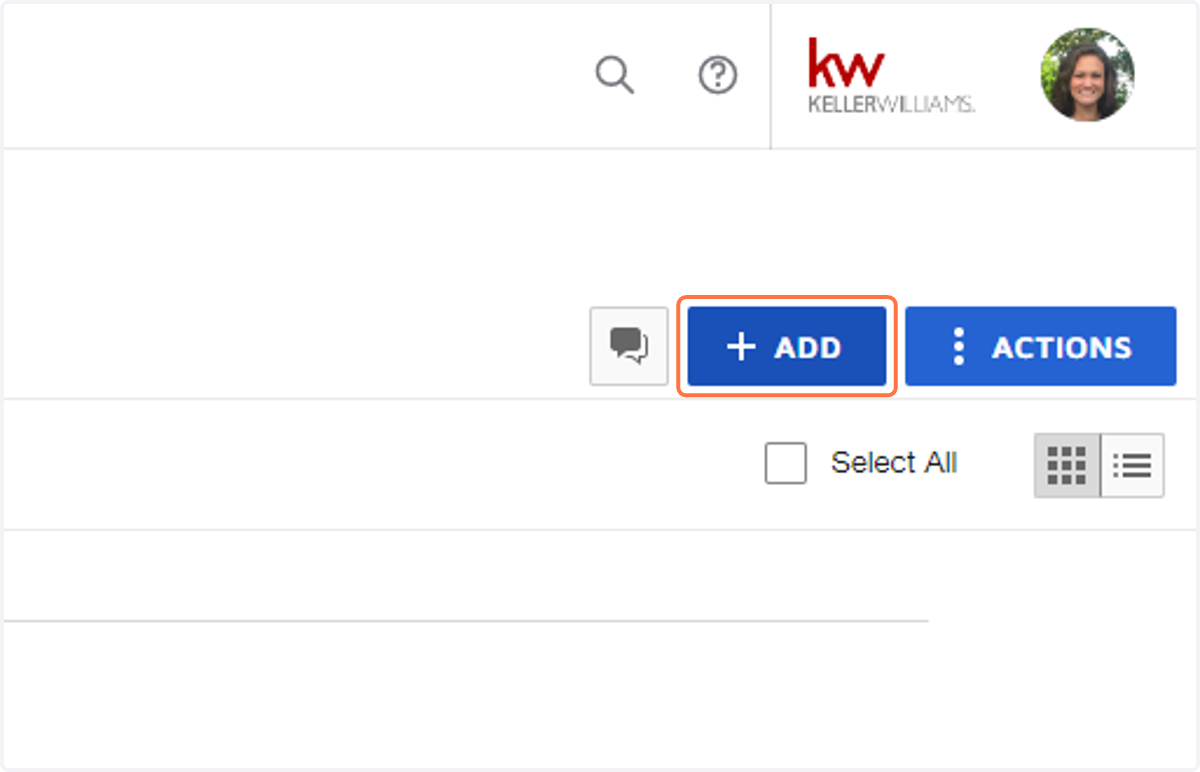
29. Click on ADD…
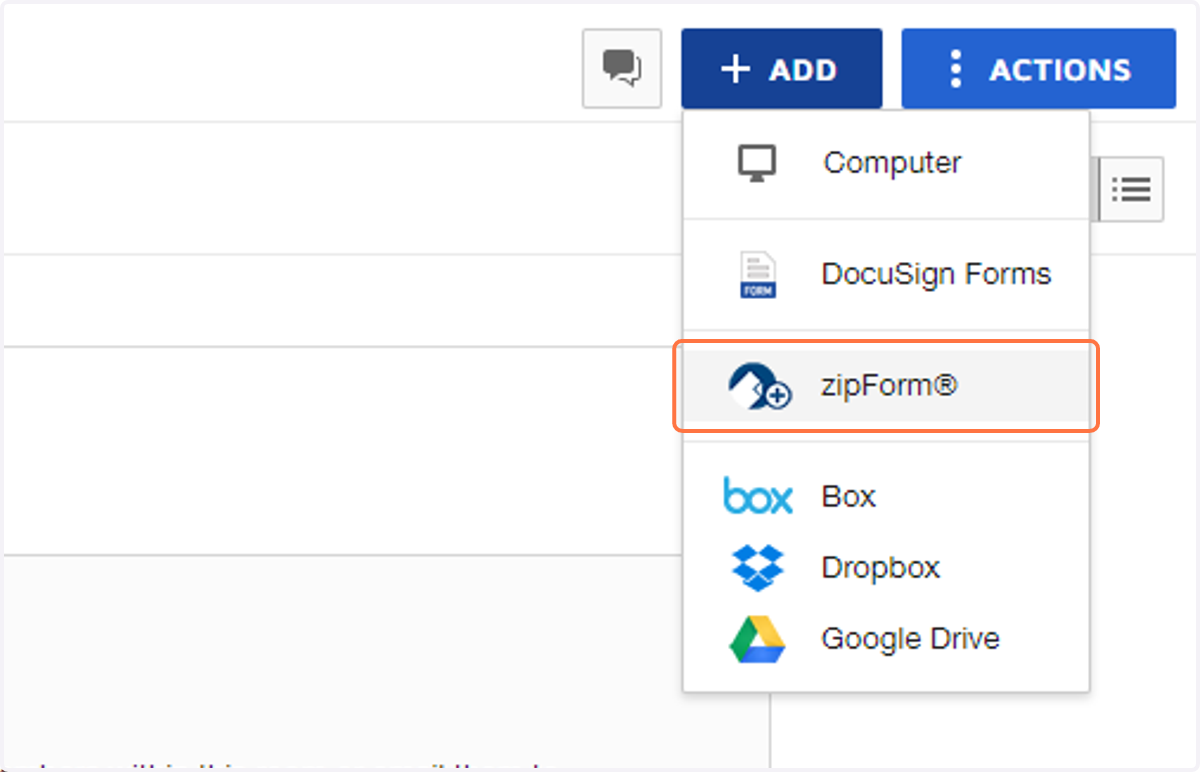
30. Click on zipForm®
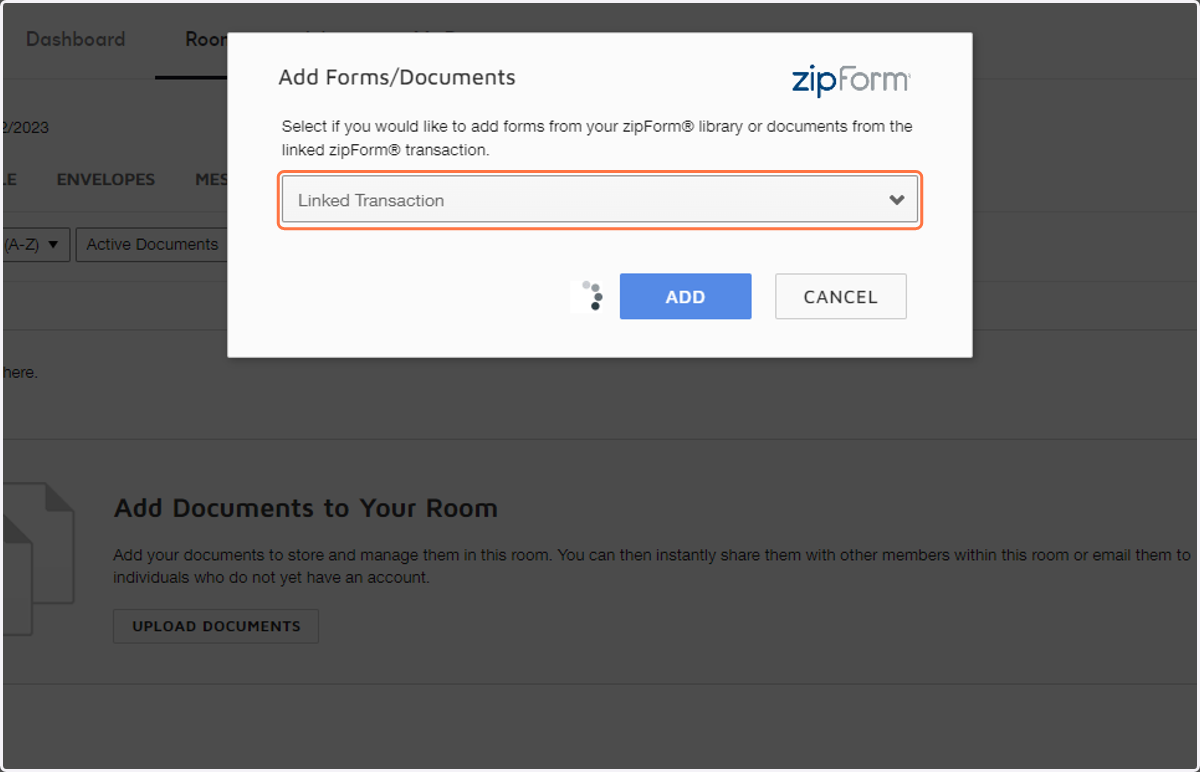
31. Select Linked Transaction
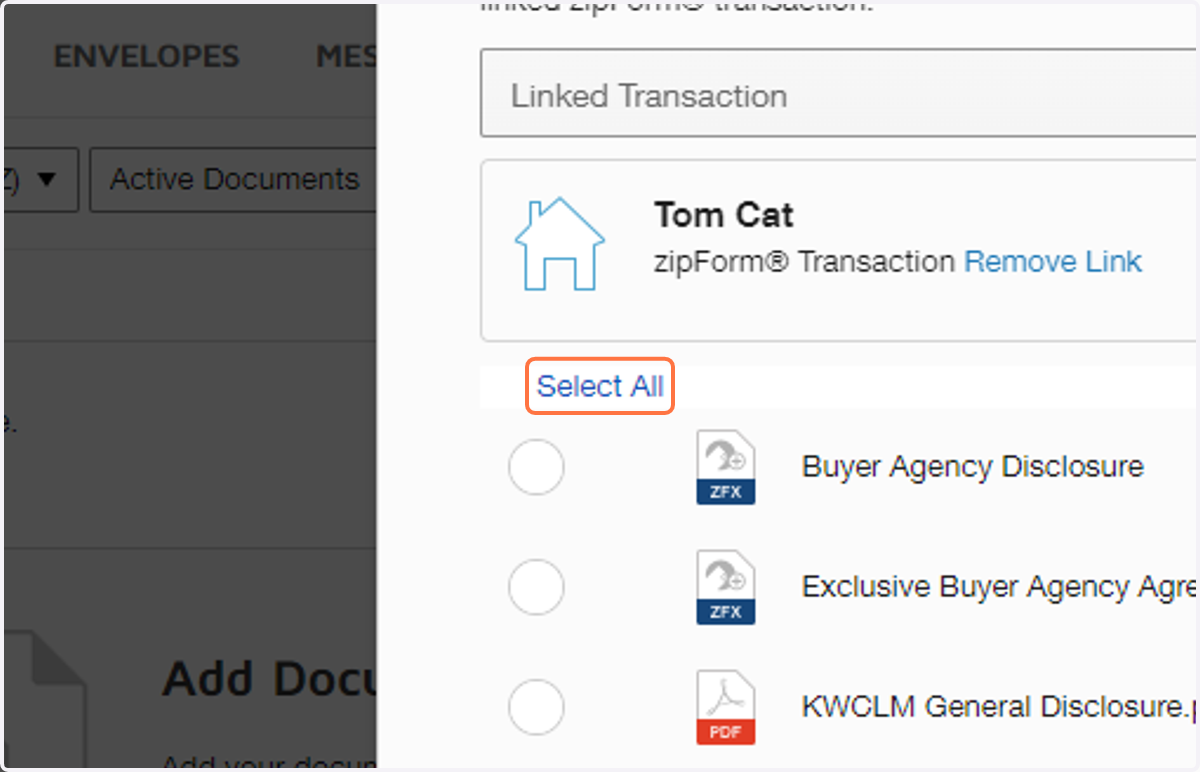
32. Click on Select All
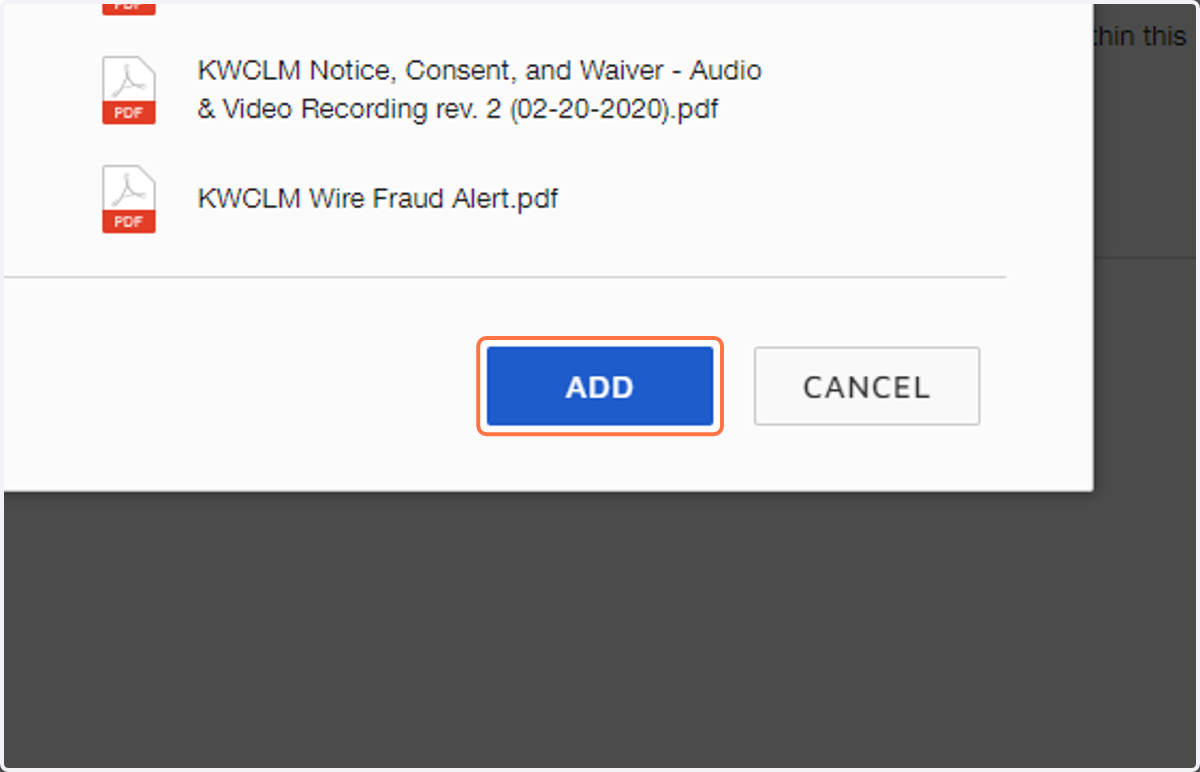
33. Click on ADD
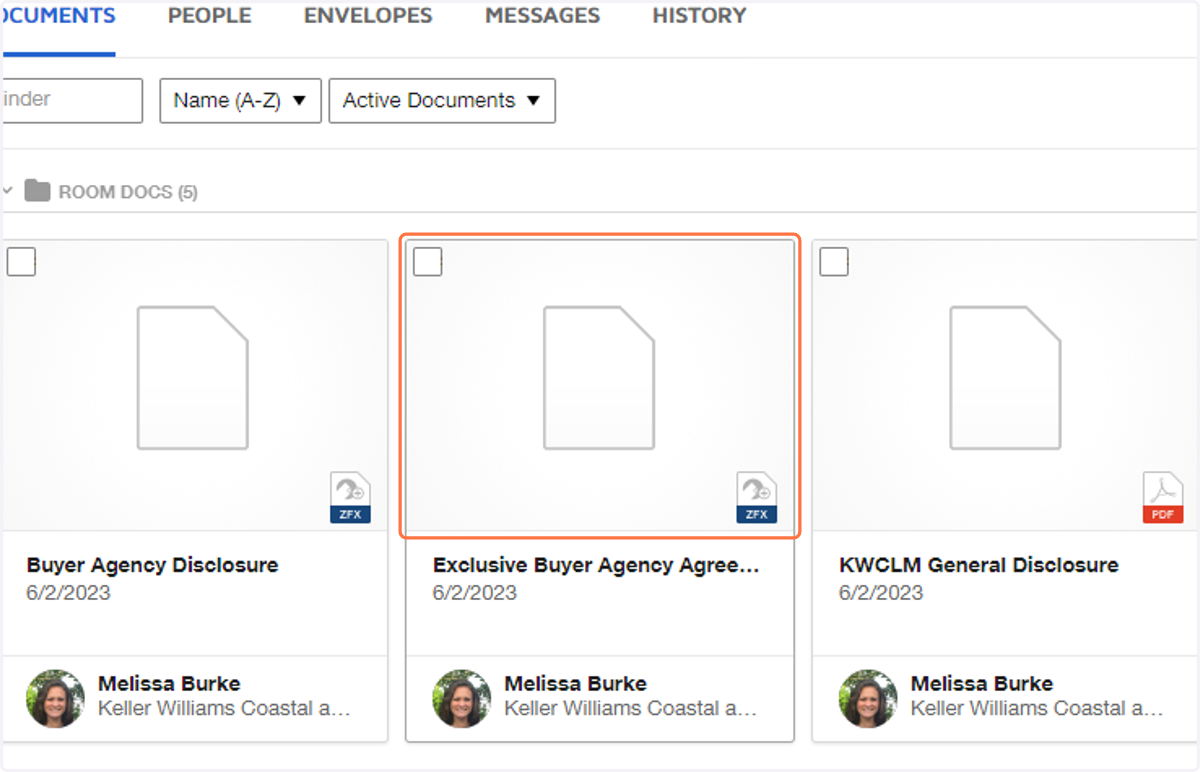
34. Select each form that you'd like to complete as you normally would with the DocuSign Forms. (Fields that were completed in your templates, like the Brokerage name/address should be completed if they were in your template)
These forms are now linked to zipForm. As you complete the forms, information is linked to the zipForm transaction.
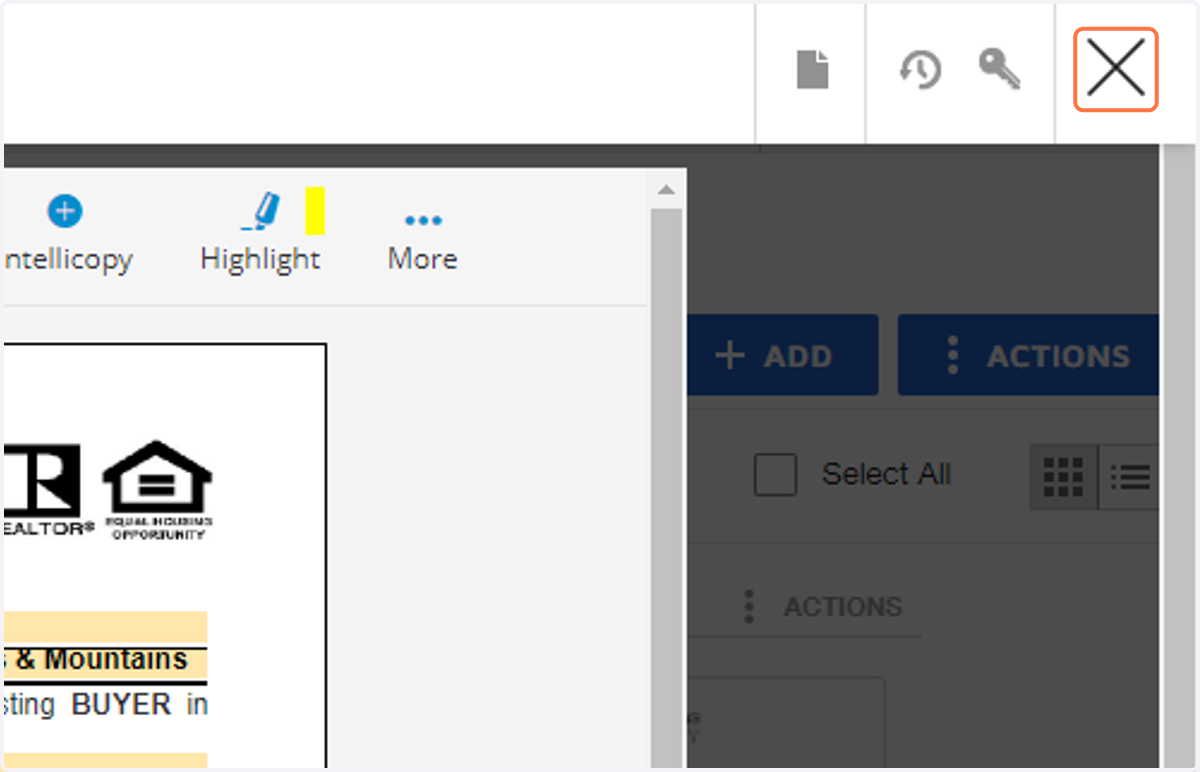
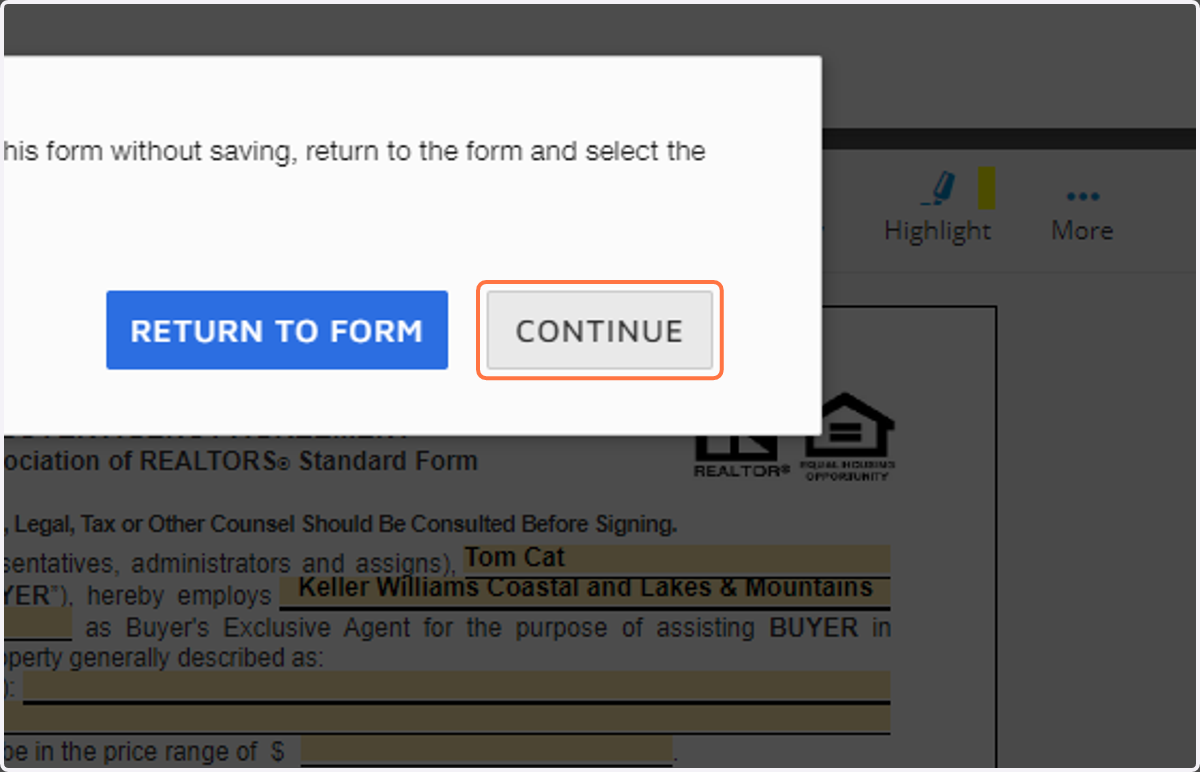
35. When you're done filling out a form, Click on Close (Esc)
36. Click on CONTINUE
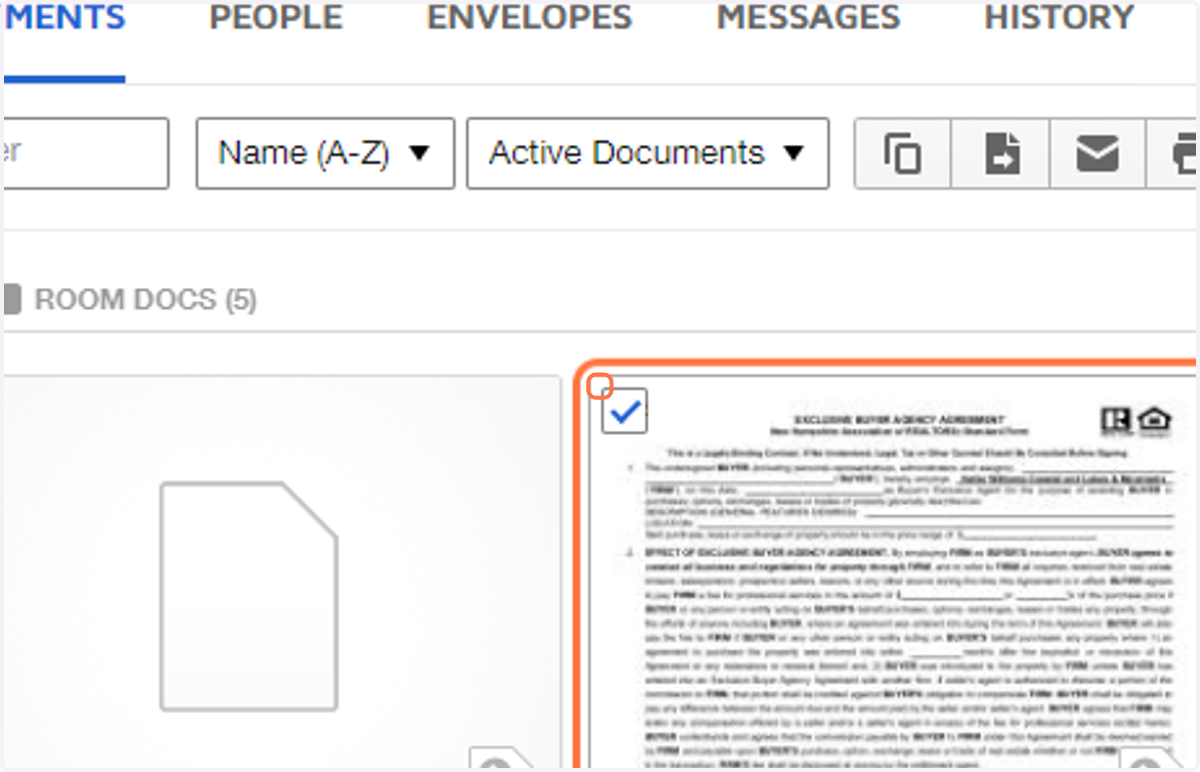
37. To send the forms out for signing, you'll need to select the forms to go into an Envelope.
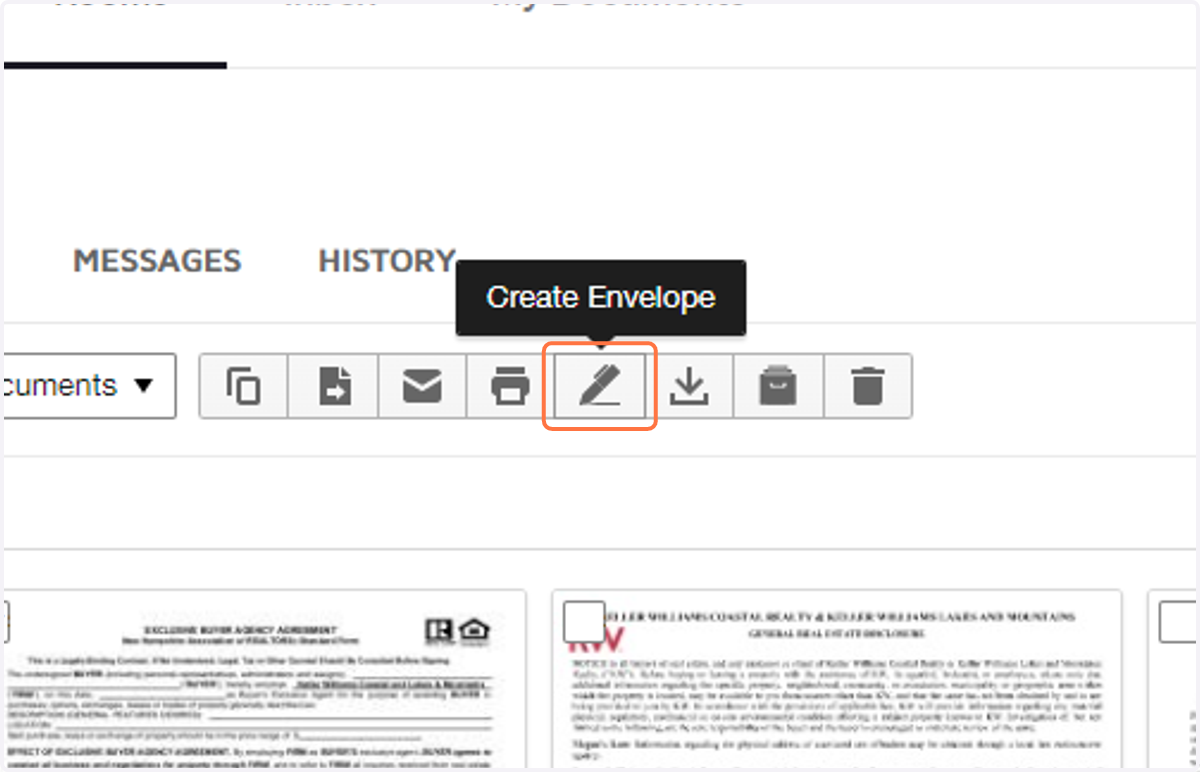
38. Click on Create Envelope
39. Check buyer one
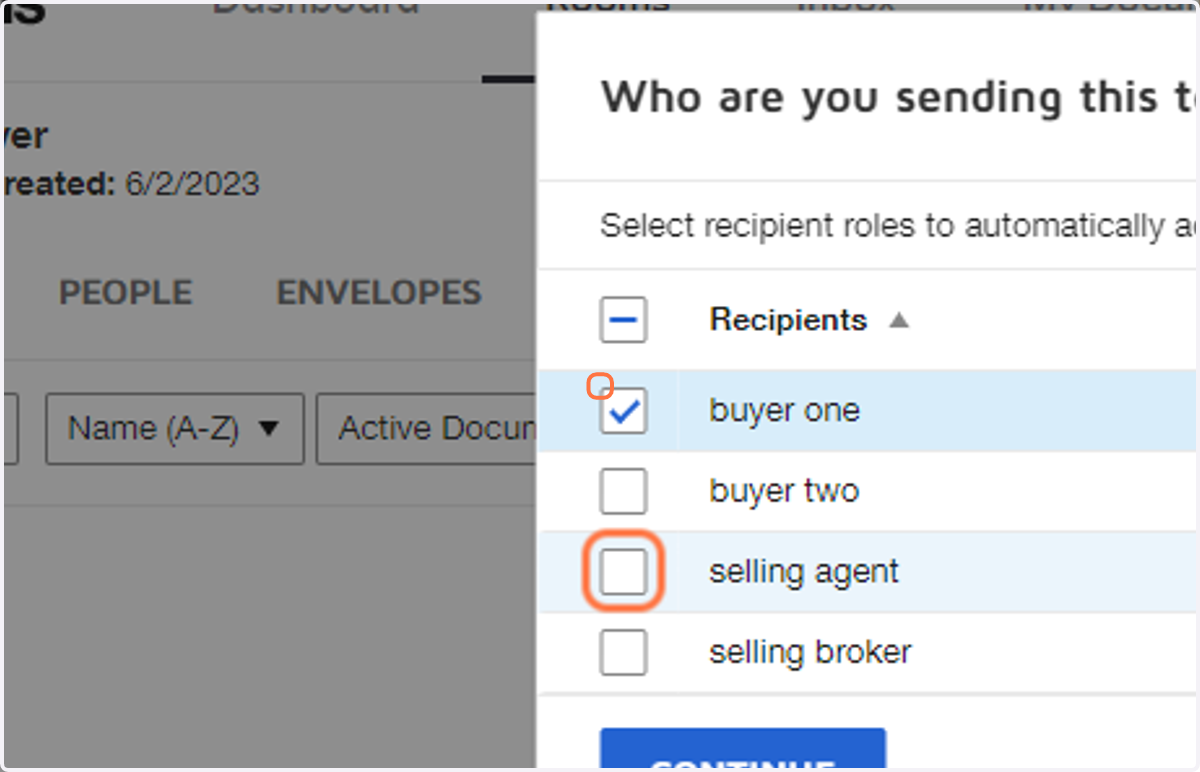
40. Select your Recipients
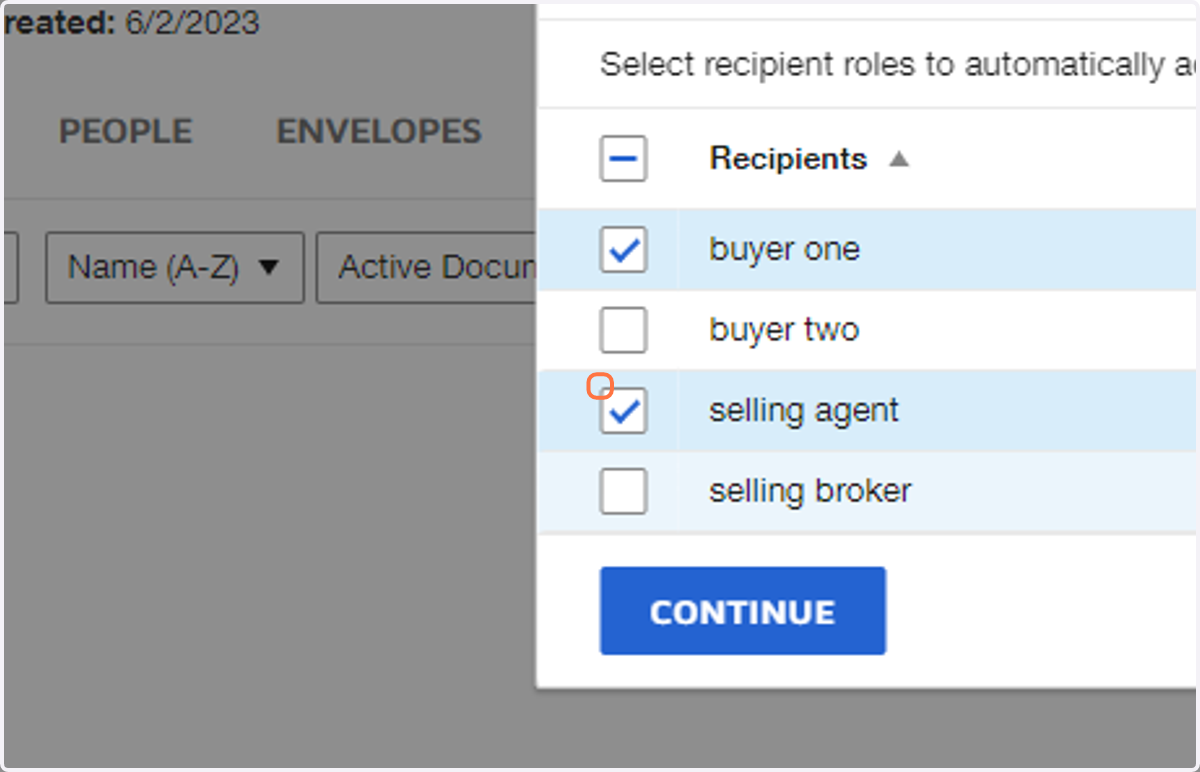
41. Click on CONTINUE
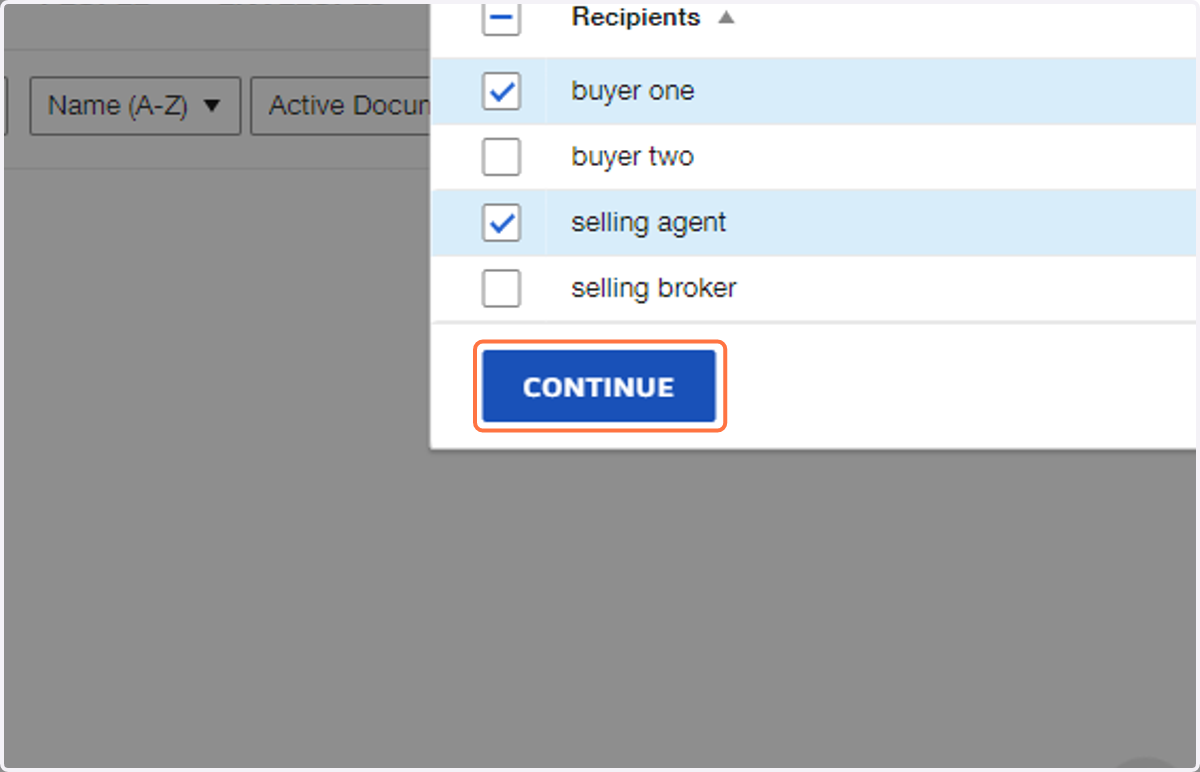
42. ENVELOPE
Setup your envelop as usual. You can add the signature fields after you hit the "Next" button.
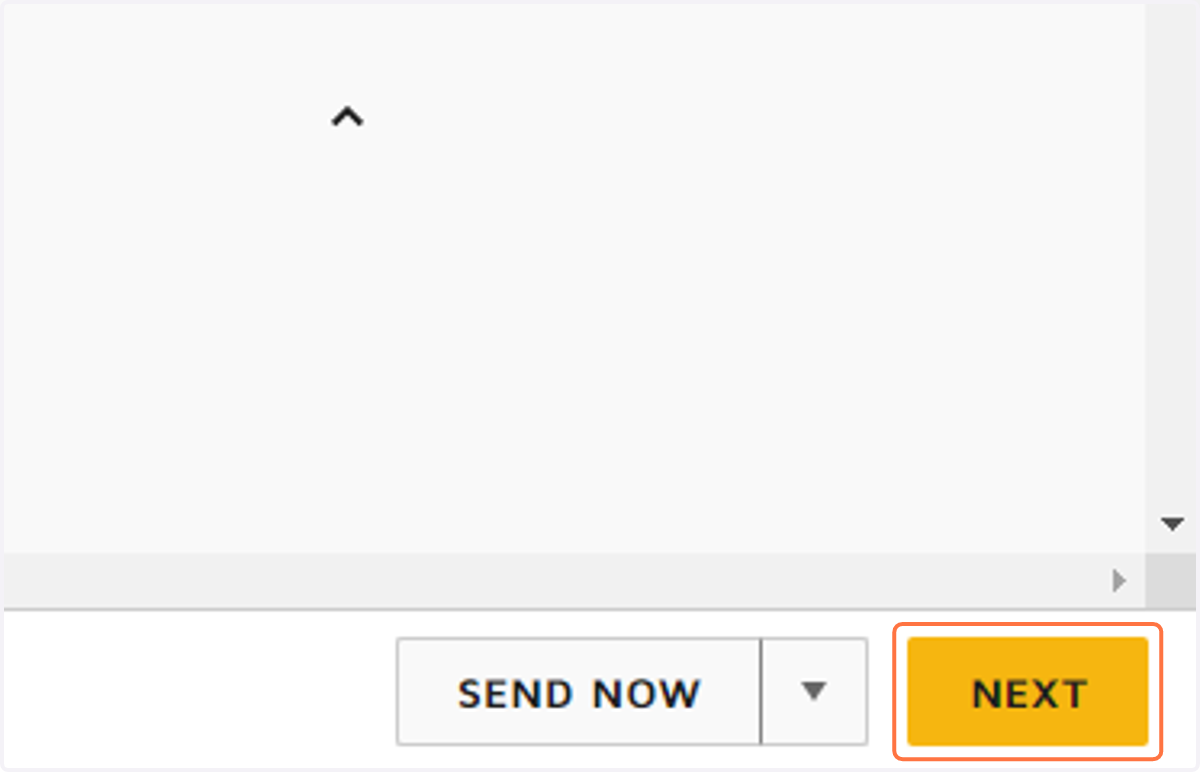
43. Once you've added the fields for signature for each recipient, you can SEND or SEND Later.