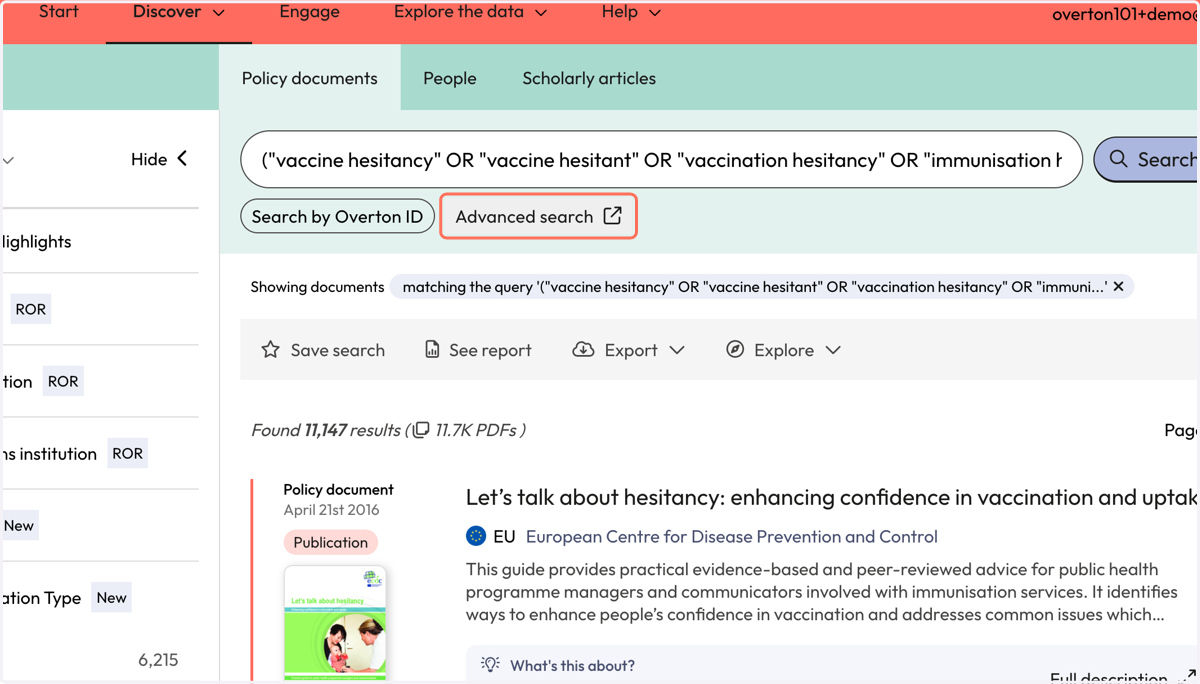
Combining search terms in a concept group and applying search strategies (trials)
This guide provides an example of how to build a concept group of related terms using Overton's advanced search query builder. This approach can be helpful as a building block when conducting a systematic search for policy related to a specific topic.
Start with Overton's Advanced Query Builder
1. Click on 'Add group' to indicate you want to build a concept group of related search terms.
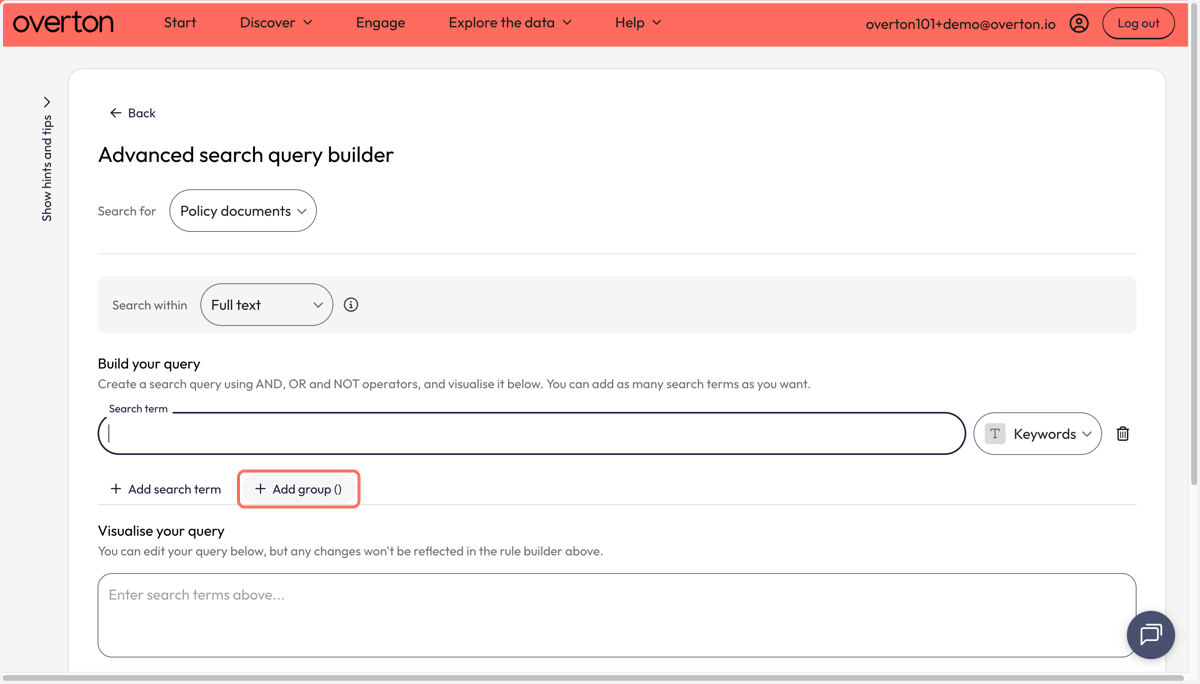
2. Once the group appears, add your first search term to the search box.
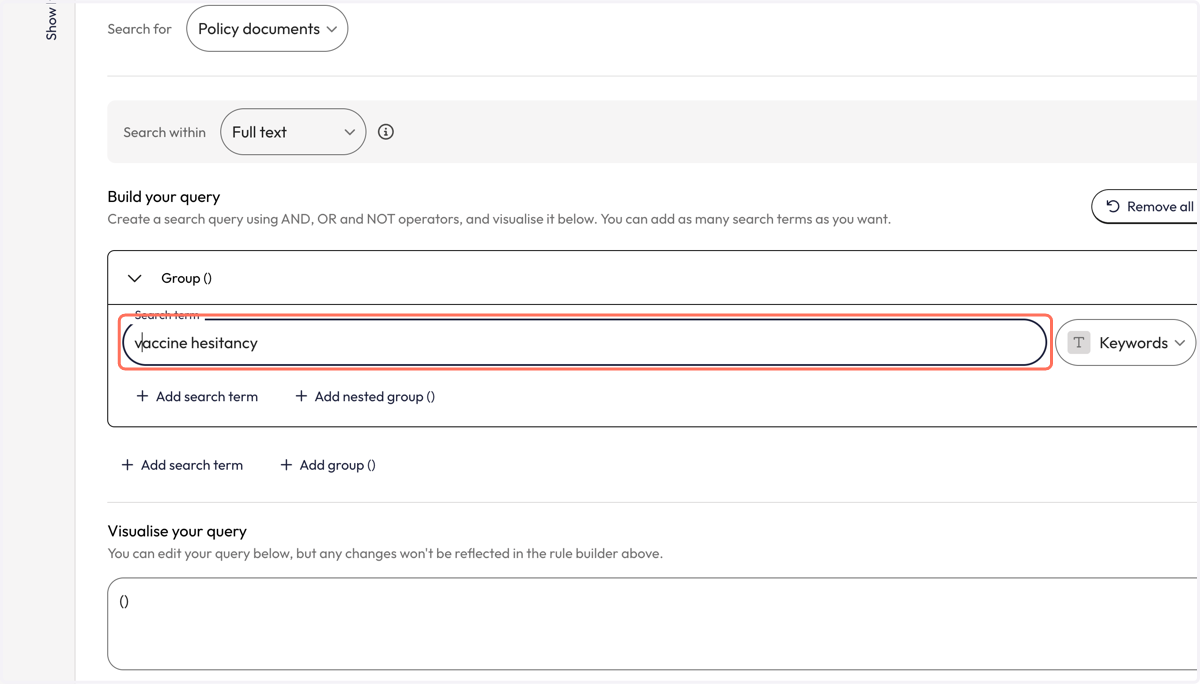
3. Click on 'Add search term'
4. Once the new search line appears, you will also see a box that has Boolean operators which connects each search box/term.
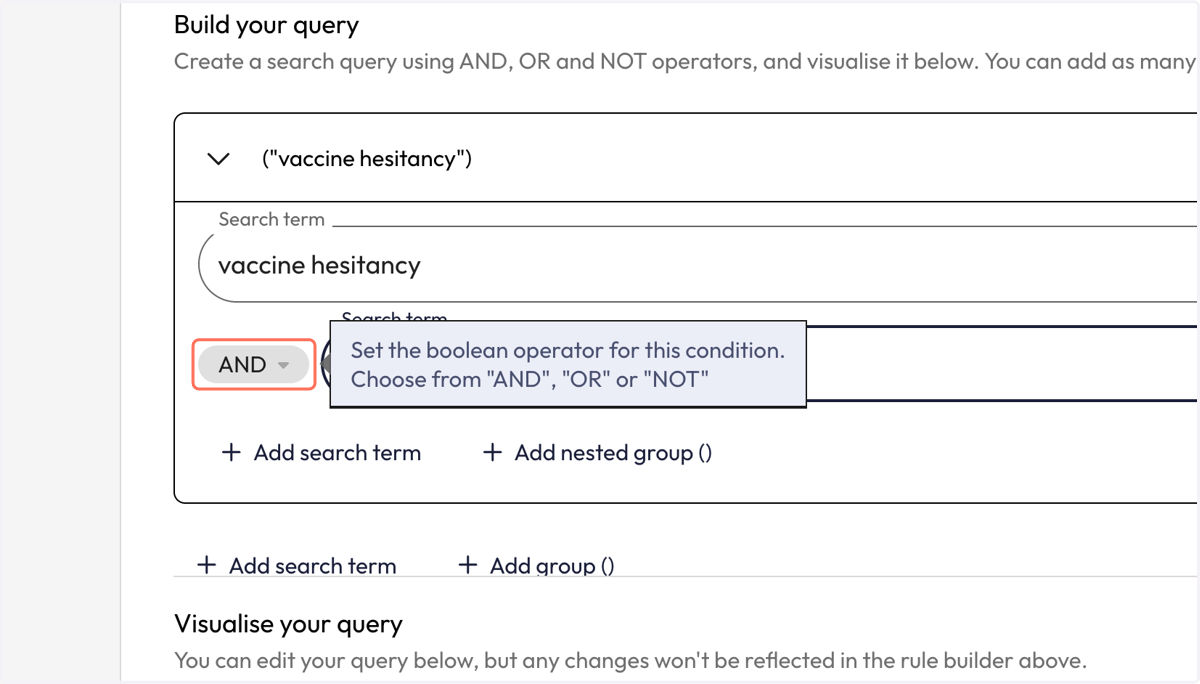
5. Select 'OR' from the dropdown
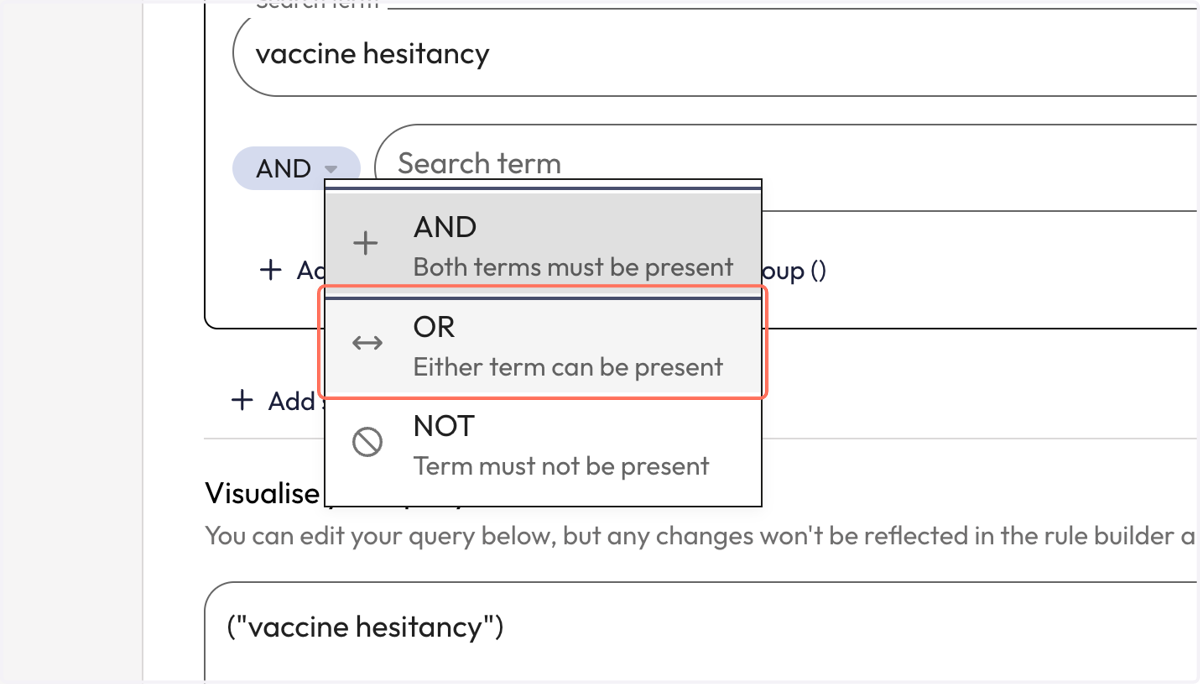
6. Add your next term to the second search box.
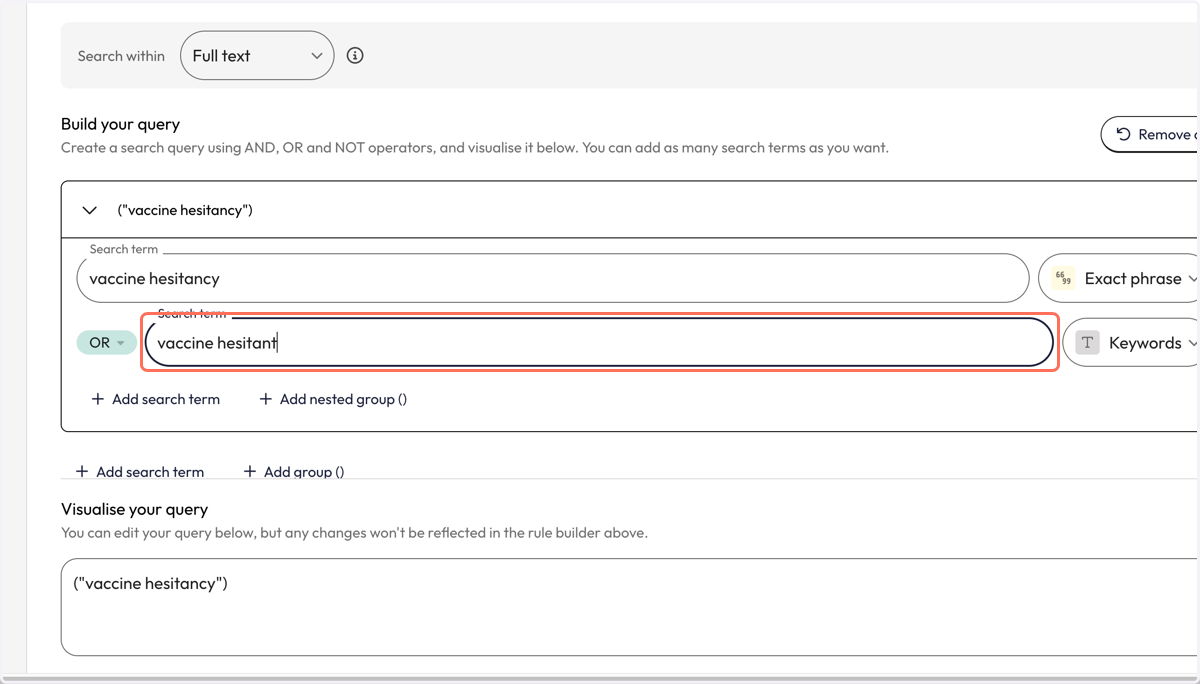
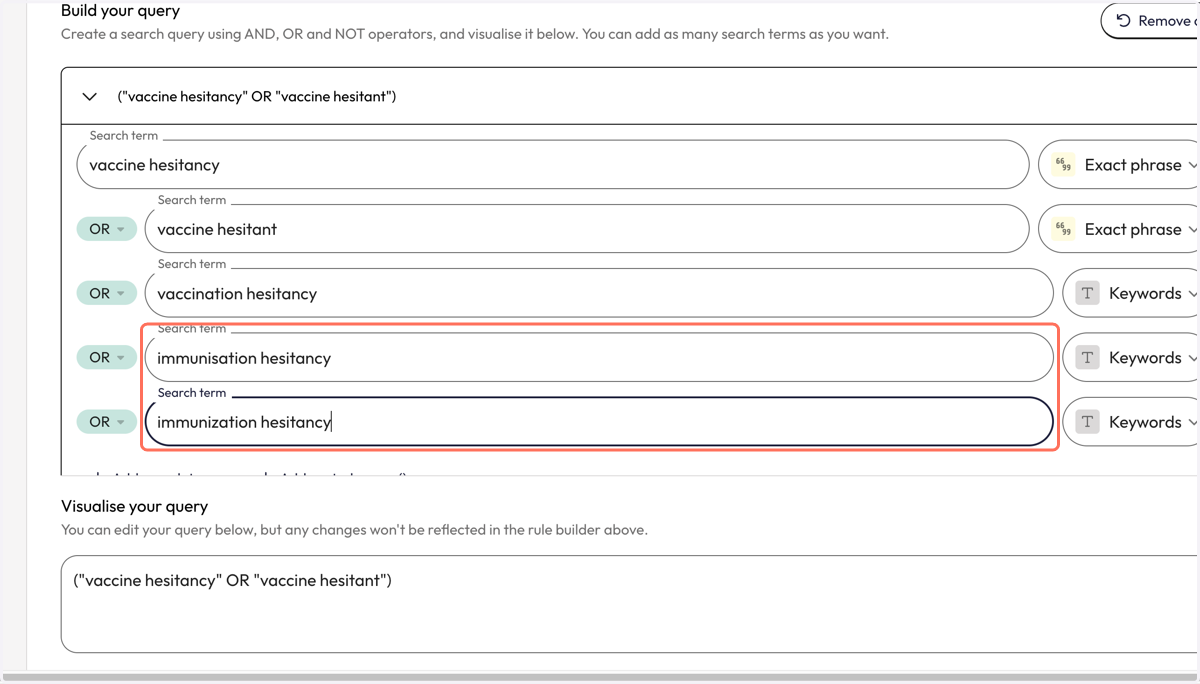
7. Continue to add all your variant search terms following the previous 3 steps.
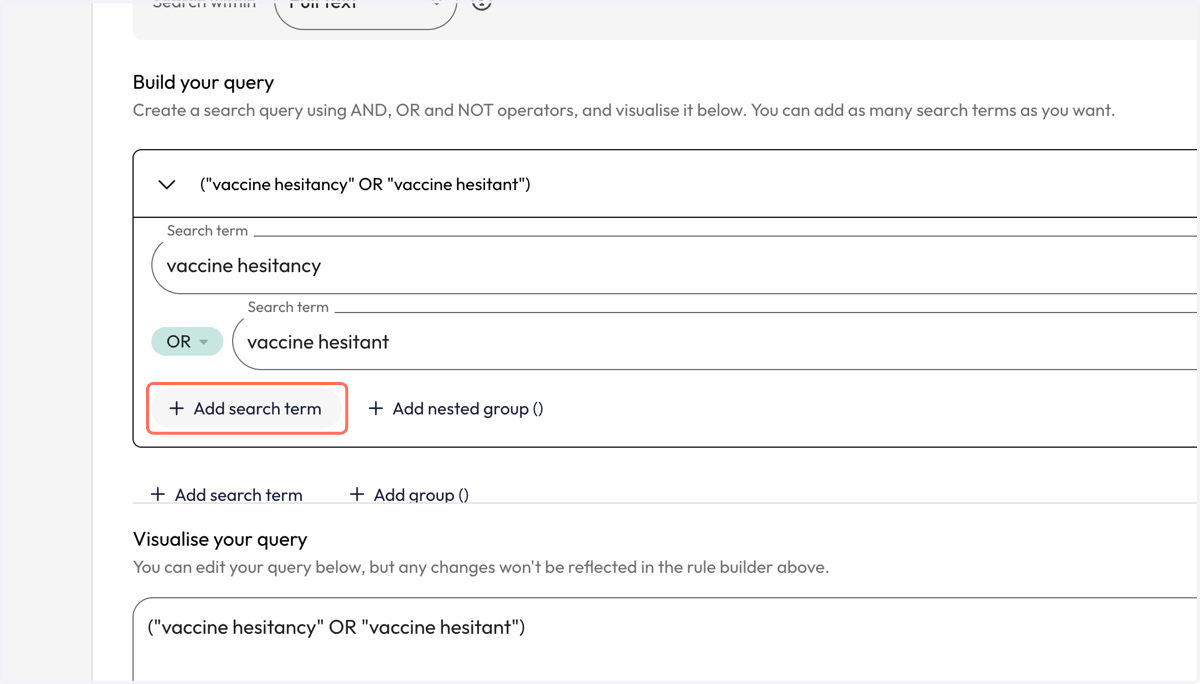
8. If your search term includes variants due to UK vs. US spelling, consider including both variants.
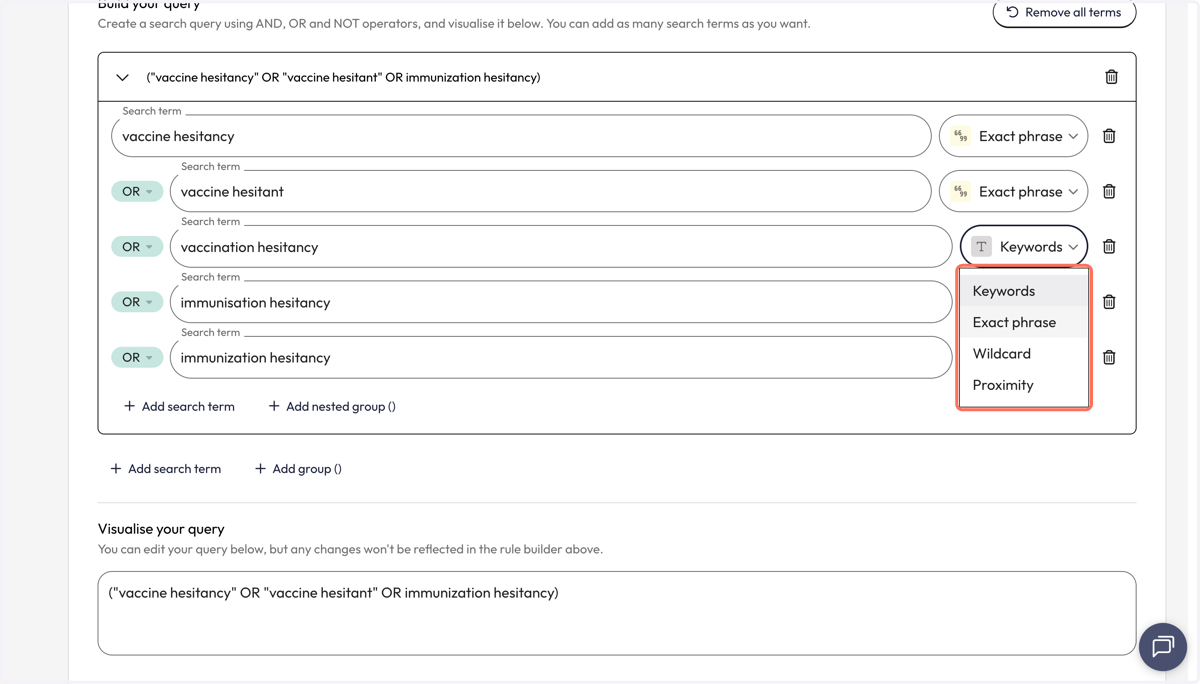
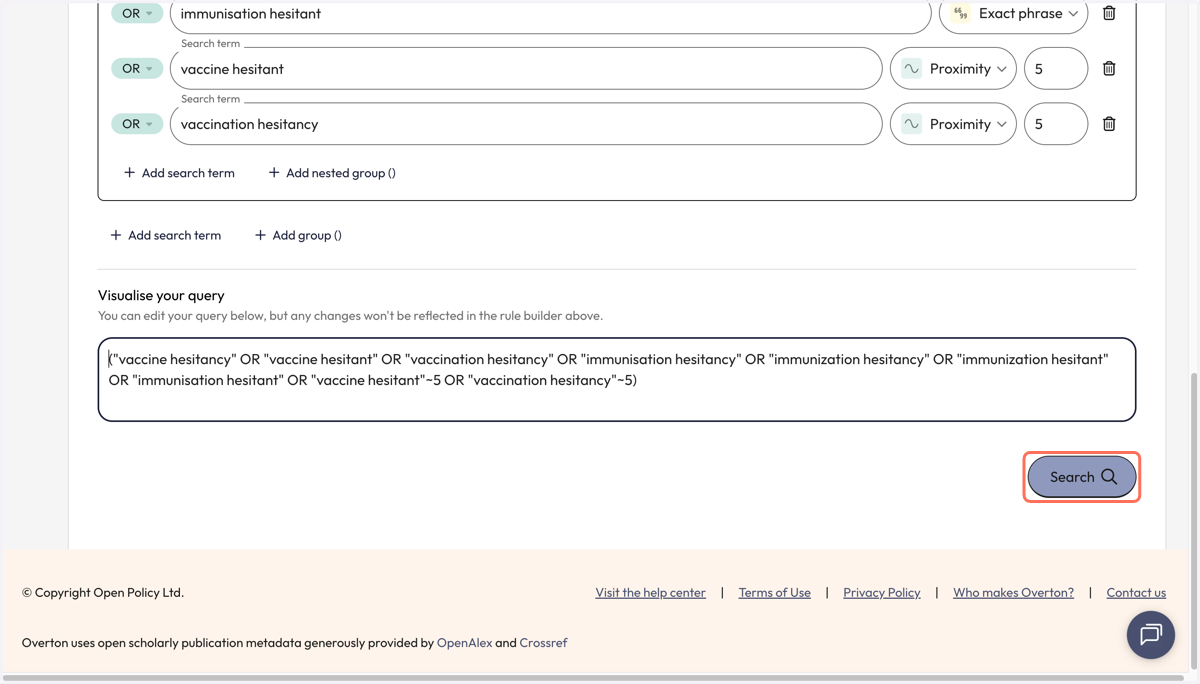
9. Once you have entered all your search terms use the dropdown menu to the left of the search term to apply a search strategy. In this example, we are searching for terms as exact phrases.
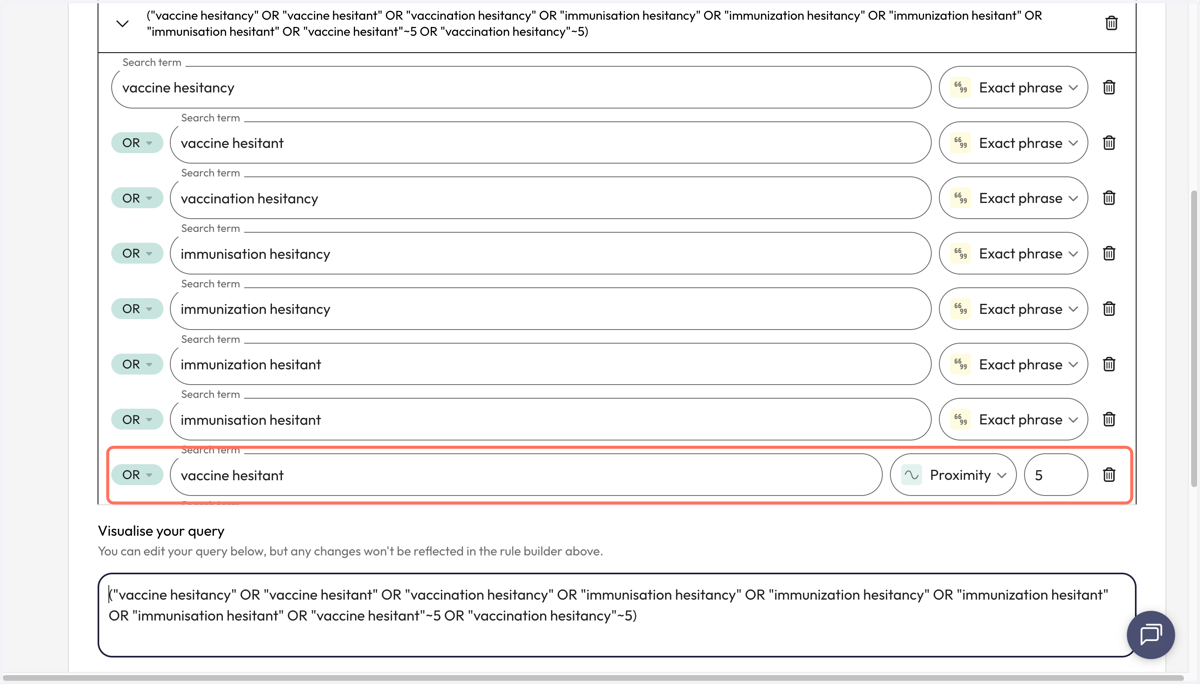
10. You may also want to consider including a search term using the proximity search to capture variants where the words may not be phrase but close together.
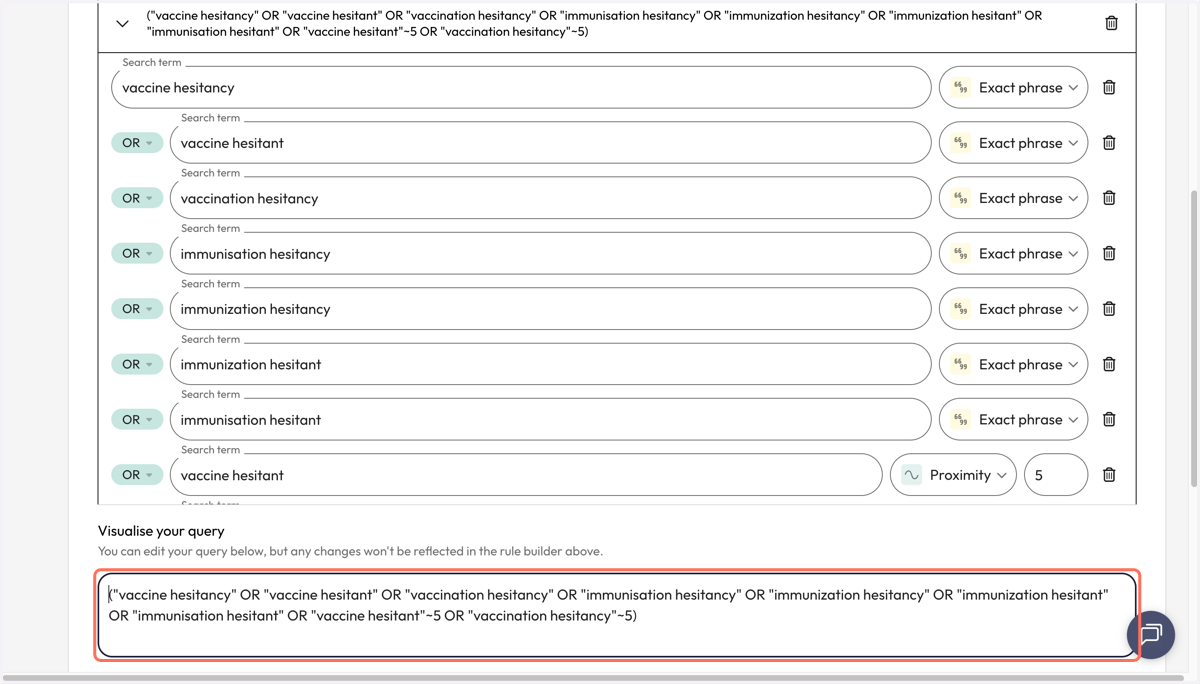
11. See the visualisation of your entire concept group as a search query visualised in the 'Visualise your query' box.
12. Click on 'Search' to launch the search.
13. Your results will be on the 'Policy Documents' page.
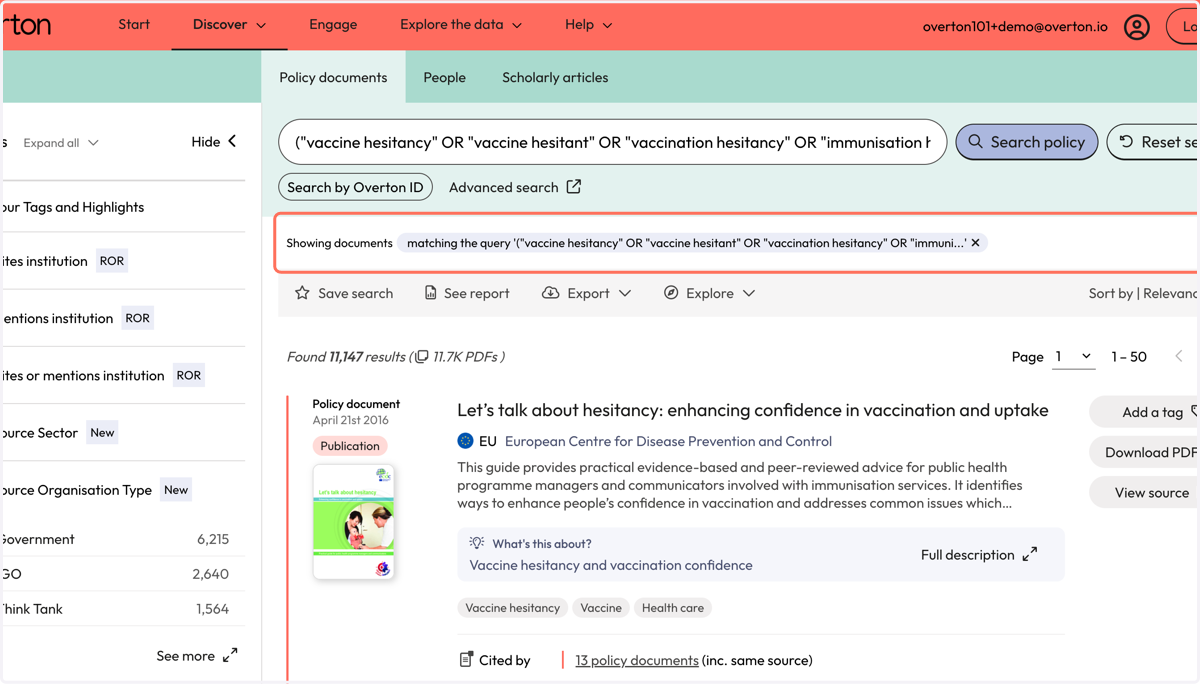
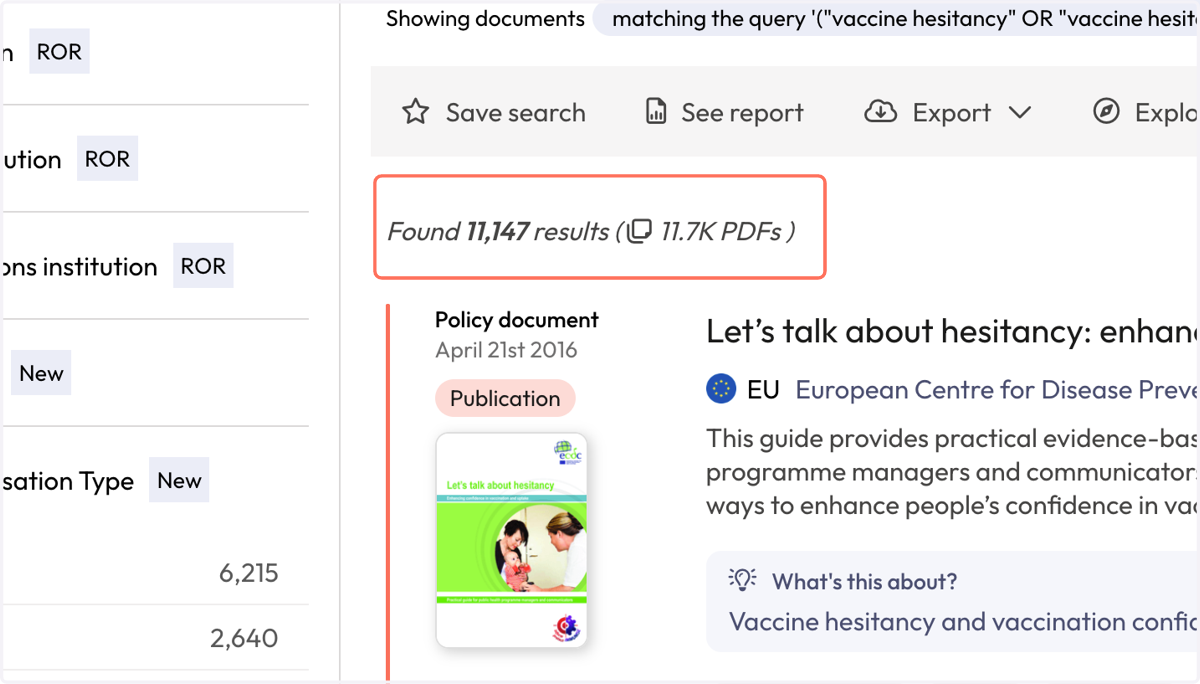
14. We will tell you how many documents contained one of your search terms.
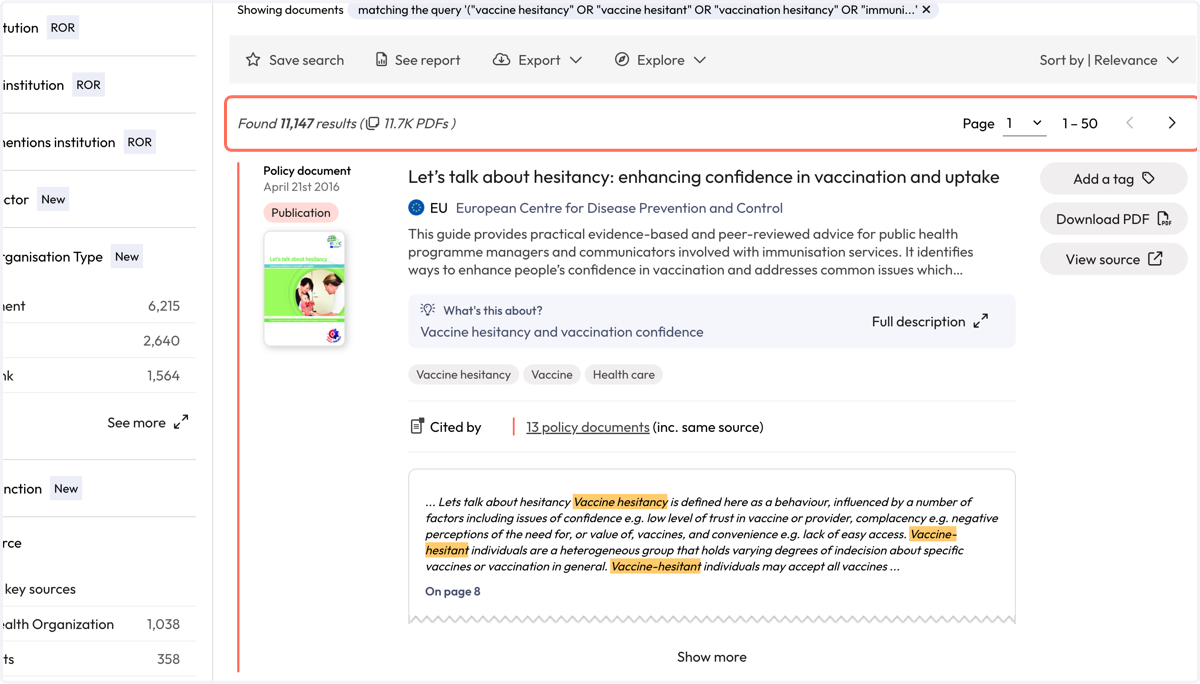
15. The policy document result will show you the name of the policy document, the policy source and includes a snippet of text will show you where your search term was found in-text by the highlight. We provide the page number so you can investigate further for relevancy.
16. At any point, you can click on 'Advanced search' to refine your search or to add additional concept groups.