Clubspark Admin: Setting up Online Payments with Stripe
This article covers what needs to be checked in order to ensure online payments can be accepted for online membership.
Only a full administrator can set this up.
If you are a full administrator, and there is no blue banner, you've already connected Stripe.
If the incorrect Stripe account has been connected, please reach out to tnzsupport@clubspark.com for assistance.
Clubspark Dashboard
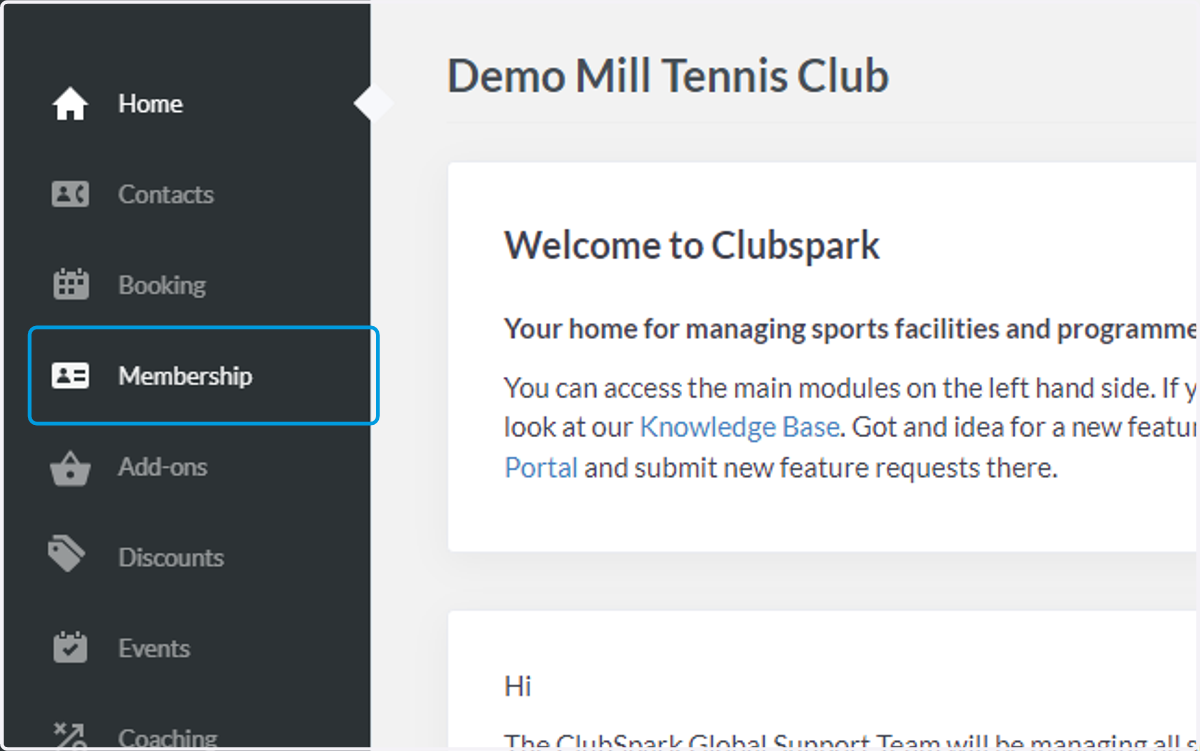
1. Click on Membership
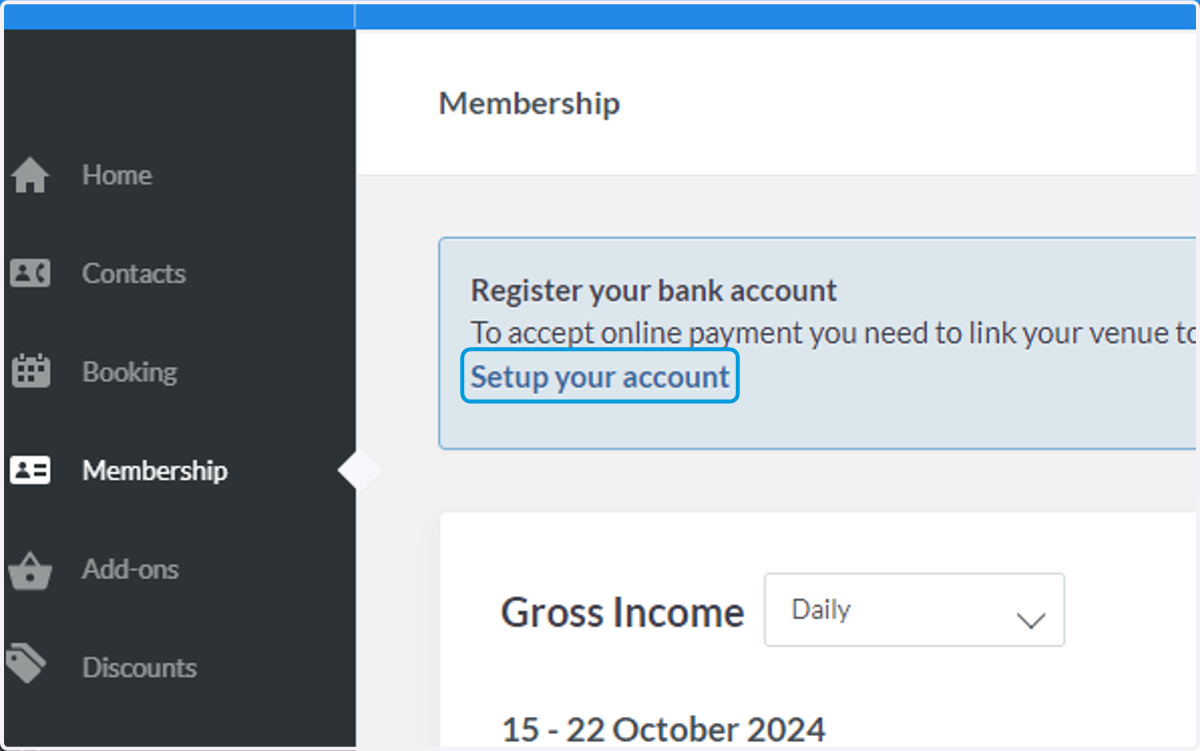
2. Click on Setup your account
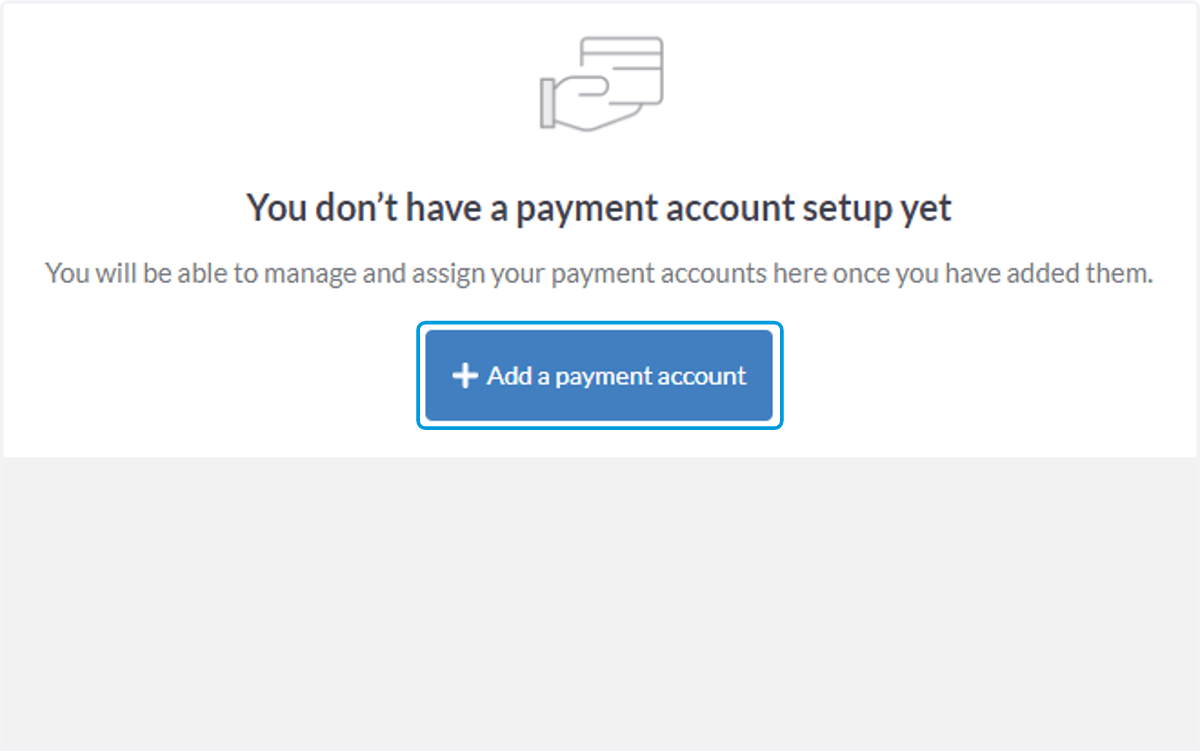
3. Click on Add a payment account
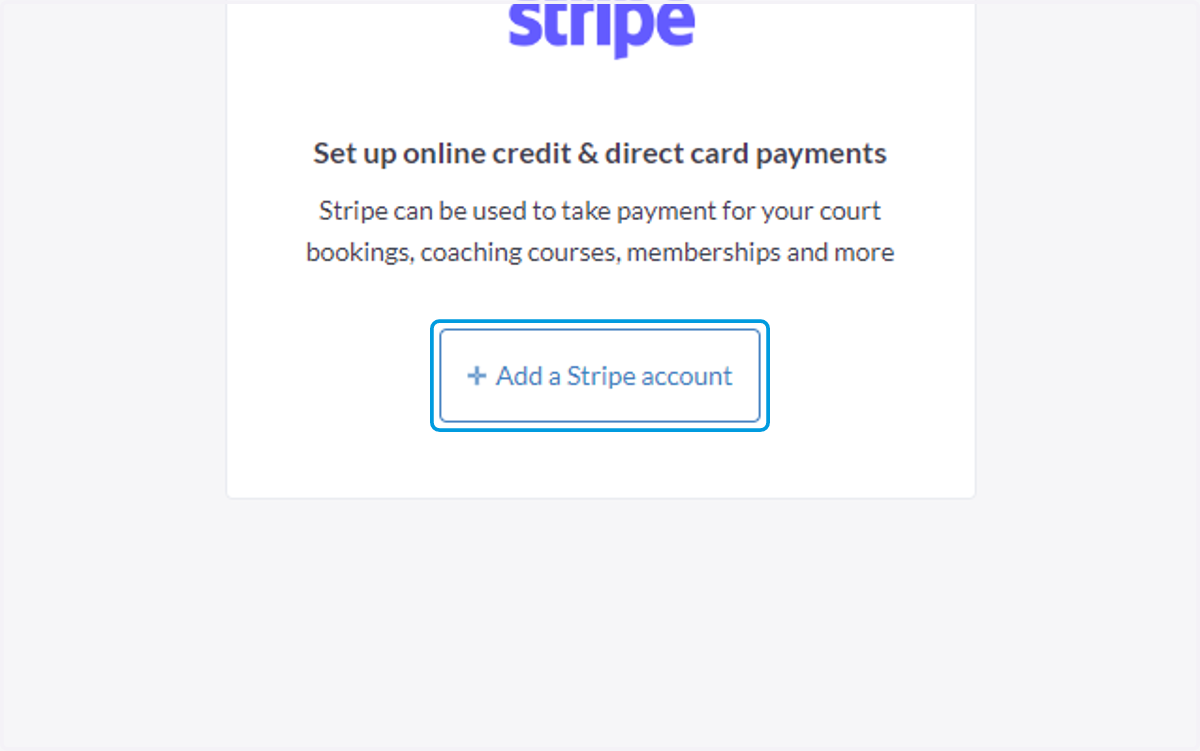
4. Click on Add a Stripe account
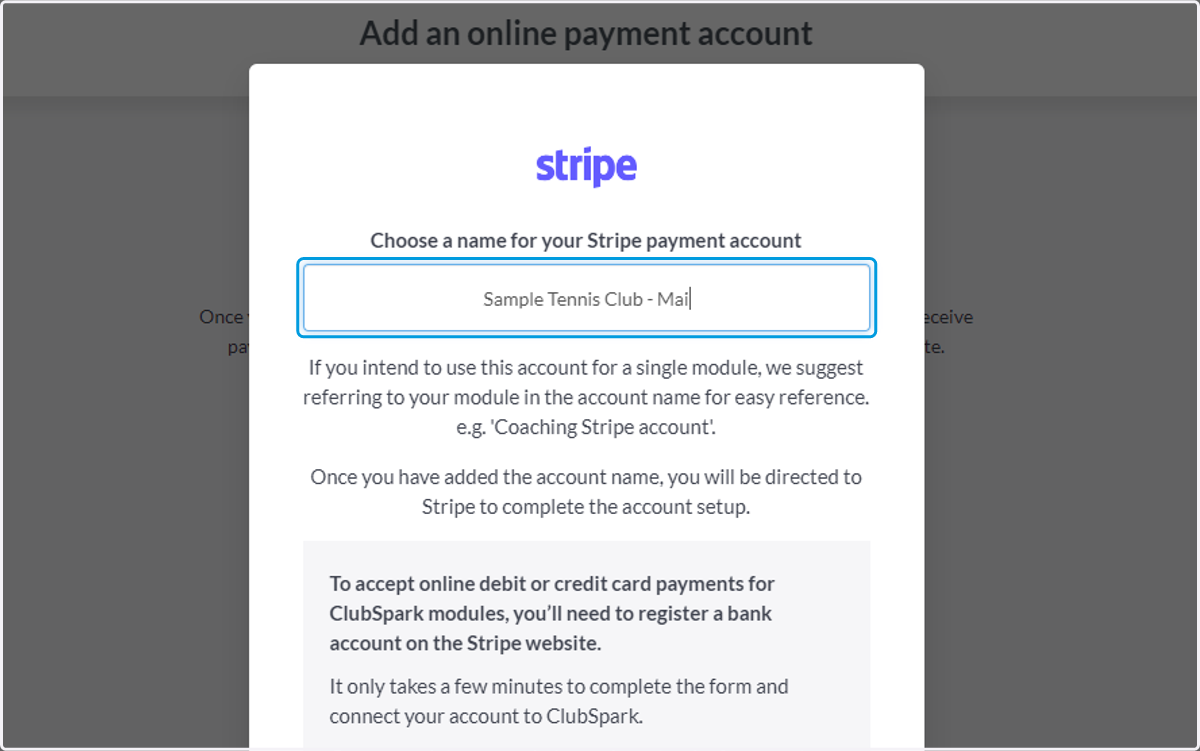
5. Type the name of the Stripe Account you wish to use as a reference,
If you plan on having online payments sent through different bank accounts you may wish to rename your Stripe Account according to it's use e.g. Memberships & Add ons etc..
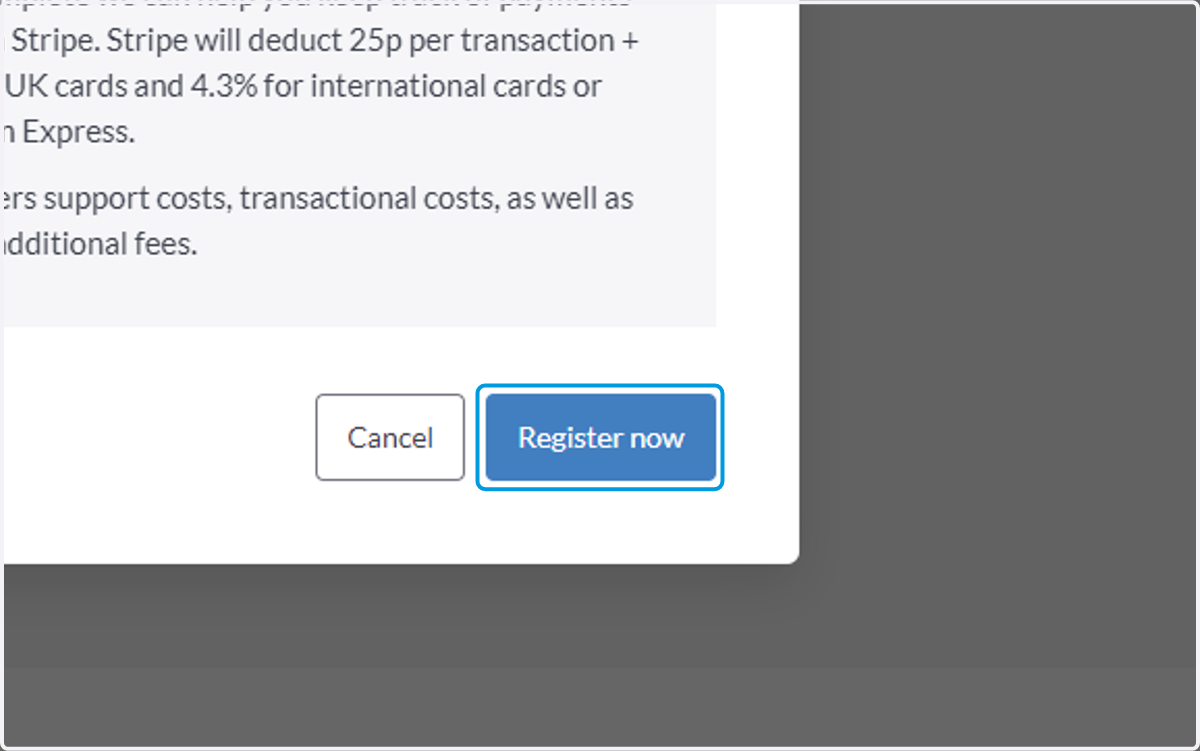
6. Click on Register now
Stripe
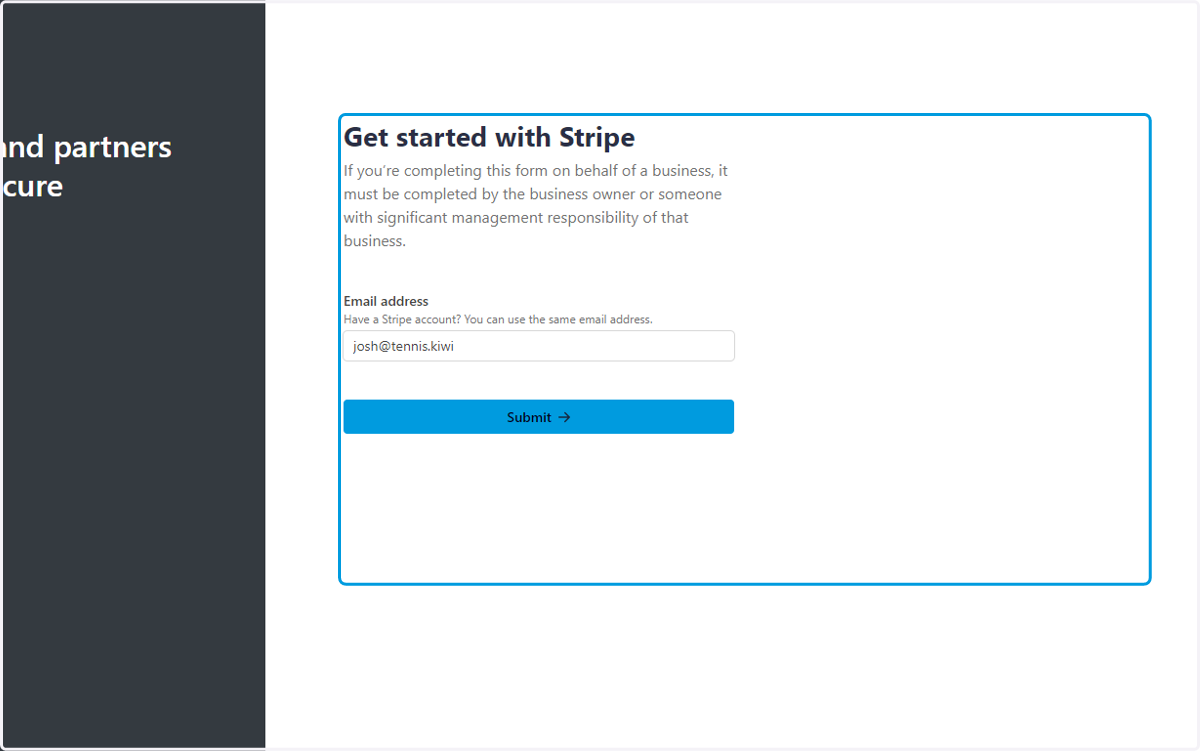
7. You will now be taken to the Stripe setup page; this is where you can continue the instructions provided by Stripe to take in online payments by connecting your bank account to it.
If you wish to watch the process via Stripe, you can watch this video here