Clubspark Admin: Creating National Participation Programmes
Note: We recommend you follow these Steps rather than using the pre-set course templates found in Clubspark as this allows you to add more details in the creation of the sessions.
Clubspark / Admin / Home
1. Click on Coaching

2. Click on Add new category

3. Type "Cardio Tennis"

4. Click on dropdown trigger

5. Click on Adult

6. Type "Coach Name"

7. Type Email address

8. Type Phone Number

9. Click on Cardio Tennis

10. Set min age

11. Add a description

12. When someone signs up for a Cardio Tennis course, you can set a confirmation message

13. If you would like to set a reminder email to any participants about their upcoming session, then you can do so in this space here
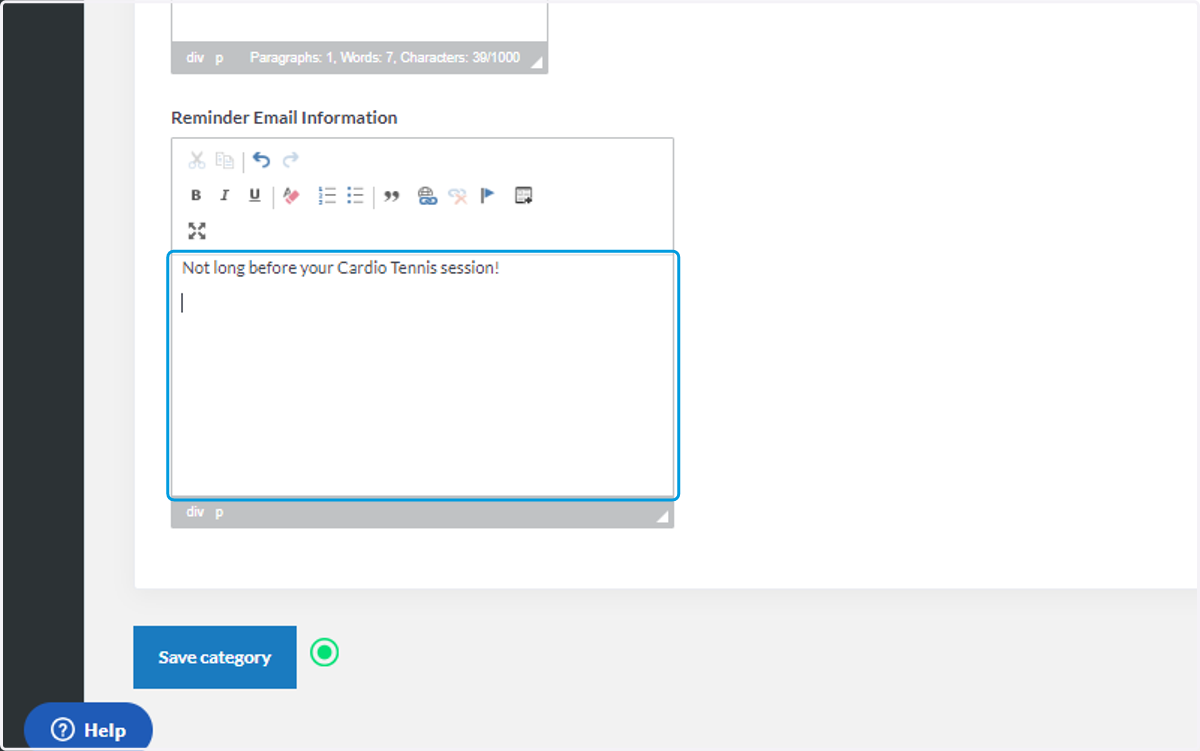
14. Click on Save category
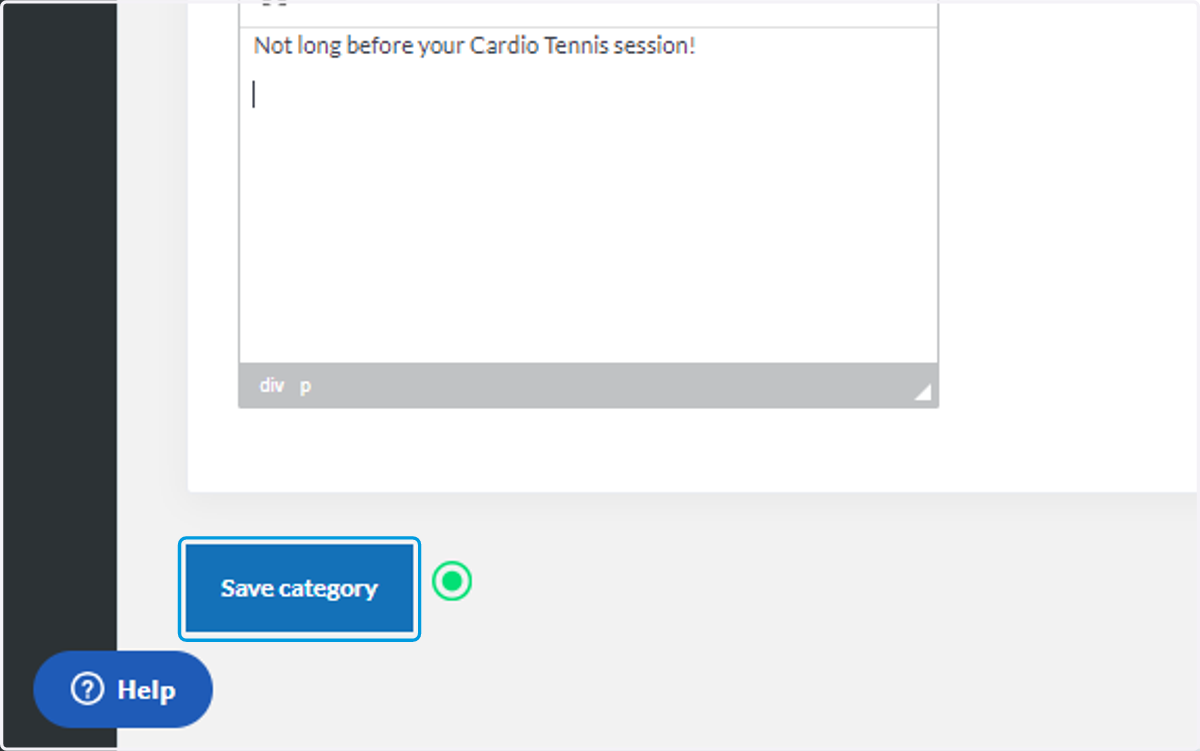
15. Click on Create a new course

16. Specify what kind of course you are going to make.
Recurring Sessions is the most common with Cardio Tennis

17. Add a reference code for internal purposes
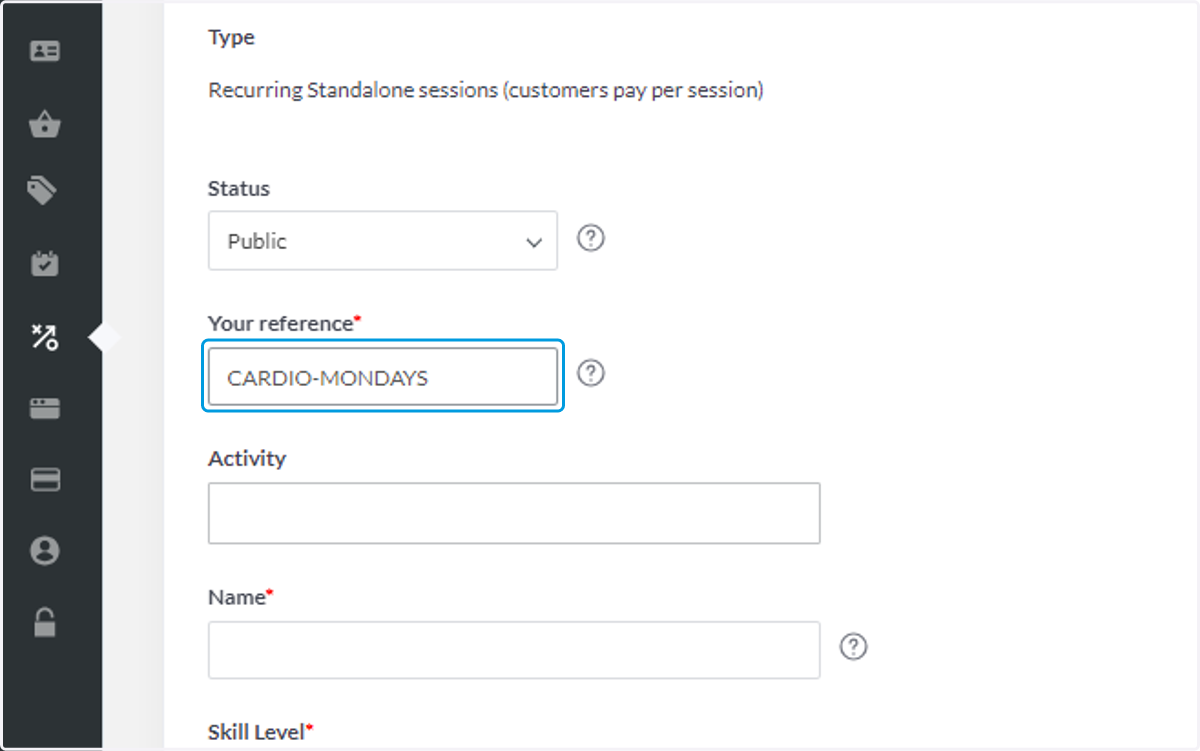
18. Click "Tennis"

19. Type the session name

20. Specify Skill Level

21. Send Reminder Emails
Email ahead of time to remind participants on their upcoming session.

22. Click on start date
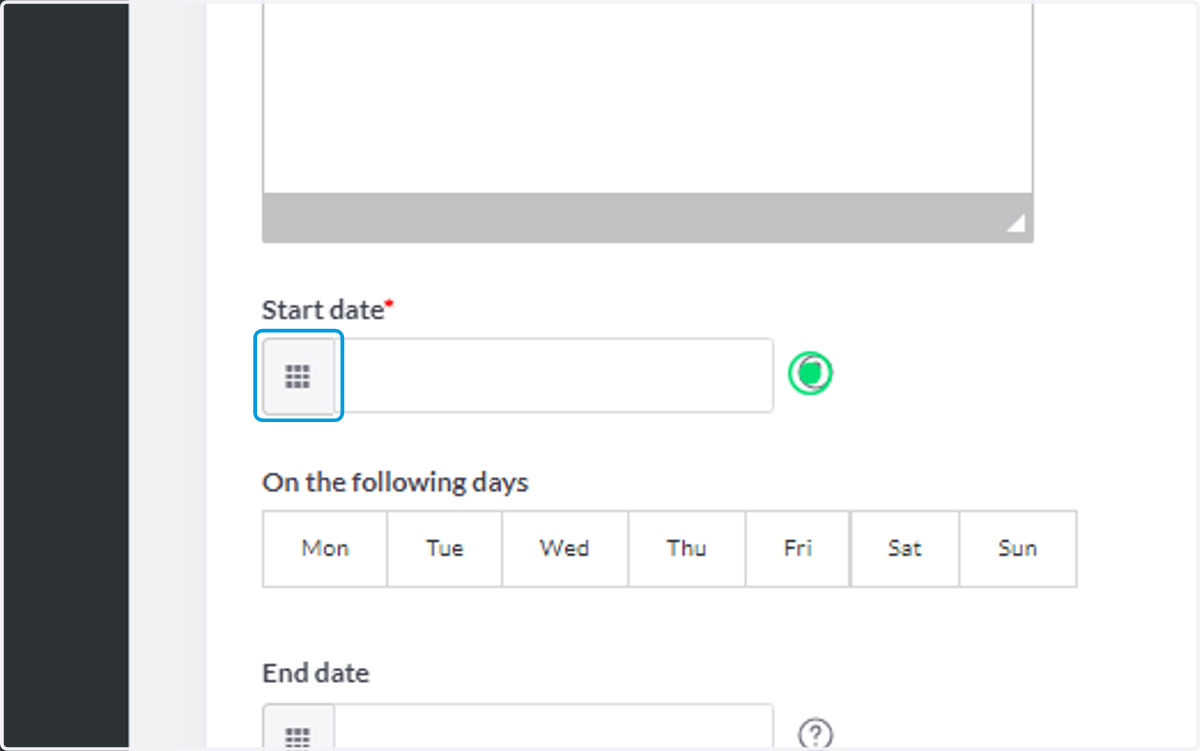
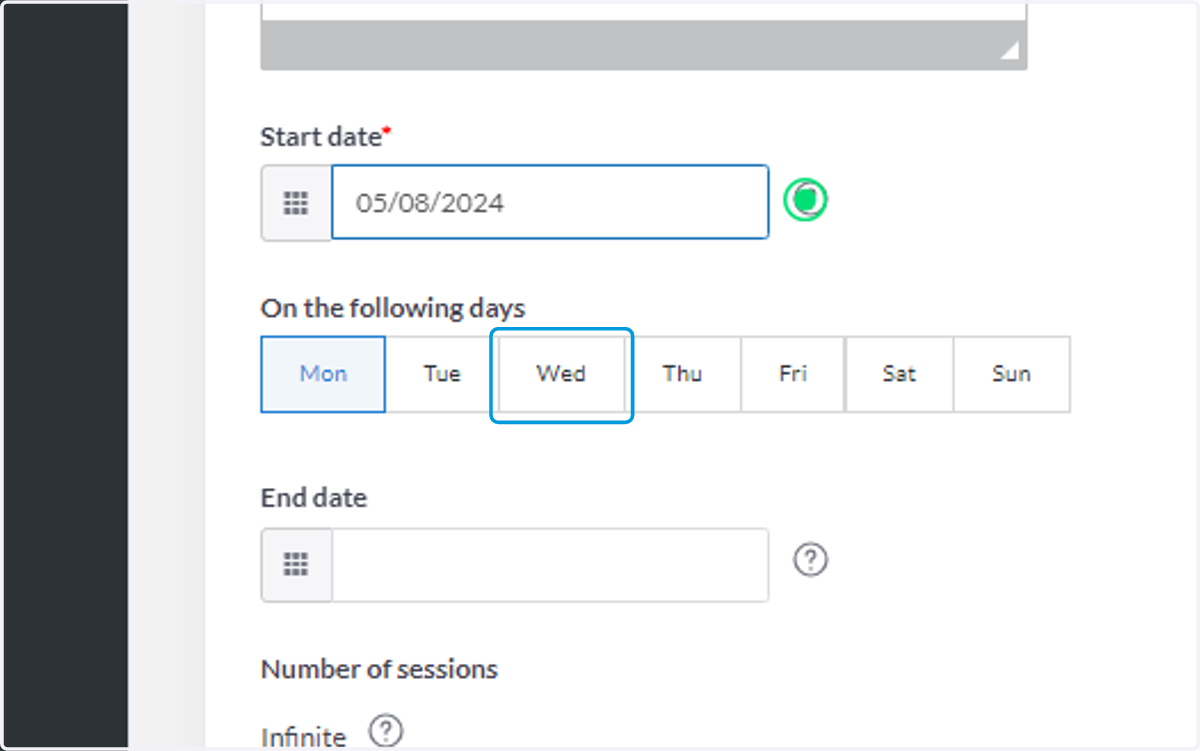
23. Specify the dates you are having the session
24. Type the Coach that will be leading the session here and their contact details

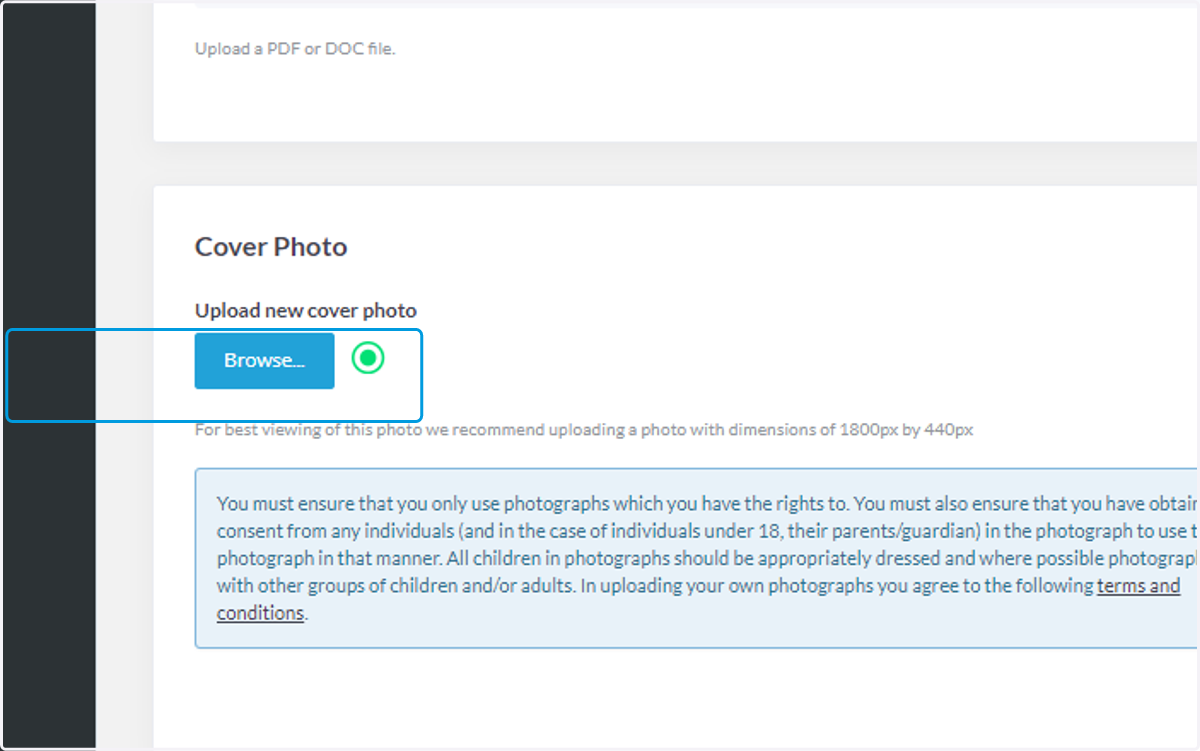
25. To upload a header image, you can do so here
26. Specify Payment methods

27. Click on Anyone…

28. Specify if you want multiple sessions booked to earn a discount or if you are offering a discount to current members at the club.

29. Select the lead coach & team

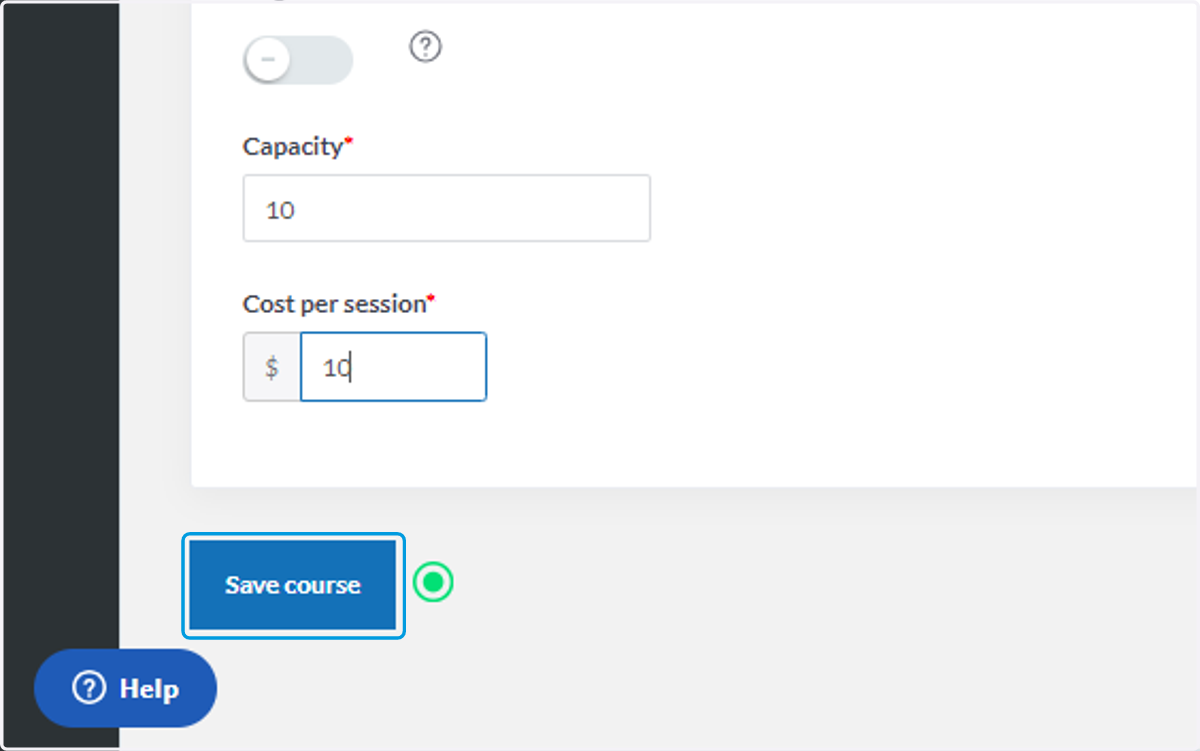
30. Specify the capacity

31. Specify the cost

32. Click on Save course
33. Click on Direct link

34. Click on Open link

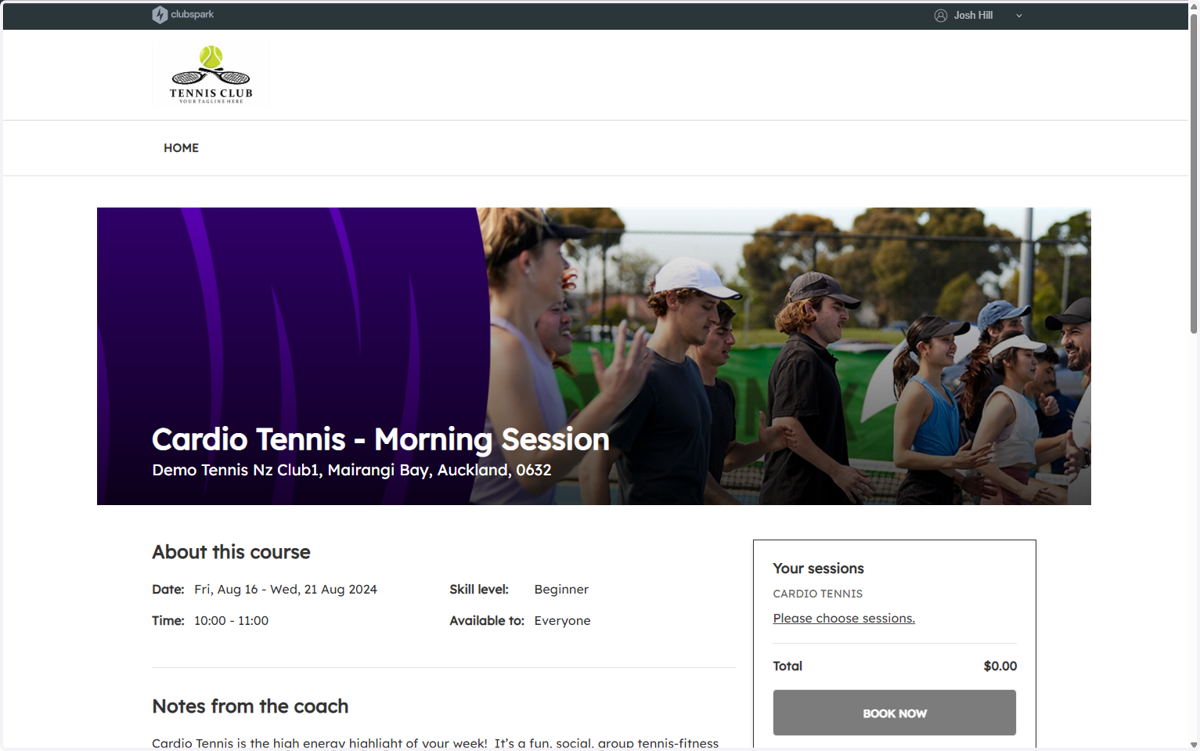
35. You can now see the course as member of the public will see it