Clubspark Admin: Contact us page
Adding a Contact section on your website will help visitors get in touch and ask questions.
Clubspark / Admin / Home
1. Click on Website
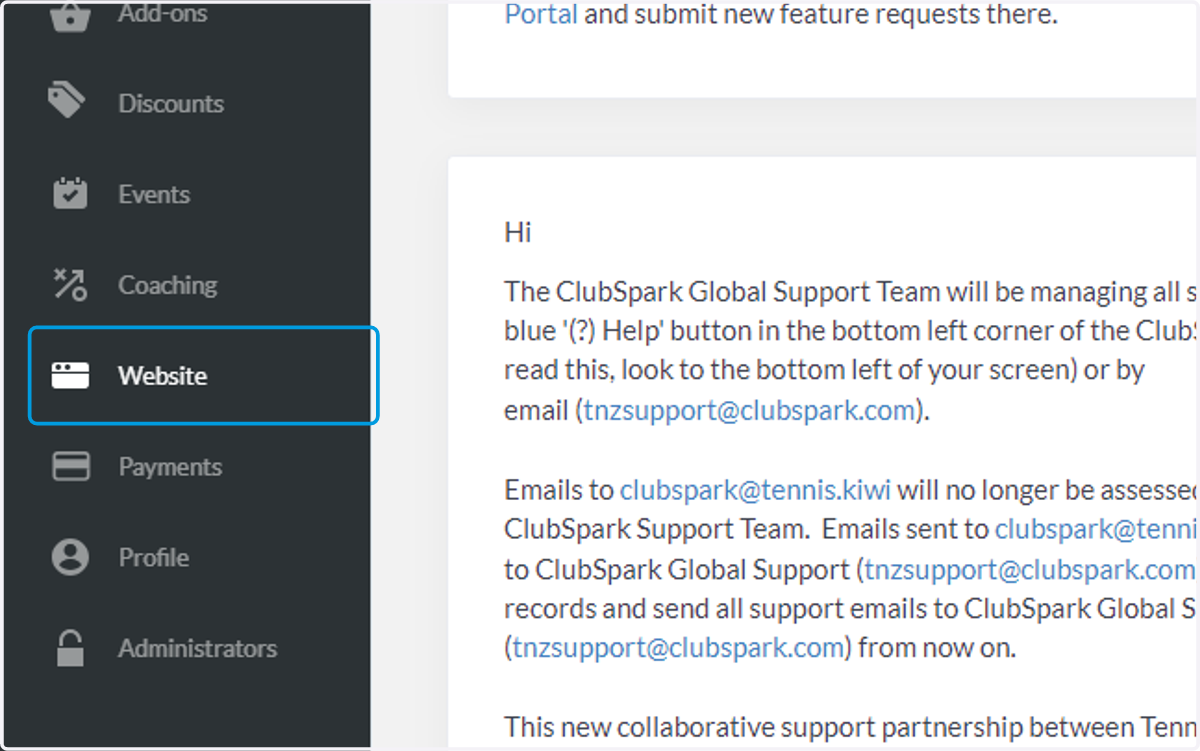
2. Click on Contact
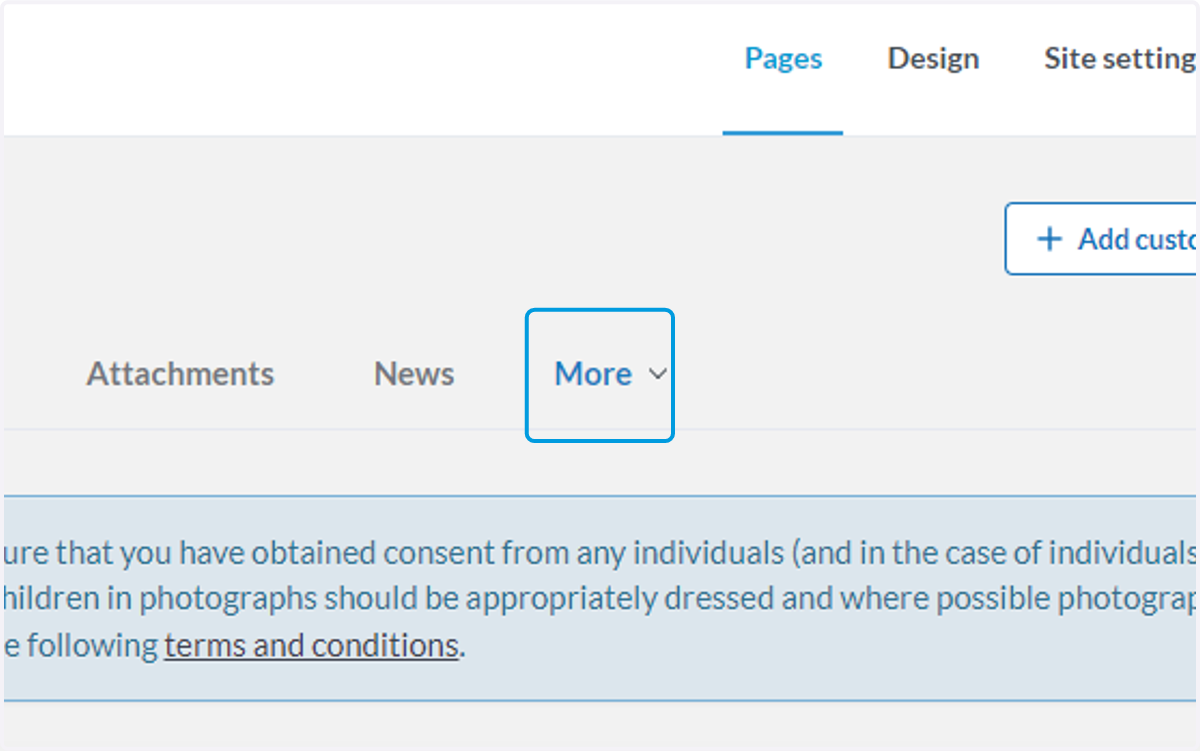
Sometimes depending on the number of pages you have it may drop inside the More section
3. Type "Contact Us"
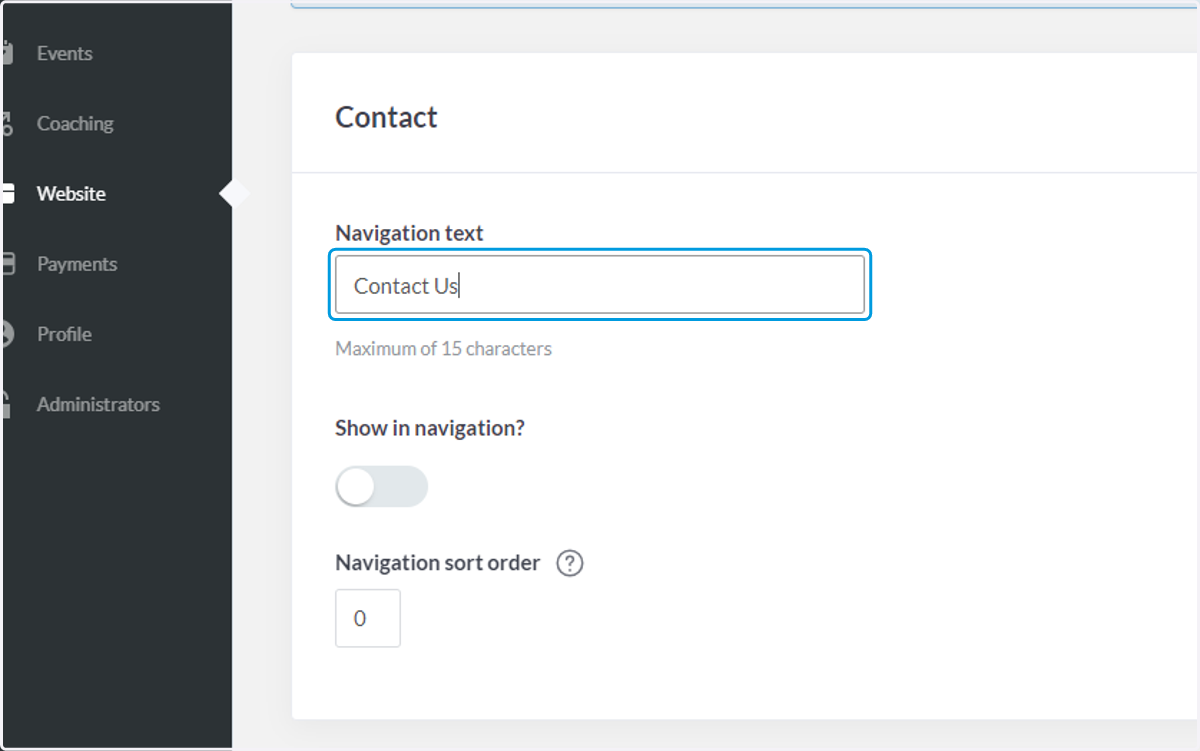
4. Set the navigation options

5. Add a Header for the website
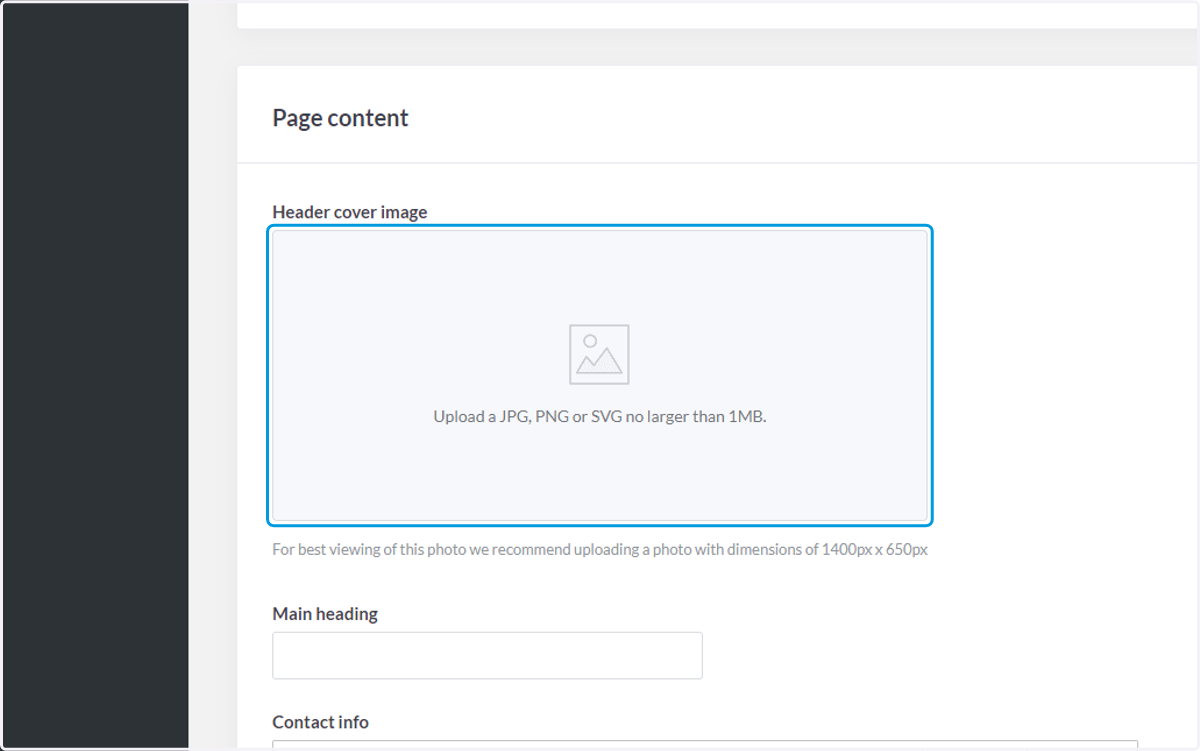
6. Type a header for the web page
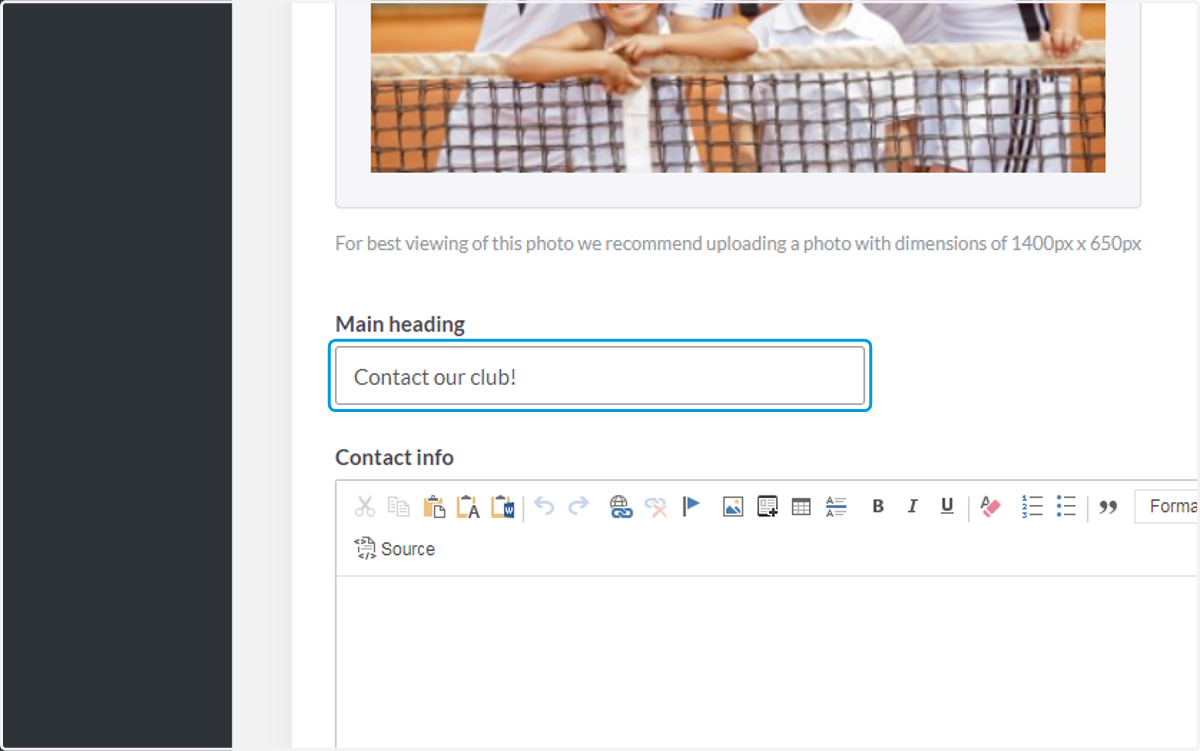
7. add some body text
You may wish to add important contact name and numbers here.

8. If you would like a form embedded for emails
Switch on the Contact us form toggle
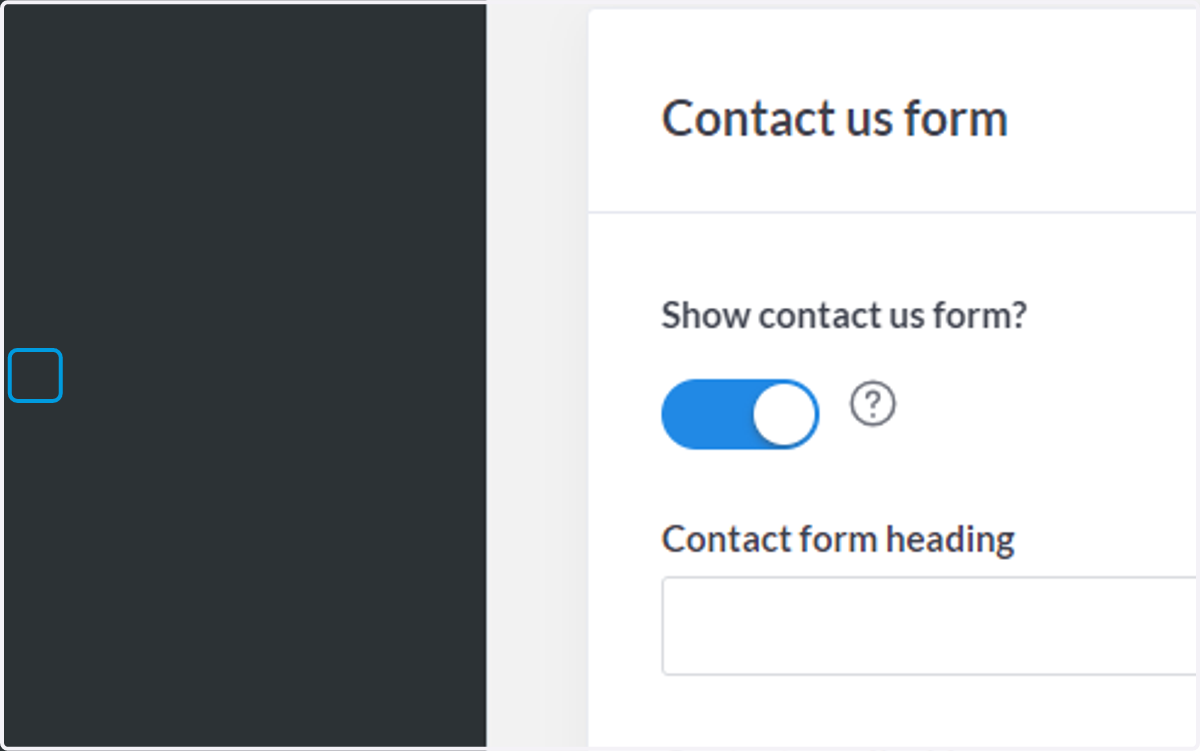
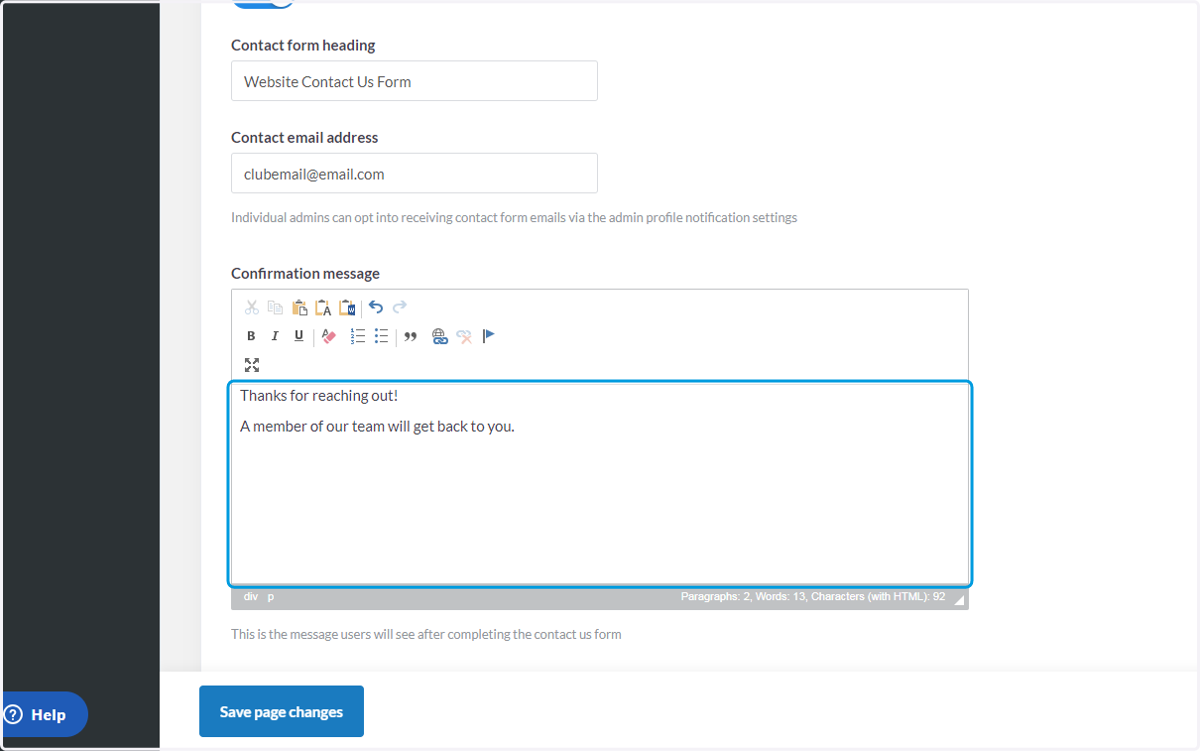
9. Add a subject header
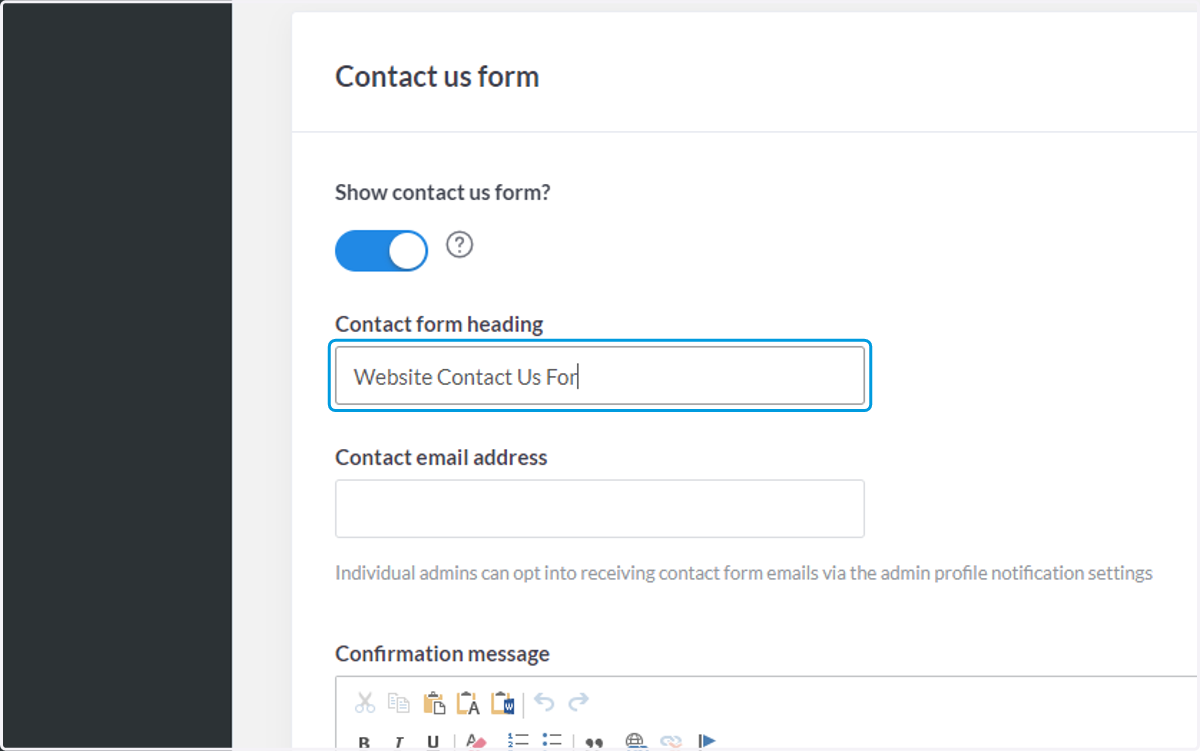
10. Add the email address you wish the form to be sent to

11. Add a Confirmation message when someone submits the form.
12. Add Directions if the venue is hard to find.

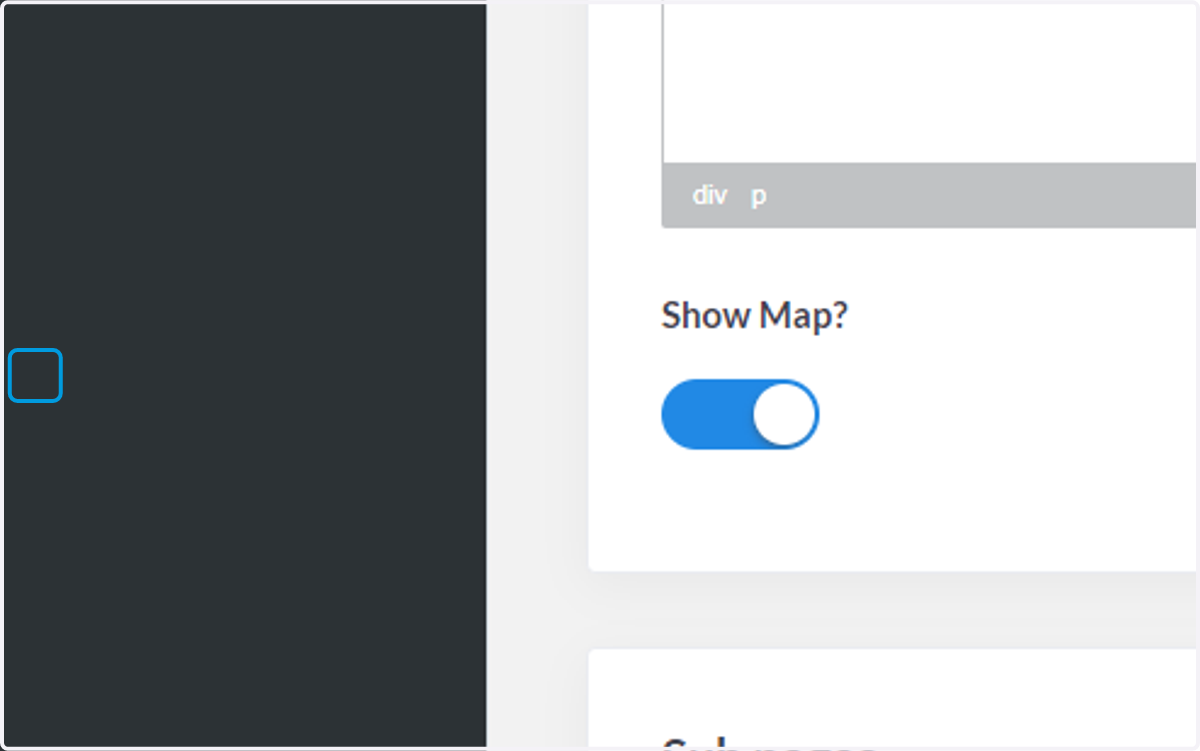
13. Toggle this on if you wish to add the map to the web page.
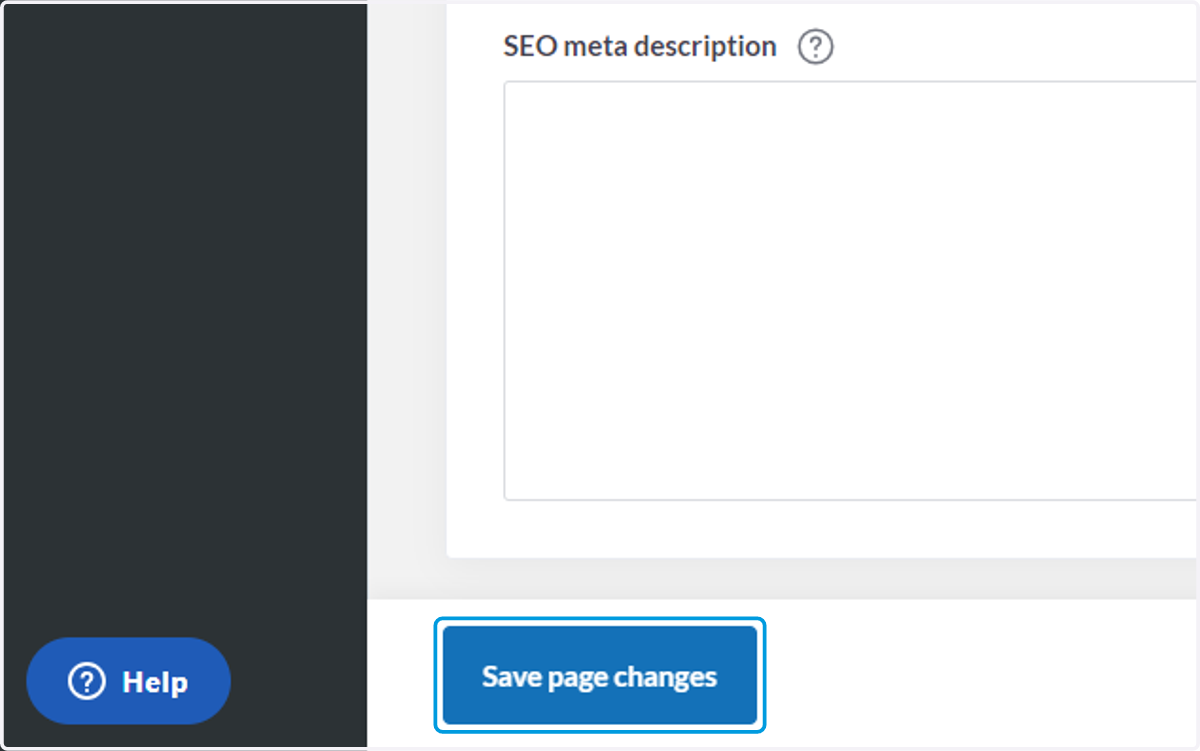
14. Add in the SEO section for the contact us section
Similar to the home page

15. Click on Save page changes