ClubSpark Admin: Booking Modules > Basic Settings
This section covers the basic settings of the Booking Module within ClubSpark. This can serve as a refresher and information when clubs set up bookings on ClubSpark.
1. Let's begin!

Open your club's ClubSpark admin site
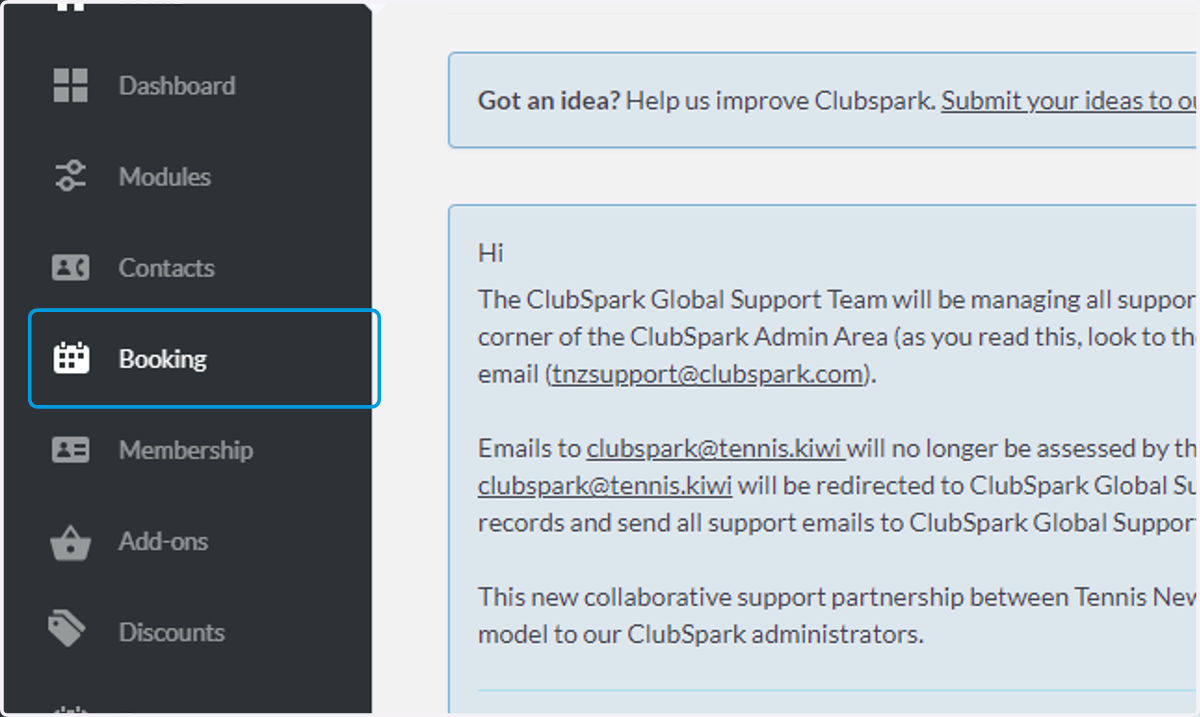
2. Click on 'Booking'
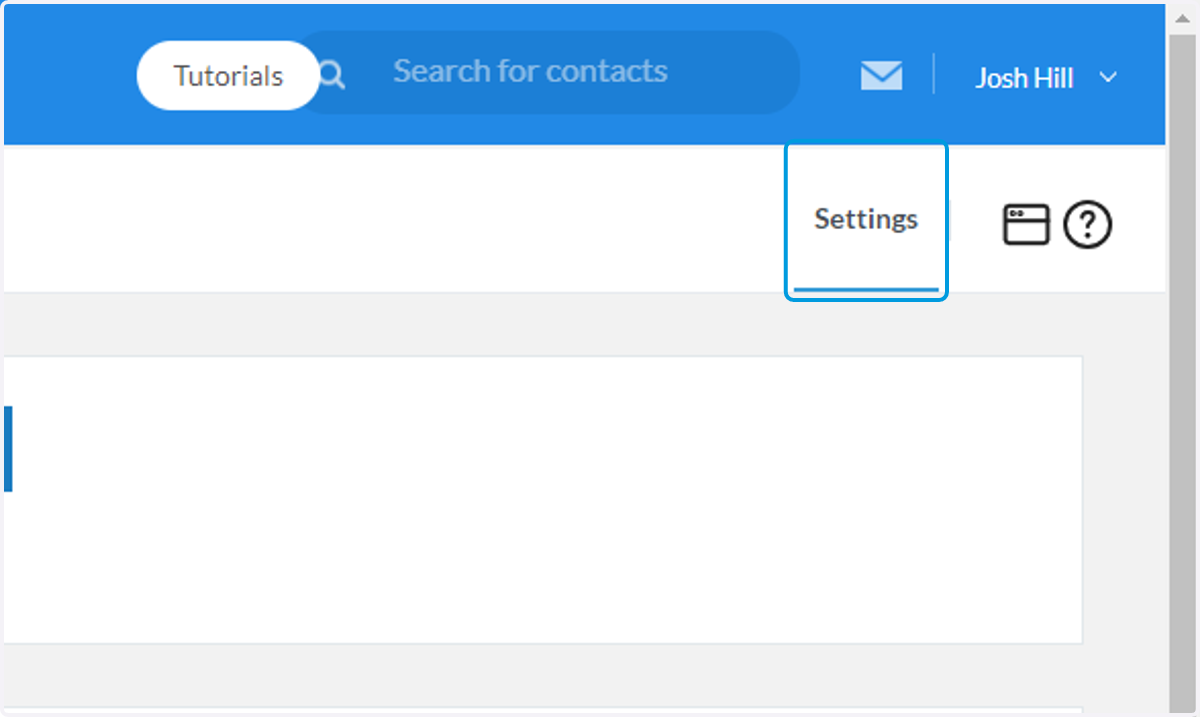
3. Click on 'Settings'
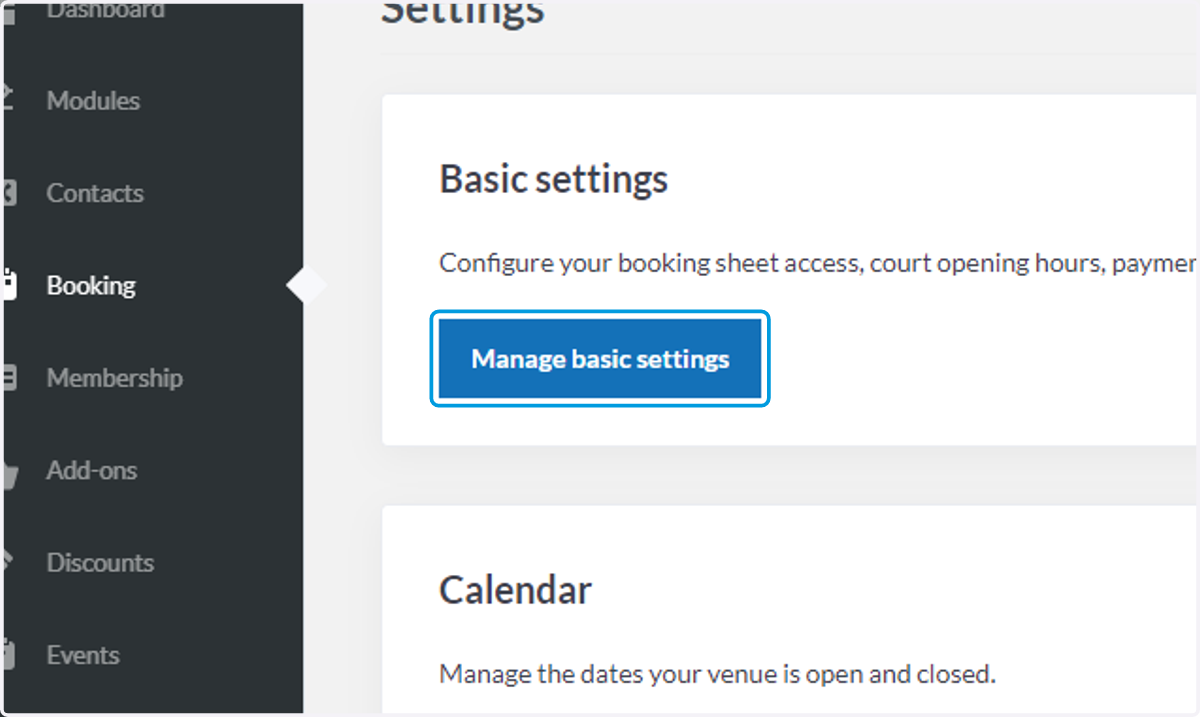
4. Click on 'Manage basic settings'
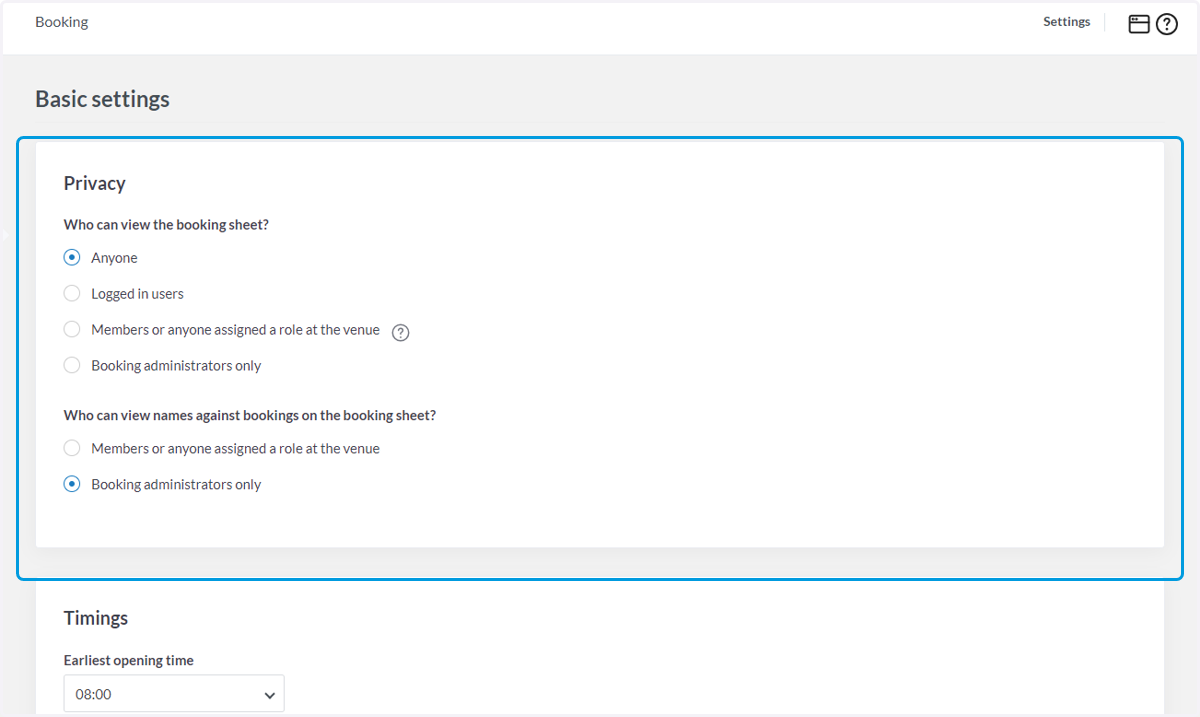
5. Privacy
The privacy section allows you to set who can view the booking sheet on the club's ClubSpark website and who can see the names once a booking is made. How you set these is up to you; however, if your courts are available for casual players, we recommend the "Anyone" setting so when a visitor looks to book a court, they will be able to see the availability.
You can also set who can view names against bookings on the sheet, this allows privacy and you can set this to either members when they log in or anyone who is assigned a role, e.g. Coaches
The most common selection is Booking administrators only.
6. Timings section
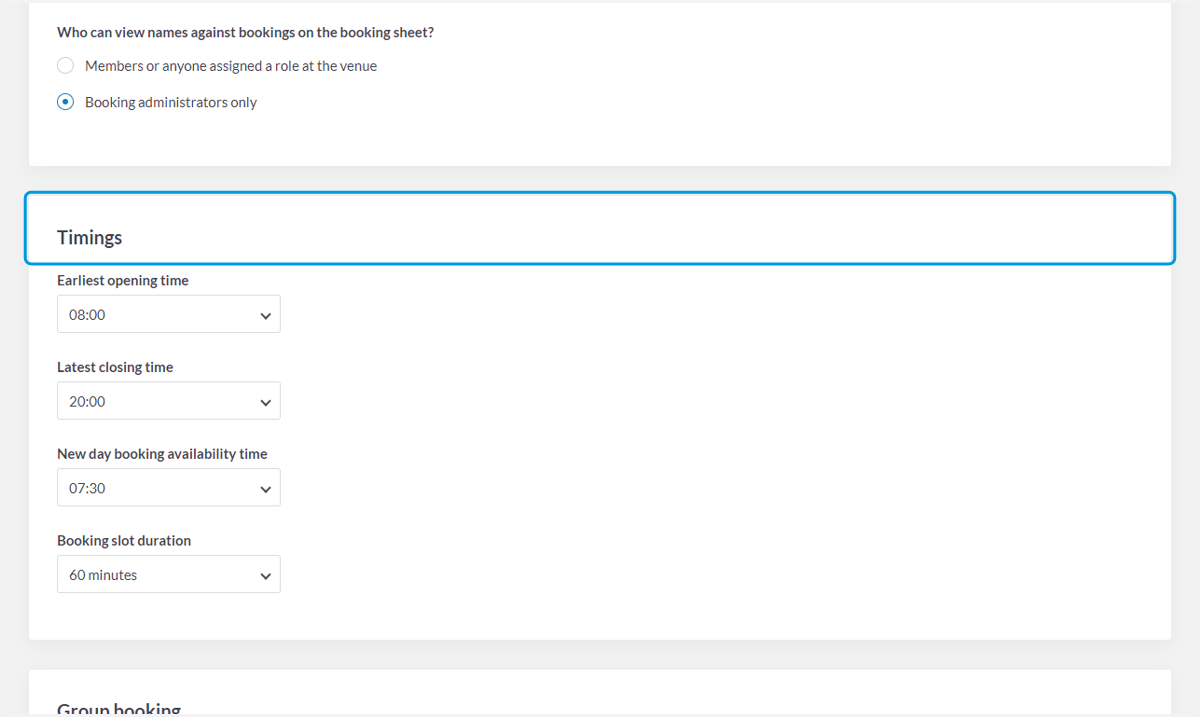
7. Specify Earliest Opening time
What time the venue is open to courts
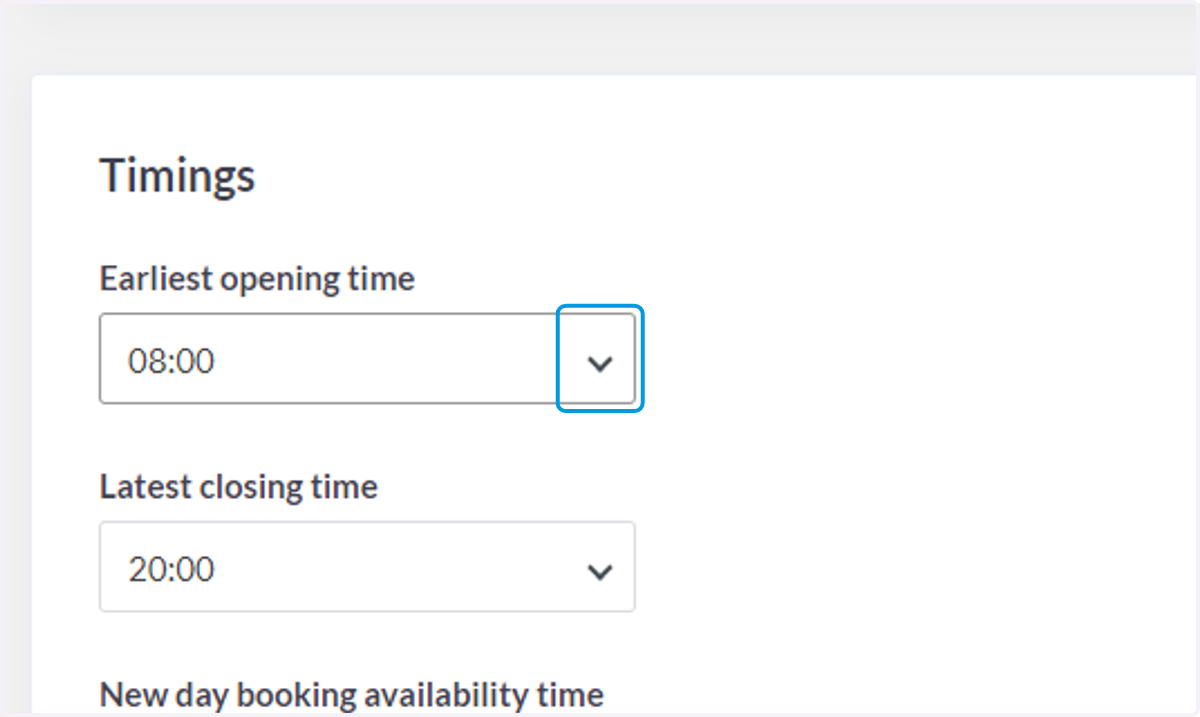
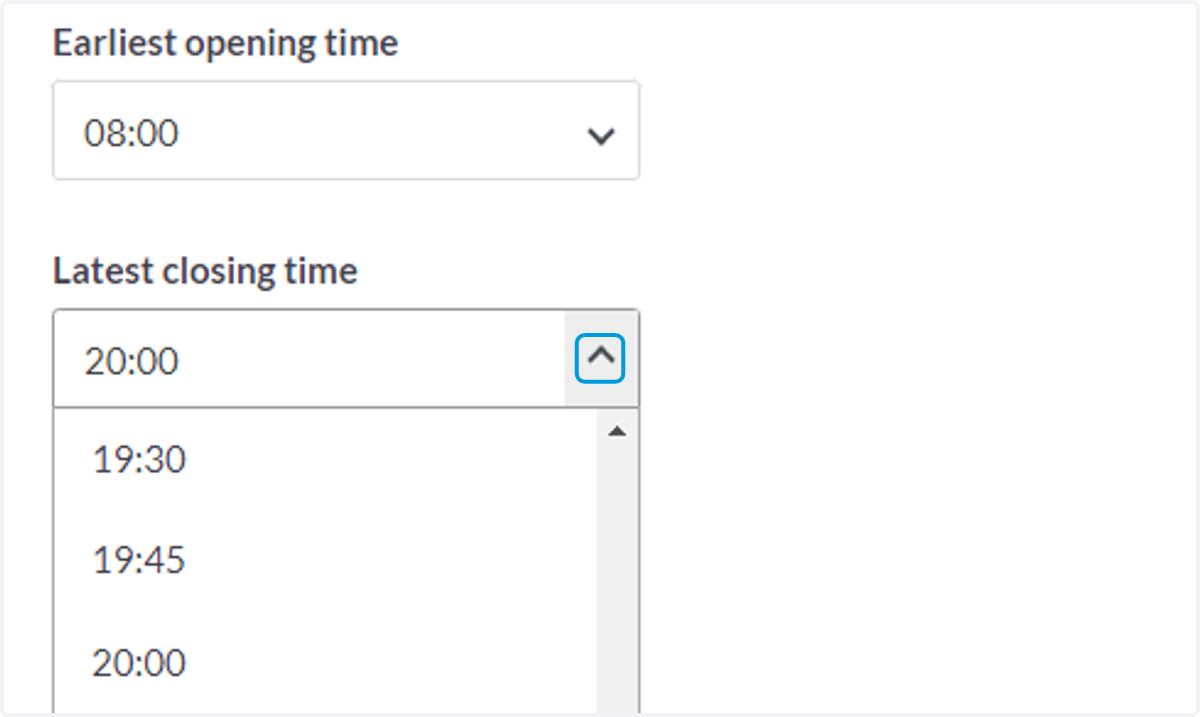
8. Latest Closing Time
What time the venue is closed
9. New day booking availability time
Set the earliest time at which a user can place a booking
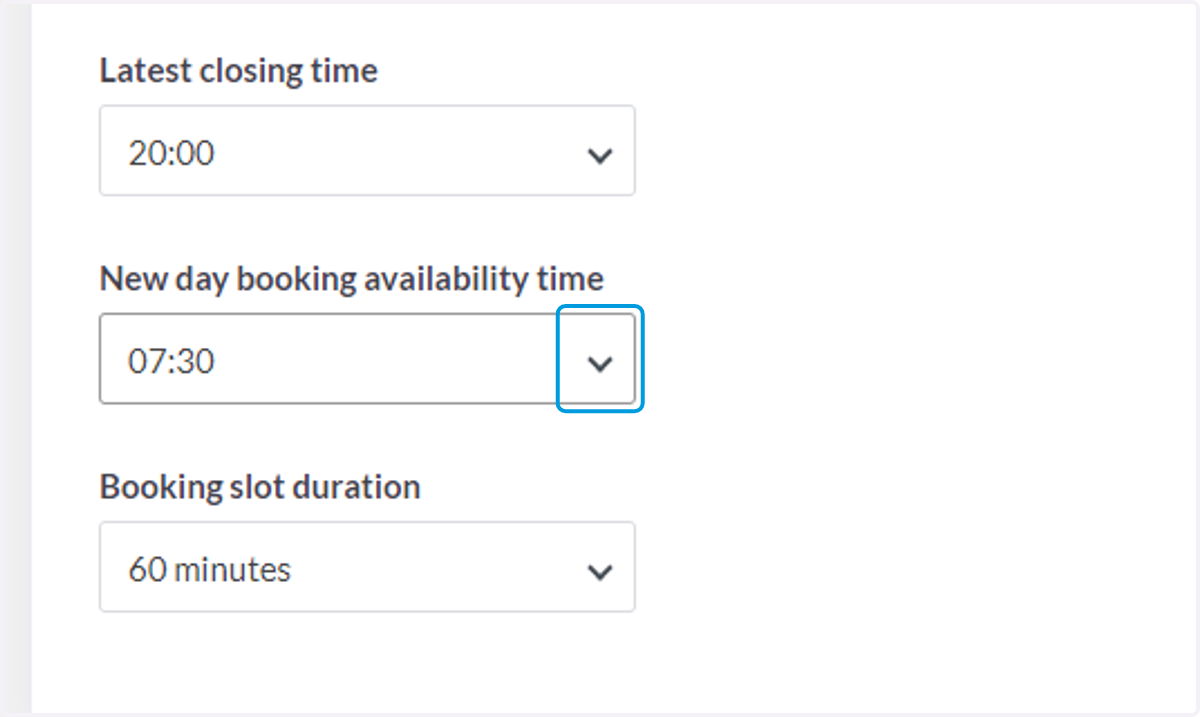
10. Booking slot duration
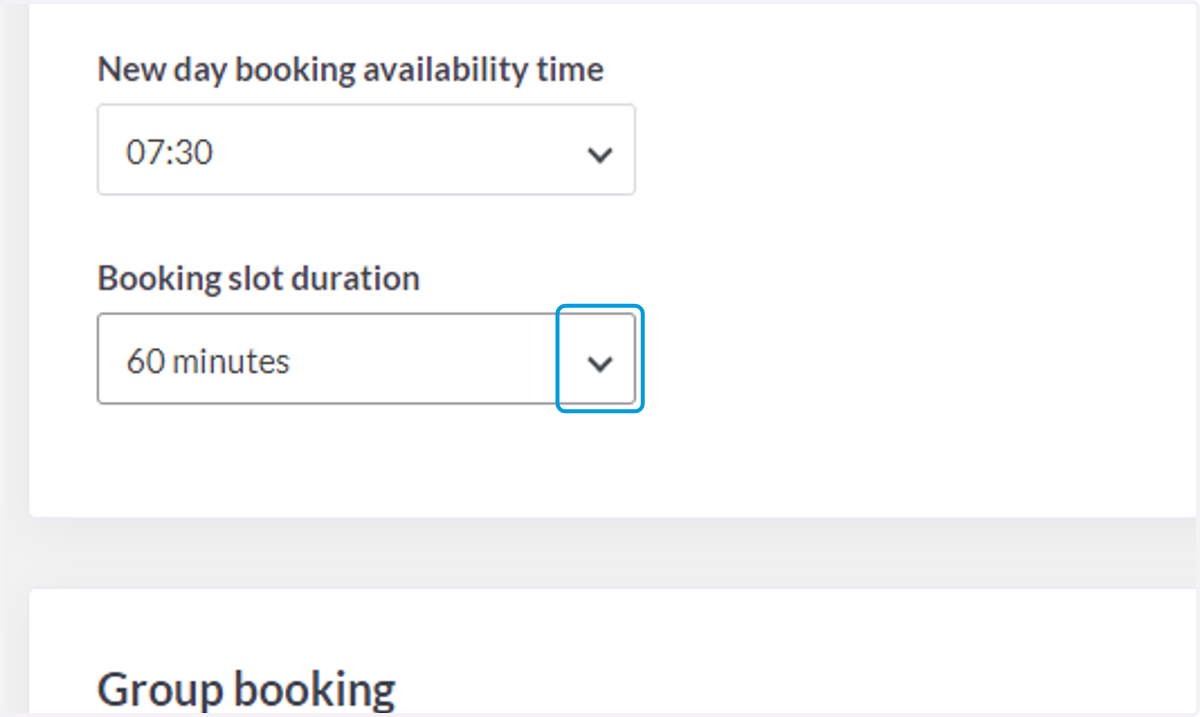
For booking slot duration, you can set the length of time of a booking slot, you have the option from 15 minutes up to 120 minutes.
Most clubs settle for 30 minutes as you can start a booking on the half hour rather than on the hour.
11. Group Booking
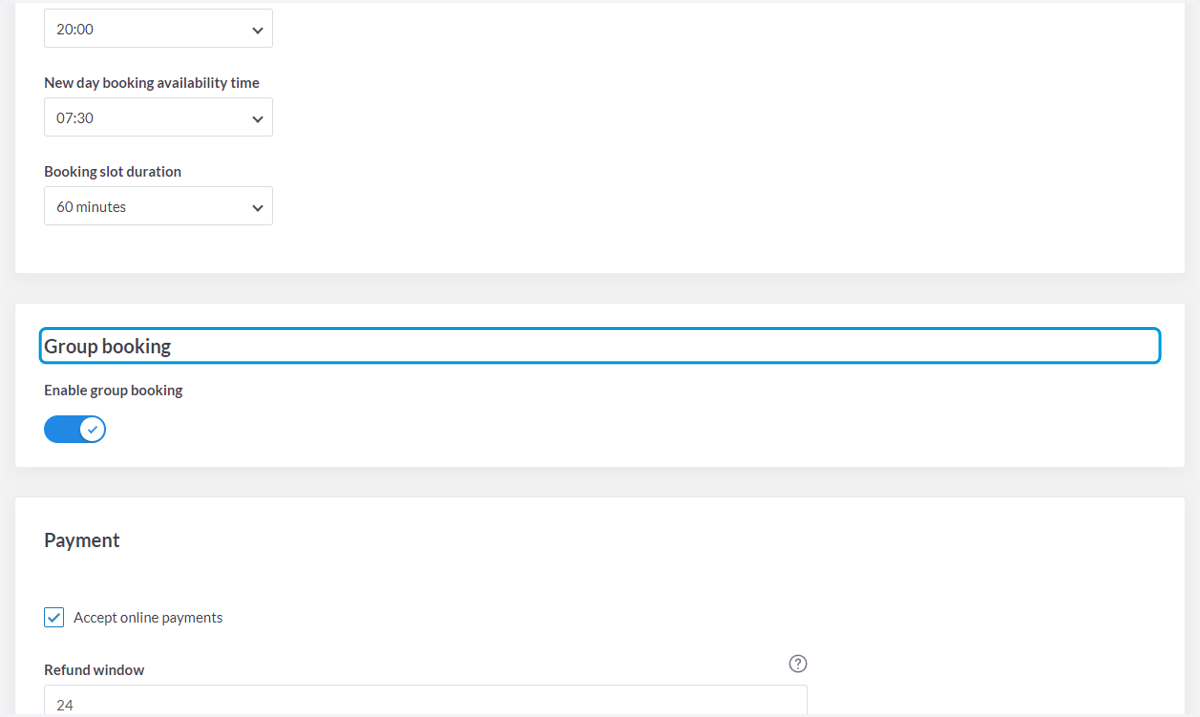
Group bookings are a great feature to enable your members to list who is playing with them. If your venue allows them to bring a guest you can also add guest fees. Useful for club members if they wish to bring a non-member along to have a hit.
12. Payment Section
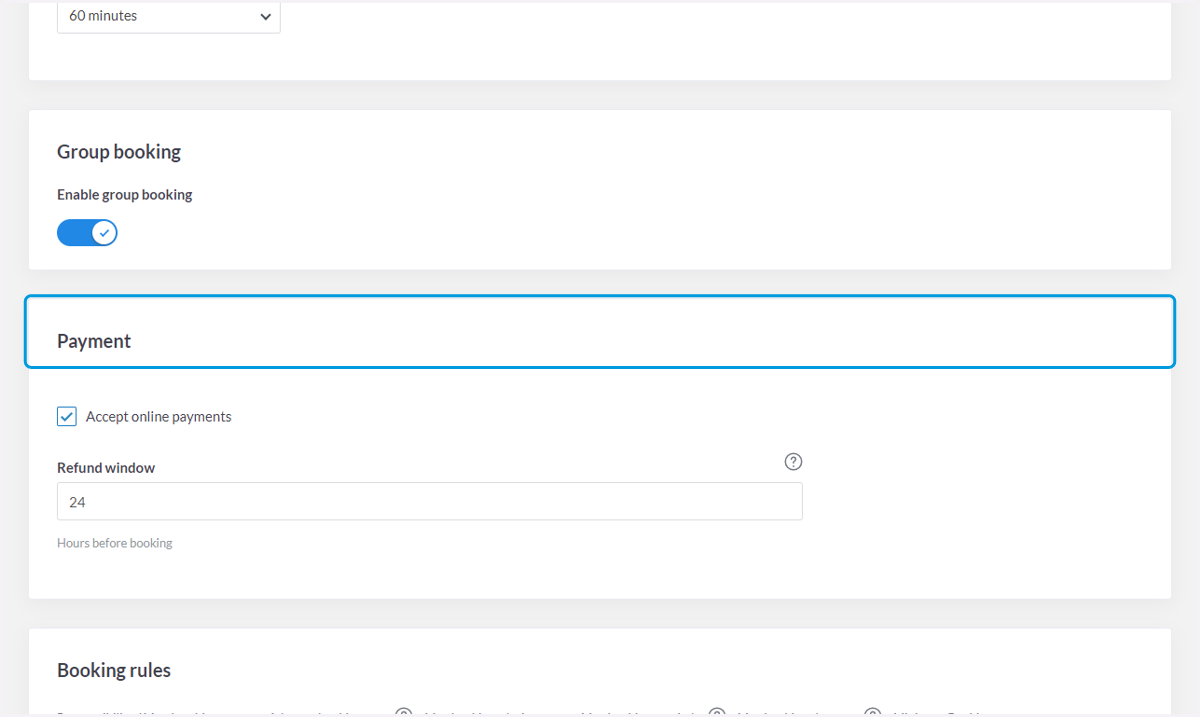
Accept online payments via Stripe so users can pay for a guest or a court using a debit / credit card.
Specify a refund window where a user can cancel and get a refund before their booking.
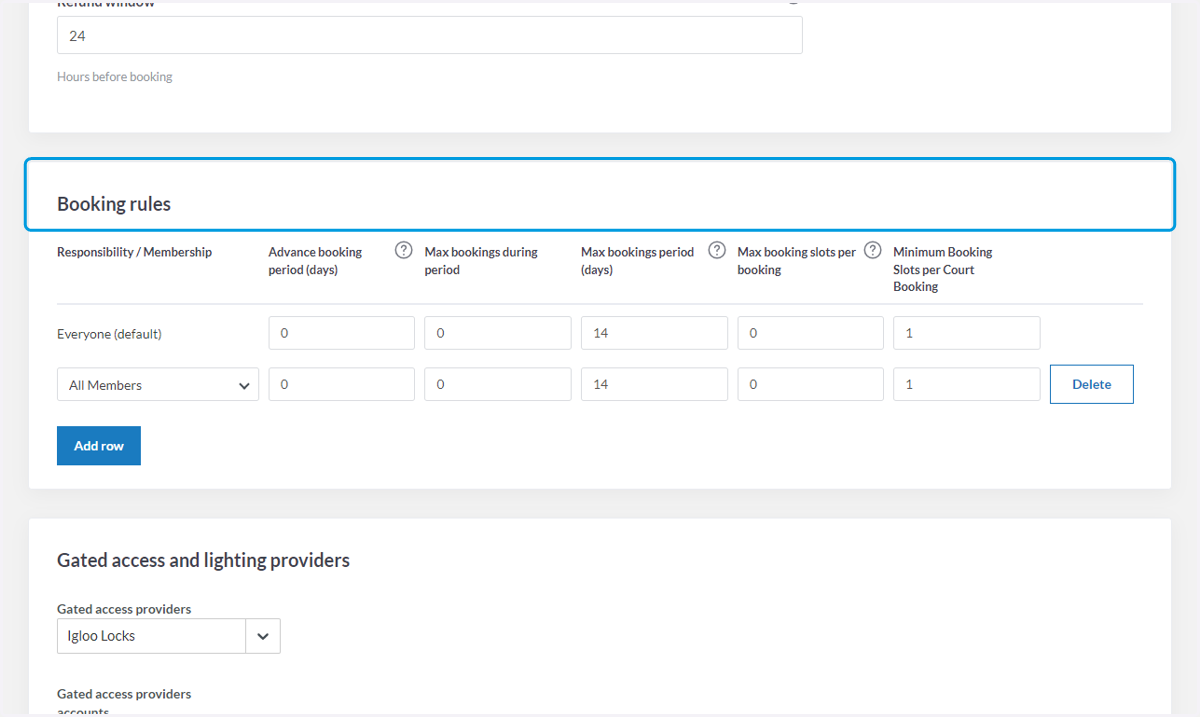
13. Booking rules
Booking rules allow you to decide:
How far in advance a booking can be made - 'Advanced Booking Period (Days)'
How many bookings a player can make - 'Maximum Bookings During Period'
Within a given time period - 'Maximum Bookings Period (Days)'
How long the player will be on court - "Maximum Booking Slots Per Booking"
What is the minimum time that the player has to book a court for - 'Minimum Booking Slots'
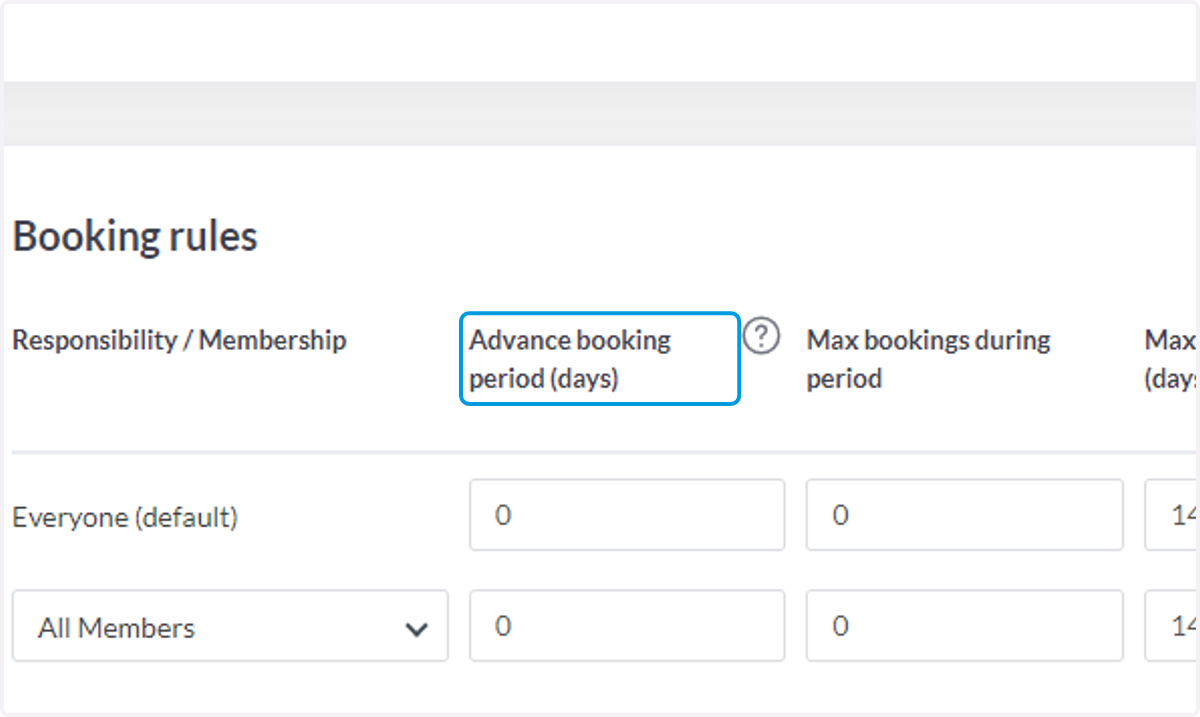
14. Advance booking period (days)
This means the player can book up to X days in advance of the date they would like to book.
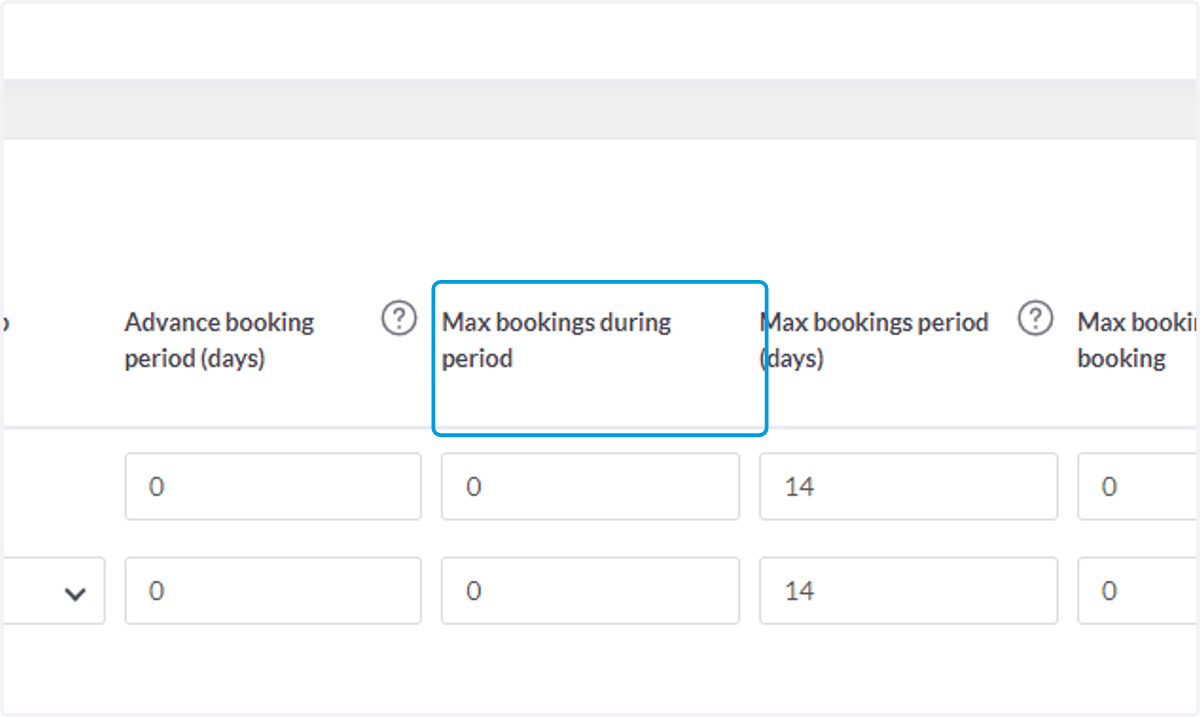
15. Max bookings during period
Specify how many bookings can be made during the day. Most clubs usually set this as 0 unless courts do get busy and you wish to balance the fairness in bookings been made.
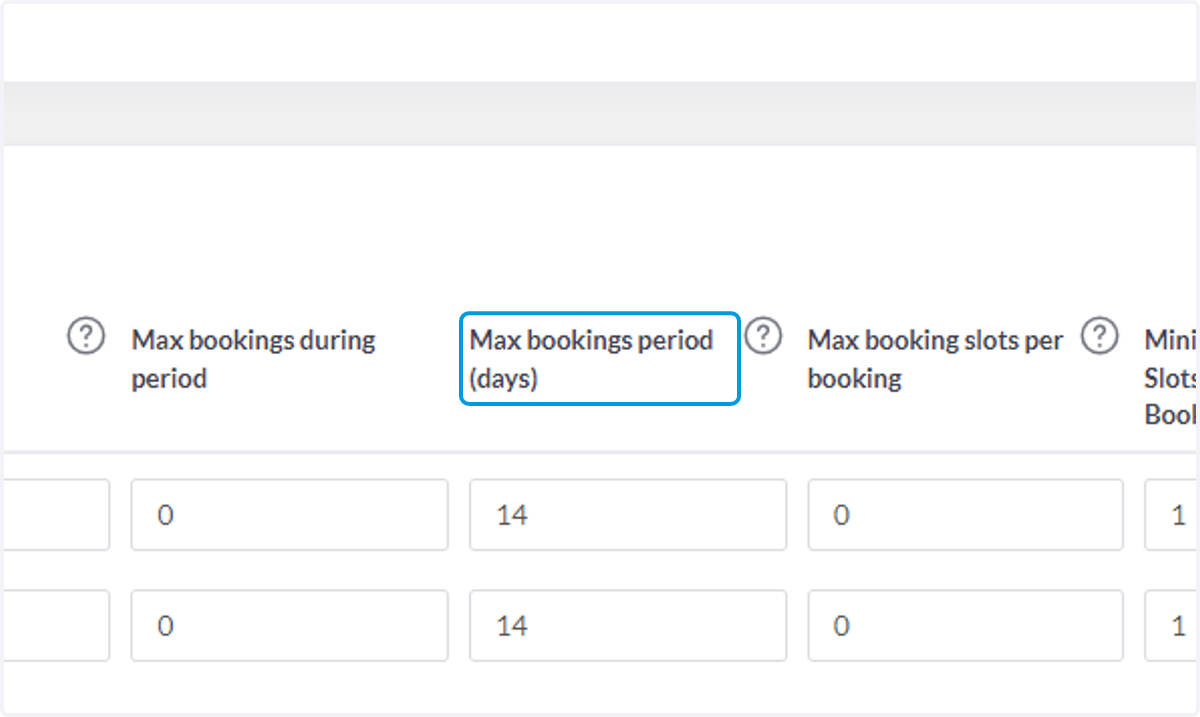
16. Max bookings period (days)
Used in combination with max bookings during period to restrict the number of bookings users can make in a specified time frame. For example a max bookings during period value of 5 and a max bookings period (days) of 7 would mean a user is restricted to 5 bookings in any 7 day period.
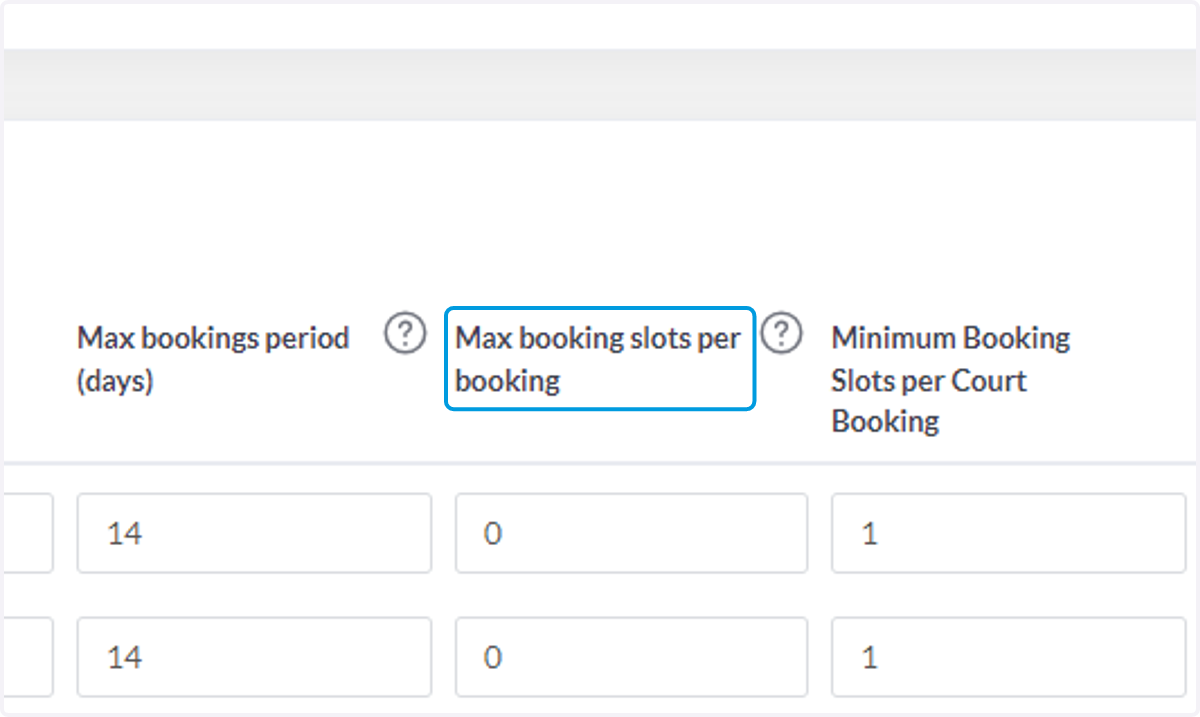
17. Max booking slots per booking
The maximum number of slots per booking. For example, if the booking interval is set to 1 hour, and max booking slots is set to 3, then the maximum length of a single booking is 3 hours.
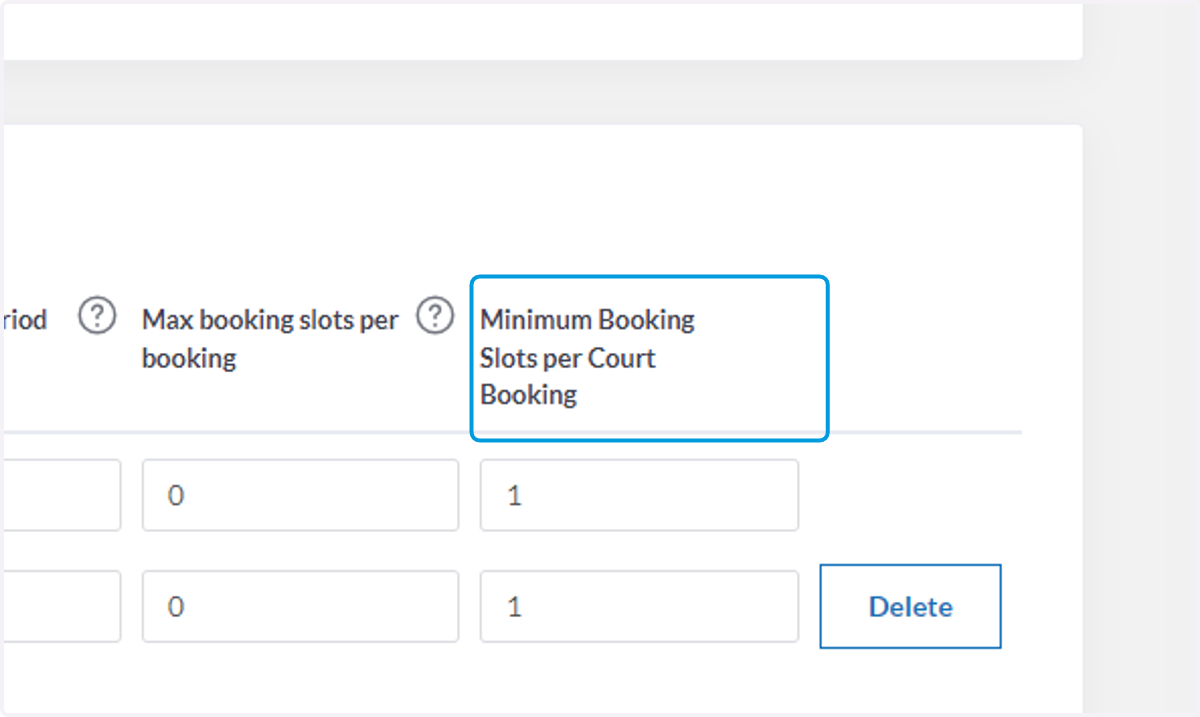
18. Minimum Booking Slots per Court Booking
This means that that the minimum time of court is 2 booking slots i.e 2 x 30-minute slots = 1 hour minimum time on court
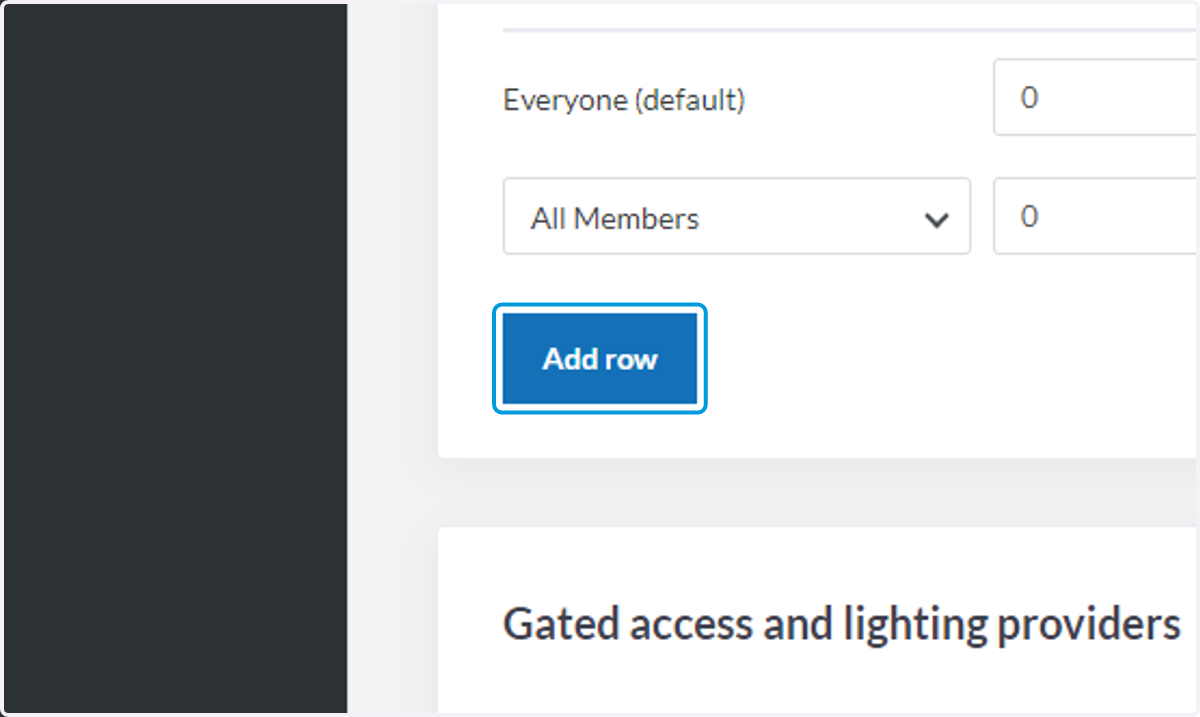
19. Adding different type of users?
You also have the option to add rules and apply these to different types of users. E.g. the advanced booking period for a user with a responsibility as a Coach could be longer than everyone else. You can add further rules by clicking the 'Add row' tab.
20. Review & Save Settings