Club - How to Update Club Documents
Keeping club documents current ensures members and staff always have access to the latest policies, schedules, menus, and other important information. This guide will show you how to upload, update, and preview documents, making it easy to keep your resources organized and readily available for everyone who needs them.
Pacesettertechnology
1. Go to Pacesetter Technology
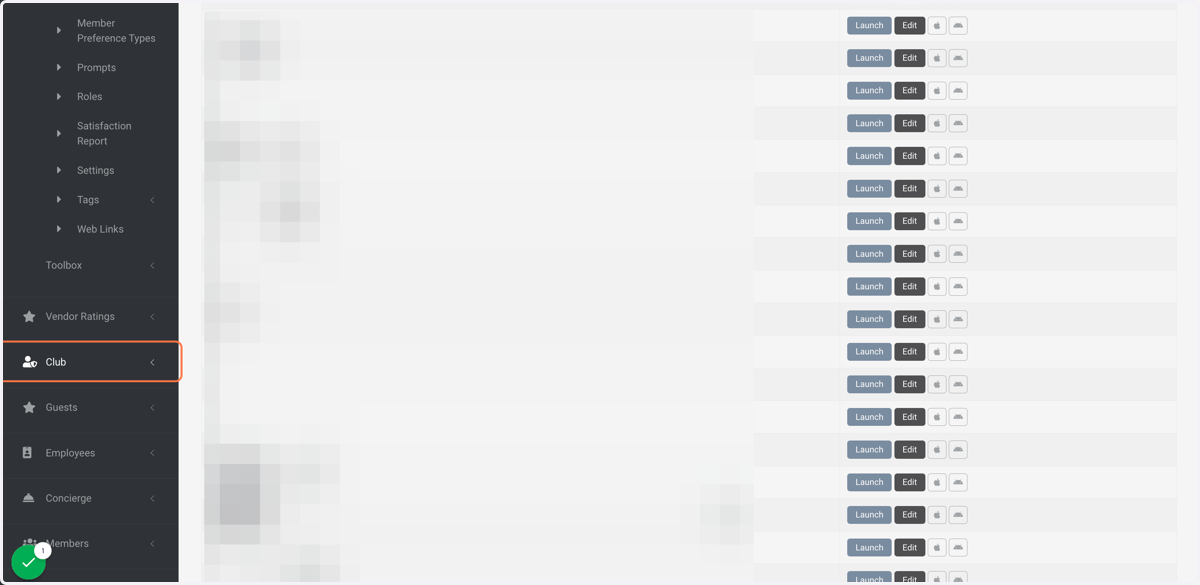
2. Click on 'Club'
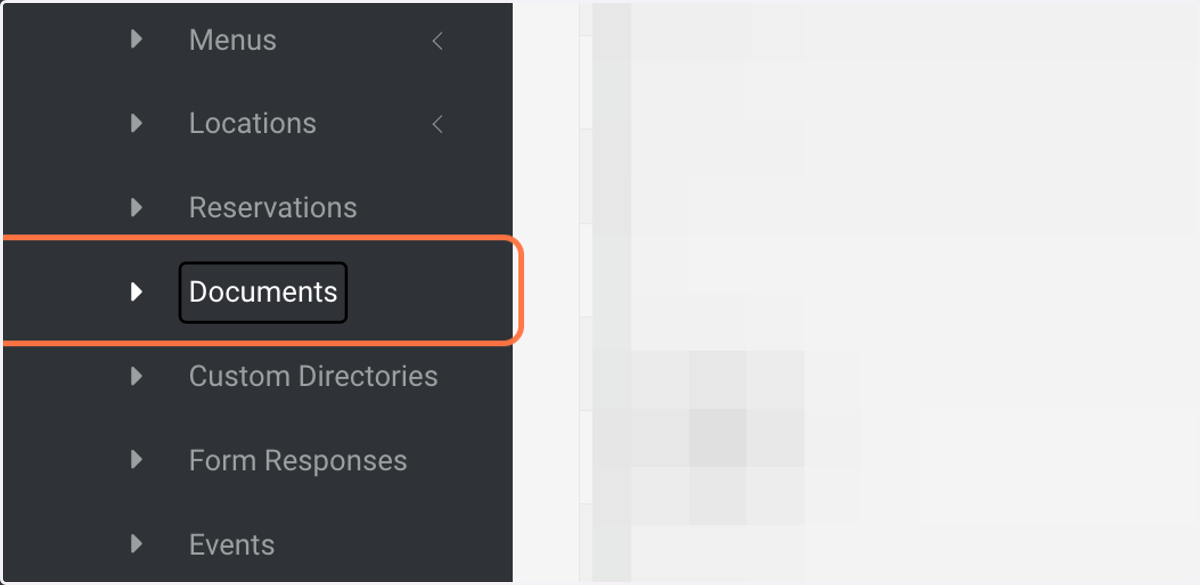
3. Click on Documents
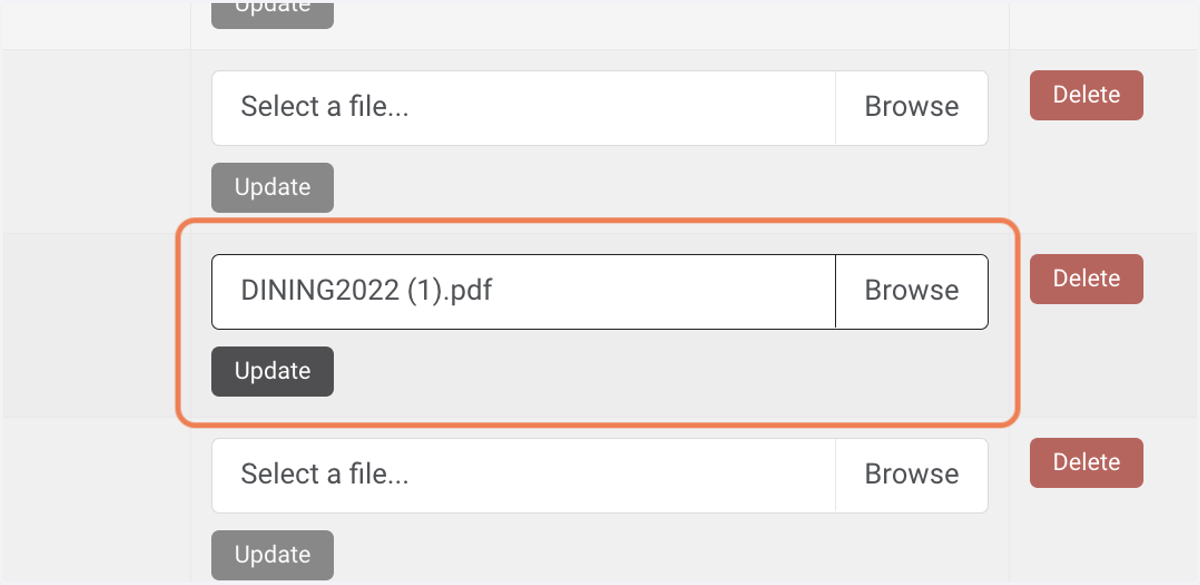
4. Uploading New Document
Beside the document slot that you would like to update, select Browse and then select the document you would to replace the old one with.
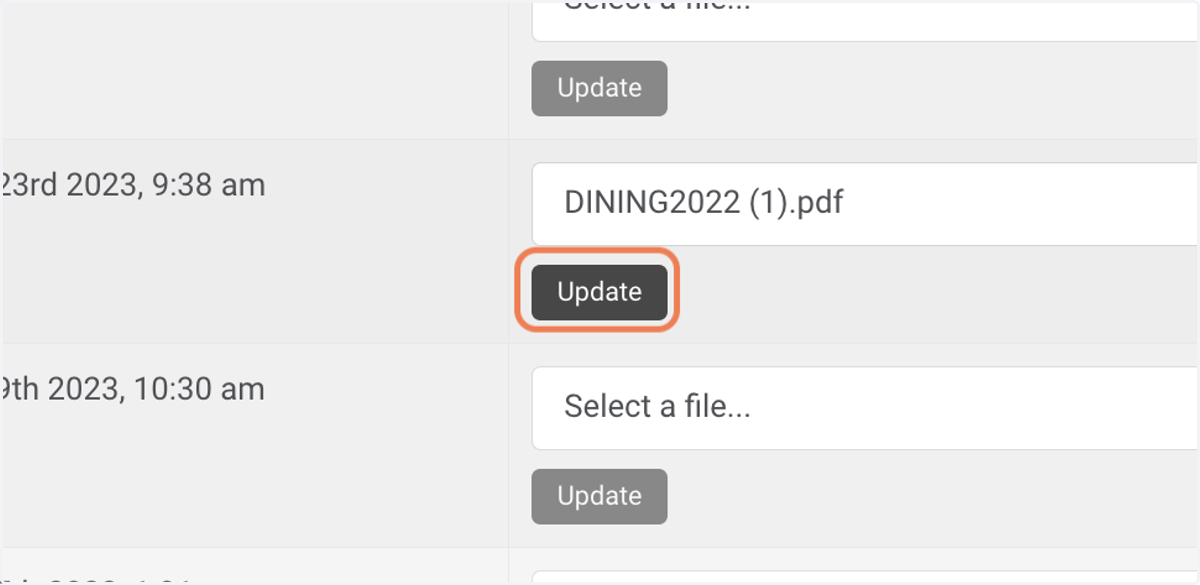
5. Click on Update
6. Preview Document
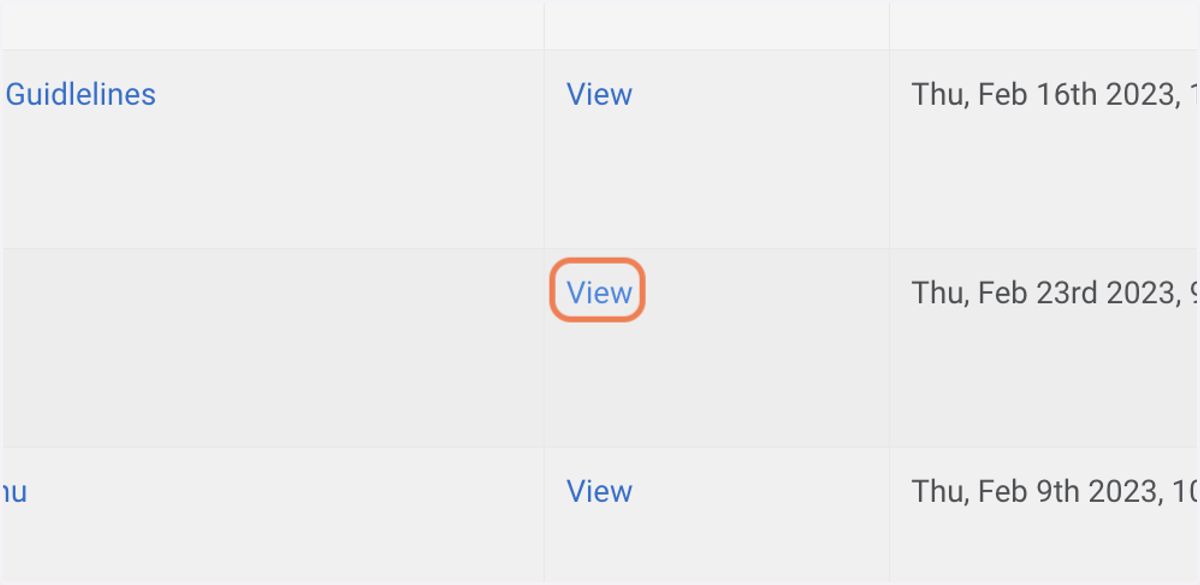
To see the document, or to look back at a different time at what document is in this slot, press View
7. Document Timestamp
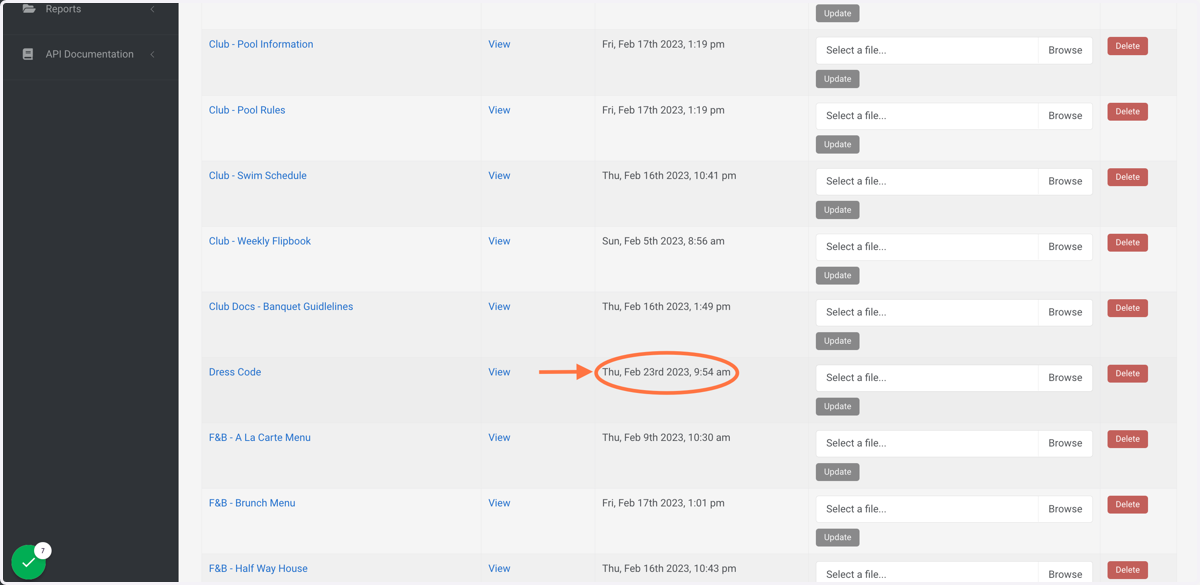
To see when the document was most recently updated, see the time stamp
8. Please Note!
In order to edit the name of the document slot that is clickable in the app to open the document, that would need to be done by a Pacesetter! Additionally, if you need a new document slot created, please reach out to Pacesetter to have this created for you.