Club - How to Maintain Conditions
Keeping members informed of current course, racquet, and overall club conditions can be key to delivering a great daily experience. Whether it’s weather-related updates, maintenance notices, or general availability, regularly updating these conditions helps members plan their visits and stay engaged. This guide will walk you through how to easily update and manage club conditions so your members always have the most accurate, up-to-date information.
Pacesettertechnology
1. Go to Pacesetter Technology
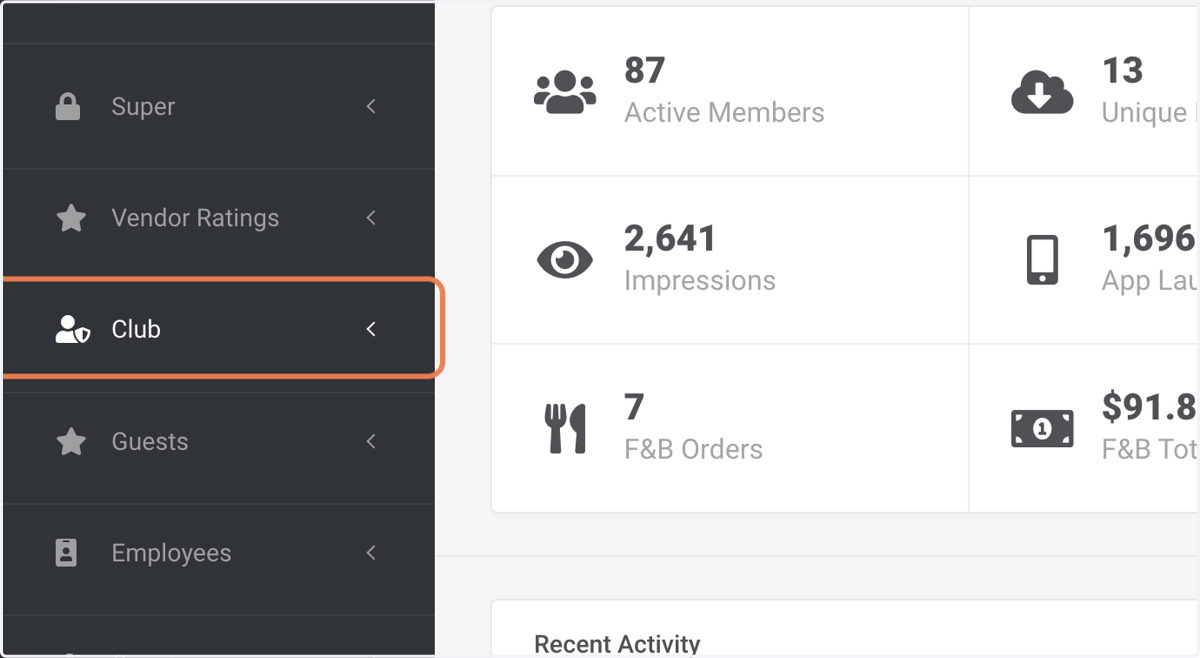
2. Click on 'Club'
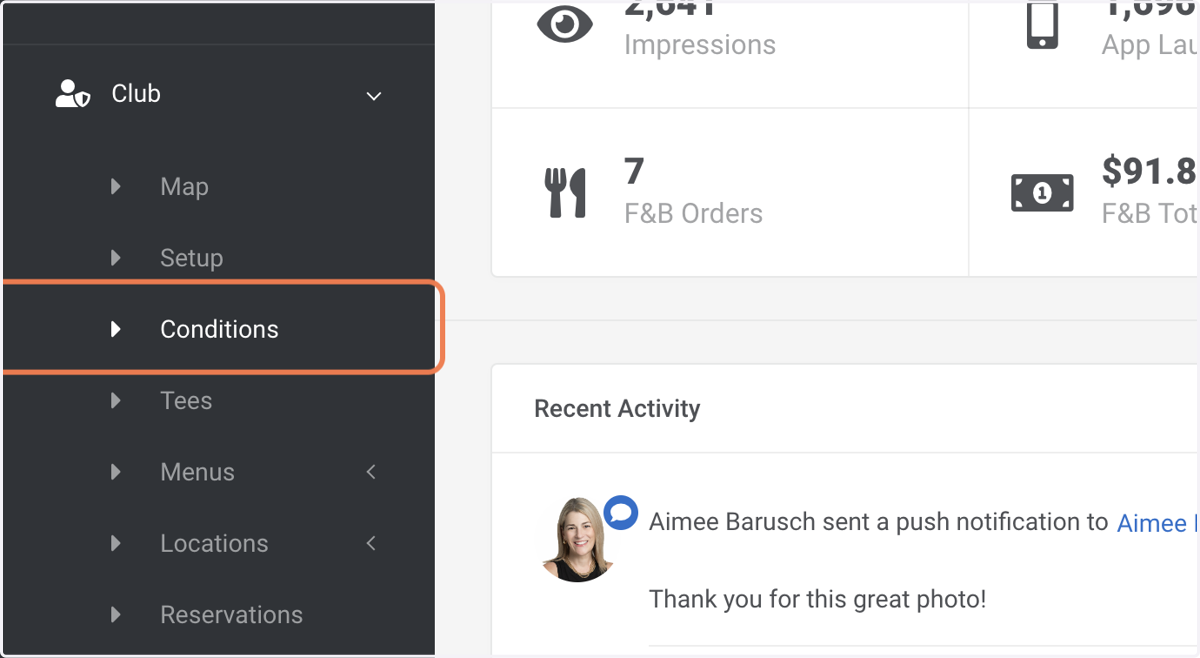
3. Click on 'Conditions'
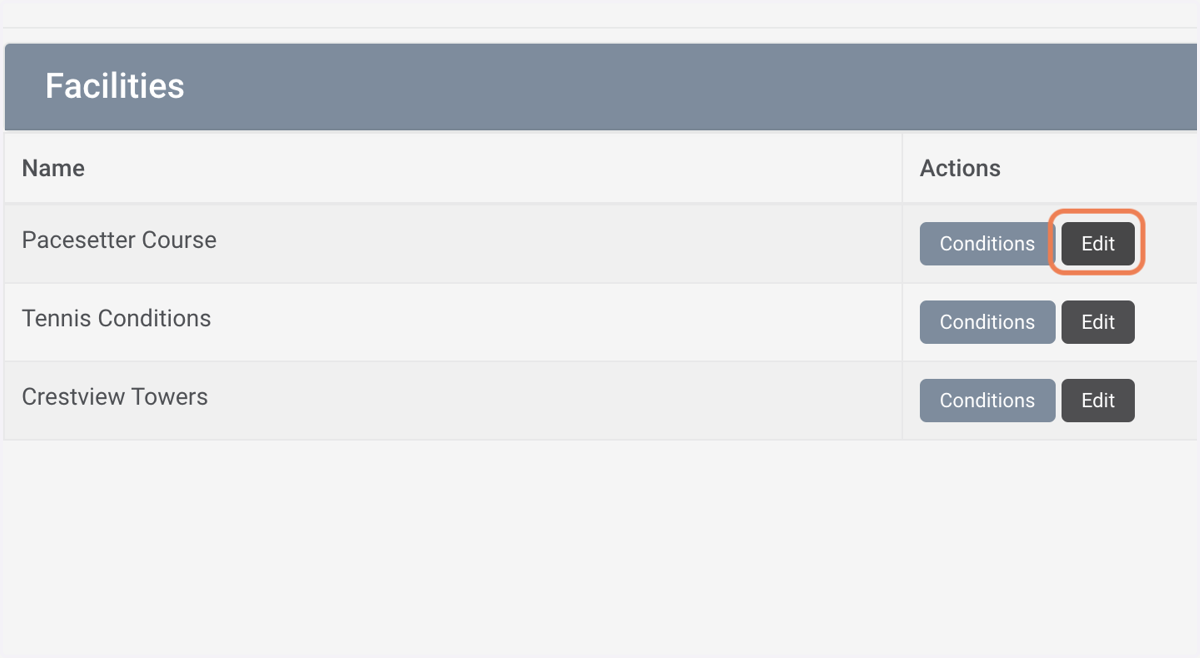
4. Do NOT click the 'Edit' button
You will never need to click into this
5. Click on 'Conditions'
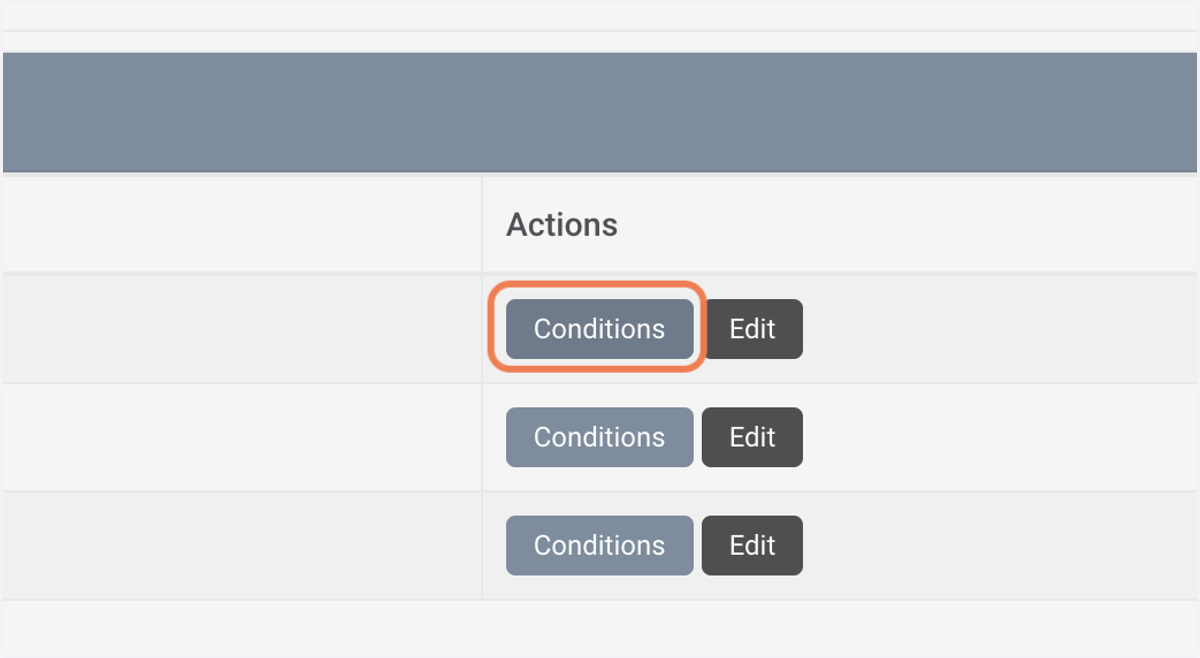
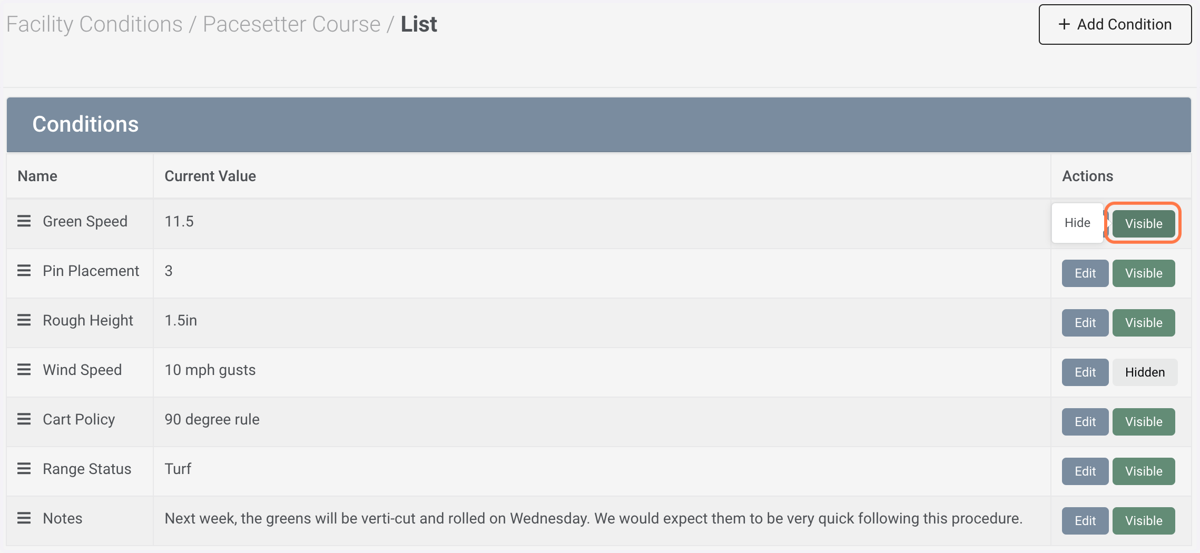
6. To Reorder Conditions
Click and drag the three horizontal lines to the left of the condition name
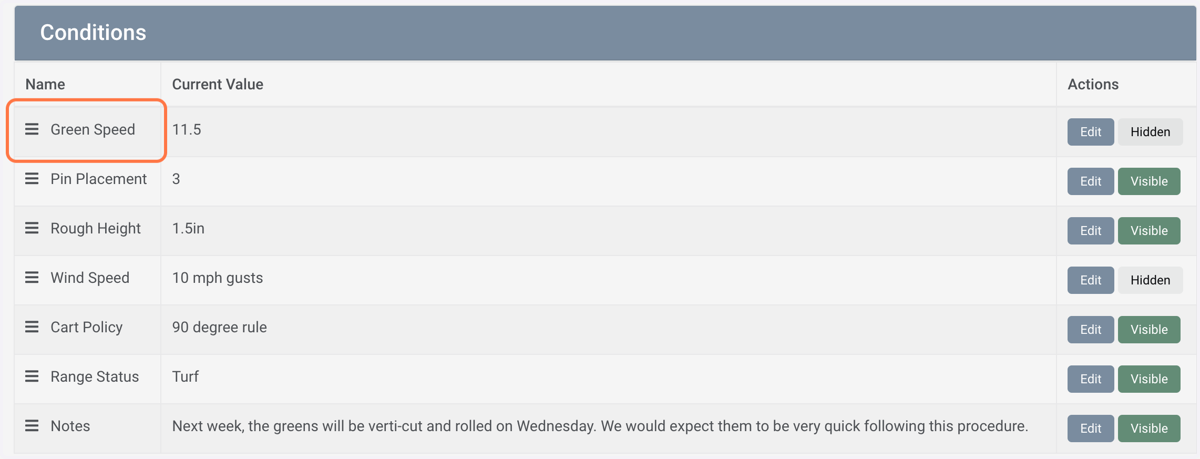
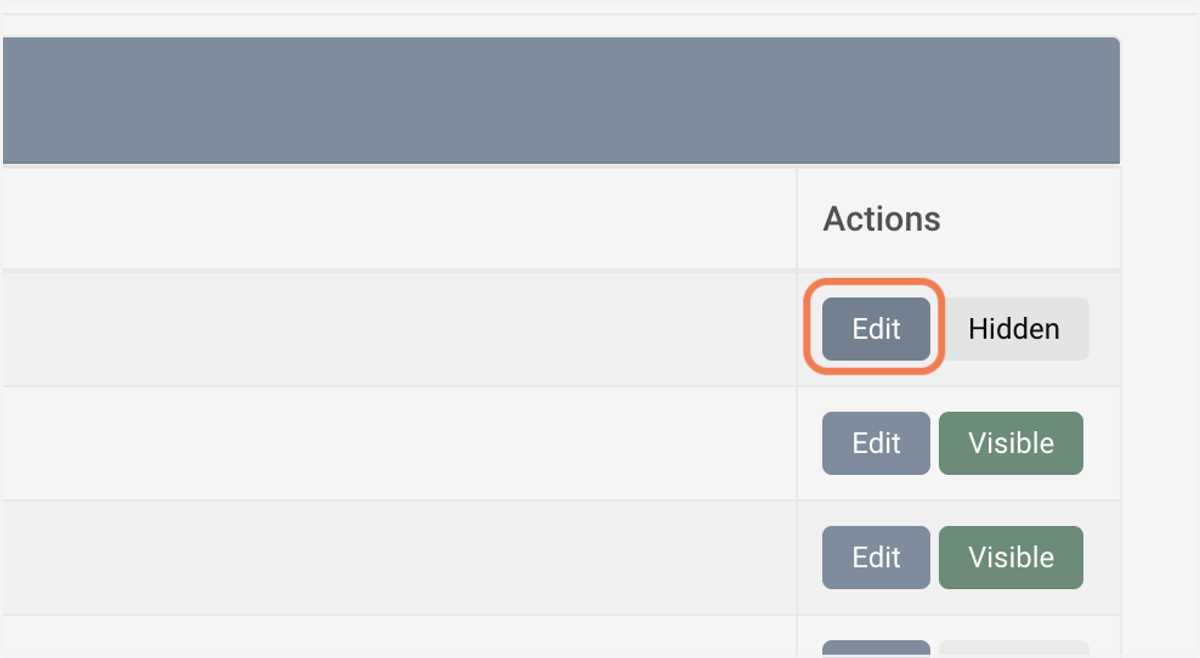
7. Click on 'Edit'
8. You can change the 'Condition Name'
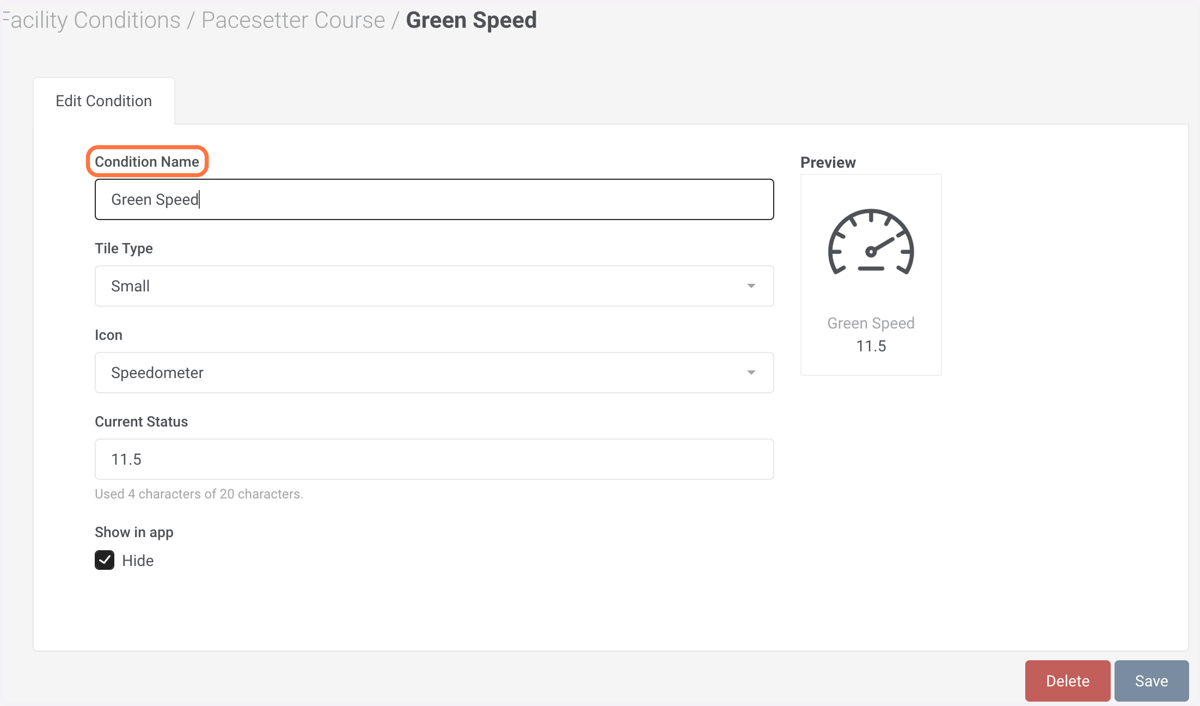
9. 'Tile Type' can be Small or Large
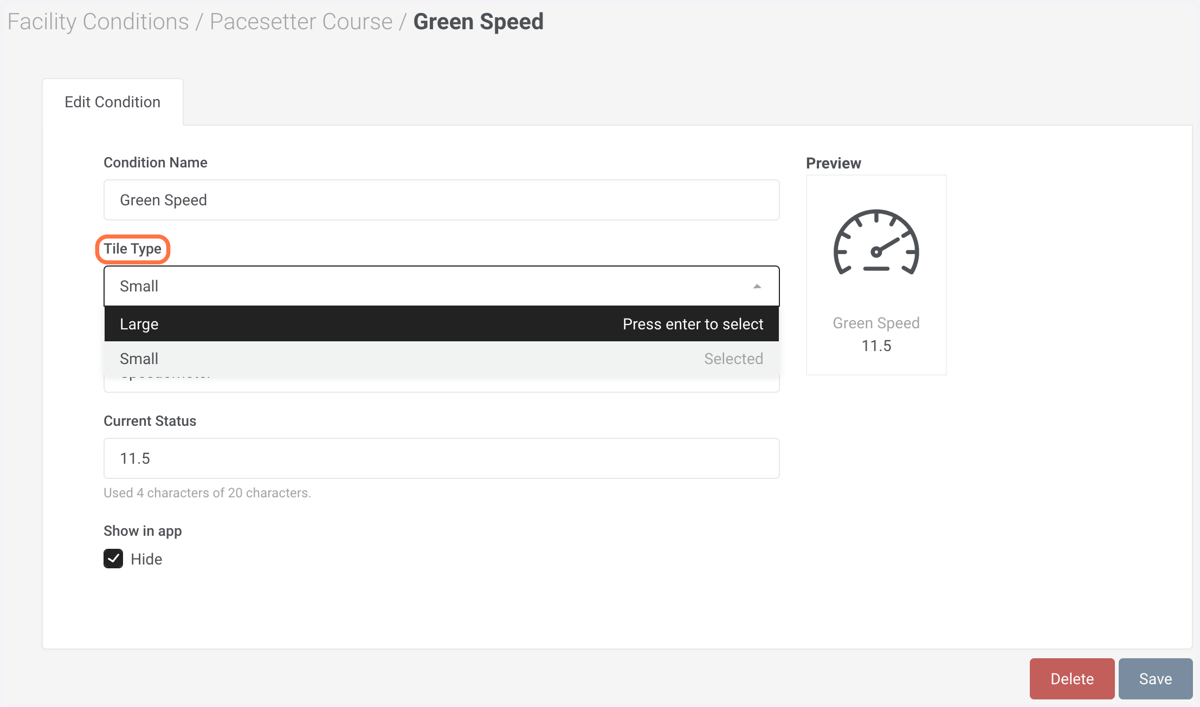
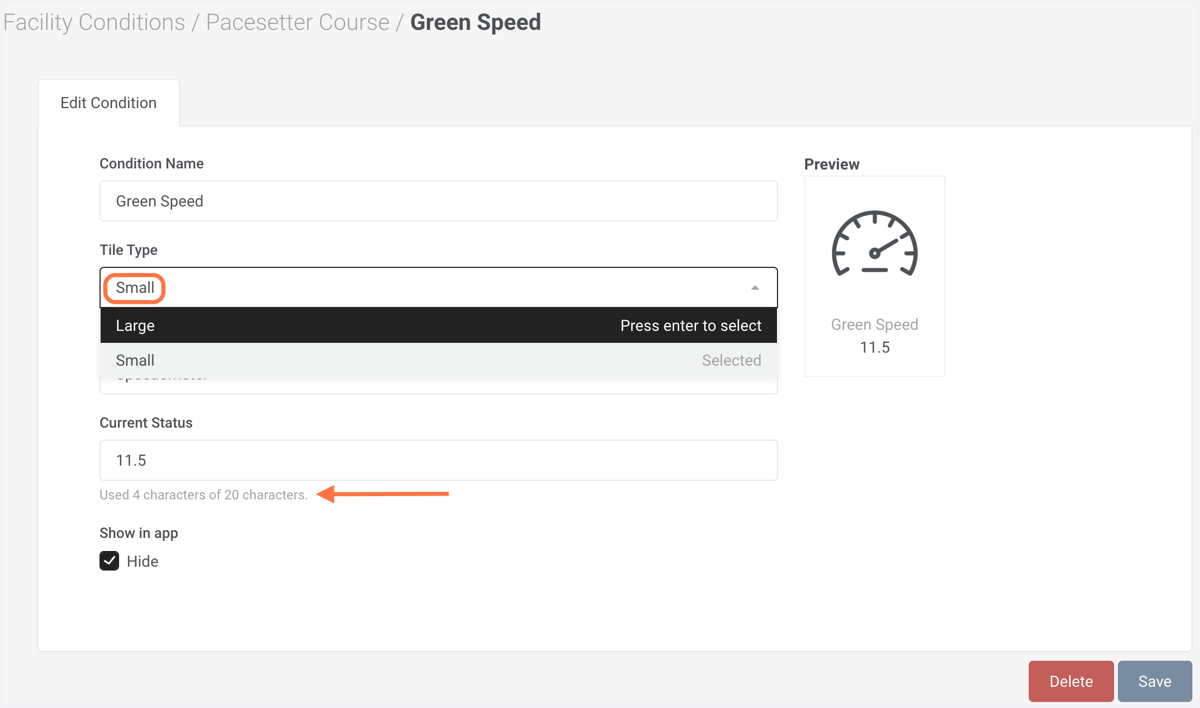
10. Small tiles allow for a current status up to 20 characters
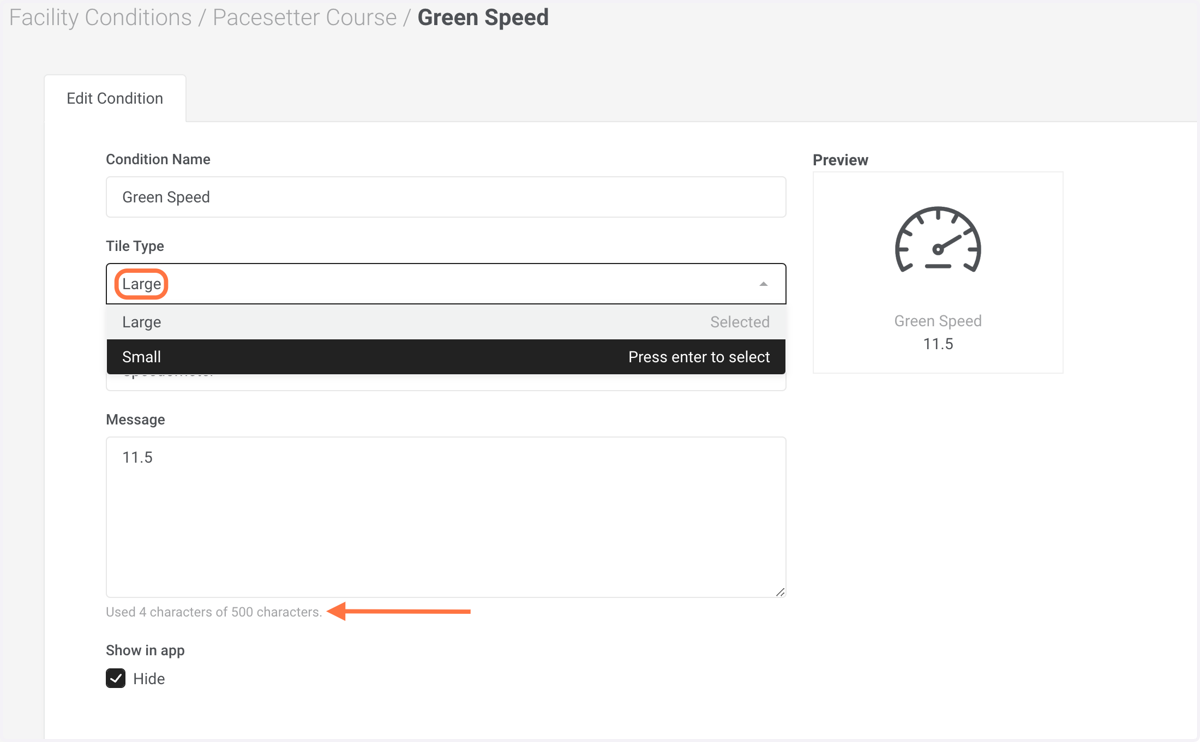
11. Large tiles allow for messages up to 500 characters
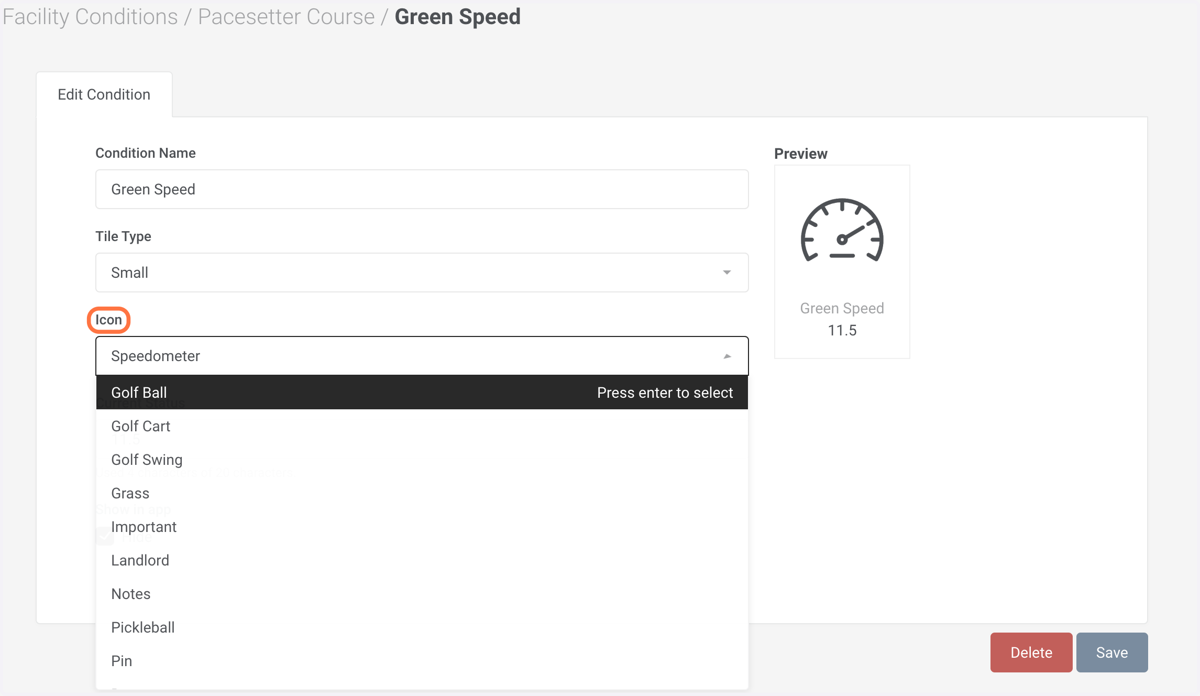
12. Click into 'Icon' to change the condition icon
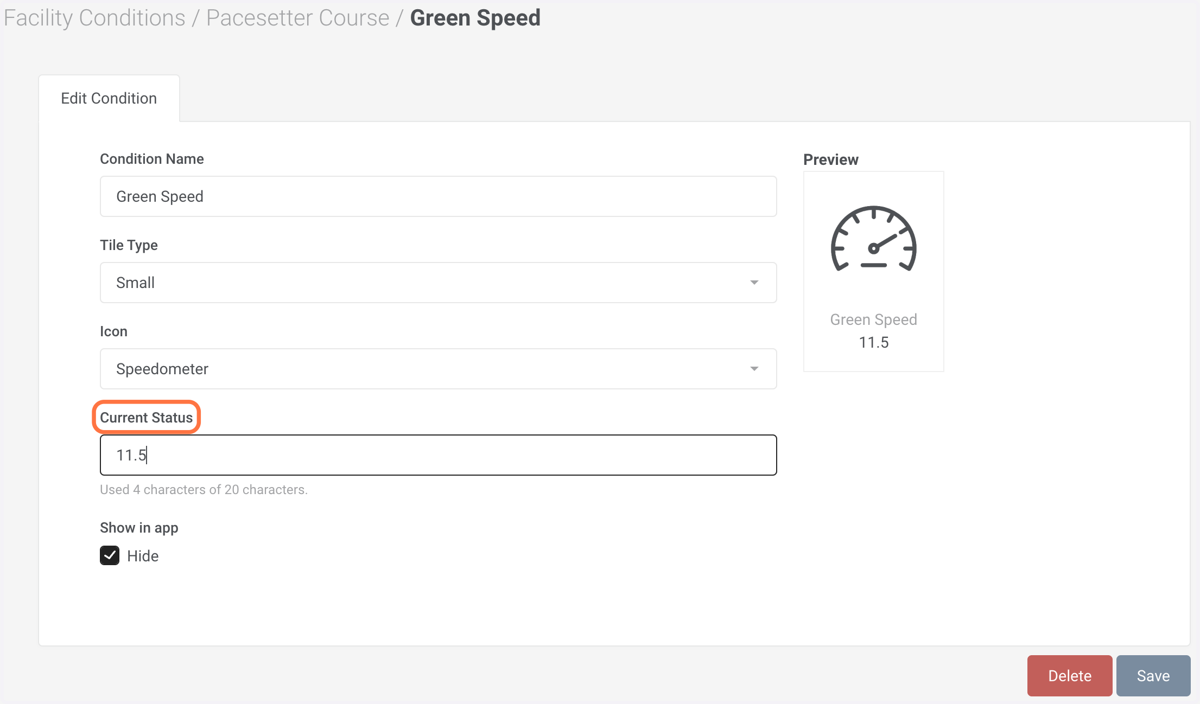
13. Click into 'Current Status'
Here you can update green speed as an example
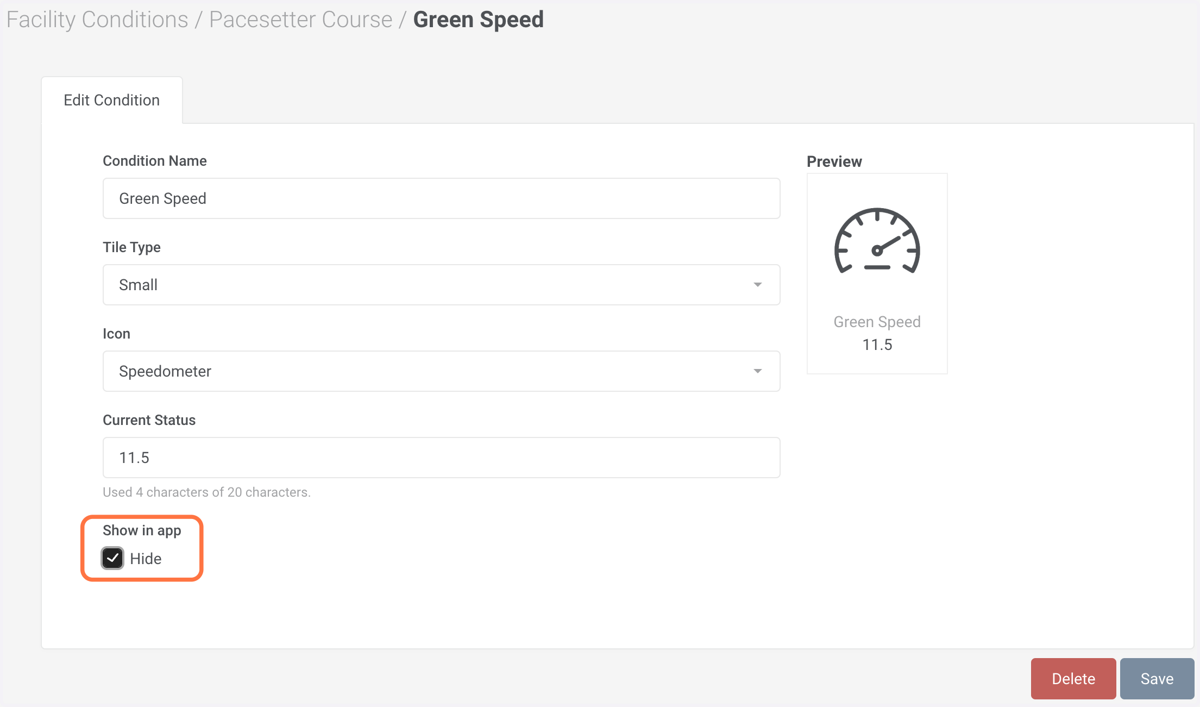
14. Check 'Hide'
If you want to hide a current condition from being shown in the app
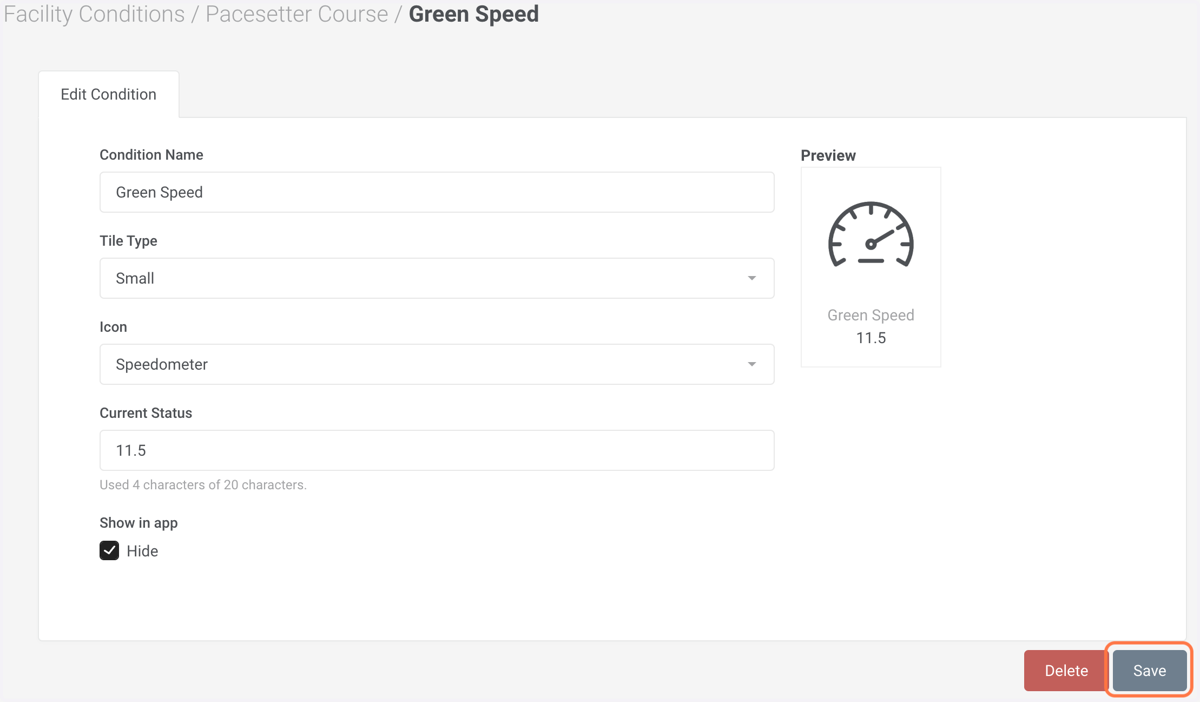
15. Click on 'Save'
16. Click on 'Visible'
You can also hide or make a condition visible by clicking 'Visible' to hide or 'Hidden' to make visible under Actions