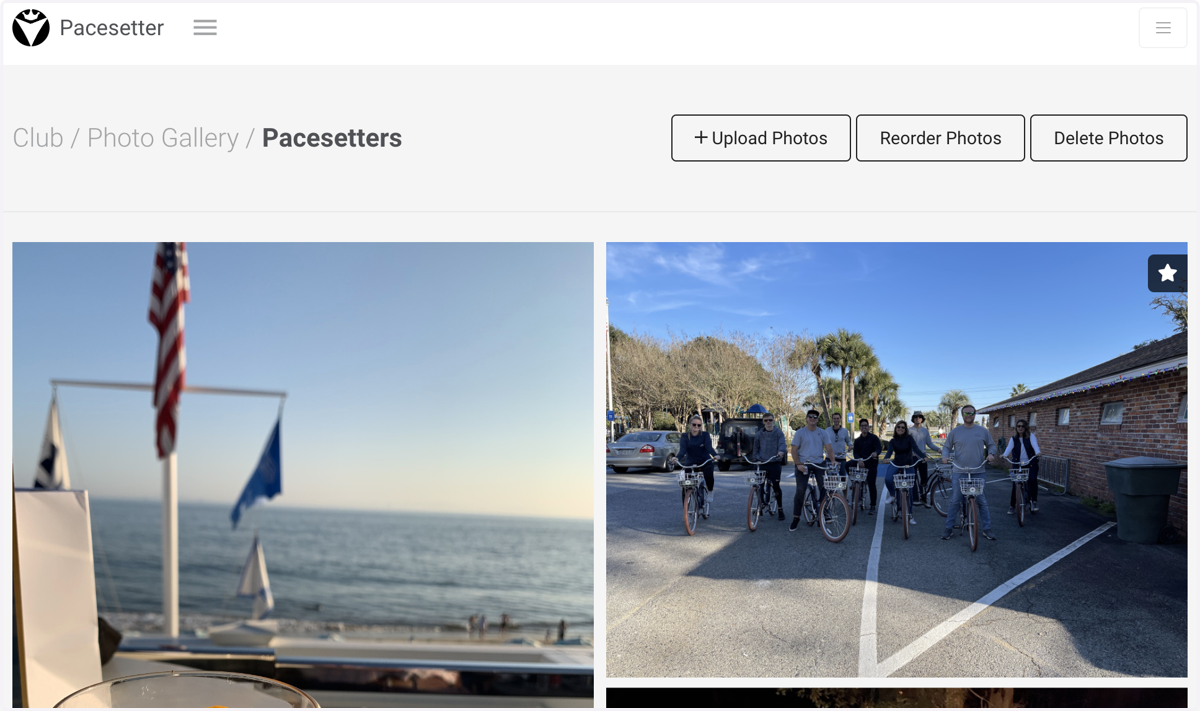
Club - Adding Photo Albums
Photo albums are a great way to showcase special events, highlight club activities, and build community engagement. This guide will show you how to easily add and organize photo albums, helping you capture and share memorable moments with your members.
Pacesettertechnology
1. Go to the Admin Site
Pacesettet Admin Site: app.pacesettertechnology.com
2. Navigate to the Club section
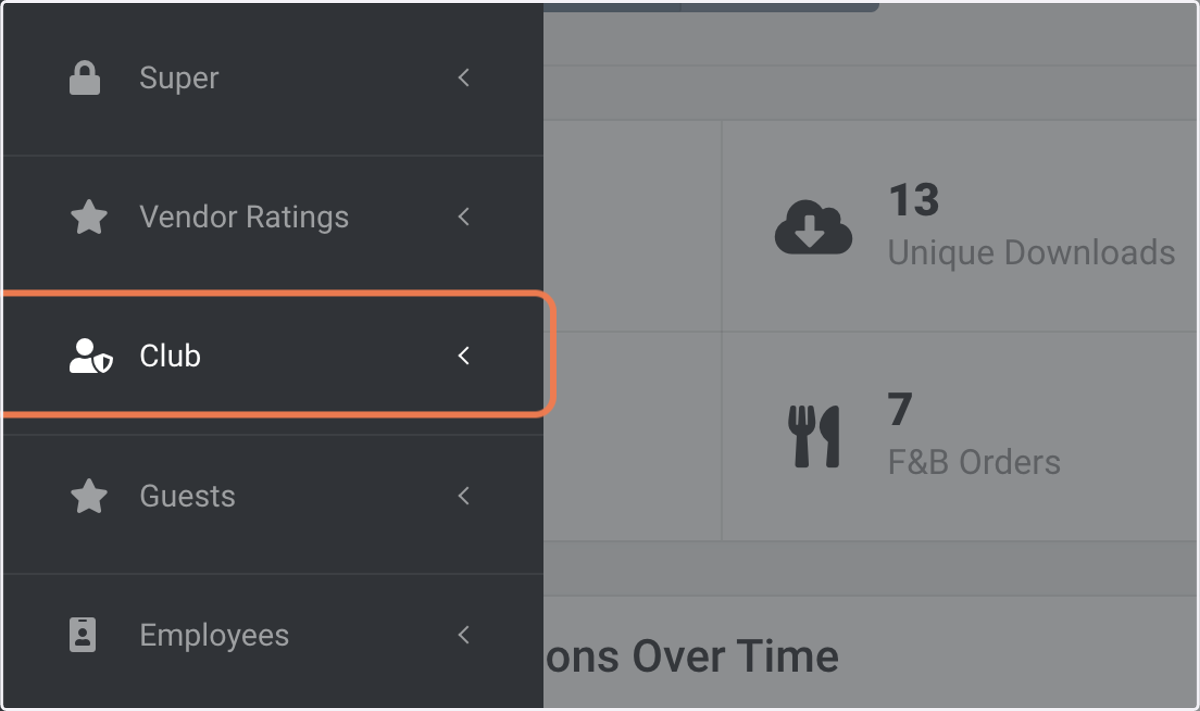
3. Click on Photo Gallery
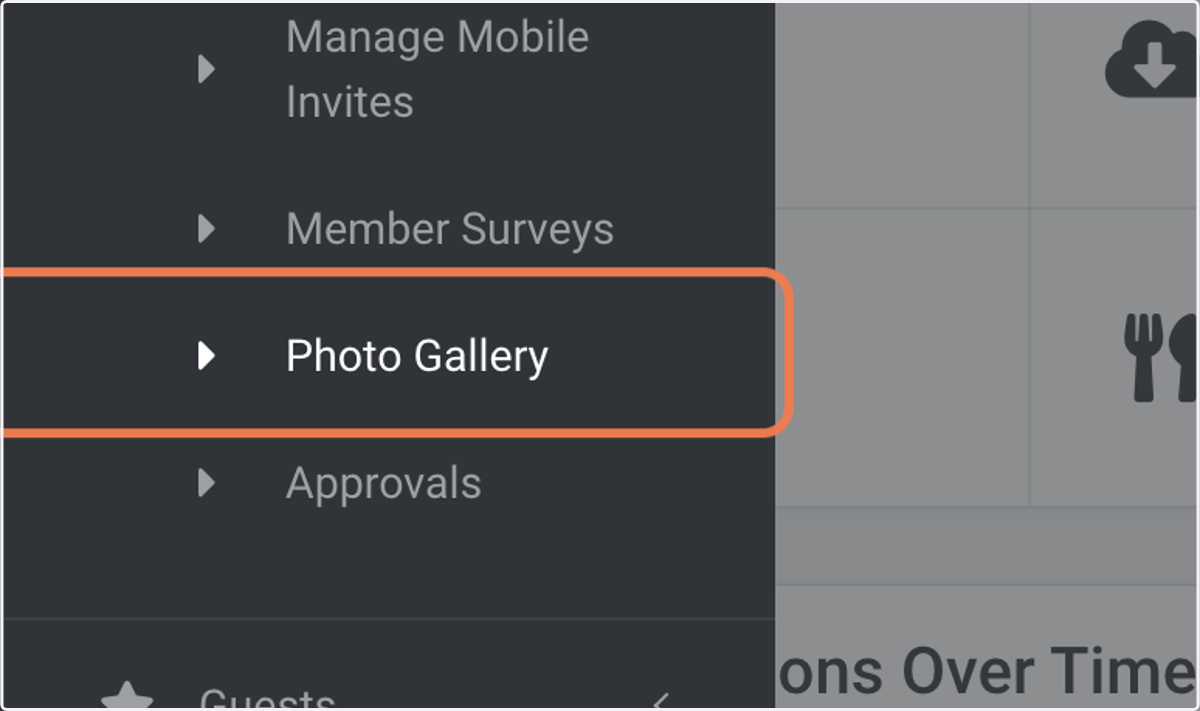
4. Click on + Add Album

5. Enter your album's name
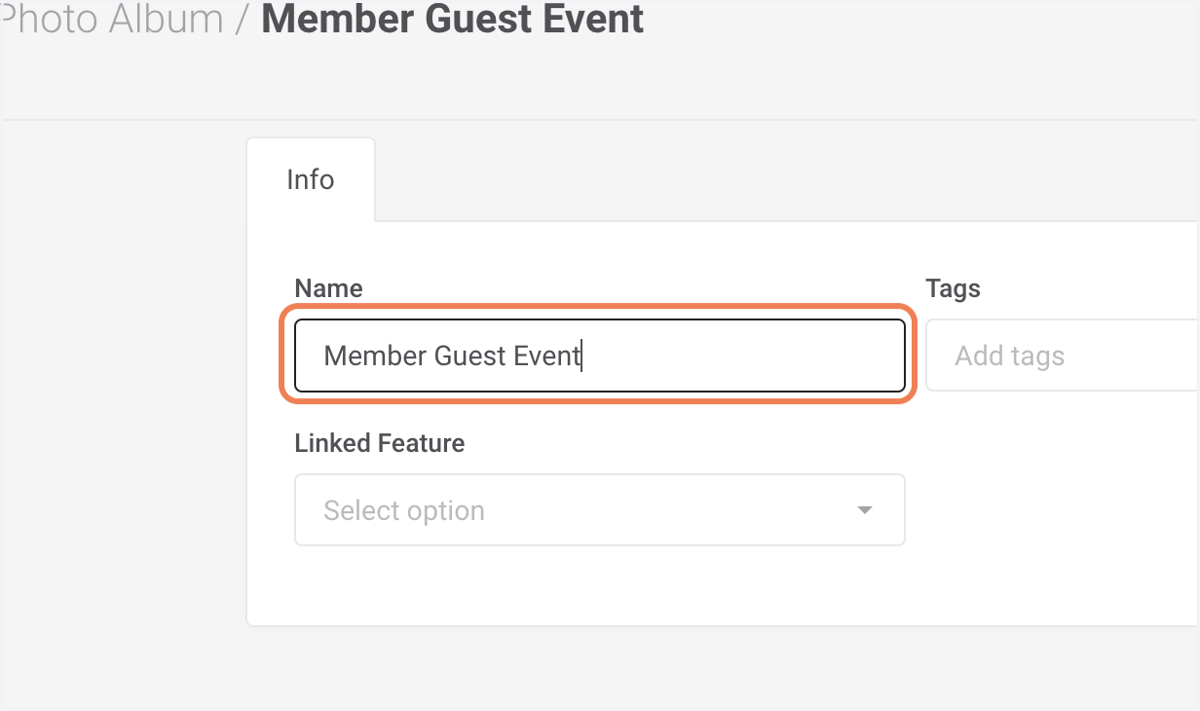
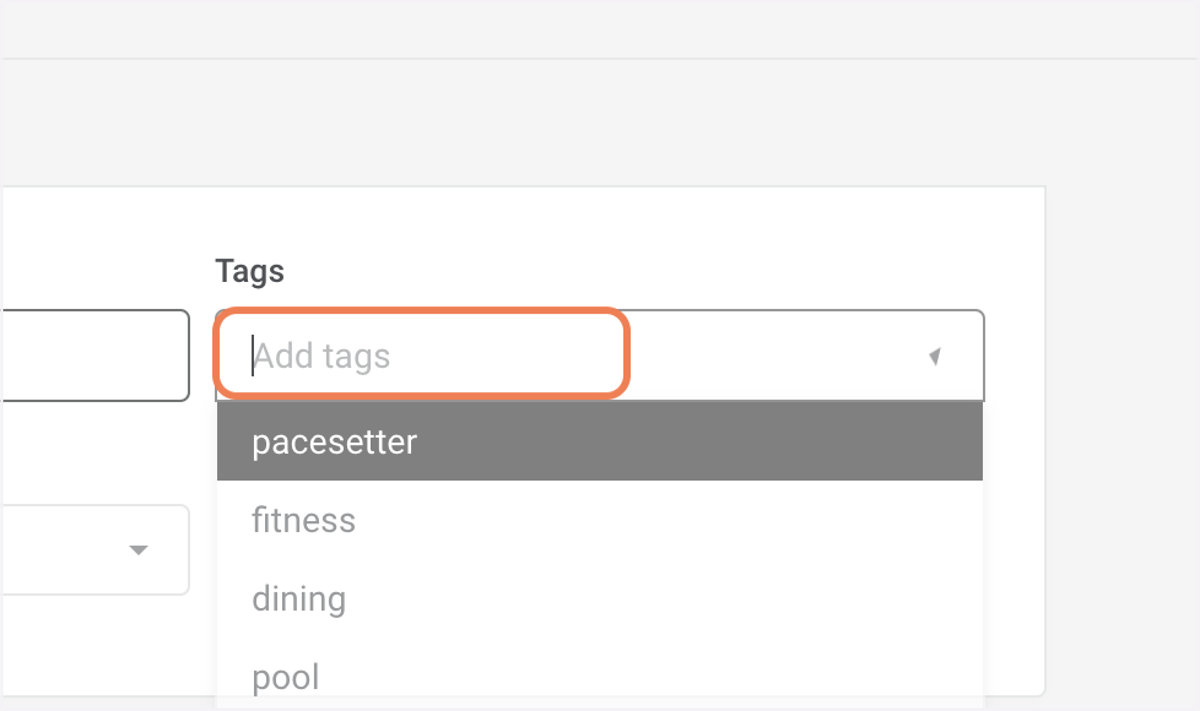
6. Add a Tag
If you have multiple albums the tag determines where the album lives in the app.
7. Click on Save

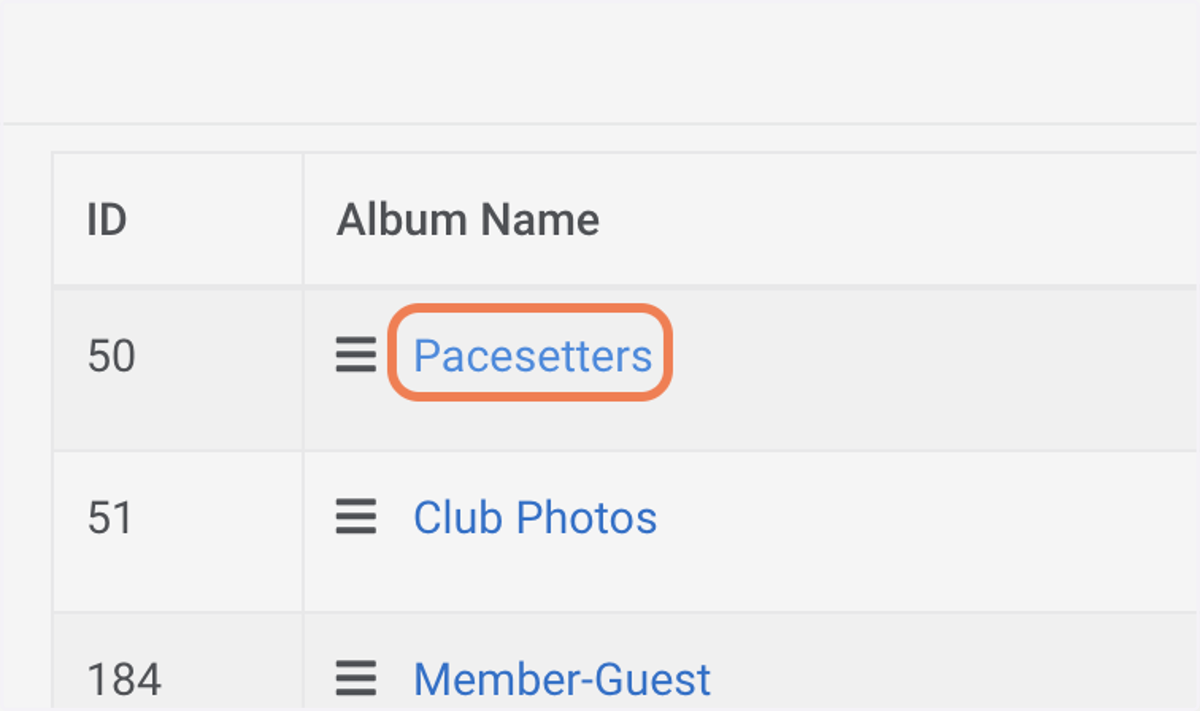
8. Click on the Album Name
Once created, you can click on the name of the album.
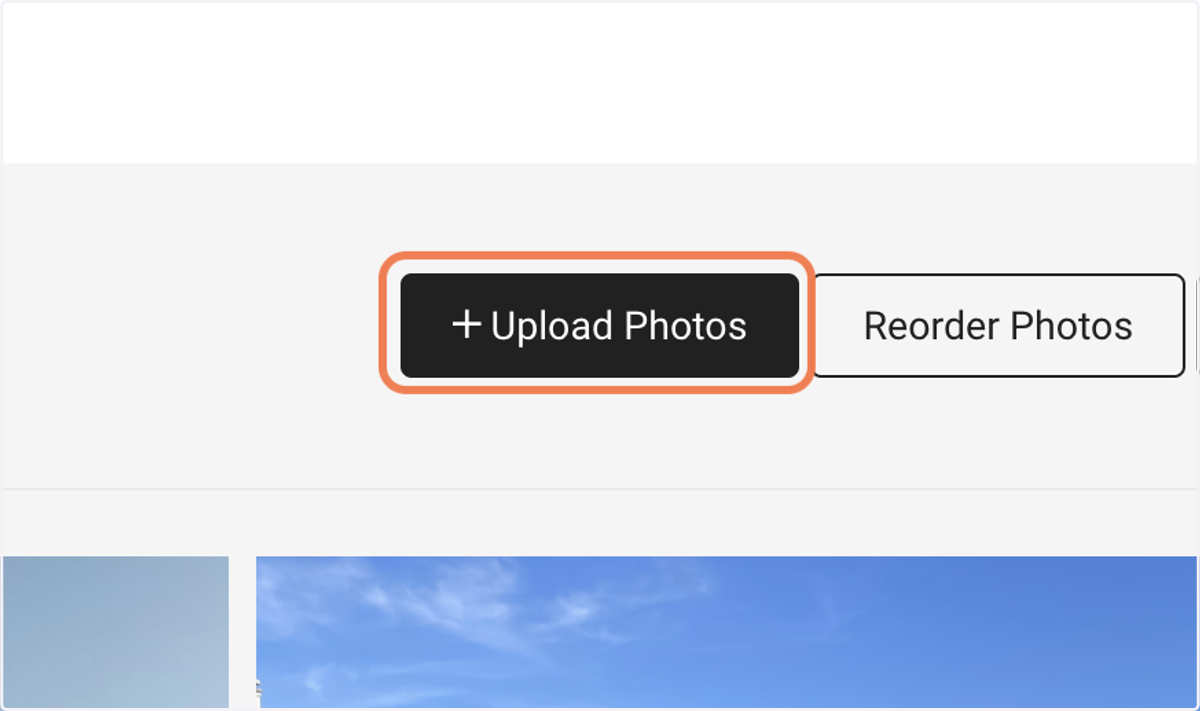
9. Click on + Upload Photos
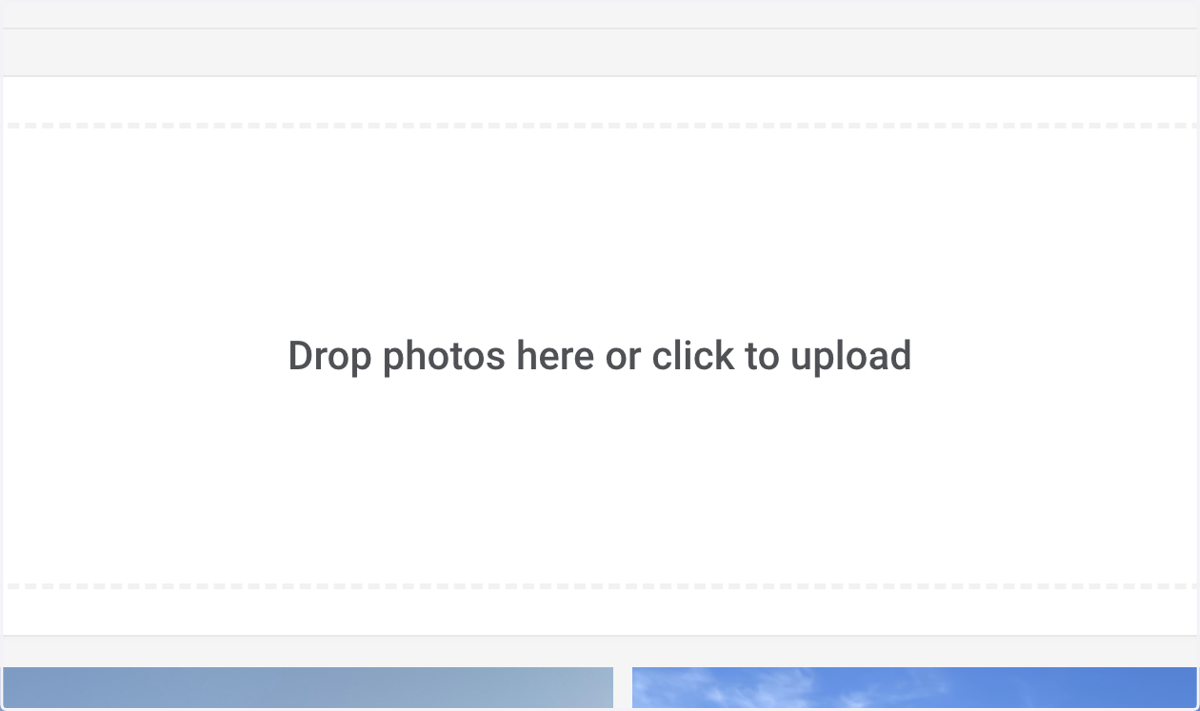
10. Uploading Photos
Click on "Drop photos here or click to upload" to upload your desired photos to the album.
11. Add Photos
Select the photo files you wish to upload, multiple files can be selected at one time. It is important to note that files that have a greater size than 5MB will not be uploaded due to size restrictions.

12. View Album
Click on Club / Photo Gallery / Album name to view your album with the updated photos.