Clock In or Out for Mobile or Desktop (Clock Widget)
Login to your account
1. Locate Clock Widget upon login
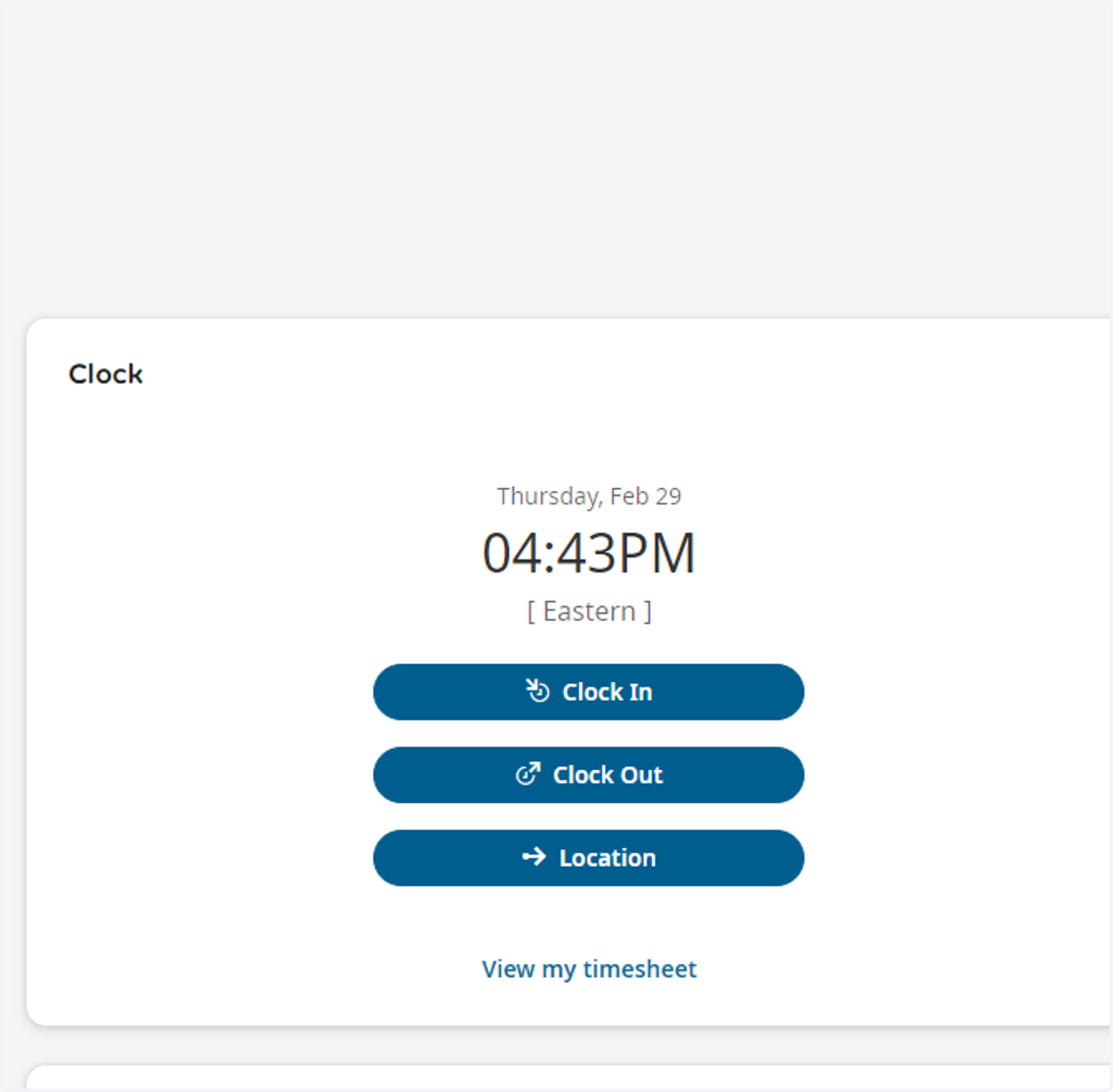
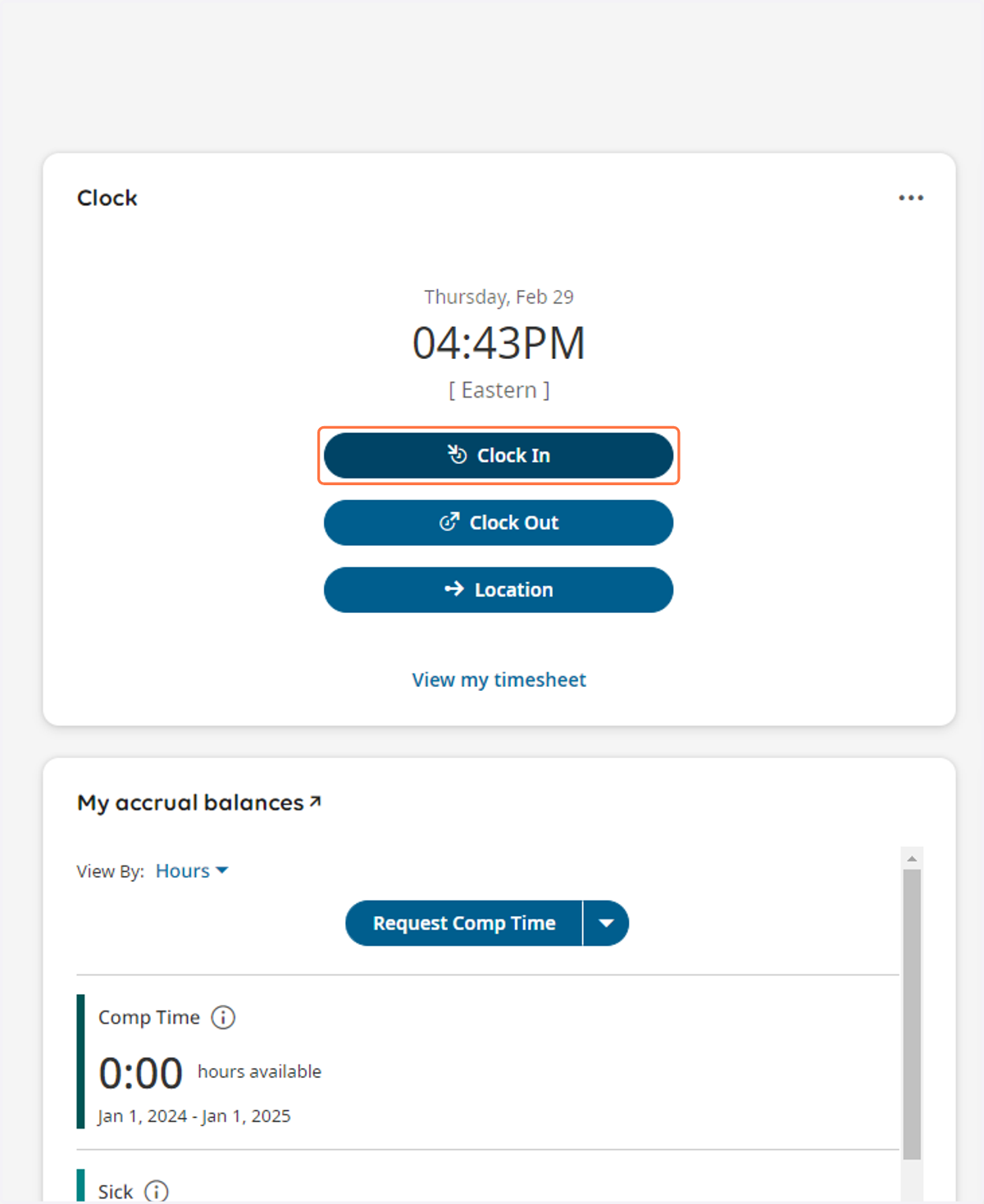
2. Click on Clock In
To punch IN for a shift, click Clock In
To punch out for a shift, click Clock Out.
To change a cost center (location/dept.etc), click the bottom option and select the new location.
Note: Some accounts are setup with a "simple punch" button and in this case you will not see a clock in and clock out button. You will only see a single punch button for both in/out punches.
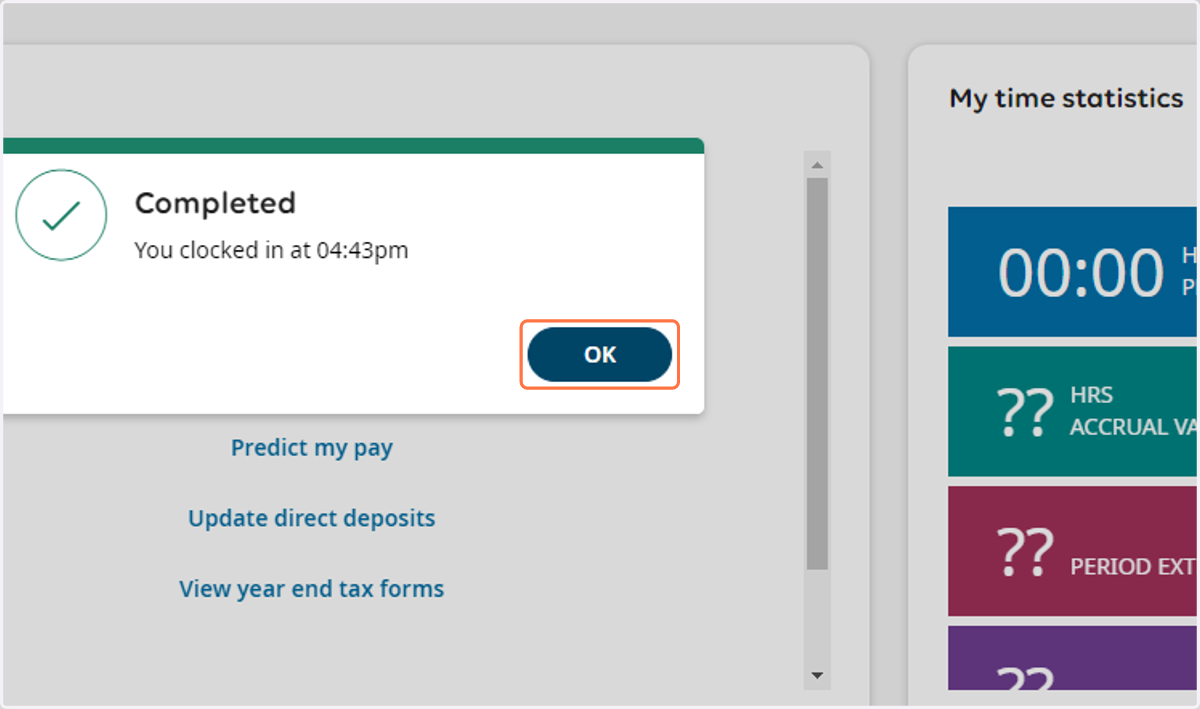
3. Click on OK to confirm what you selected.