Clinic Profile Information (Explanation)
What can you do in the clinic profile?
Take a look at: https://injectablesbooking.nl/kliniek/aestec-cosmetische-kliniek-amsterdam
to see what a well-completed profile looks like.
Wat kun je doen in het kliniekprofiel?
Bekijk: https://injectablesbooking.nl/kliniek/aestec-cosmetische-kliniek-amsterdam
om te zien hoe een goed profiel eruitziet.
1. Uploading images for your clinic Afbeeldingen uploaden voor je kliniek
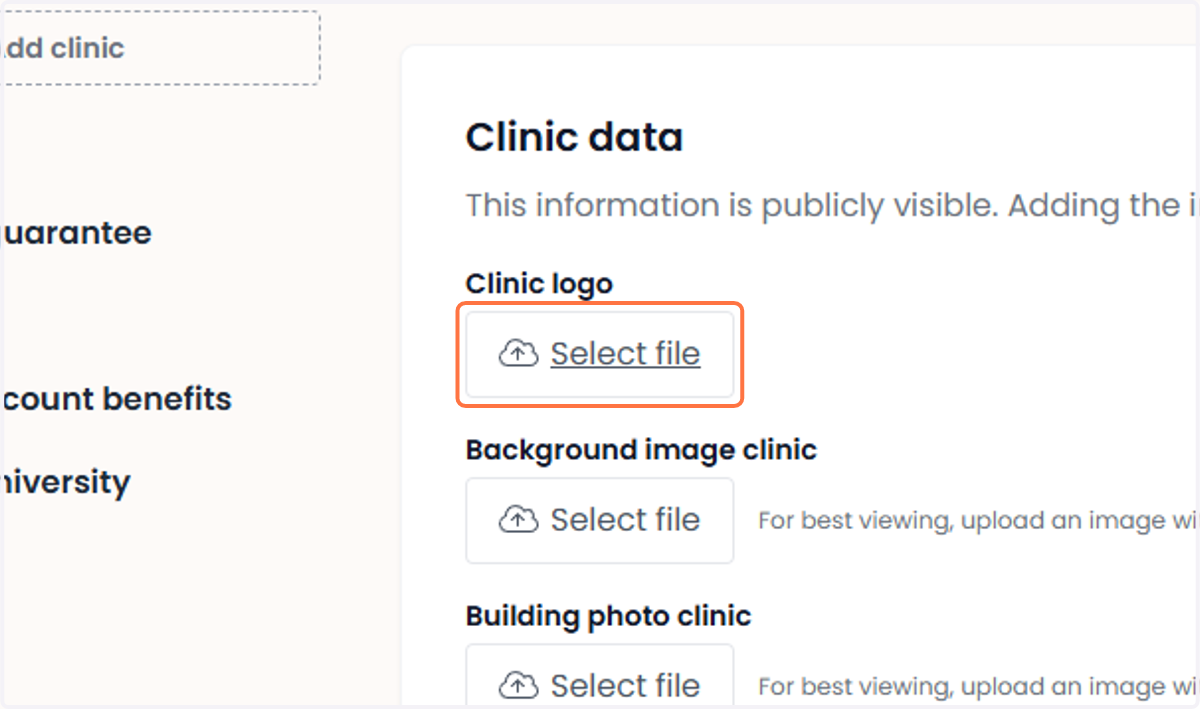
In the ‘Clinic Logo’ section, click on the box to upload. Then, browse your device for your clinic’s logo and upload it.
In het gedeelte ‘Klinieklogo’ klik je op het vak om te uploaden. Zoek daarna op je apparaat naar het logo van je kliniek en upload het.
2. Uploading images for your clinic. Afbeeldingen uploaden voor je kliniek
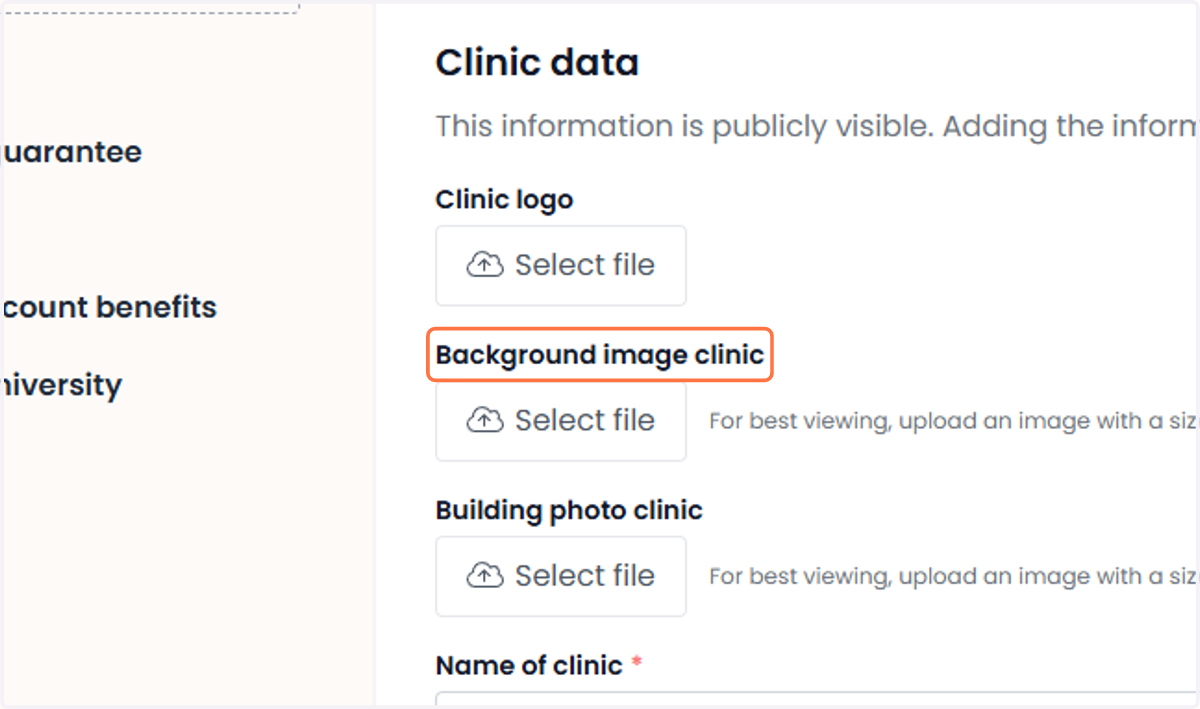
Next, go to the ‘Background Image’ section. Click on the upload box and choose a suitable background image for your clinic.
Ga daarna naar het gedeelte ‘Achtergrondafbeelding’. Klik op het uploadvak en kies een passende achtergrondafbeelding voor je kliniek.
3. For a photo of the clinic building Voor een foto van het kliniekgebouw
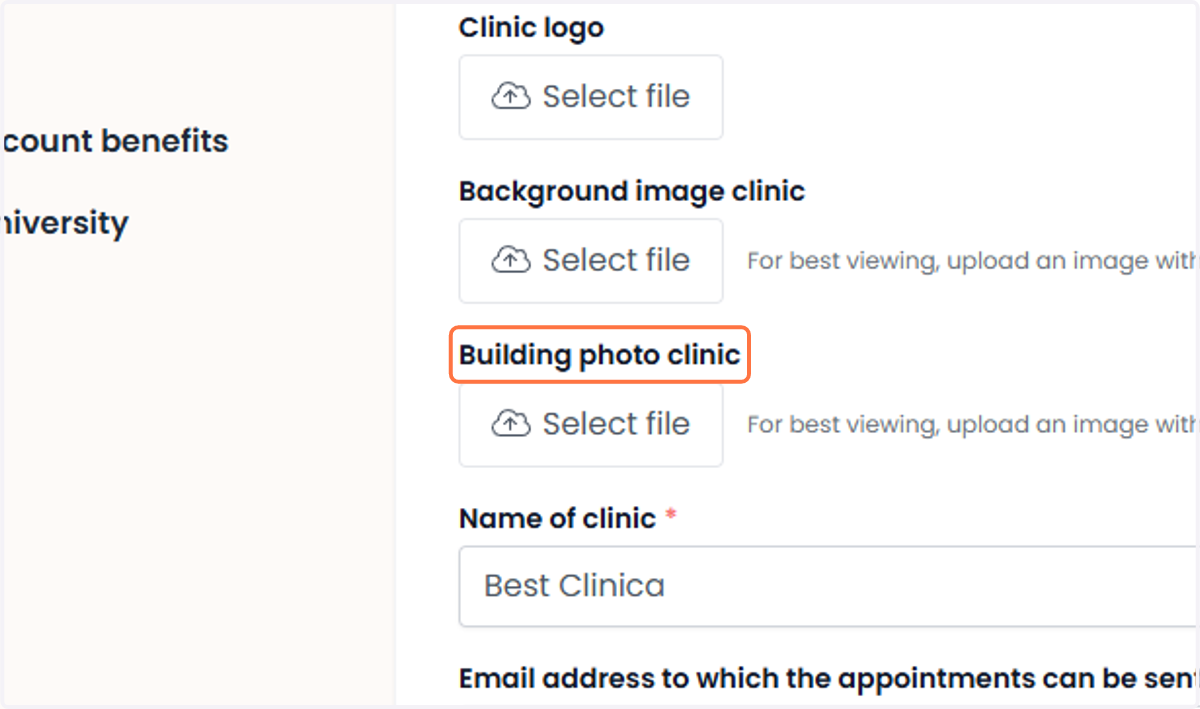
Go to the ‘Photo of the Building’ section, click on upload, and add a photo of your clinic’s building.
Ga naar het gedeelte ‘Foto van het gebouw’, klik op uploaden en voeg een foto toe van het gebouw van je kliniek.
4. Promotional message Promotiebericht
Write a short promotional message that highlights the strengths and services of your clinic. This message will only be shown when you start advertising on Injectablesbooking.
Schrijf een kort promotiebericht dat de sterke punten en diensten van je kliniek laat zien. Dit bericht wordt alleen getoond wanneer je begint met adverteren op Injectablesbooking.
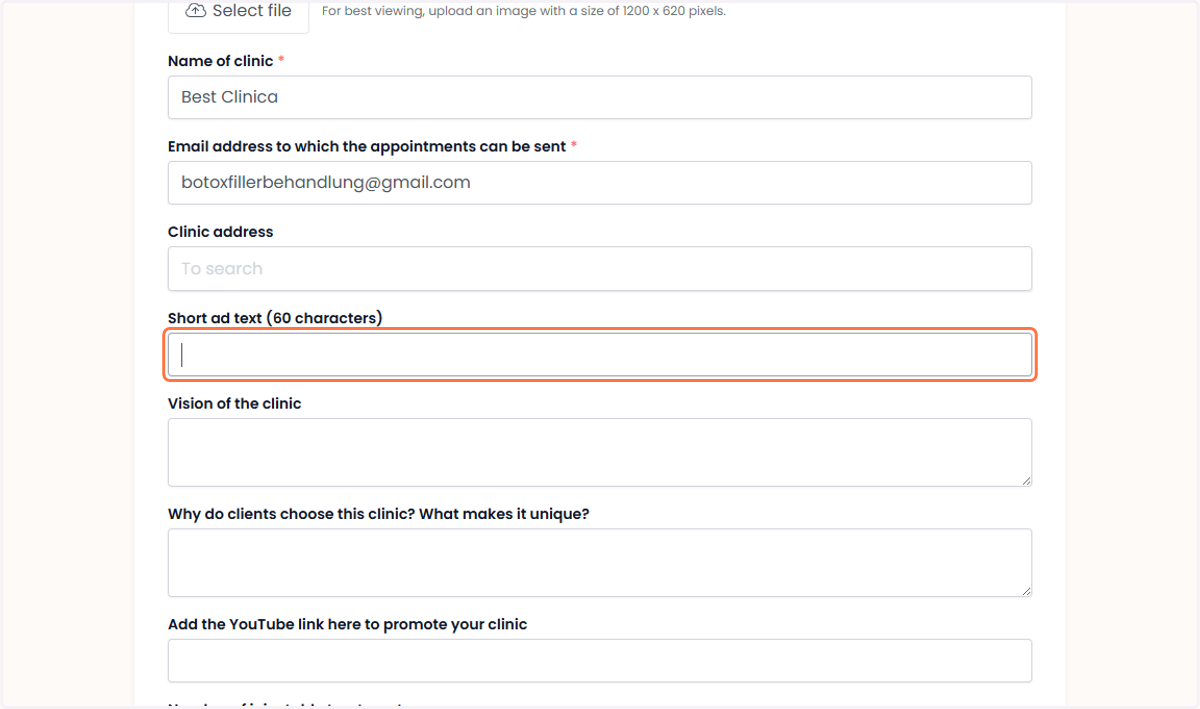
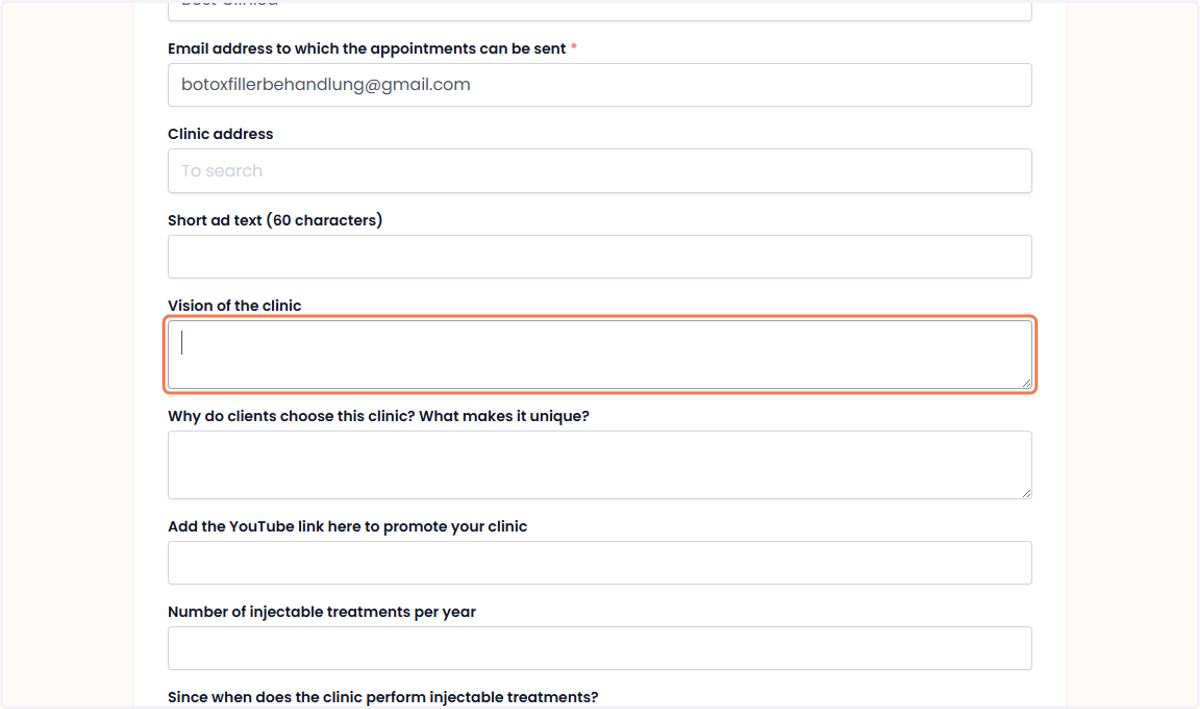
5. Clinic Vision Visie van de kliniek
Select the ‘Clinic Vision’ section and write a brief statement about your clinic’s mission and core values.
Selecteer het gedeelte ‘Visie van de kliniek’ en schrijf een korte verklaring over het doel en de waarden van je kliniek.
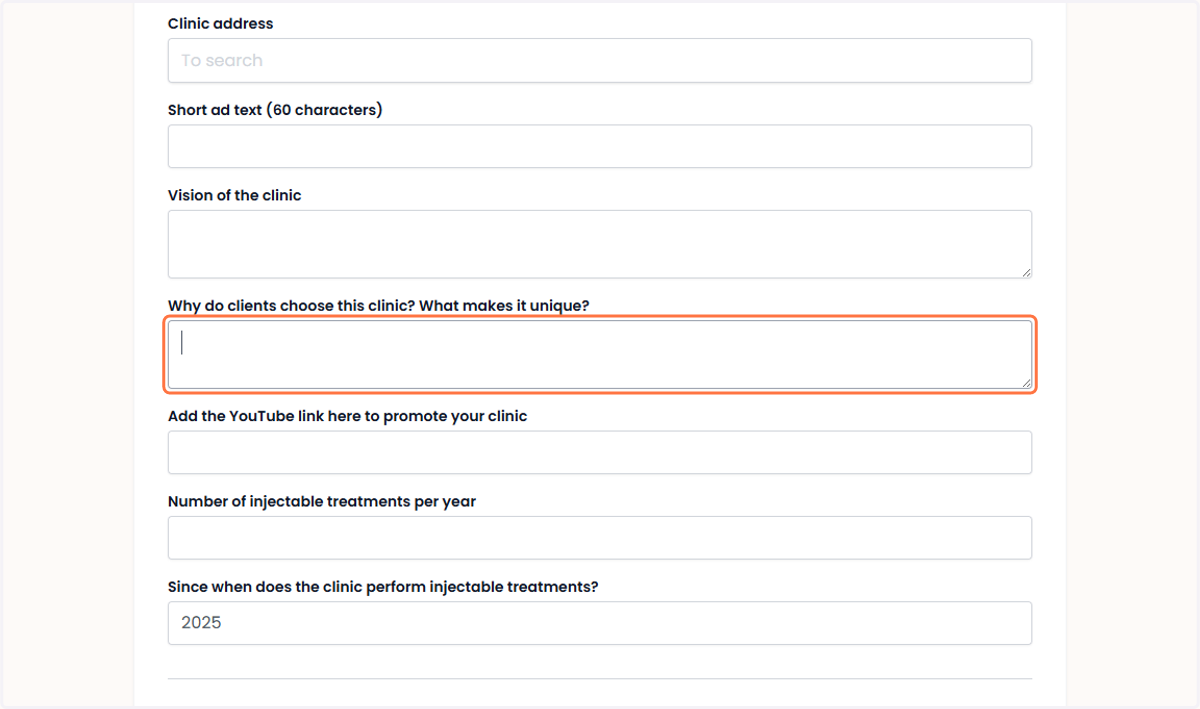
6. Describe the features or services that make your clinic unique and set it apart from other clinics. Beschrijf de kenmerken of diensten die jouw kliniek uniek maken en onderscheiden van andere klinieken.
Click on ‘Why do clients choose this clinic?’ and write about the reasons why patients prefer your services.
Klik op ‘Waarom kiezen cliënten voor deze kliniek?’ en schrijf over de redenen waarom patiënten jouw diensten verkiezen.
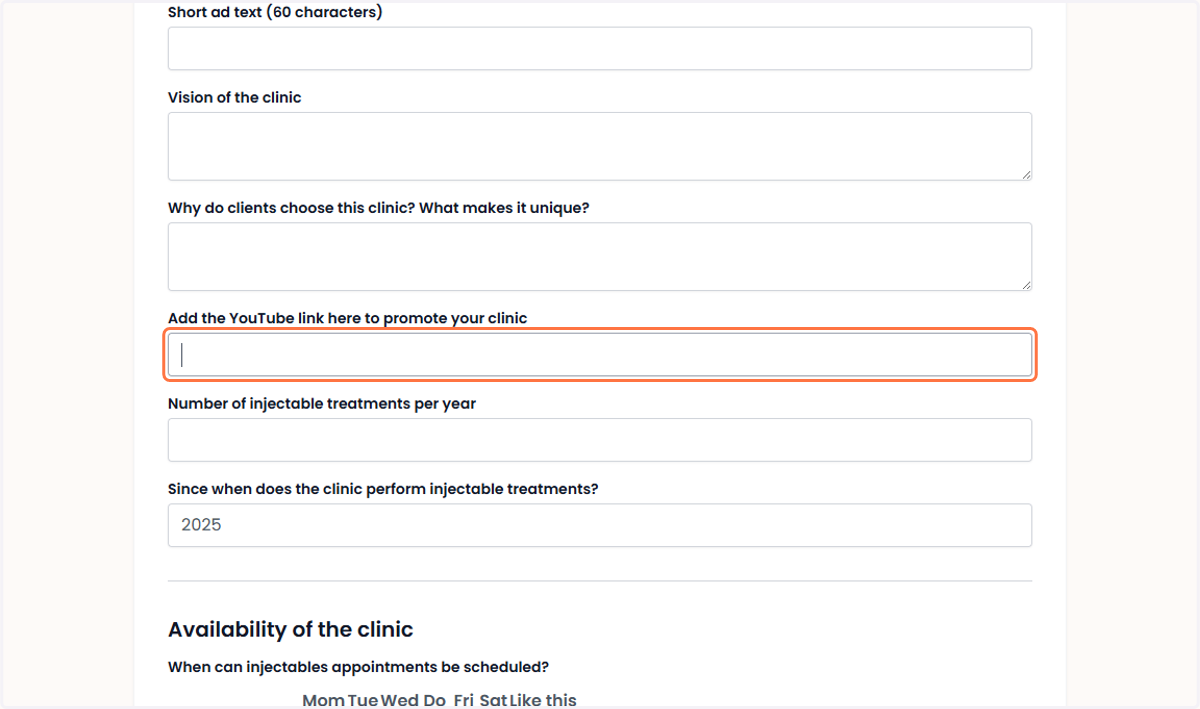
7. Add a YouTube link. Voeg een YouTube-link toe
Paste the link to your promotional video in the ‘Add YouTube link’ field to showcase your clinic.
Plak in het veld ‘YouTube-link toevoegen’ de link van je promotievideo om je kliniek in de kijker te zetten.
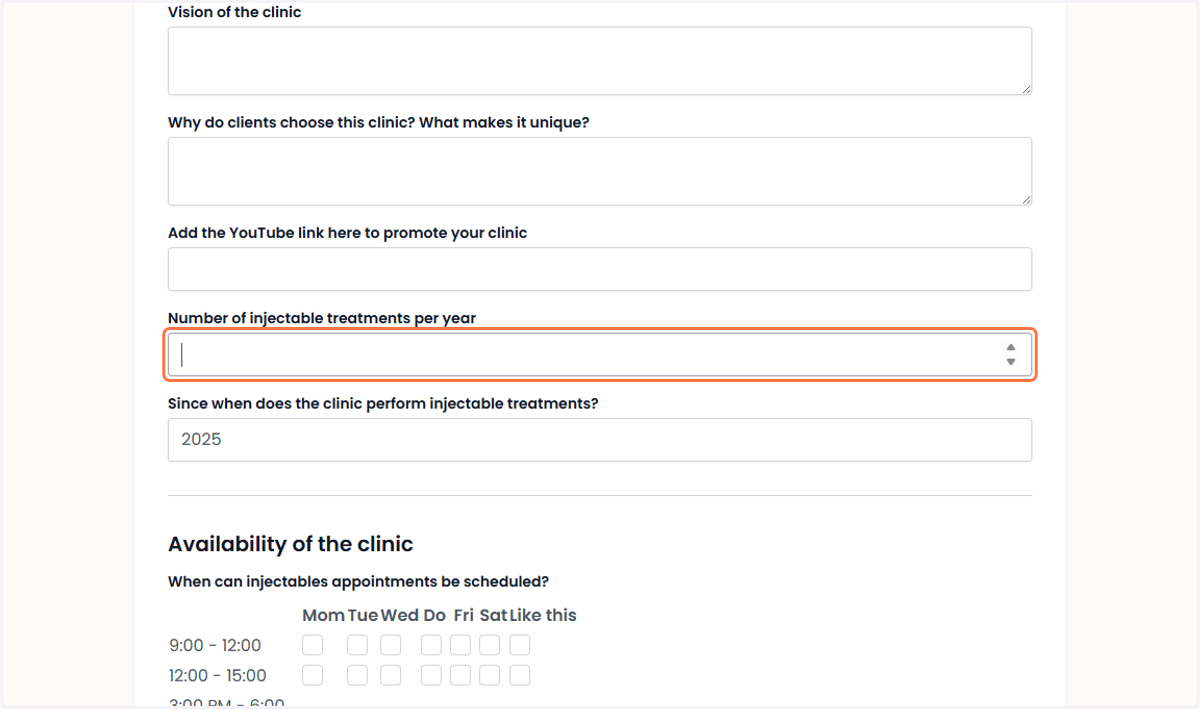
8. Specify the number of treatments performed per year. Geef het aantal behandelingen per jaar op
Select the field ‘Number of injectable treatments per year’ and enter the total annual number.
Selecteer het veld ‘Aantal injecteerbare behandelingen per jaar’ en vul het totale jaarlijkse aantal in.
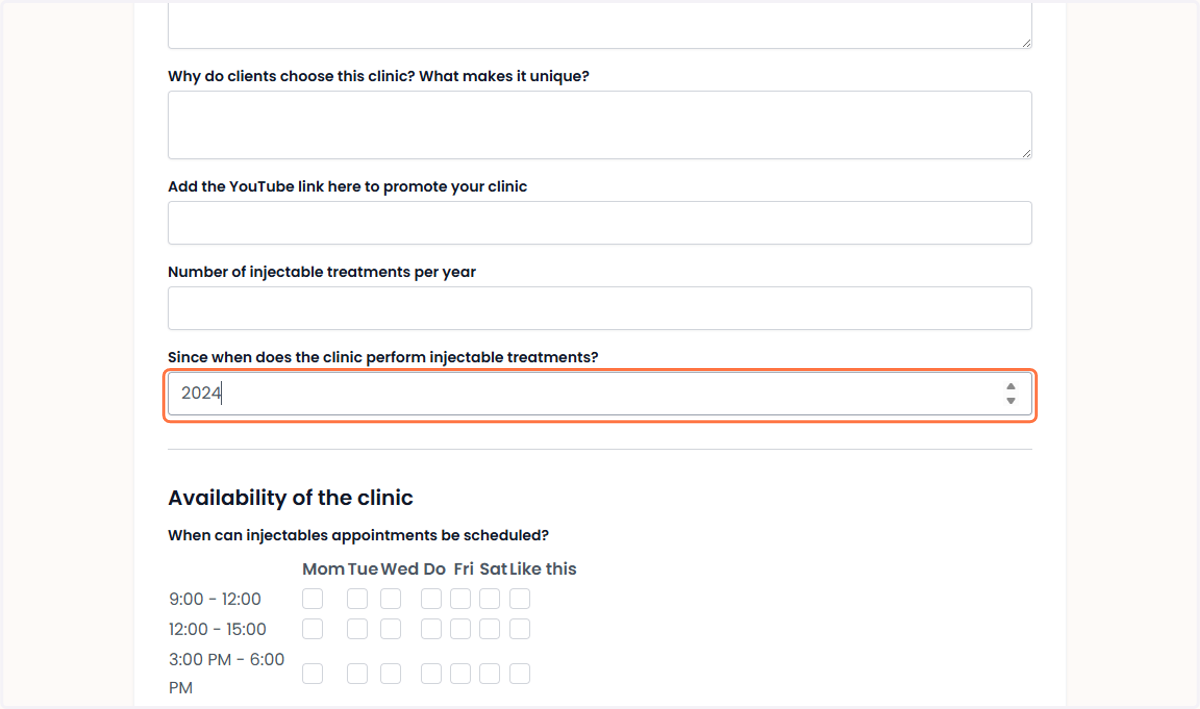
9. Service Start Date Startdatum van de diensten
Enter the date your clinic first started offering injectable treatments in the designated field.
Vul in het opgegeven veld de datum in waarop jouw kliniek voor het eerst injectables behandelingen is gaan aanbieden.
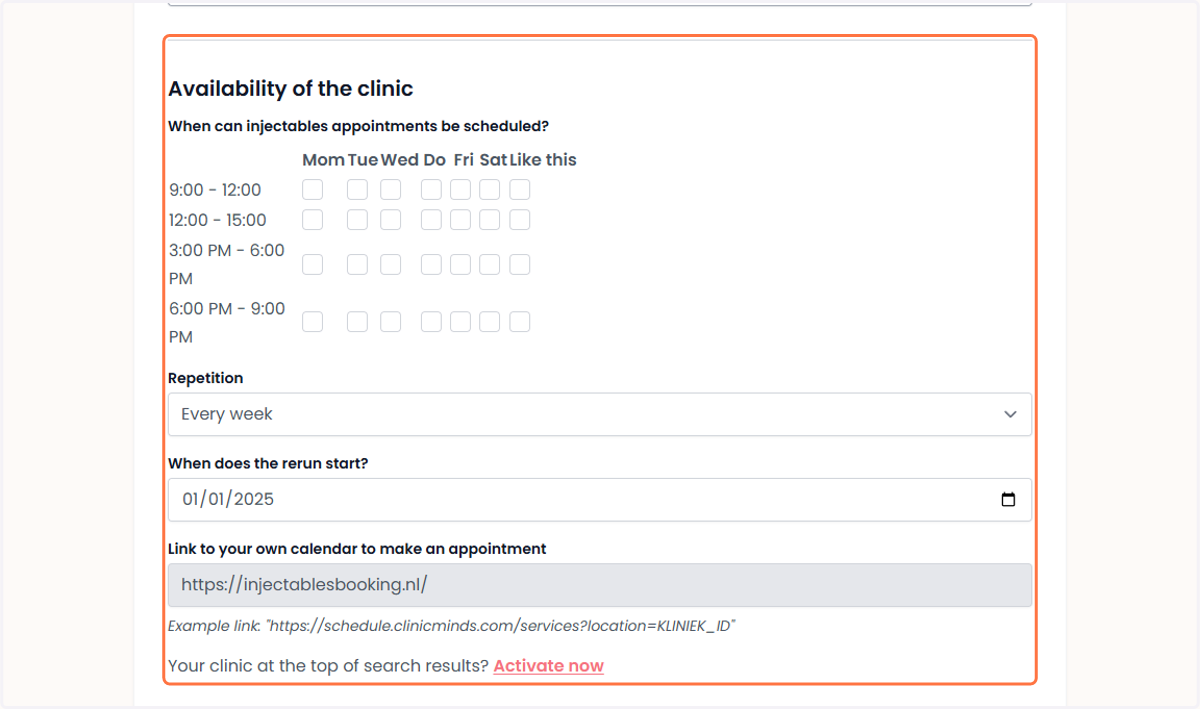
10. Werkdagen en -uren Working days and hours
Go to the ‘Clinic Availability’ section and select the days and times when appointments can be scheduled.
Ga naar het gedeelte ‘Beschikbaarheid van de kliniek’ en selecteer de dagen en tijdstippen waarop afspraken kunnen worden ingepland.
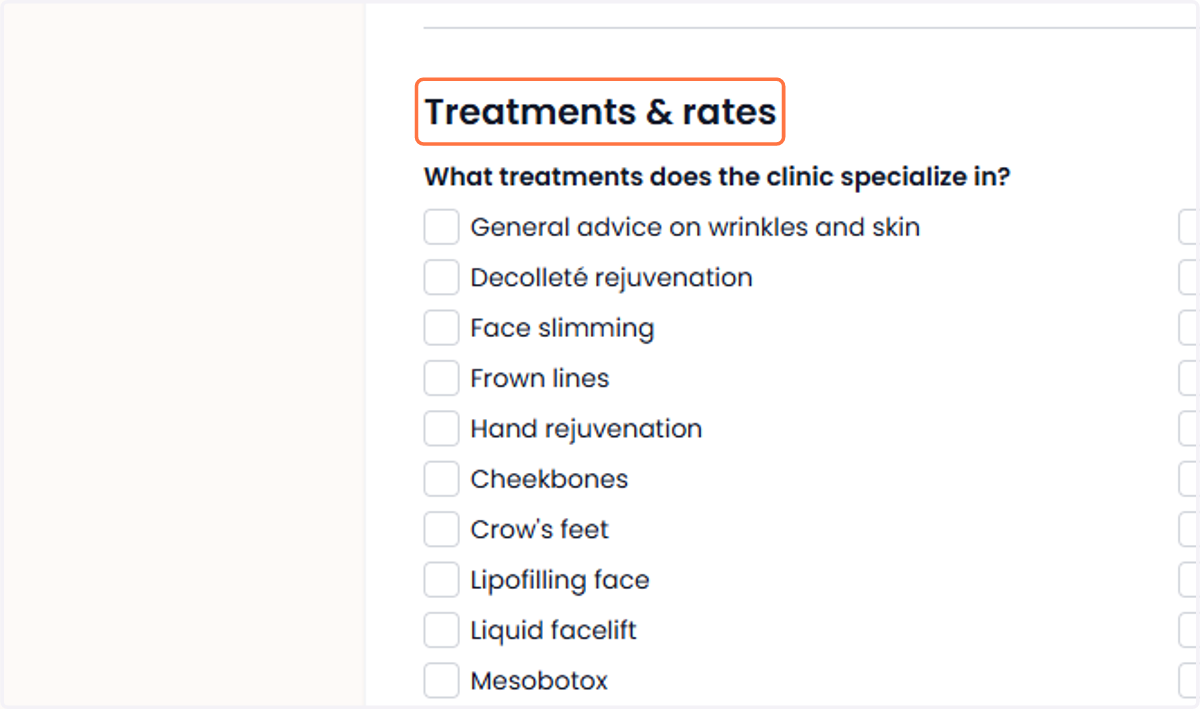
11. For treatments and pricing Voor behandelingen en tarieven
Go to the ‘Treatments and Pricing’ section to manage your services and rates. The more information you provide, the more visible your clinic will be on our website.
Ga naar het gedeelte ‘Behandelingen en tarieven’ om je diensten en prijzen te beheren. Hoe meer informatie je invult, hoe beter je zichtbaar bent op onze website.
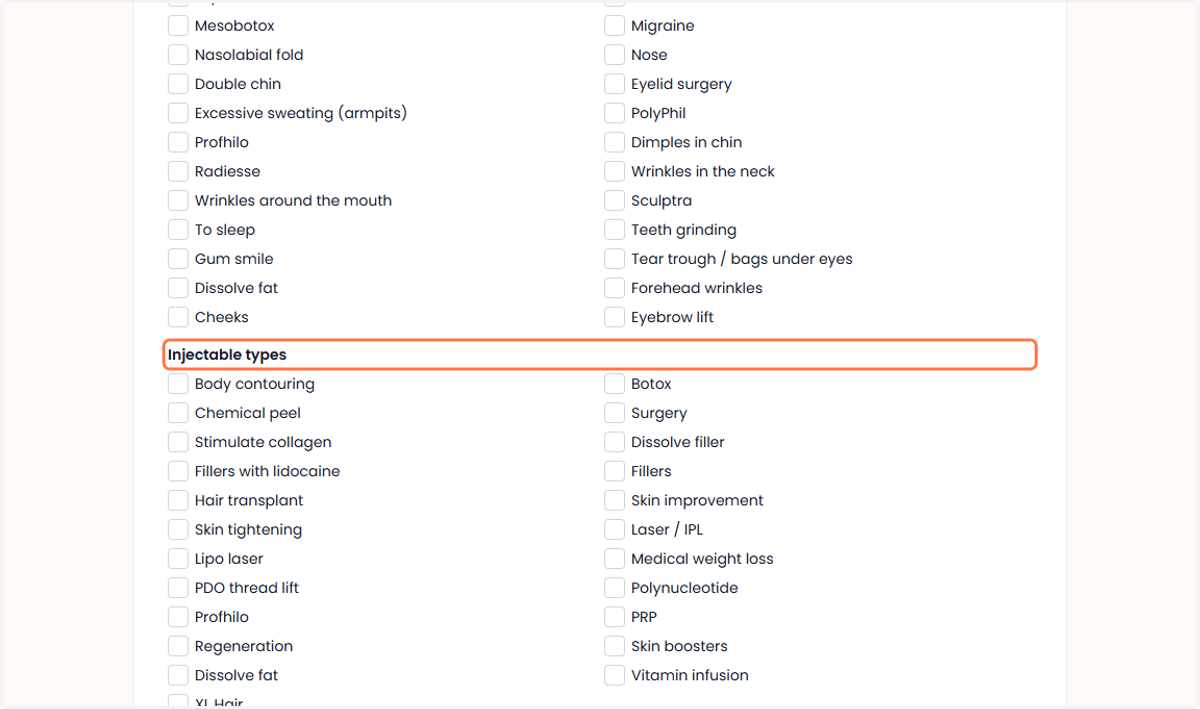
12. For types of injectables Voor typen injectables
Go to the ‘Types of Injectables’ field to set up your injectable treatments. The more information you provide, the more visible you’ll be on our website.
Ga naar het veld ‘Typen injectables’ om je injectables behandelingen in te stellen. Hoe meer informatie je opgeeft, hoe beter je zichtbaar bent op onze website.
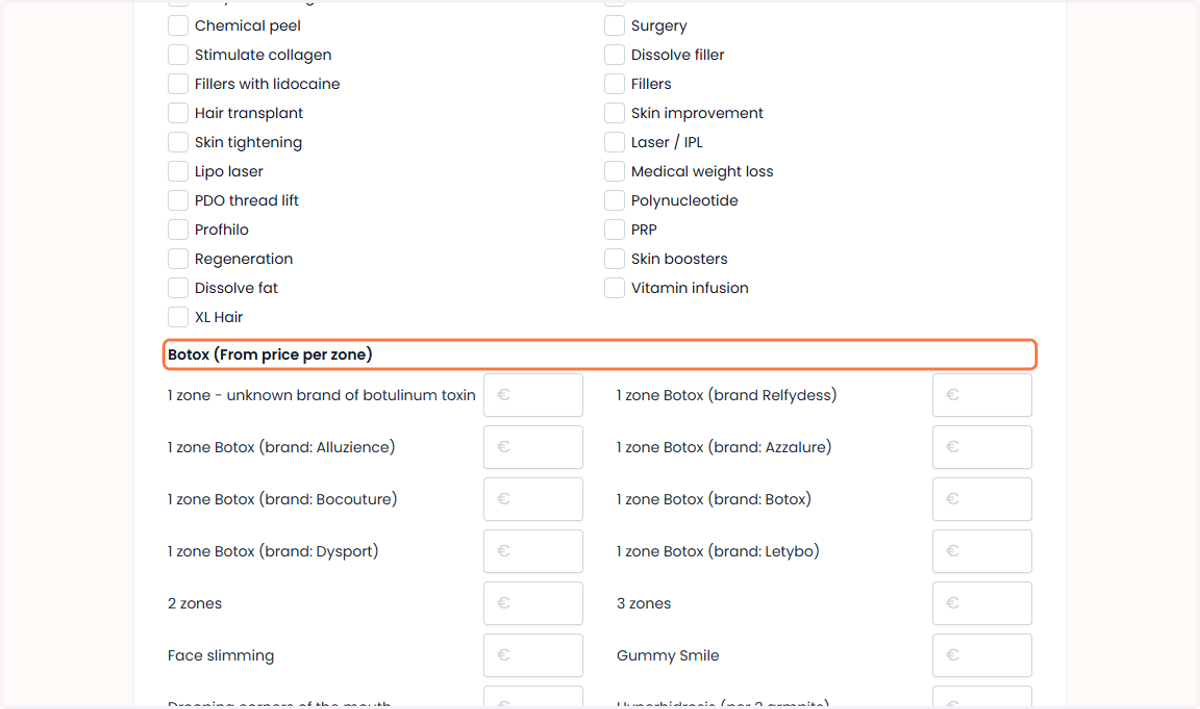
13. For Botox (starting price per zone) Voor Botox (vanaf prijs per zone)
Navigate to 'Botox (From Price per Zone)' to set the base price for each area. The more information you provide, the more you are shown on our site.
Navigeer naar 'Botox (Vanaf prijs per zone)' om de basisprijs per behandelgebied in te stellen. Hoe meer informatie je invult, hoe beter je zichtbaar bent op onze website.
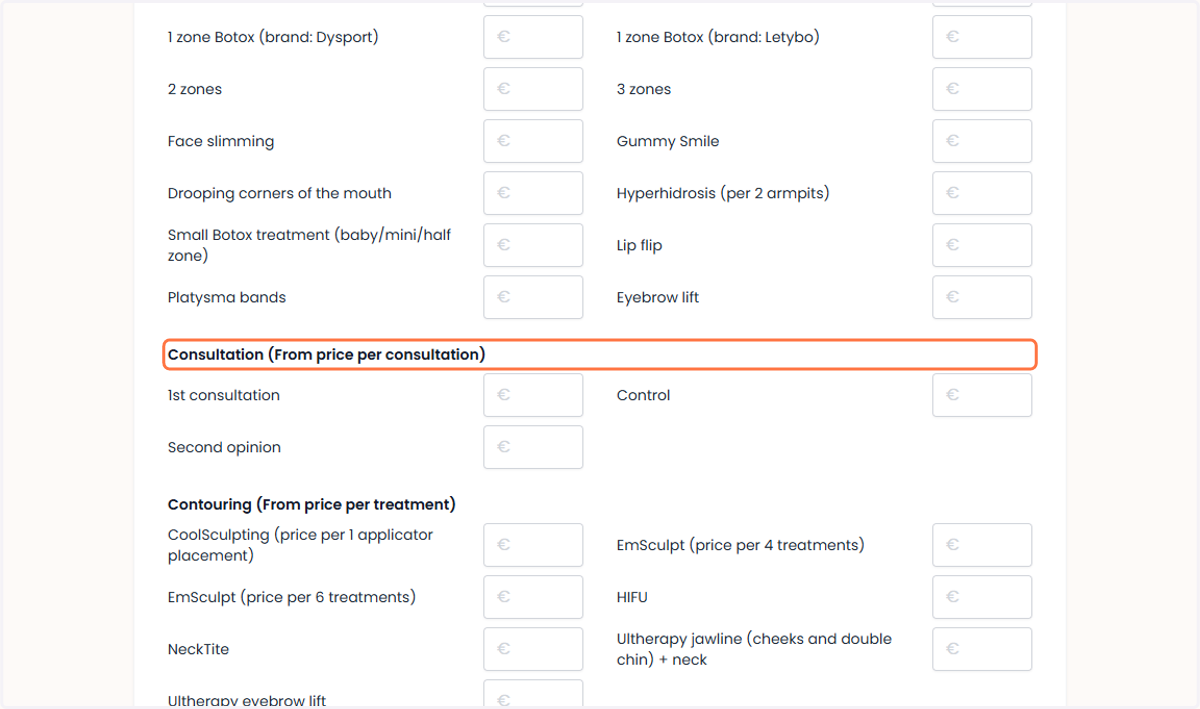
14. For consultation (starting price per session) Voor consultatie (vanaf prijs per consult)
Go to ‘Consultation (Starting Price per Session)’ to set the base price for consultations. The more information you provide, the more visible your clinic will be on our website.Ga naar ‘Consultatie (vanaf prijs per consult)’ om de basisprijs voor consultaties in te stellen. Hoe meer informatie je invult, hoe beter je zichtbaar bent op onze website.
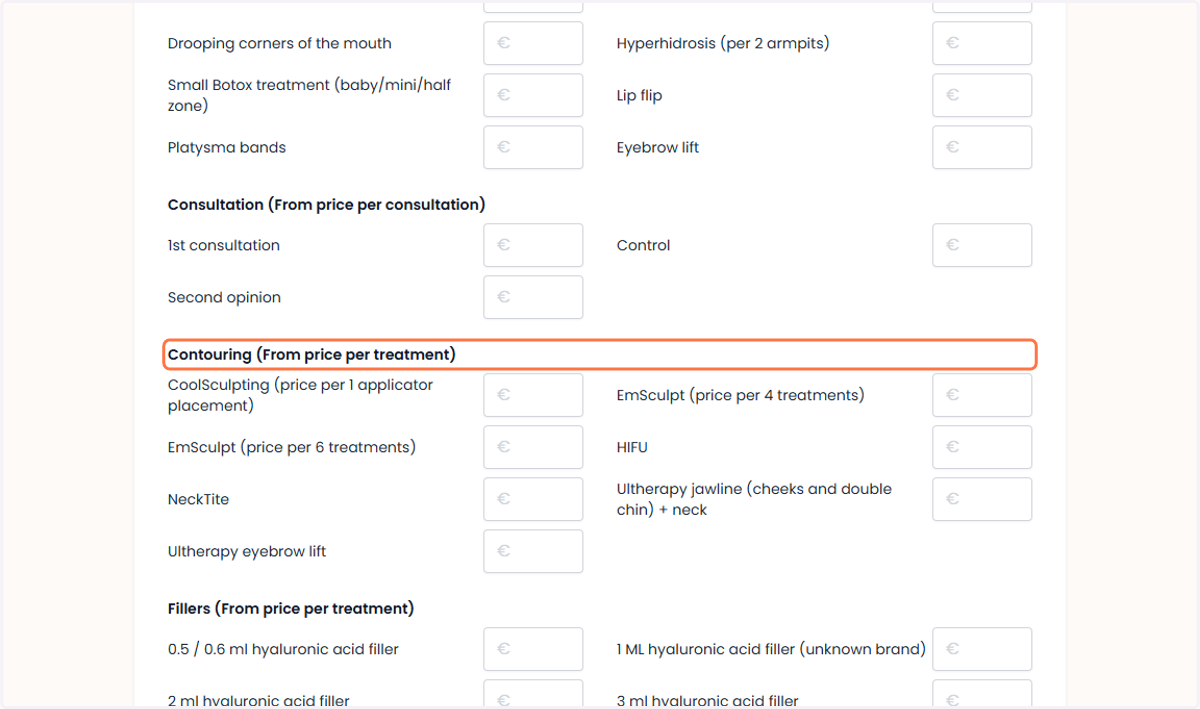
15. Under Contouring (Starting Price per Treatment) Onder Contouring (vanaf prijs per behandeling)
Go to the ‘Contouring (Starting Price per Treatment)’ section to set or update the starting price for contouring treatments. The more information you provide, the more visible your clinic will be on our website.
Ga naar het gedeelte ‘Contouring (vanaf prijs per behandeling)’ om de vanafprijs voor contouringbehandelingen in te stellen of bij te werken. Hoe meer informatie je opgeeft, hoe beter je zichtbaar bent op onze website.
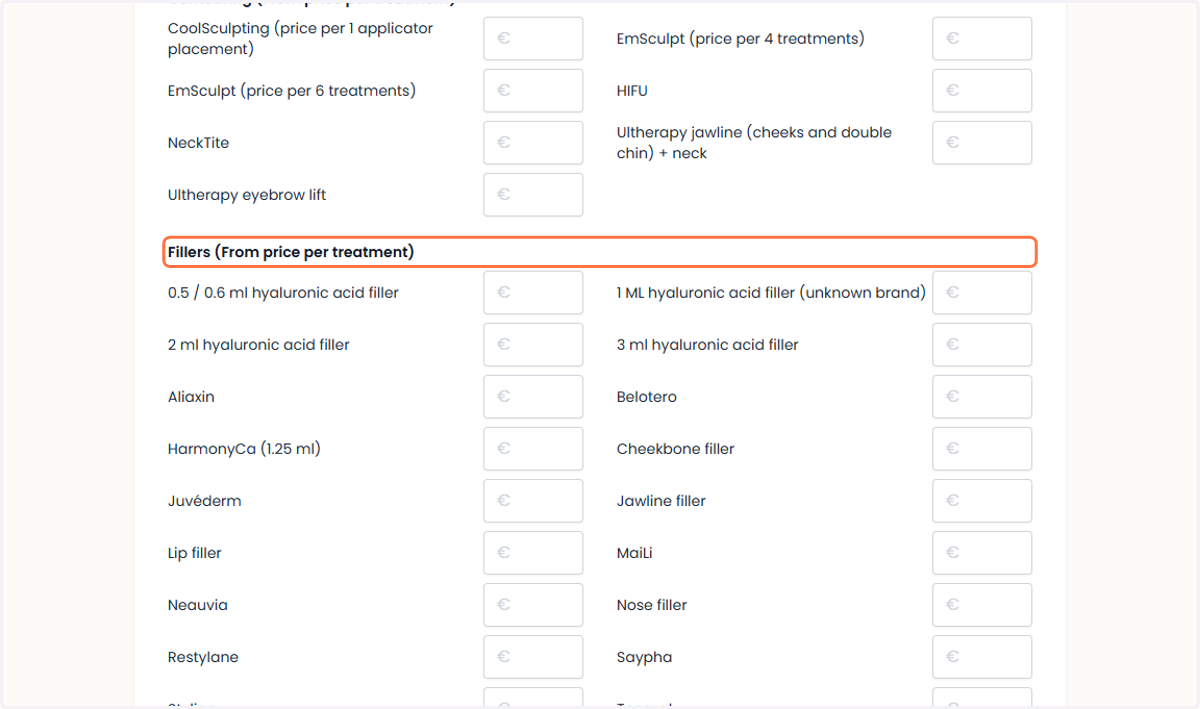
16. For fillers (starting price per treatment) Voor fillers (vanaf prijs per behandeling)
In the ‘Fillers (Starting Price per Treatment)’ section, add or edit the starting price for filler treatments.
Voeg in het gedeelte ‘Fillers (vanaf prijs per behandeling)’ de vanafprijs voor fillers toe of bewerk deze.
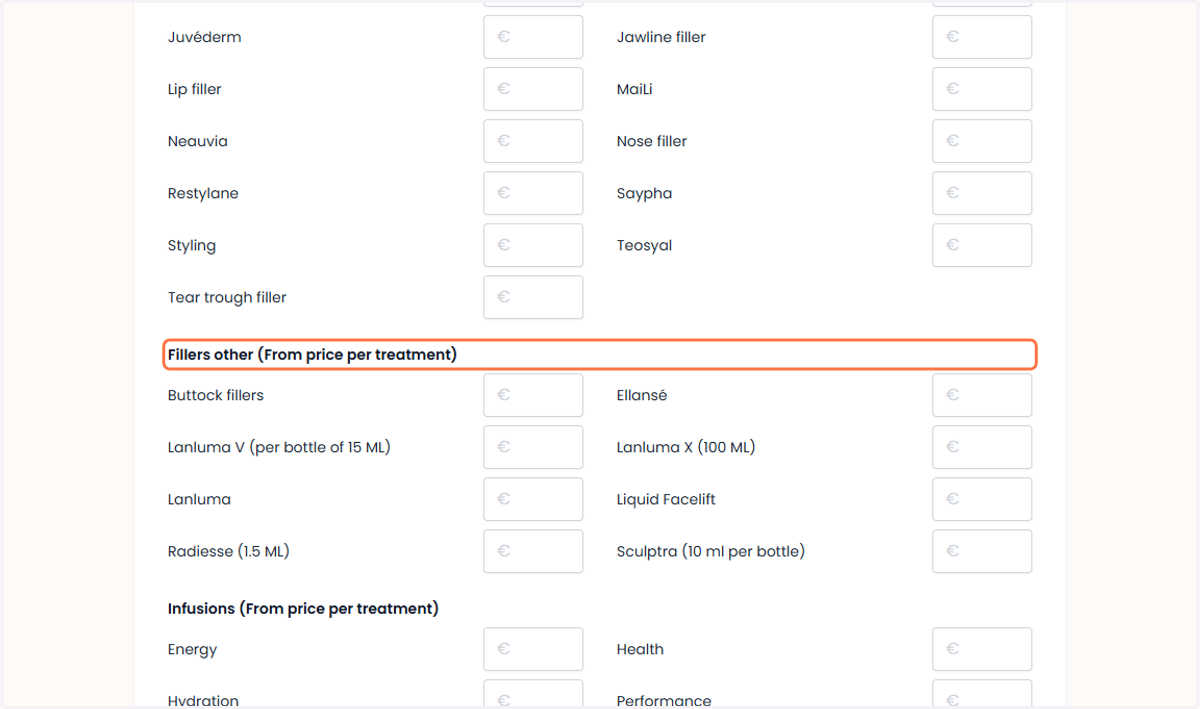
17. For other filler treatments (starting price per treatment) Voor andere fillerbehandelingen (vanaf prijs per behandeling)
Under ‘Other Fillers (Starting Price per Treatment)’, enter the base price for additional filler treatments. The more information you provide, the more visible your clinic will be on our website.
Vul onder ‘Fillers overig (vanaf prijs per behandeling)’ de basisprijs in voor aanvullende fillerbehandelingen. Hoe meer informatie je opgeeft, hoe beter je zichtbaar bent op onze website.
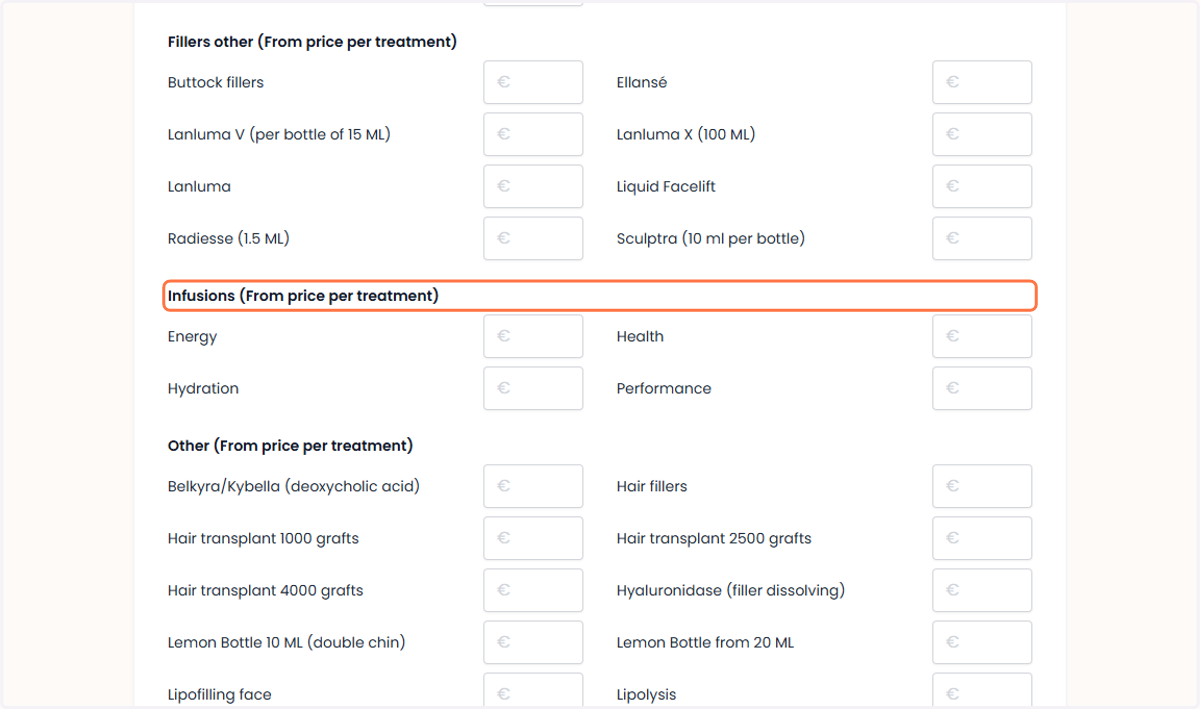
18. For infusions (starting price per treatment) Voor infusies (vanaf prijs per behandeling)
Go to the ‘Infusions (Starting Price per Treatment)’ section to manage or update the base price for infusion treatments. The more information you provide, the more visible your clinic will be on our website.
Ga naar het gedeelte ‘Infusies (vanaf prijs per behandeling)’ om de basisprijs voor infusiebehandelingen te beheren of bij te werken. Hoe meer informatie je opgeeft, hoe beter je zichtbaar bent op onze website.
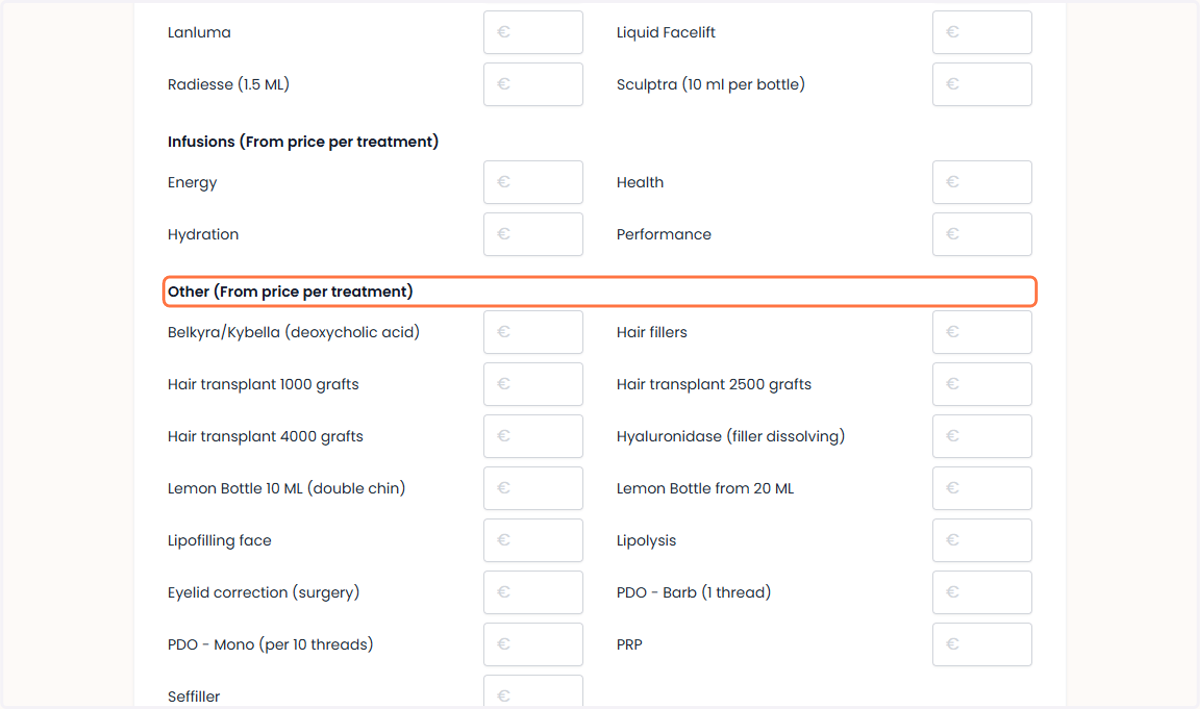
19. For other treatments (starting price per treatment) Voor andere behandelingen (vanaf prijs per behandeling)
In the ‘Other Treatments (Starting Price per Treatment)’ section, set the base price for all other available treatments. The more information you provide, the more visible your clinic will be on our website.
Stel in het gedeelte ‘Overige behandelingen (vanaf prijs per behandeling)’ de basisprijs in voor alle andere beschikbare behandelingen. Hoe meer informatie je opgeeft, hoe beter je zichtbaar bent op onze website.
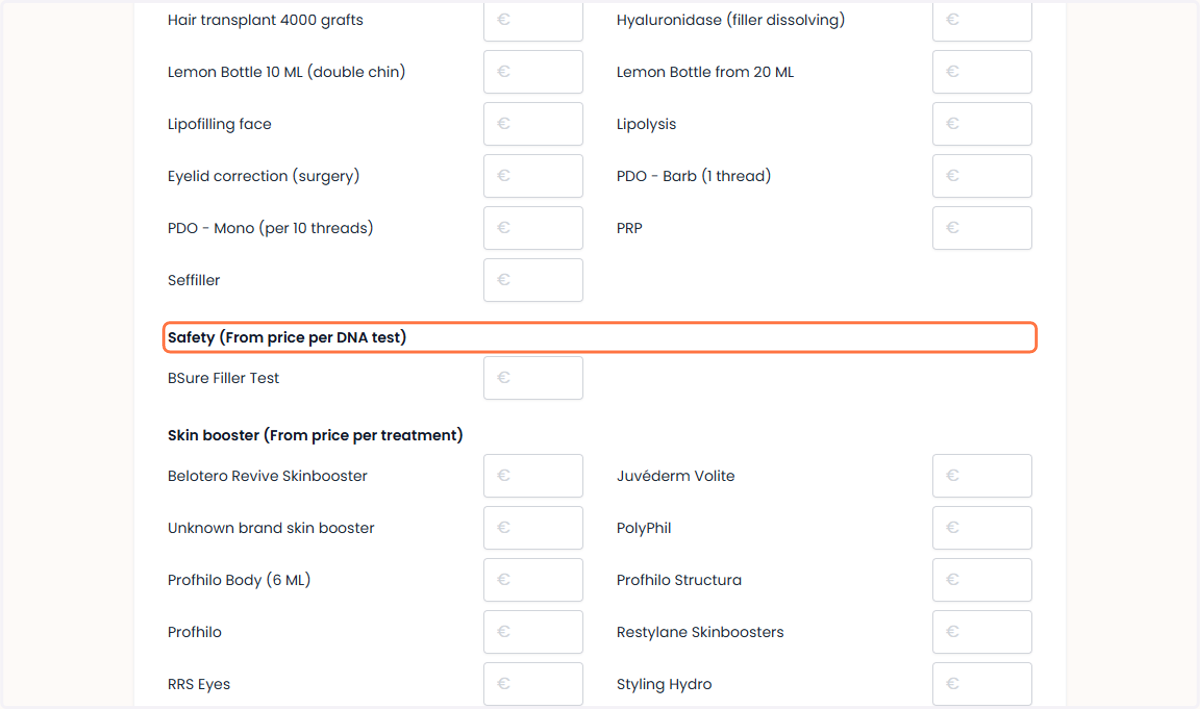
20. Click on ‘Safety (Starting Price per DNA Test)’ Klik op ‘Veiligheid (vanaf prijs per DNA-test)’
Go to the ‘Safety (Starting Price per DNA Test)’ section to set the base price for DNA safety tests.
Ga naar het gedeelte ‘Veiligheid (vanaf prijs per DNA-test)’ om de basisprijs voor DNA-veiligheidstests in te stellen.
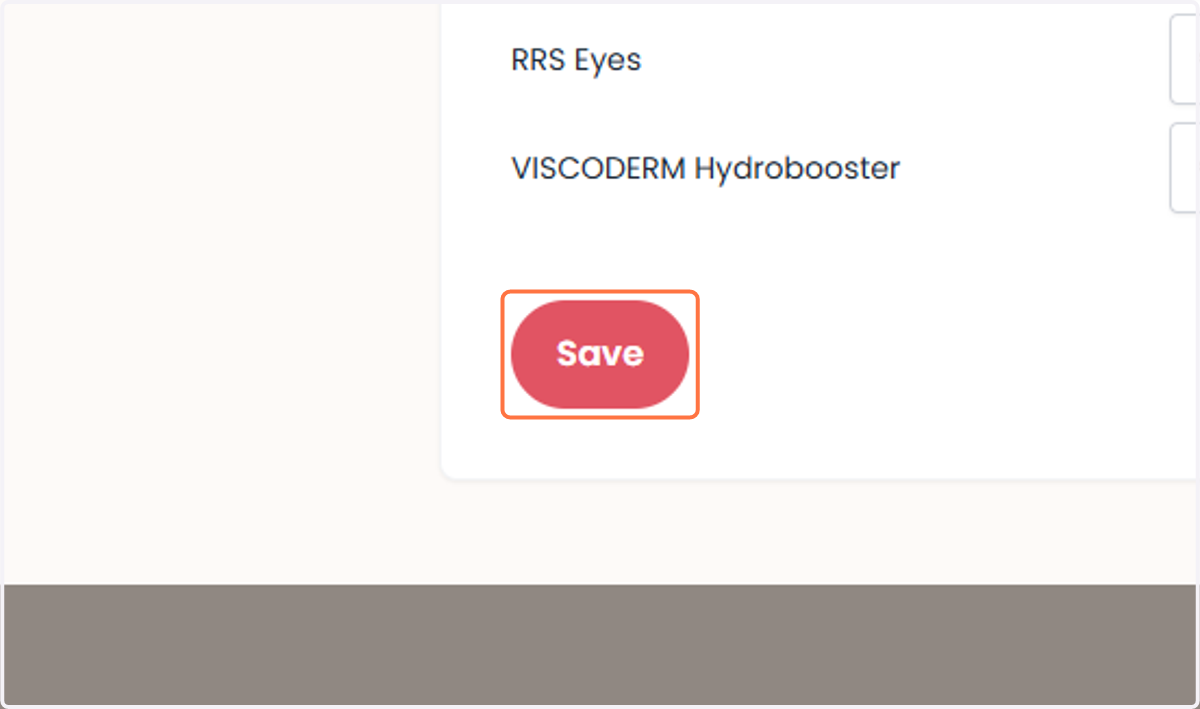
21. Once everything is filled in, click ‘Save’. Als alles is ingevuld, klik je op ‘Opslaan’.
Review your input and click ‘Save’ to apply the changes.
ontroleer je invoer en klik op ‘Opslaan’ om de wijzigingen toe te passen.
22. Clinic Management Beheer van de kliniek
Open the ‘Before and After Photos’ tab to add comparison images of your treatments.
Open het tabblad ‘Voor- en nafoto’s’ om vergelijkingsafbeeldingen van je behandelingen toe te voegen.
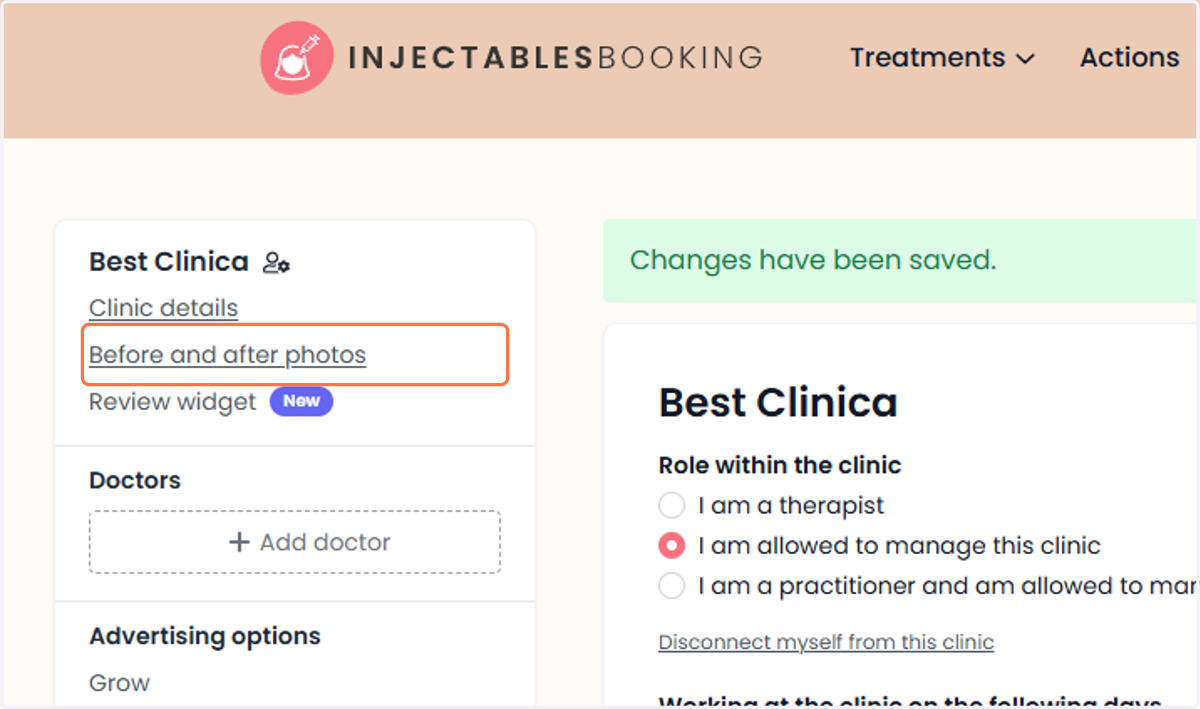
23. Click on ‘Before and After Photos’. Klik op ‘Voor- en nafoto’s’.
Go to ‘Before and After Photos’ and add images to showcase your clinic’s work.
Ga naar ‘Voor- en nafoto’s’ en voeg voor-en-na-afbeeldingen toe om het werk van je kliniek te laten zien.
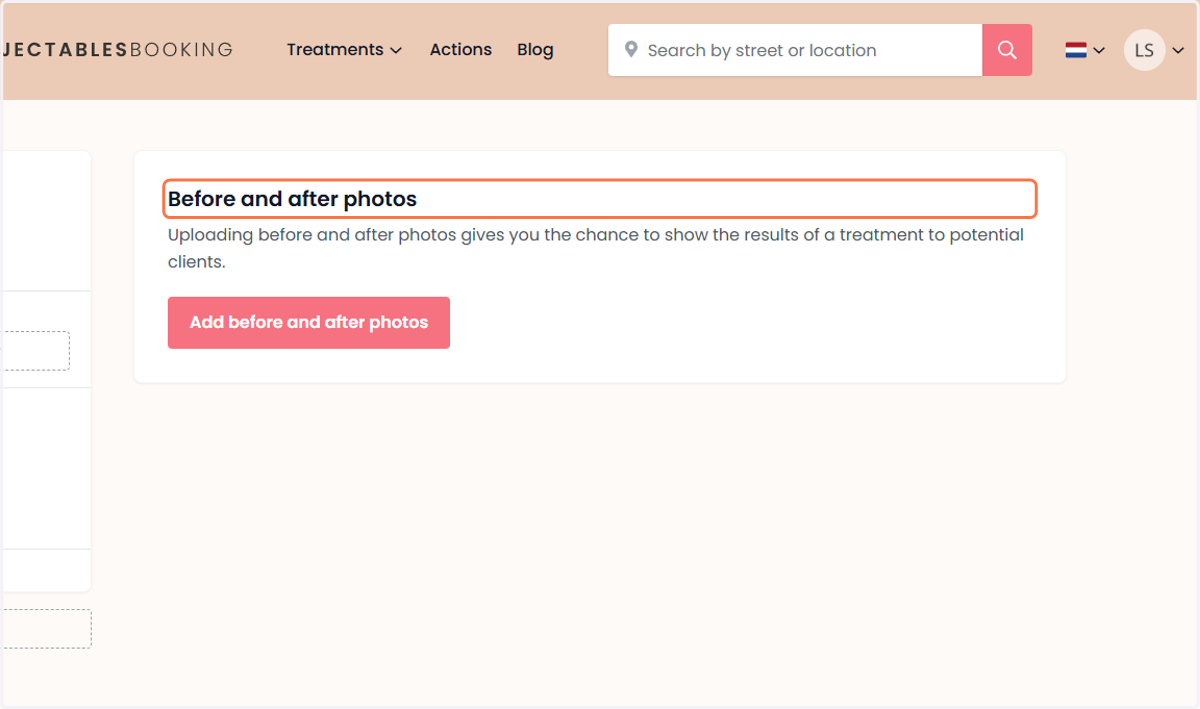
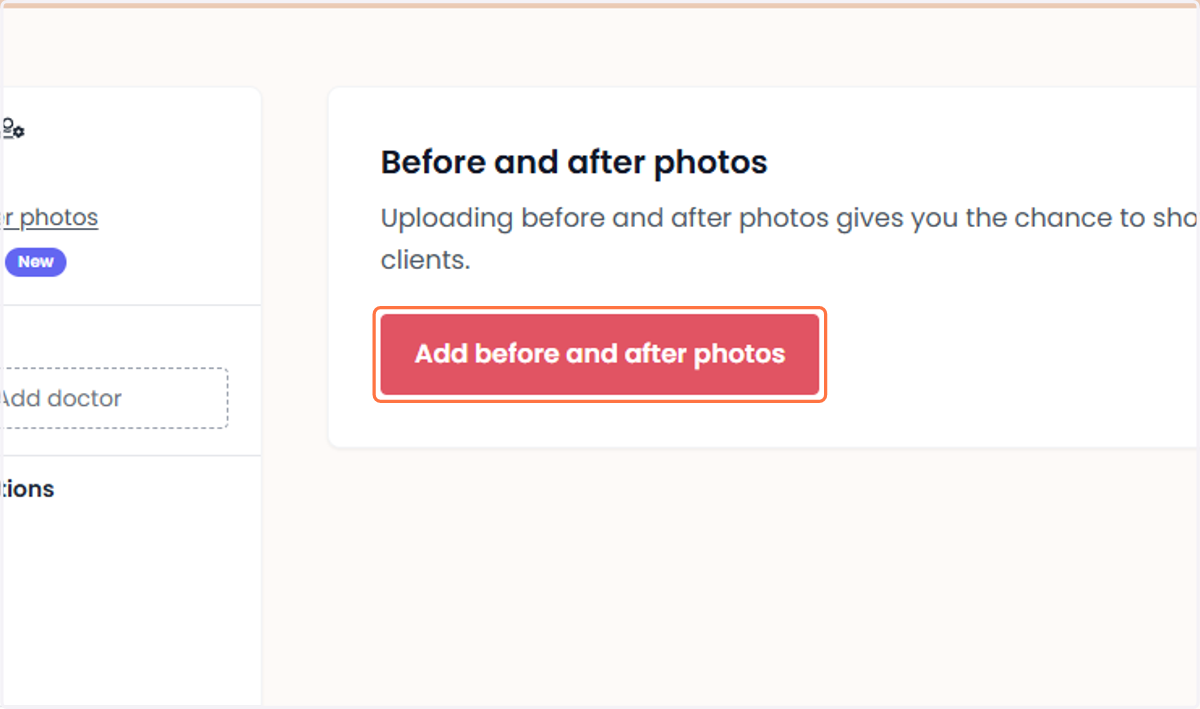
24. Click on ‘Add Before and After Photos’. Klik op ‘Voor- en nafoto’s toevoegen’.
Open the field and upload the photos you wish to display.
Open het veld en voeg de foto’s toe die je wilt weergeven.
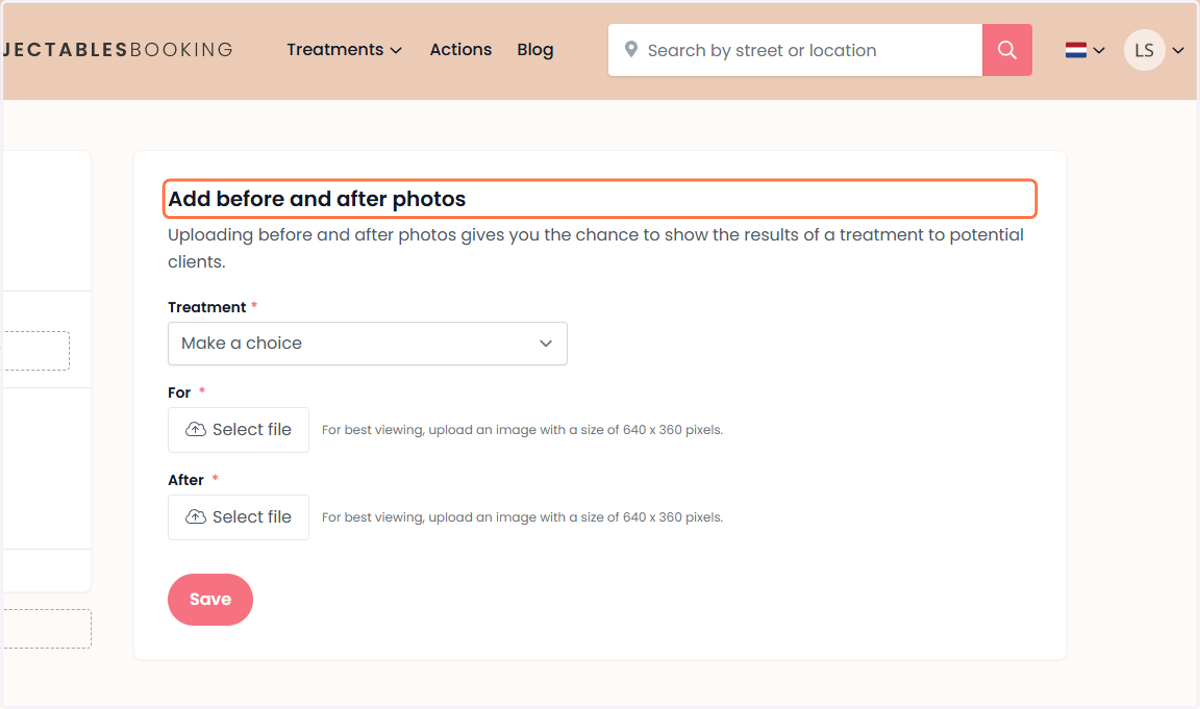
25. To add before and after photos Om voor- en nafoto’s toe te voegen
Go to ‘Add Before and After Photos’ to upload visual comparisons of your treatments. Select the treatment and upload the photos.
Ga naar ‘Voor- en nafoto’s toevoegen’ om visuele voor-en-na-beelden van je behandelingen toe te voegen. Kies de behandeling en upload de foto’s.
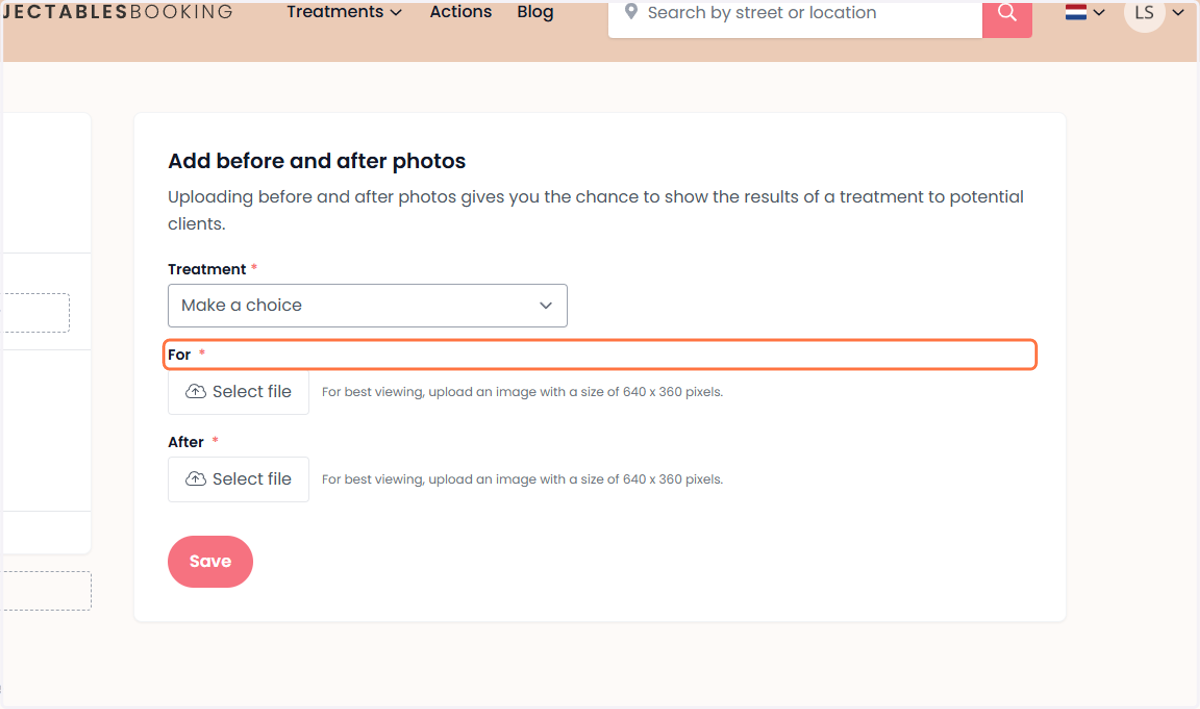
26. Add a photo taken before the treatment. Voeg een foto toe van vóór de behandeling
Upload the ‘Before Treatment’ photo to show the starting point.
Upload de foto van ‘Voor de behandeling’ om het beginpunt te laten zien.
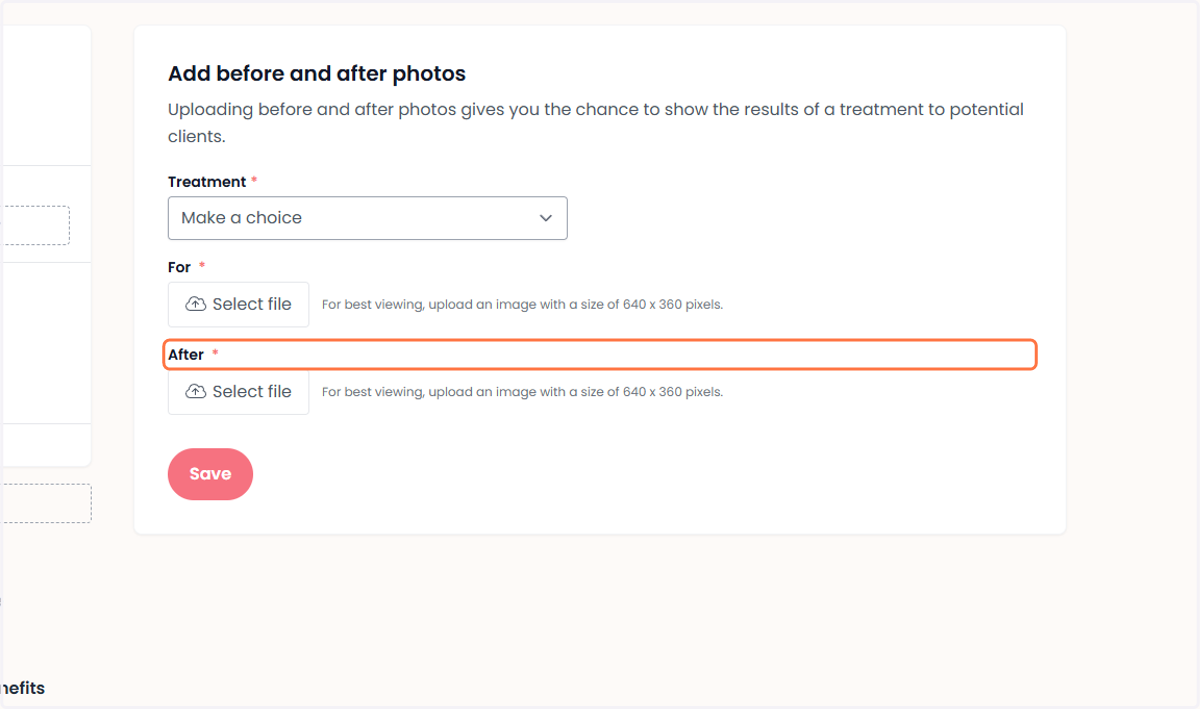
27. Add a photo taken after the treatment. Voeg een foto toe van ná de behandeling
Upload the ‘After Treatment’ photo to complete the comparison.
Upload de foto van ‘Na de behandeling’ om de vergelijking compleet te maken.
28. Click on ‘Save’. Klik op ‘Opslaan’.
Once you’ve reviewed everything, click ‘Save’ to complete the process. All before and after photos will then be displayed across the entire site — a smart trick to gain more visibility for free! :)
Als je alles hebt gecontroleerd, druk je op ‘Opslaan’ om het af te ronden. Alle voor- en nafoto’s worden dan op de hele site getoond. Een slimme truc om gratis meer zichtbaarheid te krijgen! :)
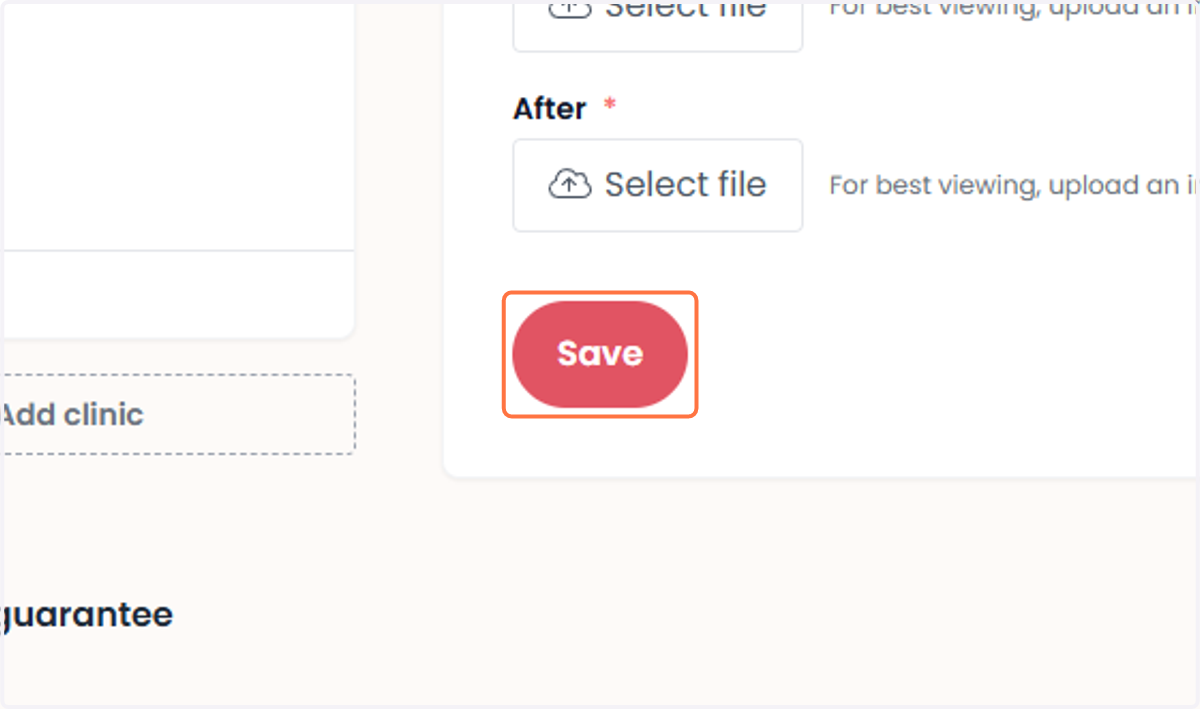
29. Click on ‘View Widget’… Klik op ‘Widget bekijken’…
Go to the ‘Review Widget’ to get FREE Google reviews.
Ga naar de ‘Review-widget’ om GRATIS Google-recensies te krijgen.
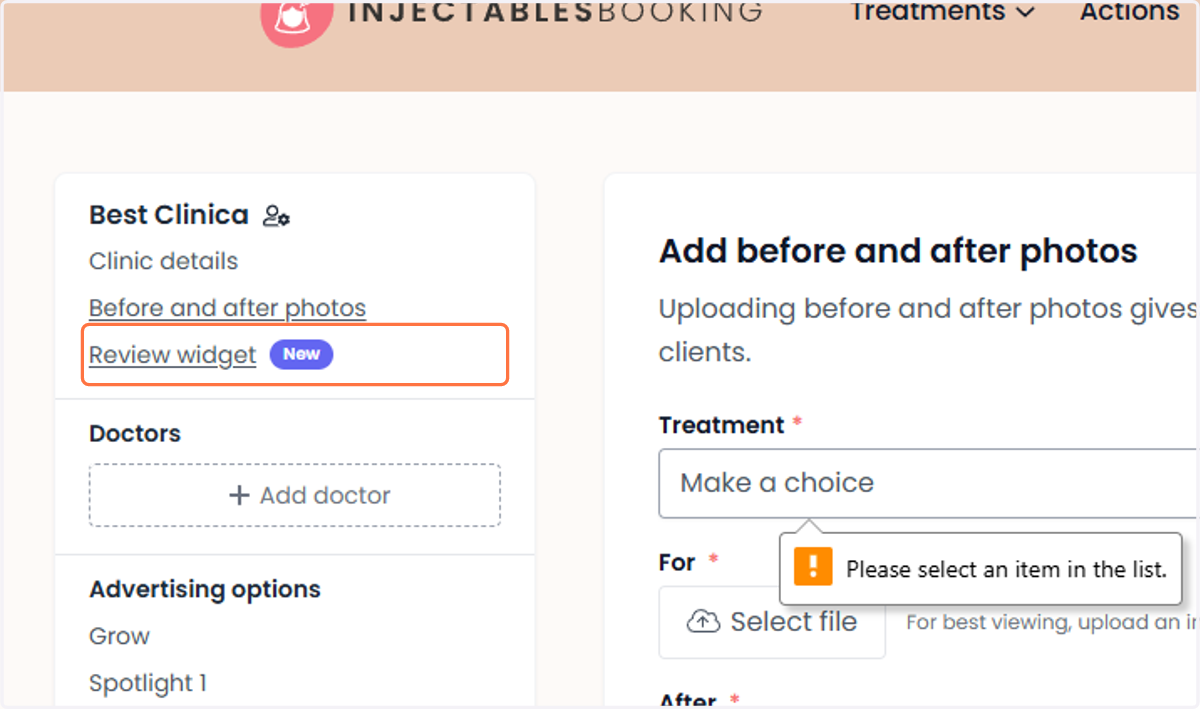
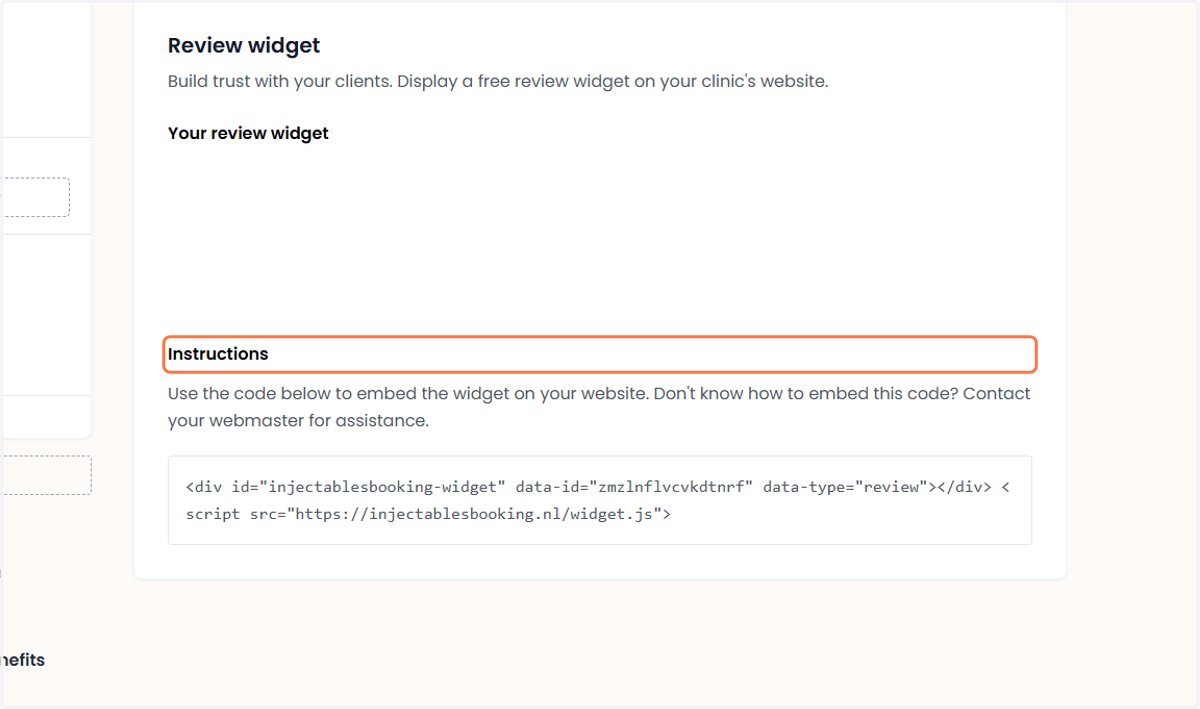
30. For the widget on your website Voor de widget op je website
You can copy the code below and paste it into your website to display the review widget or other features directly on your site. By placing this code in your website’s HTML, you can easily collect FREE Google customer reviews.
De onderstaande code kun je kopiëren en in je website plakken om de review-widget of andere functies direct op je site weer te geven. Door deze code in de HTML van je website te plaatsen, kun je eenvoudig GRATIS Google-klantbeoordelingen verzamelen.
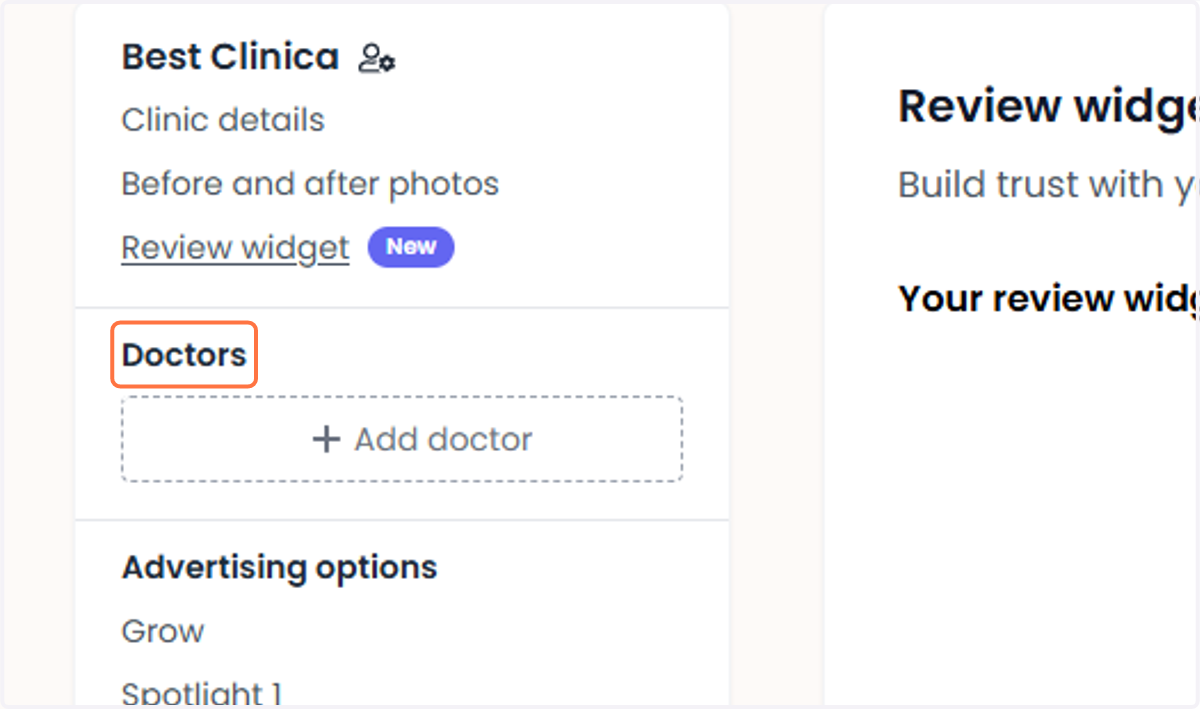
31. Click on ‘Doctors’. Klik op ‘Artsen’.
Go to the ‘Doctors’ tab to manage doctors’ profiles and information.
Ga naar het tabblad ‘Artsen’ om de profielen en gegevens van artsen te beheren.
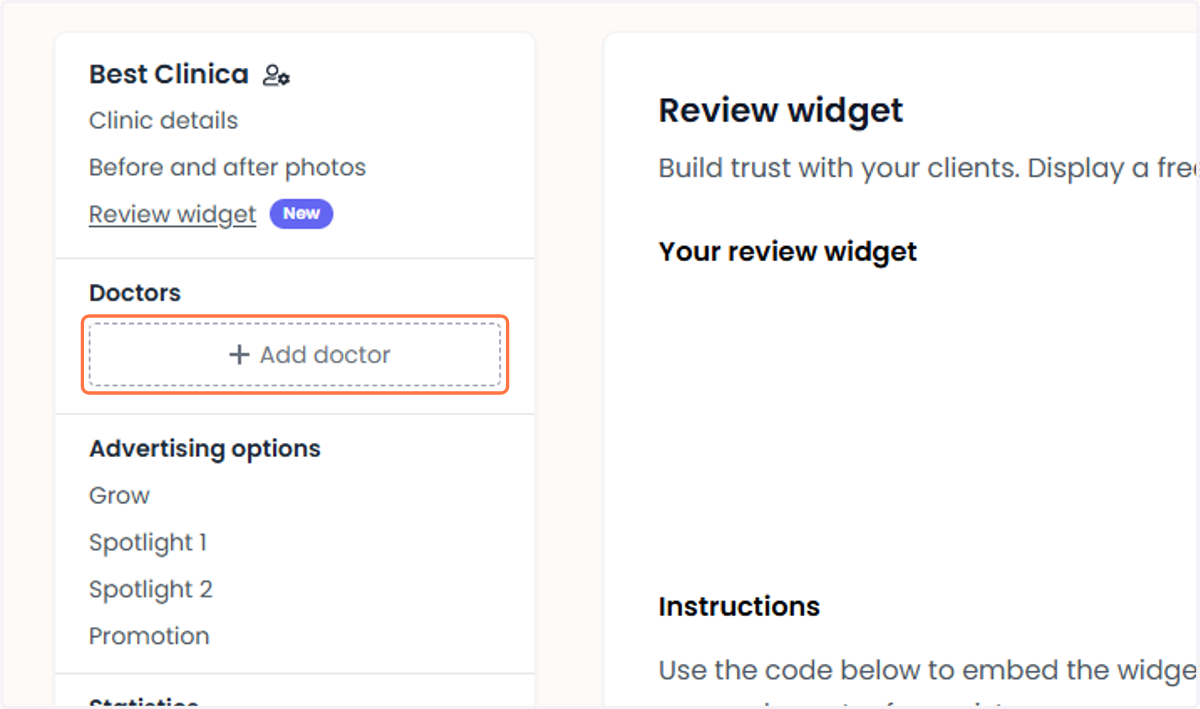
32. Click on ‘Add Doctor’. Klik op ‘Arts toevoegen’.
Go to ‘Add Doctor’ to enter details and create a doctor profile.
Ga naar ‘Arts toevoegen’ om gegevens in te vullen en een artsenprofiel aan te maken.
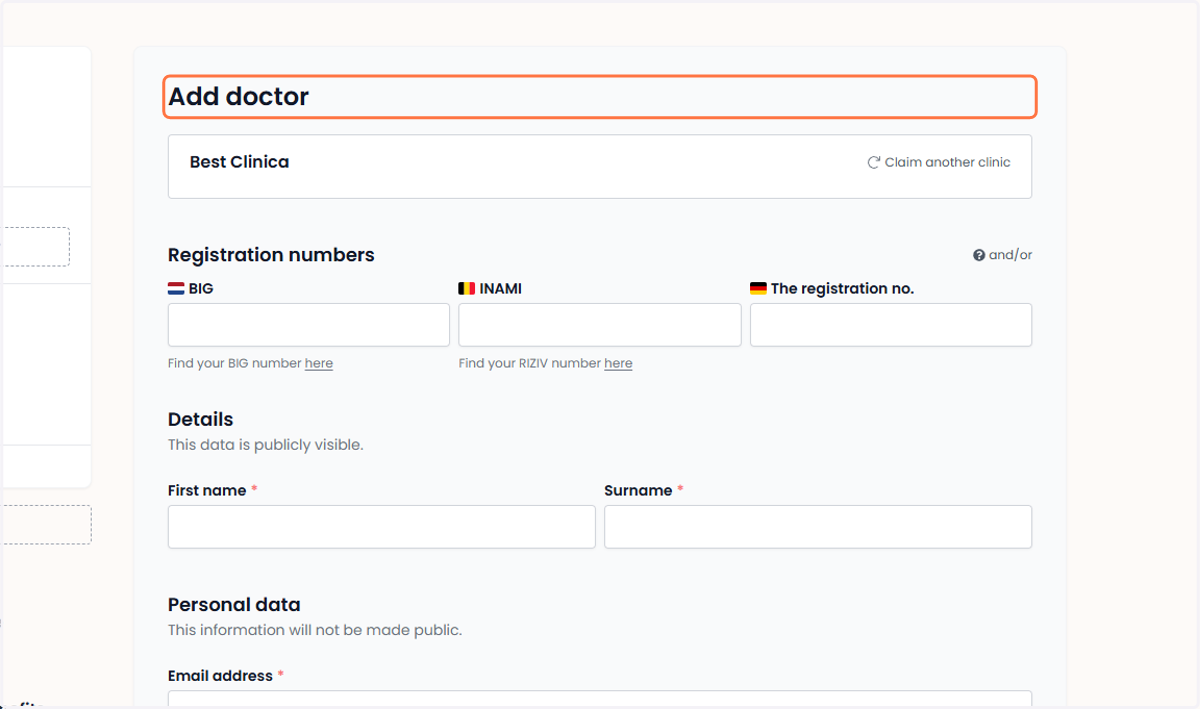
33. Under ‘Add Doctor’ Onder ‘Arts toevoegen’
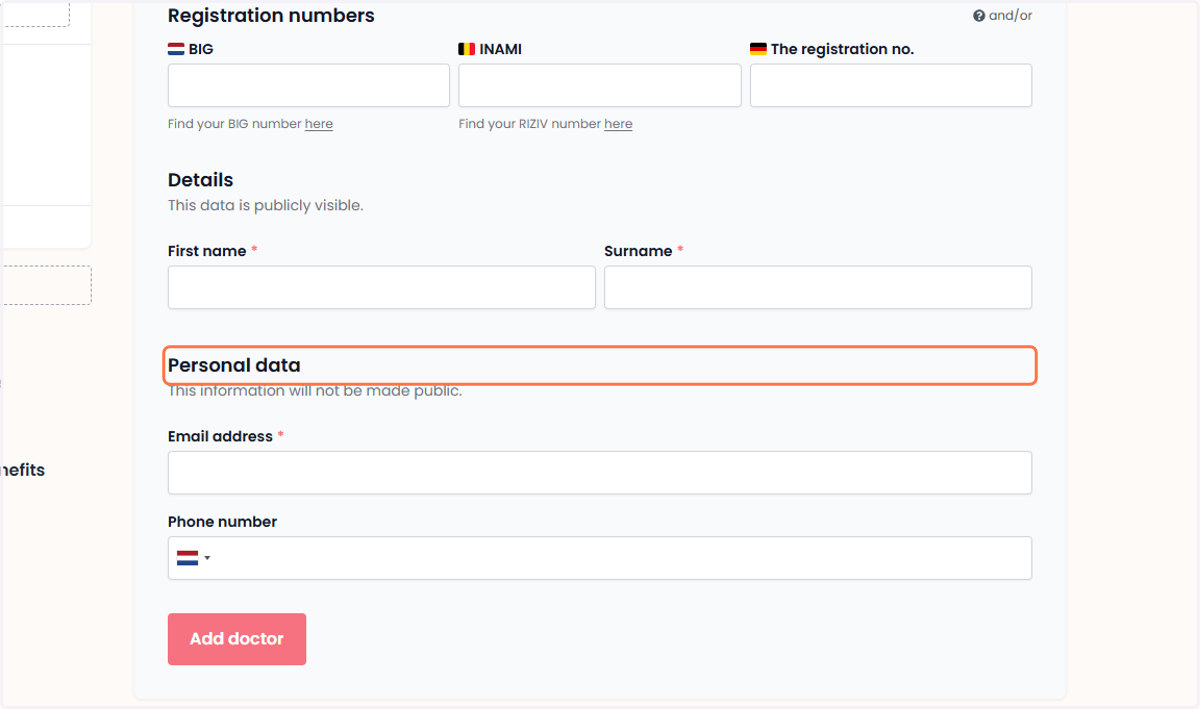
In the ‘Add Doctor’ form, fill in the required details such as name, specialization, and registration number.
Vul in het formulier ‘Arts toevoegen’ de benodigde gegevens in, zoals naam, specialisatie en registratienummer.
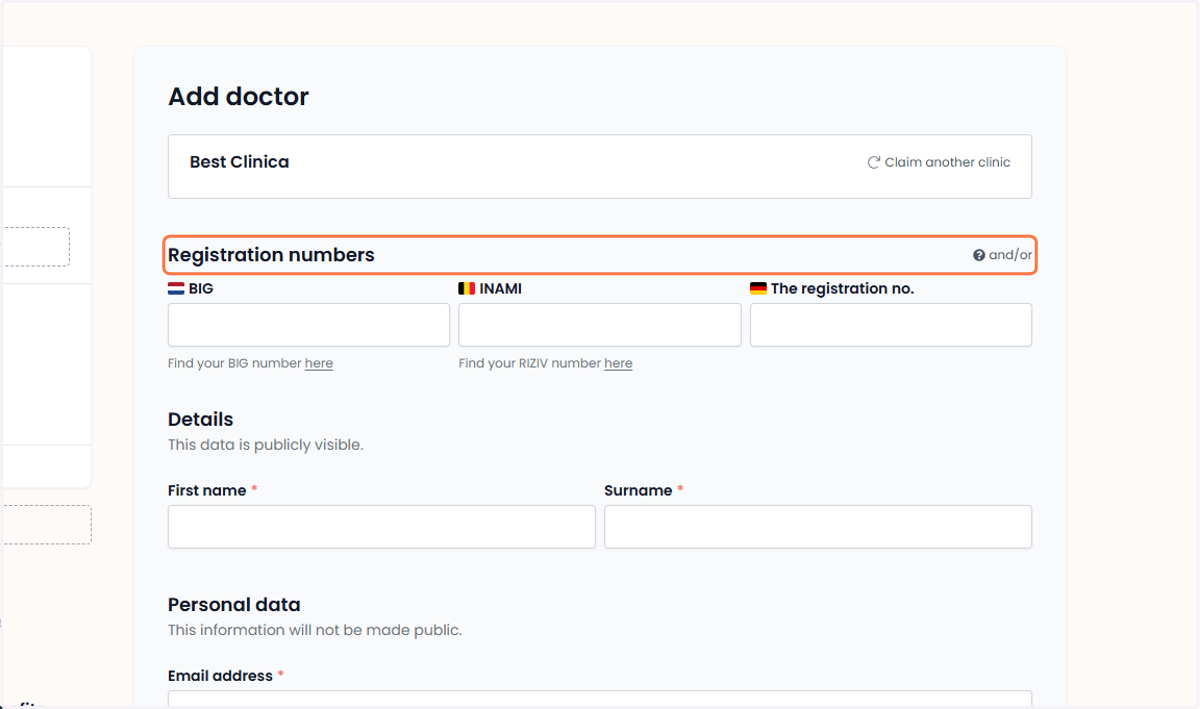
34. For registration numbers Voor registratienummers
In this section, enter the official licensing and registration details of the doctor, such as the medical license number or professional registration number.
In dit gedeelte vul je de officiële licentie- en registratiedetails van de arts in, zoals het medische licentienummer of het professionele registratienummer.
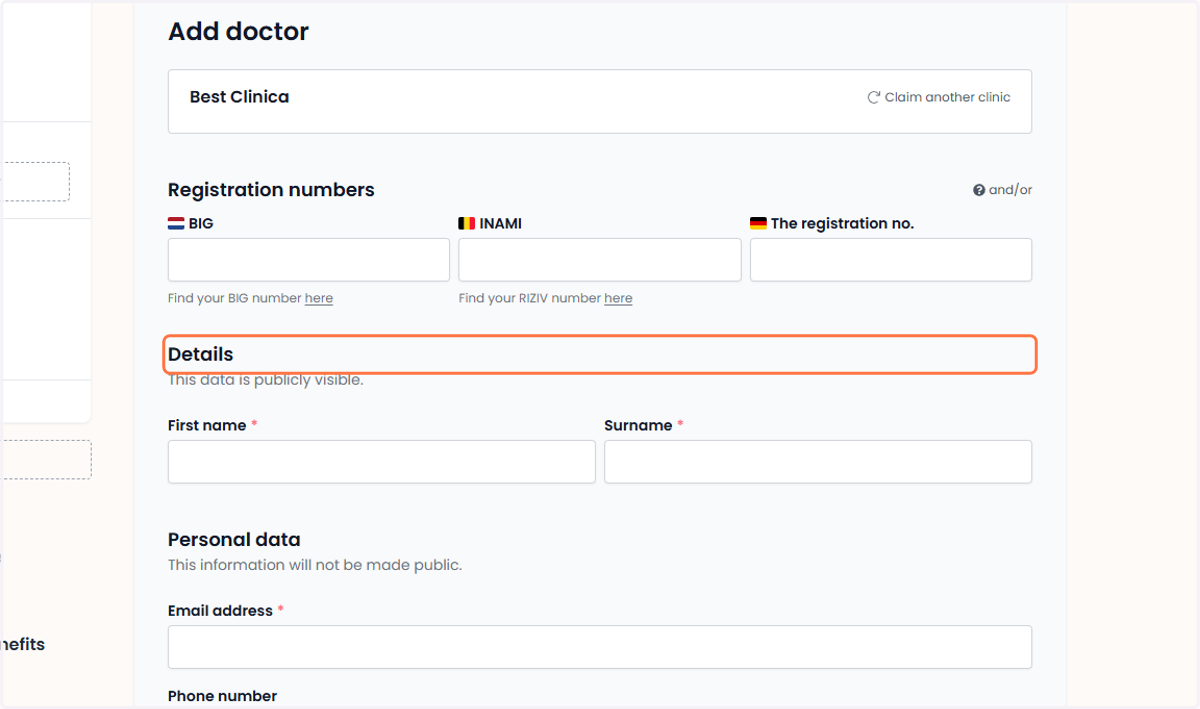
35. Specialist Information Gegevens van specialisten
In the ‘Specialist Information’ section, provide detailed information about the doctor. Enter their first and last name.
Vul in het gedeelte ‘Gegevens van specialisten’ uitgebreide informatie over de arts in. Vul de voor- en achternaam in.
36. For personal details Voor persoonlijke gegevens
In the ‘Personal Details’ section, enter the doctor’s key contact information, such as a valid email address and phone number. This ensures that both patients and the clinic can easily get in touch when needed.
Vul in het gedeelte ‘Persoonlijke gegevens’ de belangrijke contactinformatie van de arts in, zoals een geldig e-mailadres en telefoonnummer. Zo kunnen patiënten en de kliniek makkelijk contact opnemen wanneer dat nodig is.
37. Final step Laatste stap
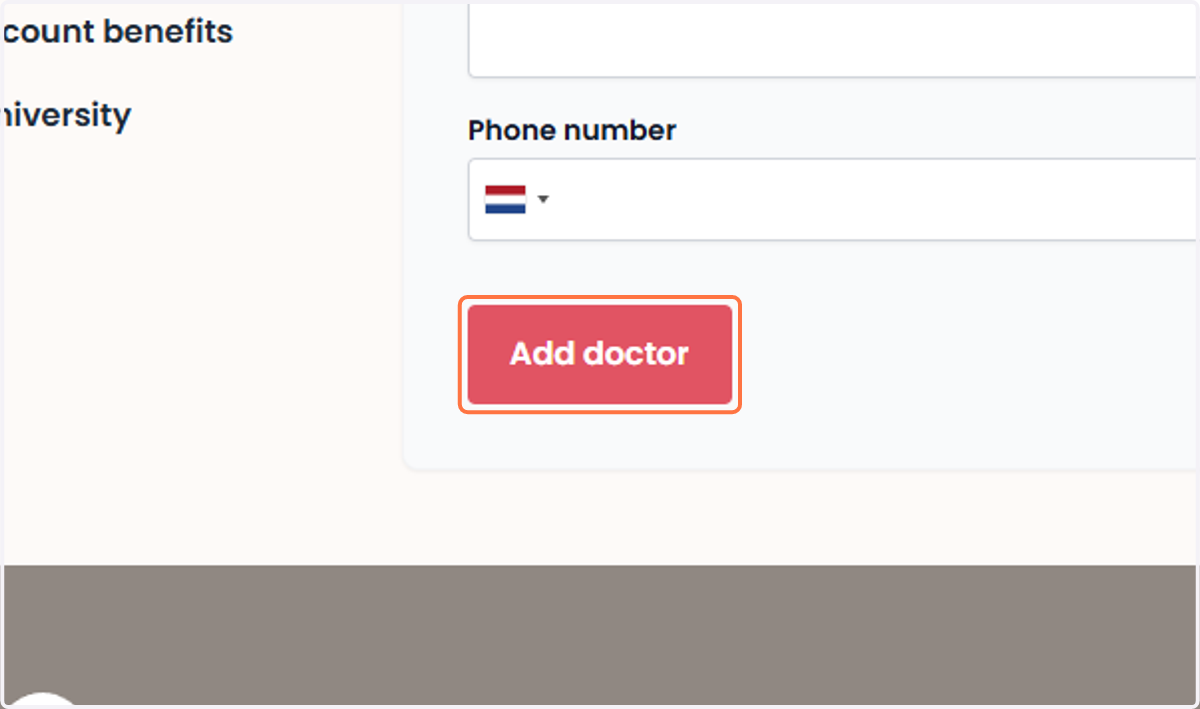
Als alle verplichte velden zijn ingevuld en gecontroleerd, druk je op ‘Arts toevoegen’ om af te ronden.
Once all required fields have been completed and checked, click ‘Add Doctor’ to finish.