Chromebook - Installing and testing Lockdown Browser
1. On a Chromebook, Lockdown Browser is installed via a Chrome extension. To begin, click on the link below.
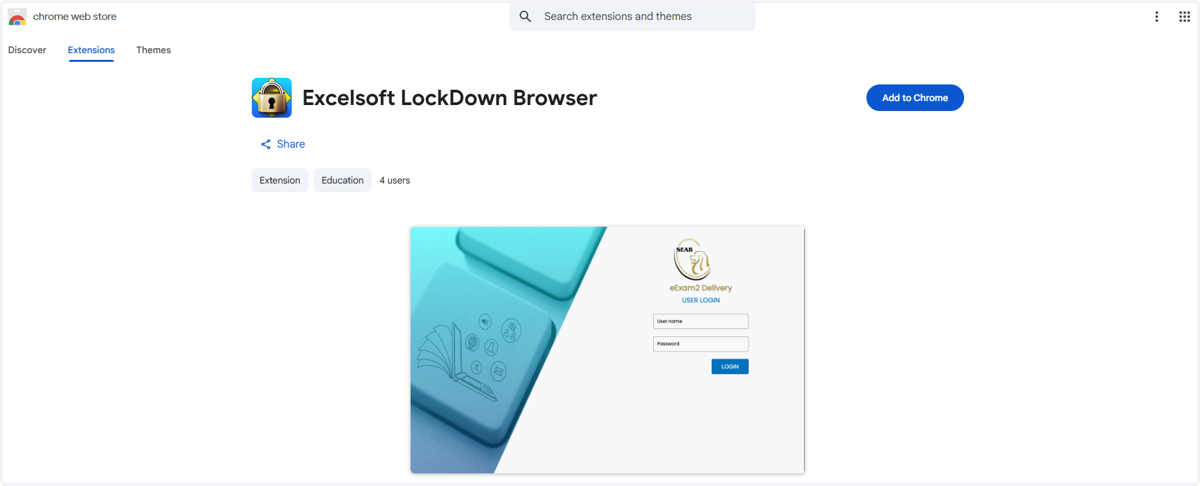
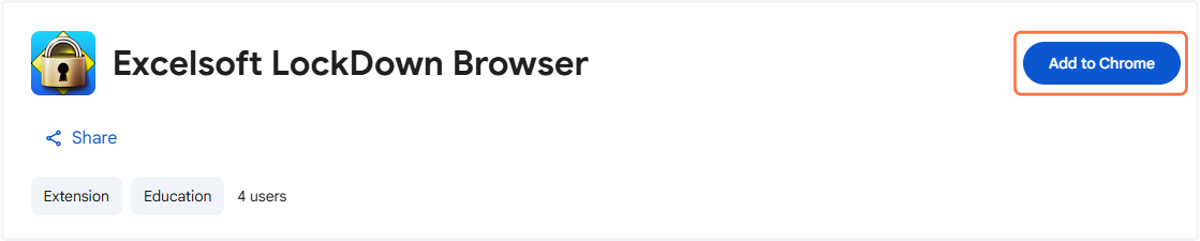
2. Click on Add to Chrome.
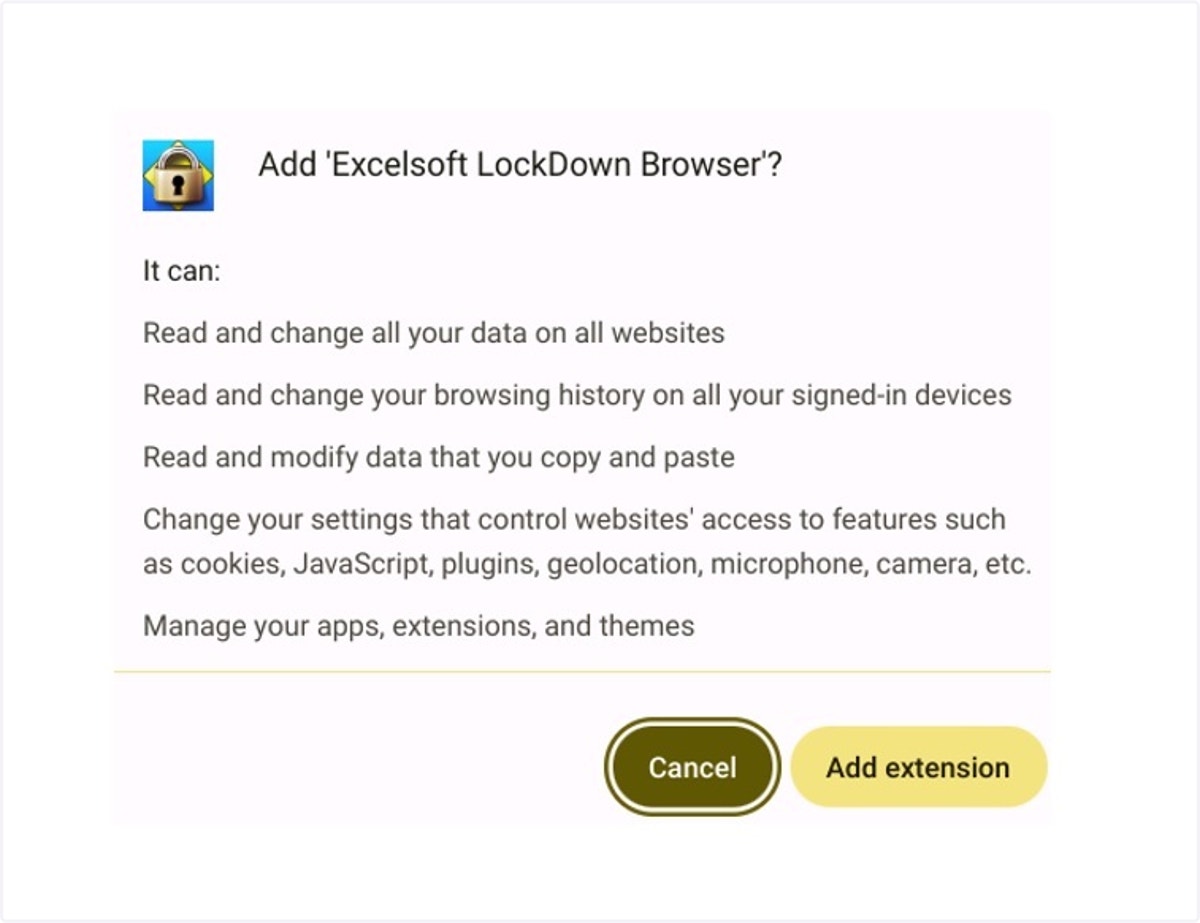
3. A prompt will appear to confirm you wish to add the extension, click Add extension.
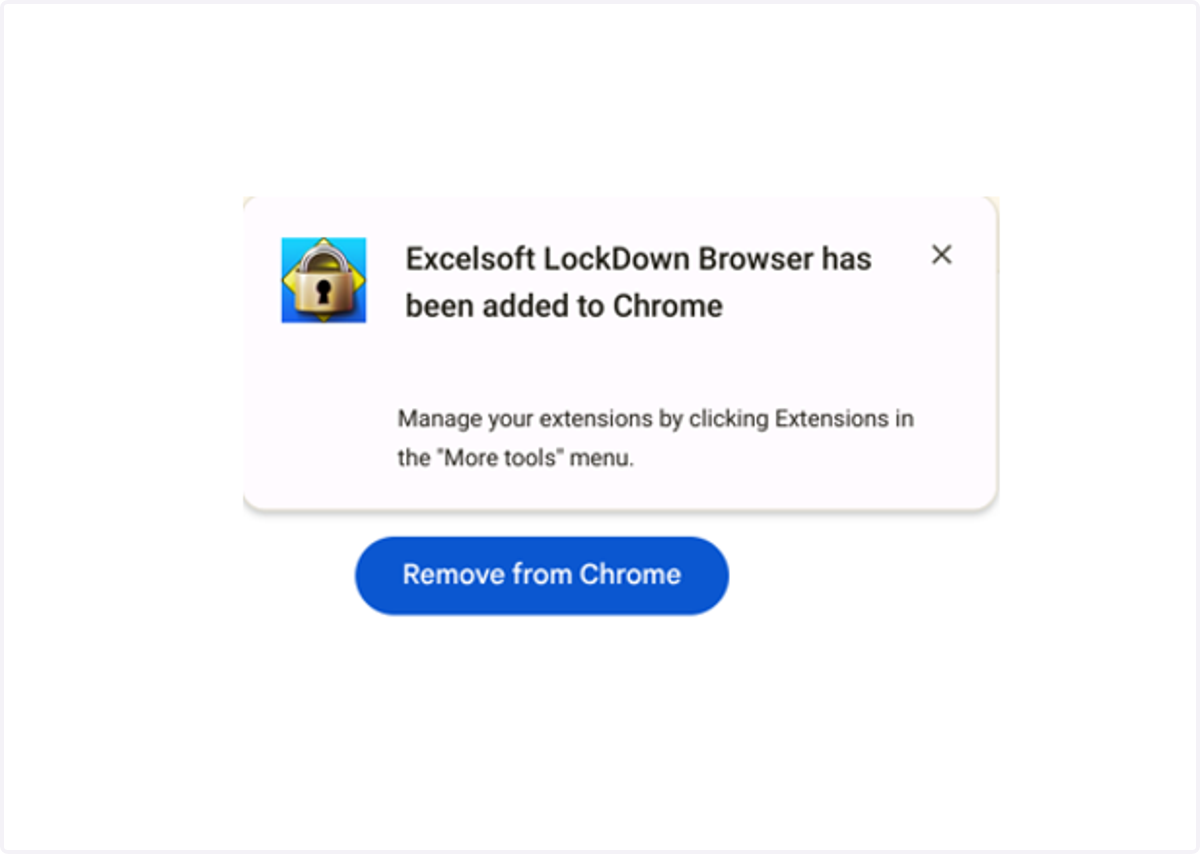
4. The Lockdown Browser extension will now be added to Chrome. This is confirmed by the blue button now saying 'remove from Chrome'.
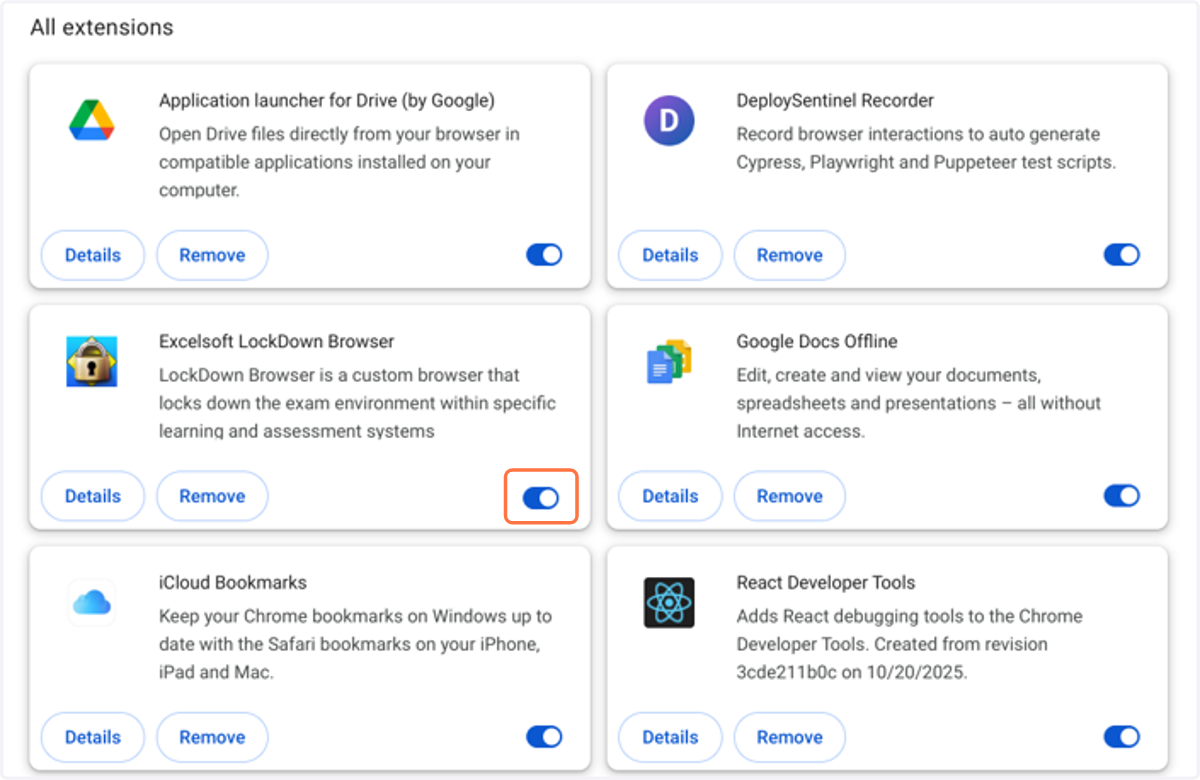
5. To ensure the Lockdown Browser extension is enabled, click on the three dots in the top right corner of your internet browser, click Extensions and then Manage Extensions. If the Excelsoft Lockdown Browser toggle button is grey, click this so that it turns blue.
6. Now Lockdown Browser is installed and enabled, a practice exam can be launched in Lockdown Browser to ensure it can be opened successfully. To do this, firstly click on the below URL.

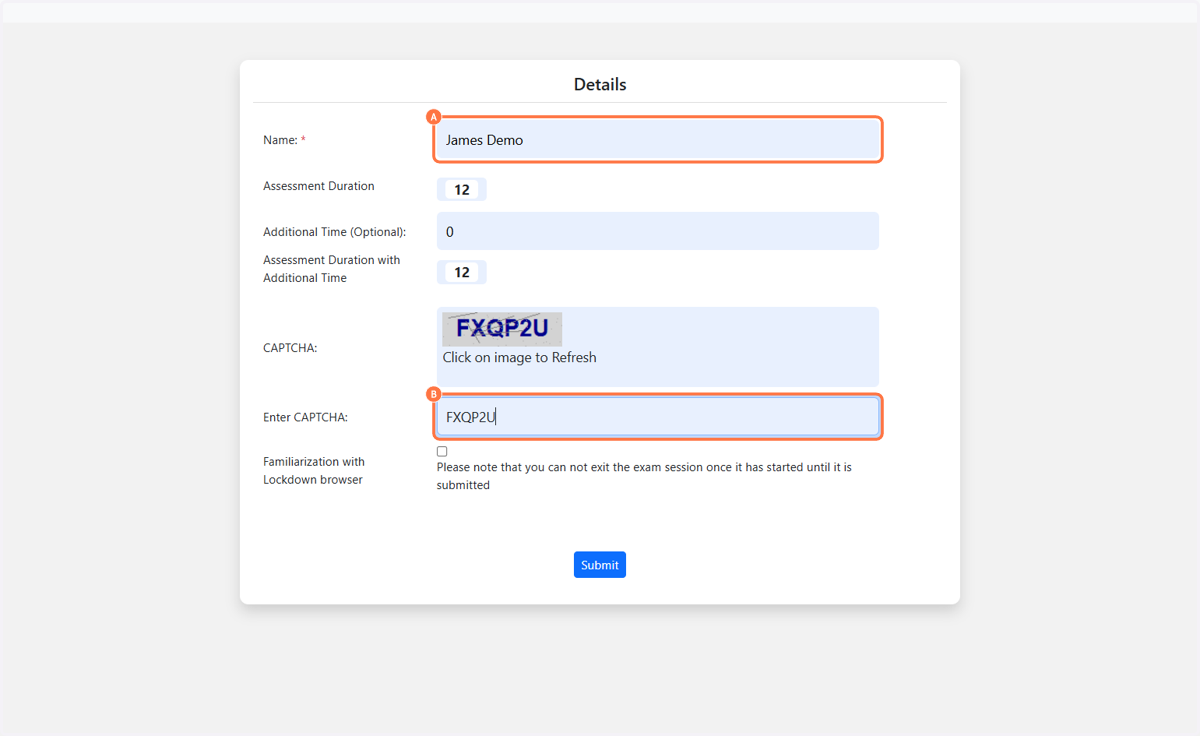
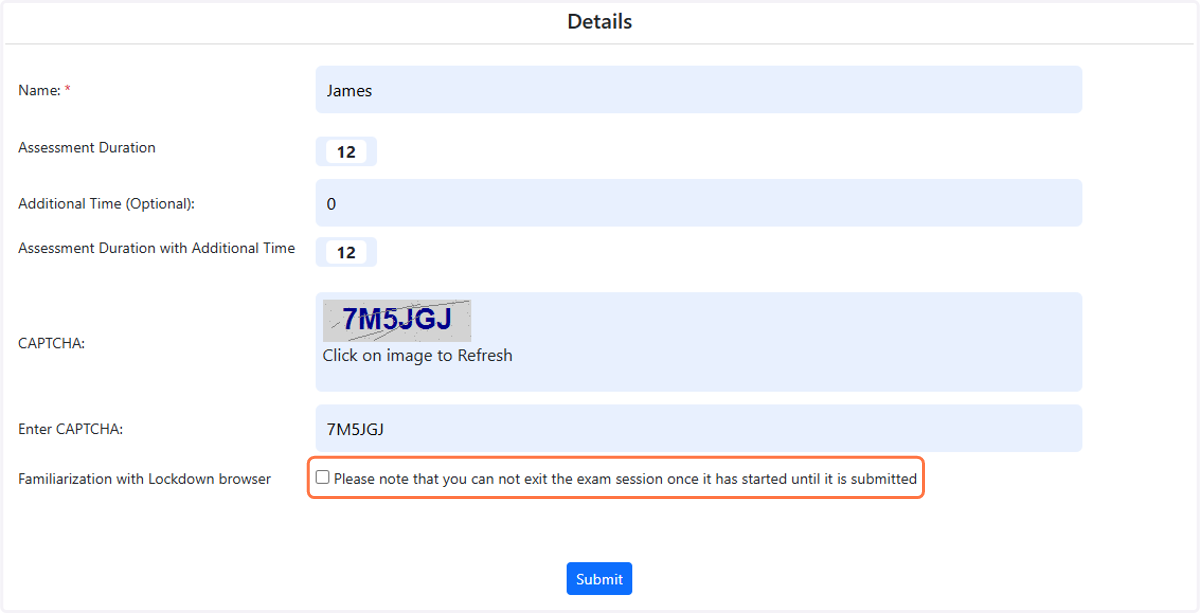
7. A. Enter your name.
7. B. Enter the CAPTCHA.
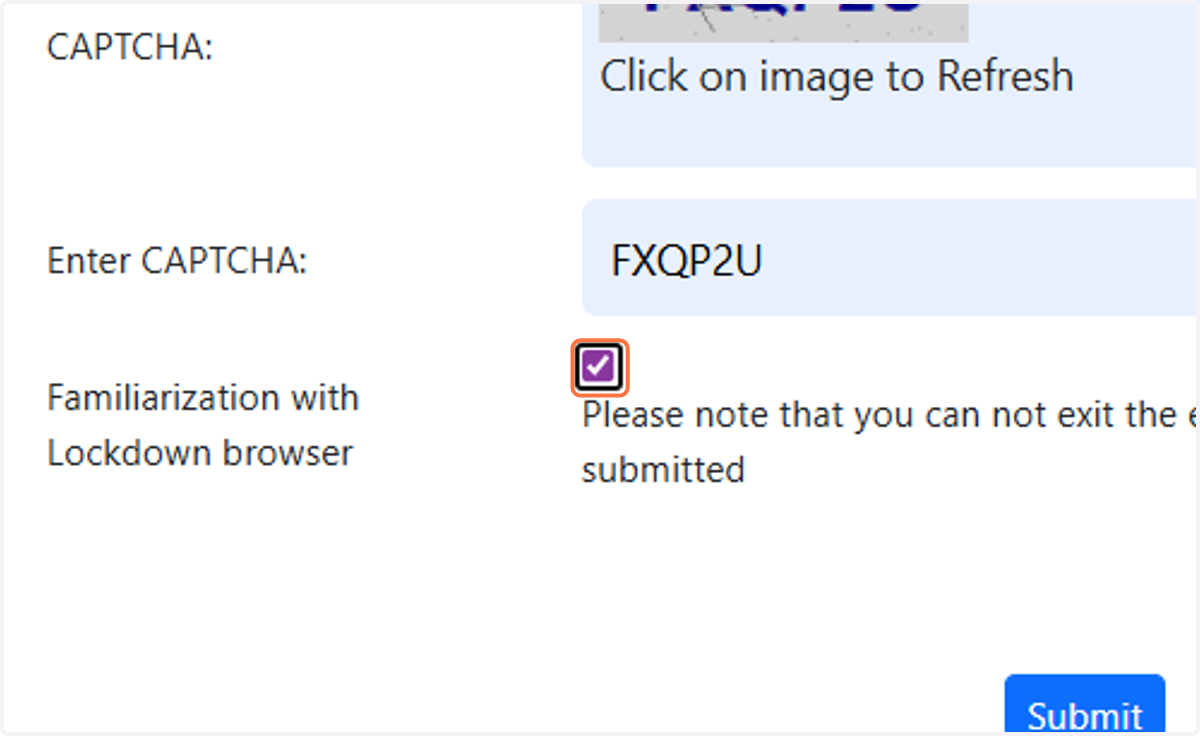
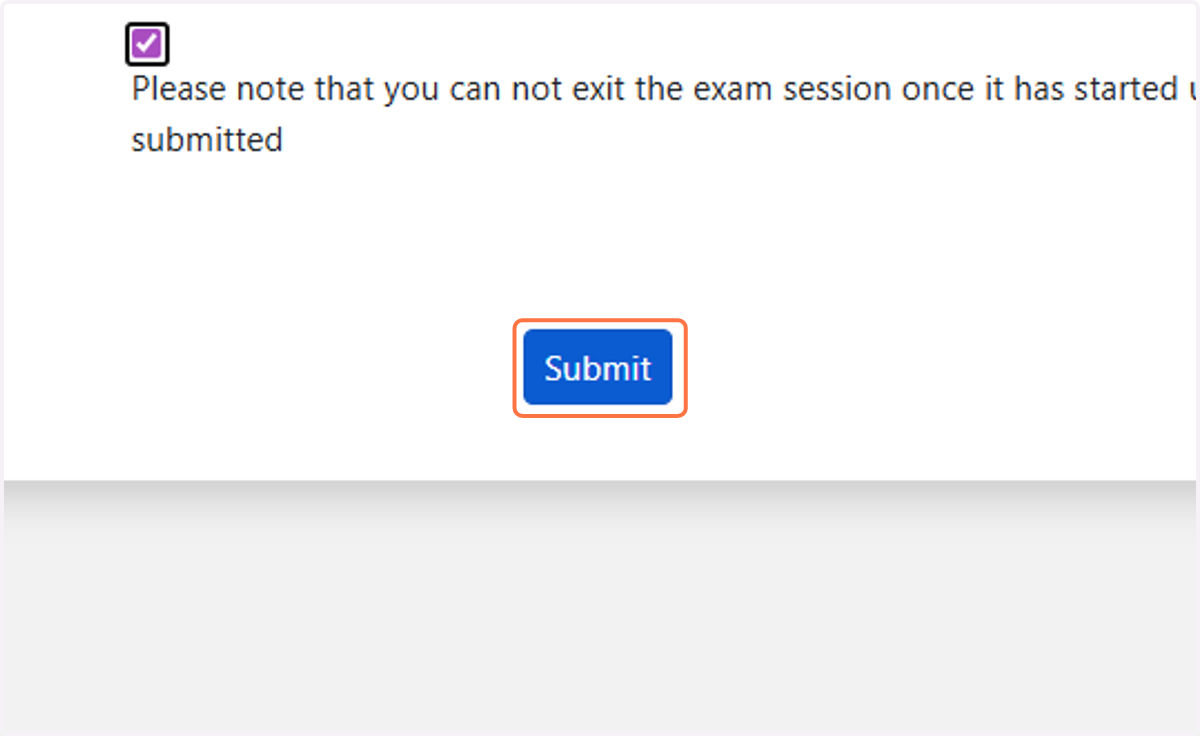
8. Select the check box to launch the practice exam in Lockdown Browser.
9. Click on Submit.
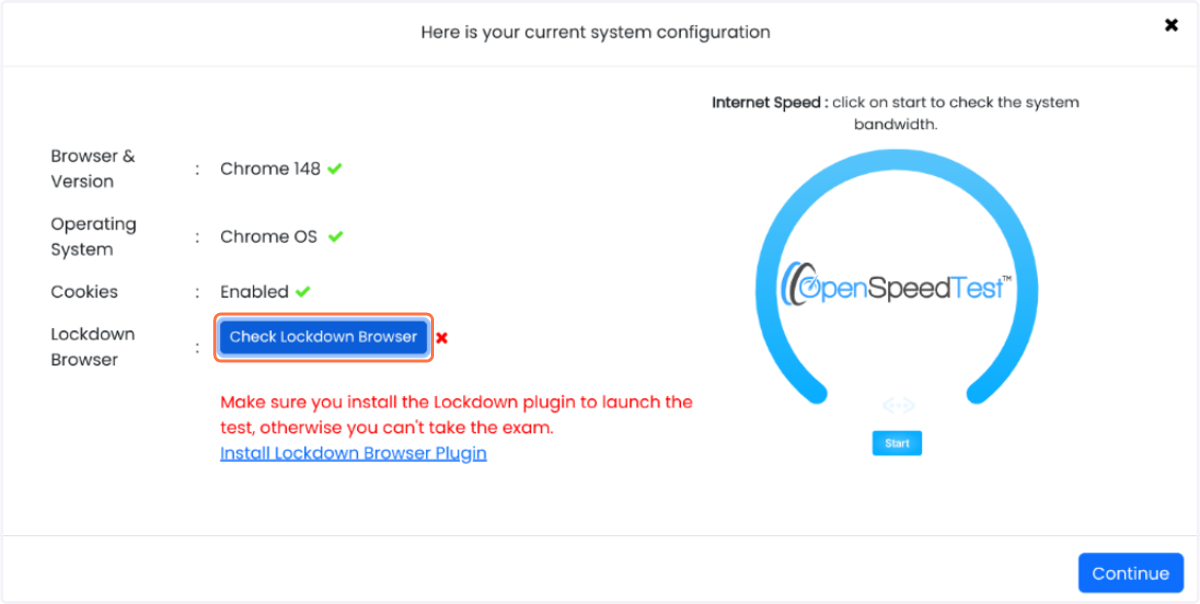
10. The practice exam will now prompt you to complete system checks. Your internet browser, operating system and cookies will be checked automatically. By default, there will be a cross alongside Lockdown Browser. To check Lockdown Browser is installed, click Check Lockdown Browser.
11. You will now be returned to the practice exam start screen. To proceed with the exam, you will now need to untick the 'Familiarization with Lockdown Browser' button, then press Submit. The exam will still launch in Lockdown Browser.
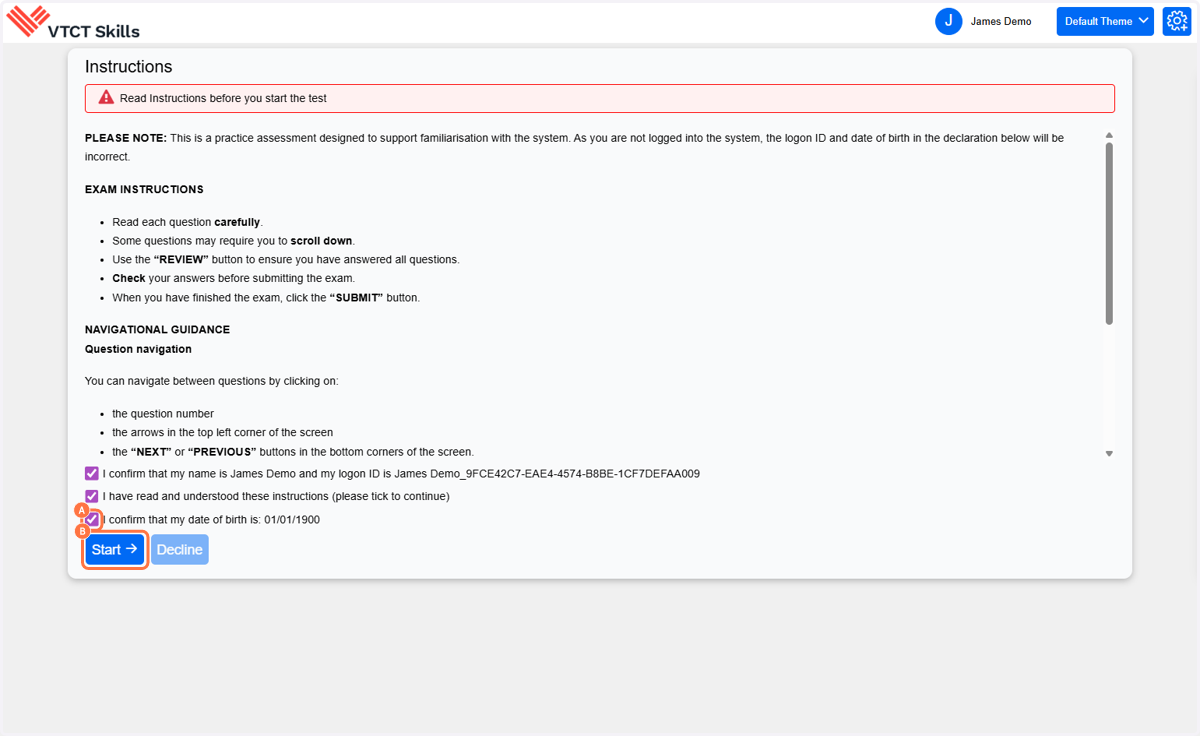
12. A. To mirror the learner experience, the exam instructions will be presented alongside three learner declarations. As this is a practice exam, the logon ID and date of birth will not be correct.
12. B. Click on Start to begin the practice exam.
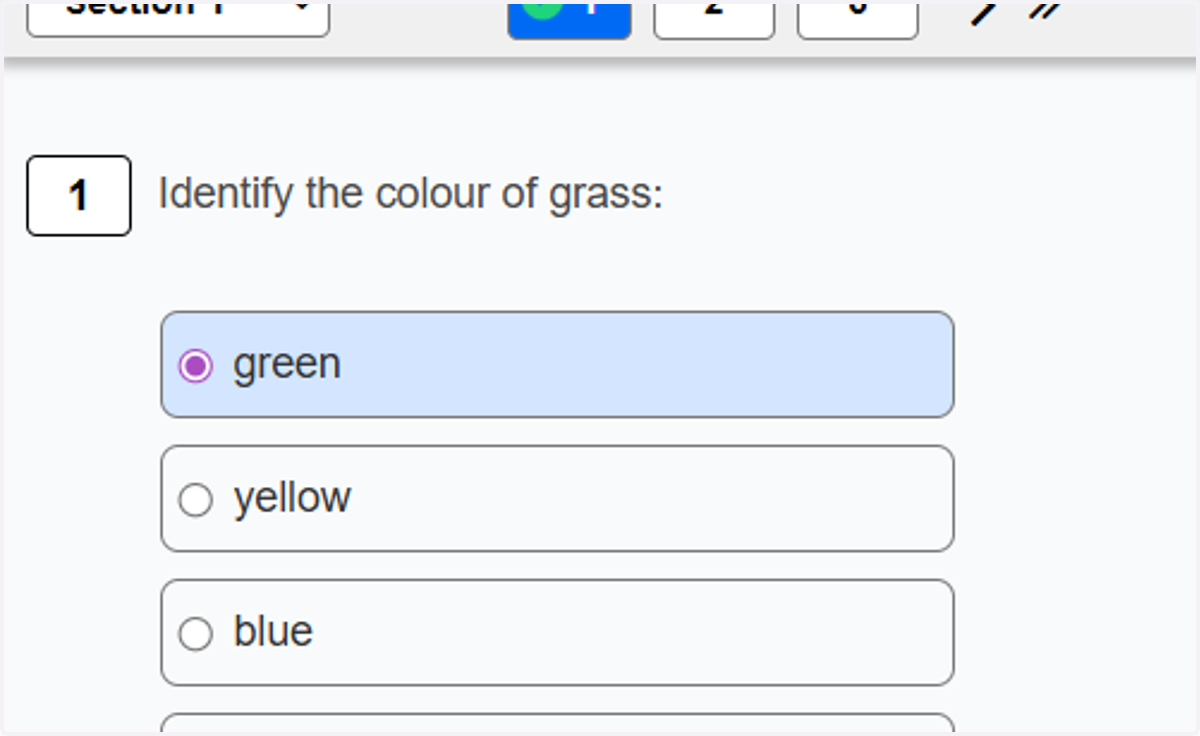
13. The practice exam will begin inside Lockdown Browser.
14. To finish the practice exam, click on SUBMIT ASSESSMENT.