Checking in attendees to your event
In this workflow, you'll learn how to check registrants into your event, mark the ones who didn't come, and sign up any attendees who did not pre-register.
If your event is virtual, as long as you put the link in the proper location when you created the event, attendance is captured automatically.When a user signs in, they will be sent a special, unique link that not only takes them to the location of your virtual meeting, but will mark them as having completed the event.
Because of this, it is important to make sure that registrants don't share their unique links, but rather send out the RSVP links to their friends who may want to join.
Mobilize
1. Click into your event
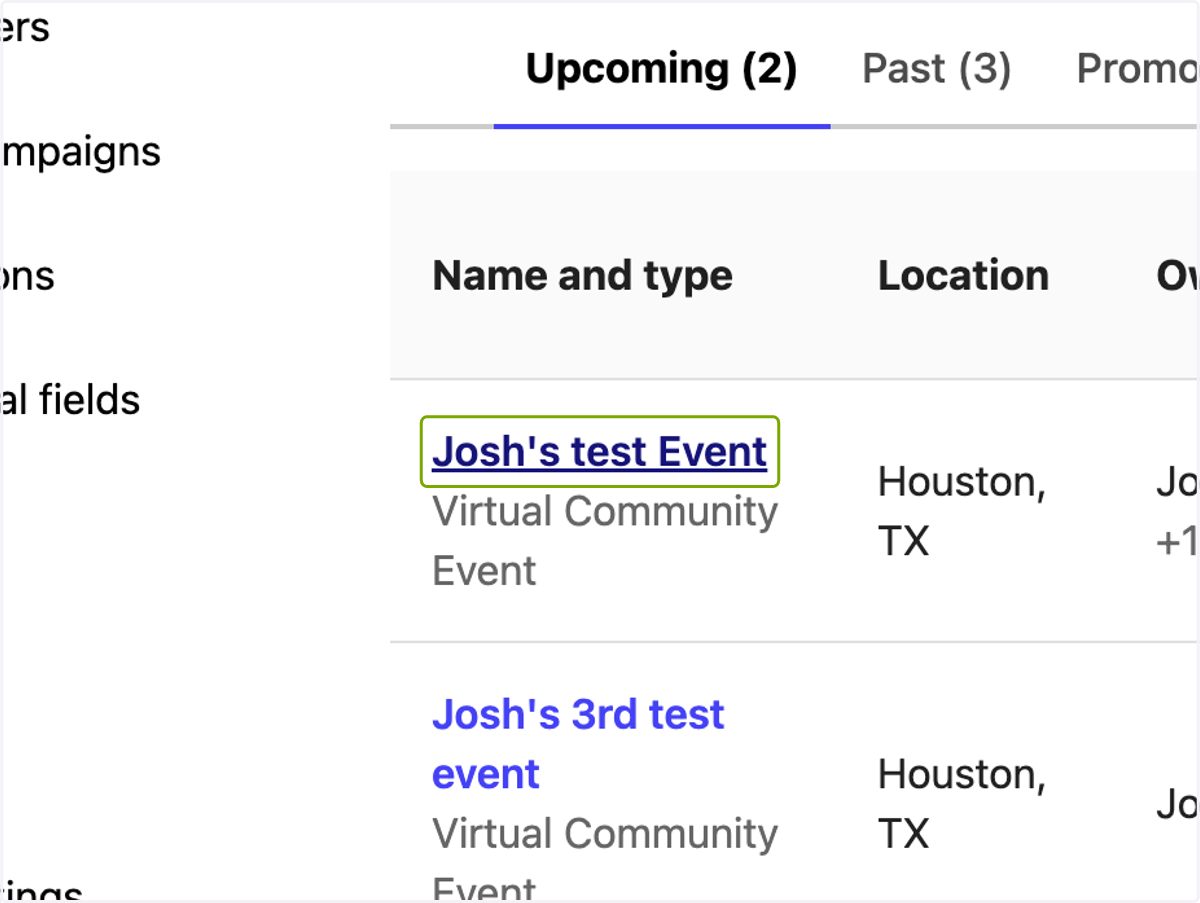
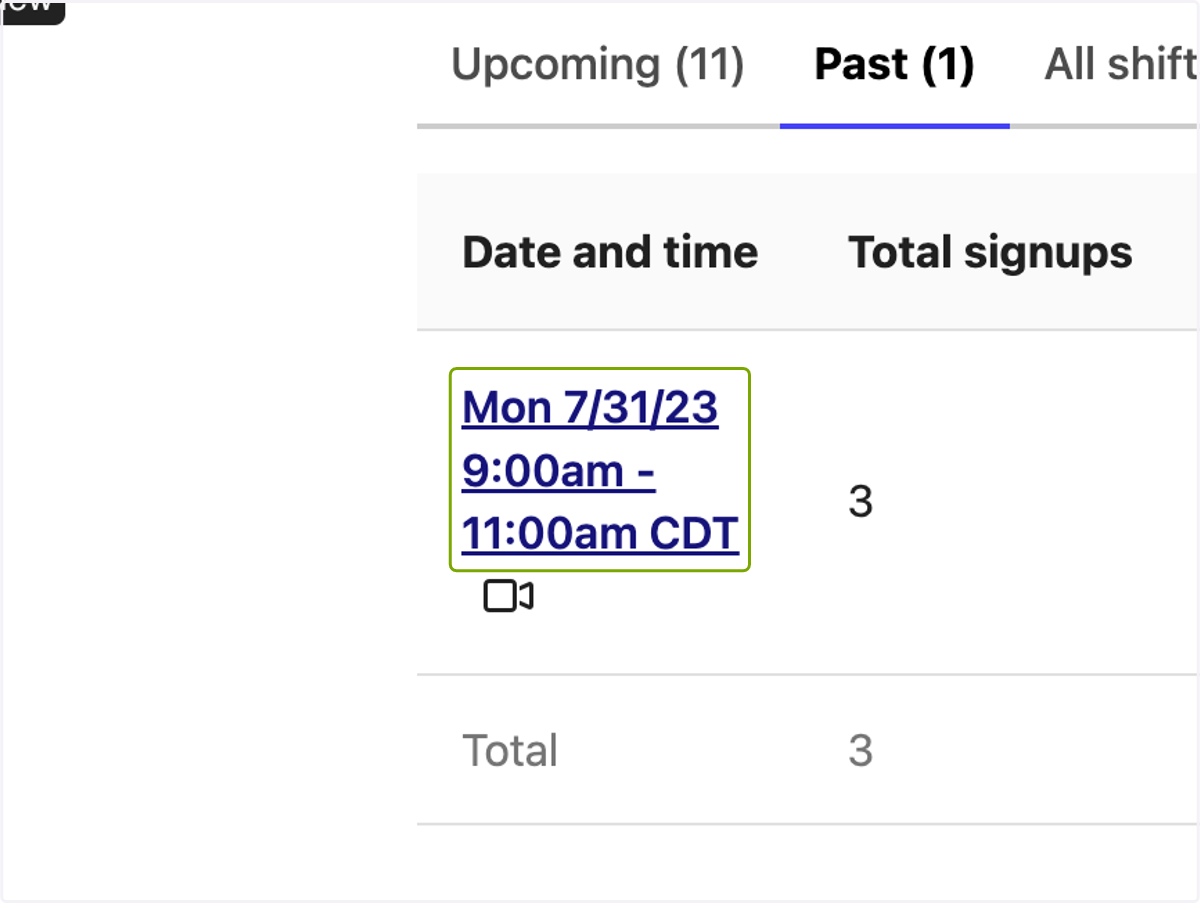
2. Click on the shift you are checking people in for
Note: If you are checking people in after the start time of the event, the event may be in the "Past Category"
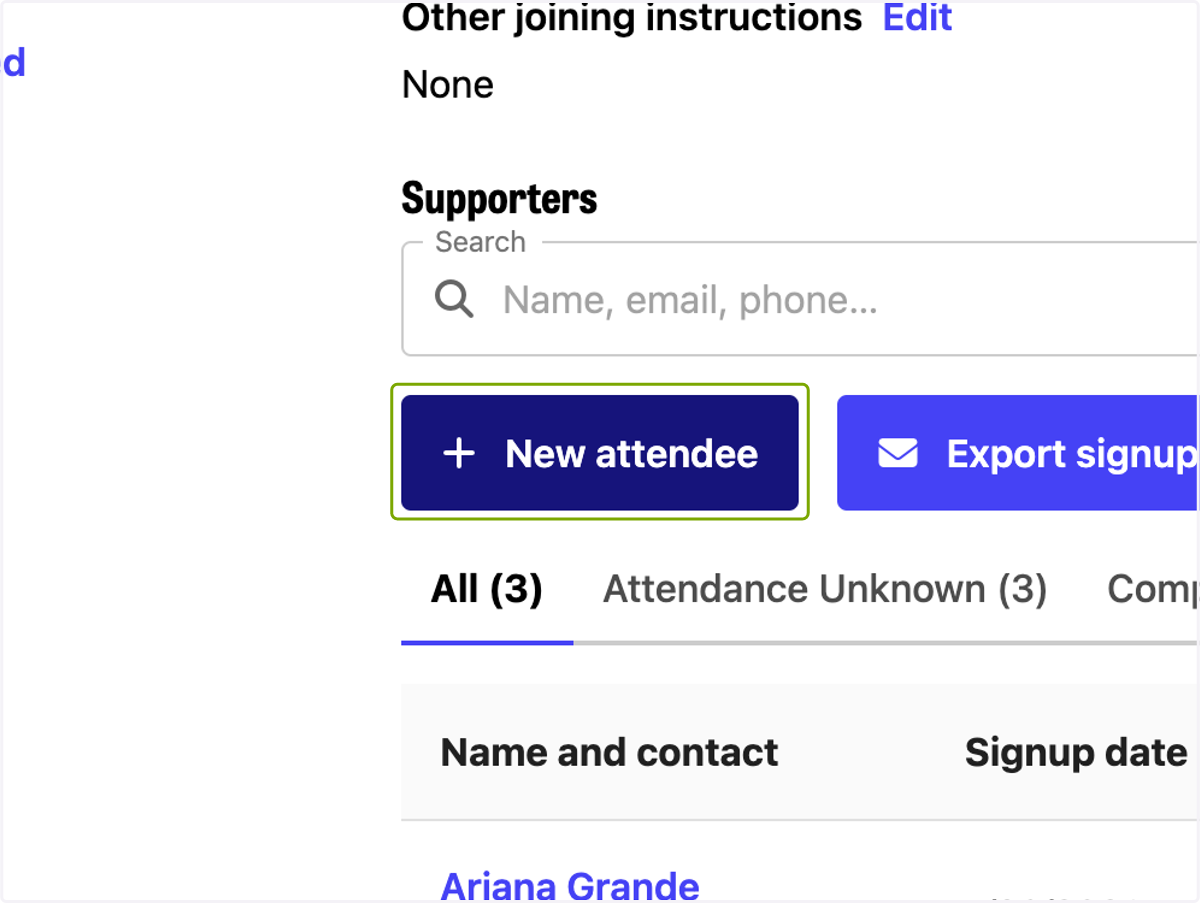
3. To add someone new/ a walk-in
If someone attends that didn't register before hand, or you can't find them on the list, here's your opportunity to track their attendance, click "+ New attendee"
NOTE: We want to have one attendee in the system for every one who attends. Because of this, we do not want to group married couples together. Even if they share an email, be sure to add each person separately.
4. Start typing the name of the walk-in
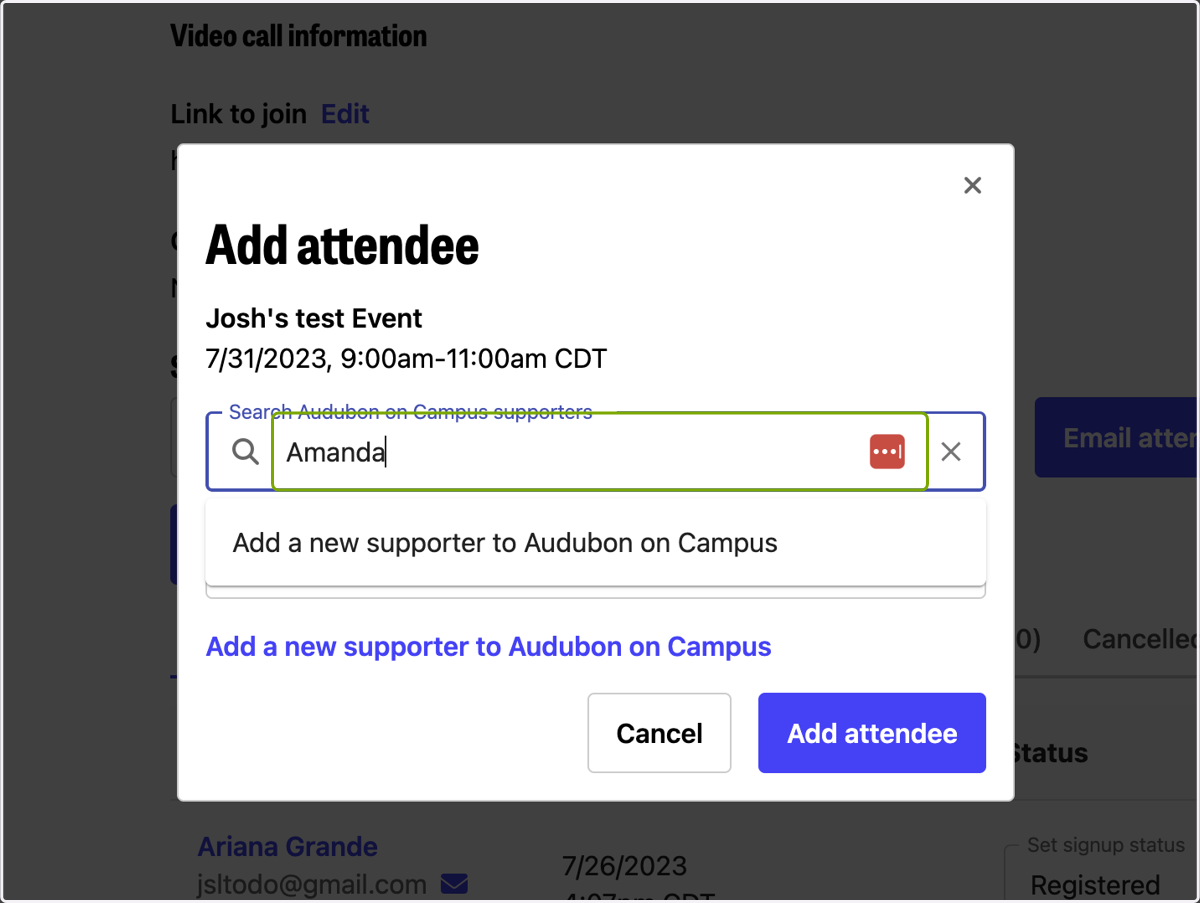
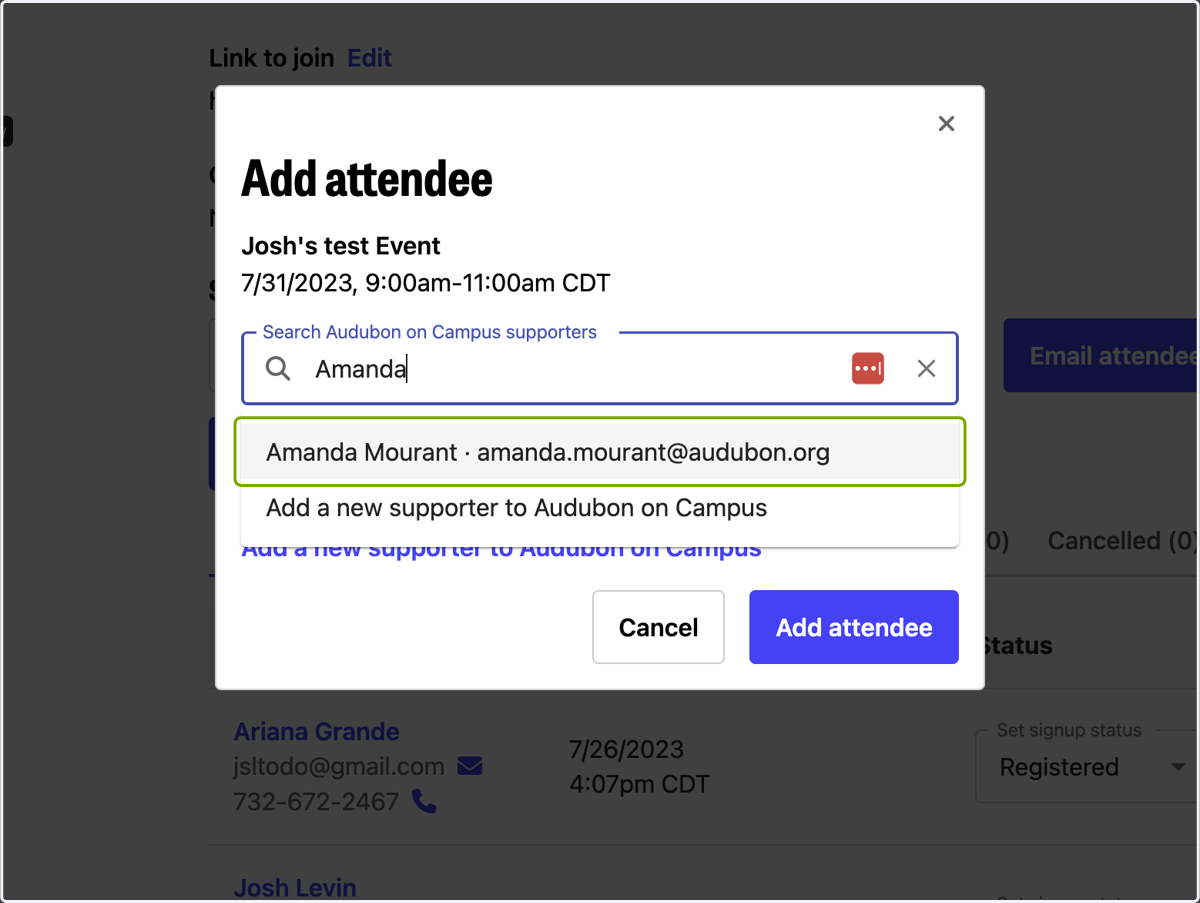
5. If the person is already in the system
Their name and email will appear if they are already in this system. Just click on their name to add them to your event/shift.
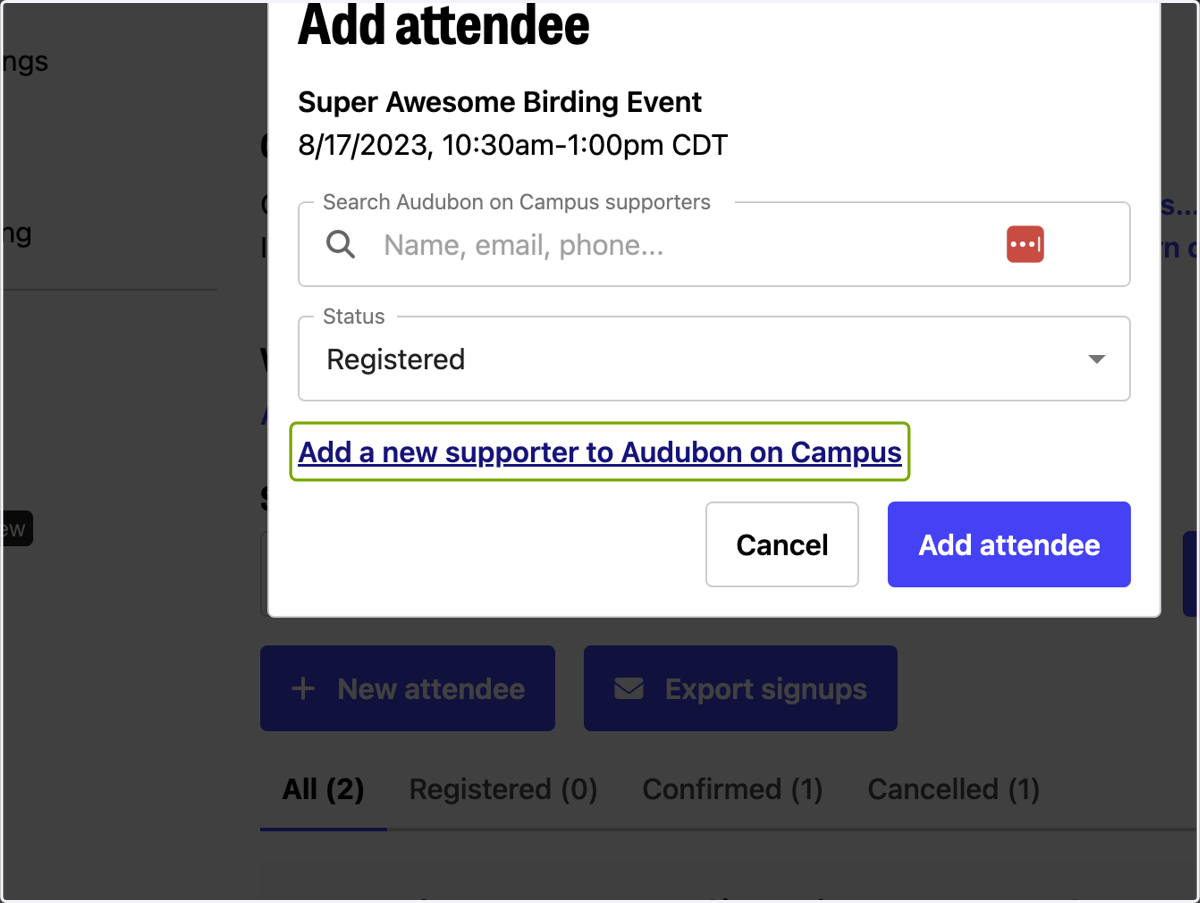
6. If the person is NOT in the system already
If the person's name and email don't pop up, it means they are not already in the system, and you need to click to "Add a new supporter to Audubon on Campus"
7. Add their details
You must add their First and Last name, as well as Email address. Try to also include their zip code and phone if you can get it.
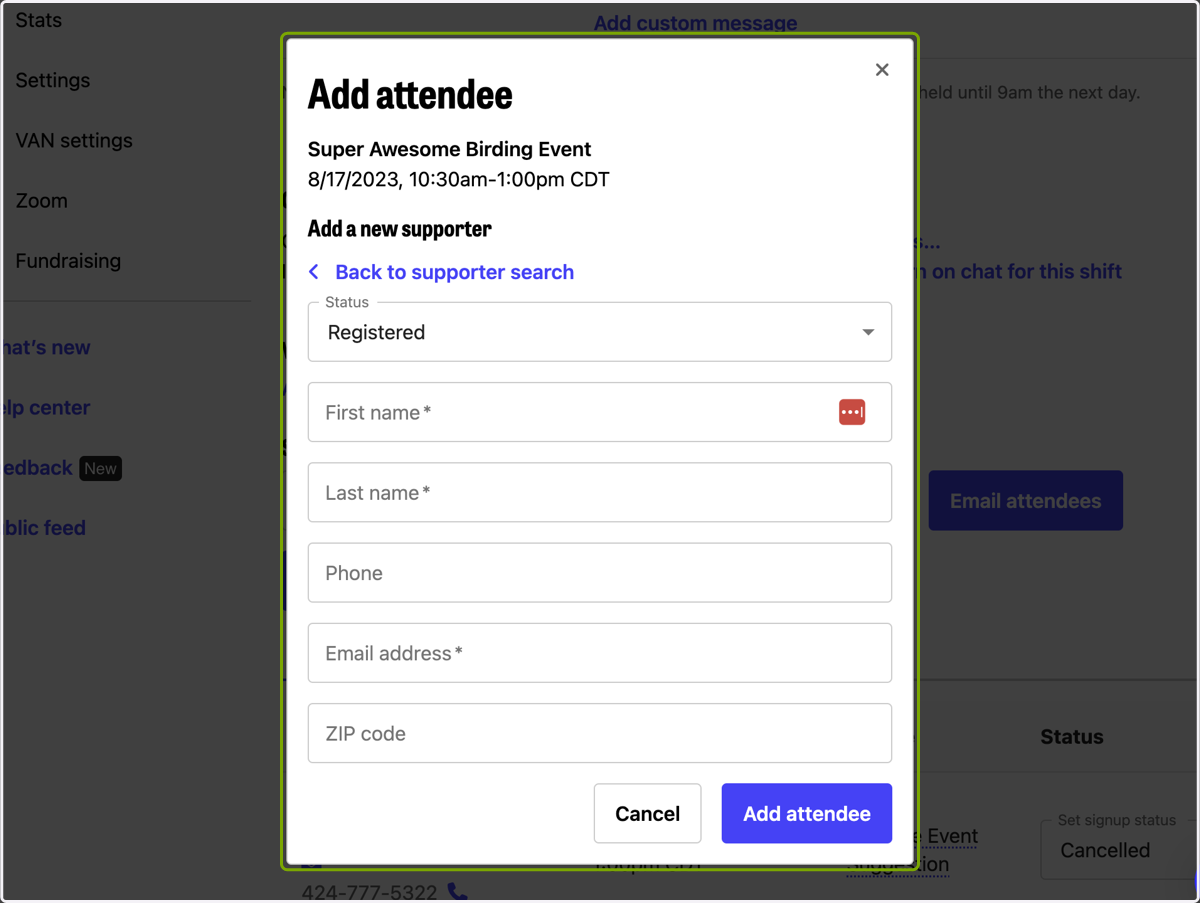
8. Add a status
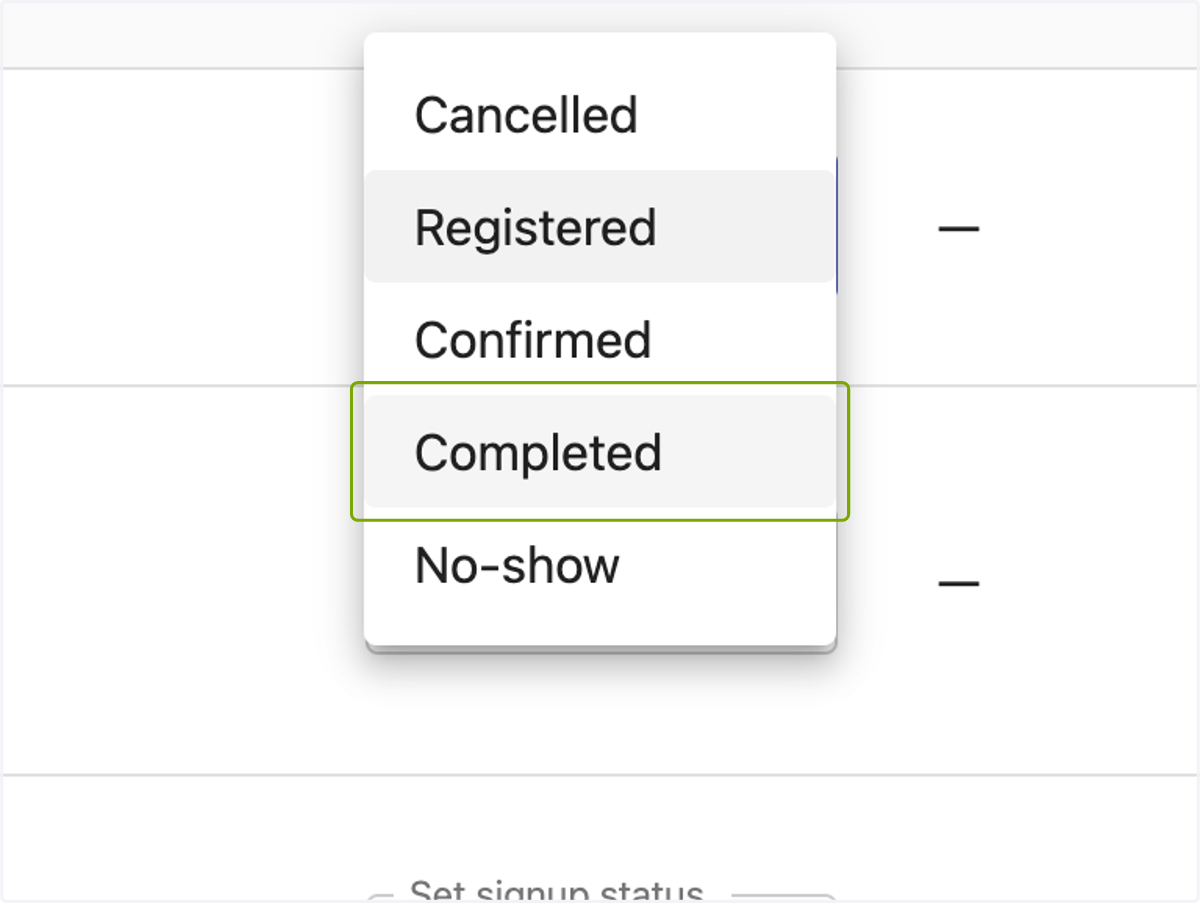
Add the status "Completed" for the new attendee.
What do the statuses mean?
Cancelled - They cancelled their shift
Registered - They have registered for that shift
Confirmed - They confirmed that they would be at the event/shift
Completed - They completed their shift/attended an event
No-show - They did not show up for their shift/event
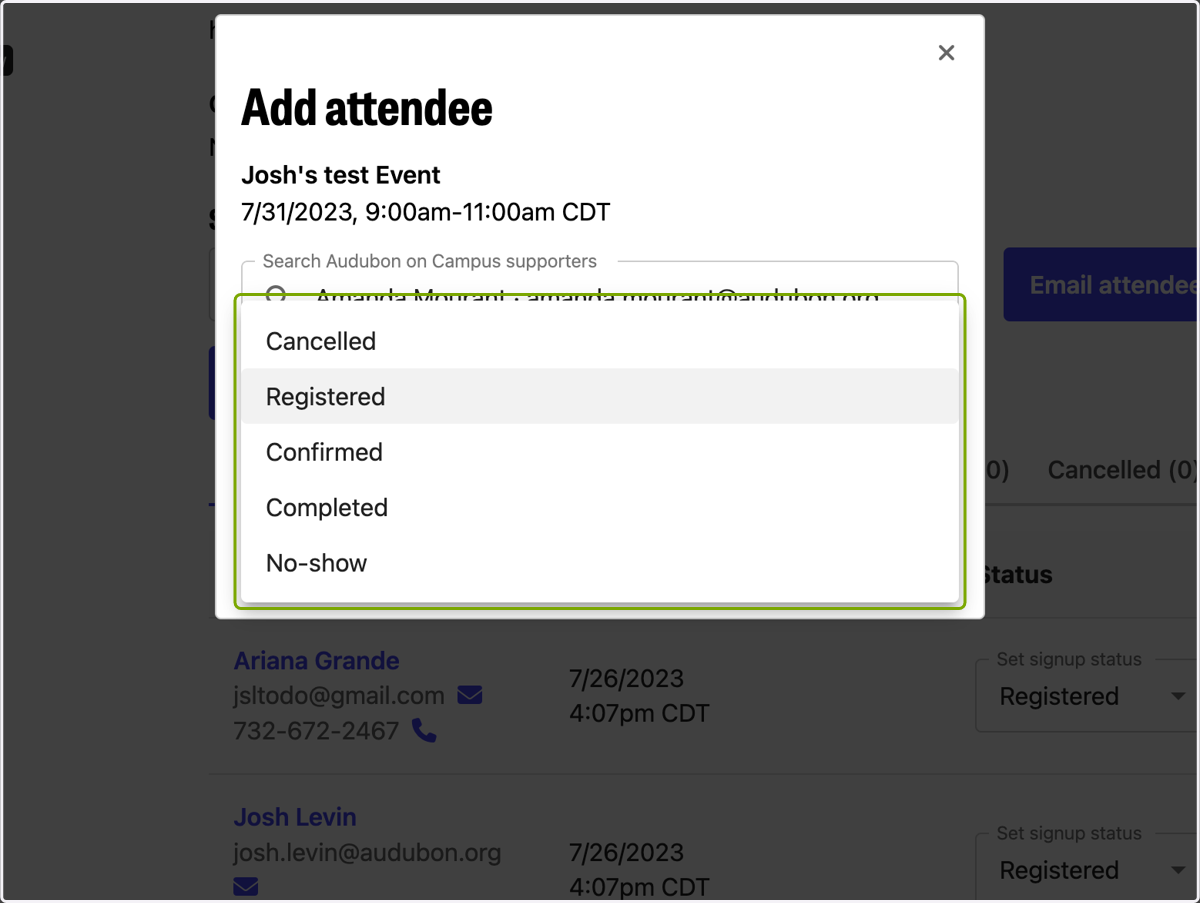
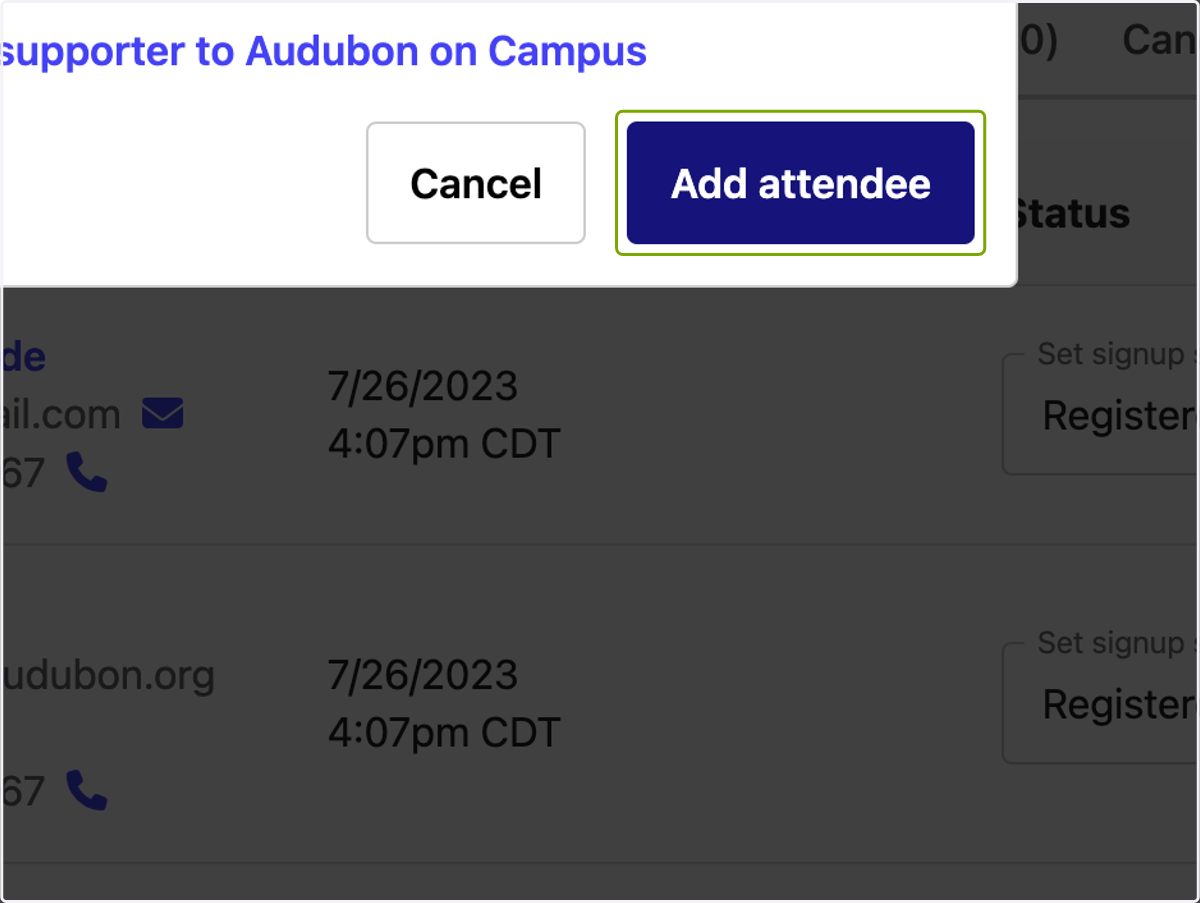
9. Click on Add attendee
10. Change the status of an existing participant
If someone is already on the attendance list, go to the status section and click into the dropdown menu.
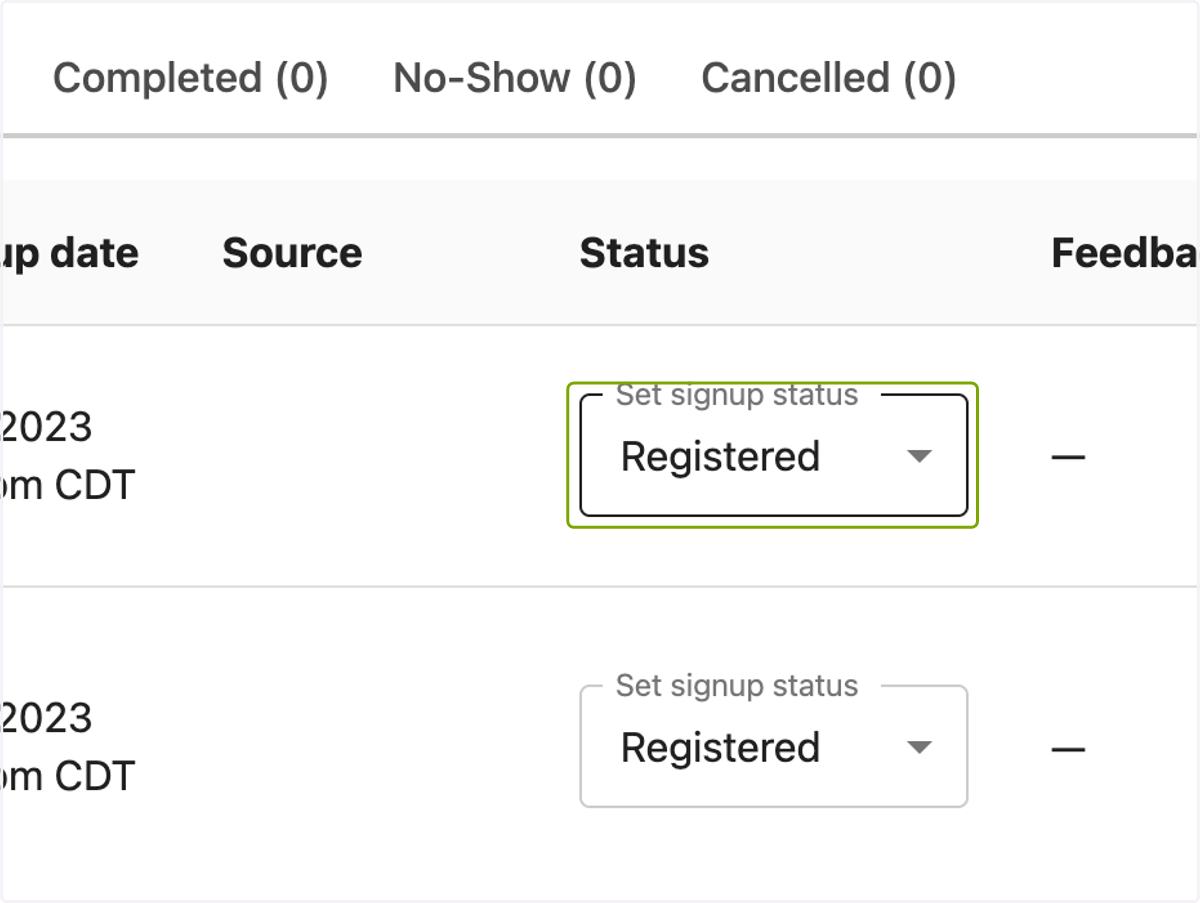
11. Mark their attendance
Select the most appropriate option from the dropdown menu
What do the statuses mean?
Cancelled - They cancelled their shift
Registered - They have registered for that shift
Confirmed - They confirmed that they would be at the event/shift
Completed - They completed their shift/attended an event
No-show - They did not show up for their shift/event
Note: it will save automatically when you change their status.