Canvas - Access Denied Error
Canvas
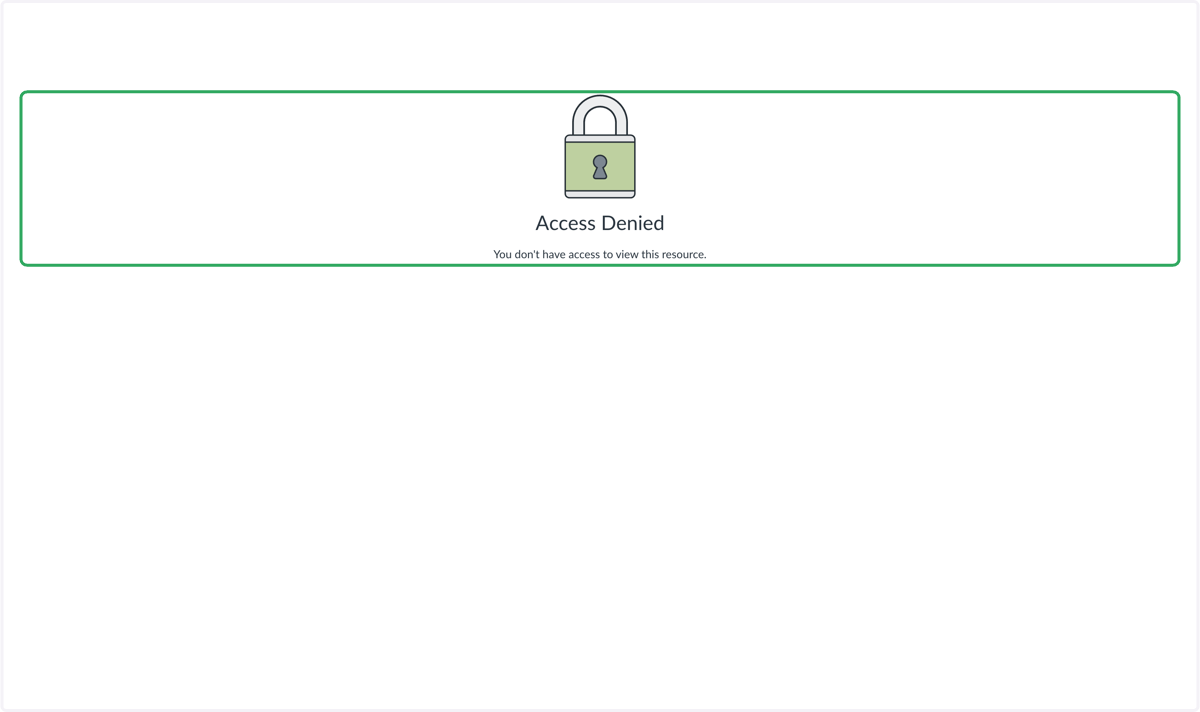
1. Occasionally, a student may receive an 'Access Denied' error when they login to Canvas.
This is an easy fix with just a few clicks.
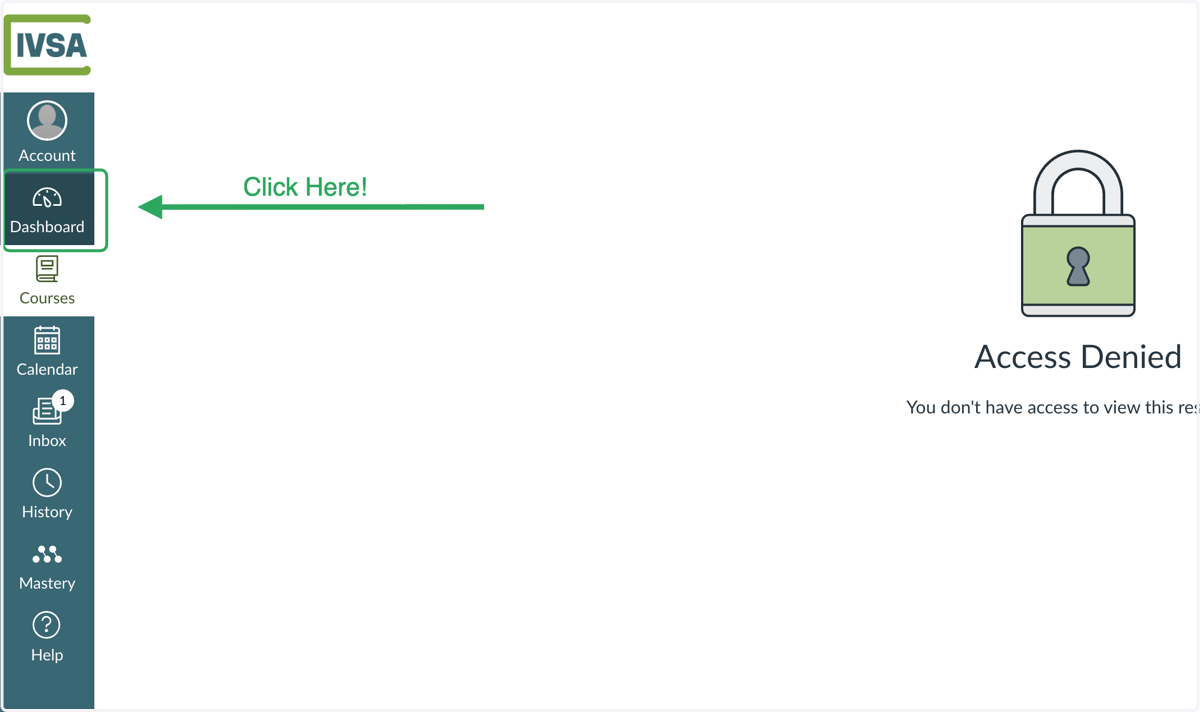
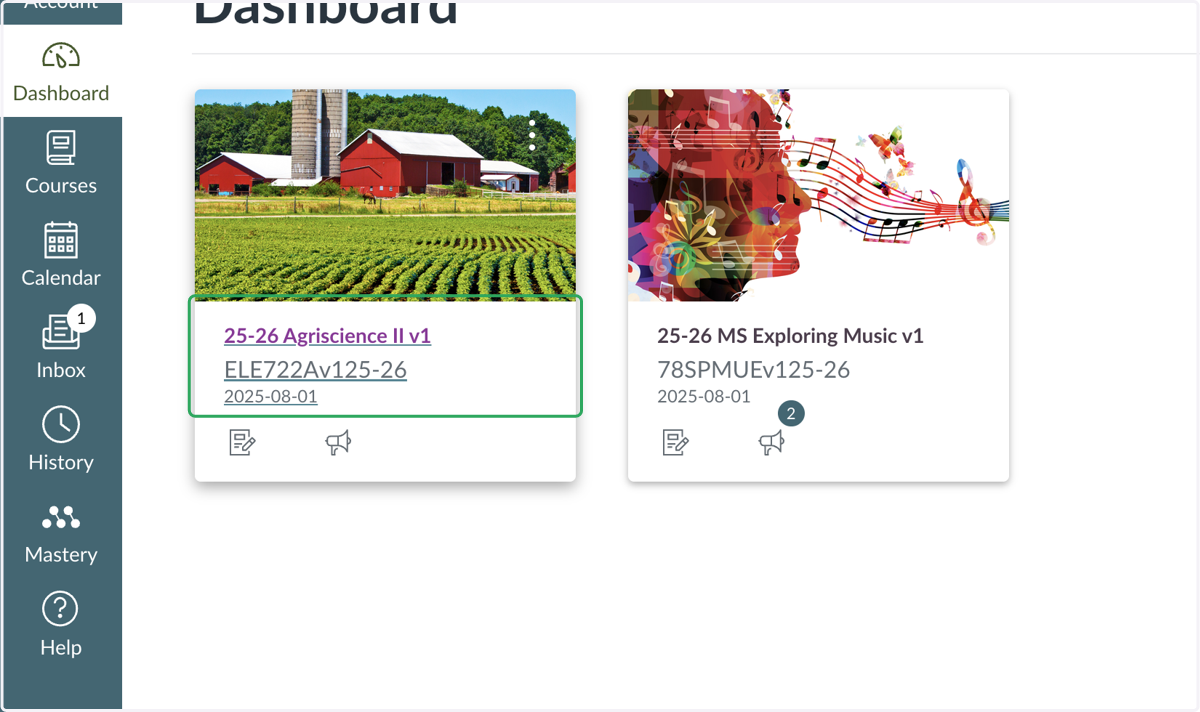
2. Click the Dashboard icon on the left side of your screen.
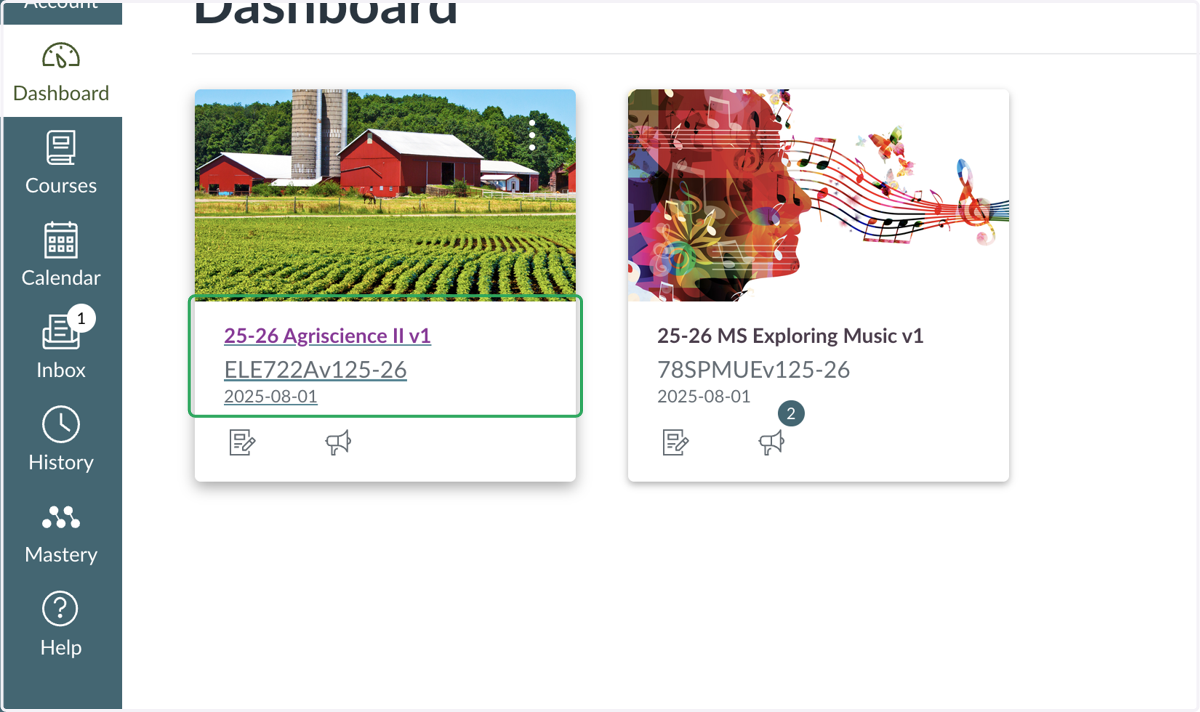
3. Now you should see your course cards.
If you do not see your course cards after clicking the Dashboard icon, please proceed to step 5.
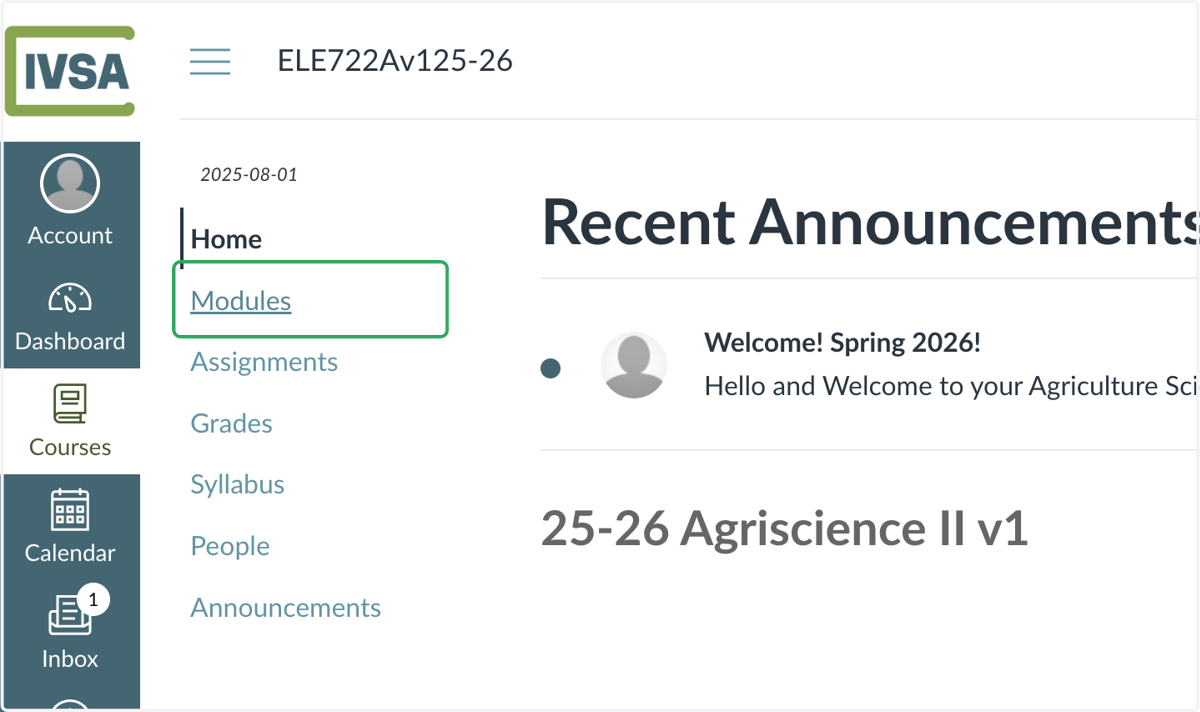
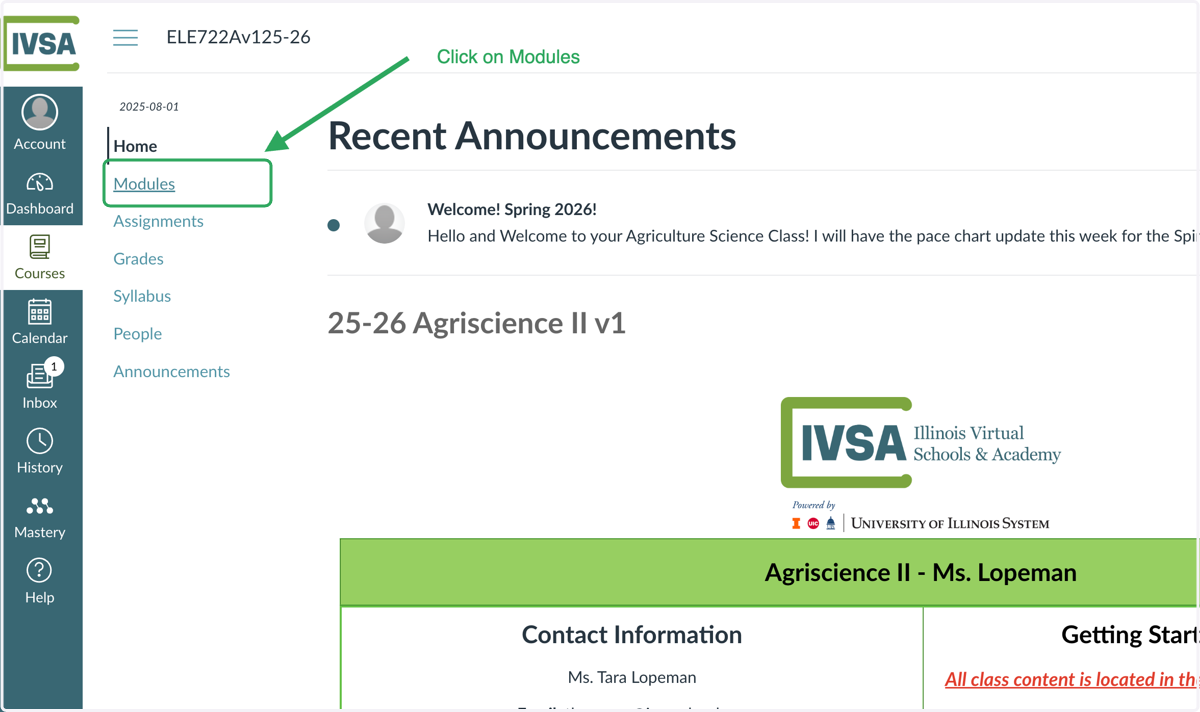
4. Click on Modules
After you click on the course card, you'll click on Modules to navigate to your course content.
5. LIST VIEW
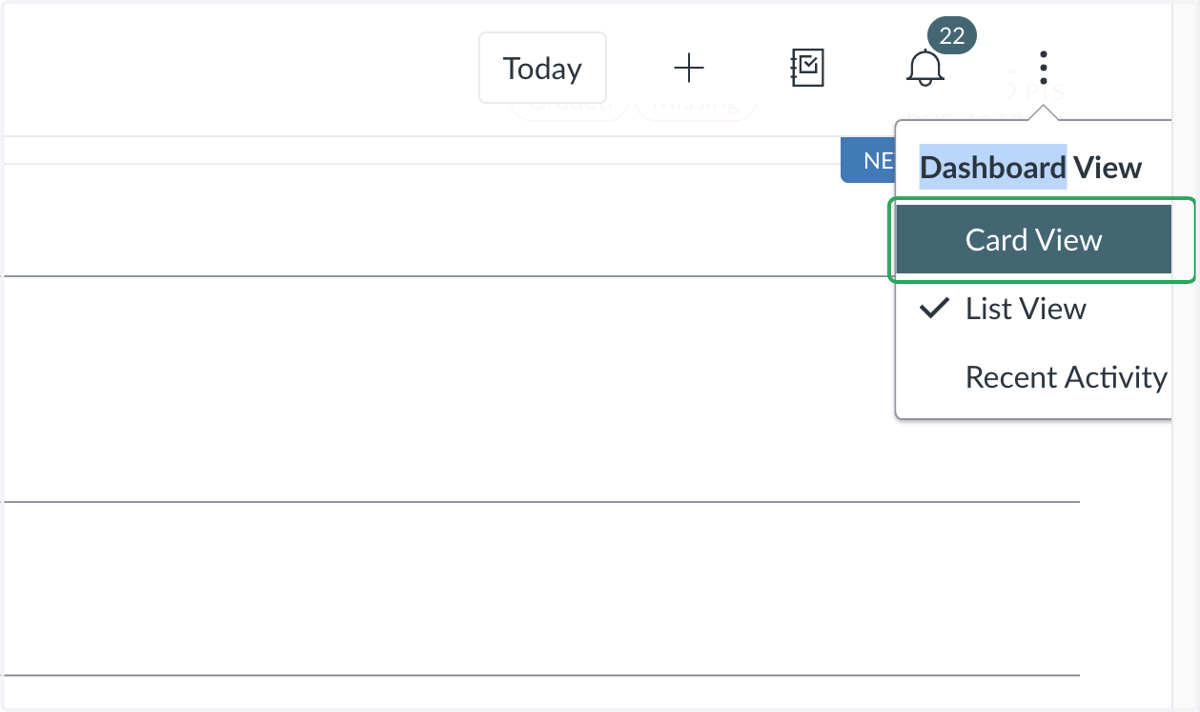
If you don't see your course cards after clicking the Dashboard icon, then you're likely in 'List View', and will need to change to 'Card View'.
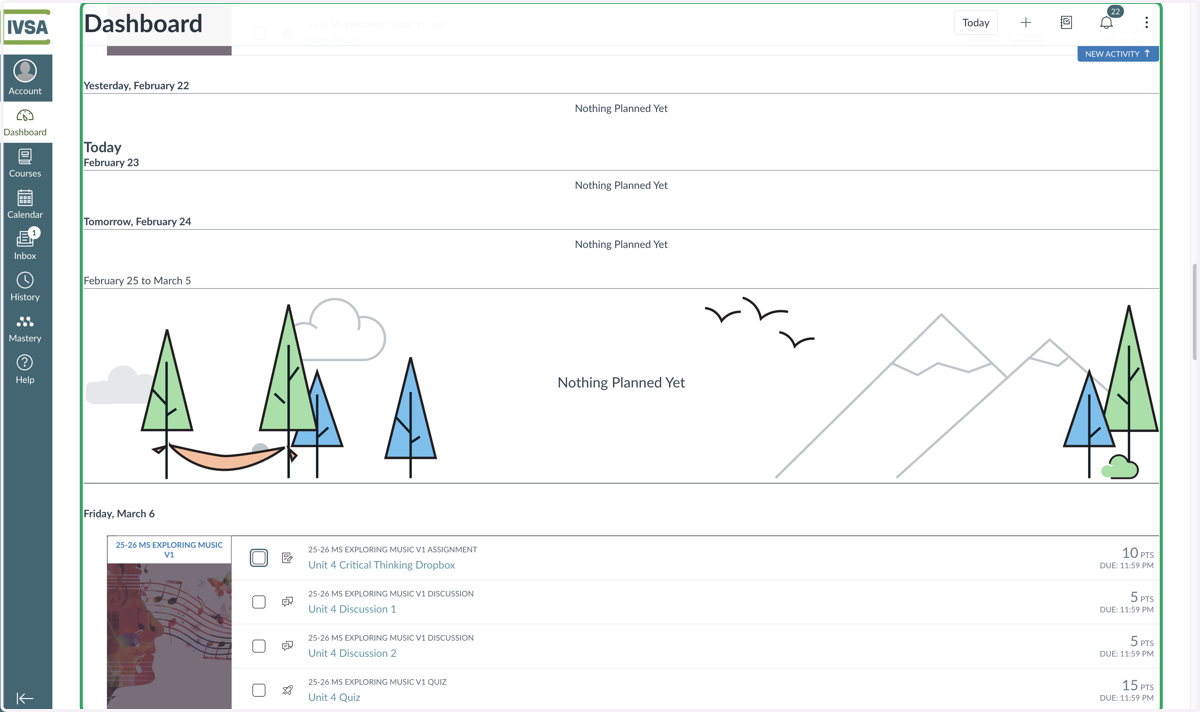
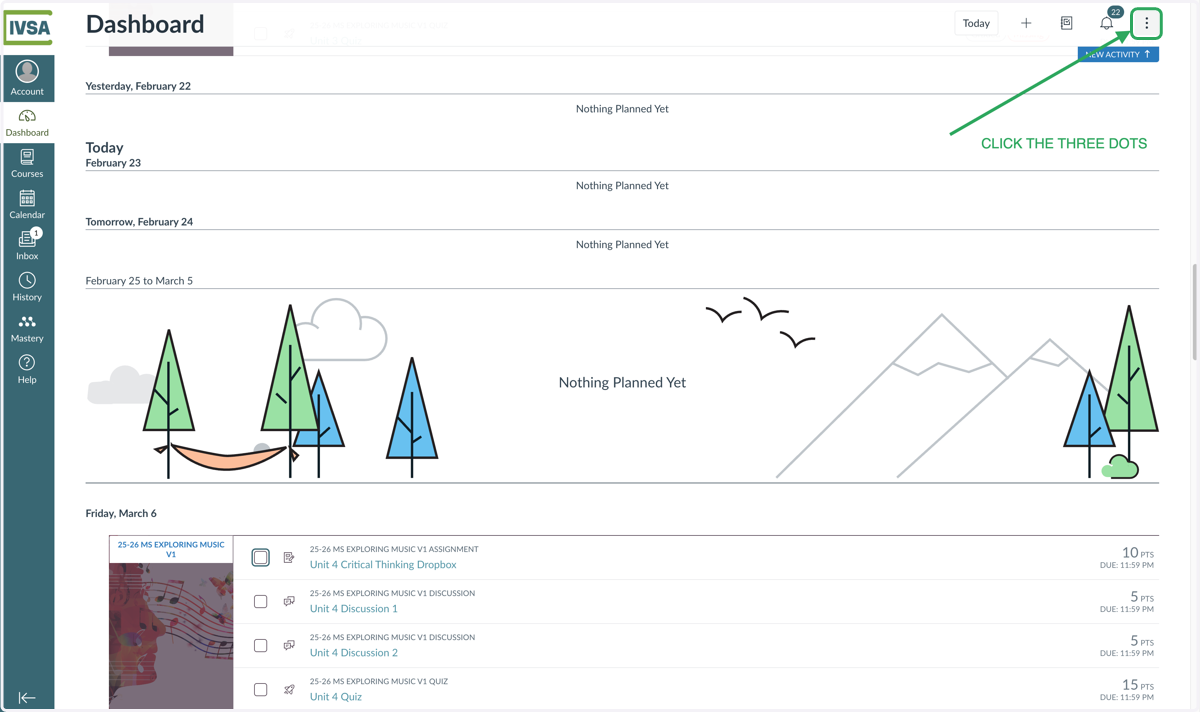
6. Click the three dots in the upper right corner.
7. Click on Card View
8. Now, you should see your course cards.
Select your course card to access the course.
9. Click on Modules to access your course content.
Still need help? Contact us at support@ivsaschool.org.