CMS - School Choice Online Application System
1. Navigate to the Charlotte-Mecklenburg Schools Family Dashboard for School Choice Applications. (https://nccms.scriborder.com/)

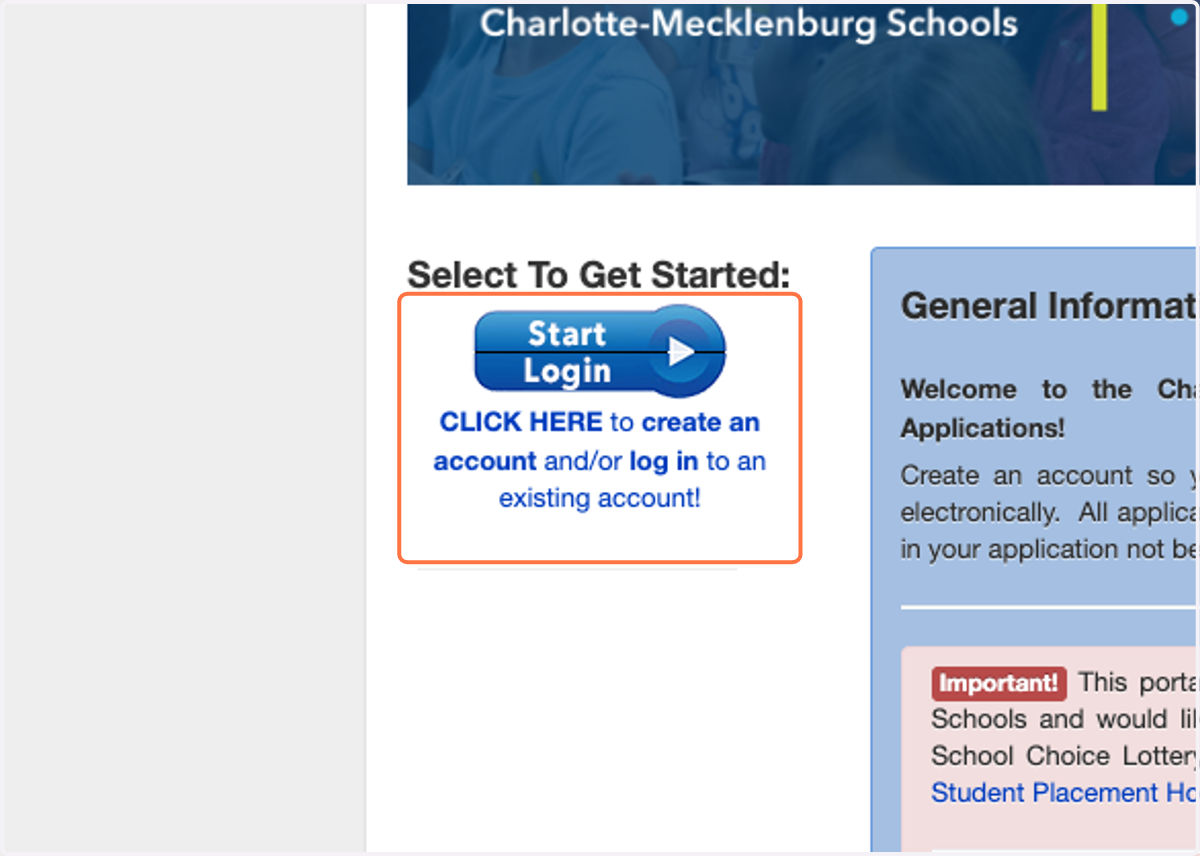
2. Click on the blue 'Start Login' button to create an account and/or log in to an existing account.
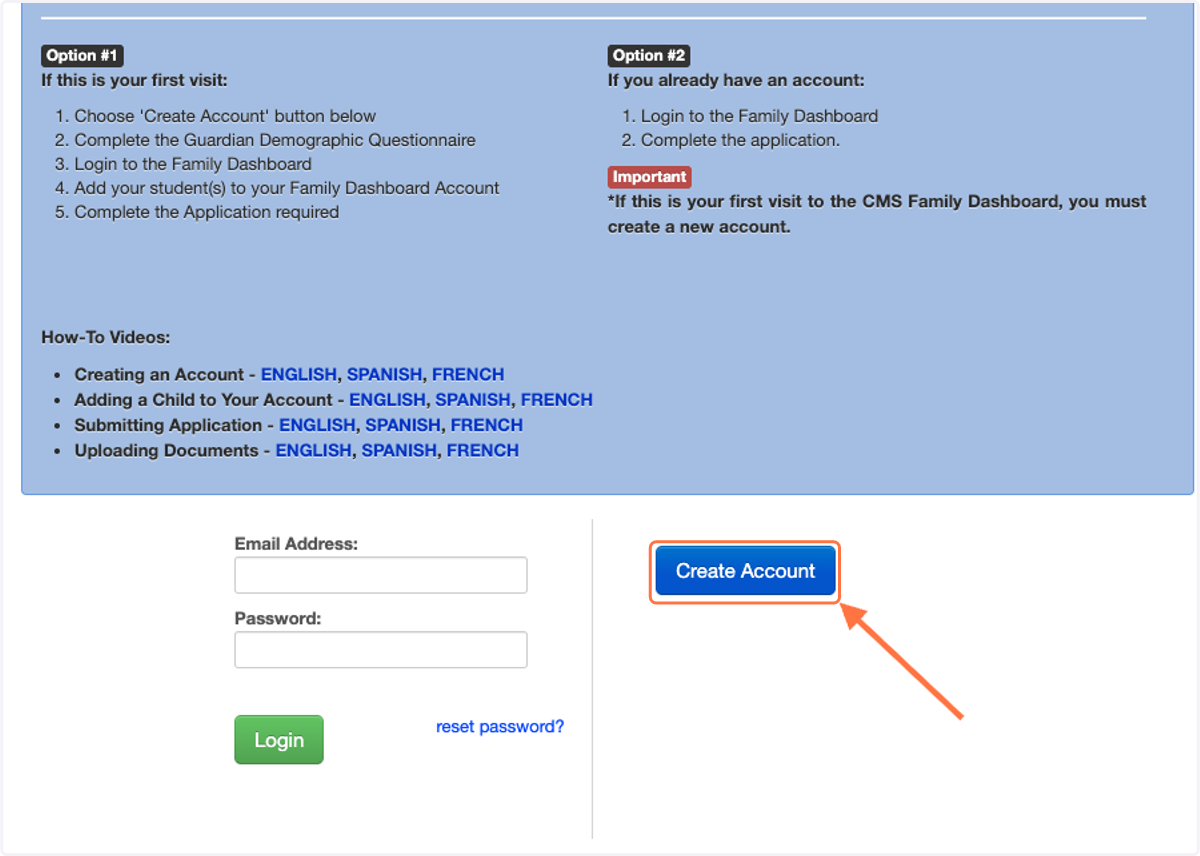
3. If this is your first time accessing the system, click on Create Account.
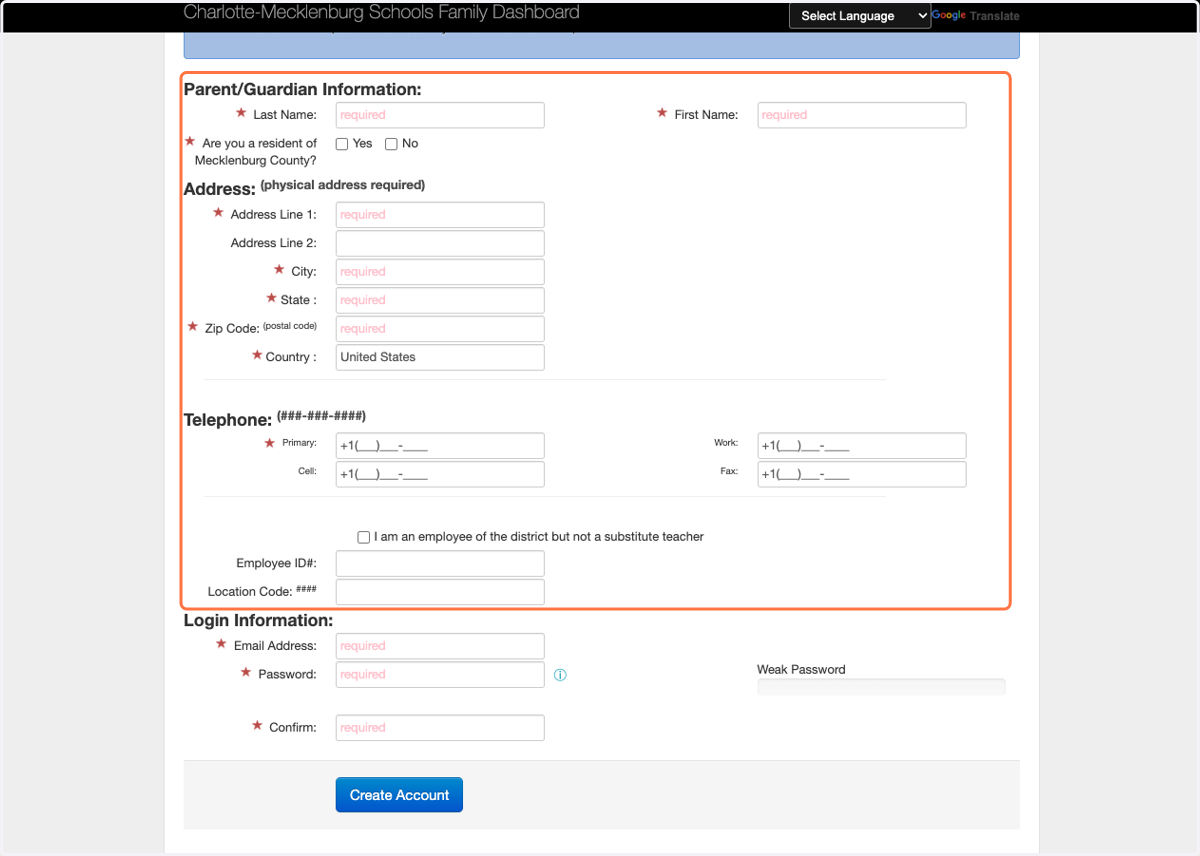
4. Enter your Parent/Guardian Information.
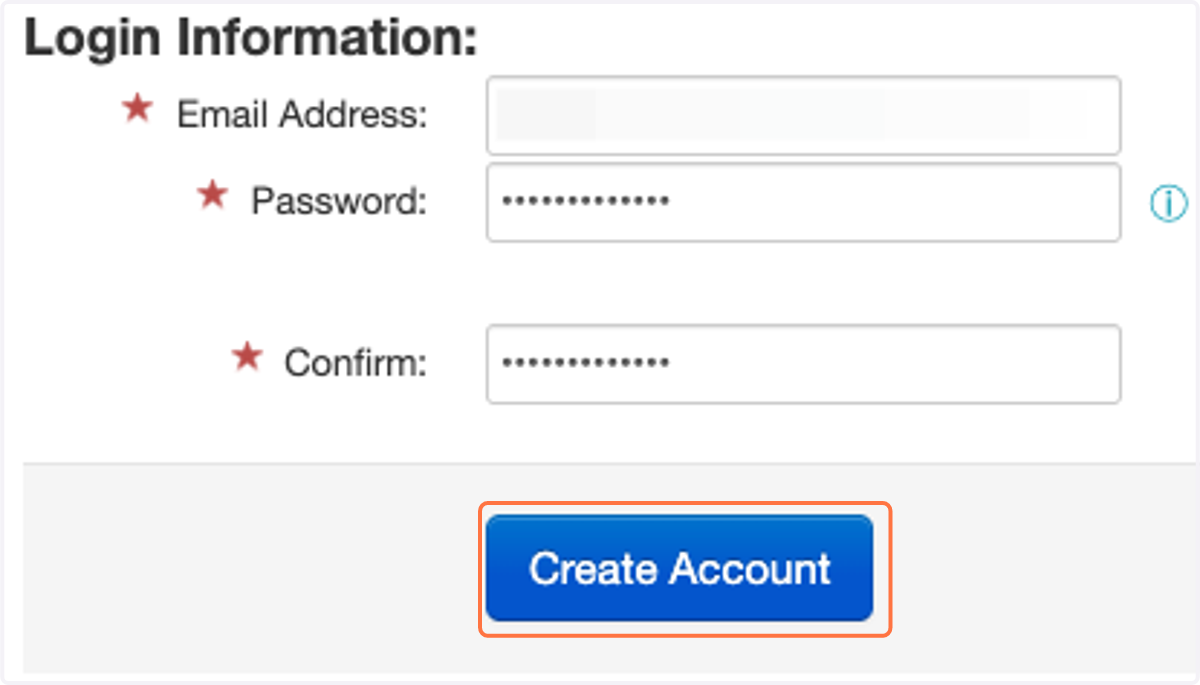
5. Enter your email and a secure password, then click on 'Create Account'.
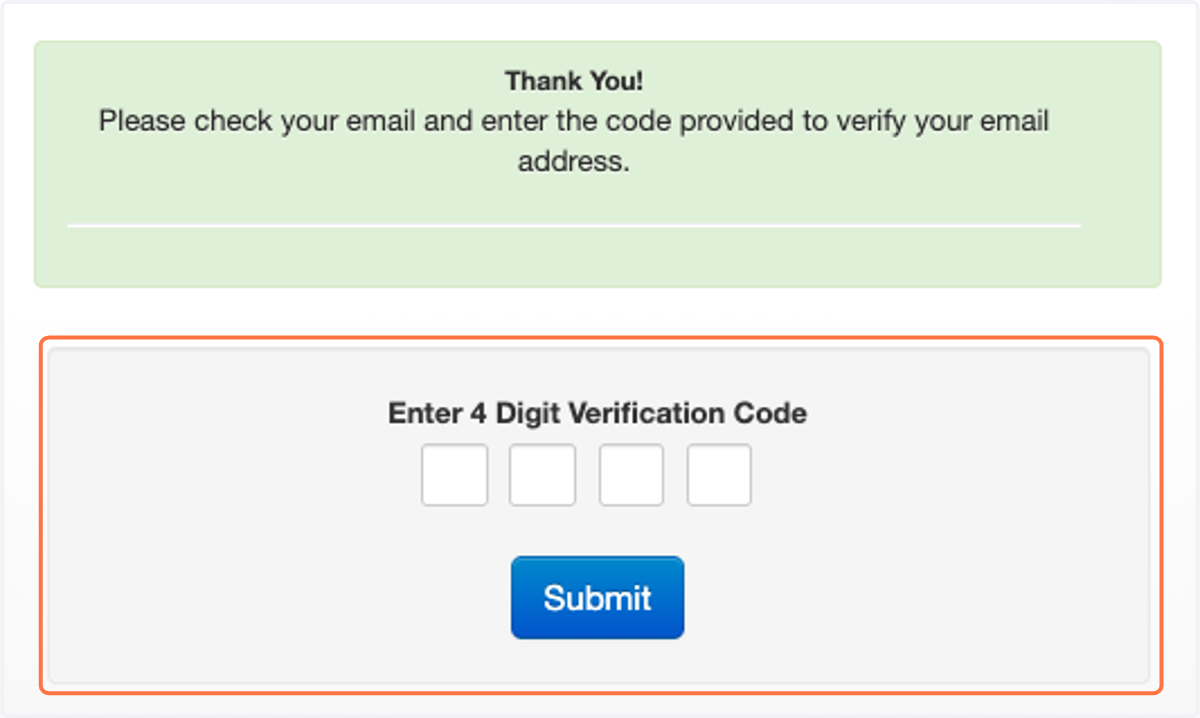
6. Check your email for a 4 Digit Verification Code. Enter that code into the website, then click on 'Submit'.
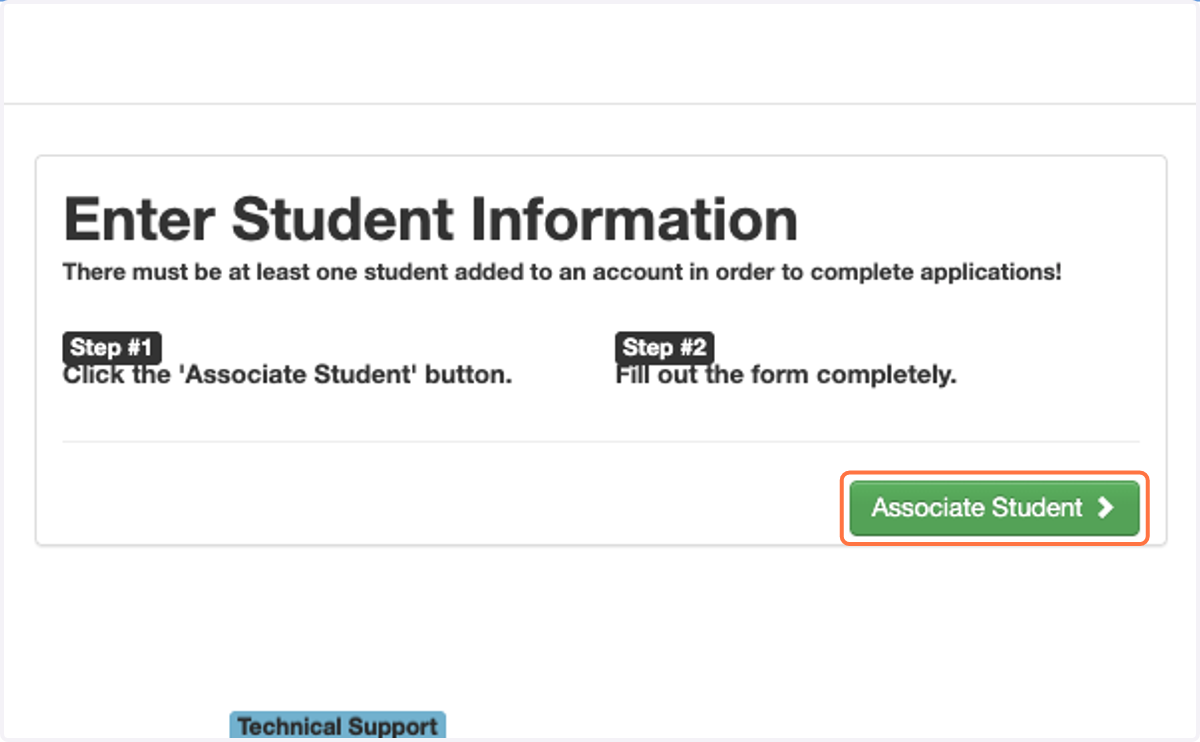
7. To add a student to your Family Dashboard account, click on 'Associate Student'.
8. IMPORTANT: A student ID is required to apply in the School Choice Lottery. You can retrieve your student ID on ParentSquare or by contacting your school. If your student is not currently enrolled, please complete Future Registration via the main CMS website.

9. Enter your student's information.
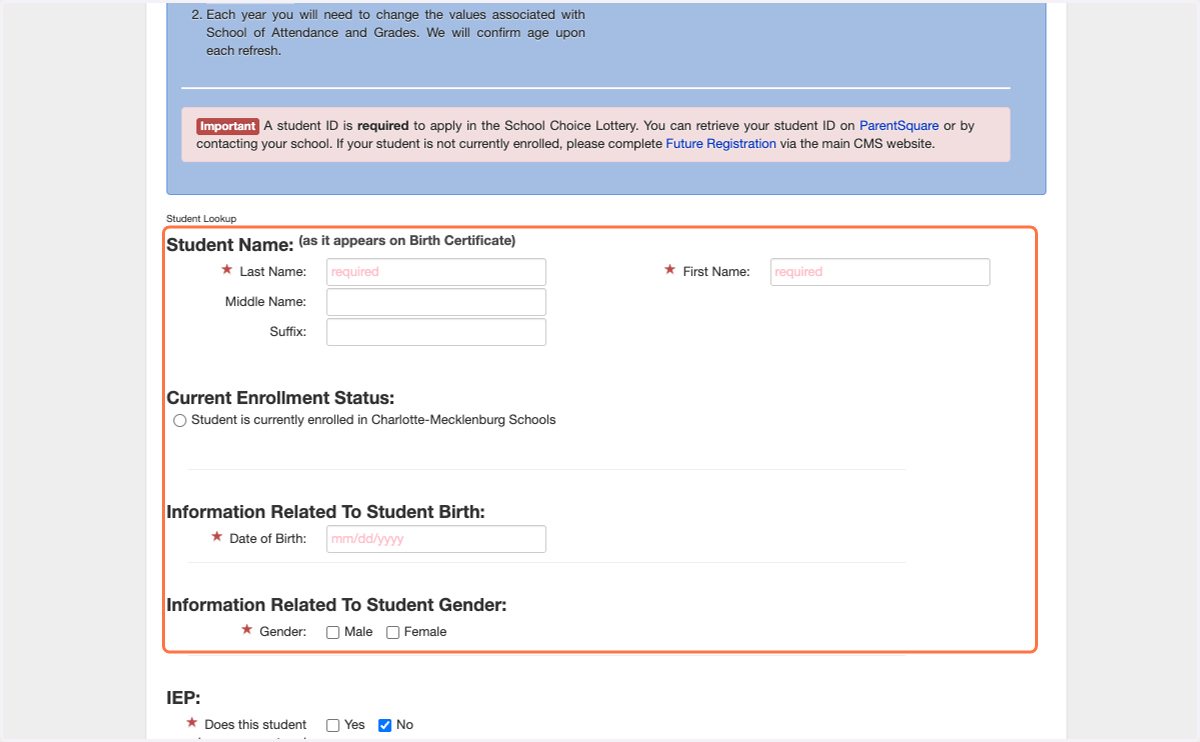
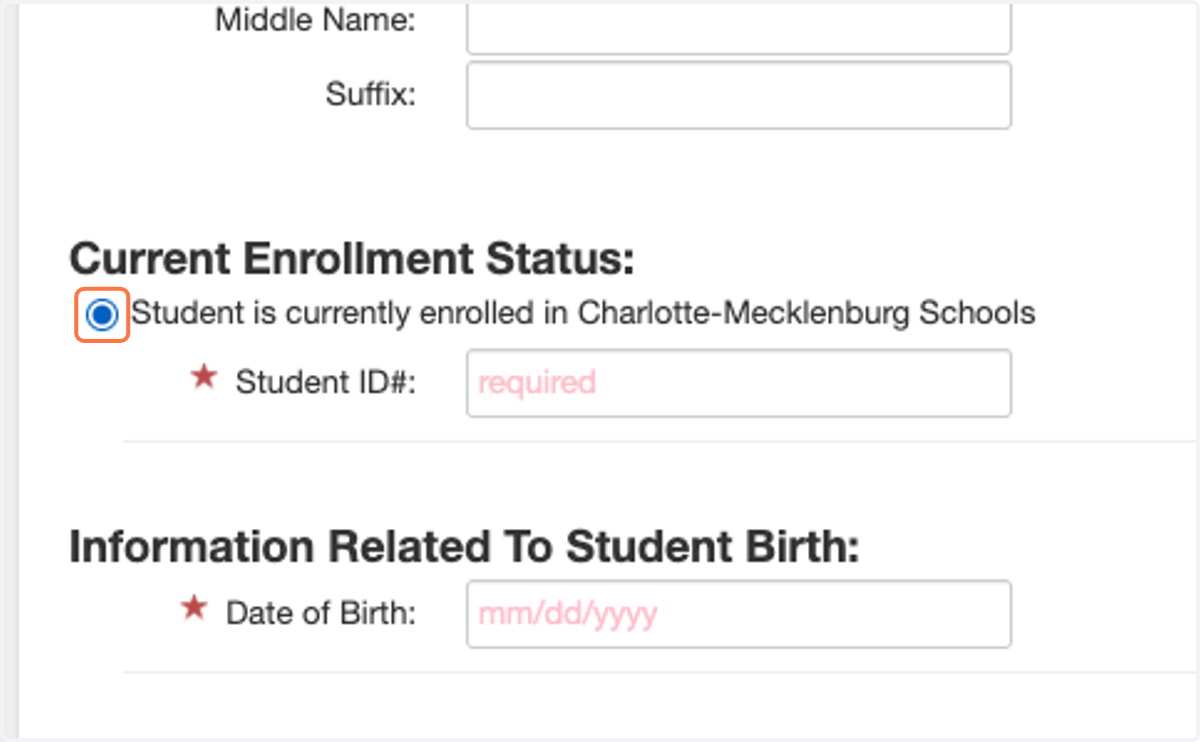
10. Click and enter the student's Student ID.
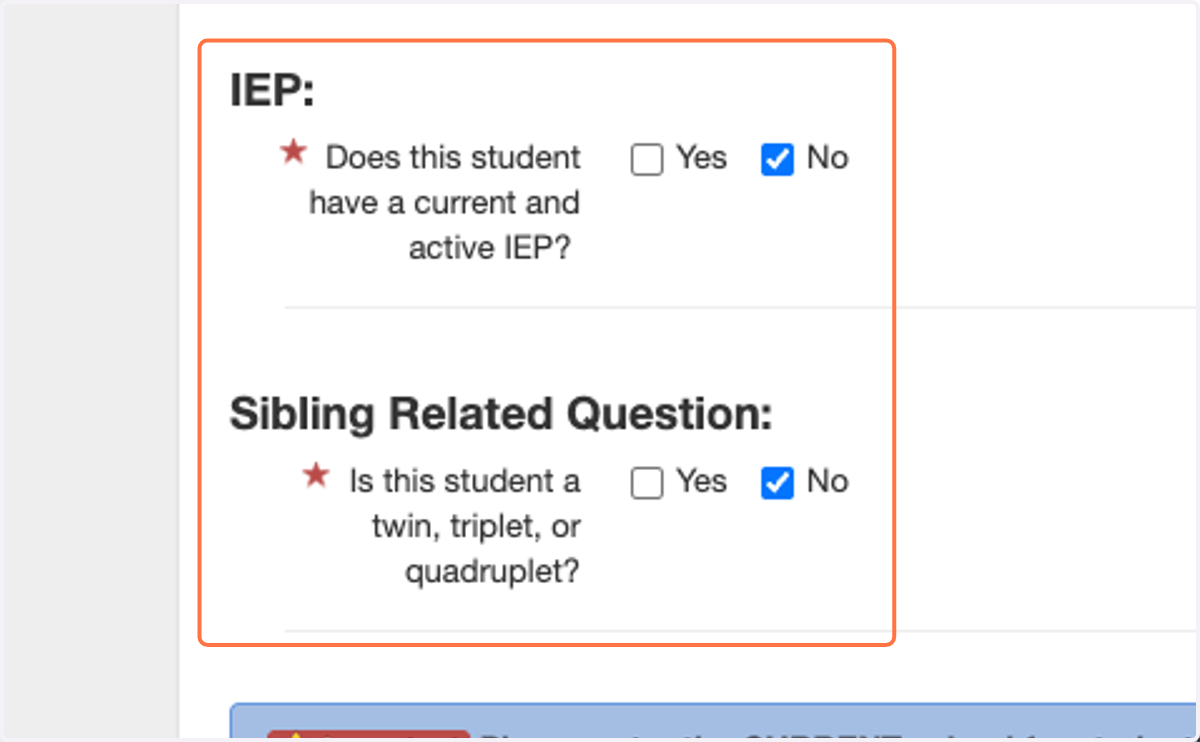
11. Complete the IEP and Sibling Related Questions
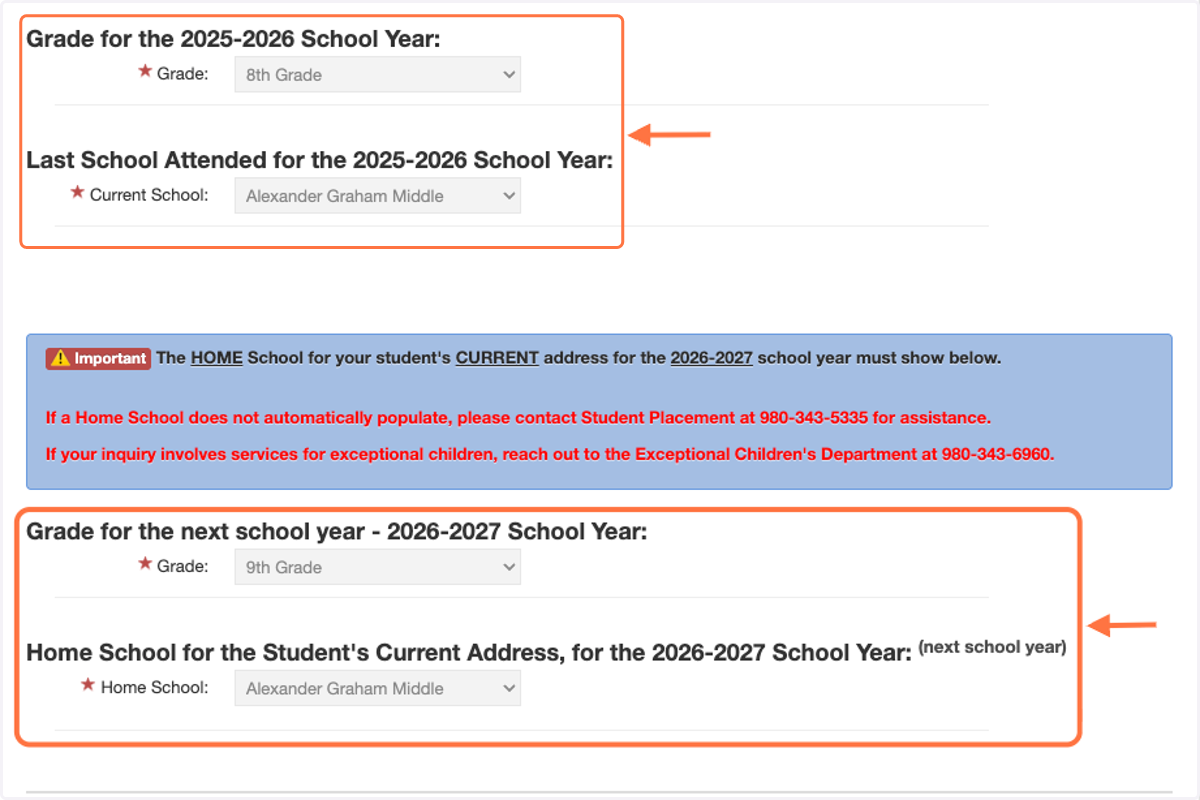
12. Grade and School information will automatically populate.
If a Home School does not automatically populate, please contact Student Placement at 980-343-5335 for assistance.
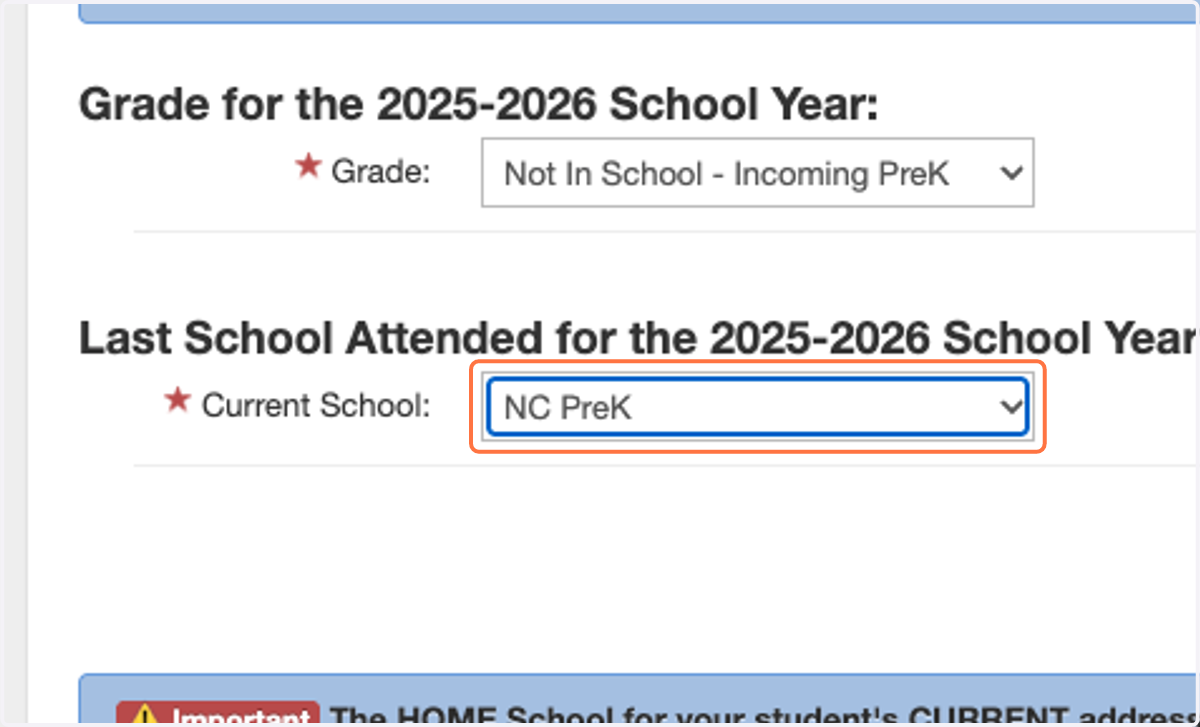
13. If your student is currently in NC PreK, please select 'NC PreK' from the Current School list.
(It is the option right above Albemarle Road Elementary)
14. Select your Relationship to Student from the dropdown menu.
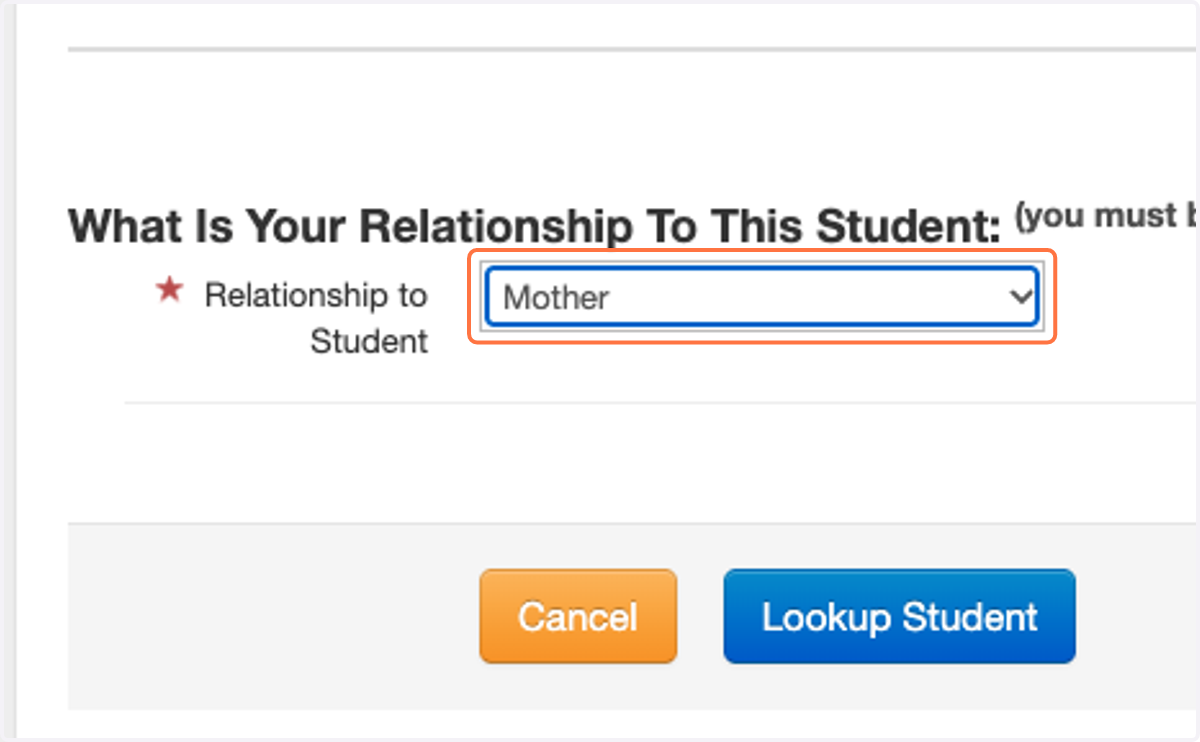
15. To submit/save, click on 'Lookup Student'.
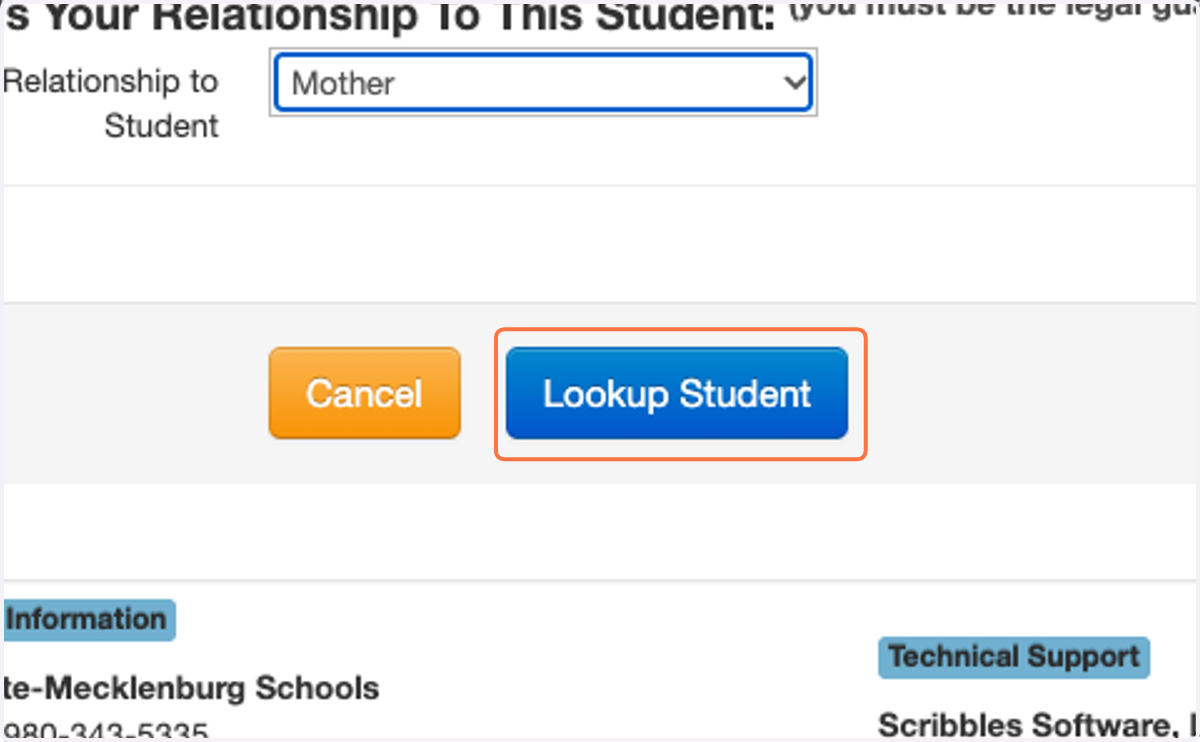
16. This will bring you out to the main Family Dashboard page. Click on 'Begin Application' to begin submitting an application.
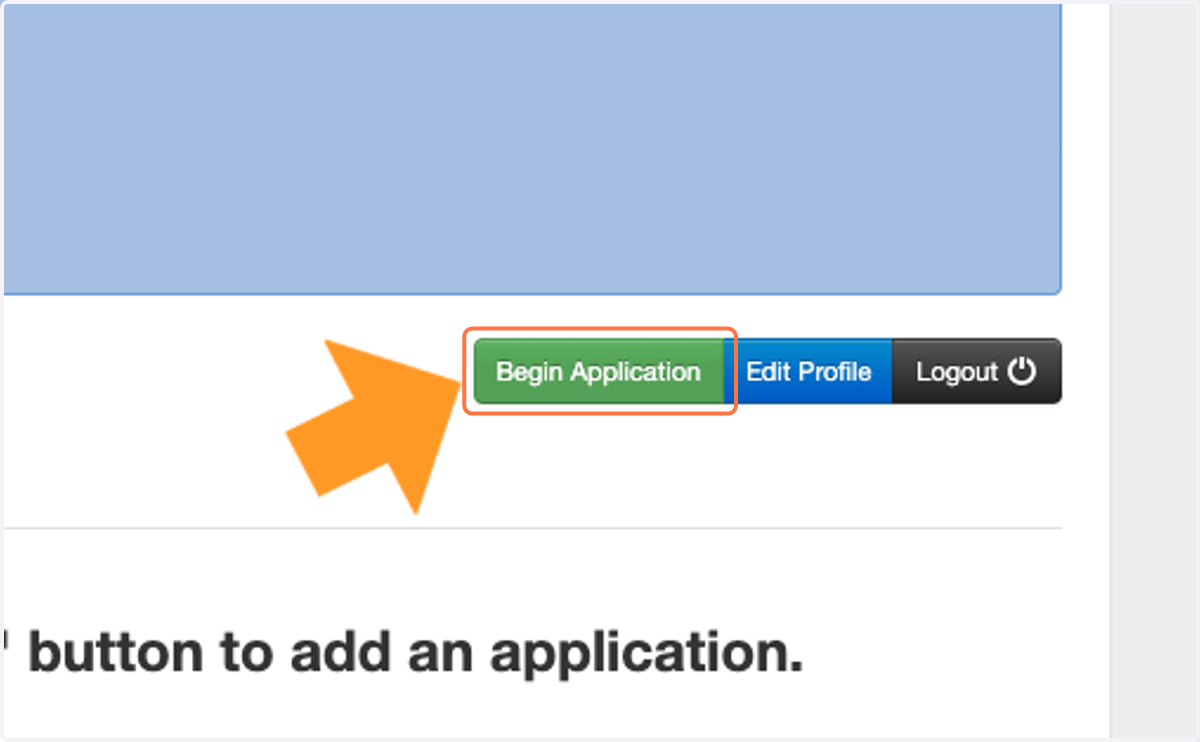
17. Click on 'Begin Application for [Student's Name]'.

18. Click on the correct application category.
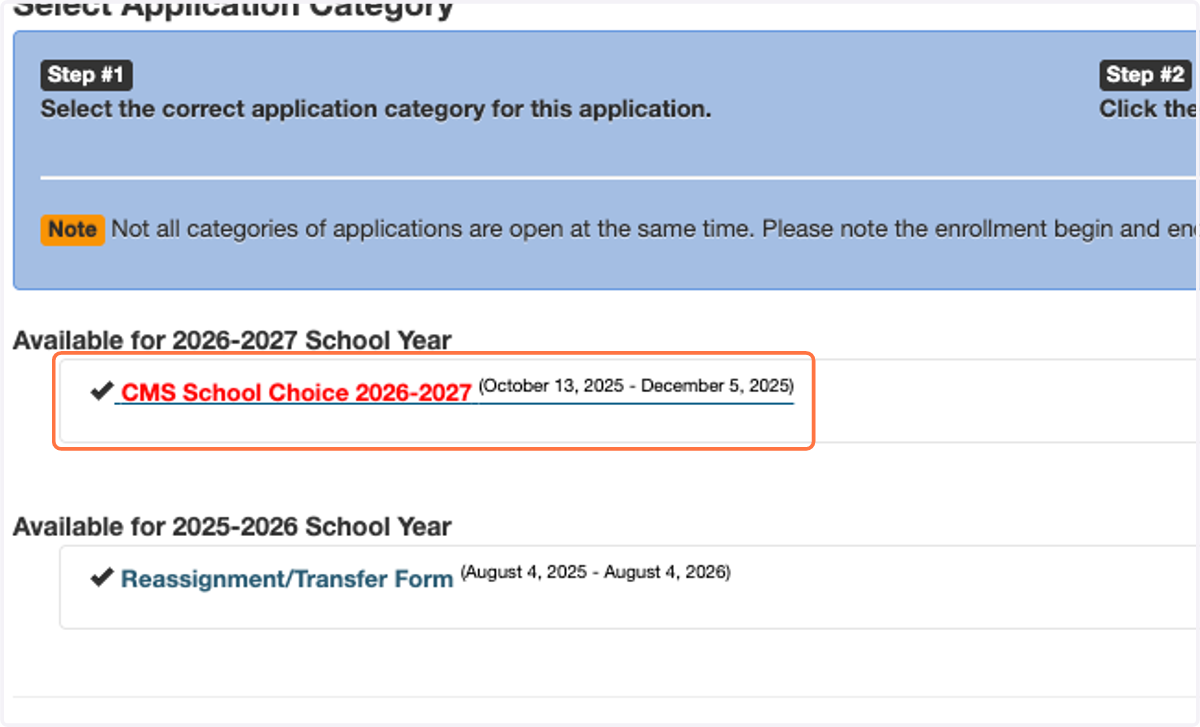
19. Click on 'Select' to navigate to the next page.

20. Select your first School Choice from the available list.
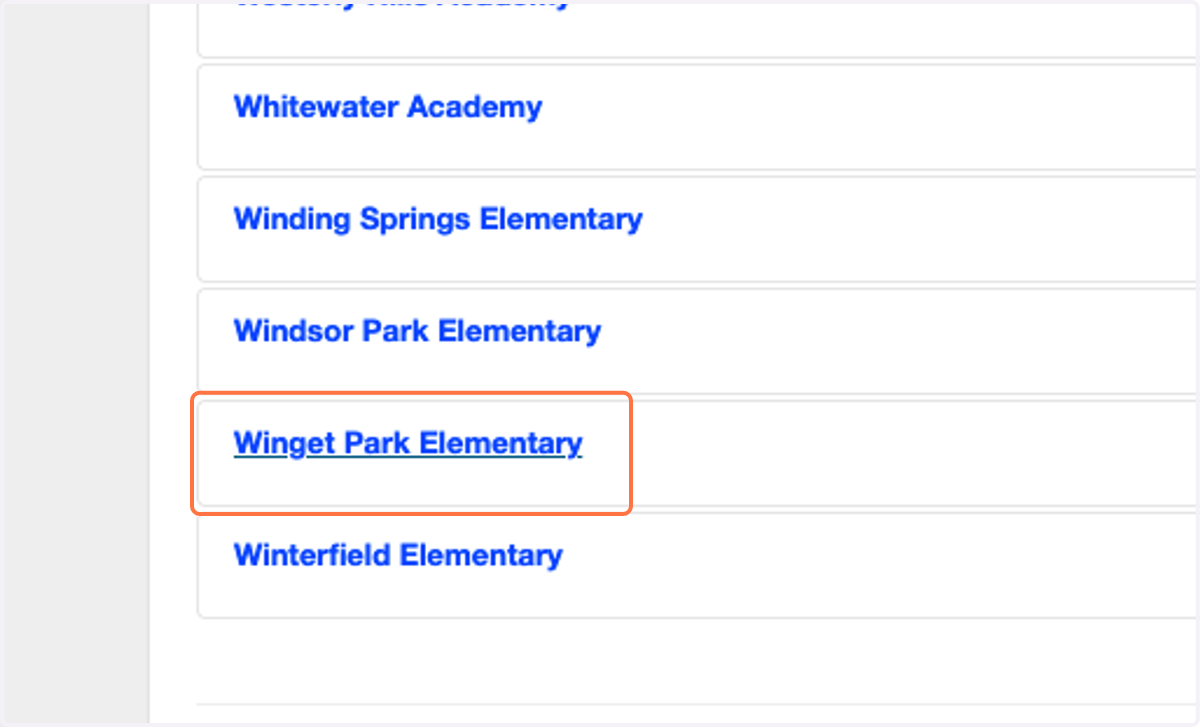
21. Click on 'Select' next to your choice to proceed to the next page.
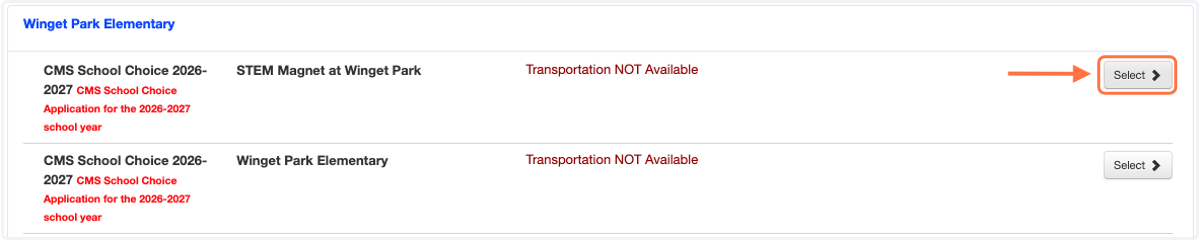
22. Click on Complete New Application
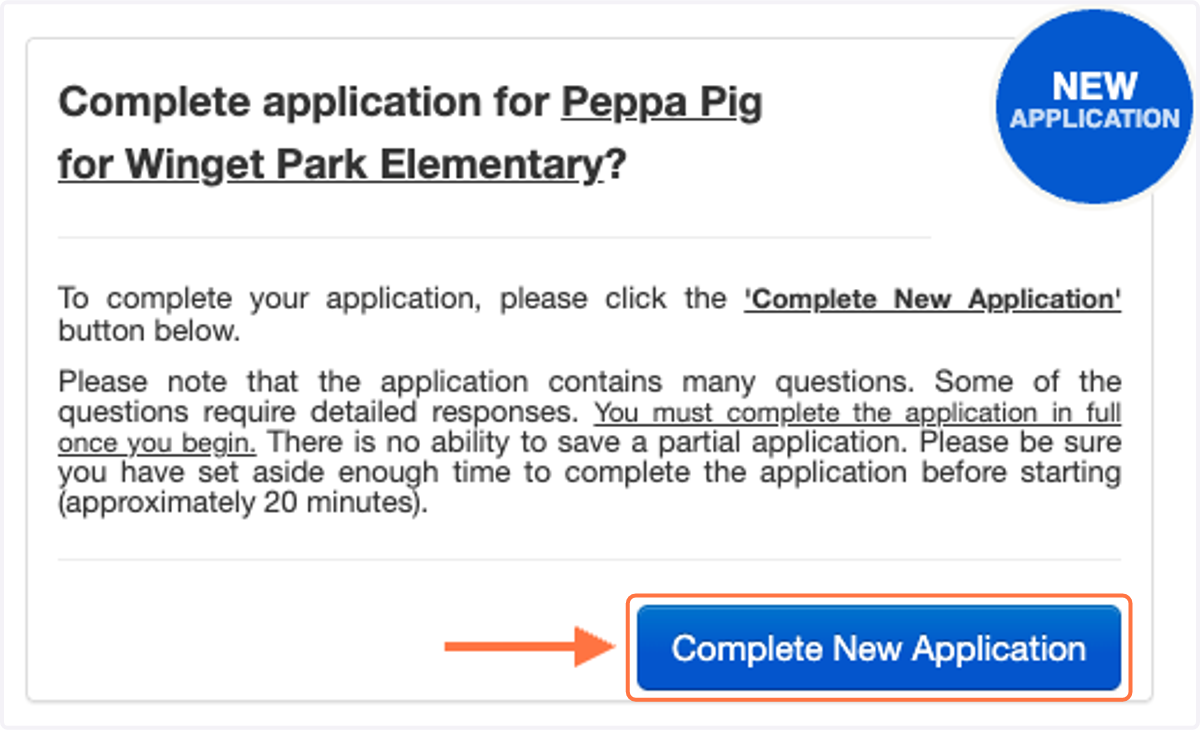
23. Complete all available questions.
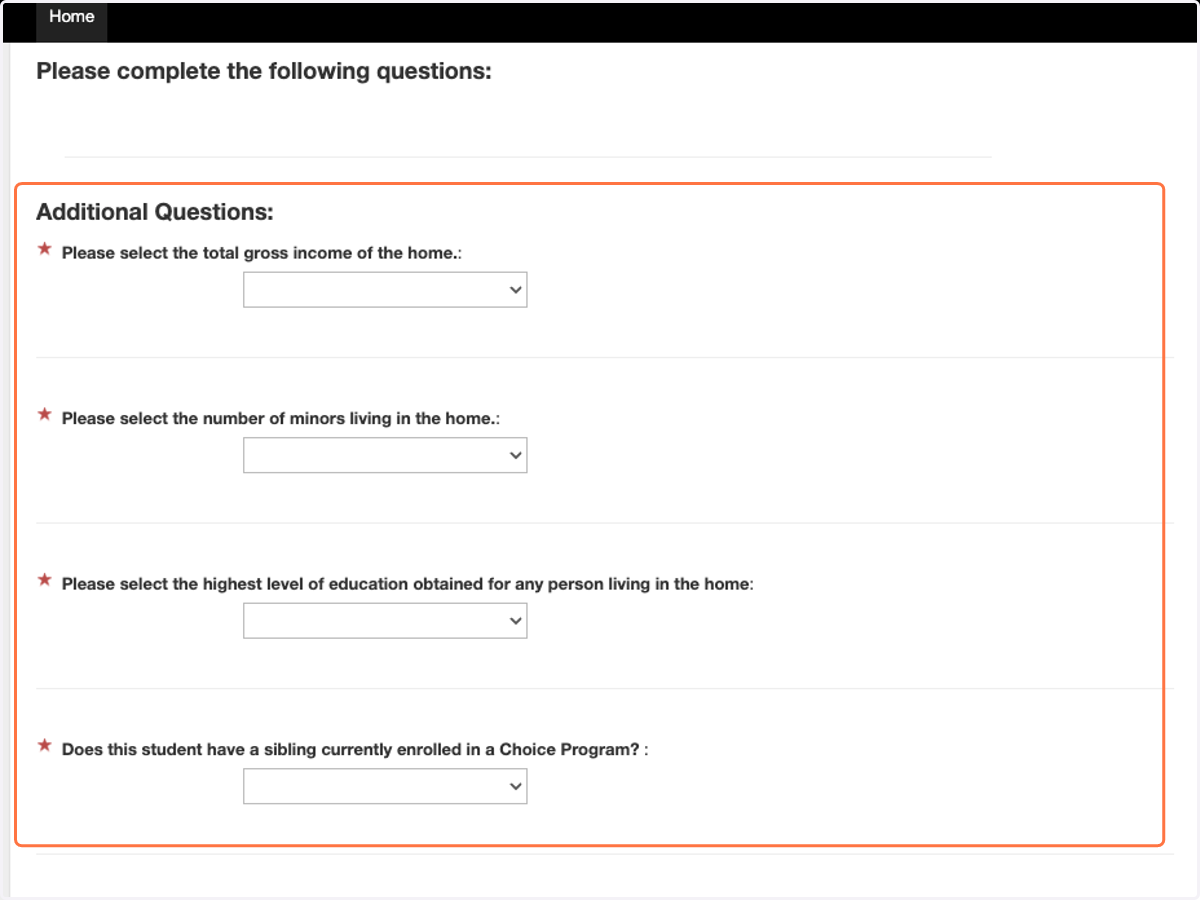
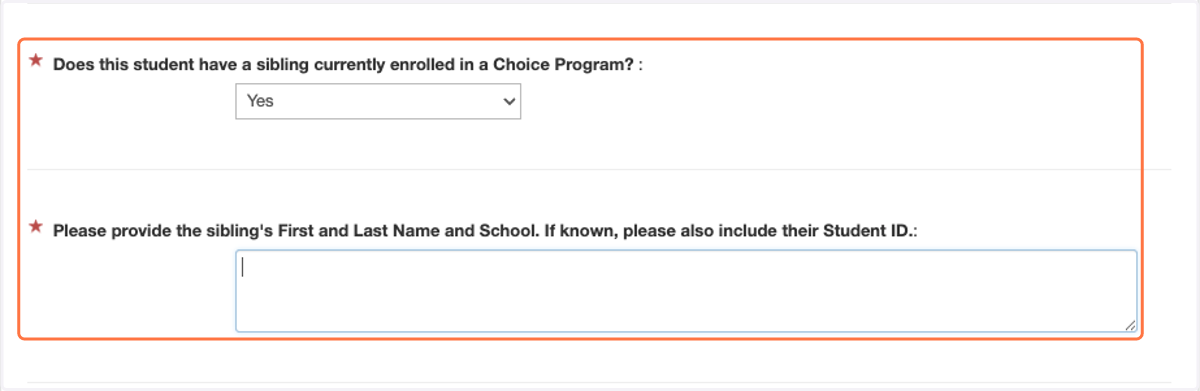
24. If the student has a subling current enrolled in a Choice Program, please provide the sibling's First and Last Name, and their School. If known, please also include their Student ID.
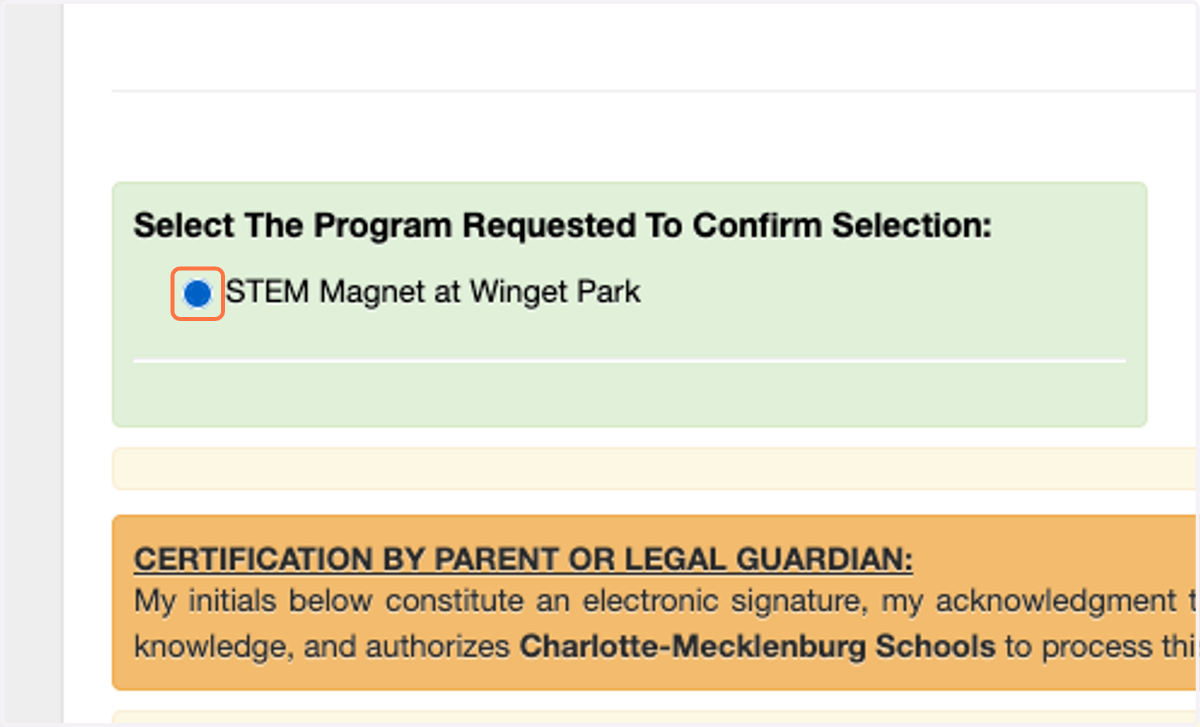
25. Confirm your school selection in the green box.
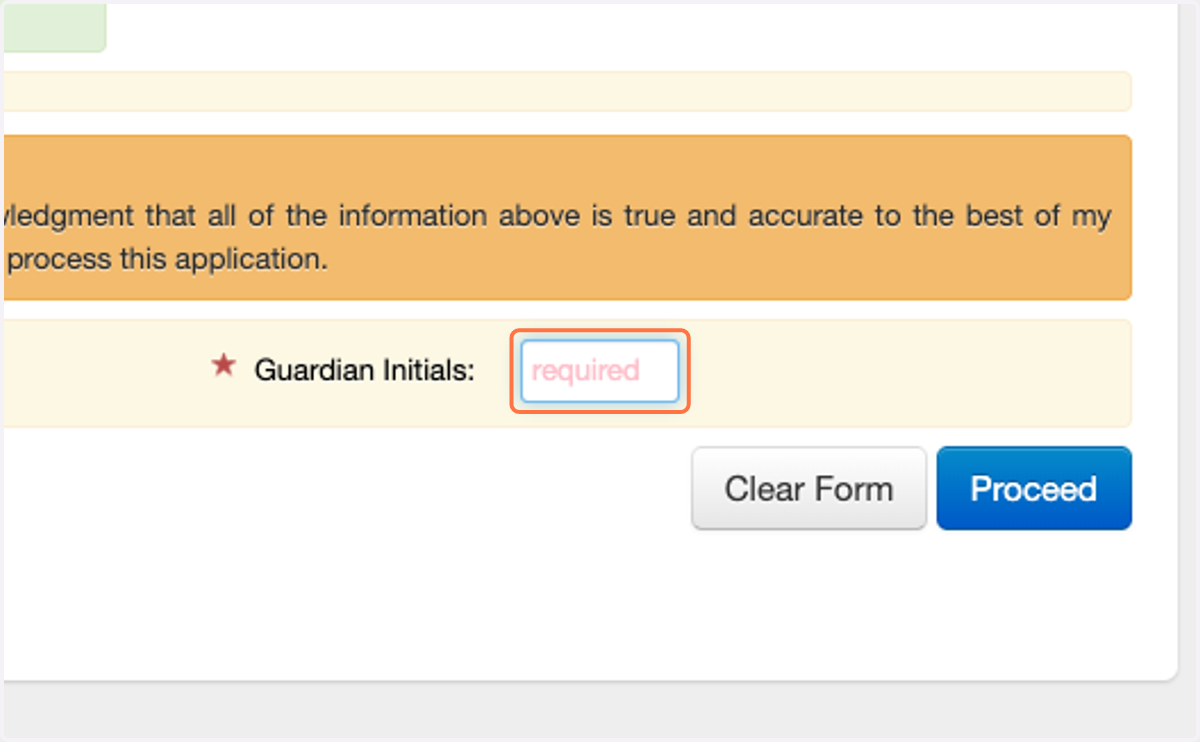
26. Enter your initials into the 'Guardian Initials Section'.
Use only the first letter from each of your first and last name. (Ex. Sarah Miller = SM)
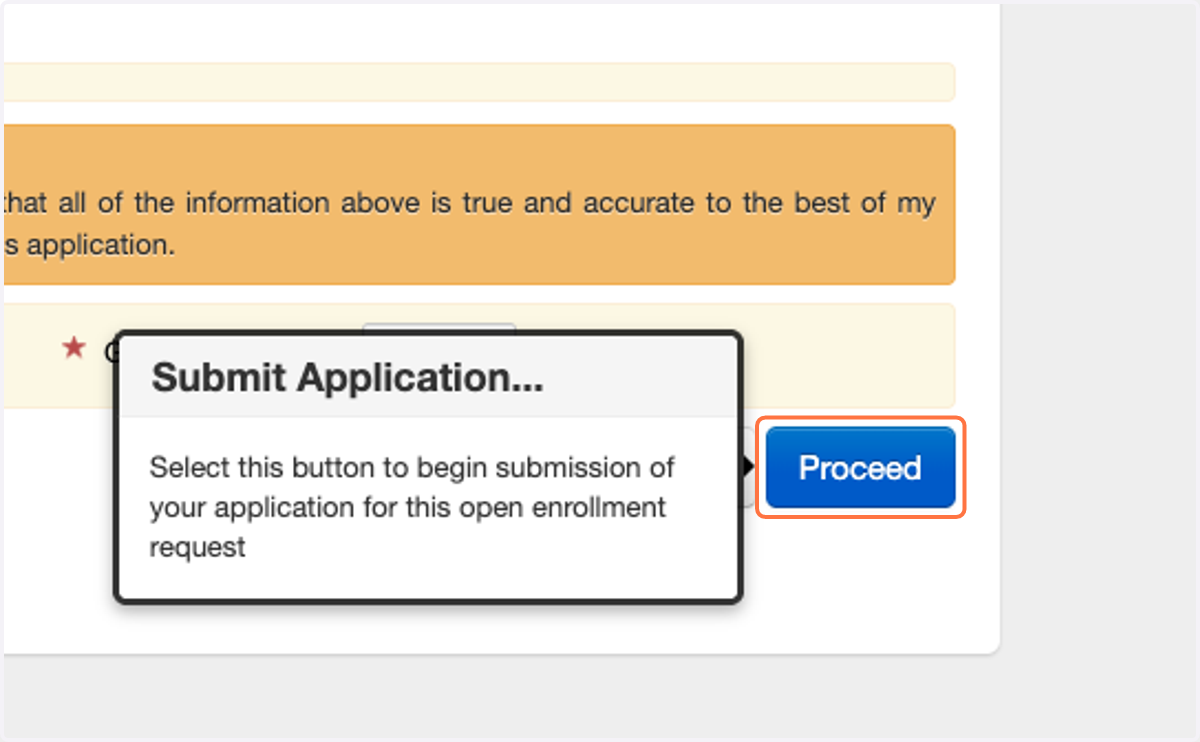
27. Click on 'Proceed'.
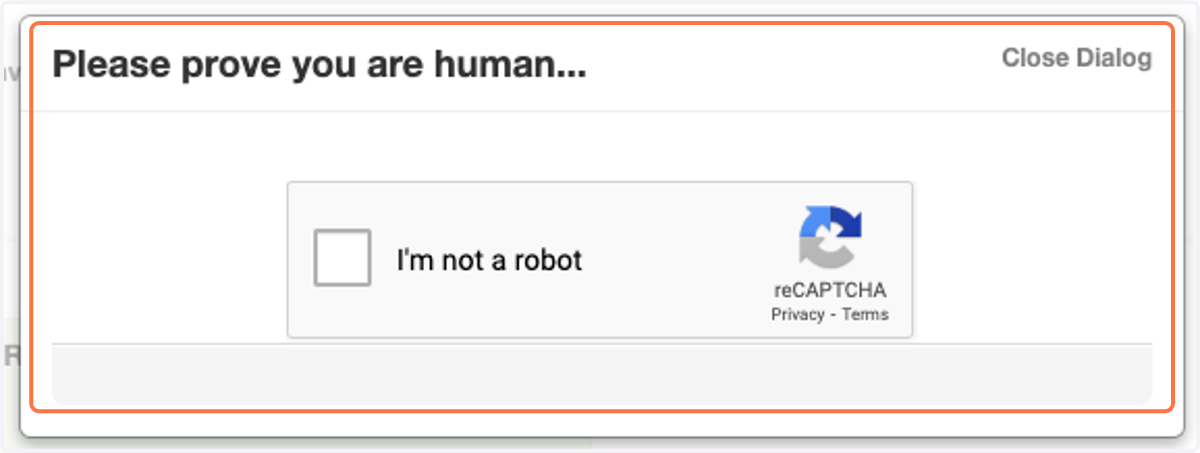
28. Complete the CAPTCHA if required.
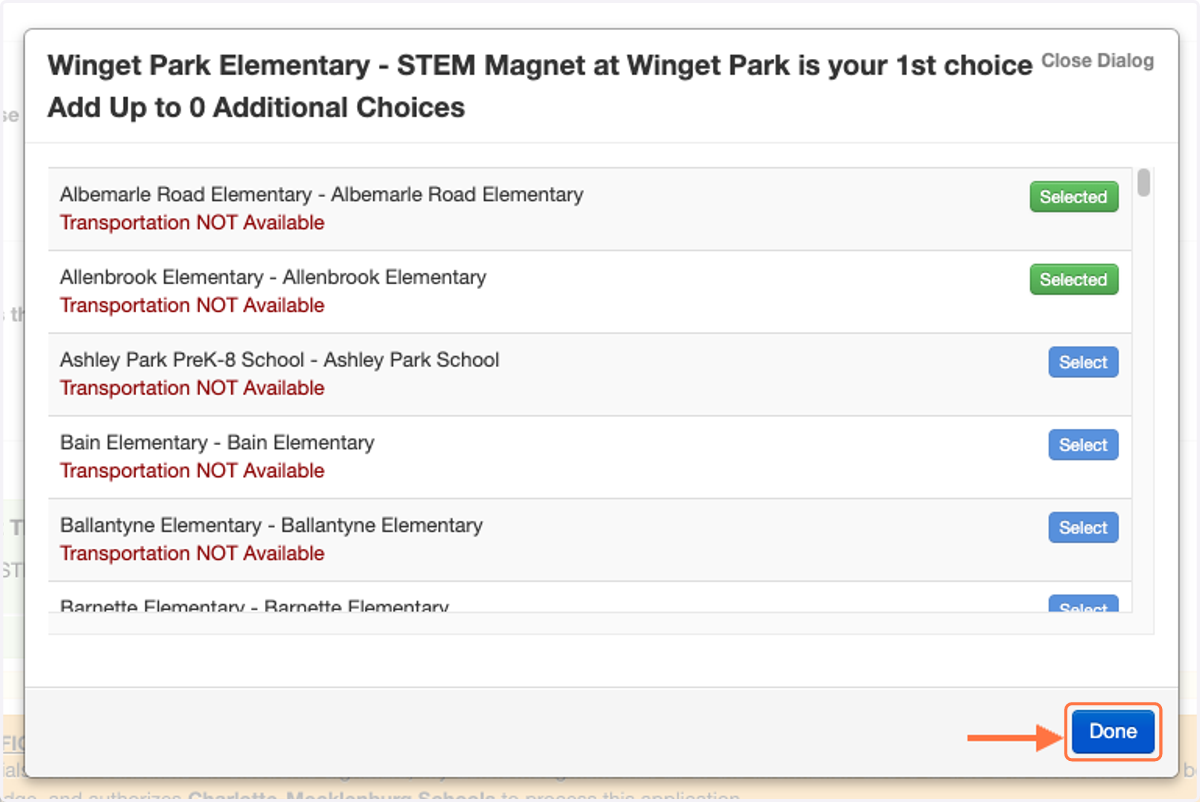
29. In the popup, select your 2nd and 3rd choices.
If you are a student at an underperforming school, you will be able to choose up to 5 additional choices.
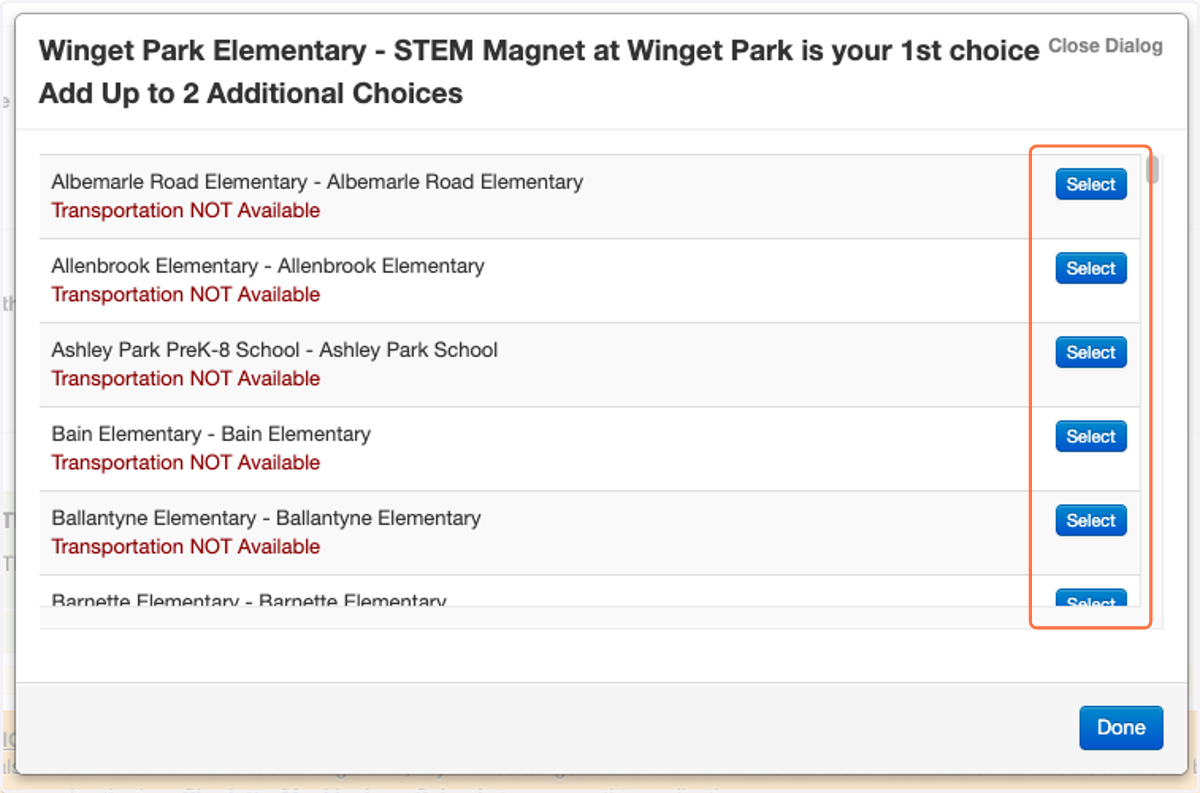
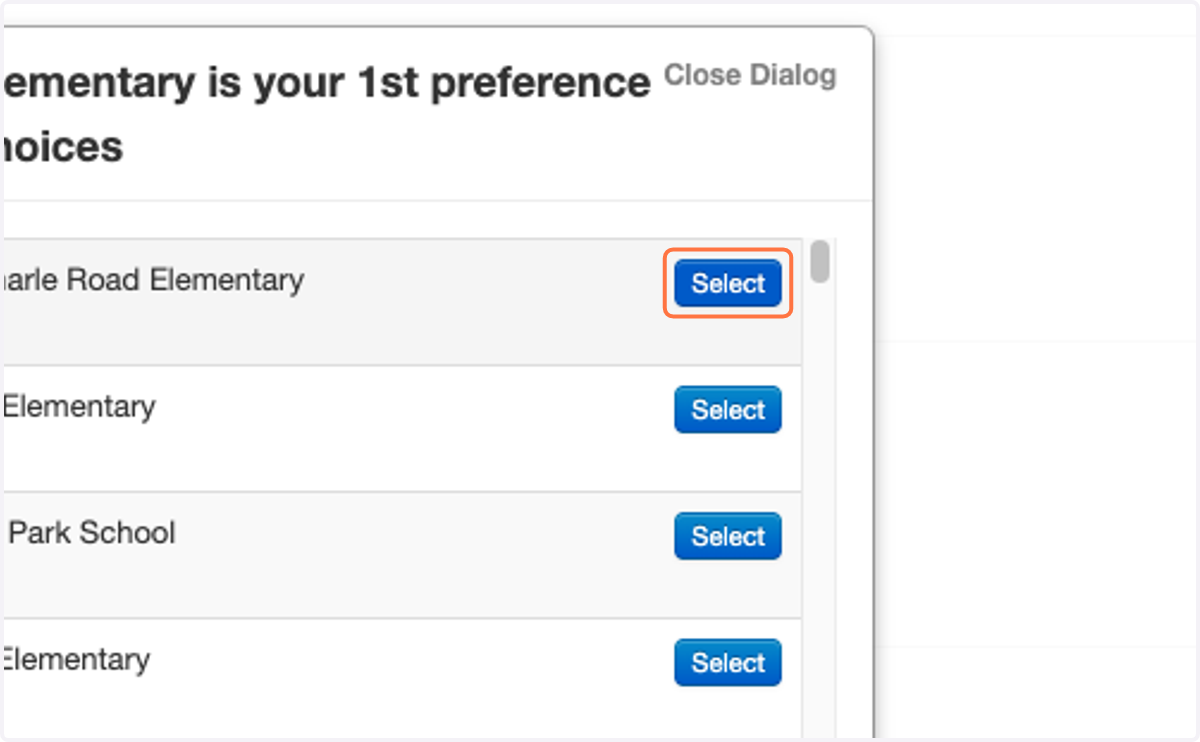
30. Click on 'Select' to choose an option.
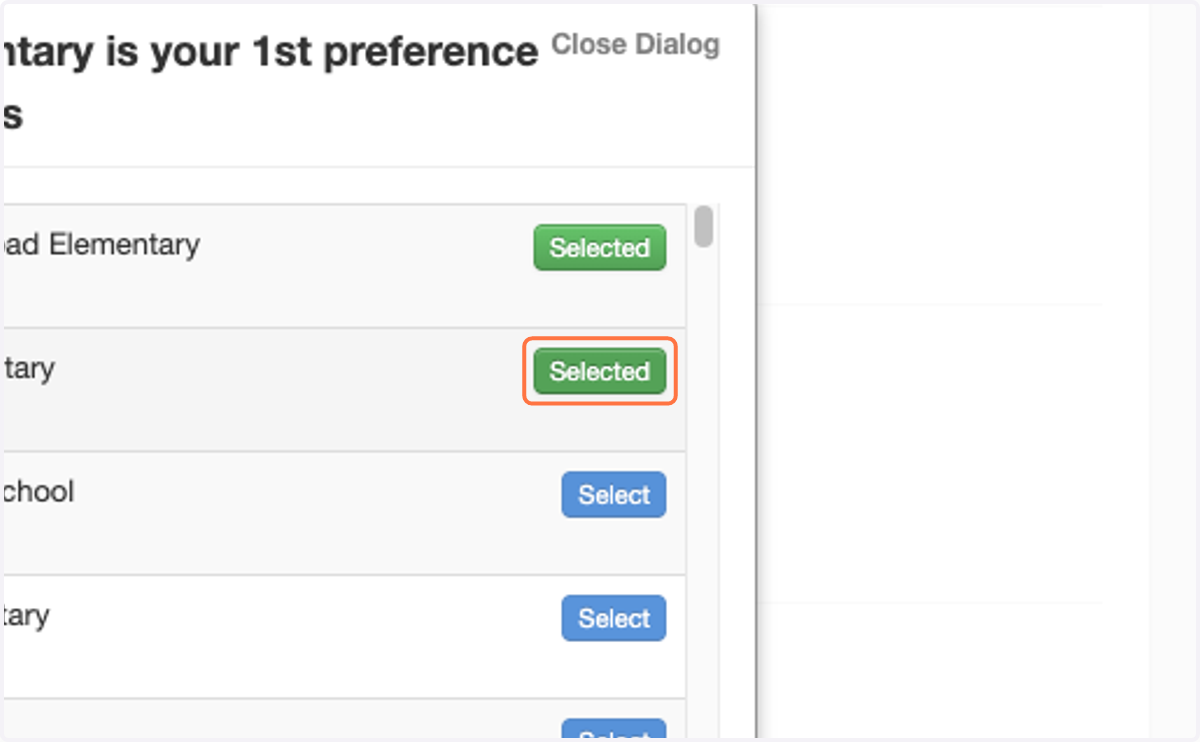
31. To deselect a choice, click on the green 'Selected' button to uncheck the option.
32. Once you have made all selections, click on 'Done' to submit.
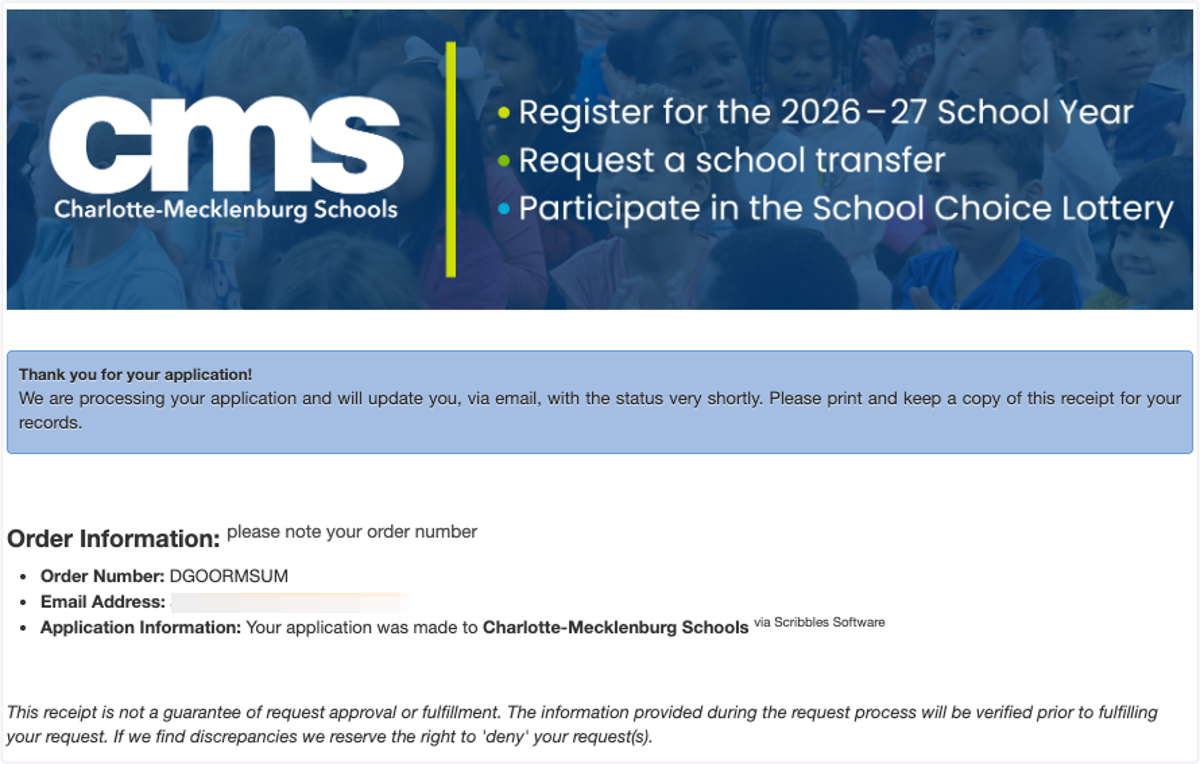
33. This page confirms your application submission. Please make note of your student's Order Number; this is their Application ID.
You will also receive an email and phone call regarding this information.
34. Click on 'Return to Dashboard' to go to back to the Family Dashboard.
35. Here you will see the choices selected for your student.
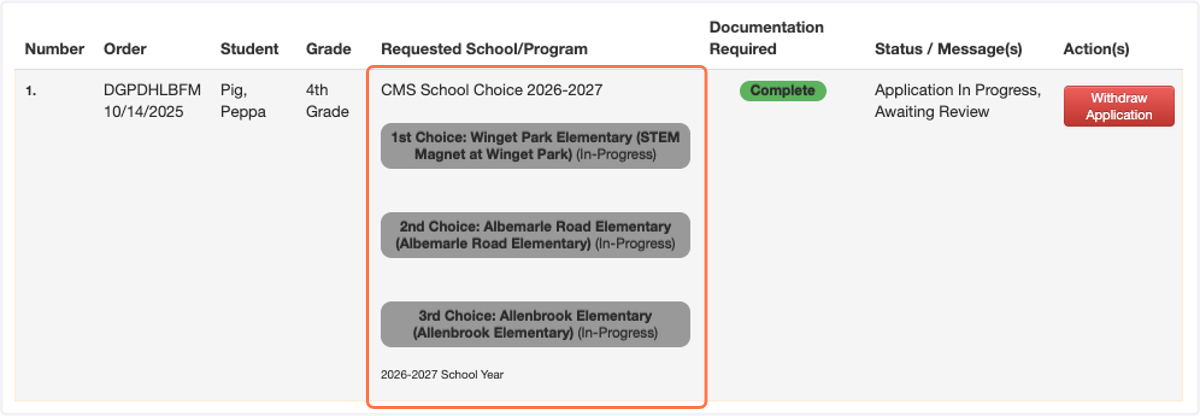
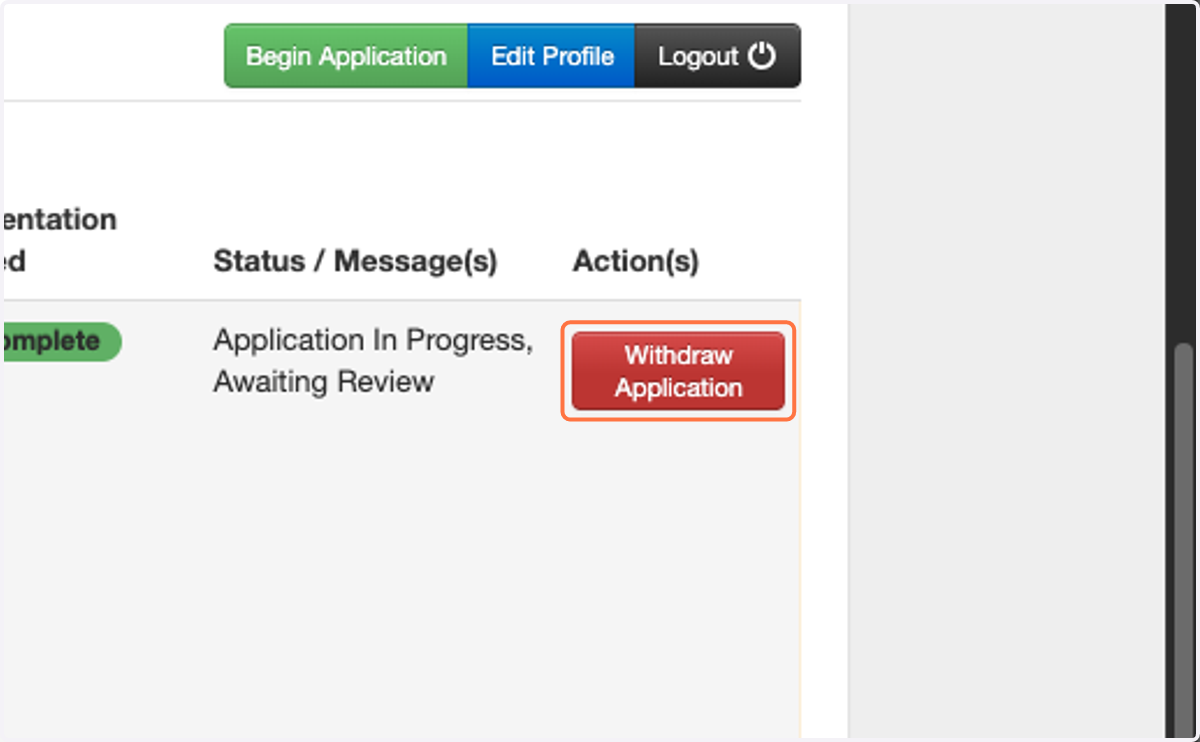
36. If you need to change your Choices, click on Withdraw Application and submit a new application with the correct options.
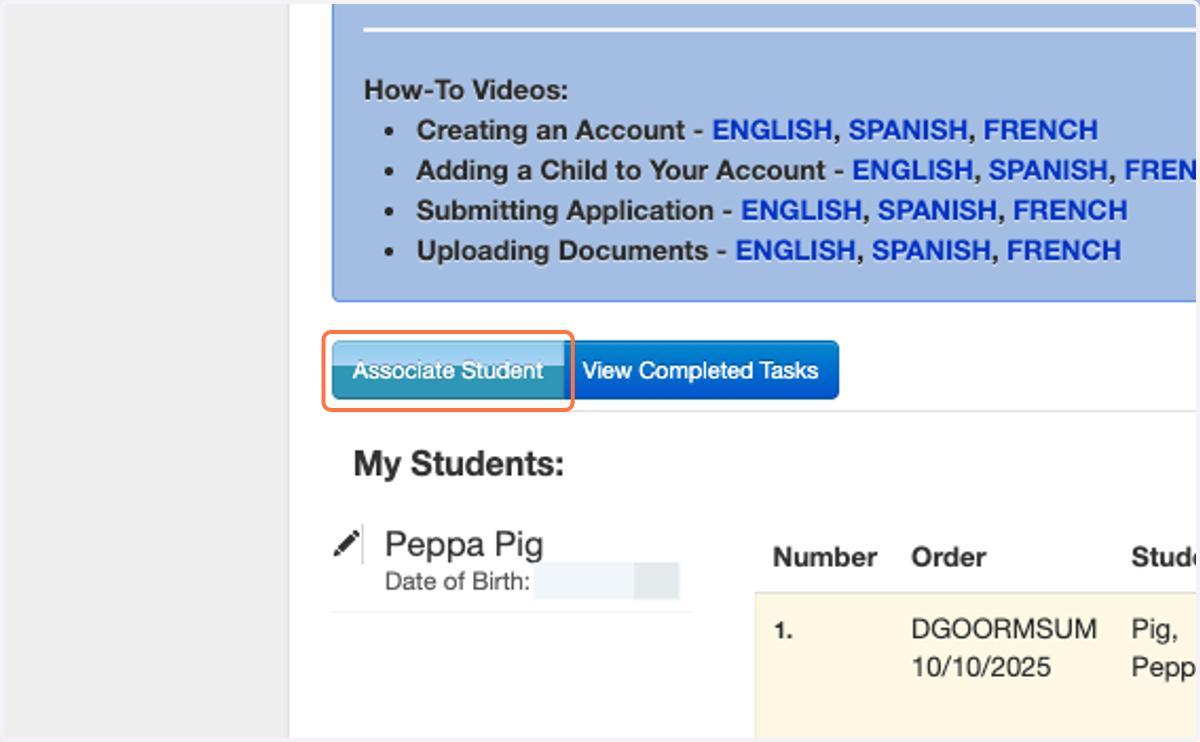
37. You must submit an application for each of your students. Click on 'Associate Student' to add another child to your Family Dashboard account.
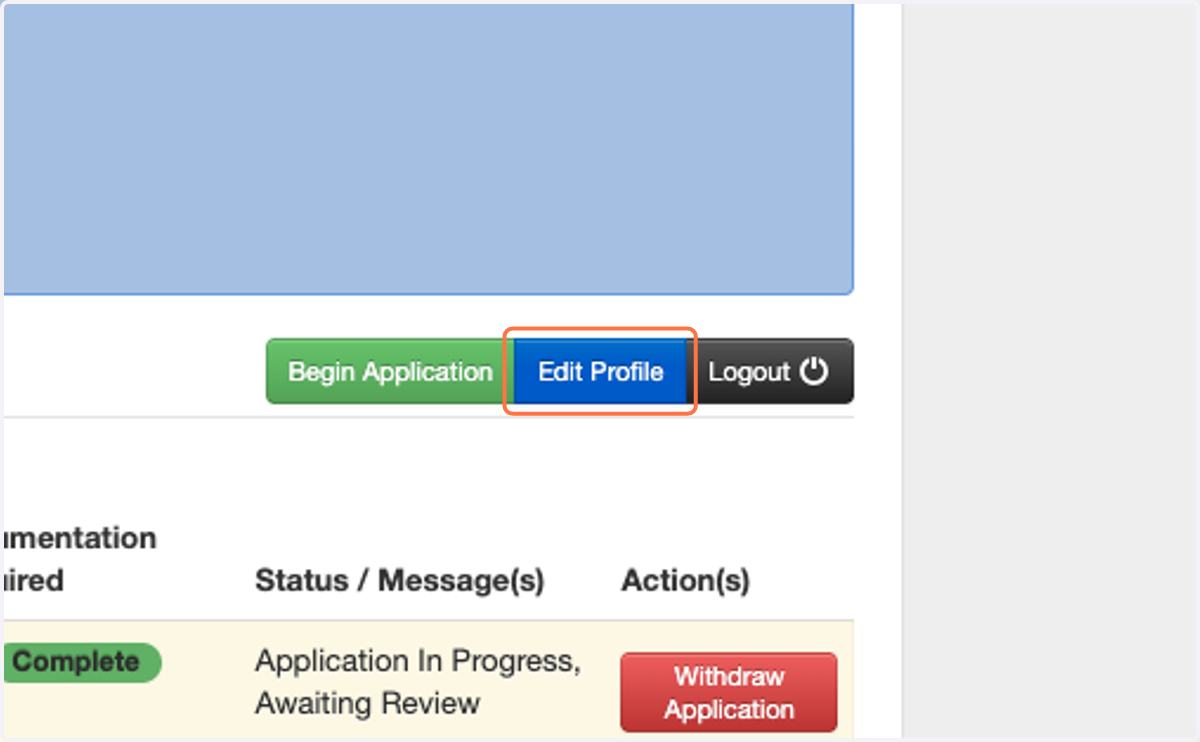
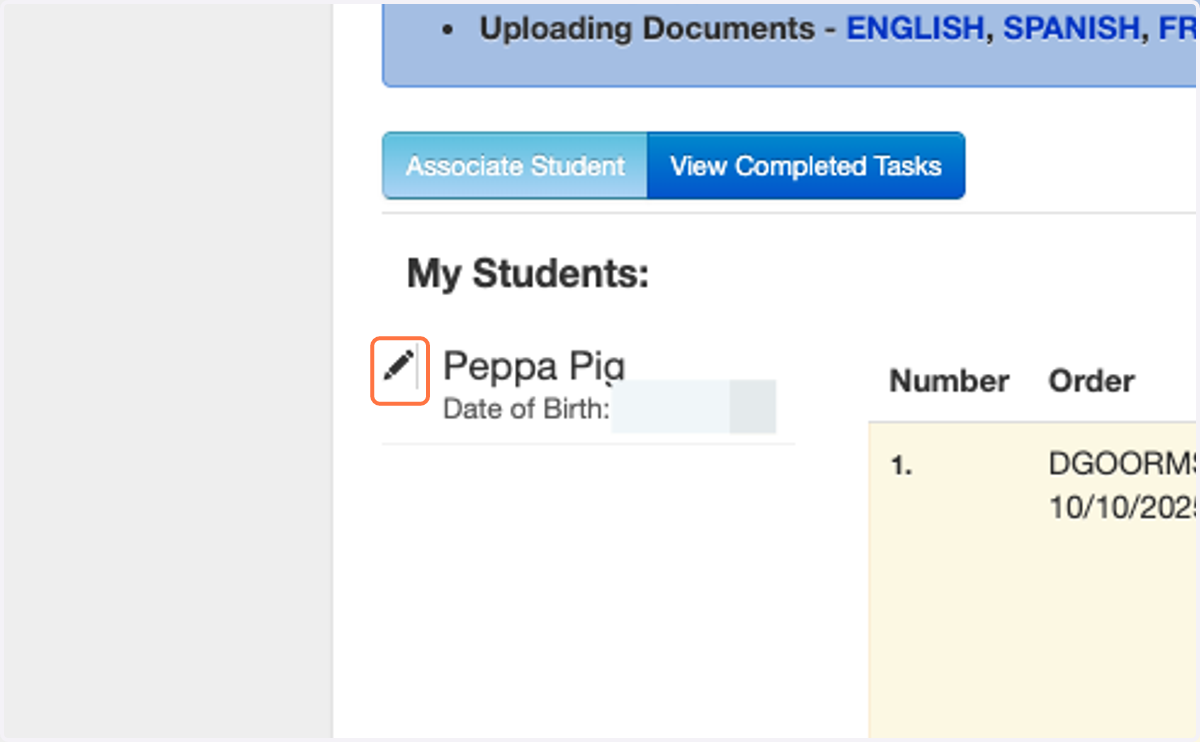
38. If you need to edit a student's information, click on the pencil icon next to their name.
39. If you need to edit your information (change address, phone, etc), click on 'Edit Profile'.