Build your homepage for your club's website
This section will show you how to create a homepage where your visitors and members will land upon.
1. Let's begin!

Clubspark / Admin / Home
2. On your Dashboard, click Website on the left sidebar

3. Click on Home
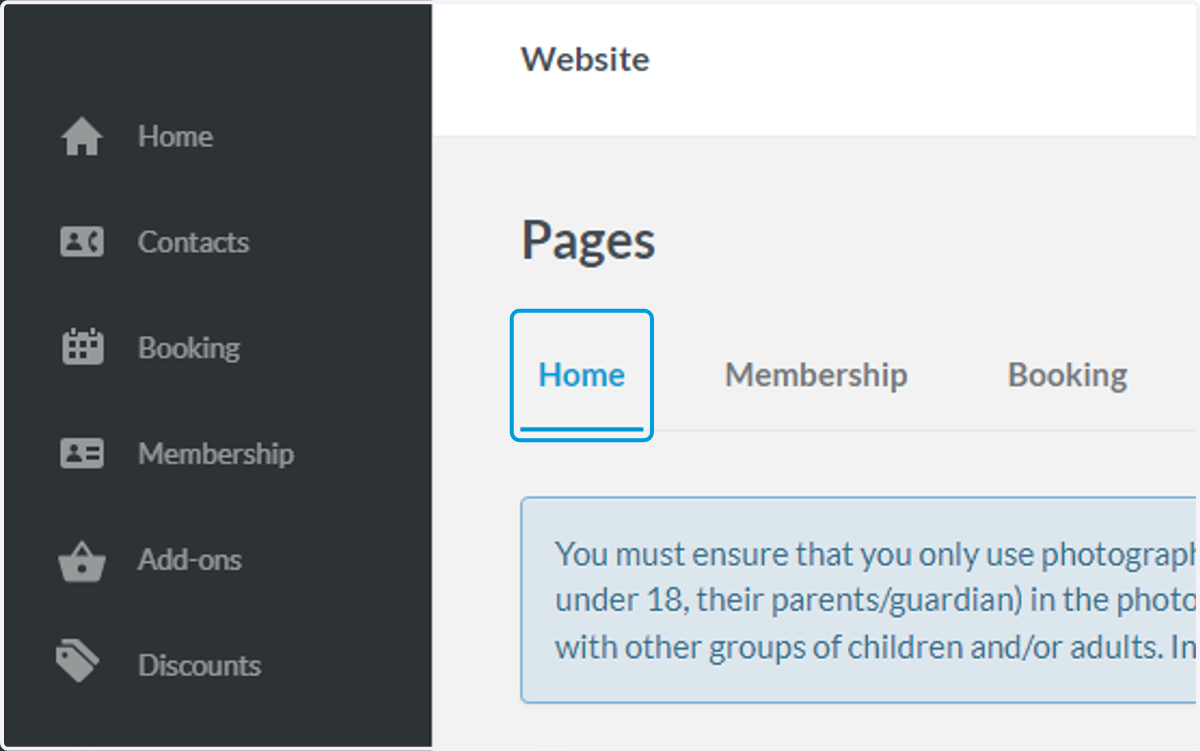
4. Type a name for your homepage, most clubs opt for Home but you can name it anything you like. Remember! Simple is Key!

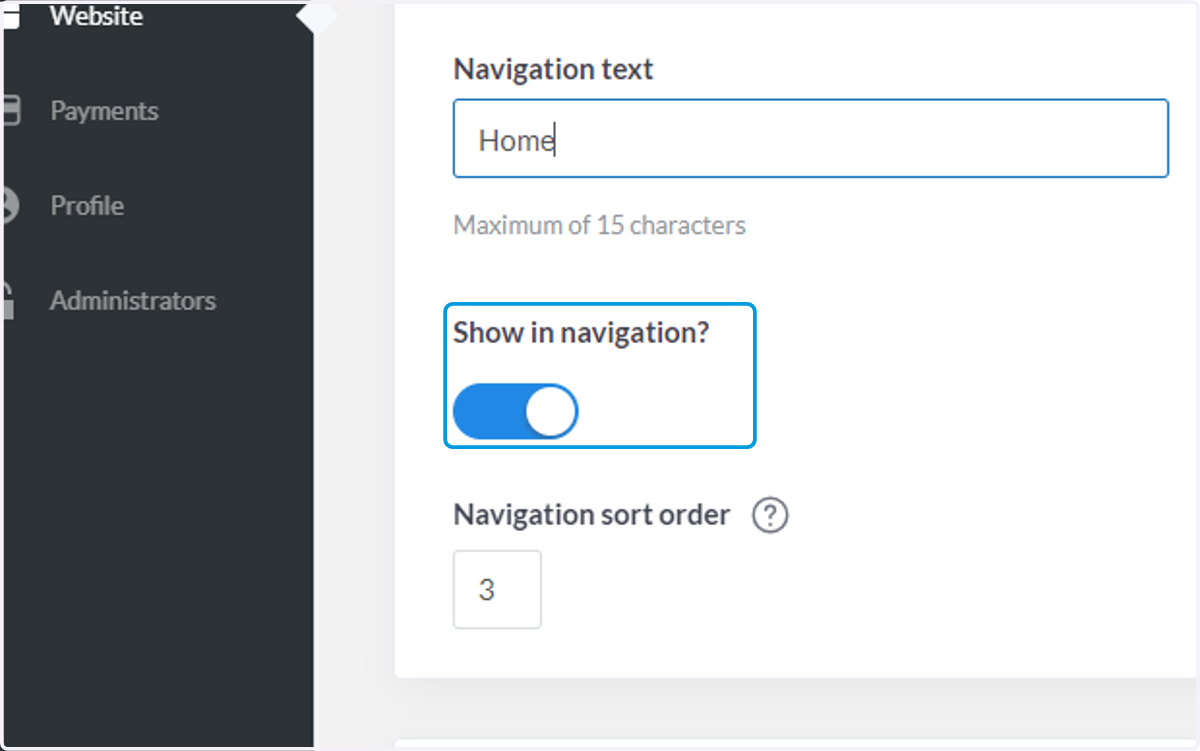
5. Click on Show in navigation
This allows the homepage to become visible for the public.
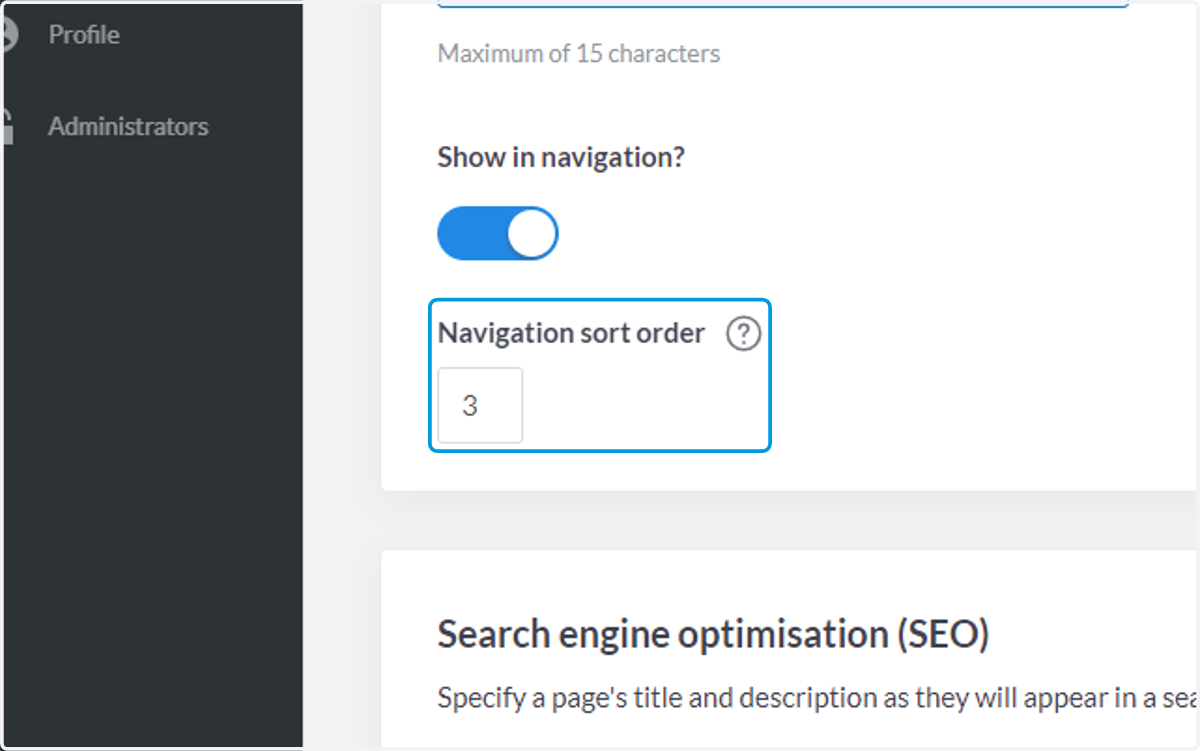
6. Navigation sort order
Use this to sort the order of your navigation bar from left to right.
7. SEO: Search Engine Optimization
Enhance the Google results to help your club website rise to the top of searches.
Title: Have a friendly welcome message
Description: Have a detailed description of the club including the Region, Area so that keywords can be picked up in search results.
8. Header Image
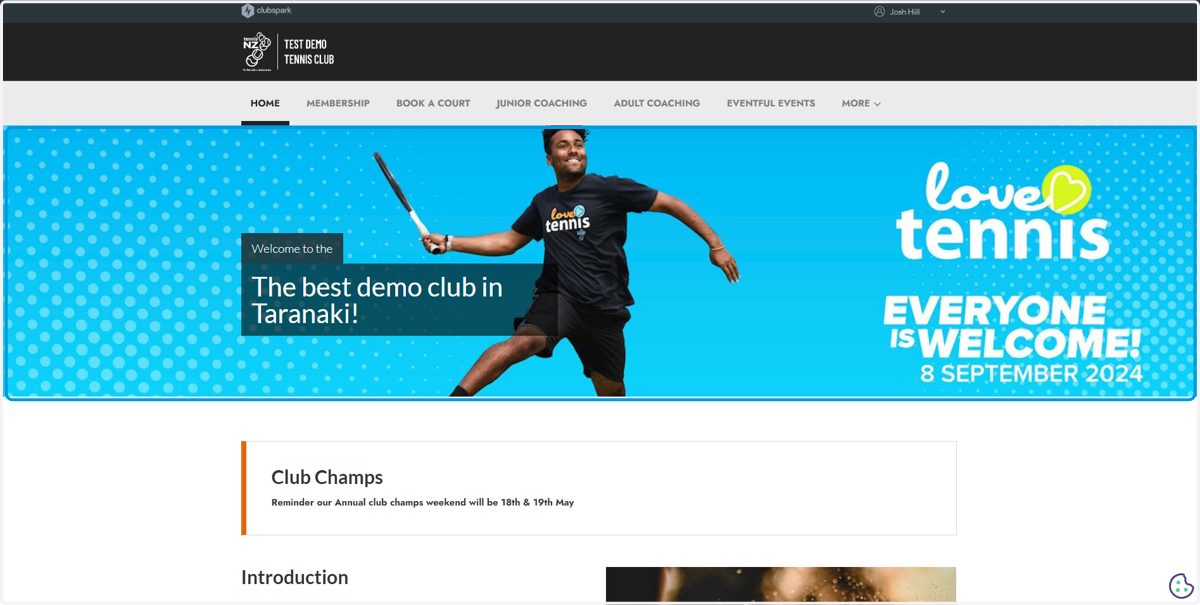
This is a wide image that features text on top to welcome visitors to your page, an image can be anything from promoting an upcoming event such as Love Tennis, or a photo of the club or a group photo.
9. Header Text
This is the large text you see in the previous image.
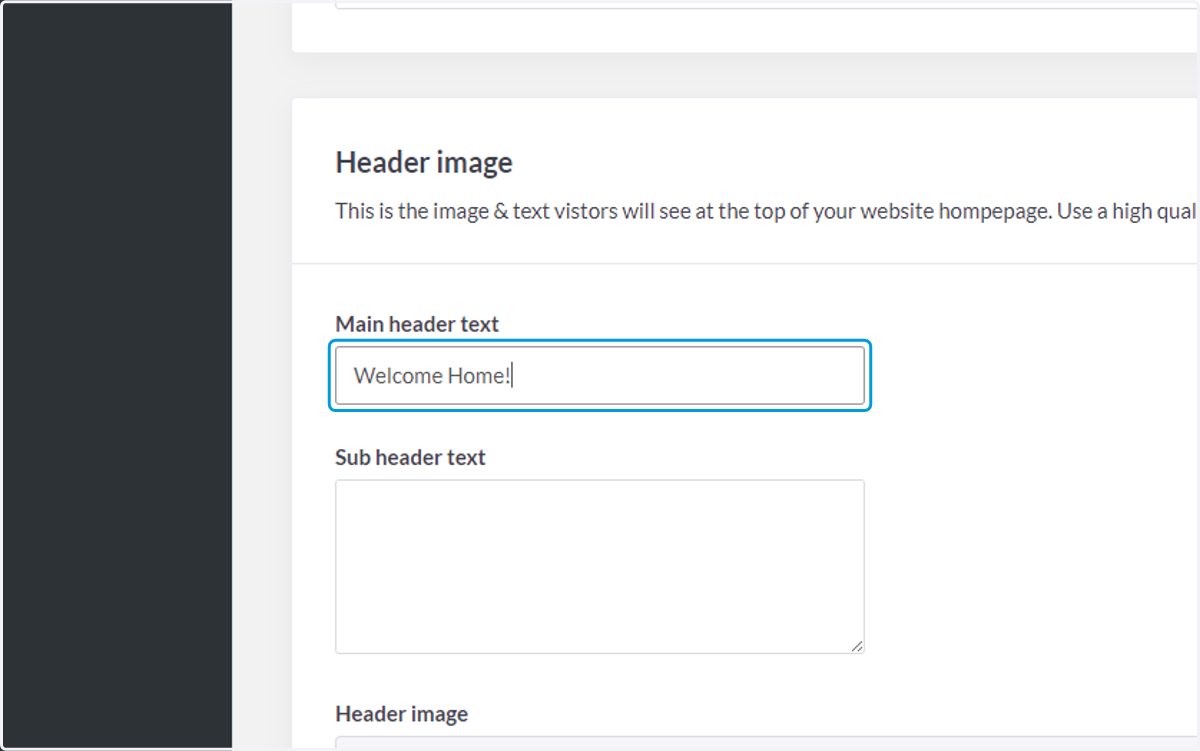
10. Sub Header text
This is the smaller text you can write a tag line or something similar.

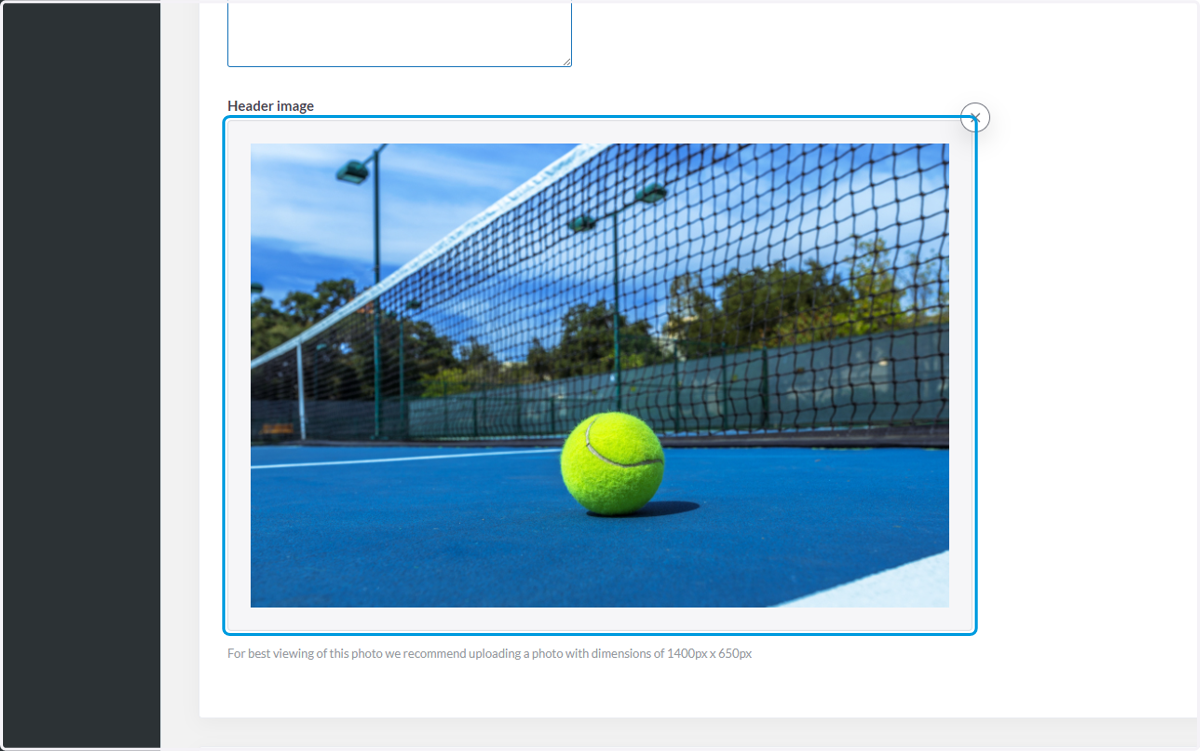
11. Here you can upload a photo
Ideal photo size requirements: 1400px x 650 If you have Canva you can access a template here
12. Important Information Banner
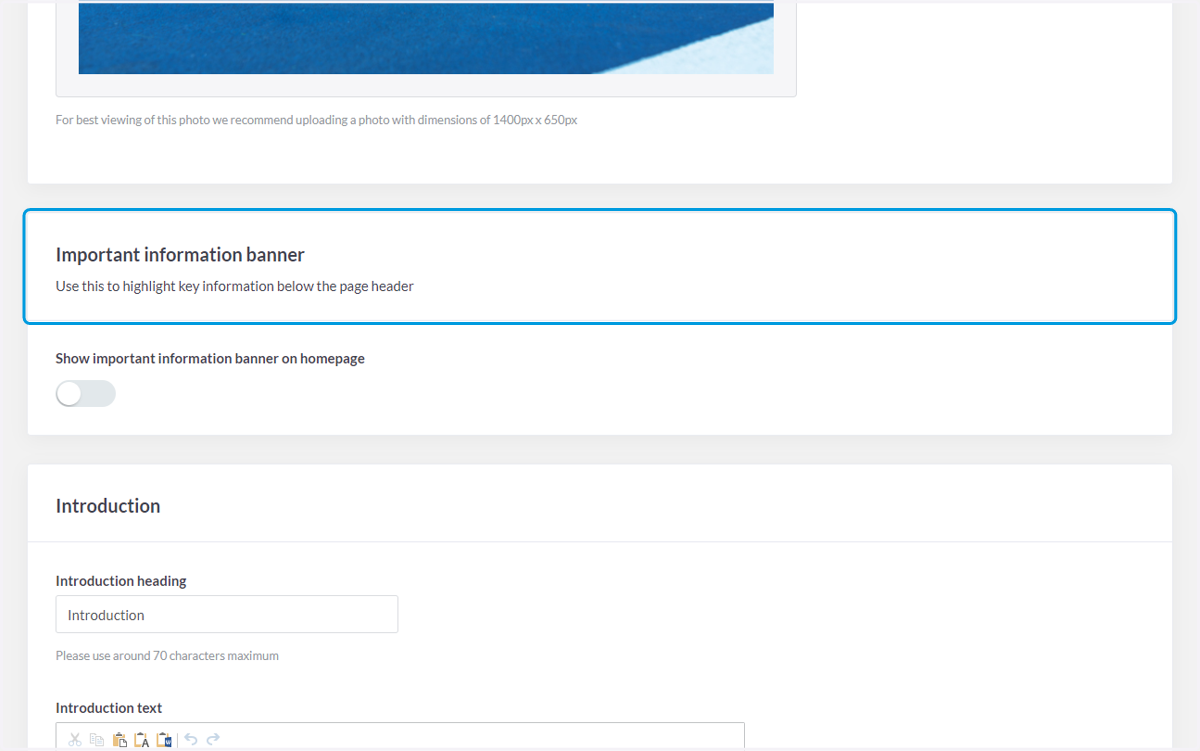
This banner allows you to communicate any updates to your members / visitors about events, memberships, club closures and changes. It sits under your header image.

13. To switch this on, you can use the toggle switch to activate the banner
You will now be able to add text as you wish.
14. Intro Text and Images
Purple - Intro Header
Blue - Intro Body Text
Green - Photo Gallery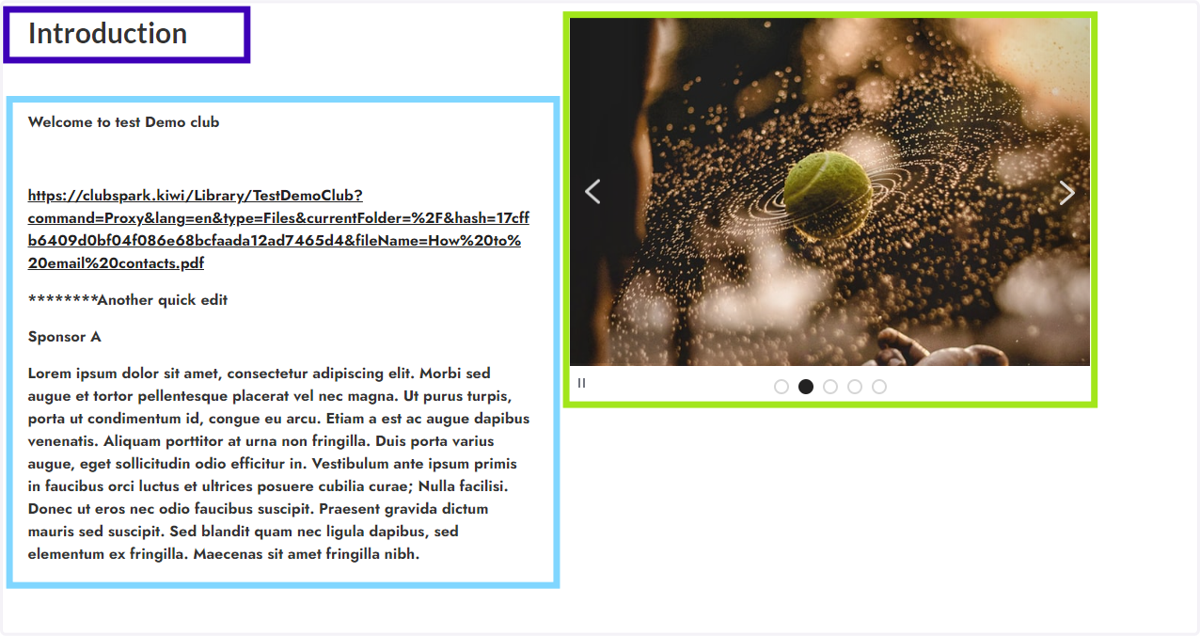
15. Add a heading for your Introduction

16. Add text to your introduction
Introduce your club and add a mission statement / values here

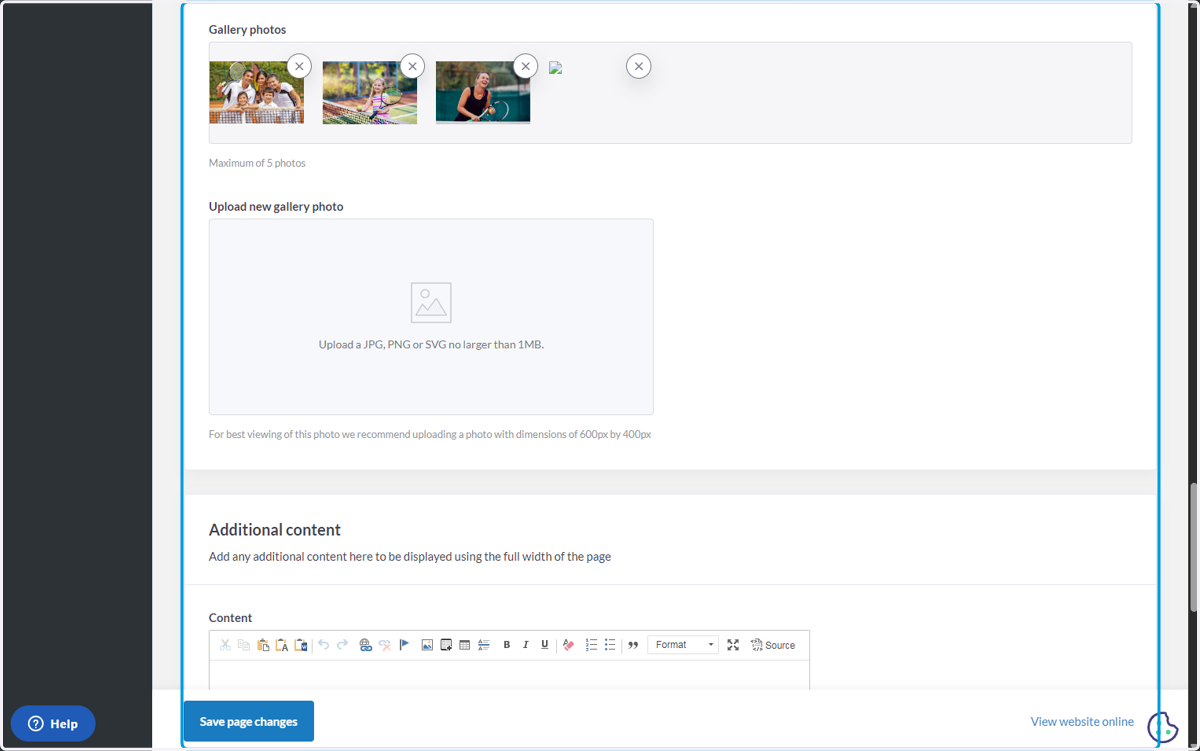
17. Add some photos that can revolve around in a gallery
For best viewing of this photo recommend uploading a photo with dimensions of 600px by 400px
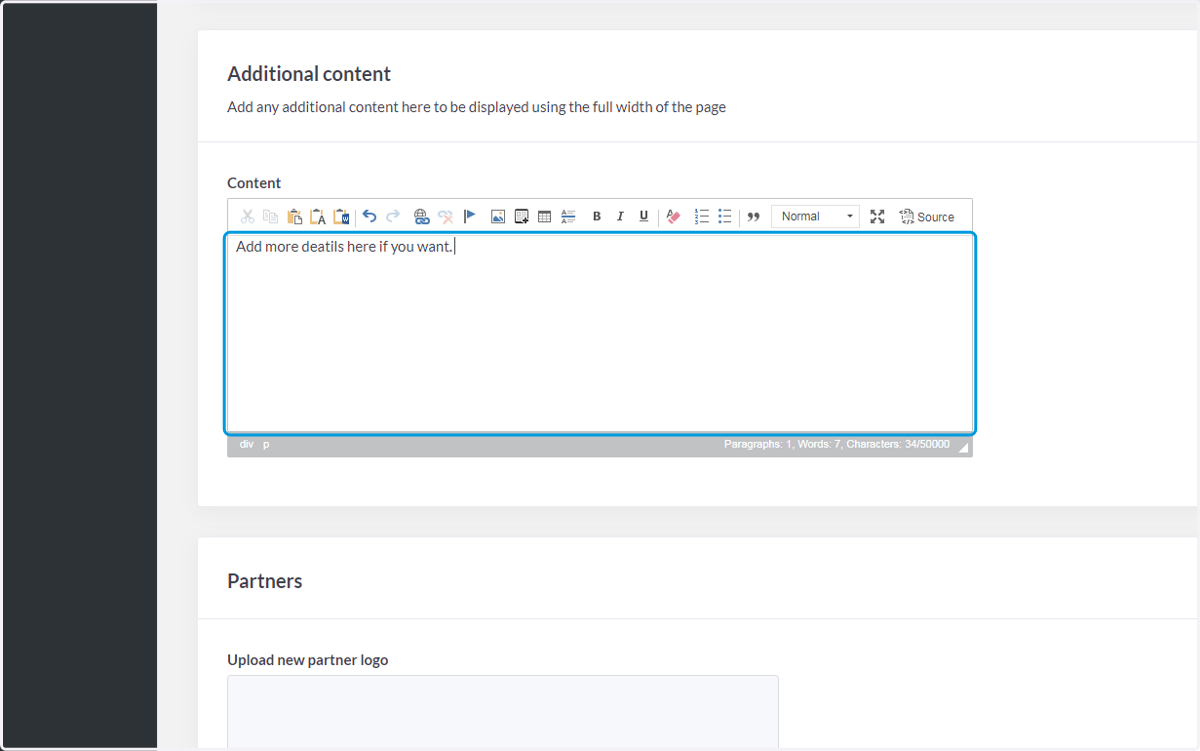
18. Additional Content
Optional if you wish to add more details about the club
19. Sponsors and Partners Section
Add logos of your club sponsors and partners to share the support

20. Click here to upload your first partner logo

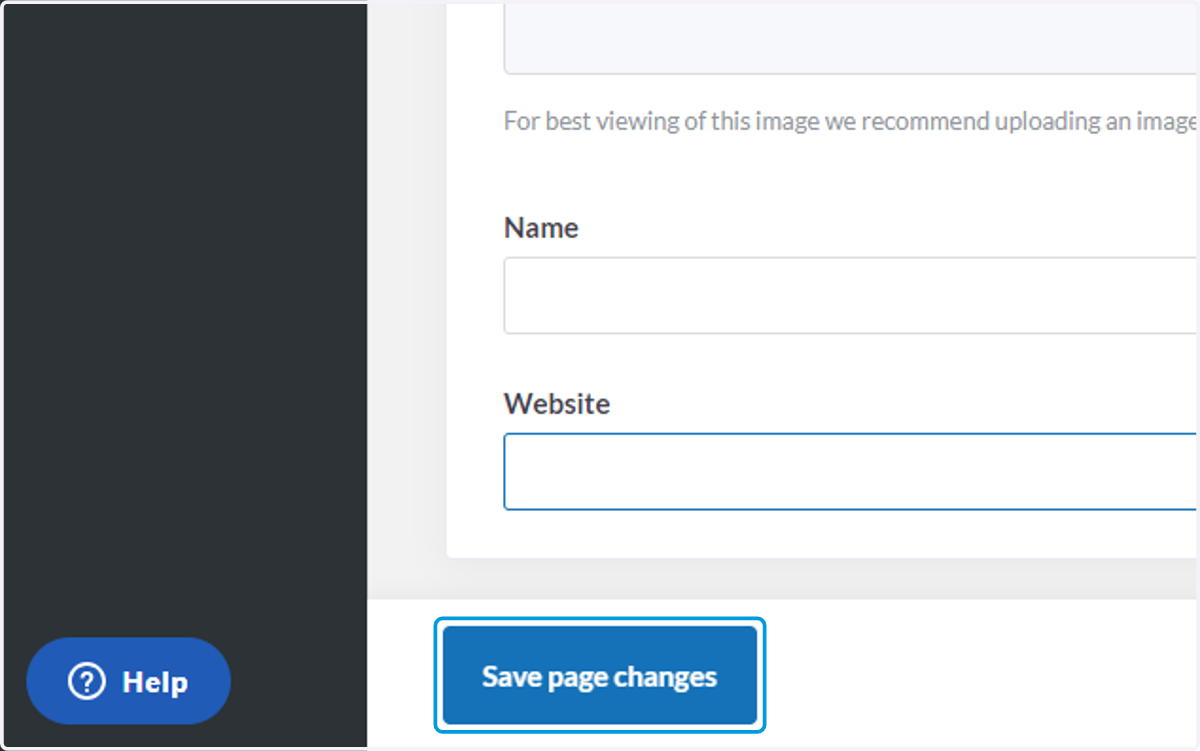
21. Add the name of the sponsor

22. Add a website URL for the sponsor

23. Click on Save page changes