Basics of Using Canva
Canva
Changing Fonts
1. Click on any text
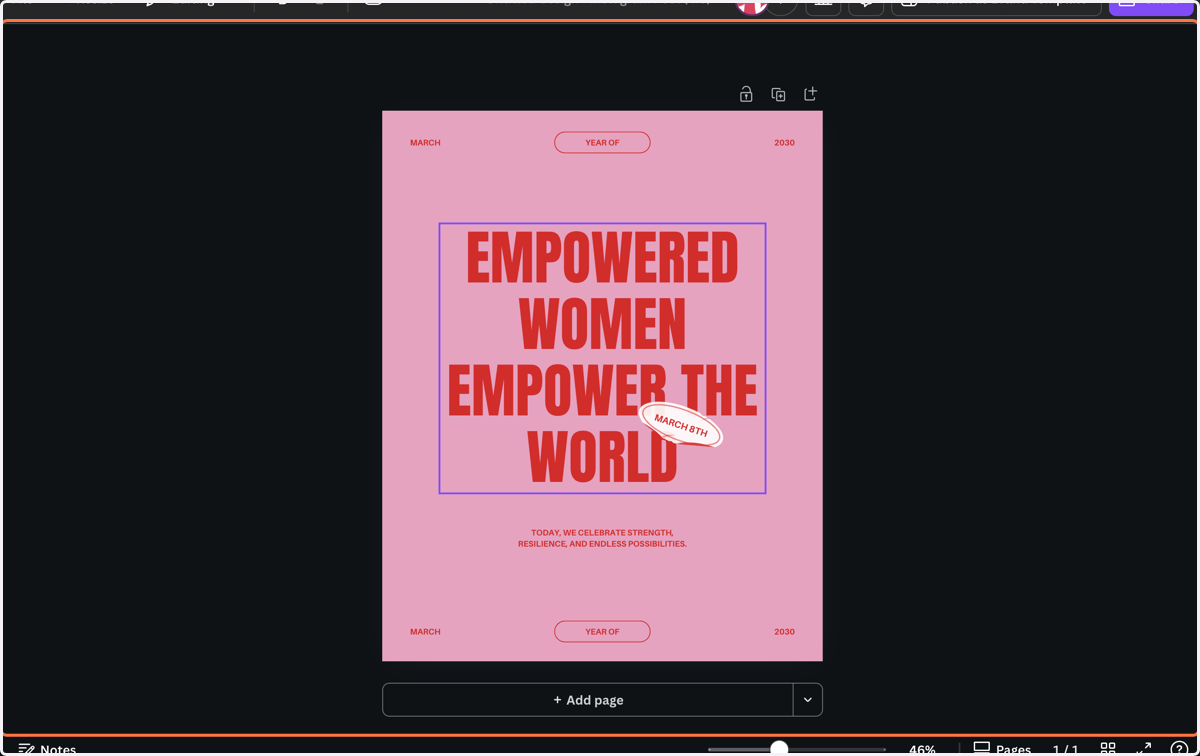
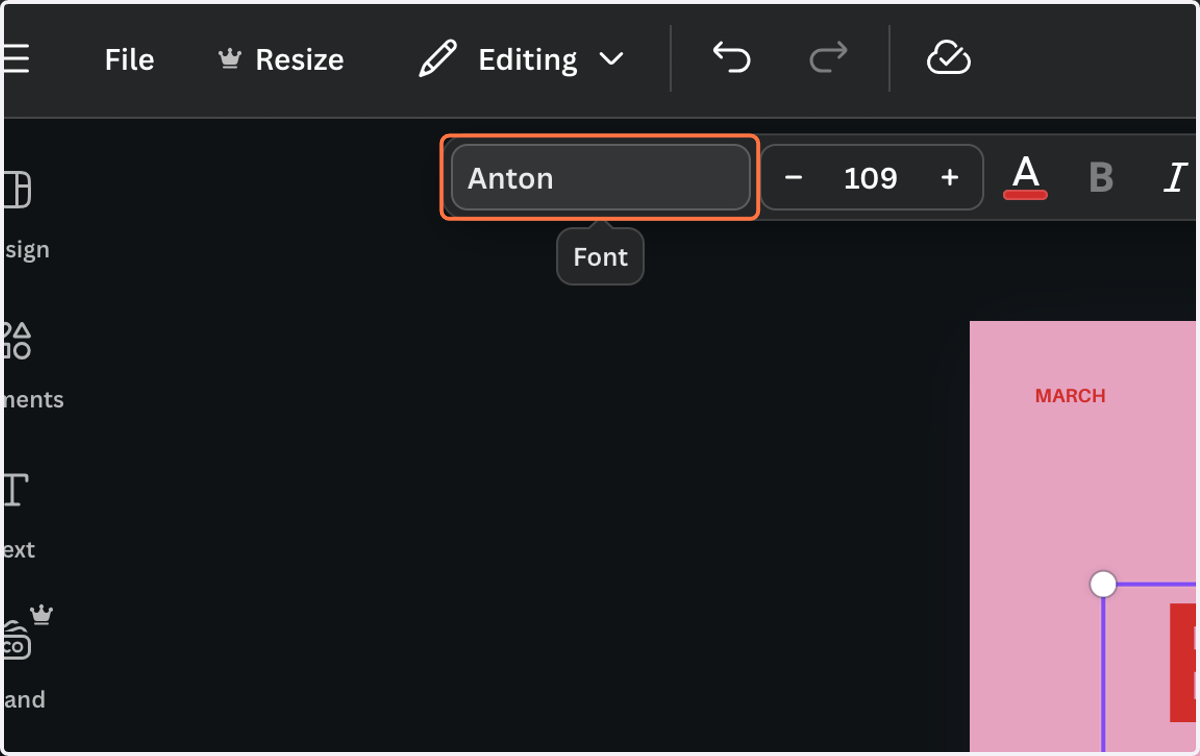
2. Click on the name of the current font, it will open the font menu.
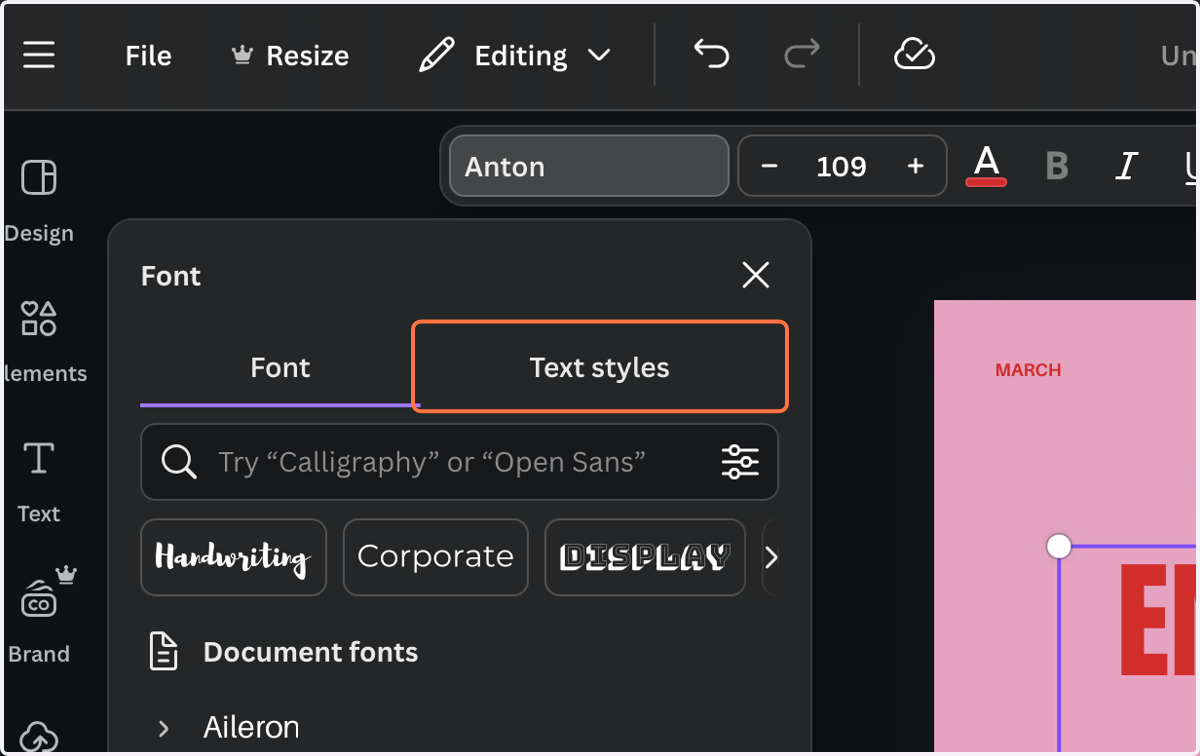
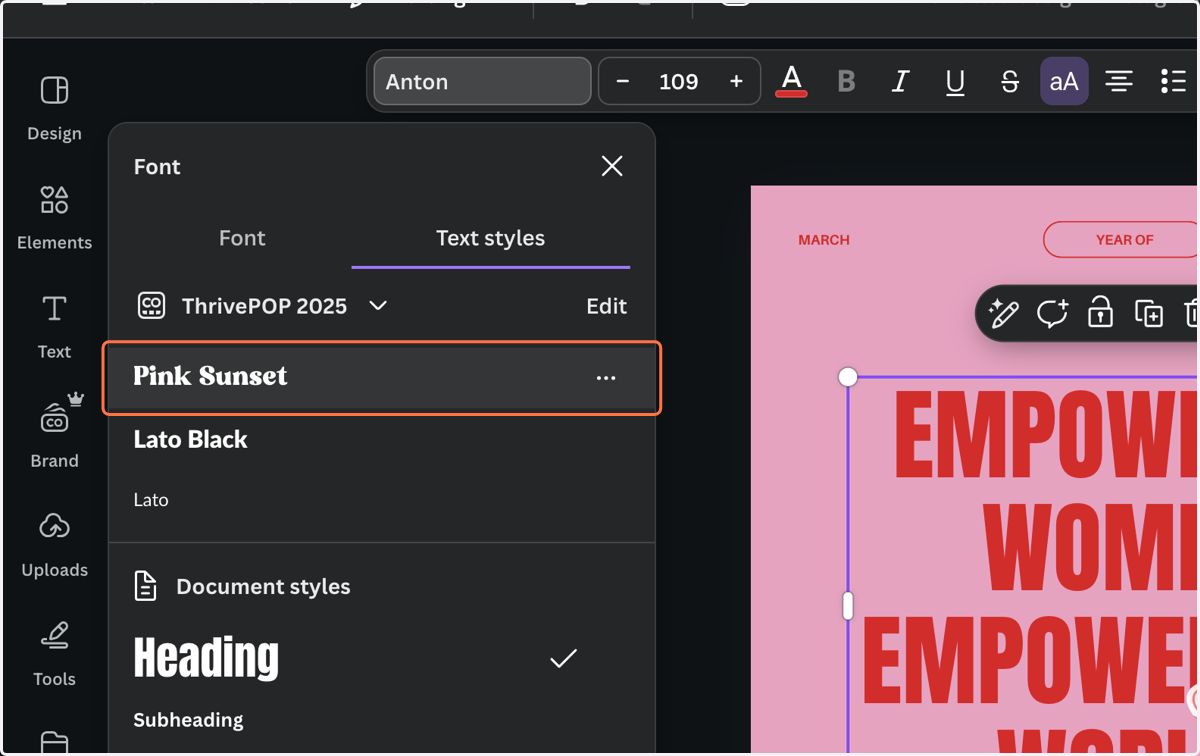
3. Option 1: Click on Text styles
4. Click on Pink Sunset (Any font style)
This will apply the font style, including font size, which may not match the template very well.
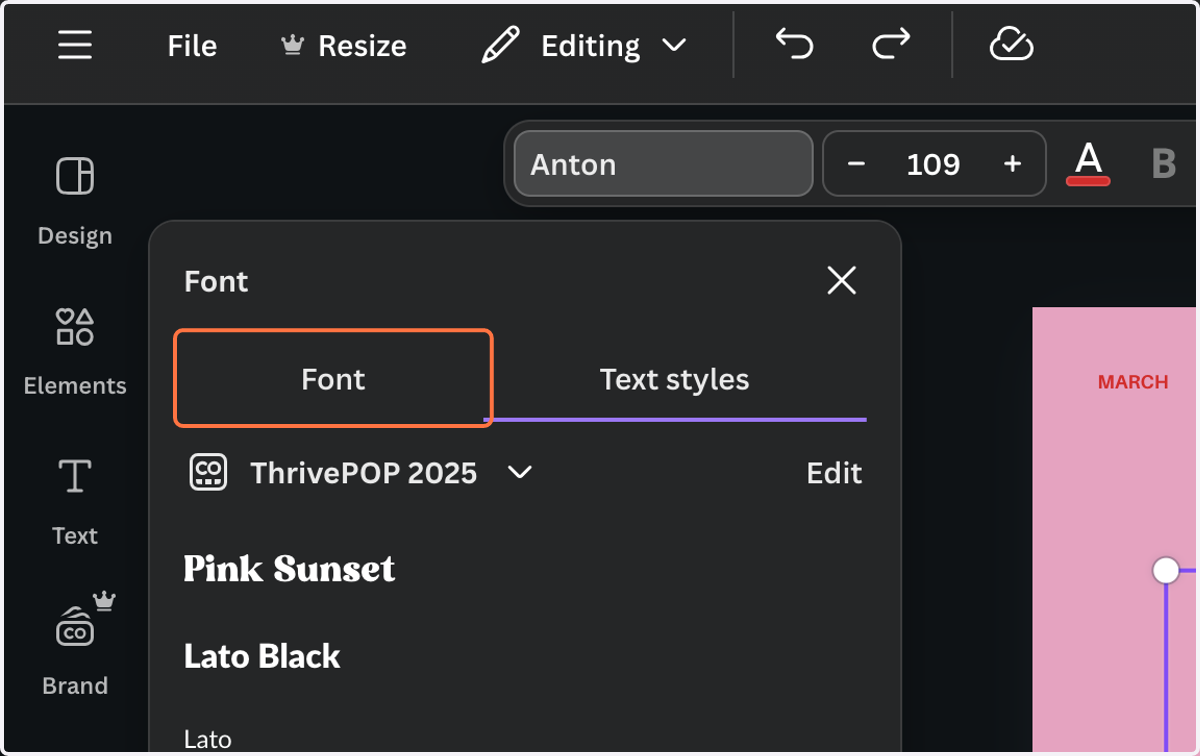
5. Option 2: Click on Font
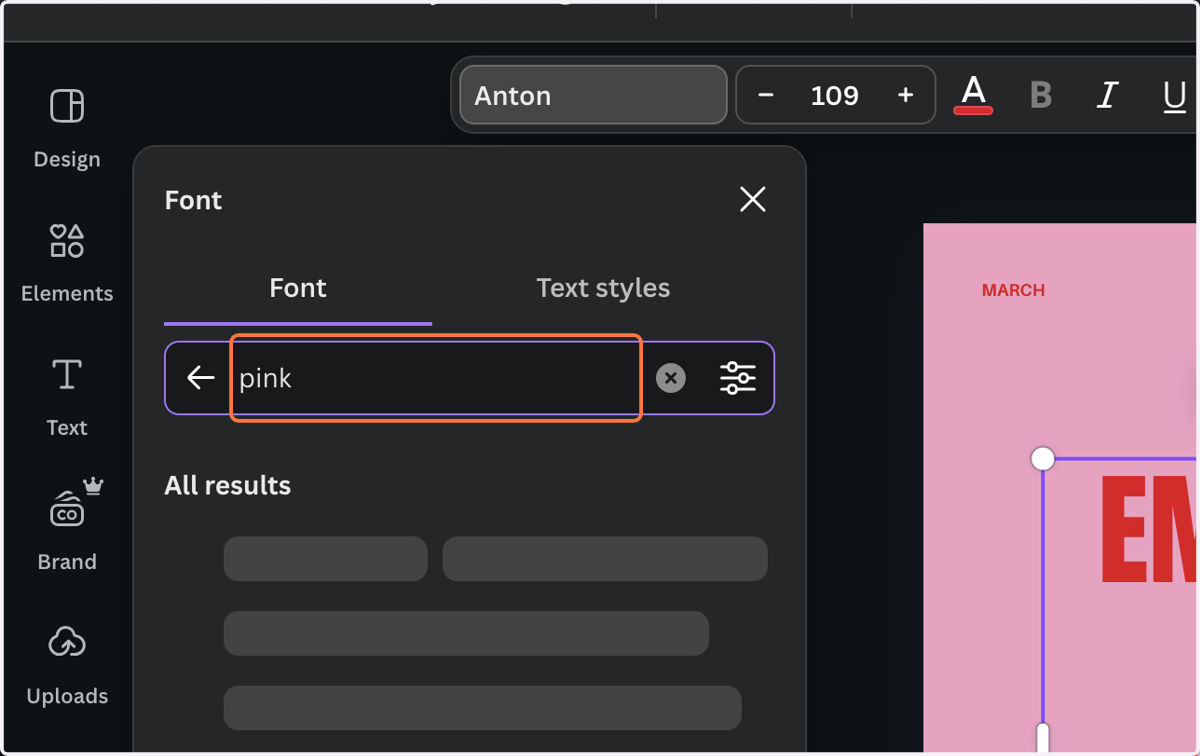
6. Search for your brand font.
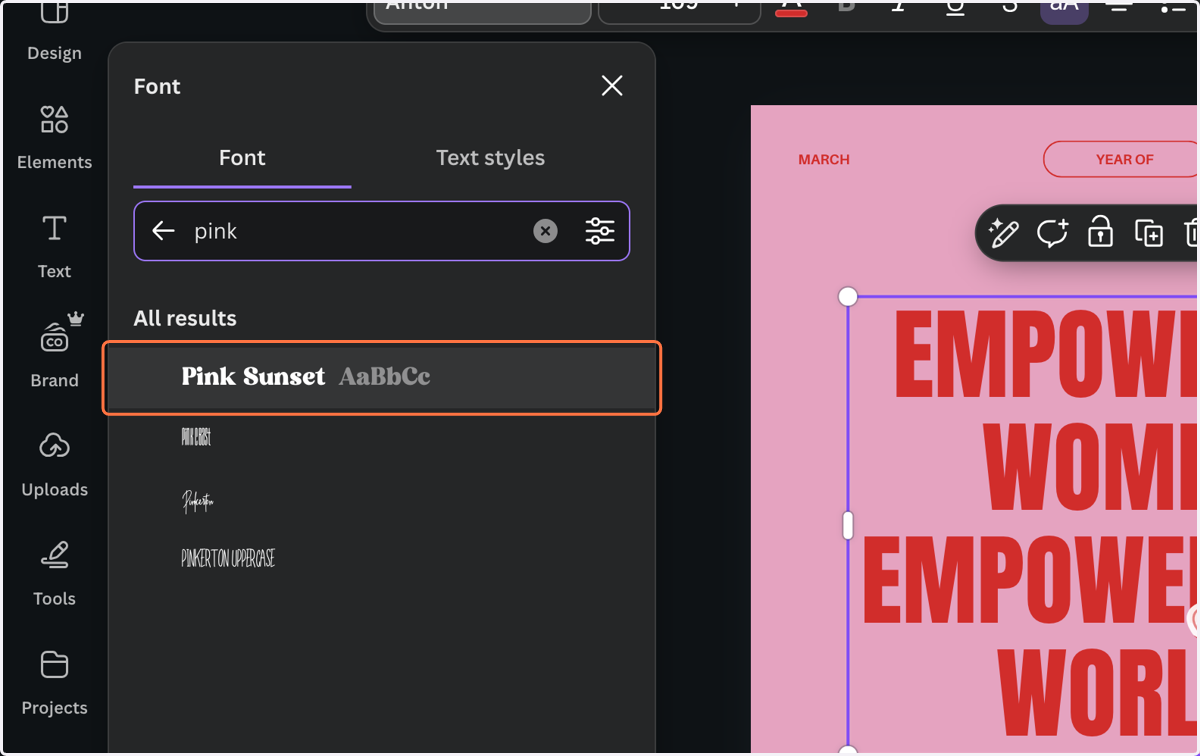
7. Select your brand font under "fonts"
8. If the new fonts change the spacing or layout, adjust the font size to correct this.
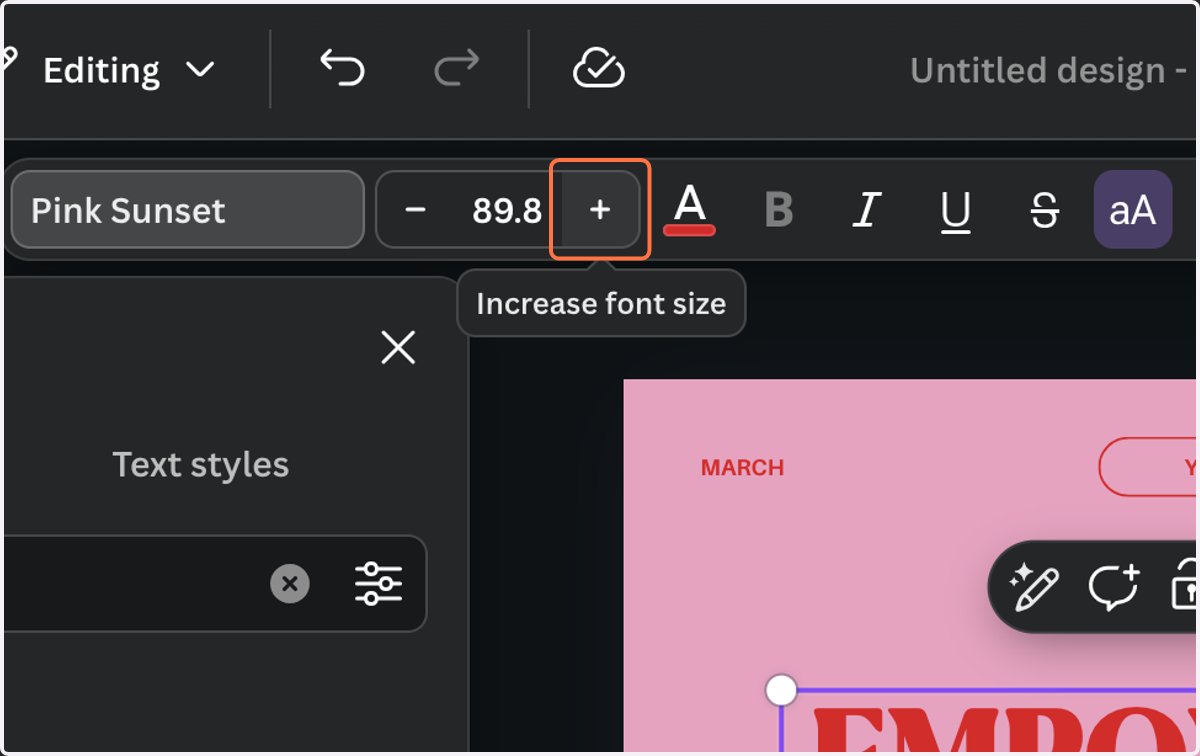
Find and Replace Fonts
9. You can change all matching fonts on a graphic at once. Select the font you want to change, then click on the font menu.
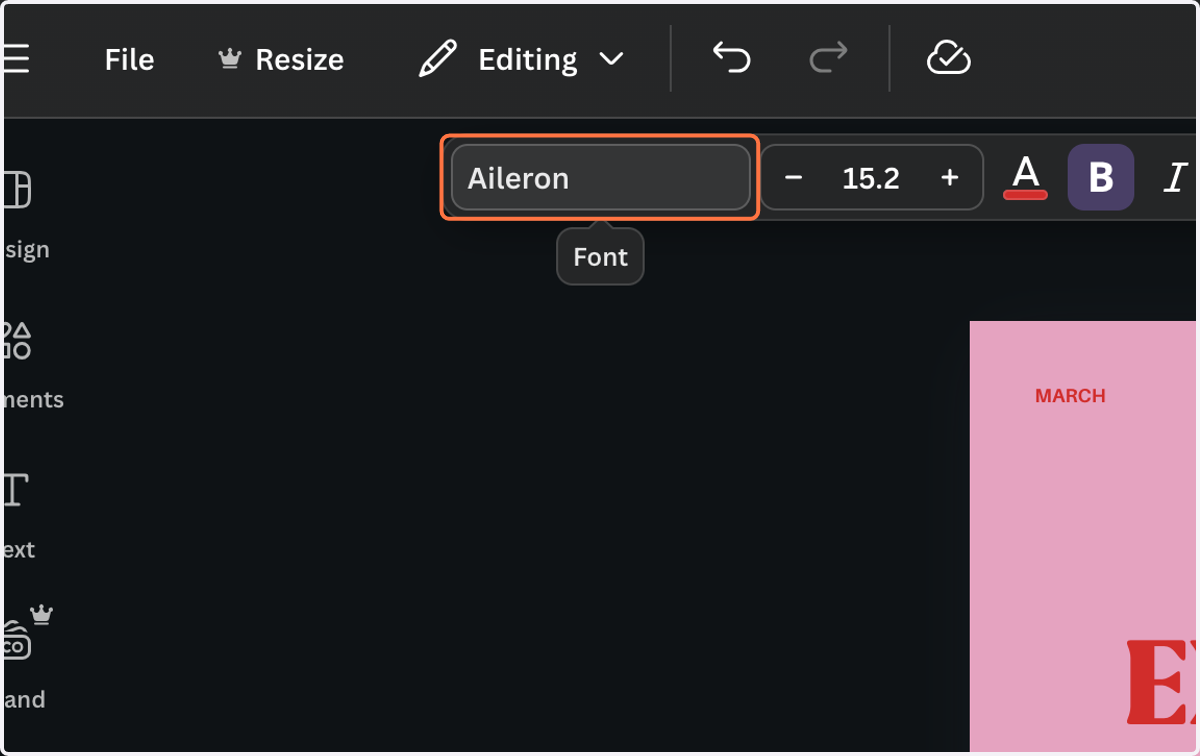
10. Select the new font.
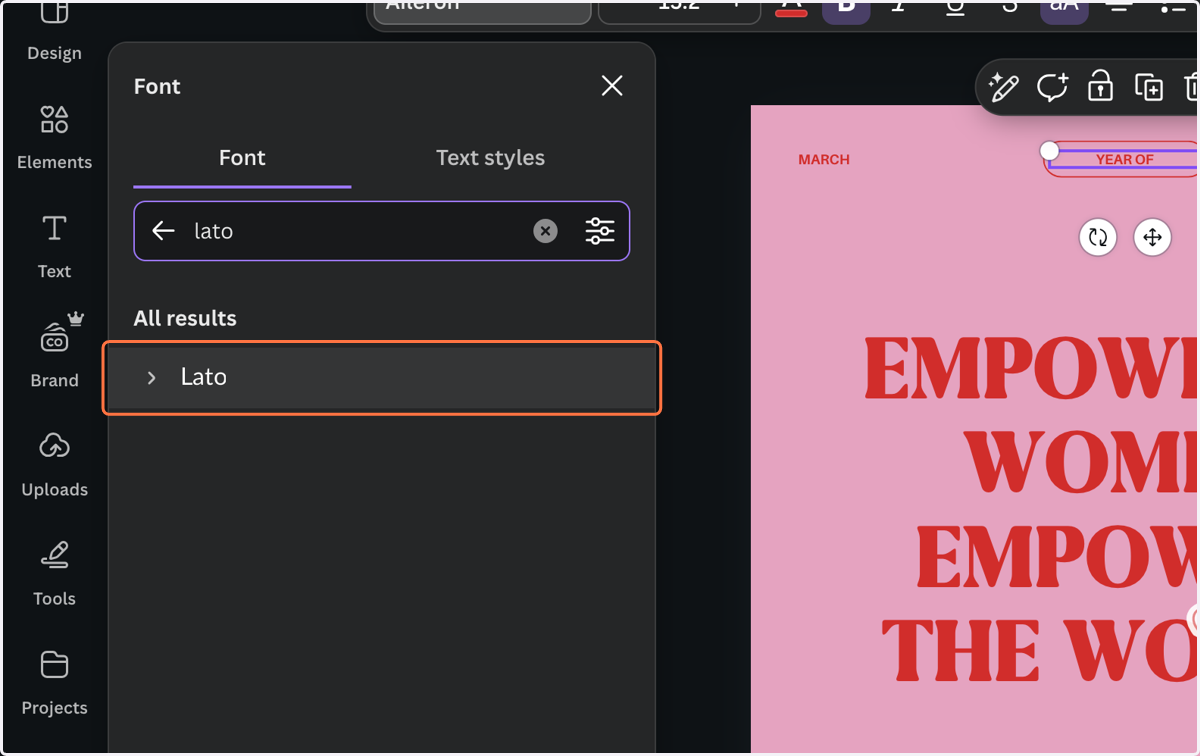
11. A purple button will pop up that says "change all" select this button.
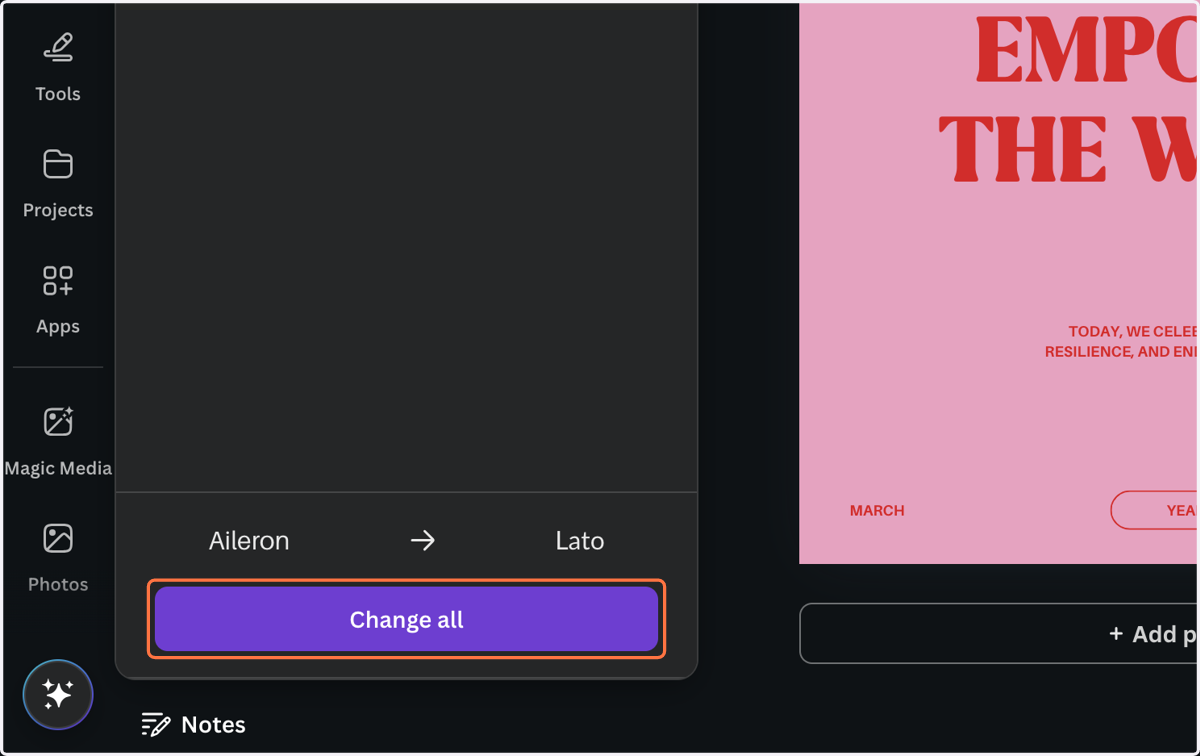
12. This should replace any instances of the old font to the newly selected font.
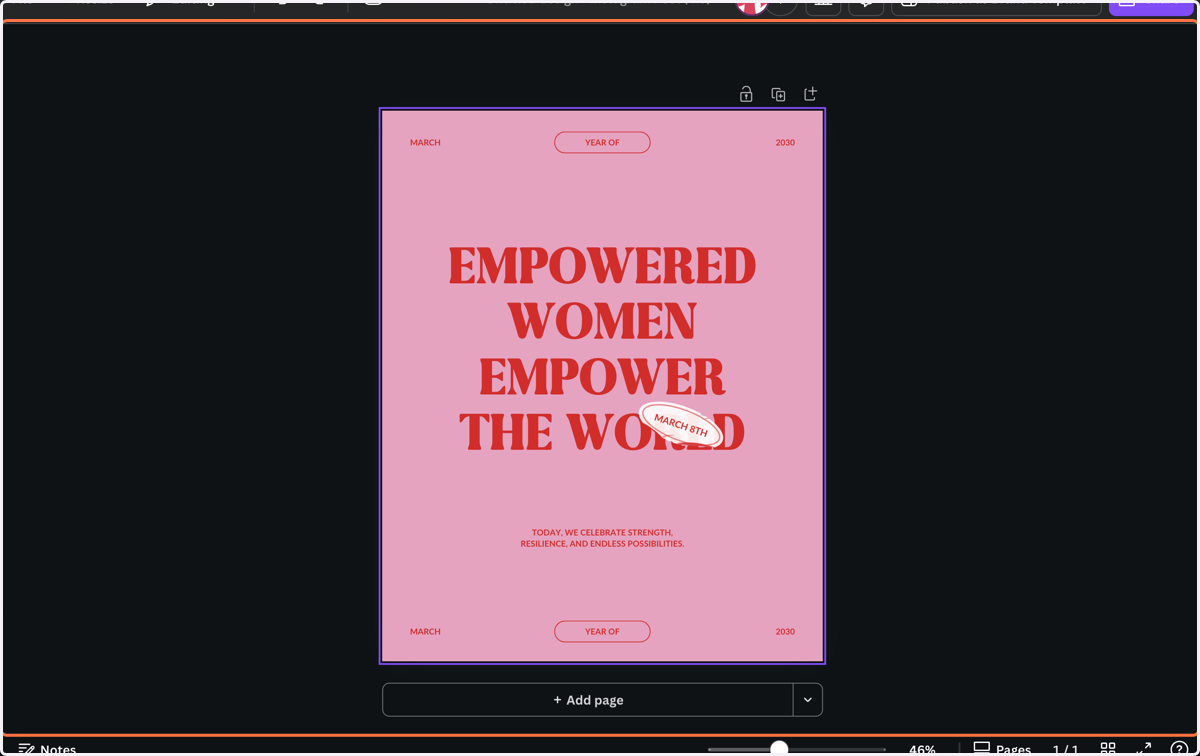
Changing Colors
13. To chnage the color of any editable item or text, simply click the item and click on the color swatch that shows in the task bar.
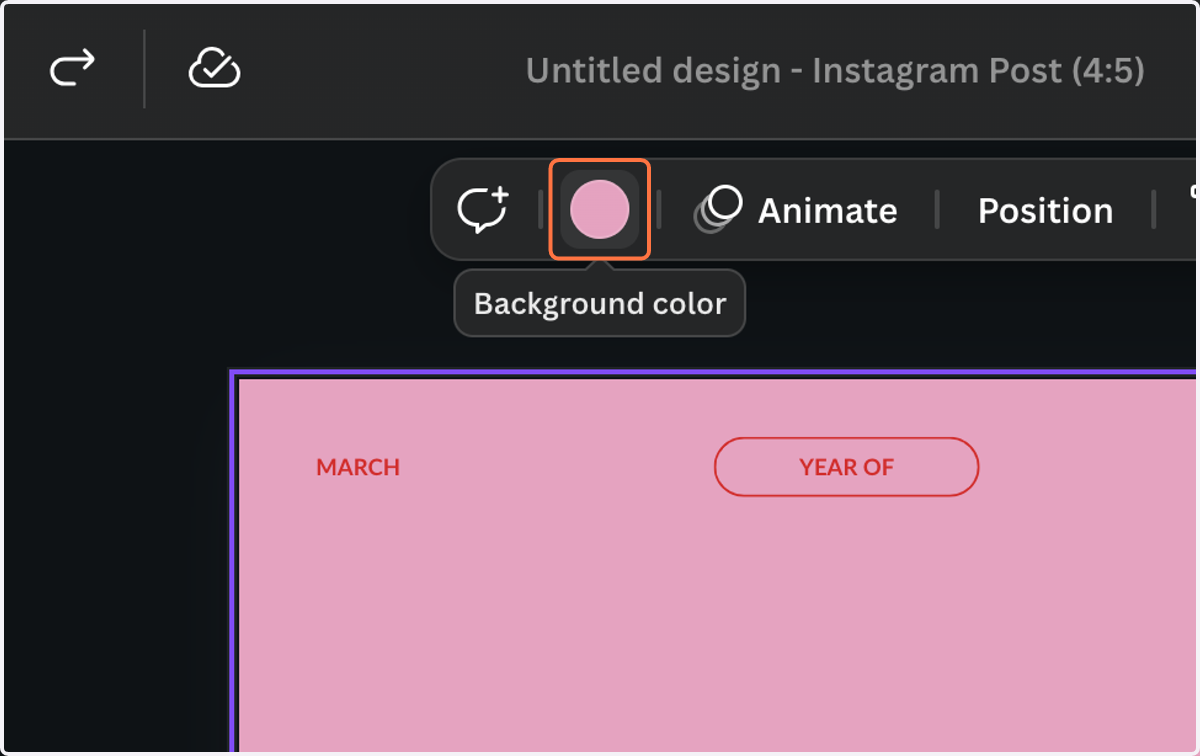
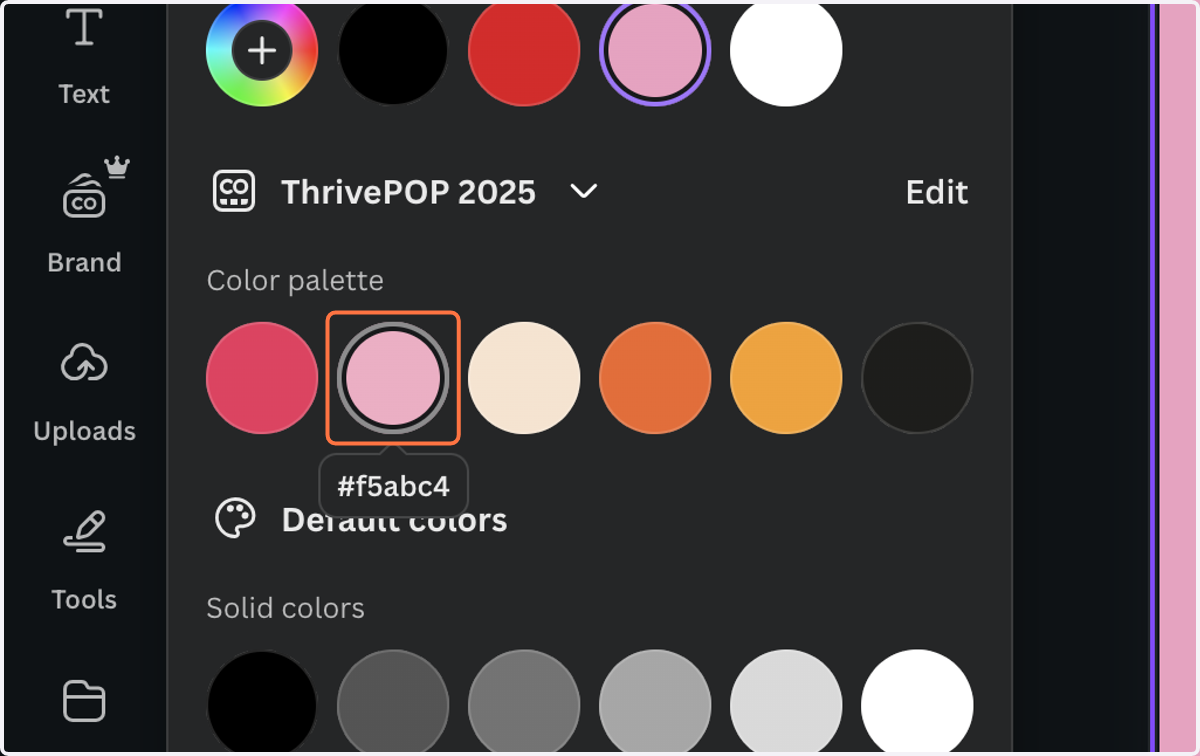
14. Choose a color from your brand kit or default colors.
15. You can also click the color wheel to select a custom color. Here you can drag and drop on the color chart or paste a hex code.
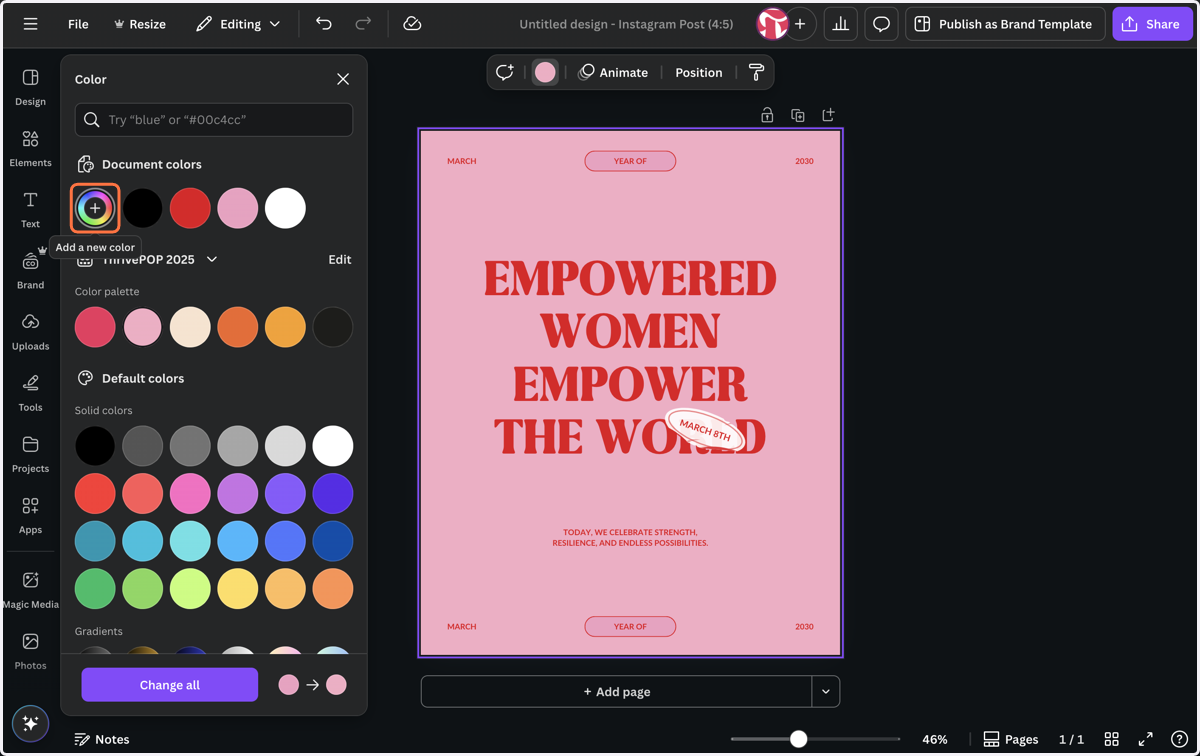
Find and Replace Colors
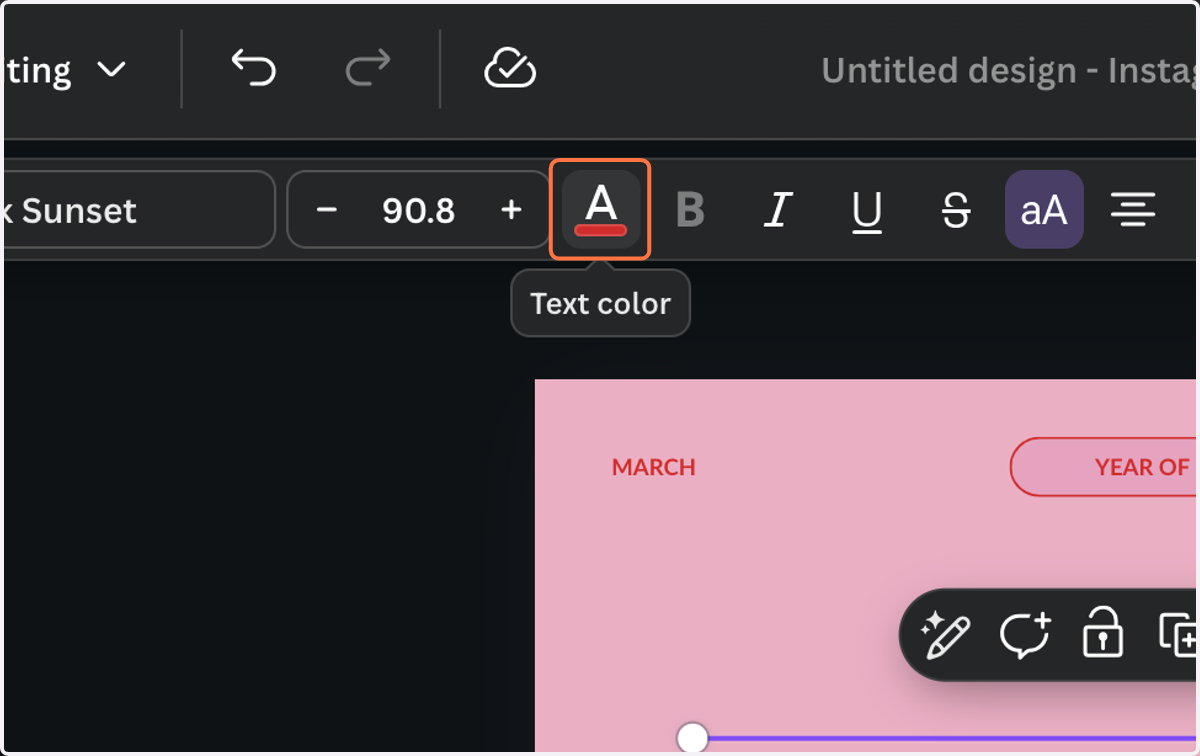
16. You can change all instances of a color in a design at once. Click on the color in the task bar.
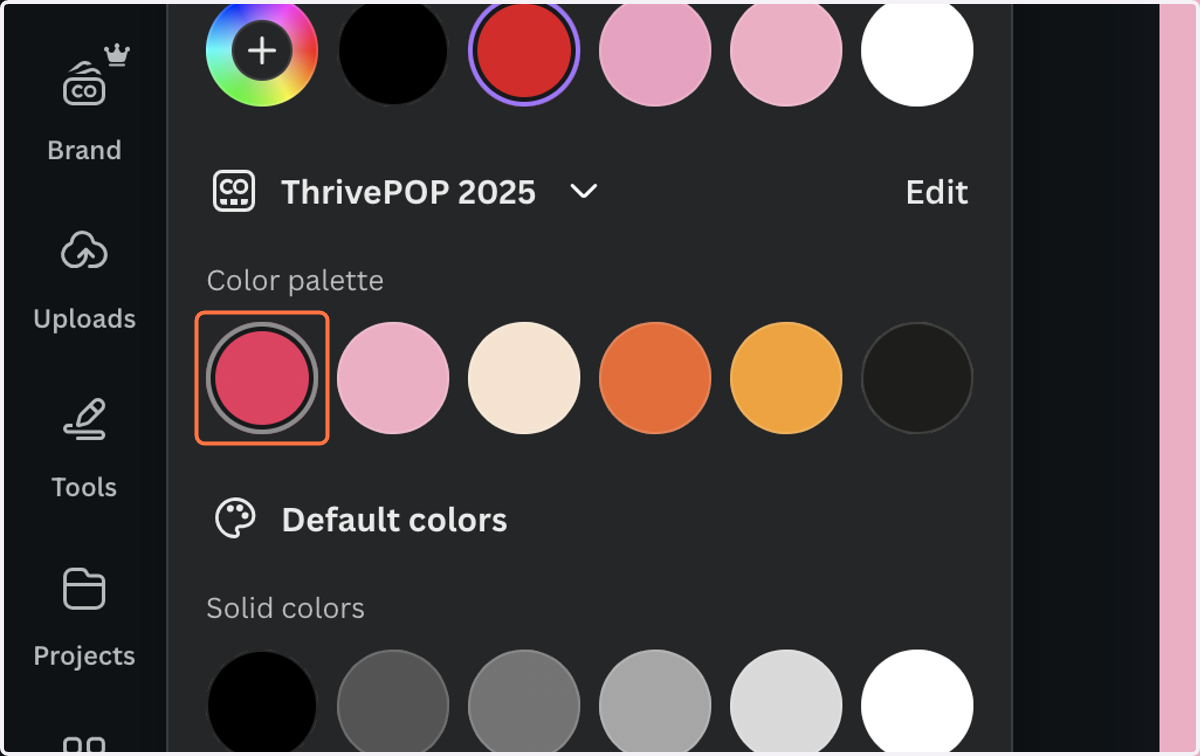
17. Select your new color.
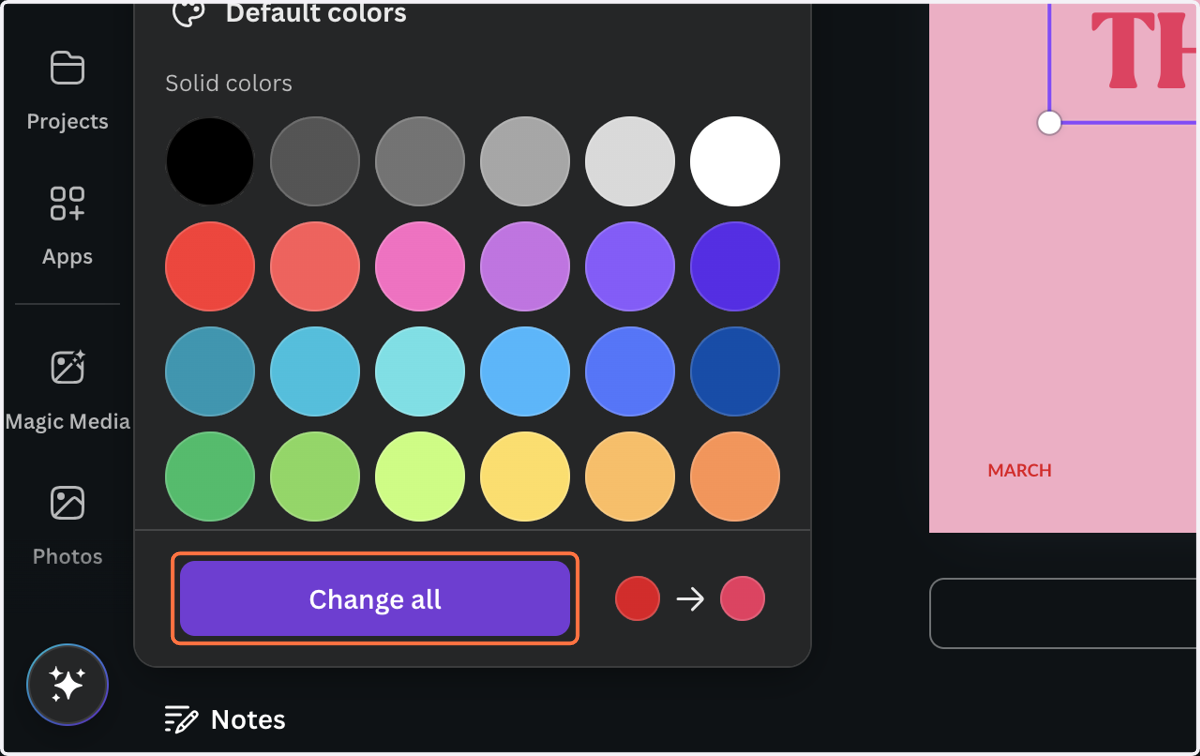
18. Click on "Change all." This will replace all instances of the old color with the new color.
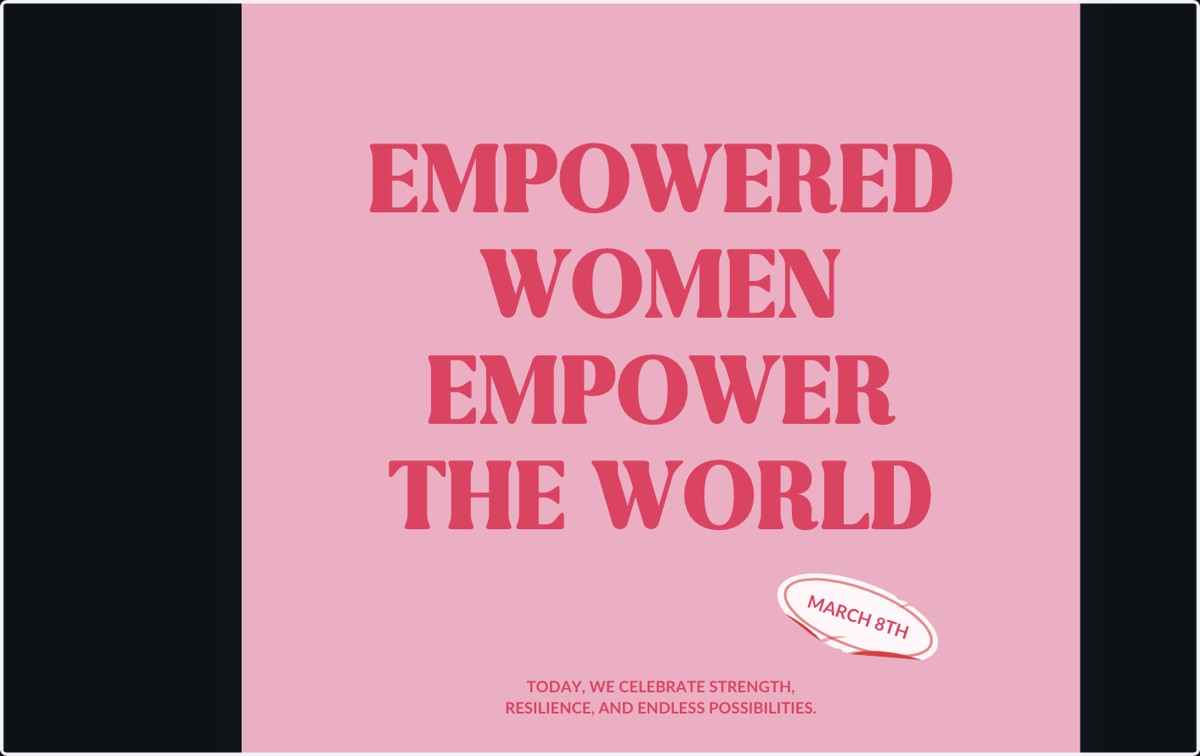
19. Ta-da!
Using "Elements"
20. Click on Elements
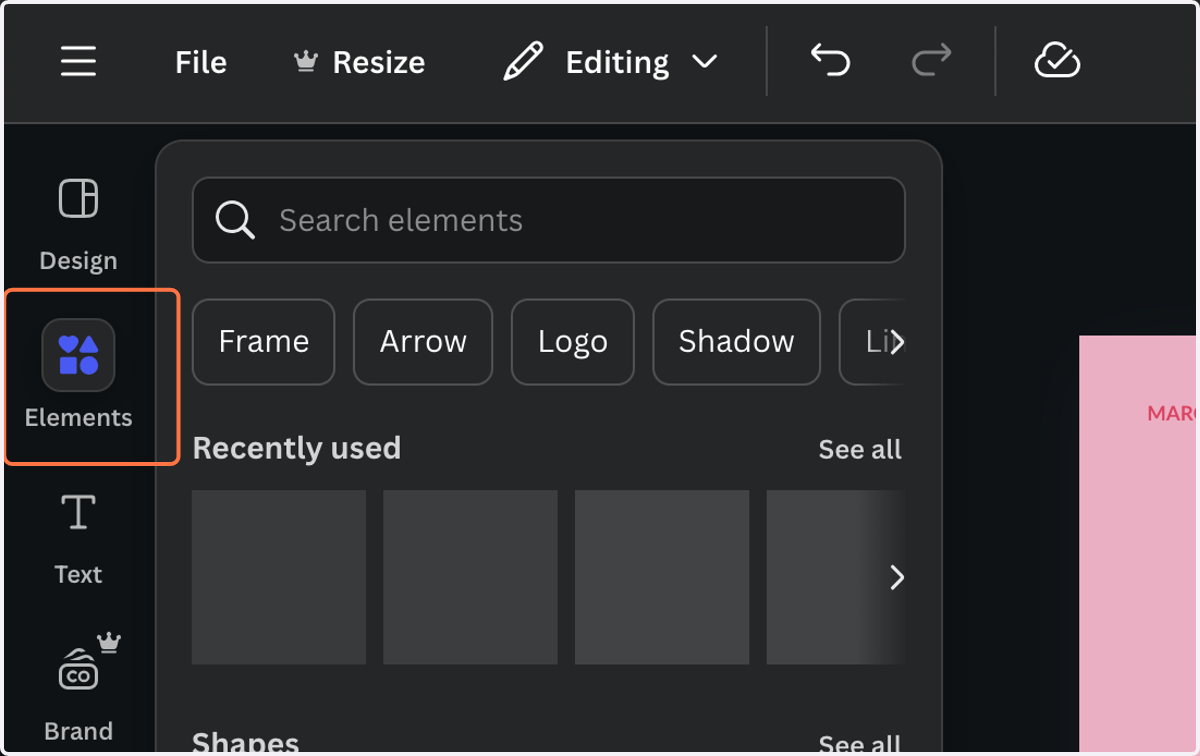
21. Explore Canva's vast library of stock graphics. You can customize the colors on lot of the graphics, but not all. Some animated graphics can be customized, but not most. Click "see all" to see more graphics in a category.
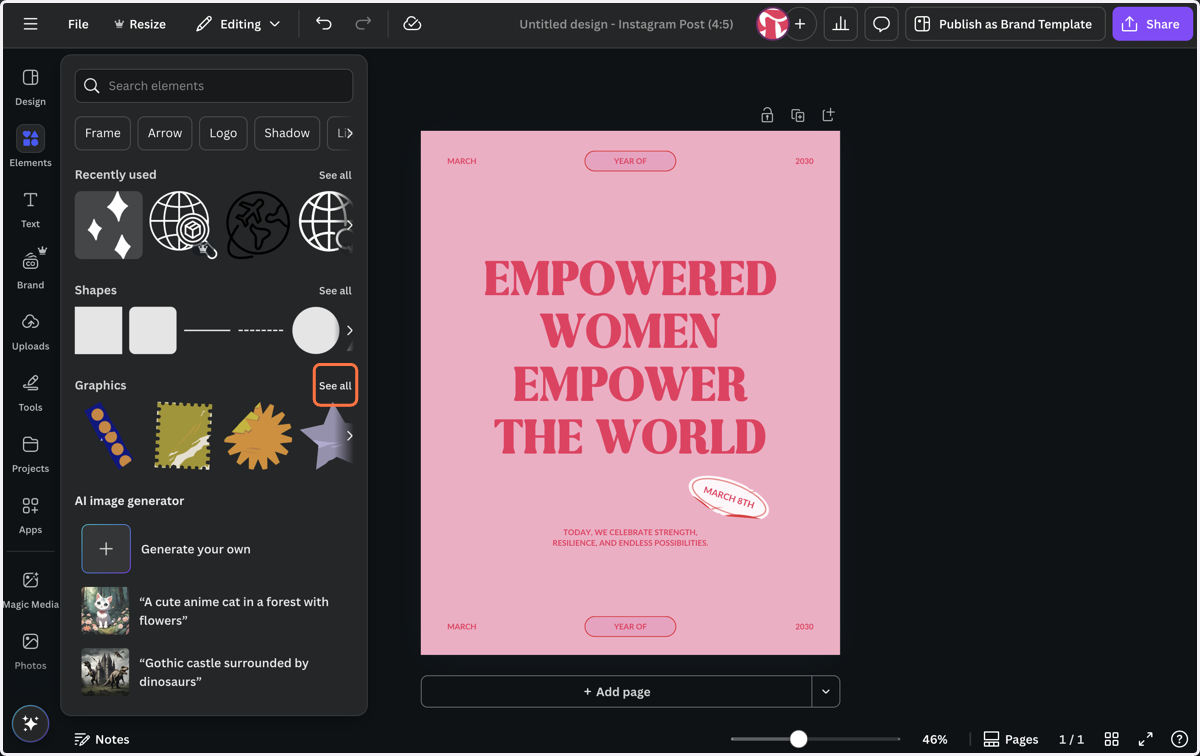
22. Click on an item to add it to the design or drag and drop it onto the canvas.
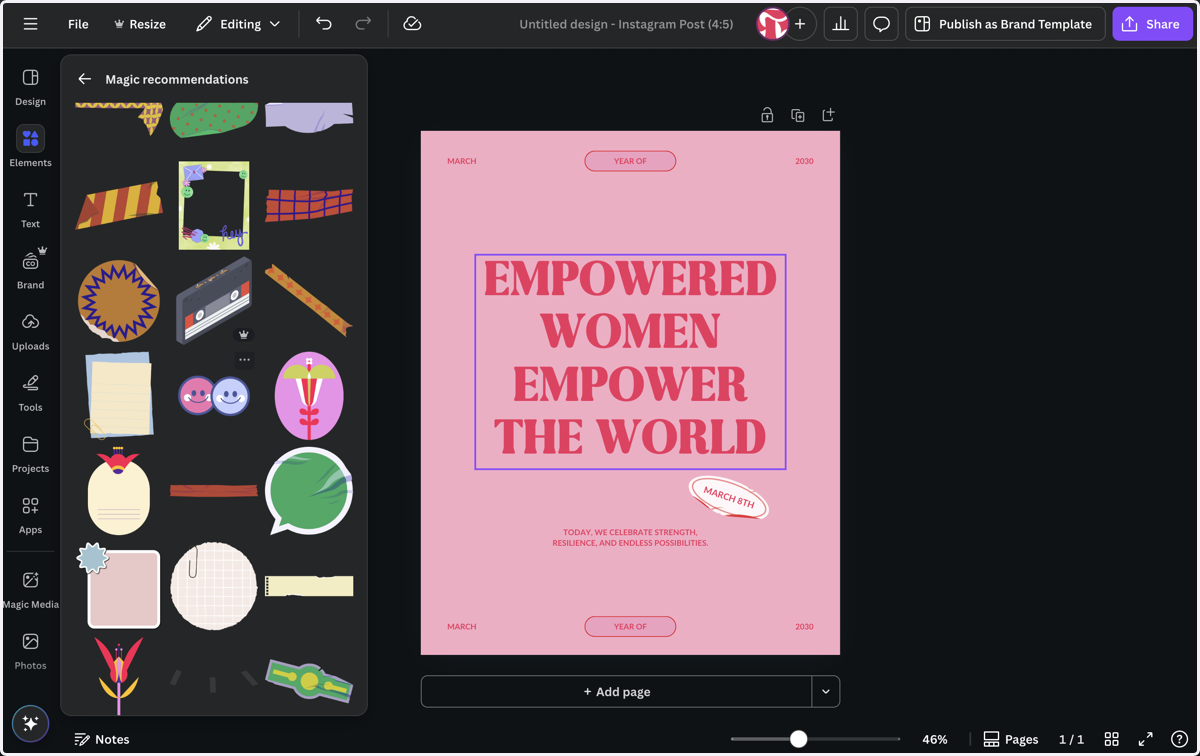
23. Click on Position
Using Layers
Canva
24. Click on an item on the canvas.
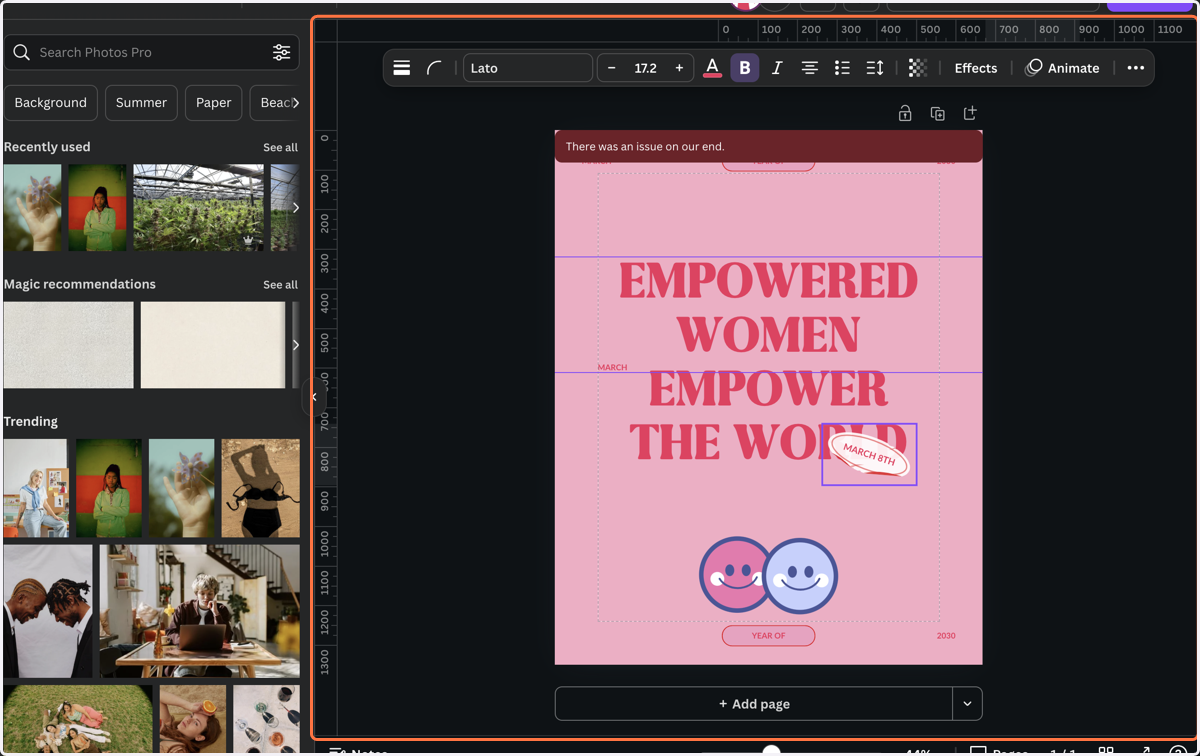
25. Click on Layers
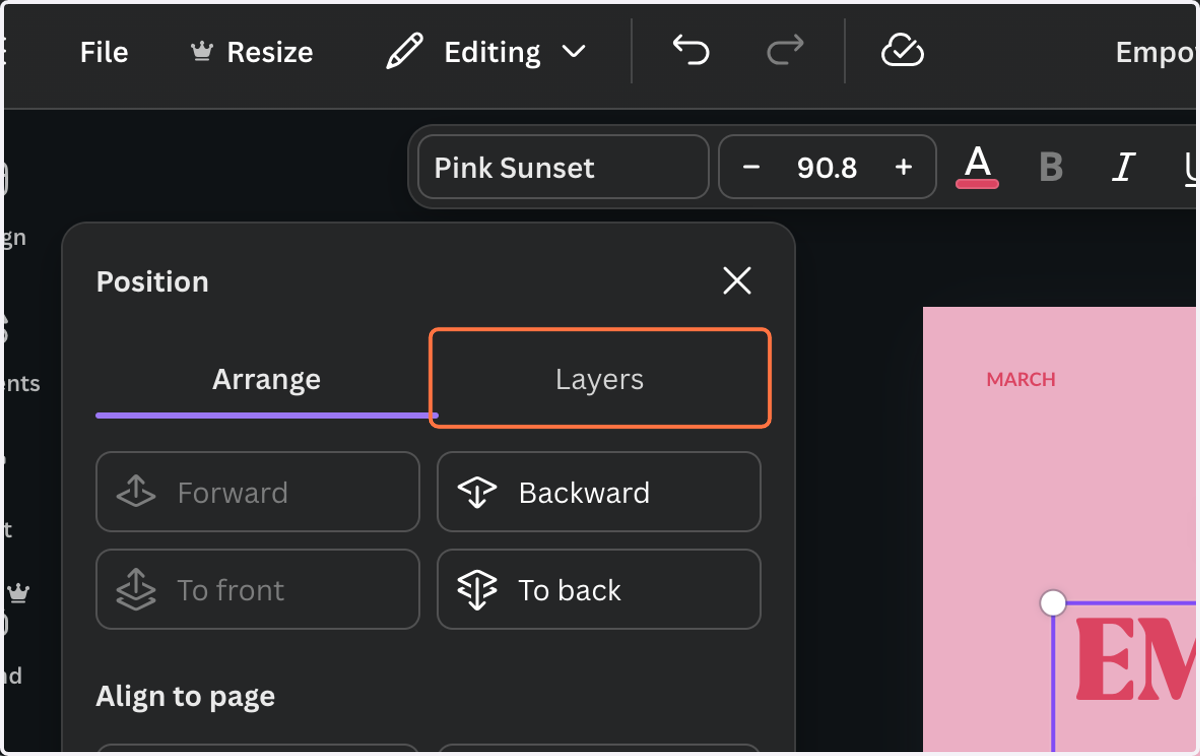
26. Click on Graphic
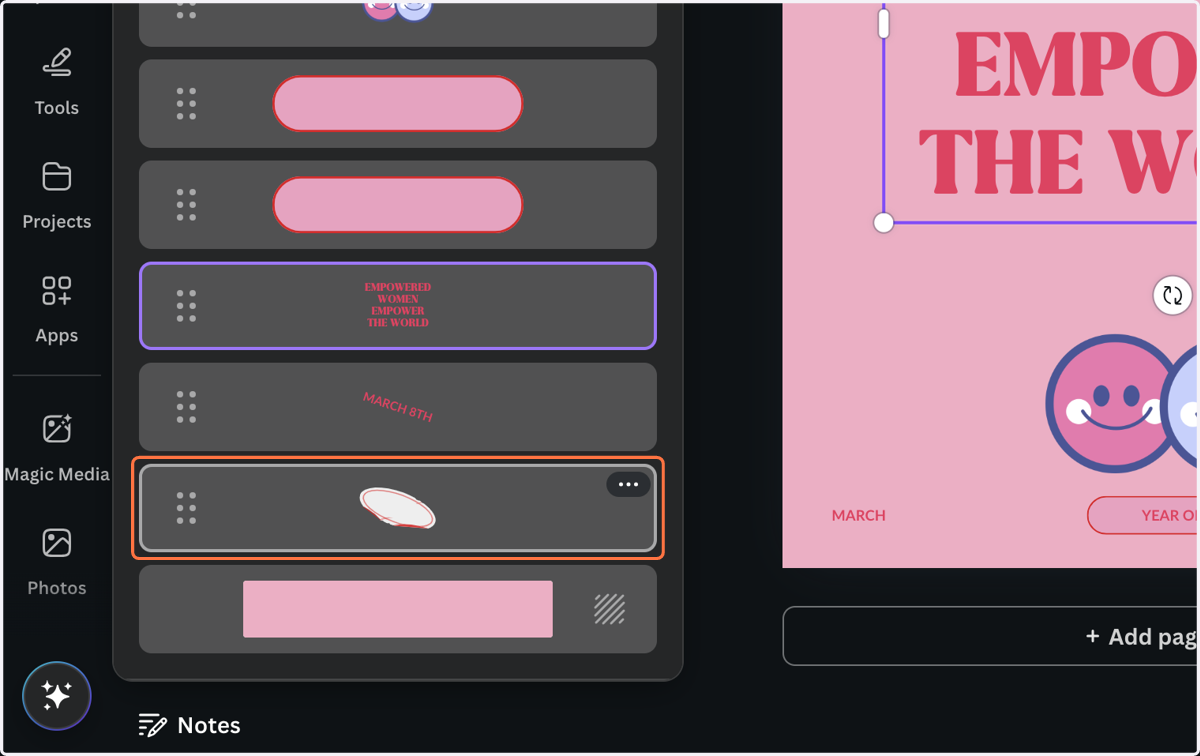
27. To select multiple graphics, hold down control and click another graphic.
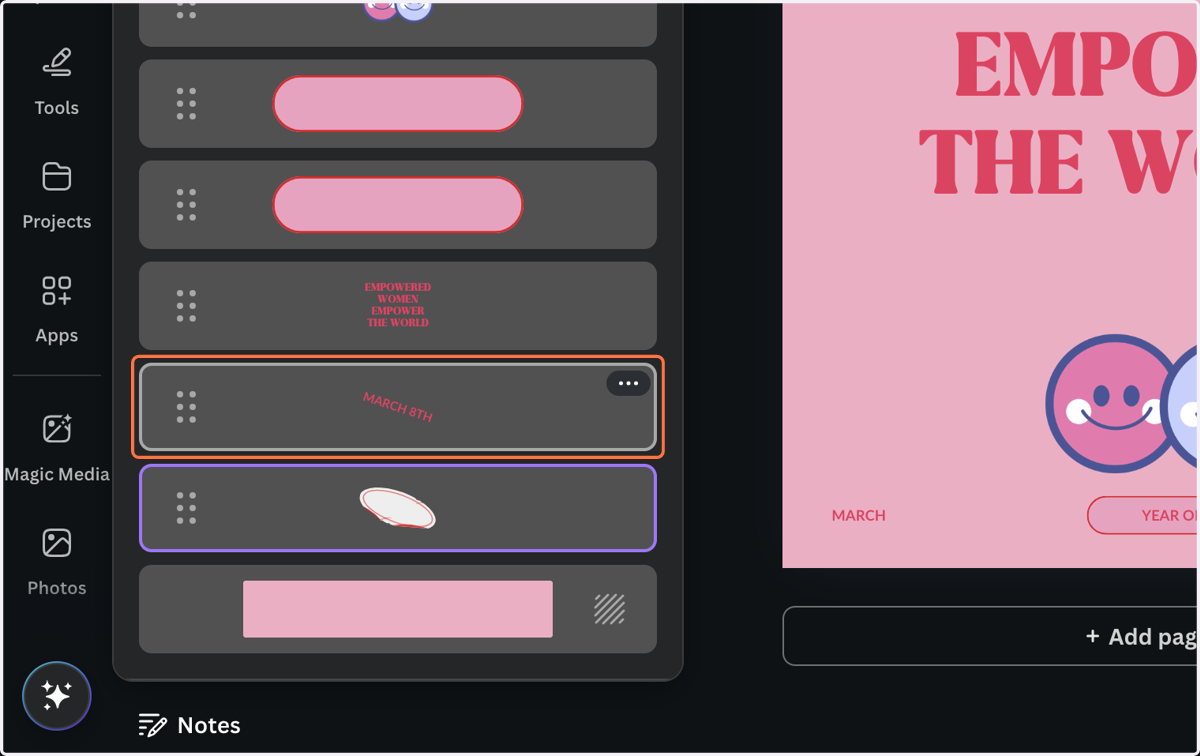
28. To group items, right click and click group or hold down [command + G]
![To group items, right click and click group or hold down [command + G]](https://images.tango.us/workflows/2ac6631b-4fc6-4733-ac90-625a4c9bec70/steps/efbefe9e-f917-4817-a5a8-fd4ed778ca8a/2a0e70f2-b0c2-4451-ad7b-0a50835945a3.png?fp-x=0.1783&fp-y=0.8236&fp-z=1.8595&w=1200&border=F4F2F7&bx=168&by=1402&bw=672&bh=128&c=FF7442&dpr=2.00)
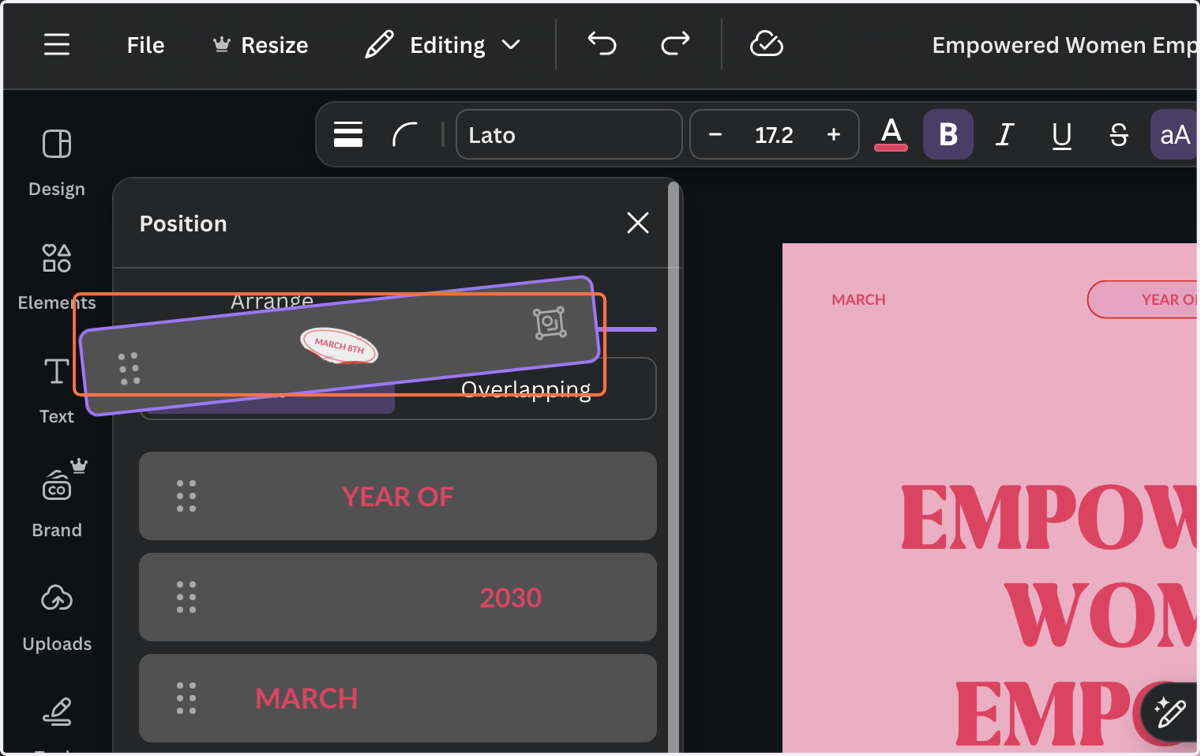
29. Relayer items by dragging and dropping them in the layer menu or move forward and backward unnder the "position" tab.
Making Margins Visible
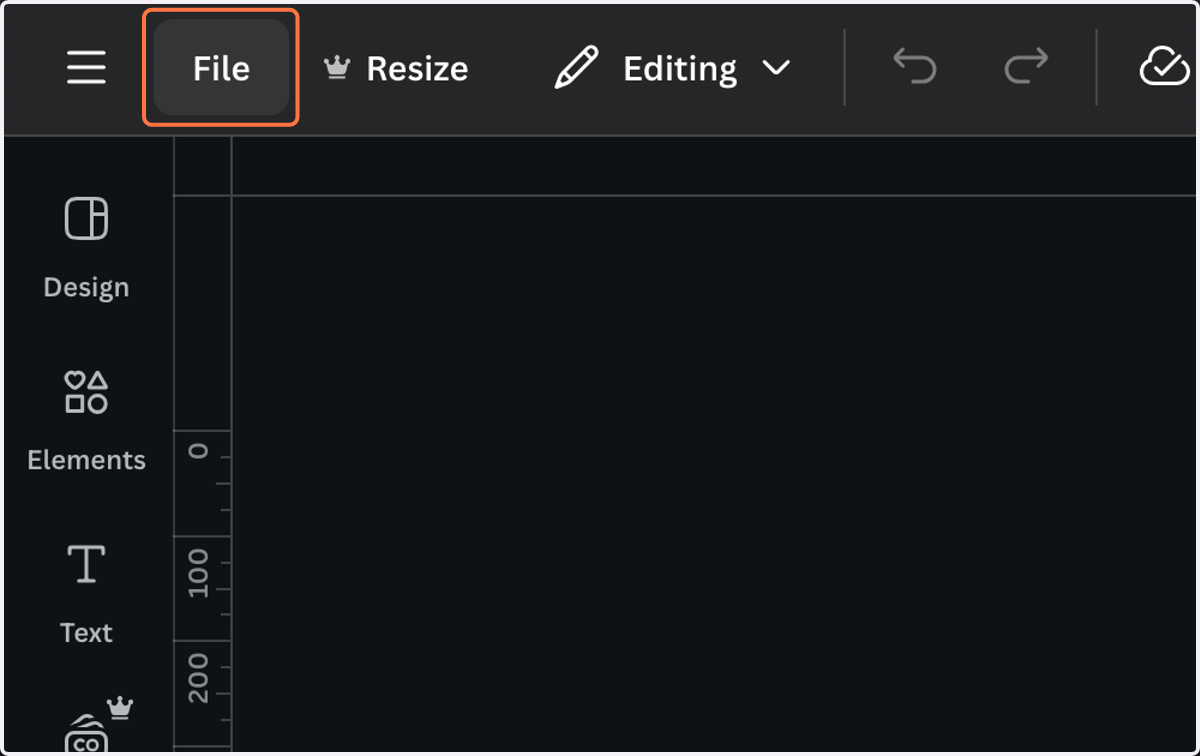
30. Click on File
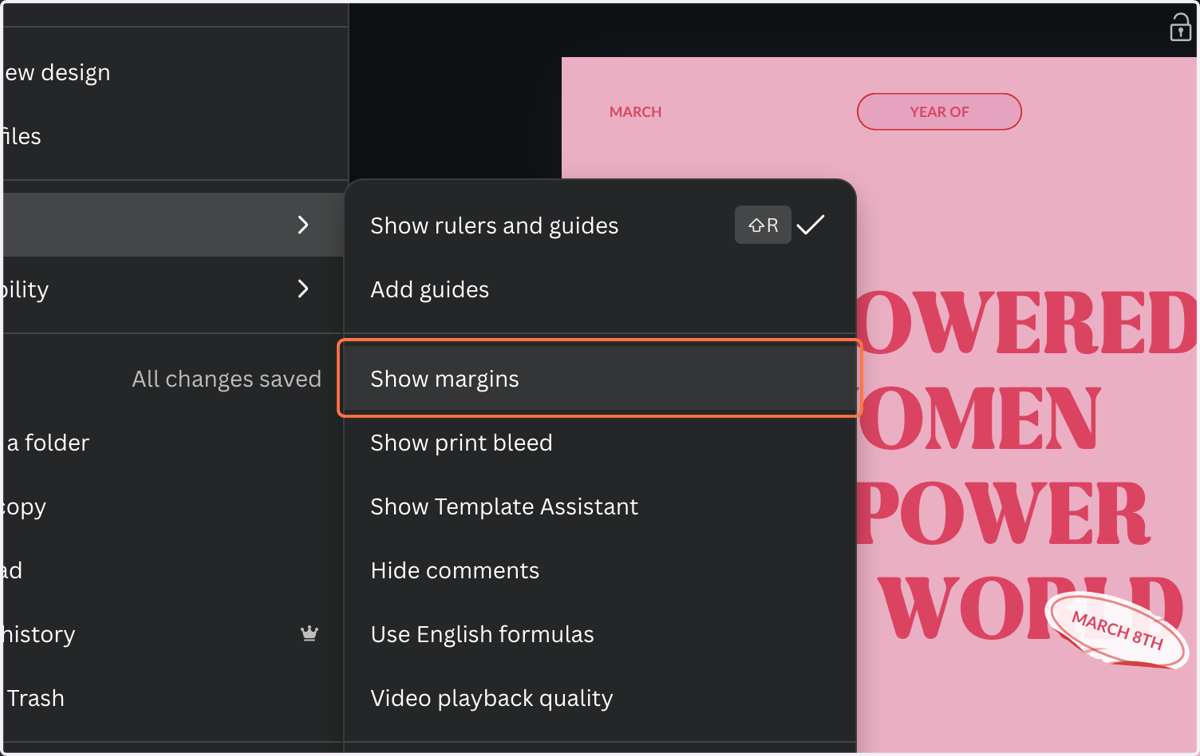
31. Click on Show margins
Using Rulers
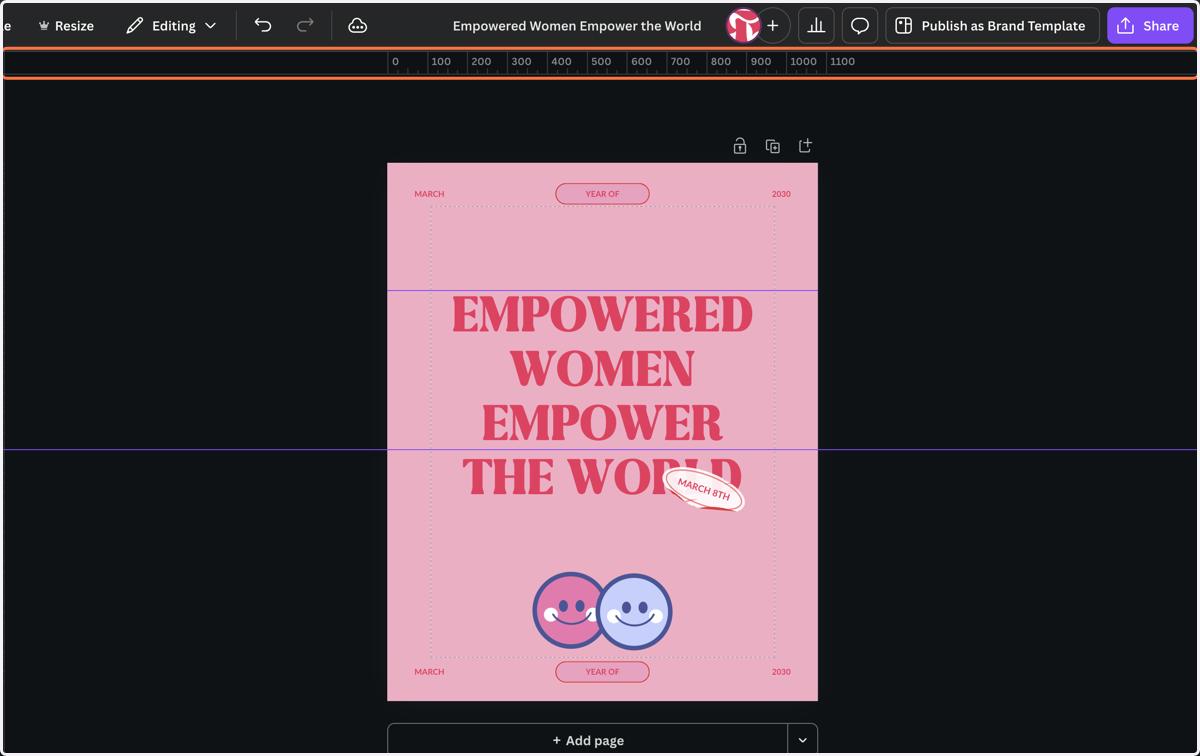
32. Use the keyboard shortcut [Shift + R]. This will enable the rulers on the top and side of your canvas.
33. Click and drag from one of the rulers onto your canvas to add a guide. Items on the canvas will snap to these guides when dragged near them. This will make it easier to make sure that your text and graphic elements are aligned.
34. Drag highlighted element
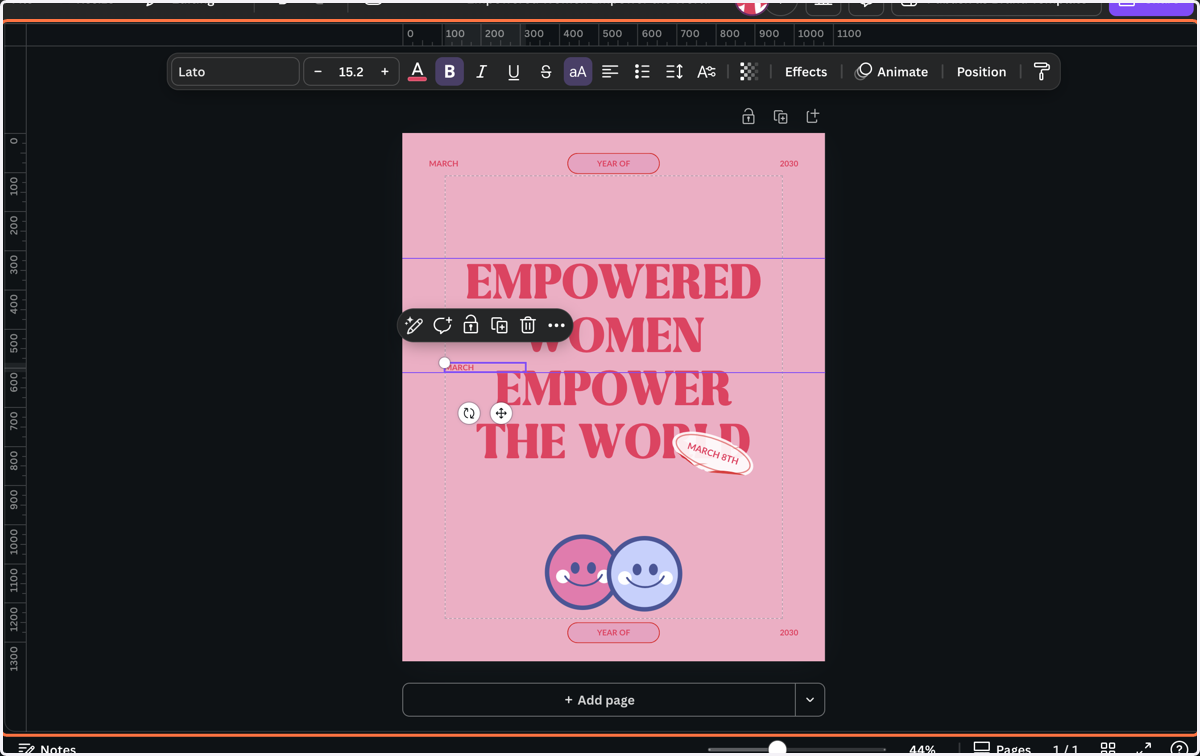
Frames & Mockups
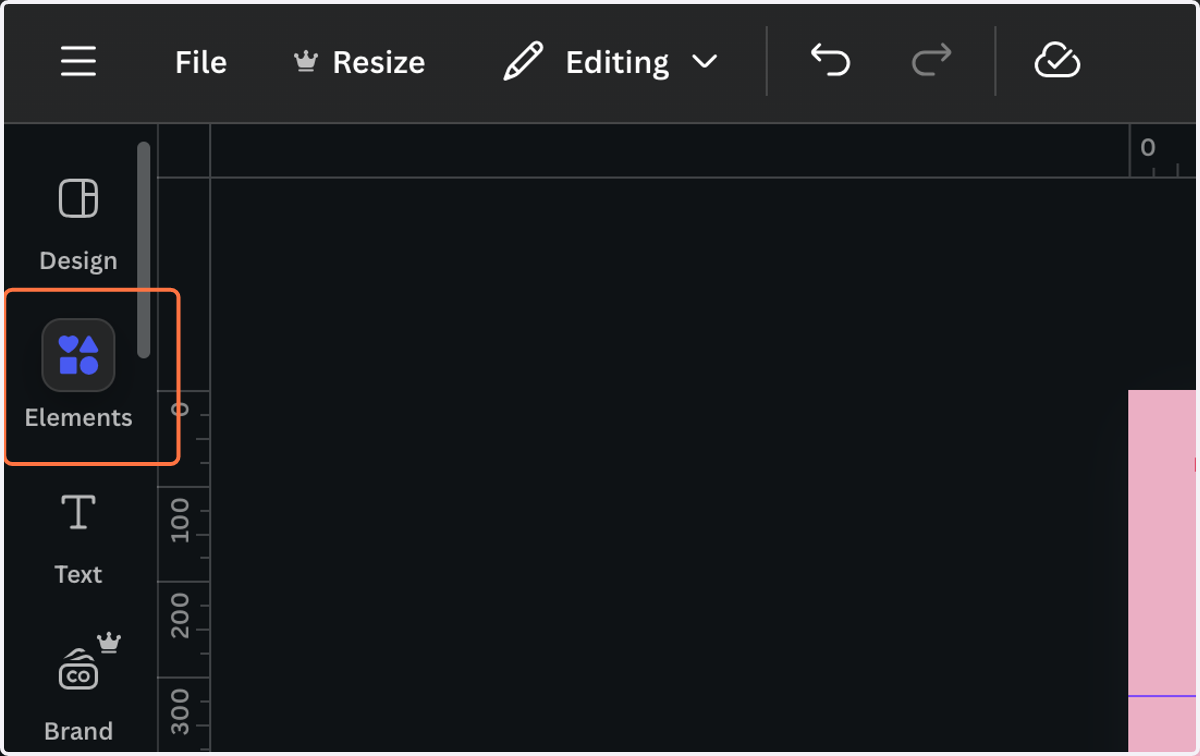
35. Click on Elements
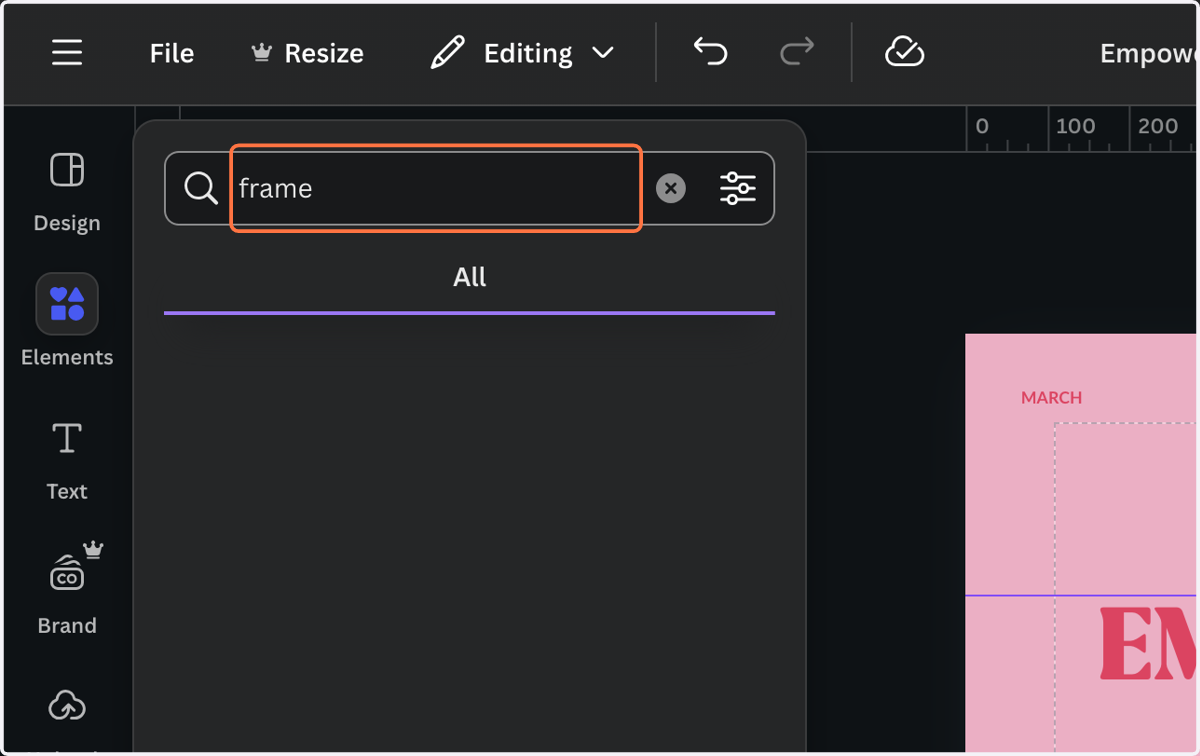
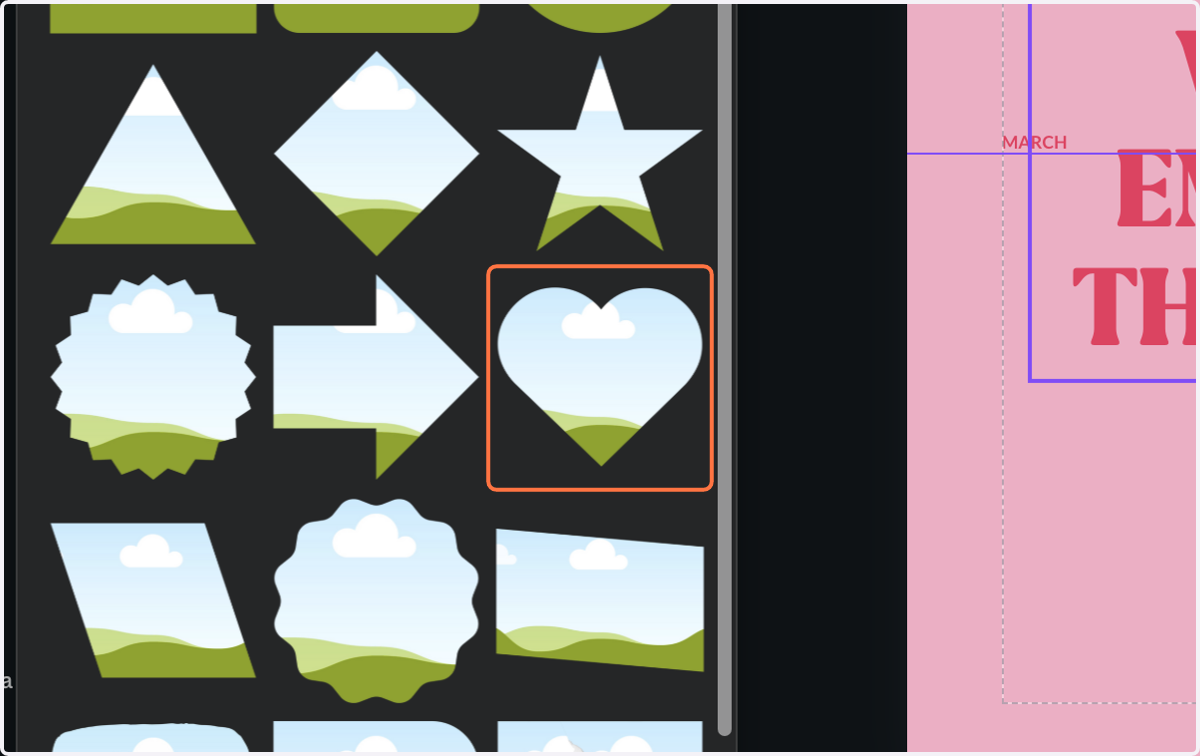
36. Type "frame"
37. Click on See all
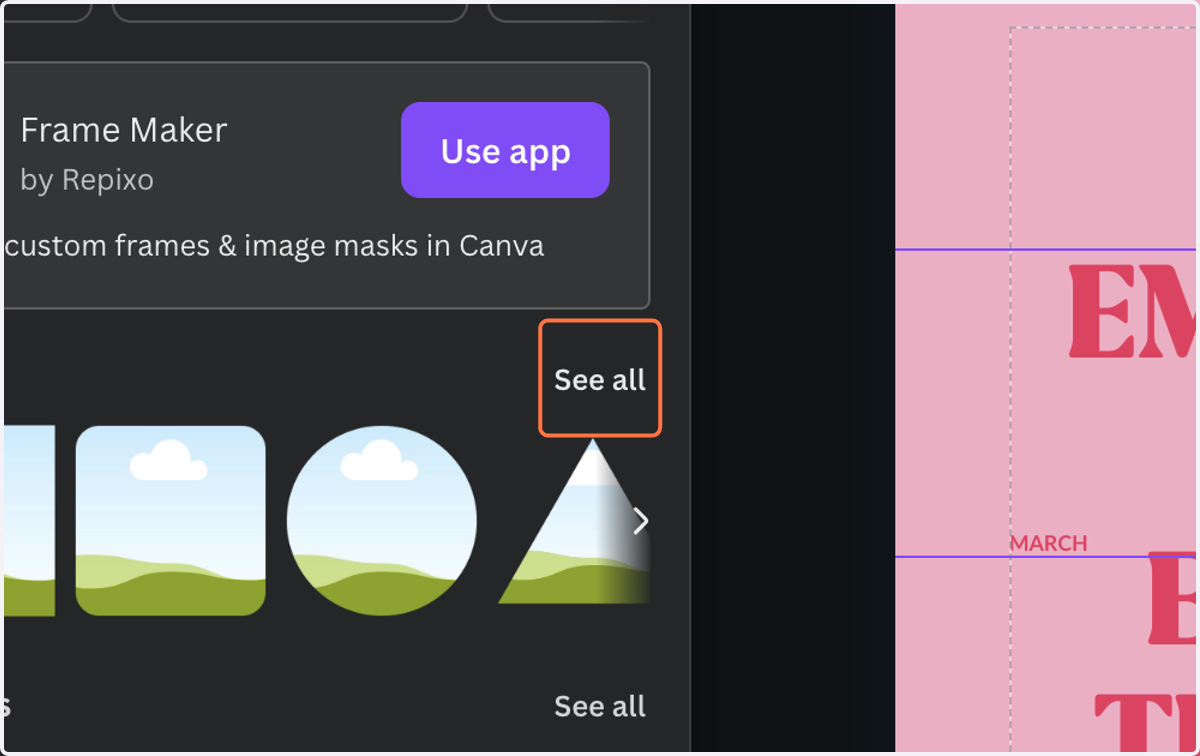
38. Select a frame to add it to the canvas.
39. Click on Suggestions will appear below as you type into the field
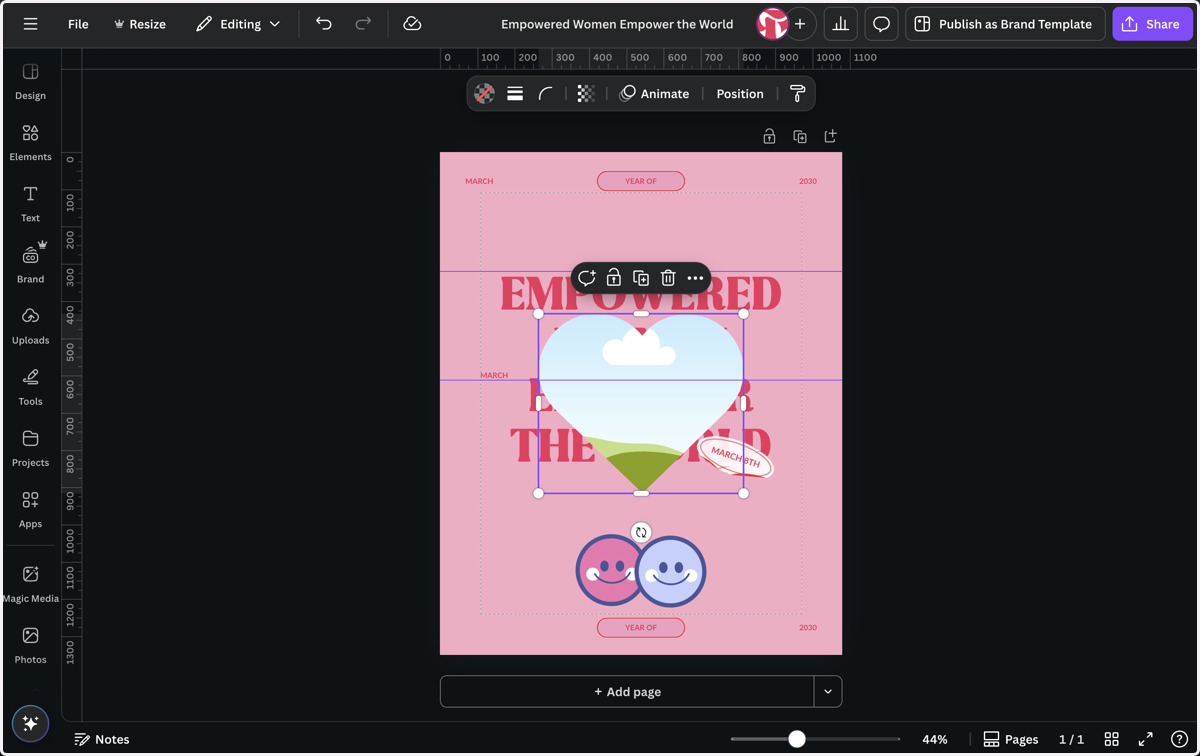
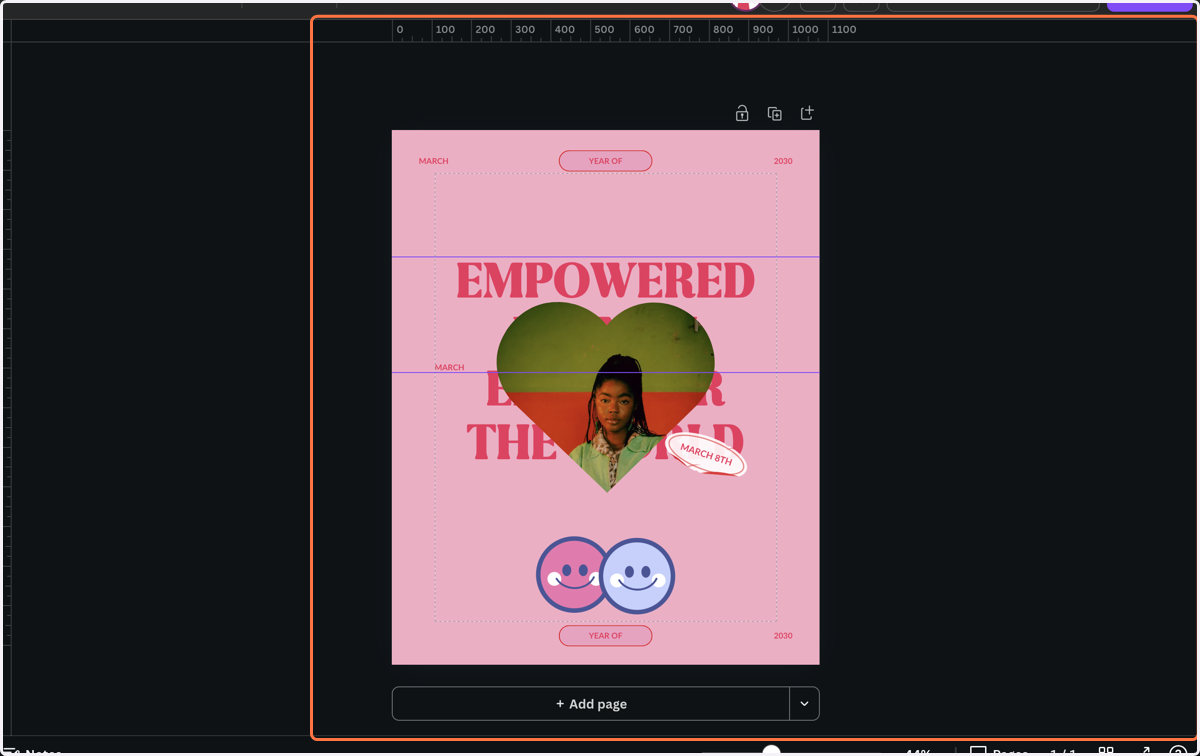
40. You can drag an image from the photos menu or from the canvas into a frame.
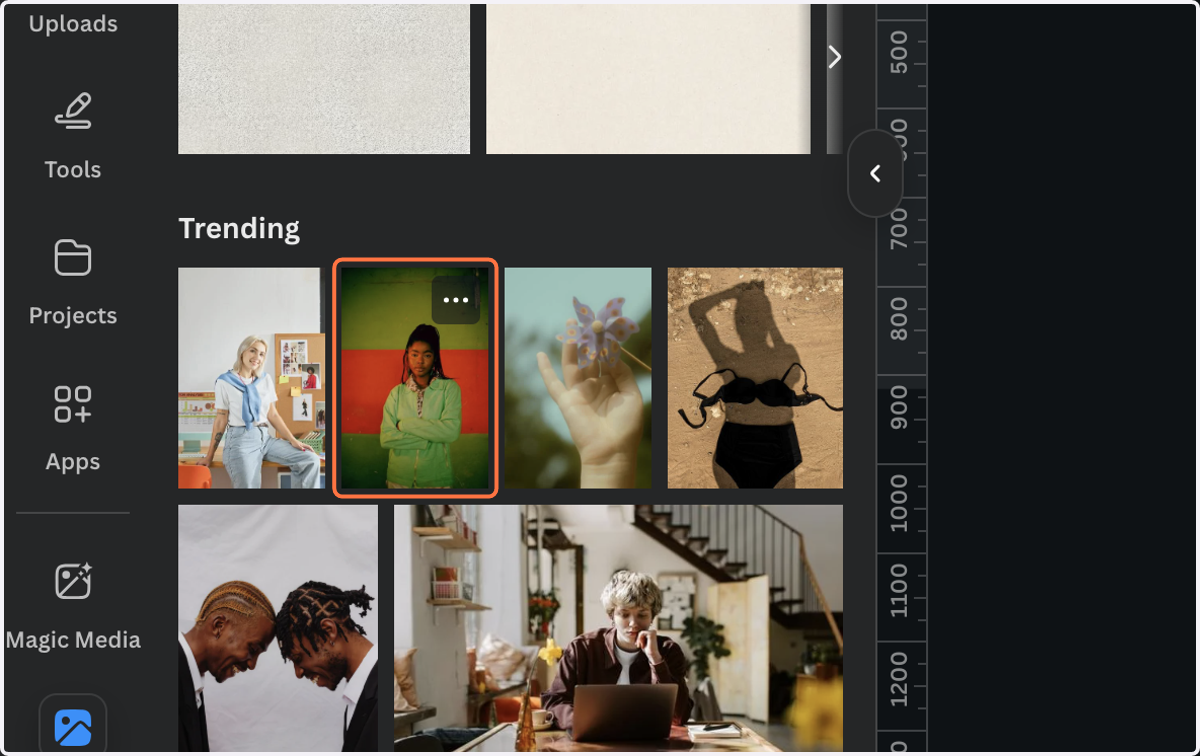
41. Drag highlighted element
42. To use a mockup, click on elements.
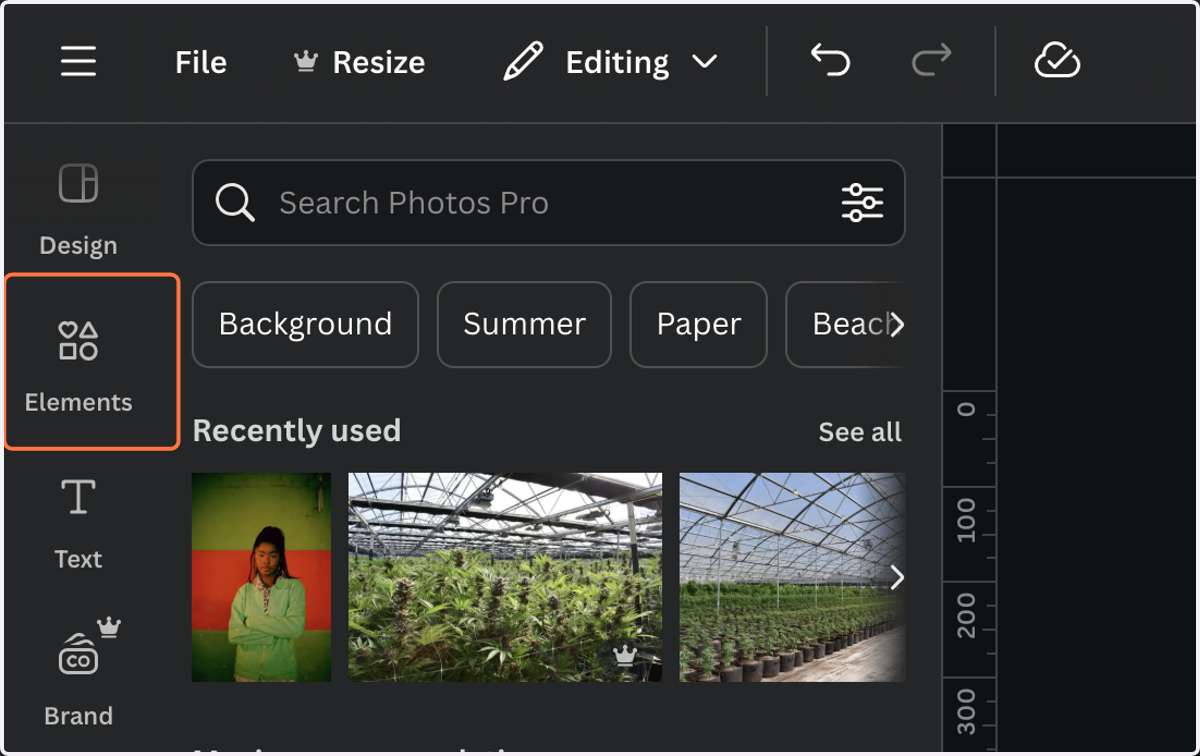
43. Type "mockup"
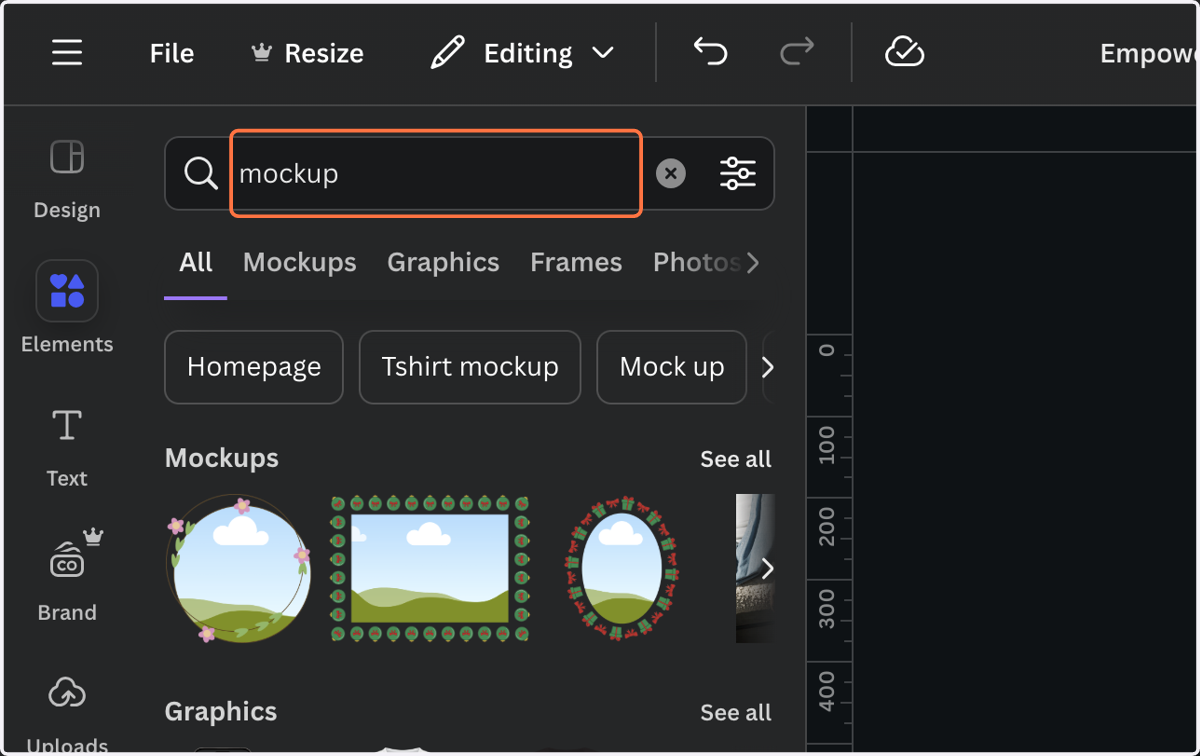
44. Click on See all
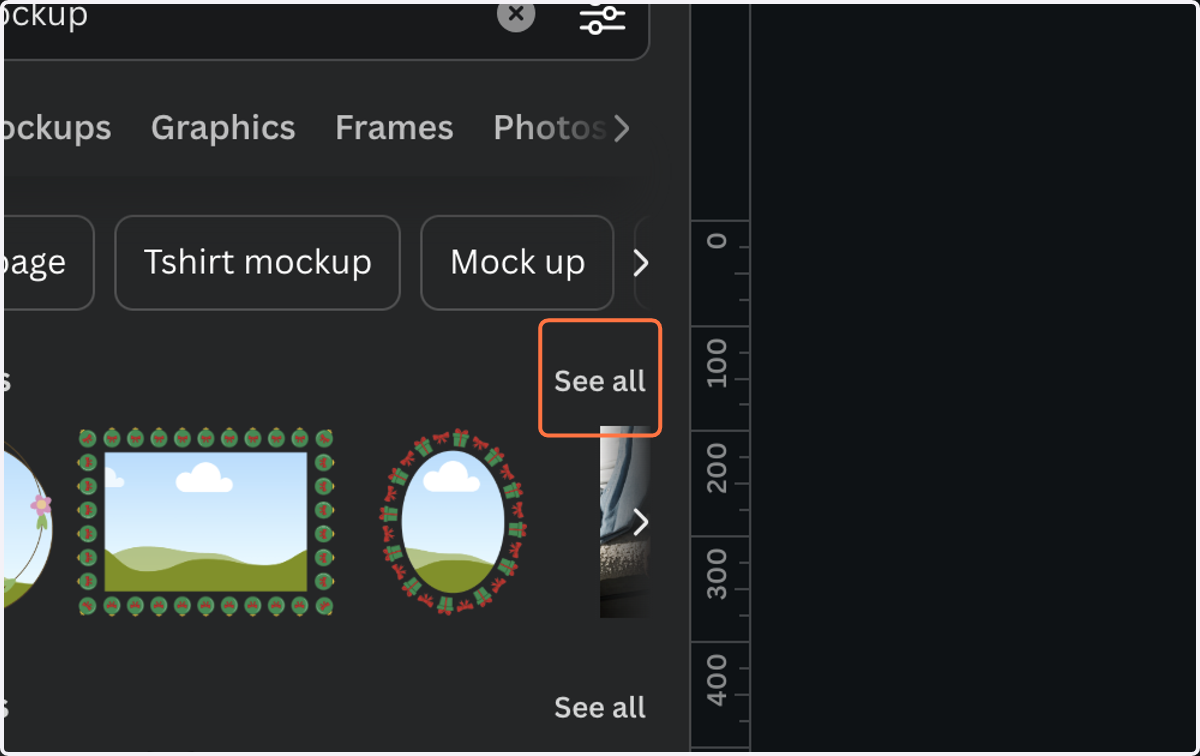
45. Select a mockup
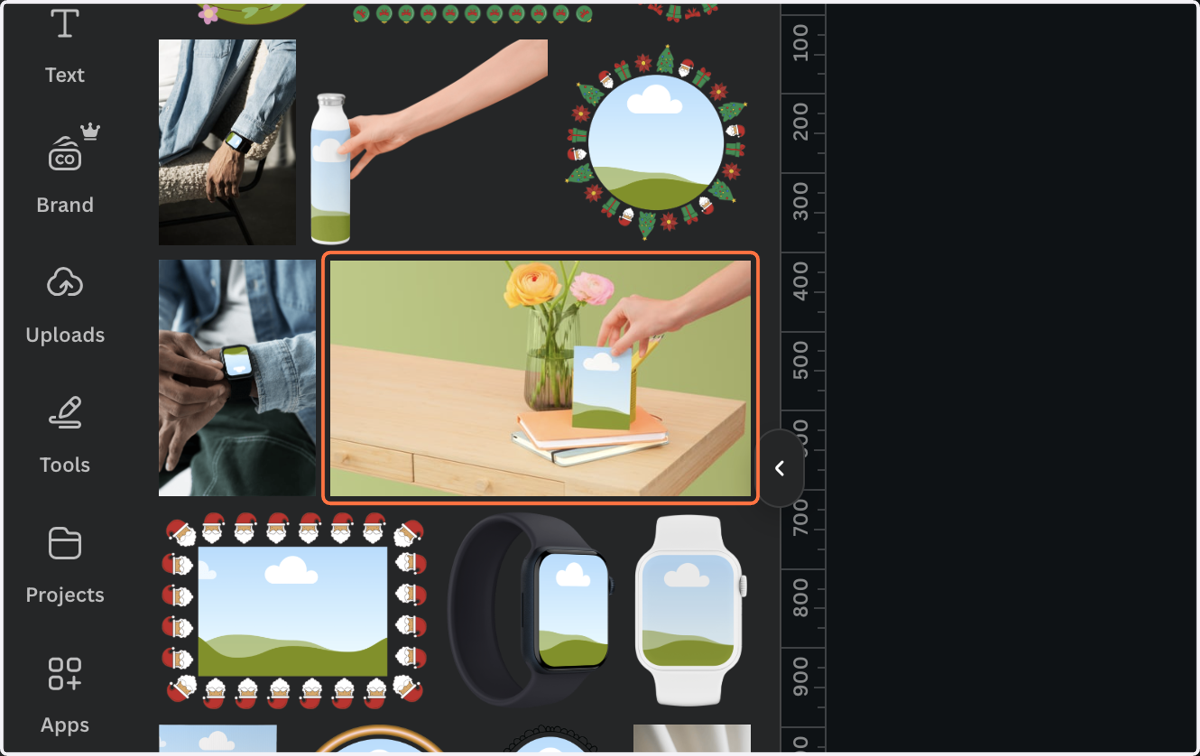
46. You can drag an image from the photos menu or from the canvas into a frame.
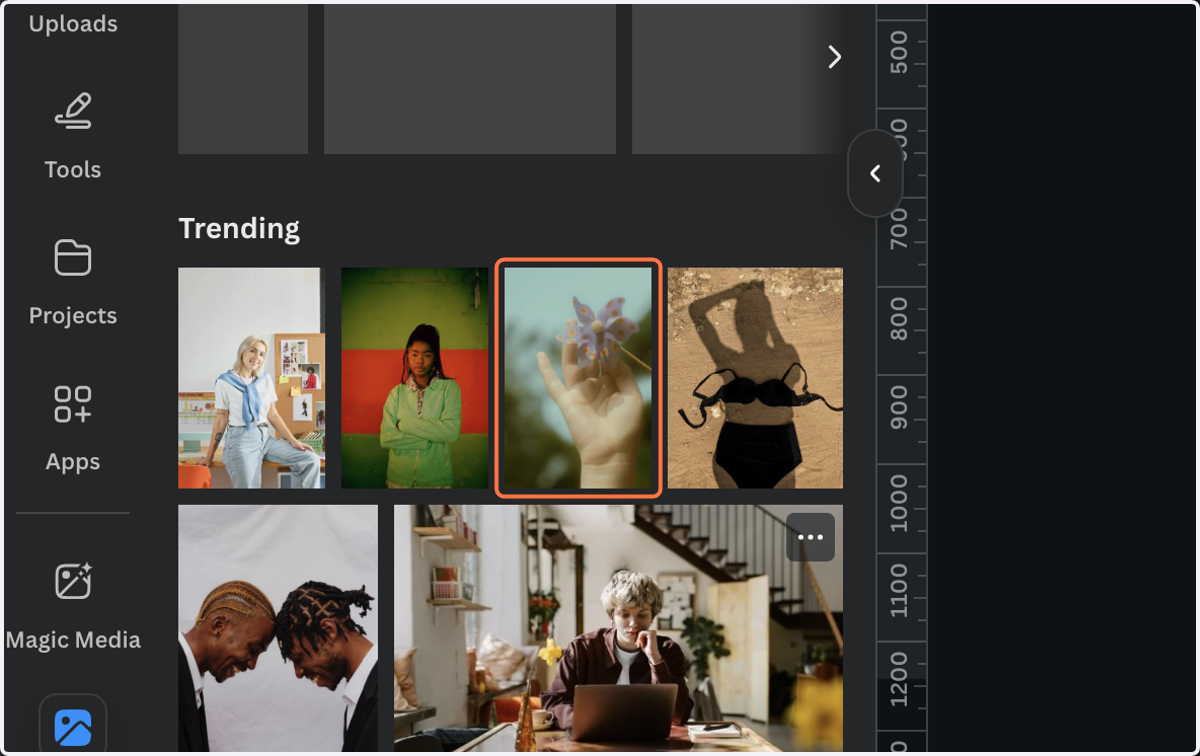
47. The image will be added into the mockup.