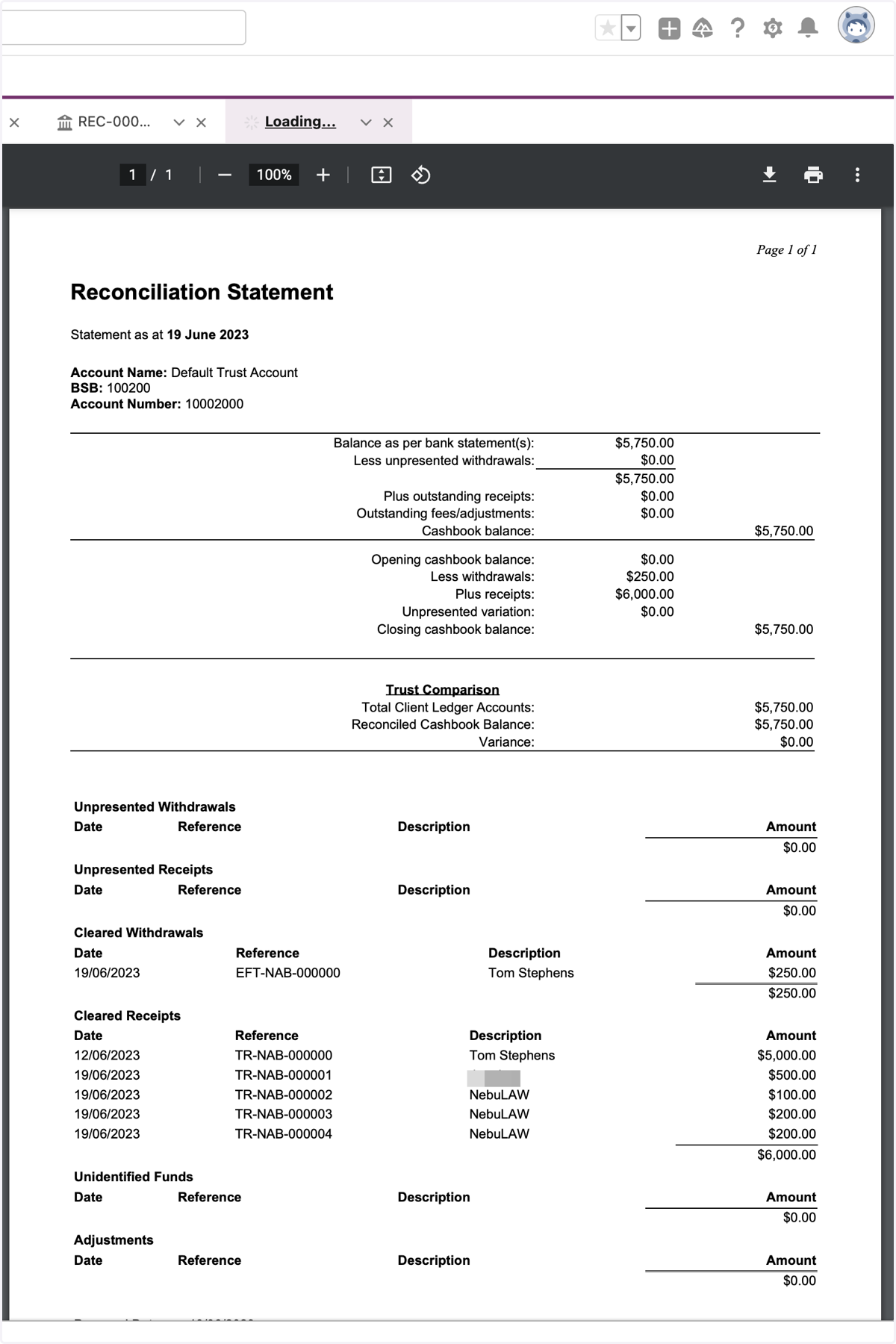
Bank Reconciliation
Bank reconciliations are straight forward in NebuLAW, to get started follow along below
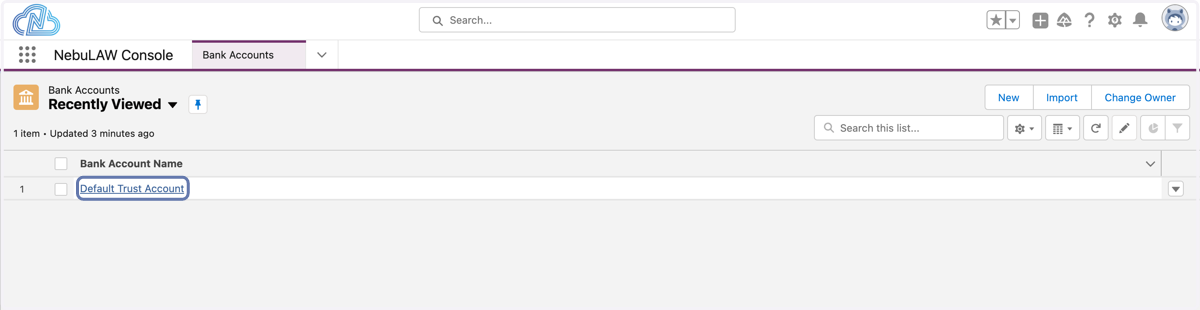
1. Select a Bank Account to create a reconciliation from
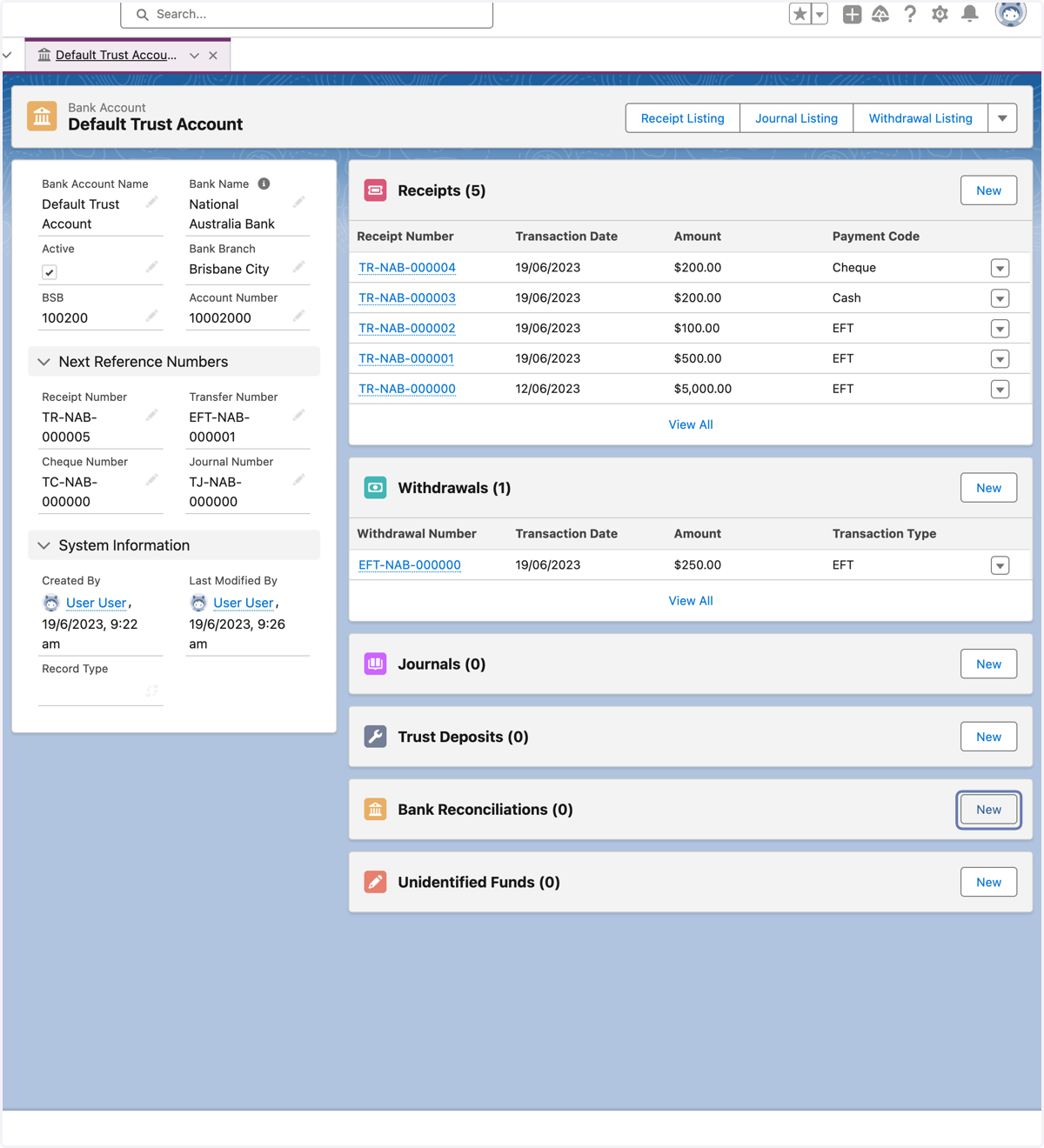
2. Select New from the Bank Reconciliations panel
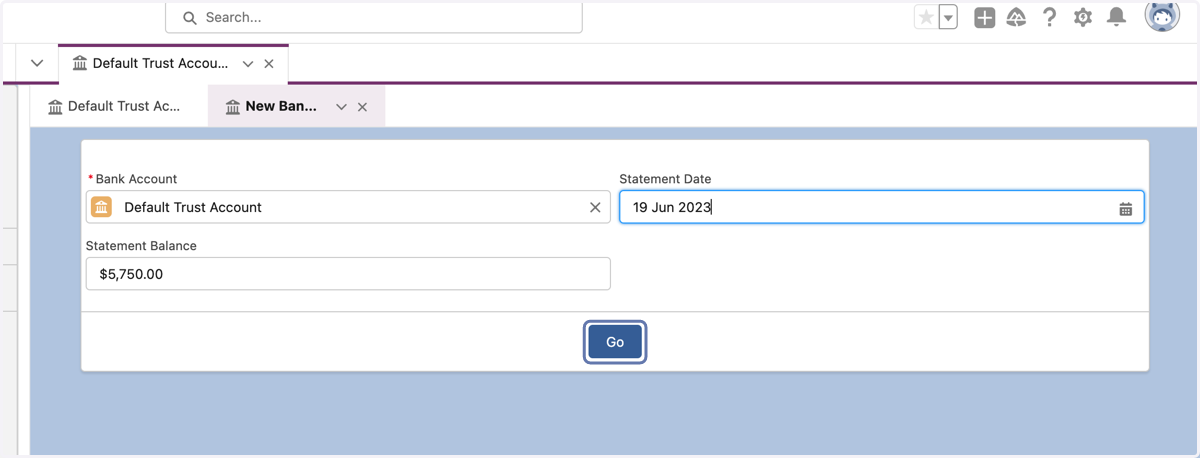
3. Provide Details
The Bank Account Record
Statement Date - this can be backdated and is an "As At Date"
Statement Balance - The Closing Balance on your Bank Statement
Select go when ready
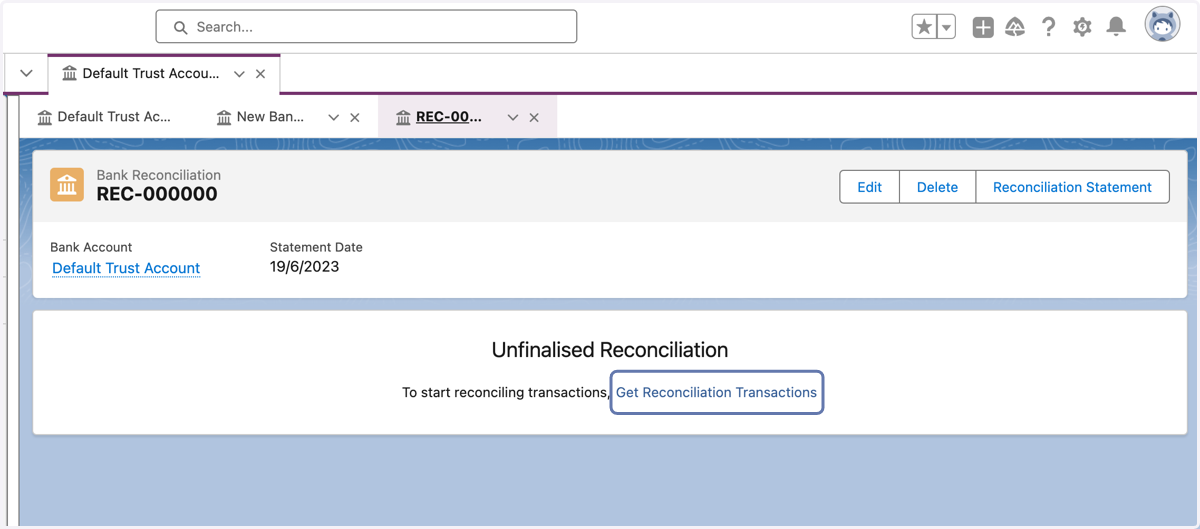
4. Click on Get Reconciliation Transactions
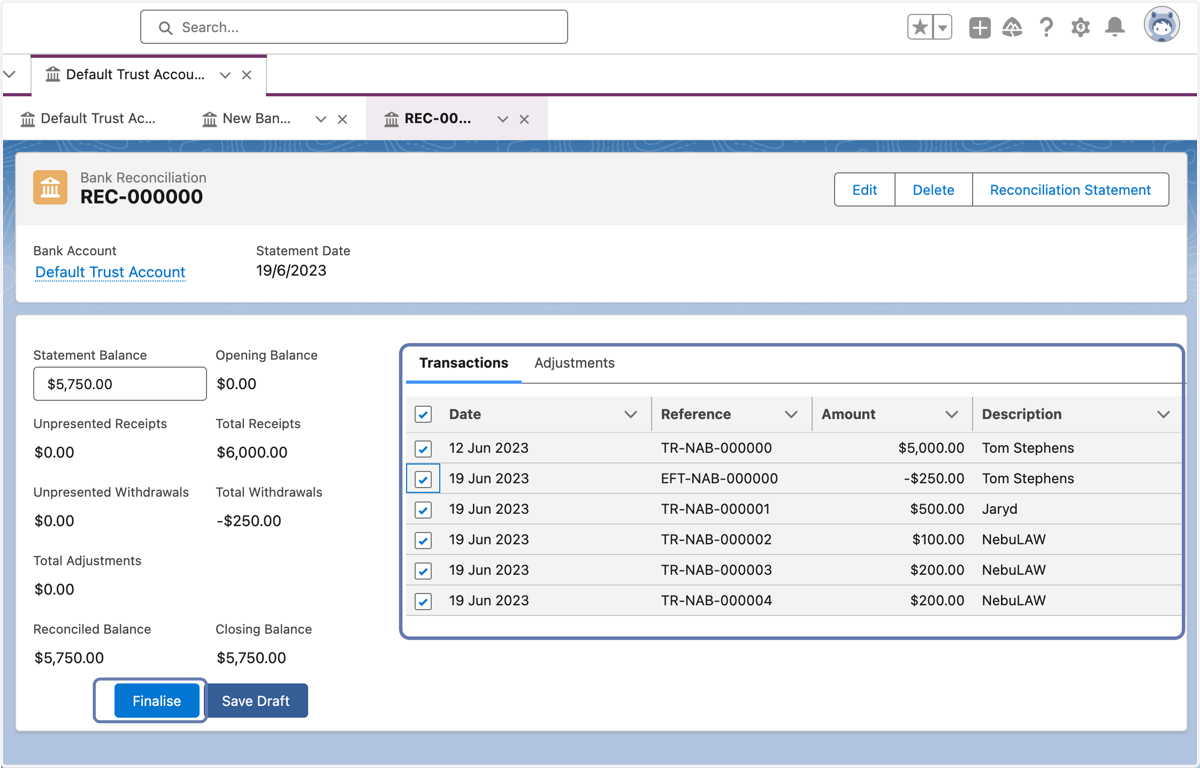
5. Match deposits & Withdrawals against Bank Statement
Check off transactions as they appear on your Bank Statement you'll notice the figure on the left changing as you do so
If the Transactions match the closing balance the finalise button will appear, select finalise when ready.
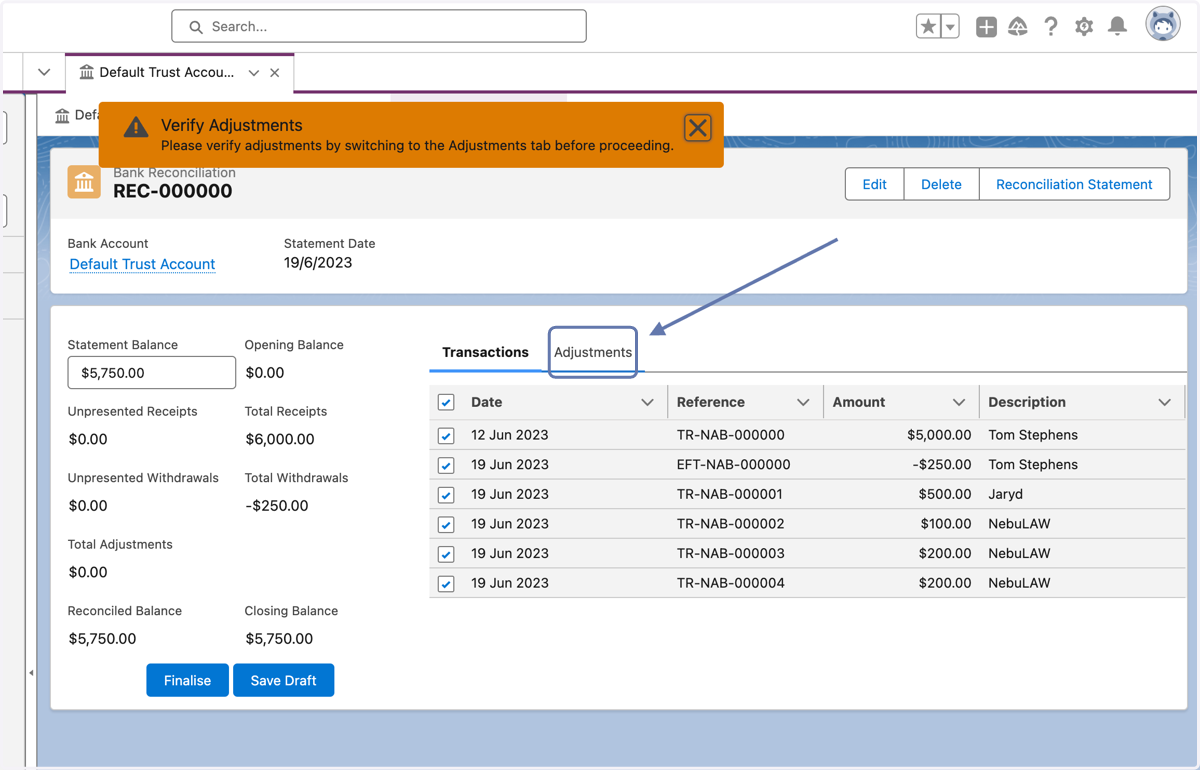
6. Verify Adjustments
When electing to finalise the Bank Reconciliation you will receive a message to verify any adjustments, simply click the adjustments tab (add any if applicable), this will allow you to now finalise the reconciliation
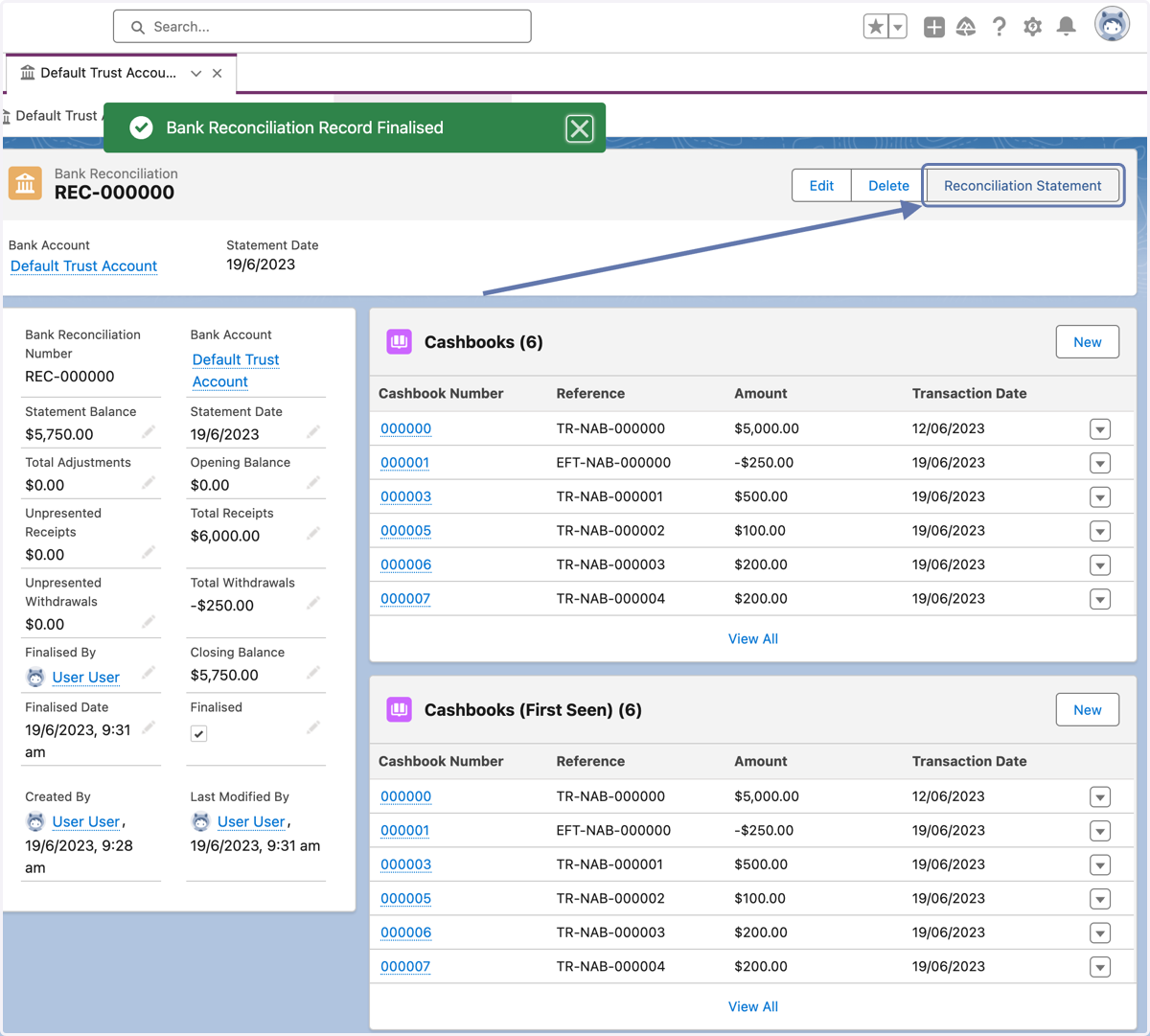
7. Render Reconciliation Statement
Click the Reconciliation Statement button on the record page to view the statement
8. View Reconciliation Statement
The statement will render in a new tab where you have the option to download or print