Editing your Homepage banner via HTML
This tutorial will show you how to change text and images on your Homepage banner.
These techniques can be used throughout Infigo to add or adjust text, and add images or other media
Infigosoftware
1. Existing Homepage banner
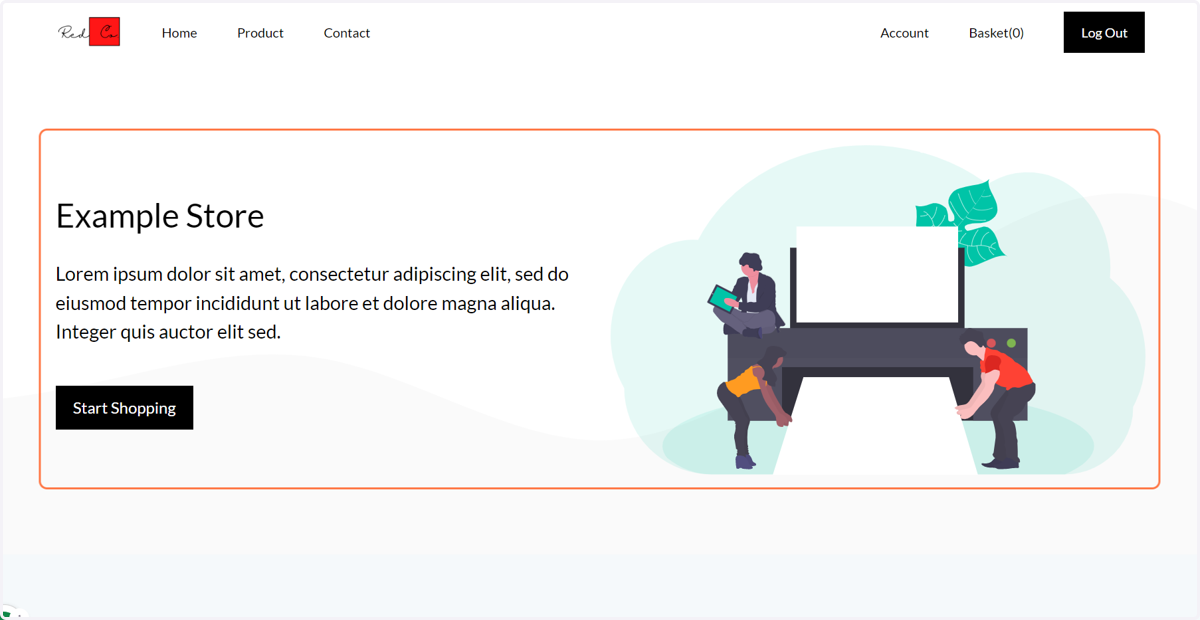
We start with our default homepage banner, showing a Lorem ipsum extract and generic clipart image.
We will change these within Infigo.
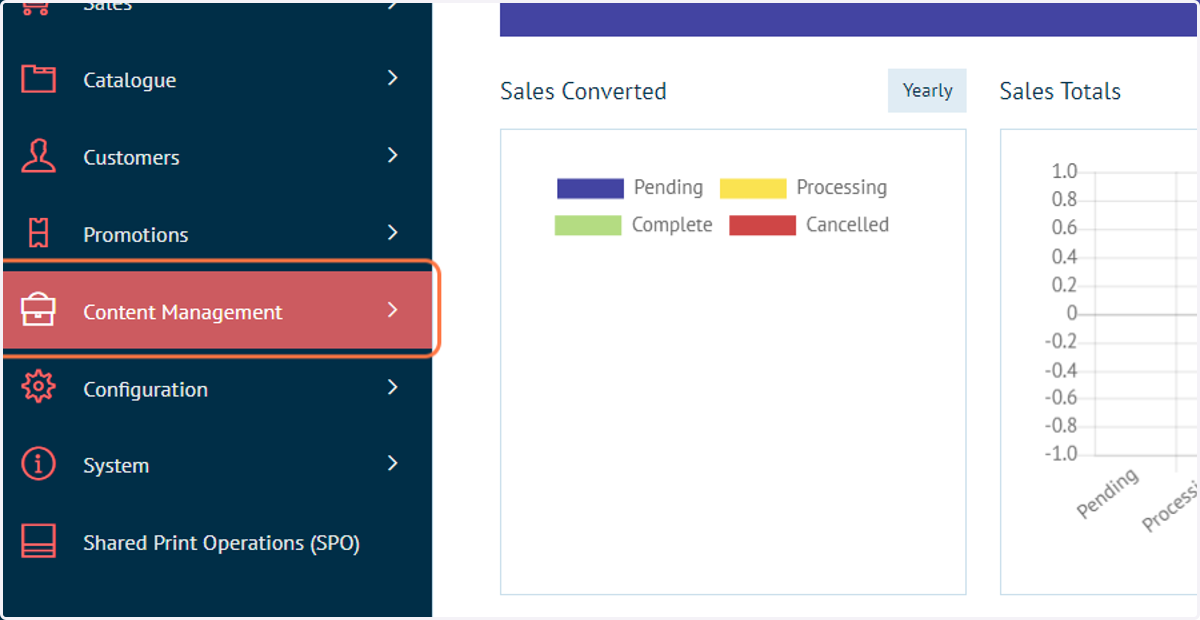
2. Click on Content Management
First, we need to add any desired media such as images.
3. Click on CSS Override
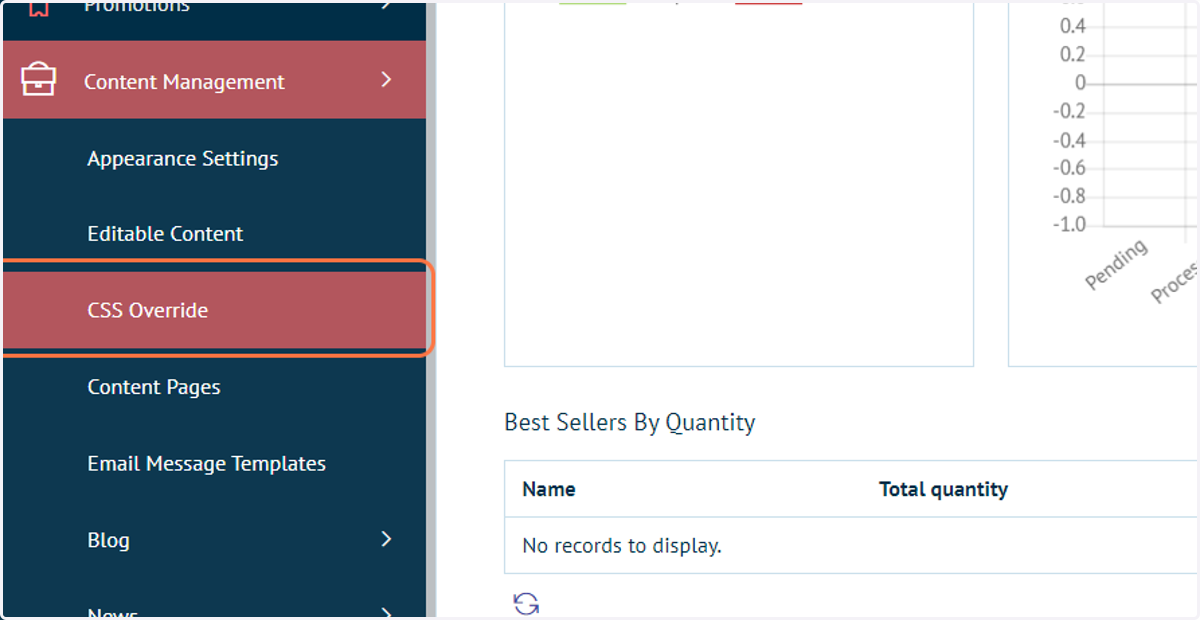
4. CSS Override
CSS Override can be used to completely change the look and feel of your site with custom code. This area also provides a storage area to upload any additional resources for use on your storefront.
In this tutorial, we will use the Uploaded Resources section.
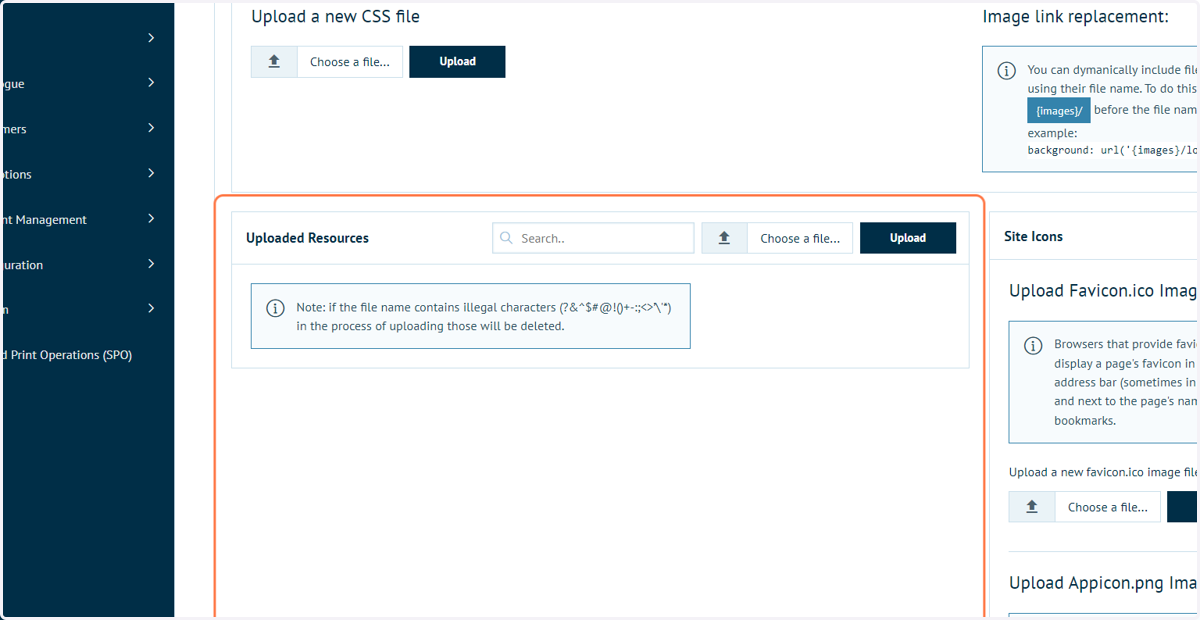
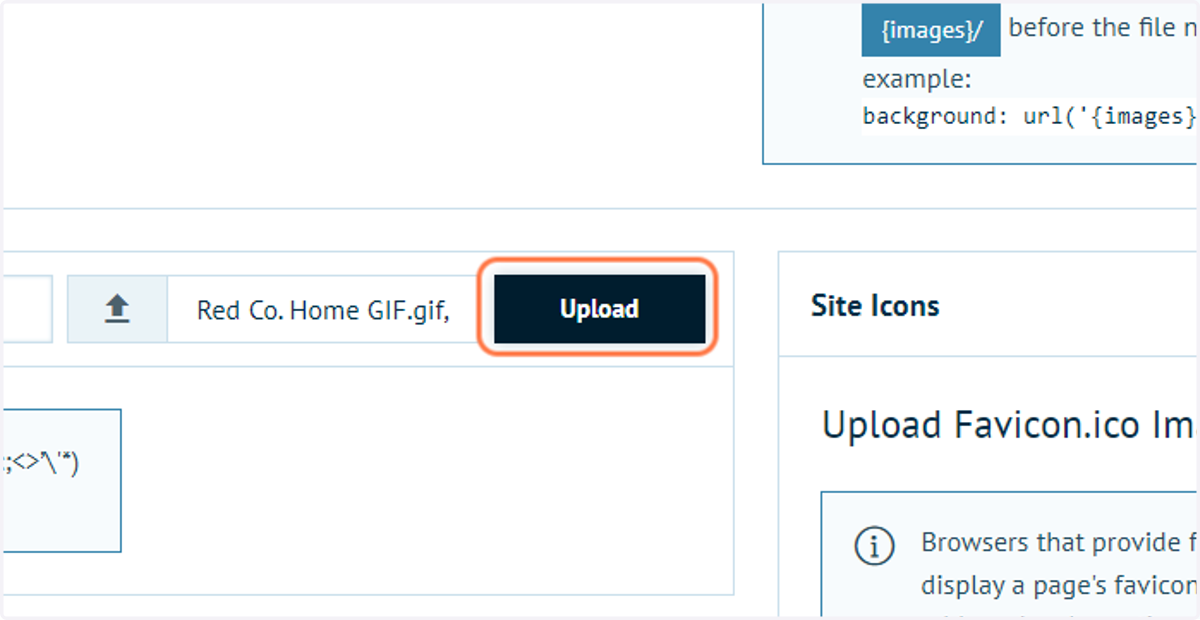
5. Select desired media files and click on Upload
Infigosoftware
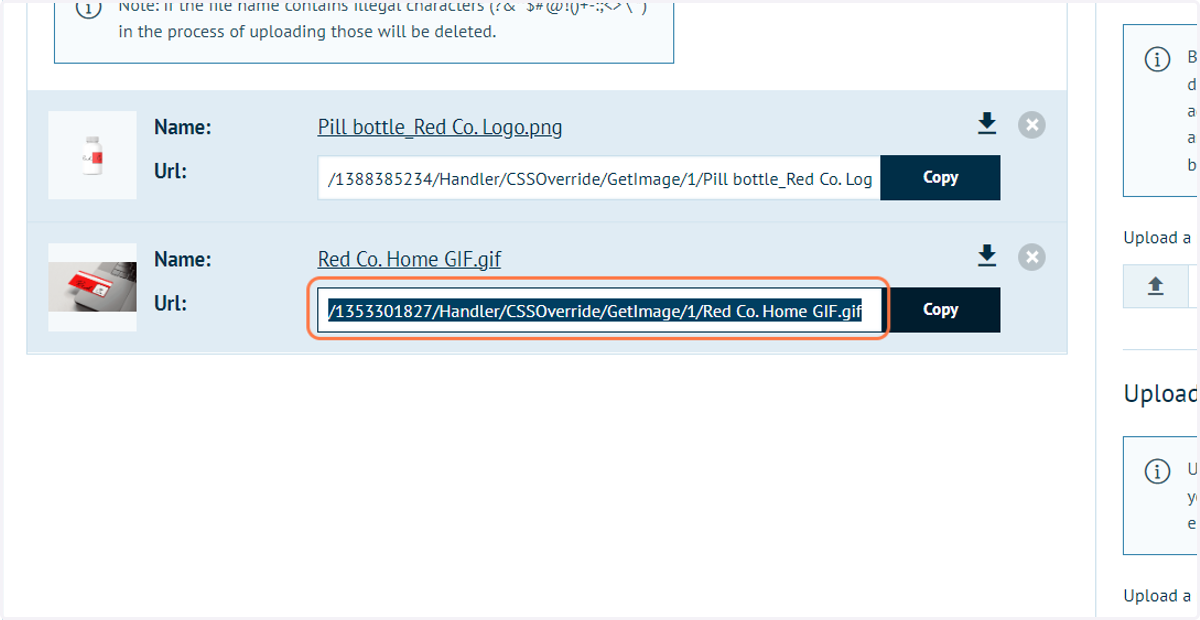
6. Copy the generated URL for the media you wish to use
7. Click on Content Management
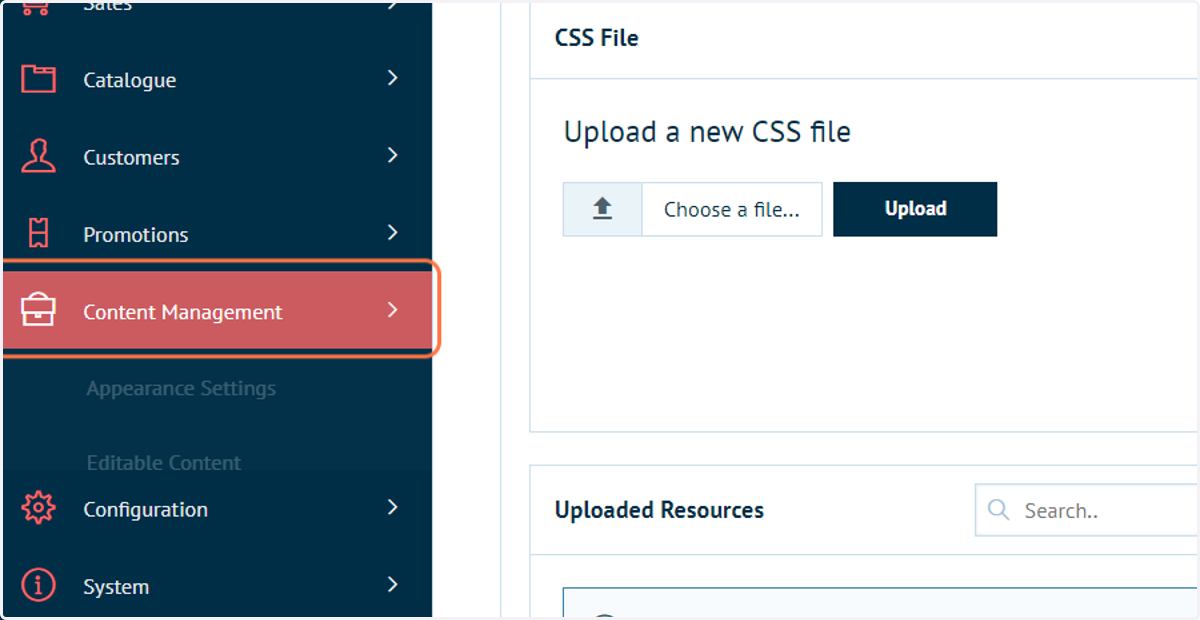
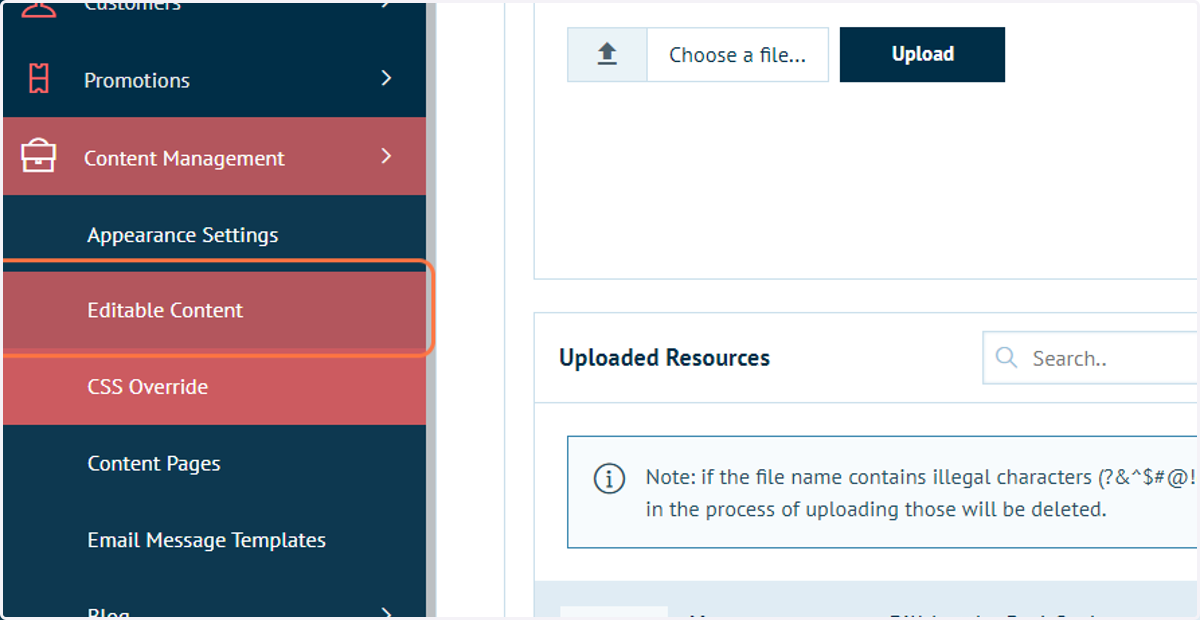
8. Click on Editable Content
Infigosoftware
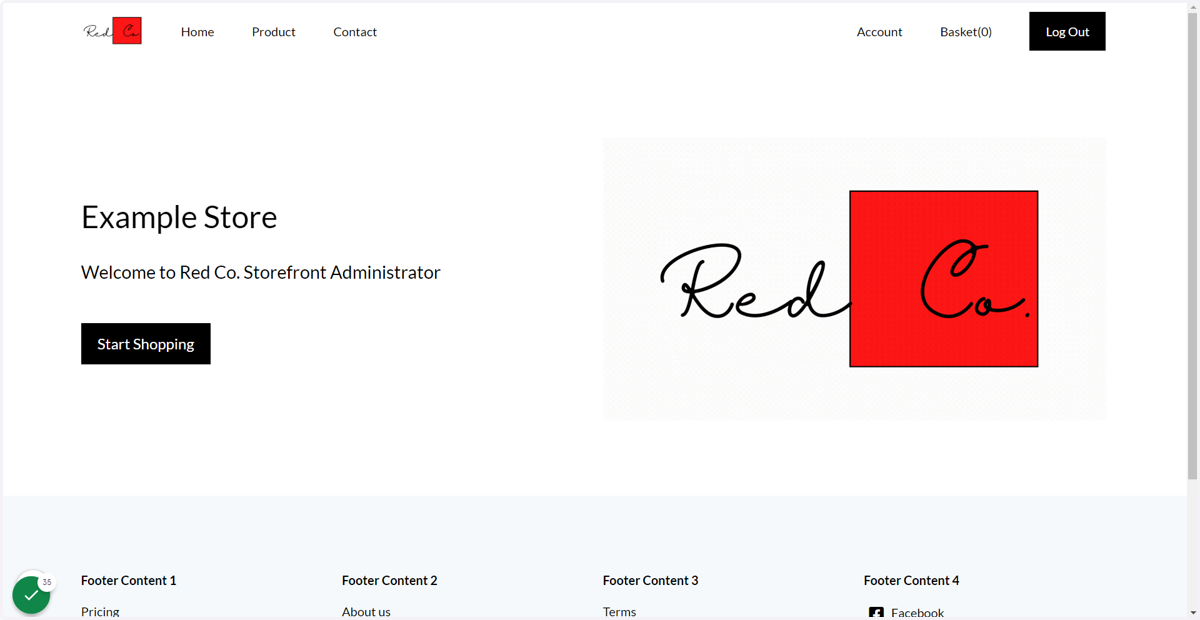
9. Homepage Banner content can be found under 2.Homepage
The Editable Content screen provides numerous areas of customisation on your site.
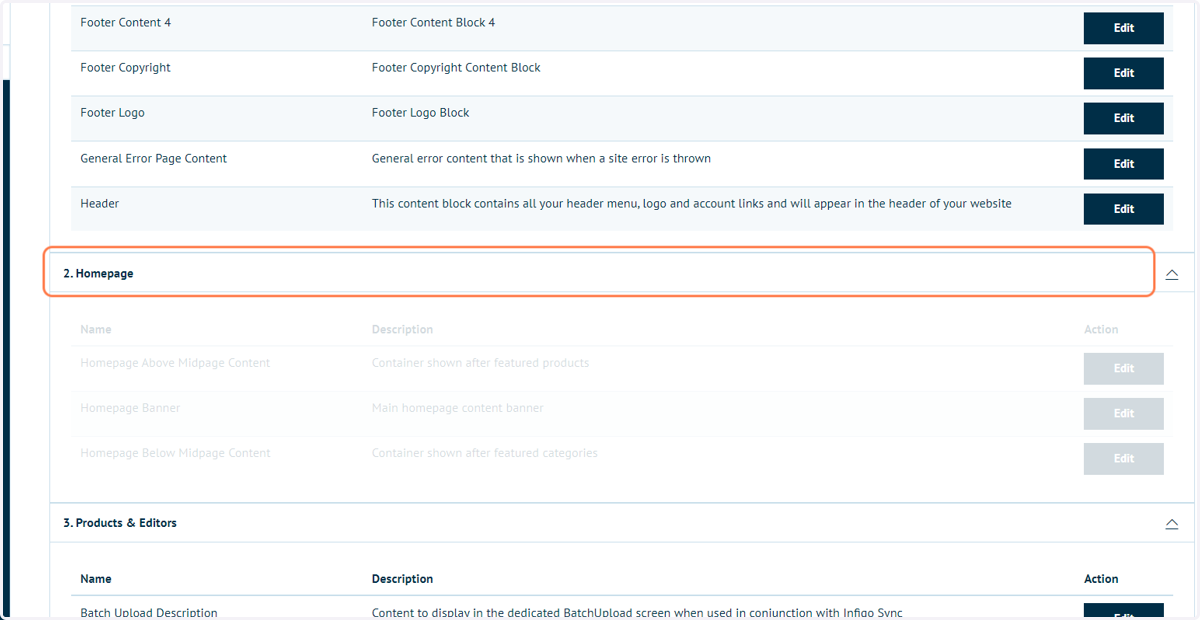
10. Locate Homepage Banner and click on Edit
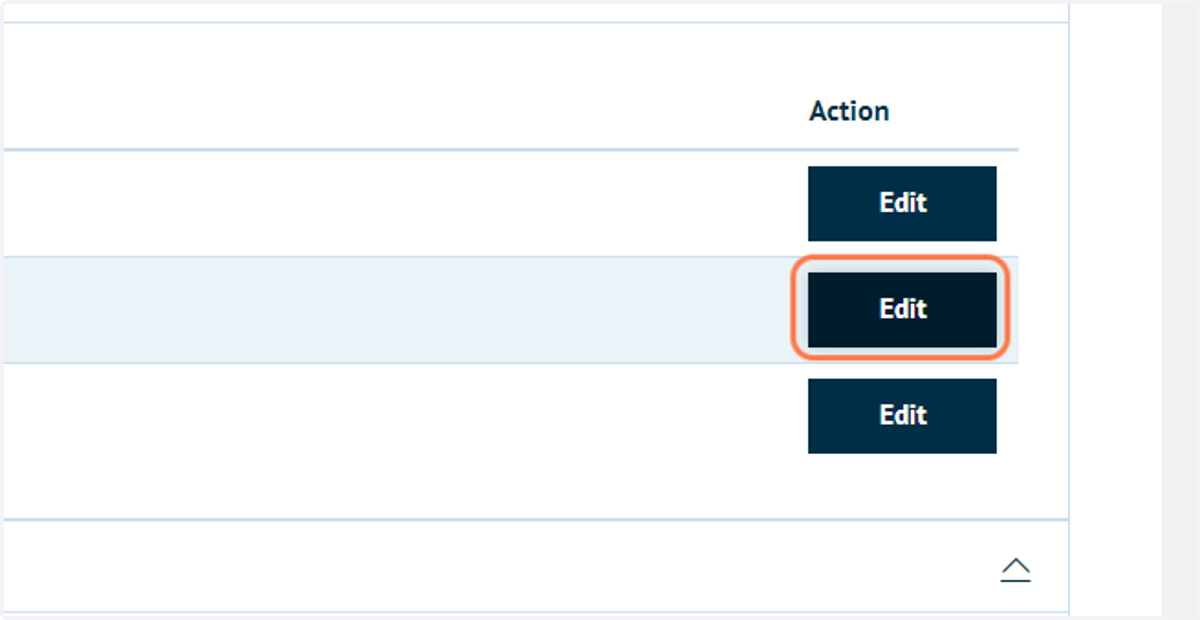
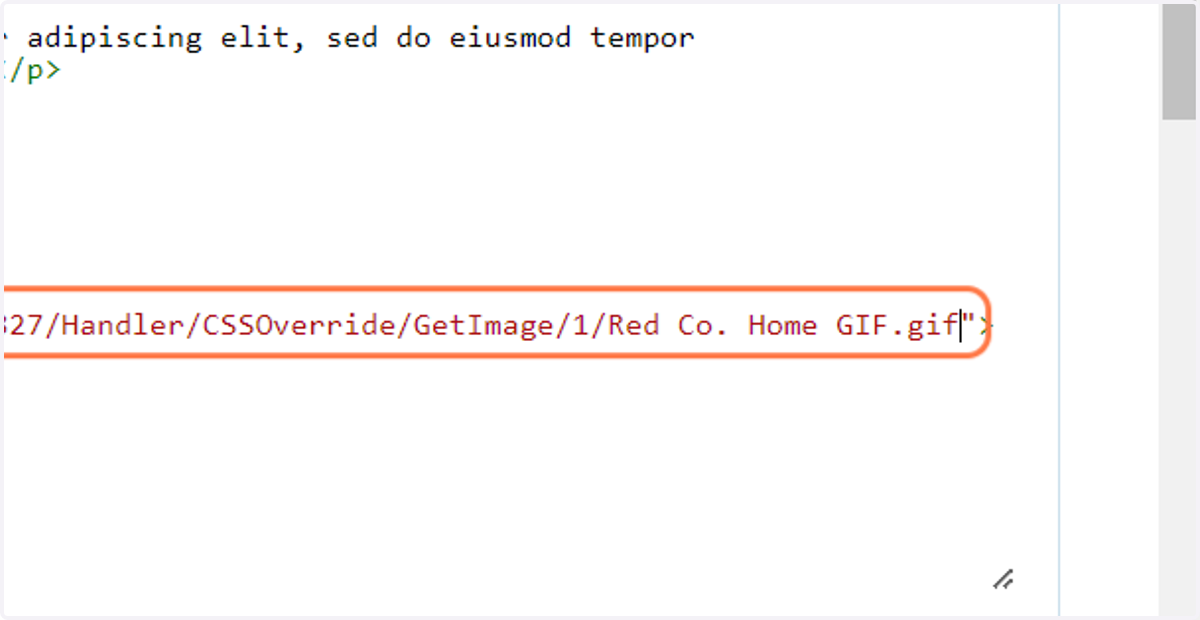
11. Select image link
Identify the area of the code relating to the banner image.
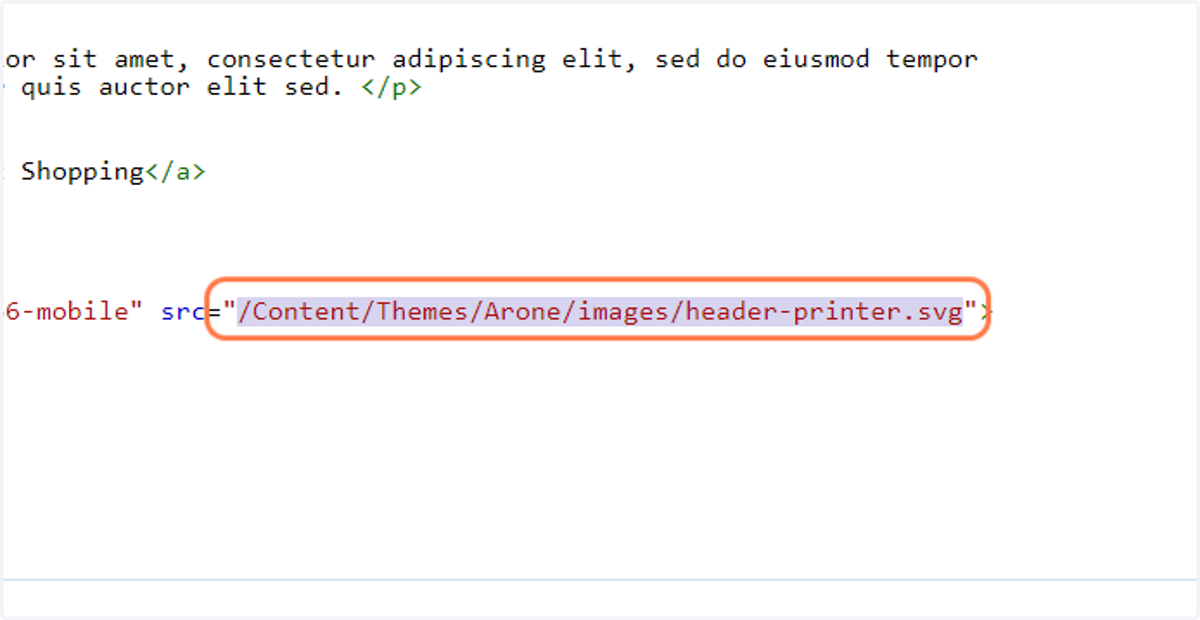
12. Paste the updated link from your clipboard
Overwrite the default image with your copied link from the CSS Override area.
13. Alter background image if desired
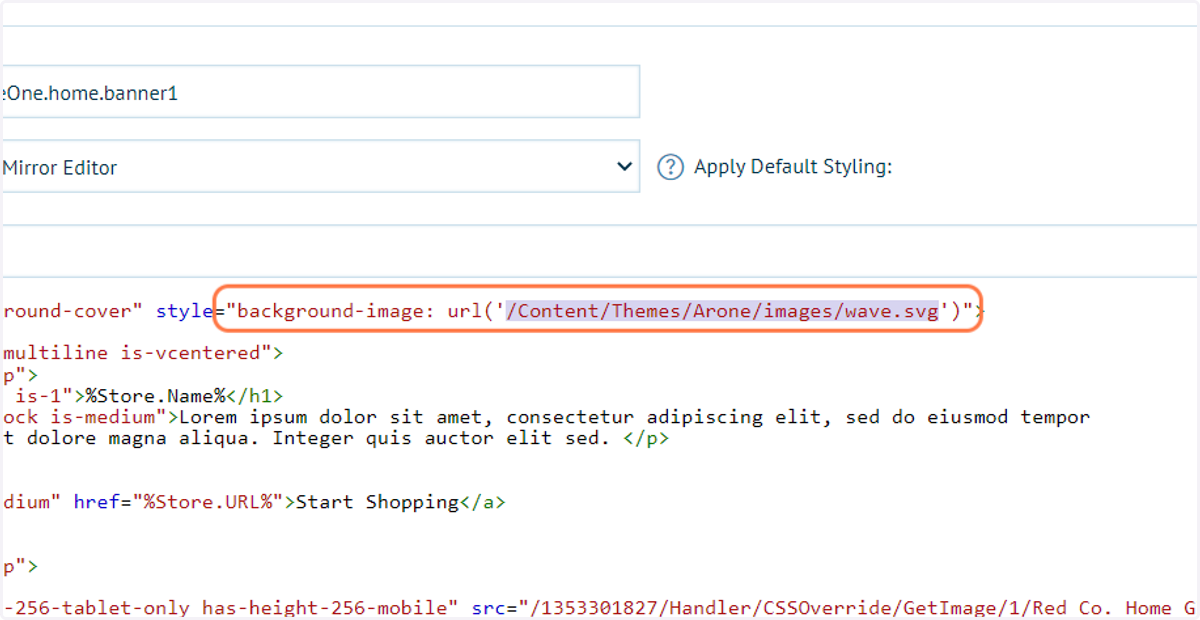
The default storefront has a wave image in the background.
If you wish to remove this you can delete the link in the relevant area of the code.
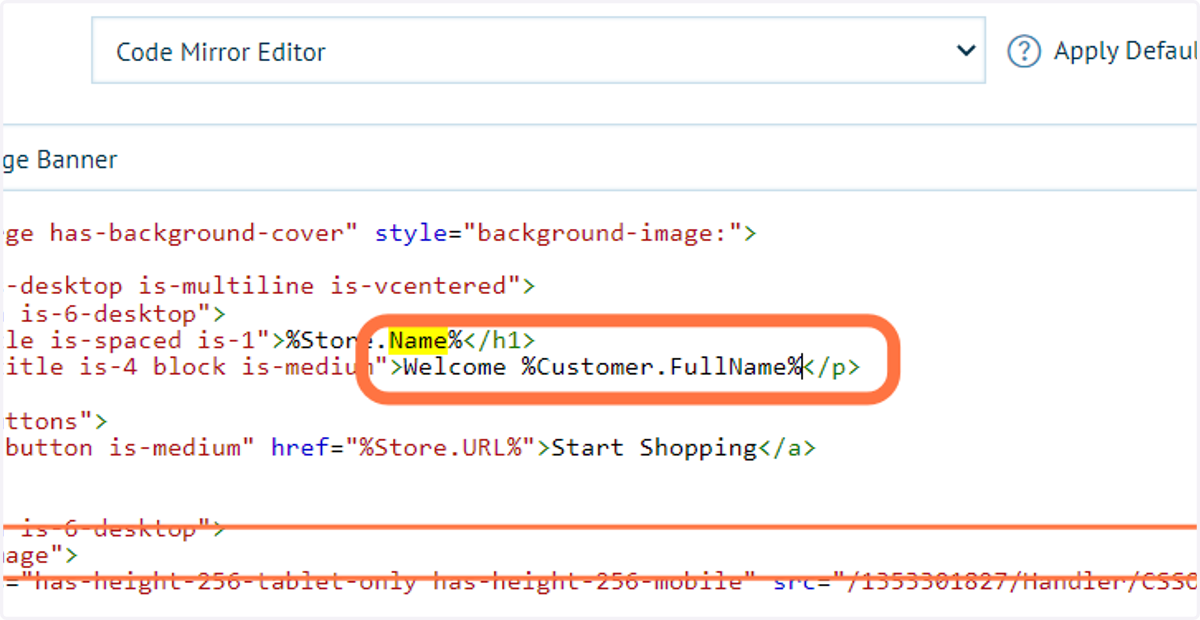
14. Edit banner text
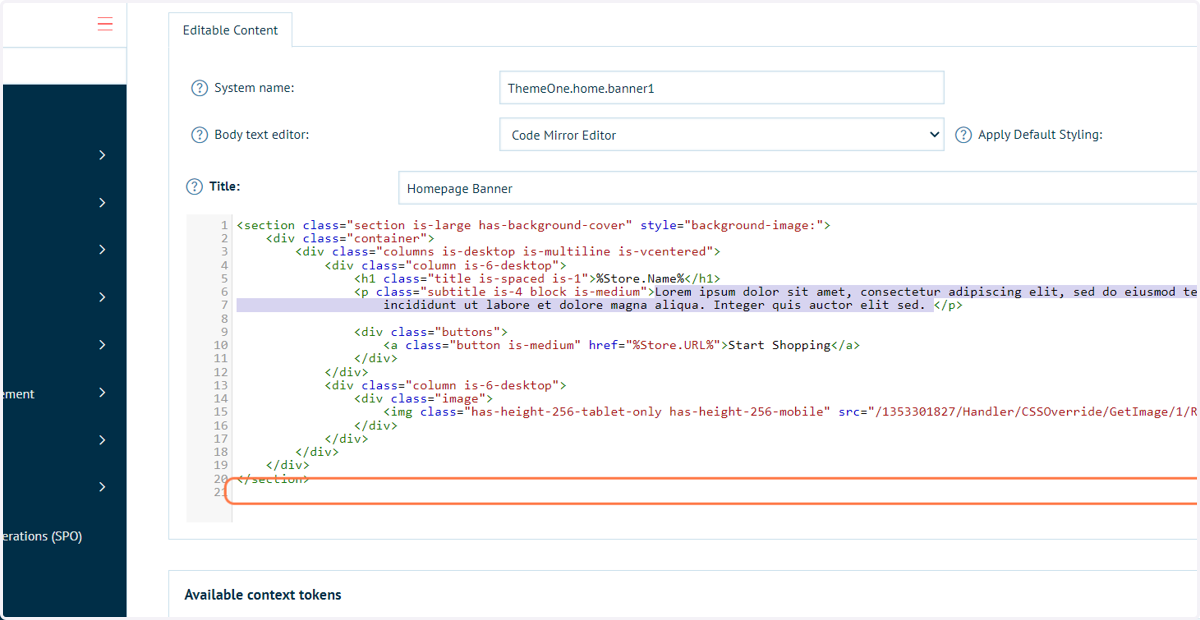
The Lorem ipsum passage is easily identified and can be changed.
Infigosoftware
15. Copy text titled "%Customer.FullName%"
Tokens can be added for dynamic populating information
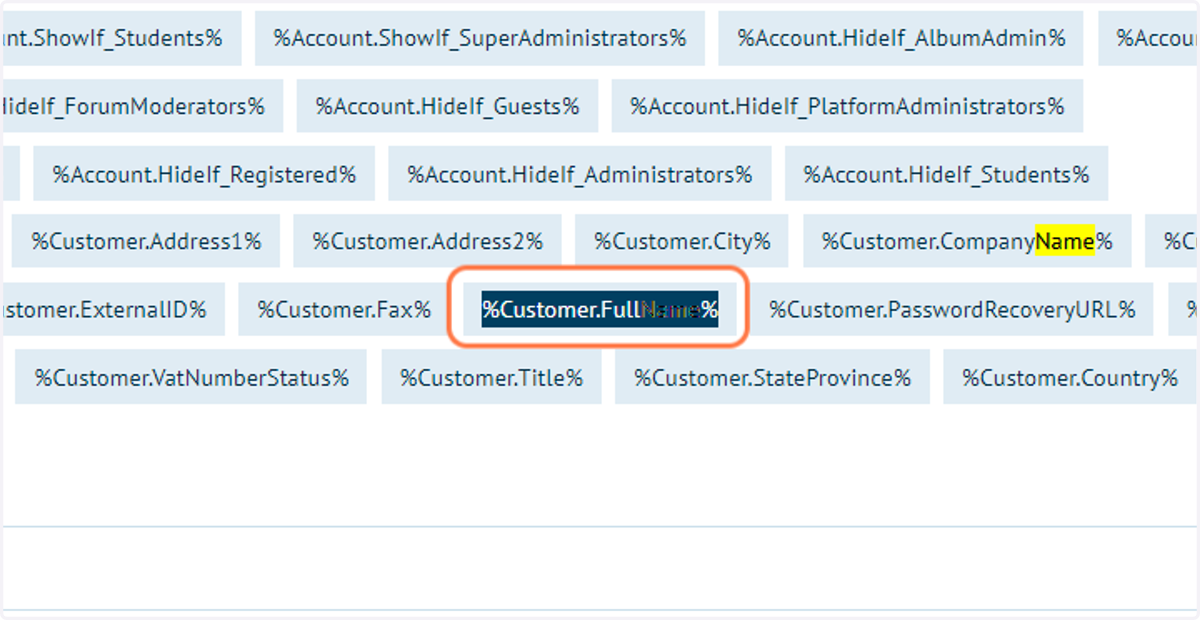
16. Paste "%Customer.FullName%" into text area
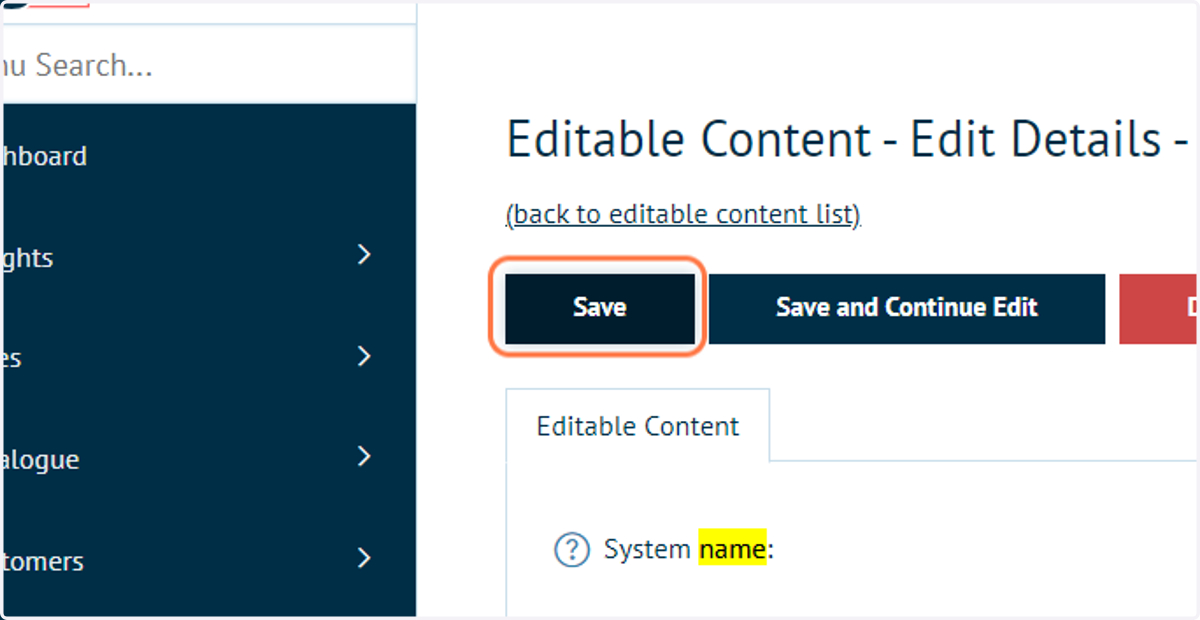
17. Click on Save
18. Click on Public store
19. Your Homepage banner is now updated