BBCS Operator Application
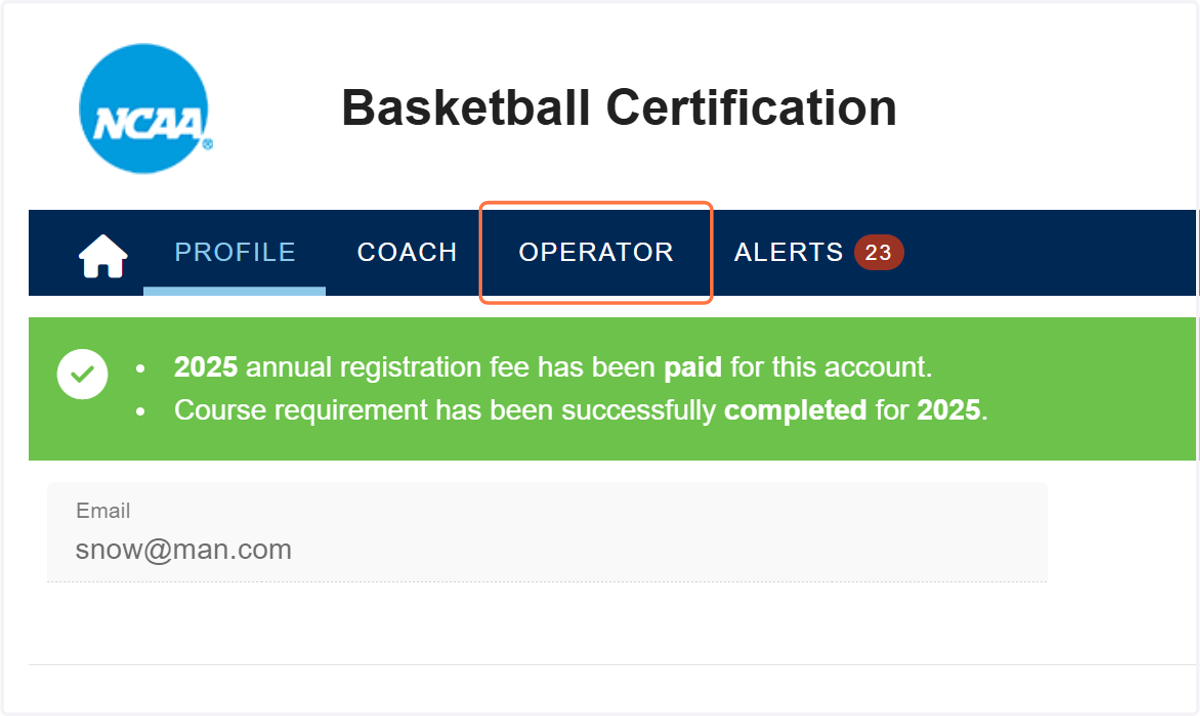
1. Click the OPERATOR tab.
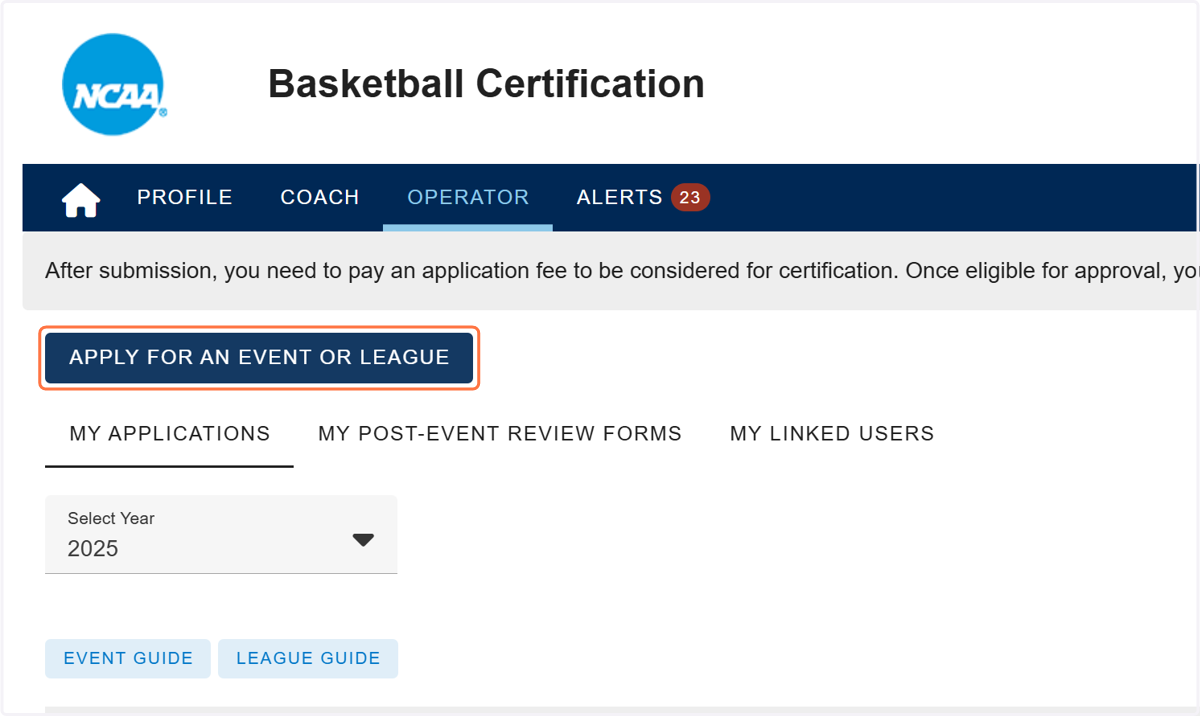
2. Click on APPLY FOR AN EVENT OR LEAGUE.
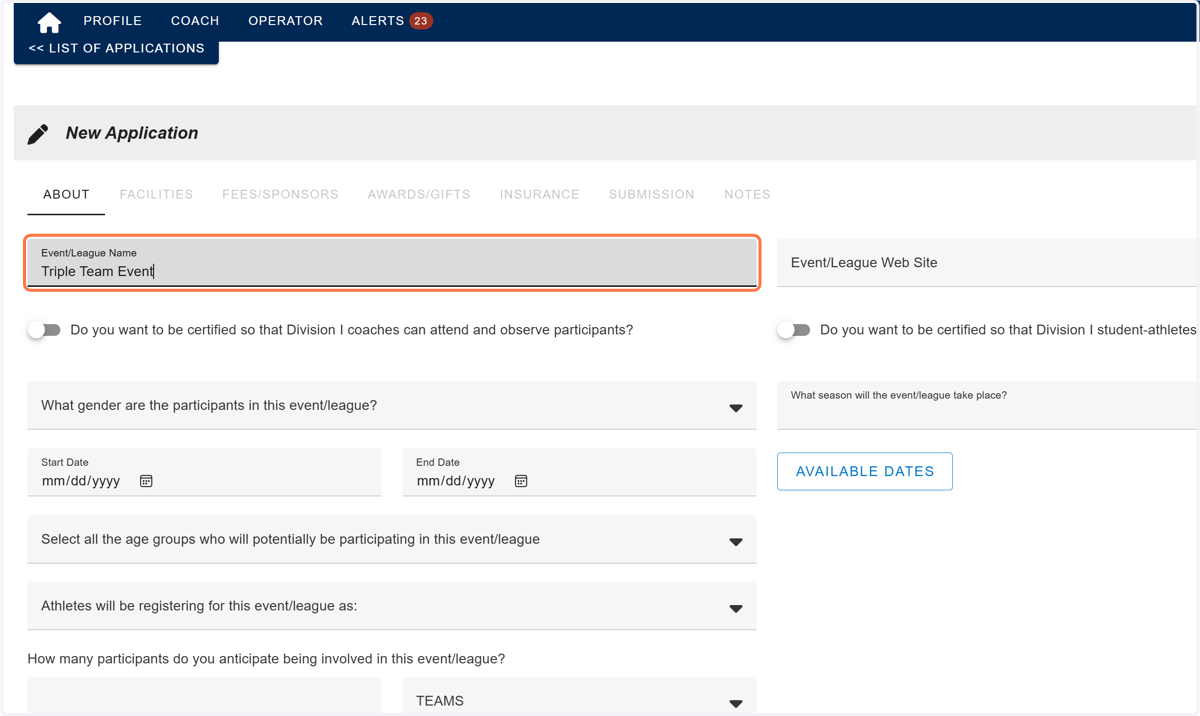
3. Type the Event Name.
DO NOT include location or other notes within the event/league name.
DO NOT name multiple events/leagues the exact same name. There needs to be some distinguishing characteristic in the name of the event to differentiate it from other events (city, date, gender, etc.) on the posted list of approvals.
DO NOT include the NCAA brand in the name of the event/league. Use of NCAA (or other terms associated with the NCAA brand) cannot be included in the event/league name.
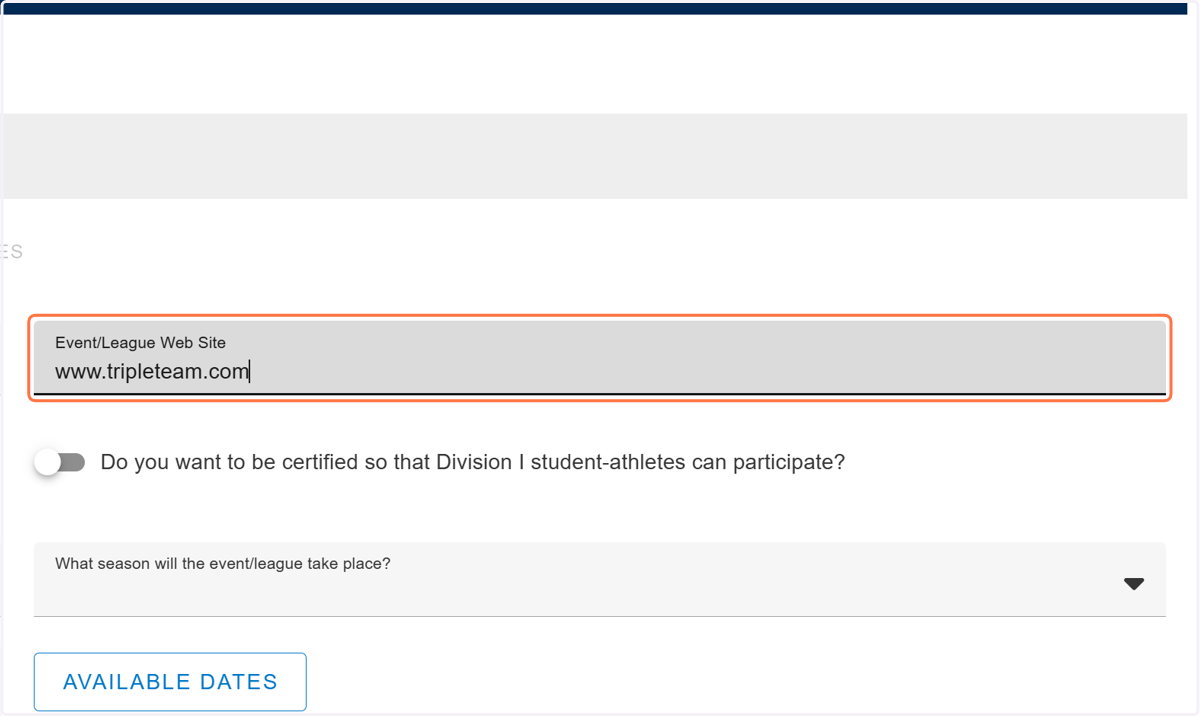
4. Type the Event web site.
If a URL is not entered on the application, one WILL NOT get posted on the NCAA website once approved.
5. For an Event, select the option" Do you want to be certified so that Division I coaches can attend and observe participants?"
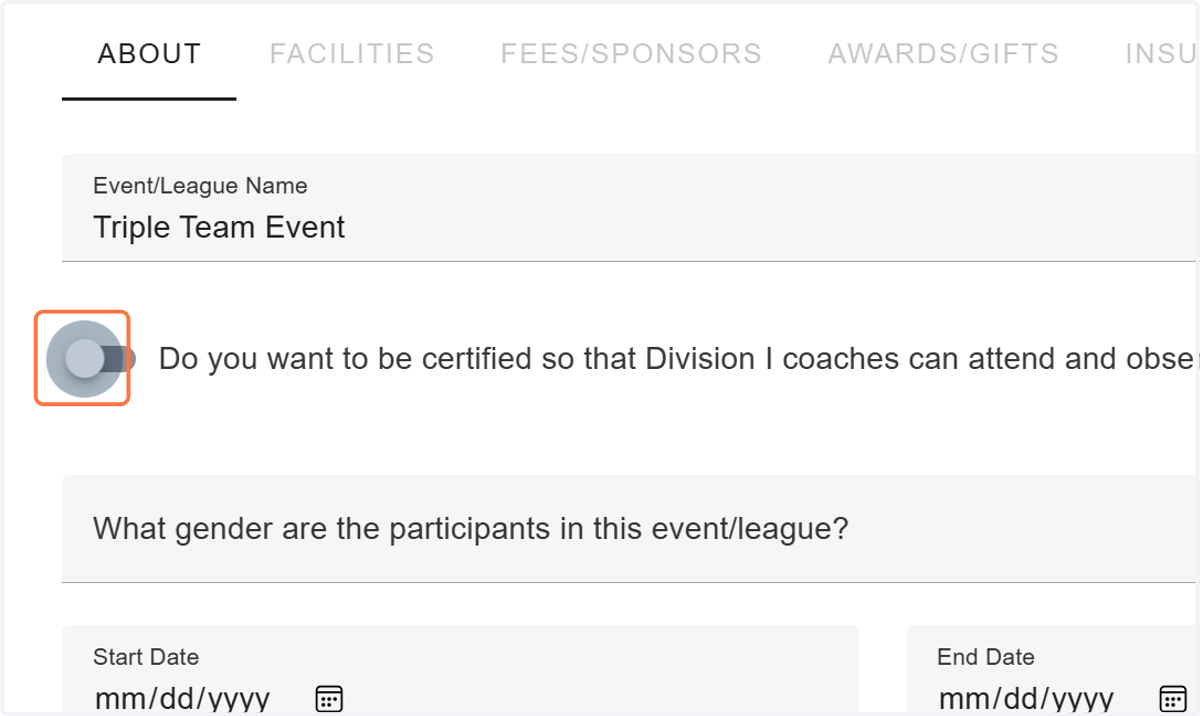
6. Select What gender are the participants in this event/league?
Select either Male or Female to identify the gender of the participating athletes. Should you have an event/league where both genders will be participating, you will need to submit two separate applications – one for each gender.
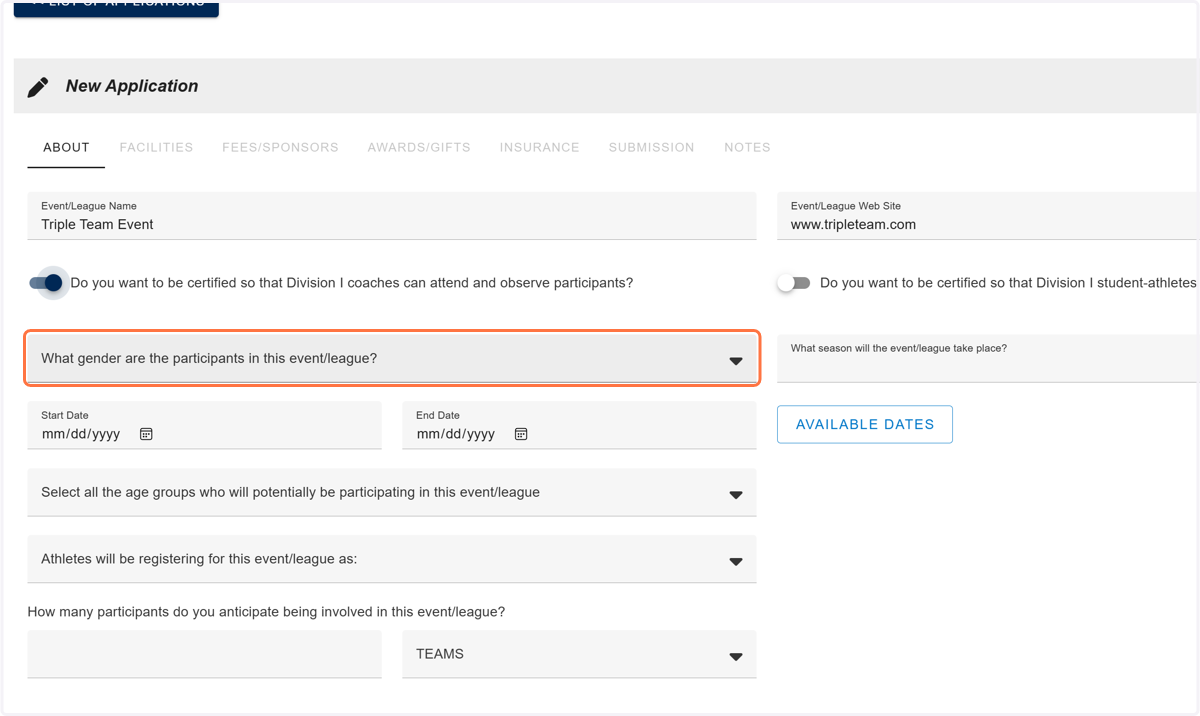
7. Select the season the event will take place.
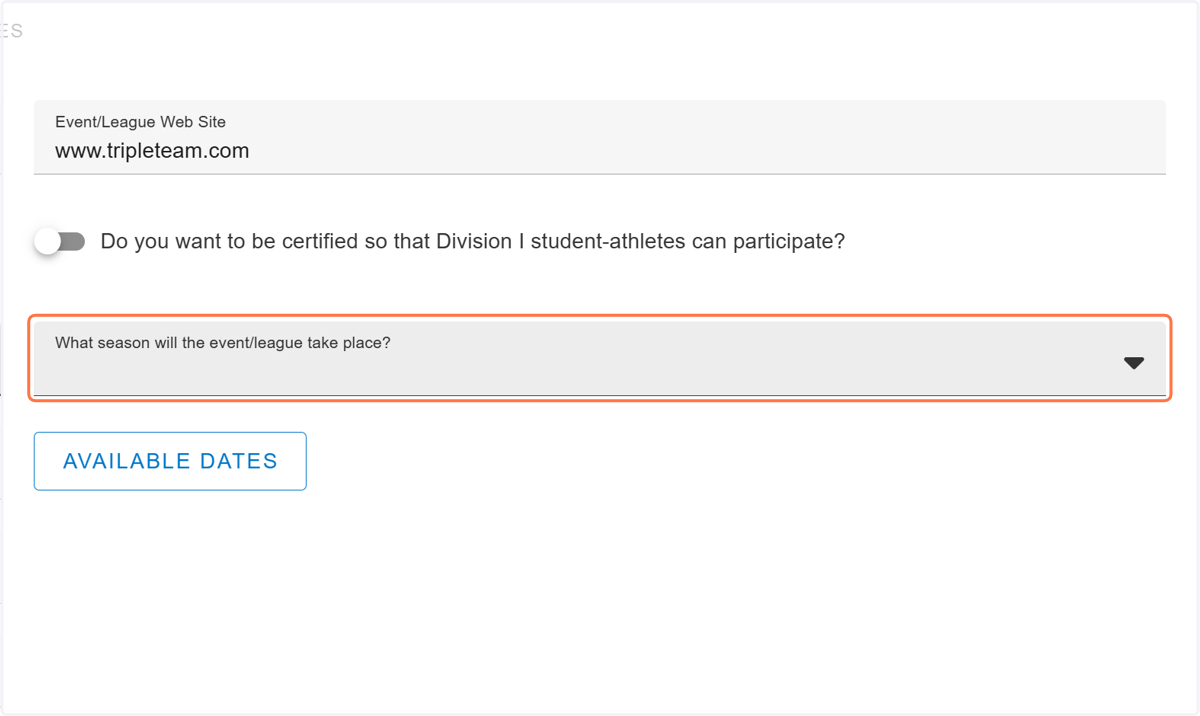
8. Select the Start and End Dates.
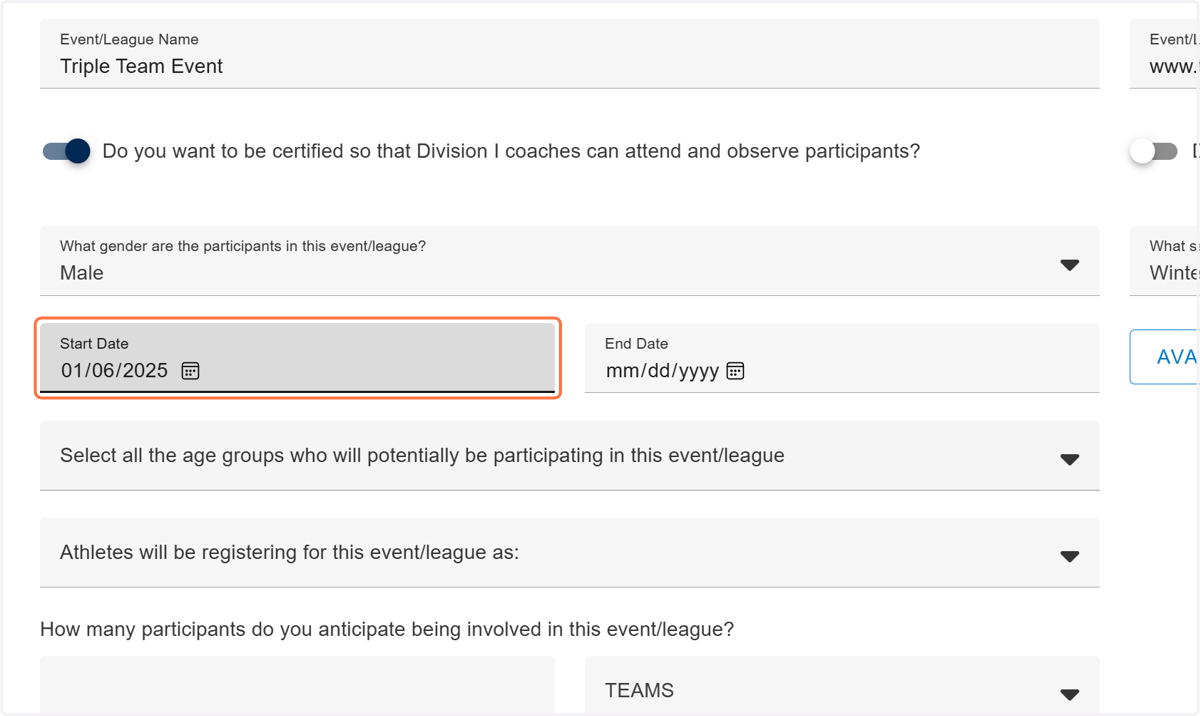
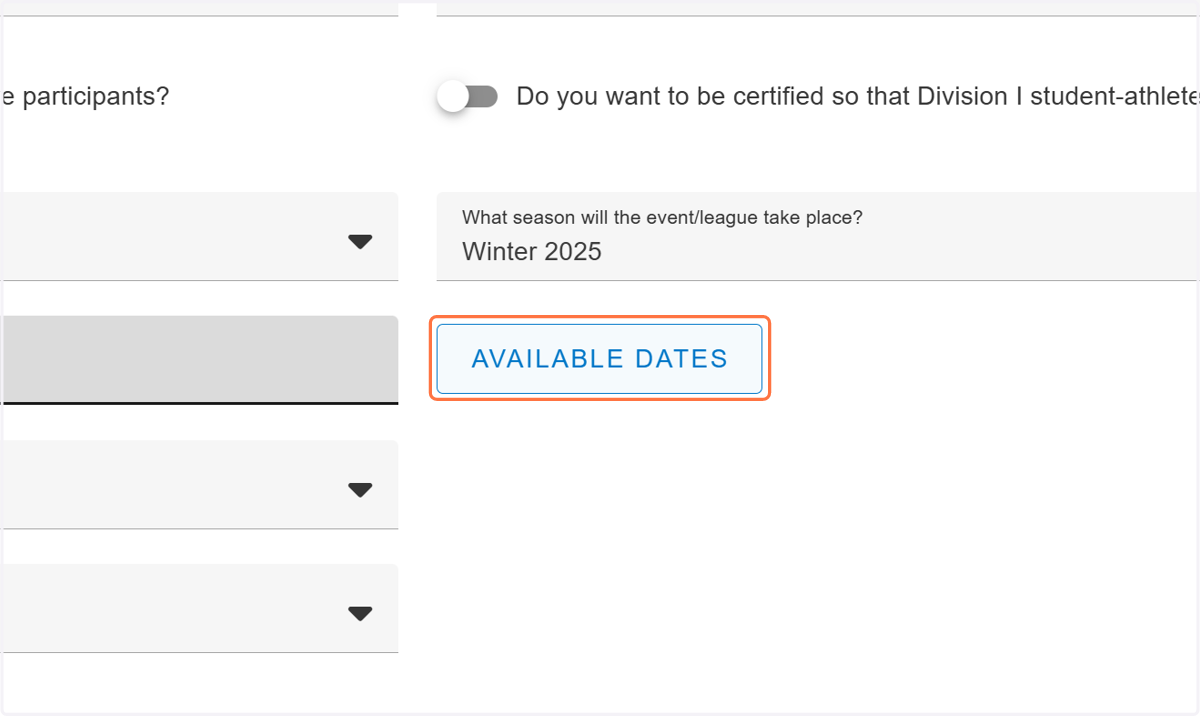
9. Click on AVAILABLE DATES to see the permissible dates.
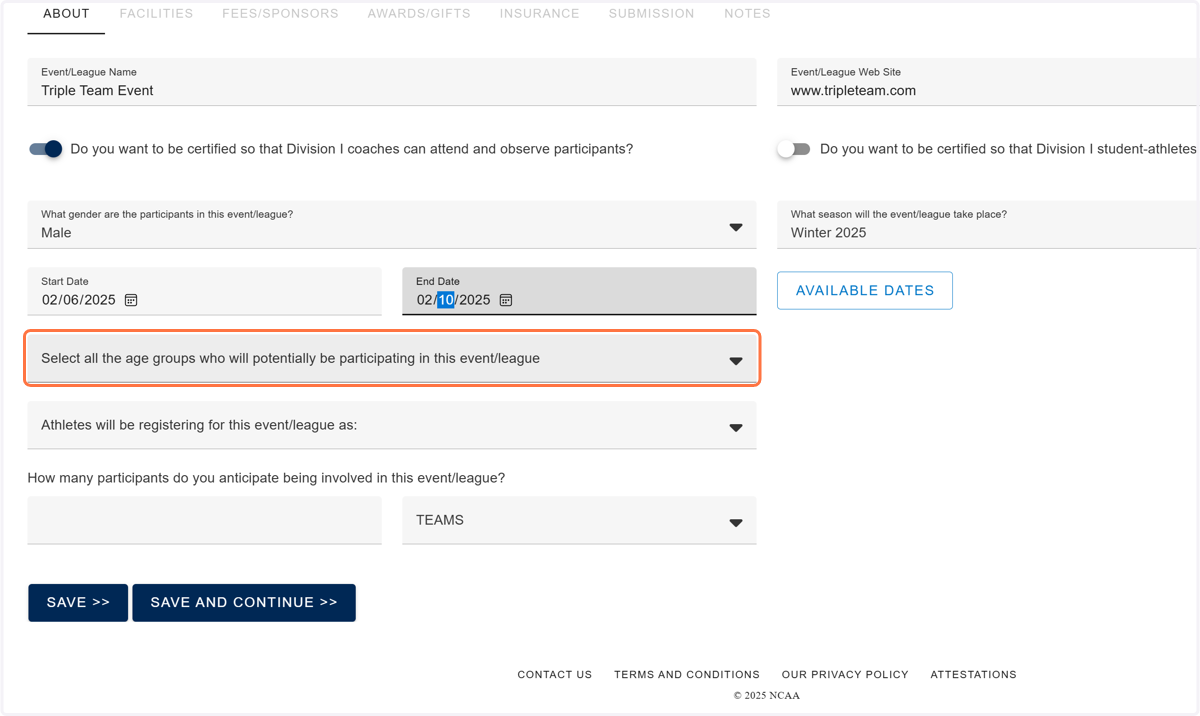
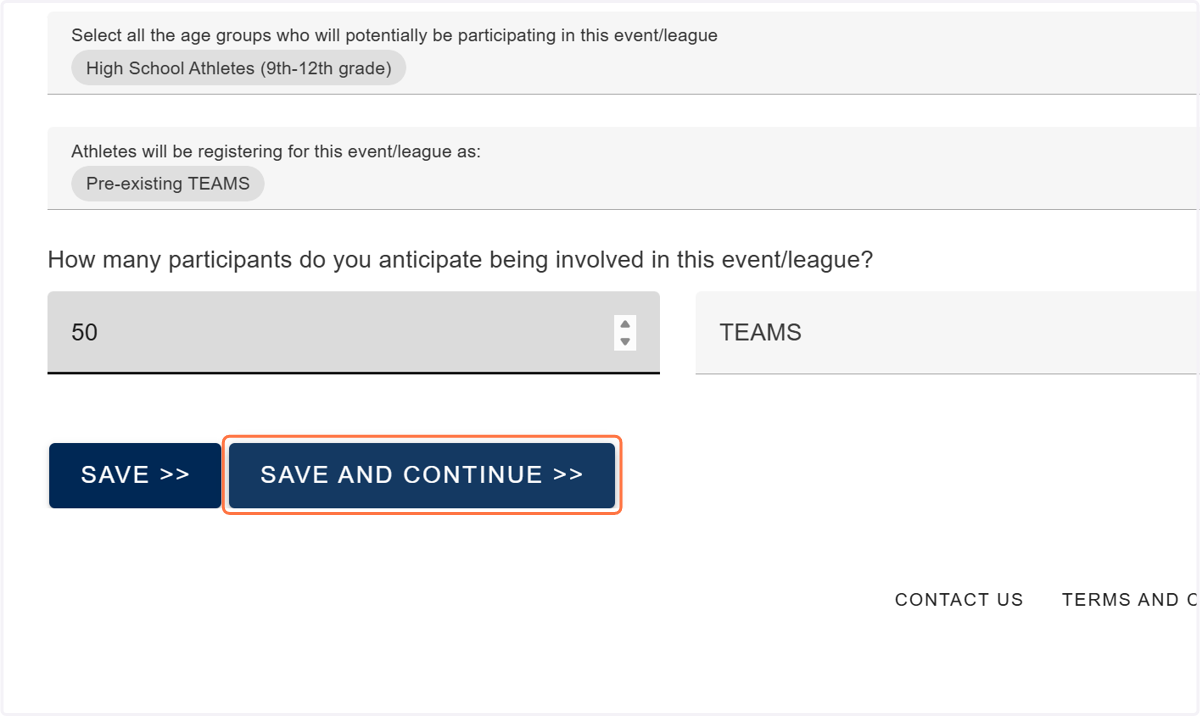
10. Select all the age groups who will potentially be participating in this event/league (select all that apply).
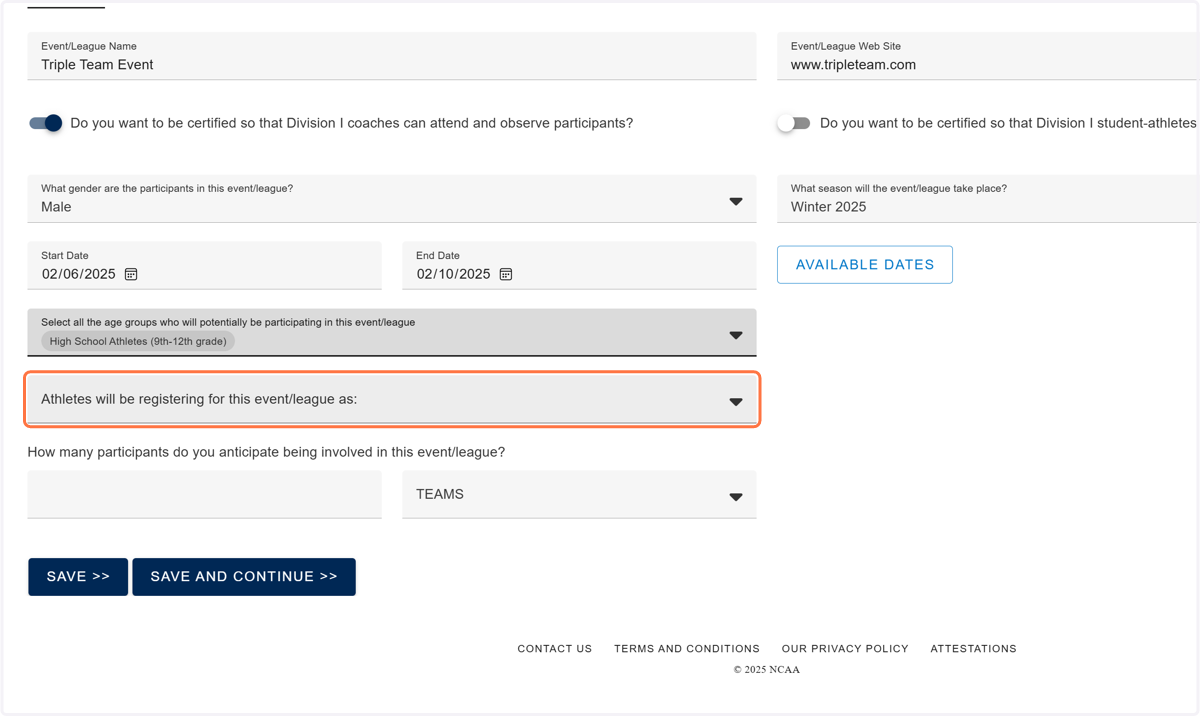
11. Select how Athletes will be registering for this event/league as.
If participants are coming to the event already placed on teams, select Pre-existing TEAMS.
In some cases, operators will run a team event where most of the participants in the event will be arriving at the event as pre-established team. However, they will also allow individuals who want to participate and do not have a travel team to register for the event as an individual participant that are then compiled onto teams and are coached by eligible event staff. If this is the case, select both Pre-existing TEAMS and INDIVIDUALS who are placed on teams.
Individual events that are more camp-like in nature that involve skill and drill instruction, but only include minimum team participation would select INDIVIDUALS who are NOT placed on teams.
12. Type how many people/teams will be registering for the event.
Enter the number of participants that you anticipate and identify whether the number reflects the number of teams or the number of individual PSAs. (The team/individual drop down will default to whatever participant type you previously selected, but you can change it. So, you could have a team event and enter that you anticipate 1000 individual PSAs vs. 100 teams.
Although you may not know for sure how many PSAs will be in attendance, you must have some idea of what to anticipate to determine your schedule, number of locations to reserve, etc. Complete accuracy is not expected now. [For events, you will report accurate numbers when you complete your PERF.]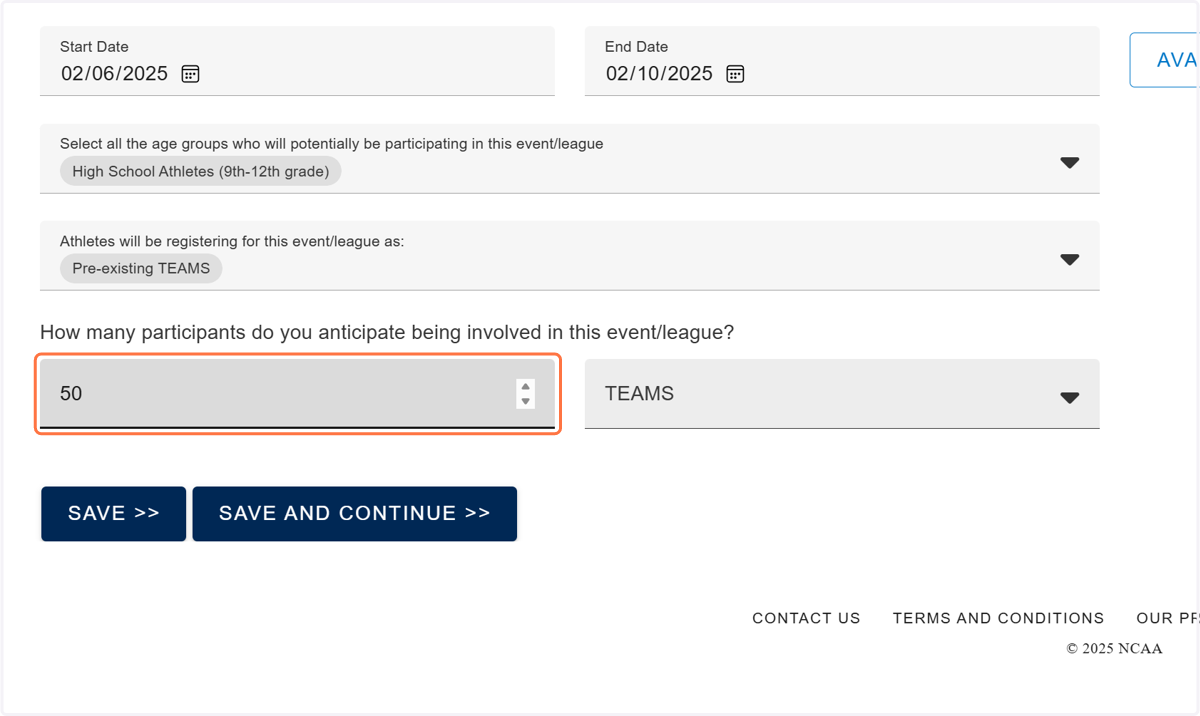
13. Click on SAVE AND CONTINUE >>
WARNING: If you navigate away from the application before you have completed all the fields on the About tab, the application WILL NOT BE SAVED, and you must start over. Until you have entered all the information on the About tab and saved it, a record of the application has not been recorded.
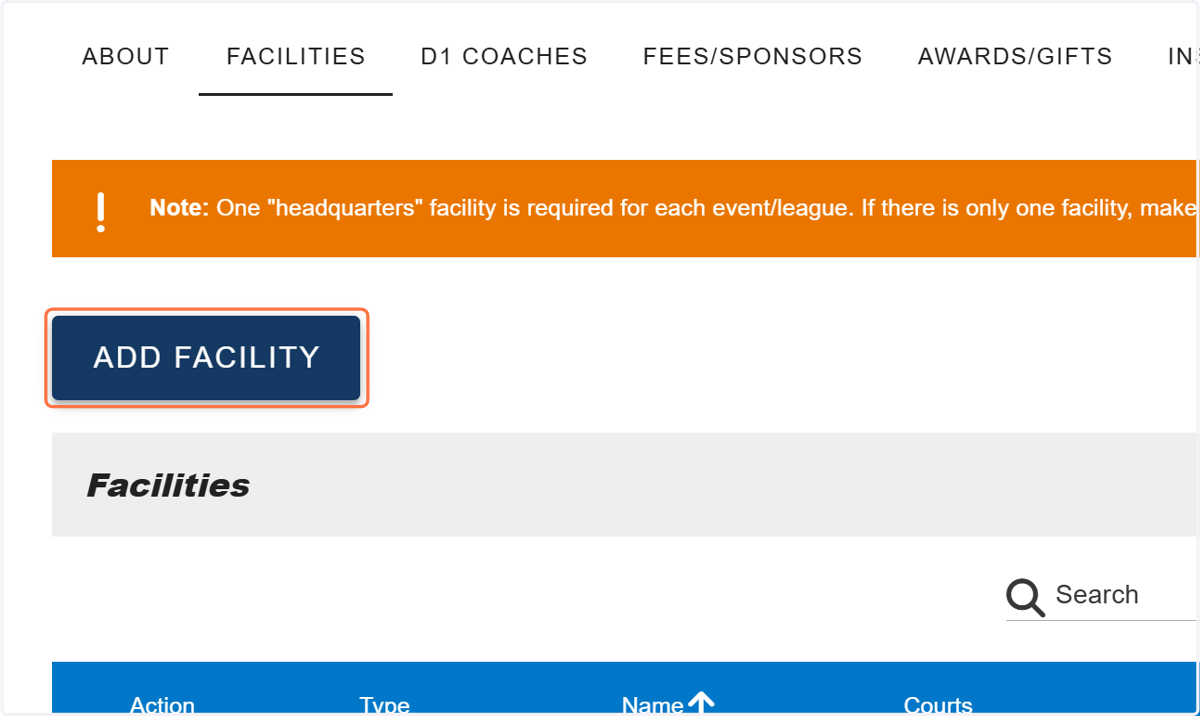
14. Click on ADD FACILITY
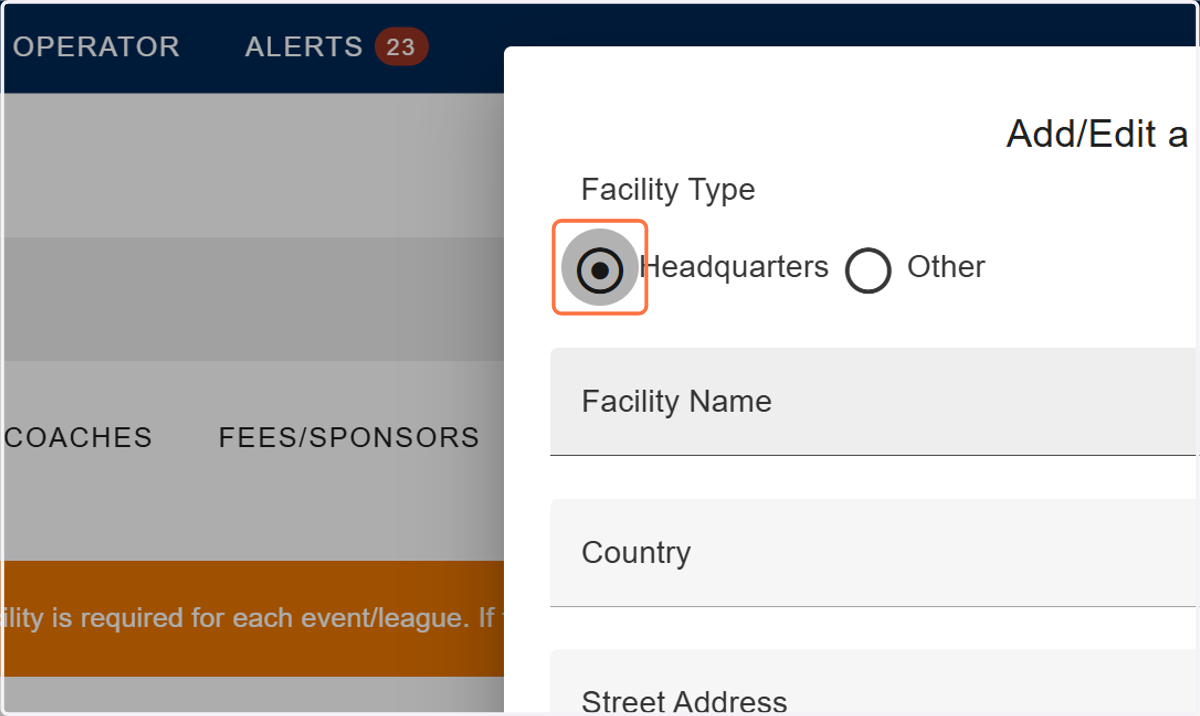
15. Select Headquarters (you must have at least one Headquarters, so add it first).
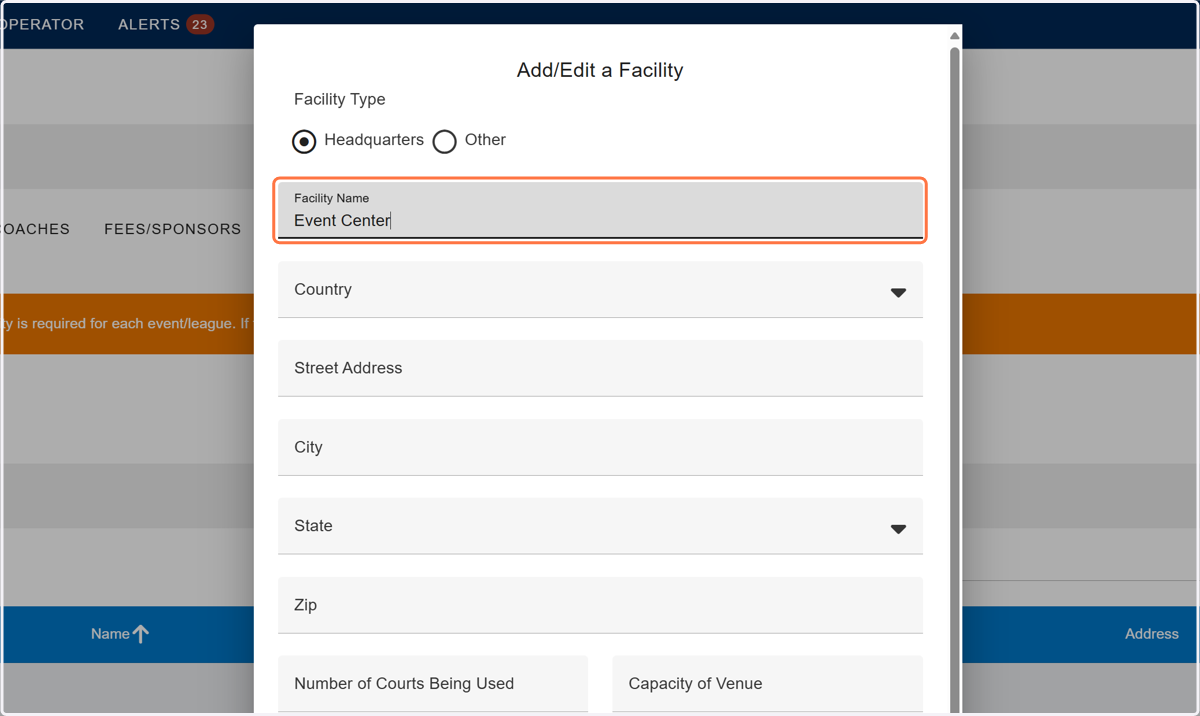
16. Add the facility information.
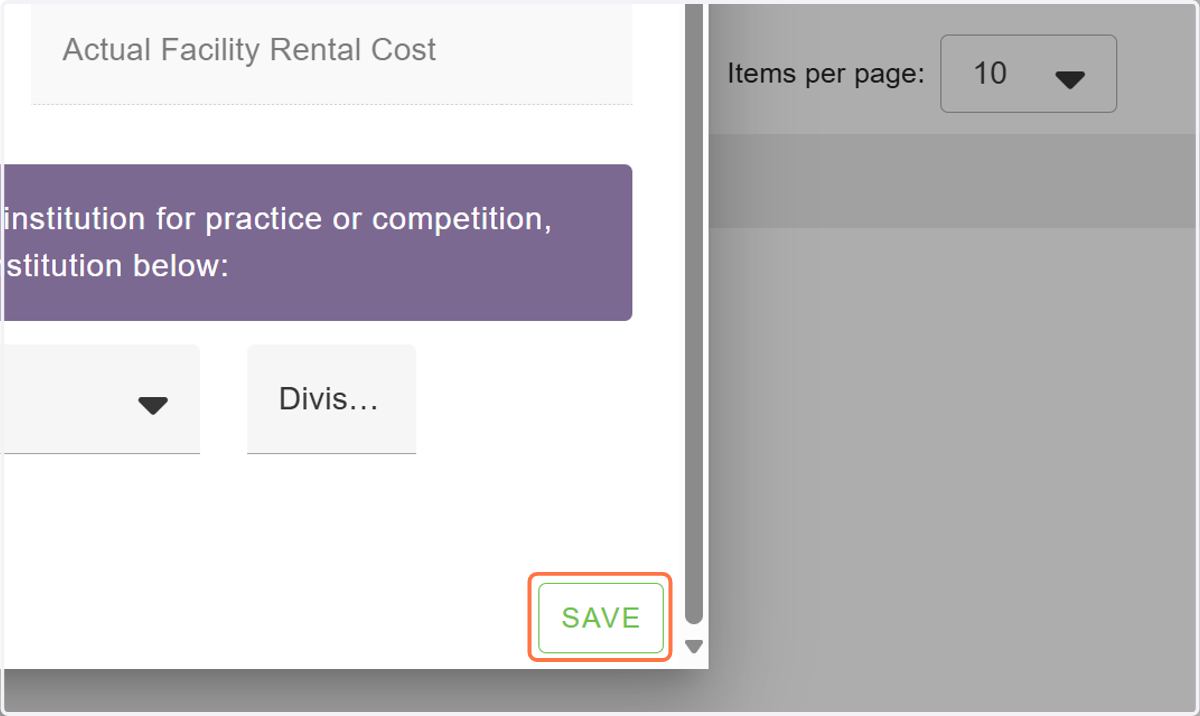
17. Click SAVE.
If you are using more than one facility, you will need to click Add New Facility again and repeat the previous steps to add each additional facility selecting Other as the Facility Type for all secondary facilities.
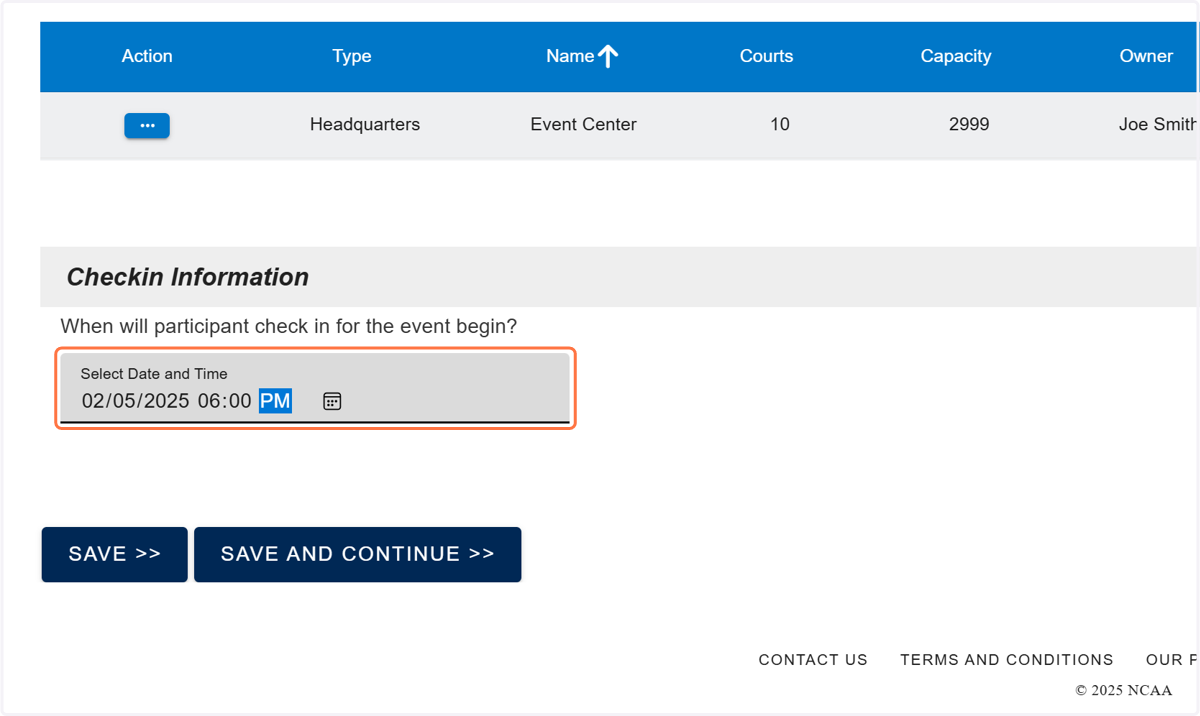
18. Type the date and time participants can check-in.
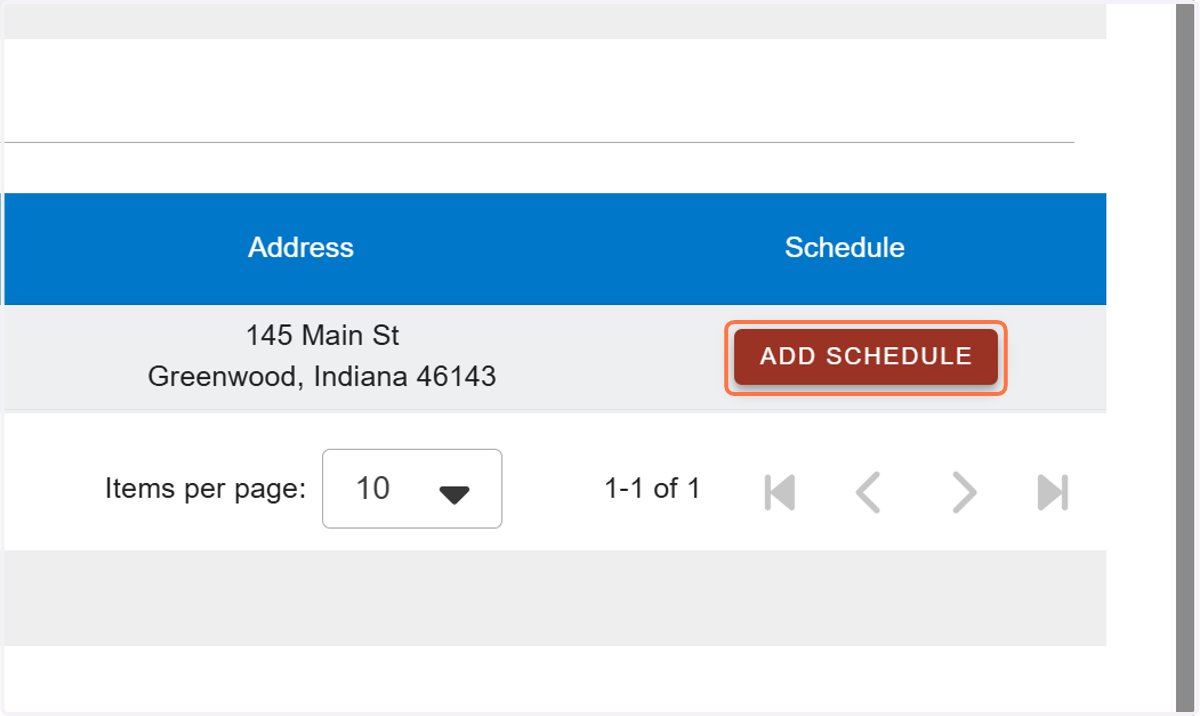
19. Click ADD SCHEDULE.
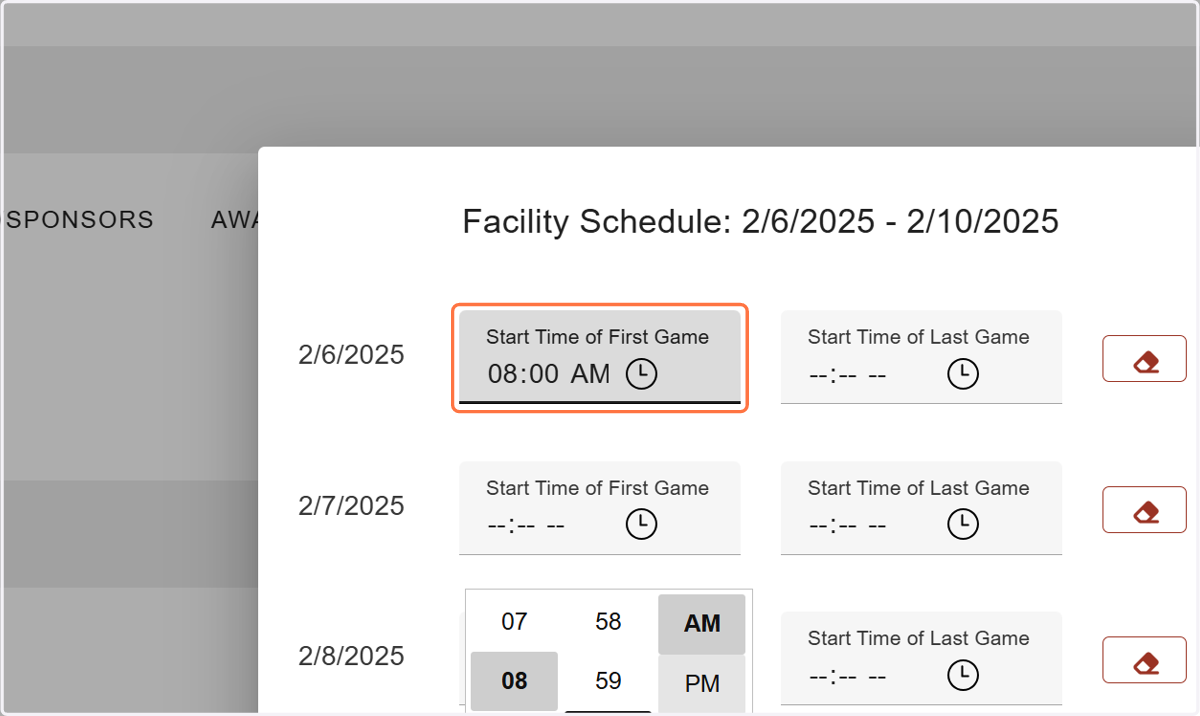
20. Add the daily schedule information.
HEADQUARTER TIME REQUIREMENTS. For your headquarters facility, it is assumed that you will be using that facility for the duration of the event and you will be required to enter times for each day in the date range. Not all secondary facilities are used every day; so, you will only be required to enter times for the relevant days of the week that the event will be operating out of that facility.
SCHEDULE REQUIREMENTS. Per NCAA legislation, events are precluded from operating during certain times of day depending on the gender and season of the event.
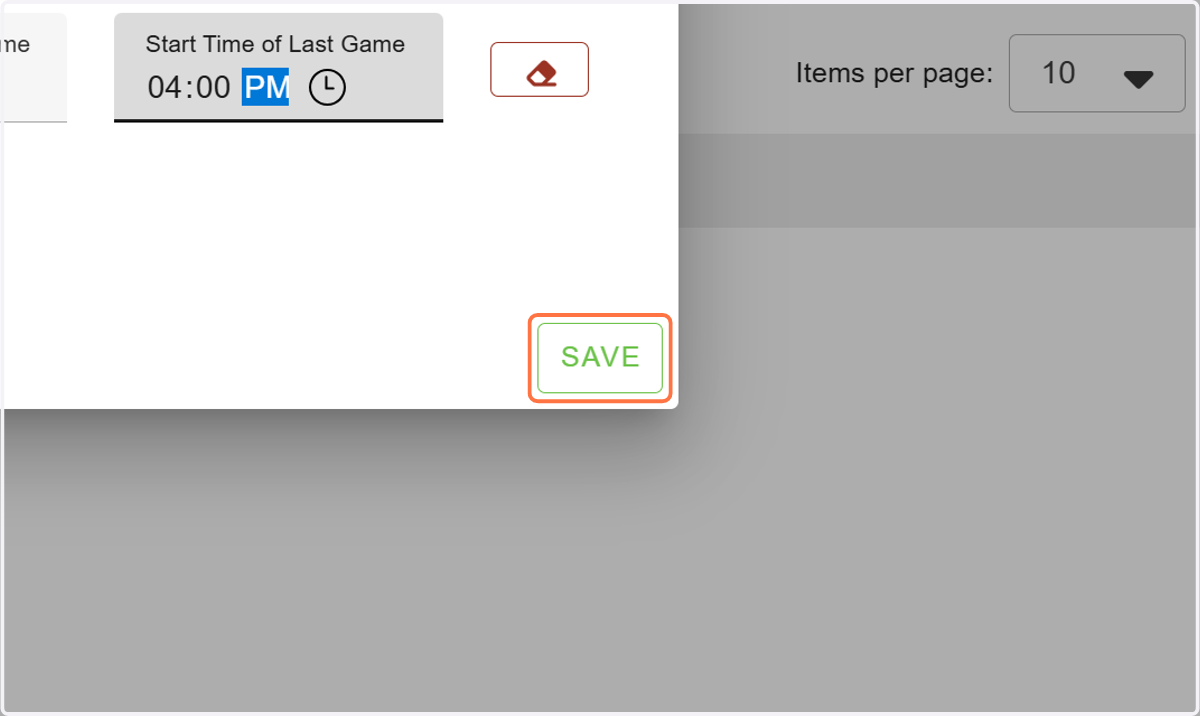
21. Click SAVE.
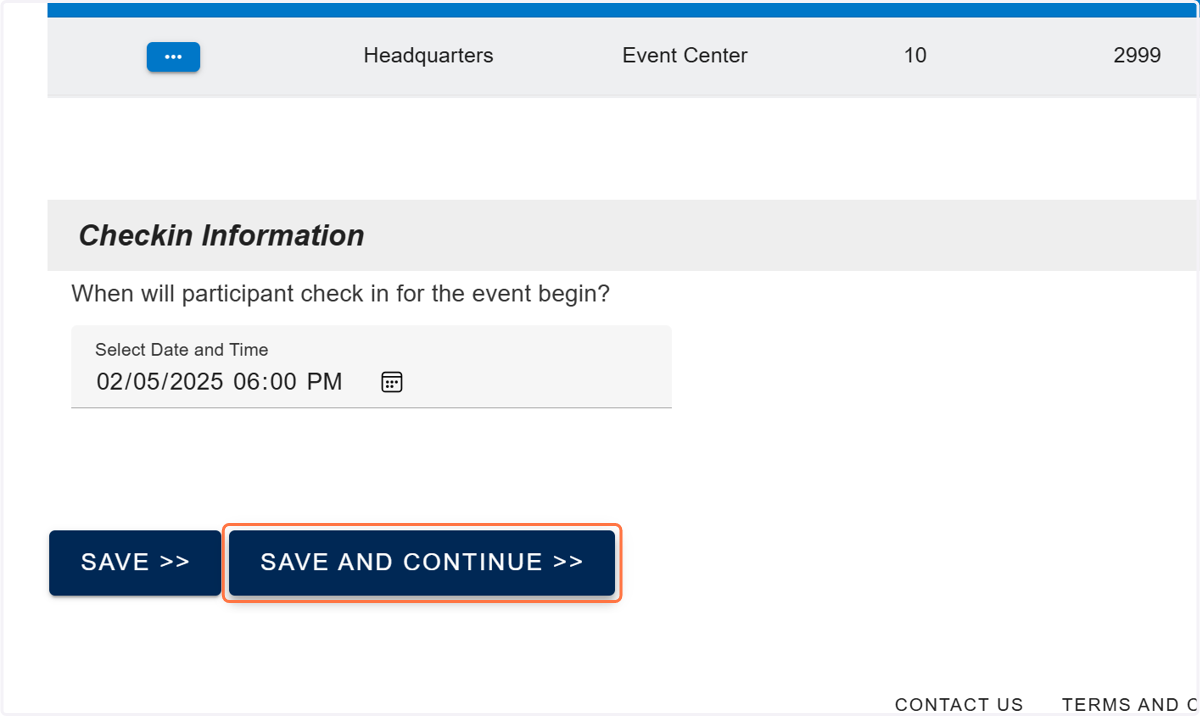
22. Click SAVE AND CONTINUE >>
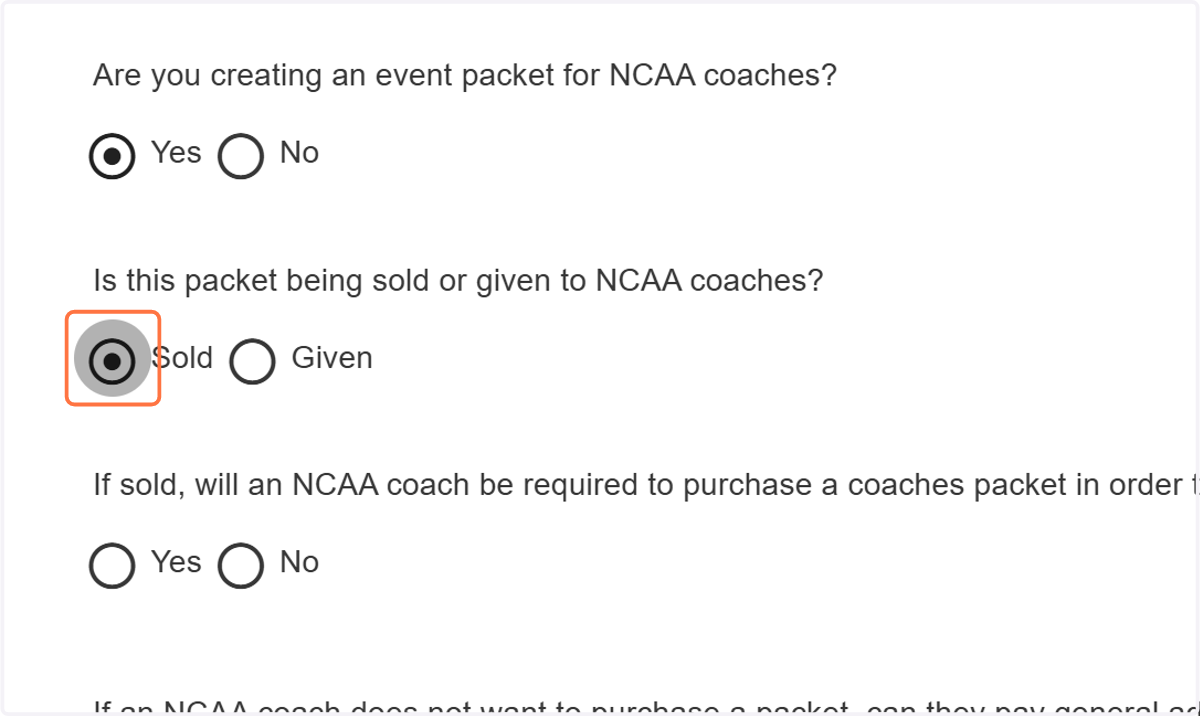
23. Answer the questions regarding event packets.
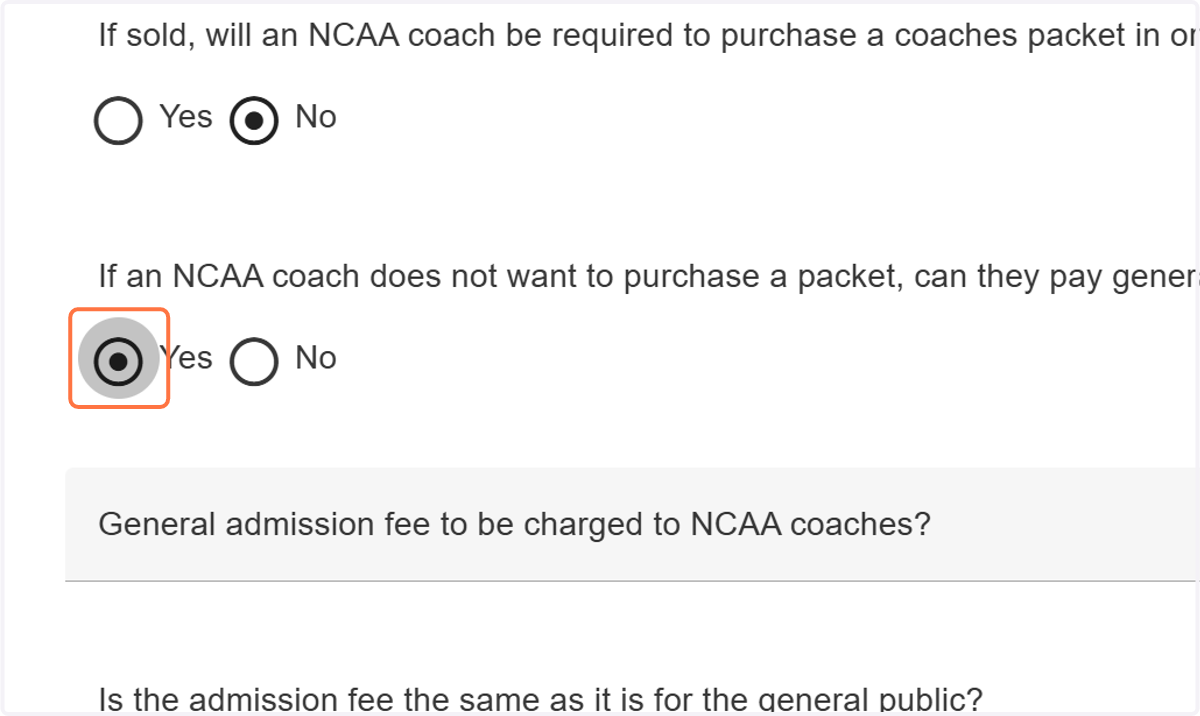
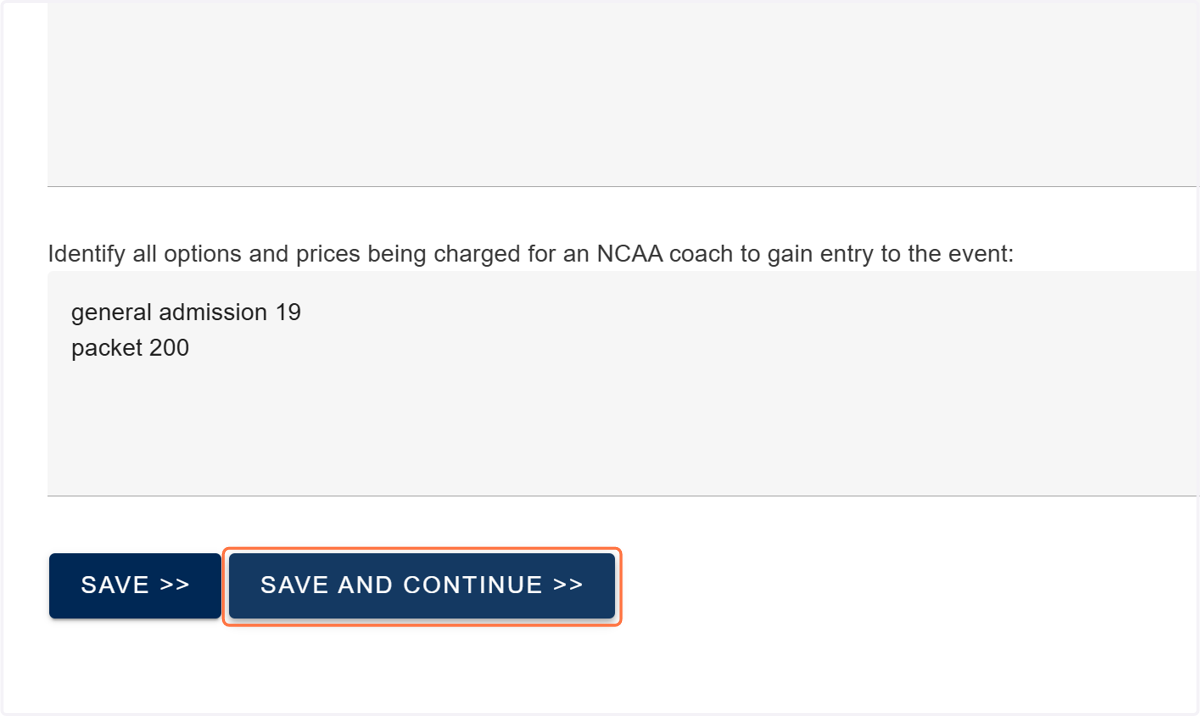
24. Answer the questions regarding NCAA coach entry fees.
REMINDER: You CANNOT charge a fee that was not disclosed on the event application and included on the approved event list posted on the NCAA website. You CANNOT make changes at the event site nor can the you make price adjustments based on your relationship with an NCAA coach.
25. Click SAVE AND CONTINUE >>
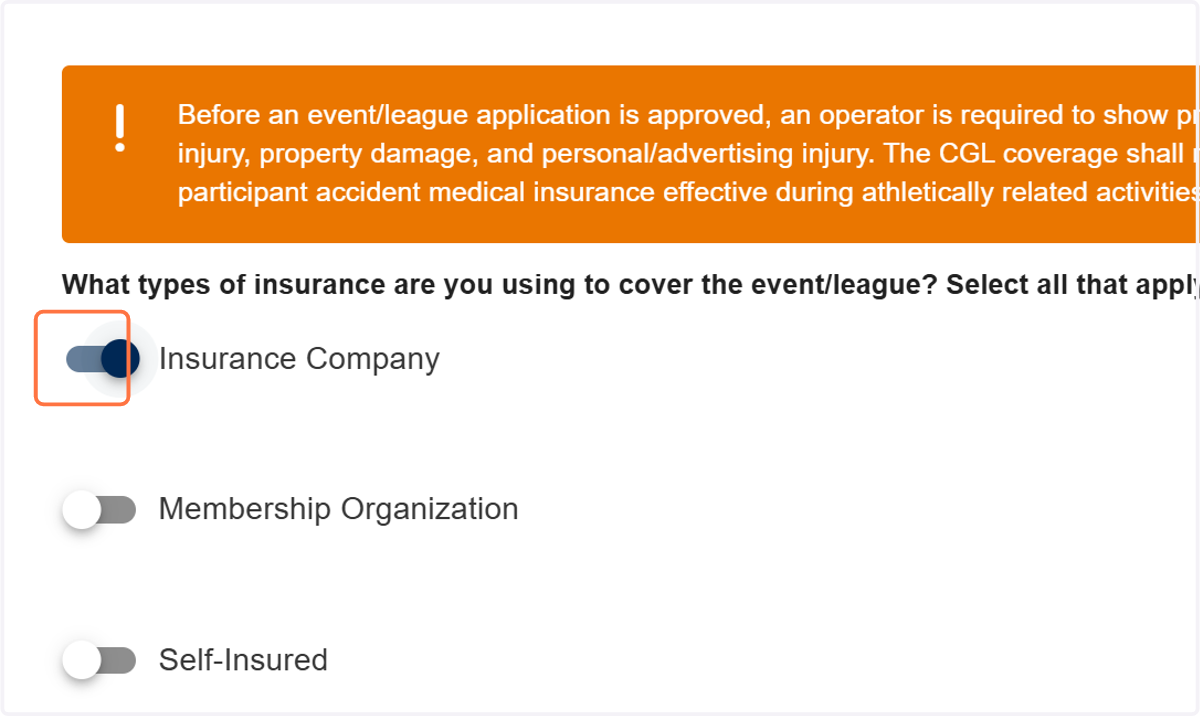
26. Select the type(s) of insurance you are using to cover the event.
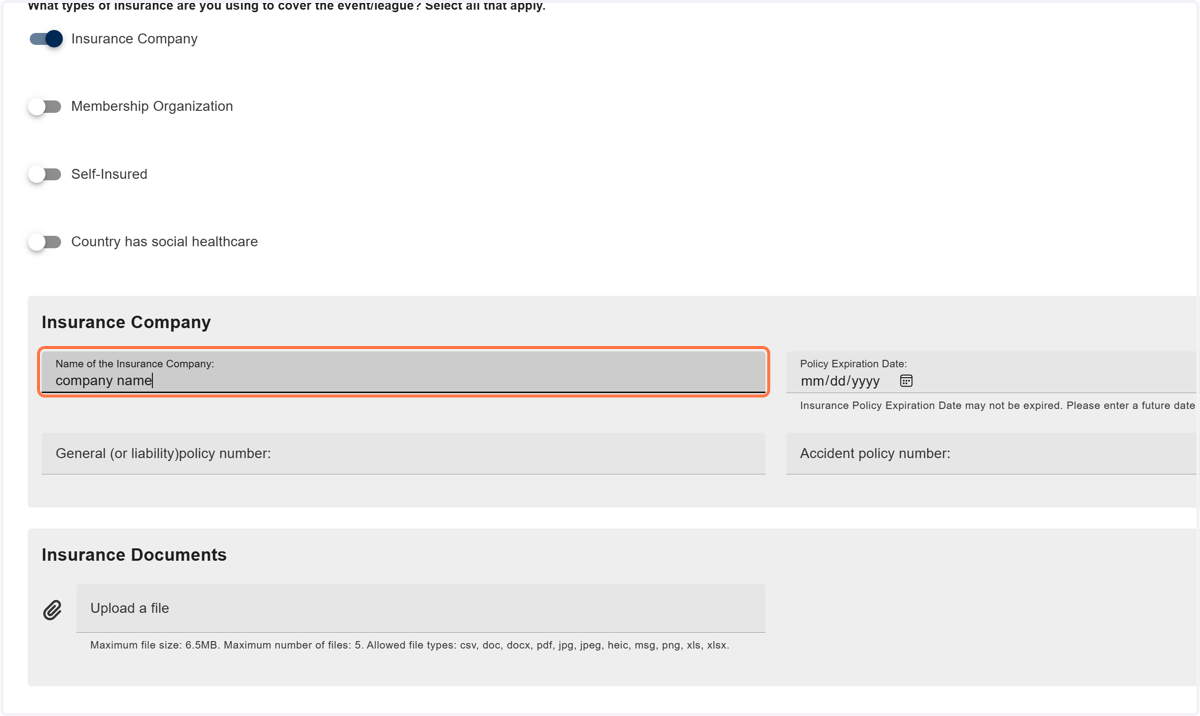
27. Add the Insurance Company Name and policy information.
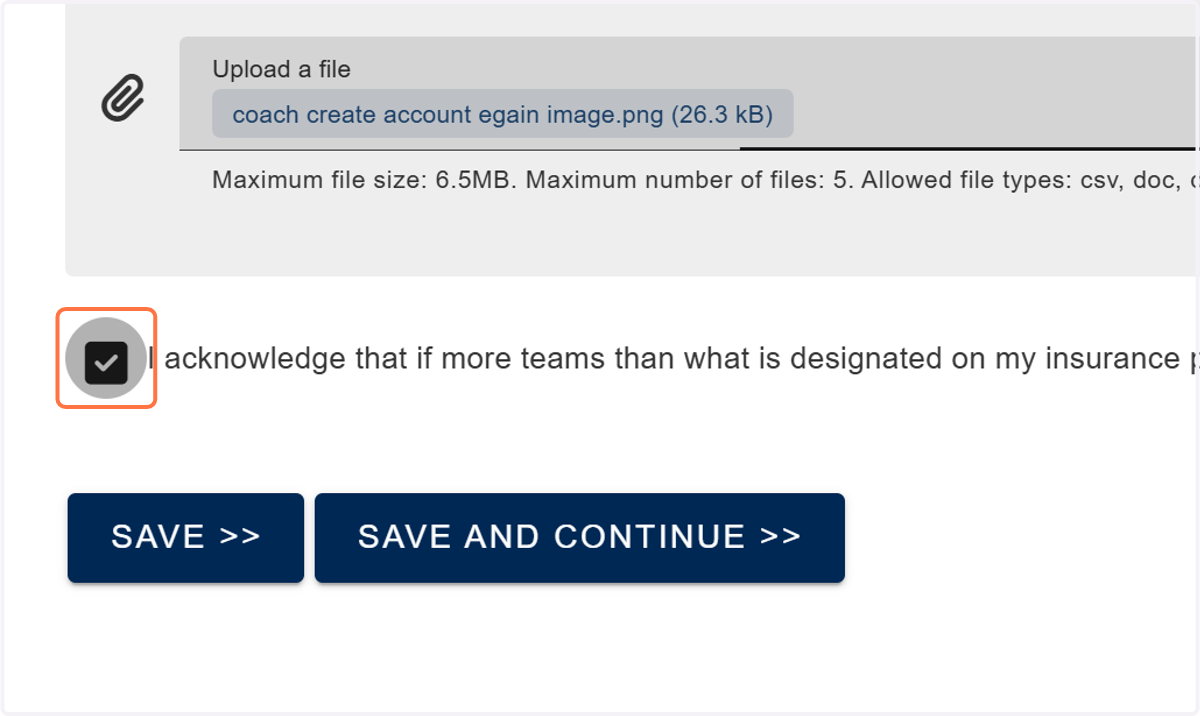
28. Upload the Insurance Documents.
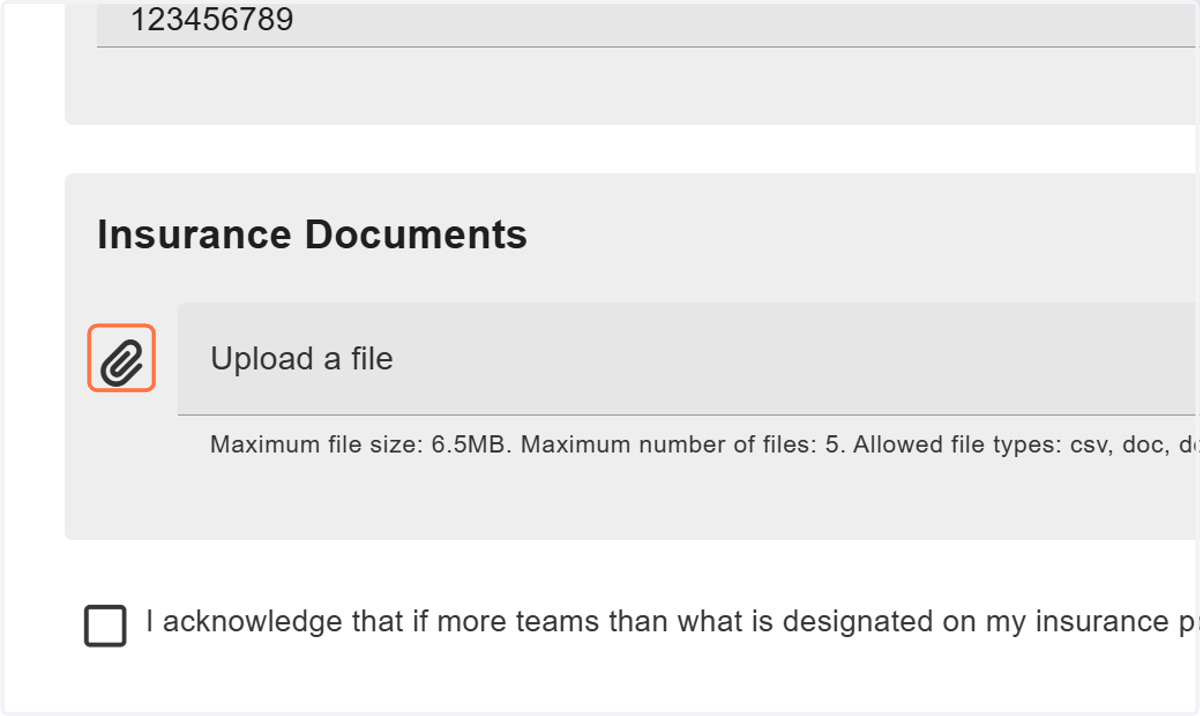
29. Check to acknowledge the attestation.
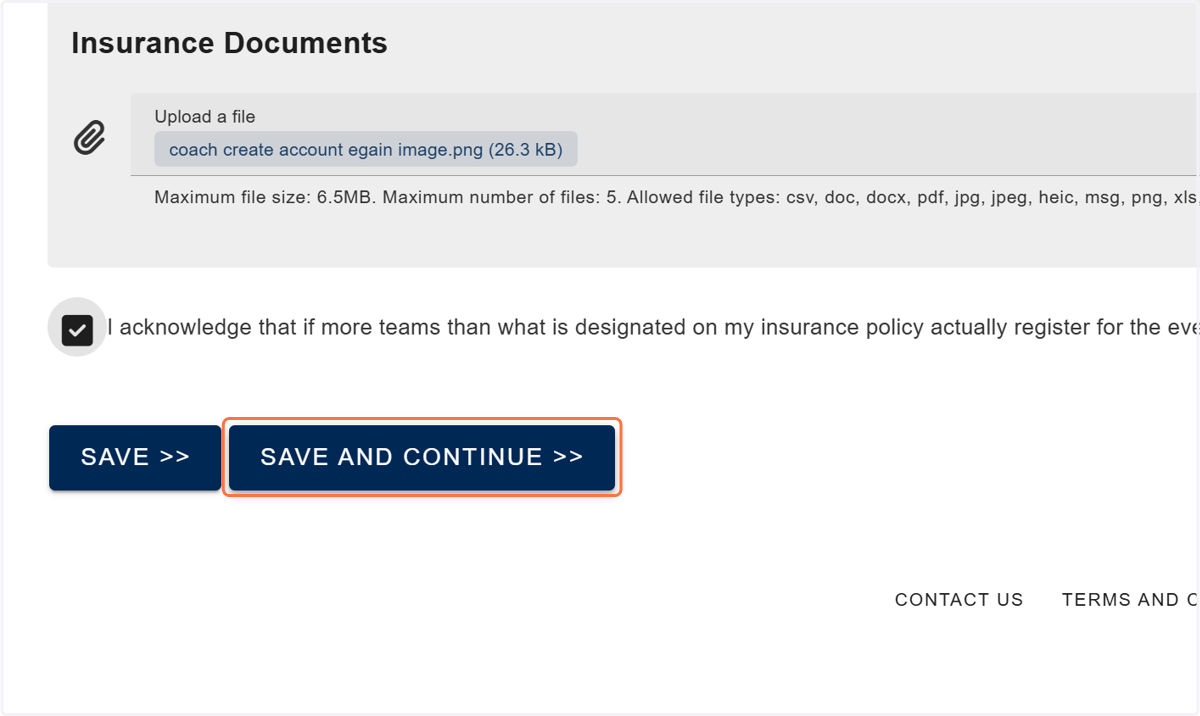
30. Click SAVE AND CONTINUE >>
31. If there is any additional information that the operator needs to communicate with ECAG that is not covered by the questions on the application or if there is any need to upload documentation of any kind, the operator may do so via the Notes tab on the app prior to submission.
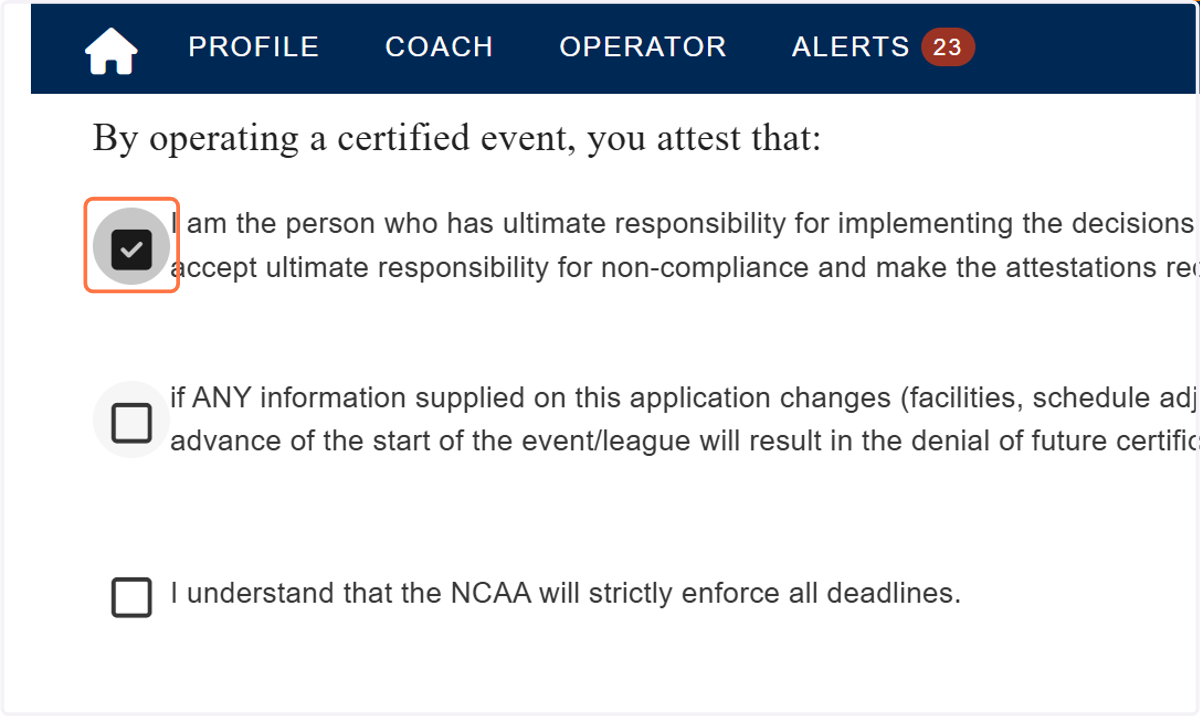
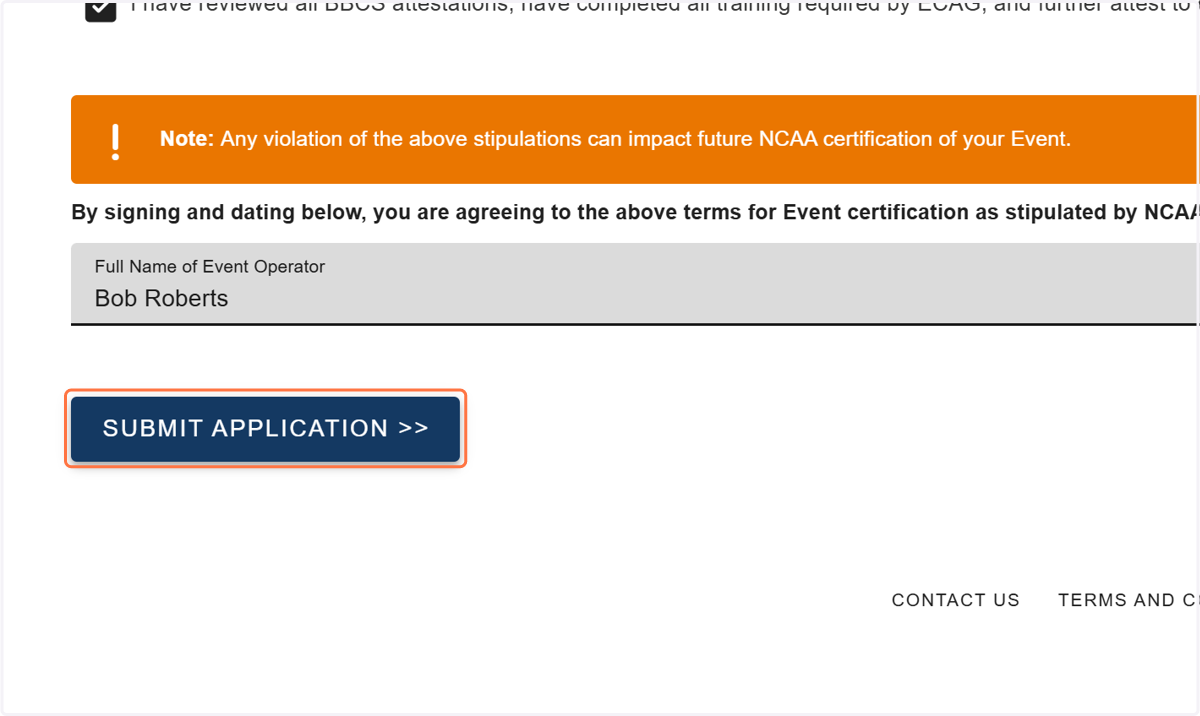
32. Check the boxes to agree to the attestations listed.
33. Type your full name.
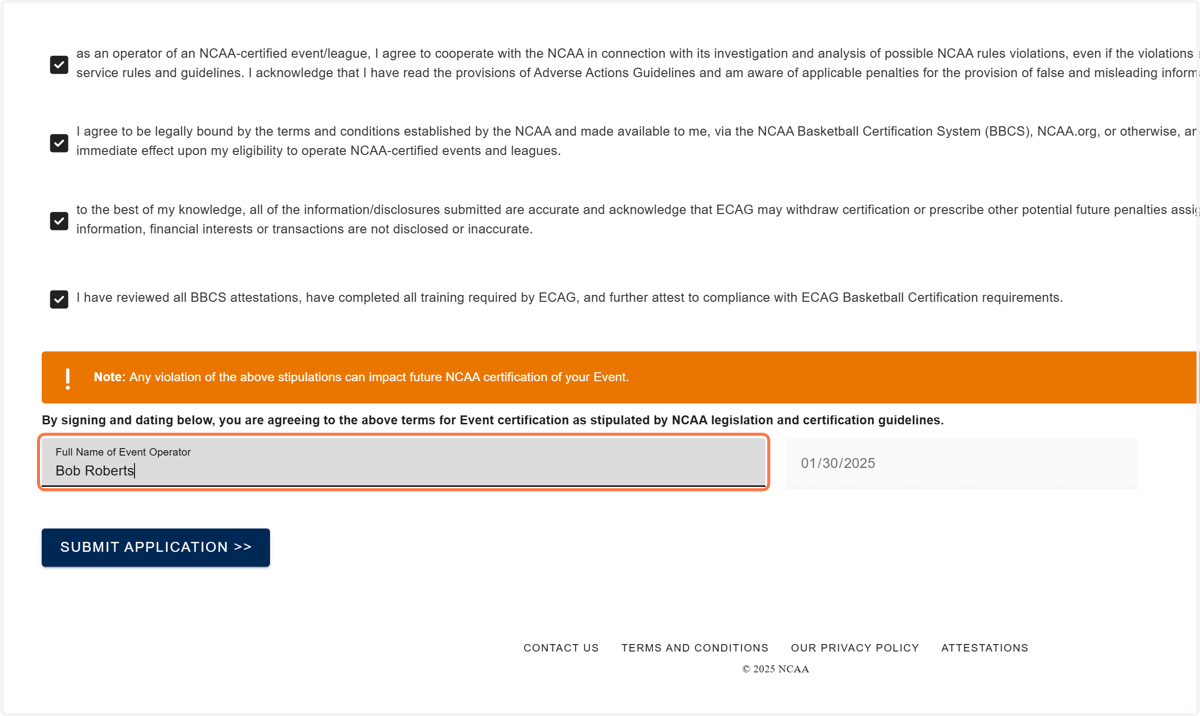
34. Click SUBMIT APPLICATION >>
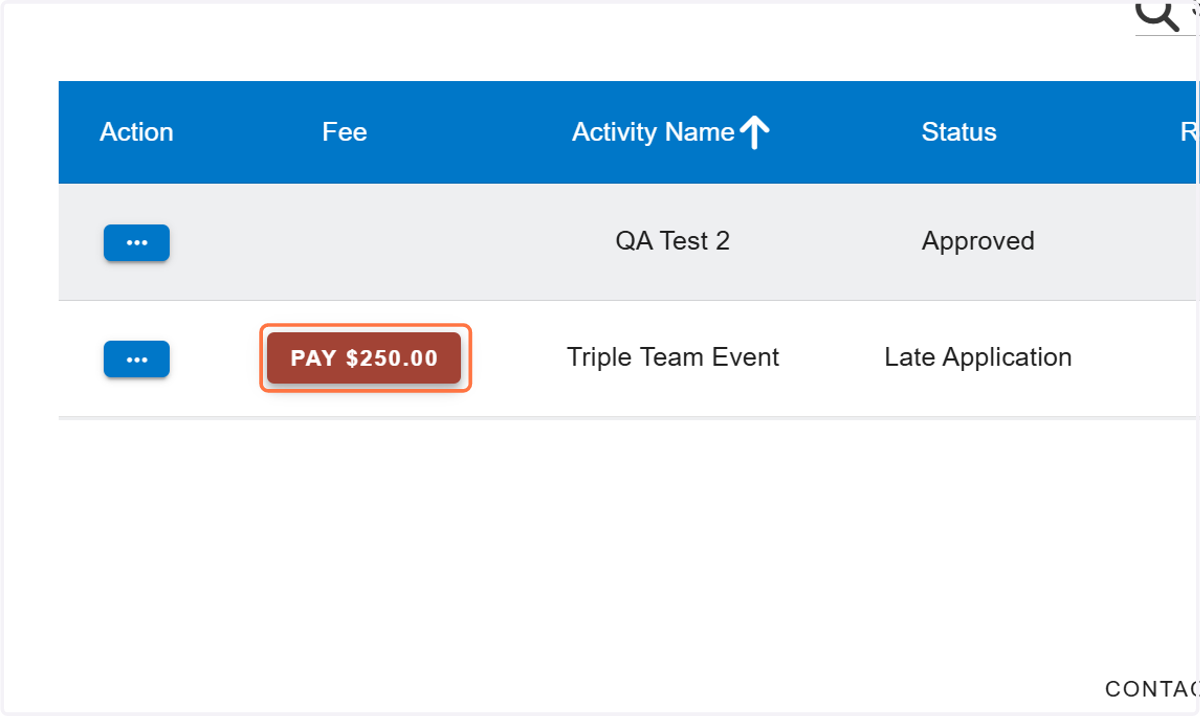
35. Under the Fee column, click to pay the application fees.
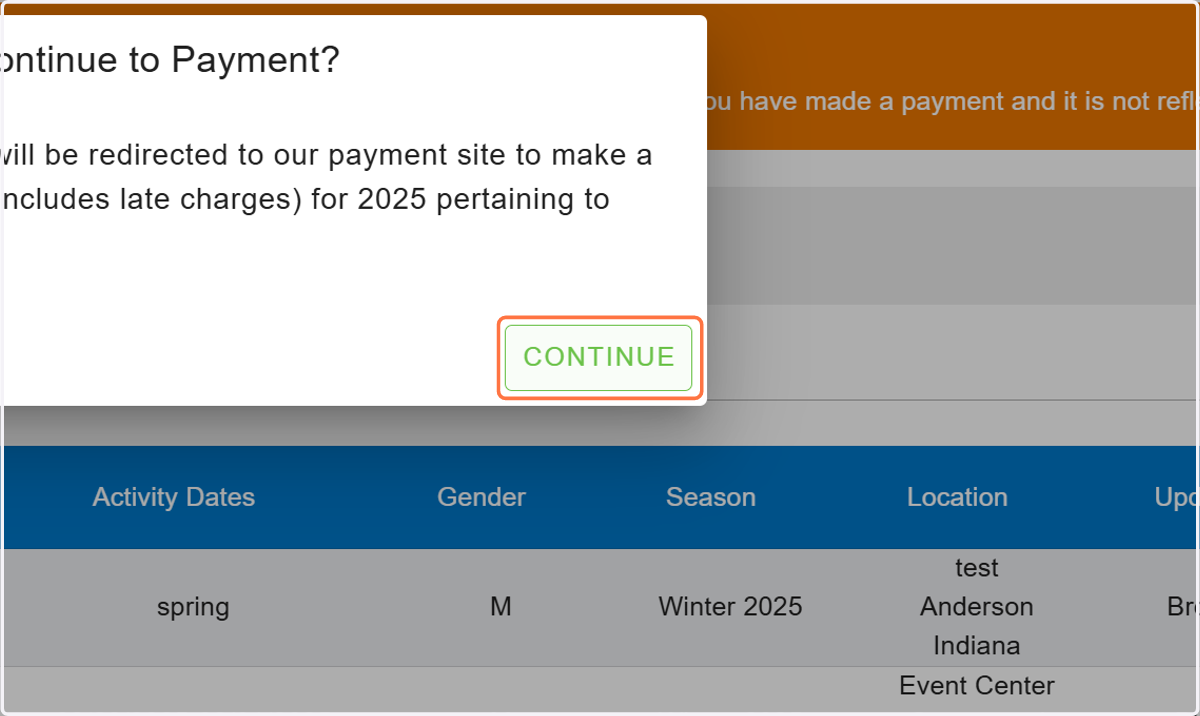
36. Click CONTINUE to be redirected to the payment site.
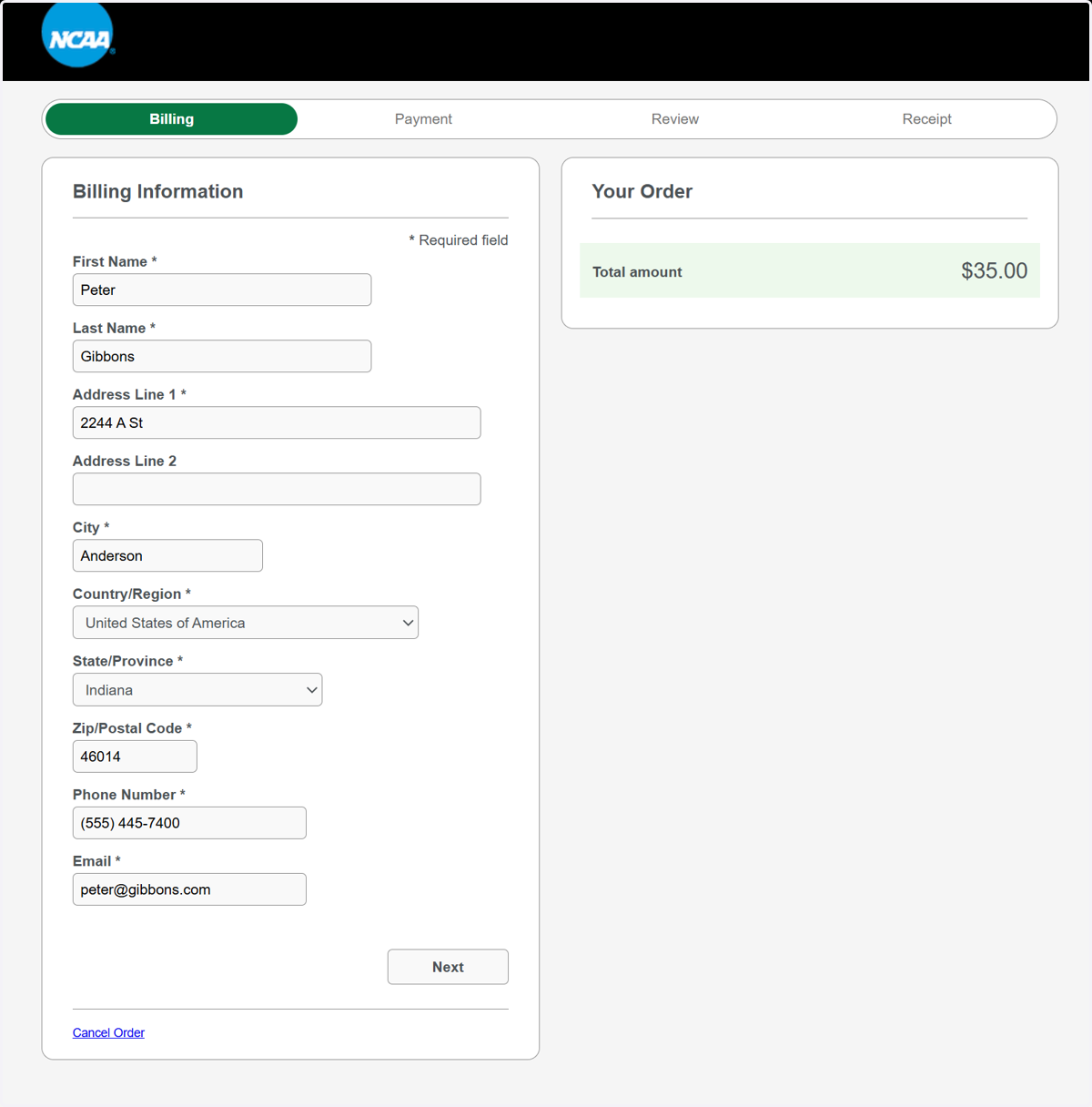
37. Verify the information on the screen is correct and click Next.
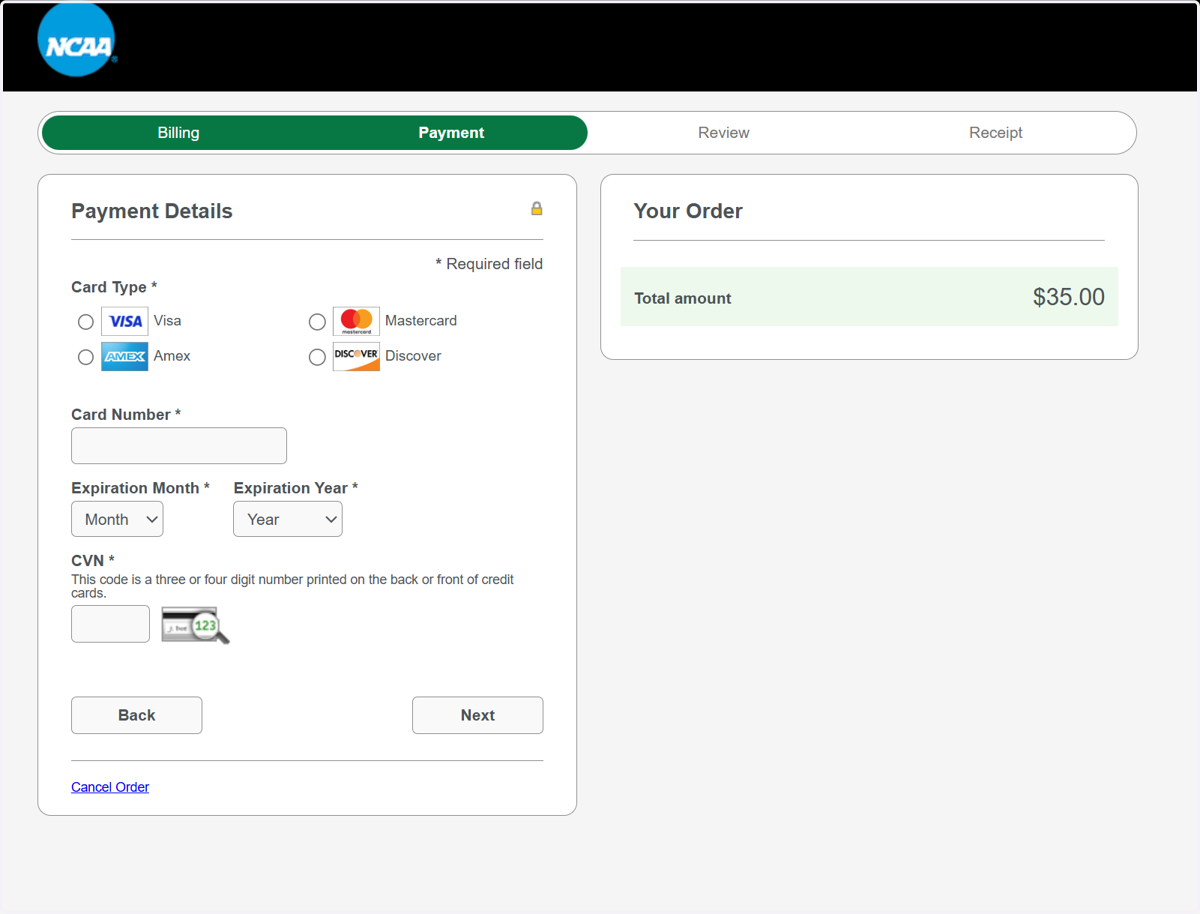
38. Enter your credit card details and click Next.
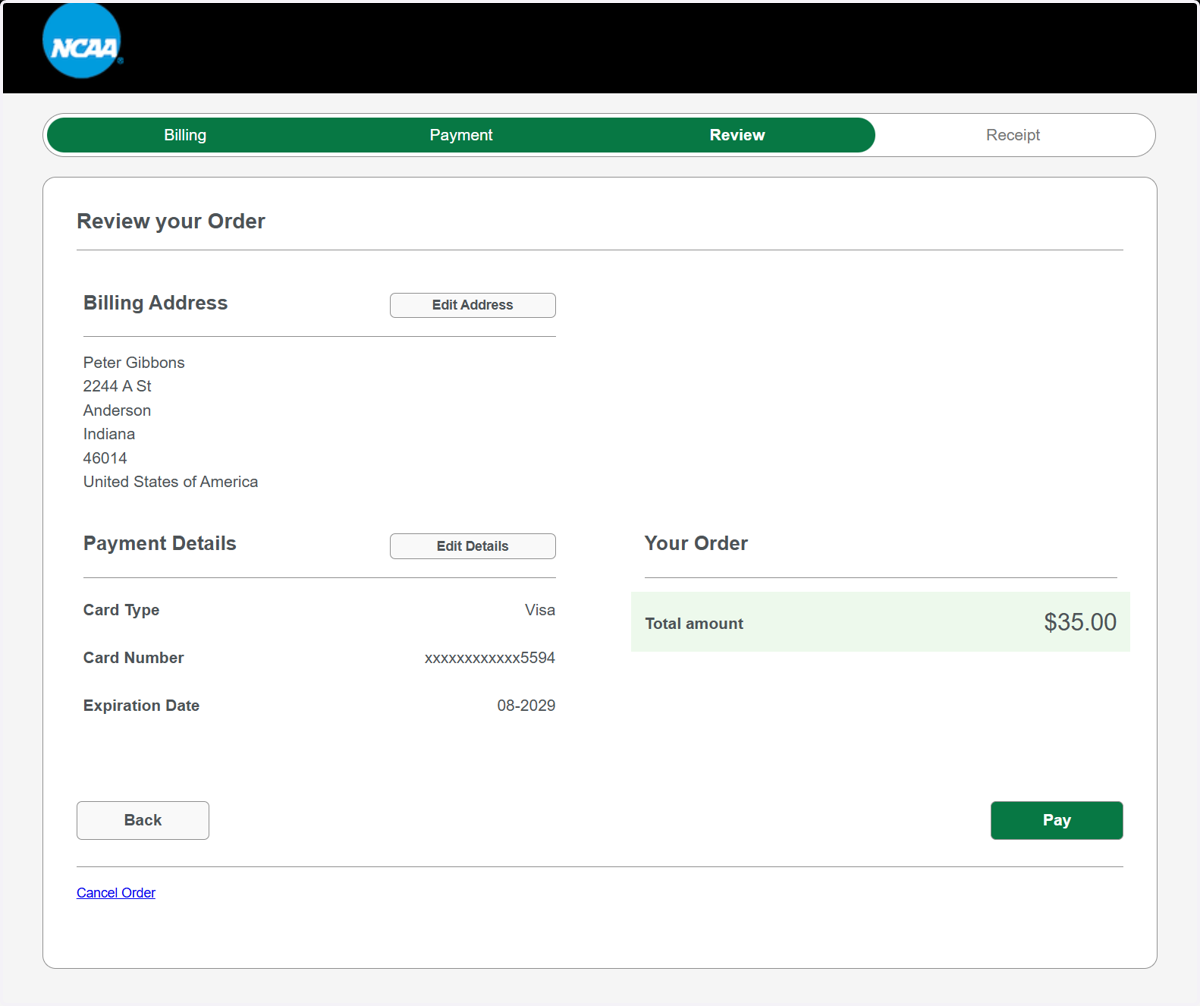
39. Review the information to ensure it is correct and then click Pay. On the receipt page, click Return to Website to return to the BBCS.
40. Your application has been submitted. ECAG will contact you via the BBCS with a certification decision. Until your application is approved, you cannot market the event as being NCAA certified.