Automate Invention Submissions via Chorigen

Chorigen Design Studio: BPMN 2.0 Workflow Designer & Automation Platform

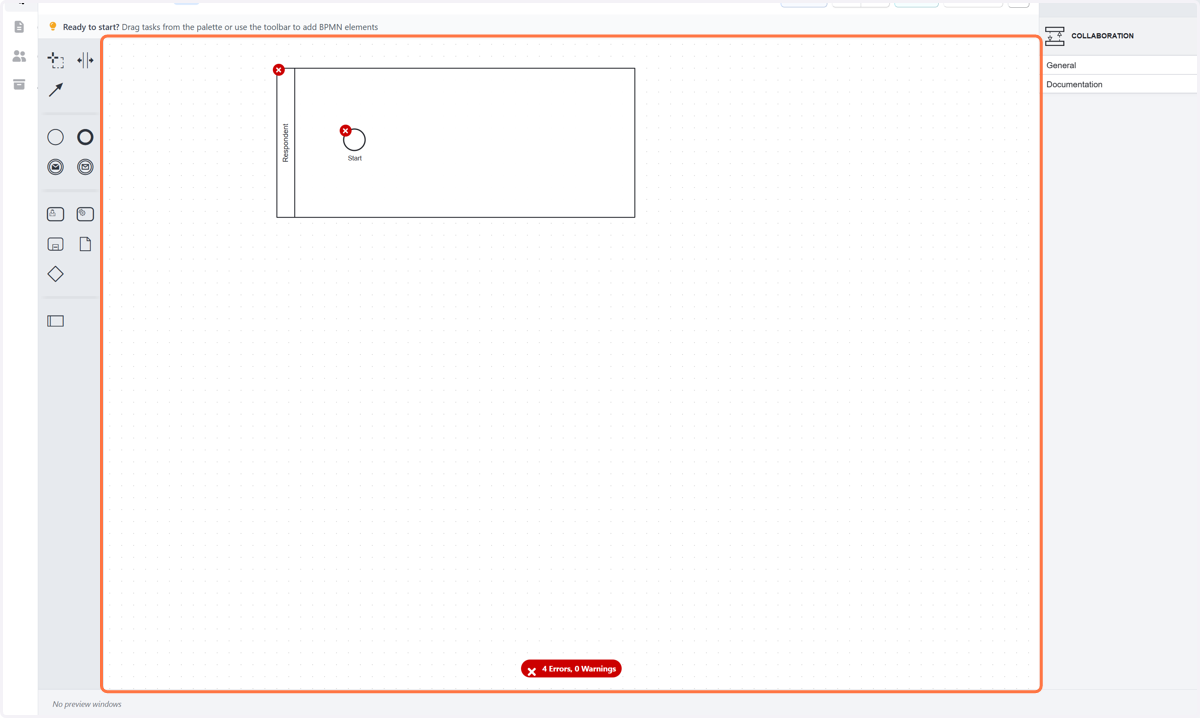
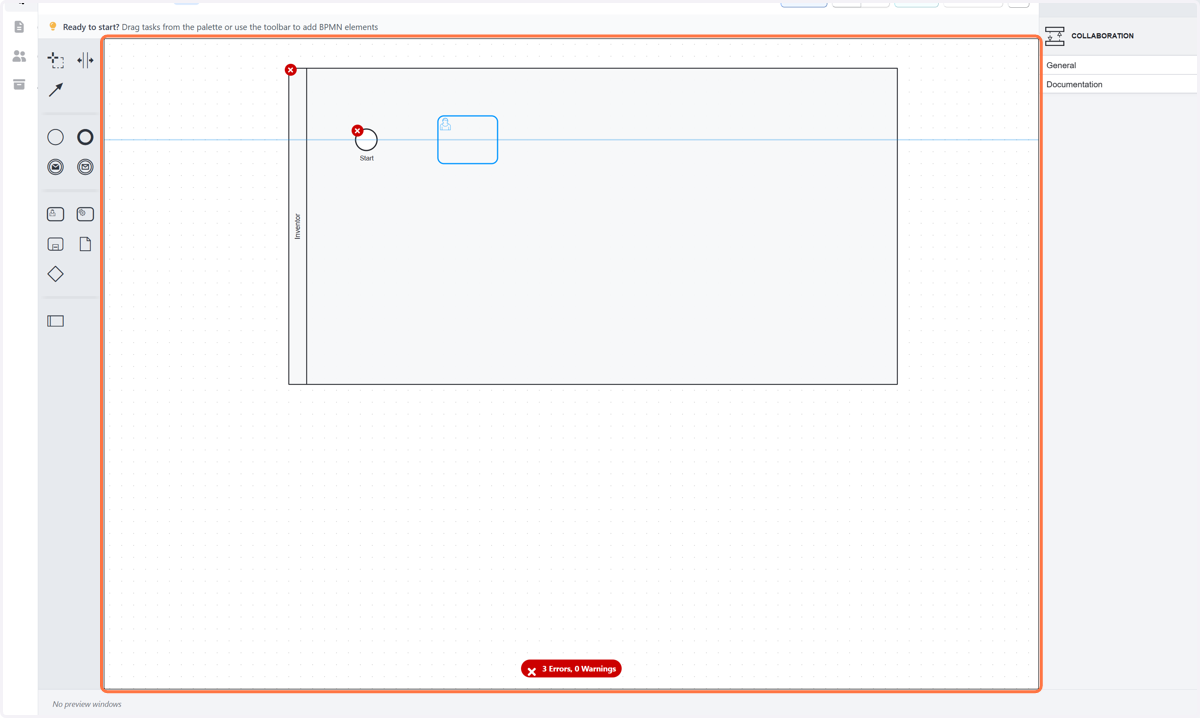
  1. 1. Click on Respondent…

    Click on Respondent…
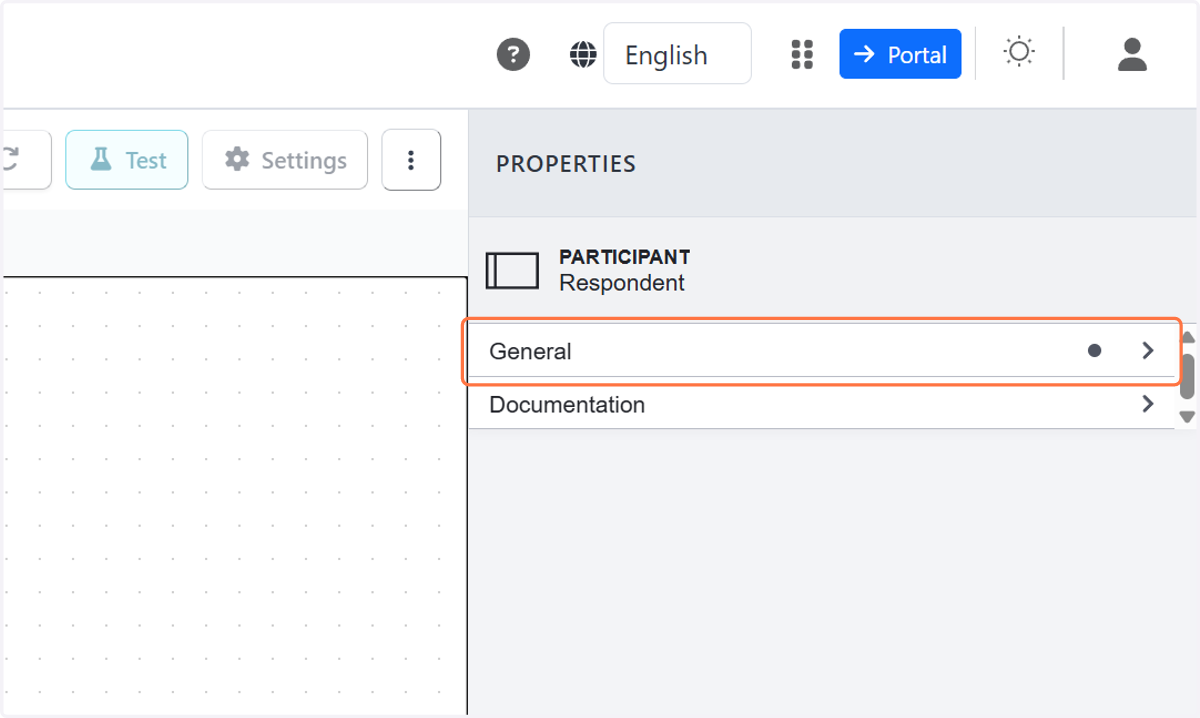
  2. 2. Click on General

    Click on General
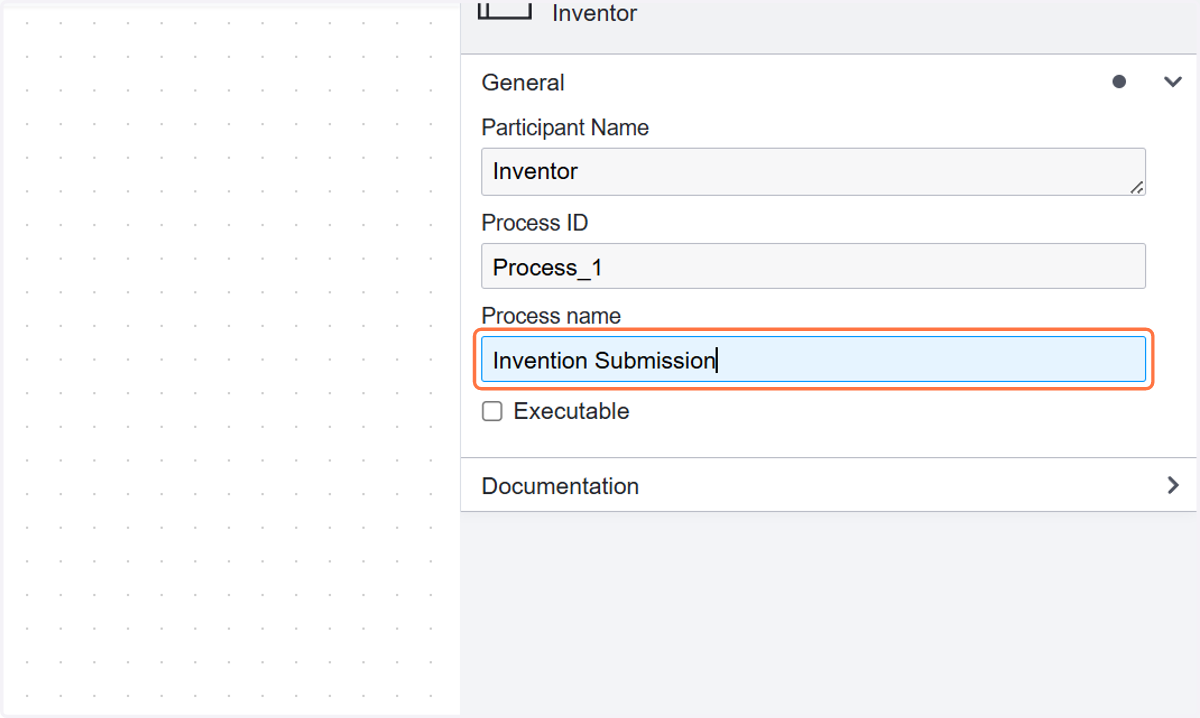
  3. 3. Type "Invention Submission"

    Type "Invention Submission"
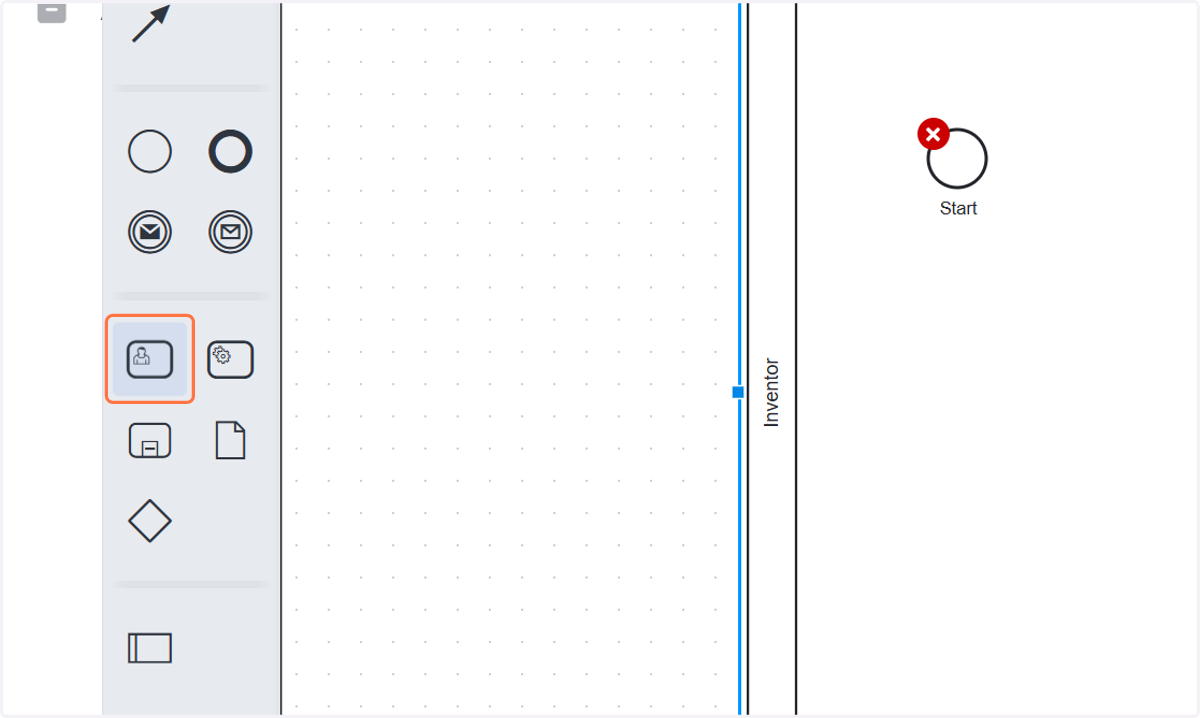
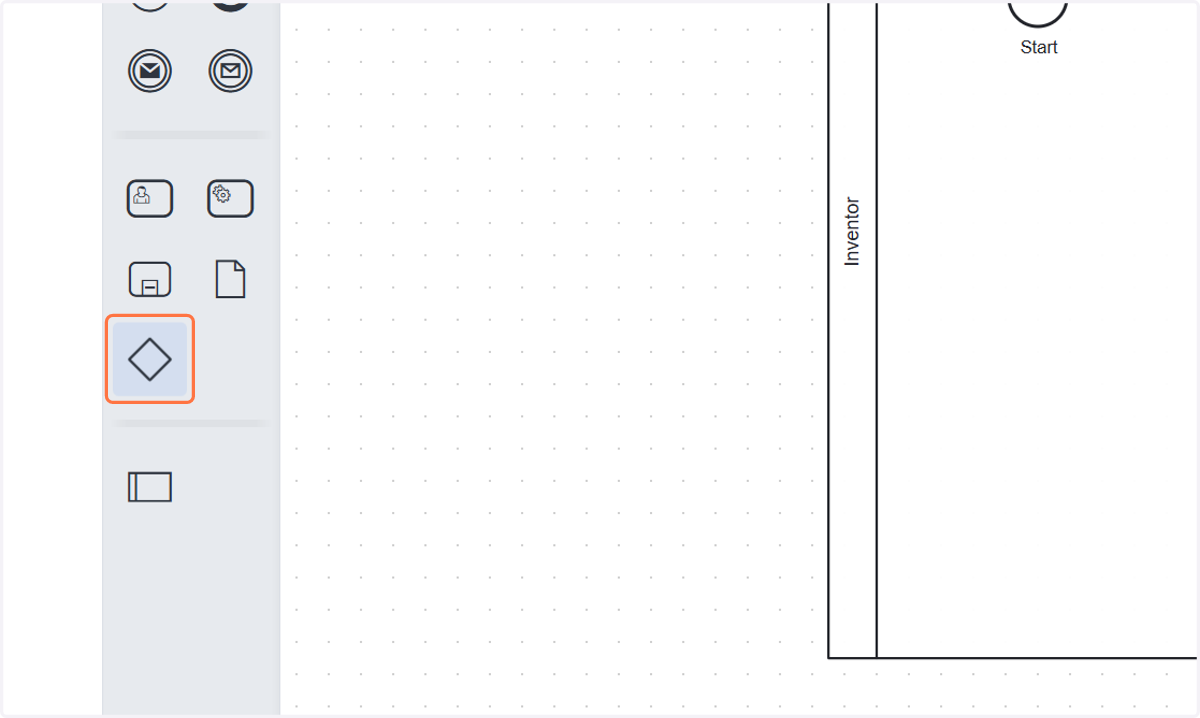
  4. 4. Click on highlight

    Click on highlight
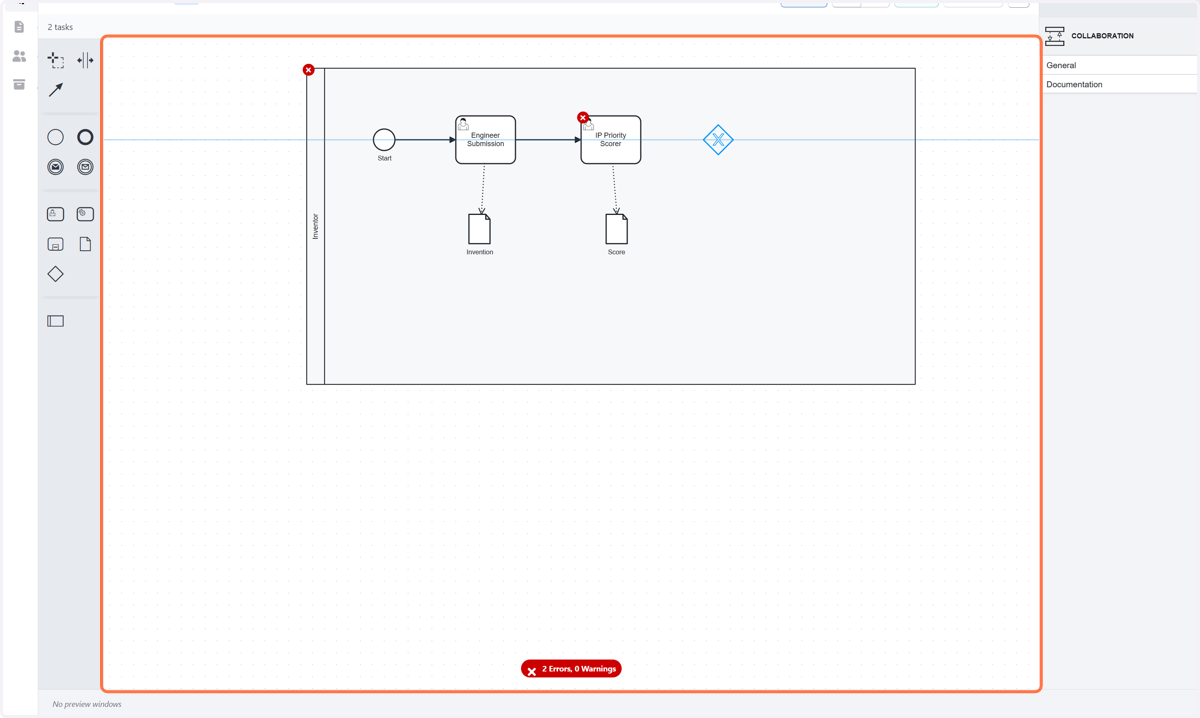
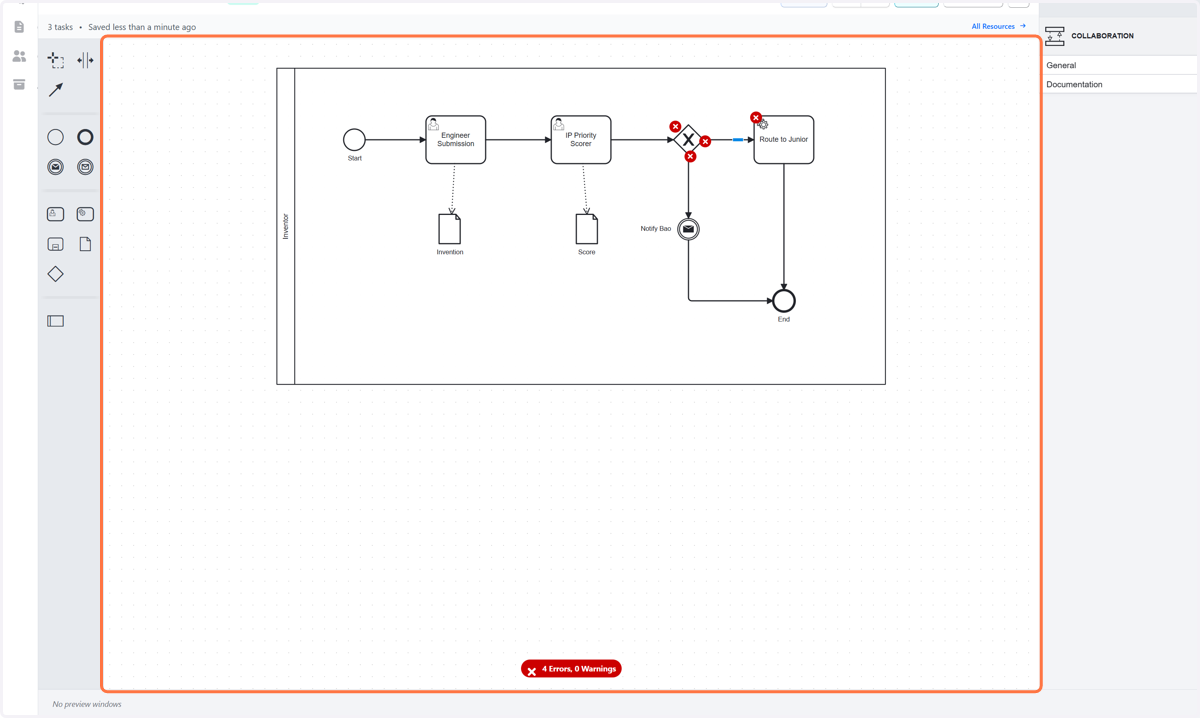
  5. 5. Click on Inventor…

    Click on Inventor…
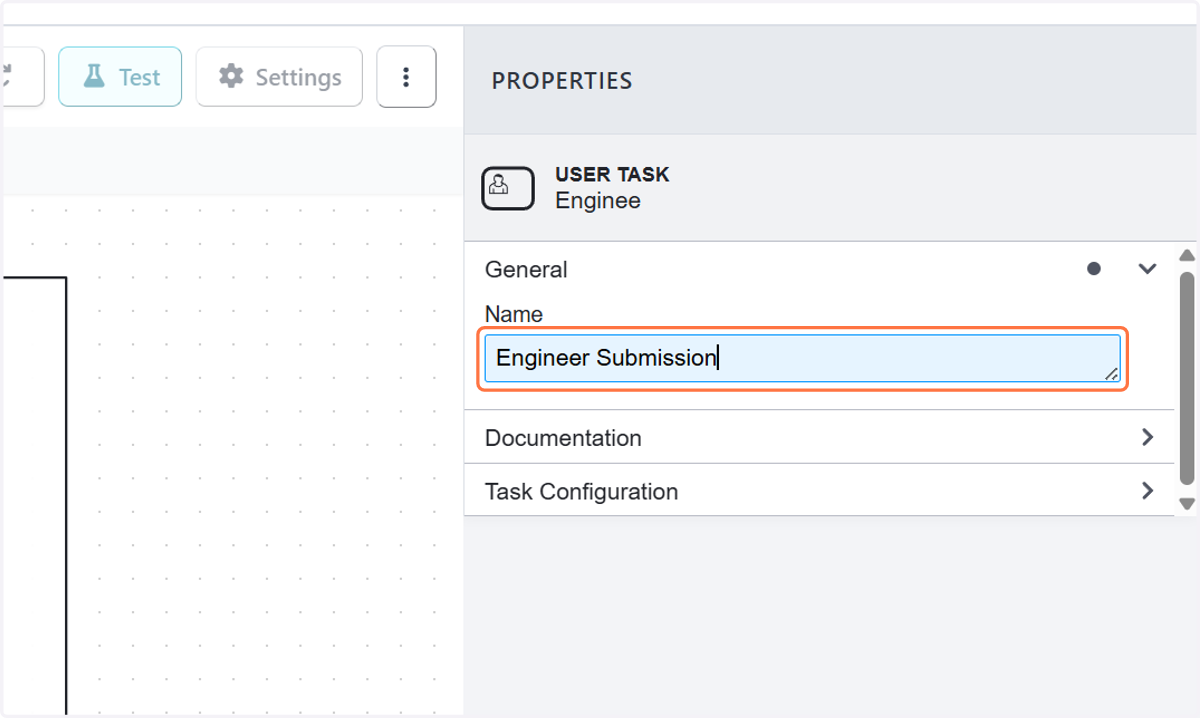
  6. 6. Type "Engineer Submission"

    Type "Engineer Submission"
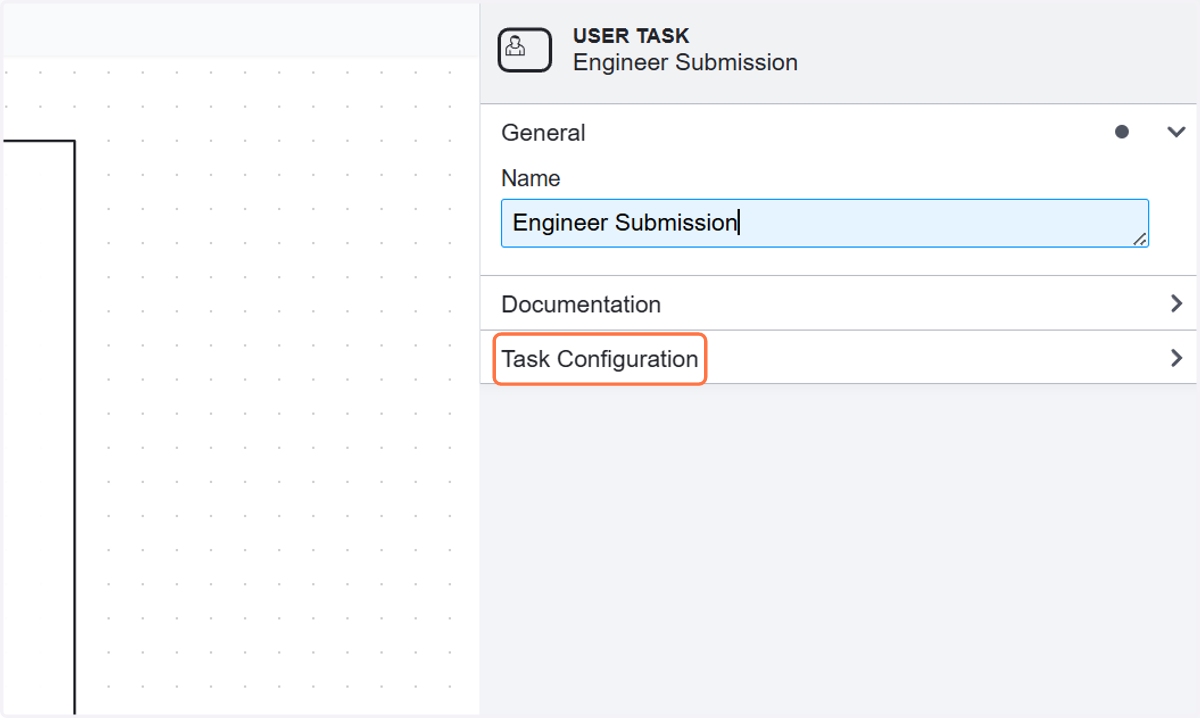
  7. 7. Click on Task Configuration

    Click on Task Configuration
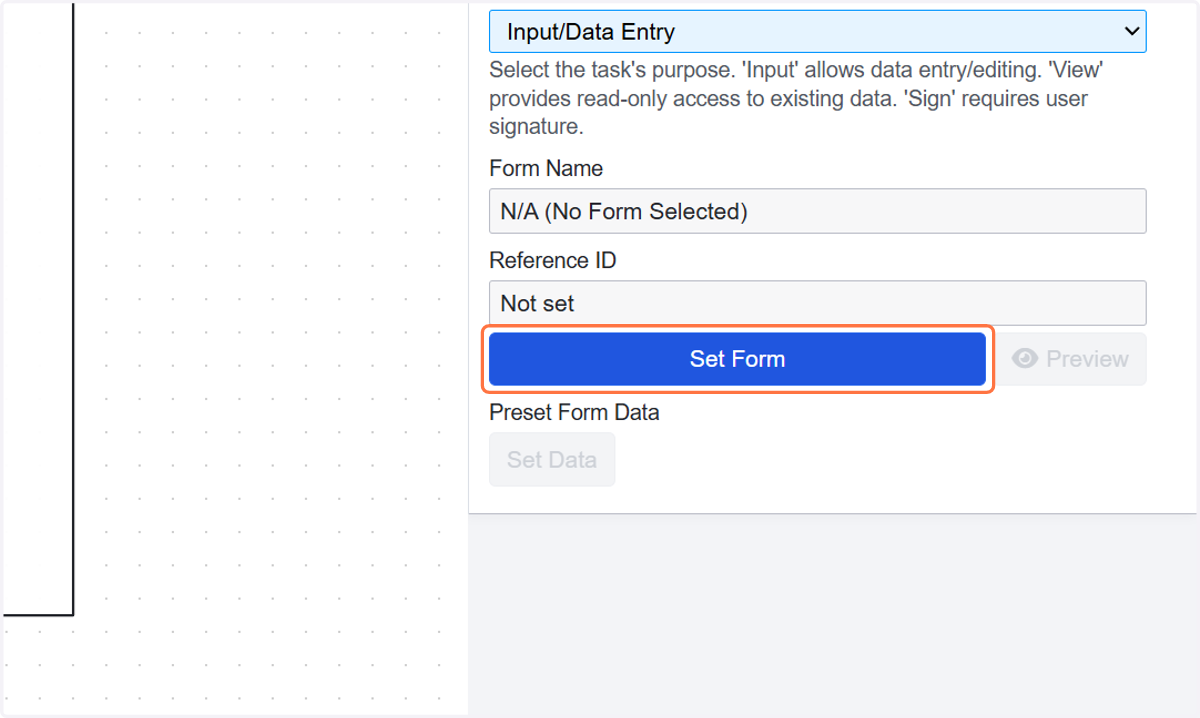
  8. 8. Select Input/Data Entry from Task Type
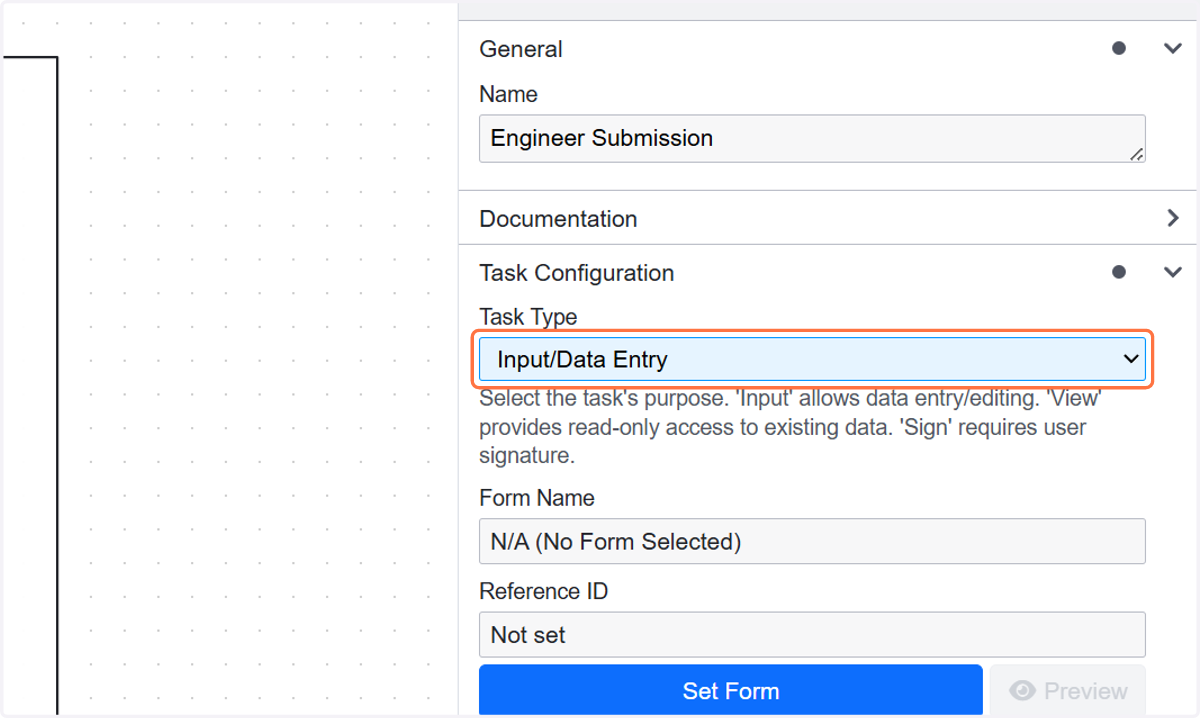
    Select Input/Data Entry from Task Type
  9. 9. Click on Set Form

    Click on Set Form
  10. 10. Click on highlight

    Click on highlight
  11. 11. Click on Inventor…

    Click on Inventor…
  12. 12. Click on Inventor…

    Click on Inventor…
  13. 13. Select Message_158k1hj from Global message reference
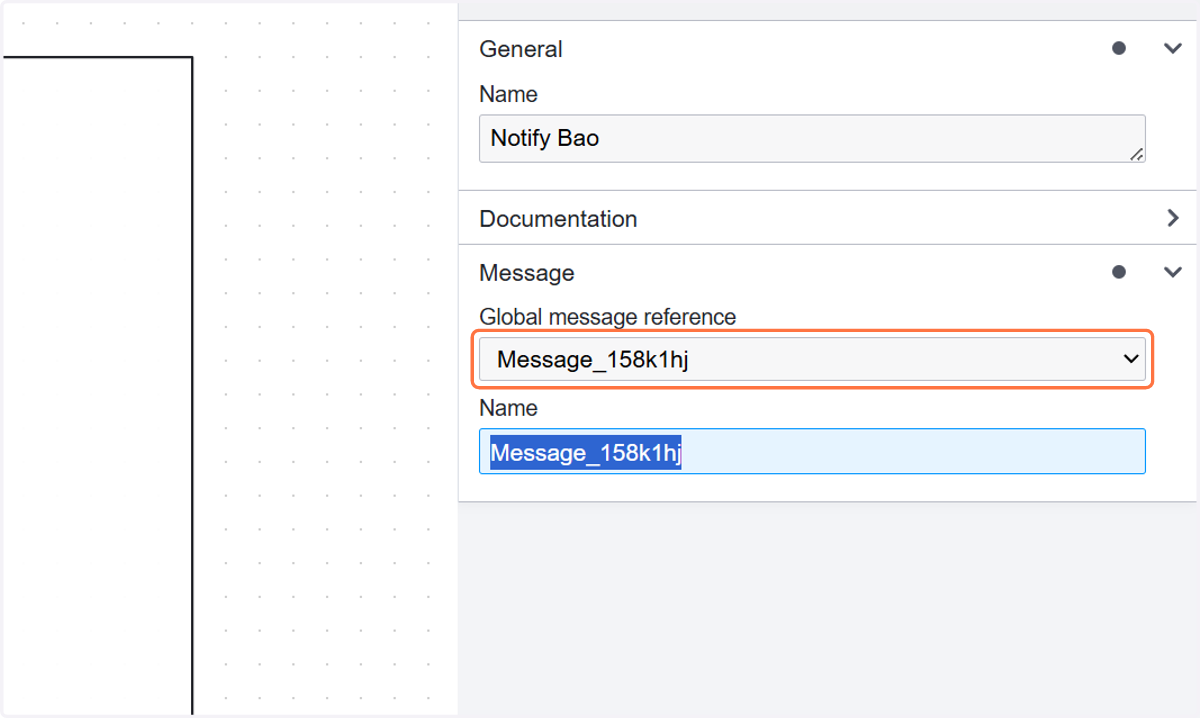
    Select Message_158k1hj from Global message reference
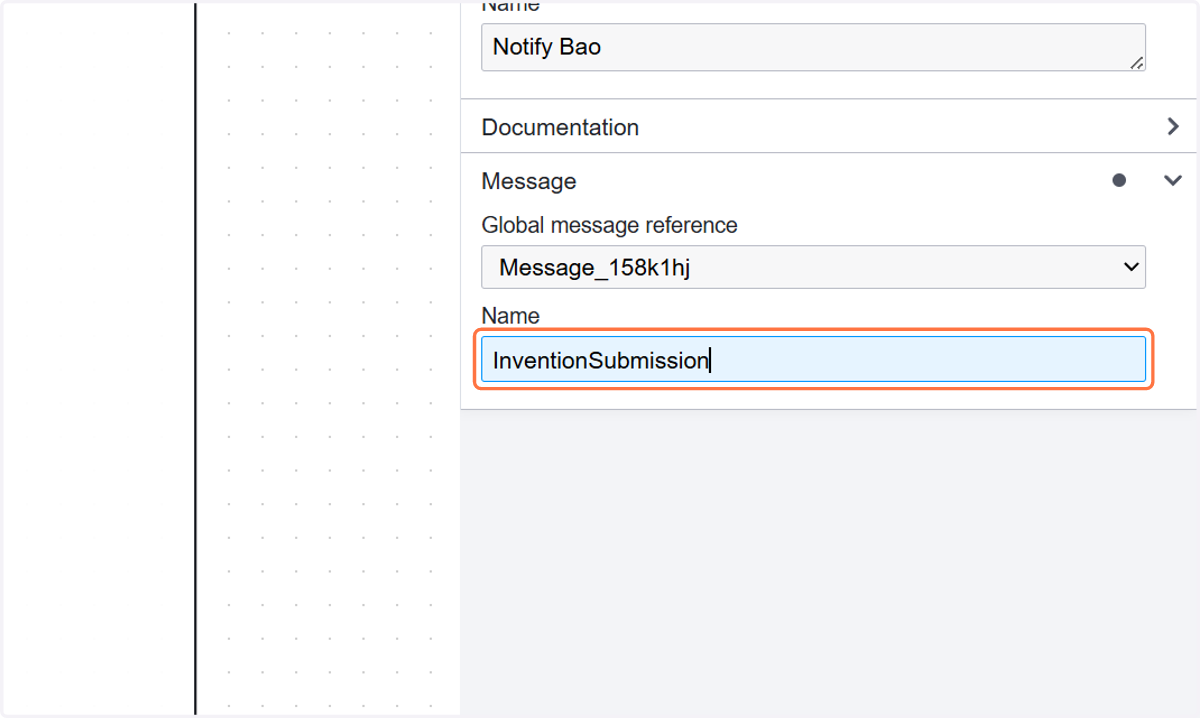
  14. 14. Type "InventionSubmission"

    Type "InventionSubmission"
  15. 15. Click on Inventor…

    Click on Inventor…
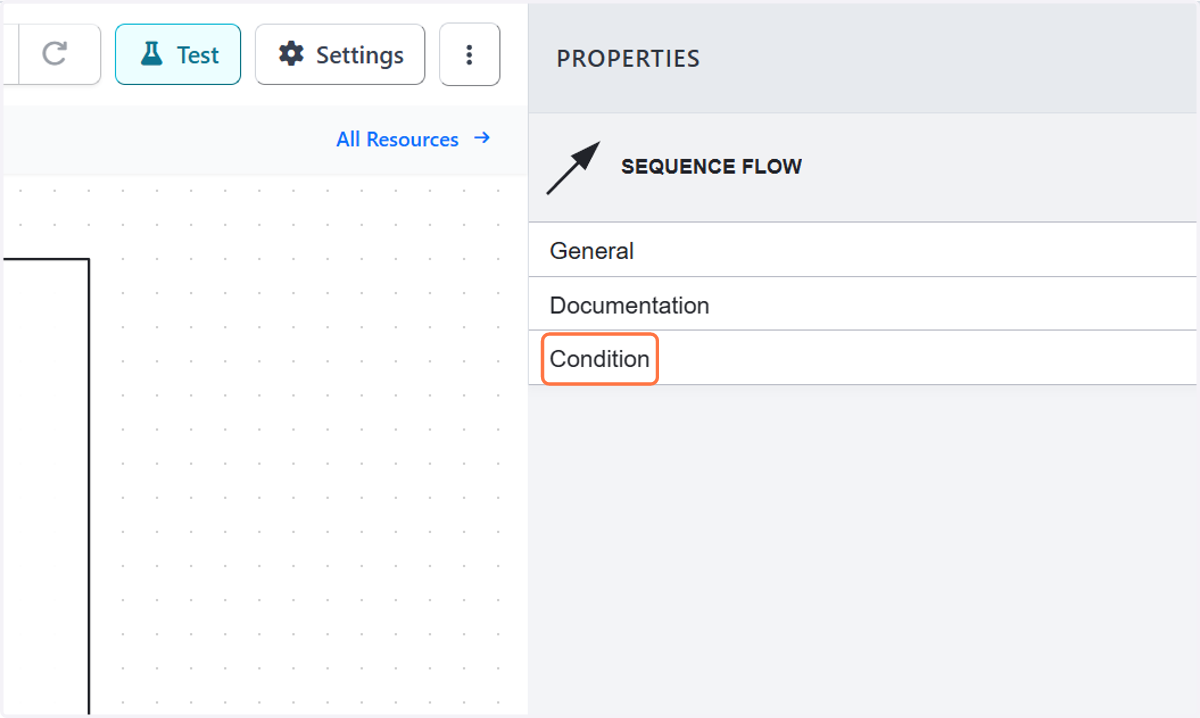
  16. 16. Click on Condition

    Click on Condition
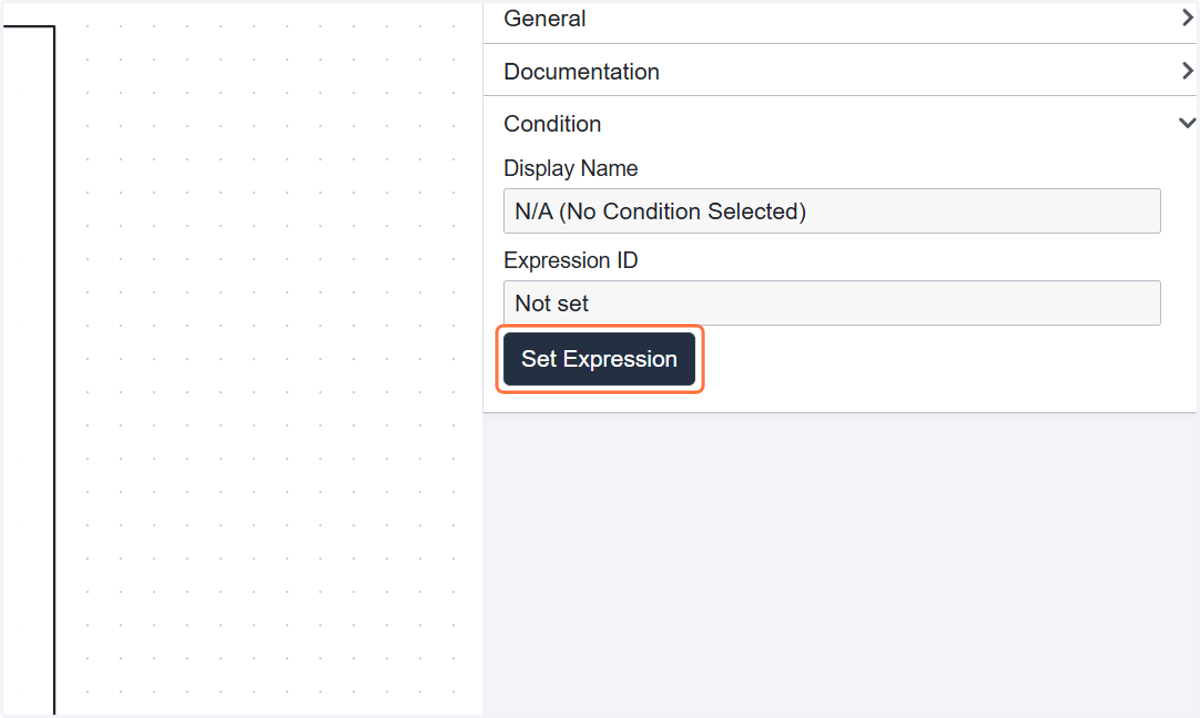
  17. 17. Click on Set Expression

    Click on Set Expression
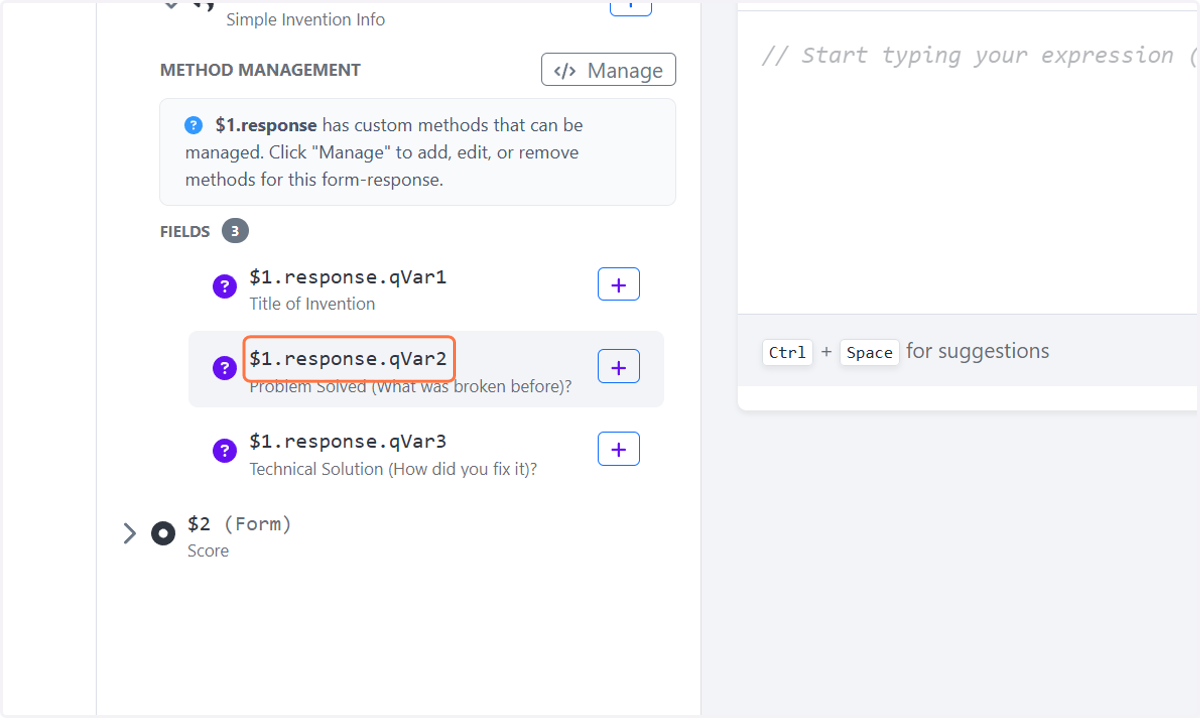
  18. 18. Click on $1.response.qVar2

    Click on $1.response.qVar2
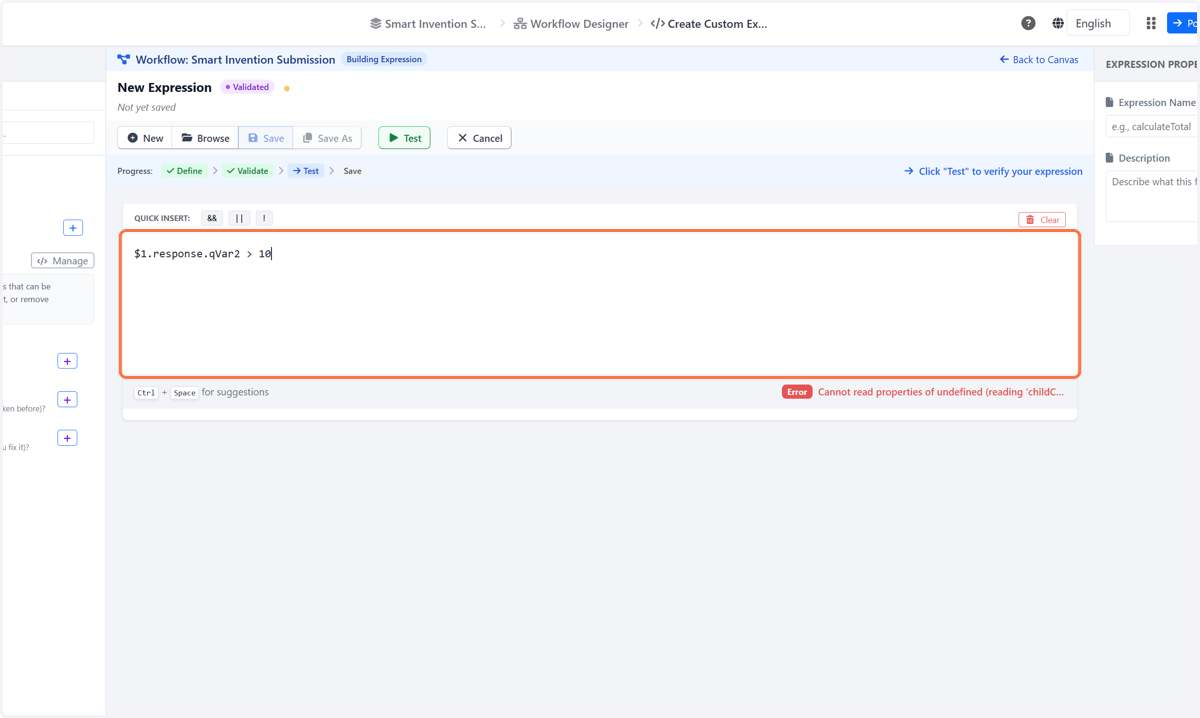
  19. 19. Type "$1.response.qVar2 > 10"

    Type "$1.response.qVar2 > 10"
  20. 20. Click on Test expression (Ctrl+T)
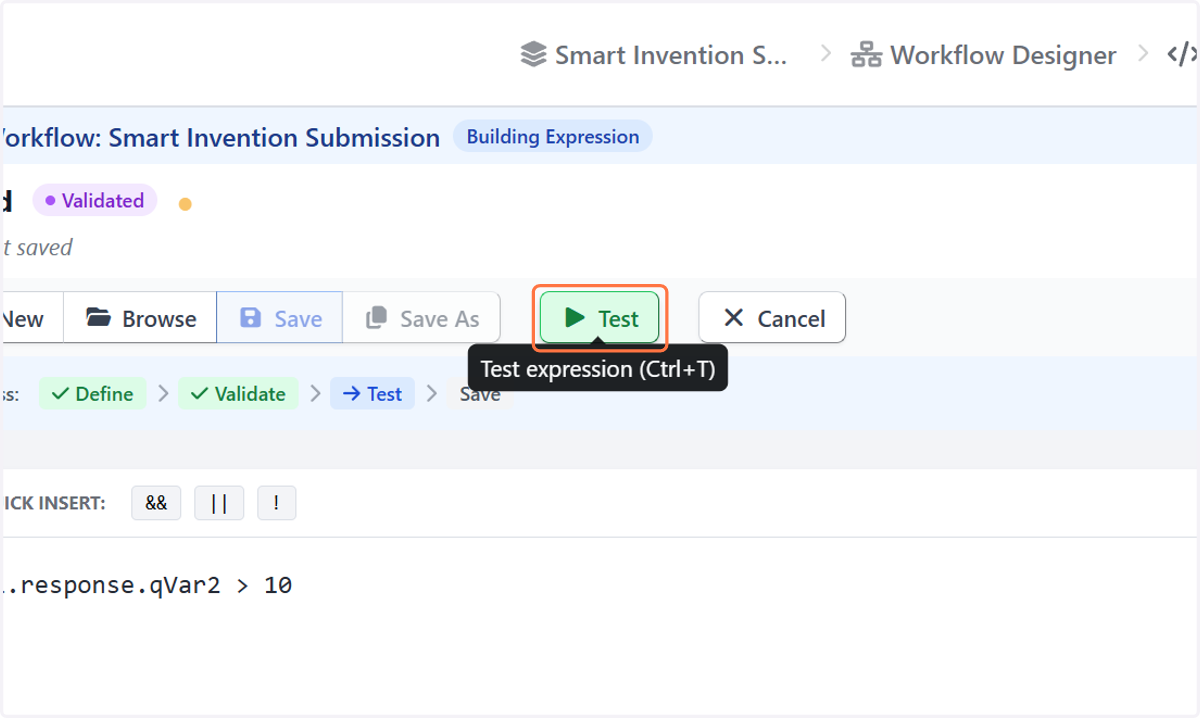
    Click on Test expression (Ctrl+T)
  21. 21. Click on Test Complete - Continue
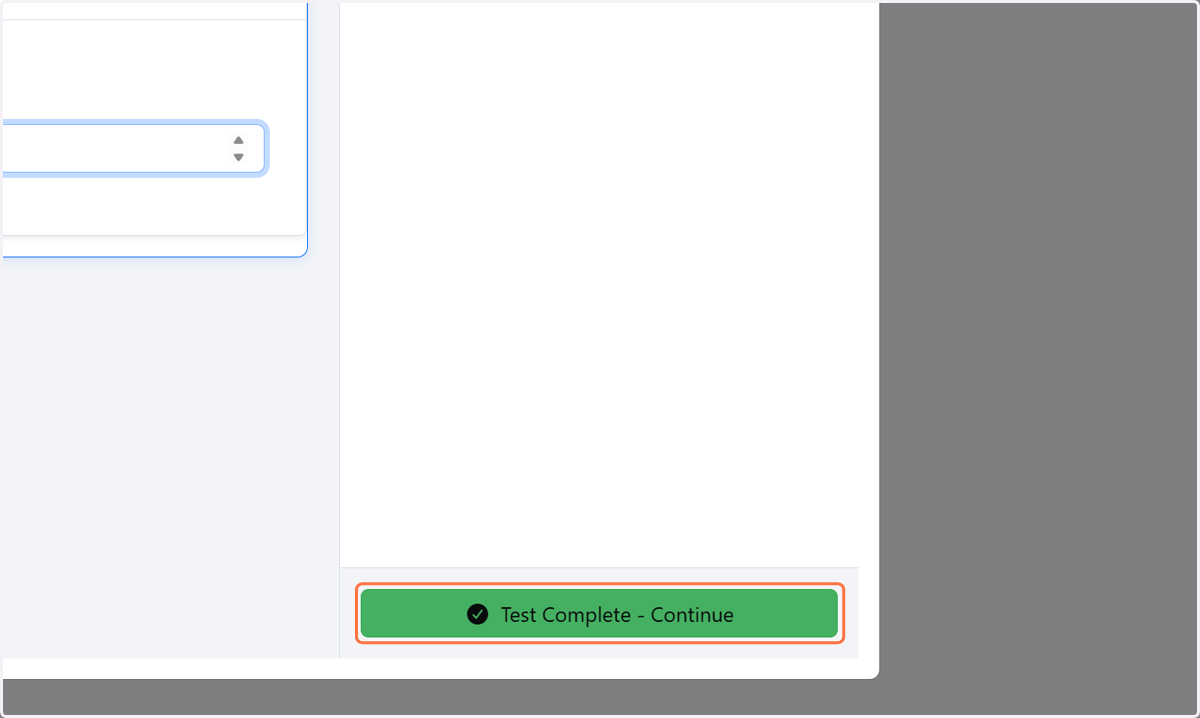
    Click on Test Complete - Continue
  22. 22. Click on Save expression (Ctrl+S)
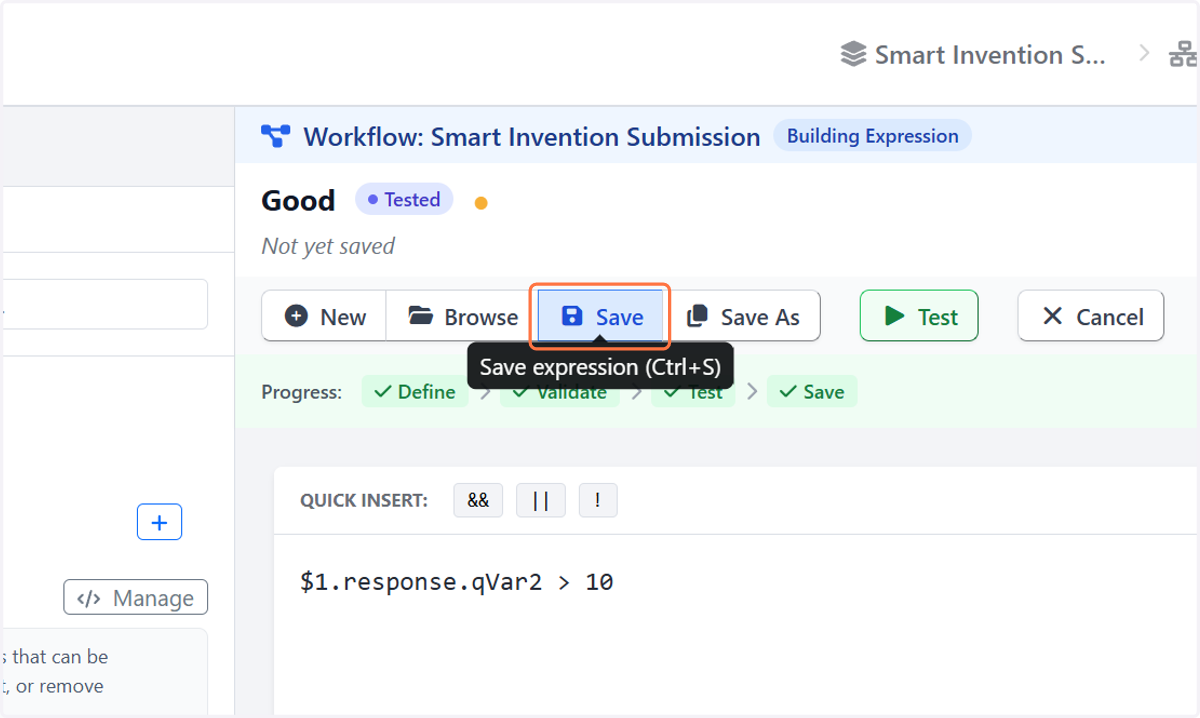
    Click on Save expression (Ctrl+S)
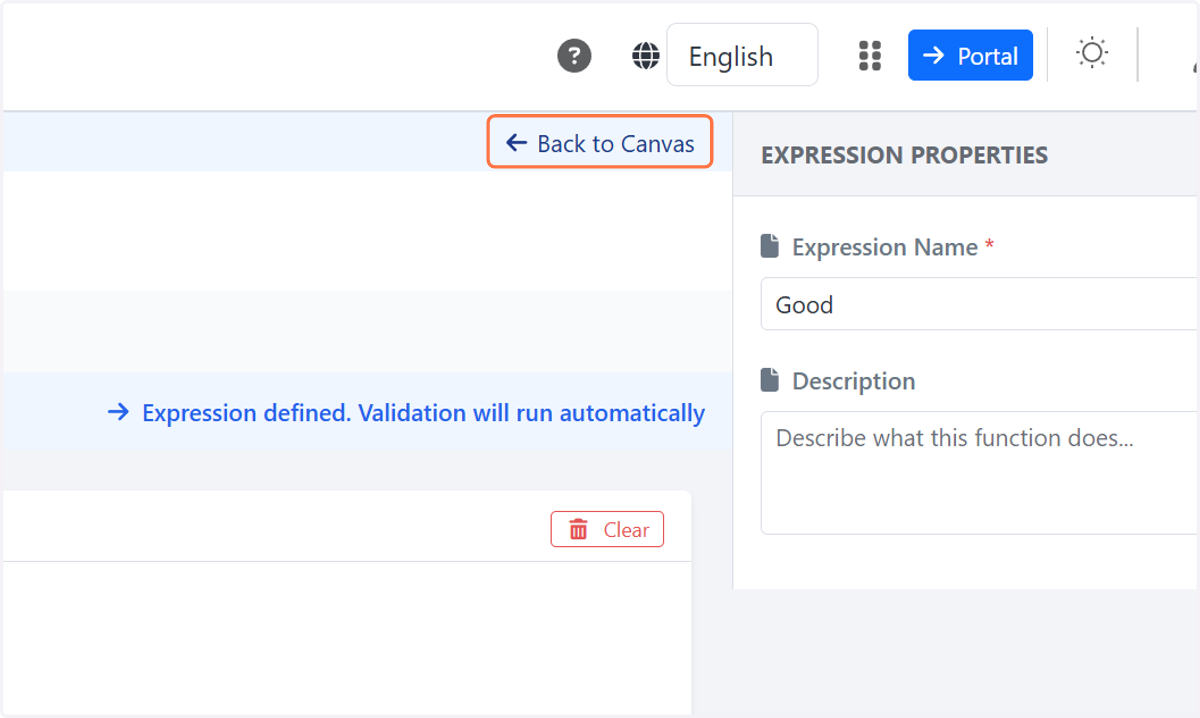
  23. 23. Click on Back to Canvas…

    Click on Back to Canvas…
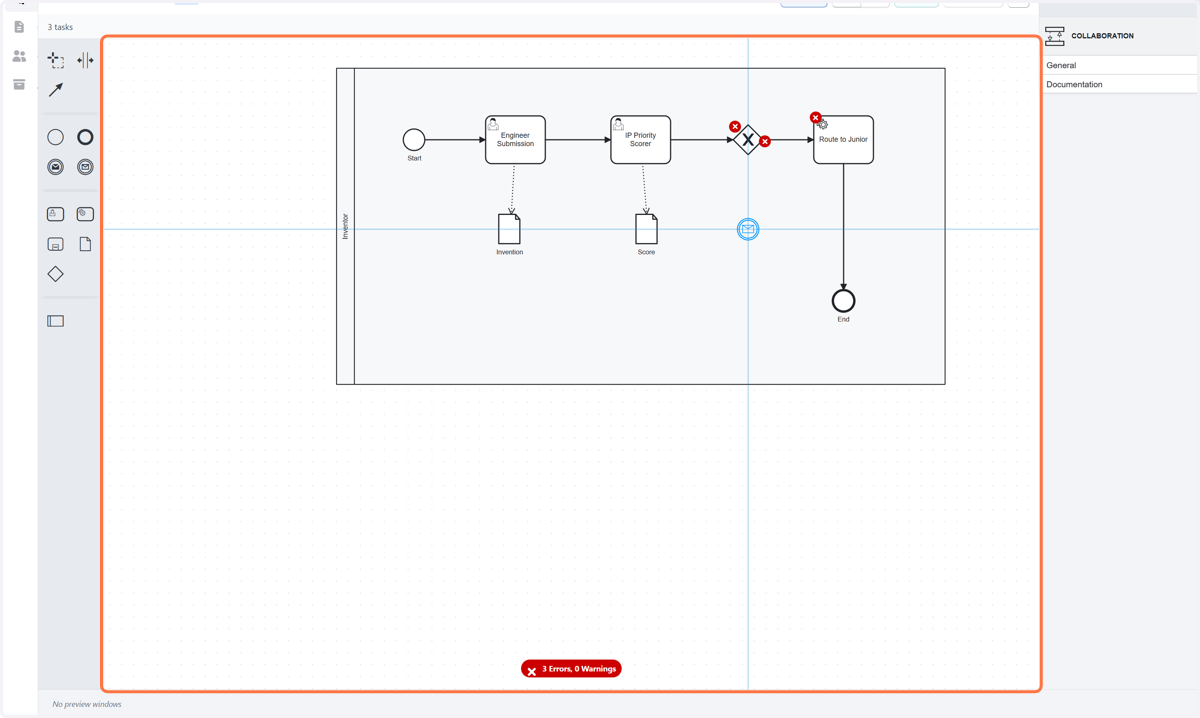
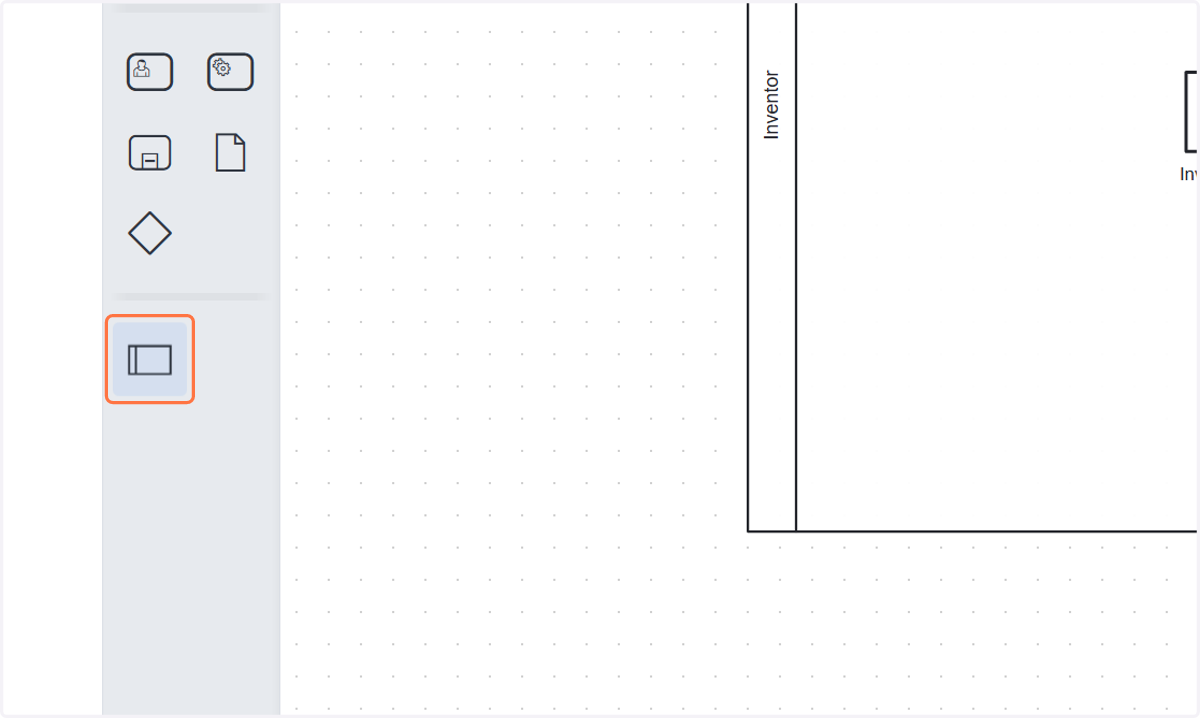
  24. 24. Click on highlight

    Click on highlight
  25. 25. Click on Inventor…

    Click on Inventor…
  26. 26. Select InventionSubmission from Global message reference
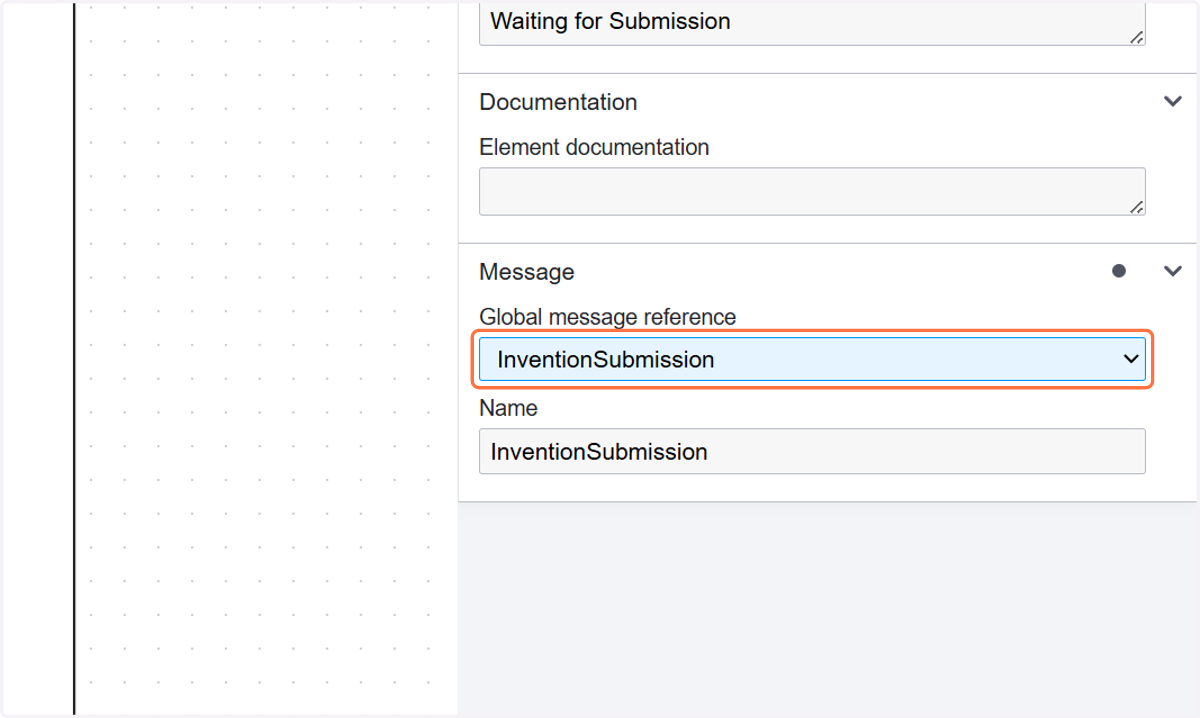
    Select InventionSubmission from Global message reference
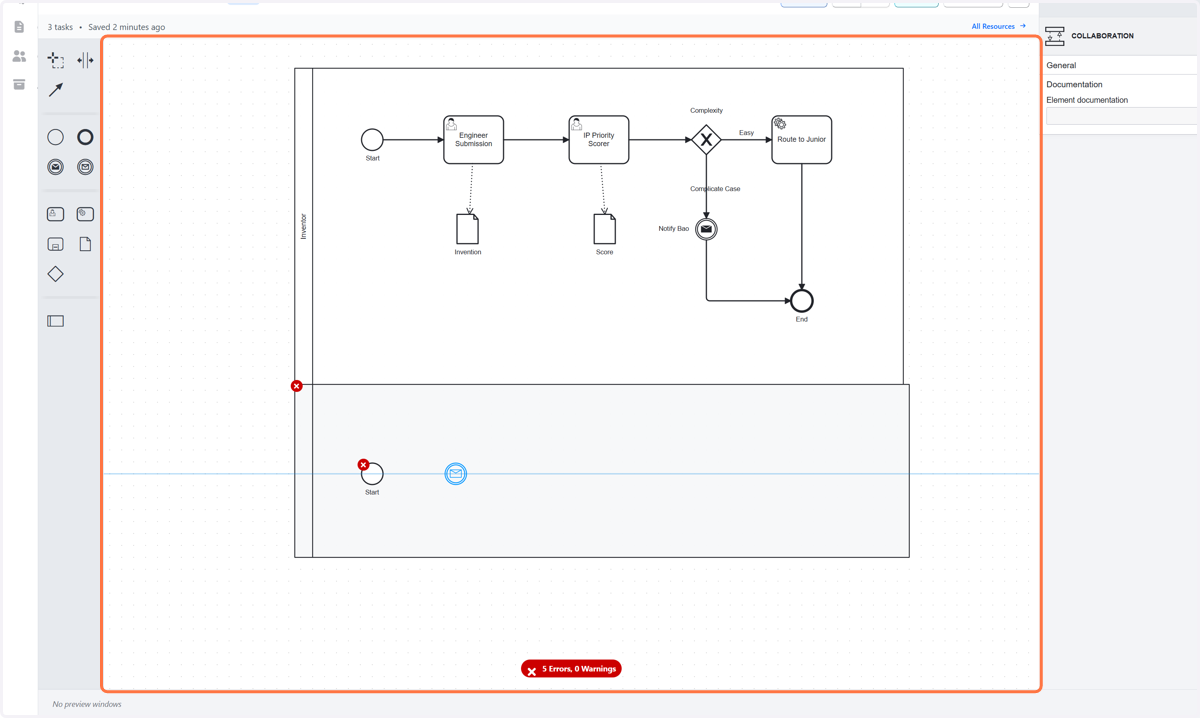
  27. 27. Click on Test workflow (Ctrl+Shift+T)
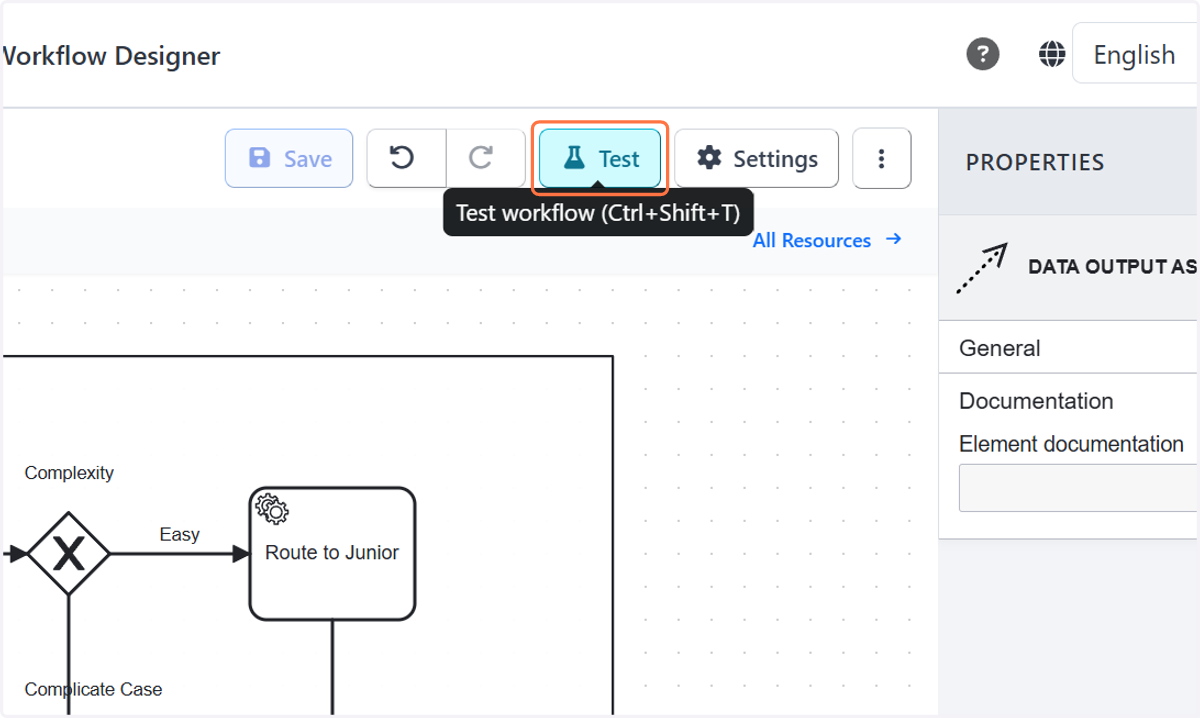
    Click on Test workflow (Ctrl+Shift+T)
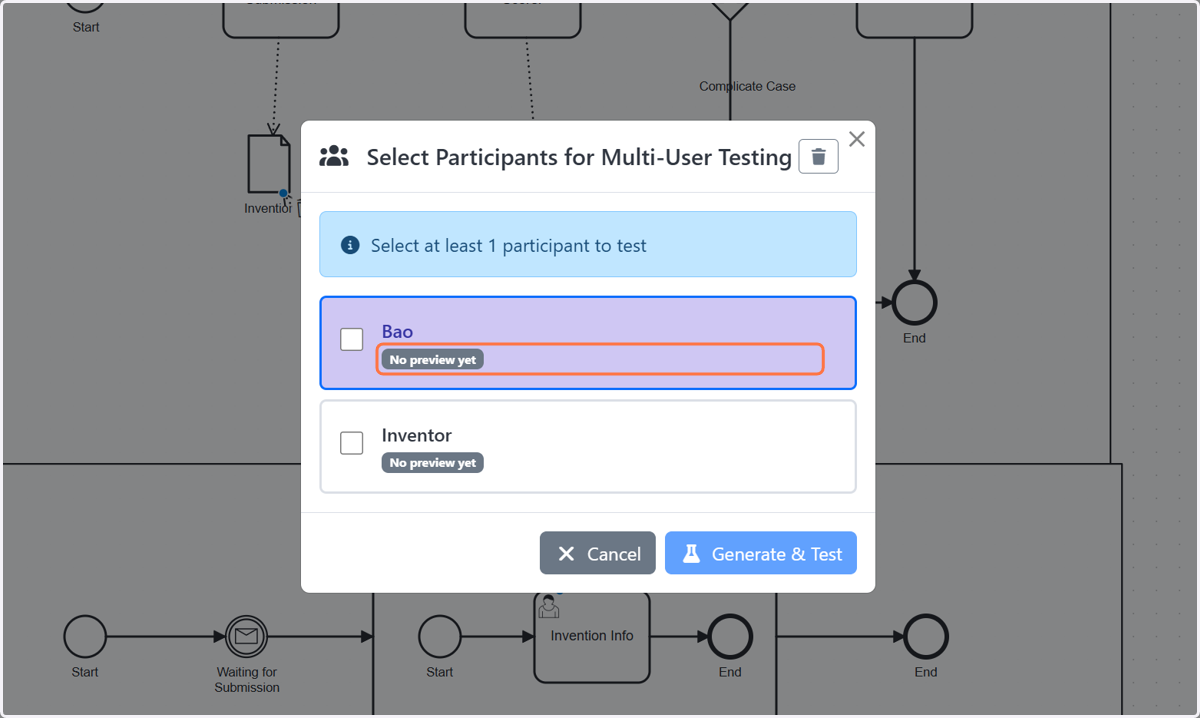
  28. 28. Click on No preview yet

    Click on No preview yet