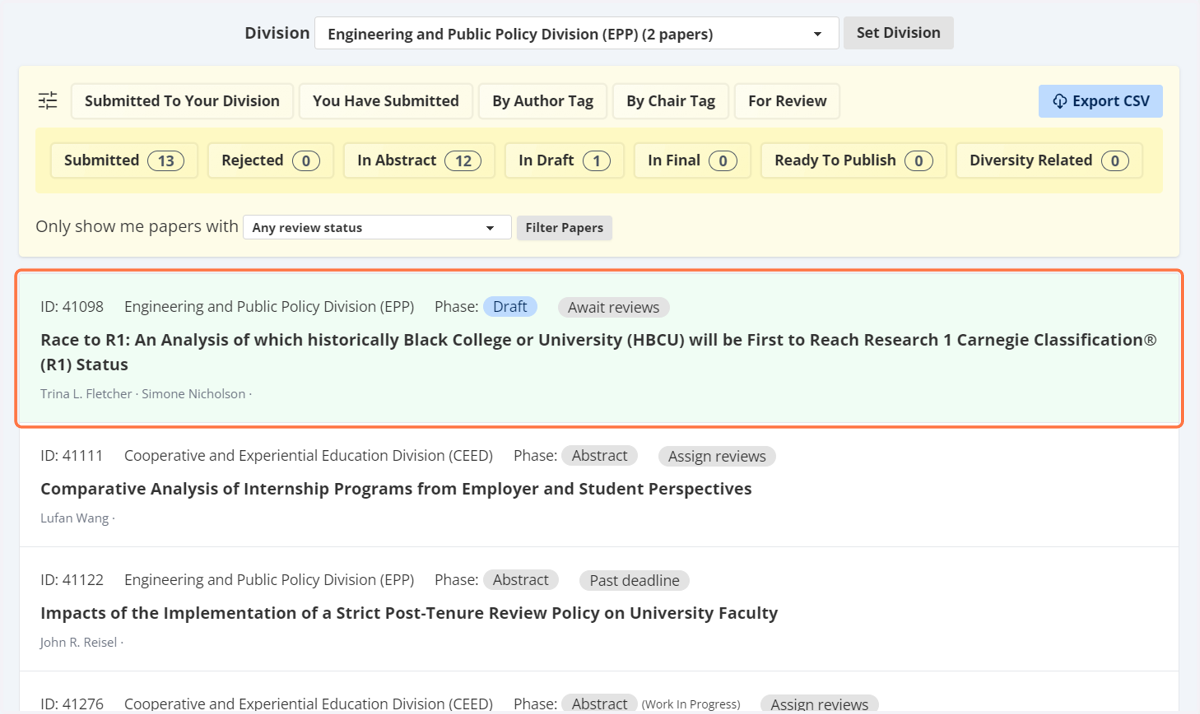
Assigning Reviewers for Draft Phase
Reviewers need to be assigned again for the draft phase.
Your ASEE Profile American Society for Engineering Education
Please log into your account https://nemo.asee.org/ select 2026 ASEE Annual Conference
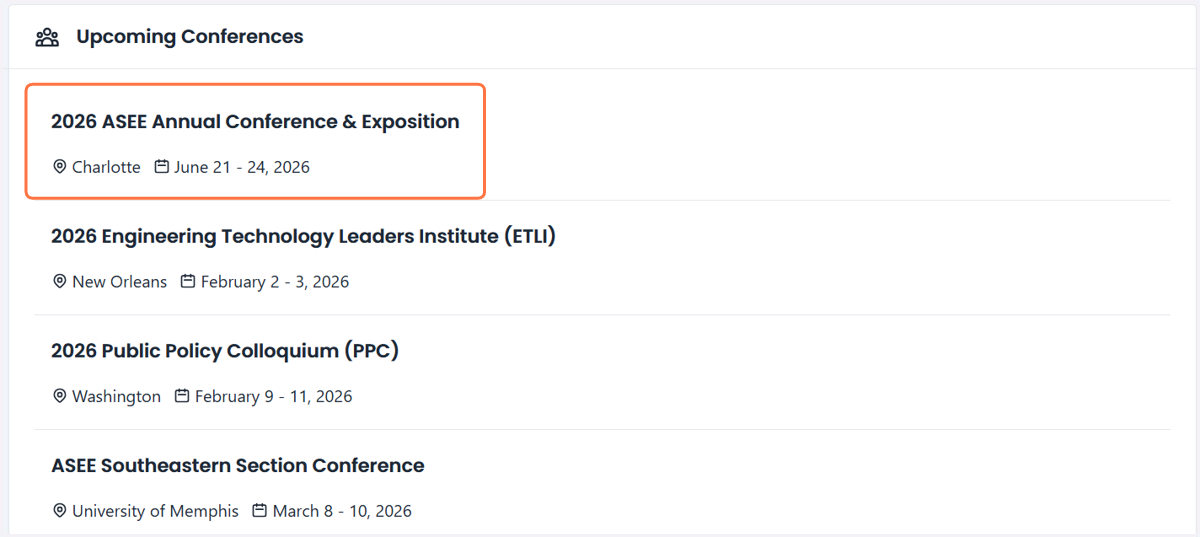
1. Click on 2026 ASEE Annual Conference & Exposition…
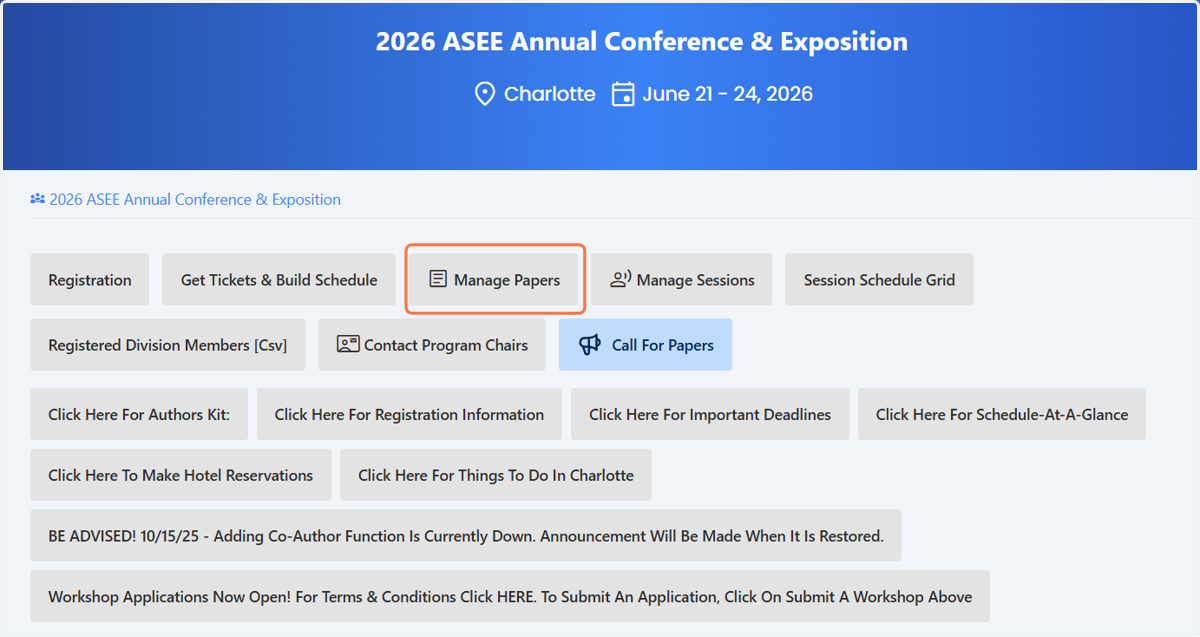
2. Select manage papers
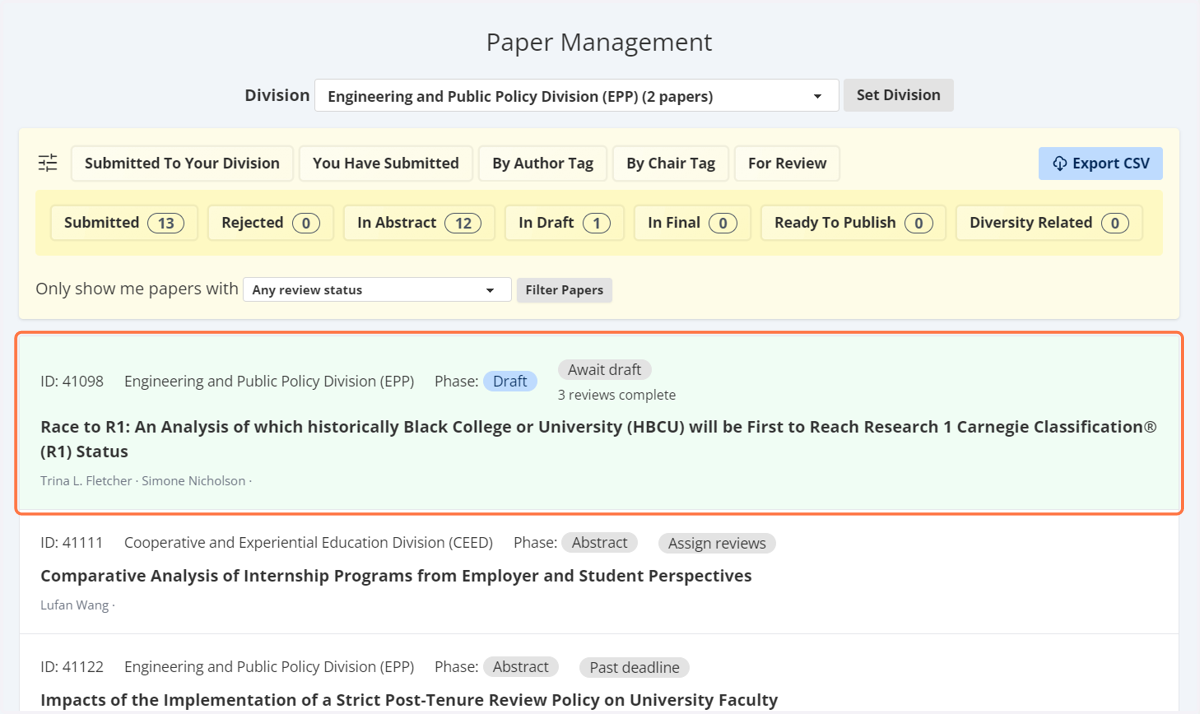
3. You can view the list of drafts that have been submitted and need reviewers assigned
You will see your division name at the top of the page. You can filter your list by selecting "for review" this will show all of the drafts that have been uploaded and need reviewers assigned. Select the first draft that await draft/assign reviews.
4. This will bring you to another page. On this page you will see the author's name(s), the title of the draft, the abstract and the draft.
Scroll down until you reviewers.
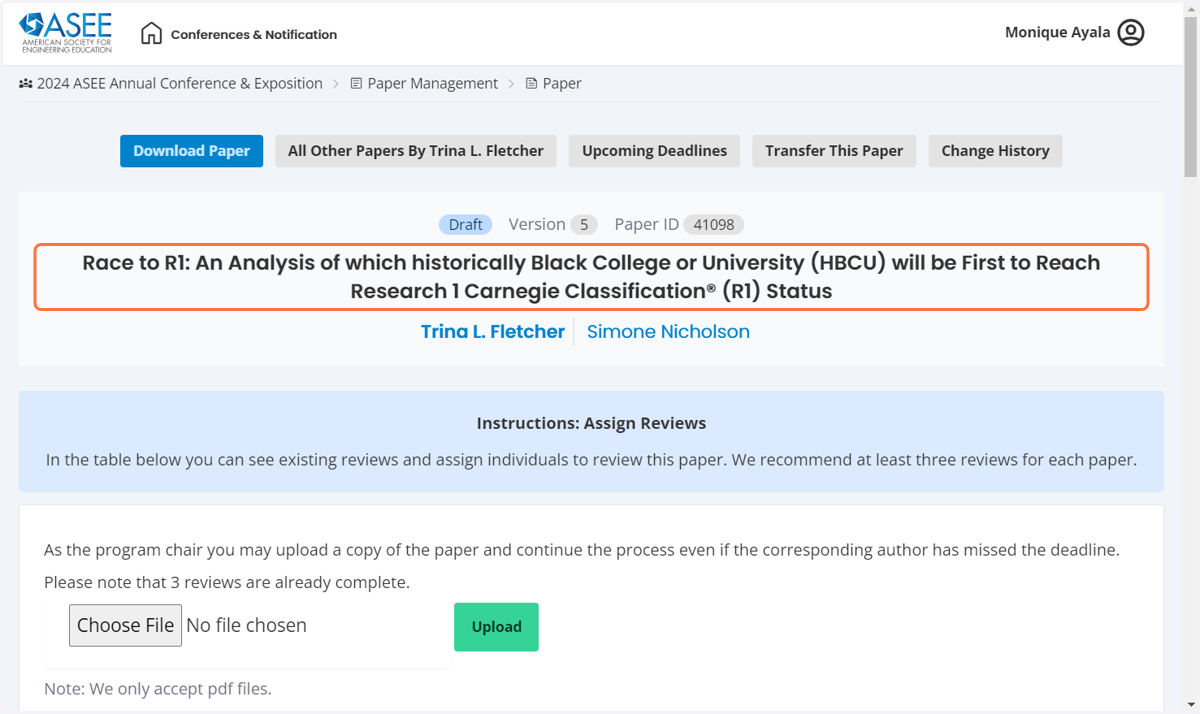
5. The draft will be located at the bottom of the screen
The draft can be downloaded for review. Unfortunately, each draft will have to be downloaded separately.
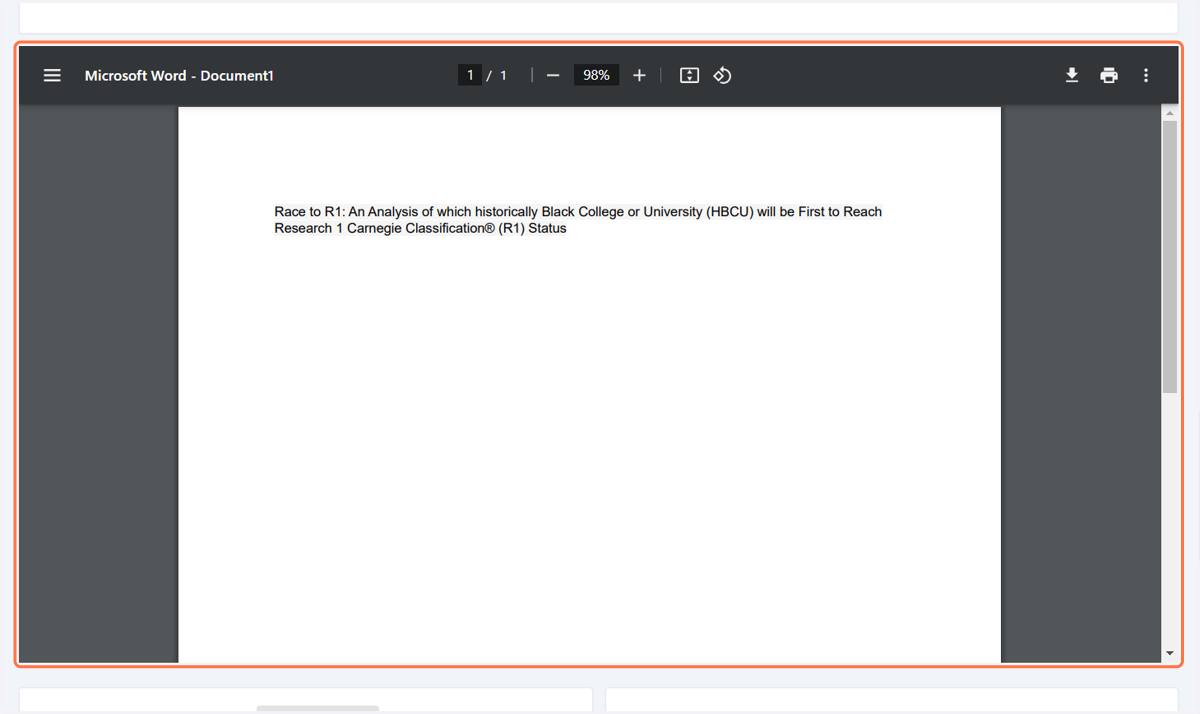
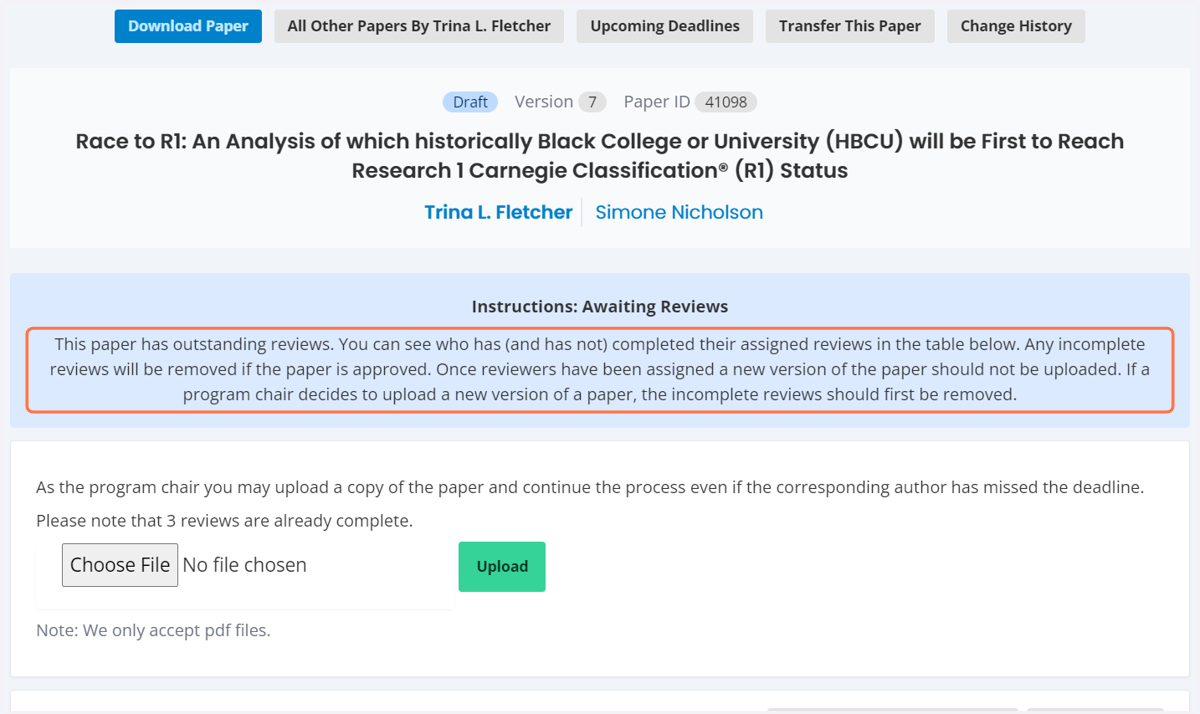
6. A reminder that as the program chair you may upload a copy of the paper and continue the process even if the corresponding author has missed the deadline.
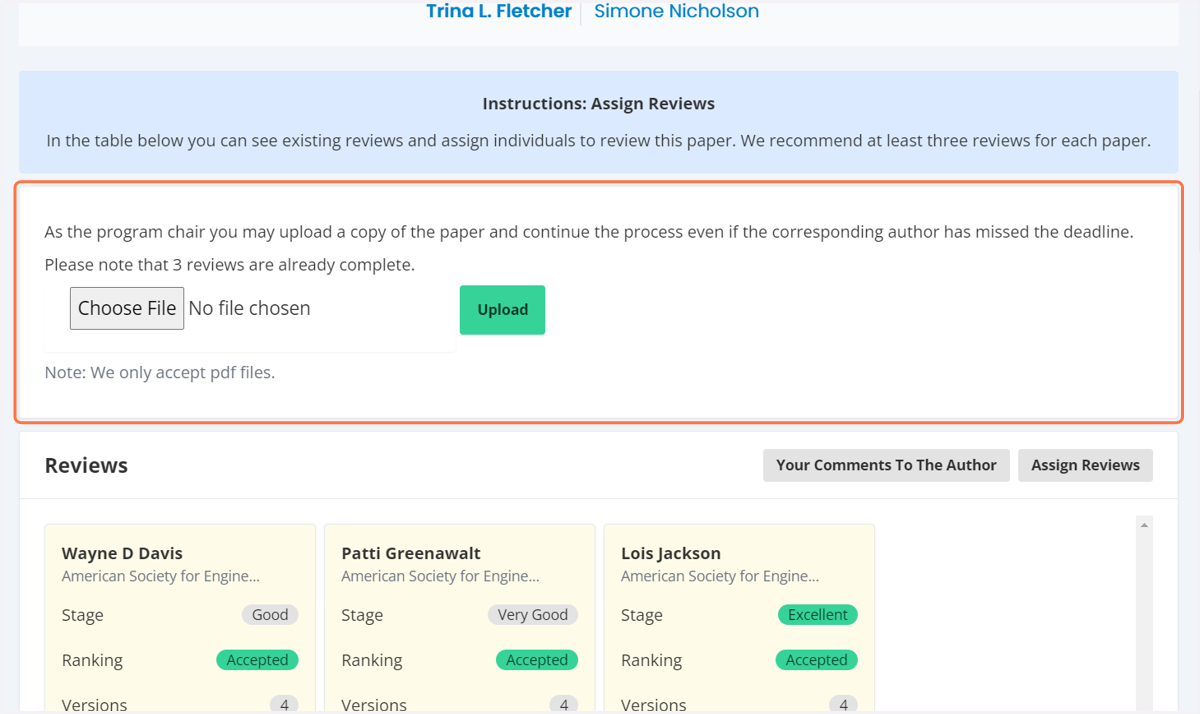
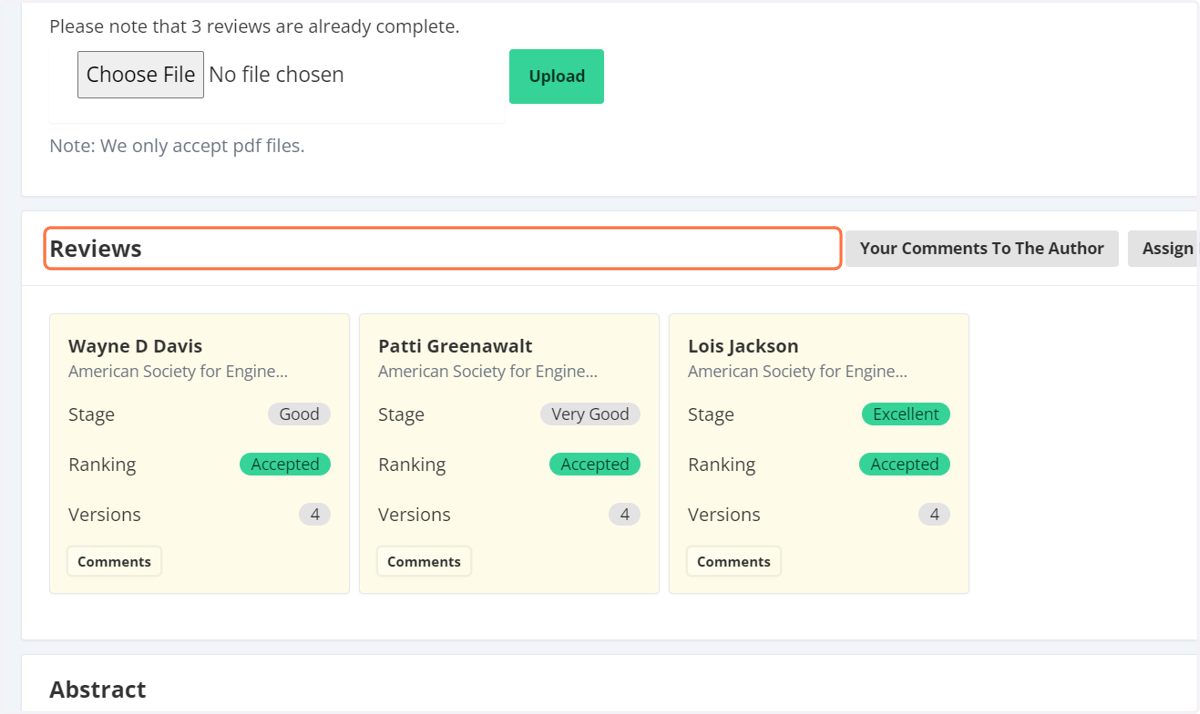
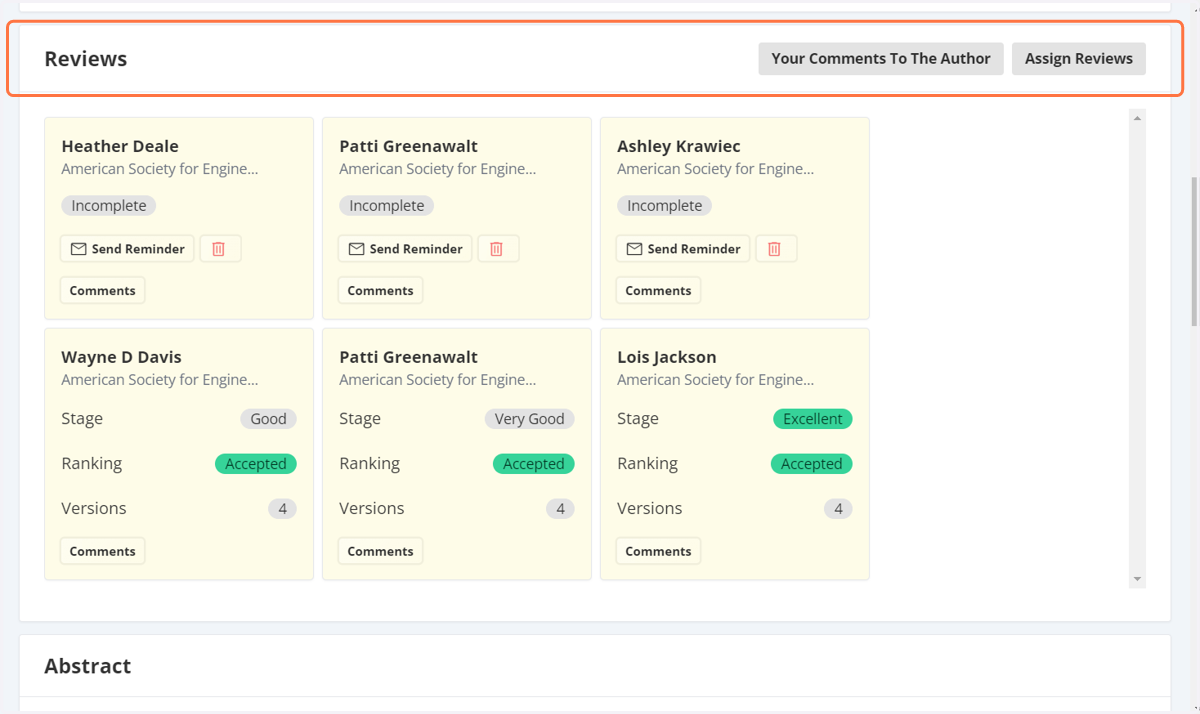
7. You will see the reviewers and the ratings for the abstract.
Do not be confused, the reviews you see are for the abstract. You need to assign new reviewers or the same reviewers to review the draft that has been uploaded. You will do this the same way you assigned reviewers for the abstract.
8. Click on assign reviewers inside the reviewer box.
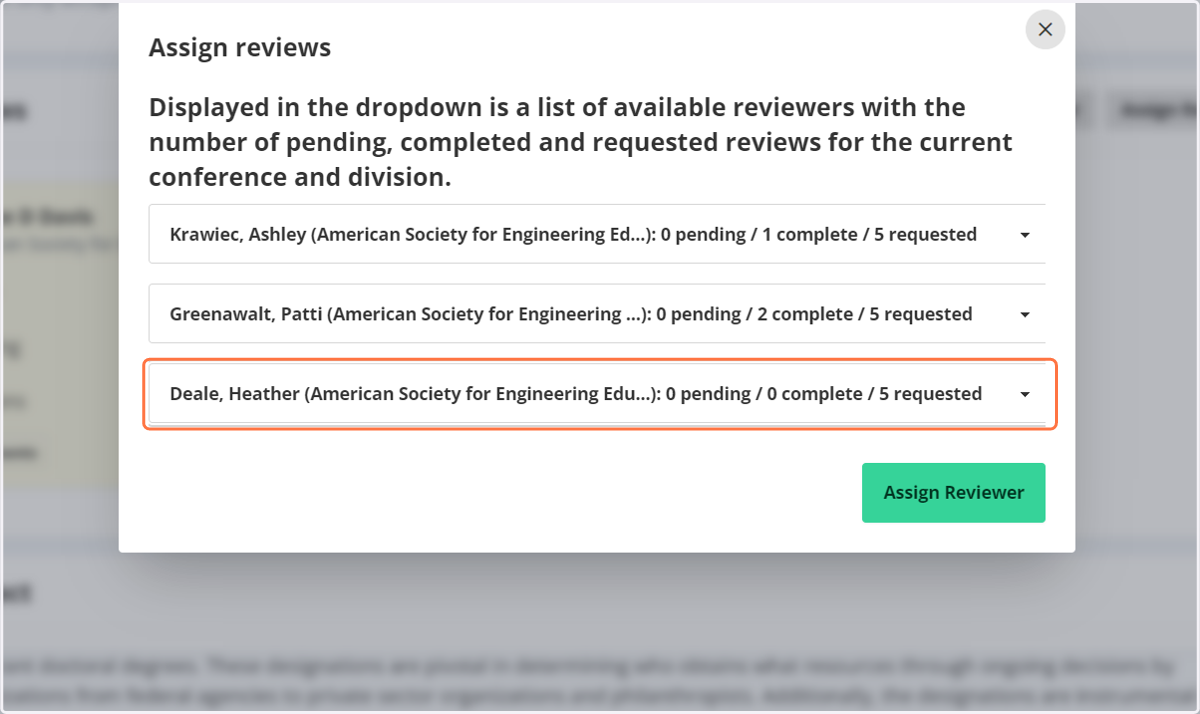
The drop down menu will appear. Select two or three reviewers from the drop down menu. Please note next to the reviewers name will show how many drafts the reviewer agreed to review, how many they reviews they completed and how many are pending.
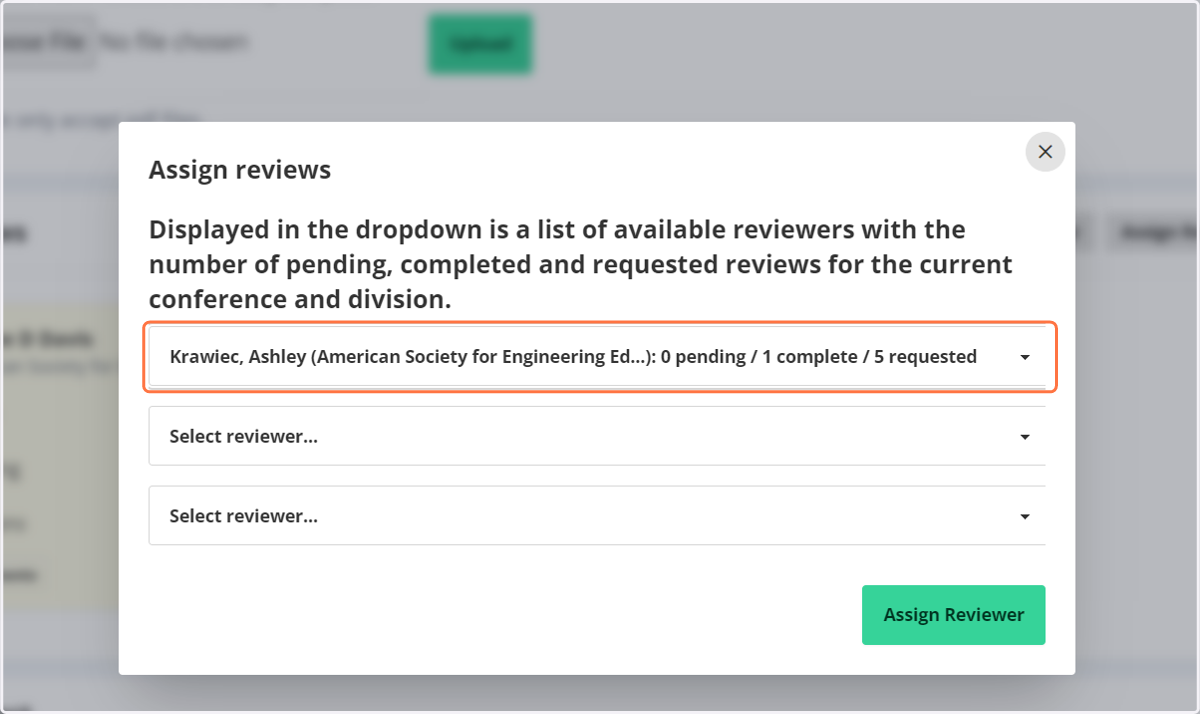
9. Once you have selected your reviewers click on assign reviewer.
10. Now the status of the draft has changed to draft closed.
11. You will also see there are now two sets of reviewers. The abstract reviewers are listed on the bottom row and the draft reviewers are listed on the top row.
12. Click on the name of the conference in the top left corner to get back to the list of drafts that need to be assigned reviewers.
Follow the steps listed above to assign reviewers.