Applying for a Permit Online with Professional Code Inspections of Michigan
You can find the link to the correct site by navigating to it from the PCI of Michigan website or your local municipalities website.
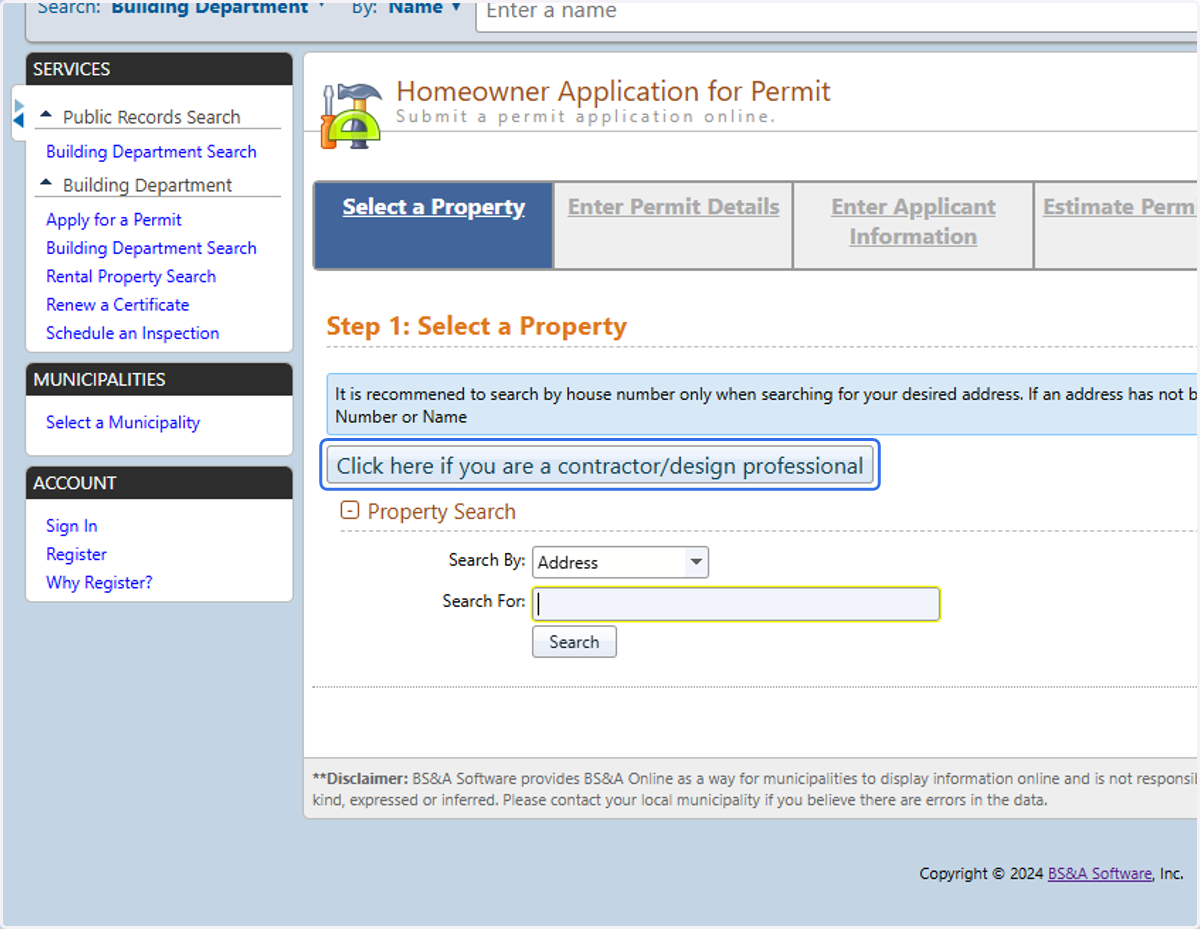
1. If you are a homeowner and are doing the work, skip to step 9. If you are a contractor, press the 'Click here if you are a contractor/design professional' button to login or create an account.
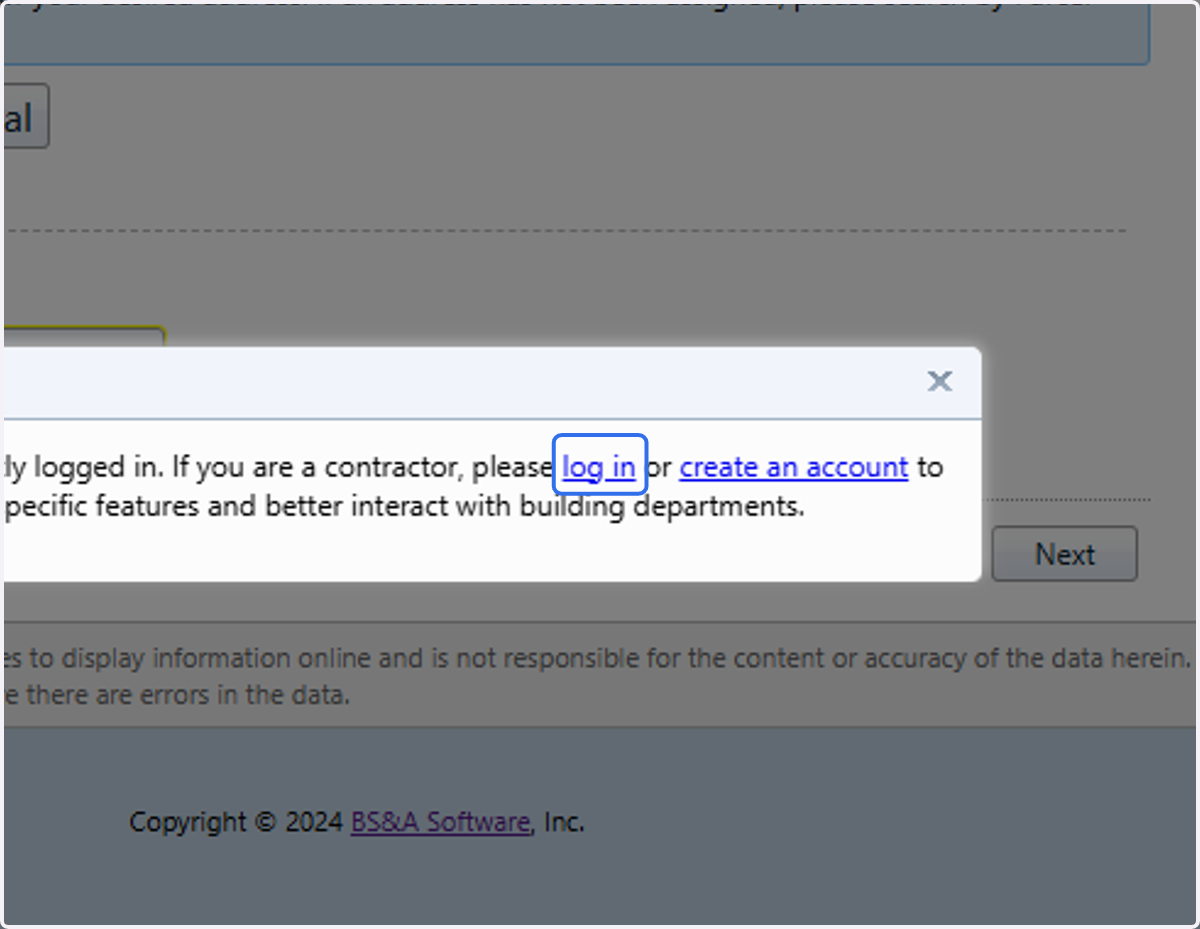
2. Click on log in
If you don't have an account, press Create an Account first then proceed from here once your account is created.
3. Type in your user name
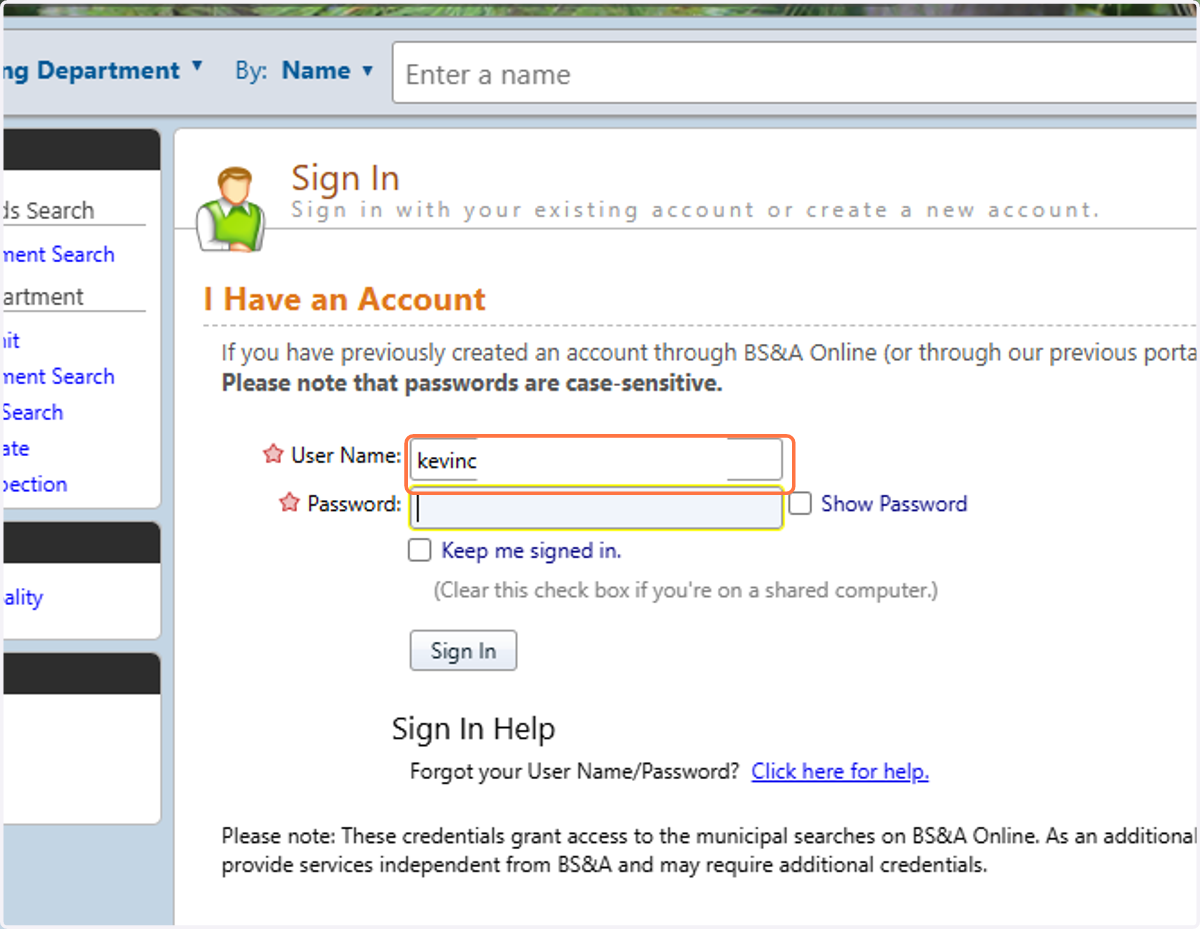
4. Type your password
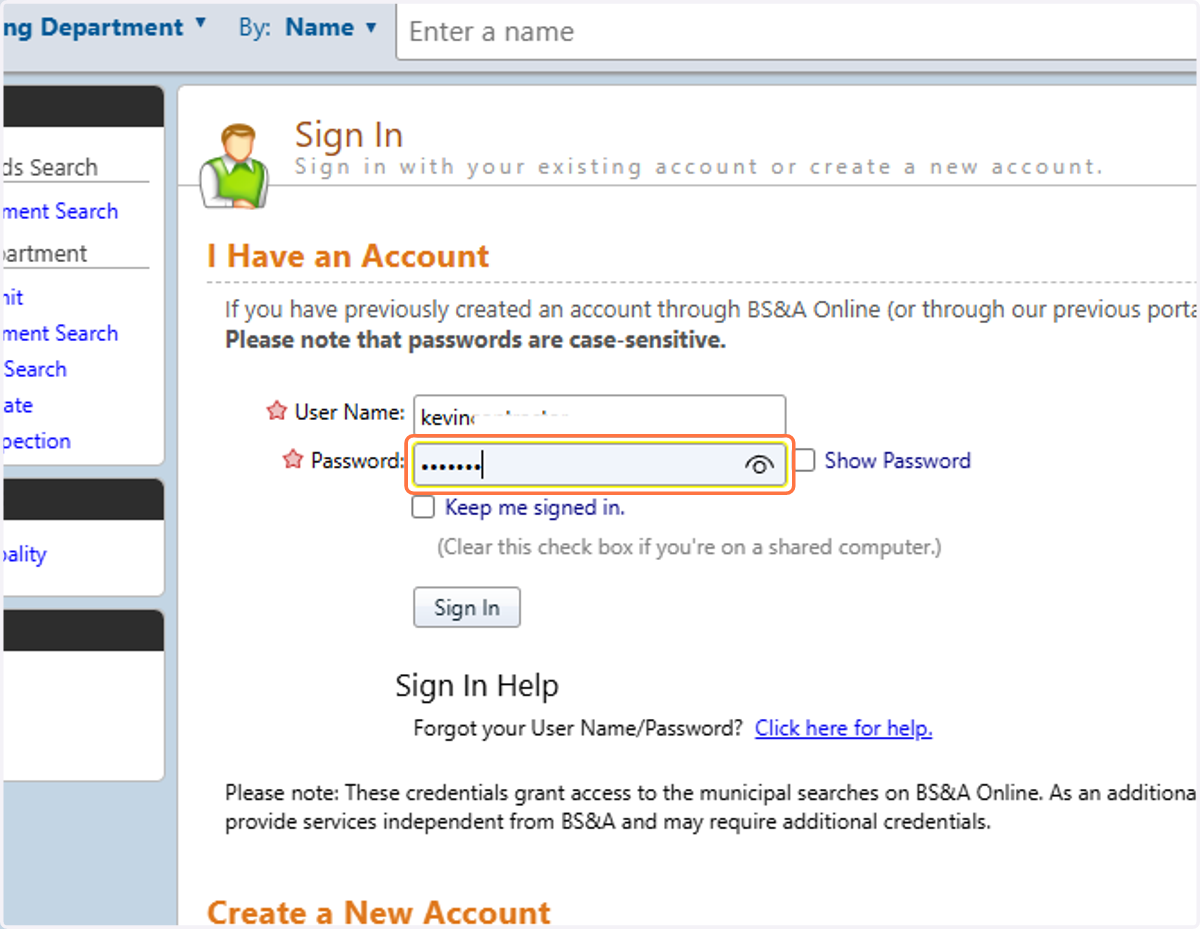
5. Click on Sign In
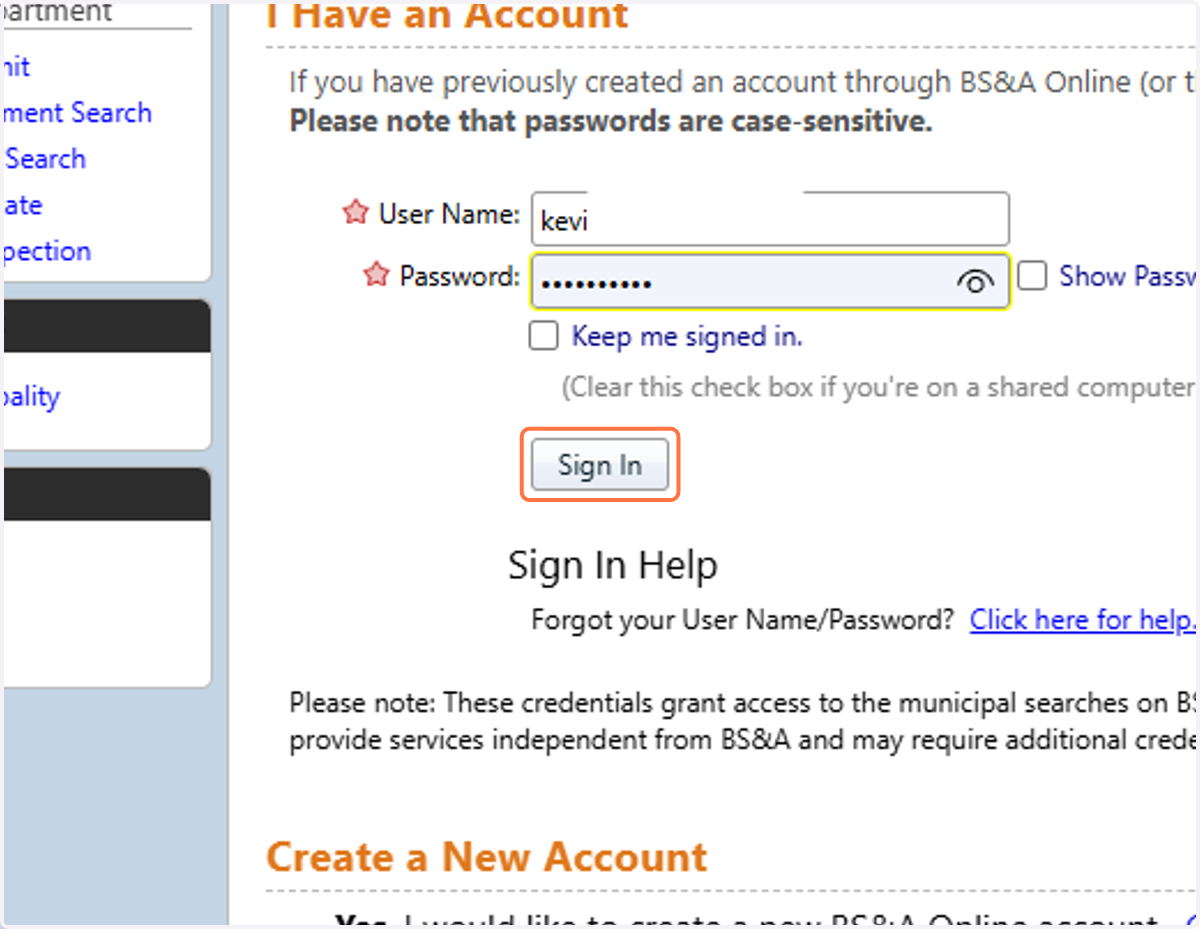
6. If this is your first time applying online with this unit, you will be prompted for a PIN. This links your BSA-Online account to the corresponding contractor record in units database so you can manage your account online. You will need to contact the unit to get this PIN.
Note: you may also request a pin online if this functionality is enabled.
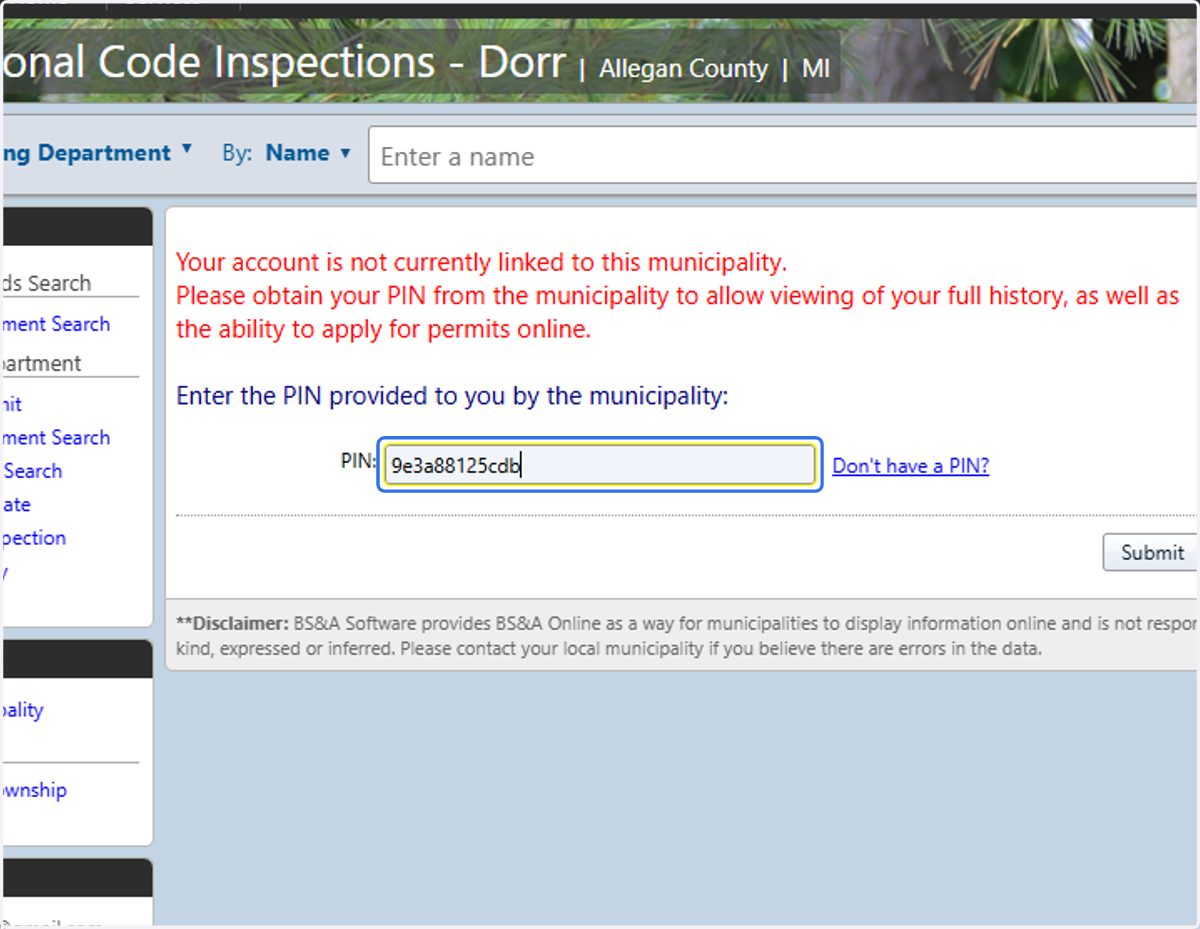
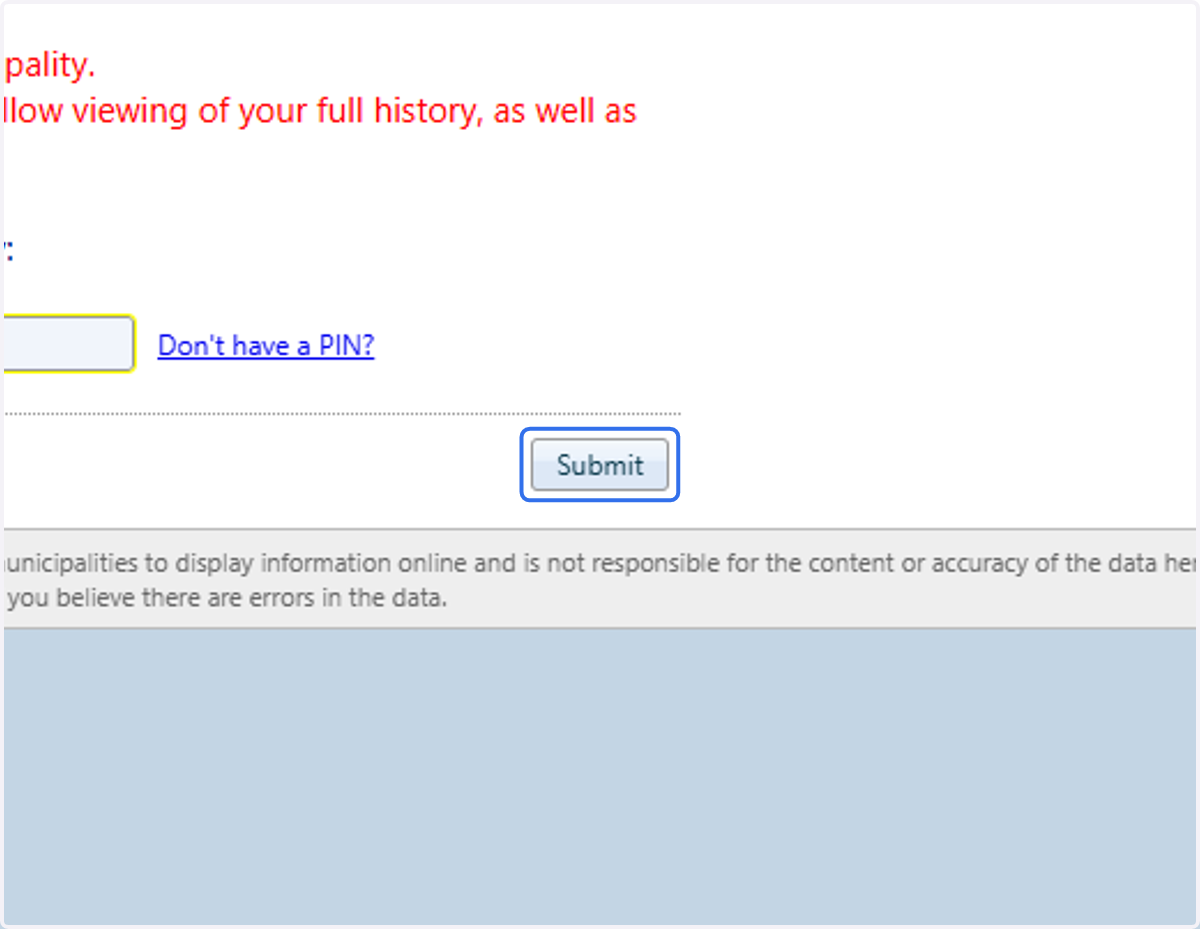
7. Click on Submit
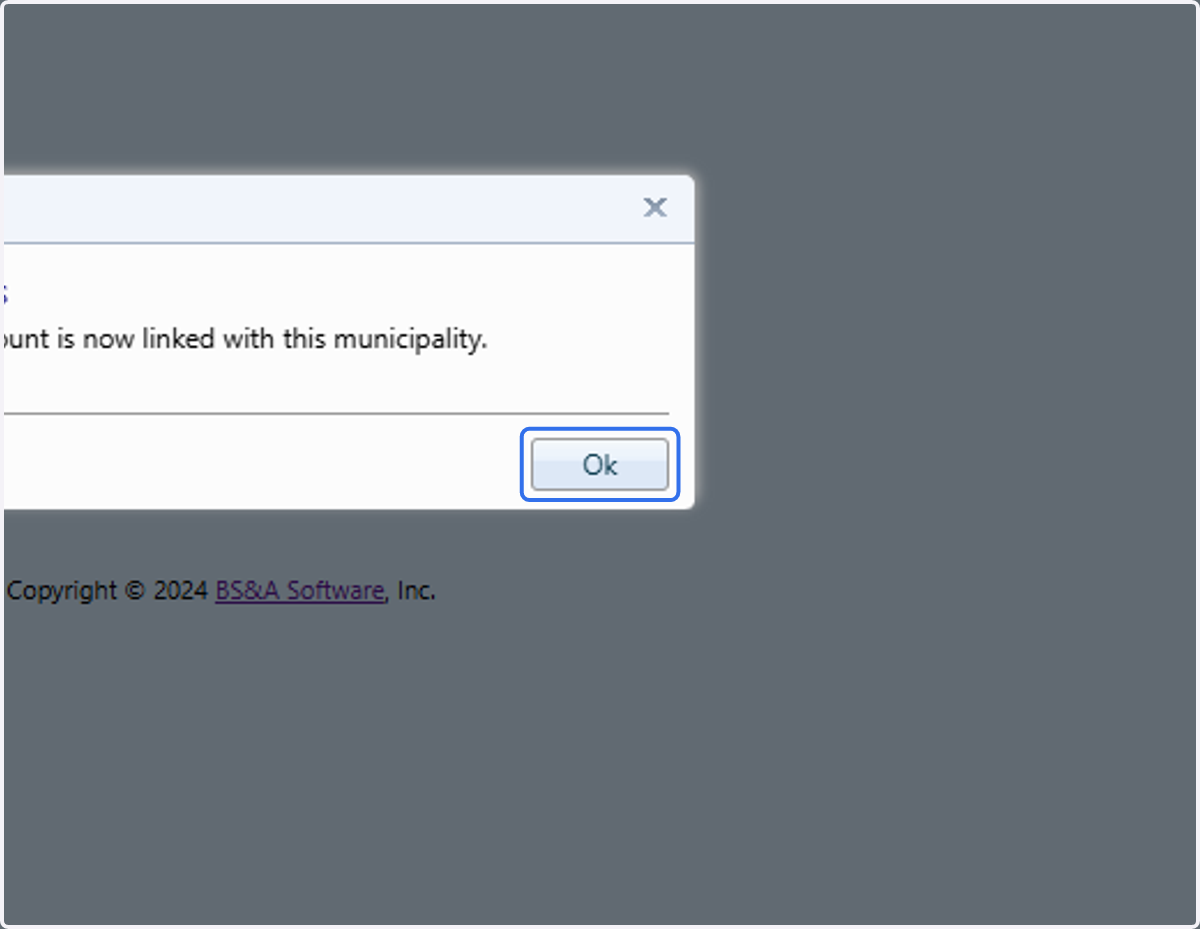
8. Click on Ok
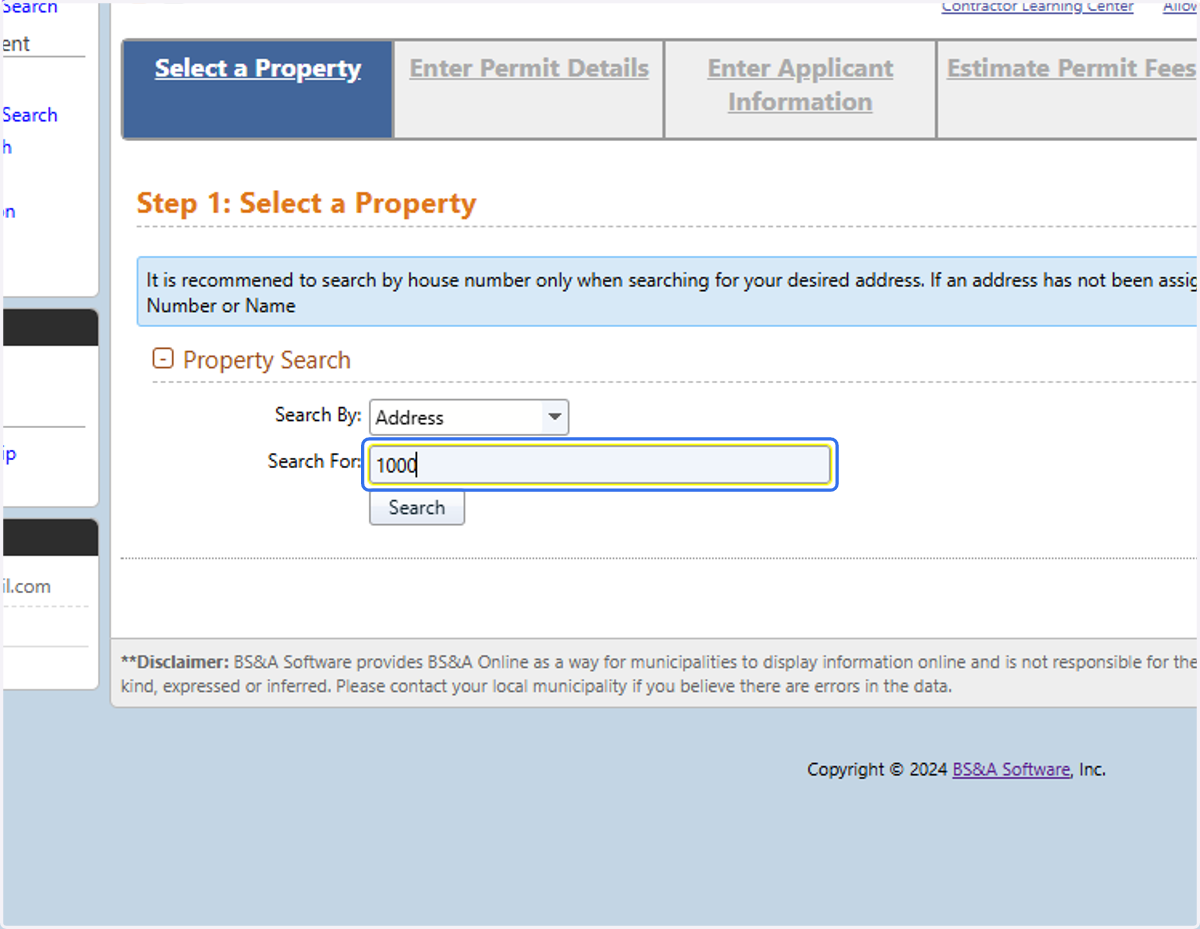
9. Type the street number for the address where the work will be performed.
You may also include part of the street name to narrow down the search for the correct address.
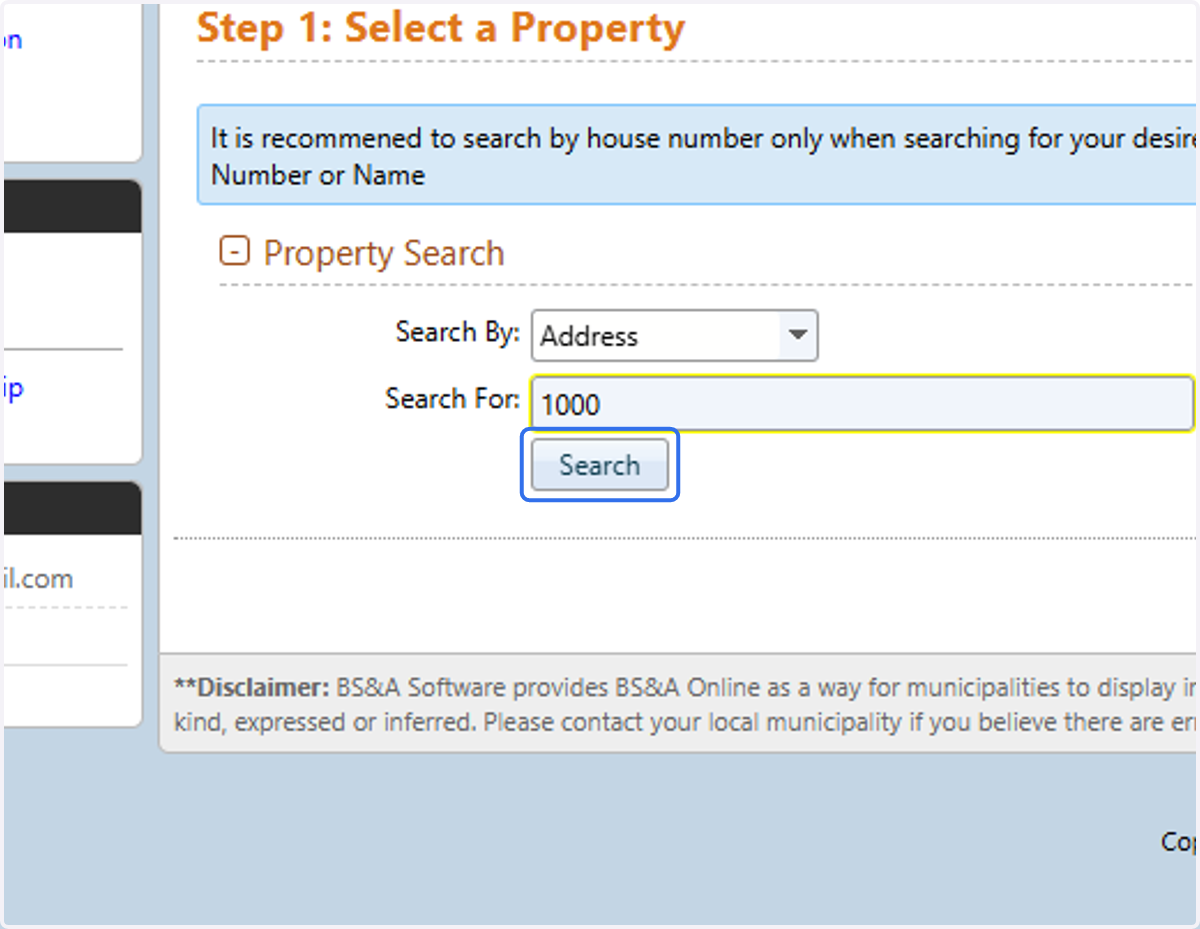
10. Click on Search
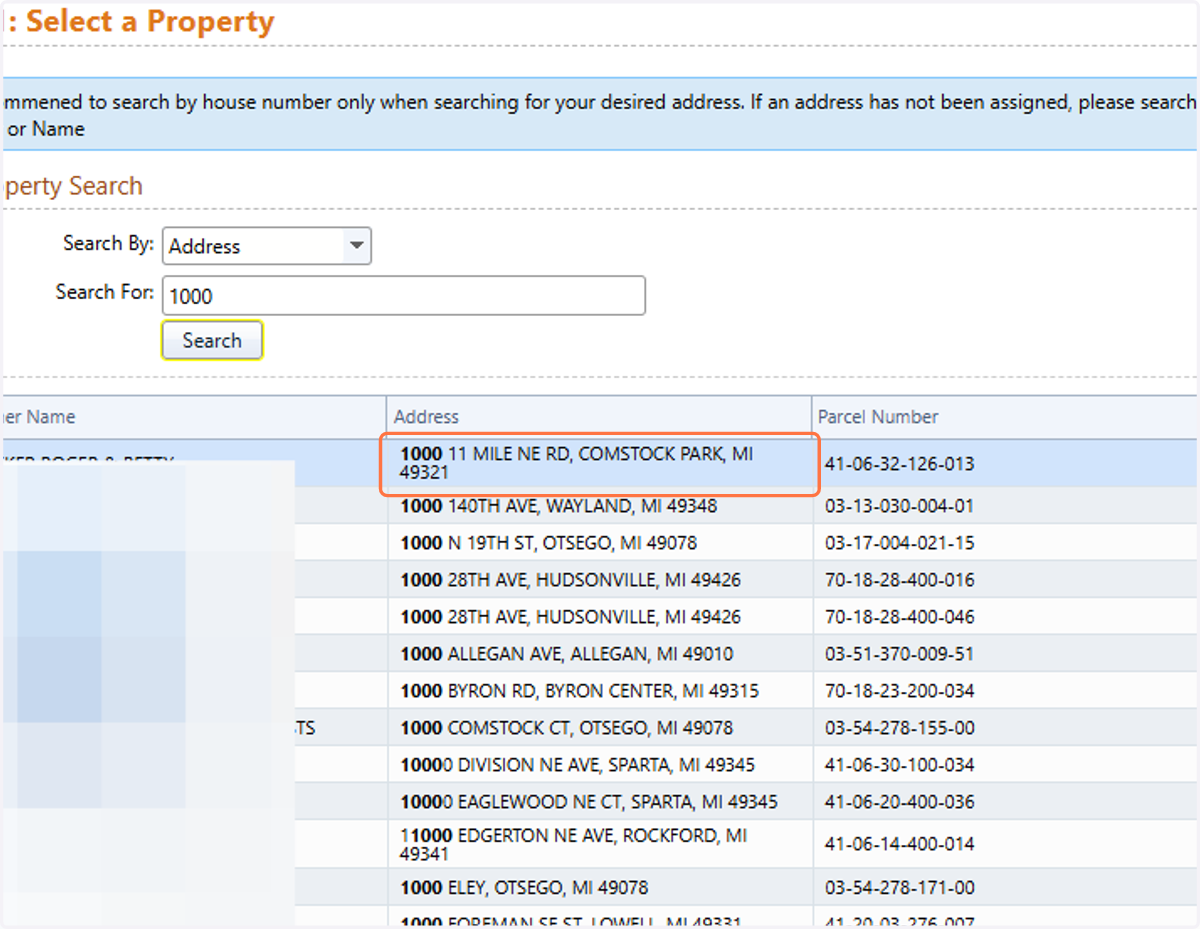
11. Choose the correct address
12. Click on Next
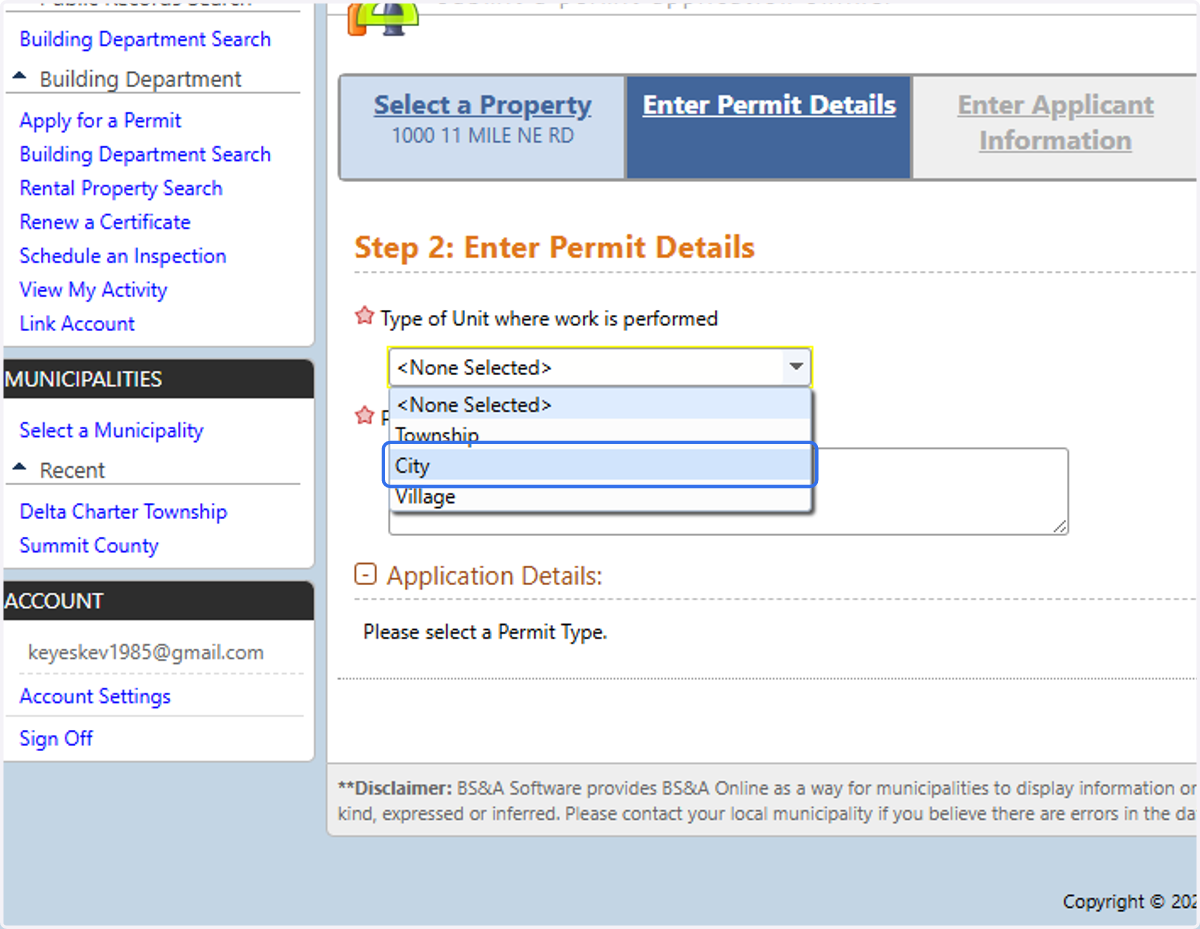
13. Choose the the Type of unit from the list. It is important you choose the correct options here or your permit may be denied and you will be required to resubmit.
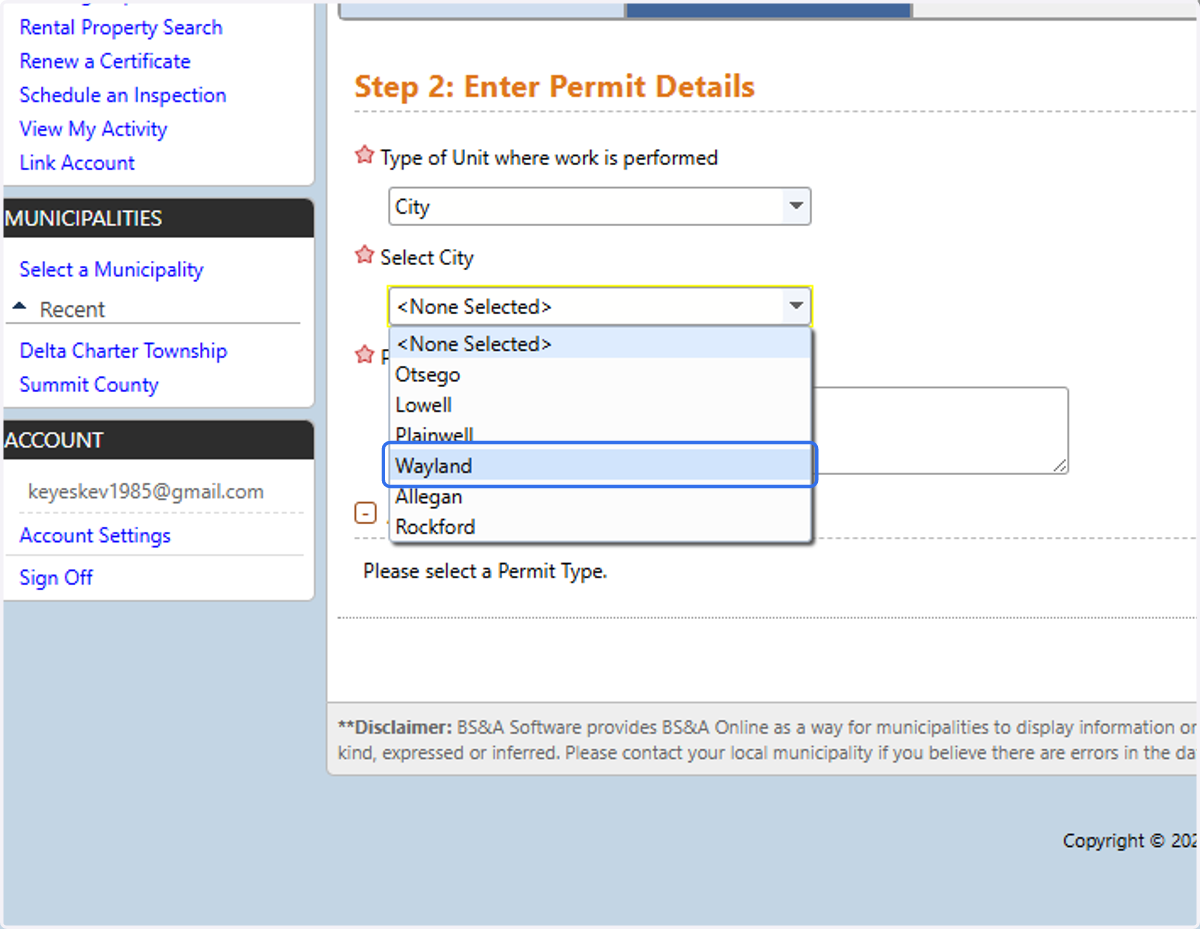
14. Choose the specific municipality
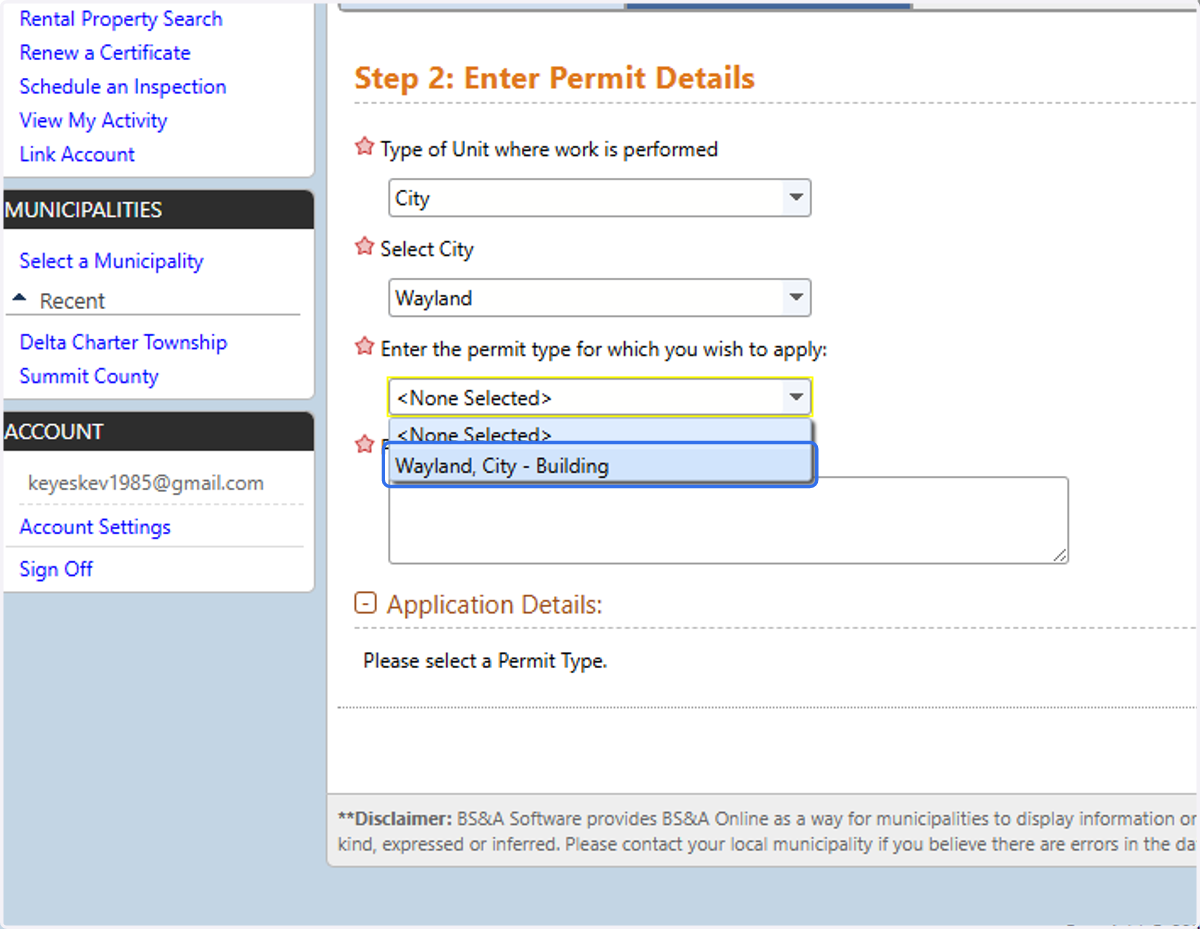
15. Choose the permit type you are applying for. Additional permit types may be made available for online application over time.
16. Select the category of work to be performed from the list
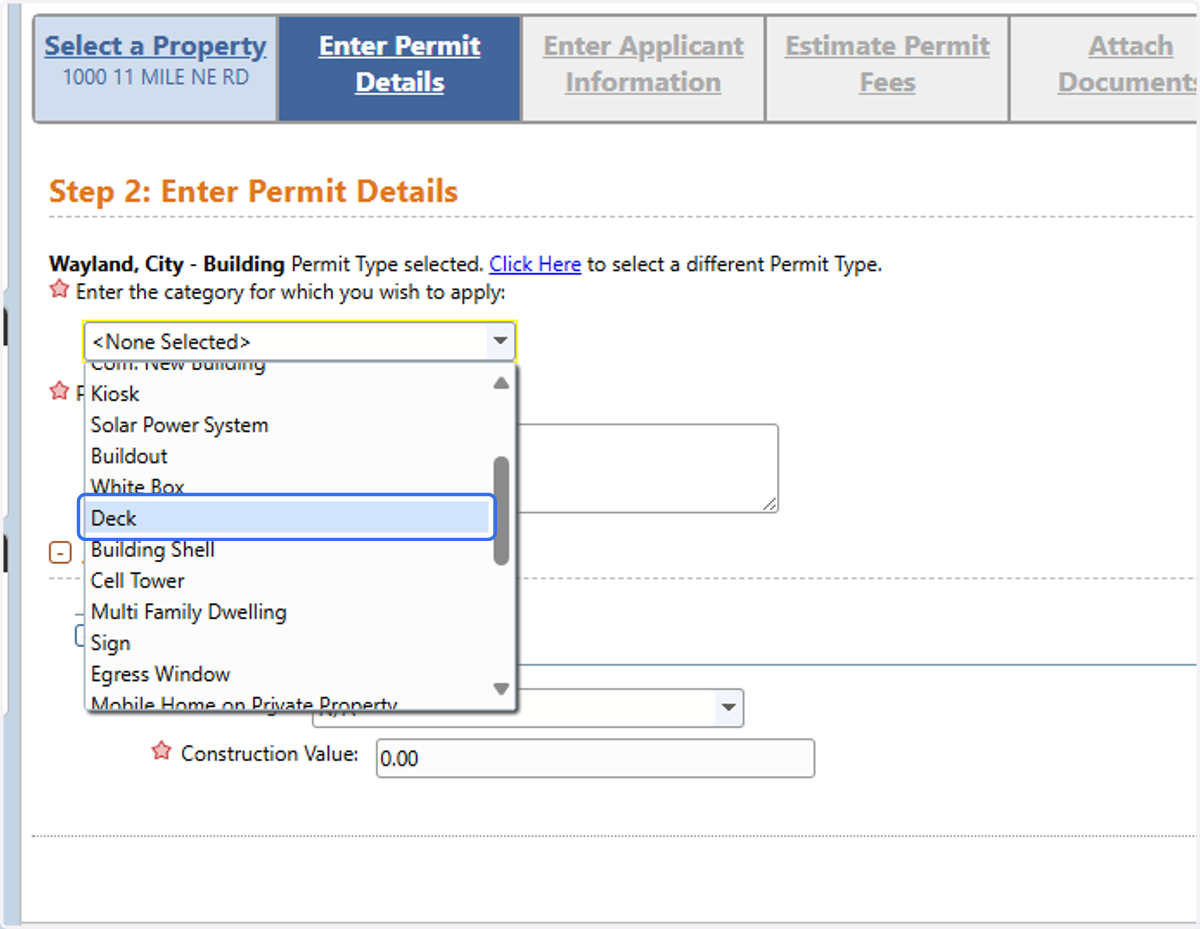
17. Type in a scope of work
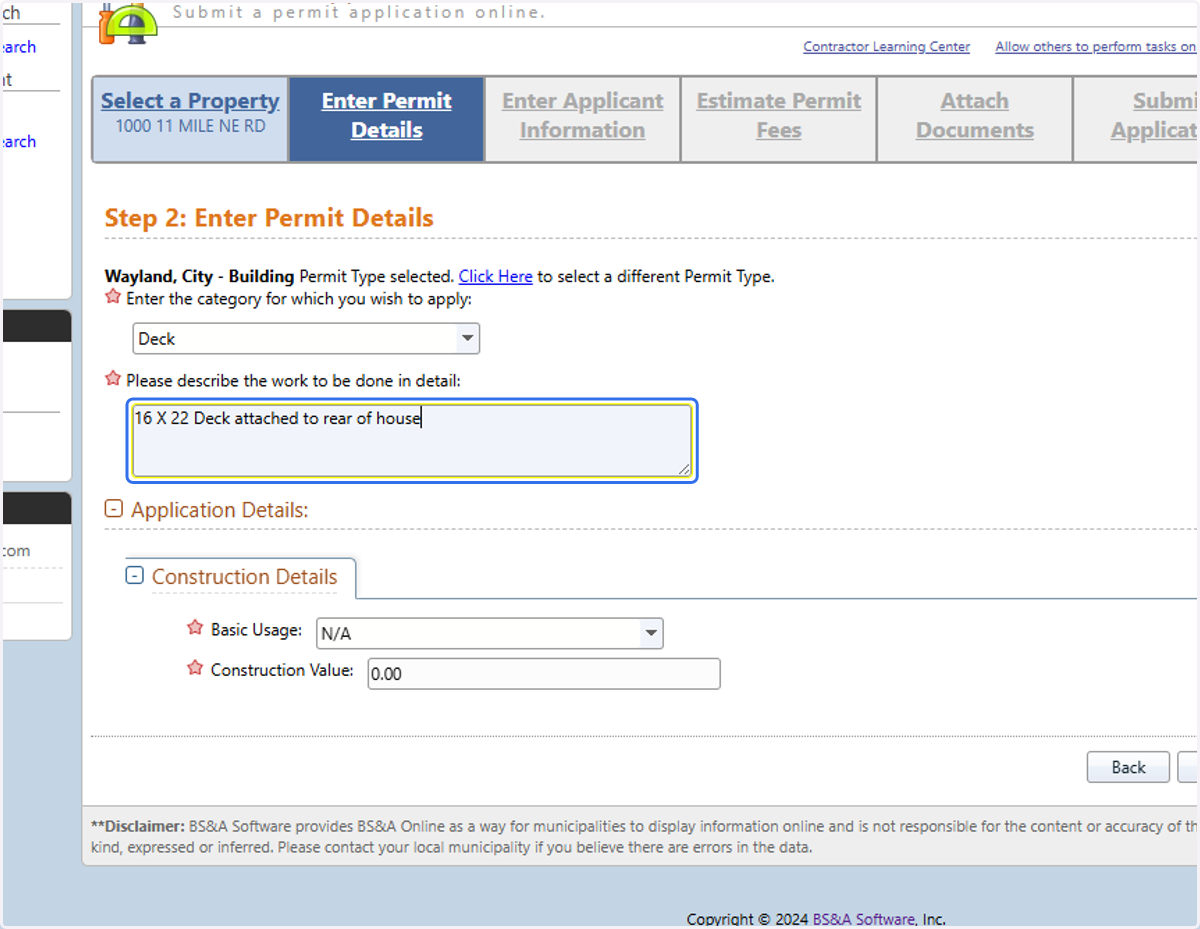
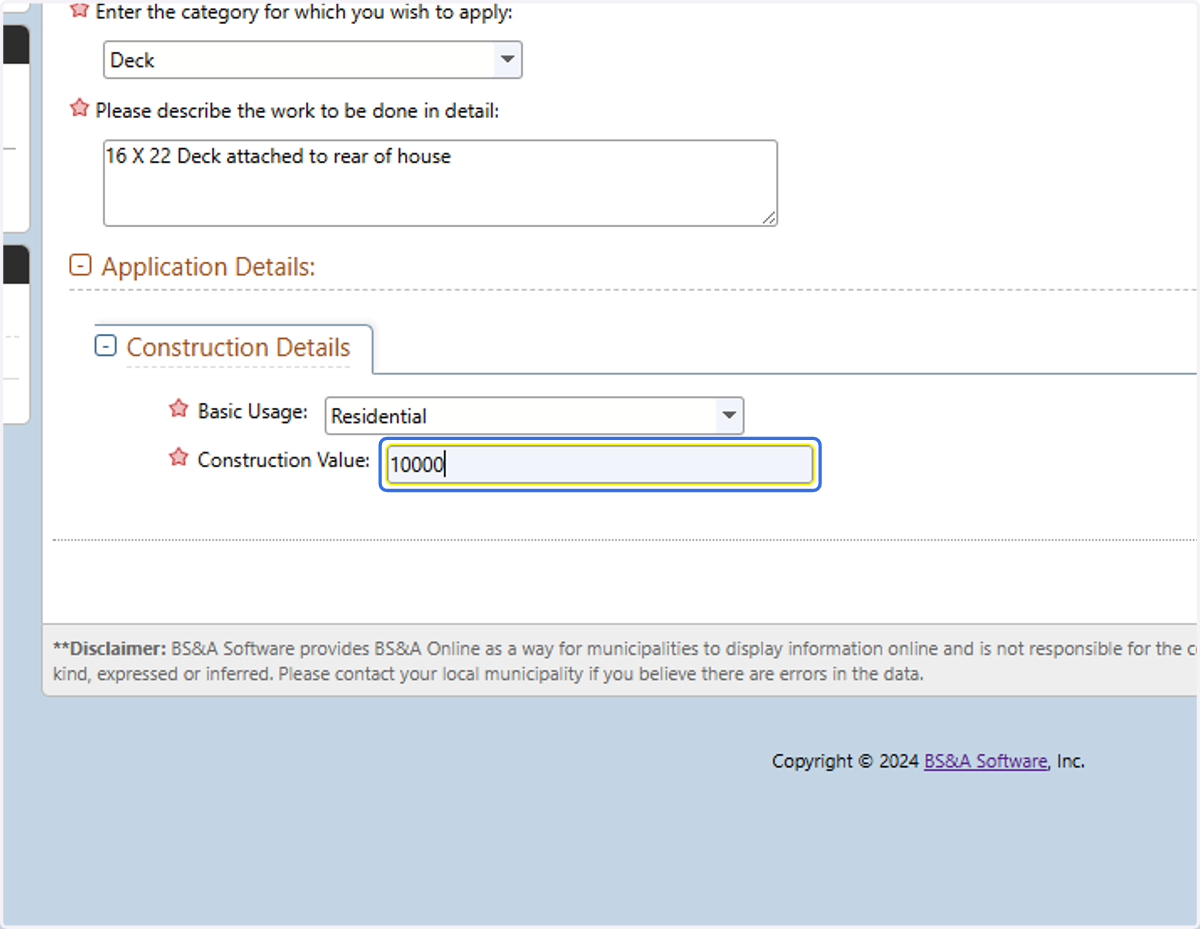
18. Fill out any required fields
19. Click on Next
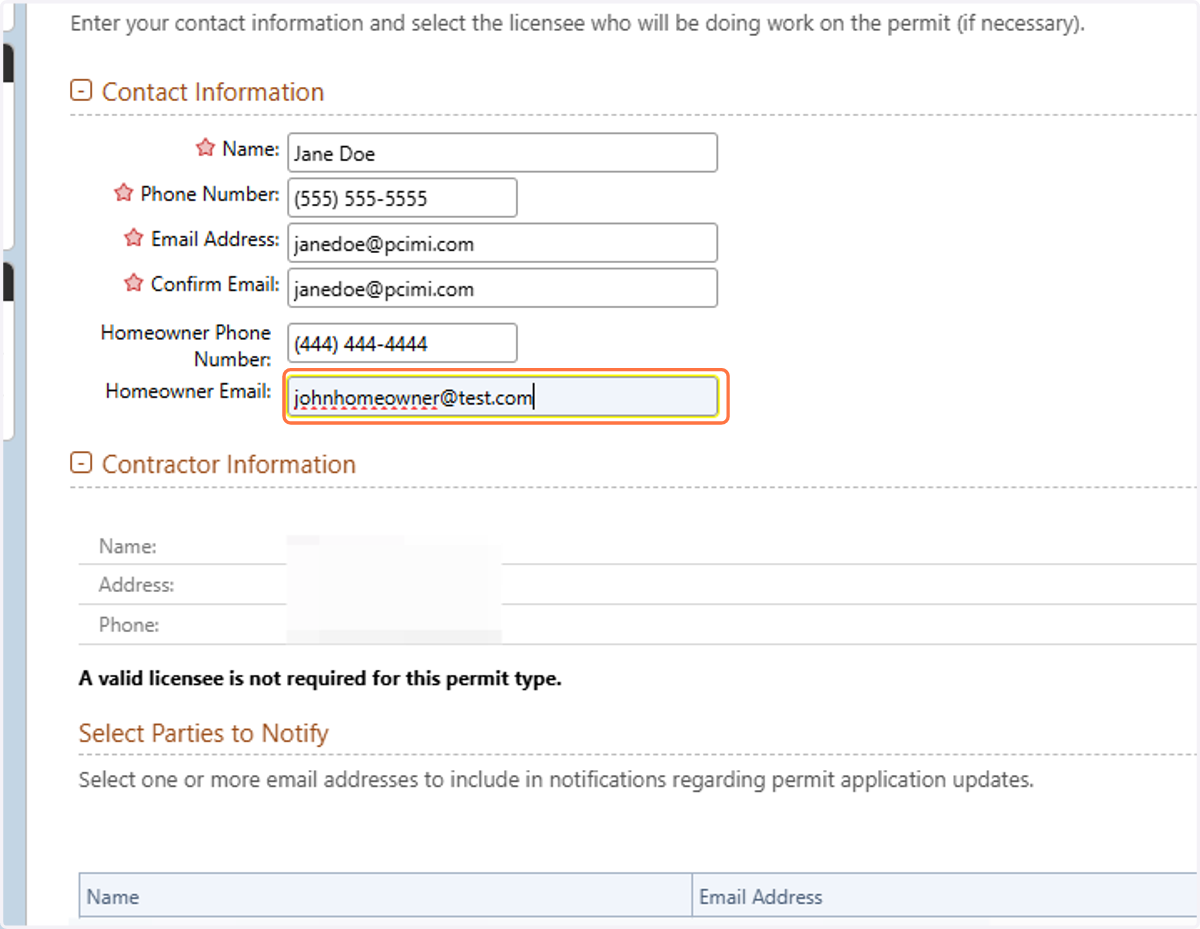
20. Verify and/or correct contact information and fill in the owners information
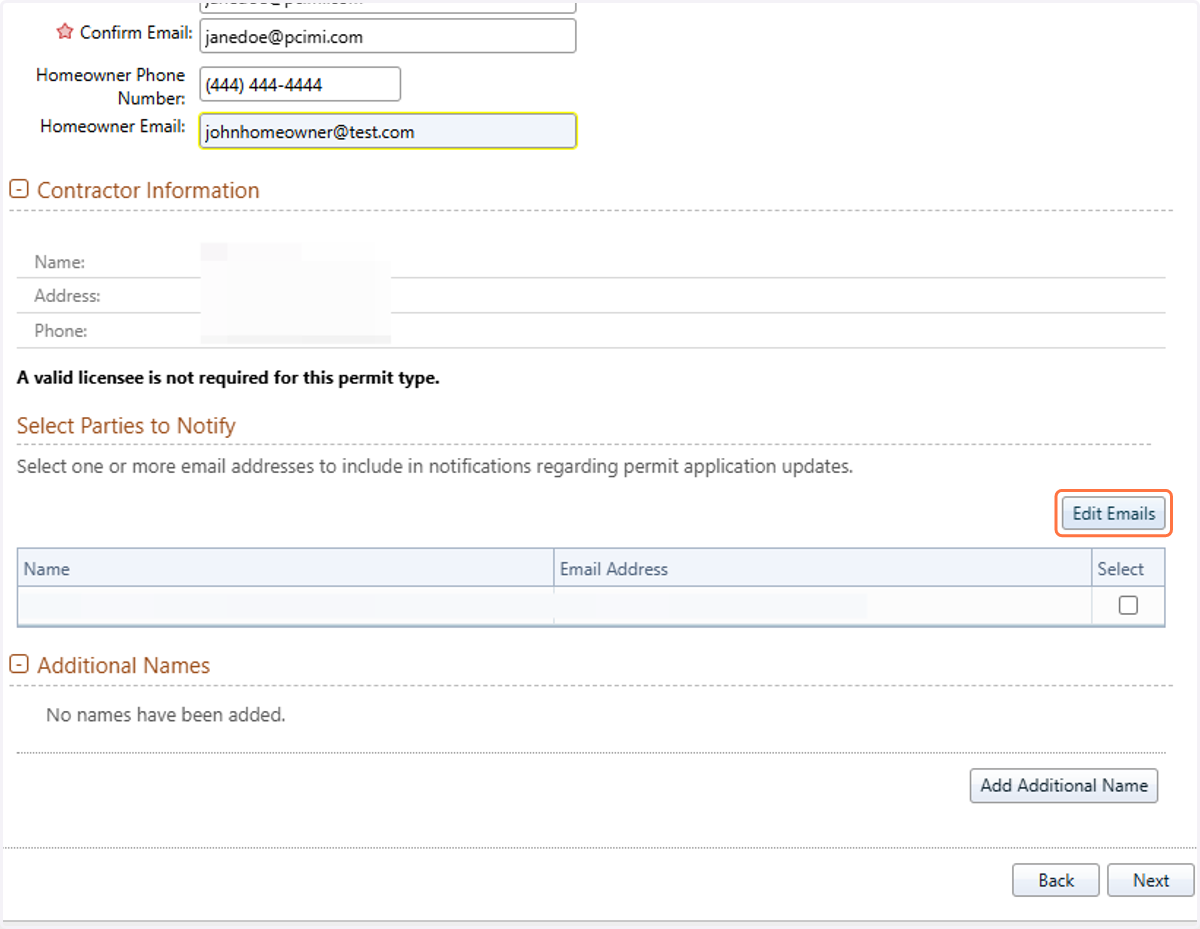
21. Press Edit Emails if you have additional people you want to receive notifications with updates on the status of this application.
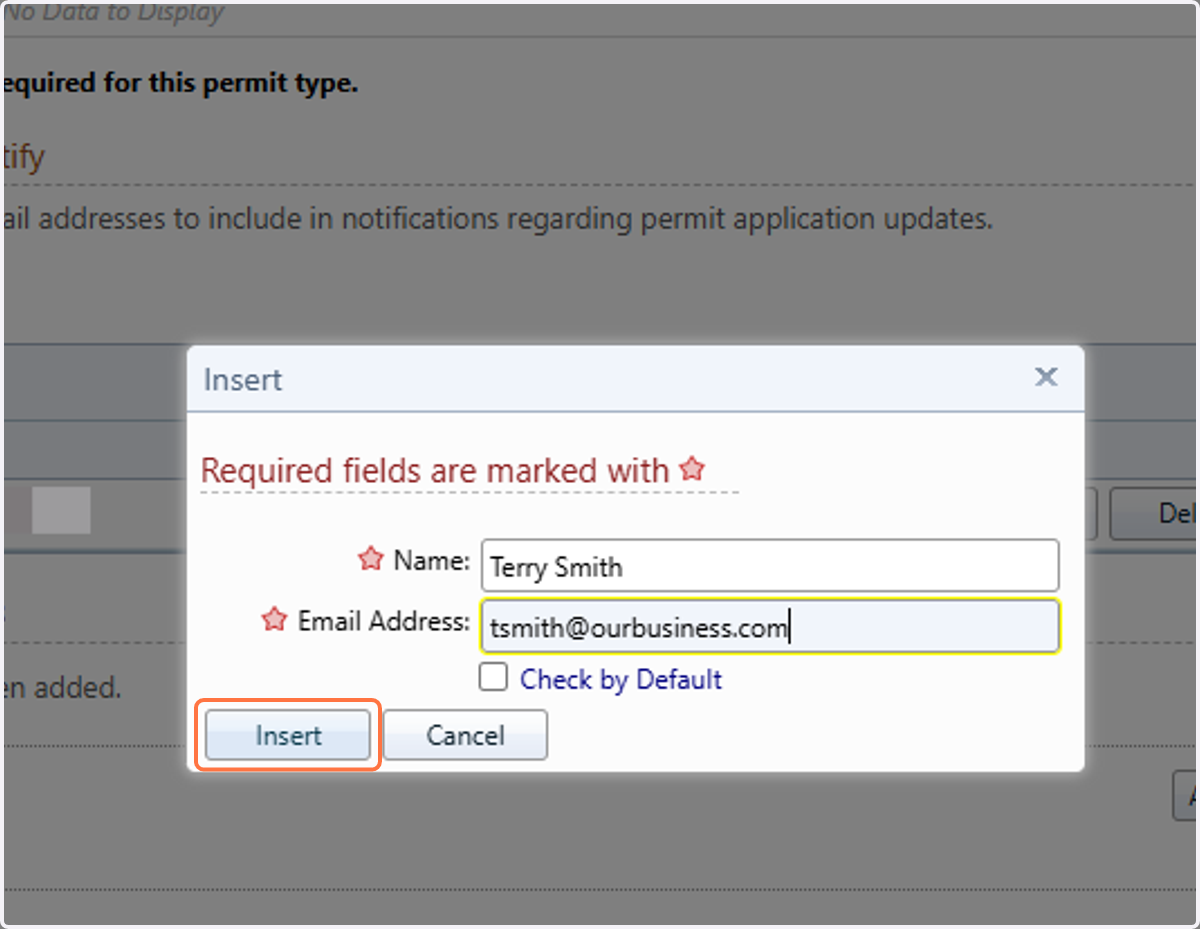
22. Fill in the contacts name and email address. Check "Check by Default" if you want the site to always select them as an additional party to notify for future application. Press Insert.
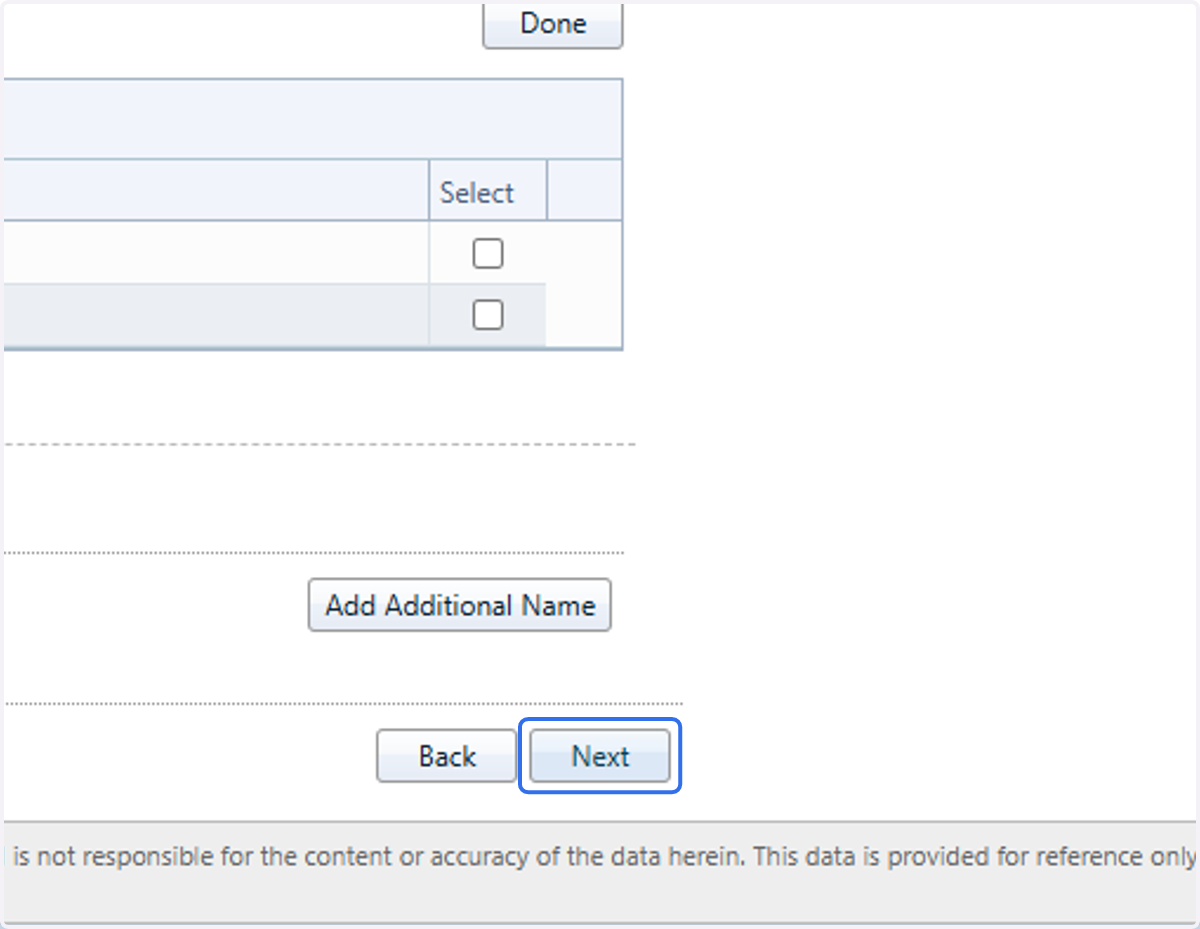
23. Click on Next
24. Upload all files that are relevant to the work you are performing. If you fail to submit a document that is necessary, your application may either be rejected or you will receive a request for documents via email before your application can be processed.
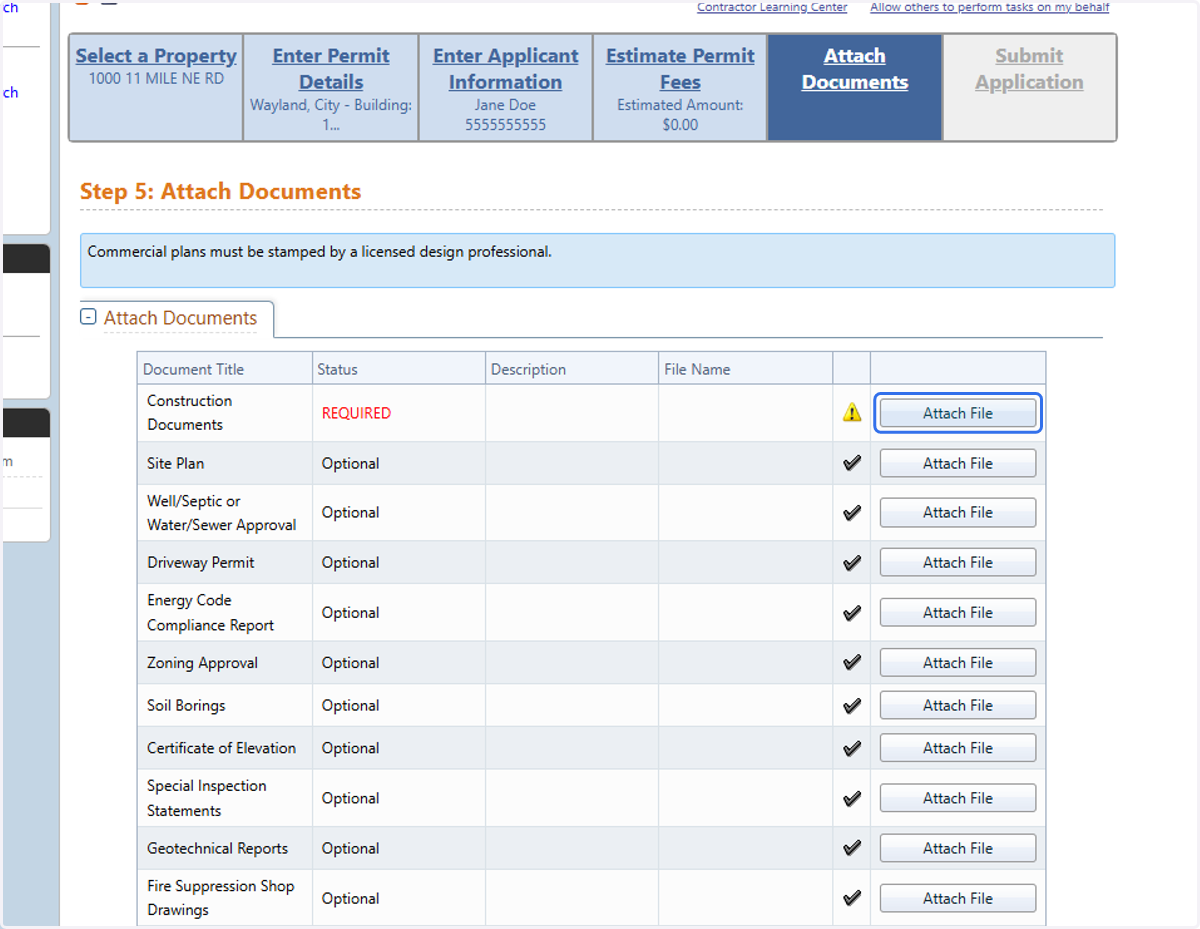
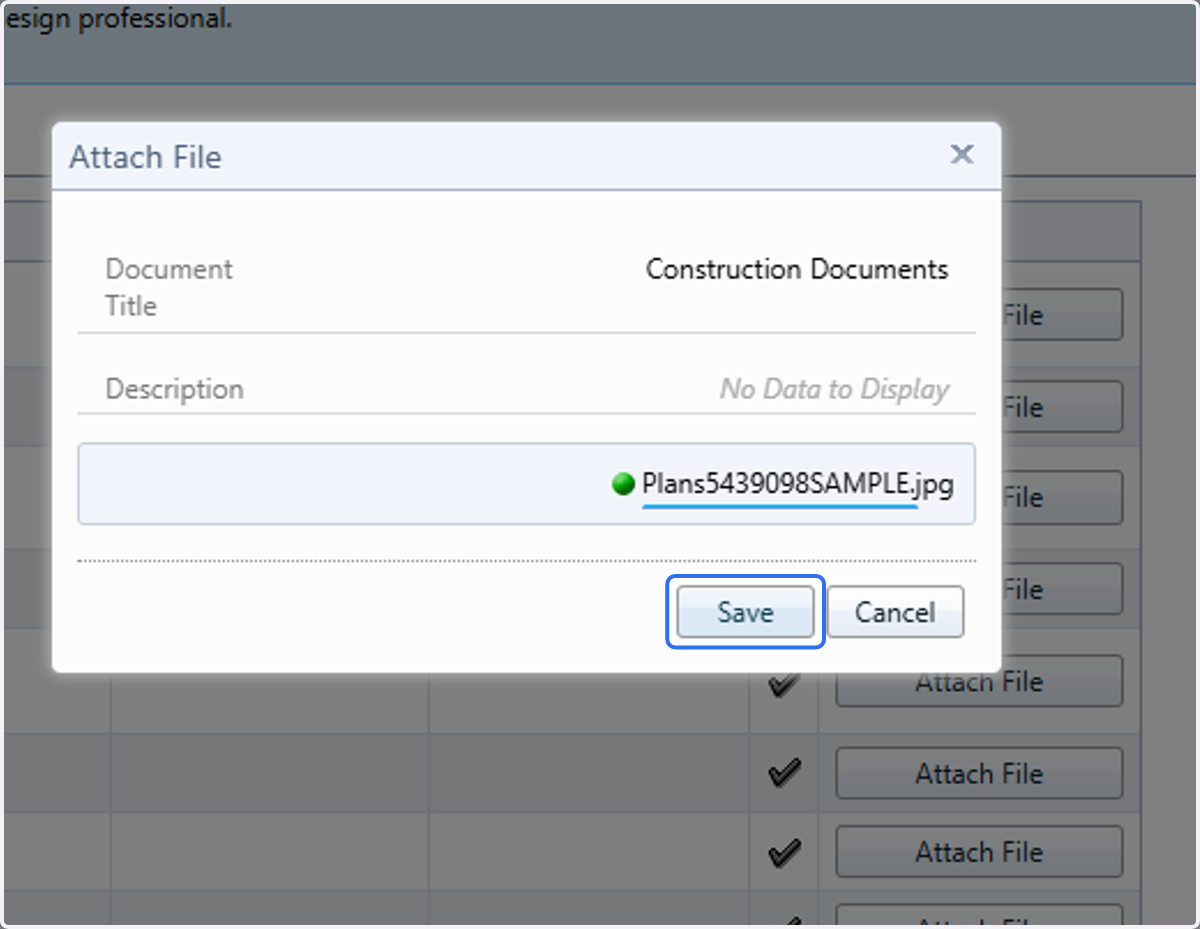
25. Choose the document and Press Save
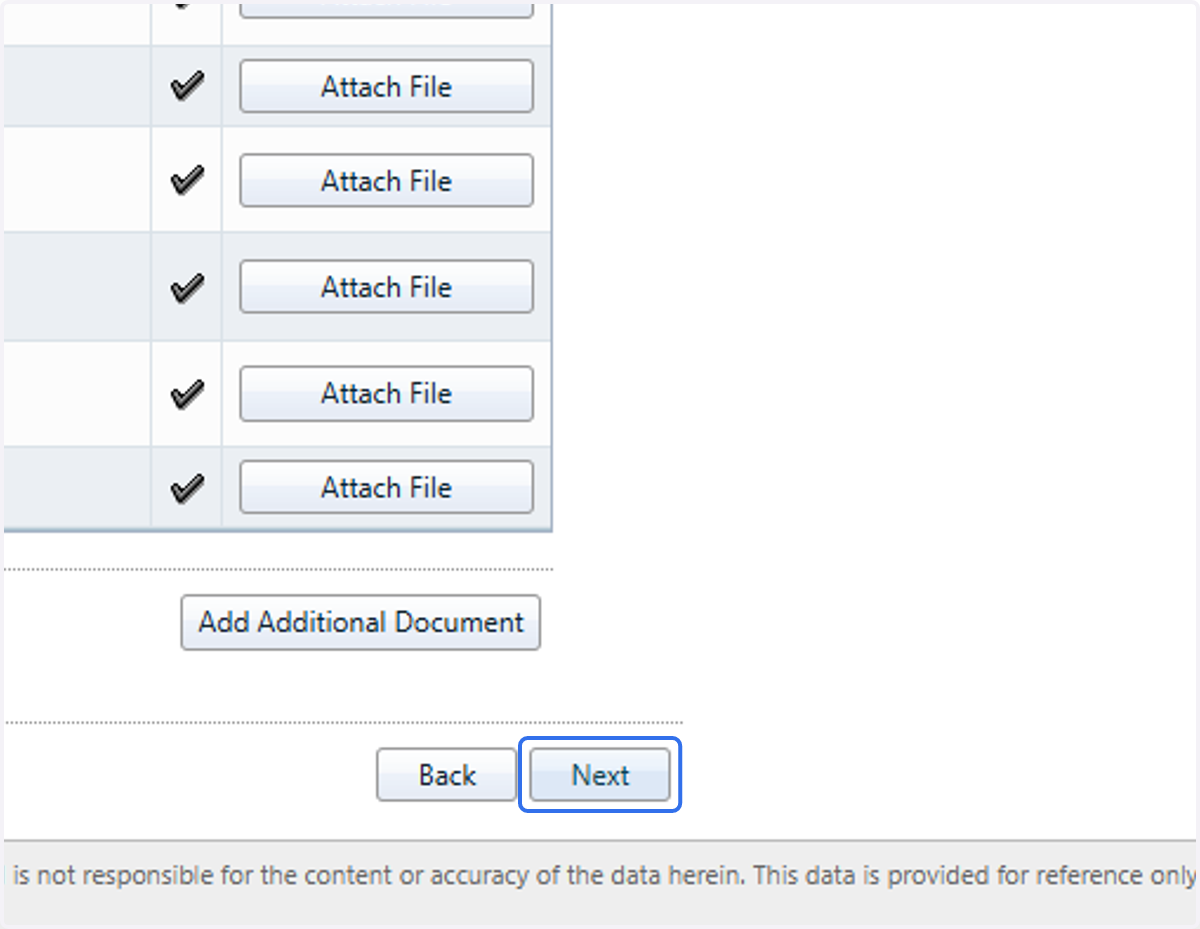
26. Click on Next
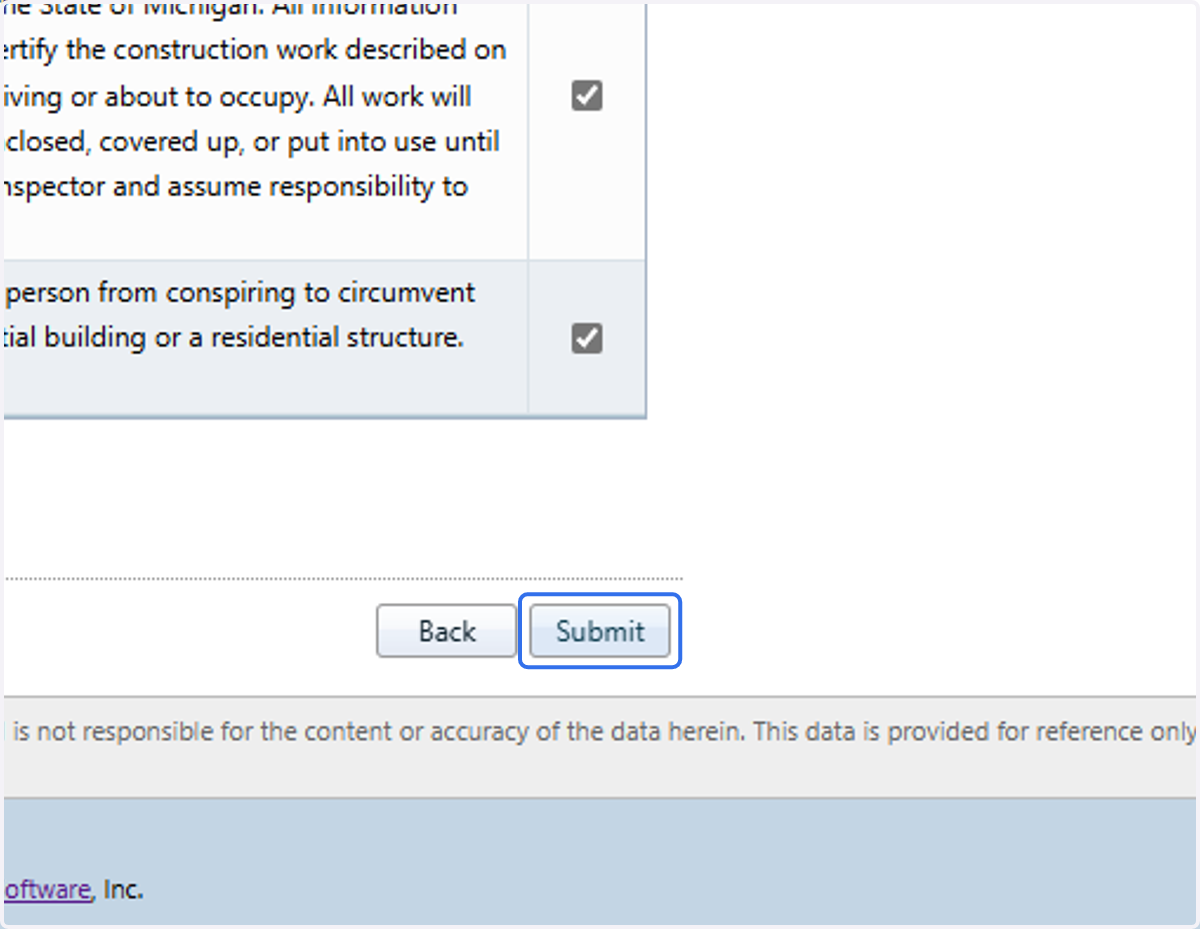
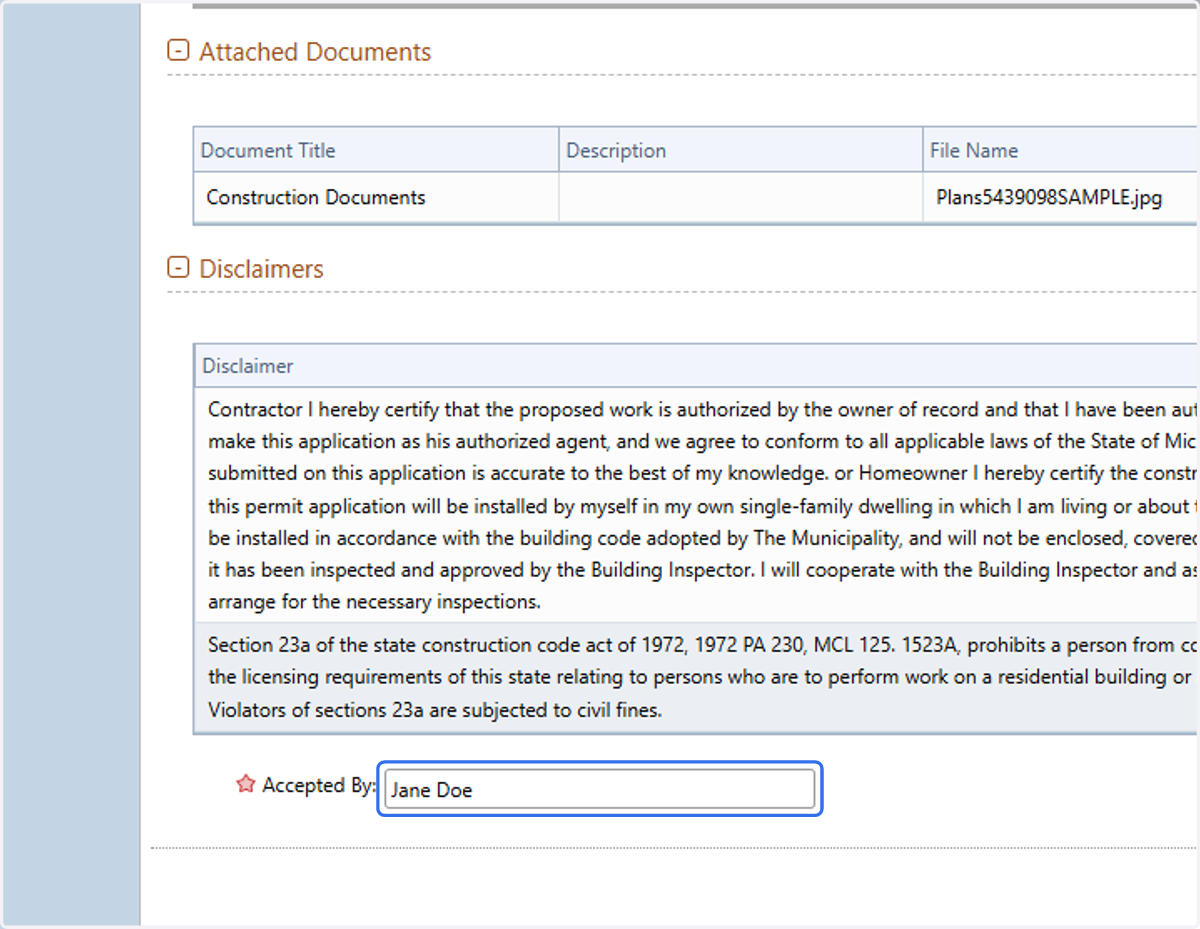
27. Verify all information then read and accept each acknowledgement
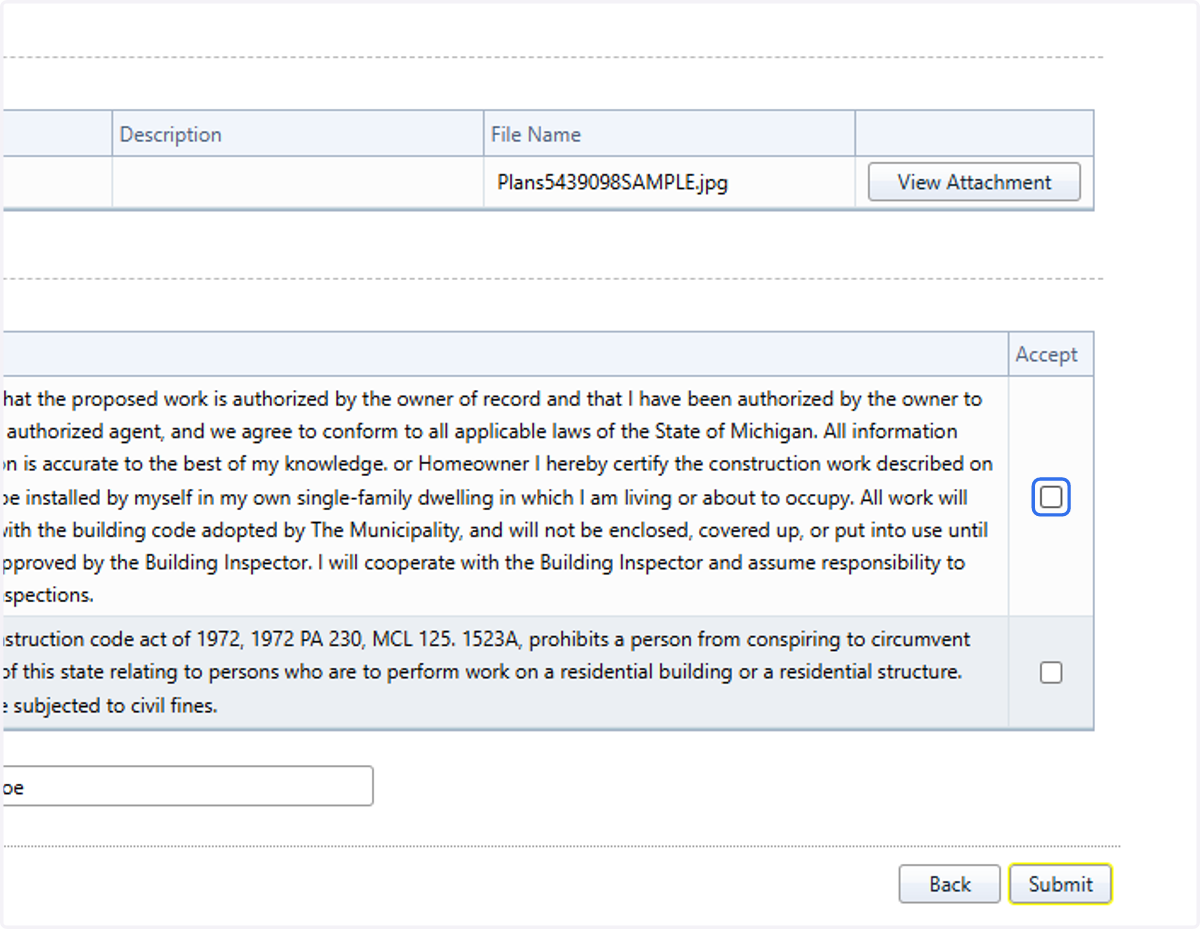
28. Verify your name in the accepted by field
29. Press Submit
Your application will now be sent to an intake queue for processing and review. YOU MAY NOT BEGIN WORK UNTIL YOU HAVE RECEIVED AN ISSUED PERMIT. You will receive update on the status of your application at key points in the process, including when revisions to your submitted documents may be required and when fees are due.