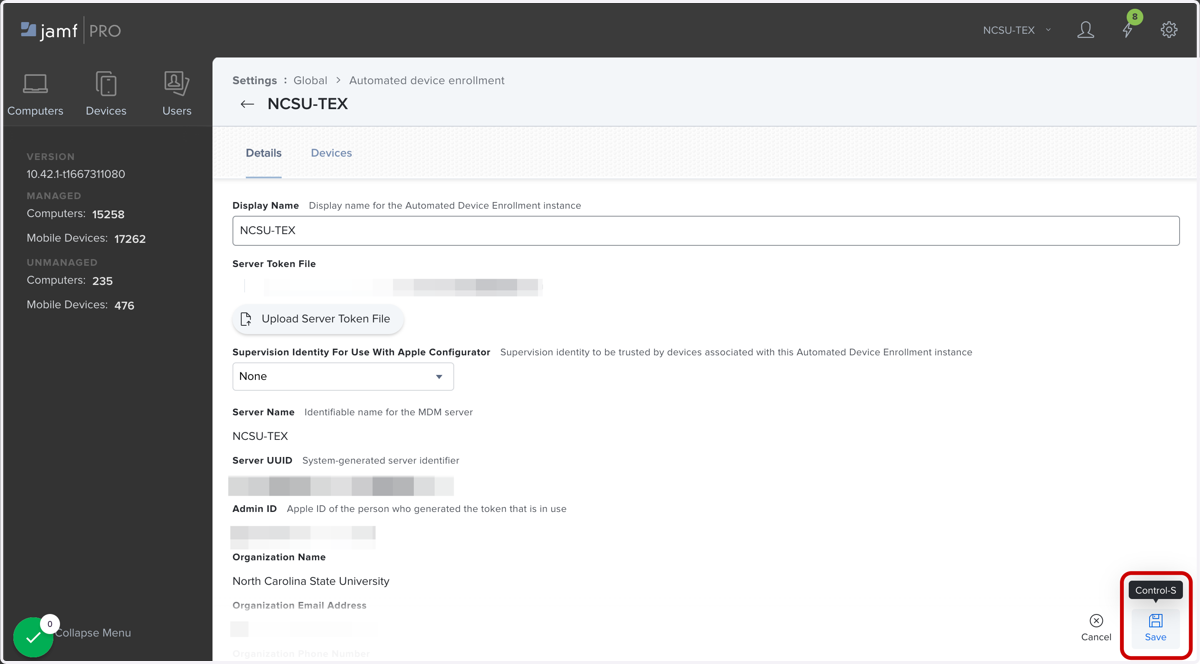
Apple Device Enrollment (ADE) Token Renewal
Apple
1. Go to Jamf Pro
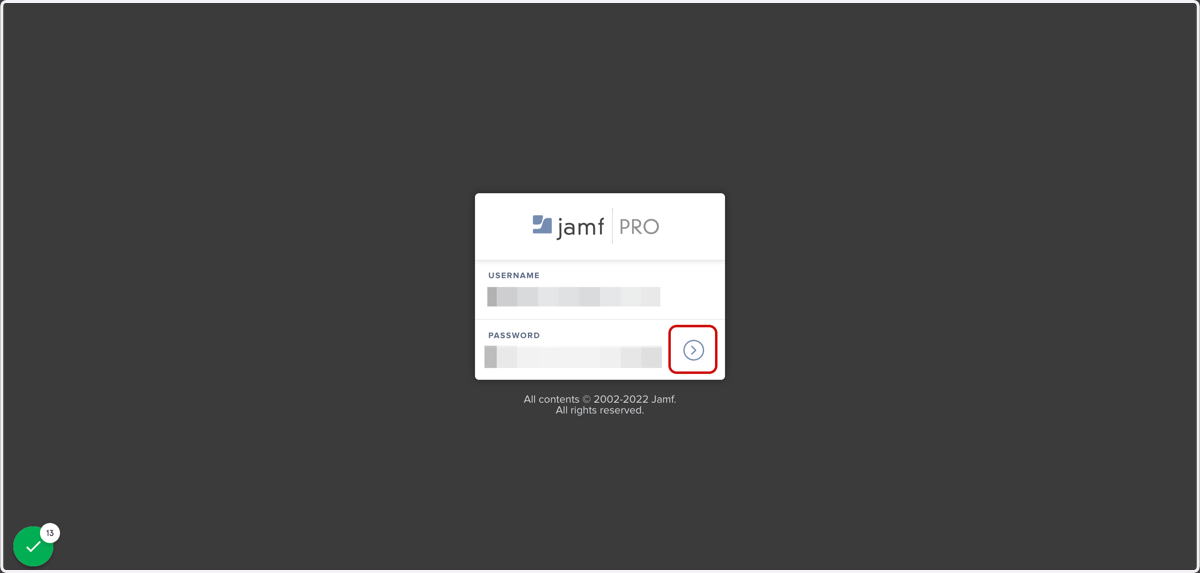
2. Login to Jamf Pro
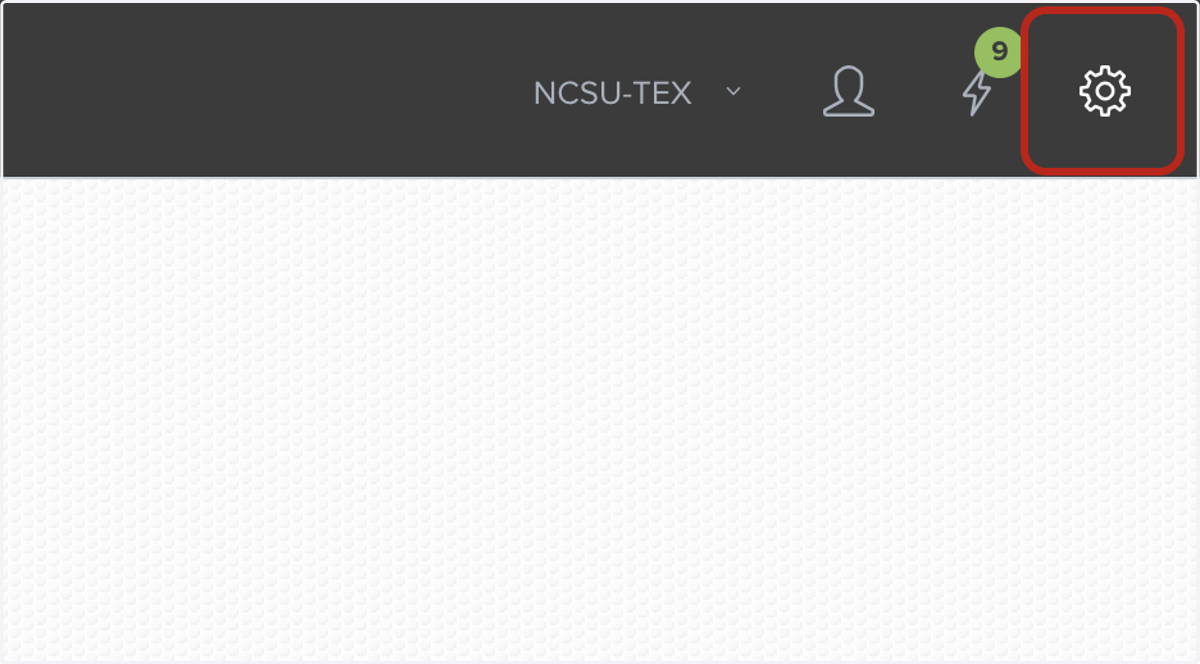
3. Click on Settings in the top right corner
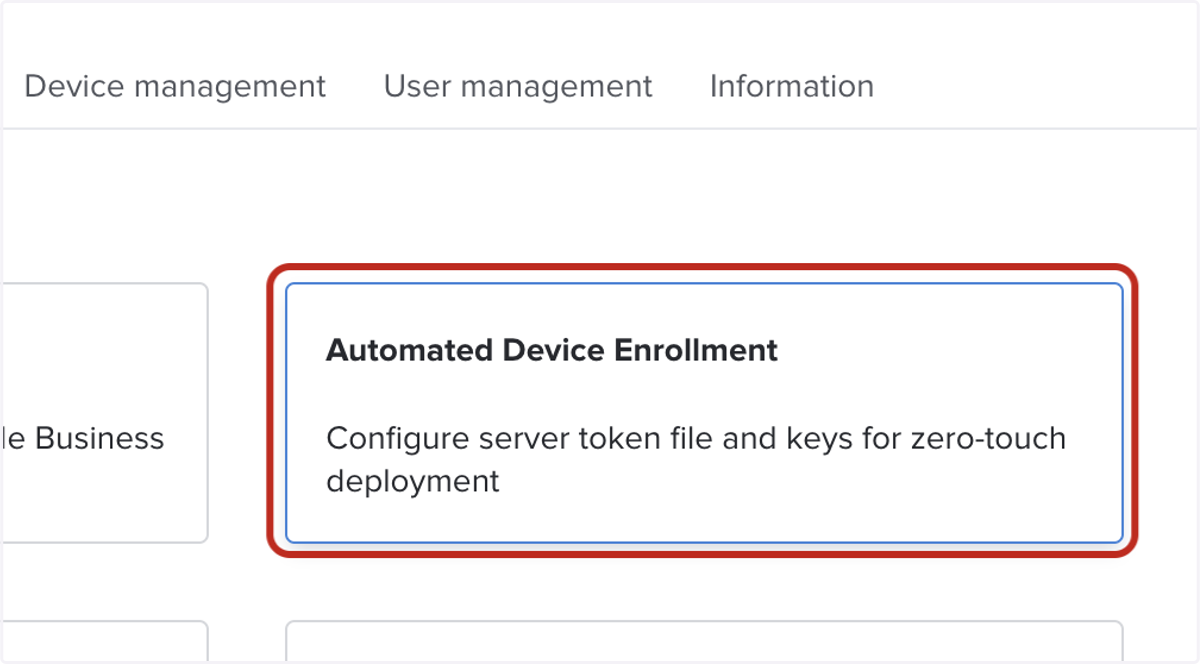
4. Click on Automated Device Enrollment
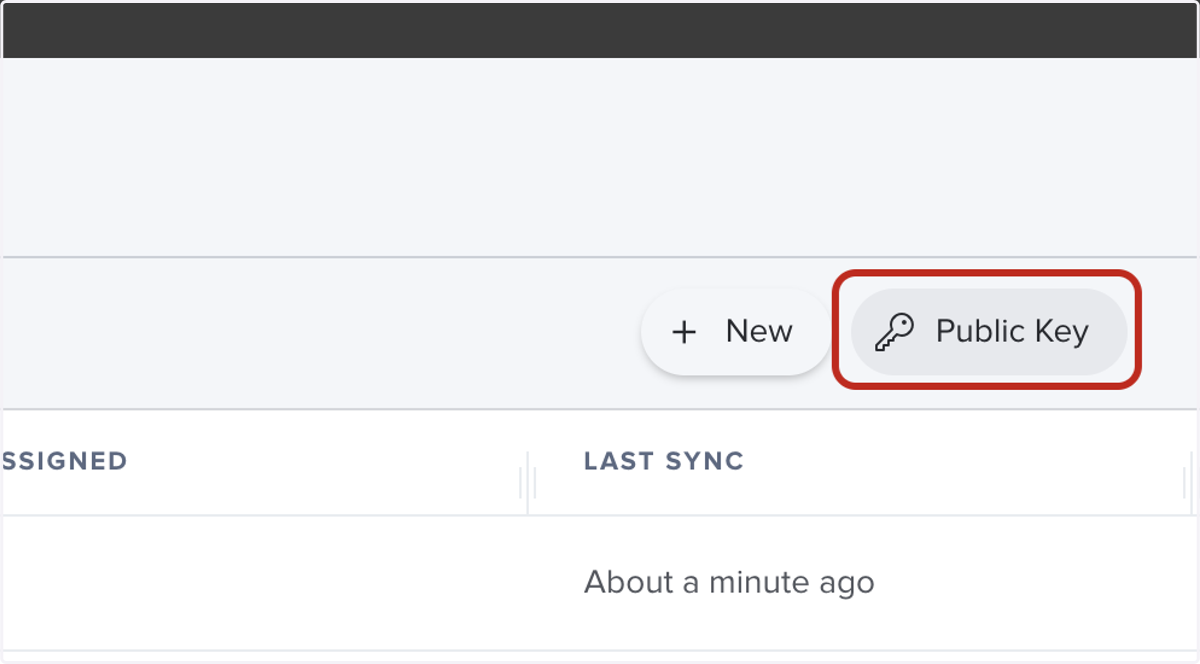
5. Click on Public Key
6. Go to Apple School Manager
7. Login to Apple School Manager
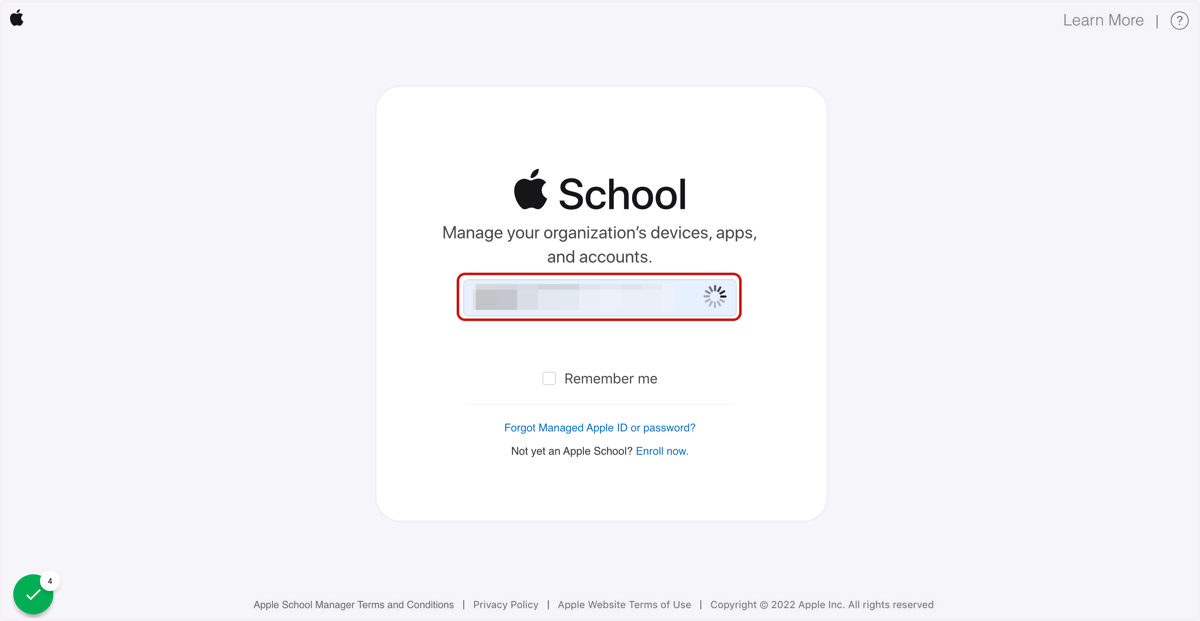
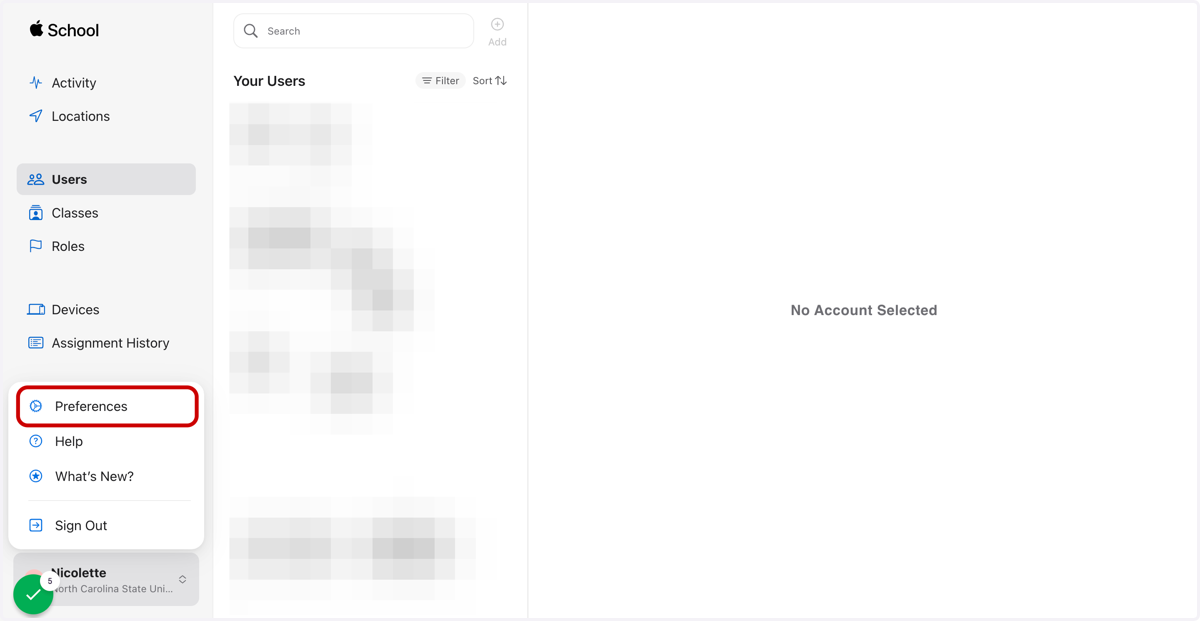
8. Click on your name to open the user menu and select Preferen
9. Under Your MDM Servers click on NCSU-TEX
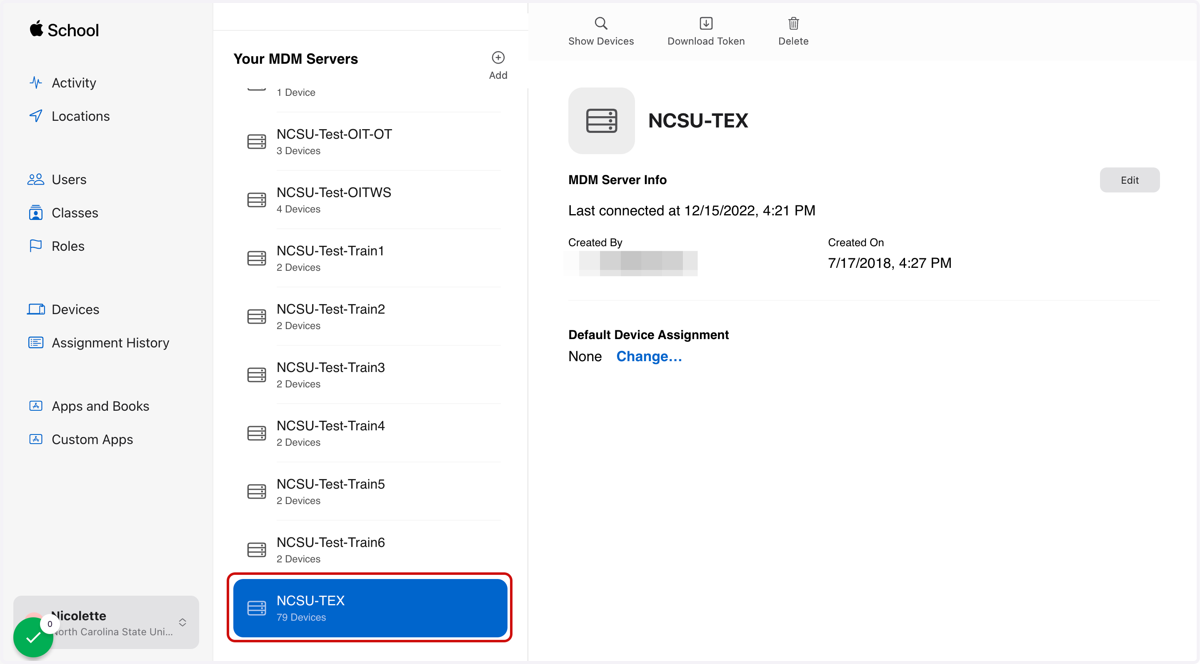
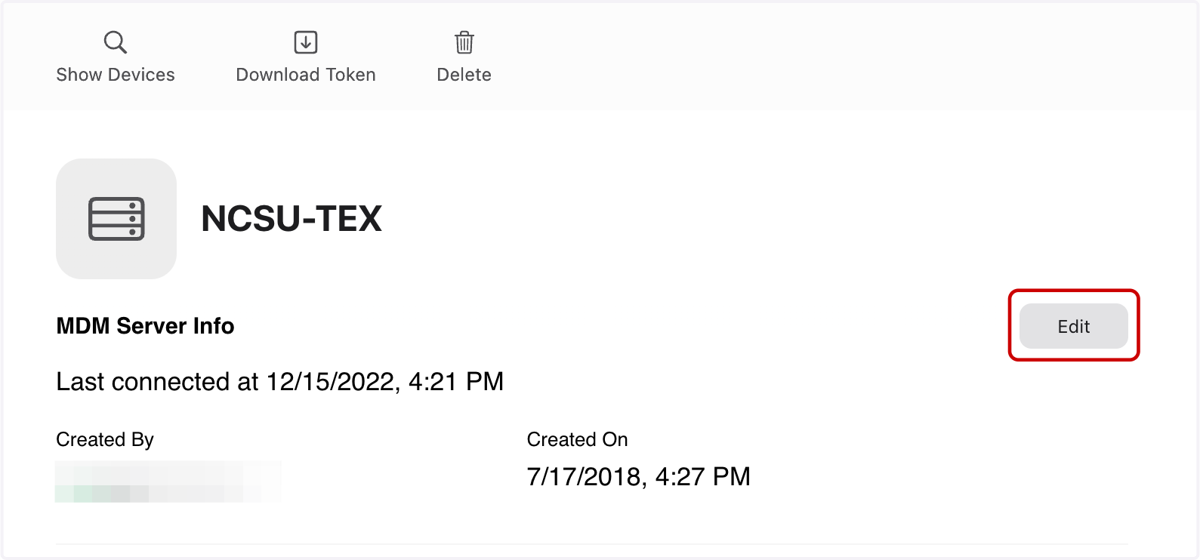
10. Click on Edit
Jamfcloud
11. Click on Upload New…
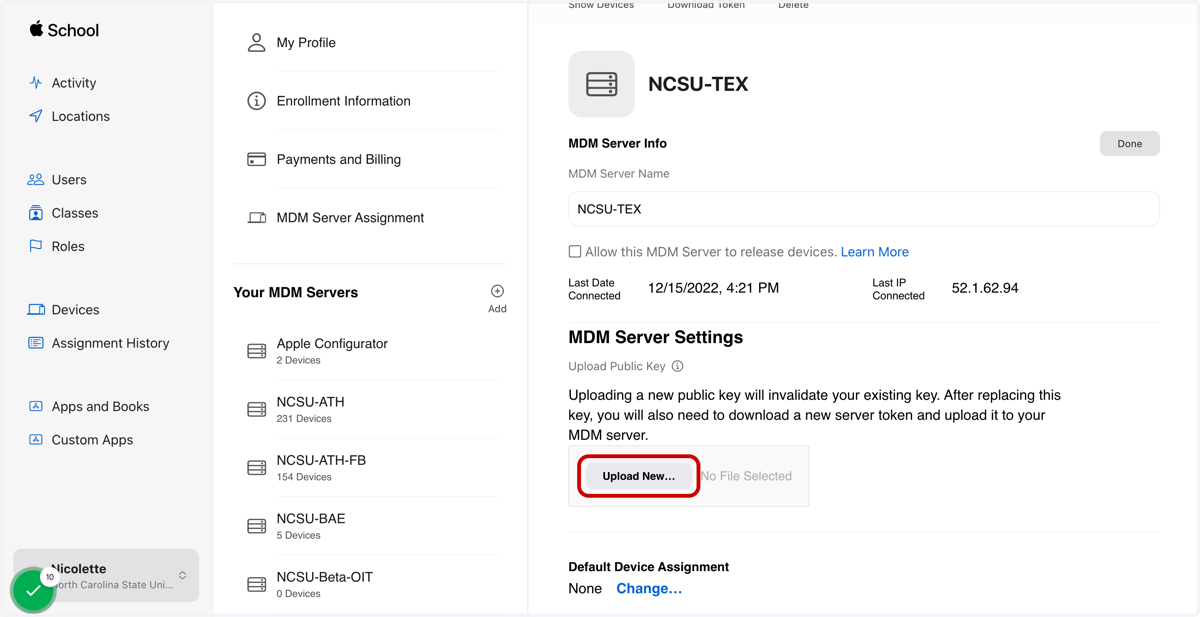
12. Then select "PublicKey.pem" from file upload menu
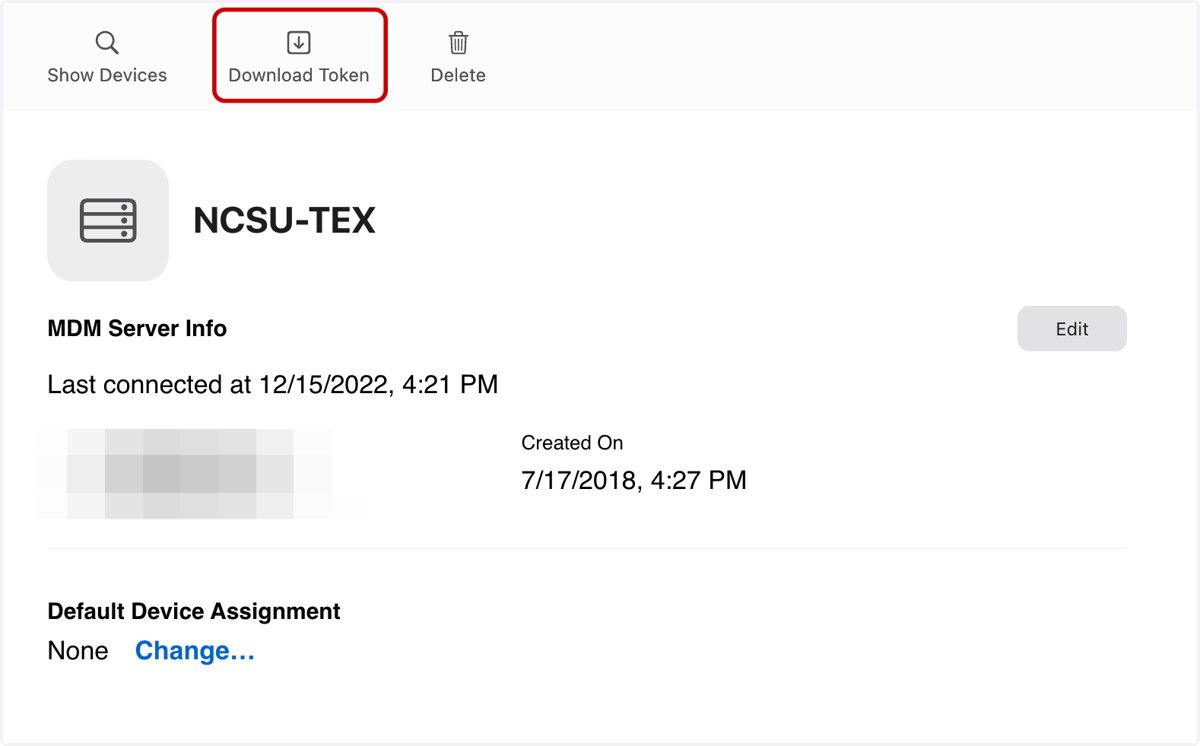
13. Click Download Token
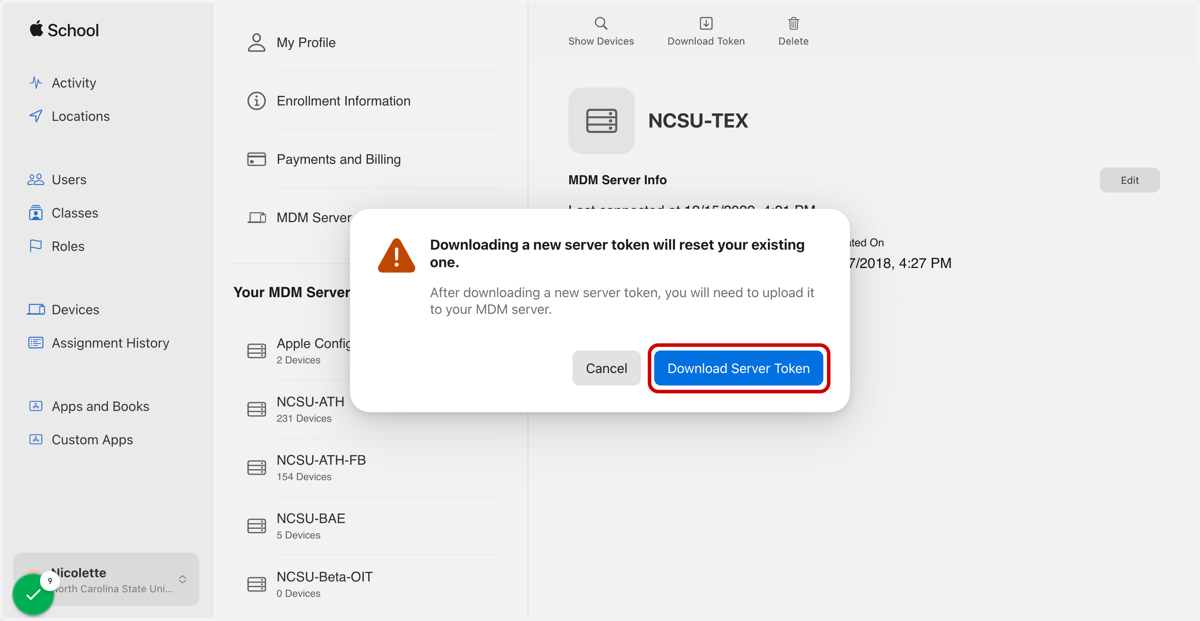
14. Click Download Server Token
The Server Token will go into your Computer downloads as a .p7m file
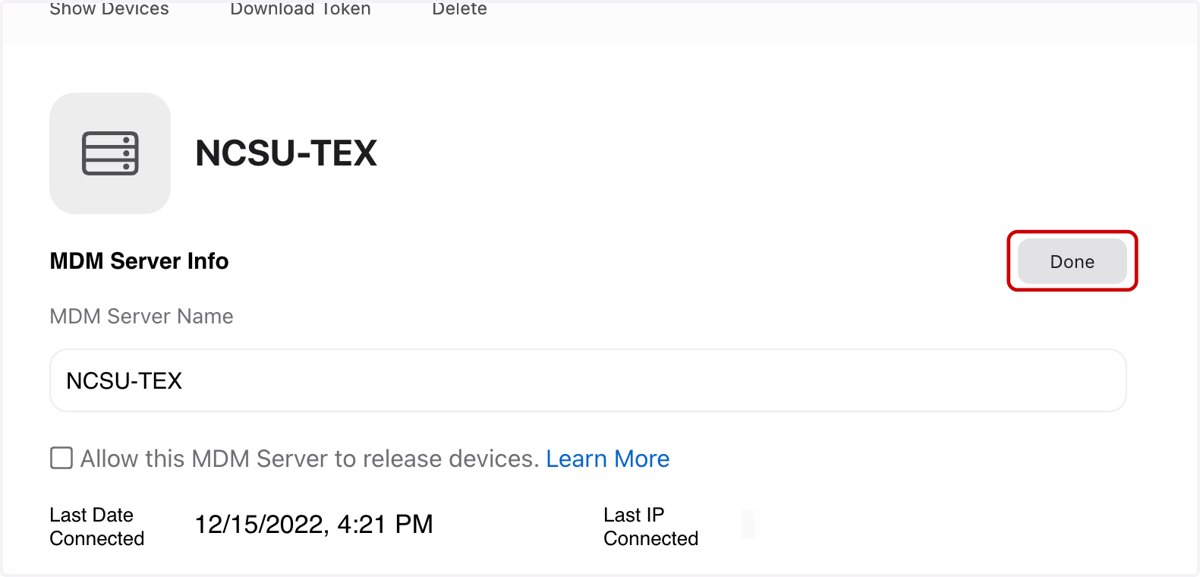
15. Click Done
16. Go back to Jamf Pro
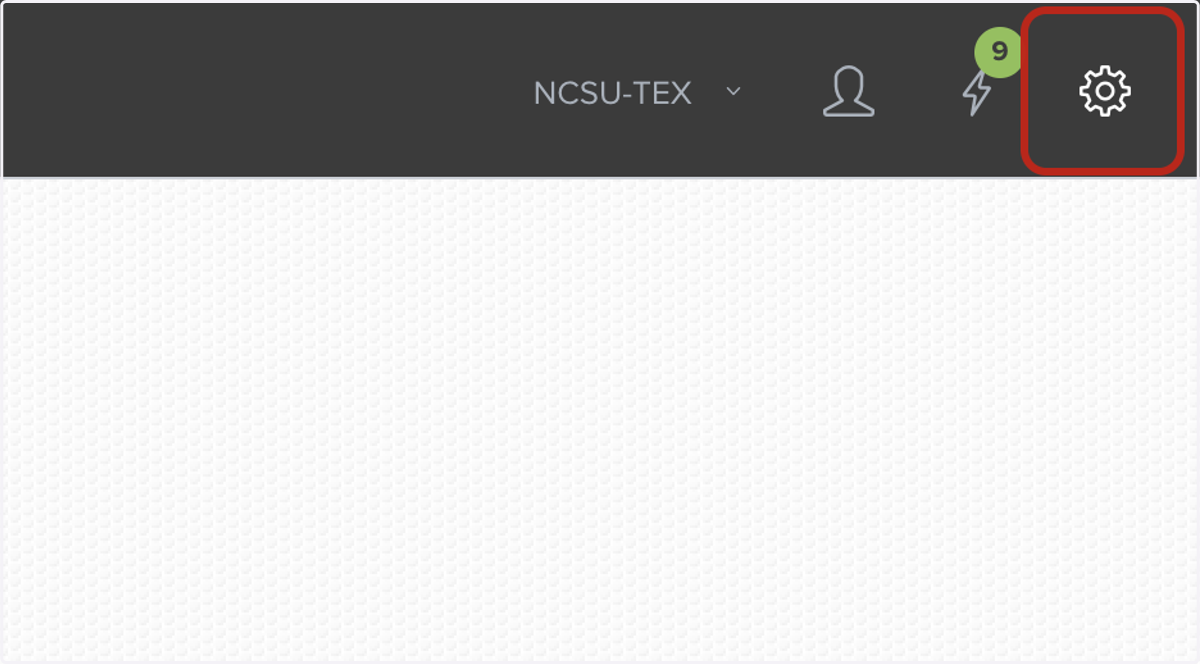
17. Click on Settings in the top right corner
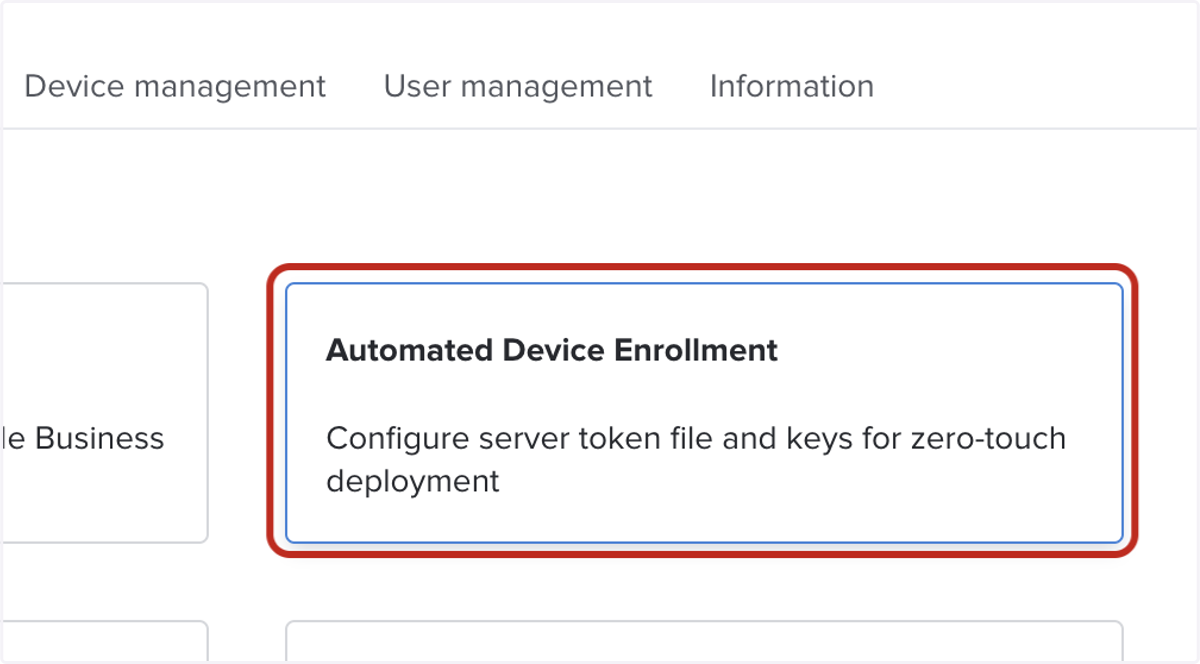
18. Click on Automated Device Enrollment
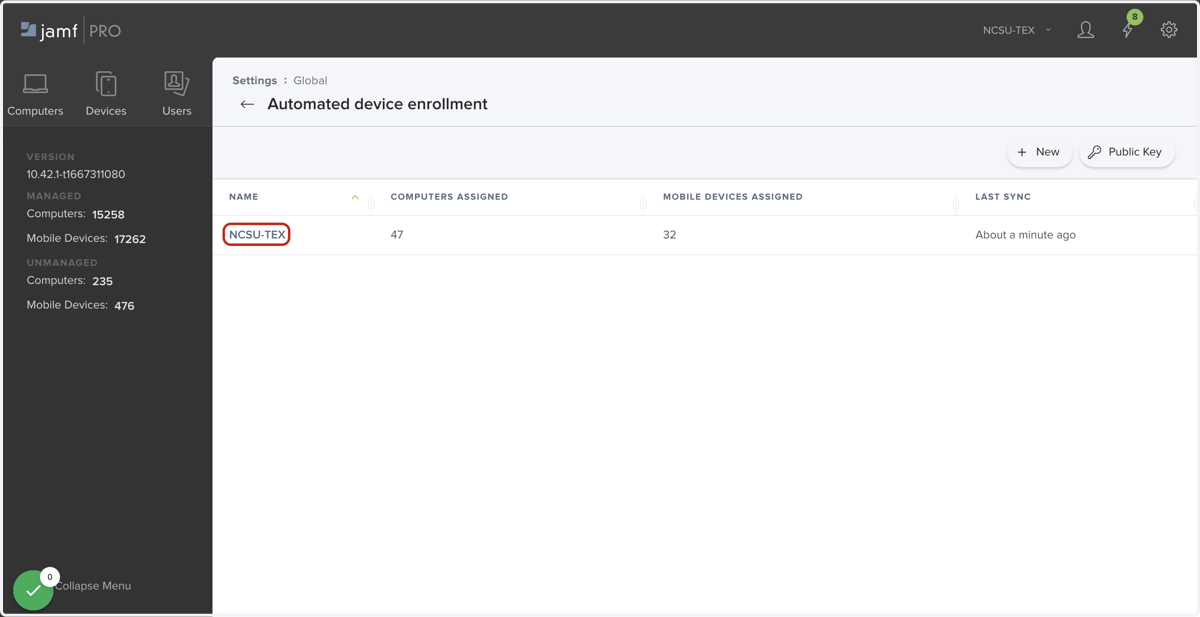
19. Click on NCSU-TEX
20. Click on Edit
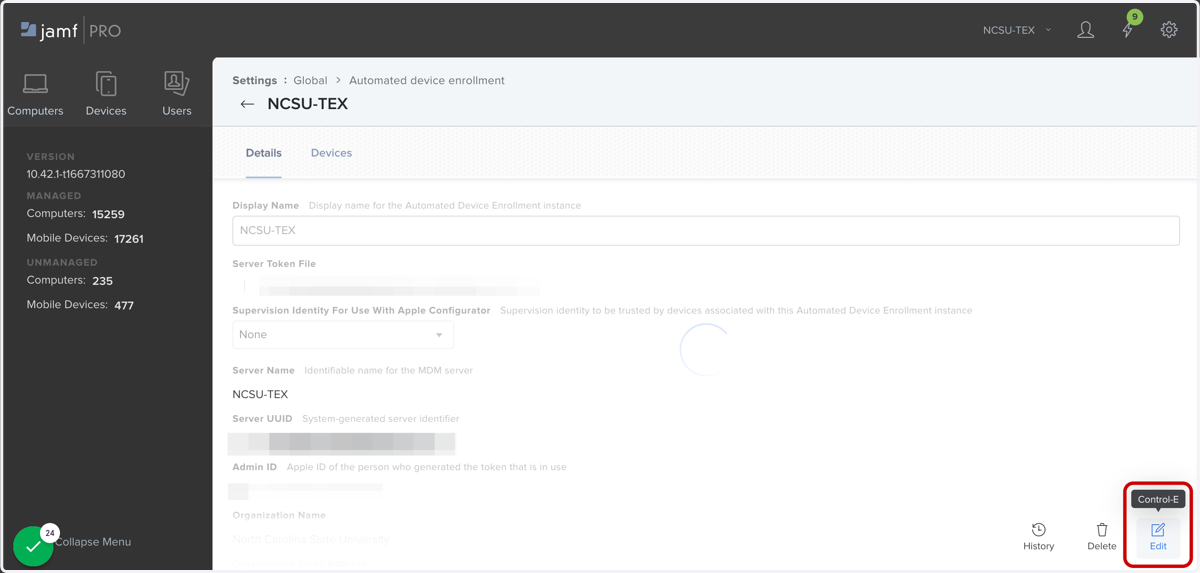
21. Click on Choose File…
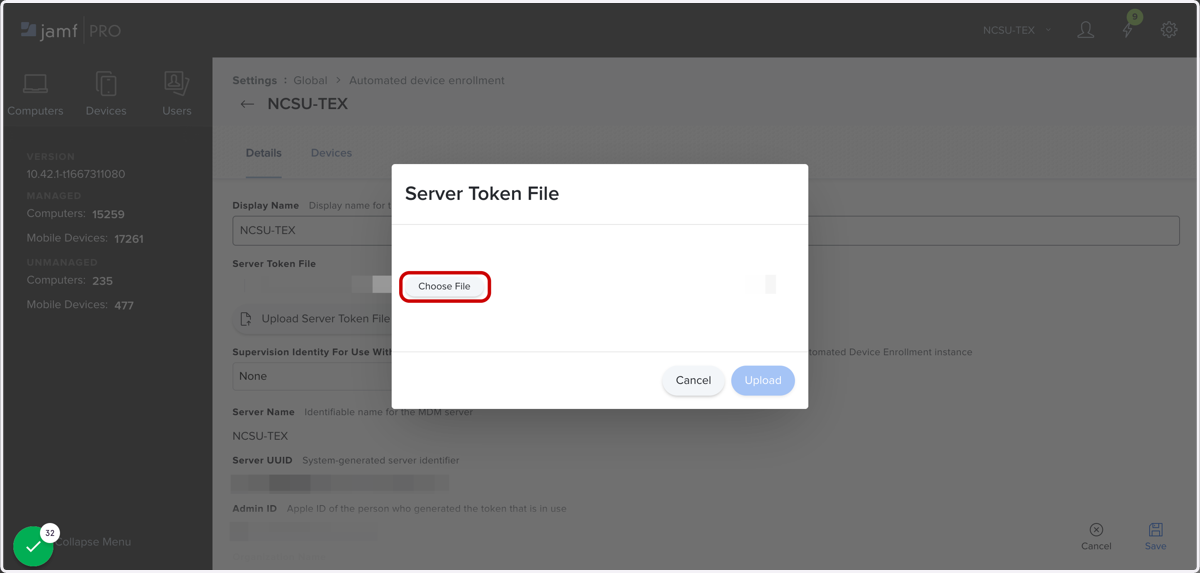
22. Select the .p7m file that ASM downloaded from file upload menu
23. Click Upload
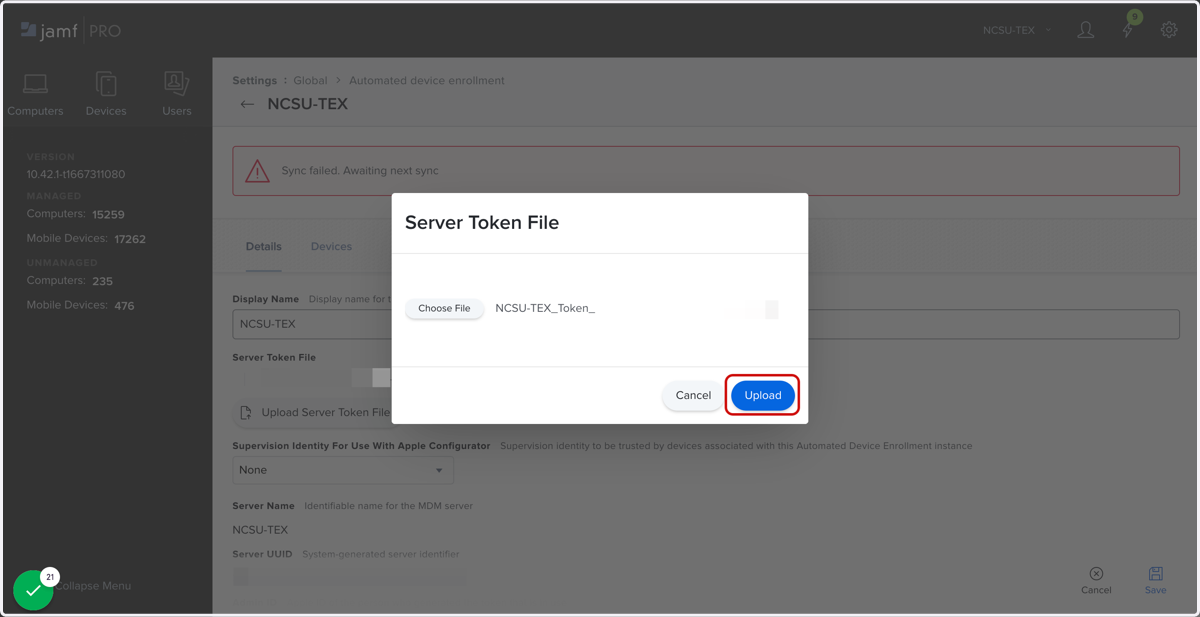
24. Click on Save