Amenities - Creating Amenity Closures
There are times when certain components of an amenity—like a pool lane, tennis court, or a room—need to be temporarily closed for maintenance, private events, or safety reasons. Having the ability to easily close specific parts of an amenity ensures smooth operations, minimizes disruptions, and can keep members informed in real-time. This guide will show you how to create amenity closures, giving you full control over availability and helping you deliver a seamless member experience.
Pacesettertechnology
1. Go to app.pacesettertechnology.com
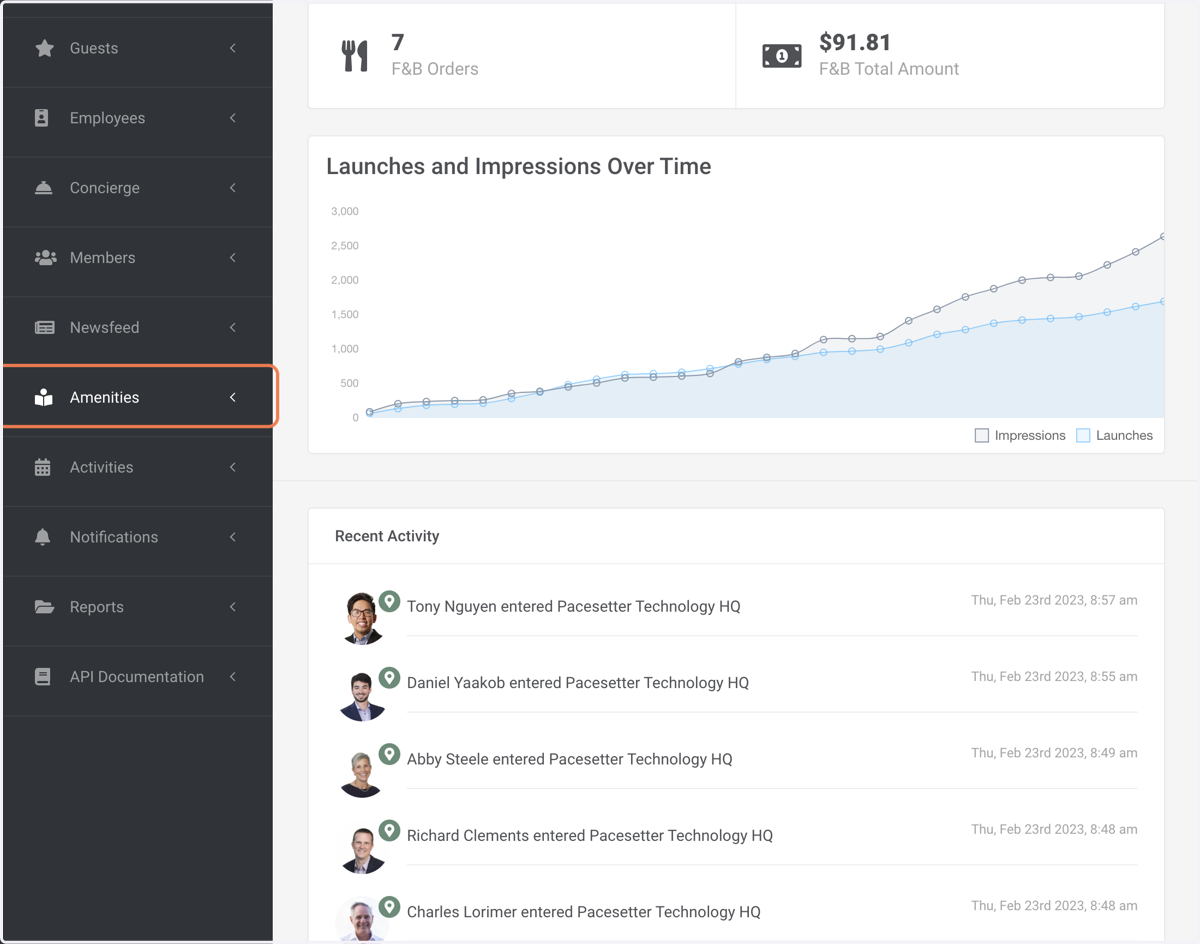
2. Click on Amenities
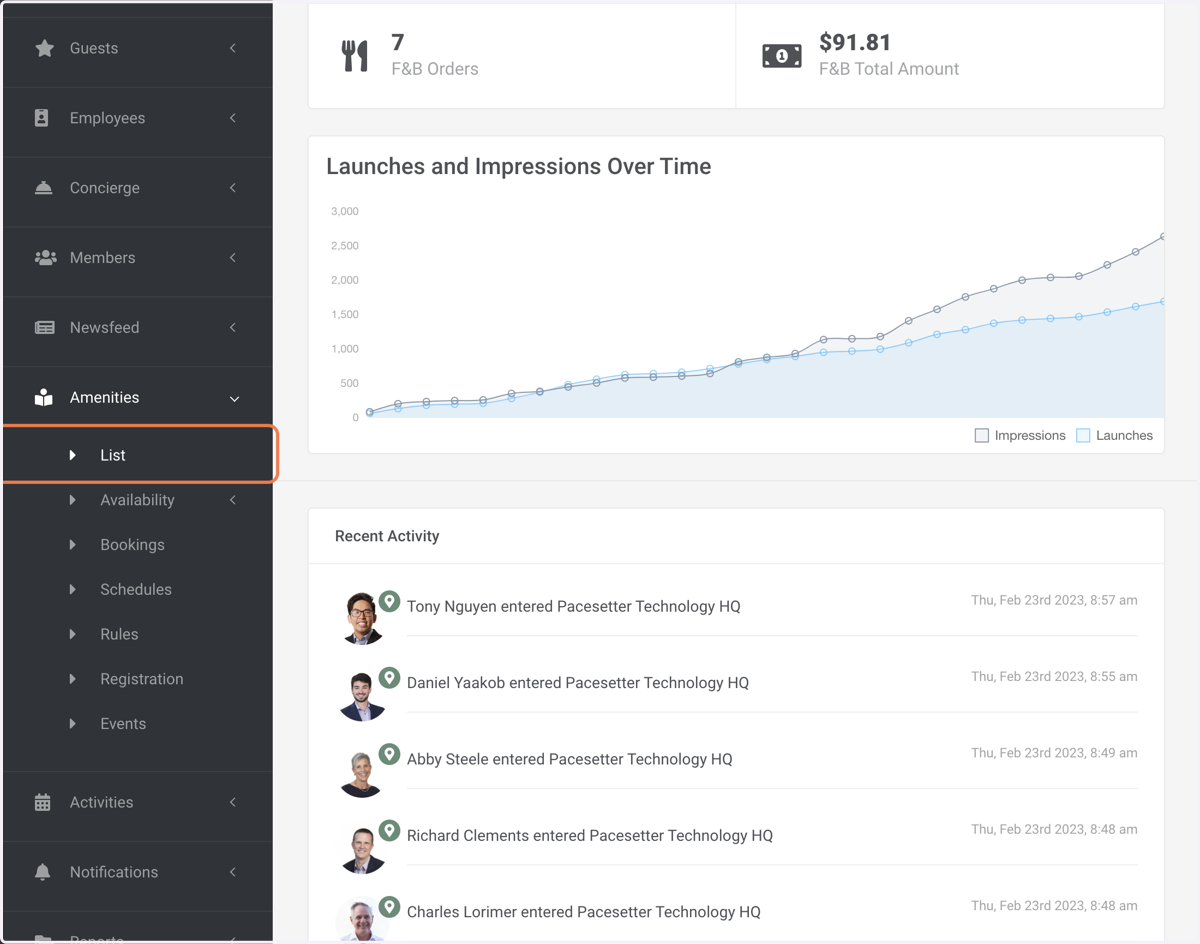
3. Click on List
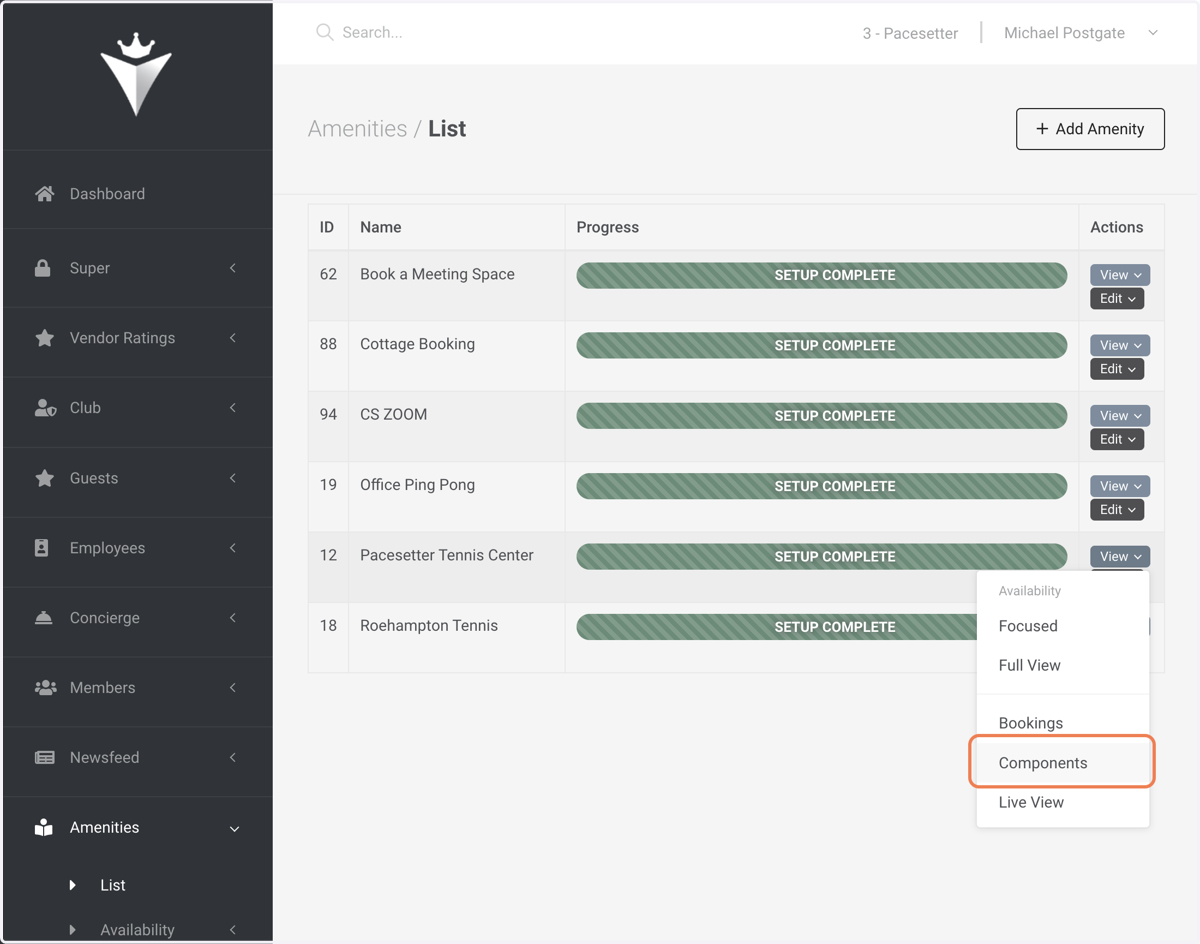
4. Click on Components
Hover over the "View" option and select "Components".
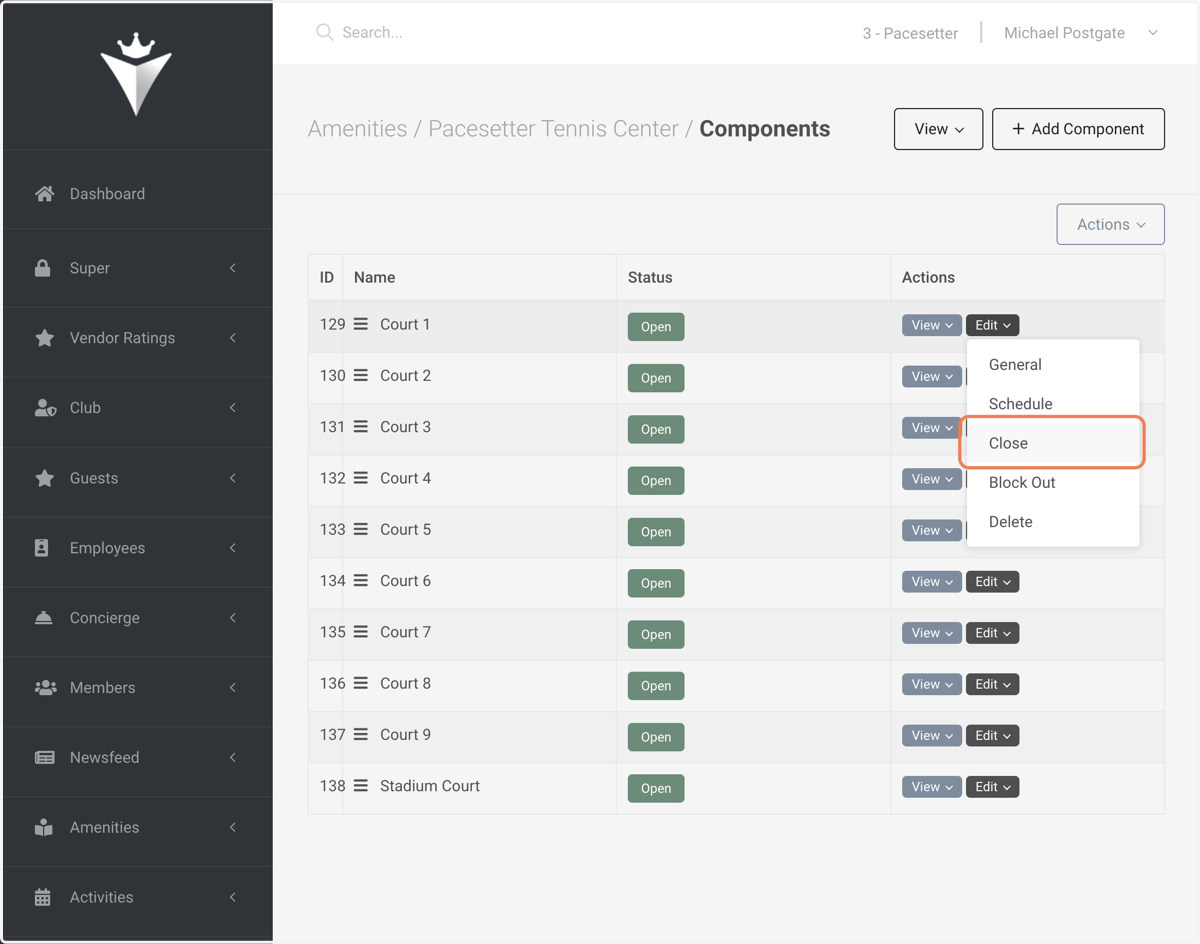
5. Click on Close
Hover over the "Edit" option for the Component you'd like to close. Closures are immediate and best used for inclement weather or unforeseen circumstances that require reservations to be closed.
6. Click on group
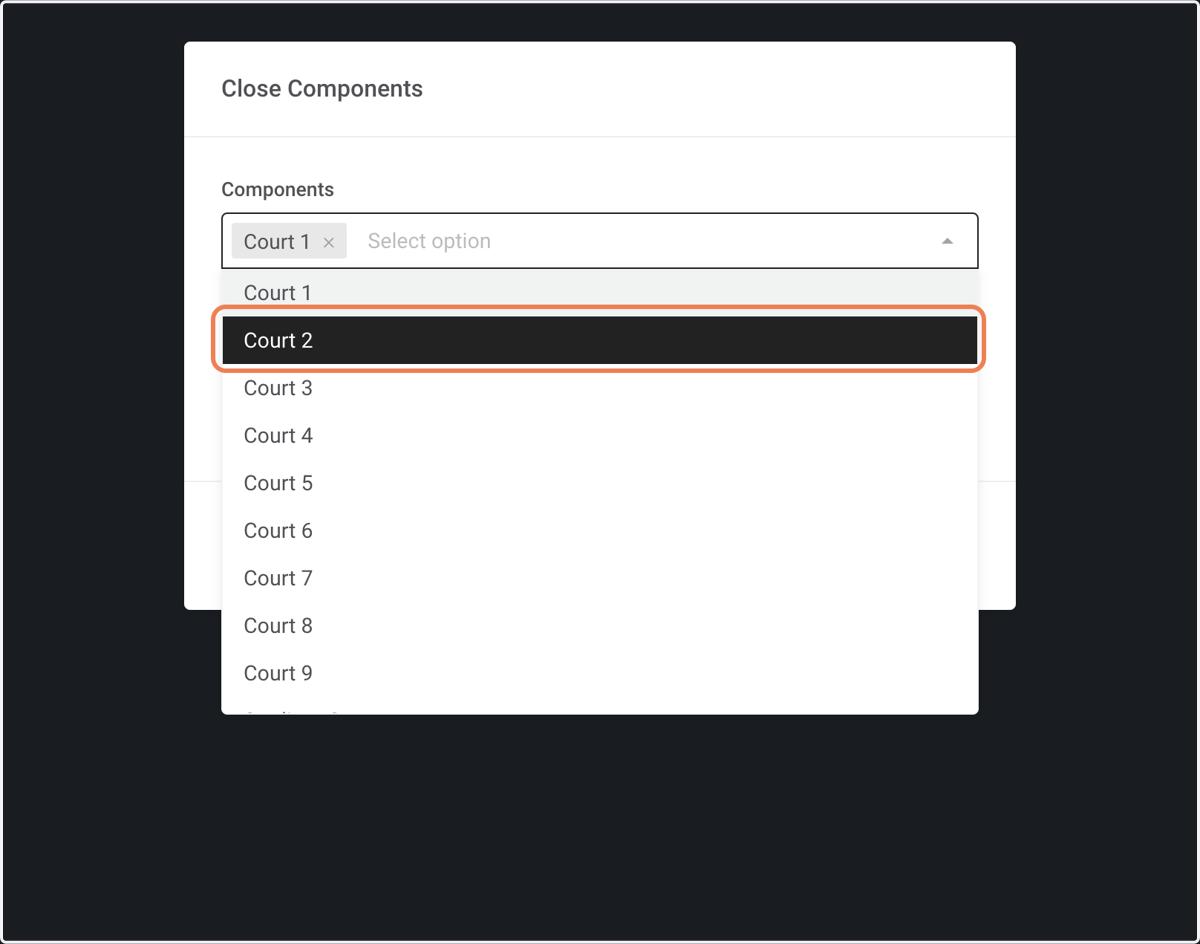
When closing one Component, you also have the option to close multiple components simultaneously.
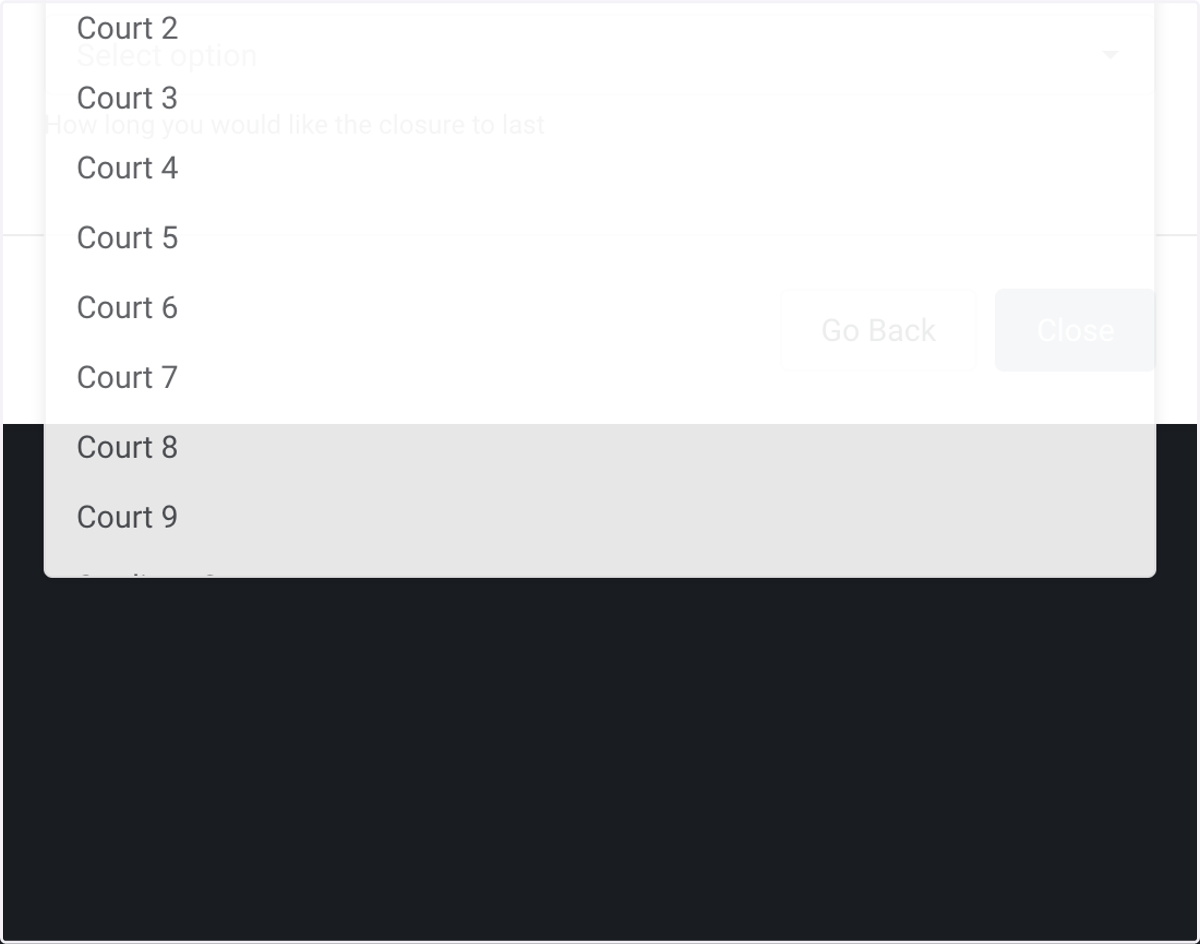
7. Click on Court 2
8. Click on group
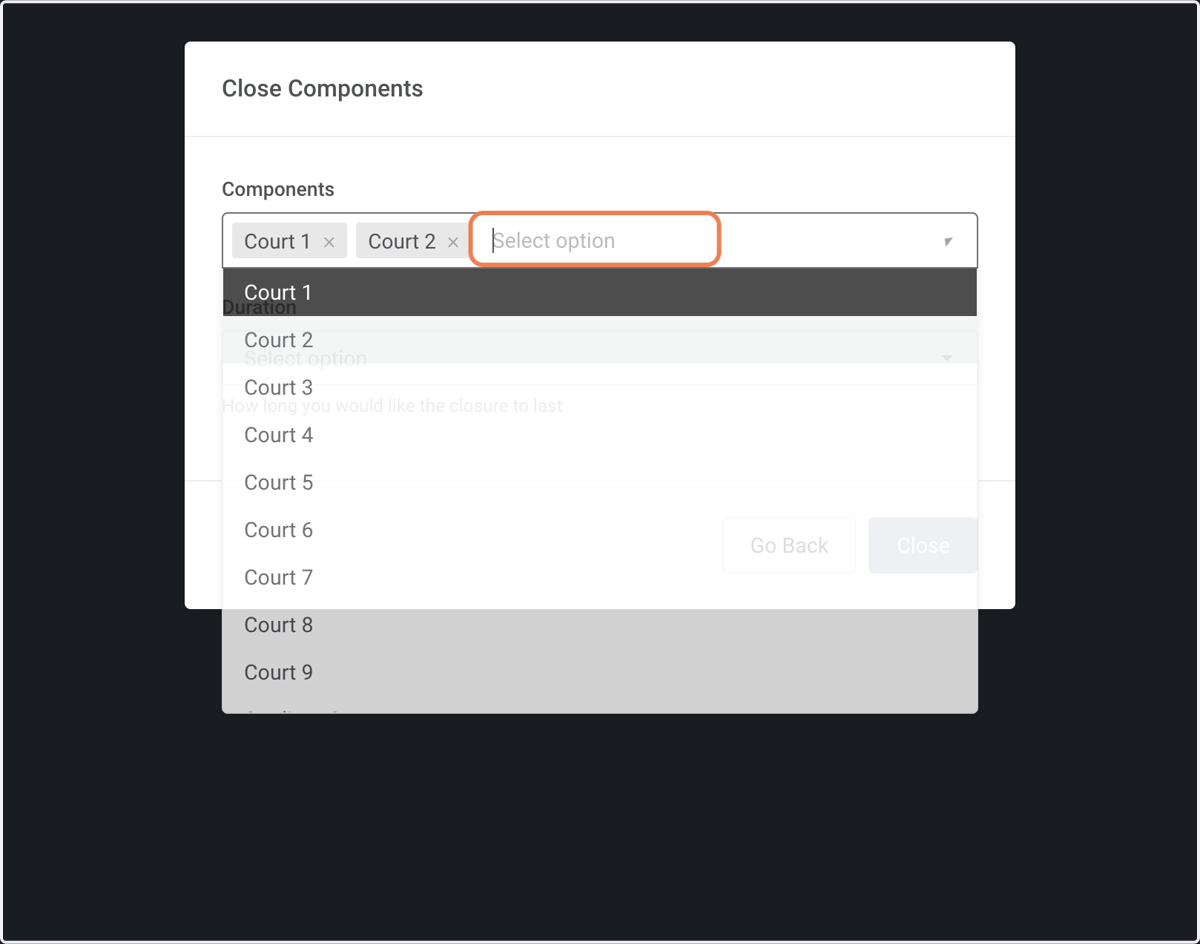
9. Click on Court 3
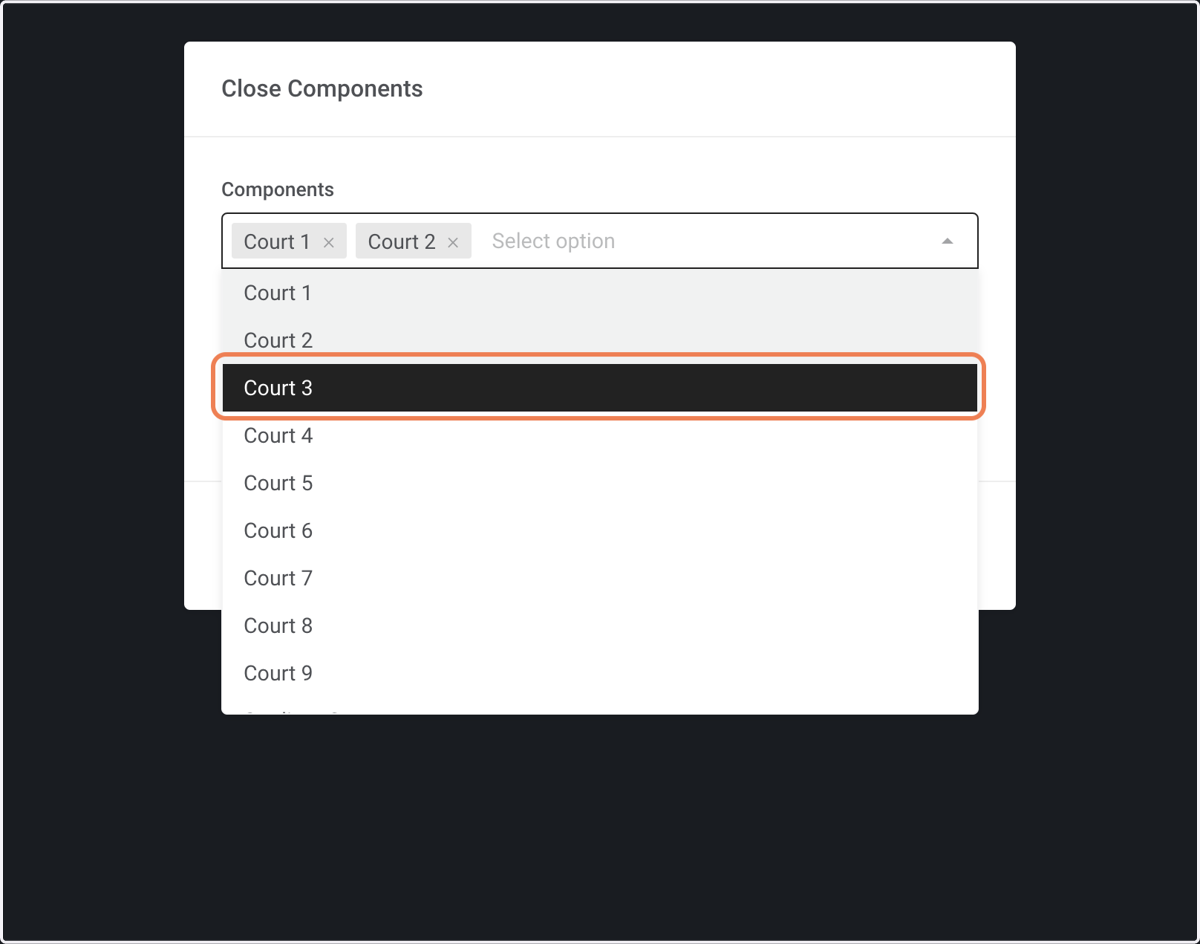
10. Click on group
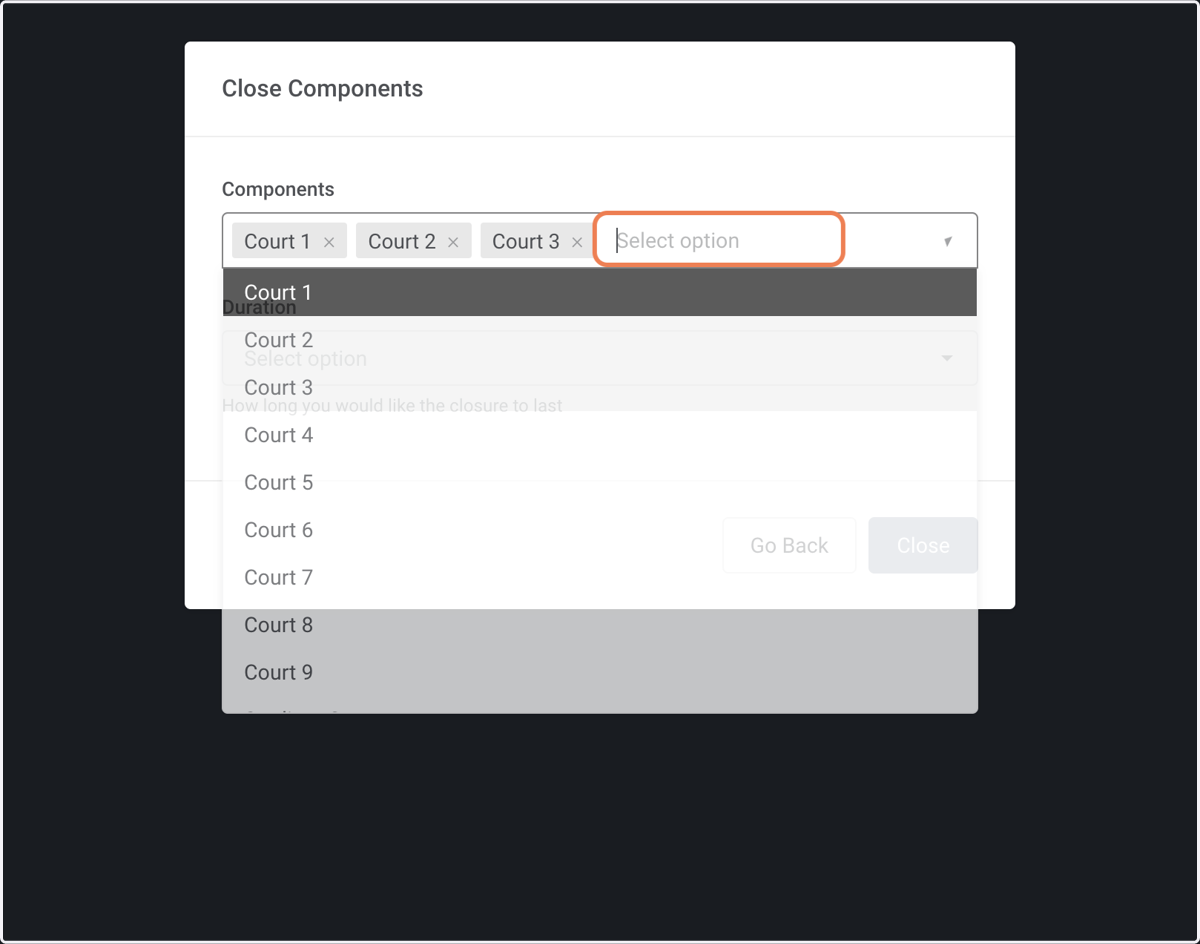
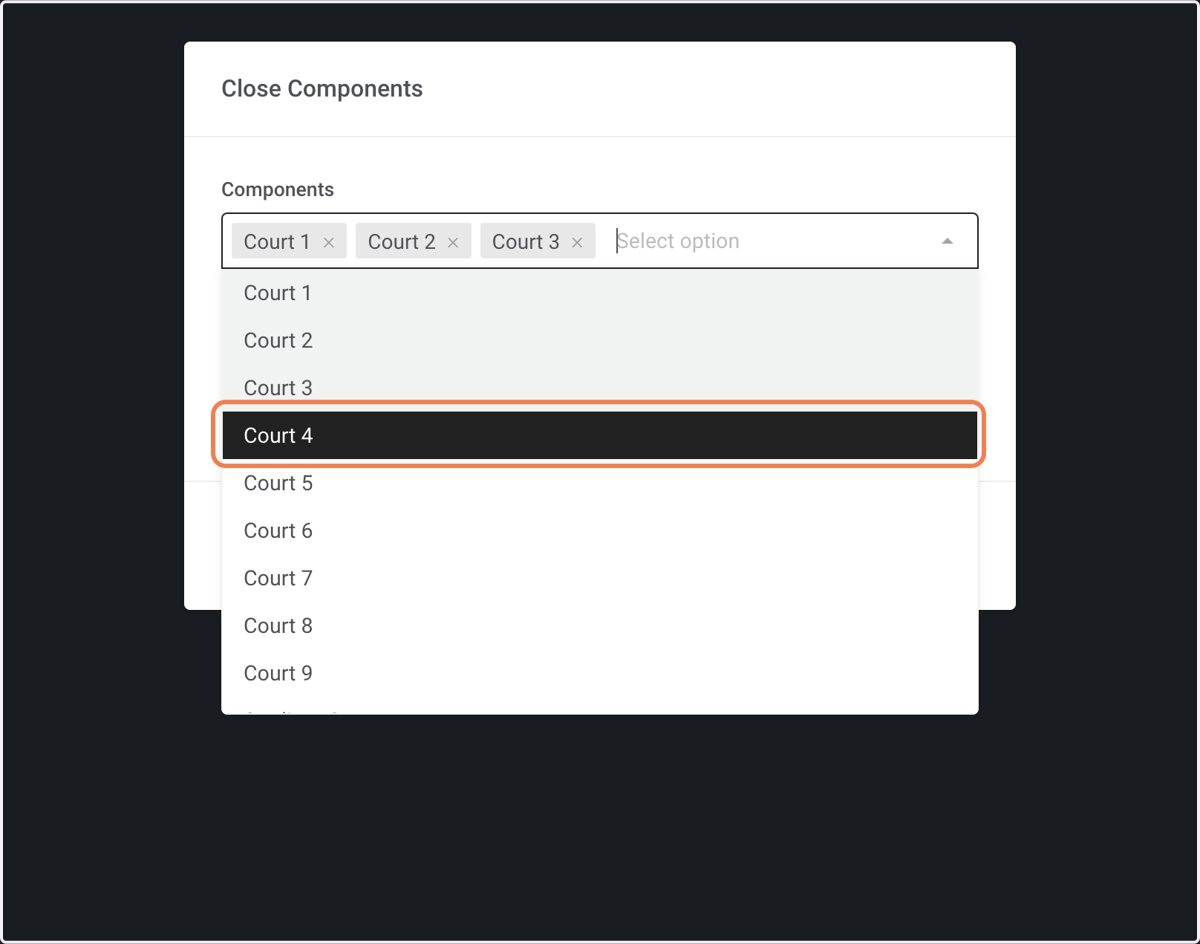
11. Click on Court 4
12. Select a duration for the closure.
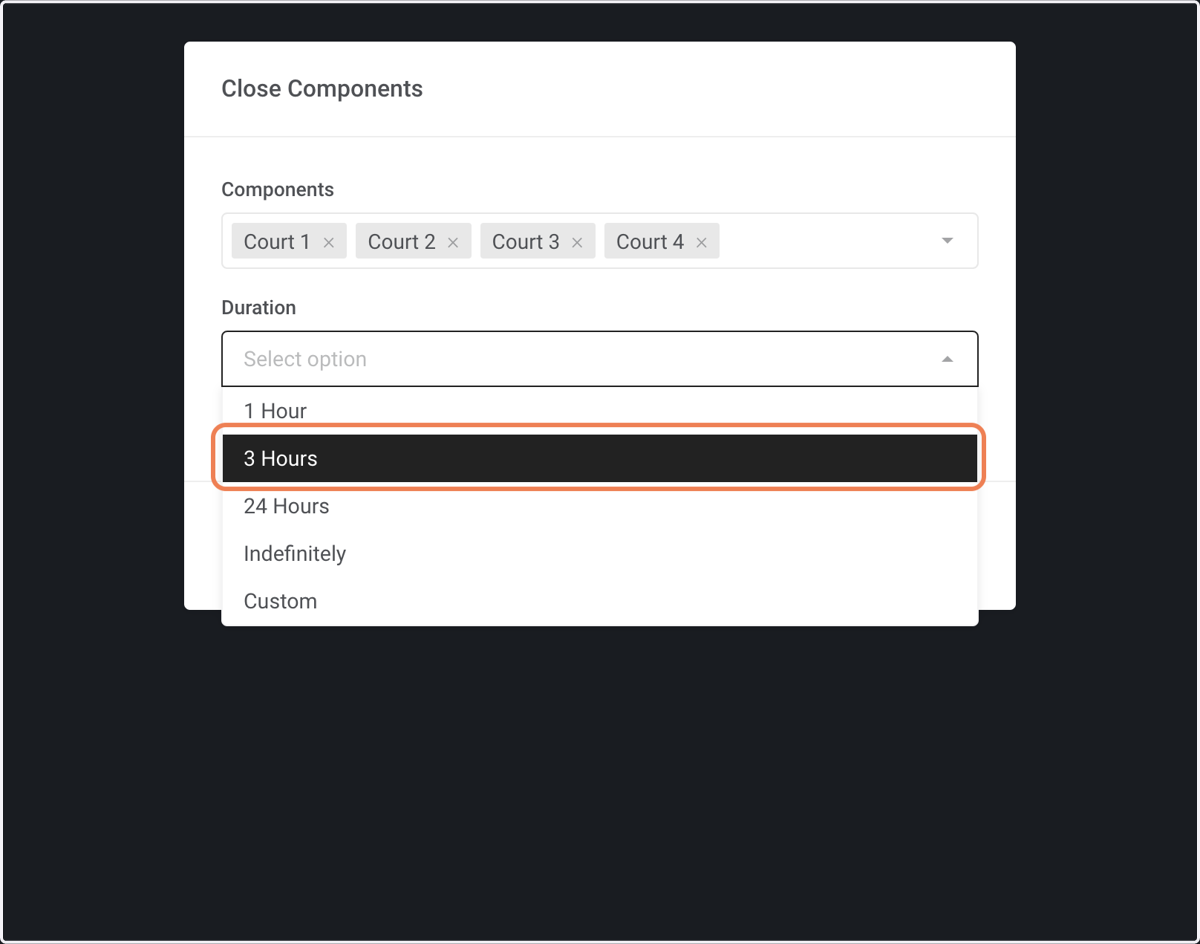
13. All reservations during the desired closure time will be canceled.
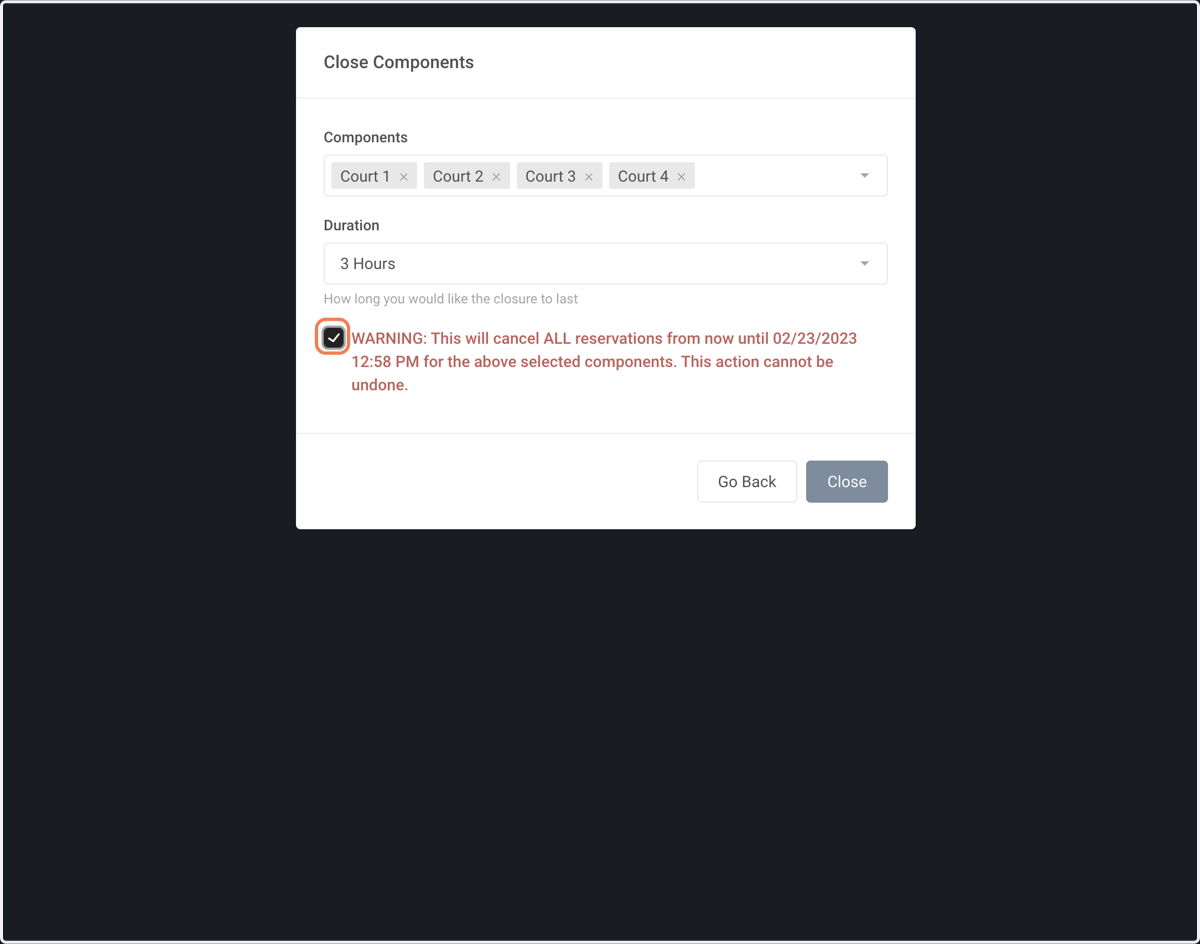
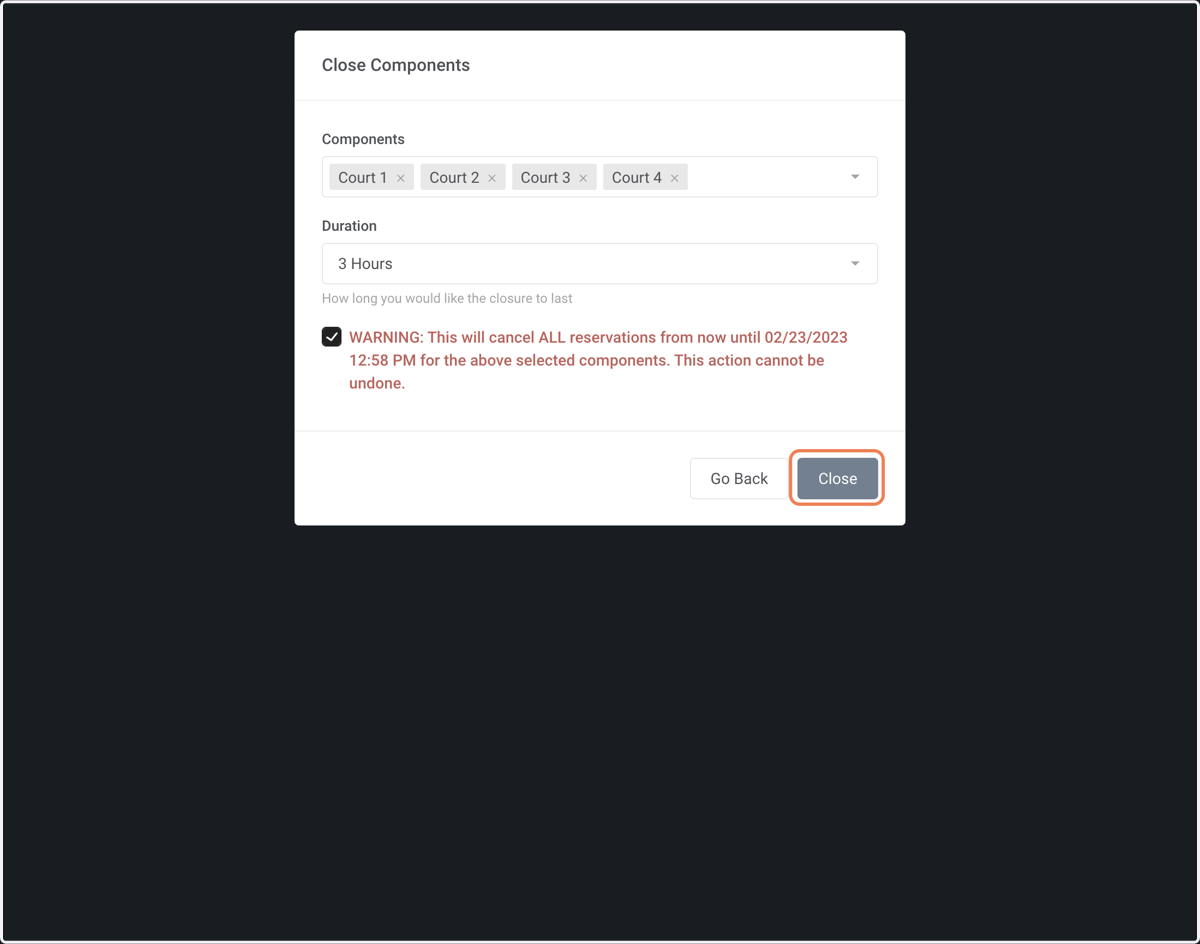
14. Click on Close to confirm.
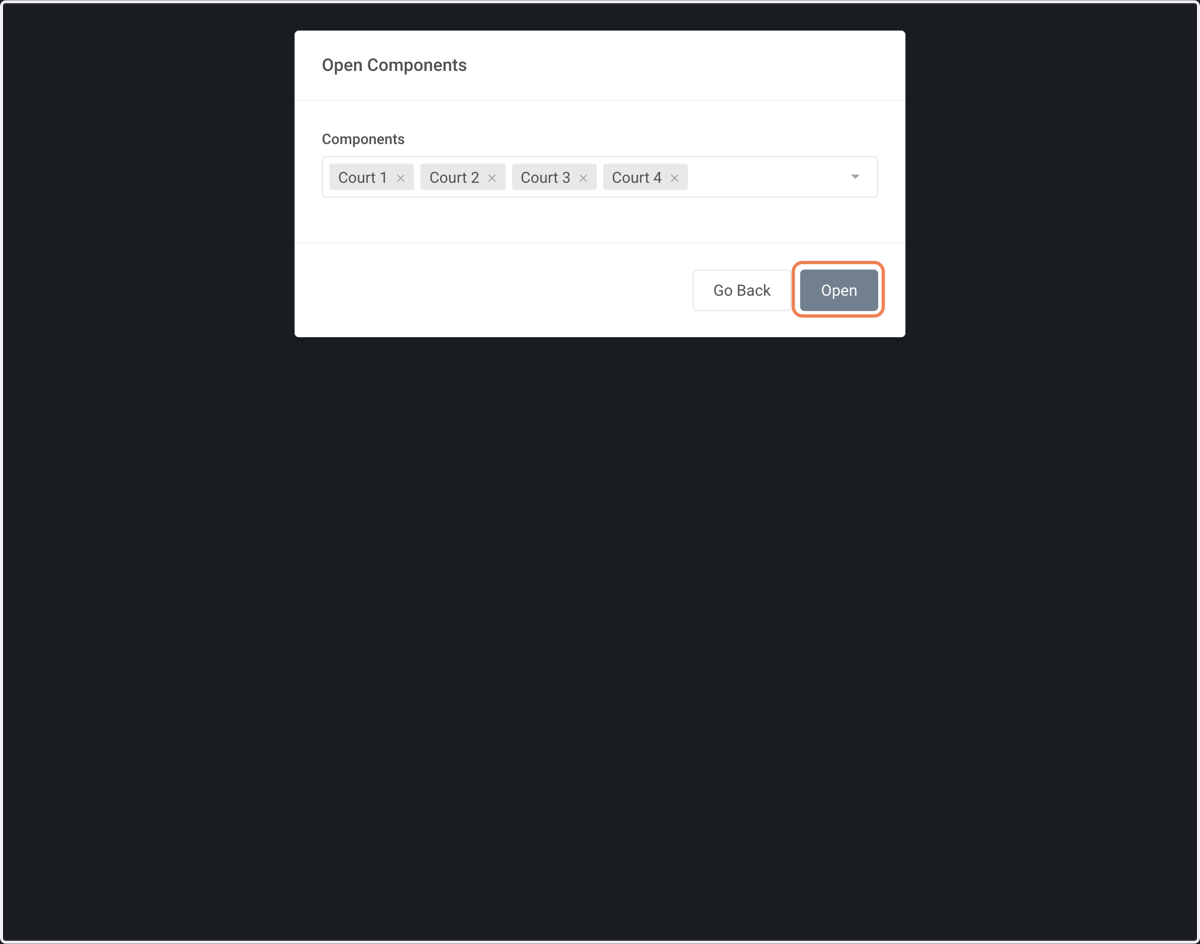
15. If the Components are available again before the end of the set closure, you can manually Open All Closed to allow reservations again.
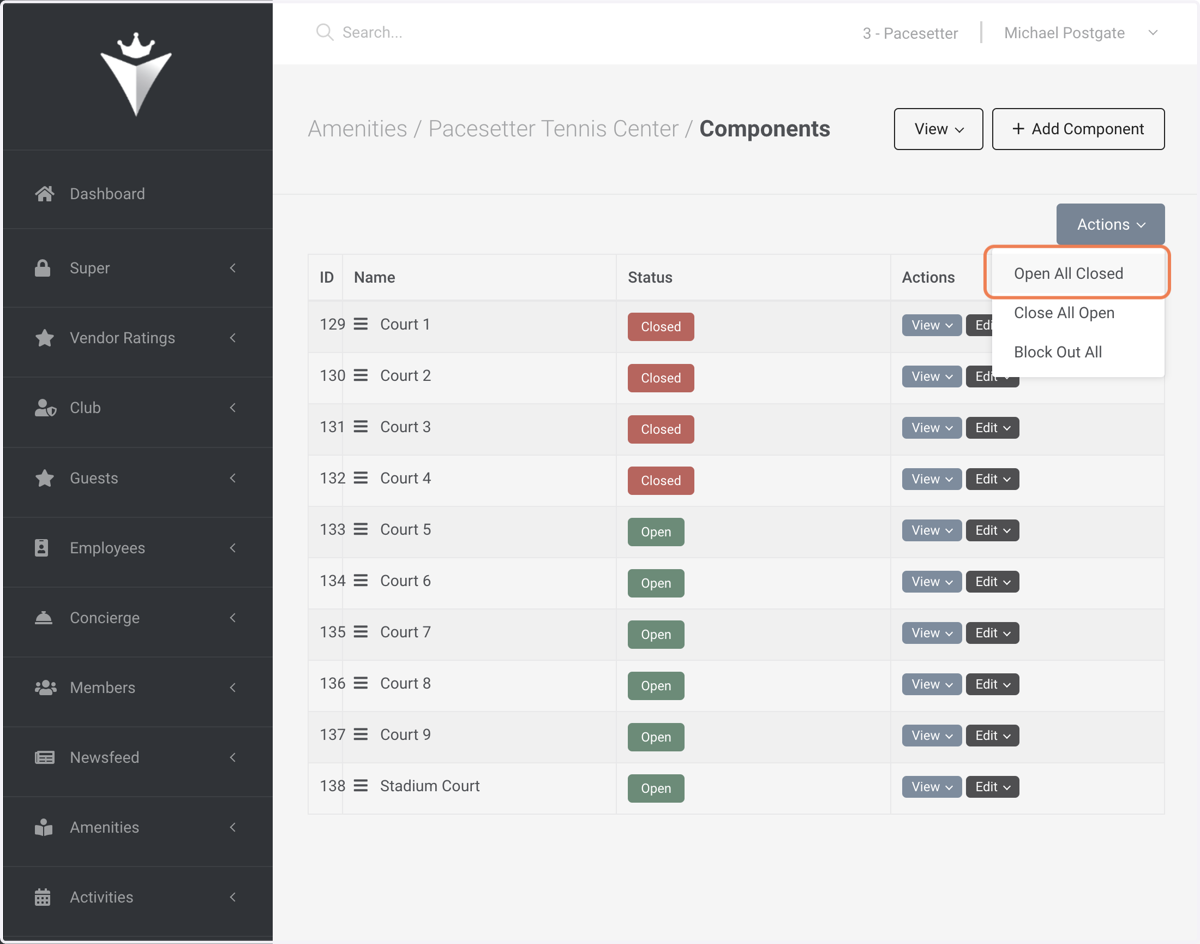
16. Click on Open to confirm.