Amenities - Blockouts
Whether it's for temporary closures, maintenance, camps, or other special circumstances, you can quickly place a hold on reservations for any amenity. The guide below will walk you through how to pause reservations, giving you full control over when users can—and cannot—book through the app.
Pacesetter Technology
Go to https://app.pacesettertechnology.com/dashboard
1. Click on Amenities
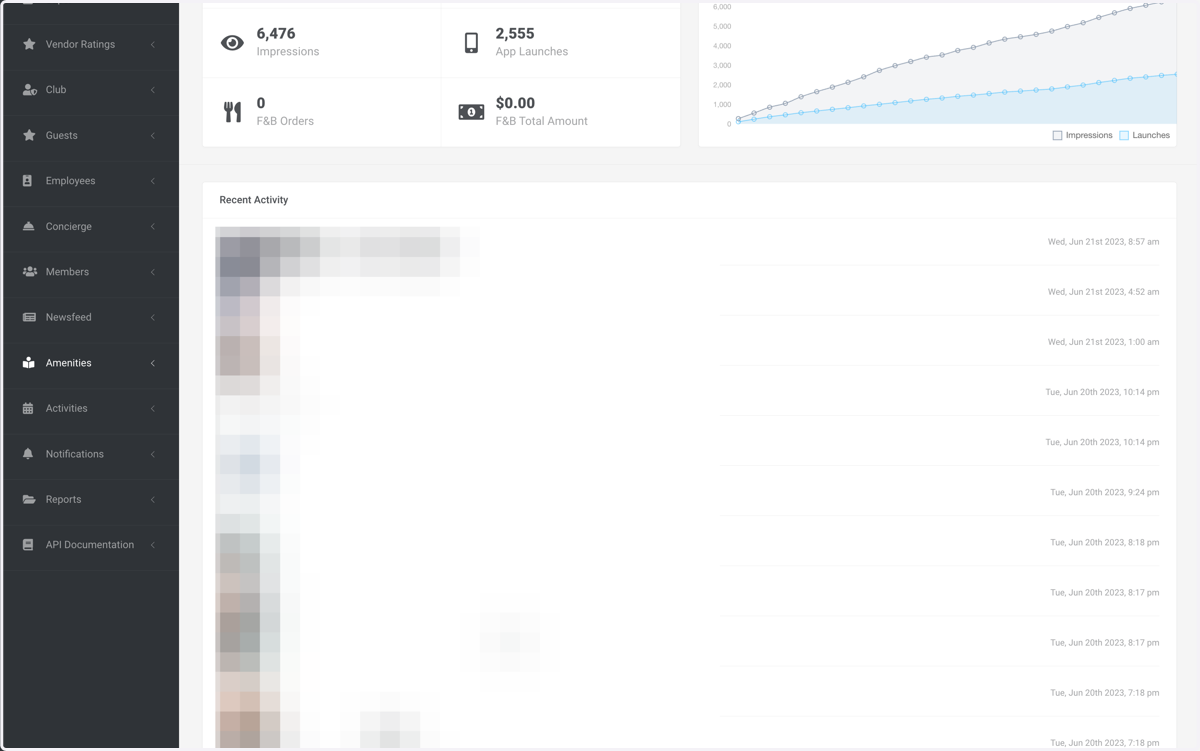
2. Click on List
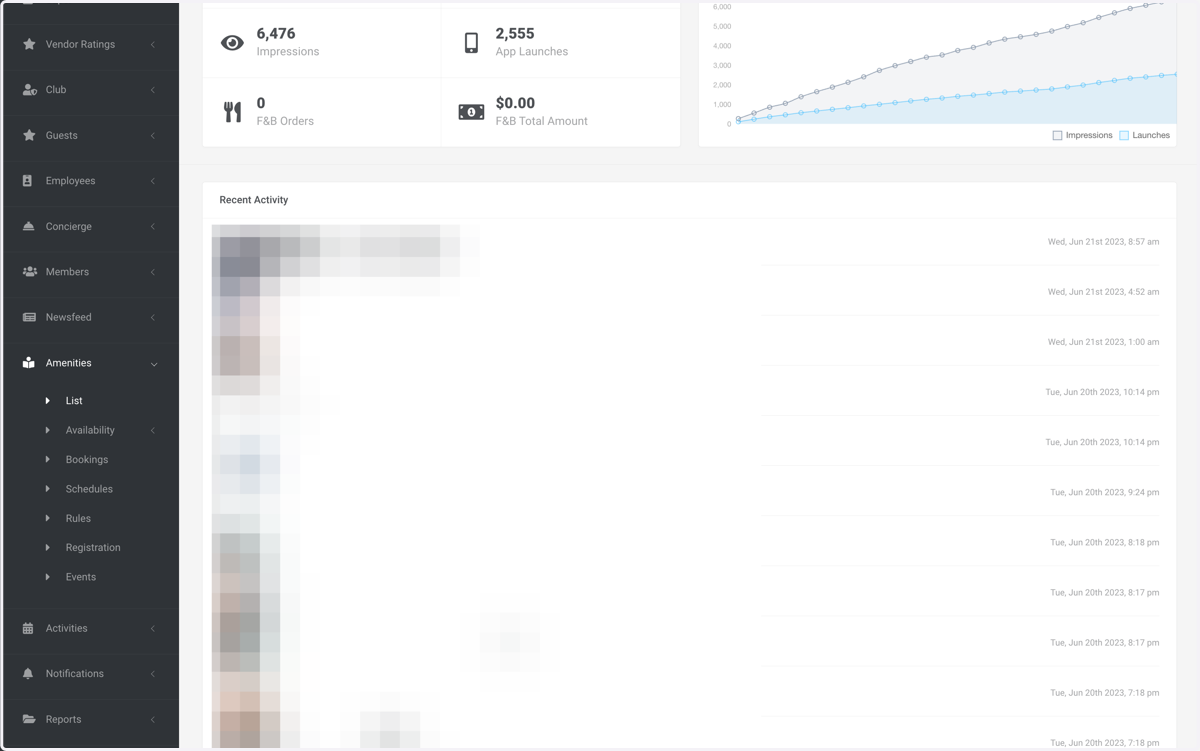
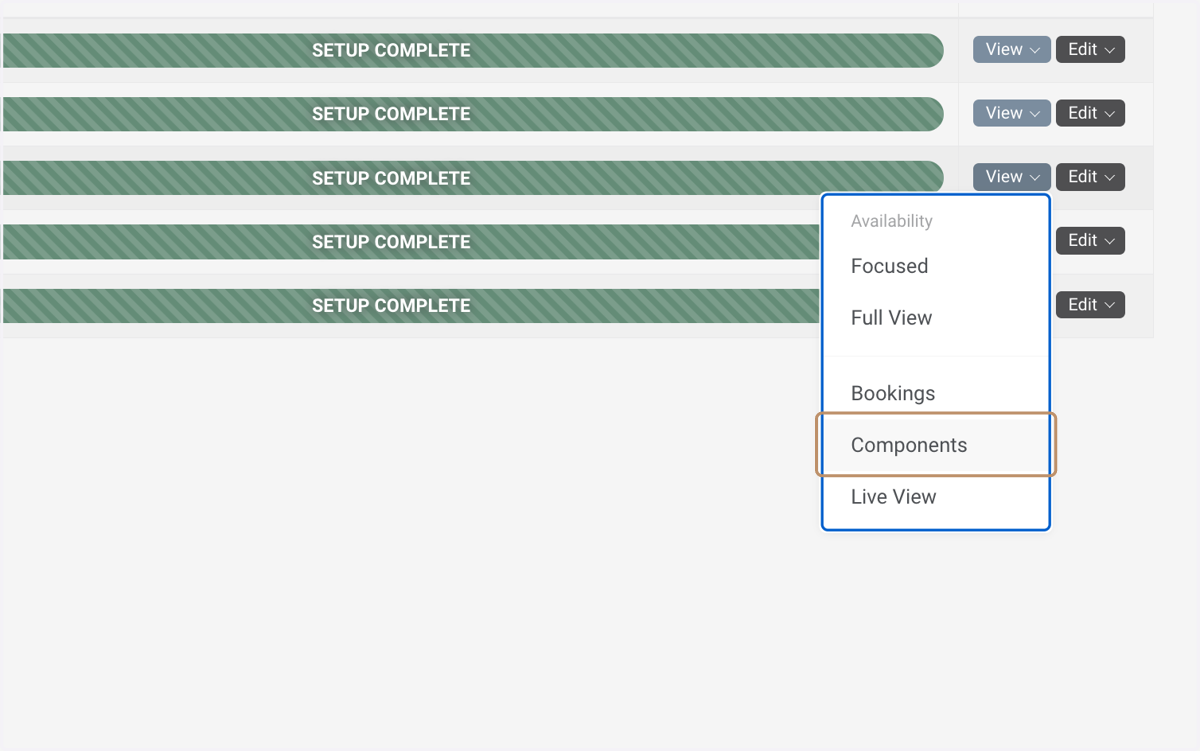
3. Click on Components
Hover over view, click components
4. Click on Block Out
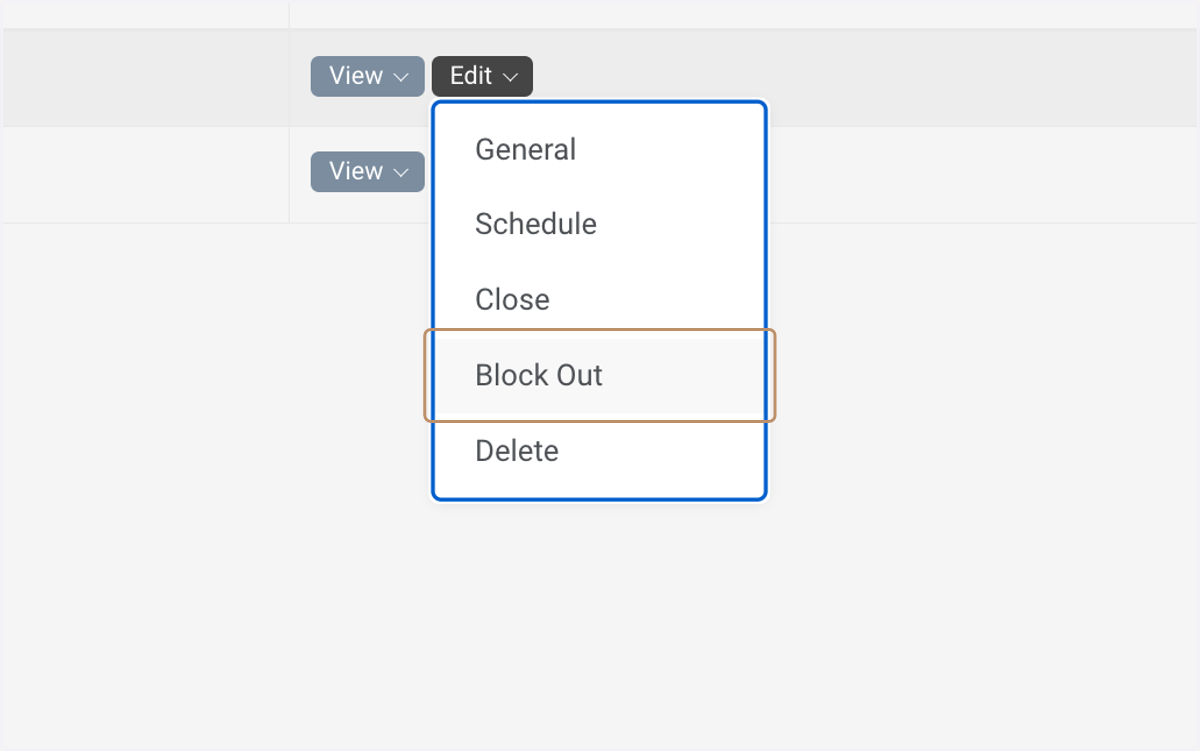
5. Untitled step
6. Name the new block out
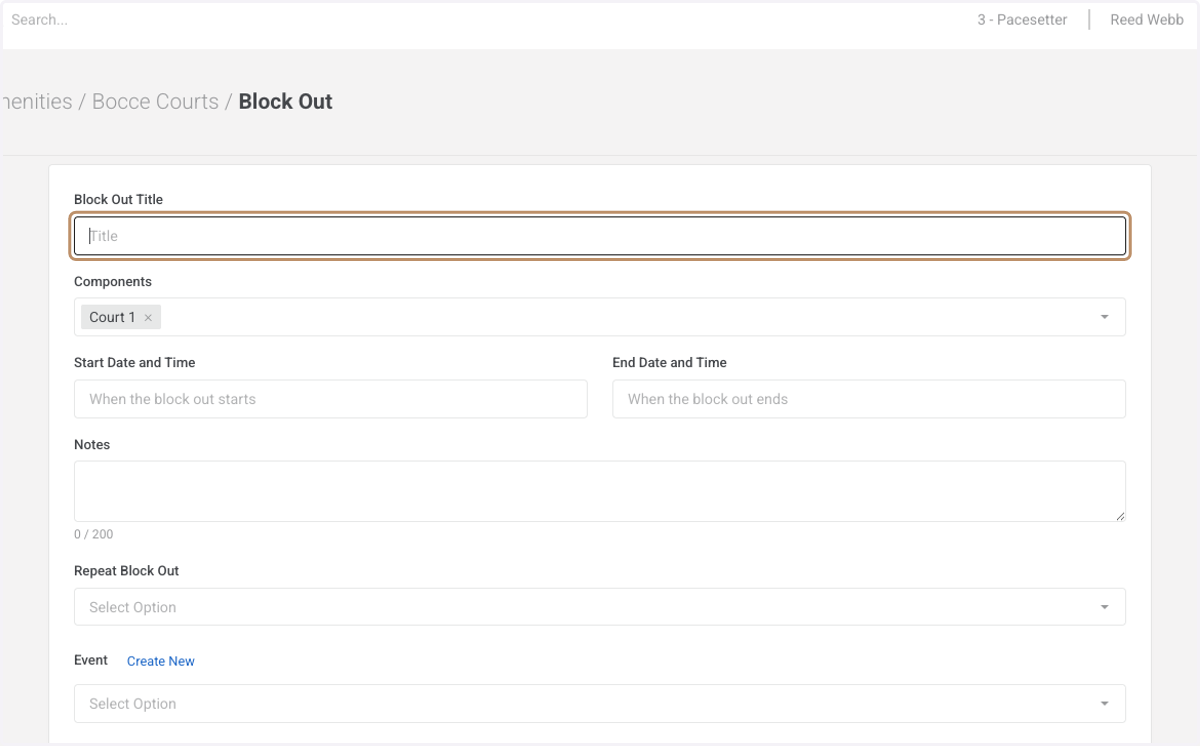
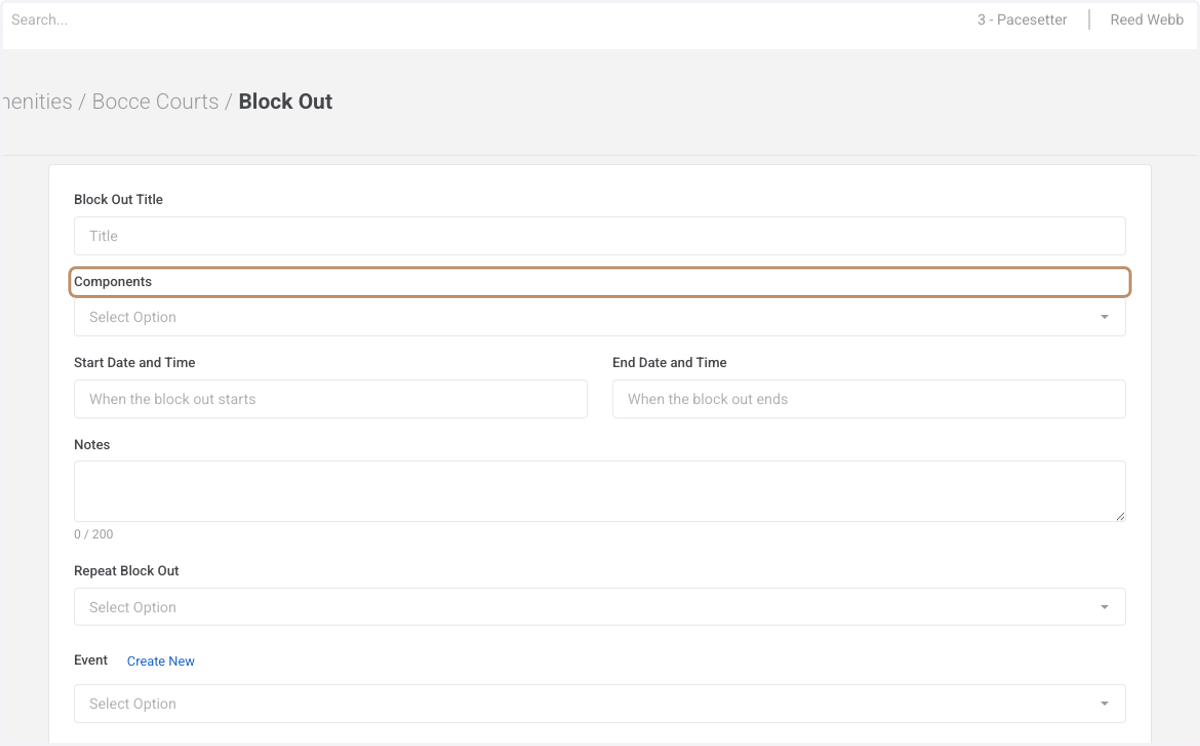
7. Select the components that the block out will affect
You can add as many components (courts, cottages, etc.) as needed here.
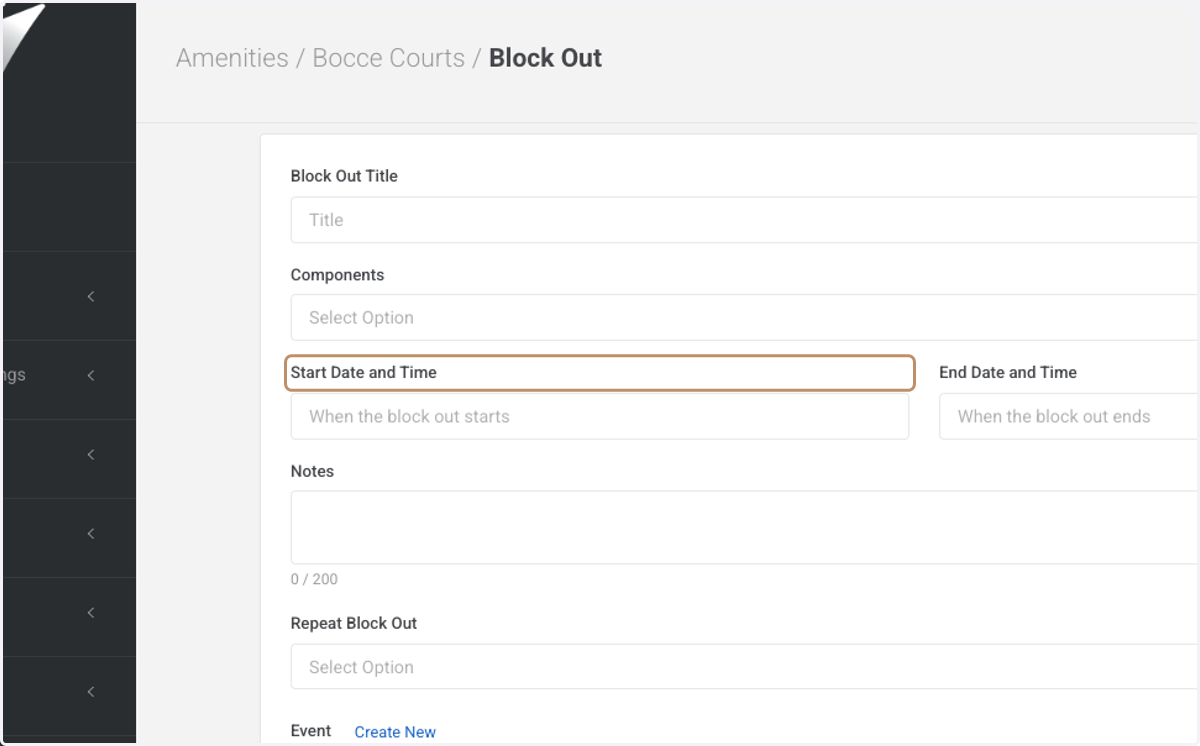
8. Select the date and time that the block out will begin.
9. Select the date and time that the block out will end.
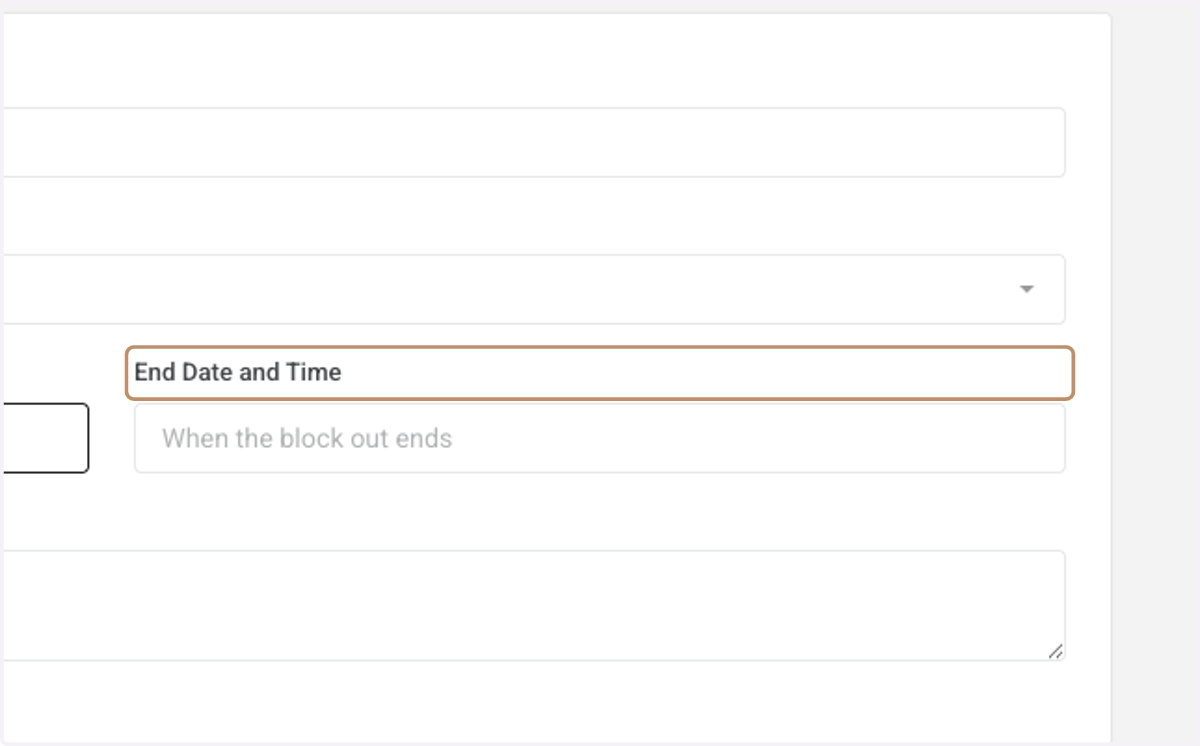
10. Add notes if necessary
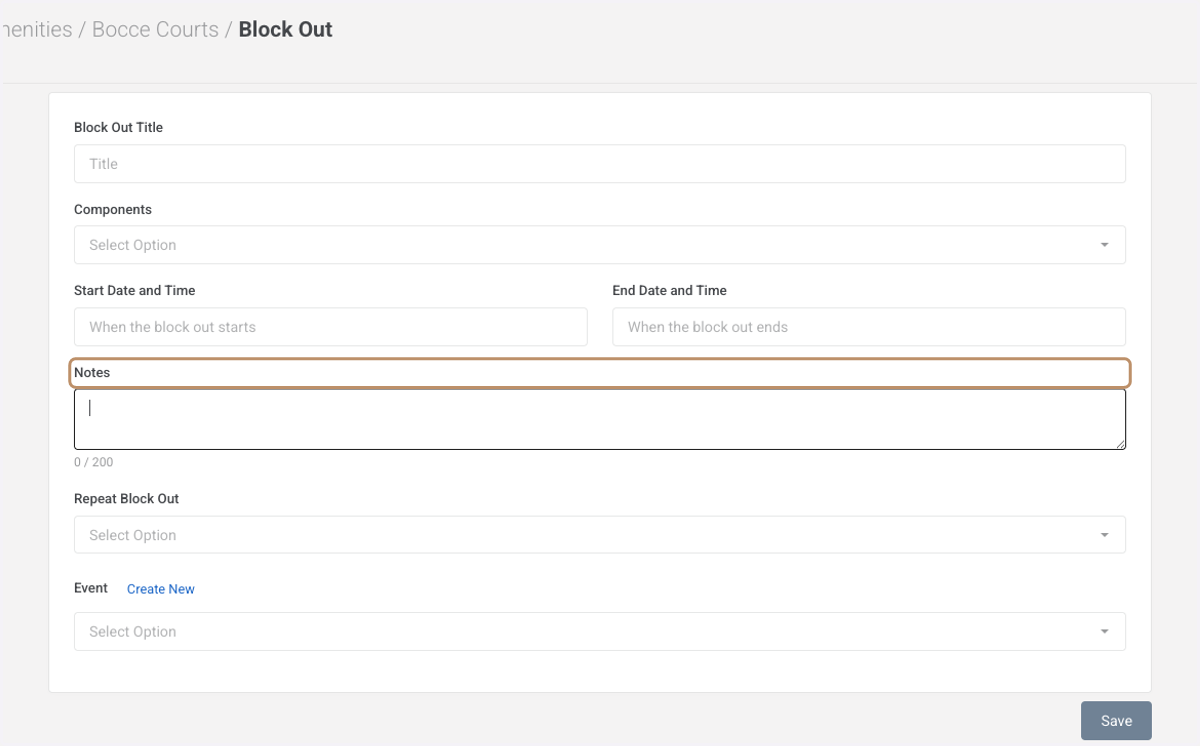
11. Select whether or not the block out will repeat.
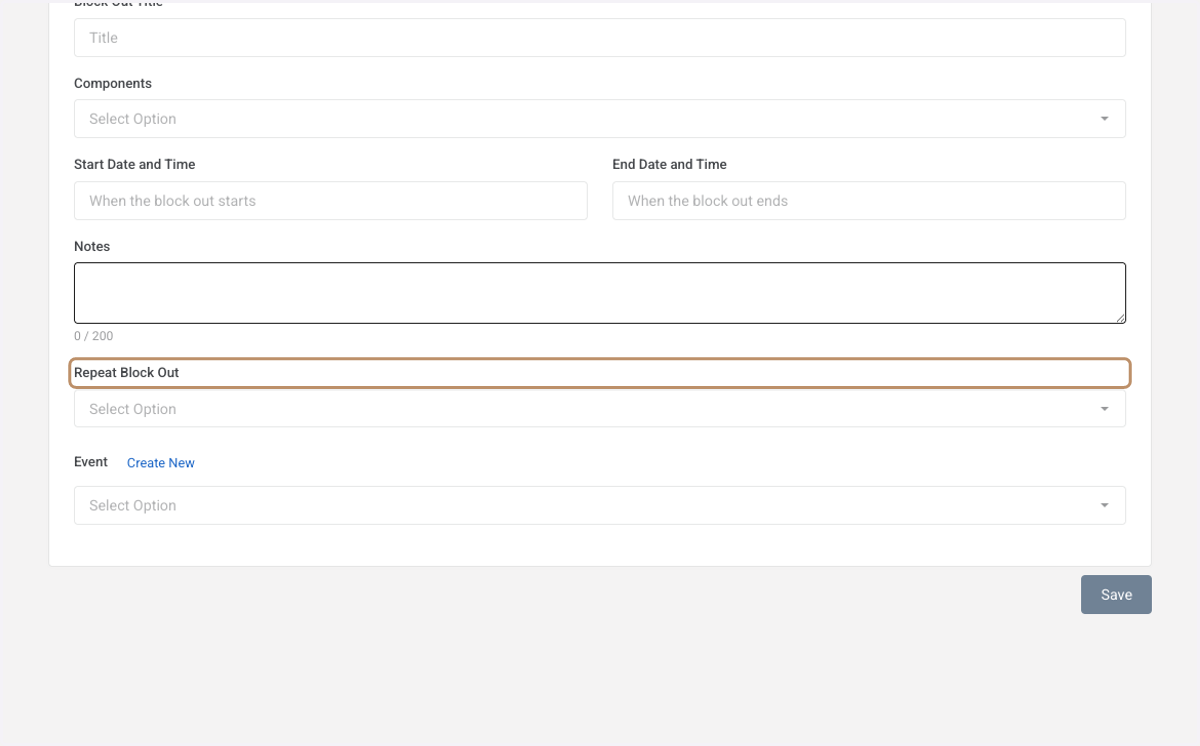
12. The event field is optional, it can be used to communicate to members about what is taking place during that time.
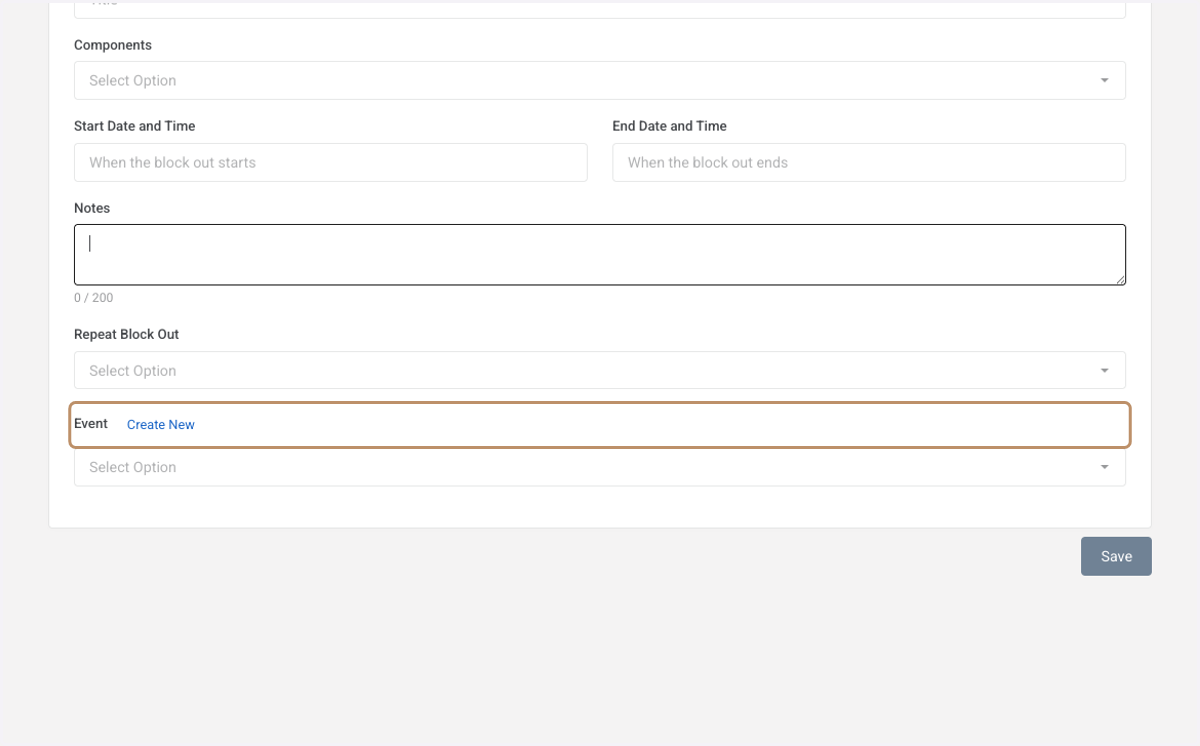
13. Click on Save
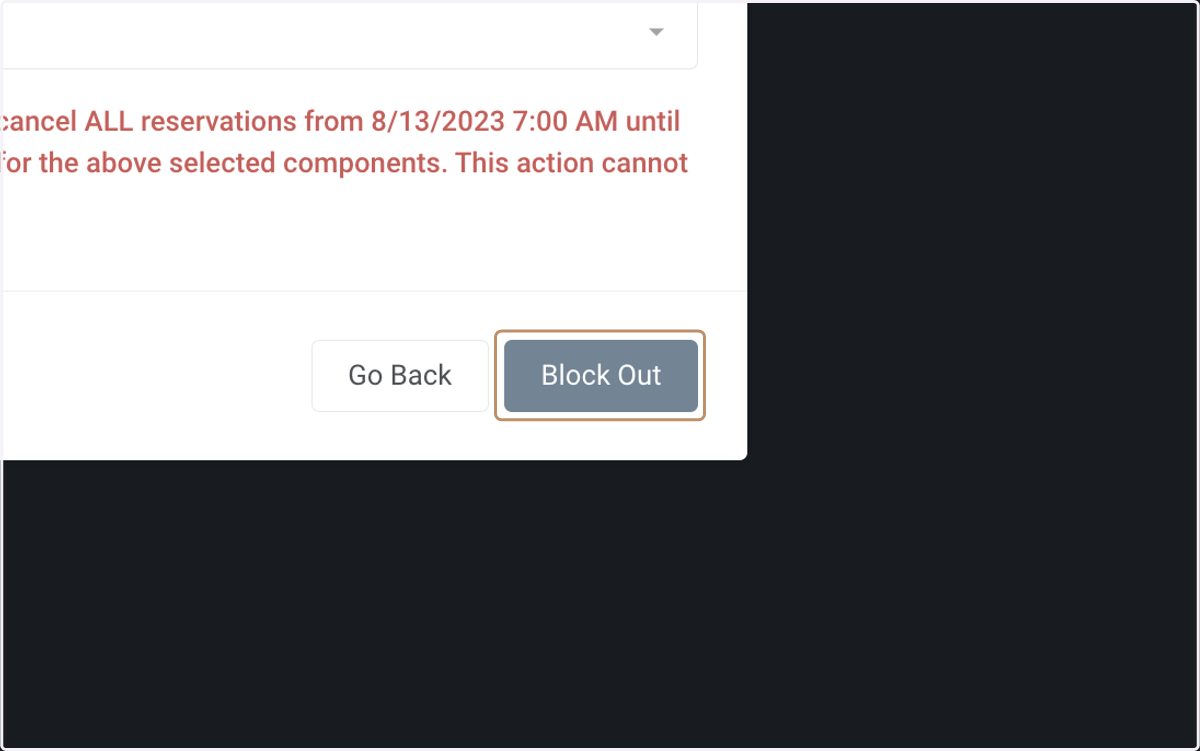
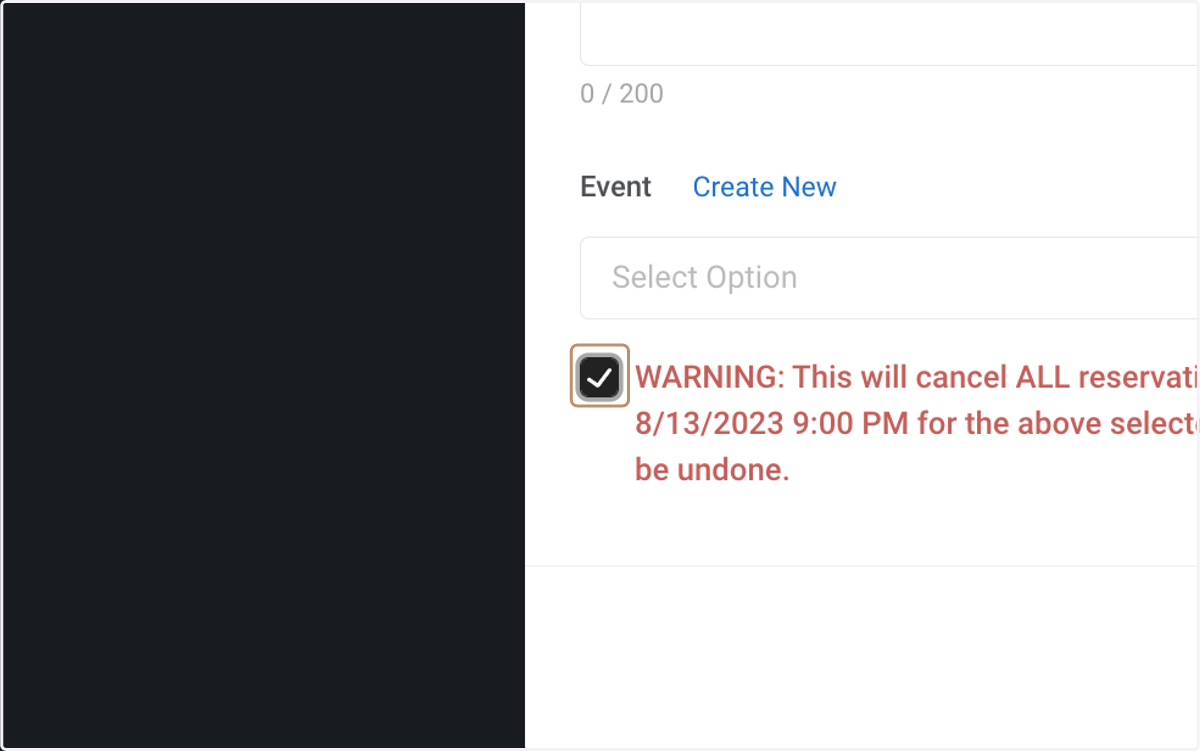
14. If you are making a block out in a component with existing reservations, you'll be prompted to acknowledge that any reservations happening within the time frame of the block out will be deleted.
15. Click on Block Out