Administering DIBELS progress monitoring
This tutorial will show you how to access the student materials and educator scoring portal.
*NOTE: You will need 2 devices to administer this assessment. It is recommended that the teacher use a touchscreen device for ease of scoring.
Access Student Materials
Login with your Google credentials to a separate device to access the materials through the link in your Google Classroom.
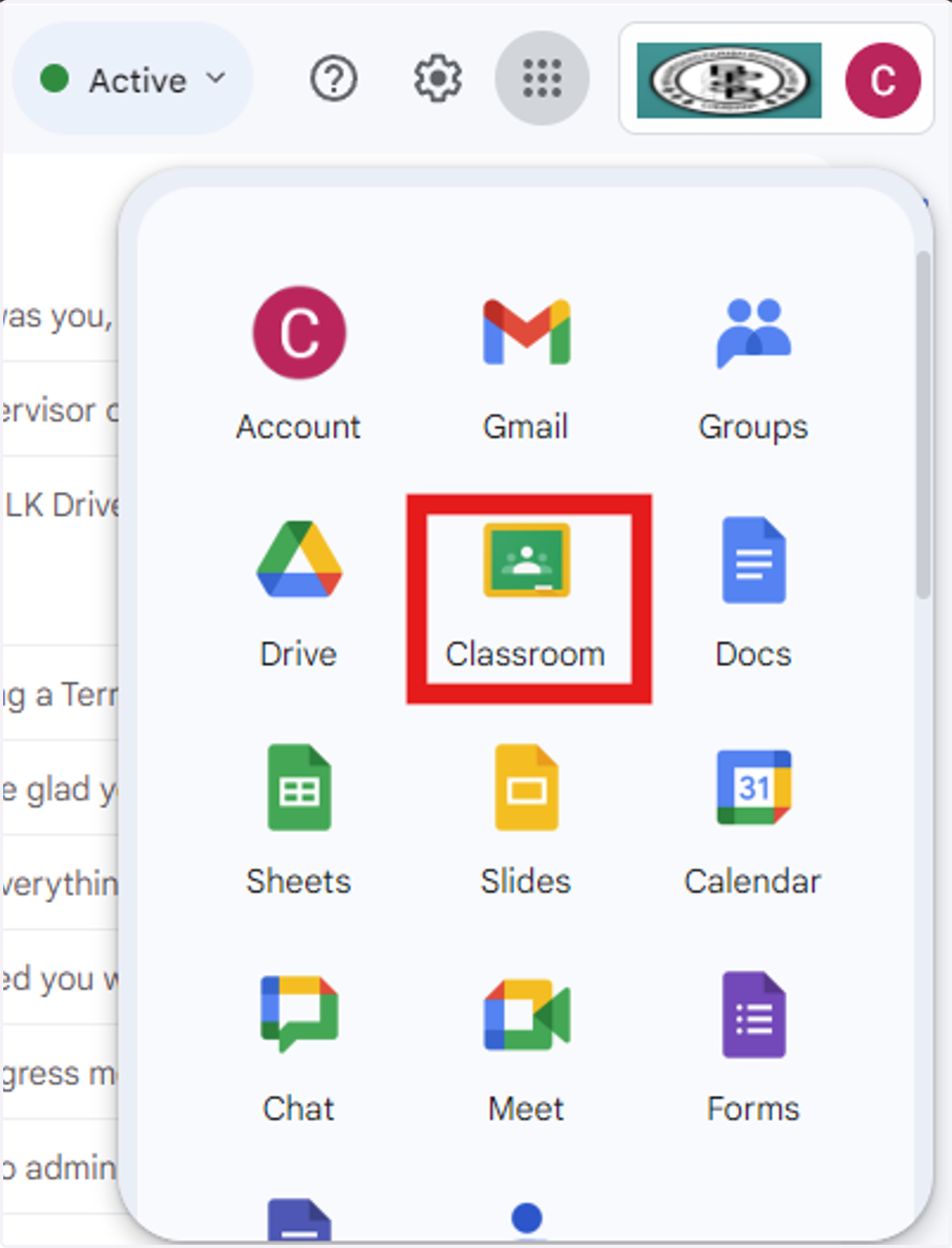
1. Open the Chrome browser and navigate to a Google application (Gmail, Drive, etc.) Click on the waffle in the top corner and select "Classroom."
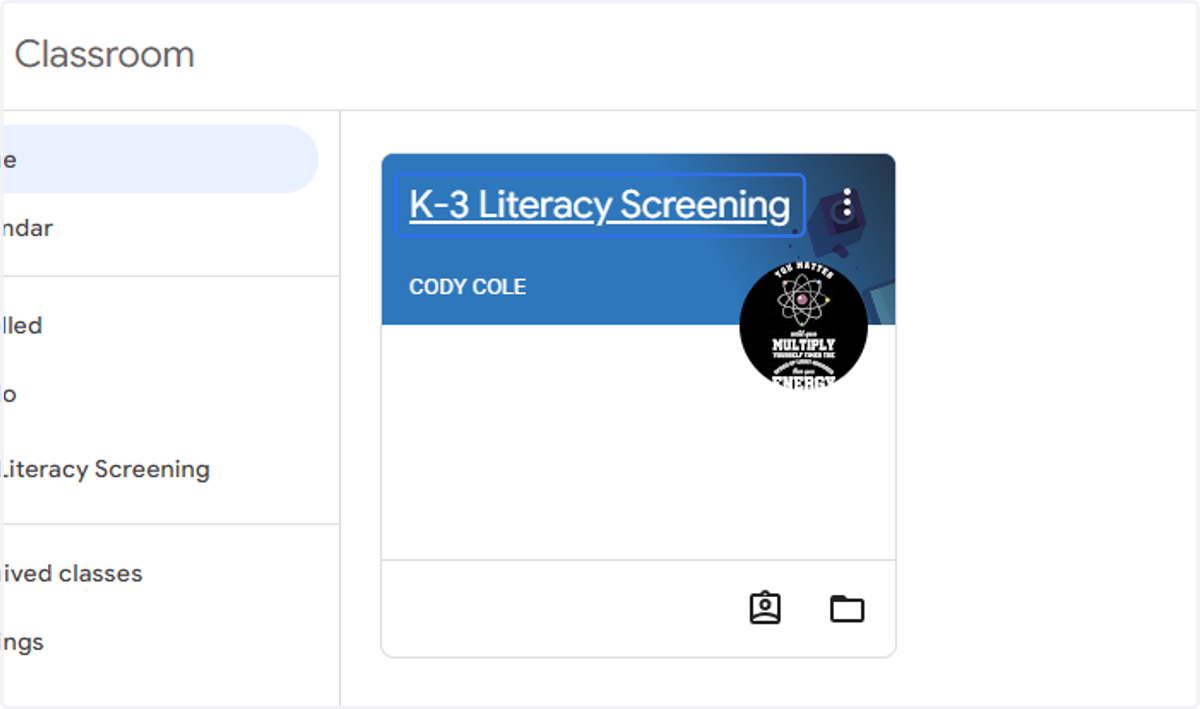
2. Select the K-3 Literacy Screening class.
If this is the first time you are logging into this classroom, you may need to choose "Accept" before you can move forward.
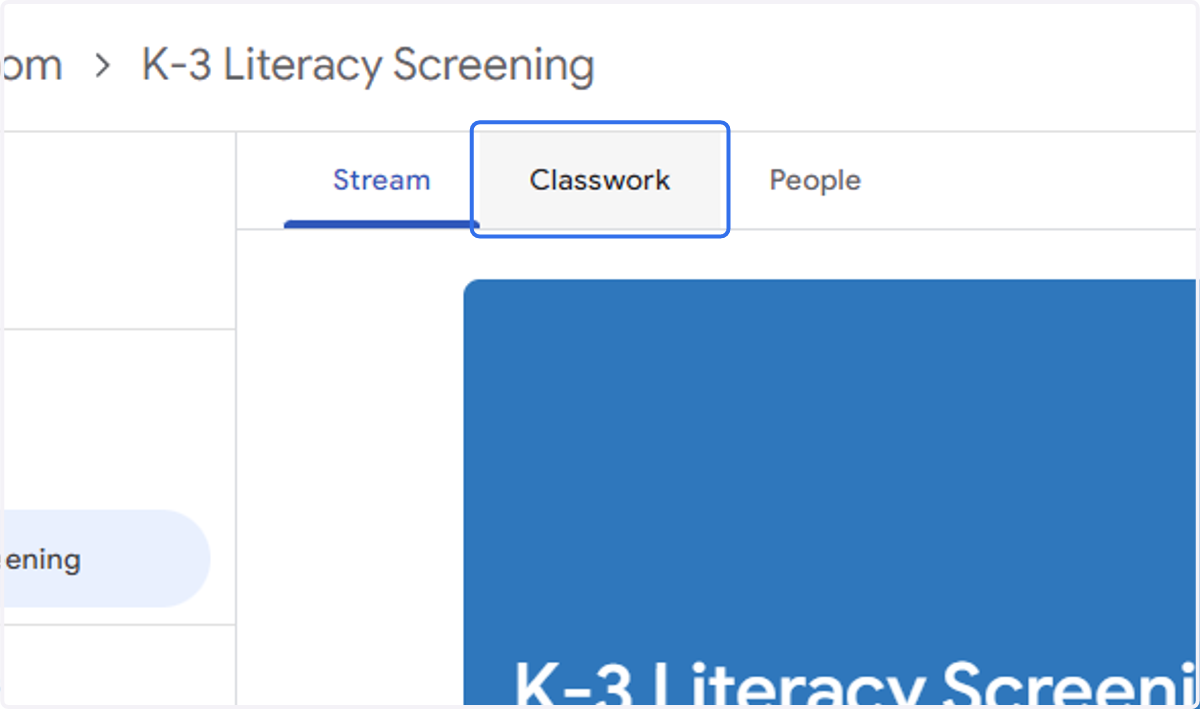
3. Click on Classwork
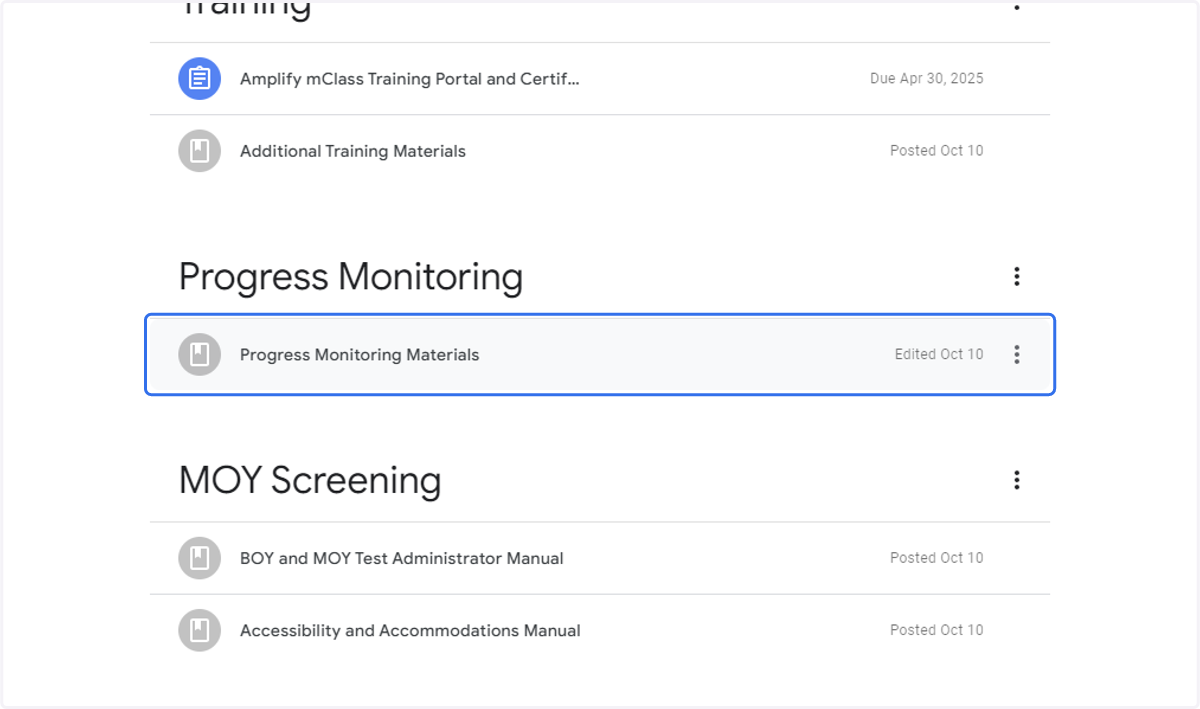
4. Under the Progress Monitoring topic, select "Progress Monitoring Materials."
This will provide you with all the information you need to progress monitor your students.
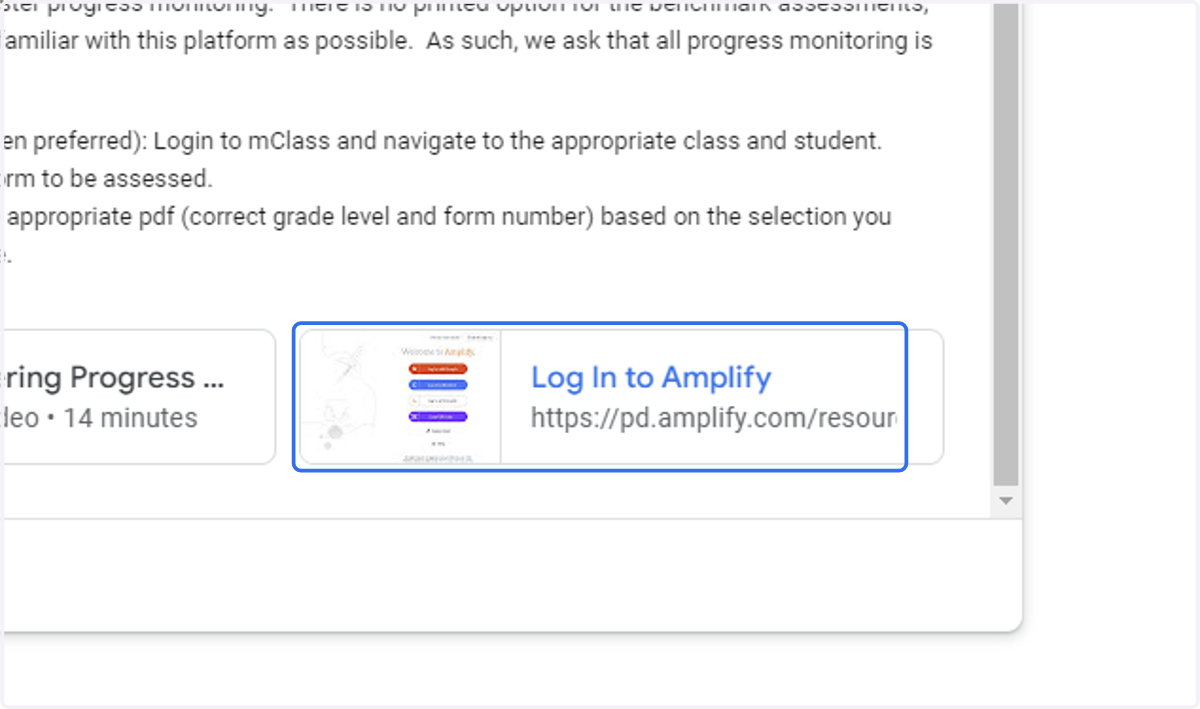
5. Scroll to the bottom and click on "Log In to Amplify…" You MAY be prompted to login to Amplify (see step 11).
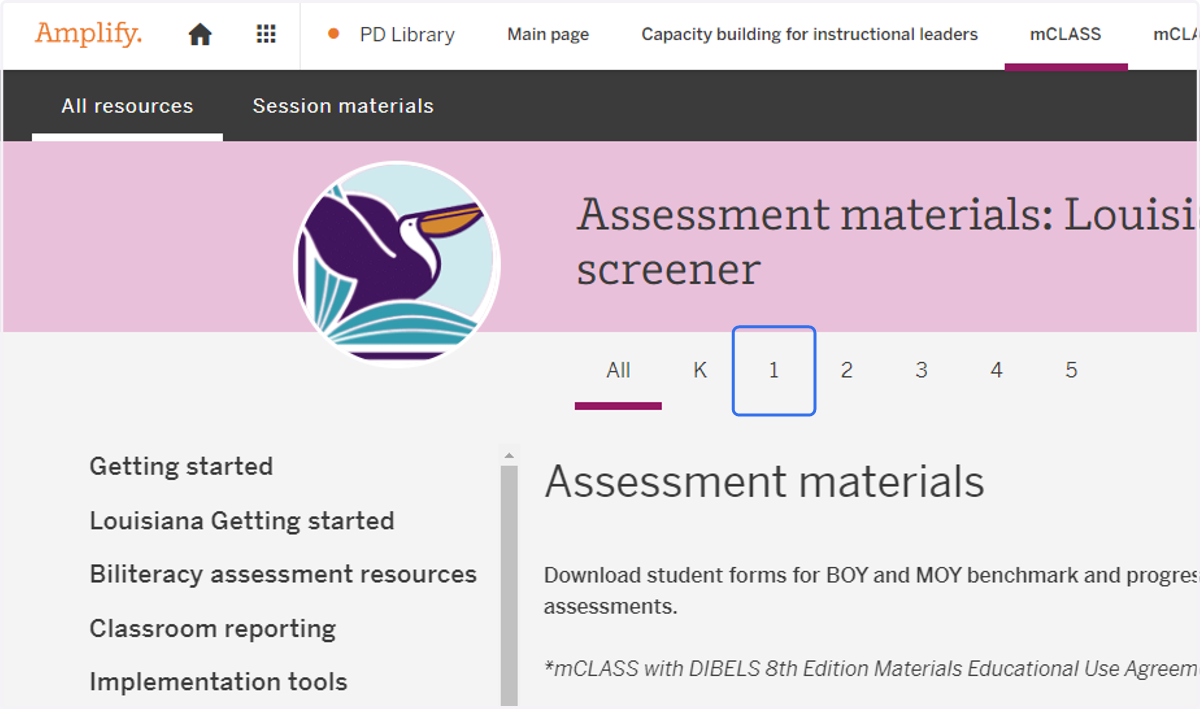
6. Select the grade level you are progress monitoring.
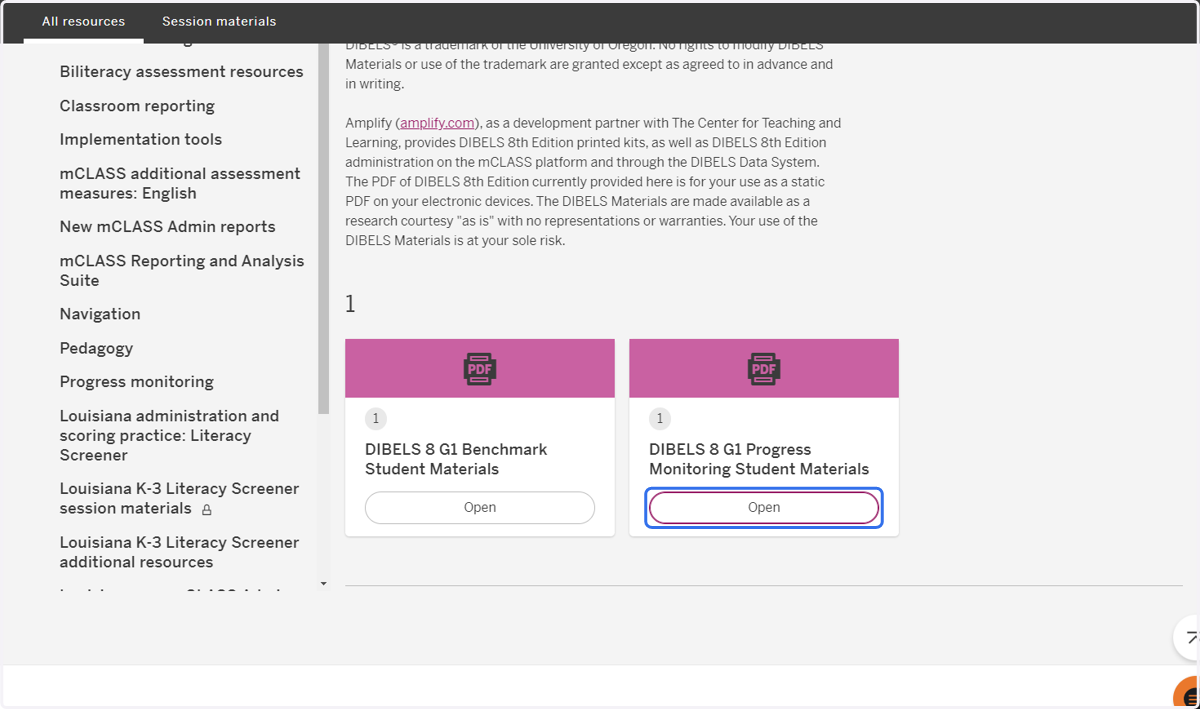
7. Locate the DIBELS 8 G# Progress Monitoring Student Materials and select the "Open" button.
*NOTE: You should only access the "Benchmark Student Materials" if you are administering a benchmark assessment (BOY, MOY, or EOY).
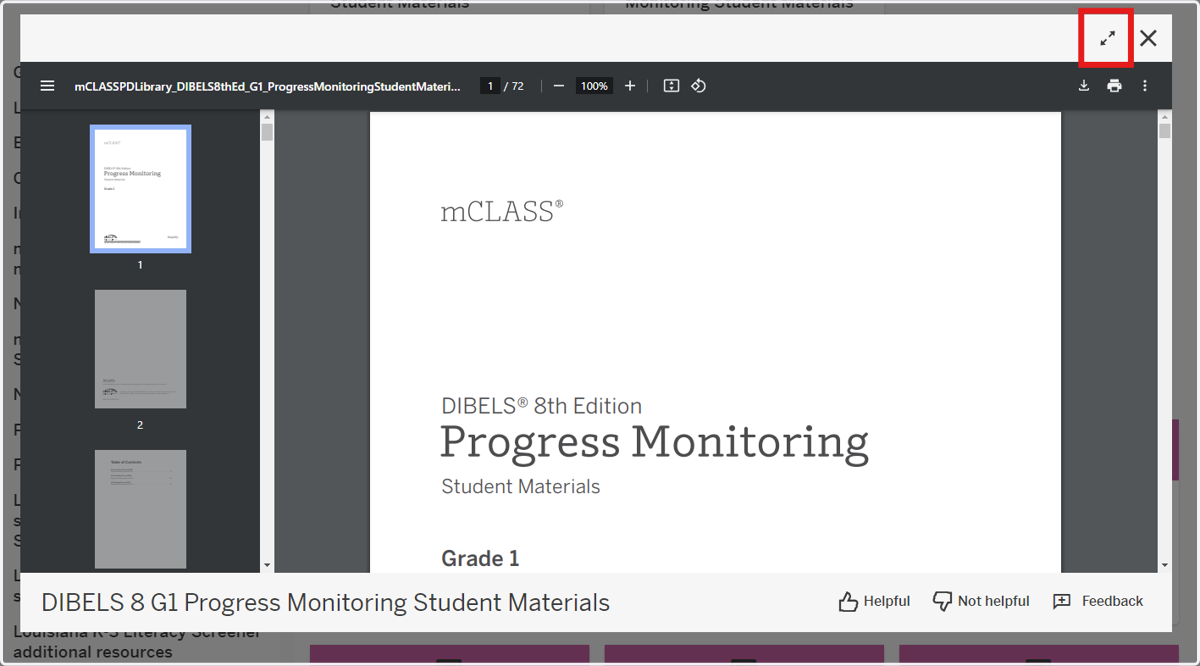
8. This will open a pop-up window. If you wish to make it larger, select the full screen option shown below.
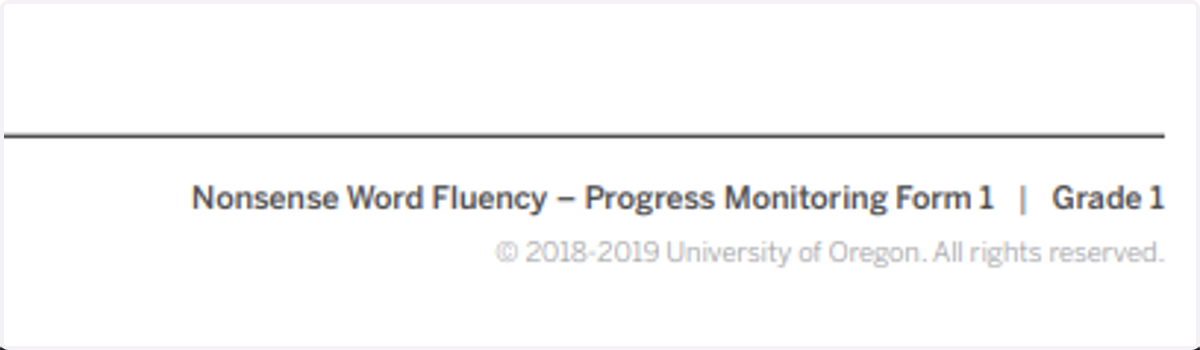
9. Scroll until you find the correct measure and form number. They are listed on the bottom of each page.
Educator Scoring Portal
This portion of the tutorial will teach you how to access the educator scoring portal to record your scoring results.
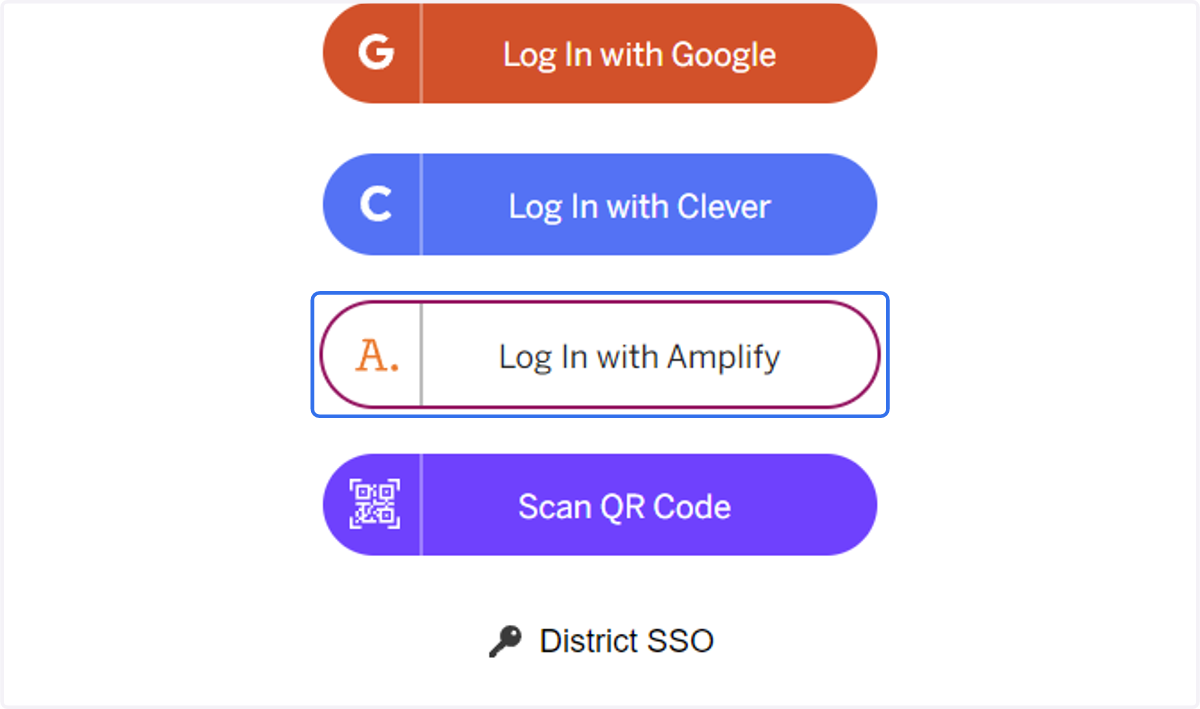
10. On your teacher device (touchscreen preferred), -Navigate to my.amplify.com -Click on Log In with Amplify
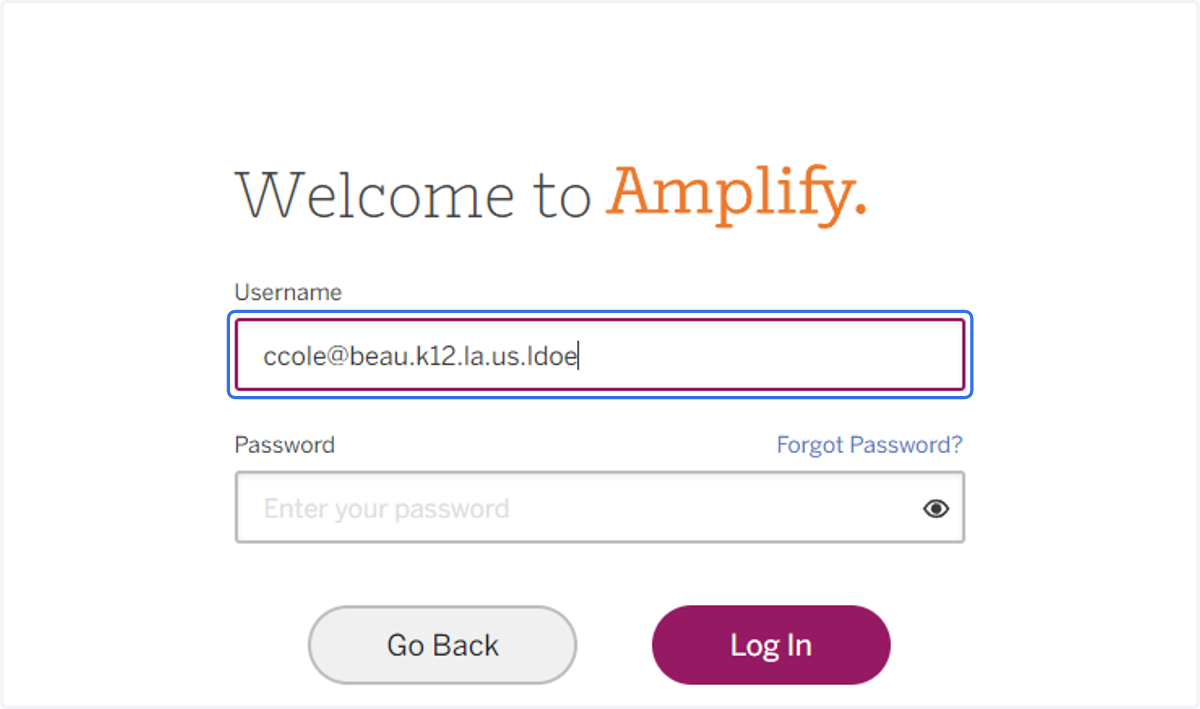
11. Your username is your email address followed by ".ldoe" Your password was set by you. If you do not remember your password, select "Forgot Password" and follow the prompts to reset it.
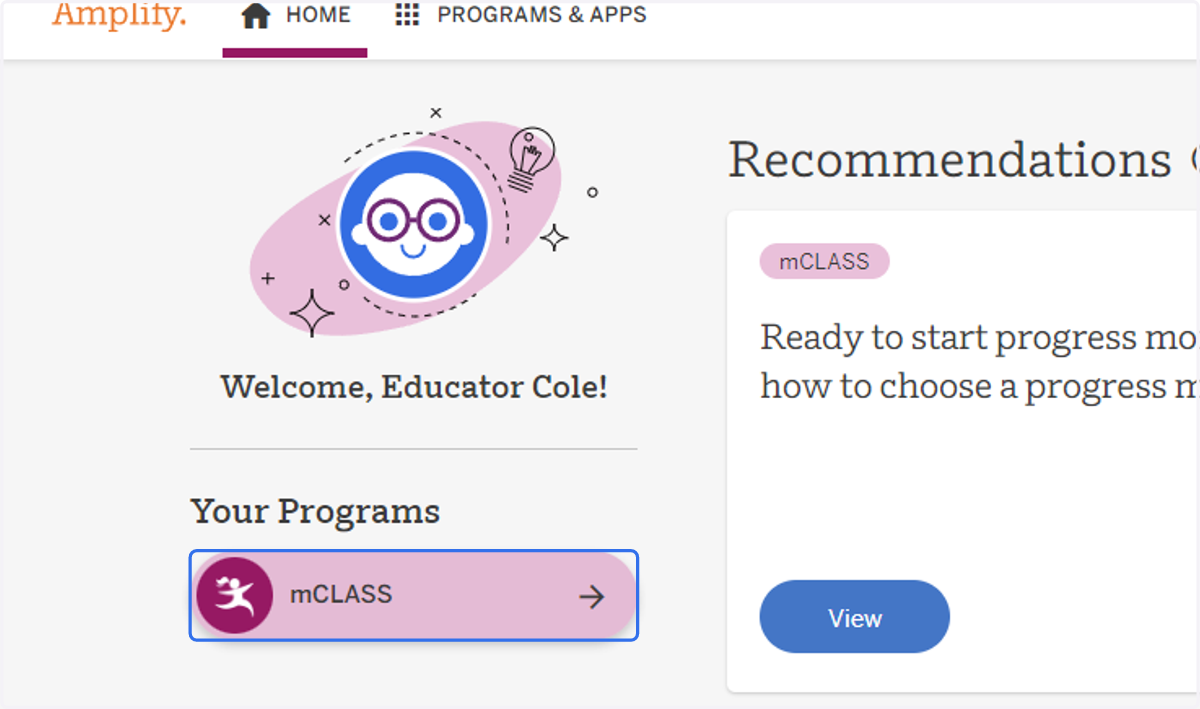
12. Click on mClass. If you do not see this option, select the "PROGRAMS & APPS" and select mClass.
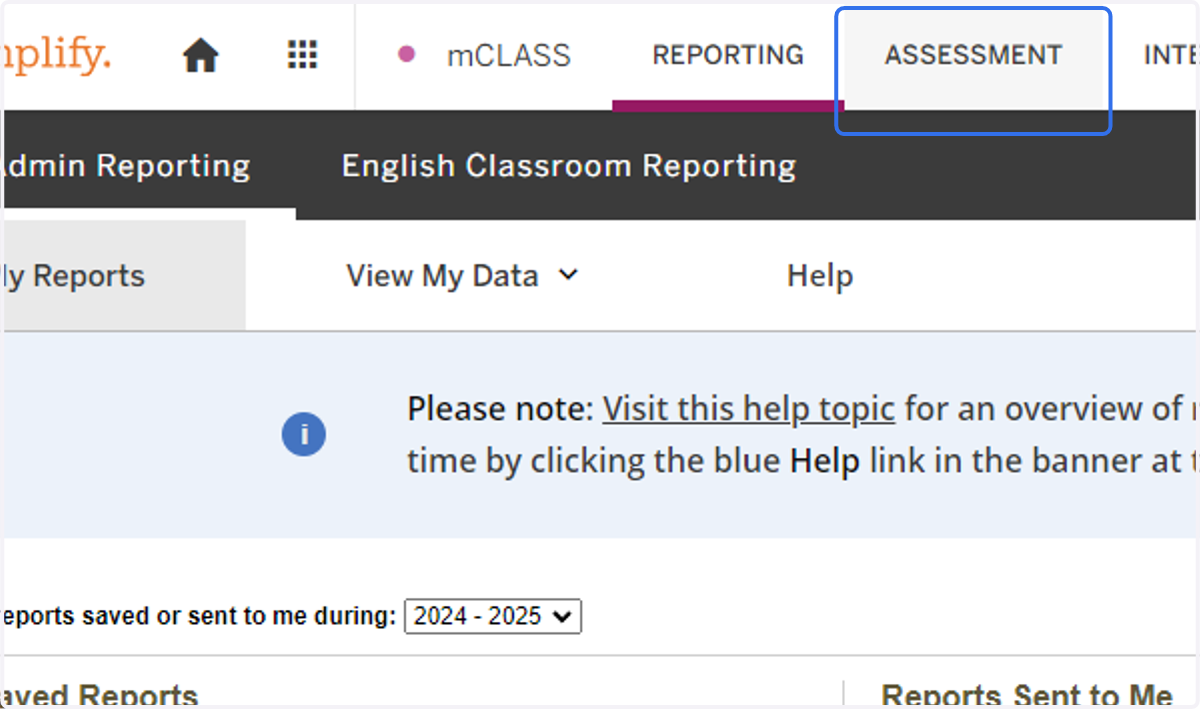
13. Click on ASSESSMENT
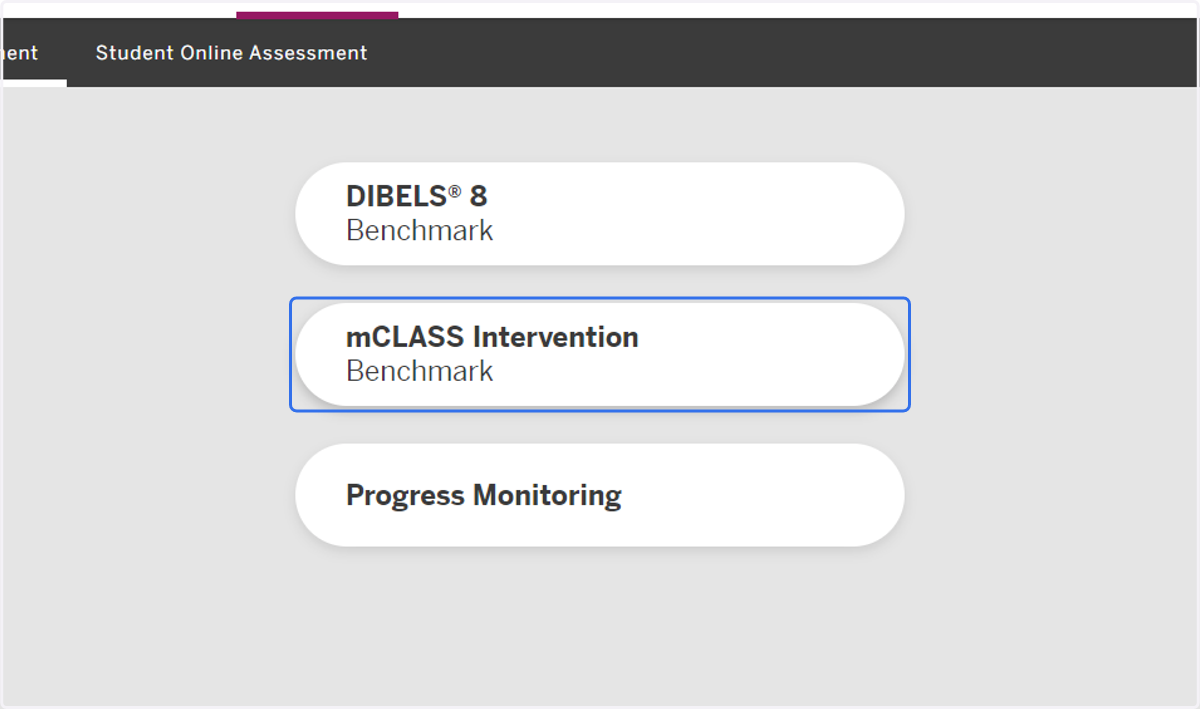
14. Click on mCLASS Intervention.
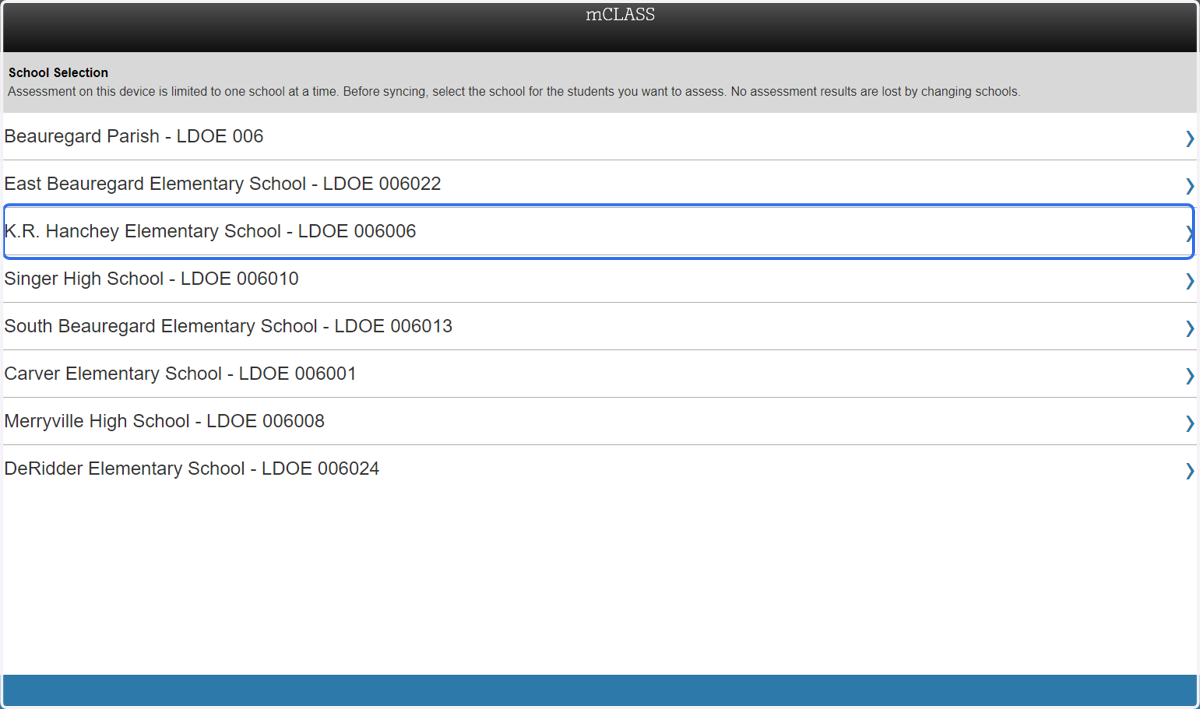
15. Click on your school.
16. Select the checkbox next to the class you wish to assess.
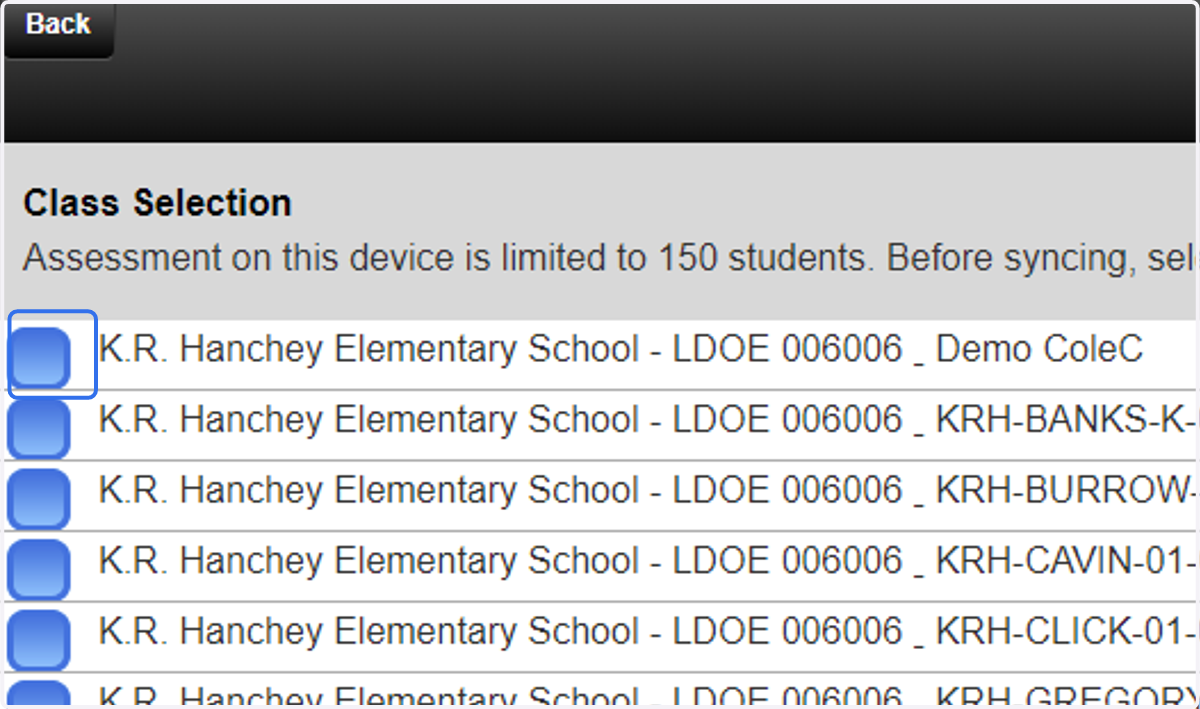
17. Click on Sync at the bottom of the page.
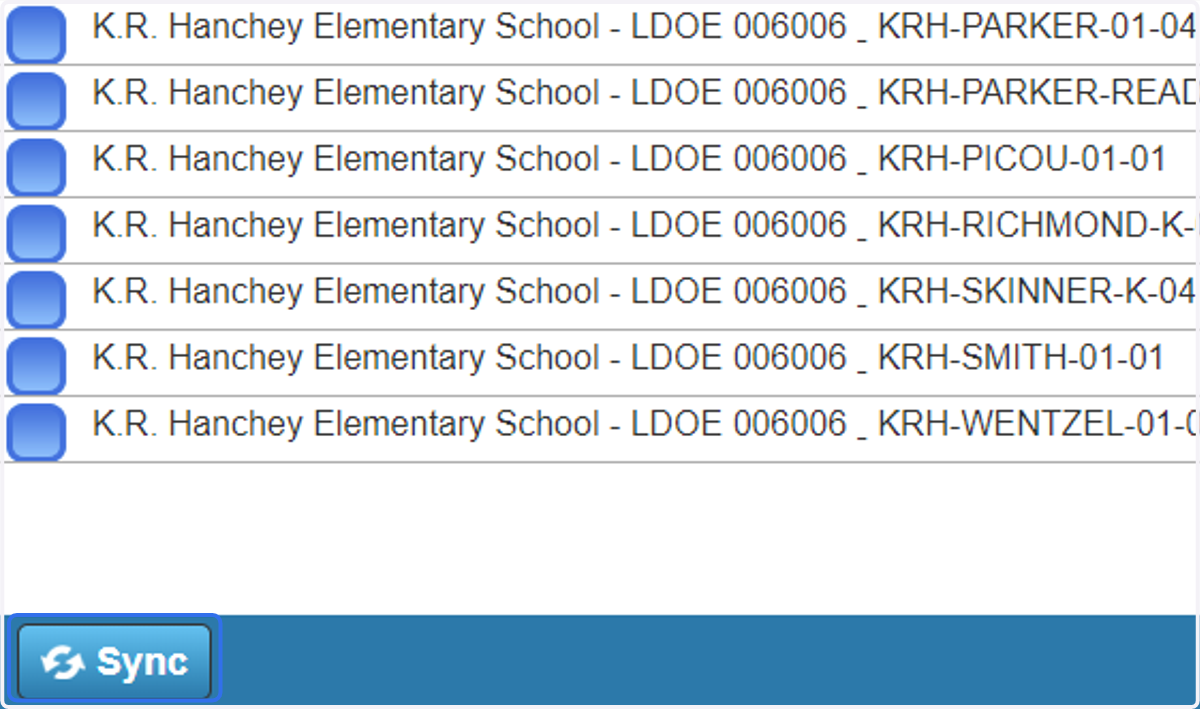
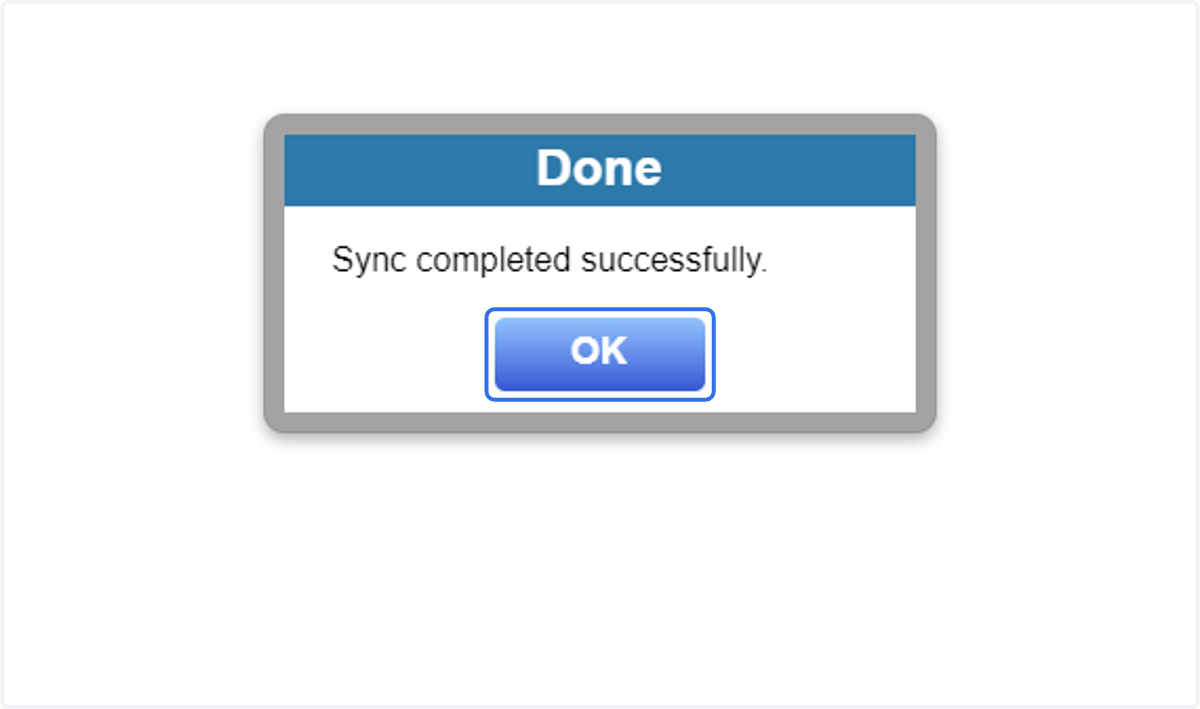
18. When the class has been synced, click on OK
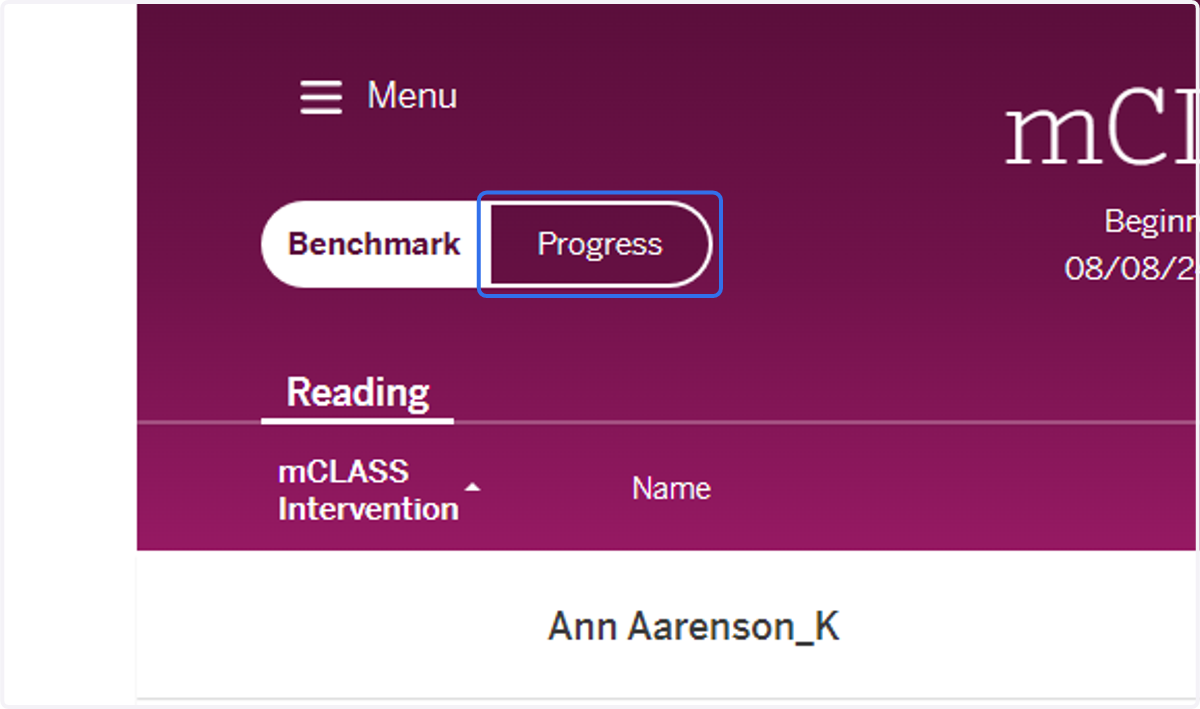
19. Click on Progress to access the progress monitoring materials.
20. Select the appropriate student.
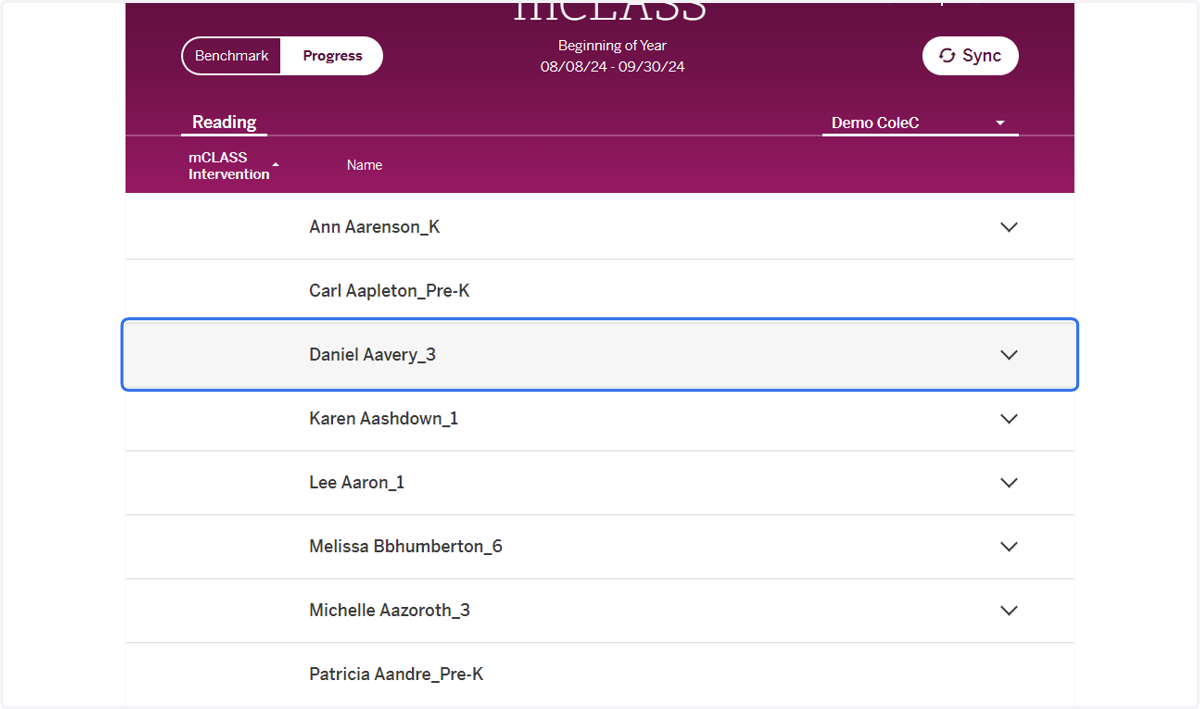
21. Select the measure you wish to assess.
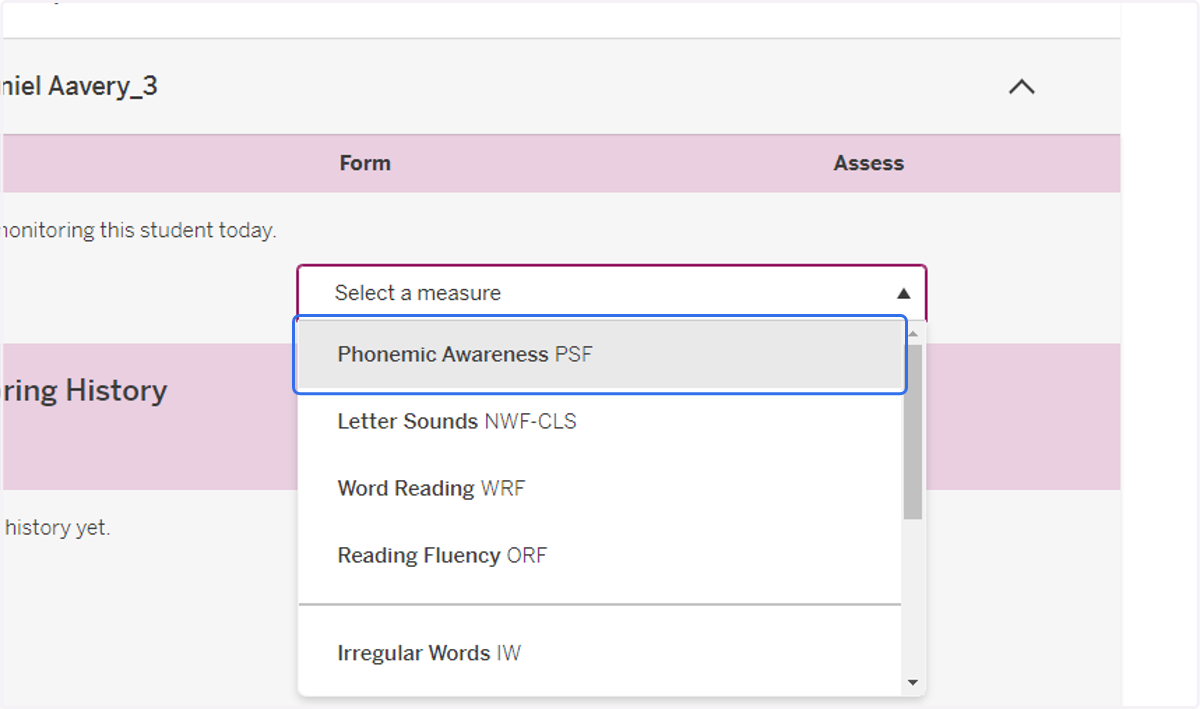
22. Choose the appropriate grade and form number.
These must match with the assessment material presented to the student.
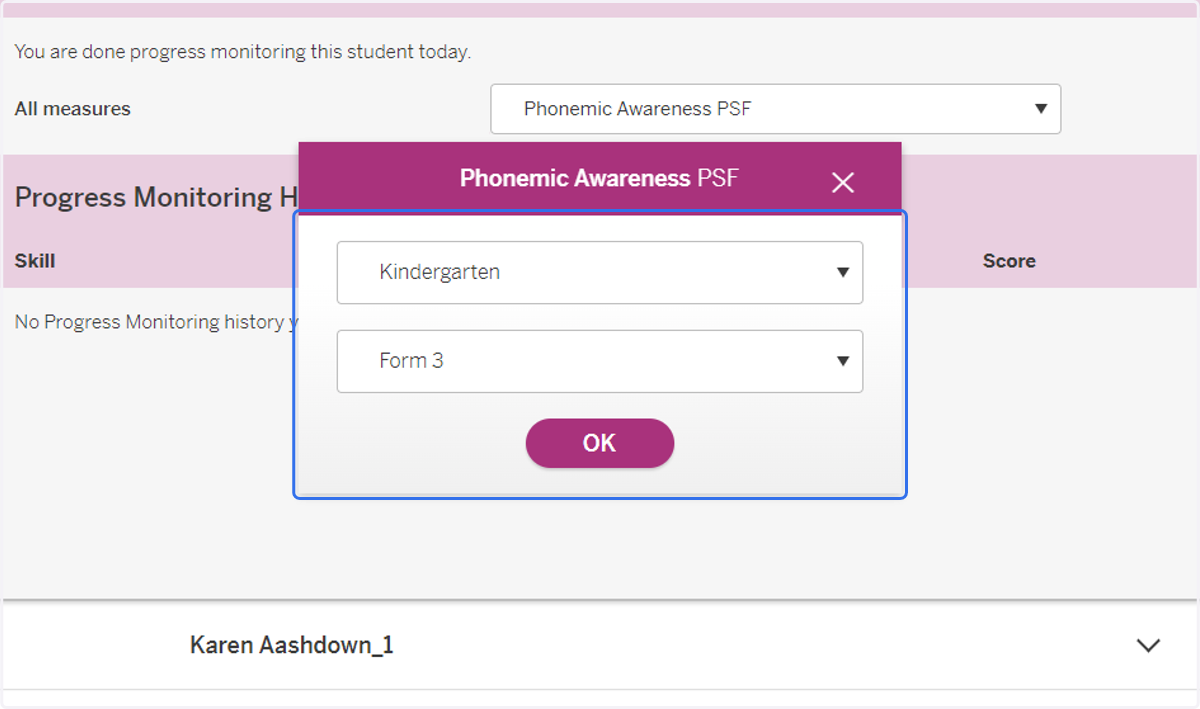
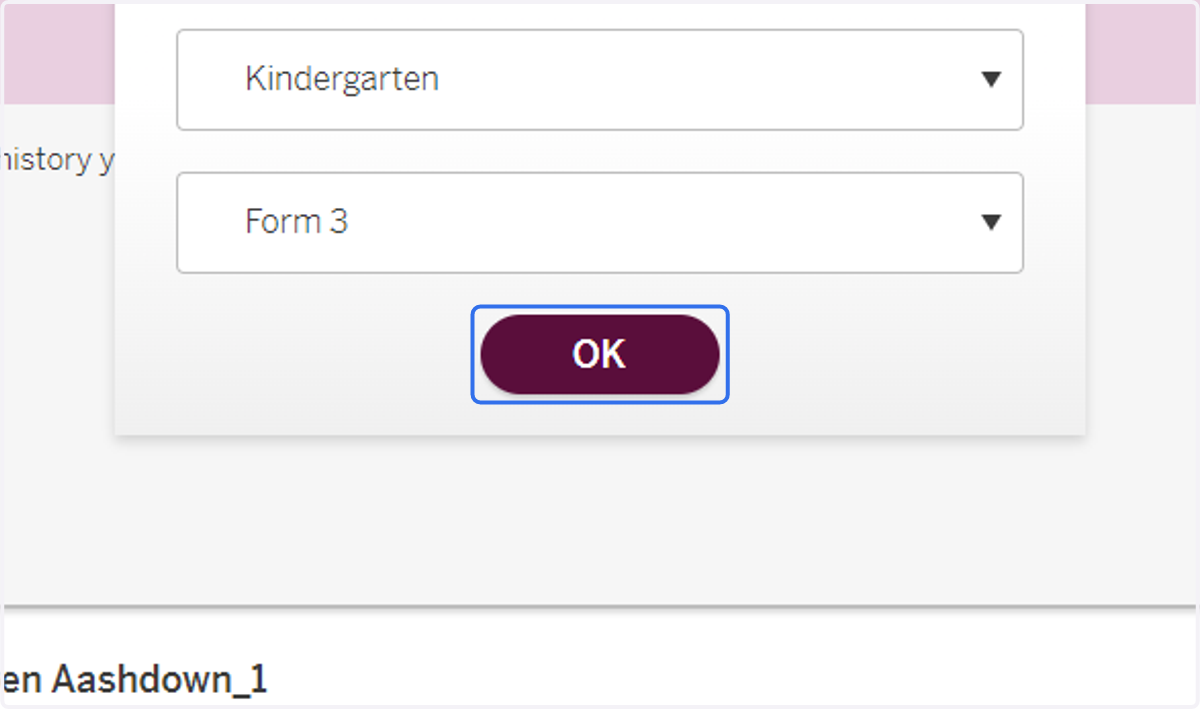
23. Click on OK
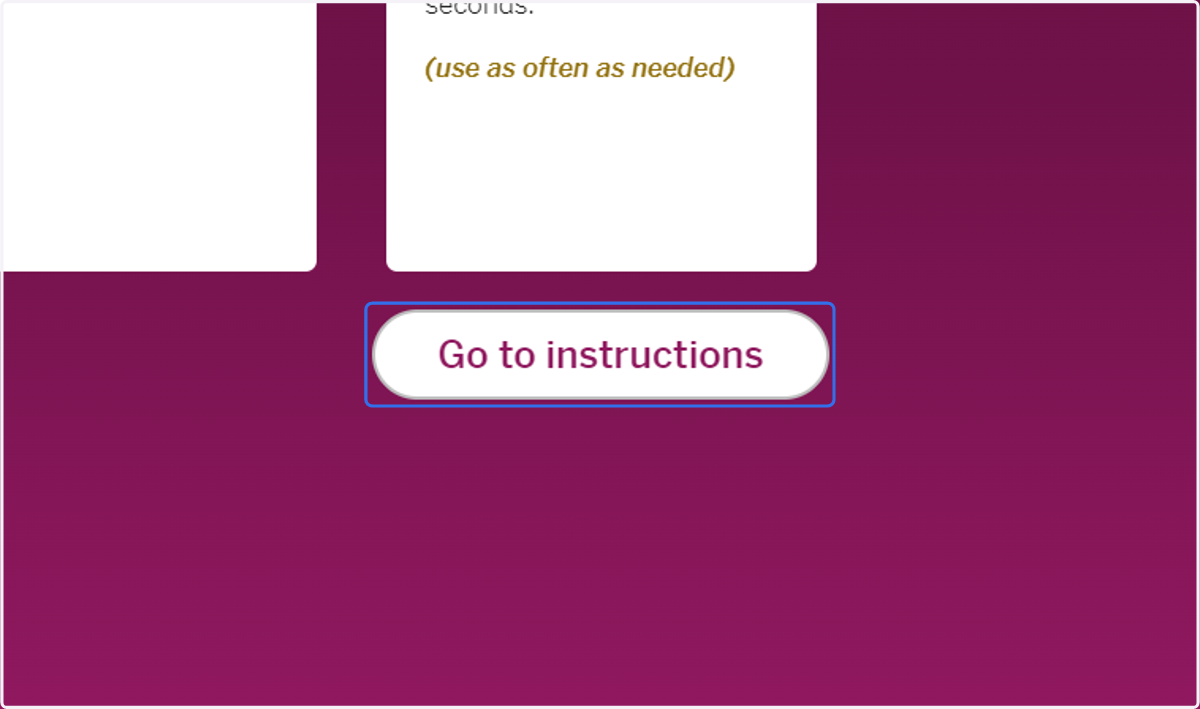
24. This opens the scoring session for this students. At this point, you should have the student with you and the assessment materials open on his/her device. Select "Go to instructions."
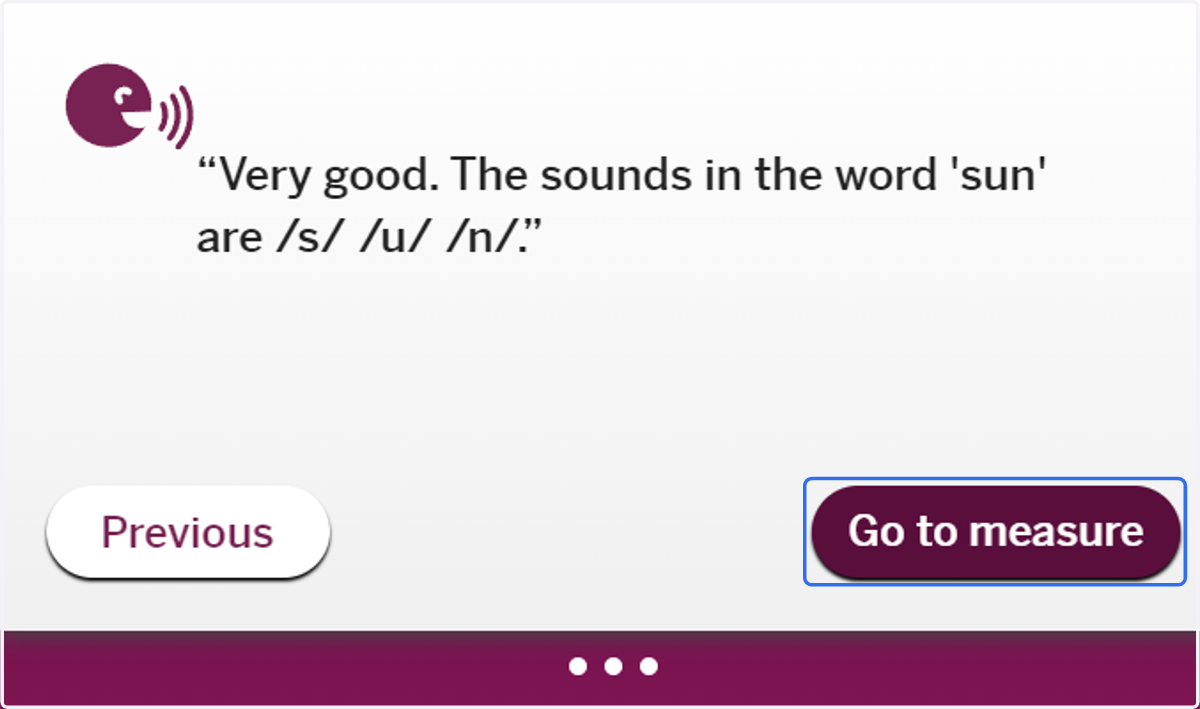
25. Follow the prompts reading the directed materials to the student. When you get to this screen, click on "Go to measure."
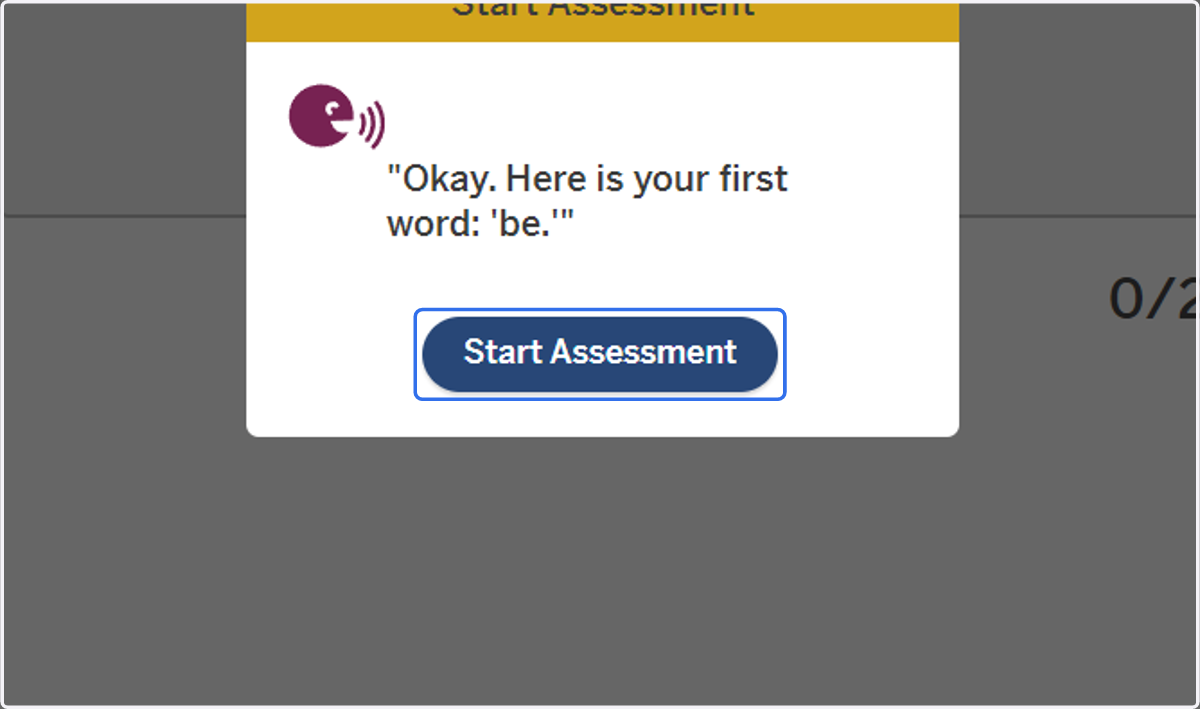
26. When you are ready to begin, click on Start Assessment. Continue through the measure and record the students responses.
27. Score the measure. When the time elapses, you will be instructed to stop. Click "Done" if the measure is completed.
If the score is not valid select "Invalidate" to reassess the student. You should only invalidate based on reasons found in the Testing Irregularity Form.

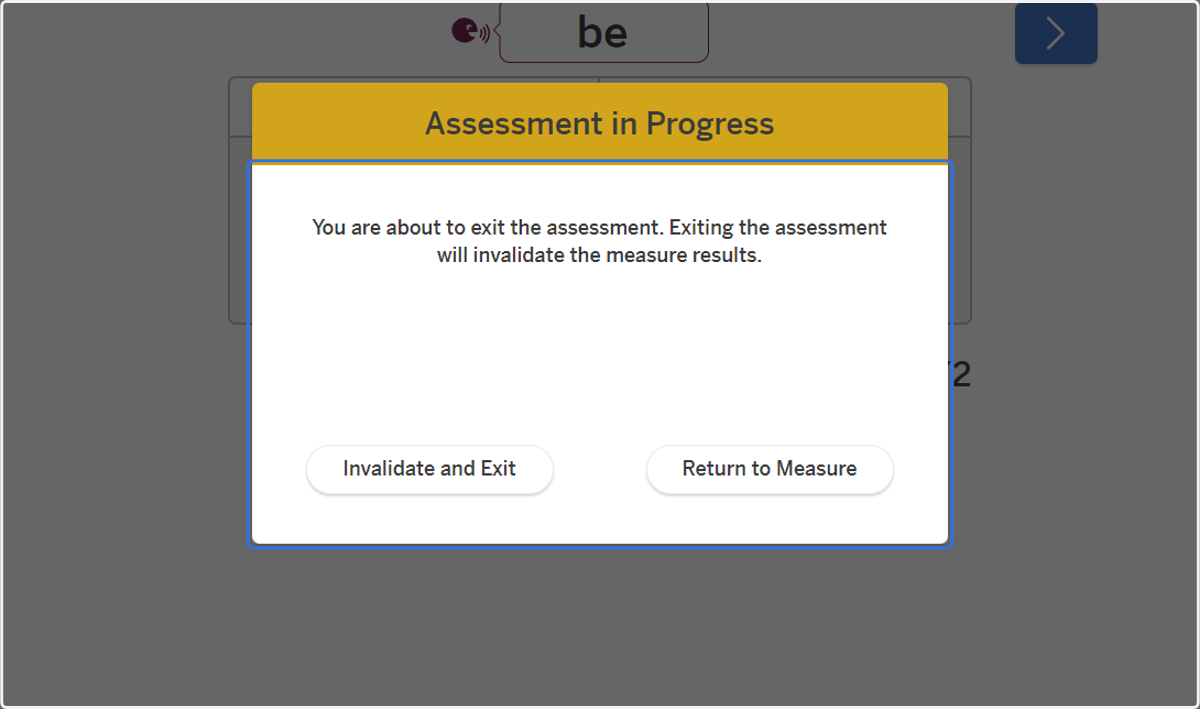
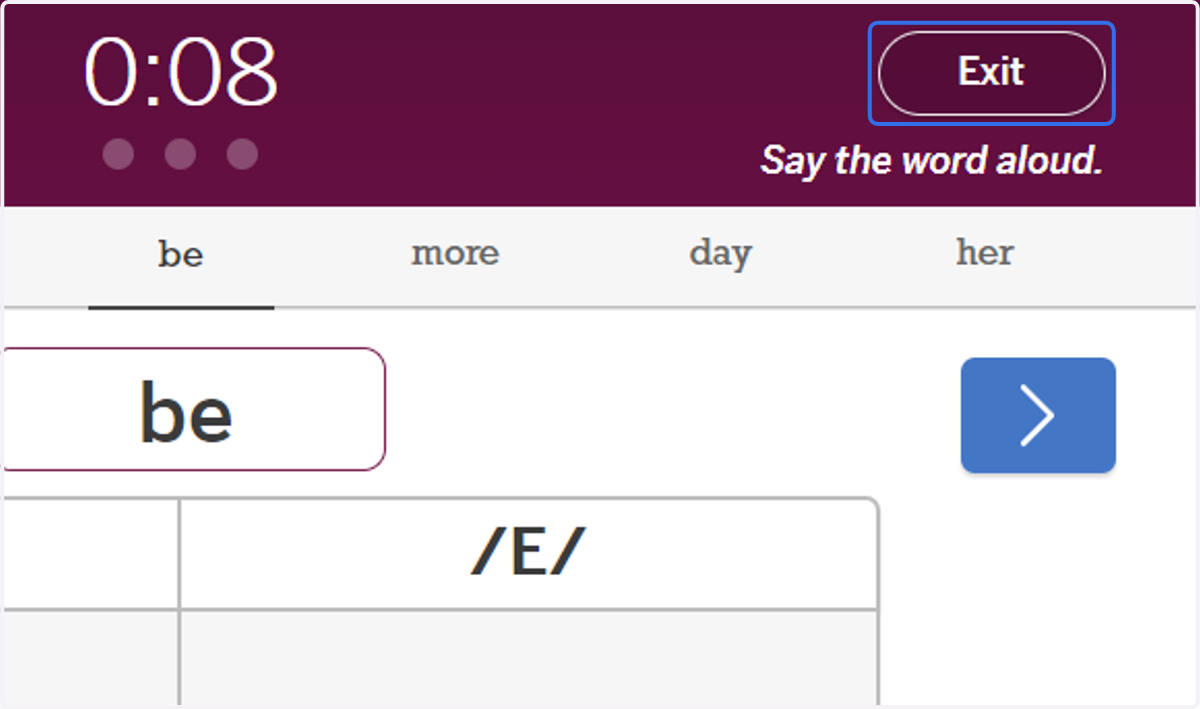
28. If an error occurs during the assessment, you can invalidate a measure early by selecting "Exit" on the top right of the screen.
29. If you click exit before the time elapses, you will receive this notice.