Admin - User Management - Adding a Branch and Assigning Users to the Branch
How to create a branch and add users to the branch
Laminin
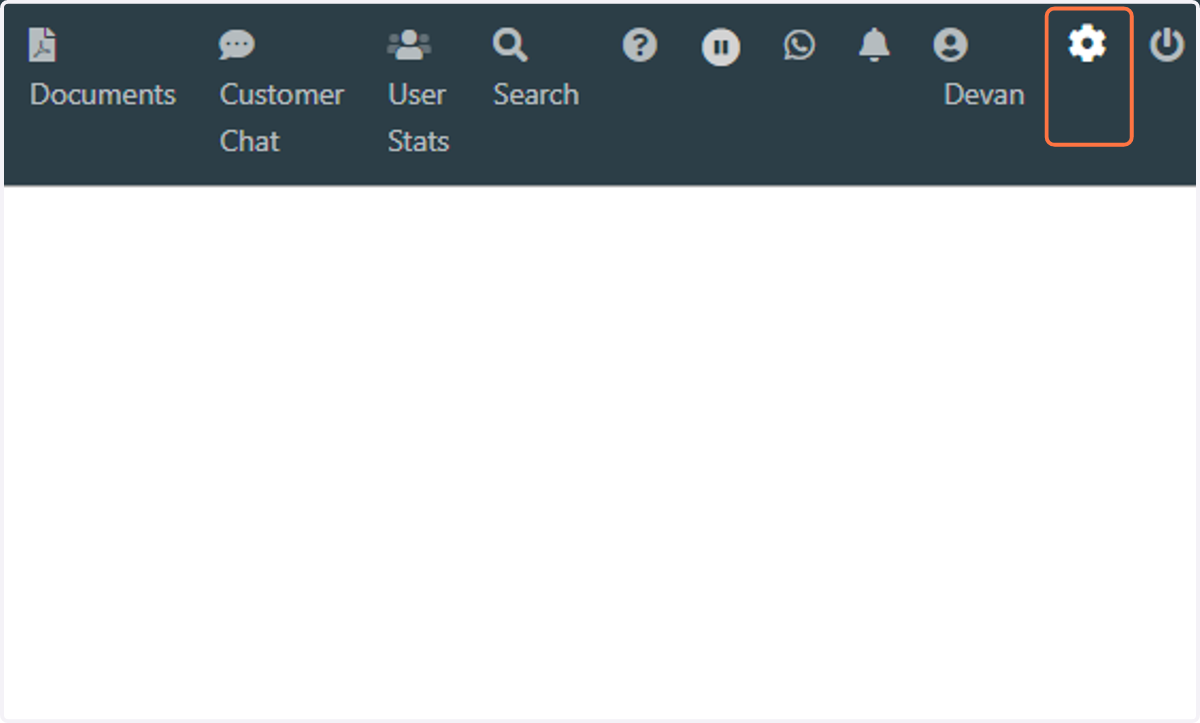
1. Click on the Admin Menu Button
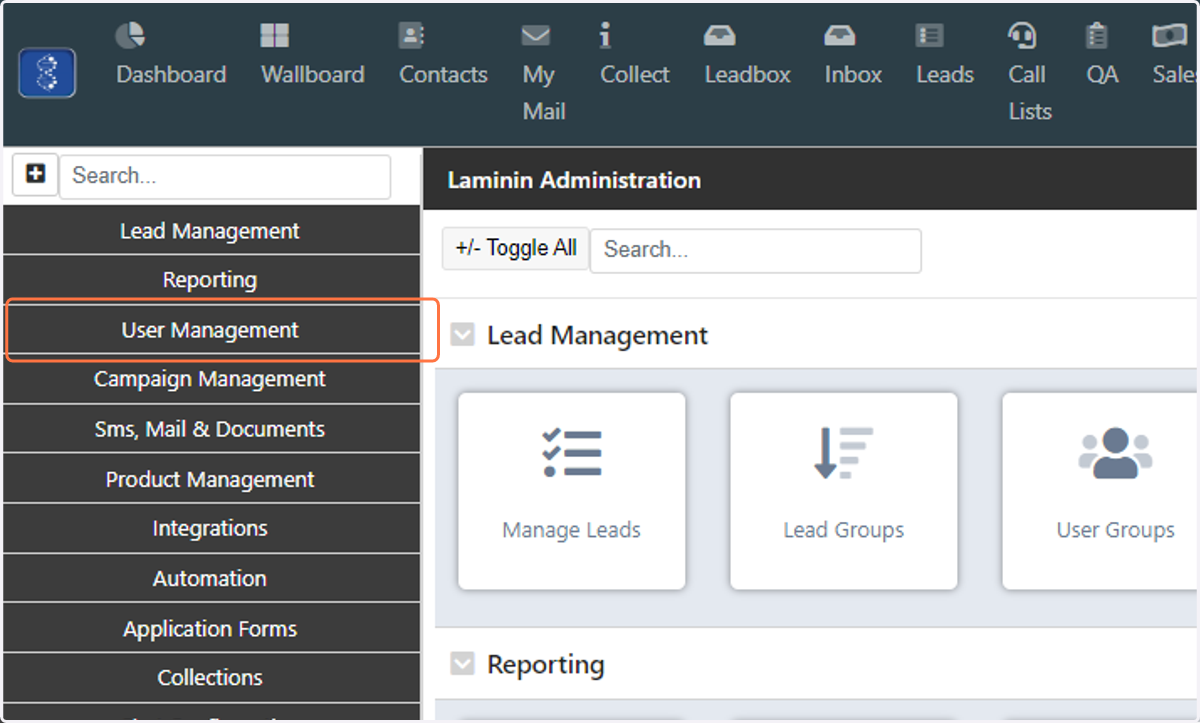
2. Then click on "User Management"
This is where all User related settings are configured
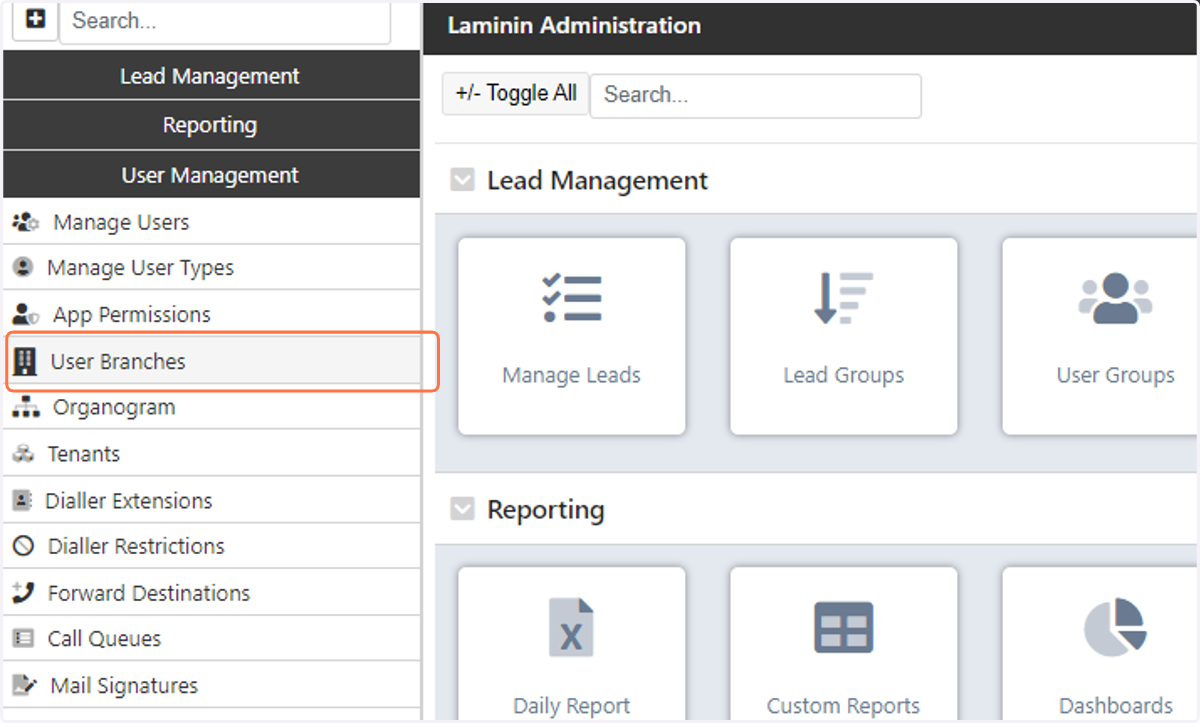
3. Click on "User Branches"
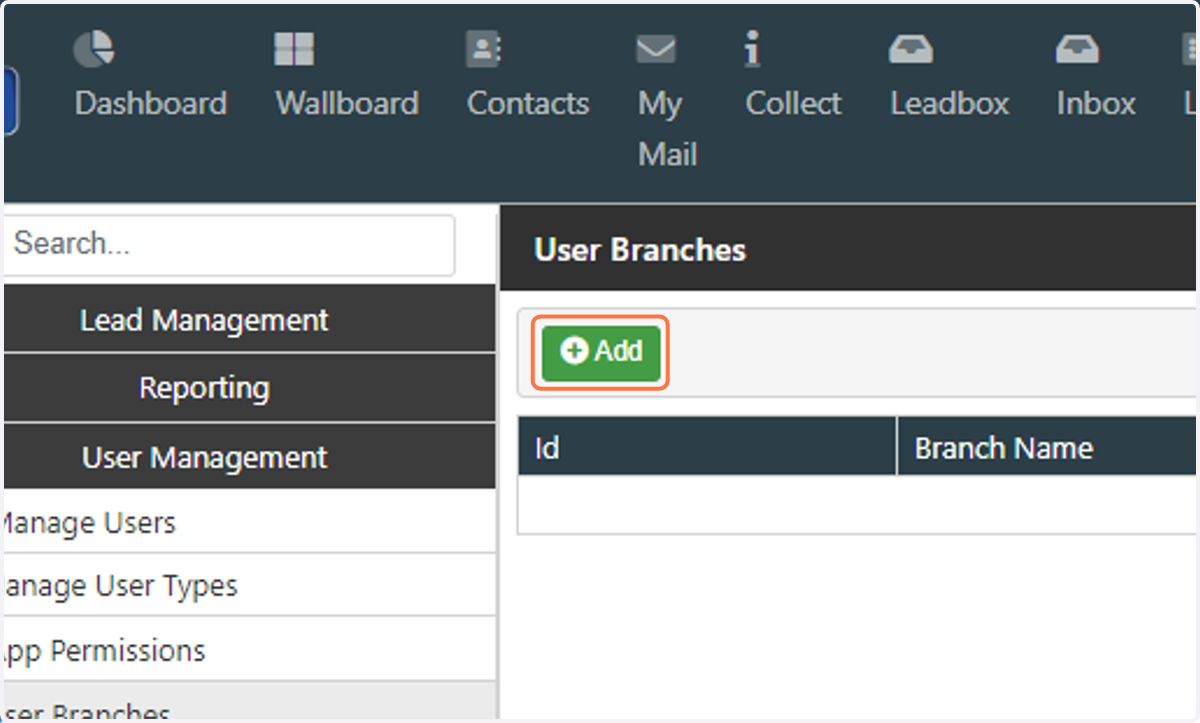
4. Click on "Add" to create a new branch
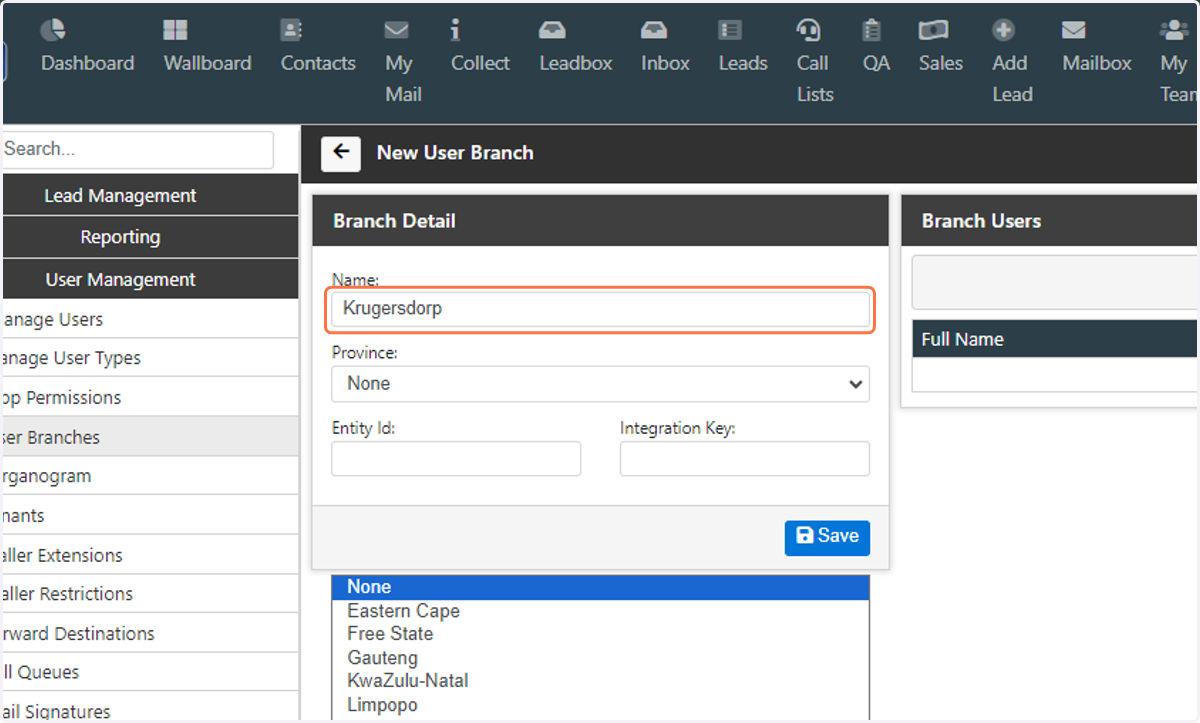
5. Type the Name of the branch that is being created
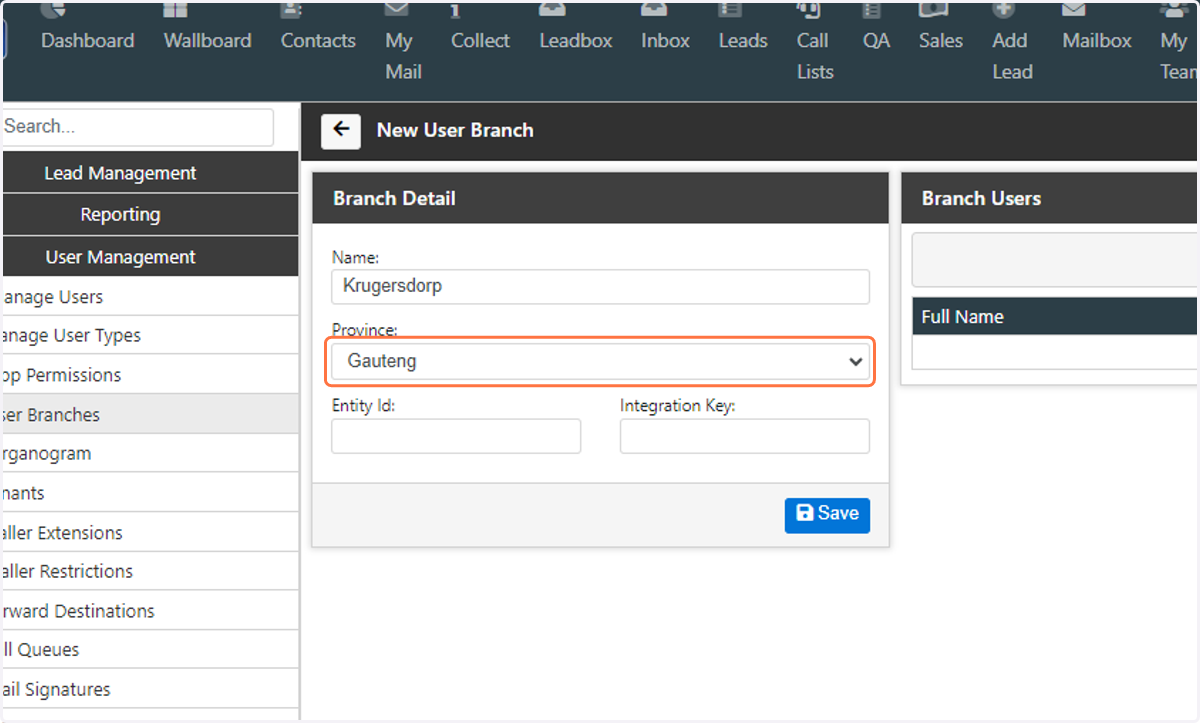
6. Select the Province where the branch is located
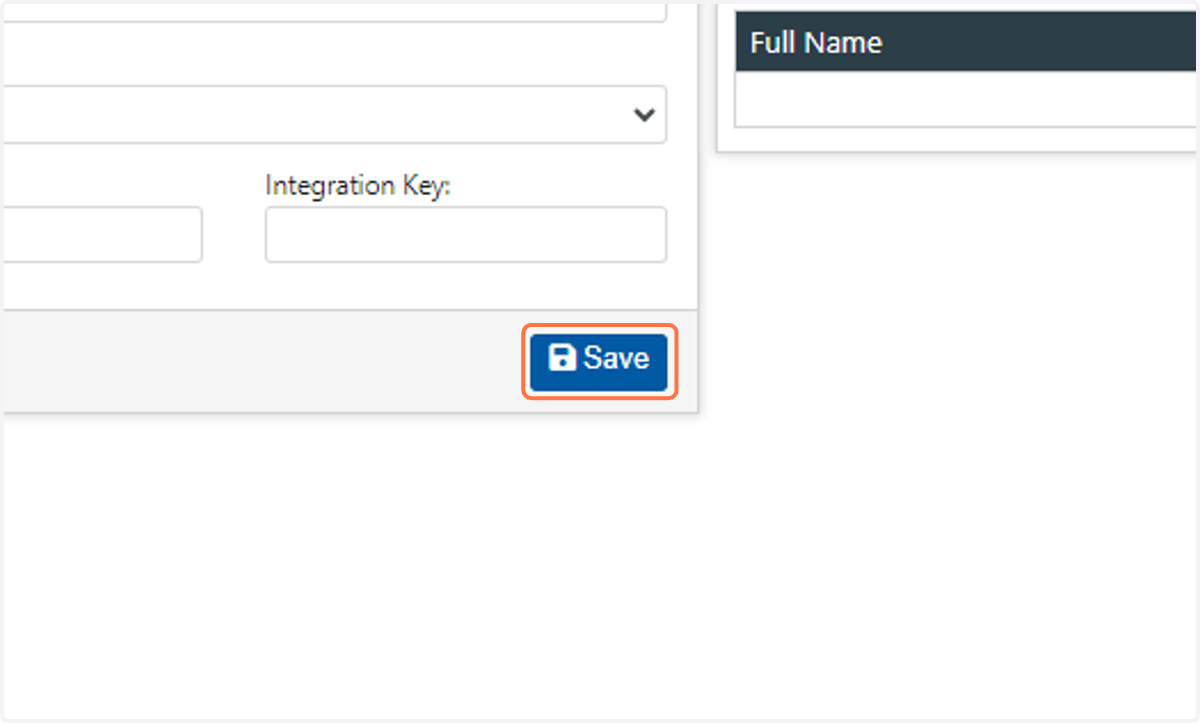
7. Once all the details have been captured, click on "Save"
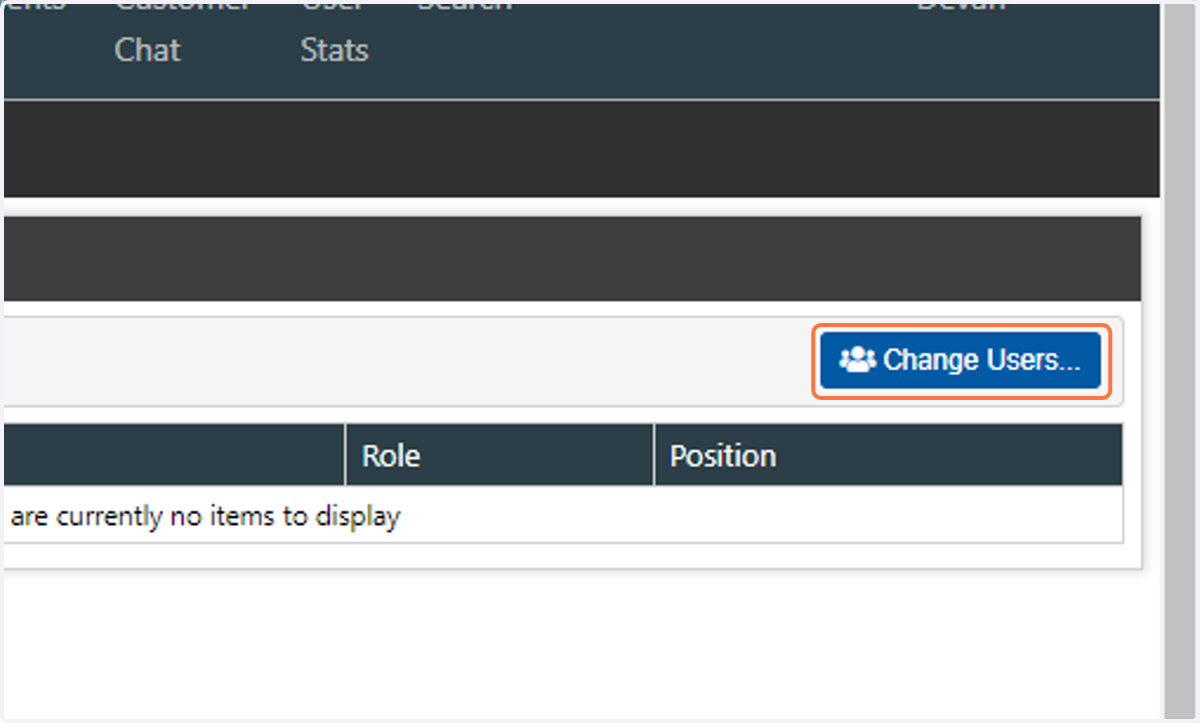
8. Click on "Change Users" to add users to this branch
9. Select users that will be added to this branch
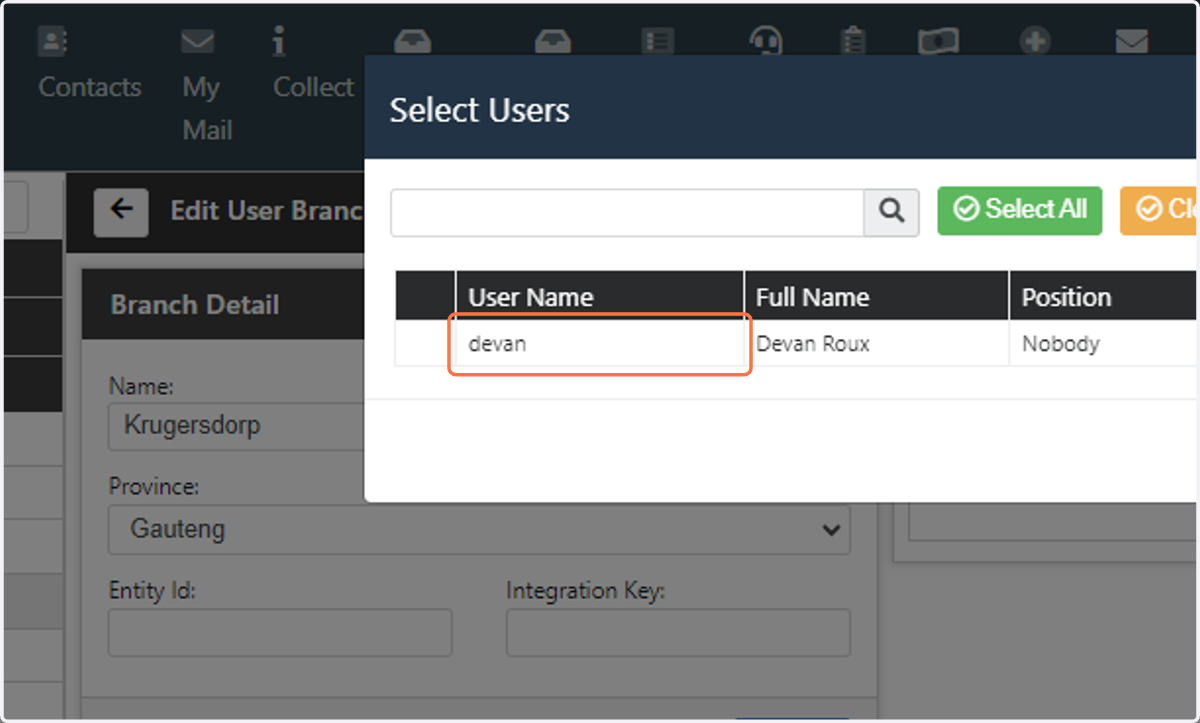
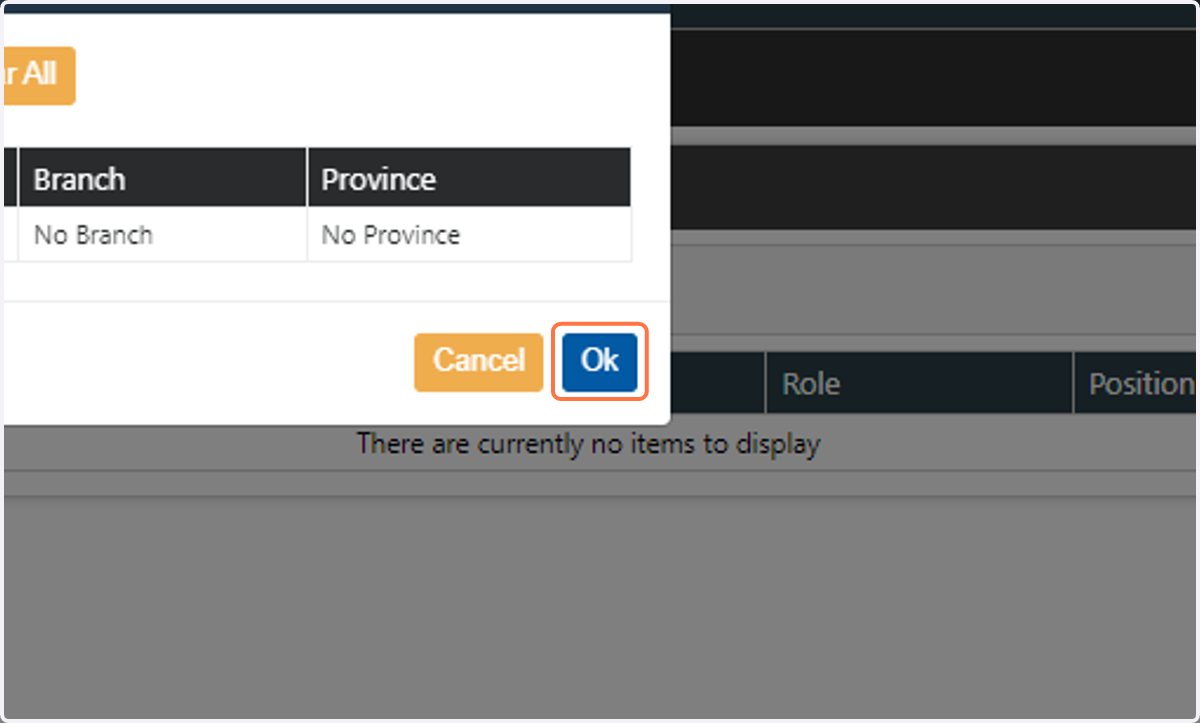
10. Click on "Ok" and you have successfully created a new branch