Adding iPads to your Class by QR code
This will allow you to add iPads to your Class set of iPads so that you will have the correct apps and restrictions as all the other iPads.
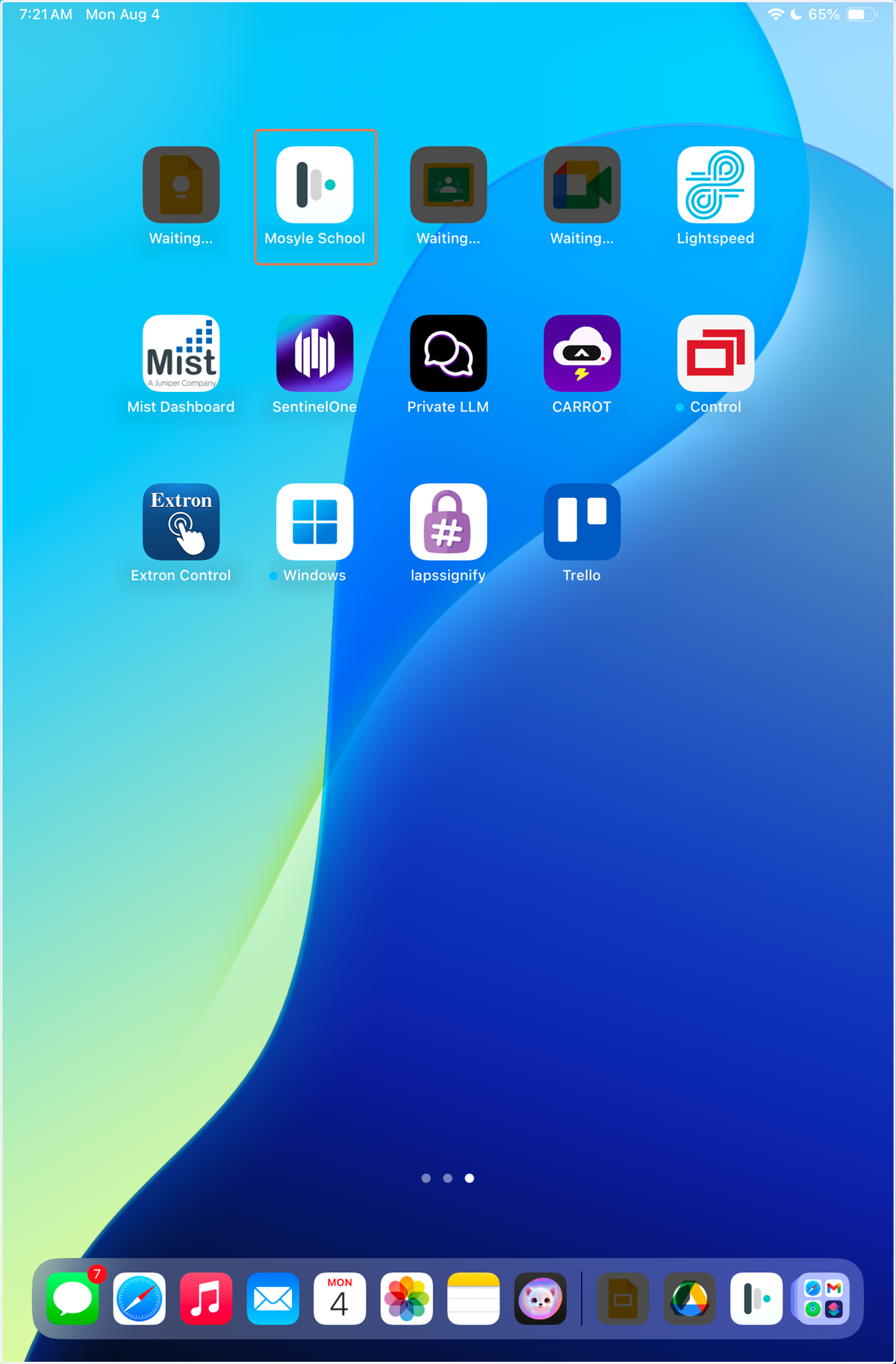
1. Open the Mosyle Manager App
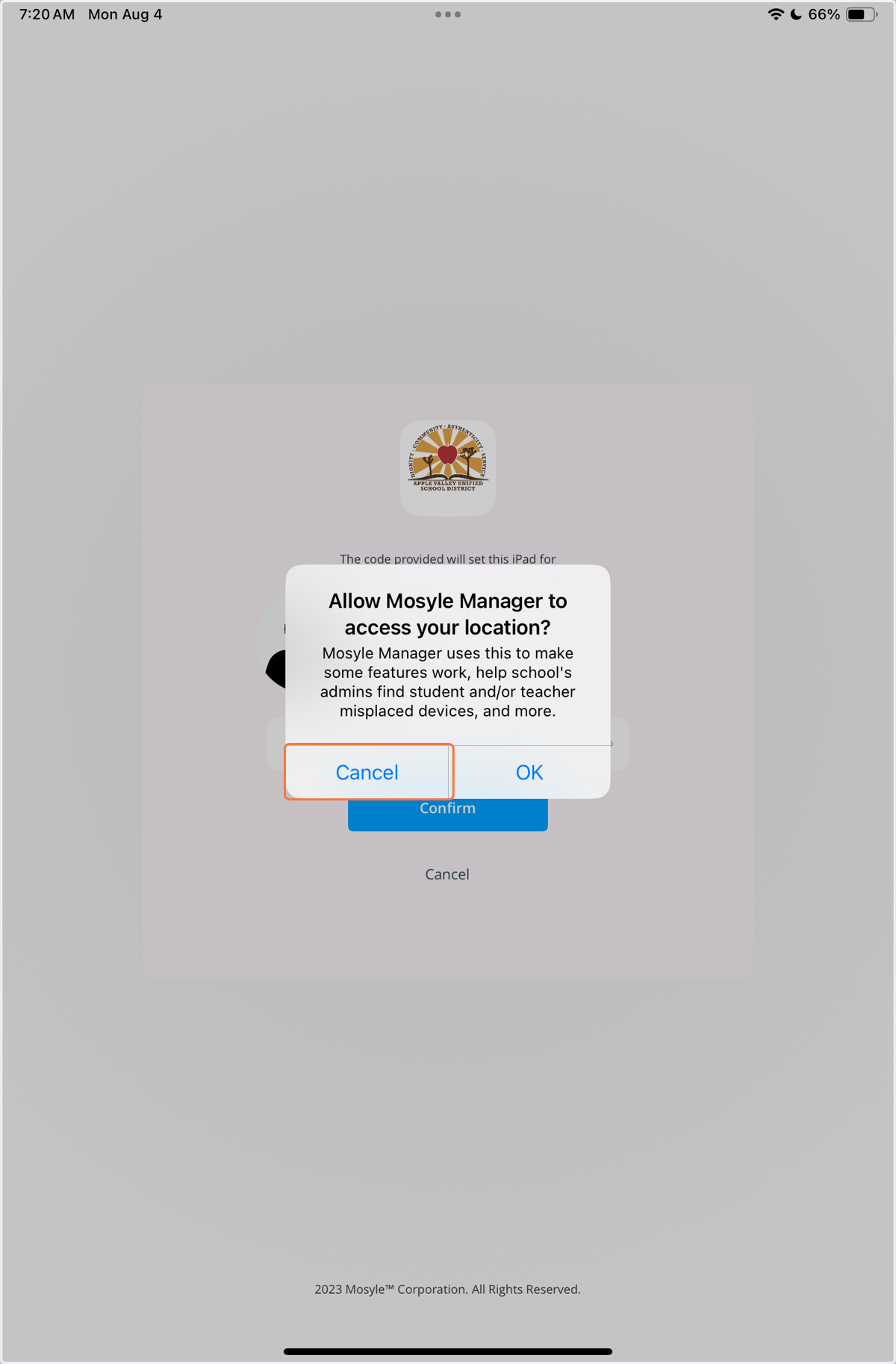
2. If prompted, select "Cancel" for location services
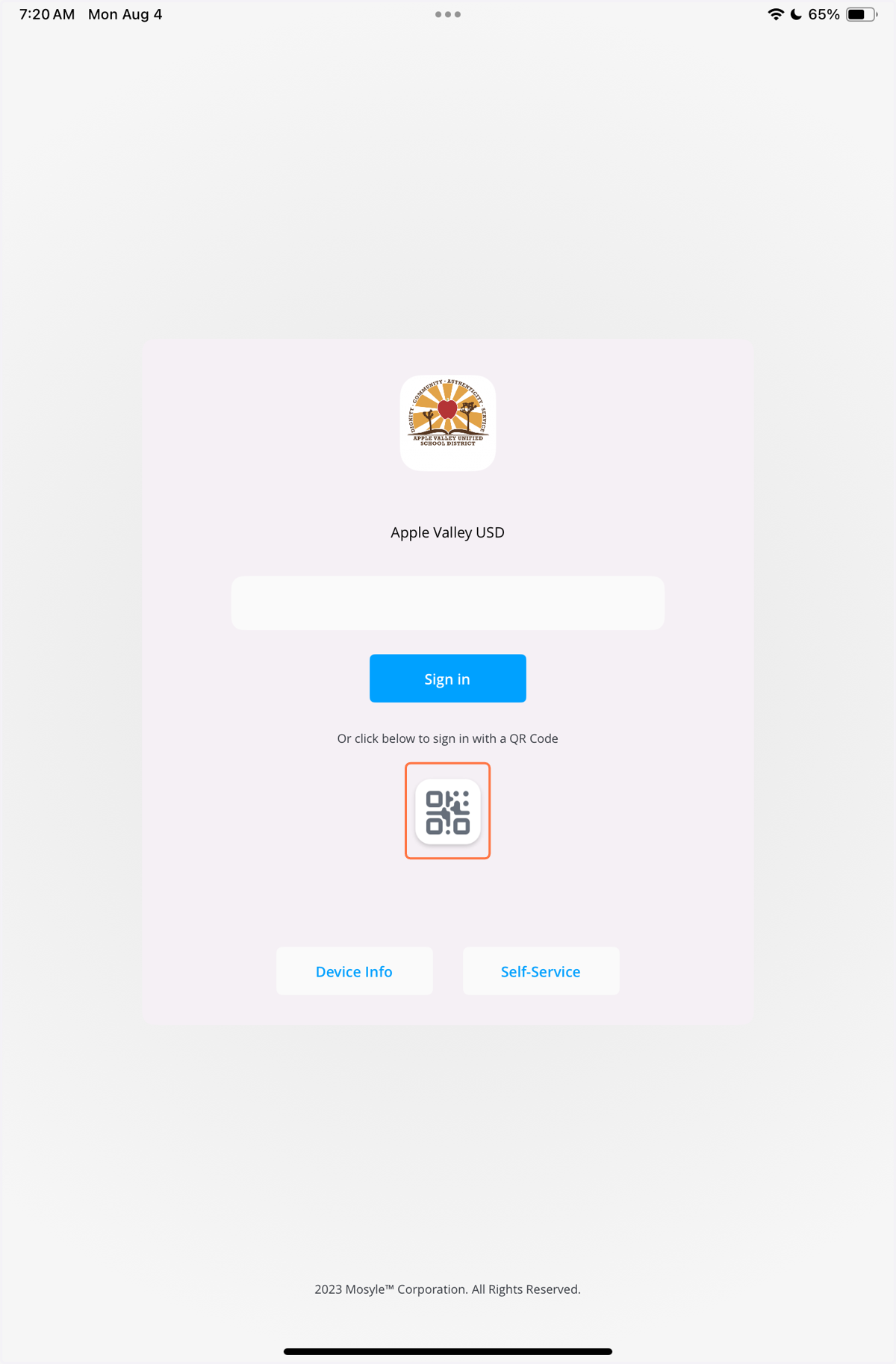
3. Select the QR icon
4. Point the iPad's camera at the QR code
Every Lock N' Charge station should have a QR code taped to the outside. This QR code is specific to YOUR class.
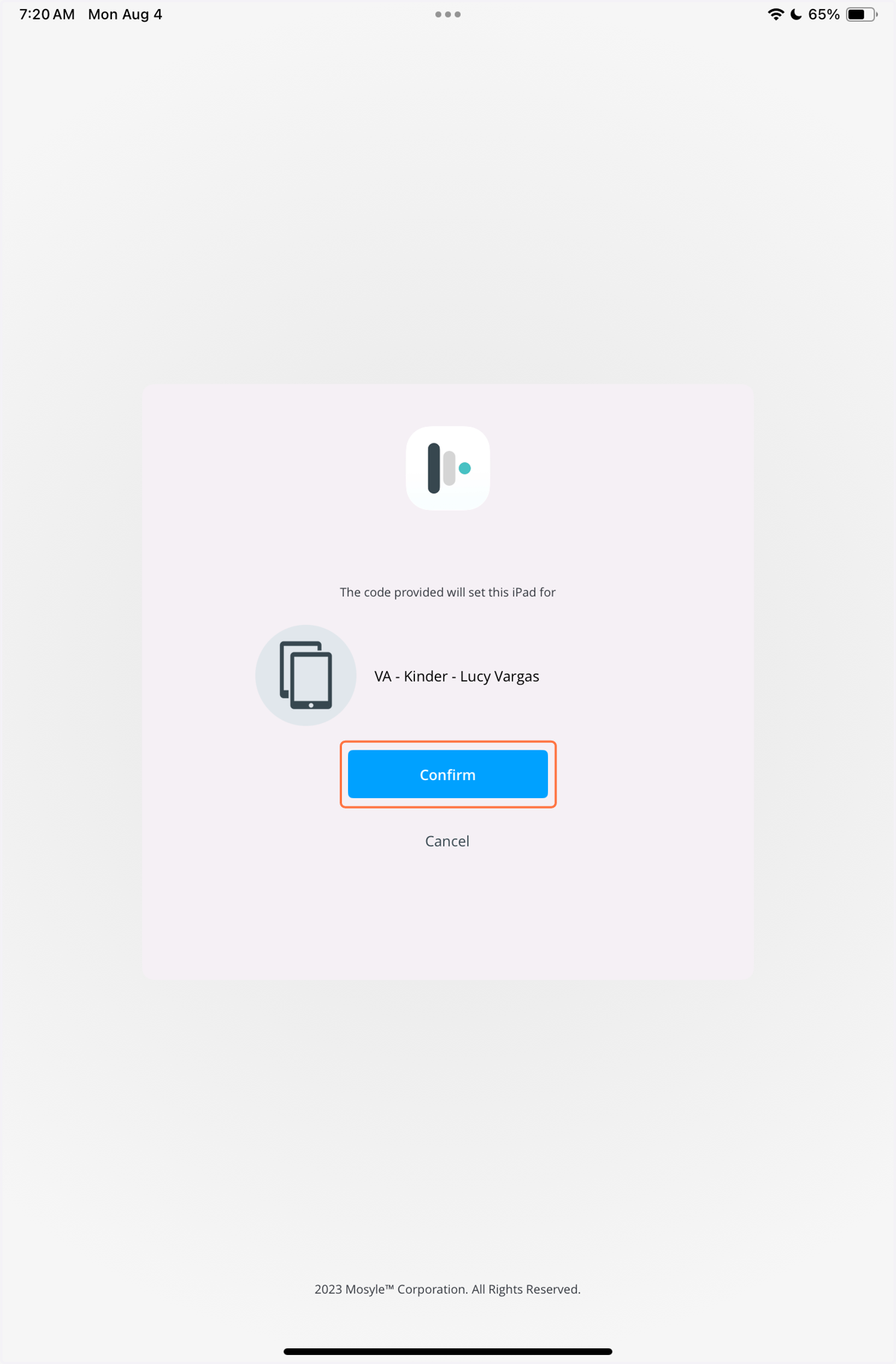
5. Select "Confirm"
You should see your name in the group you want to add the device to.