Create and Edit Outcomes

Planning & Self-Study Software Support | University of North Dakota

  1. 1. Visit the OIEA website (https://und.edu/academics/provost/assessment-accreditation/planning-self-study.html) and click on "Log In to Watermark".

    Visit the OIEA website (https://und.edu/academics/provost/assessment-accreditation/planning-self-study.html) and click on "Log In to Watermark".

Watermark EIS

  1. 2. Click on "Planning and Self-Study".

    Click on "Planning and Self-Study".
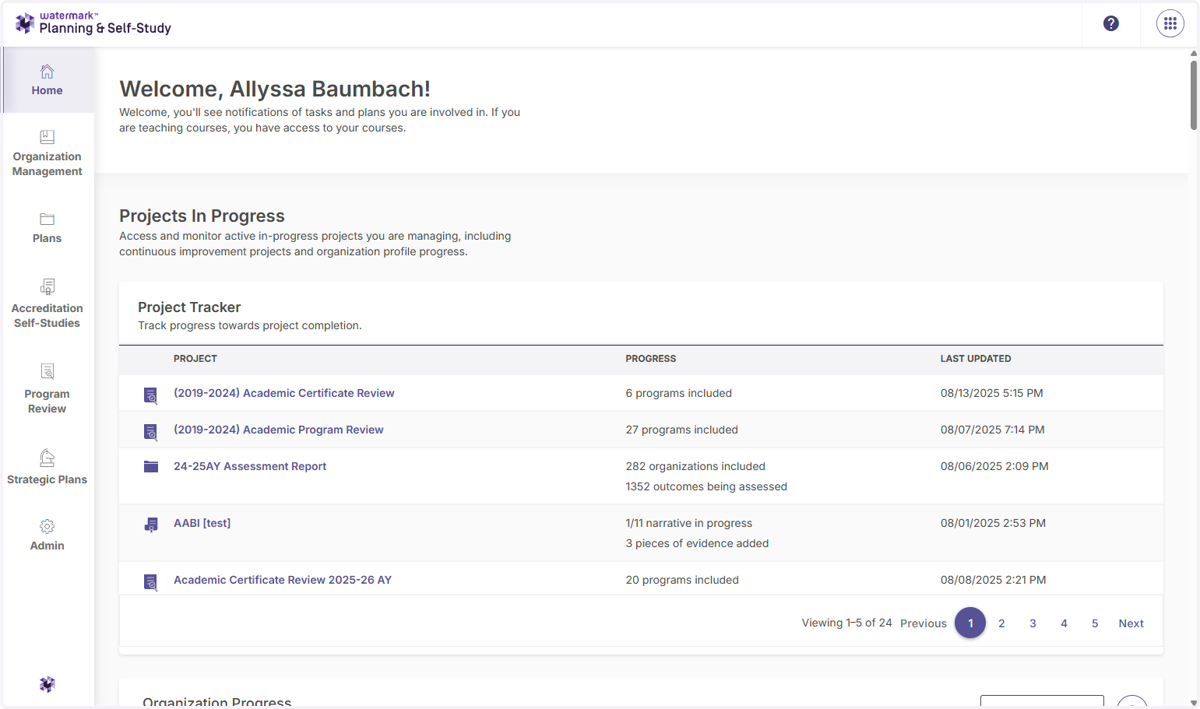
  2. 3. From your homepage, you can see all the projects in progress that you have access to in Planning & Self-Study.

    From your homepage, you can see all the projects in progress that you have access to in Planning & Self-Study.
  3. 4. Click on the program name or ENTER PROGRAM. You can also click on the number of outcomes in the Profile Progress box to be redirected to the program information page where you will add and edit your outcomes.

    Click on the program name or ENTER PROGRAM. You can also click on the number of outcomes in the Profile Progress box to be redirected to the program information page where you will add and edit your outcomes.
  4. 5. Below the Mission Statement is the list of learning outcomes and success outcomes.

    Below the Mission Statement is the list of learning outcomes and success outcomes.
  5. 6. Click on MANAGE OUTCOMES to add and edit outcomes.

    Click on MANAGE OUTCOMES to add and edit outcomes.
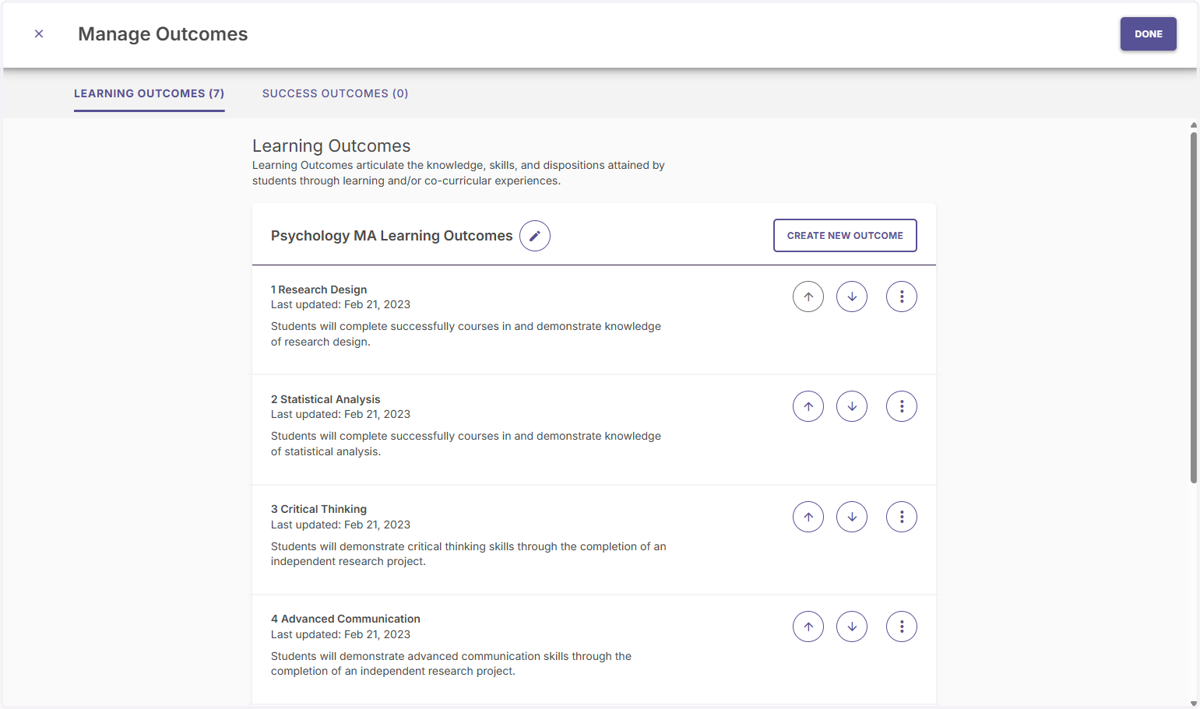
  6. 7. View your list of outcomes and the title for the outcome list/set.

    View your list of outcomes and the title for the outcome list/set.
  7. 8. Click on the pencil icon to edit your outcome set.

    Click on the pencil icon to edit your outcome set.
  8. 9. Type a new title or edit the existing title.

    Type a new title or edit the existing title.
  9. 10. Click UPDATE when your changes have been made.

    Click UPDATE when your changes have been made.
  10. 11. To create a new outcome, click CREATE NEW OUTCOME.

    To create a new outcome, click CREATE NEW OUTCOME.
  11. 12. Type the title of your outcome (e.g., "1.1.A Written Communication").

    Type the title of your outcome (e.g., "1.1.A Written Communication").
  12. 13. Type a brief description of what the students will do (e.g., "Students will be able to articulate...")

    Type a brief description of what the students will do (e.g., "Students will be able to articulate...")
  13. 14. Tag your outcome to any institutional outcomes (e.g., Bloom's Taxonomy), if you have any.

    Tag your outcome to any institutional outcomes (e.g., Bloom's Taxonomy), if you have any.
  14. 15. Click CREATE to finish creating a new outcome.

    Click CREATE to finish creating a new outcome.
  15. 16. You can reorder the outcomes in your list by clicking on the up and down arrows.

    You can reorder the outcomes in your list by clicking on the up and down arrows.
  16. 17. Click on 

    Click on 
  17. 18. Edit, revise, or archive the existing outcomes by clicking on the three dots to the right of the outcome title and selecting the appropriate action.

    Edit, revise, or archive the existing outcomes by clicking on the three dots to the right of the outcome title and selecting the appropriate action.
  18. 19. Click on DONE when you are finished adding and editing your outcomes.

    Click on DONE when you are finished adding and editing your outcomes.