Adding and Configuring Attributes

Log into the backend of the site using this link.

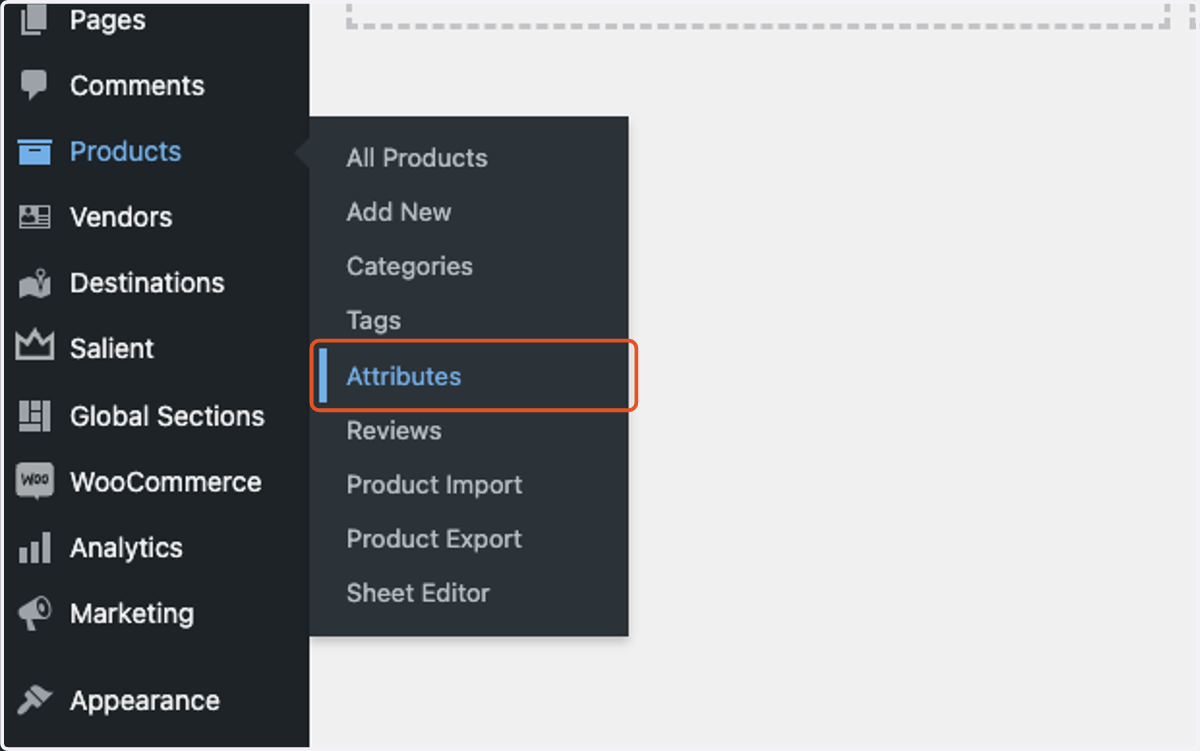
  1. 1. Find the left dark sidebar and click on Attributes.

    Find the left dark sidebar and click on Attributes.
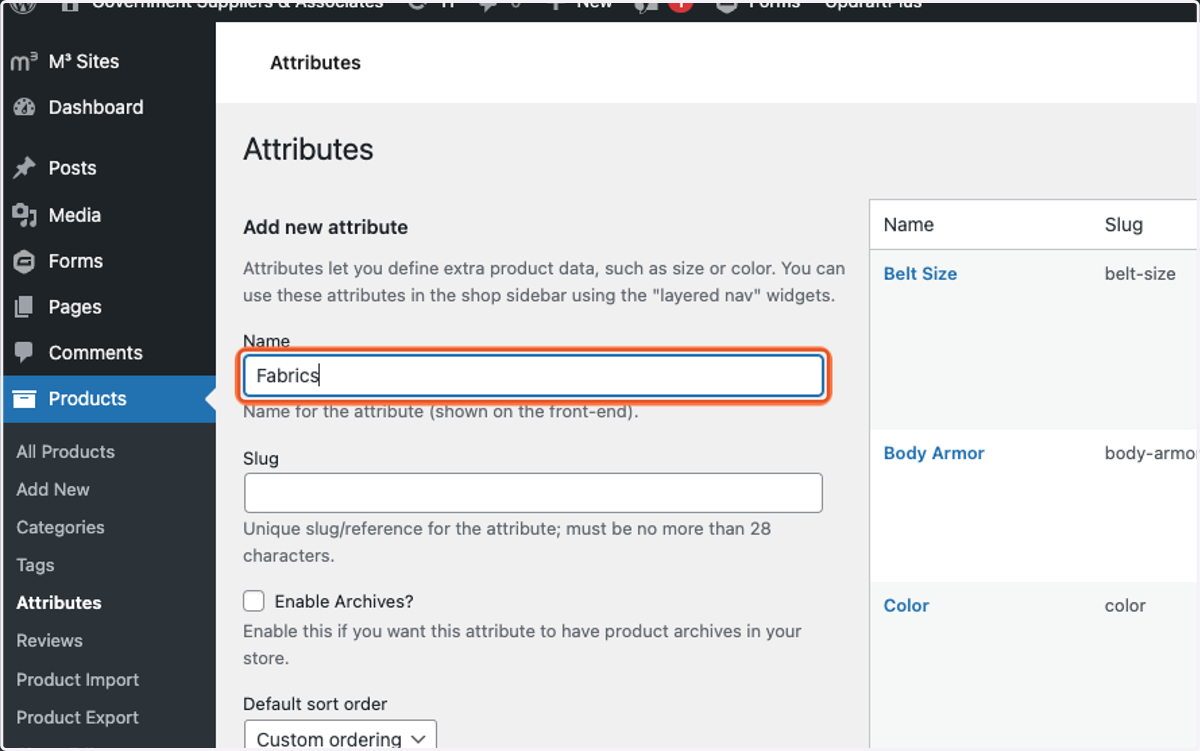
  2. 2. Under the Name field, type the product attribute you would like to create. (ie. Fabric, Color, Size, etc.)

    Under the Name field, type the product attribute you would like to create. (ie. Fabric, Color, Size, etc.)
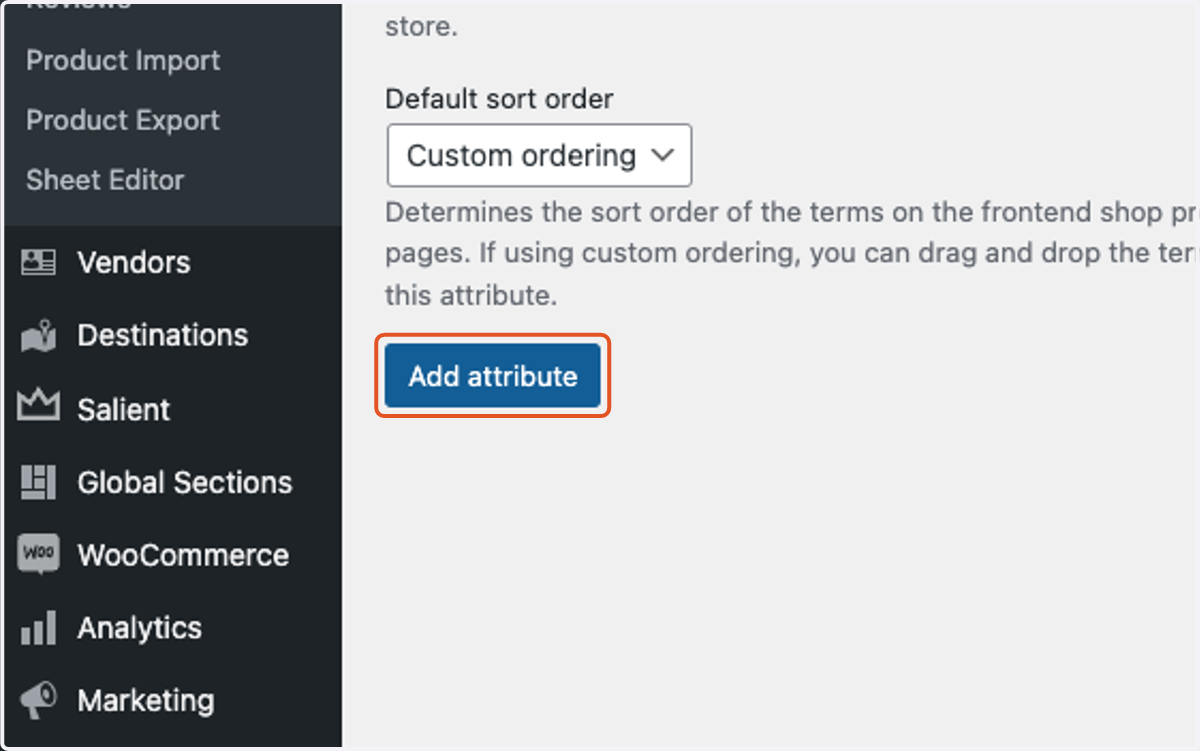
  3. 3. Click on Add attribute.

    Click on Add attribute.
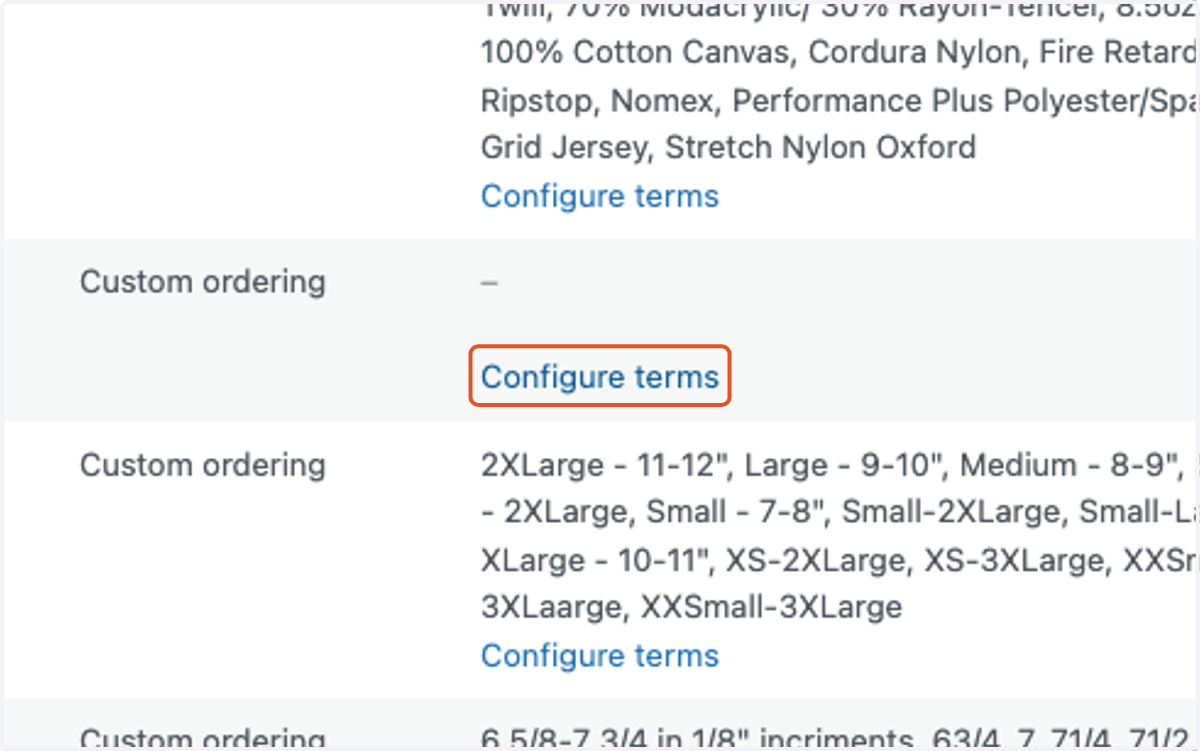
  4. 4. Once the attribute is created, find it in the right hand box and click on Configure terms for that specific attribute.

    Once the attribute is created, find it in the right hand box and click on Configure terms for that specific attribute.
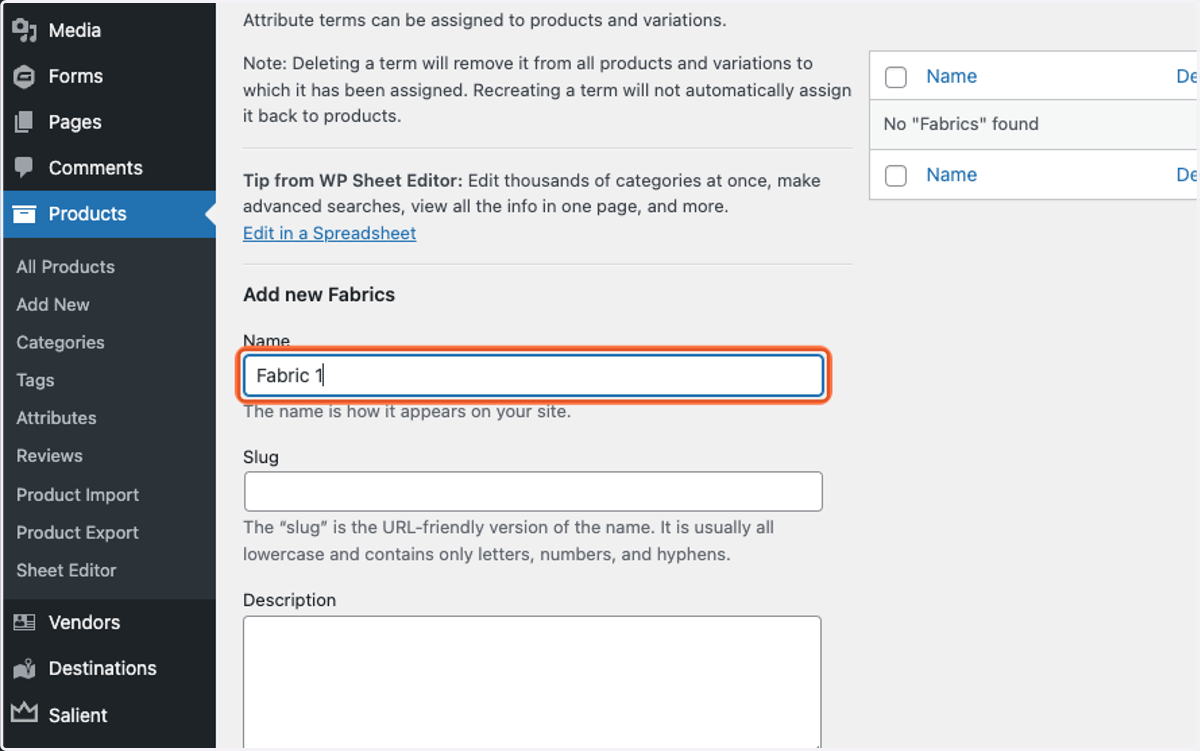
  5. 5. Under the Name field, type out the specific type of attribute (ie. in this case I'm creating configurations for Fabric so I would maybe type in something like 'Cotton' or 'Polyester'.

    Under the Name field, type out the specific type of attribute (ie. in this case I'm creating configurations for Fabric so I would maybe type in something like 'Cotton' or 'Polyester'.
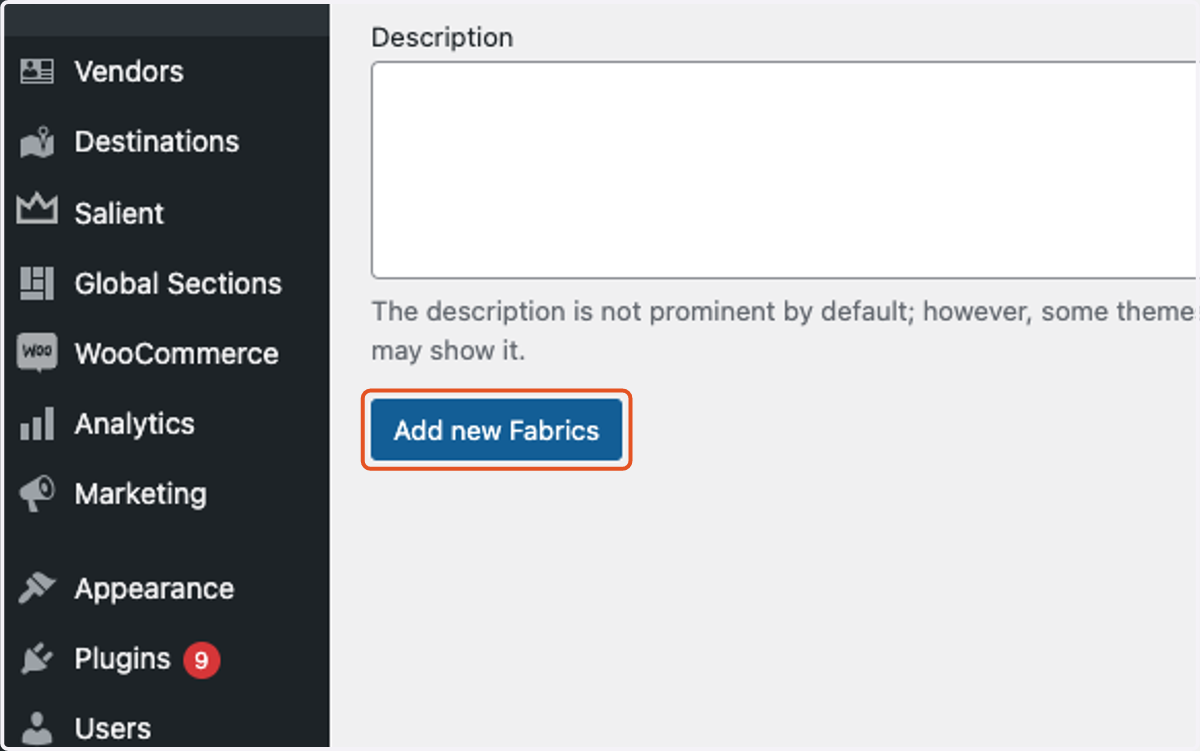
  6. 6. Click on submit.

    Click on submit.
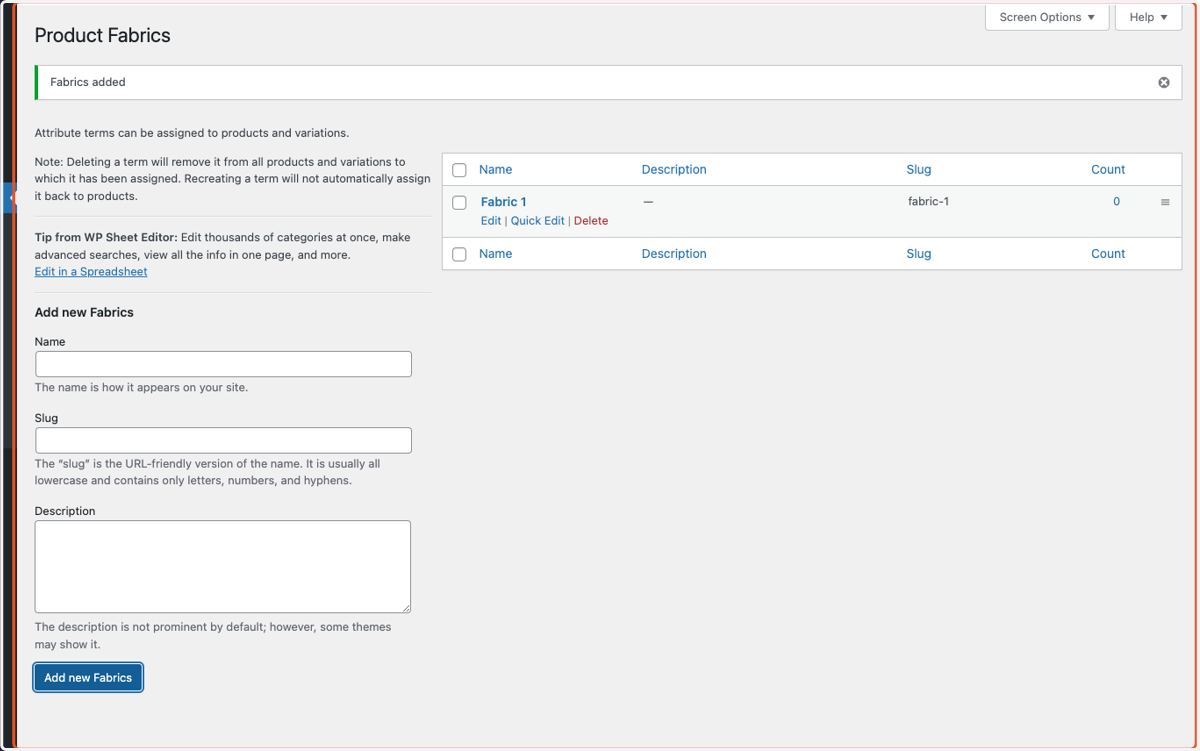
  7. 7. You will see the new configuration pop up in the right box. Repeat these steps until all the configurations have been created for the attribute.
    You will see the new configuration pop up in the right box. Repeat these steps until all the configurations have been created for the attribute.