Adding a Suburb Profile
1. From the Website Module, Click on MEDIA
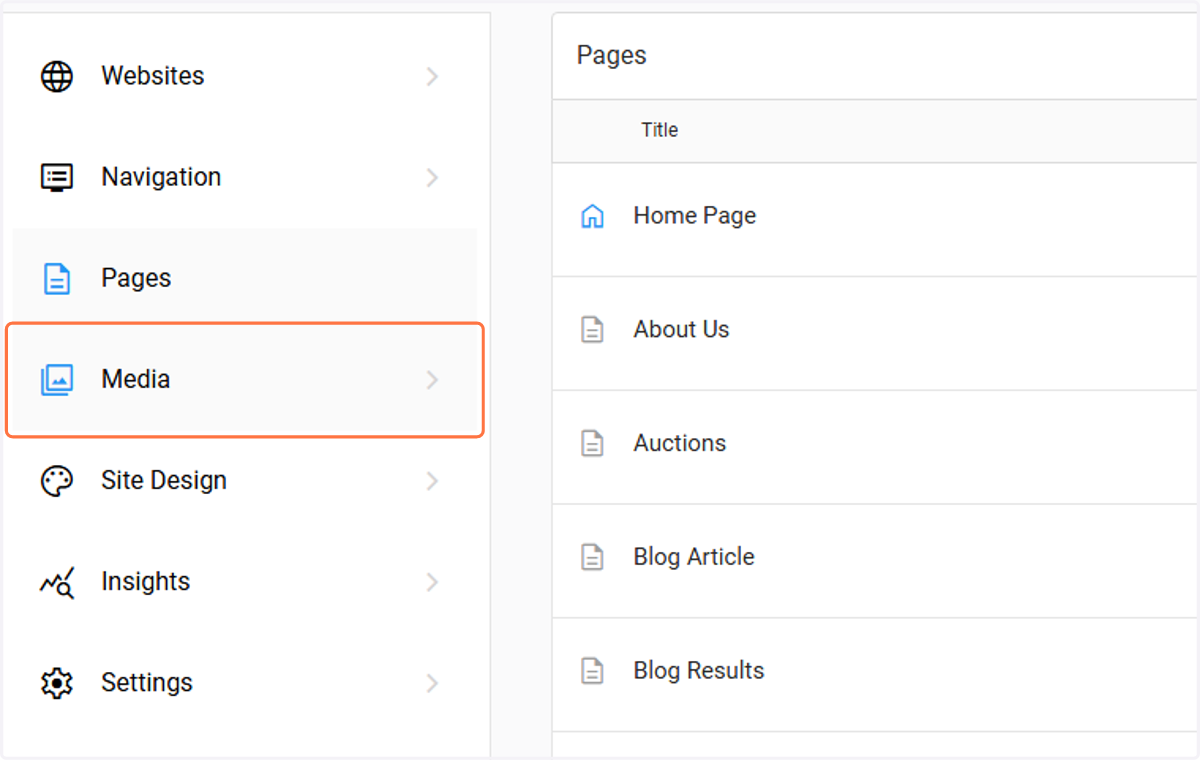
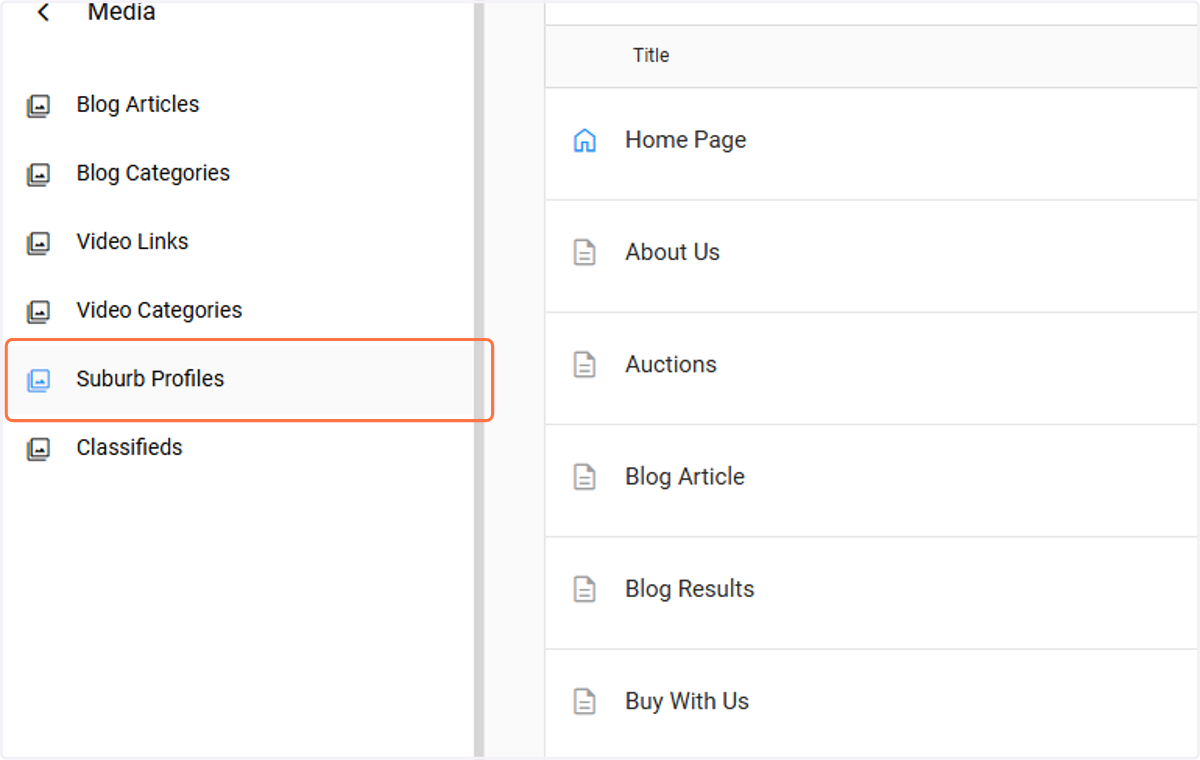
2. Click on and then click on Suburb Profiles
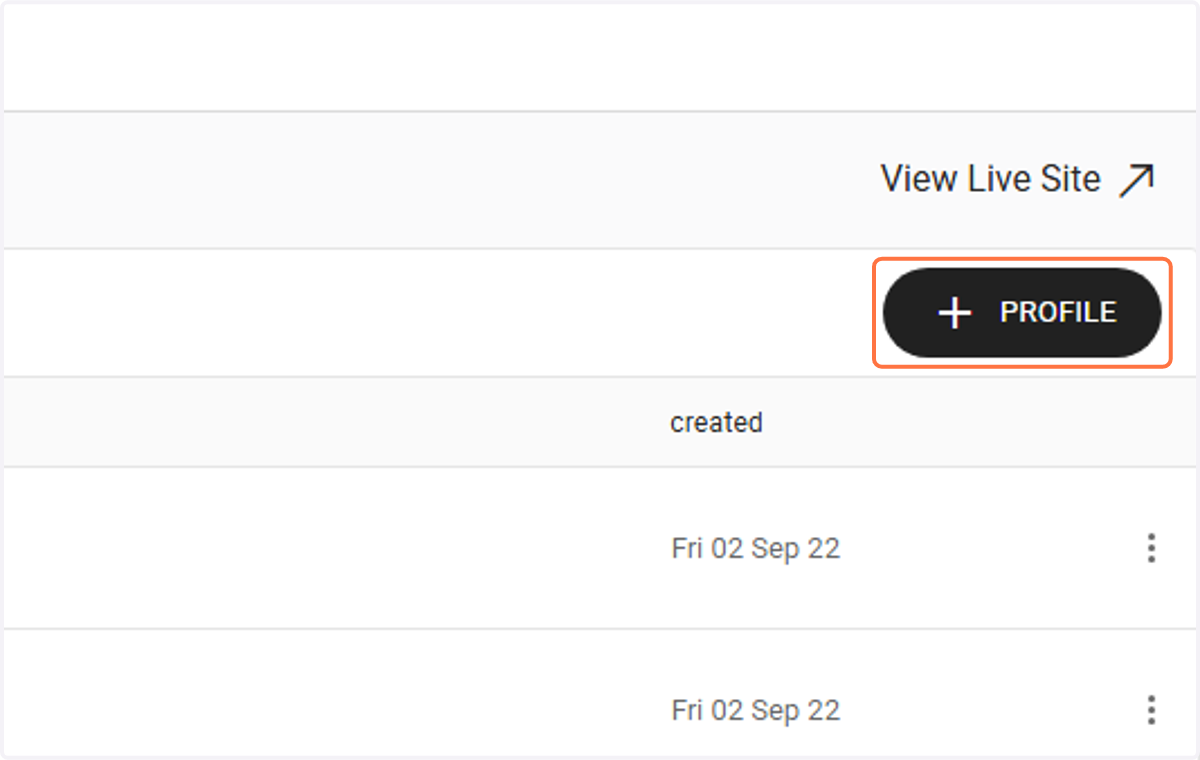
3. Click on + Profile
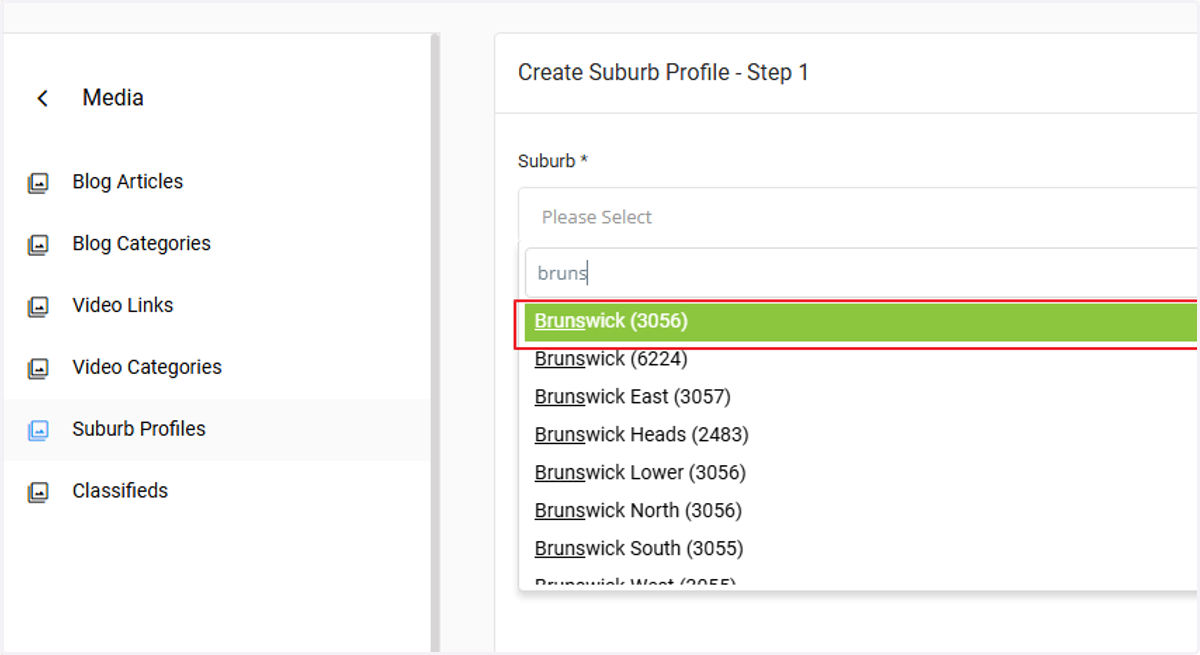
4. Click on Please Select and Type the Suburb name in the Search field. Select the Suburb and Postcode combination that you are wanting to add the Profile for
The example below shows Searching and Selecting Brunswick (3056)
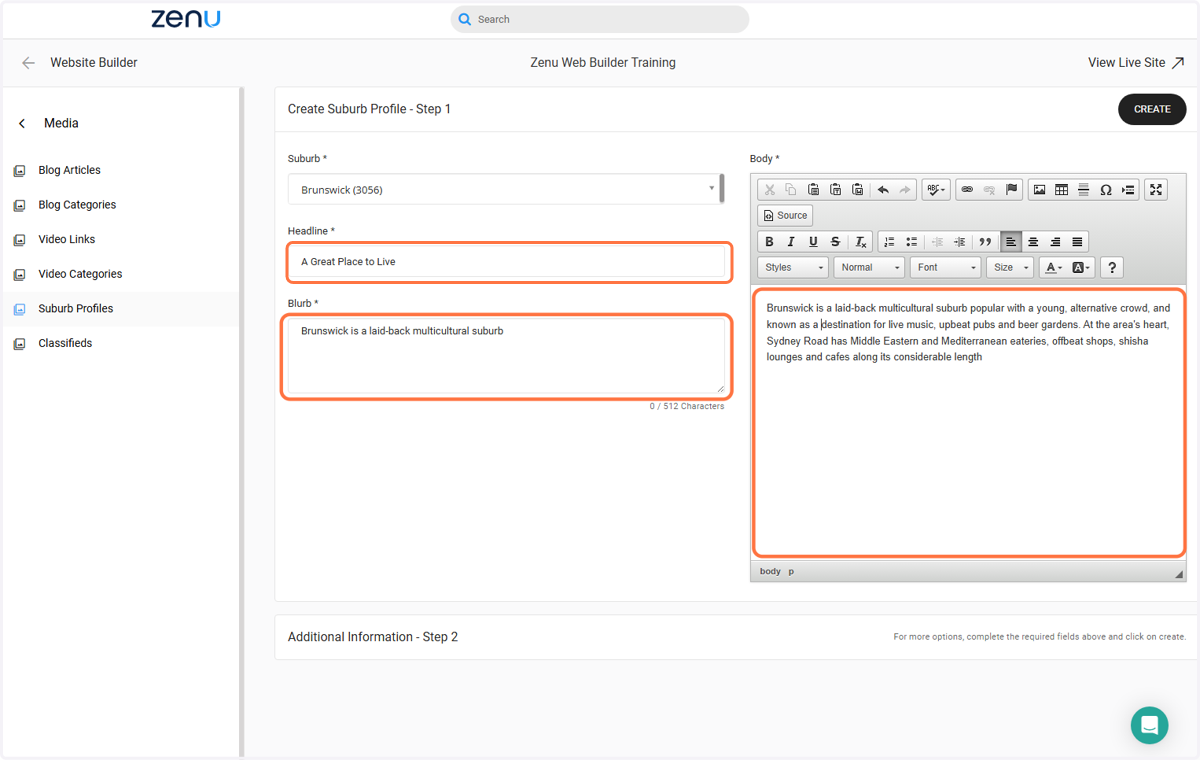
5. Add the Article Headline, Body & Blurb text in the appropriate fields
The Blurb should be a lead into the Body.
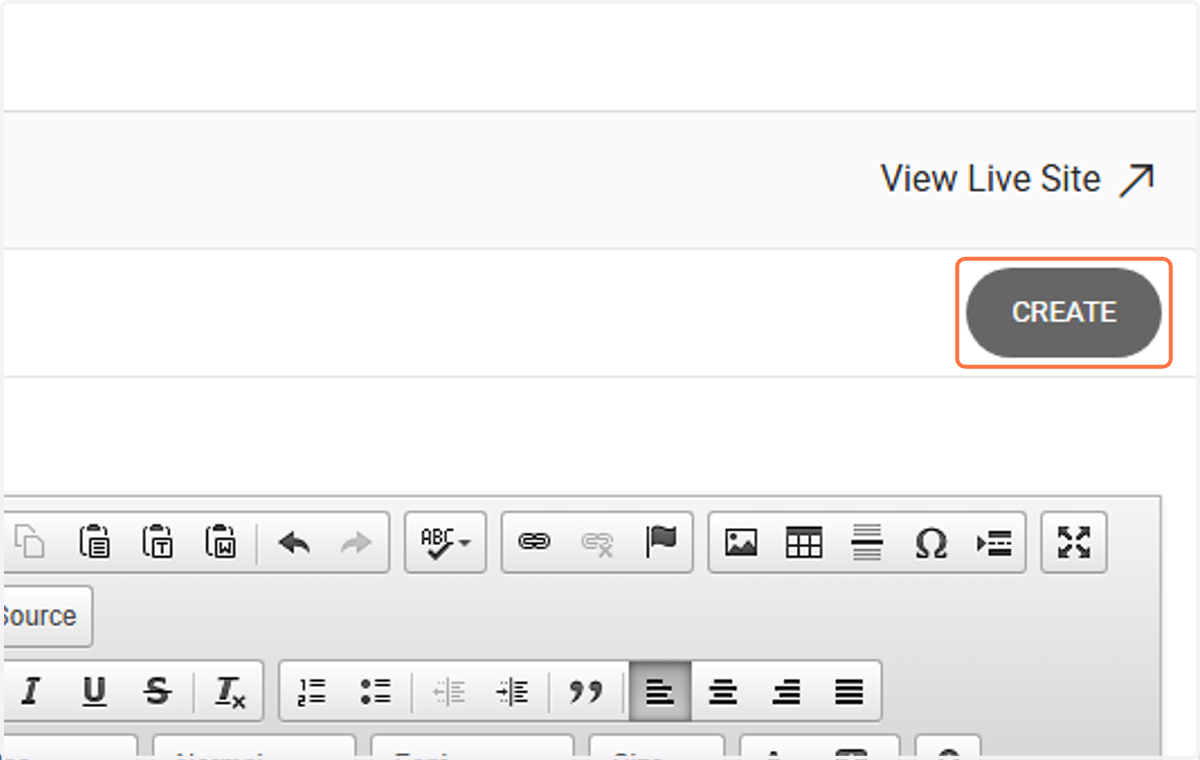
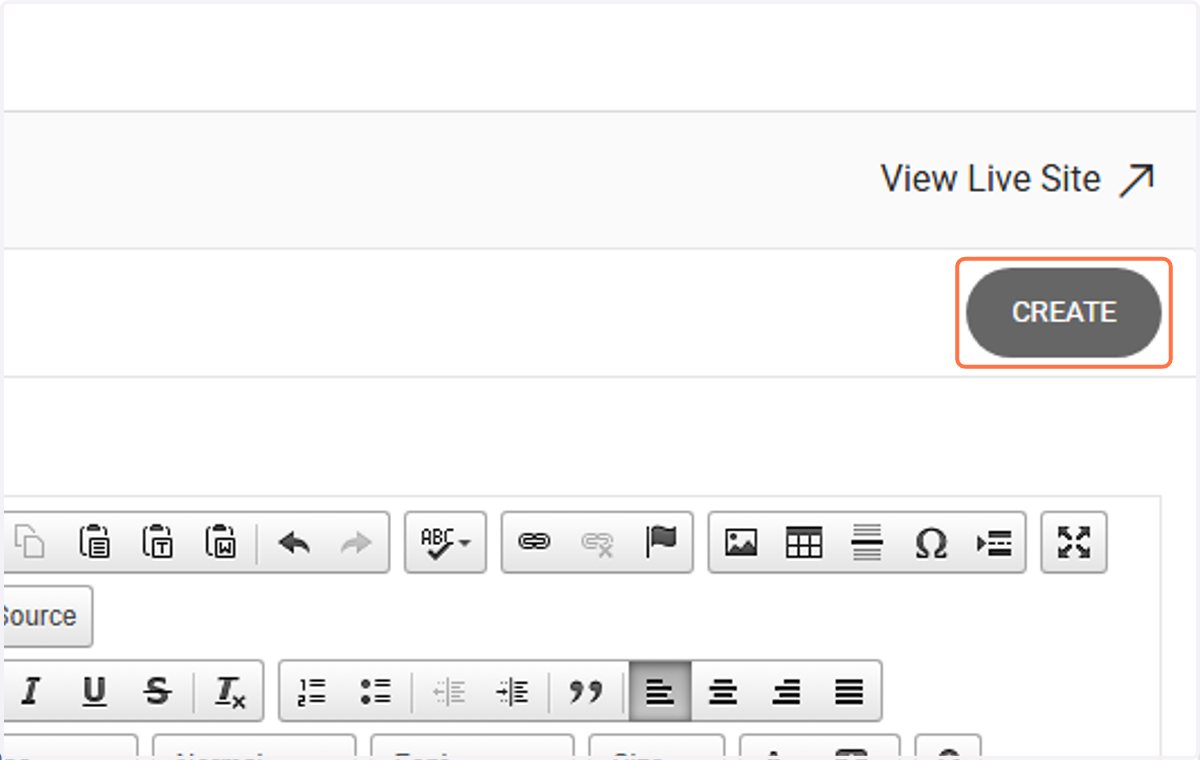
6. Click on CREATE to Save
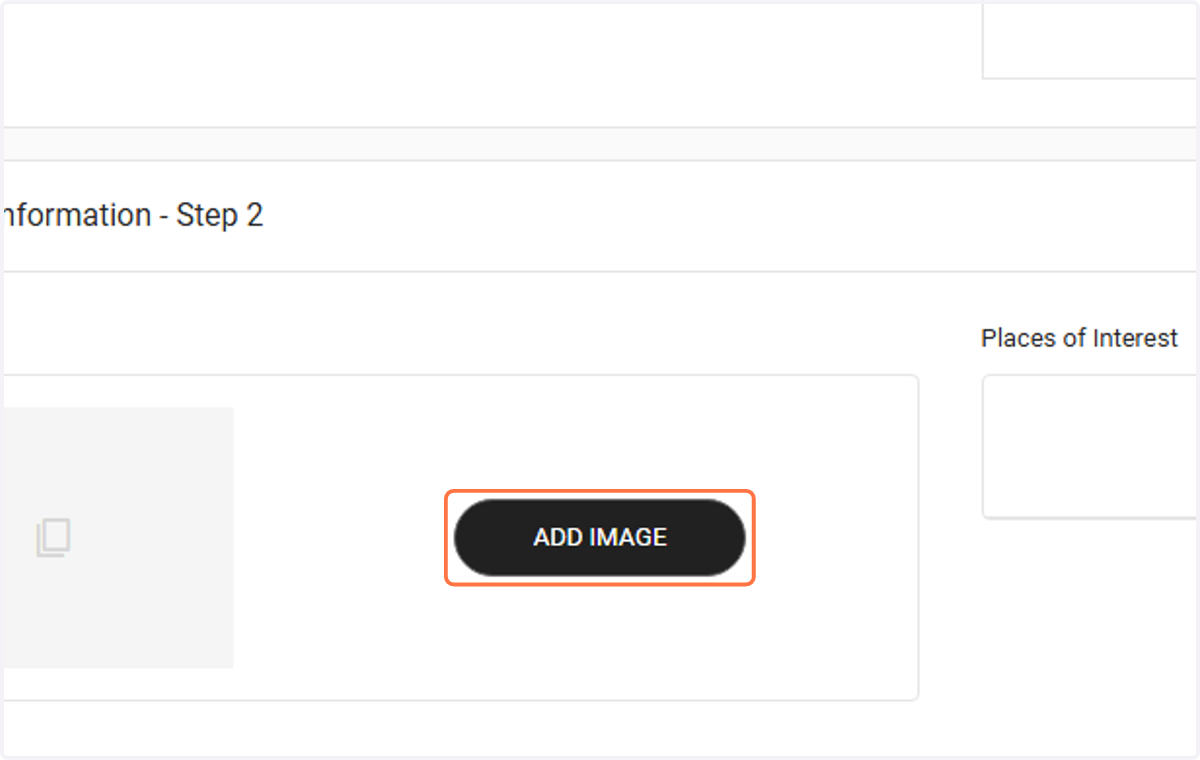
Once the Suburb Profile is Created you can add the image and Places to it
7. Click on ADD IMAGE
8. Click on SELECT FILES
This will open your File Explorer
Find and select the image you want to add to the Profile and Click on Open in your File Explorer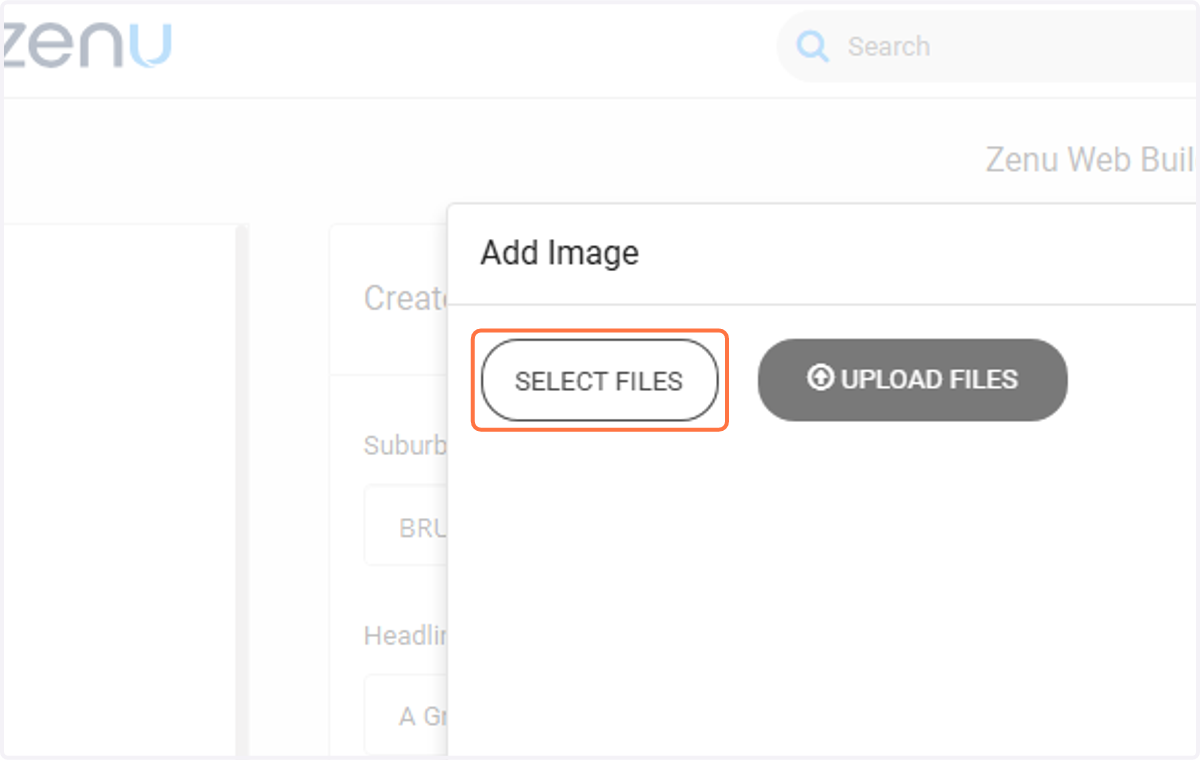
9. Click on UPLOAD FILES
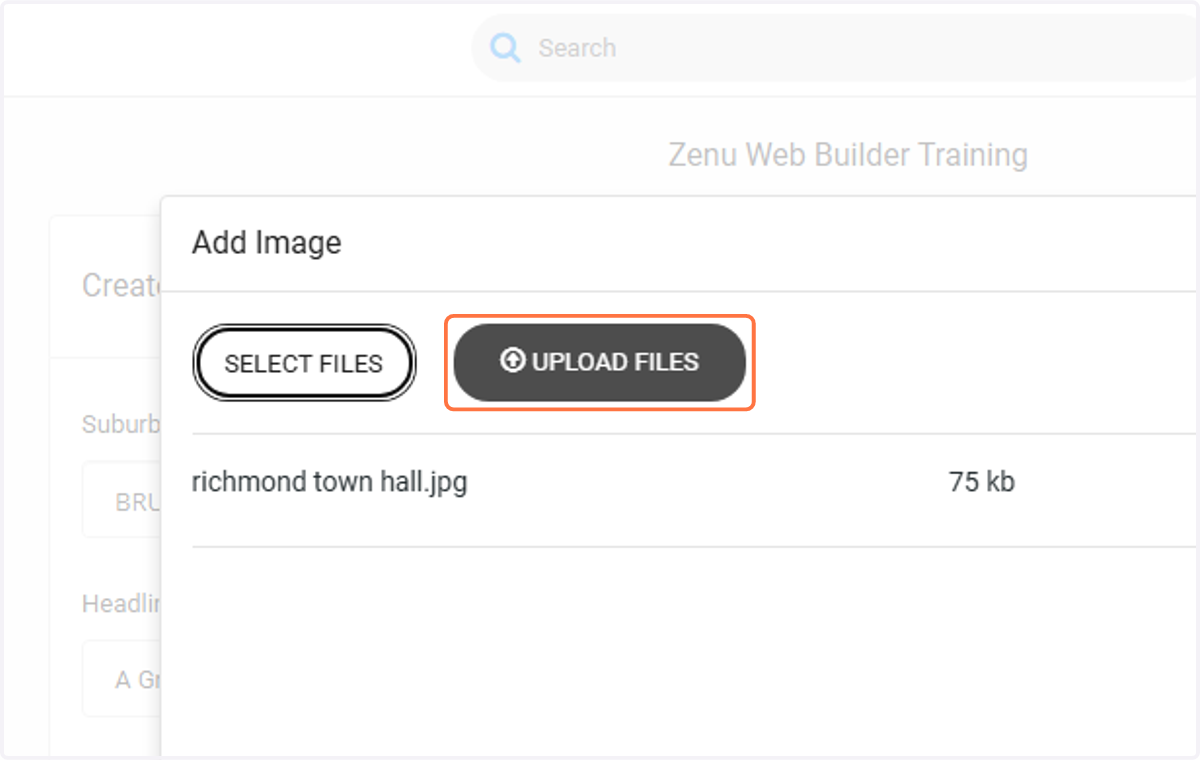
10. The selected image will now be uploaded to the Profile
You can change the image at any time by deleting the existing image and following the steps above to add a new one.
11. You can also add Places of Interest to a Suburb Profile. To add a Place of Interest Click on ADD PLACE Suburb Profiles do not have to have Places. It is your choice to add them or not.
There needs to be a Suburb Profile Place of Interest page to enable the Place to be opened from the Suburb Profile page. If the Place of Interest page does not already exist you will have to create it.
*See the Guide that covers how to Add a New Page to your Website for instructions on creating a new page and select Page Type "Suburb Profile Place of Interest"
12. Add the Place Headline, Body & Blurb text in the appropriate fields
You can also add a link, to the website for the Place, if you want.
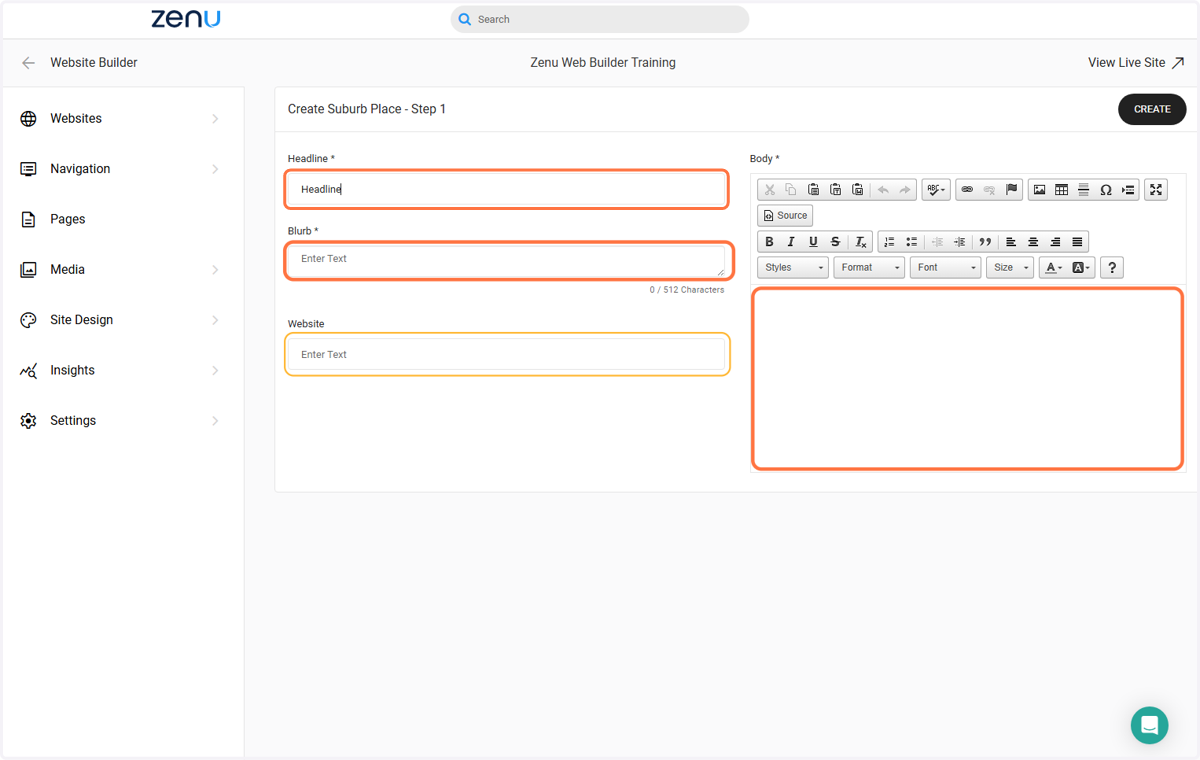
13. Click on CREATE to Save
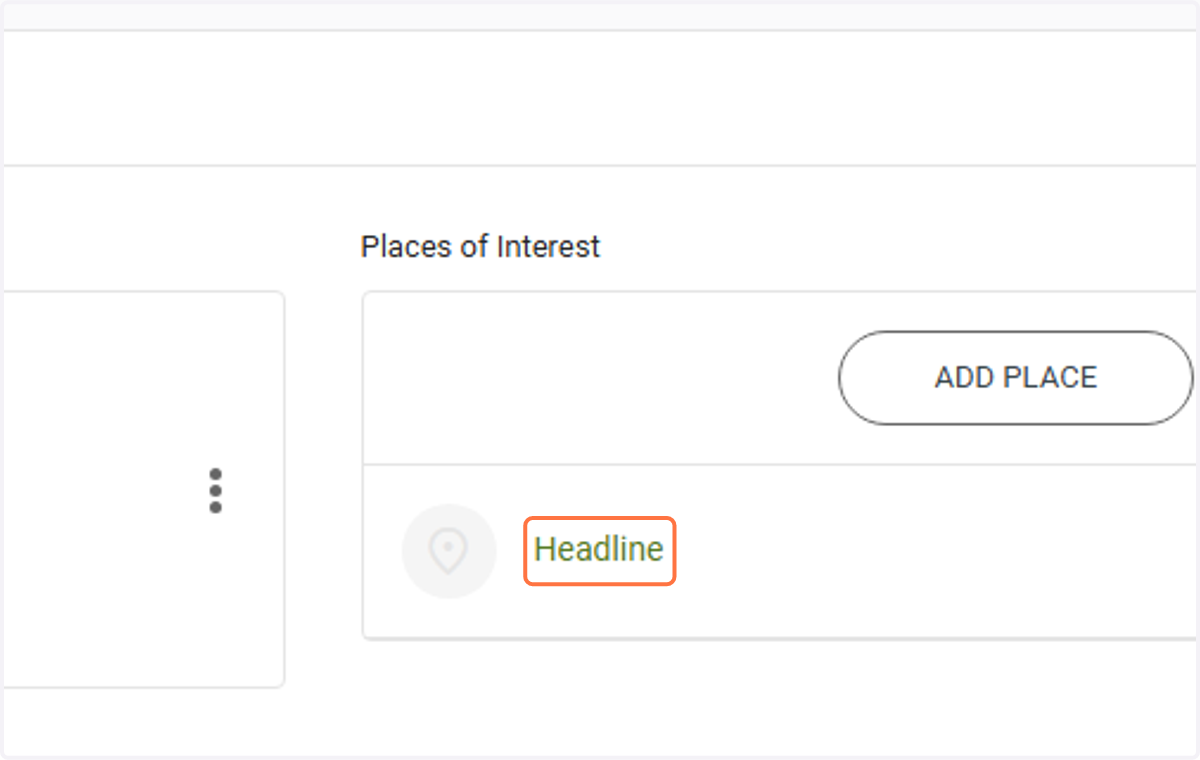
14. To add an Image to the Place of Interest Click on the Place Name (Headline)
15. Click on ADD IMAGE
16. Click on SELECT FILES
This will open your File Explorer
Find and select the image you want to add to the Place and Click on Open in your File Explorer
17. Click on UPLOAD FILES
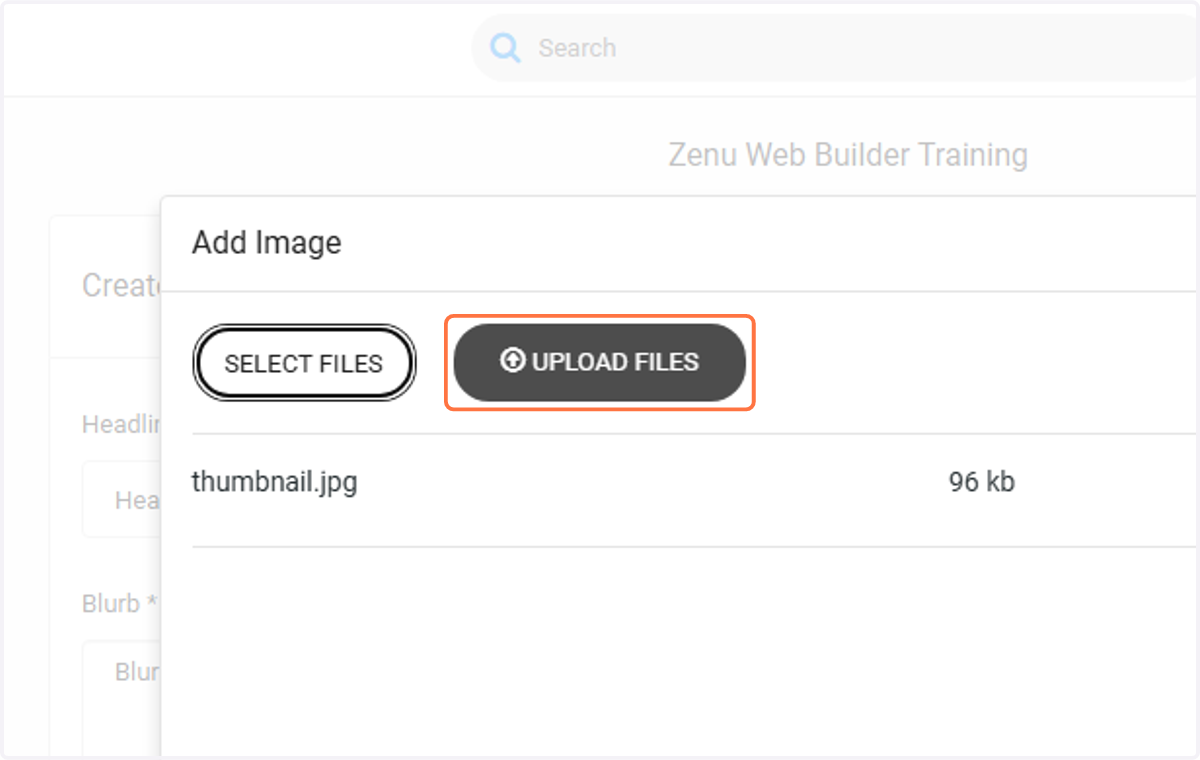
18. The selected image will now be uploaded to the Place
19. Click on SAVE