Adding a QR Code to Flyer
Go to your BETTR Portal
1. Click on My Top Notch ERC Link
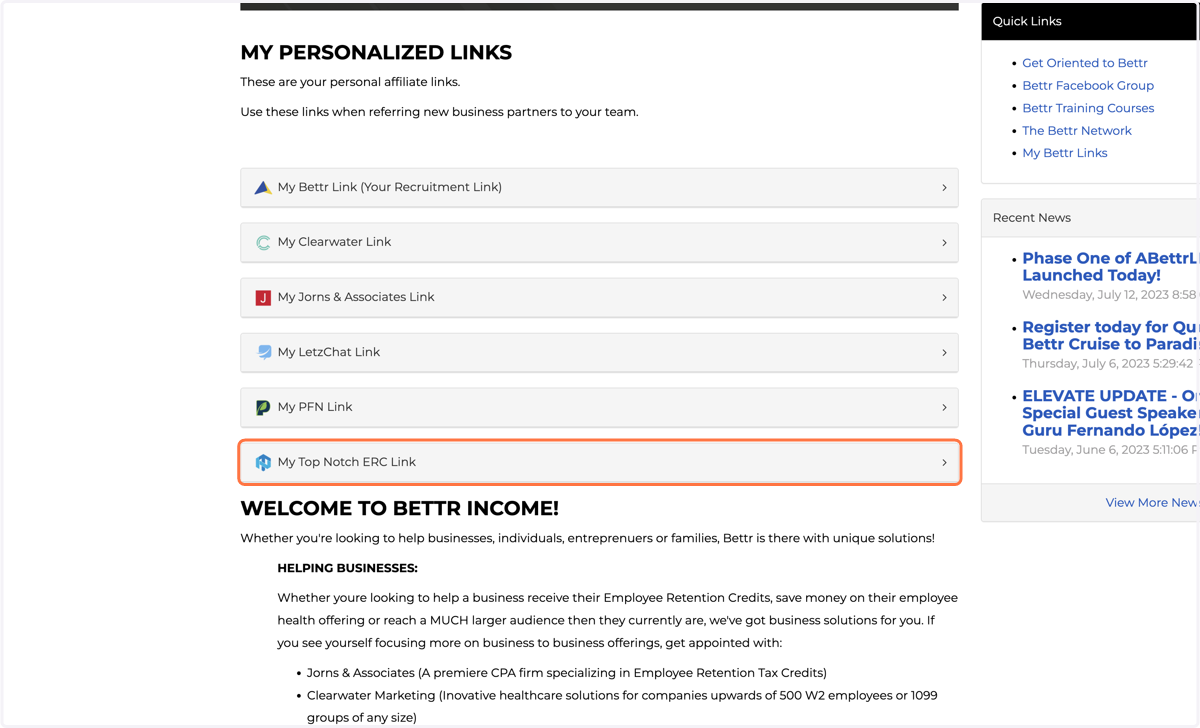
2. Copy your link
Save this for the next step

Top Notch ERC - Flyer
To get the template, click this link:
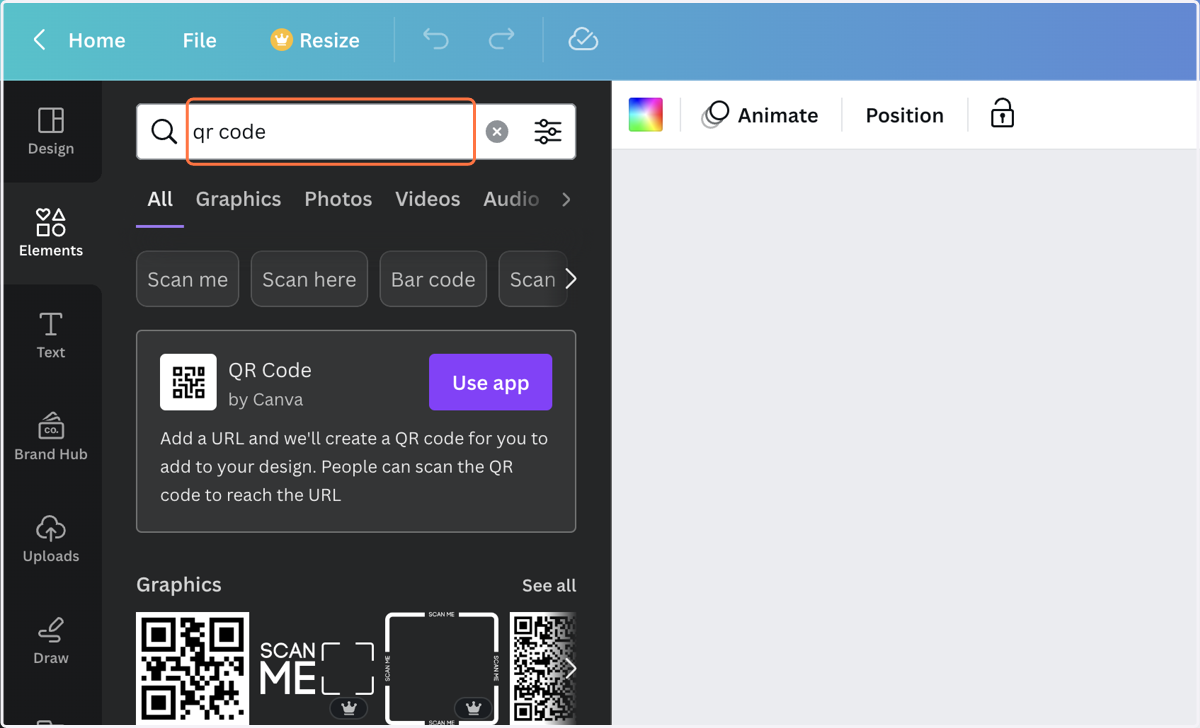
3. Click on Elements and Search for QR Code
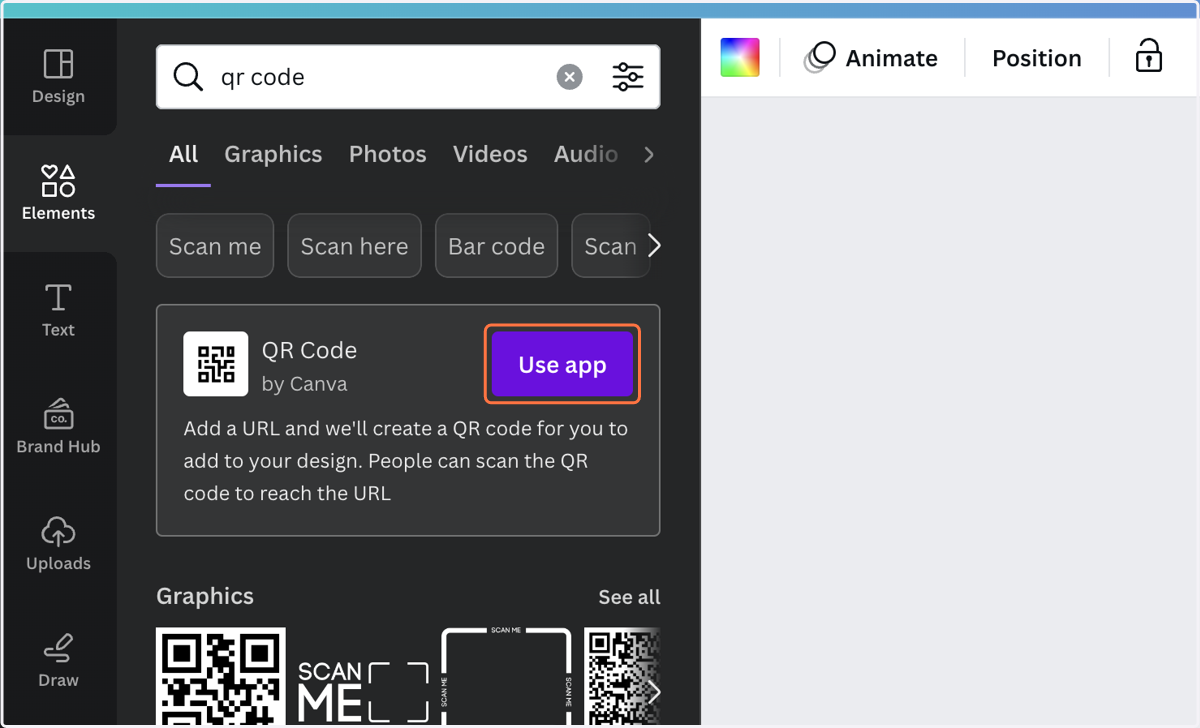
4. Click on Use app
5. Paste your Referral Link
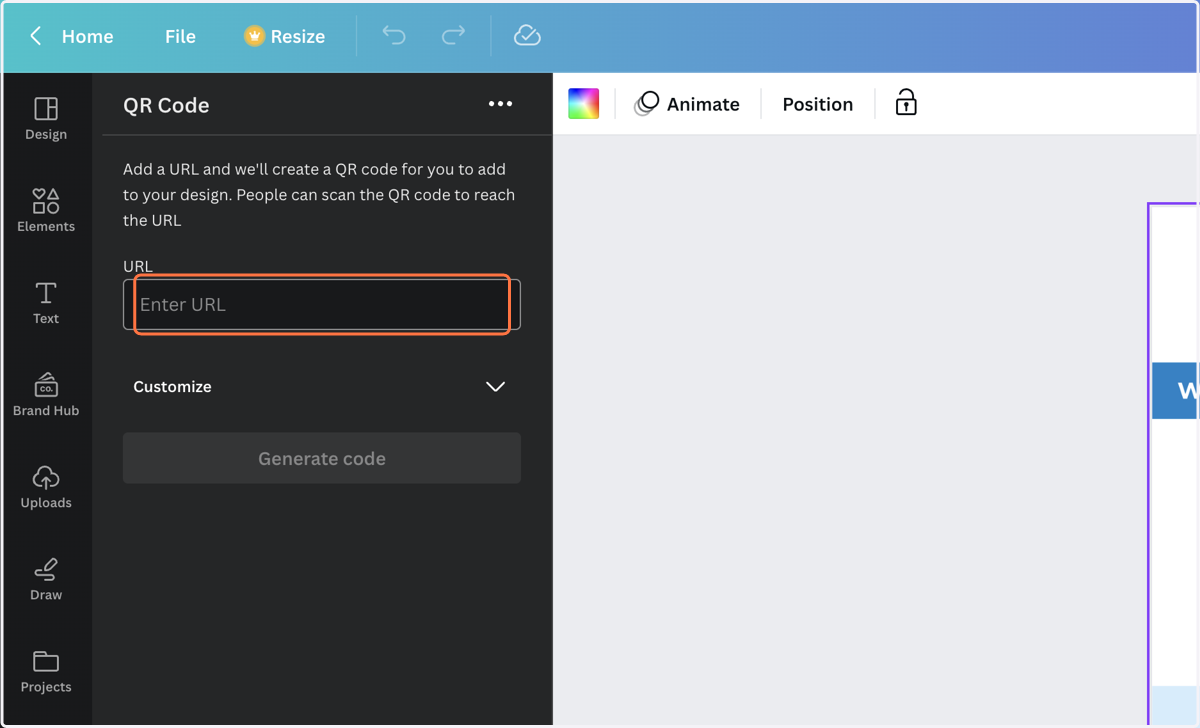
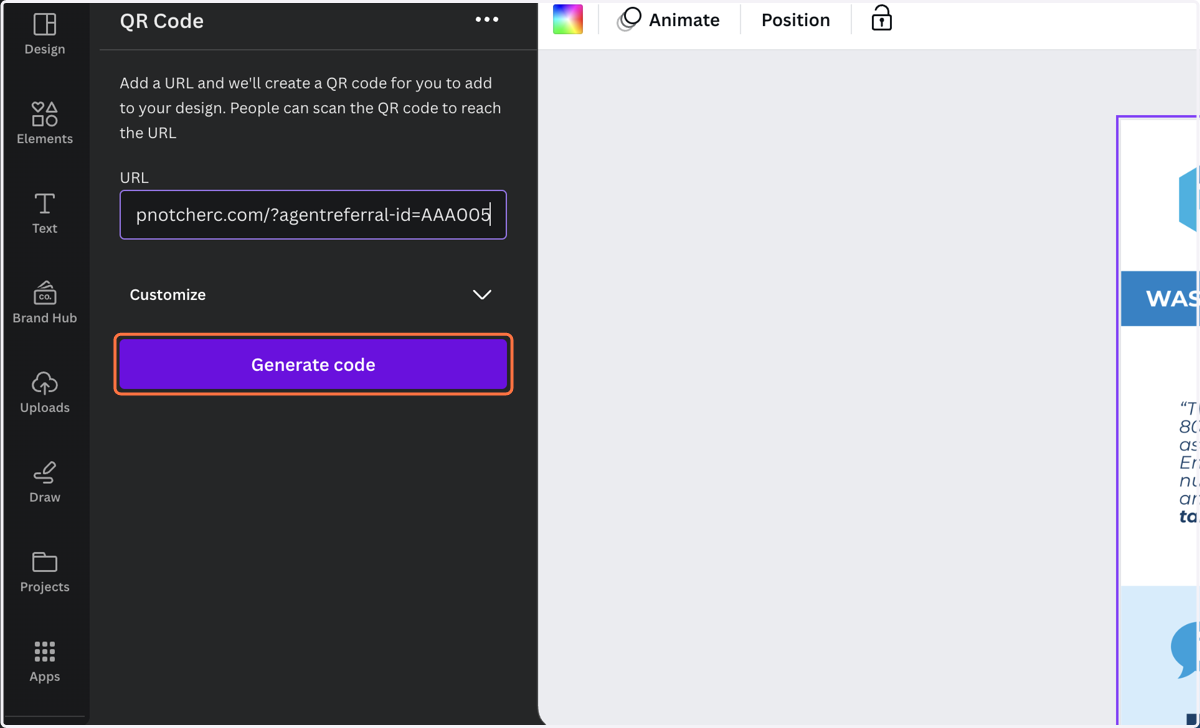
6. Click on Generate code
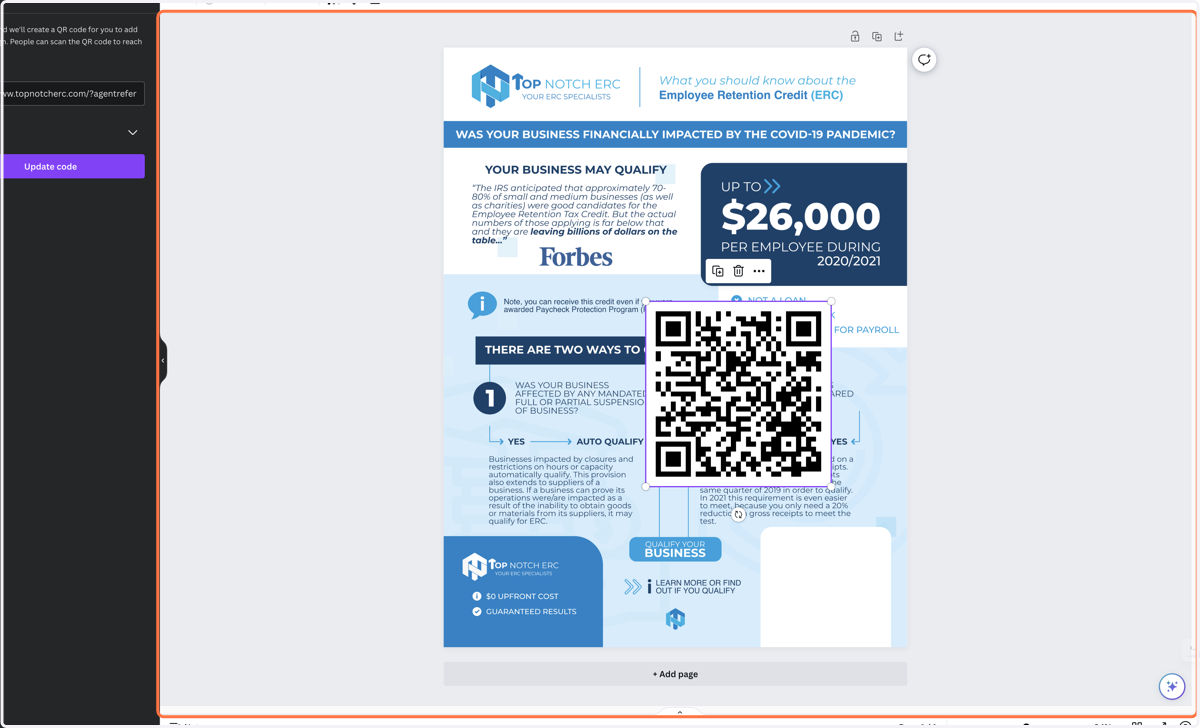
7. Resize and Drag the QR to the location
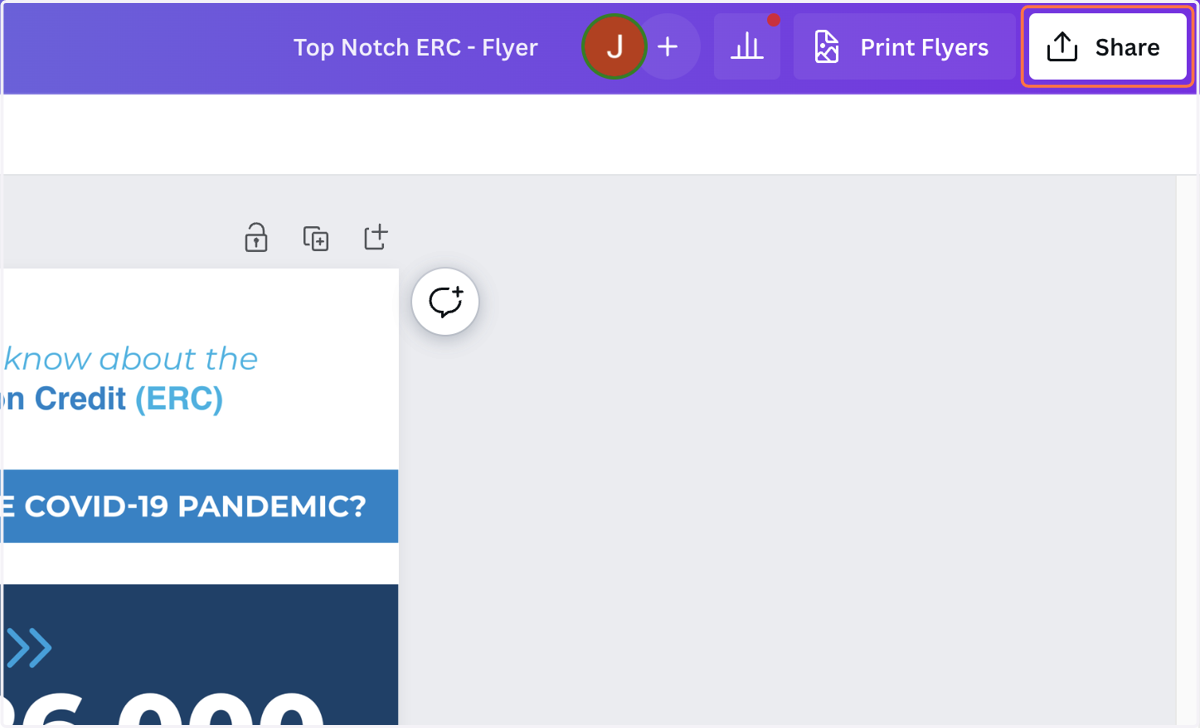
8. Click on Share
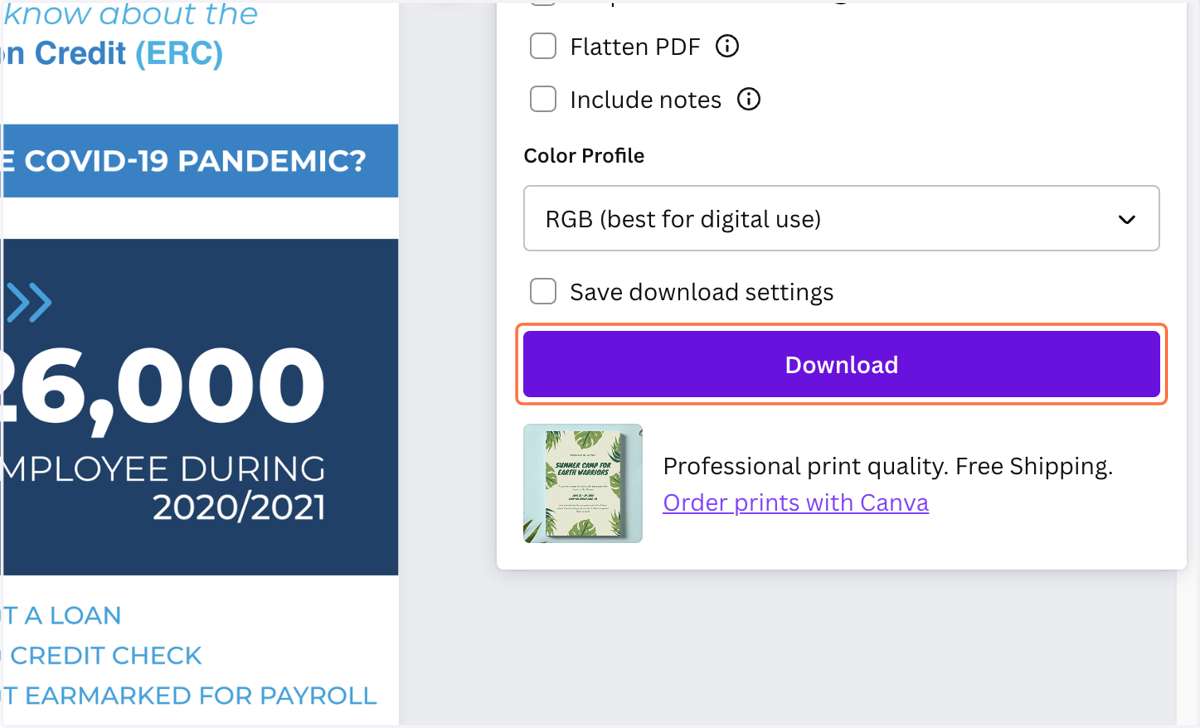
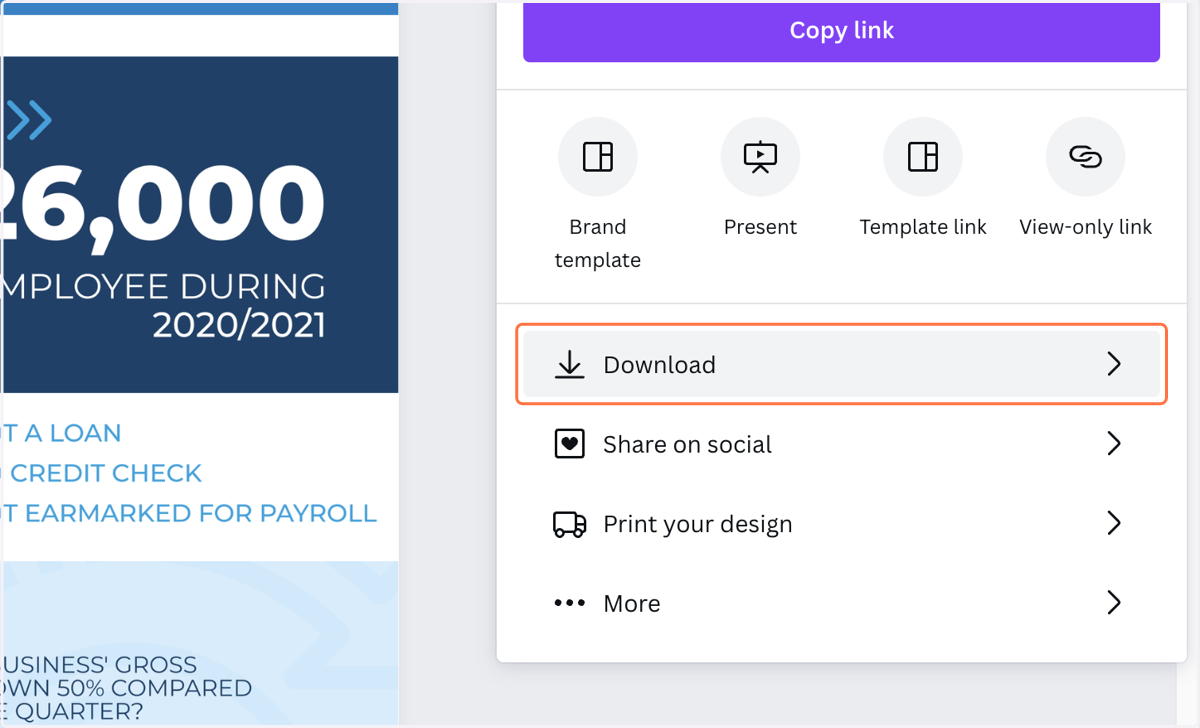
9. Click on Download
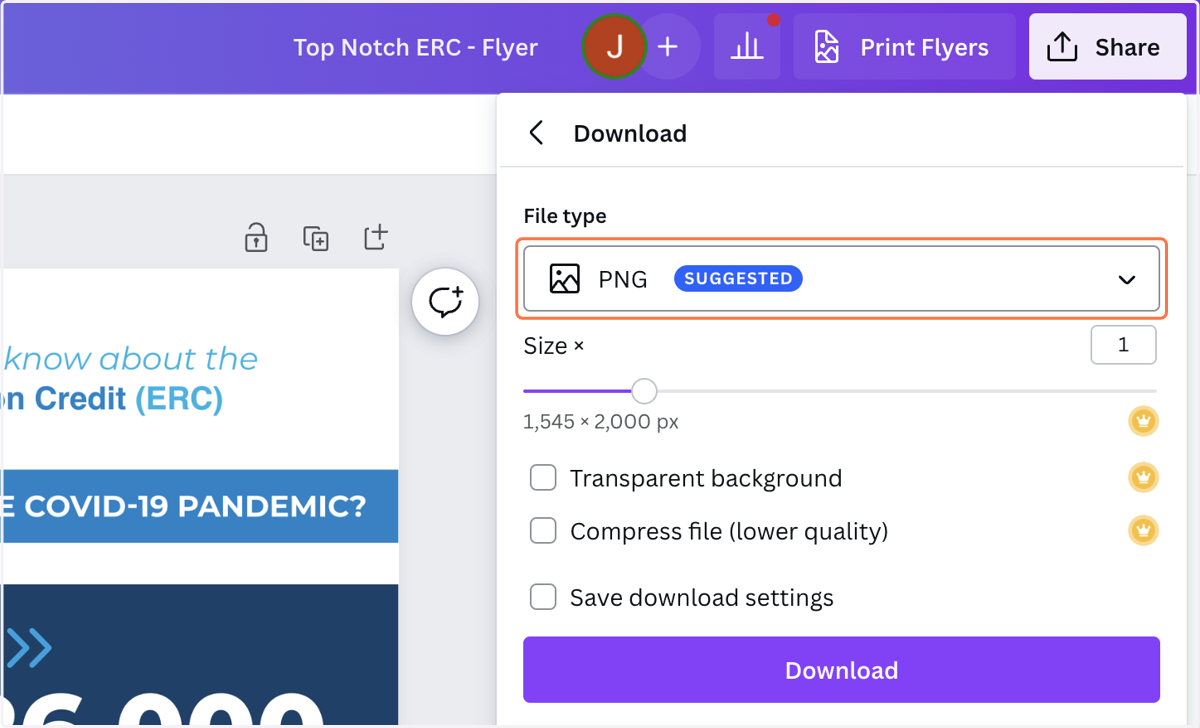
10. Click on File Type
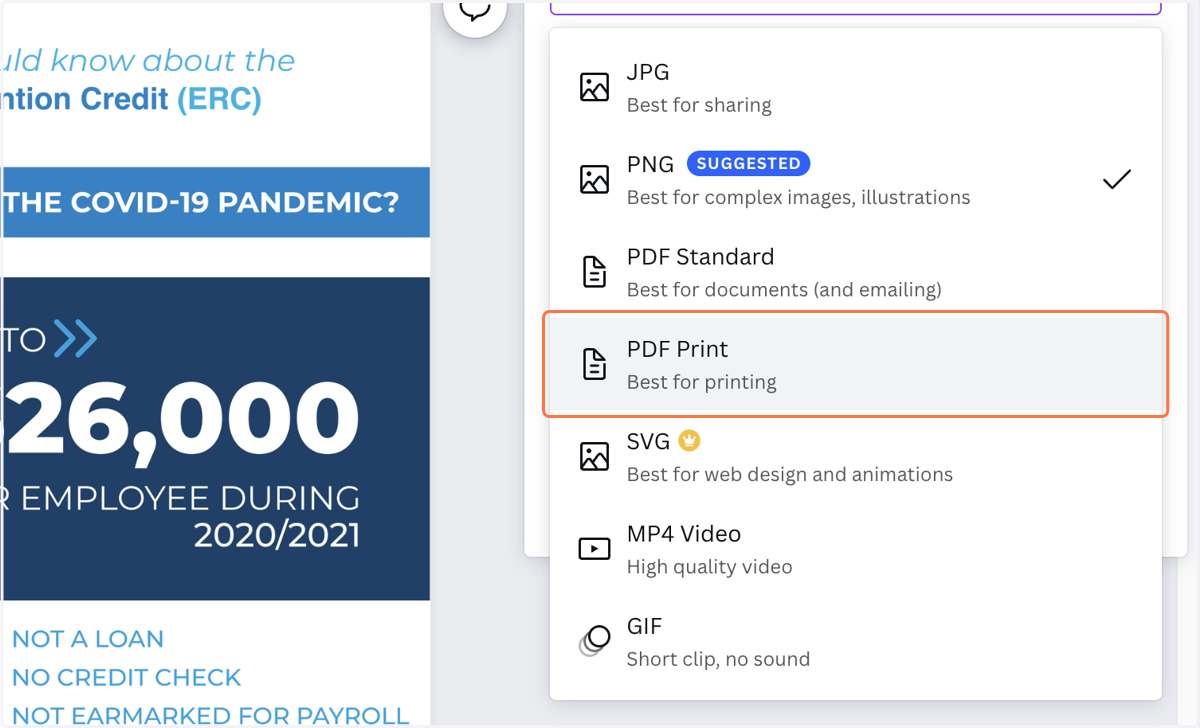
11. Select PDF Print
12. Click on Download